PostgreSQL 18 is a major release of Postgresql. It brings high performance, improved reliability and new features for database management. One of the easiest ways to begin using Postgreqsl 18 is by running it in Docker.
Docker lets you run Postgresql inside a container. This means you do not need to install Postgresql on your computer’s operating system. Using Docker keeps the setup simple. Makes testing, upgrading, and managing environments much easier.
Running Postgresql in Docker has benefits. It allows you to work with an isolated environment. You can run multiple versions of PostgreSQL without conflicts. It also makes it easy to share your setup with others. Everything runs the same way on any machine that supports Docker.
Quick Setup
Check the existing Docker images like this
sudo docker images
Result :
IMAGE ID DISK USAGE CONTENT SIZE EXTRApostgres:18 06cad38a5d9f 650MB 168MB U
If the image is missing, running would automatically download it from Docker Hub before starting the container.
sudo docker run postgres:18
Developers can also install other postgres images like this
sudo docker pull postgres:15
sudo docker pull postgres:16
sudo docker pull postgres:17
This is especially useful when testing application compatibility across multiple postgres versions.
When testing is complete, the container can be removed easily as shown below.
sudo docker rm -f postgres18
No package removal or system cleanup is required.
Docker provides a safe environment for:
- Learning postgres
- Testing extensions
- Benchmarking
- Performance tuning
Step 1: Pull the PostgreSQL 18 Docker Image
Download the official PostgreSQL 18 image.
sudo docker pull postgres:18
Result :
18: Pulling from library/postgres
6310eb16bf42: Pull complete
5ee6c6ca7fd9: Pull complete
6463c6b5c703: Pull complete
a4635eaec9b8: Pull complete
8d6422da287d: Pull complete
c5694bff1357: Pull complete
af2a6480a058: Pull complete
2fc0e69f8d7d: Pull complete
5fa29c524b4e: Pull complete
1bb54e8f7727: Pull complete
aedab7177504: Pull complete
46e663abc8f5: Pull complete
ace4b5b96a91: Pull complete
041cb76c0e1d: Download complete
6ff88415323f: Download complete
Digest: sha256:4ef4dbc939d61acea57712655ddb4b4ab27419c913f94cca0cd57cb3ea3c2280
Status: Downloaded newer image for postgres:18
docker.io/library/postgres:18
Verify that the image is available.
docker images postgres
Example output:
postgres:15
postgres:16
postgres:17
postgres:17-alpine
postgres:18
postgres:latest
Step 2: Start PostgreSQL 18 Container
Create and start a PostgreSQL 18 container.
sudo docker run -d \
  --name postgres18 \
  -e POSTGRES_PASSWORD=postgres \
  -p 5440:5432 \
  postgres:18
Explanation:
| Option | Purpose |
| -d | Run container in background |
| --name postgres18 | Container name |
| POSTGRES_PASSWORD | Password for postgres user |
| -p 5440:5432 | Maps host port 5440 to container port 5432 |
Maps host port 5440 to container port 5432
Step 3: Verify Container Status
Check whether the container is running.
sudo docker ps
Result :
CONTAINER ID   IMAGE         COMMAND                  CREATED              STATUS              PORTS                                         NAMES
1e42dcbb925f   postgres:18   "docker-entrypoint.s..."   About a minute ago   Up About a minute   0.0.0.0:5440->5432/tcp, [::]:5440->5432/tcp   postgres18
The PostgreSQL server is now accessible through port 5440 on the host machine.
Step 4: Enter the Container and connect to postgres
Open a shell inside the container.
sudo docker exec -it postgres18 bash
You should see:
root@1e42dcbb925f:/#
Connect as the postgres user.
root@1e42dcbb925f:/# psql -U postgres
Check the version.
postgres=# select version();
Result :
                                                      version
--------------------------------------------------------------------------------------------------------------------
 PostgreSQL 18.6 (Debian 18.6-1.pgdg13+2) on x86_64-pc-linux-gnu, compiled by gcc (Debian 14.2.0-19) 14.2.0, 64-bit
(1 row)
This confirms that PostgreSQL 18 is running successfully.
Step 5: Find the Data Directory and conf file path
Inside psql, execute:
SHOW data_directory;
Output:
        data_directory
-------------------------------
 /var/lib/postgresql/18/docker
(1 row)
Unlike a native PostgreSQL installation, Docker stores the database cluster inside the container filesystem.
Execute:
SHOW config_file;
Output:
                config_file
-----------------------------------------------
 /var/lib/postgresql/18/docker/postgresql.conf
(1 row)
This confirms that the postgres configuration files are stored inside the container's data directory.
Viewing PostgreSQL Logs
One of the major differences between native postgres and Docker postgres is log management.
Native PostgreSQL Logging
On Linux systems, PostgreSQL logs are often stored in files.
Example:
pg_lsclusters
Output:
Ver Cluster Port Status Owner Data directory Log file
18 main 5432 online postgres
/var/lib/postgresql/18/main
/var/log/postgresql/postgresql-18-main.log
18 second 5434 online postgres
/var/lib/postgresql/18/second
/var/log/postgresql/postgresql-18-second.log
Here, PostgreSQL writes logs directly to log files, and we can open the log file as shown below.
sudo tail -f /var/log/postgresql/postgresql-18-main.log
Result :
2026-08-31 19:52:11.741 IST [1348] LOG:  checkpoint starting: shutdown immediate
2026-08-31 19:52:11.746 IST [1348] LOG:  checkpoint complete: wrote 0 buffers (0.0%); 0 WAL file(s) added, 0 removed, 0 recycled; write=0.002 s, sync=0.001 s, total=0.007 s; sync files=0, longest=0.000 s, average=0.000 s; distance=0 kB, estimate=0 kB; lsn=0/93ED0D0, redo lsn=0/93ED0D0
2026-08-31 19:52:11.758 IST [1328] LOG:  database system is shut down
2026-08-31 19:52:11.946 IST [12557] LOG:  starting PostgreSQL 17.10 (Ubuntu 17.10-1.pgdg22.04+1) on x86_64-pc-linux-gnu, compiled by gcc (Ubuntu 11.4.0-1ubuntu1~22.04.3) 11.4.0, 64-bit
2026-08-31 19:52:11.946 IST [12557] LOG:  listening on IPv4 address "127.0.0.1", port 5434
2026-08-31 19:52:11.947 IST [12557] LOG:  listening on Unix socket "/var/run/postgresql/.s.PGSQL.5434"
2026-08-31 19:52:11.954 IST [12567] LOG:  database system was shut down at 2026-08-31 19:52:11 IST
2026-08-31 19:52:11.964 IST [12557] LOG:  database system is ready to accept connections
2026-08-31 19:57:12.043 IST [12563] LOG:  checkpoint starting: time
2026-08-31 19:57:12.049 IST [12563] LOG:  checkpoint complete: wrote 2 buffers (0.0%); 0 WAL file(s) added, 0 removed, 0 recycled; write=0.001 s, sync=0.001 s, total=0.006 s; sync files=3, longest=0.001 s, average=0.001 s; distance=0 kB, estimate=0 kB; lsn=0/93ED1D8, redo lsn=0/93ED180
Docker PostgreSQL Logging
Docker redirects PostgreSQL logs to the container's standard output stream.
View logs using:
sudo docker logs postgres18
Result :
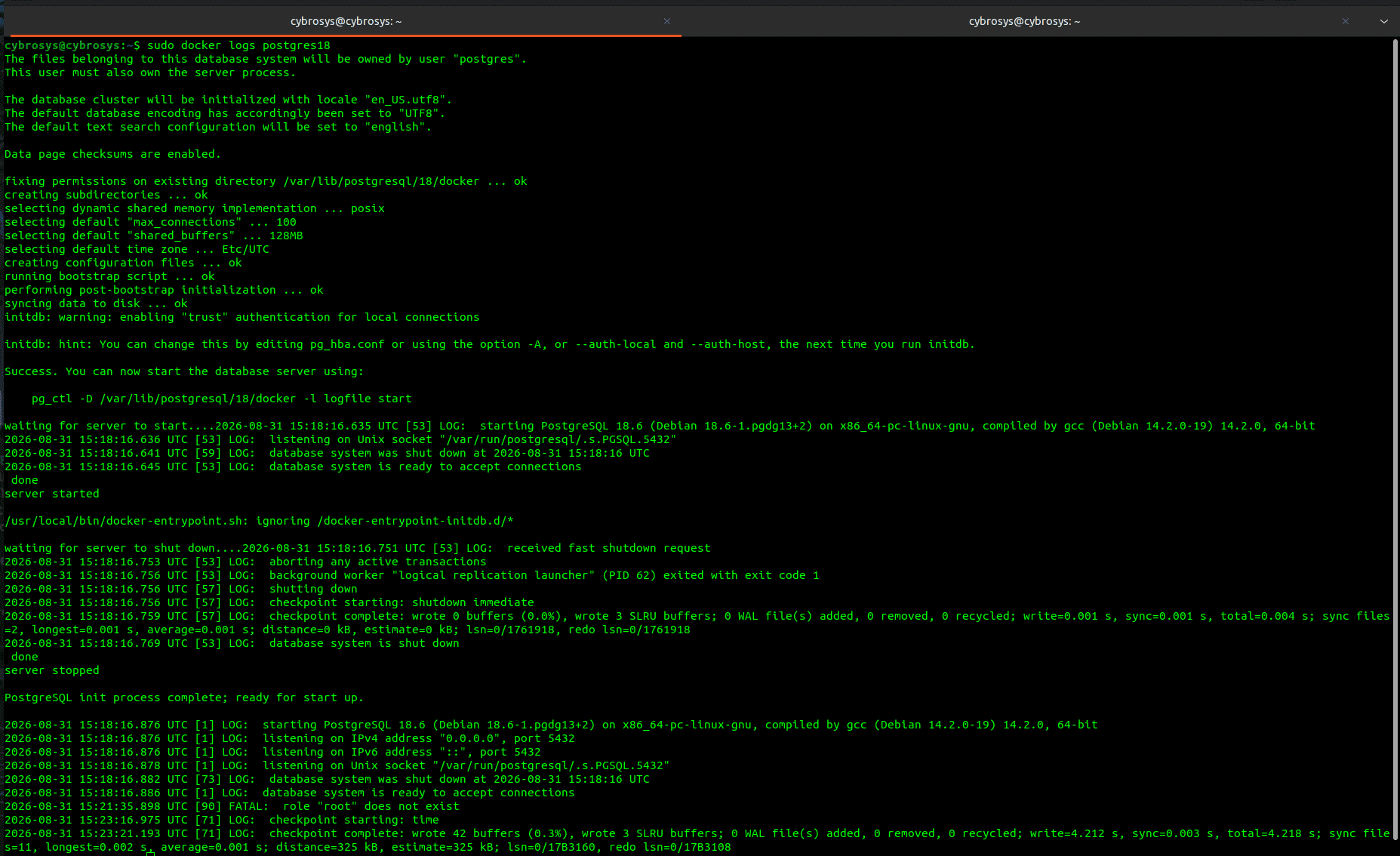
Follow logs in real time:
sudo docker logs -f postgres18
Example output:
PostgreSQL init process complete; ready for start up.
2026-08-31 15:18:16.876 UTC [1] LOG:  starting PostgreSQL 18.6 (Debian 18.6-1.pgdg13+2) on x86_64-pc-linux-gnu, compiled by gcc (Debian 14.2.0-19) 14.2.0, 64-bit
2026-08-31 15:18:16.876 UTC [1] LOG:  listening on IPv4 address "0.0.0.0", port 5432
2026-08-31 15:18:16.876 UTC [1] LOG:  listening on IPv6 address "::", port 5432
2026-08-31 15:18:16.878 UTC [1] LOG:  listening on Unix socket "/var/run/postgresql/.s.PGSQL.5432"
2026-08-31 15:18:16.882 UTC [73] LOG:  database system was shut down at 2026-08-31 15:18:16 UTC
2026-08-31 15:18:16.886 UTC [1] LOG:  database system is ready to accept connections
2026-08-31 15:21:35.898 UTC [90] FATAL:  role "root" does not exist
2026-08-31 15:23:16.975 UTC [71] LOG:  checkpoint starting: time
2026-08-31 15:23:21.193 UTC [71] LOG:  checkpoint complete: wrote 42 buffers (0.3%), wrote 3 SLRU buffers; 0 WAL file(s) added, 0 removed, 0 recycled; write=4.212 s, sync=0.003 s, total=4.218 s; sync files=11, longest=0.002 s, average=0.001 s; distance=325 kB, estimate=325 kB; lsn=0/17B3160, redo lsn=0/17B3108
This eliminates the need to locate the postgres log files manually.
Docker automatically captures and manages container logs.
Installing pg_stat_statements
pg_stat_statements is one of the most useful postgres extensions.
It tracks:
- Query execution statistics
- Execution count
- Planning time
- Execution time
- Block reads
- Block writes
- JIT usage
Create the extension:
CREATE EXTENSION pg_stat_statements;
Verify:
\dx
Output:
                                                    List of installed extensions
        Name        | Version | Default version |   Schema   |                              Description
--------------------+---------+-----------------+------------+------------------------------------------------------------------------
 pg_stat_statements | 1.12    | 1.12            | public     | track planning and execution statistics of all SQL statements executed
 plpgsql            | 1.0     | 1.0             | pg_catalog | PL/pgSQL procedural language
When executing:
SELECT * FROM pg_stat_statements;
We get an error like this.
ERROR:
pg_stat_statements must be loaded via "shared_preload_libraries"
This happens because pg_stat_statements requires server startup initialization.
Creating the extension alone is not enough.
Configure shared_preload_libraries
Check current value:
SHOW shared_preload_libraries;
Output:
shared_preload_libraries
--------------------------

(1 row)
Set the parameter:
ALTER SYSTEM SET shared_preload_libraries =
'pg_stat_statements';
Reload configuration:
SELECT pg_reload_conf();
However, the value remains unchanged because shared_preload_libraries is a startup parameter.
It requires a postgres restart.
Restart PostgreSQL Docker Container
Exit psql and restart the container.
sudo docker restart postgres18
Now, check the Docker image status
sudo docker ps
Result :
CONTAINER ID   IMAGE         COMMAND                  CREATED          STATUS         PORTS                                         NAMES
1e42dcbb925f   postgres:18   "docker-entrypoint.s..."   14 minutes ago   Up 3 seconds   0.0.0.0:5440->5432/tcp, [::]:5440->5432/tcp   postgres18
Reconnect.
sudo docker exec -it postgres18 bash
root@1e42dcbb925f:/# psql -U postgres
Verify:
SHOW shared_preload_libraries;
Output:
shared_preload_libraries
--------------------------
 pg_stat_statements
(1 row)
Now, the extension works correctly.
Querying pg_stat_statements
Run:
SELECT * FROM pg_stat_statements LIMIT 1;
We can see the statistics such as:
- Calls
- Total_exec_time
- Mean_exec_time
- Shared_blks_hit
- Shared_blks_read
- Wal_records
- wal_bytes
These metrics are extremely useful for:
- Query tuning
- Performance analysis
- Odoo optimization
- PostgreSQL benchmarking
Docker provides one of the fastest and cleanest ways to start working with PostgreSQL 18. With just a few commands, you can download the PostgreSQL image, create a container, connect to the database, inspect configuration files, view logs, and enable powerful extensions such as pg_stat_statements.
For developers working with PostgreSQL internals, performance tuning, Odoo optimization, benchmarking, or extension development, Docker offers a lightweight, reproducible environment that can be created and destroyed in seconds.
By using Docker, you can run multiple PostgreSQL versions simultaneously, test new features safely, and maintain a clean development environment without affecting existing PostgreSQL installations on your system.