Shift Templates in Odoo 18 streamline workforce scheduling by defining reusable work patterns. They help businesses standardize shift structures, automate planning, and reduce manual effort. Once configured, these templates allow managers to generate consistent schedules quickly, improve resource allocation, and maintain operational efficiency across teams and departments.
In Odoo 18, we have two methods for configuring the shift templates. So let’s dive into it. Initially, navigate to the Planning Module; it will open in the view of the schedule. From this view, we can get the employees for an entire week.
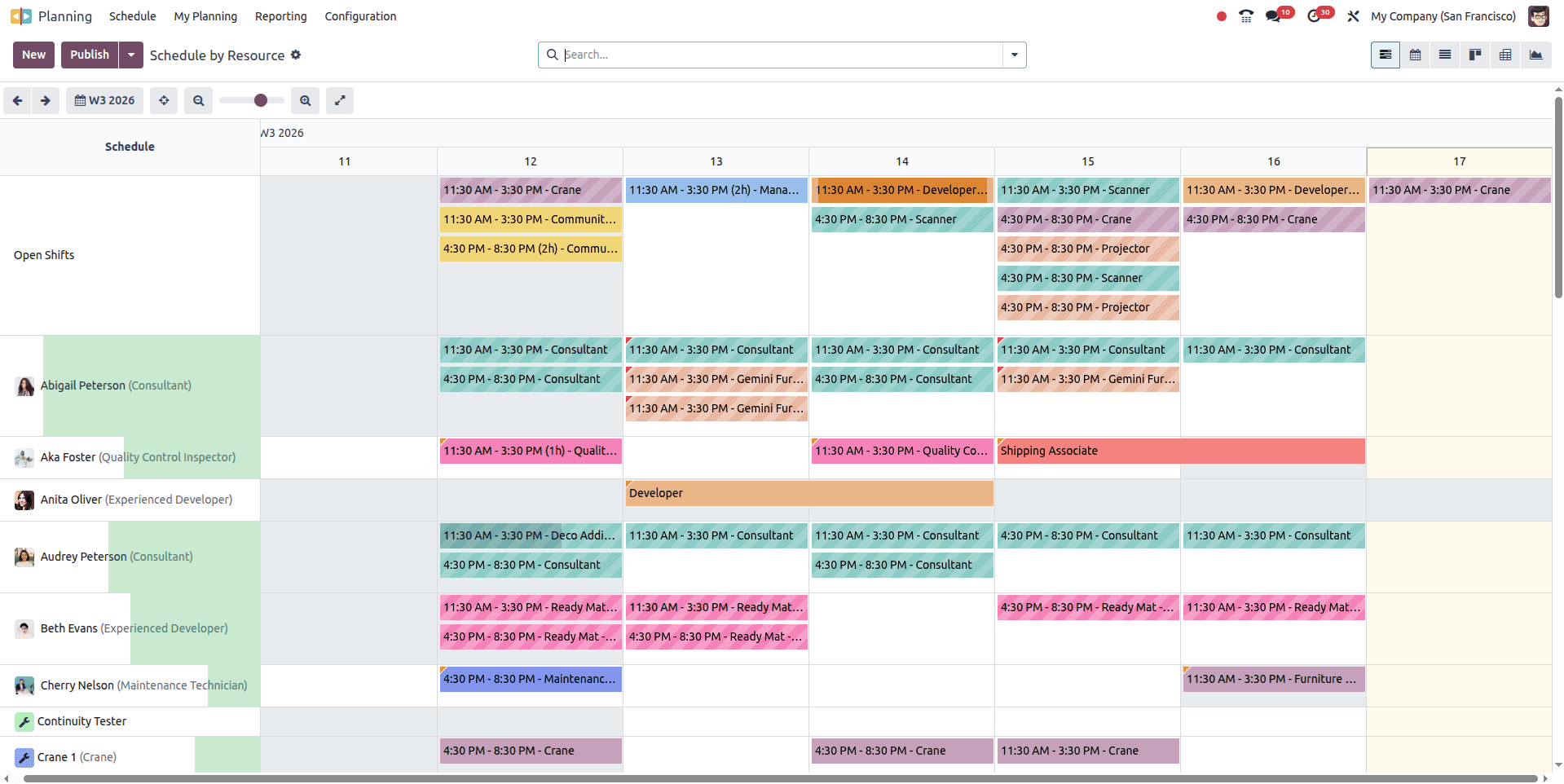
The first method is to create a shift template from the schedule menu. For that, click on the new button in the schedule. Then it will open up an Add Shift Wizard.
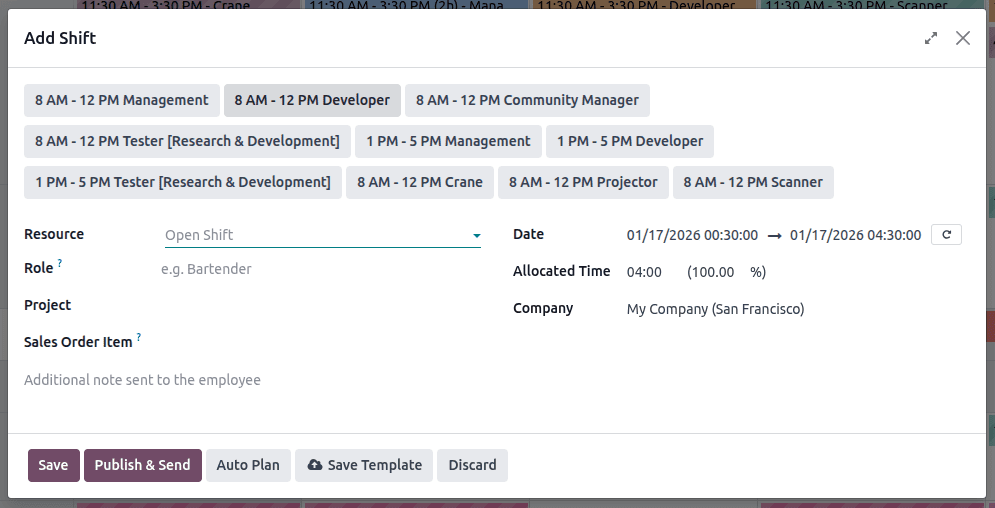
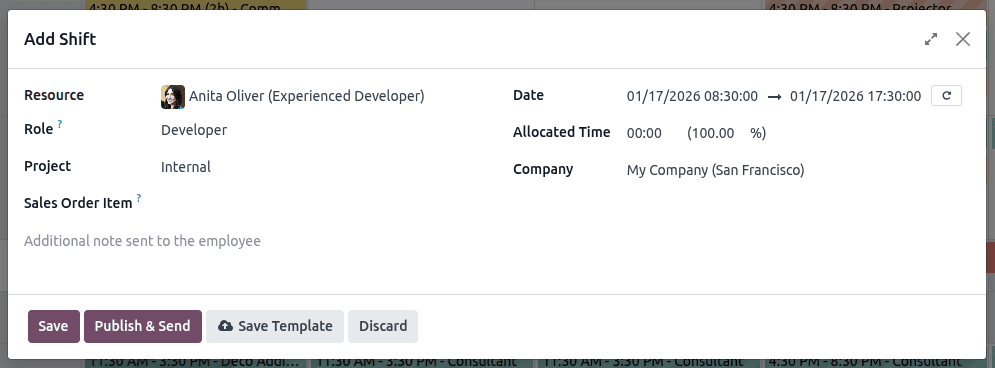
In the top section, you can see the predefined templates, and below that, the fields for adding a shift. Add a resource, Role, Project, Date, and you can save the shift by clicking on the save button. Otherwise, you can save this shift as a Shift template for future use by clicking on the Save Template button.
The second method is to directly create a shift template from the configuration menu. Select "Shift Template" from the Configuration menu.

Here are the already added shift templates; by clicking on the new button, we can add a new shift template.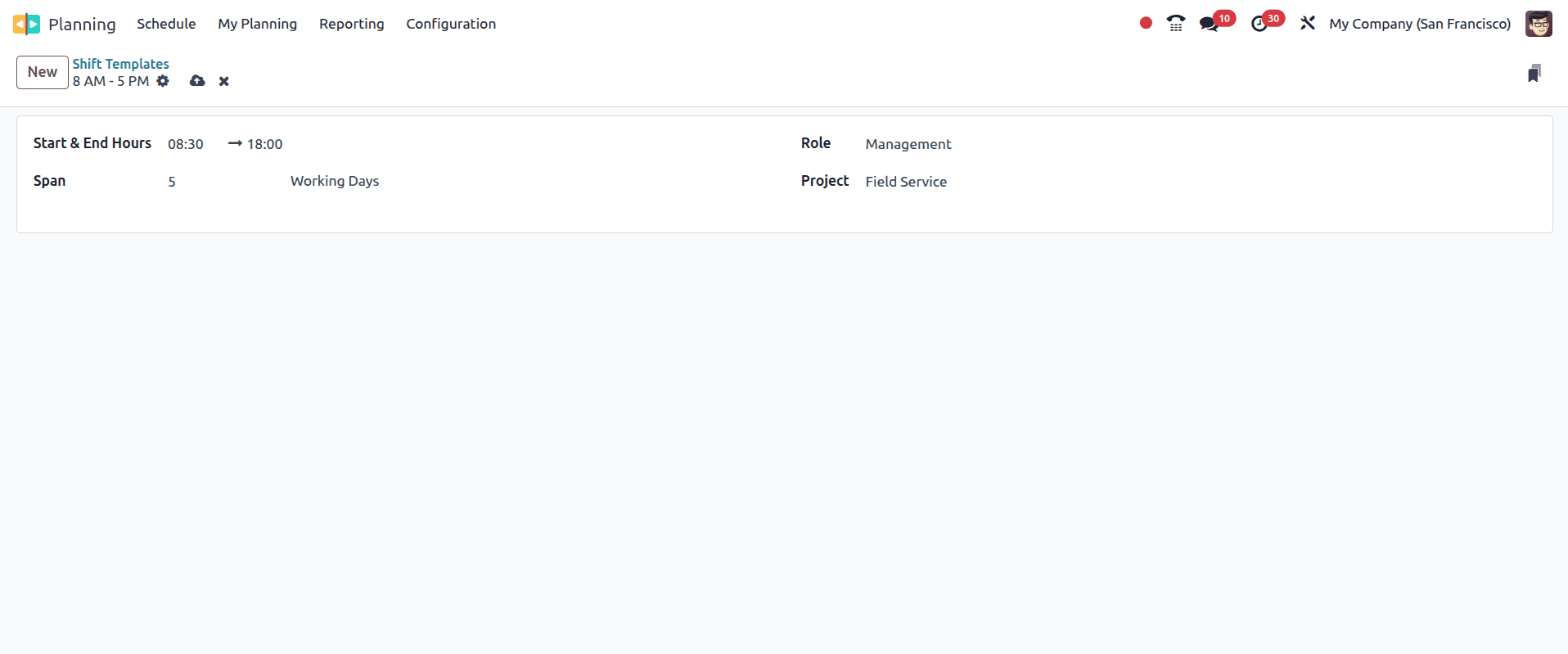
Add the custom start & end timings, span (the number of working days), role, and project, and save the shift template.
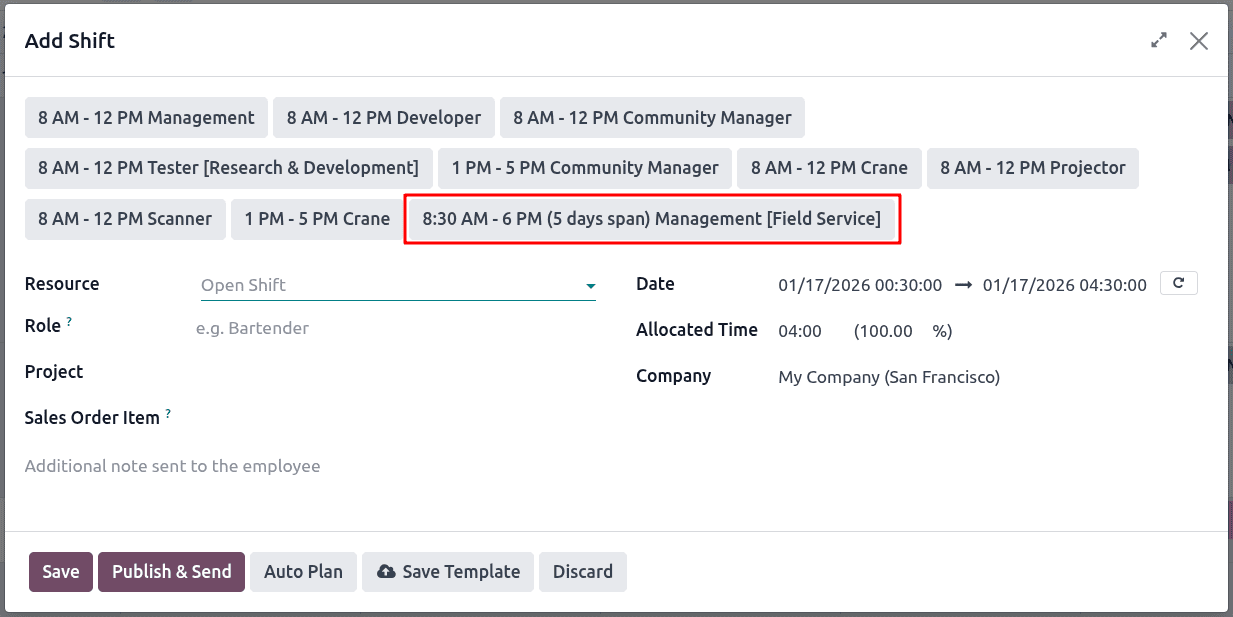
After saving the shift template, you can find the created shift template in the add shift wizard.
This is how the shift templates are configured and managed on Odoo 18.
To read more about How Employee Shifts are Handled in Odoo 18, refer to our blog How Employee Shifts are Handled in Odoo 18.