In Odoo 19, we can attach PDFs directly to the chatter using custom code. This allows documents such as invoices, delivery slips, or custom reports to be automatically linked, keeping them easily accessible and traceable within the corresponding record. This blog explains how to add PDF attachments to the chatter in Odoo 19 via code.
Using the following steps, we can add PDF attachments to the chatter:
1. Generate the PDF file
Use Odoo’s QWeb report engine to produce the PDF for a specific record. For example, to generate a Sale order report:
pdf_content, _ = self.env['ir.actions.report'].sudo()._render_qweb_pdf(
    'sale.action_report_saleorder', record.id
)
Here, ‘sale.action_report_saleorder’ is the report template ID and record.id is the record for which the PDF is generated.
2. Create an Attachment
Once the PDF is ready, create an attachment and link it to the record:
import base64
attachment = self.env['ir.attachment'].create({
    'name': f'SaleOrder_{record.name}.pdf',
    'type': 'binary',
    'datas': base64.b64encode(pdf_content),
    'res_model': record._name,
    'res_id': record.id,
    'mimetype': 'application/pdf',
})
The res_model and res_id fields ensure that the PDF is correctly associated with the record, making it visible in the chatter for all users who can access that record.
3. Post a message in the chatter
Optionally, we can log a message so that users are notified that a PDF has been attached:
record.message_post(
    body='PDF has been attached to the record.',
    attachment_ids=[attachment.id]
)
This creates a message in the chatter along with the attachment.
Below is a complete example extending the sale.order model to attach a PDF automatically when confirming a sale order:
# -*- coding: utf-8 -*-
from odoo import models
import base64
class SaleOrder(models.Model):
    _inherit = 'sale.order'
    def action_confirm(self):
        """Attach the Sale Order PDF before confirming the order."""
        self._attach_pdf_to_chatter()
        return super().action_confirm()
    def _attach_pdf_to_chatter(self):
        """Generate and attach the PDF report to each sale order."""
        for order in self:
            pdf_content, _ = self.env['ir.actions.report'].sudo()._render_qweb_pdf(
                'sale.action_report_saleorder', order.id
            )
            attachment = self.env['ir.attachment'].create({
                'name': f'SaleOrder_{order.name}.pdf',
                'type': 'binary',
                'datas': base64.b64encode(pdf_content),
                'res_model': order._name,
                'res_id': order.id,
                'mimetype': 'application/pdf',
            })
            order.message_post(
                body='Sale Order PDF attached.',
                attachment_ids=[attachment.id]
            )
With this code, every time a sales order is confirmed, its PDF report will appear automatically in the chatter.
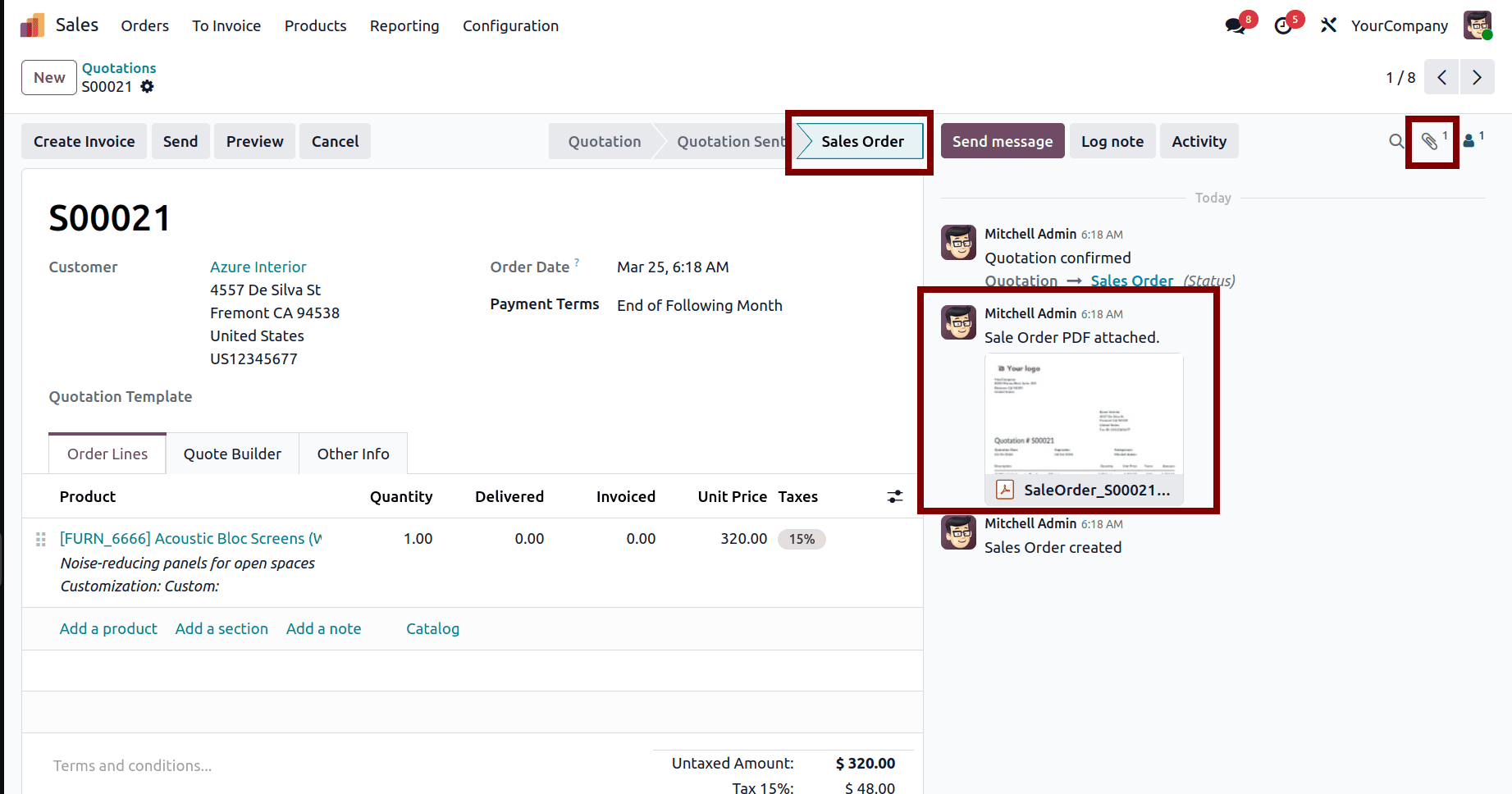
Below is the sale order PDF attached to the chatter:
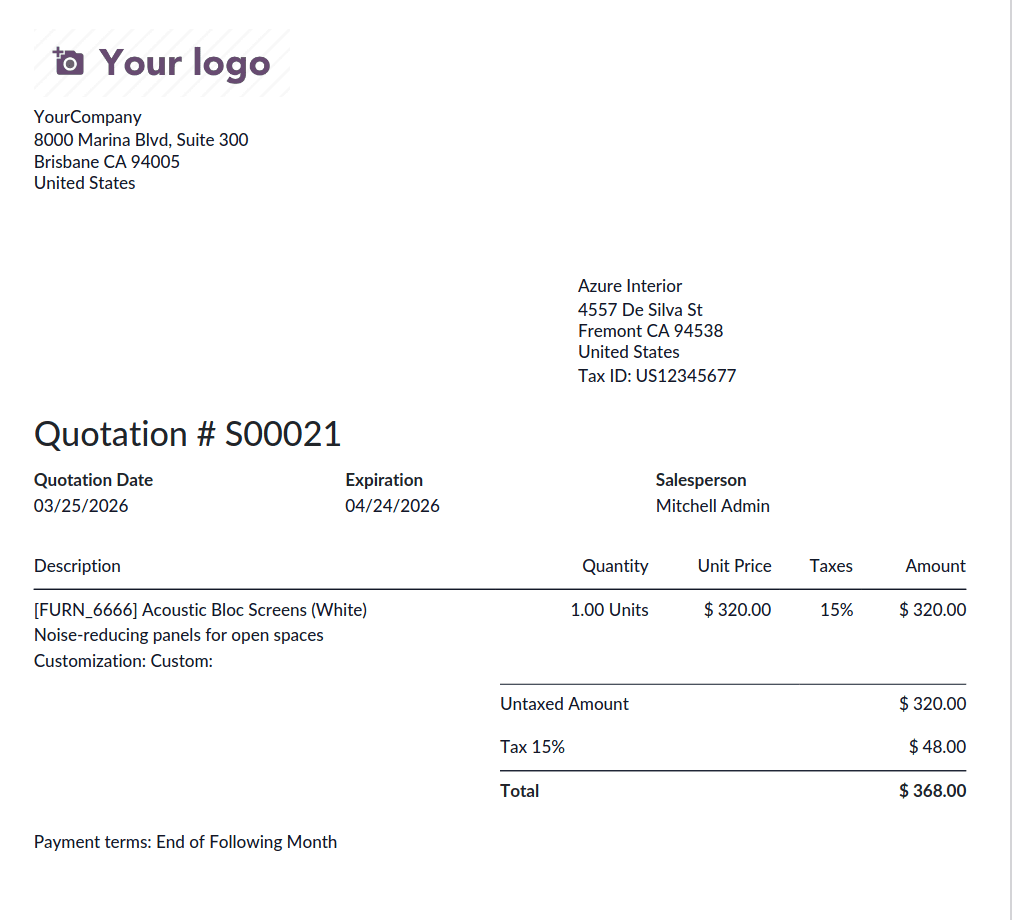
When attaching PDFs to the chatter via code in Odoo 19, make sure the user has the necessary permissions to create attachments and post messages. The res_model and res_id fields are essential for linking the PDF to the correct record; otherwise, the attachment will not show in the intended chatter. This method is flexible and can be applied to other models, such as invoices, manufacturing orders, etc.
Adding PDFs to the chatter using the custom code in Odoo 19 ensures that all important documents are linked directly to their corresponding records, making them immediately accessible to users. This approach streamlines document management, improves visibility across teams, and reduces the need for manual attachment.
To read more about How to Add PDF Attachments to the Chatter in Odoo 18, refer to our blog How to Add PDF Attachments to the Chatter in Odoo 18.