File management plays an important role in the business world. In the case of a growing business organization, the procedure of managing files, such as documents, images, reports, backups, etc., through the Odoo server will take much space and be difficult. However, the use of cloud storage services, such as Amazon S3, provides an effective solution as it helps to manage files in a secure manner without depending on the local server.
The Amazon S3 Connector module helps in connecting Odoo with Amazon S3, which facilitates the process of browsing, uploading, and downloading of files from an S3 bucket within the Odoo environment. This helps in managing the files effectively via AWS cloud storage.
In this blog, you will get a complete idea of how to configure the Amazon S3 Connector module in Odoo along with an understanding of the whole process.
What is Amazon S3?
Amazon Simple Storage Service (Amazon S3) is an object storage service that is a part of AWS (Amazon Web Services). This technology allows storing and accessing files from any location by using reliable infrastructure.
Amazon S3 is commonly used for:
- Document storage
- Storage of media files
- Backup of applications
- Data archiving
- File sharing in the cloud
Using Amazon S3 together with Odoo allows organizations to store their files using cloud storage and manage them using the Odoo system.
Features of Amazon S3 Connector
The Amazon S3 Connector provides the following features:
- Odoo Connect to AWS S3 Bucket
- Files on Amazon S3 can be viewed
- Upload files directly into Odoo
- File downloading via pre-signed URL
- Searching and filtering of files from the dashboard
- AWS Credentials management via Odoo Settings
- Reducing local server storage space
Prerequisites
The following prerequisites need to be met before configuring the module:
AWS Account
It is mandatory to have an active AWS account.
Amazon S3 Bucket
Creation of a bucket in Amazon S3 where files can be stored.
AM User
Create an IAM user with Amazon S3 access rights.
Access Key and Secret Key
Create an Access Key ID and Secret Access Key for the IAM user.
Python Dependency
Install the AWS SDK for Python:
pip install boto3
Creating AWS Credentials
Before configuring Odoo, collect the required AWS credentials.
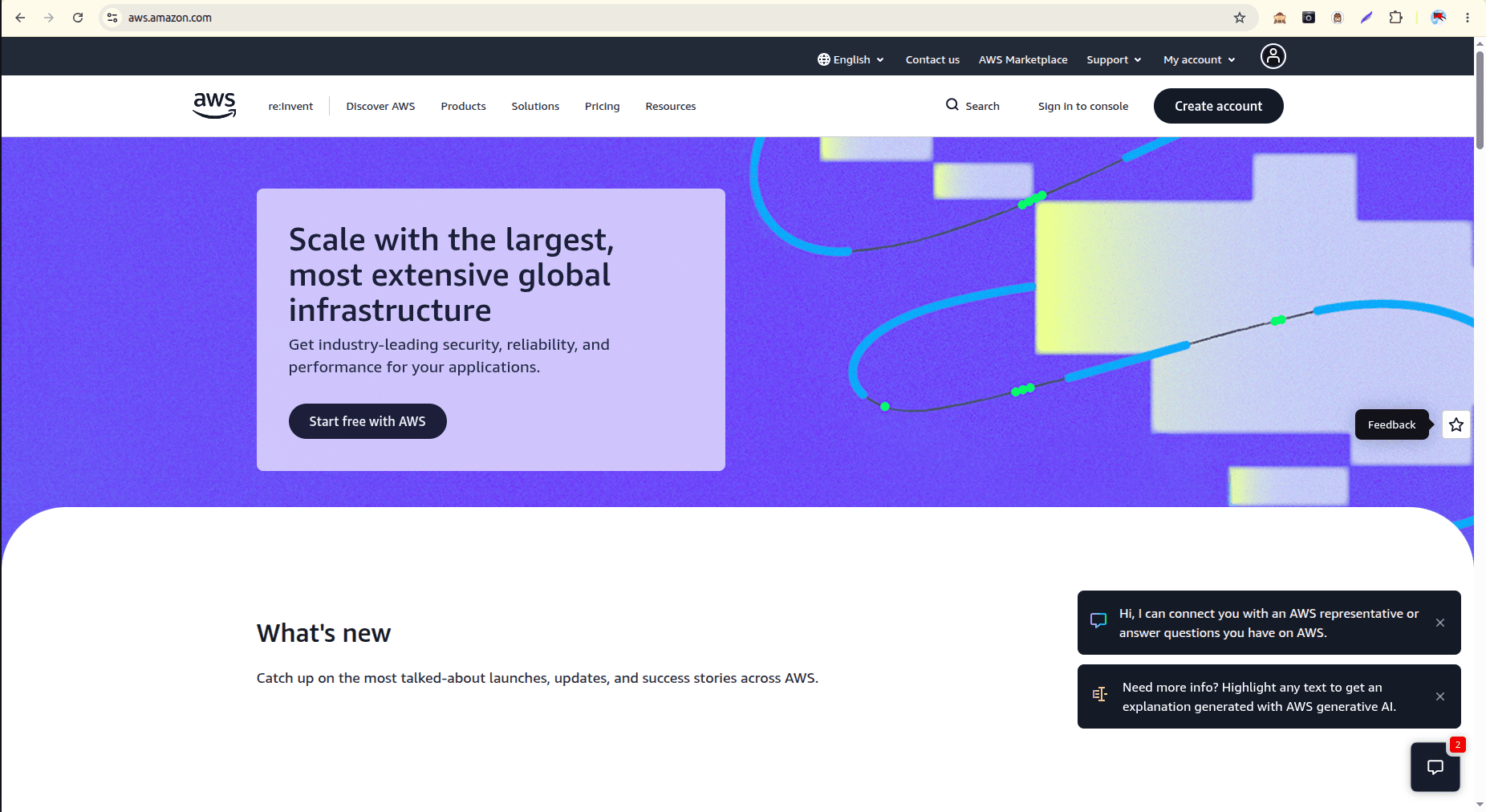
Step 1: Create an S3 Bucket
1. Log in to the AWS Console.
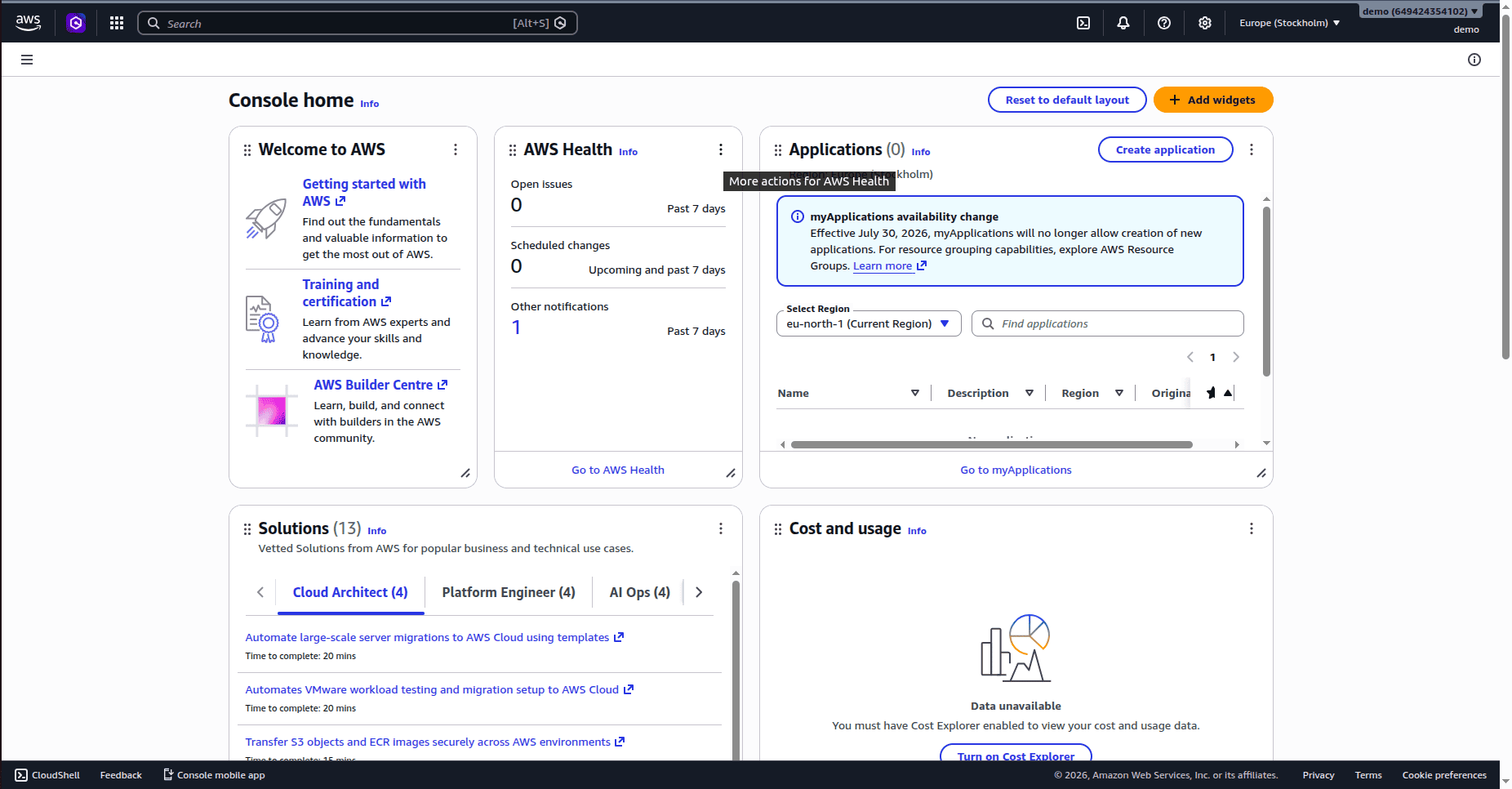
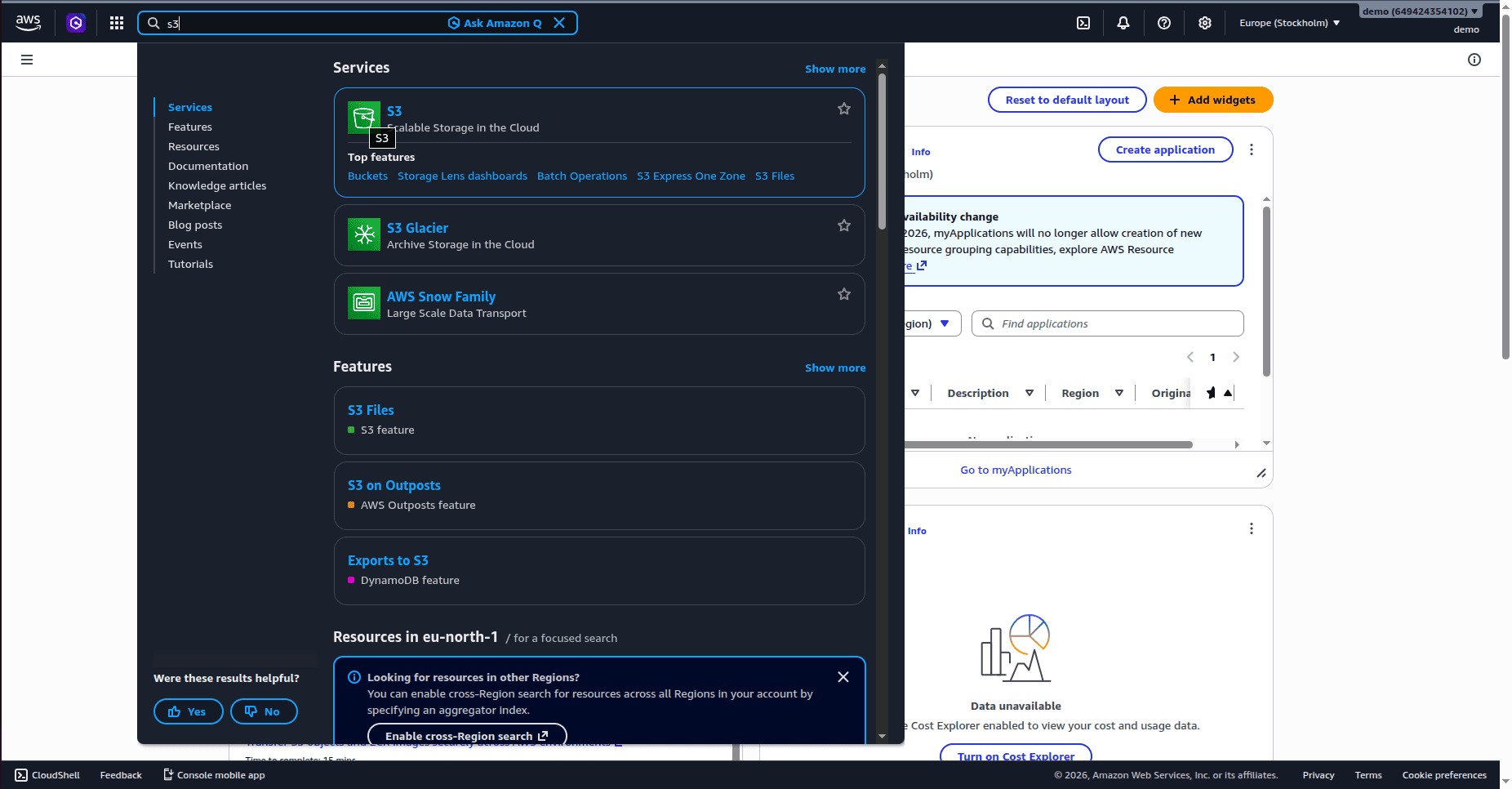
2. Open Amazon S3.
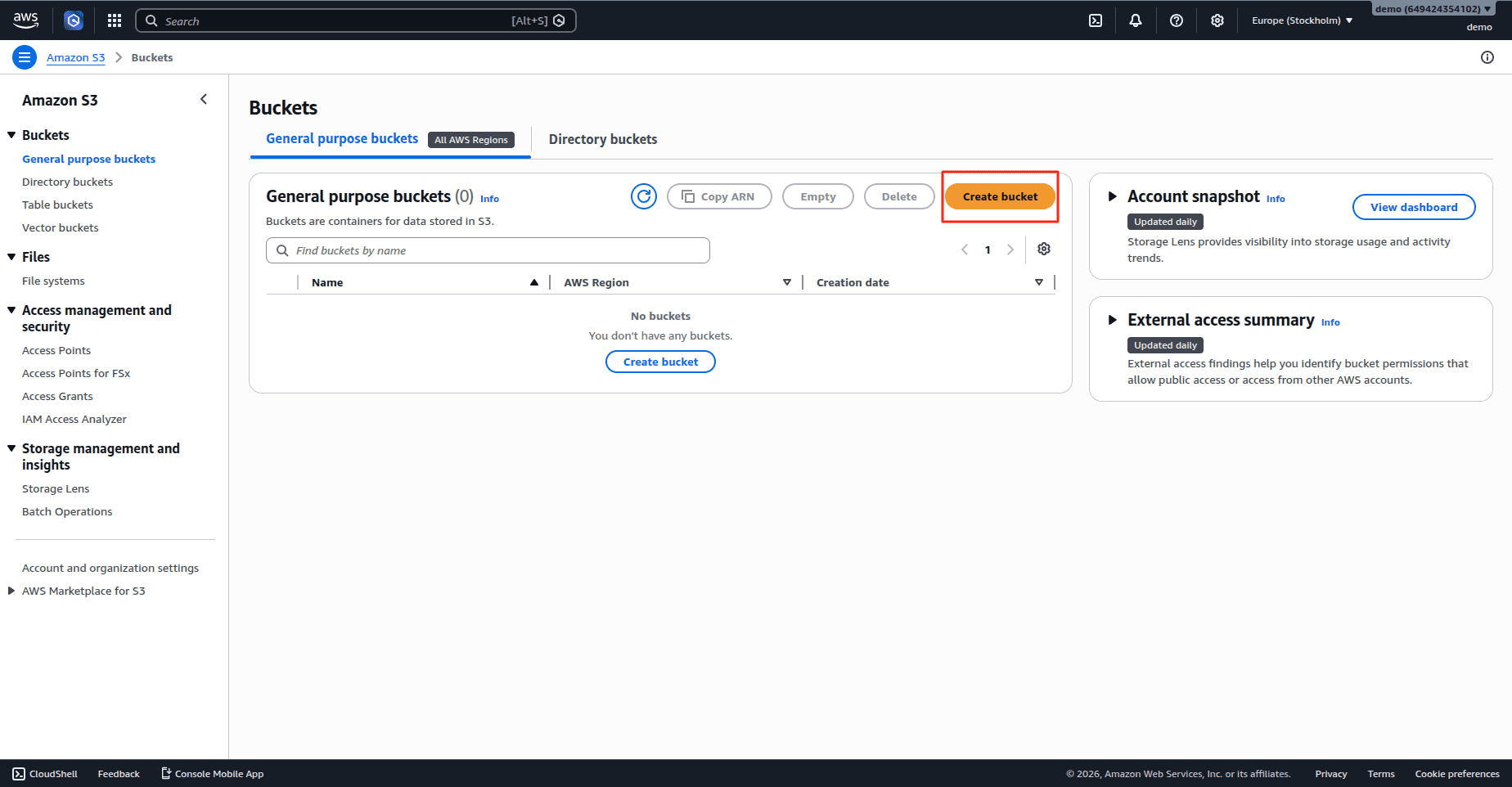
3. Click Create Bucket.
4. Enter a unique bucket name.
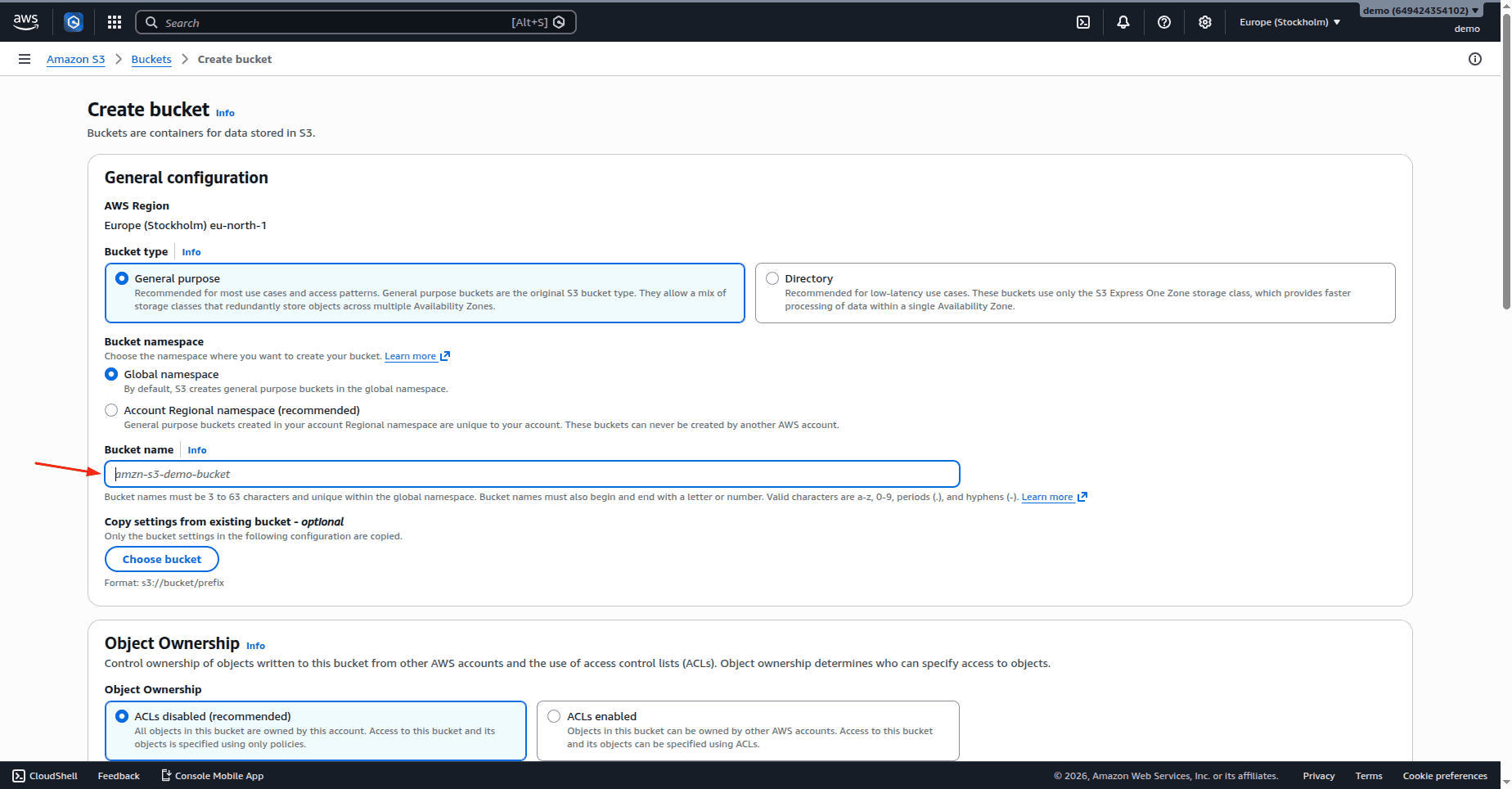
Example:
Bucket Name: odoo-test-bucket-2026
5. Click Create Bucket.
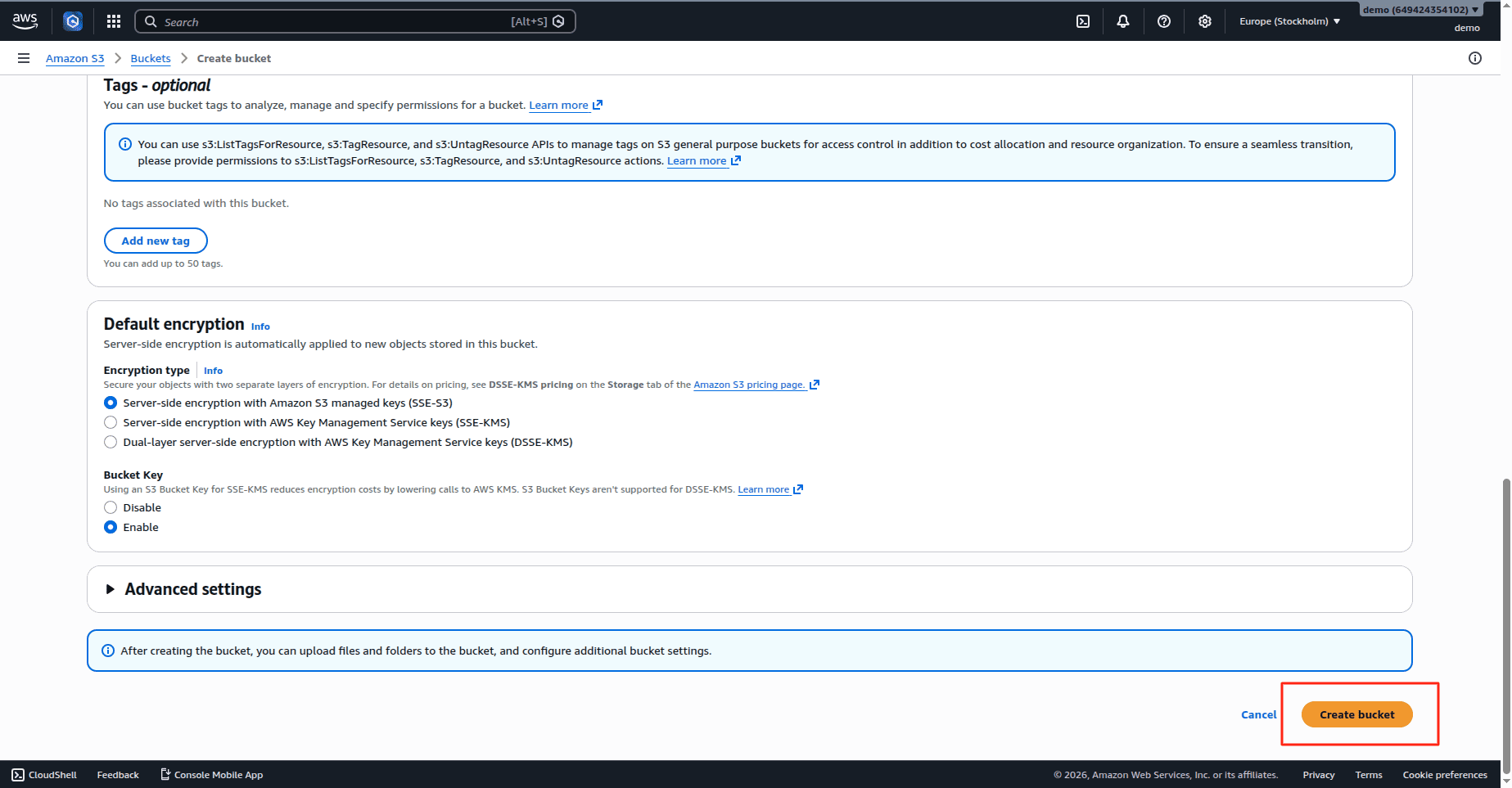
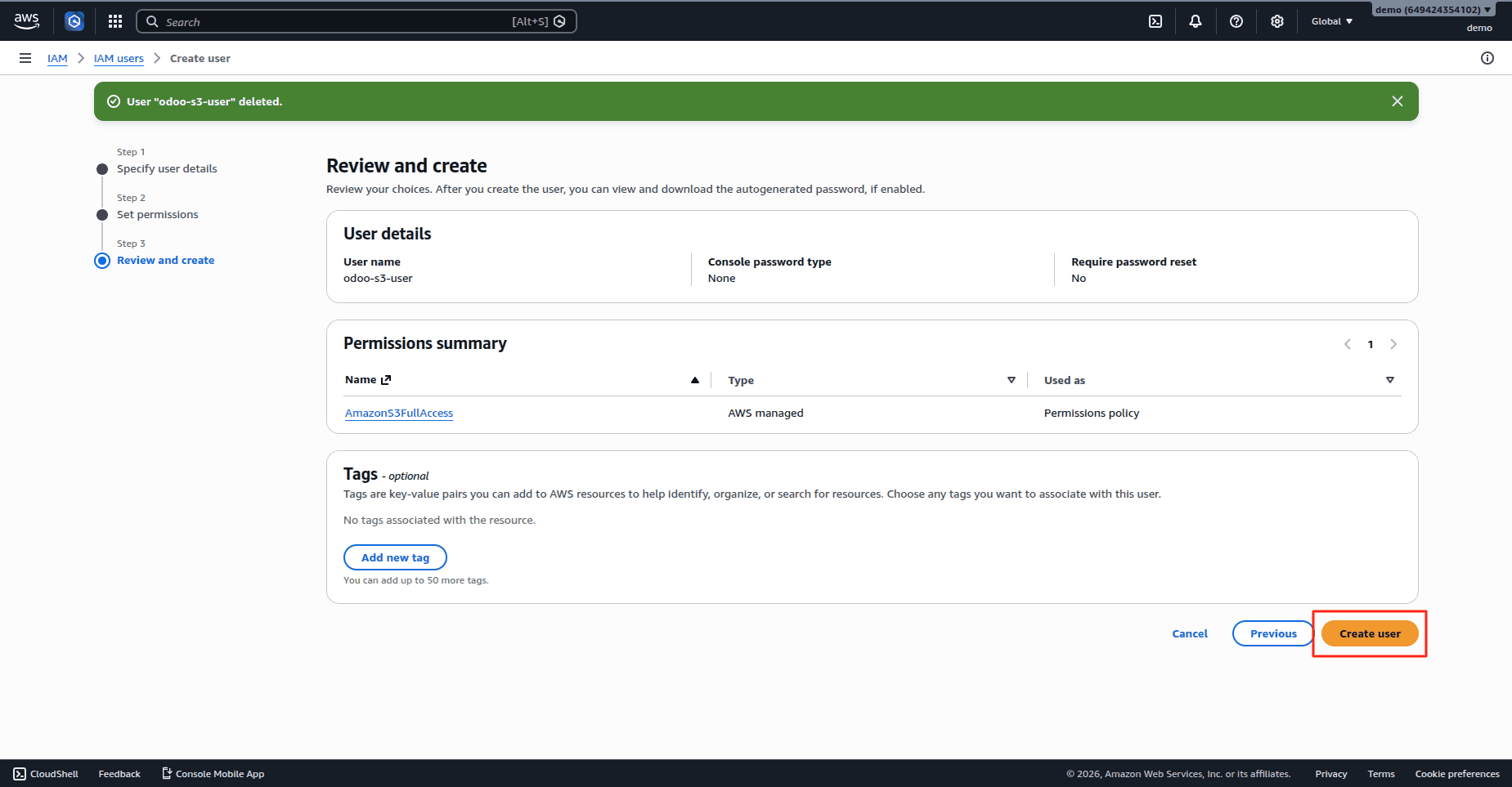
Step 2: Create an IAM User
1. Open IAM.
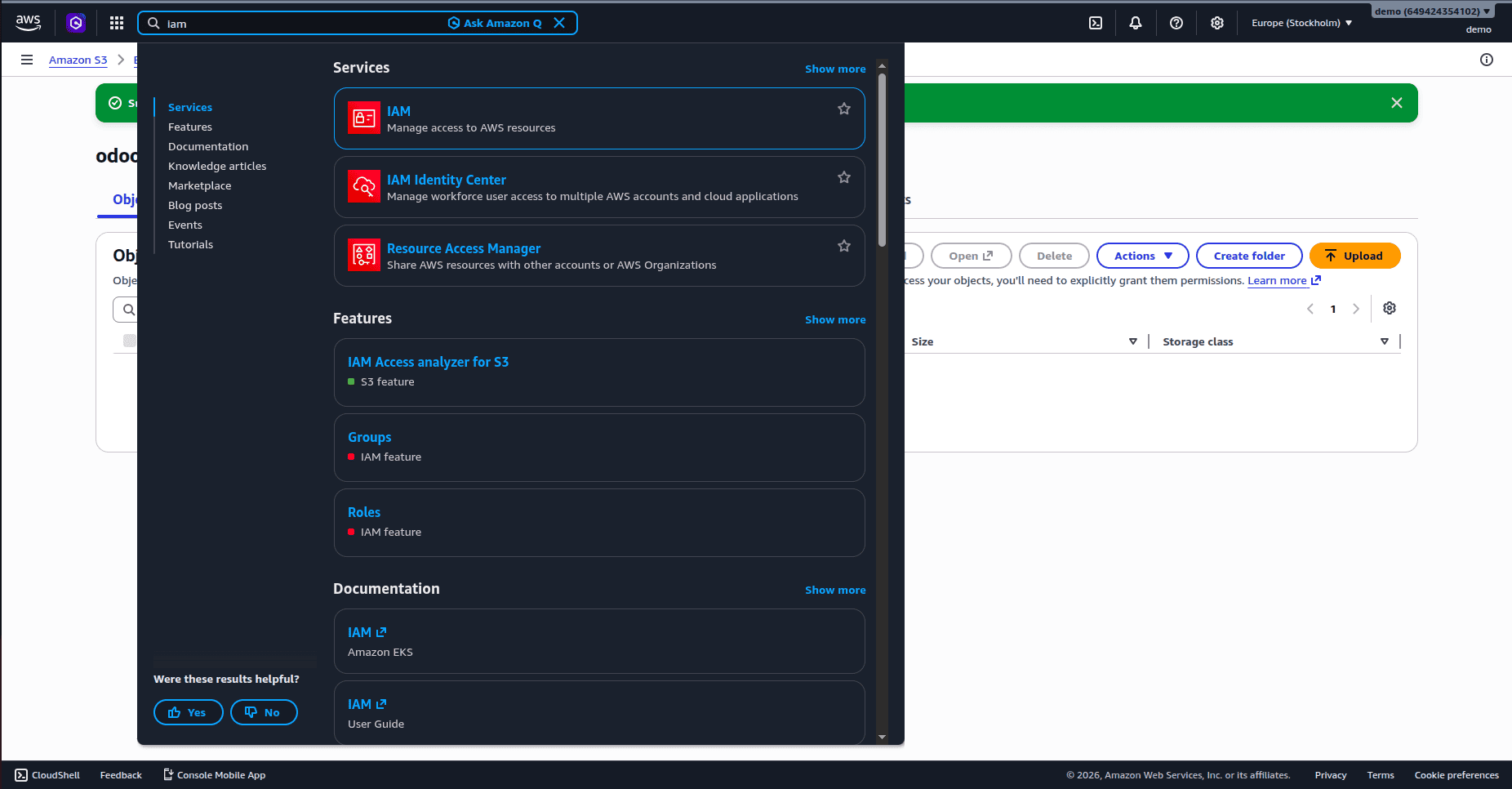
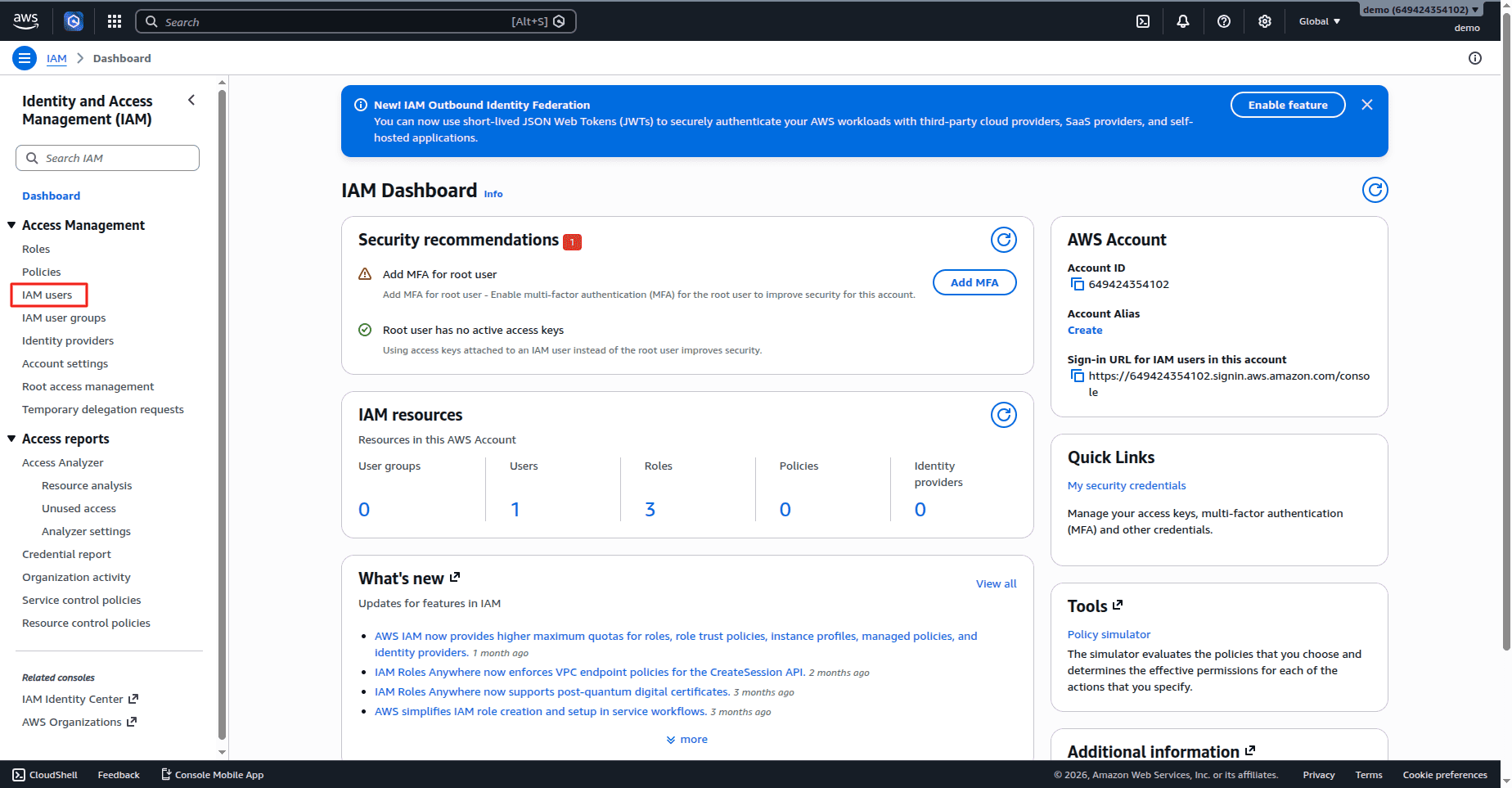
2. Navigate to Users.
3. Click Create User.
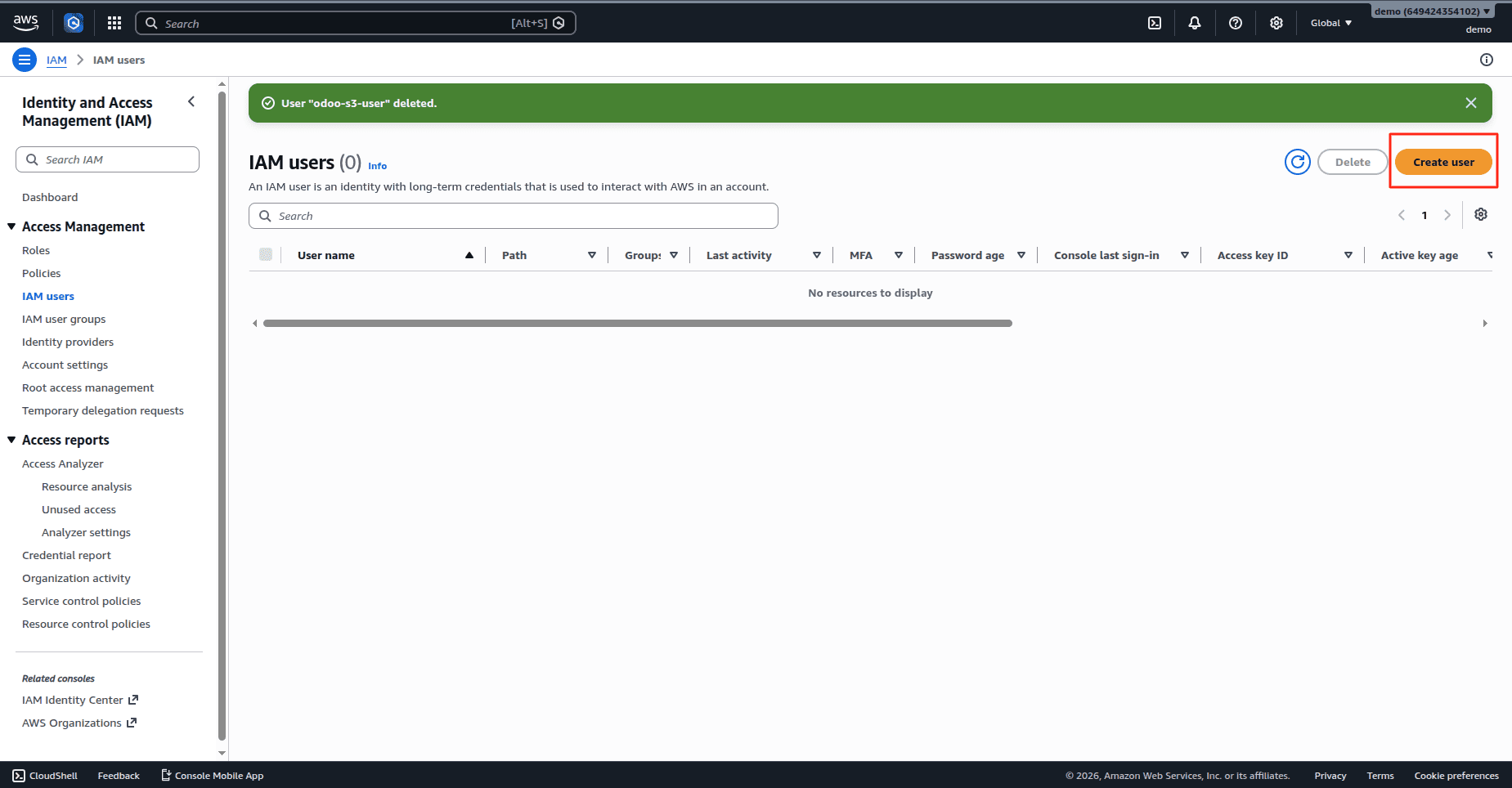
4. Enter a username.
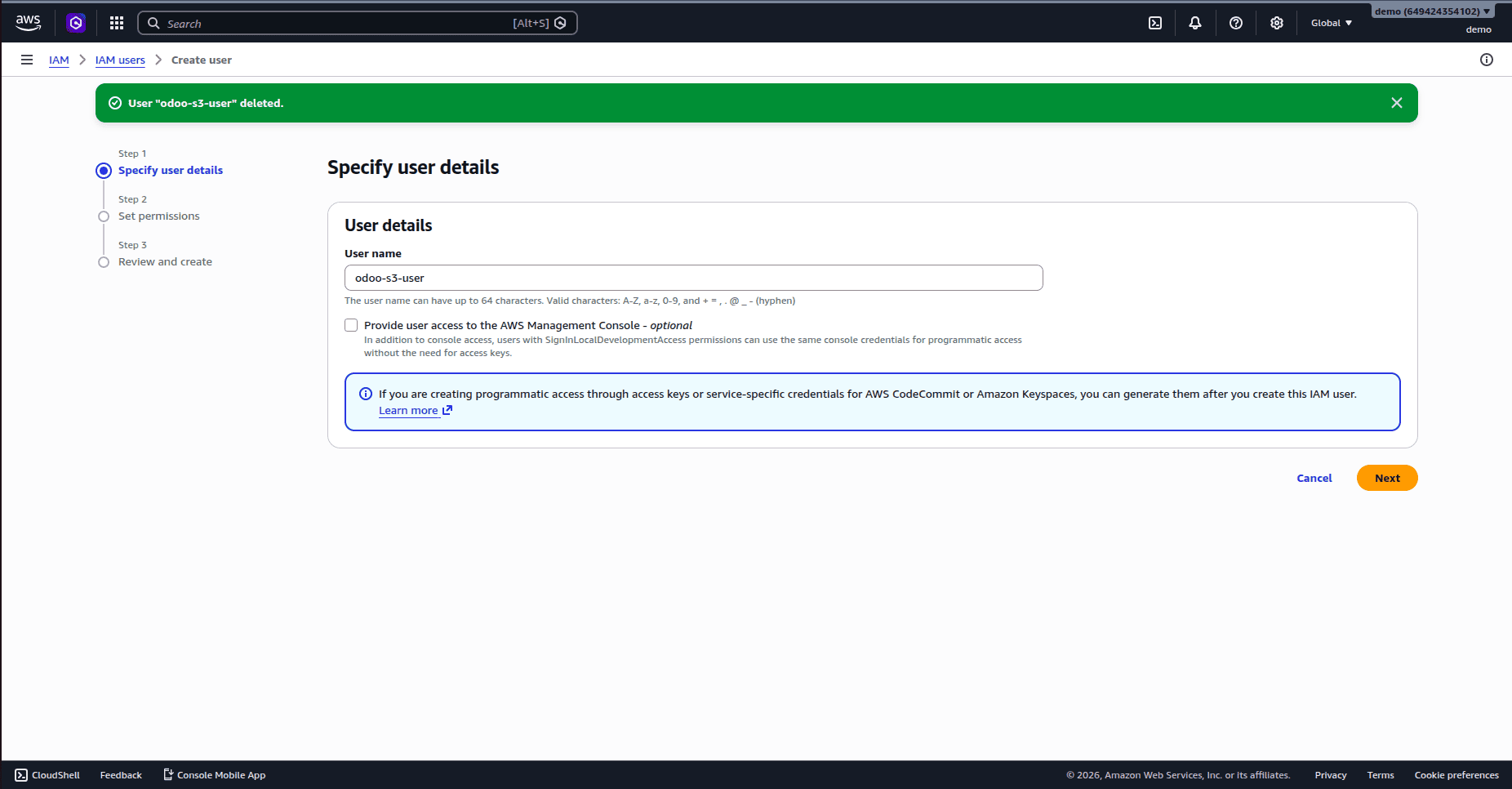
Example:
odoo-s3-user
5. Continue with permissions.
Step 3: Assign Permissions
Select:
Attach policies directly
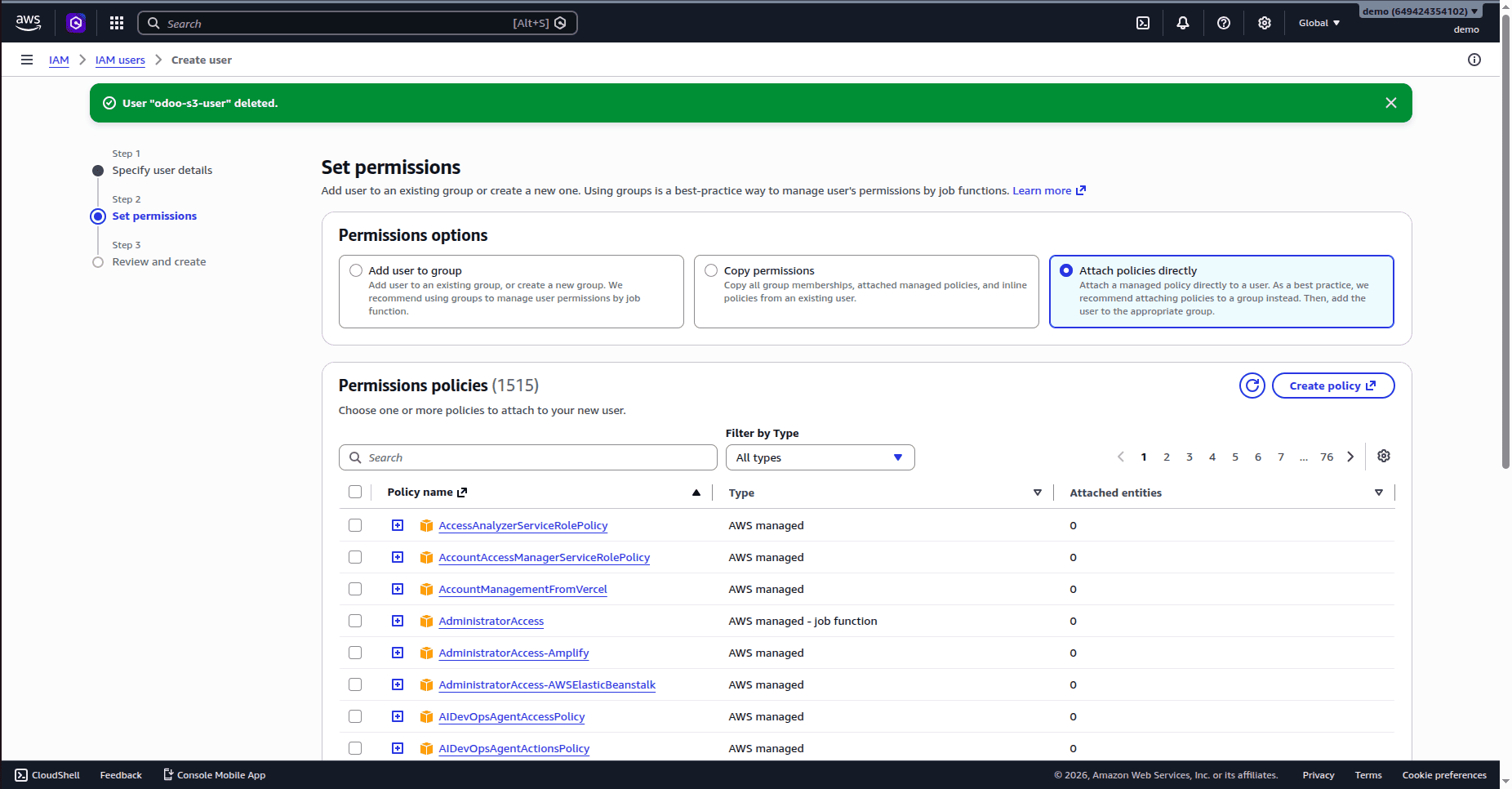
Attach:
AmazonS3FullAccess
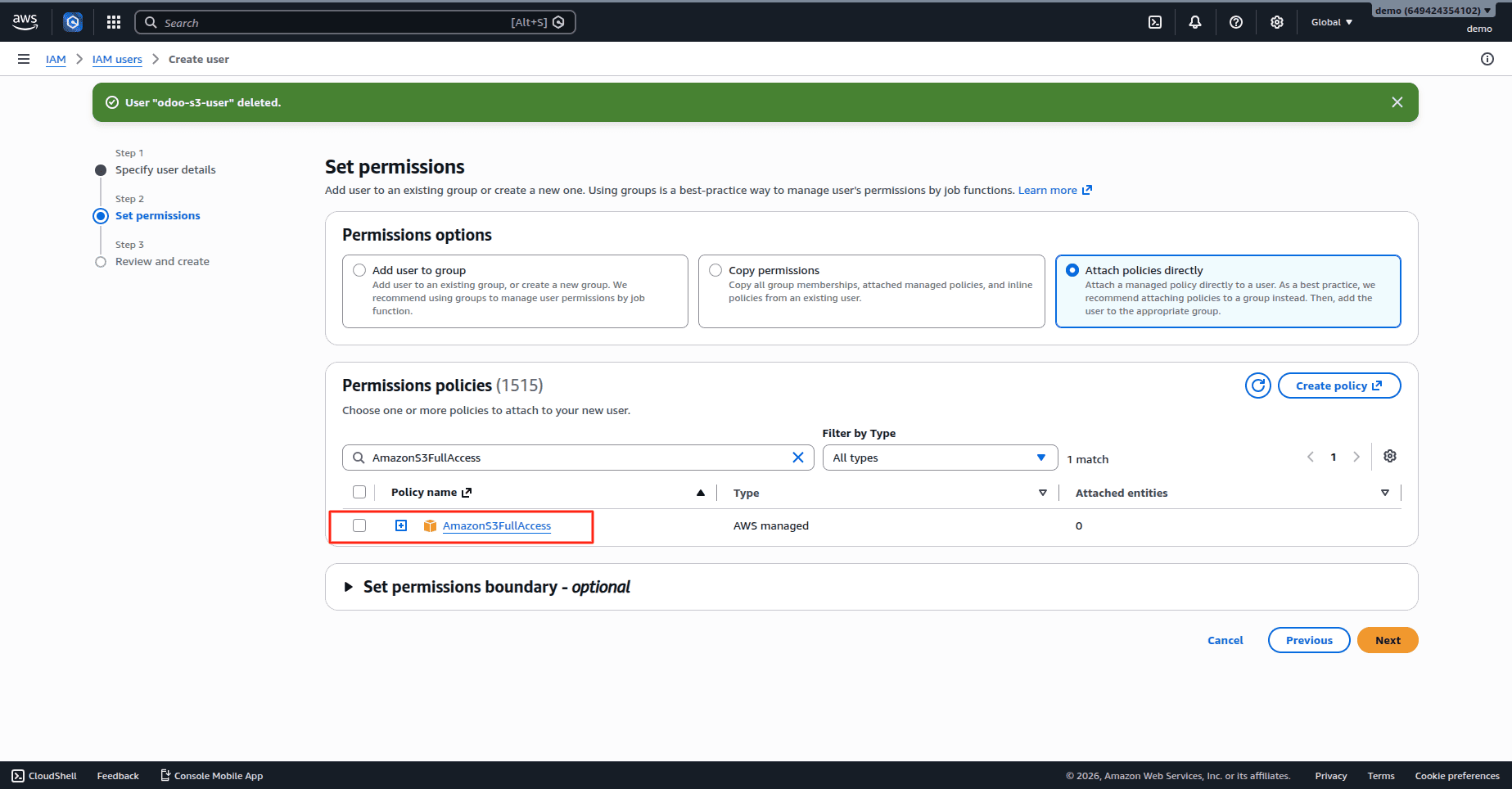
Then create the user.
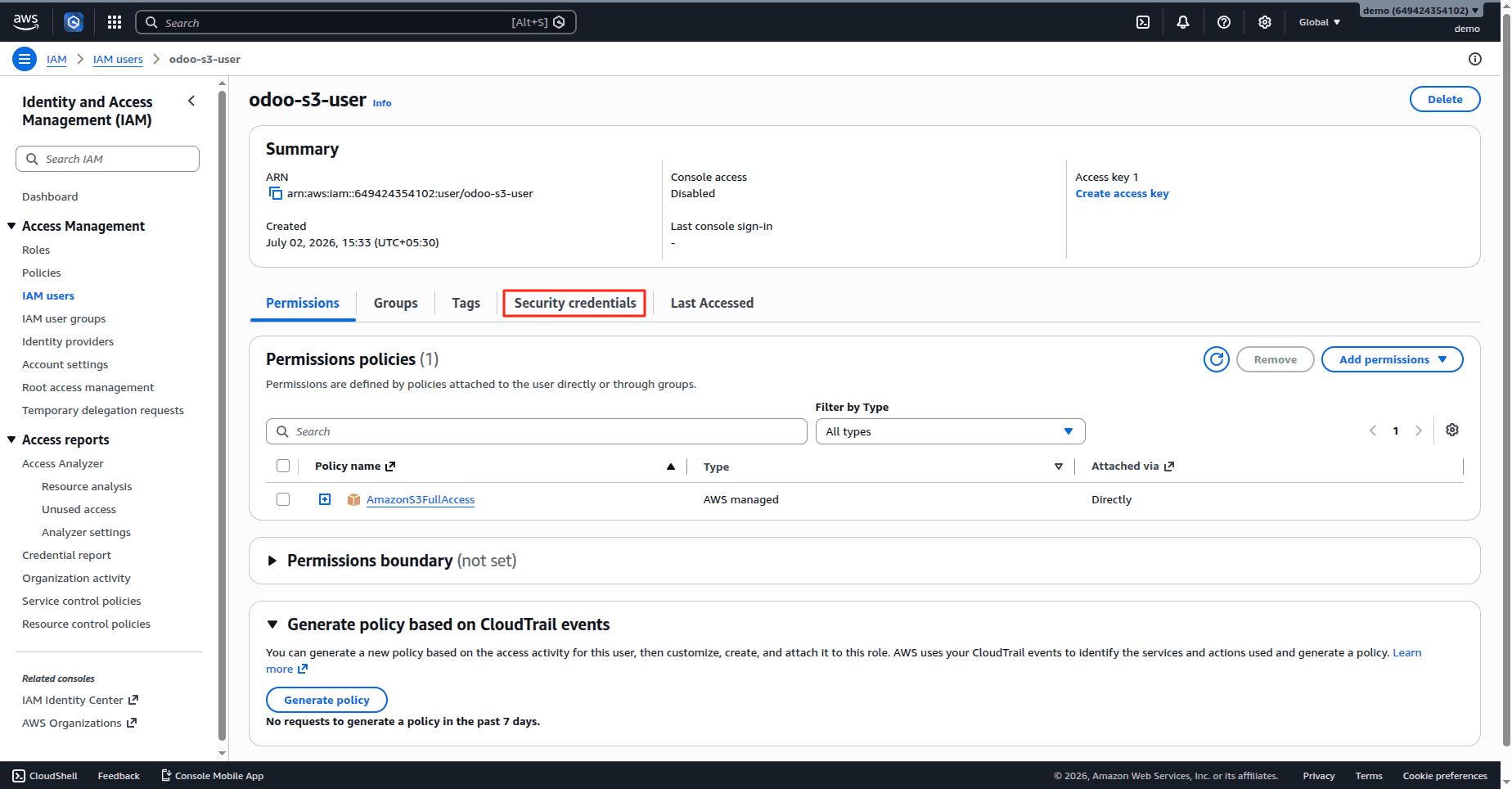
Step 4: Generate Access Keys
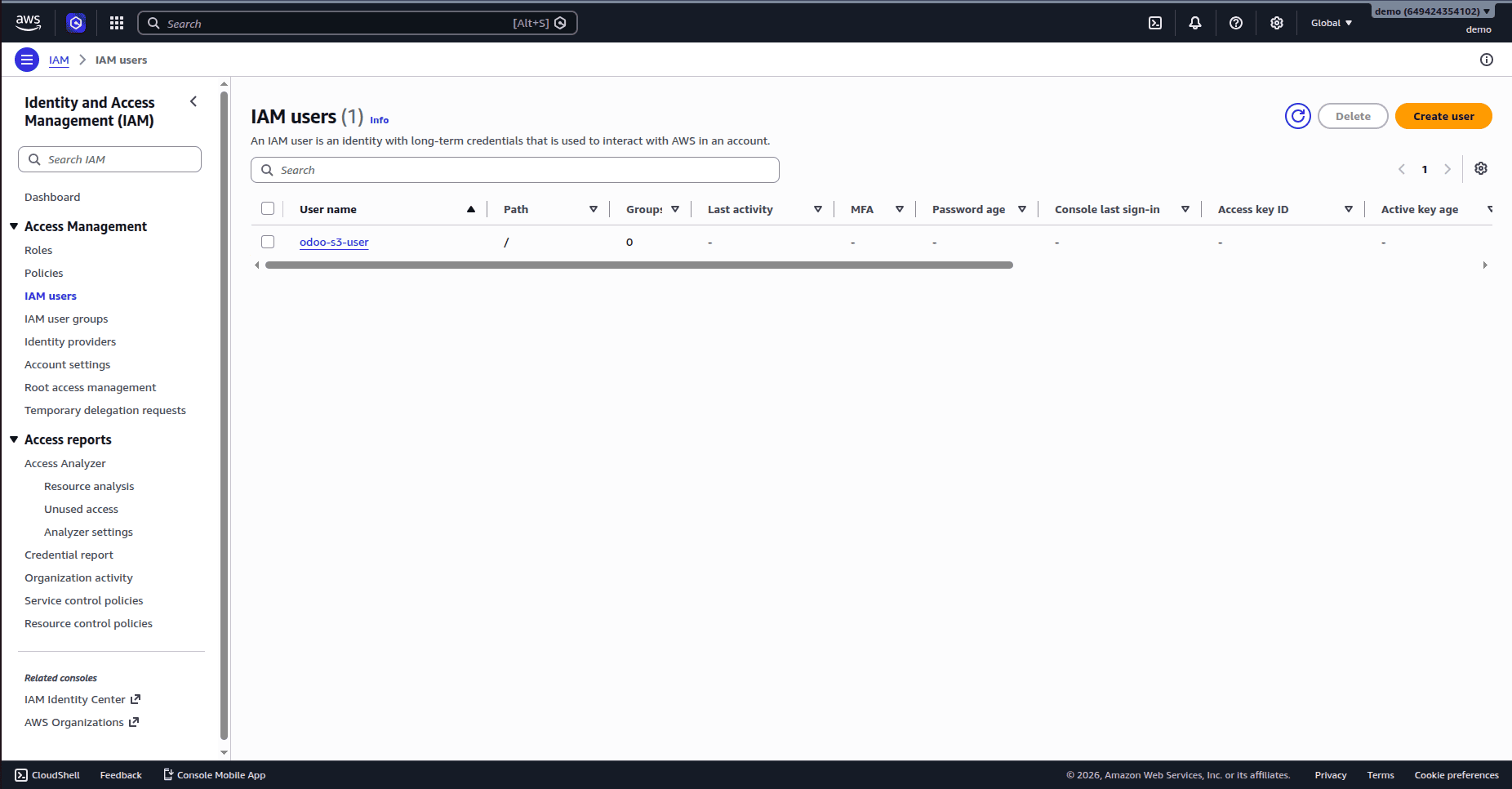
1. Open the created IAM user.
2. Navigate to Security Credentials.
3. Select Create Access Key.
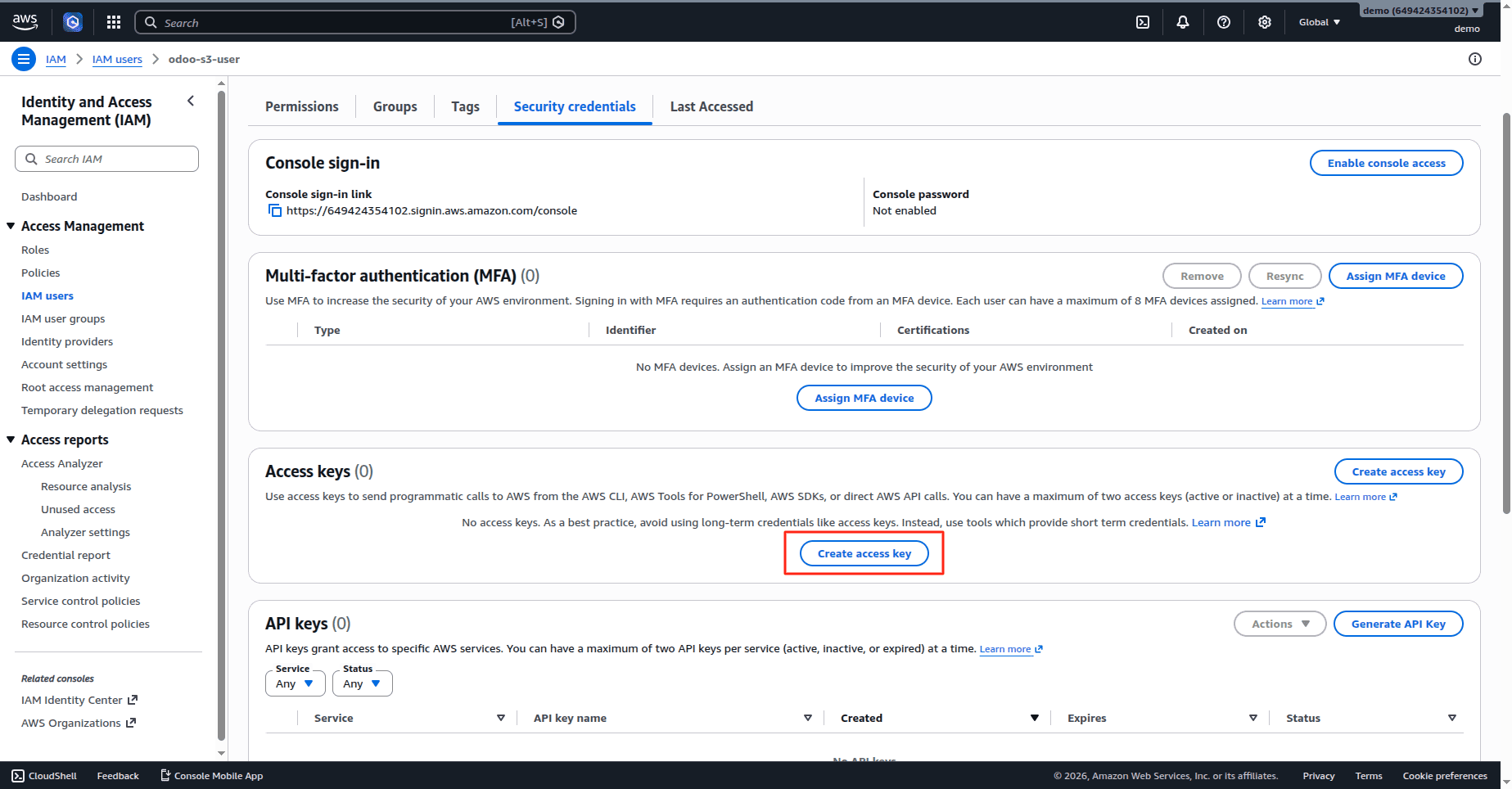
4. Choose:
Application running outside AWS
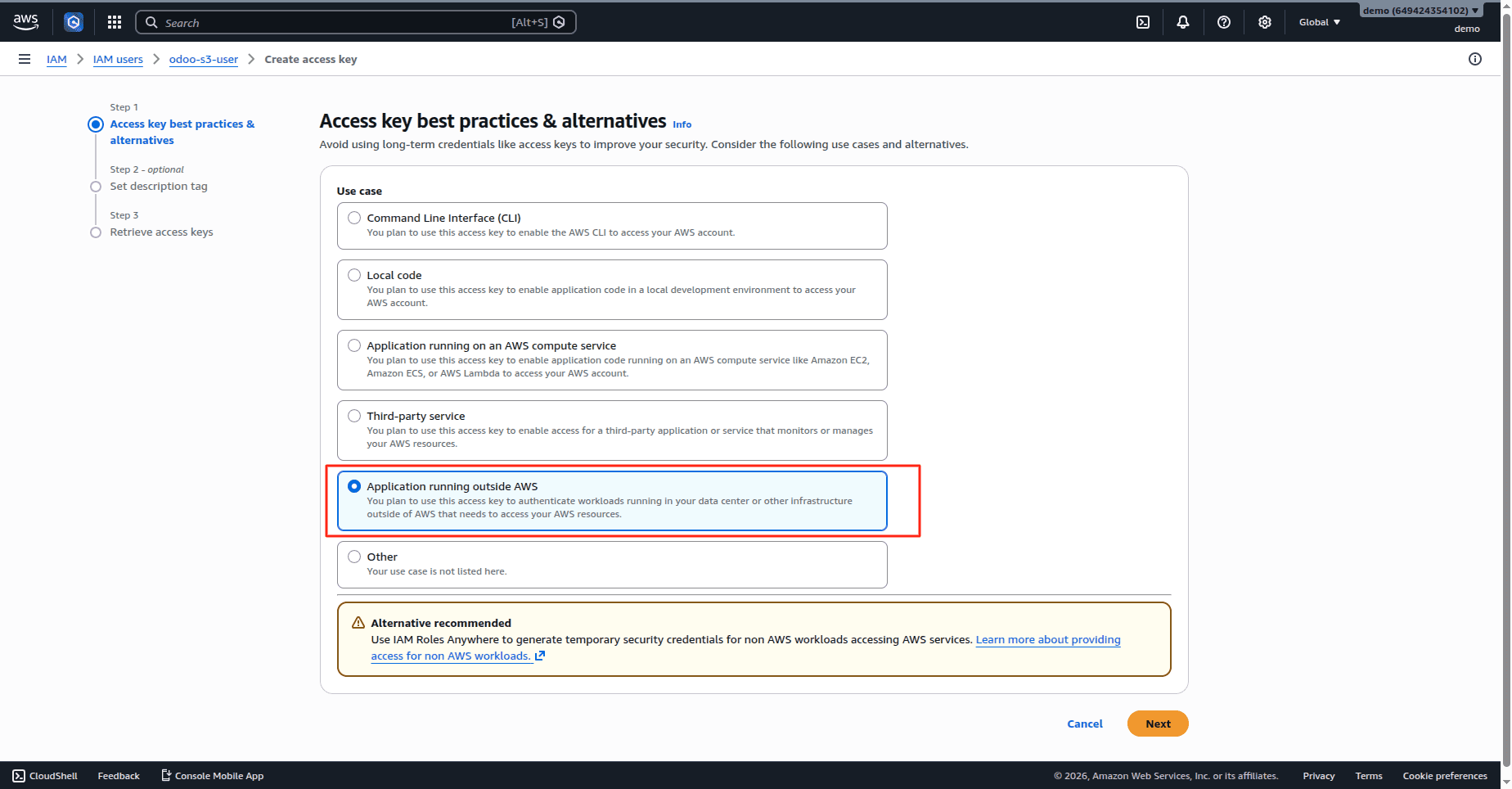
5. Generate the credentials.
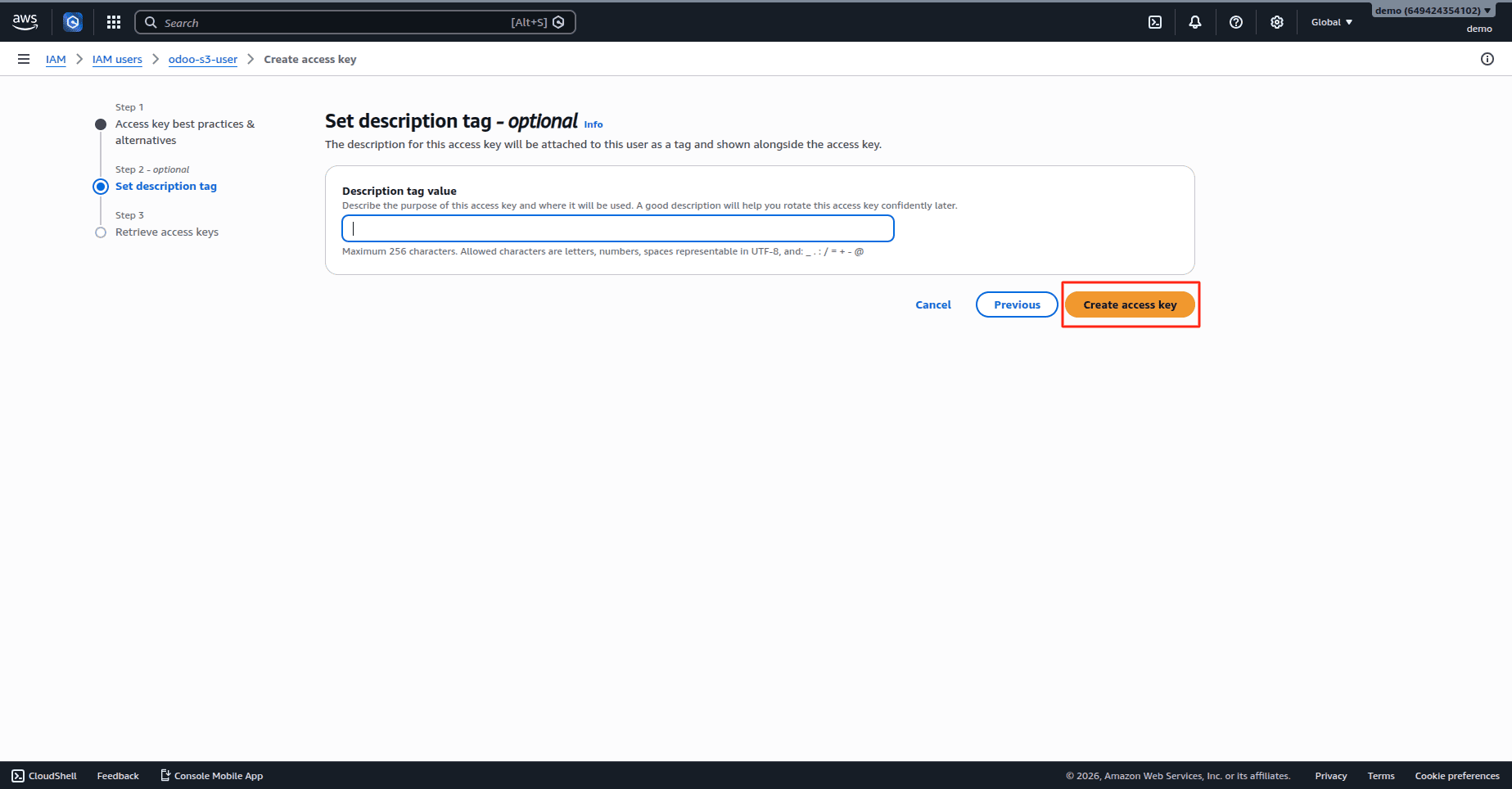
AWS credentials include:
Access Key ID
Secret Access Key
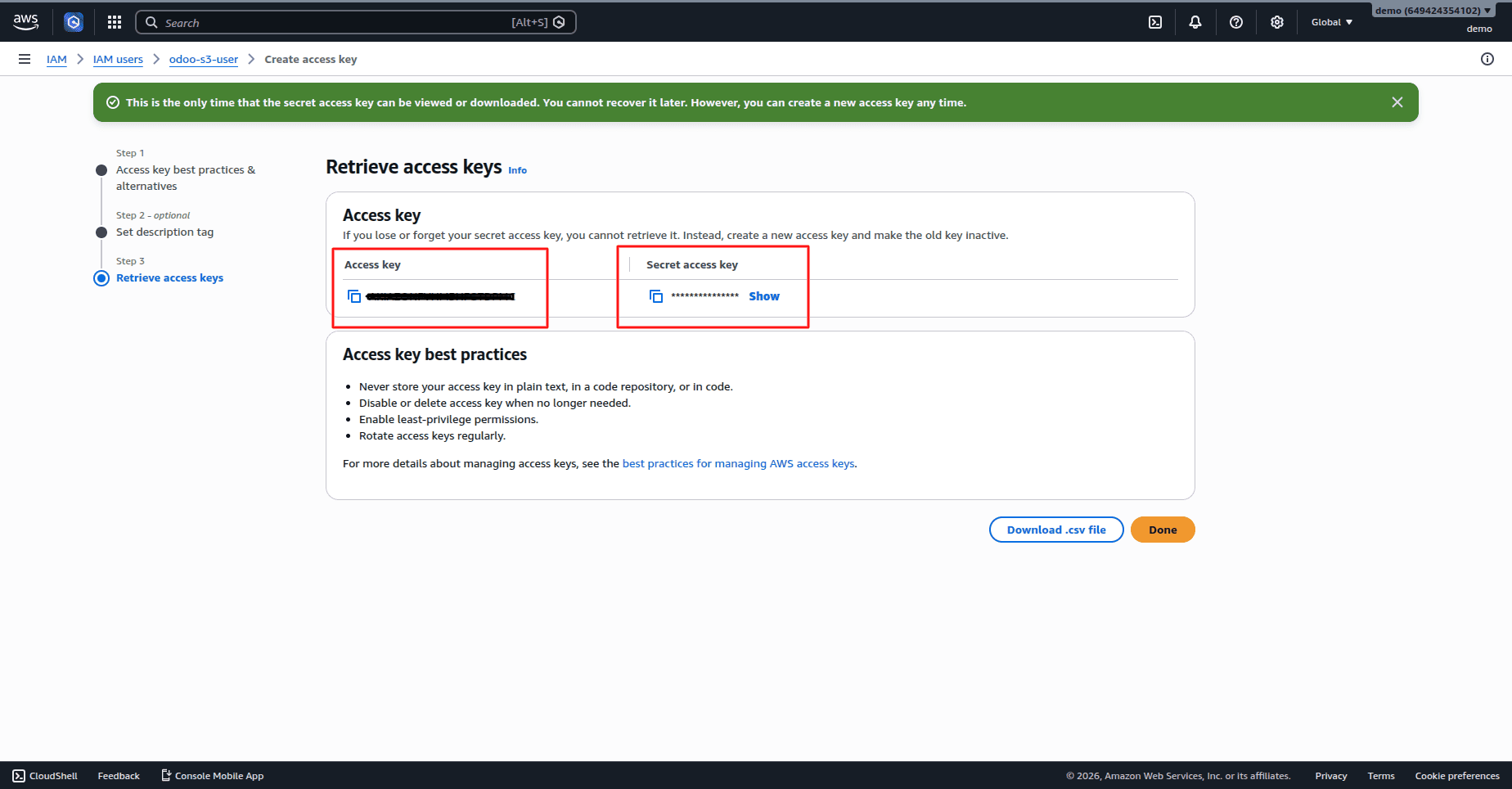
Make sure to save these details.
Configuring Amazon S3 Connector in Odoo
After preparing AWS credentials, go ahead and configure the connector in Odoo.
Go to Settings
Settings > Amazon S3 Connector
The module extends the Odoo Settings page through the res.config.settings model.
The following fields are available in settings:
| Field | Description |
| Enable Connector | Activates Amazon S3 Integration |
| Access Key | AWS Access Key ID |
| Secret Key | AWS Secret Access Key |
| Bucket Name | Target Amazon S3 bucket |
Example configuration:
Access Key: AKIAxxxxxxxxxxxx
Secret Key: xxxxxxxxxxxxxxxxxxxx
Bucket Name: odoo-test-bucket-2026
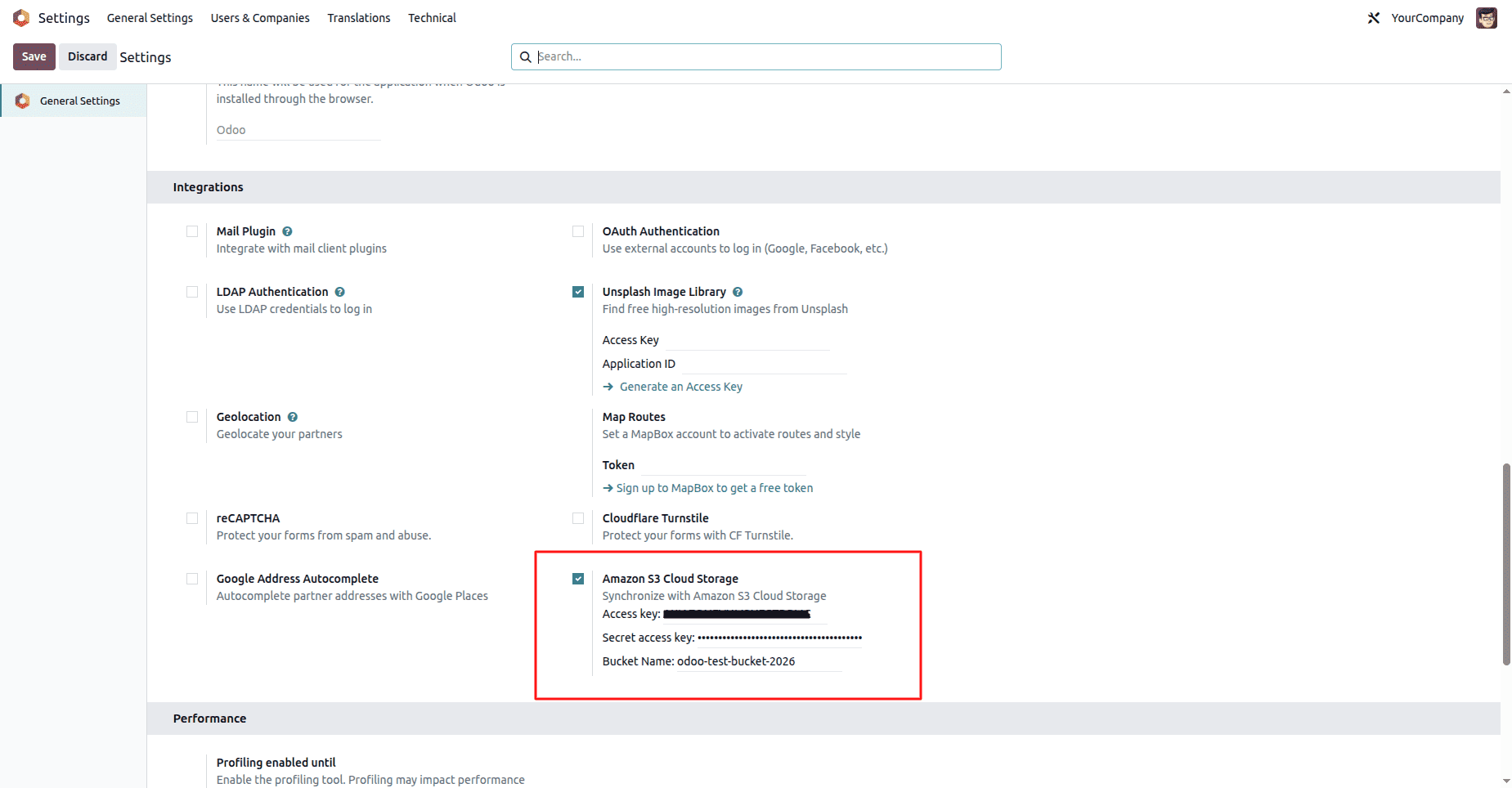
Click on the Save button to save the configuration.
Dashboard Features
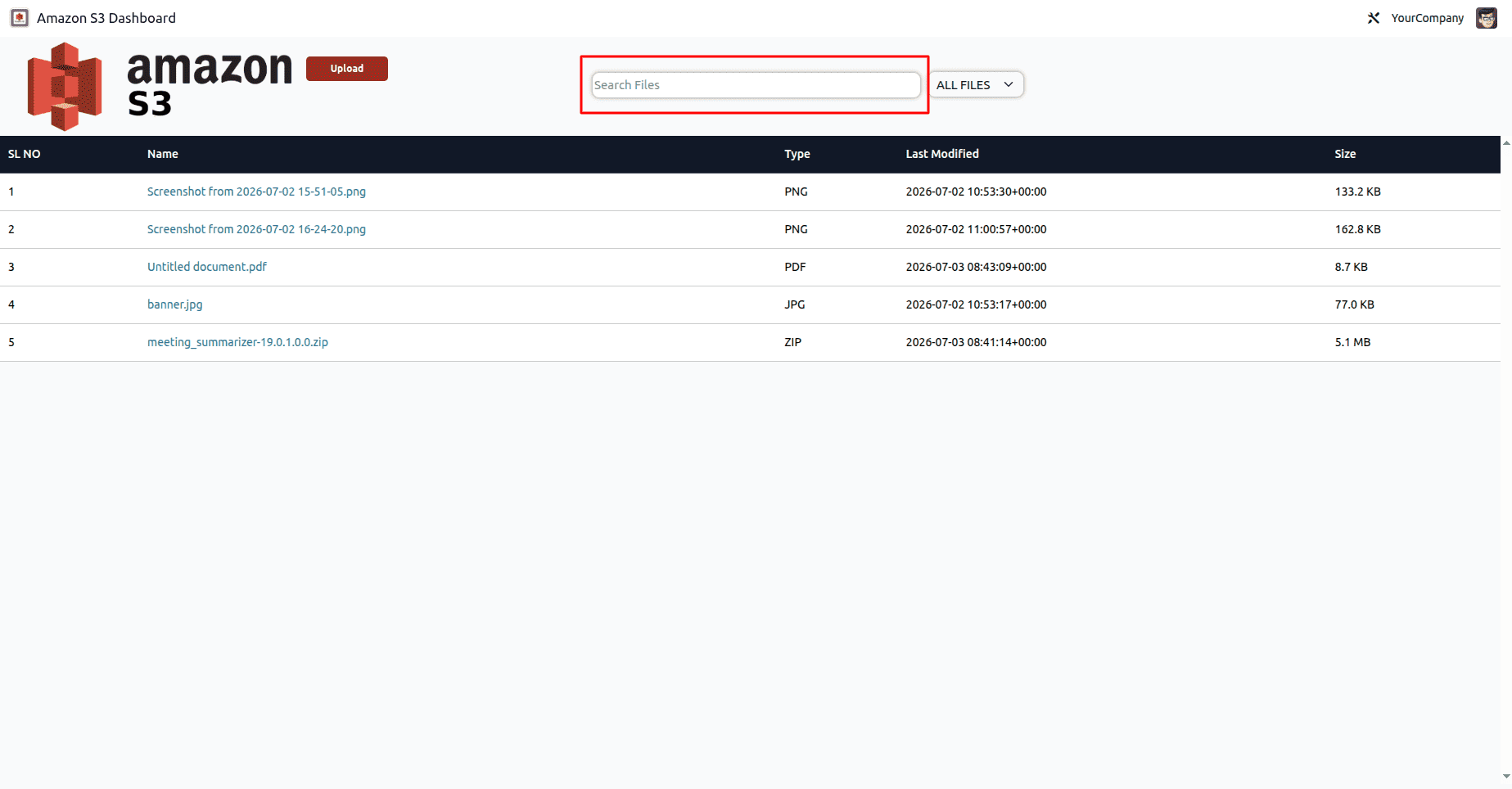
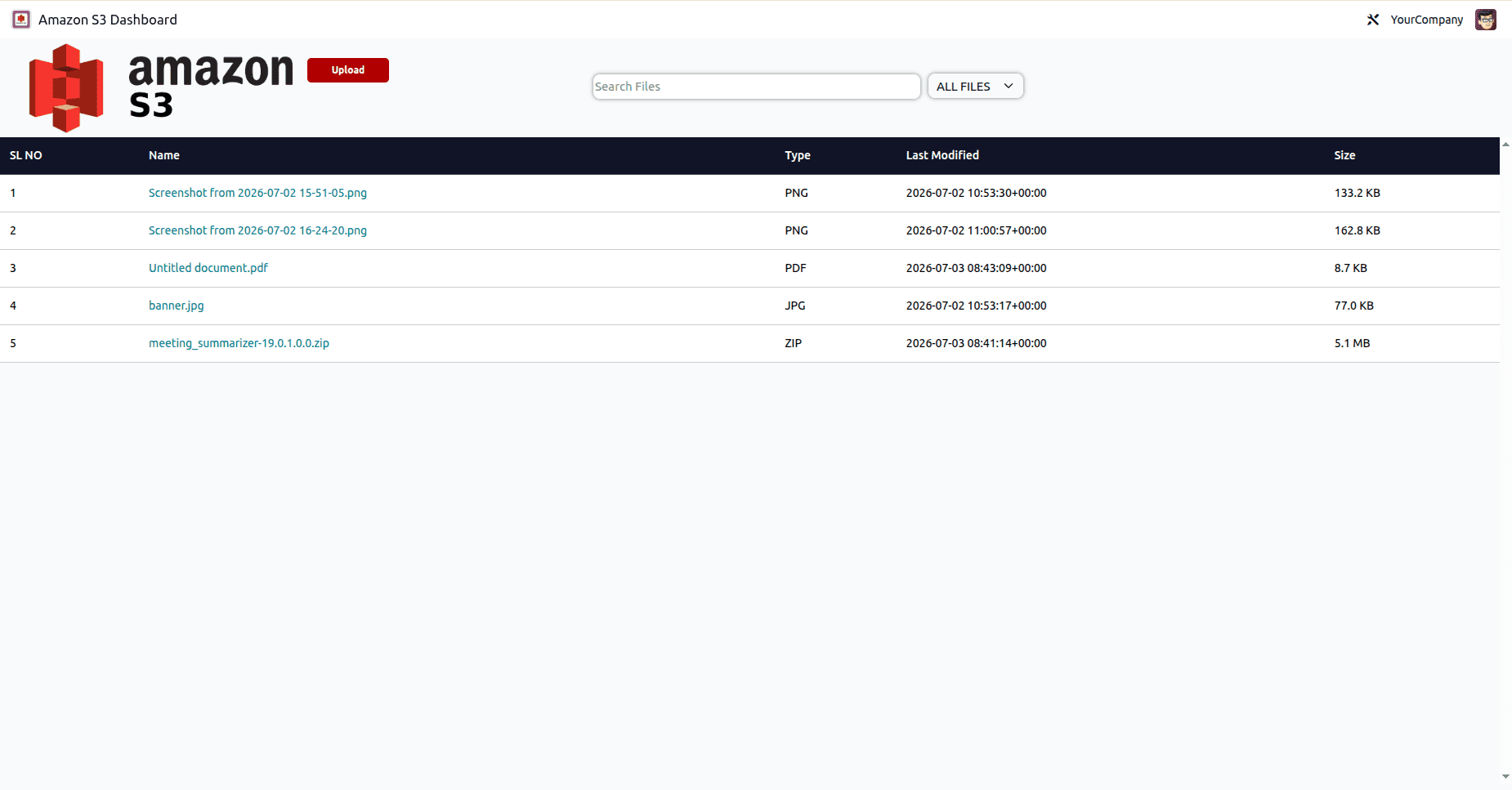
Search Files
The dashboard has a search bar to quickly locate files.
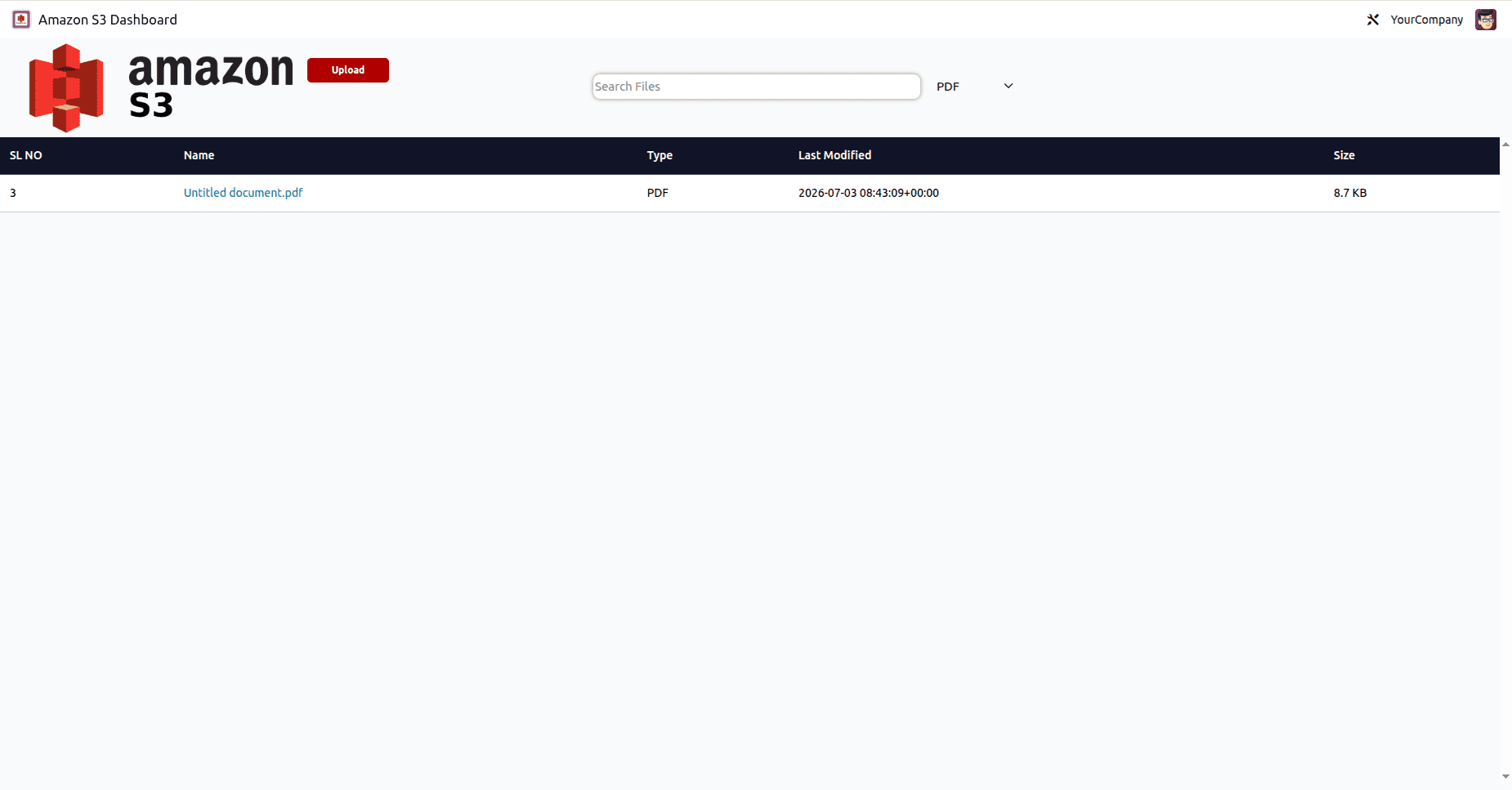
Filter by File Type
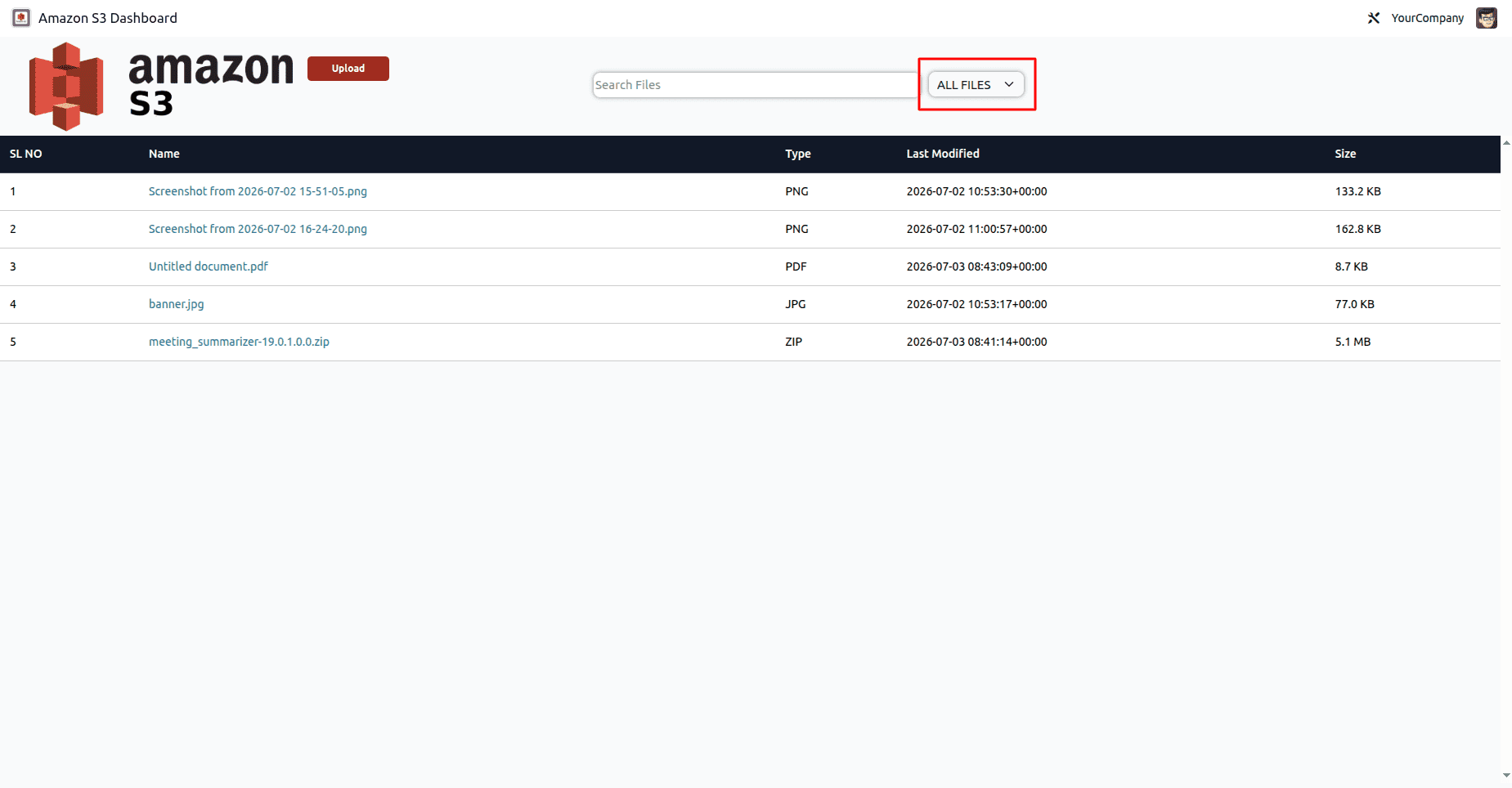
Supported filters include:
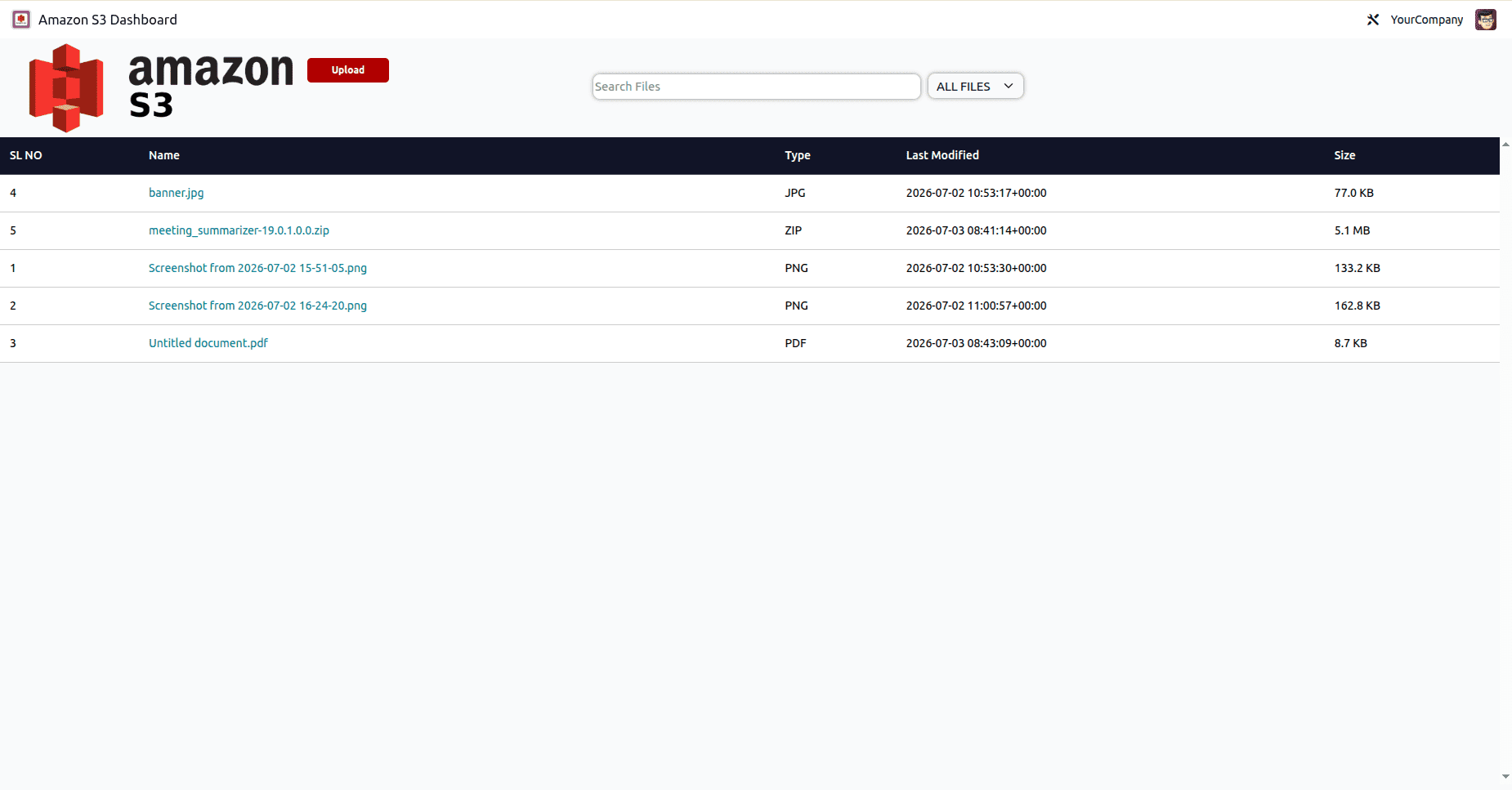
Sort Records
Users can sort the records based on:
Uploading Files to Amazon S3
Moreover, the module enables uploading files directly
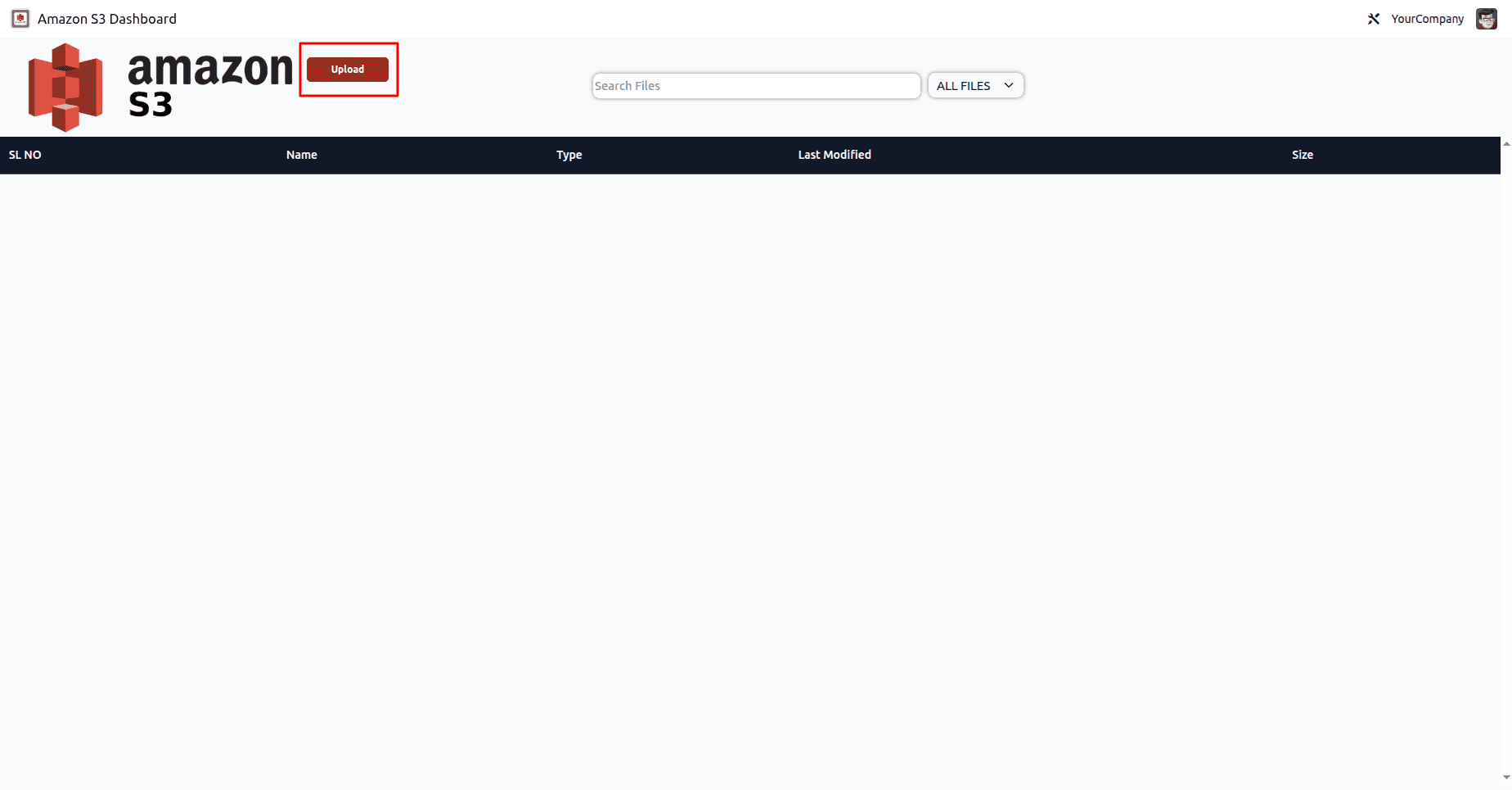
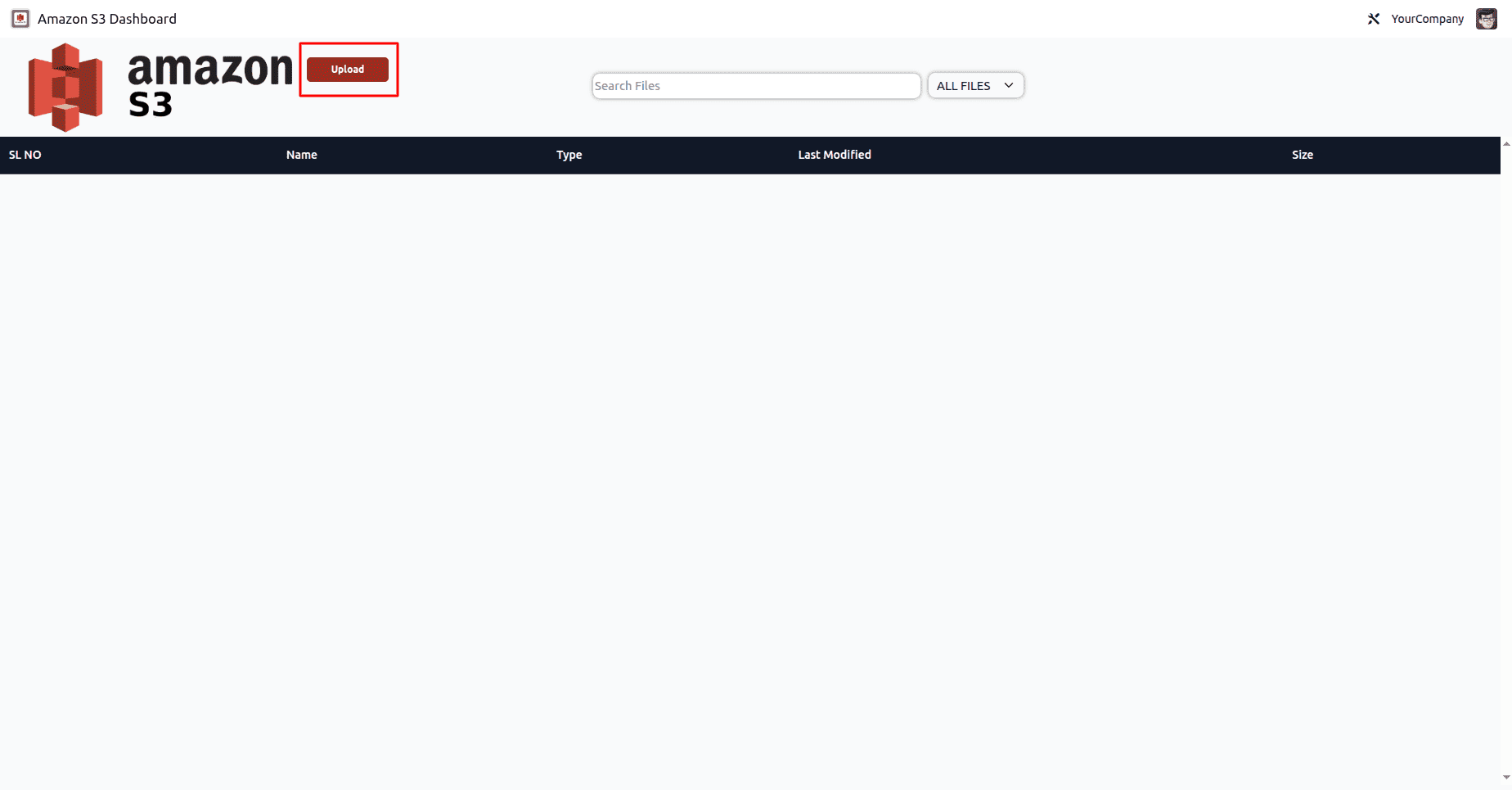
Step 1: Open Upload Wizard
Click:
Upload
from the dashboard.
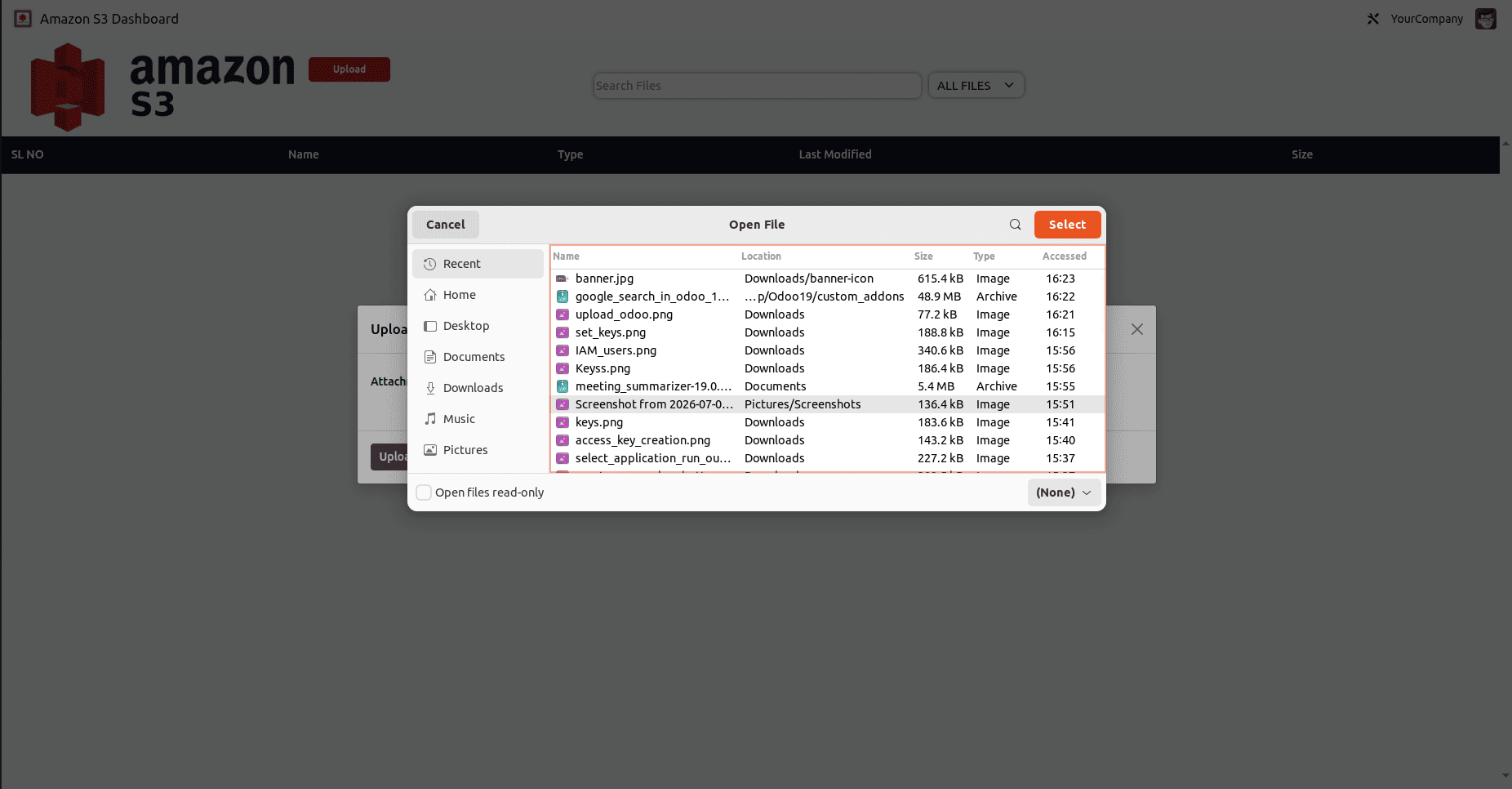
Step 2: Select a File
The wizard requires the user to select a file.
Step 3: Upload to Amazon S3
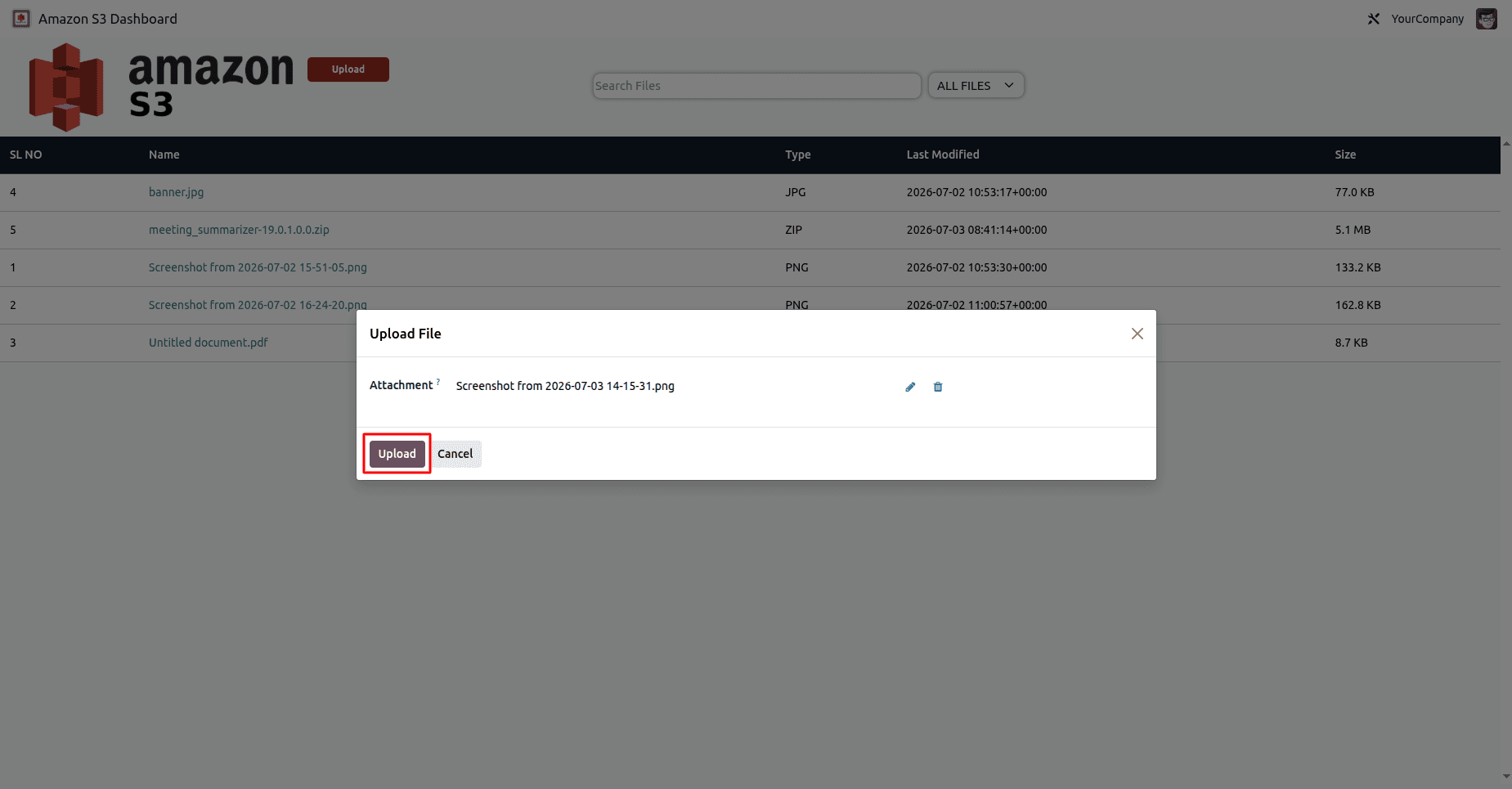
The file is transferred directly to the bucket
Step 4: Confirm Upload
After successful upload:
- A success notification is displayed
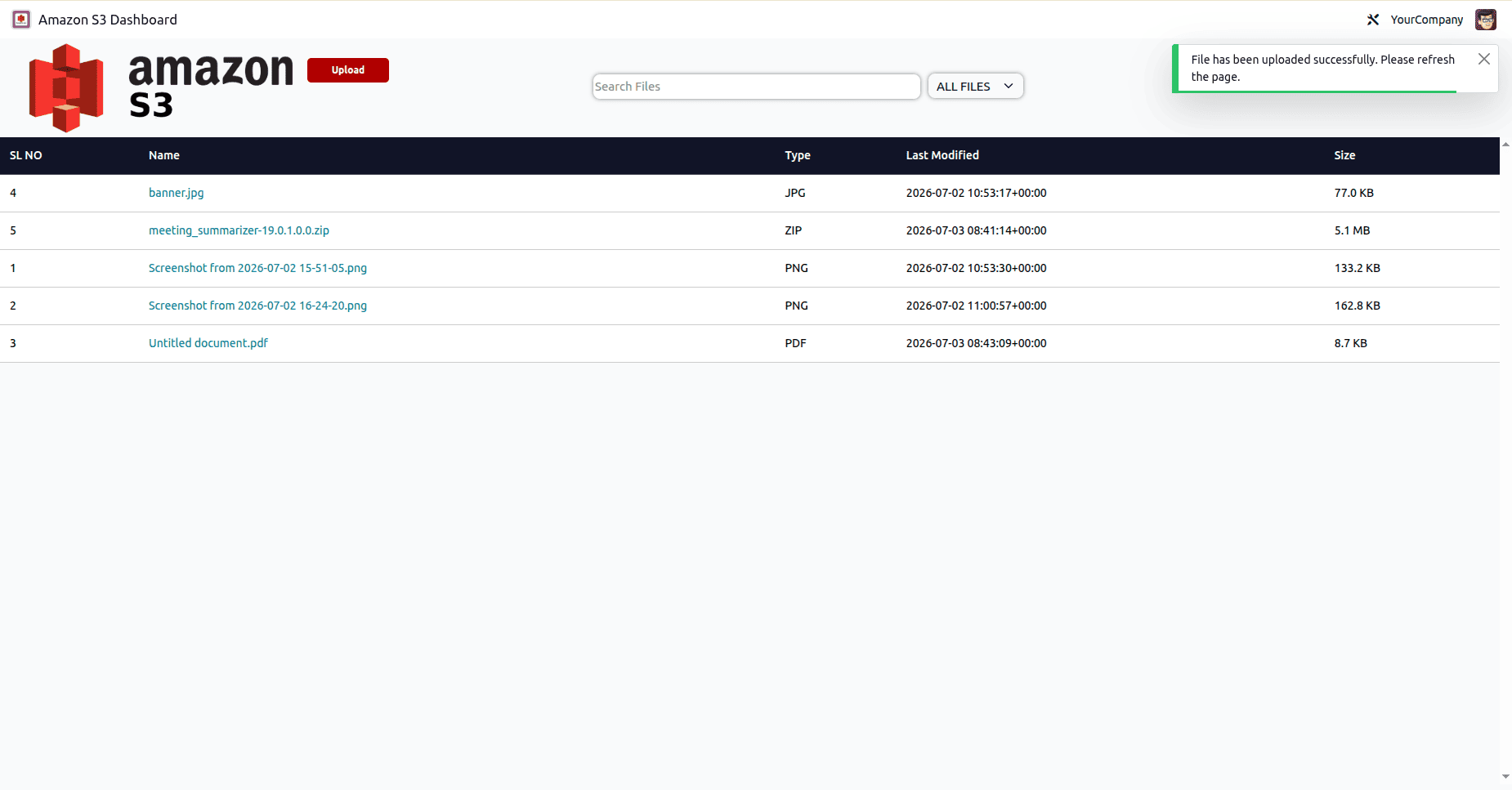
- The wizard closes automatically
- The dashboard refreshes.
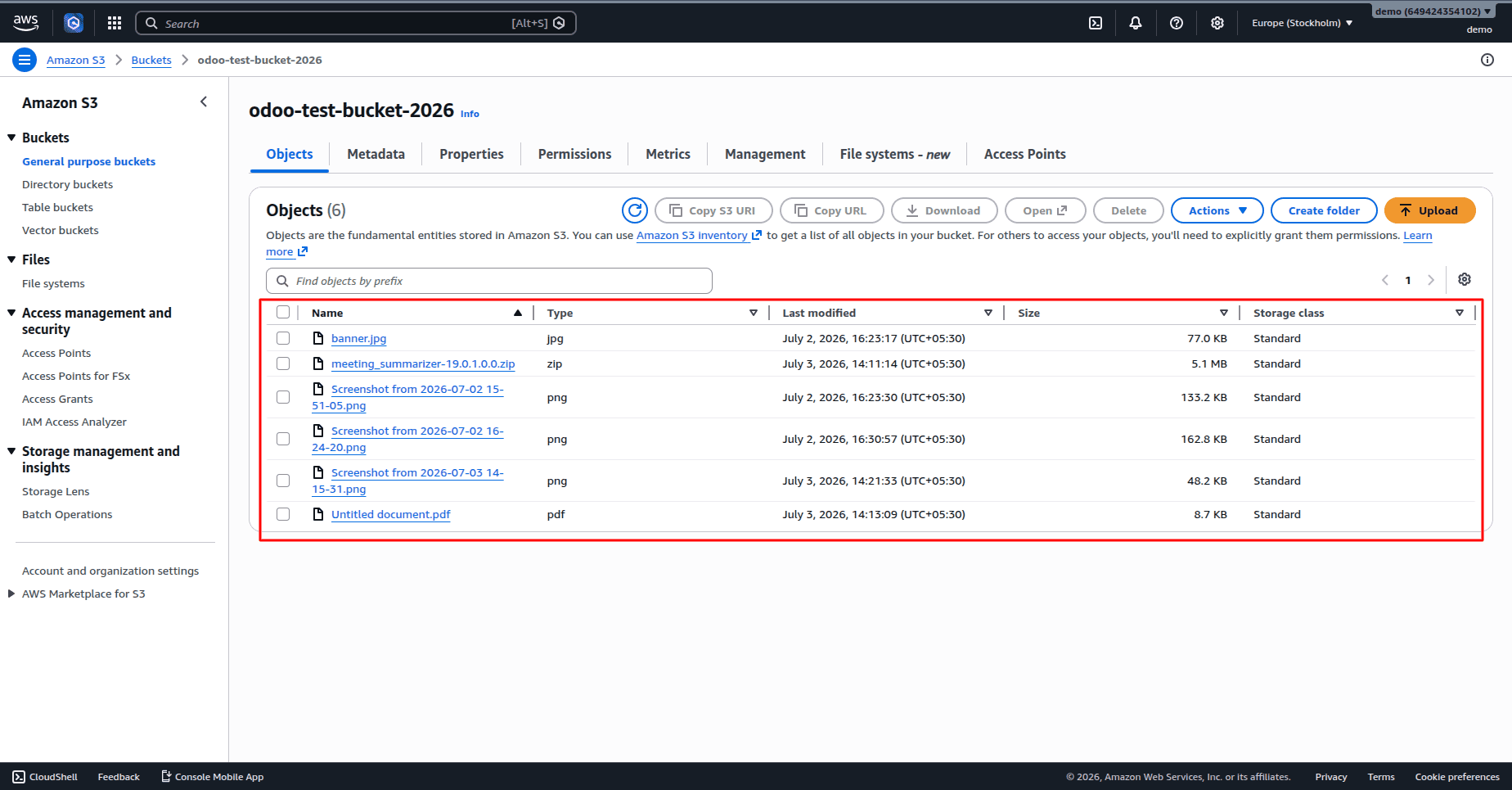
The uploaded file immediately becomes available in Amazon S3.
To view these files, open Amazon S3, select configured Bucket Name
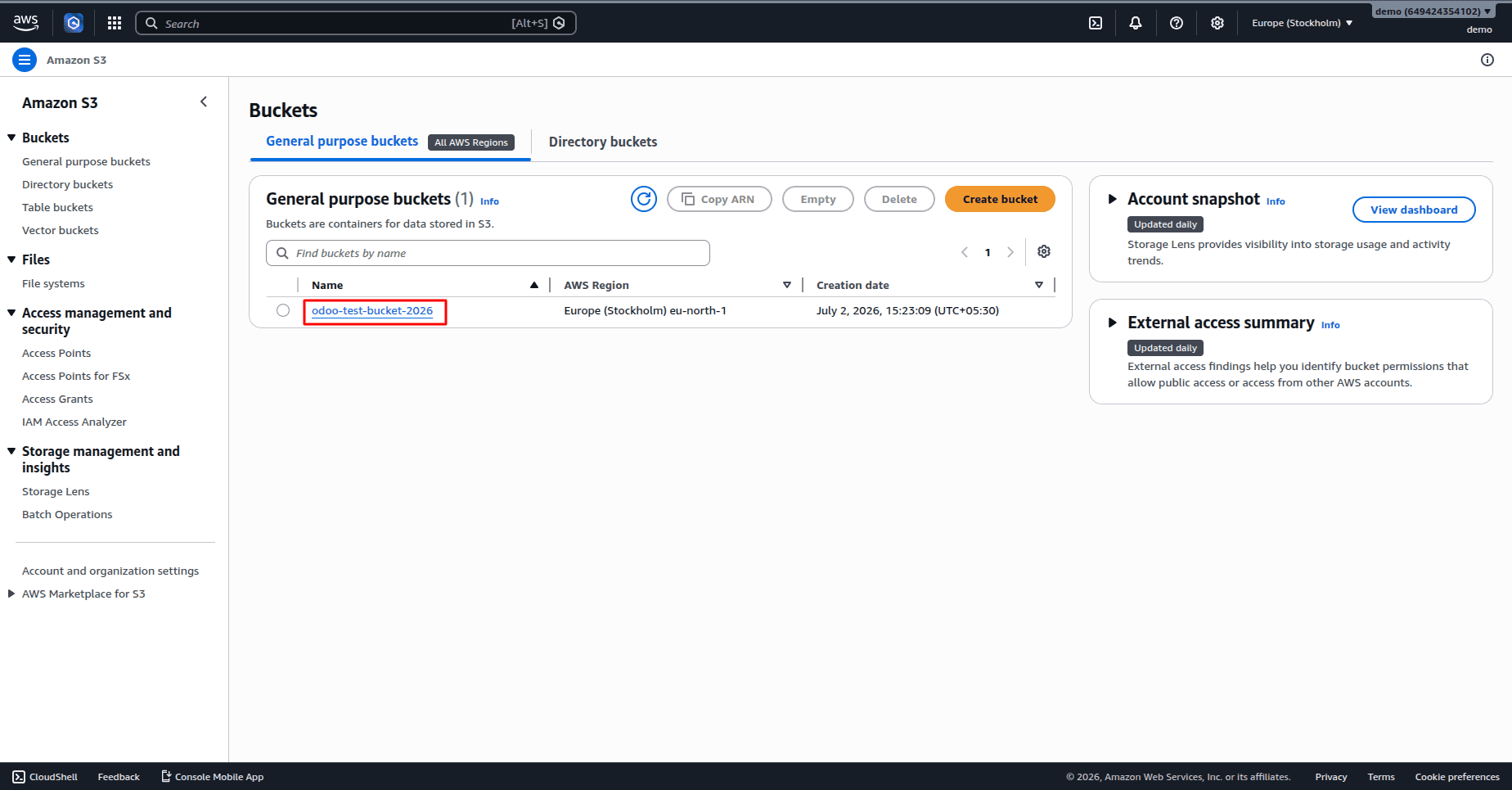
Selecting this Bucket Name opens a page that displays all the files in the bucket
Benefits of Amazon S3 Integration
Reduced Server Storage
Documents are stored in Amazon S3 instead of occupying space in the server storage.
Better Scalability
Amazon S3 is able to contain huge volumes of data without impacting the performance of Odoo.
Increased Security
Security is provided with private buckets and pre-signed URLs.
Centralized File Management
Users have control over cloud files using Odoo.
Higher Availability
Files are available because of the highly available infrastructure of AWS.
Using the Amazon S3 Connector allows getting a flexible and user-friendly module, which will enable the integration of Odoo with Amazon S3 cloud storage. After configuring AWS credentials in Odoo, one will be able to manage files in the cloud in a safe way and avoid filling up the server with data.
The module is responsible for all actions, starting from the configuration of credentials and connecting to buckets to getting files in a safe way and uploading files to Amazon S3.
To read more about How to Configure Automatic Database Backup for Amazon S3 - App, refer to our blog How to Configure Automatic Database Backup for Amazon S3 - App.