In this blog, we will look at how to change an existing record rule in Odoo. Record rules are very important in Odoo because they control who can see and use the records in the system. Each record rule is made for a type of record, and it says which people can get to those records and what they can do with them, like look at them, change them, add new ones, or delete them.
Now, let us see how to update an existing record rule.
There are two ways to change an existing record rule in Odoo: we can do it from the backend, which is the code, or from the user interface, which is what users see. If we do it from the backend, we can make changes to the rule. It will be easy to use those changes again, and they will still work even if we update Odoo. We can use the user interface to change the record rule, which is faster and easier for people who manage Odoo.
1. From UI
Here, we are going to modify the record rule assigned to the group “Sales: User – Own Documents Only.” We will use the record rule named “Personal Orders” for modification. First, enable Developer Mode to make the Groups menu visible. Then navigate to Settings, go to Users & Companies, and open the Groups menu to access and manage the relevant group.
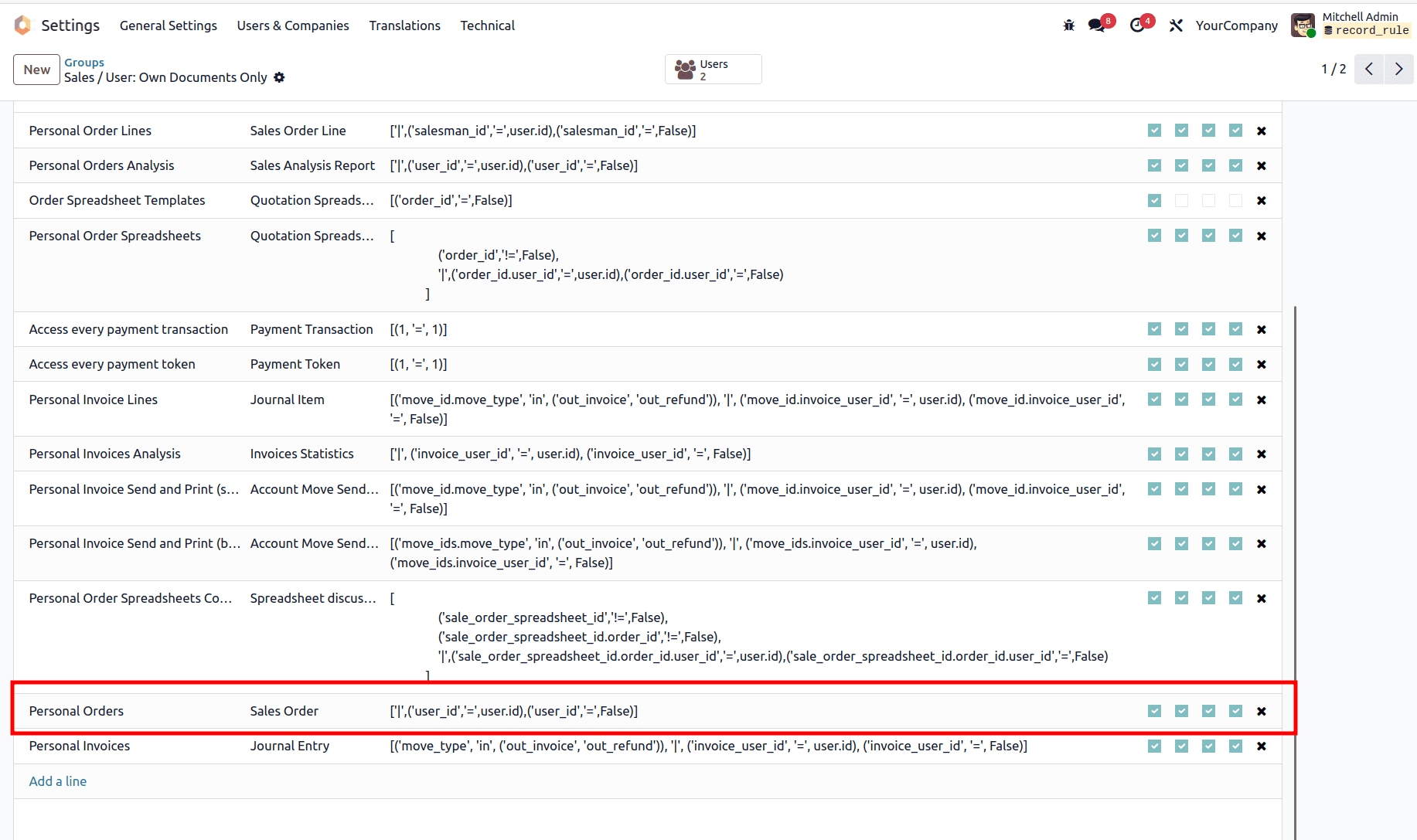
Under the Record Rules tab, we can see the rules created for the users of that group. Here, we can view the record rule name, the model for which the rule is created, the domain (which defines the conditions we set), and the access permissions, such as read, write, create, and delete.
Here, we can see that the record rule “Personal Orders” is created for the Sale Order model. If this group is assigned to a user, they can see only the sale order records they created, and they will not be able to view other users’ sale order records.
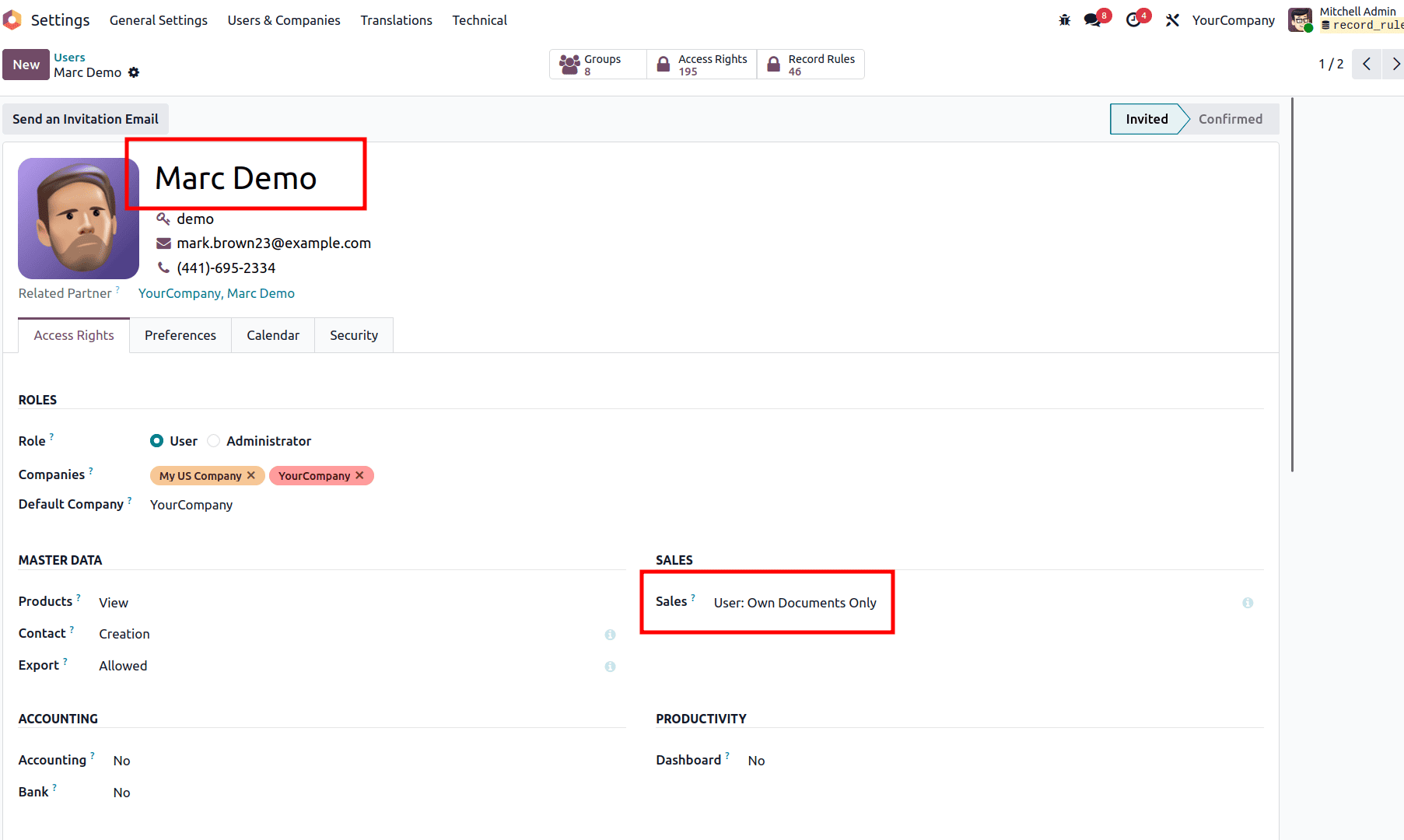
Here we can see the group Sales: User – Own Documents Only assigned to the user Marc Demo.
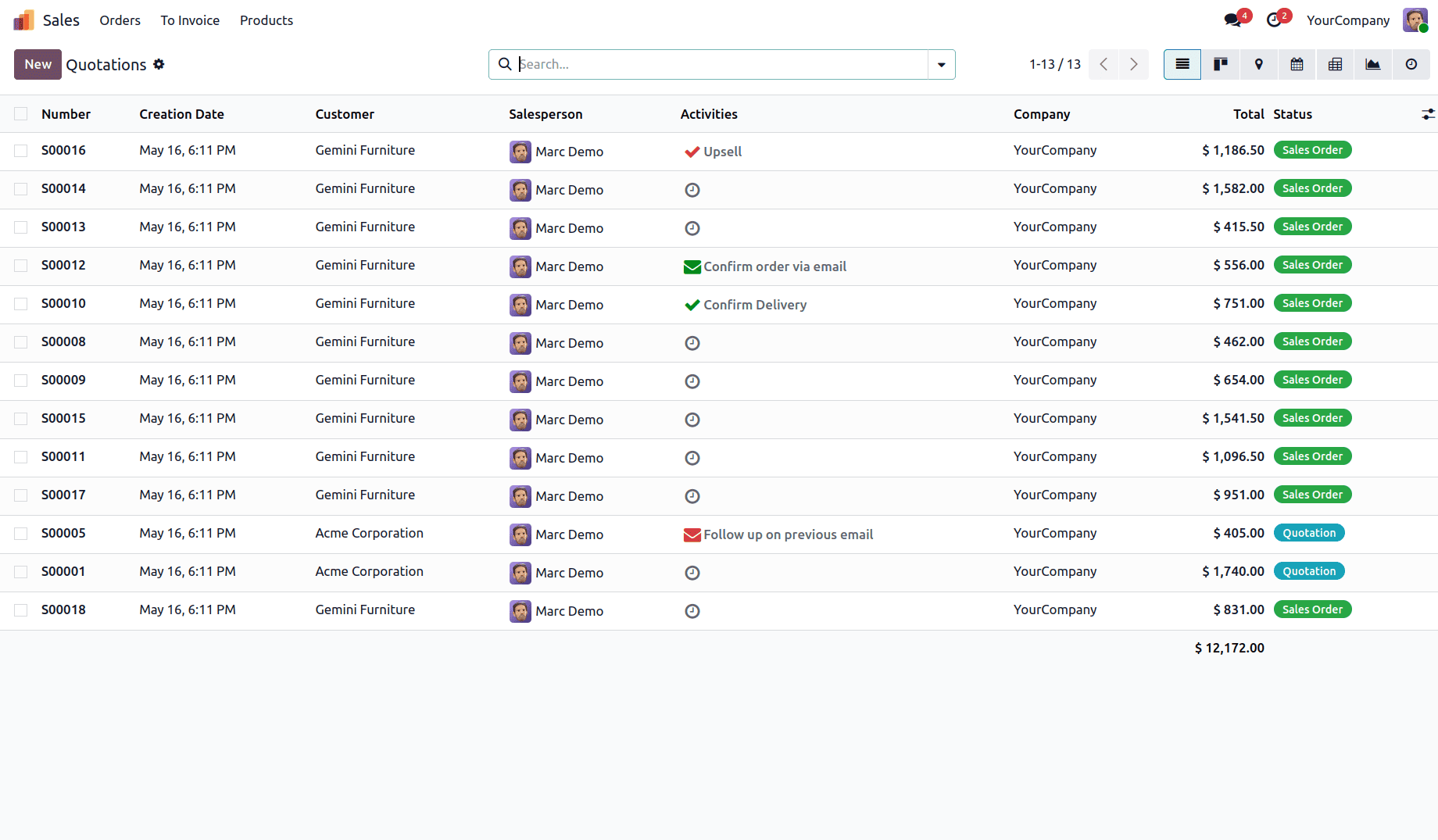
So, when Marc Demo logs in, he can see only the sales records created by him.
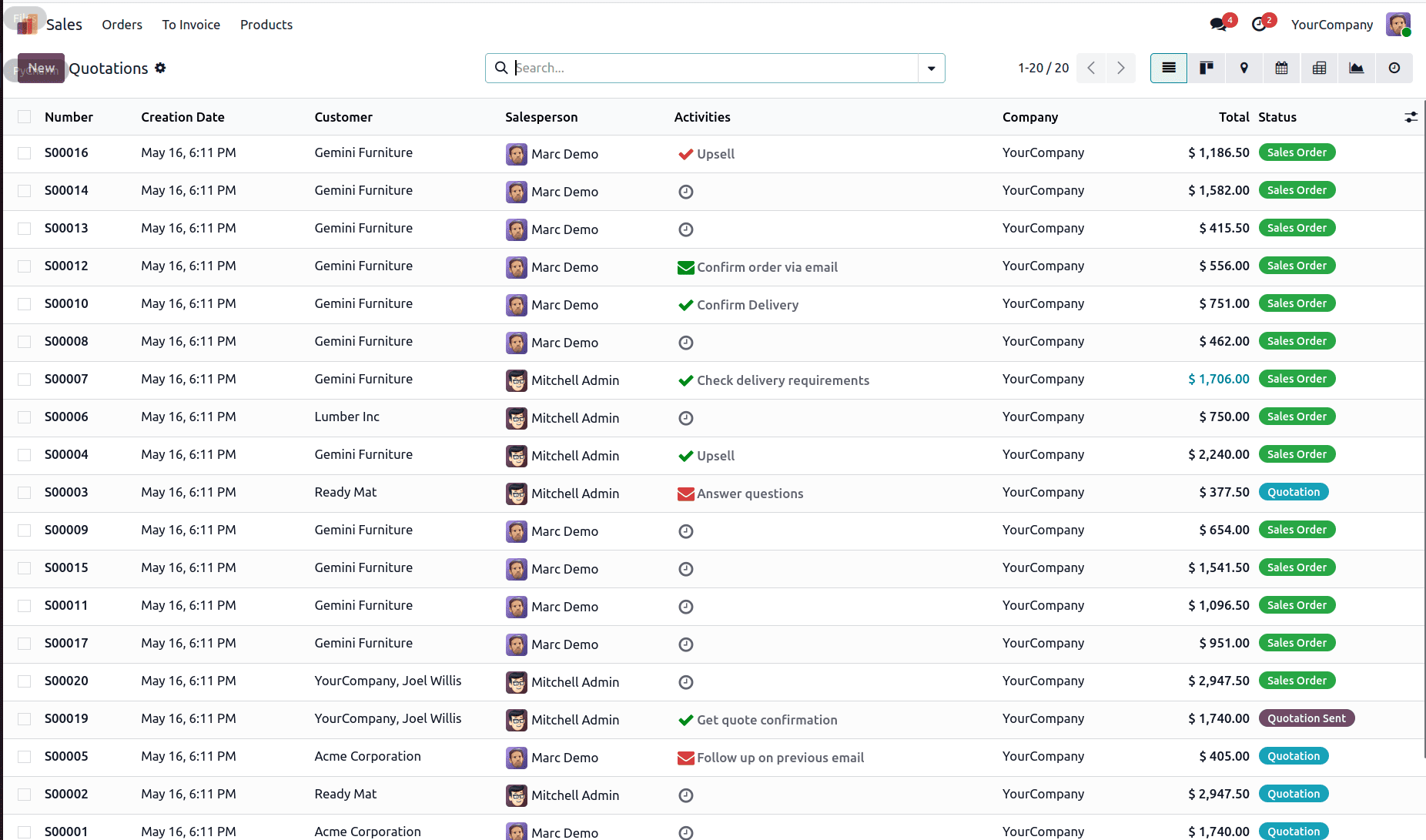
Now, I have removed the domain from the record rule.
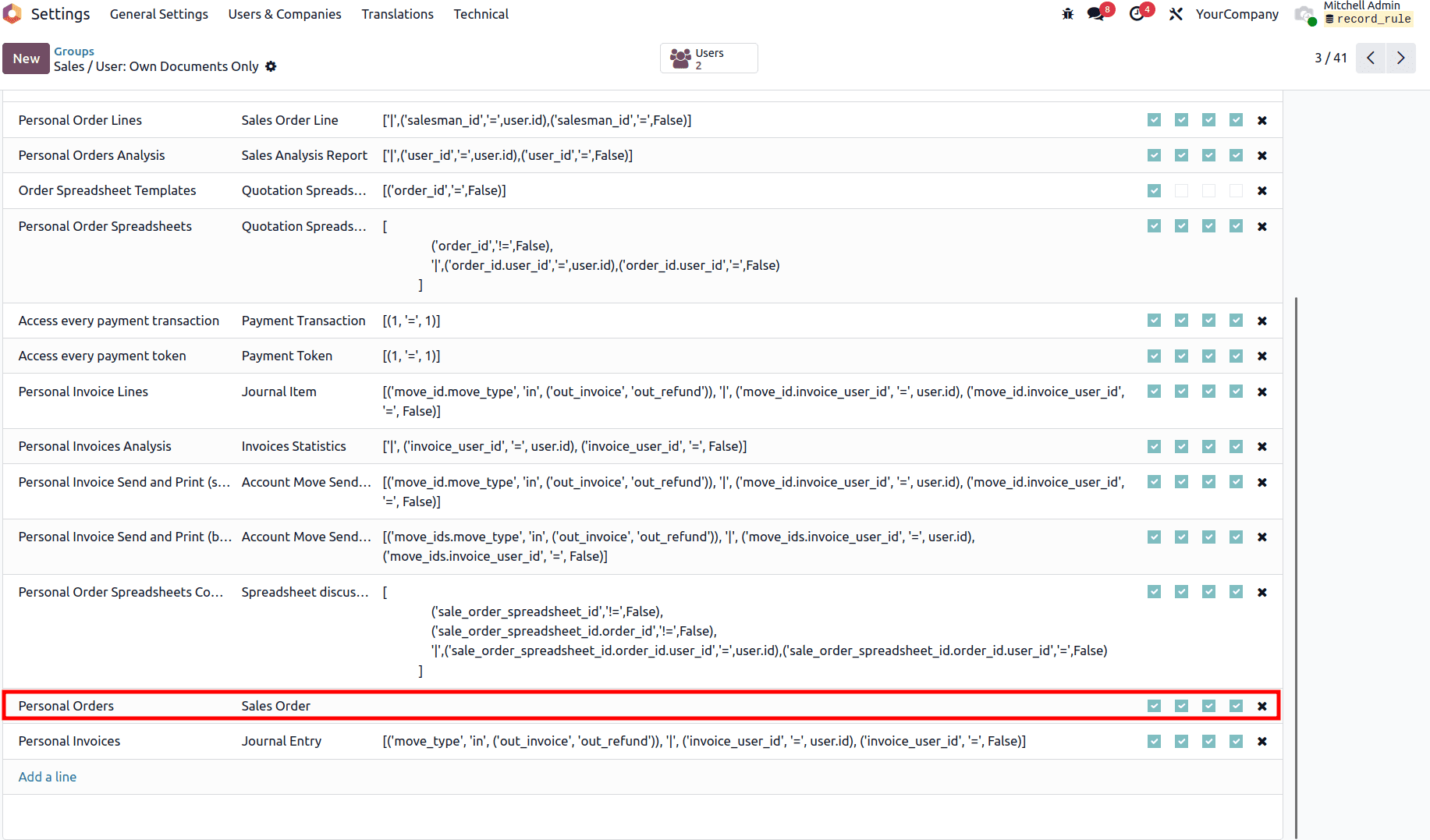
After removing the domain, the user is able to see all records, as shown below.
2. Modify Through the Code
If we are updating a record rule through code, first we need to find the XML of the record rule. By searching using the name of the record rule, we can easily locate its XML definition.
<record id = "sale_order_personal_rule" model = "ir.rule">
   <field name = "name"> Personal Orders </field>
   <field ref = "model_sale_order" name = "model_id" />
   <field name = "domain_force" > ['|', ('user_id', '=', user.id), ('user_id', '=', False)] </field>
   <field name = "groups" eval = "[(4, ref ('sales_team.group_sale_salesman'))] "/>
</record>
This is the XML definition of the "Personal Order" record rule.
Before updating the rule, we need to set noupdate="0" . Only then will the changes made to the record rule take effect during the module update.
  <function name="write" model="ir.model.data">
        <function name="search" model="ir.model.data">
            <value eval="[('module', '=', 'sale'),
                      ('name', '=', 'sale_order_personal_rule')]"/>
        </function>
        <value eval="{'noupdate': False}"/>
    </function>
Here, we specify the module name and the ID of the record rule that needs to be modified.
Before the update, the record rule was configured as follows:
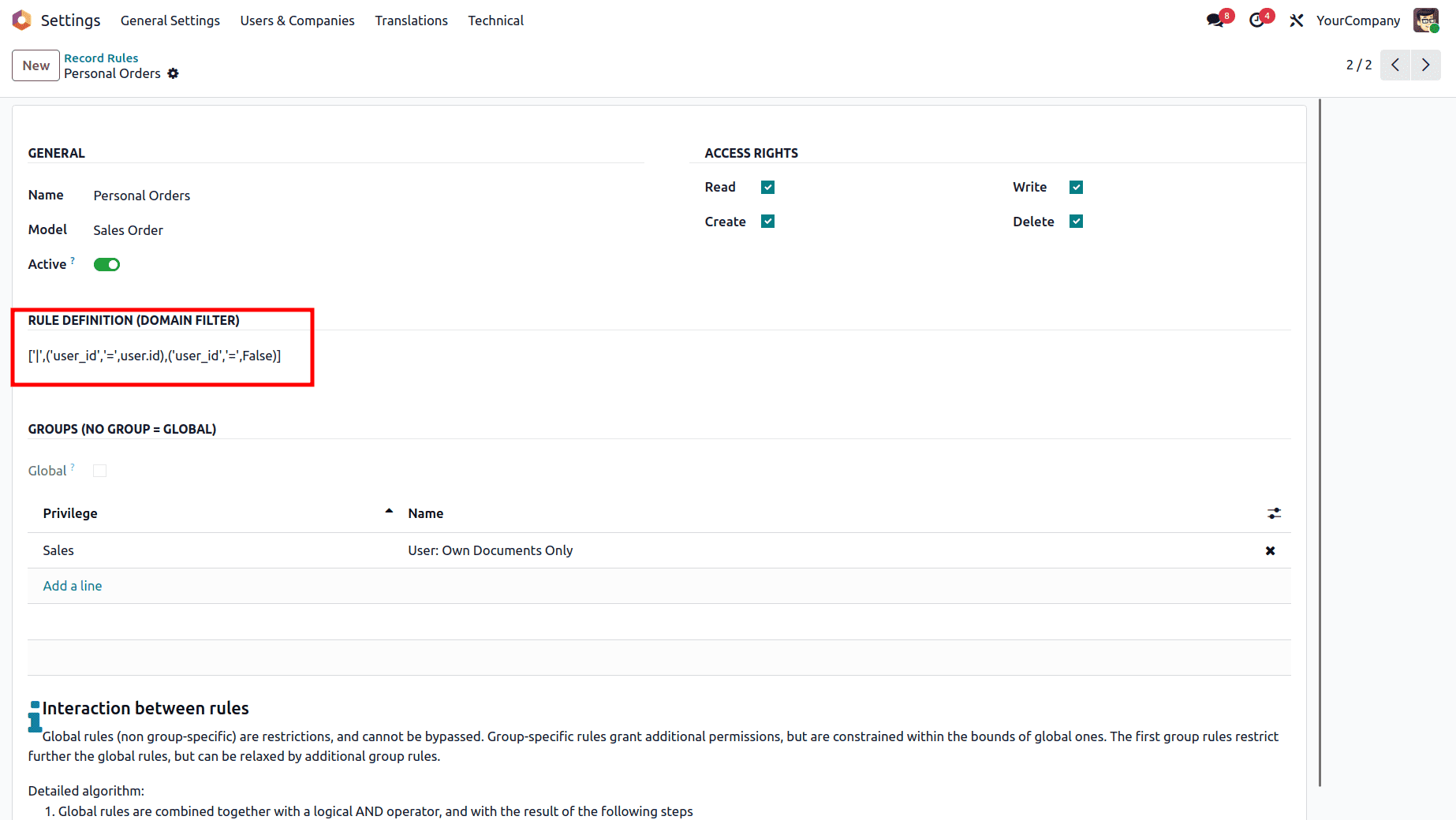
Below is the original definition of the rule before applying any changes.
<record id = "sale.sale_order_personal_rule" model = "ir.rule">
   <field name = "name"> Personal Orders </field>
   <field ref = "sale.model_sale_order" name = "model_id" />
   <field name = "domain_force"> ['|', ('user_id', '=', user.id), ('user_id', '=', False)] </field>
   <field name = "groups" eval = " [(4, ref ('sales_team.group_sale_salesman'))] "/>
</record>
The next step is to update the record rule.
<record id="sale.sale_order_personal_rule" model="ir.rule">
    <field name="name">Personal Orders</field>
    <field ref="sale.model_sale_order" name="model_id"/>
    <field name="domain_force"></field>
    <field name="groups" eval="[(4, ref ('sales_team.group_sale_salesman'))]"/>
 </record>
After updating the module, we can see that the domain filter has been removed.
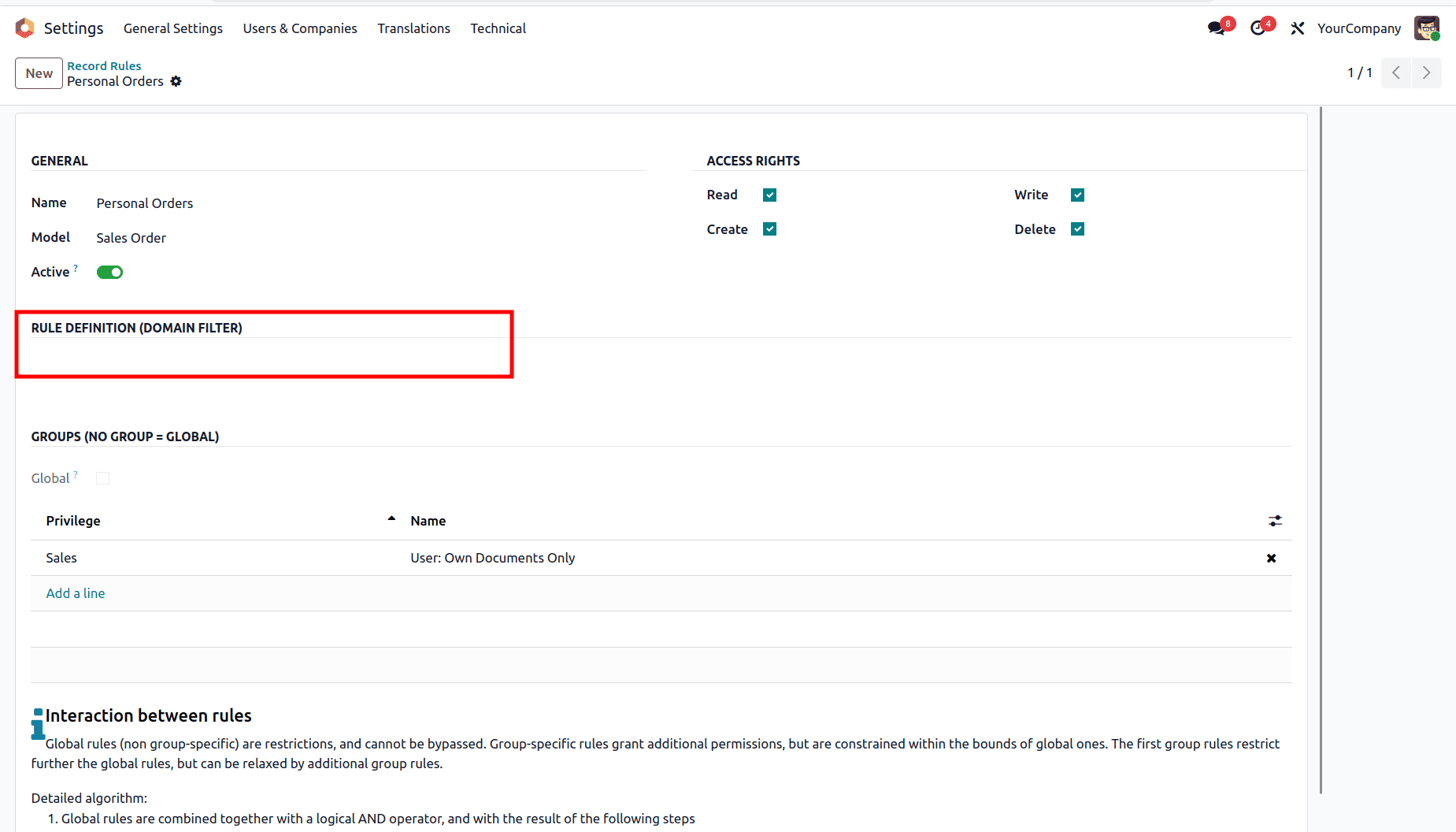
In the updated record rule, I removed the domain_force field from the original definition. This removes the domain restriction previously applied by the rule.
After making the required updates, set noupdate back to True, and then upgrade the module.
  <function name="write" model="ir.model.data">
        <function name="search" model="ir.model.data">
            <value eval="[('module', '=', 'sale'),
                      ('name', '=', 'sale_order_personal_rule')]"/>
        </function>
        <value eval="{'noupdate': True}"/>
    </function>
Odoo's record rules are a part of keeping things secure. They help people in charge and developers control who can see what records and when. You can make changes to record rules right in the user interface. If you want to make bigger changes, it is better to do it through code. This way is more organized and safer when you update Odoo.
To read more about How to create Record rules in Odoo 19, refer to our blog How to create Record rules in Odoo 19.