Address management for your customers and vendors is one of the most important concerns for any business, right from sales to delivery to invoicing. In Odoo 18, this is handled effectively through a flexible system that depends on a parent-child relationship for contacts and allows users to define specific address types for different business purposes.
Odoo 18 brings refined flexibility in handling partner addresses, making it easy to manage multiple addresses under a single contact. In this blog, we’ll explore how to effectively manage partner addresses in Odoo 18—covering configuration, address hierarchy, best practices, and advanced tips to keep your contact database accurate and efficient.
Understanding Partner Address Management in Odoo 18
In Odoo, all contacts, whether individuals or companies, are managed through the Contacts application. Each contact record is stored in the model res.partner. Odoo provides a parent-child structure. This allows one parent partner (the main company) to have multiple sub-contacts or addresses, such as delivery, billing, or others. This structure ensures data consistency, simplifies order and invoice management.
Parent–Child Structure
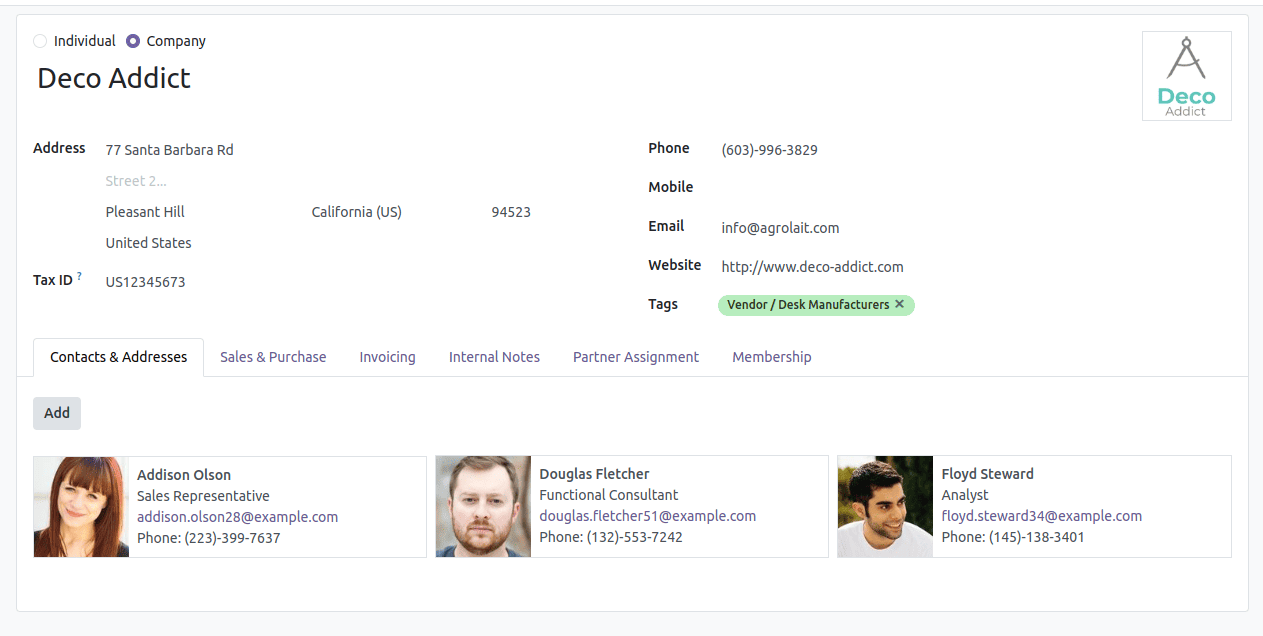
- Parent Partner: Represents the main customer or vendor record. It may be a company or an individual.
- Child Partner(s): These are individual records linked to the parent company. Each child may represent a different department, a specific branch, or even an individual within the organization. Importantly, each child can have their own unique address and contact details, serving a specific purpose.
What are the key partner address types, and how are they used?
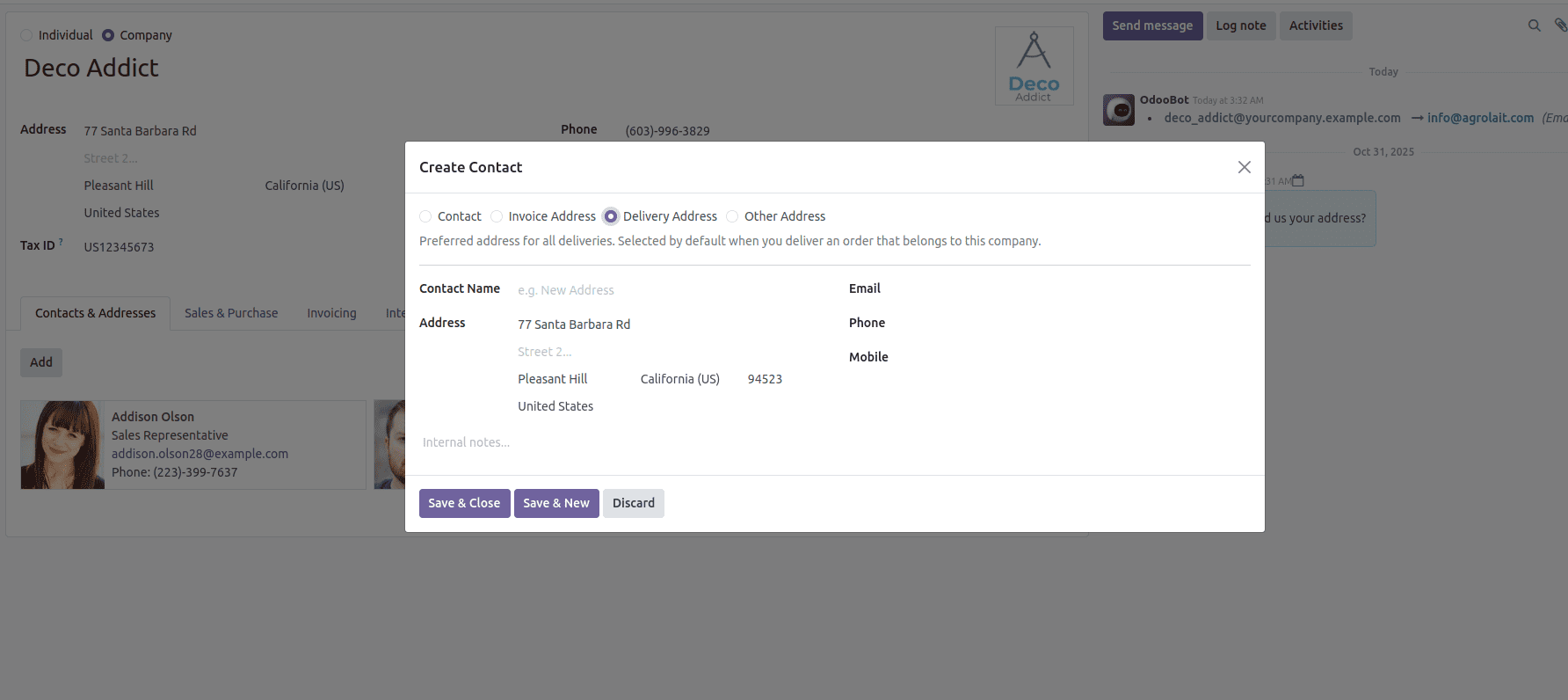
Odoo has specific "Contact Types" to differentiate and automatically use different addresses. When creating a new contact under a parent company, you will pick one of the following types:
1. Contact (General Purpose)
This is a default option for any general contact associated with the company. It could be a key account manager, a certain employee, or even a general branch office of some kind. Primarily for general communication, CRM activities, and as a fallback address if no particular delivery or invoice address is specified for a given transaction.
2. Delivery Address
The Delivery Address identifies the location to which goods or products should be delivered. By default, this address type will be selected in Odoo while creating sales orders, delivery orders, and shipping documents to make sure the deliveries go to the right place. And one partner can have more than one delivery address, which will definitely help when one company operates several warehouses, stores, or branch offices.
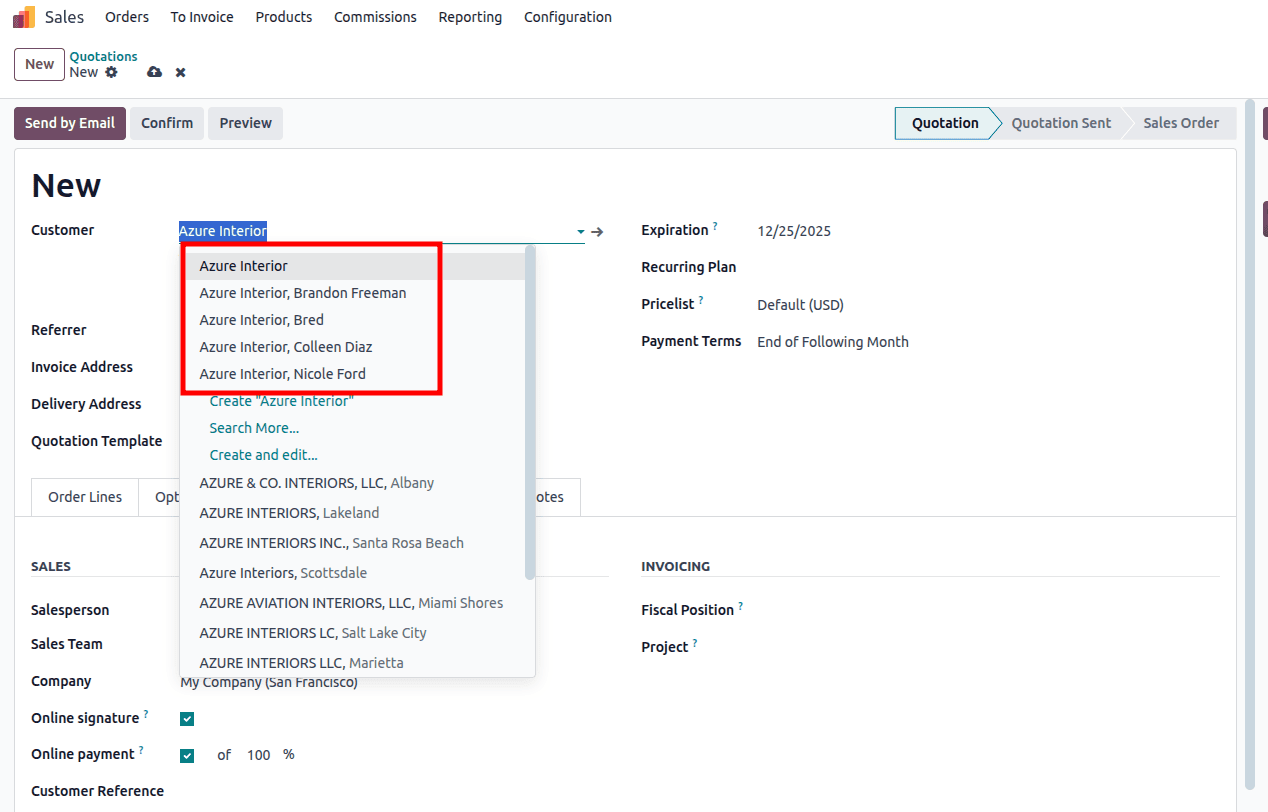
In a Sales Order, you can easily select the exact delivery address from among the contacts associated with the customer. Similarly, this selection automatically populates the delivery orders (pickings) generated by the sale. In Inventory Management, this address is crucial for generating accurate shipping labels and getting your products to the correct physical location.
3. Invoice Address
This address is for all billing and financial documents. A company's head office, or even its accounting department, very often handles invoices, though deliveries may go somewhere else entirely. You can specify a separate invoice address on a sales order. This address will then be used when Odoo generates customer invoices.
4. Other Address
This is the catch-all for any address that doesn't fit well into the delivery or invoice categories but is important to retain on the partner record. Examples include: legal address, service address, or another branch to which other inquiries should be forwarded.
How to Configure Partner Addresses in Odoo 18
Setting up and managing these addresses in Odoo 18 is pretty straightforward:
- Step 1: Enter the Contacts Module
Go to the Contacts module from your Odoo dashboard.
- Step 2: Choose or create a parent company
Find the existing customer or vendor (company) for which you want to manage addresses, or create a new company record.
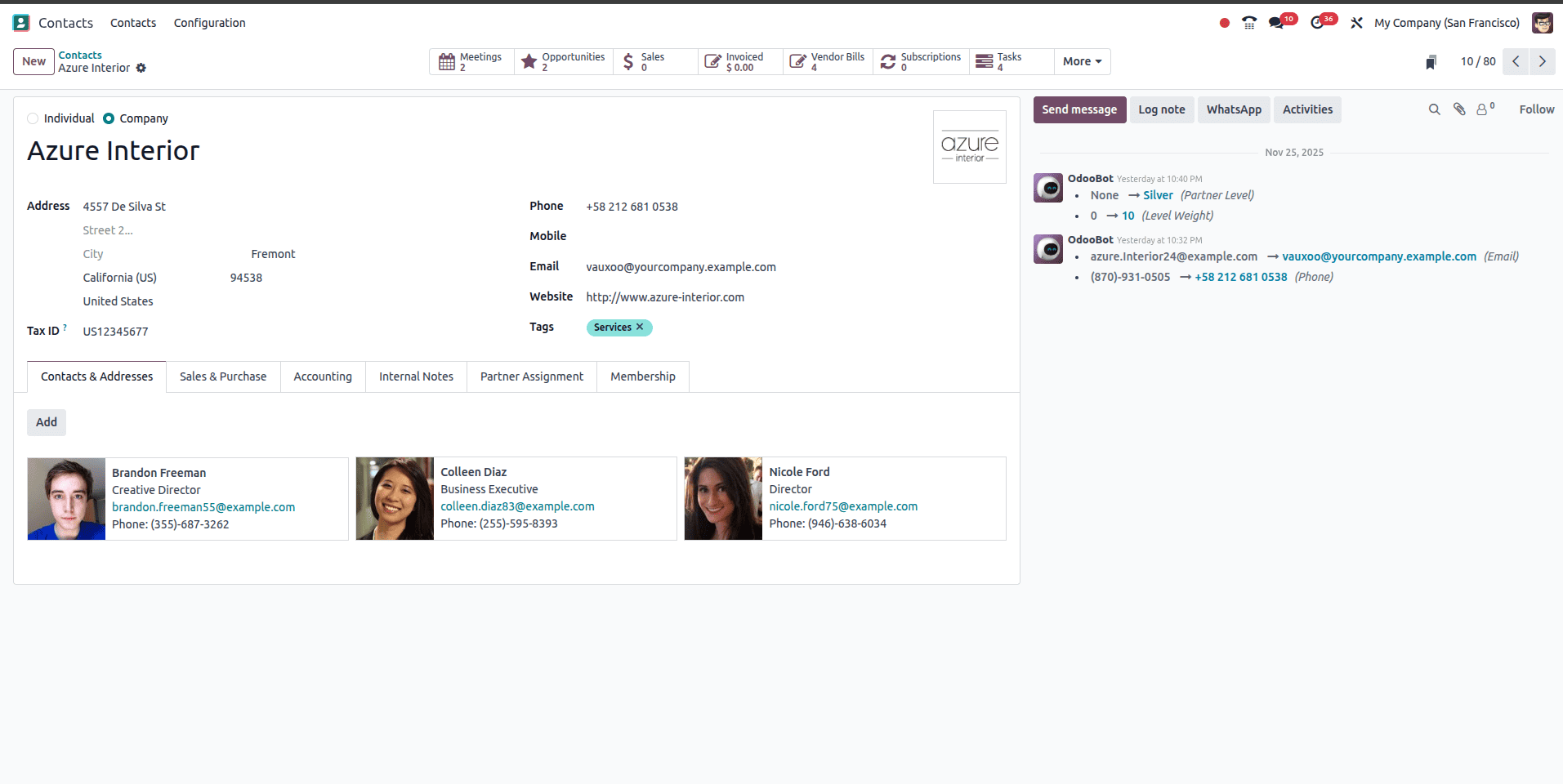
- Step 3: Add New Contacts/Addresses
On the company's form view, you'll need to click on the "Contacts & Addresses" tab, which might be slightly different in terms of wording depending on the version you use or any customized modules.
Click on "Add" to open a new contact form.
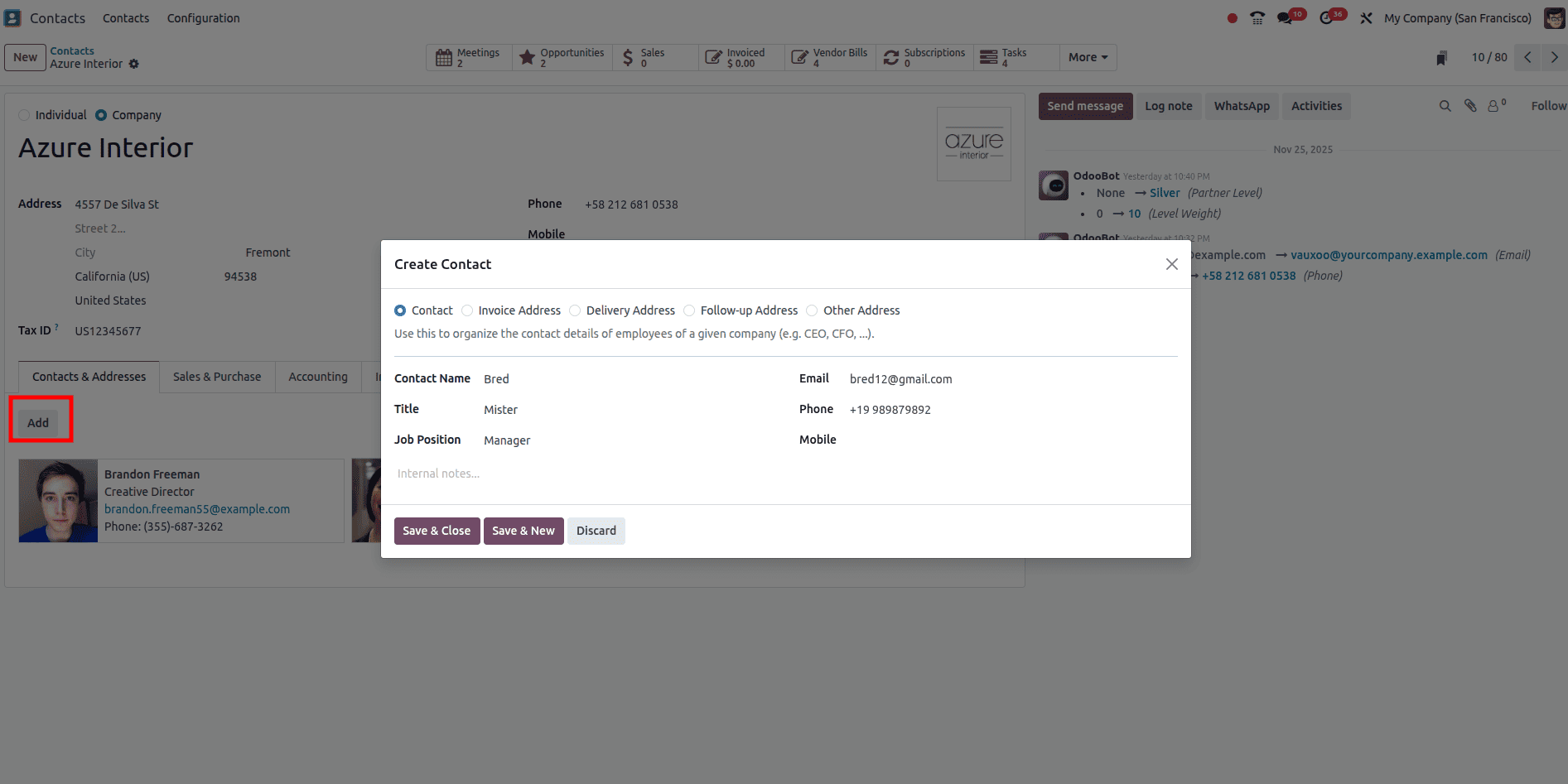
- Step 4: Determine the Contact Type and Address Details
In the new contact form that opens,
Contact Name: Provide a clear name for this contact, which could be a person's name, a department, such as "Accounts Payable", or a place, such as "Main Warehouse".
Address: Complete all the address information accurately.
Fill in any other details relevant to this contact, such as phone numbers, email addresses, etc.
Click "Save & Close" or "Save" to set this new address for the parent company.
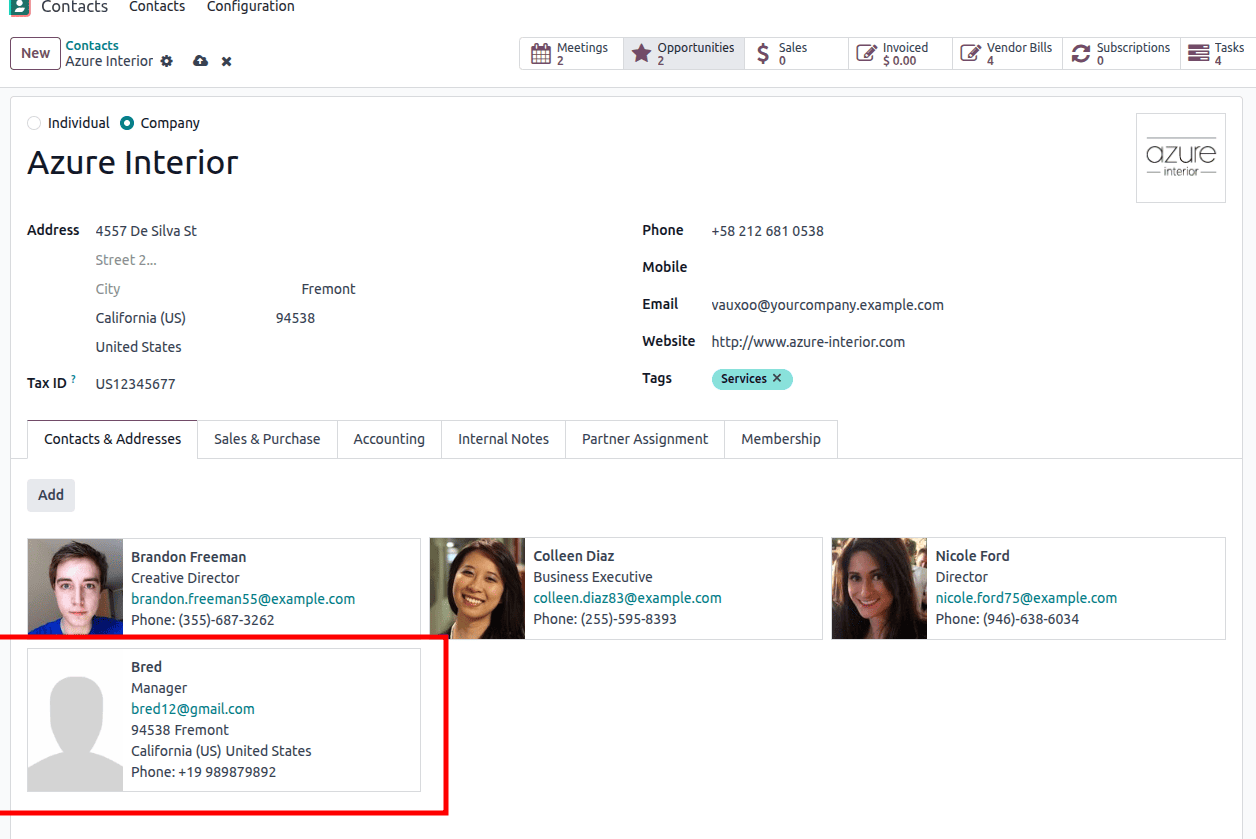
You can repeat Steps 3 and 4 to add as many different addresses as your business requires for a single parent company.
You can choose your address from the sale order as shown in the image below.
What are the benefits of Odoo's partner address management?
The main advantages of implementing Odoo's partner address management are:
- Drastically reduces errors in shipping and billing by ensuring that the right address is always used by the system for which it was intended.
- Automates address selection in sales orders, purchase orders, and accounting documents, saving time and reducing manual data entry.
- Conveys all the addresses relevant for a partner in one record that is easy to navigate.
- It perfectly supports complex business scenarios where one partner may have multiple operational sites, several billing departments, or different contact persons.
- Directs all communications and deliveries to the right place, enabling consistently happy customers and a smoother relationship with vendors.
Conclusion
The potent functionality in Odoo 18 for managing partner addresses, coupled with the intuitiveness of its parent-child contact structure, is a true asset for any business. Companies that clearly define and use different address types for delivering, invoicing, and general contact reasons will see large improvements in operations, almost zero occurrence of errors, and, in return, be able to offer more efficient and effective services to their customers and vendors alike. To unlock the true potential of Odoo as a robust business management solution, mastering this core functionality is an essential target.
To read more about What are the Differences Between Community & Enterprise in Odoo 18 Contacts, refer to our blog, What are the Differences Between Community & Enterprise in Odoo 18 Contacts.