Branding and user experience play a huge role in today’s fast-moving world of business applications. With Odoo 19, companies get more flexibility than ever—especially when it comes to customizing the look and feel of their apps through improved font management tools. These updates make it easier to design professional, branded documents that truly match your company’s visual identity.
This guide walks you through the different methods you can use to add custom fonts in Odoo 19.
Why Custom Fonts Matter in Odoo 19
Custom fonts make a noticeable difference across modern business interfaces and documents:
- Brand Consistency: Keep your brand’s visual style uniform throughout reports, documents, and UI elements.
- Professional Appeal: Give your reports and online pages a clean, polished, and branded appearance.
- Improved User Experience: Well-chosen fonts make content easier to read and more engaging.
- Compliance: Hosting fonts locally helps meet EU compliance standards by avoiding unnecessary reliance on external font providers.
Method 1: Using Odoo 19 Web Editor
The easiest way to add custom fonts is through Odoo's built-in web editor.
Step 1: Access the Website Editor
- Navigate to your Odoo 19 website
- Click Edit to enter the website editor
- Go to the Theme tab in the editor panel
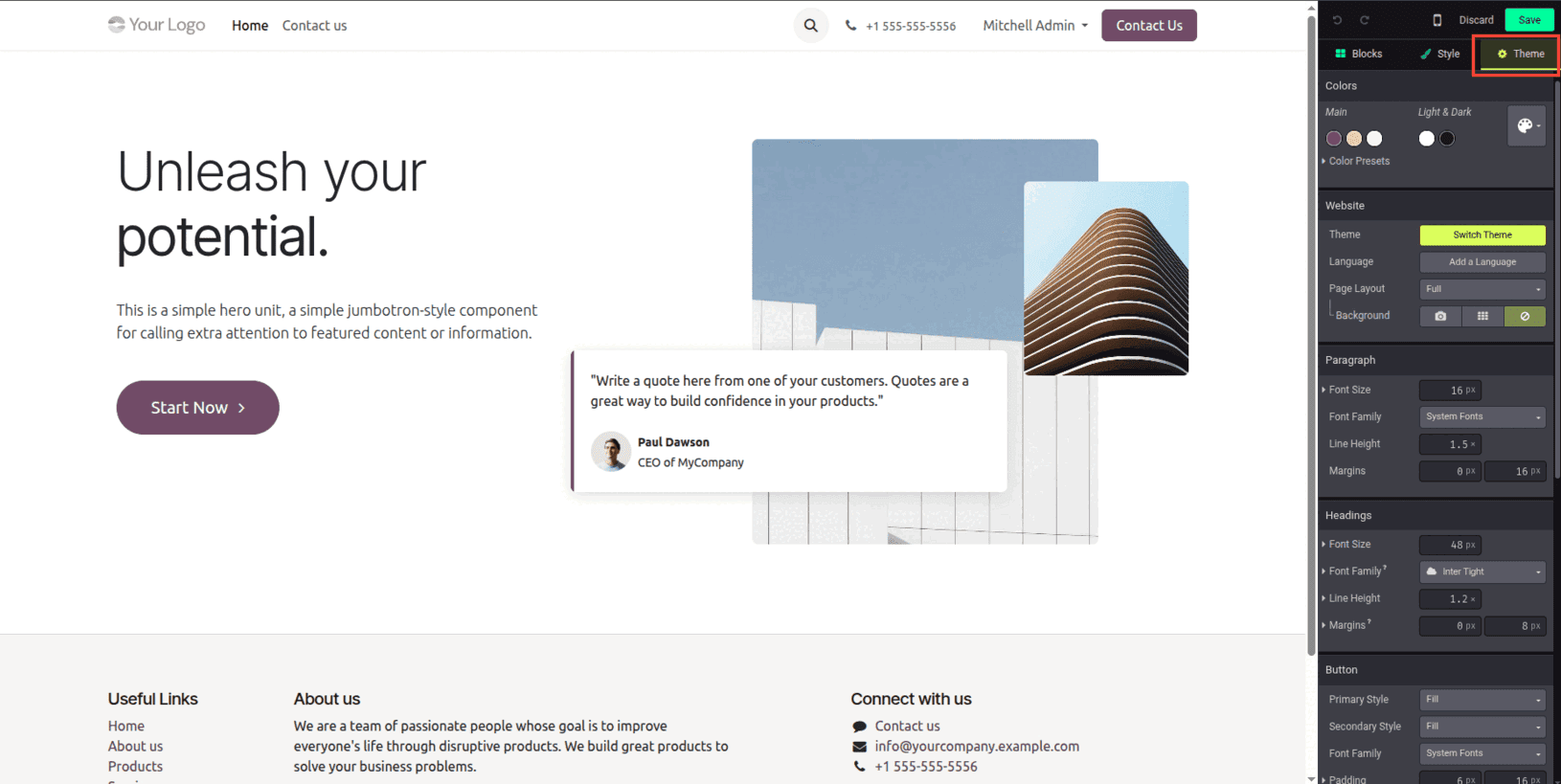
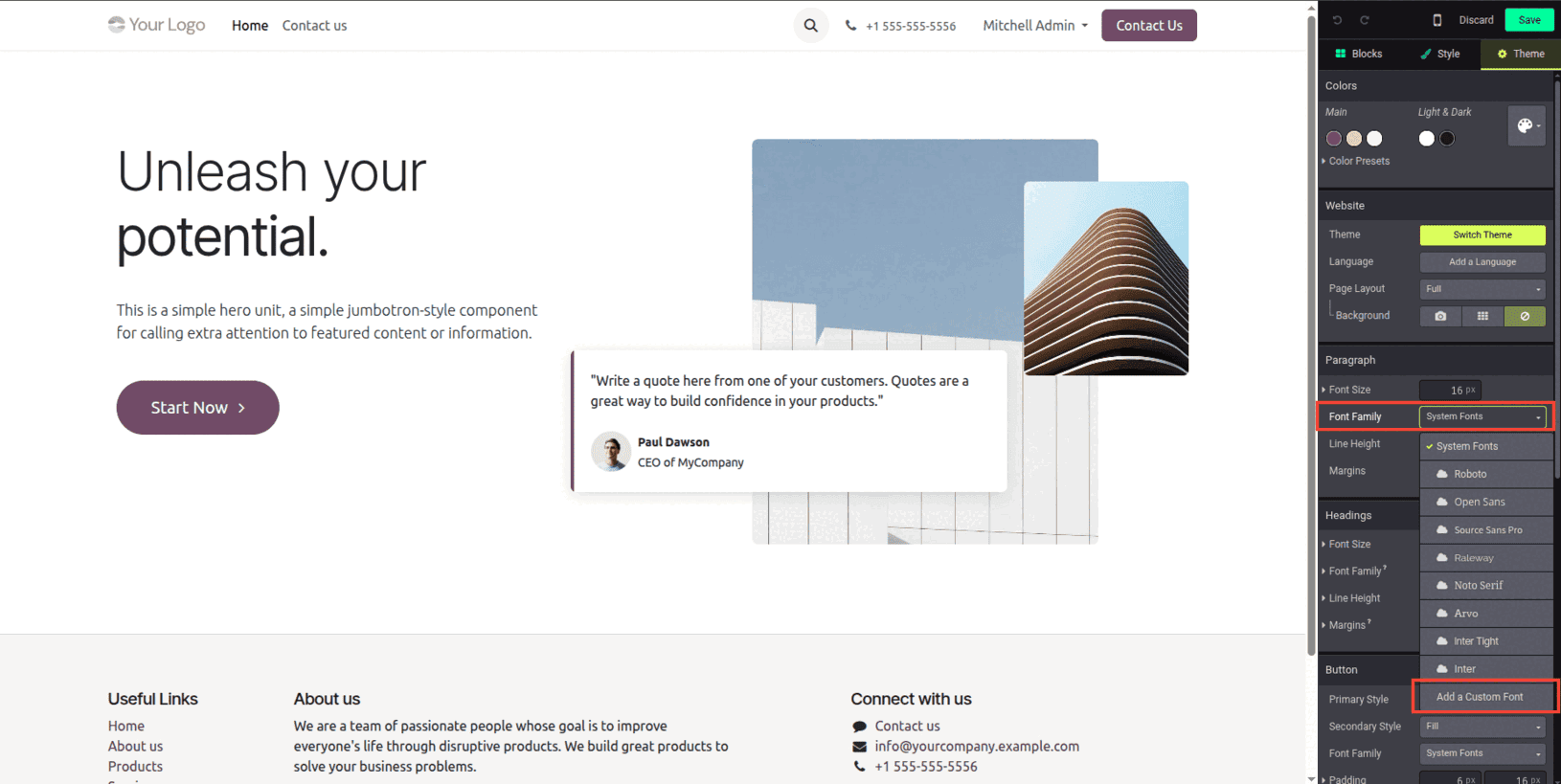
Step 2: Add Custom Font
- Click on the font-family selection box and select 'Add a Custom Font' option.
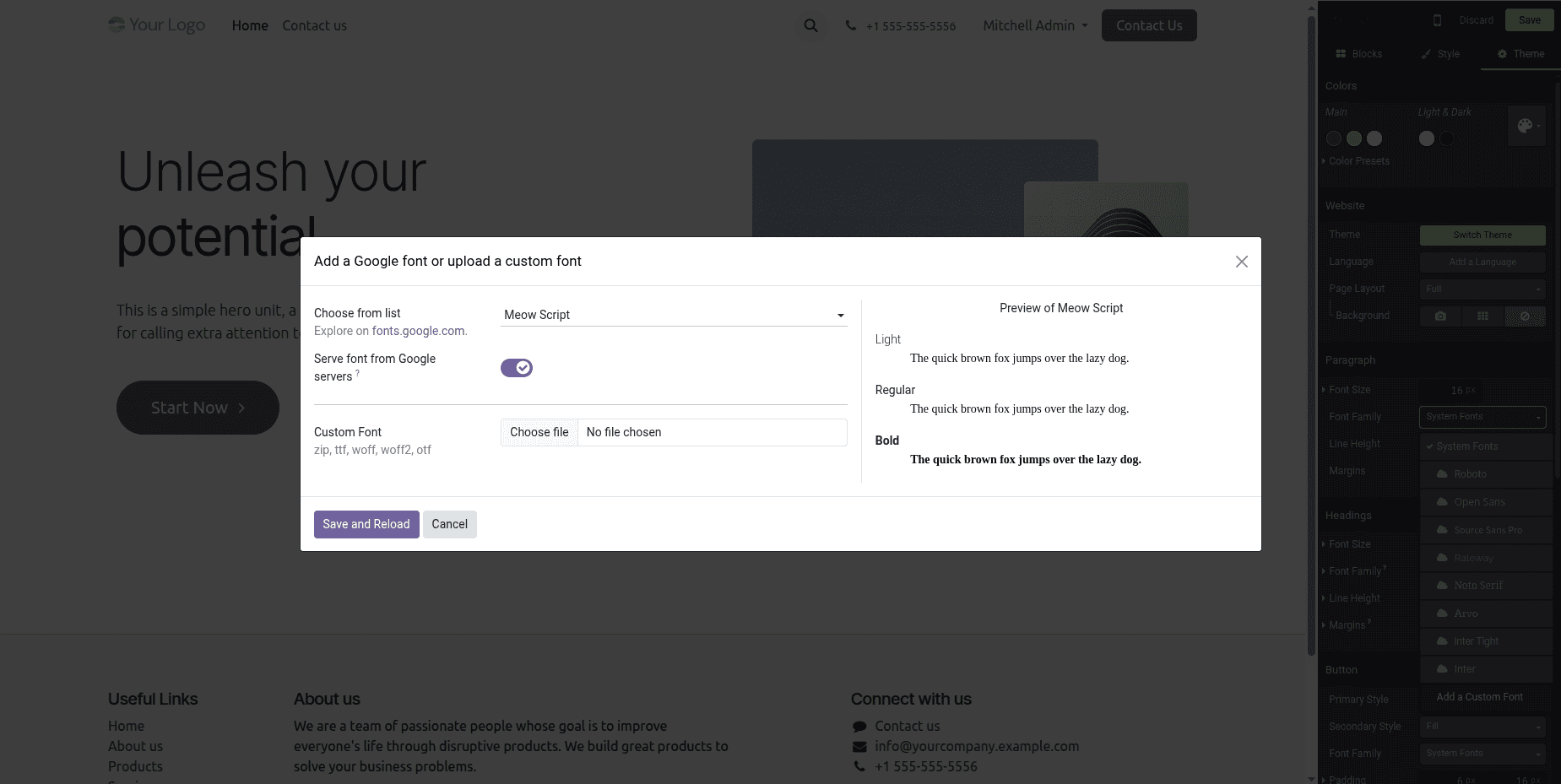
- In the dialog box that appears, you can:
- Or upload a font file (zip, ttf, woff, woff2, otf).
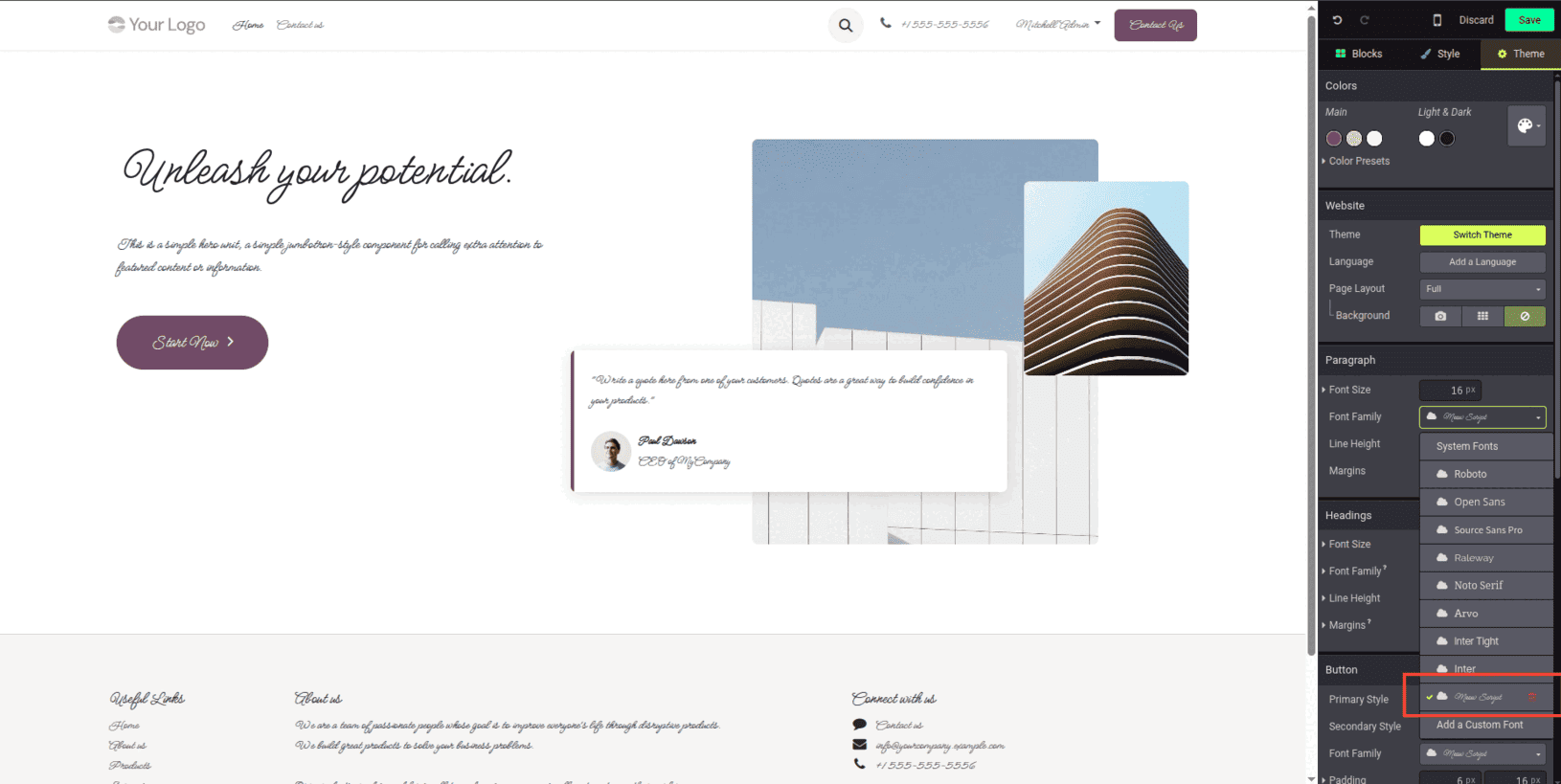
Step 3: Apply the Font
Once added, your custom font will appear in the font-family list and can be applied to any website element.
Method 2: Creating a Custom Theme Module
For better flexibility and a more professional setup, it’s recommended to create your own custom theme module. Below is an example module you can use as a foundation for your implementation.
Module Structure
custom_theme/
+-- __manifest__.py
+-- static/
¦   +-- src/
¦       +-- fonts/
¦       ¦   +-- Kablammo-Regular-VariableFont_MORF.ttf
|       |
¦       +-- scss/
¦           +-- primary_variables.scss
Manifest File (__manifest__.py)
'assets': {
       'web._assets_primary_variables': [
           'custom_theme/static/src/scss/primary_variables.scss',
       ],
   },
SCSS Configuration (primary_variables.scss)
// Define custom font faces
@font-face {
  font-family: 'CustomFont-Regular';
  src: url('/custom_theme/static/src/fonts/Kablammo-Regular-VariableFont_MORF.ttf') format('truetype');
  font-weight: normal;
  font-style: italic;
}
// Merge with Odoo's theme font configurations
$o-theme-font-configs: map-merge($o-theme-font-configs, (
  'CustomFont-Regular': (
      'family': ('CustomFont-Regular'),
  ),
));
Here you can use your own font files or can download the font files from website. I have downloaded and extracted this file ‘Kablammo-Regular-VariableFont_MORF.ttf’ from https://fonts.google.com/selection?query=Kablammo and added it to the above-mentioned path.
Applying Your Custom Fonts
Once the custom font module is installed, using your new fonts becomes simple and easy to manage:
Step 1: Navigate to Theme Options
After module installation, visit your website's theme configuration page. You'll now see your custom theme appearing as an available option in the theme selection interface.
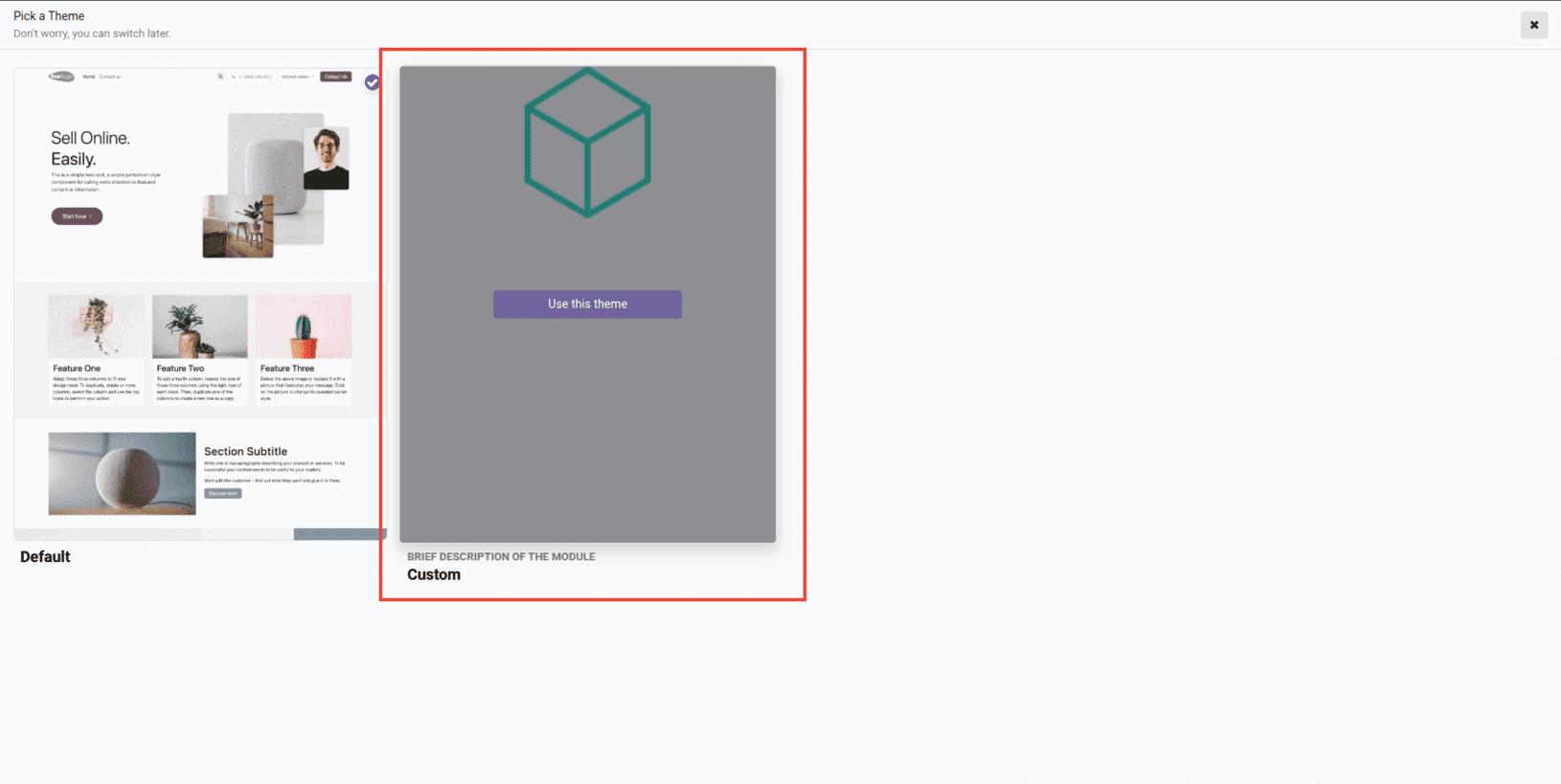
Step 2: Activate the Custom Theme
Select your custom theme from the available theme options. This will enable all the fonts you've configured within that theme module.
Step 3: Use Fonts in Website Editor
To apply your custom fonts to website content:
- Open the website editor by clicking the Edit button
- Navigate to the Theme tab in the editor panel
- Click on the Font Family dropdown menu
- Your custom fonts will now appear in the list alongside the default Odoo fonts
- Select your desired custom font to apply it to the selected element

Your custom fonts are now fully available inside Odoo’s website editor, making it easy to keep your branding consistent across every page while still working within Odoo’s simple and intuitive design tools.
Conclusion
Odoo 19 gives you several options for adding custom fonts, allowing you to choose the approach that best fits your workflow and design goals:
- Web Editor: Ideal for quick setups and simple branding needs
- Custom Theme: A more advanced method that offers full control and a cleaner, more professional implementation
By keeping your fonts hosted locally, you also stay aligned with EU privacy guidelines while ensuring complete control over how your brand looks across the platform.
Whichever method you choose, make sure to test your fonts on different browsers, devices, and output formats—whether it’s web pages, PDFs, or printed documents—to guarantee a consistent and smooth user experience.
To read more about How to Add Custom Fonts in Odoo18, refer to our blog How to Add Custom Fonts in Odoo18.