In this blog, we will discuss one of the interesting aspects that Odoo 19 has to offer, which is known as "Live Chat for Instant Support". This aspect is quite useful for establishing good customer communications. Using this feature, the companies would be able to communicate with the visitors to their website instantly. Since there would be instant assistance, the companies would have an opportunity to decrease the response time. In turn, they would be able to satisfy their customers. Moreover, they would be able to increase the conversion rate of the potential customers since they would be able to reach the customers at the right time. Quite easy to configure and integrate into the Odoo backend, the Live Chat for Instant Support would enable the companies to manage the conversation process efficiently.
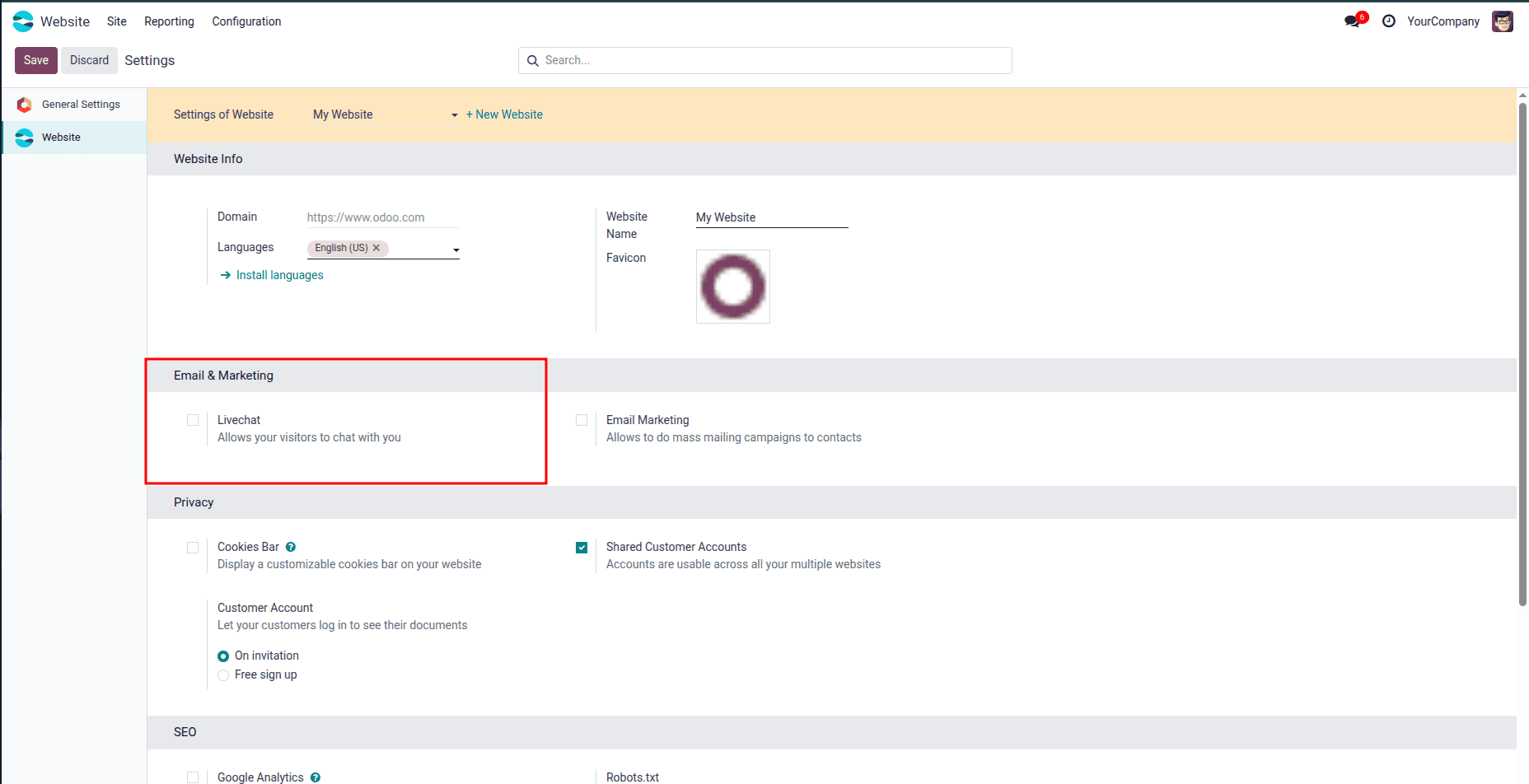
The following is how you enable live chat in Odoo 19: You go to Website > Configuration > Settings and enable the live chat option. Once the Live Chat feature is enabled, create a Website Live Chat Channel from the Live Chat module.
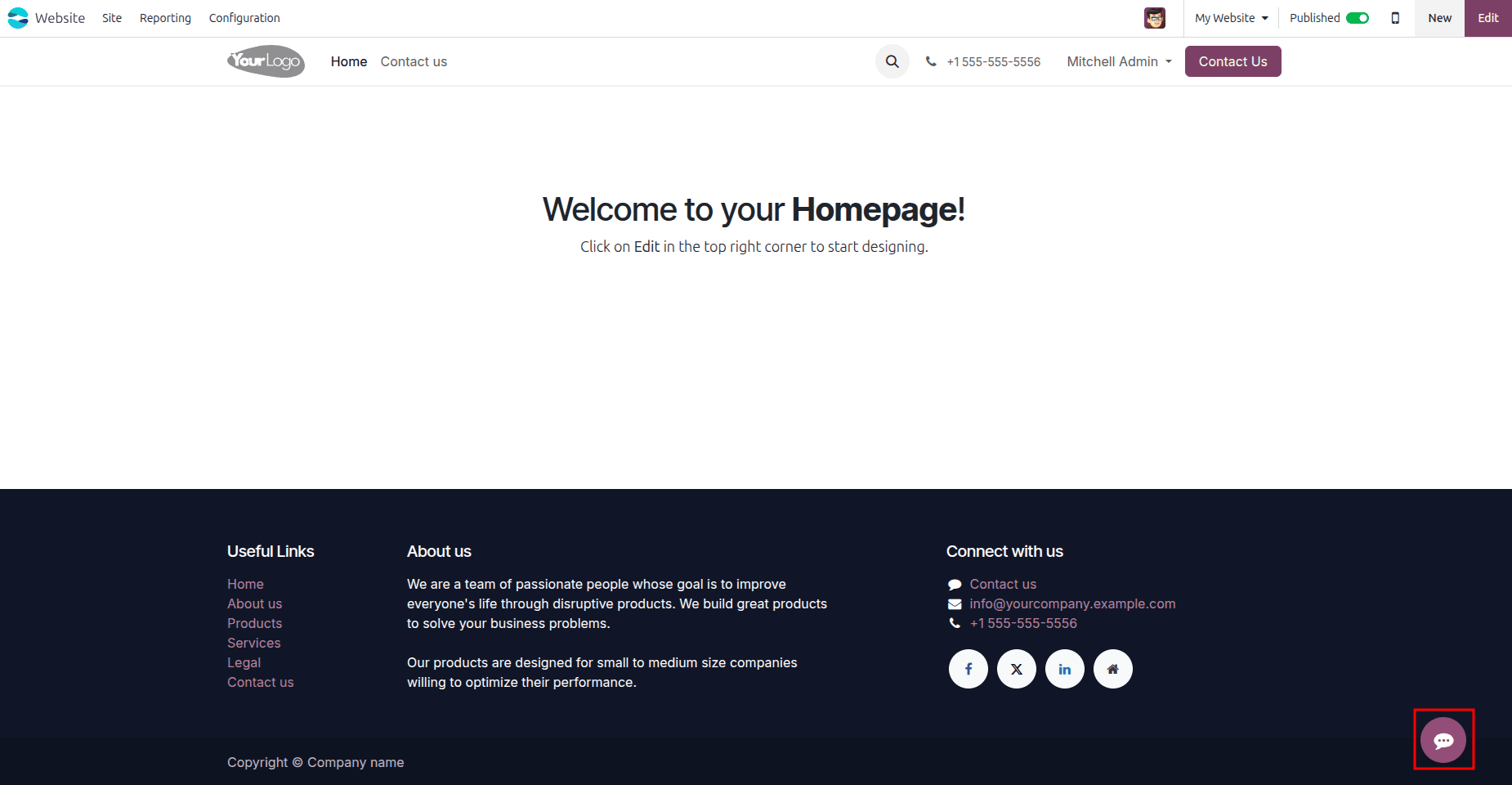
As soon as Live Chat functionality is activated, site visitors have the opportunity to establish contact with the support agents in order to obtain help immediately. The Live Chat icon will be placed at the bottom of the website where a visitor can initiate a conversation with just one click.
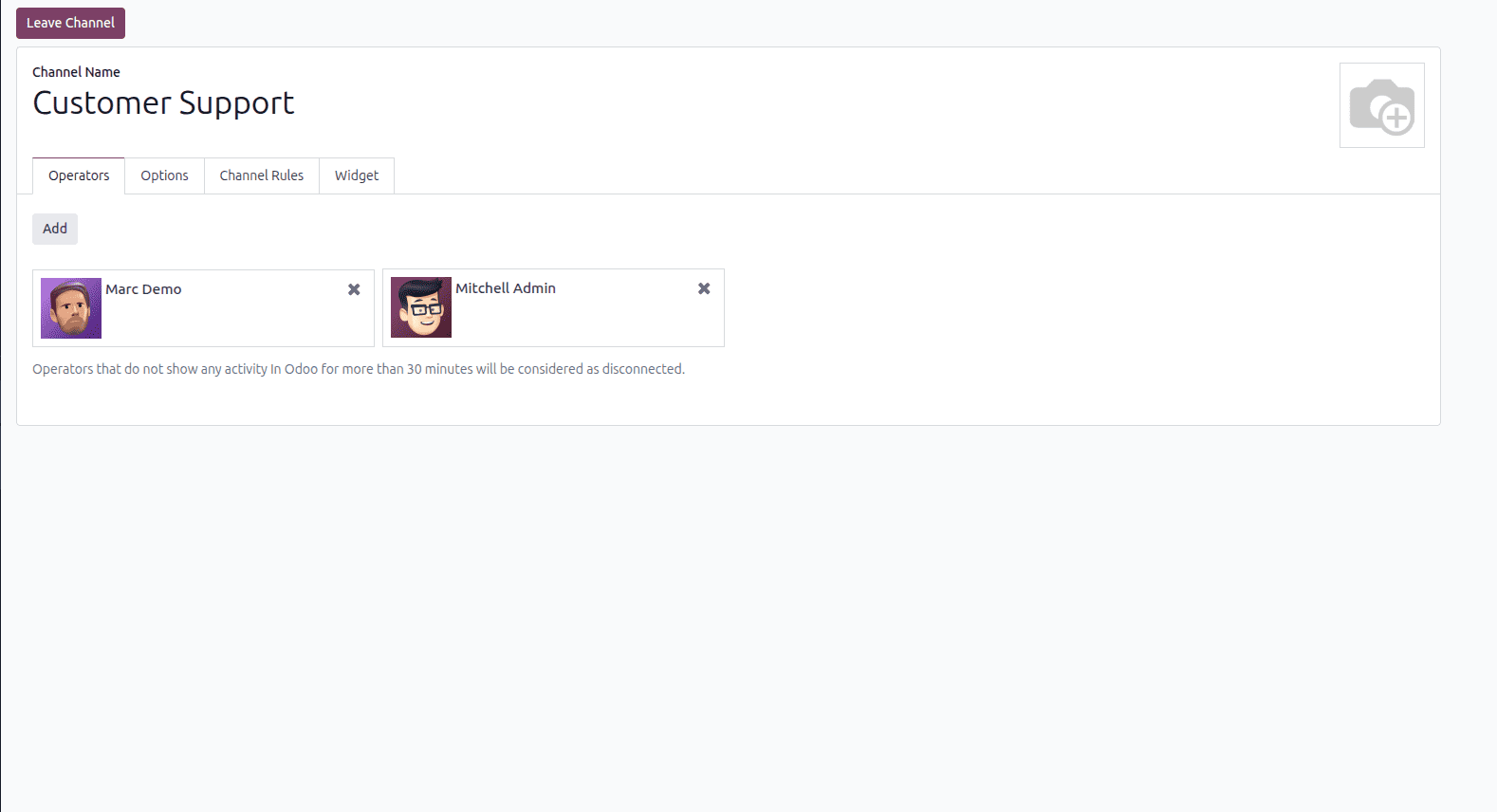
After enabling the Live Chat feature, the next step is to create a Website Live Chat Channel within the Live Chat module. This channel serves as the communication bridge between website visitors and your support team, enabling real-time conversations directly from the website.
To assign support agents, click Add under the Operators section and select the users who will handle incoming chats. You can assign multiple operators to the same channel, ensuring that customer inquiries are distributed efficiently and the visitors receive prompt assistance, even during periods of high chat volume. This configuration enables faster responses, provides continuous customer support, and improves the overall customer experience.
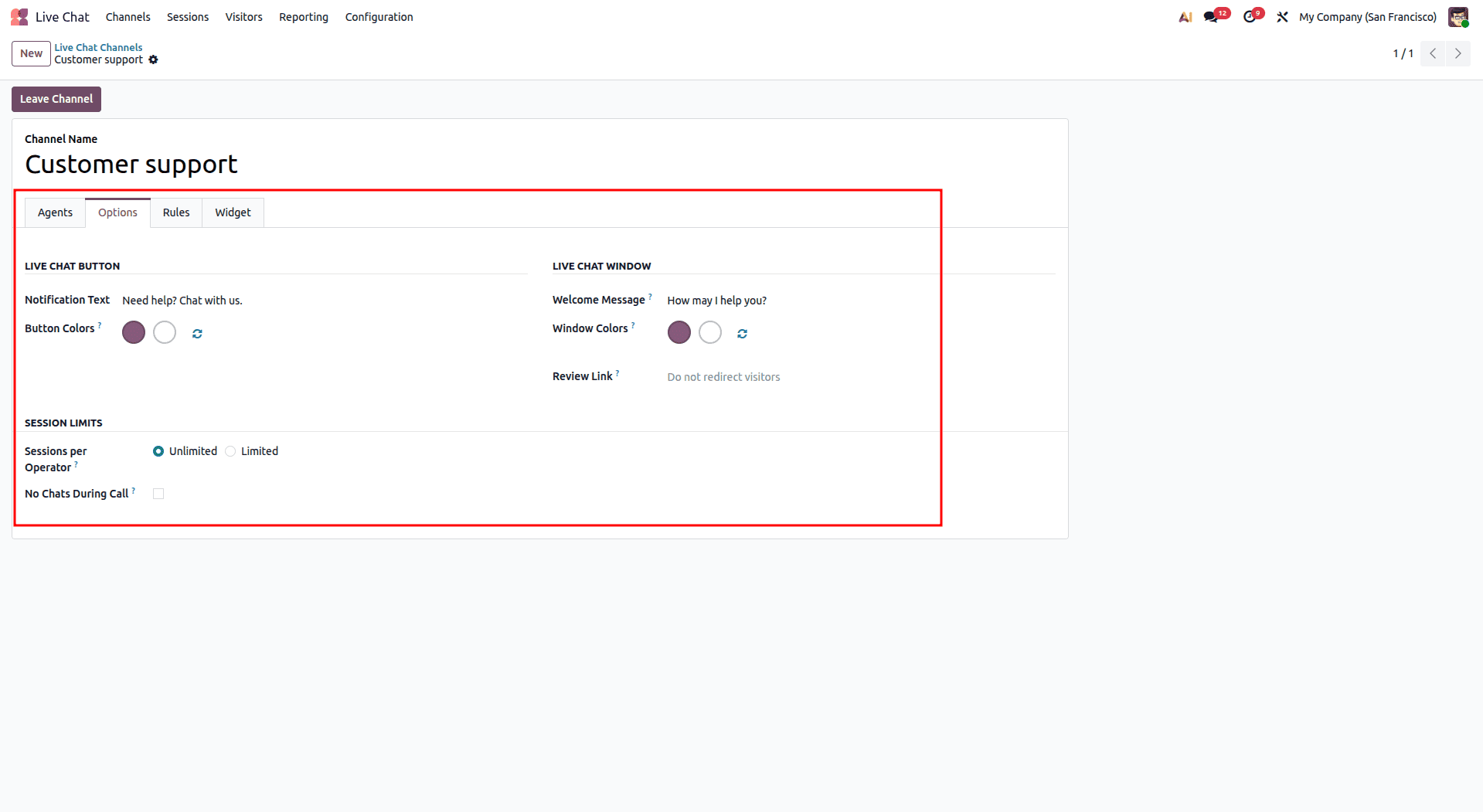
In the “Options” tab, there are various options that one can configure to customize the live chat feature, like the Welcome Message, Review Link, Sessions Per Operator, No Chats During Call, and the Notification Text. In this way, one is able to configure the live chat behavior as well as reduce the workload of the operators.
- Welcome Message: The Welcome Message is the first thing that visitors will see on the website whenever they click on the live chat widget. This is meant to be an initial warm greeting to facilitate a good experience for the visitor to engage in dialogue.
- Notification Text: The Notification Text is displayed as a small pop-up notification on the website, informing visitors that live chat support is available. It serves as a proactive prompt, encouraging users to initiate a conversation with the support team and receive instant assistance.
- Sessions per Operator: This can limit the number of sections for operators.
- No Chats During Call: Activating this option will stop the receiving of new conversations during the call.
- Review Link: The Review Link will point to the redirect destination where the user is redirected upon leaving a good review. This enables a company to direct its happy clients to an outside review website, thus increasing positive reviews.
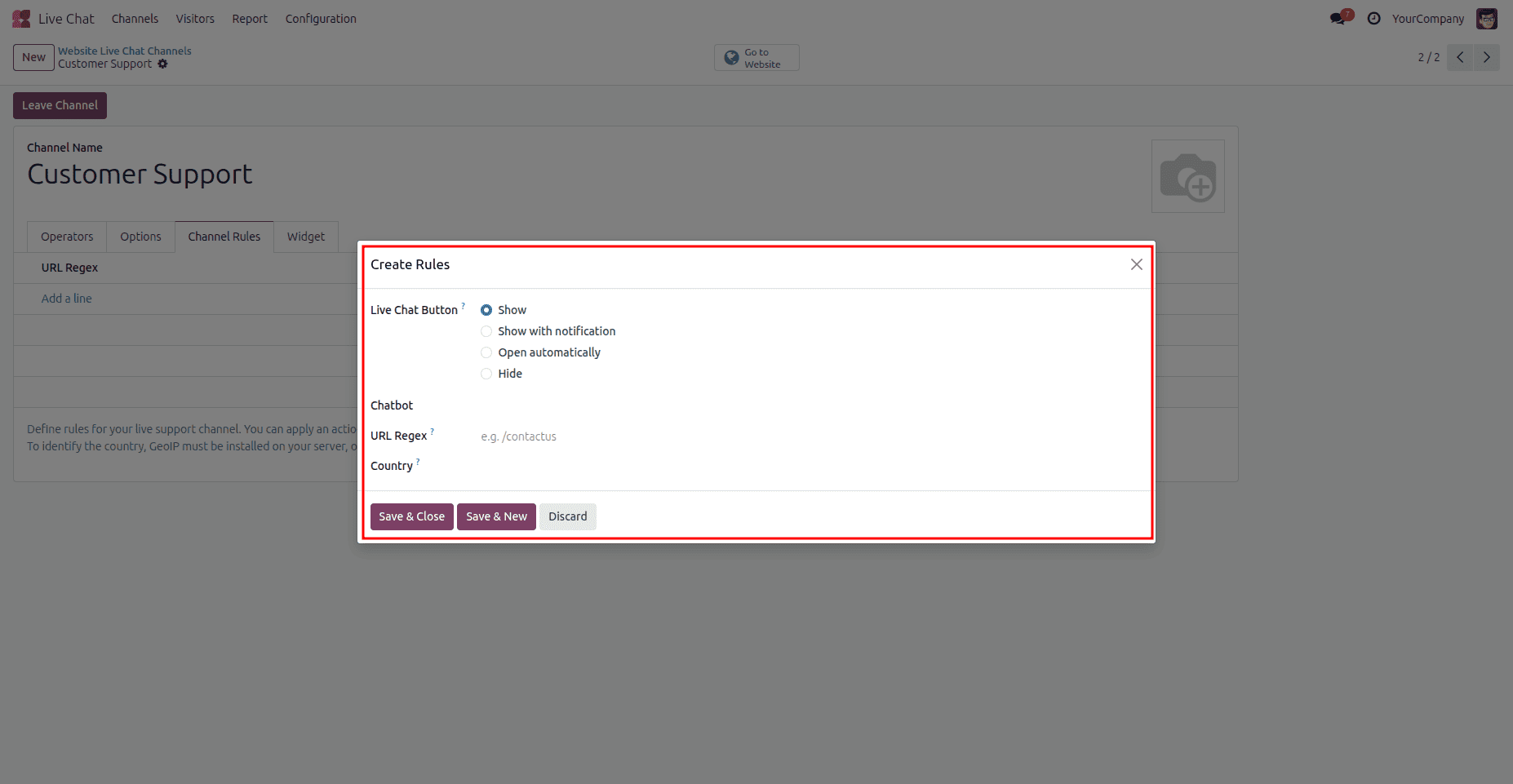
The Channel Rules section allows you to control when and how the Live Chat widget is displayed on your website. These rules determine the visibility and behavior of the chat button, enabling you to deliver a more personalized experience to your visitors.
The Button Visibility setting offers four display options:
- Show - Displays only the live chat button on the website.
- Show with Notification - Displays the chat button with a notification indicator, drawing visitors' attention and encouraging them to engage through Live Chat.
- Open Automatically - Opens the chat window automatically when visitors access the website, allowing businesses to proactively engage with them from the start.
- Hide - Hides the live chat widget from visitors.
In addition to controlling the widget's visibility, you can assign a Chatbot to the channel to provide automated responses, guide visitors through predefined conversation flows, or handle common inquiries before transferring the chat to a live operator.
Channel rules can also be configured to display the chat widget only on specific website pages by defining URL patterns. Furthermore, you can restrict the widget to visitors from selected countries, allowing businesses to provide targeted support based on geographical location. With these flexible configuration options, the Live Chat module enables businesses to deliver personalized, context-aware, and real-time customer support.
After completing the channel setup,
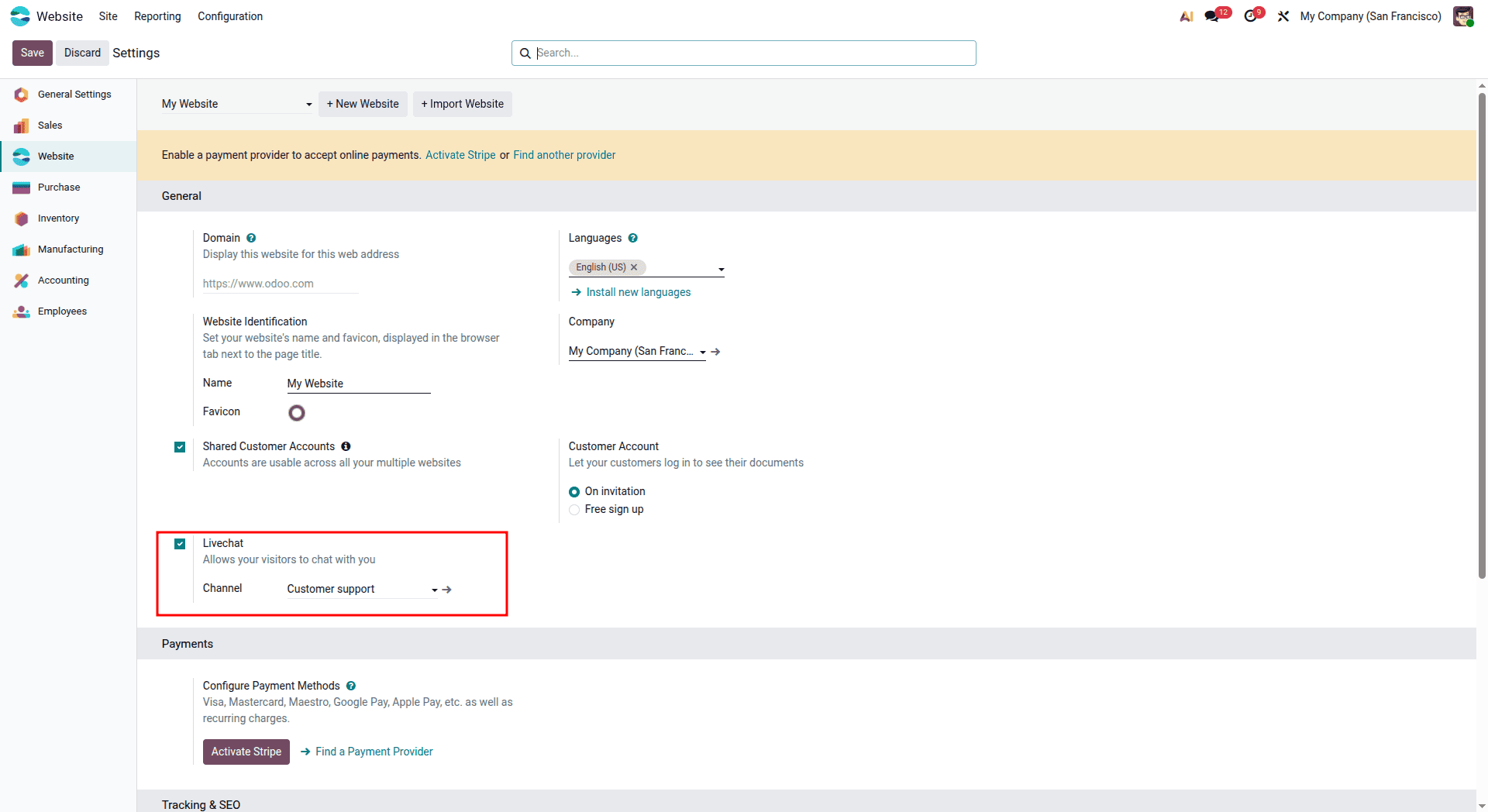
Go to Website > Configuration > Settings > Email & Marketing.
- Enable the Live Chat feature for the website.
- Choose the Live Chat channel to be displayed on your website.
Once the channel is selected, we can see the Live chat session on the website page.
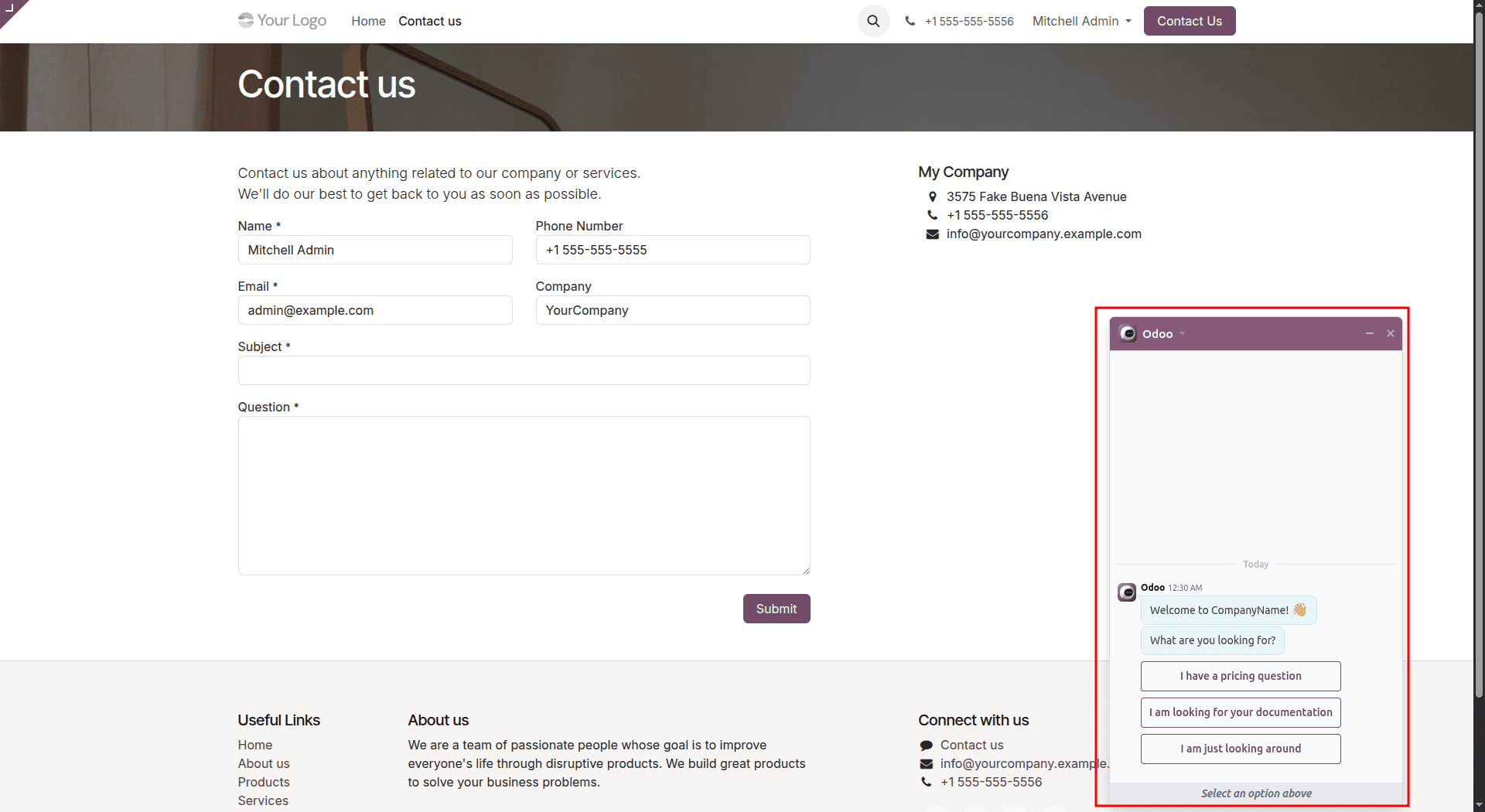
If the live chat is not opened automatically, click on the live chat button. When a visitor clicks the Live Chat button, the chat window opens and displays the configured Welcome Message and Chat Input Placeholder, providing a welcoming and intuitive way to start the conversation. The welcome message greets visitors, while the input placeholder guides where to type their message, encouraging them to start the conversation and engage with the support team effortlessly.
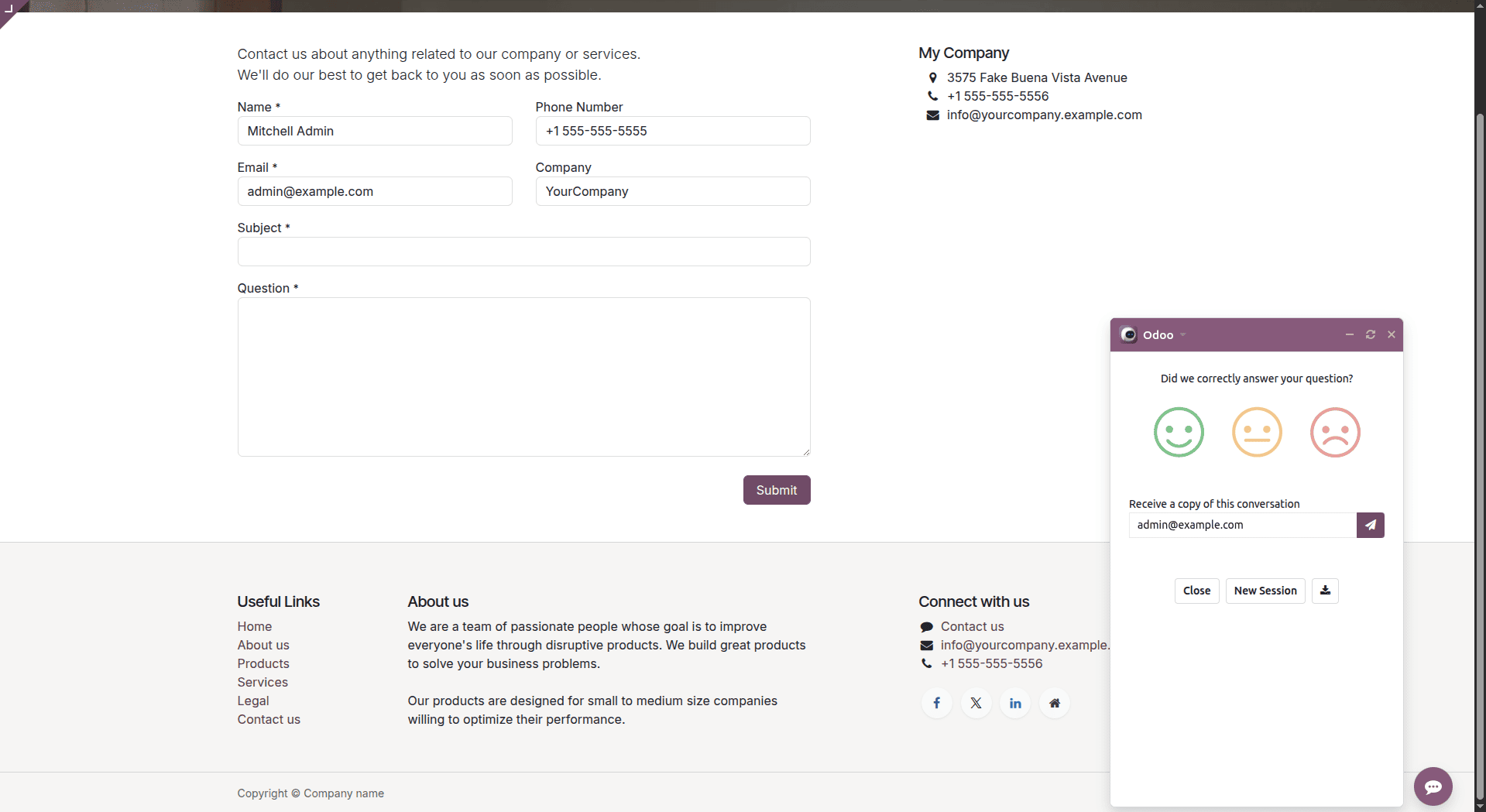
You can enable the Conversation Rating feature to allow visitors to provide feedback after a chat session. This helps businesses measure customer satisfaction, evaluate support team performance, identify areas for improvement, and continuously enhance the overall customer support experience.
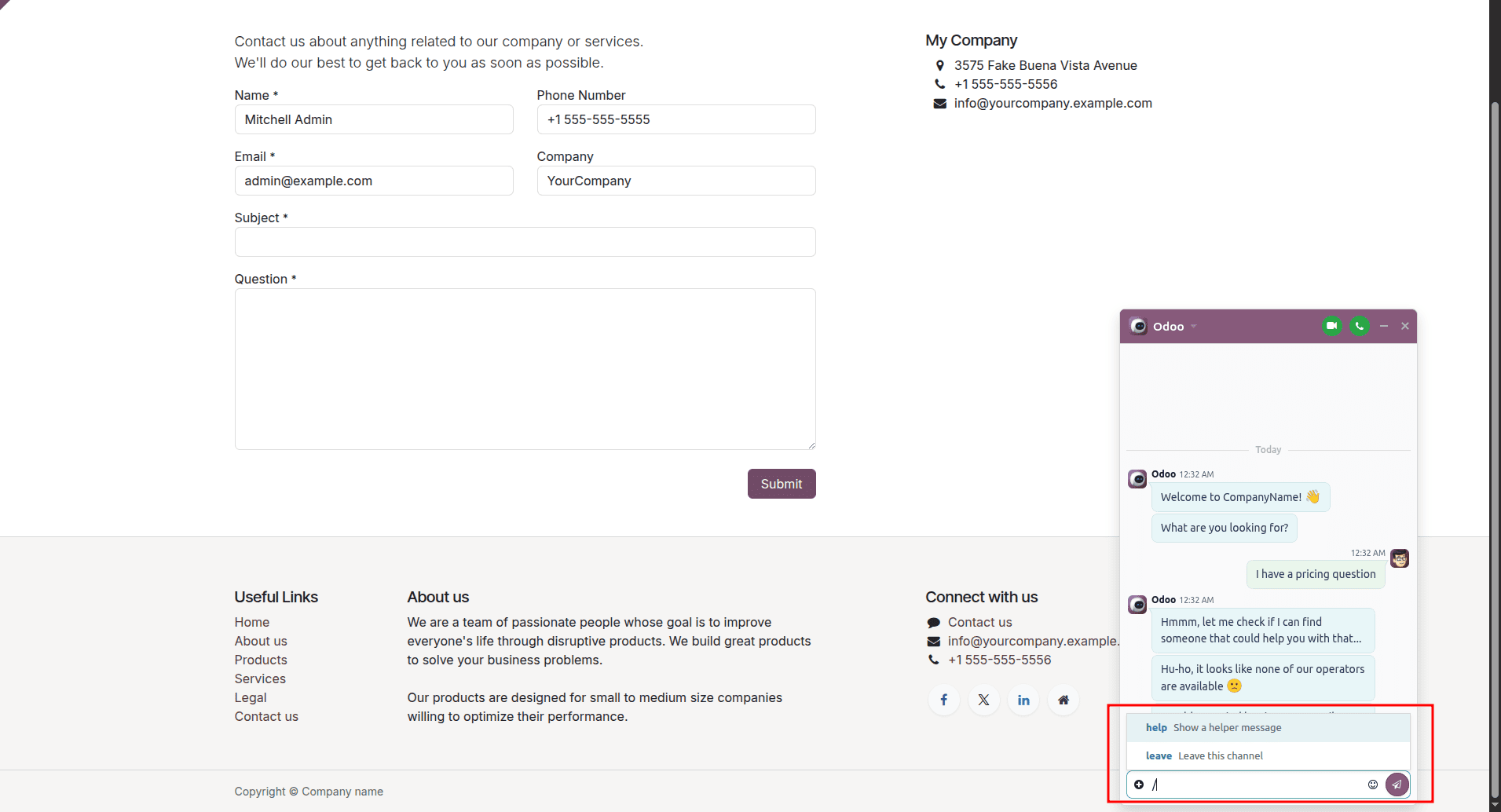
The Shortcuts feature allows support agents to quickly insert predefined responses and execute commonly used commands by typing the / (forward slash) key in the chat window. This enables faster communication, improves response consistency, reduces typing effort, and enhances the overall efficiency of live chat interactions.
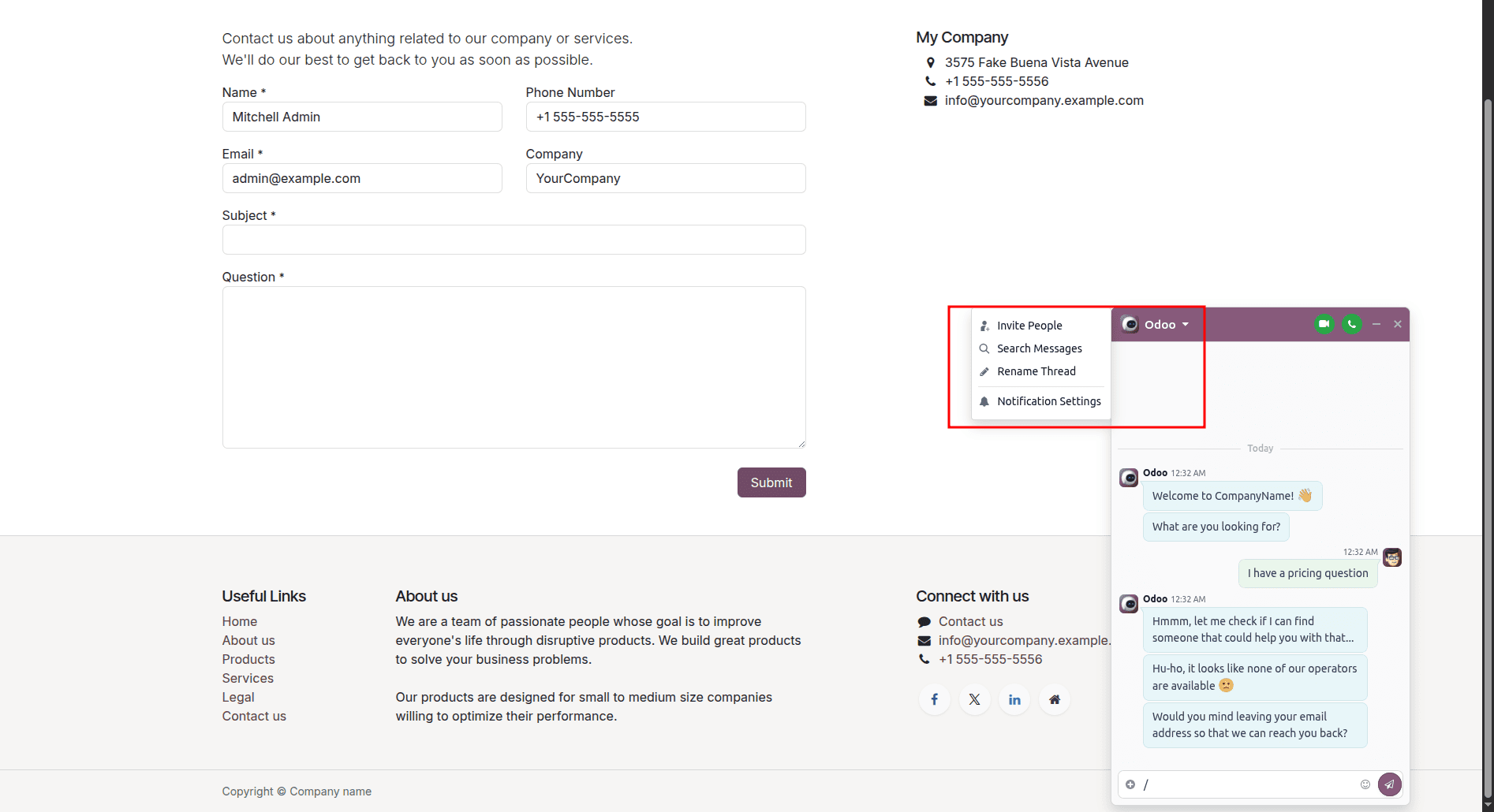
By clicking the dropdown menu shown in the screenshot below, users can access various useful options for managing conversations. These include Invite People, Search Messages, Rename Thread, and Notification Settings, allowing users to collaborate more effectively, organize conversations, and customize notification preferences for an improved communication experience.
The Live Chat pop-up can be closed at any time by clicking the close (×) icon located in the top corner of the chat window. This allows visitors to dismiss the chat quickly and continue browsing the website without interruption, contributing to a smooth and user-friendly experience.
With this, we conclude our overview of the Live Chat for Instant Support feature in Odoo 19. From configuring live chat channels and operators to customizing channel rules, automated messages, conversation ratings, and chat management options, this feature equips businesses with everything they need to deliver efficient, real-time customer support. By leveraging these capabilities, organizations can enhance customer engagement, improve response times, and build stronger relationships with their website visitors.
Live Chat in Odoo 19 is an effective way to provide instant assistance to website visitors without requiring them to leave your site or wait for an email response. By creating a dedicated live chat channel, assigning support operators, configuring channel rules, and customizing welcome messages and notifications, businesses can offer a more engaging and responsive customer experience.
Features such as automatic chat triggers, chatbot integration, operator management, customer ratings, shortcuts, and collaboration tools make the Live Chat module suitable for businesses of all sizes. Whether your goal is to answer product inquiries, provide technical support, or improve customer engagement, Odoo 19 Live Chat helps streamline communication while building trust and increasing the chances of converting visitors into customers.
To read more about How to Set Up Live Chat for Instant Support on Your Odoo 18 Website, refer to our blog How to Set Up Live Chat for Instant Support on Your Odoo 18 Website.