Have you ever thought about executing business logic from your Odoo website when a user clicks a button in your Odoo page, and even without any custom module installation? In this blog, let’s see the practical demonstration to execute the above scenario in Odoo 18 with the use of a server action and button from the website. As we are all familiar with the server action, providing the user the privilege to execute the code.
Let’s think about a scenario in which, when a button is clicked on the website, we need to add the current user as the follower of the sale order.
Let’s create a server action in Odoo with the following configuration.
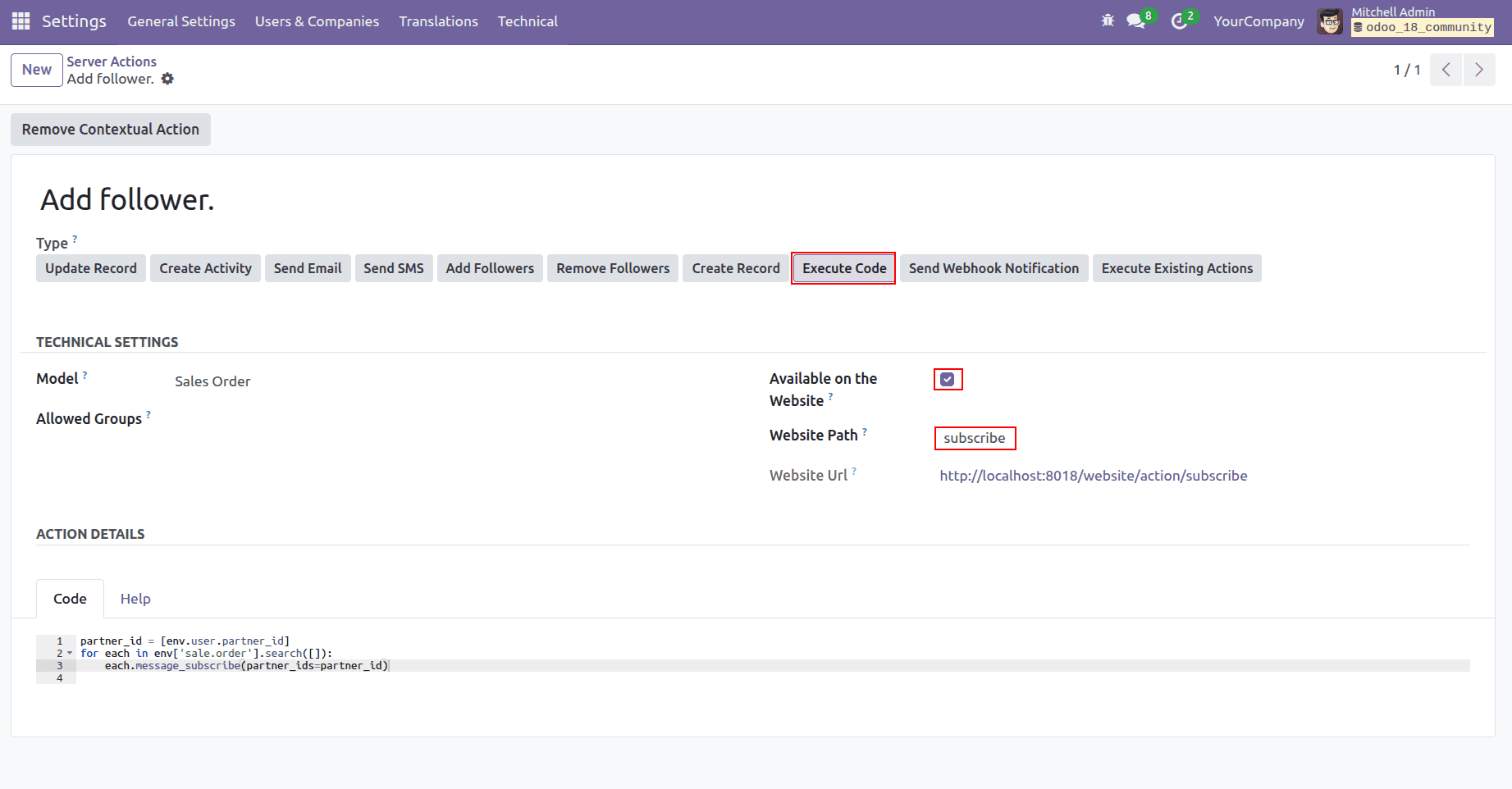
The important thing to make sure to get the desired output is to enable the ‘Available on the website’ field to be checked, thus making it possible to execute from the Odoo website.
We have chosen the type to execute code, and in the code editor, we have the Python code below to add the current user's partner as the follower to all the sales orders.
partner_id = [env.user.partner_id.id]
for each in env['sale.order'].search([]):
    each.message_subscribe(partner_ids=partner_id)
Now let's create the custom webpage in the Odoo website using the editor building block as below and add the button targeted URL with the created server action’s website URL.
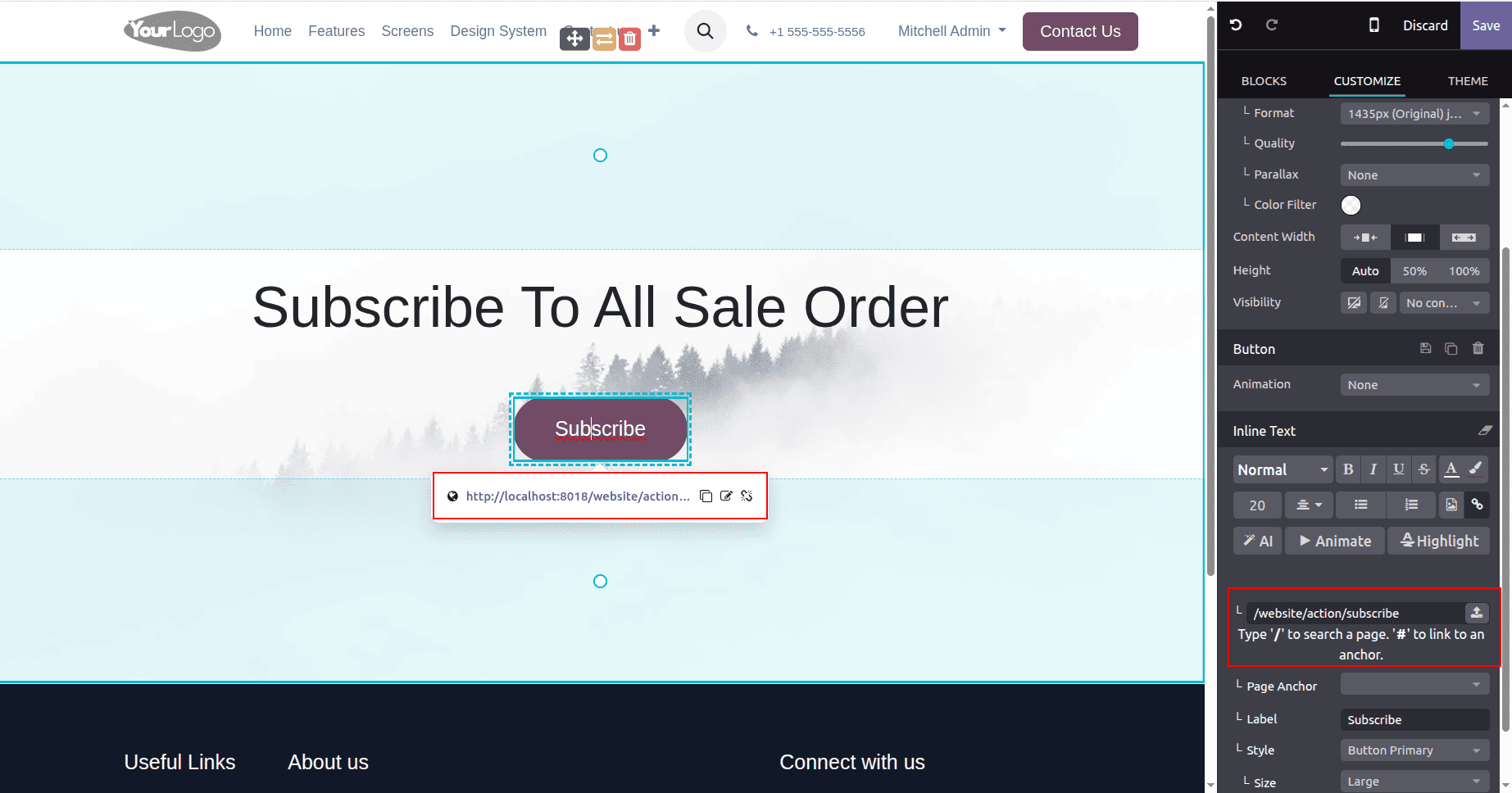
Now let’s test our button and check our server action execution.
Below is a sale order with no follower in it. Let's check the same sale order after our button click.
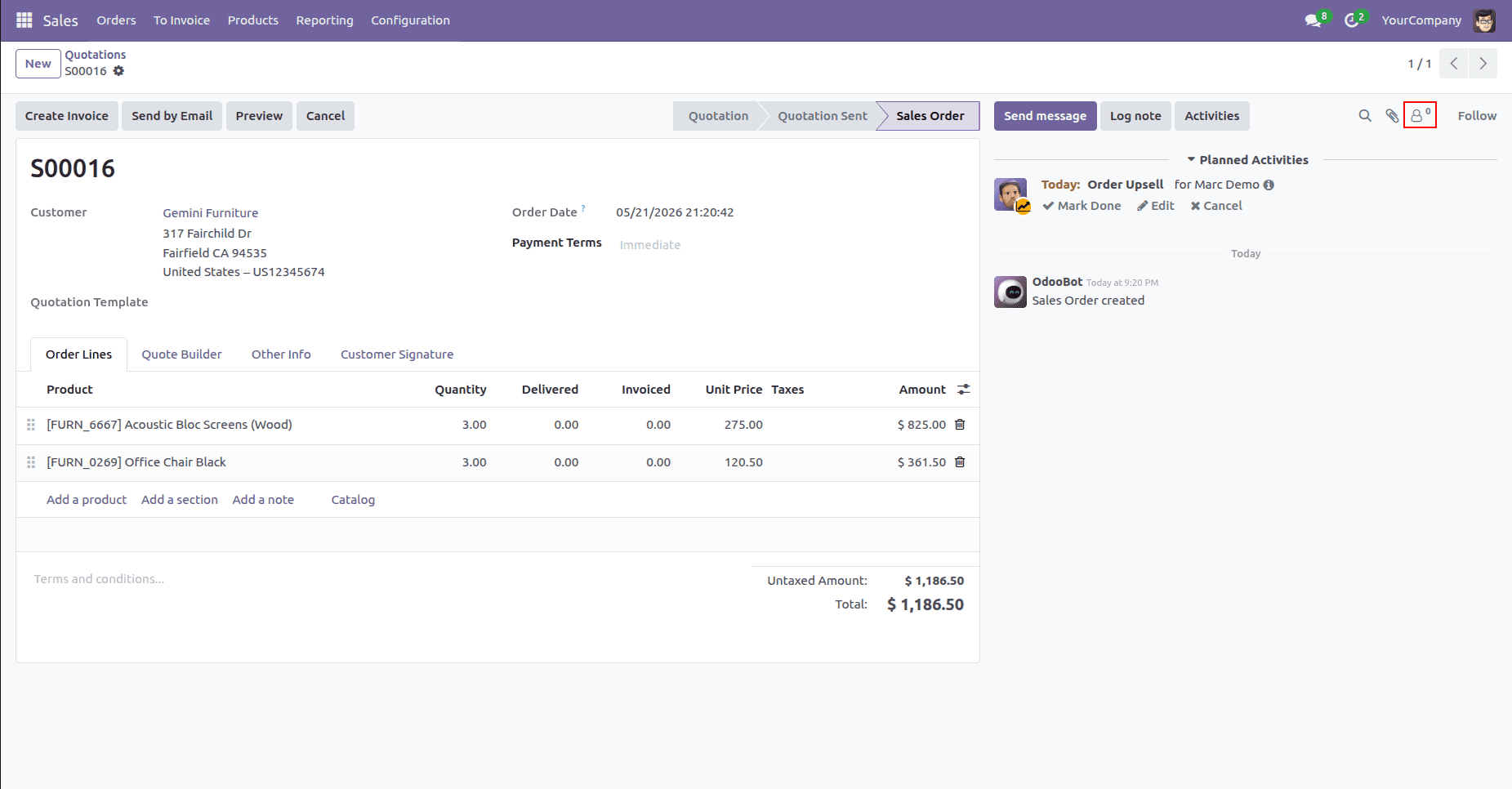
After clicking the button on the website
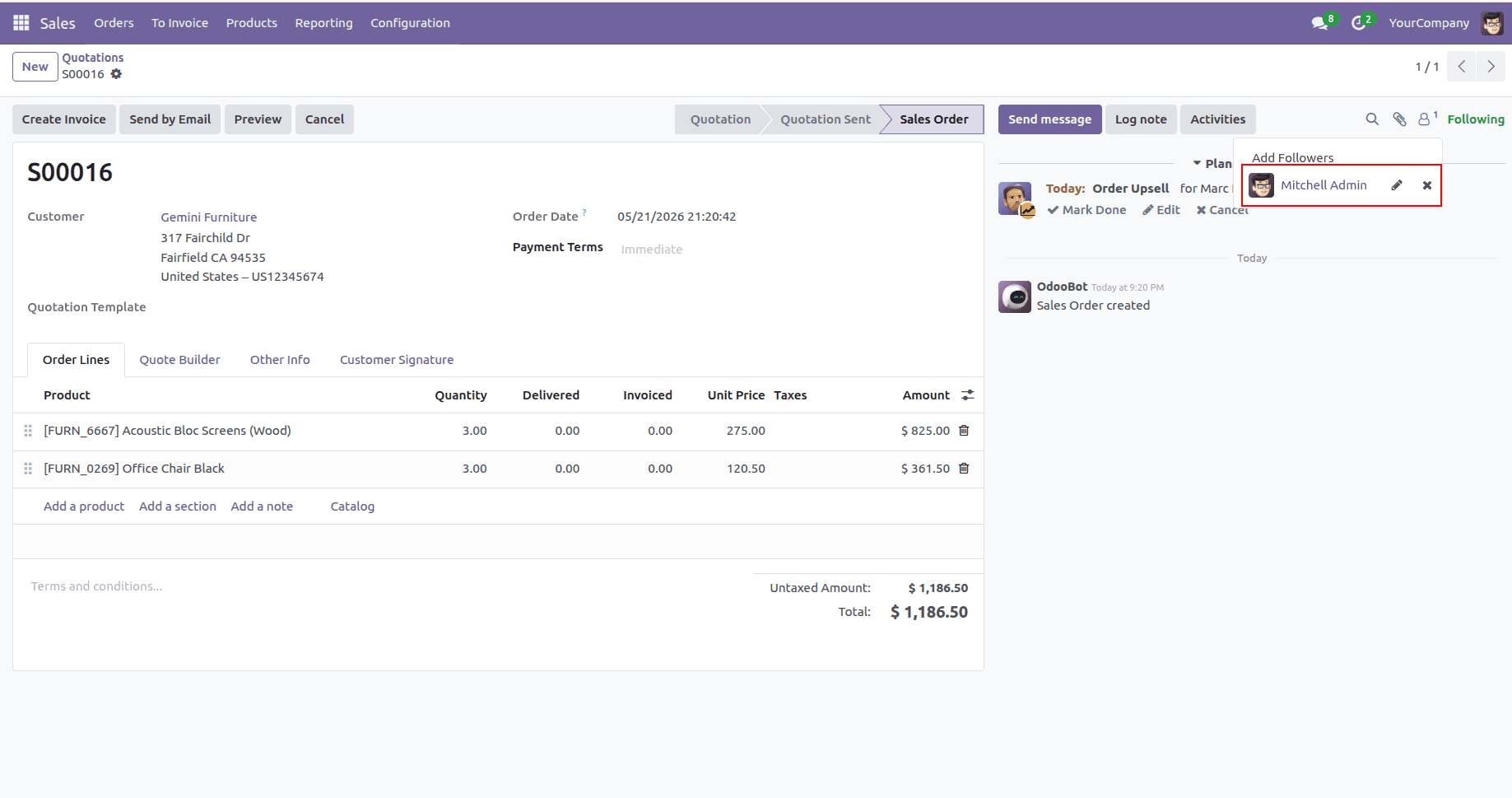
We have successfully added the current user as a follower to all the sales orders in the system with the execution of the server action we created.
In this blog, we have discussed an effective method, a real business scenario of connecting the backend server logic with the web client, triggering a server action from a website button, even without any custom implementation, using Odoo at its best.
To read more about How to Create & Configure Server Actions in Odoo 18, refer to our blog How to Create & Configure Server Actions in Odoo 18.