Odoo 20 eLearning helps businesses organize online courses and provide structured learning experiences for users. As the number of courses grows, guiding learners through the appropriate sequence becomes important. Course prerequisites help course managers specify which courses learners should complete before progressing to more advanced courses.
In this blog, we will explore how to configure course prerequisites in Odoo 20 eLearning and use them to organize a learning path.
Create the First Course for a Learning Path
In Odoo eLearning, you can establish structured learning tracks and progress your educational content by using Prerequisites. Prerequisites allow course managers to specify which courses learners should complete before accessing a subsequent course.
To set course prerequisites, open eLearning from the Odoo 20 dashboard.

After you open it, click on New from the course dashboard to create a new course.
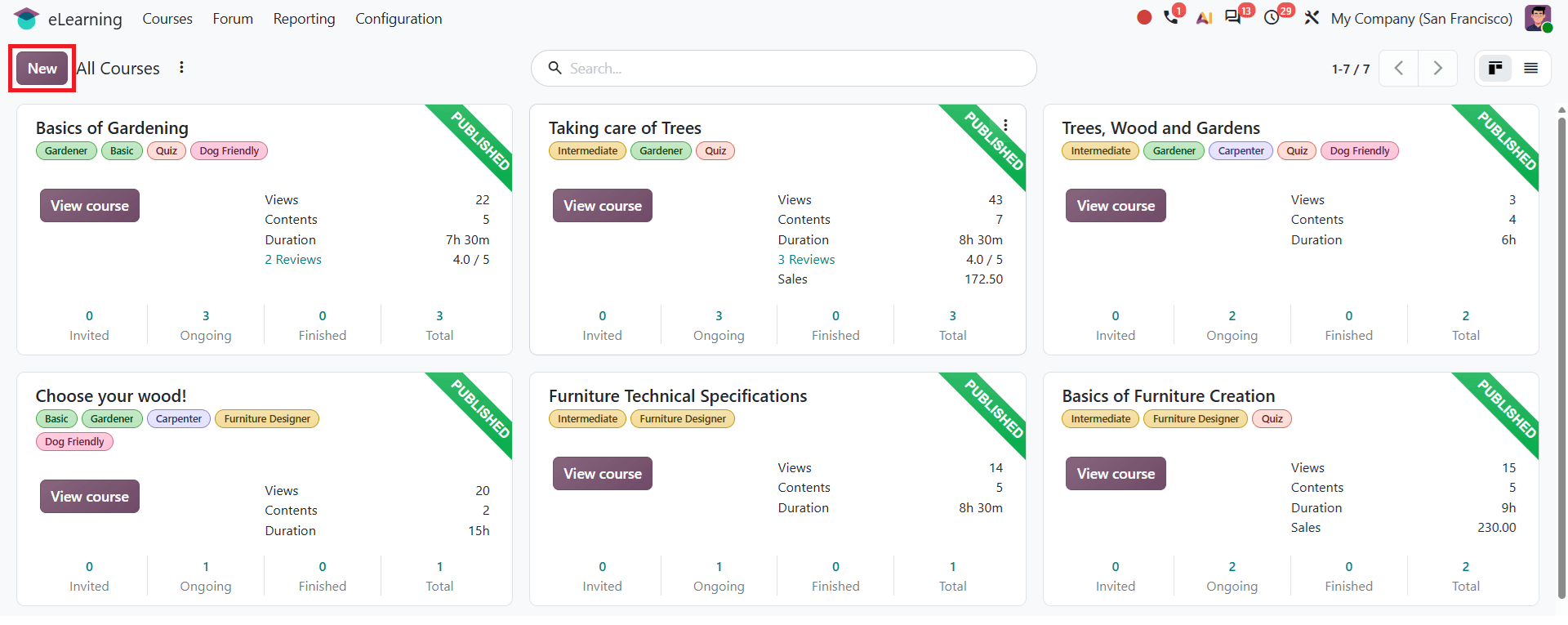
Enter the Course Title and configure the required details. In the Content tab, add sections, content, and certification according to the course.
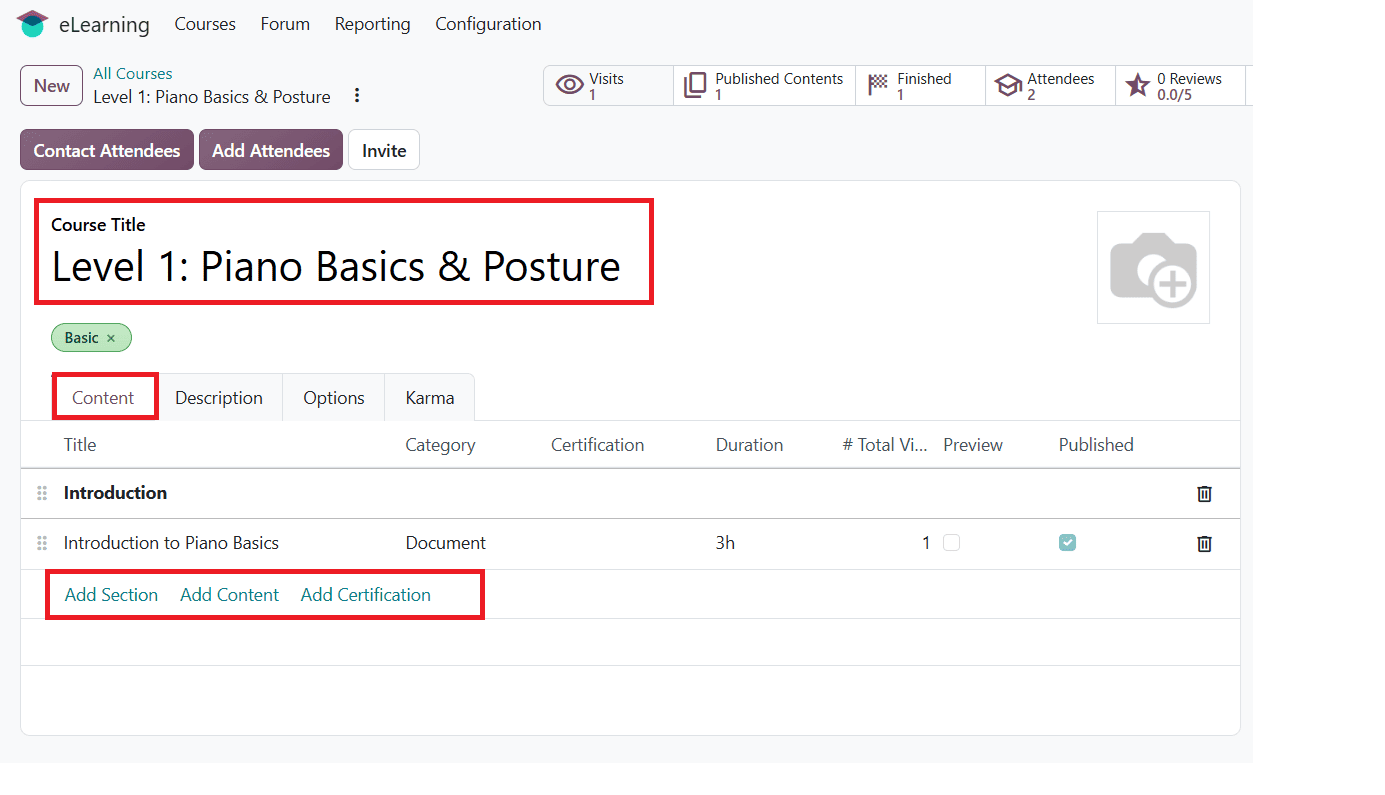
Click on Add Content to open the pop-up window where you can configure your course content. In the Document tab, you can set the content type according to your requirements, such as Document, Article, Video, or Quiz, as shown below. You can also specify the estimated time required to complete the content using the Duration field. This value helps learners understand how much time they may need to complete each lesson.
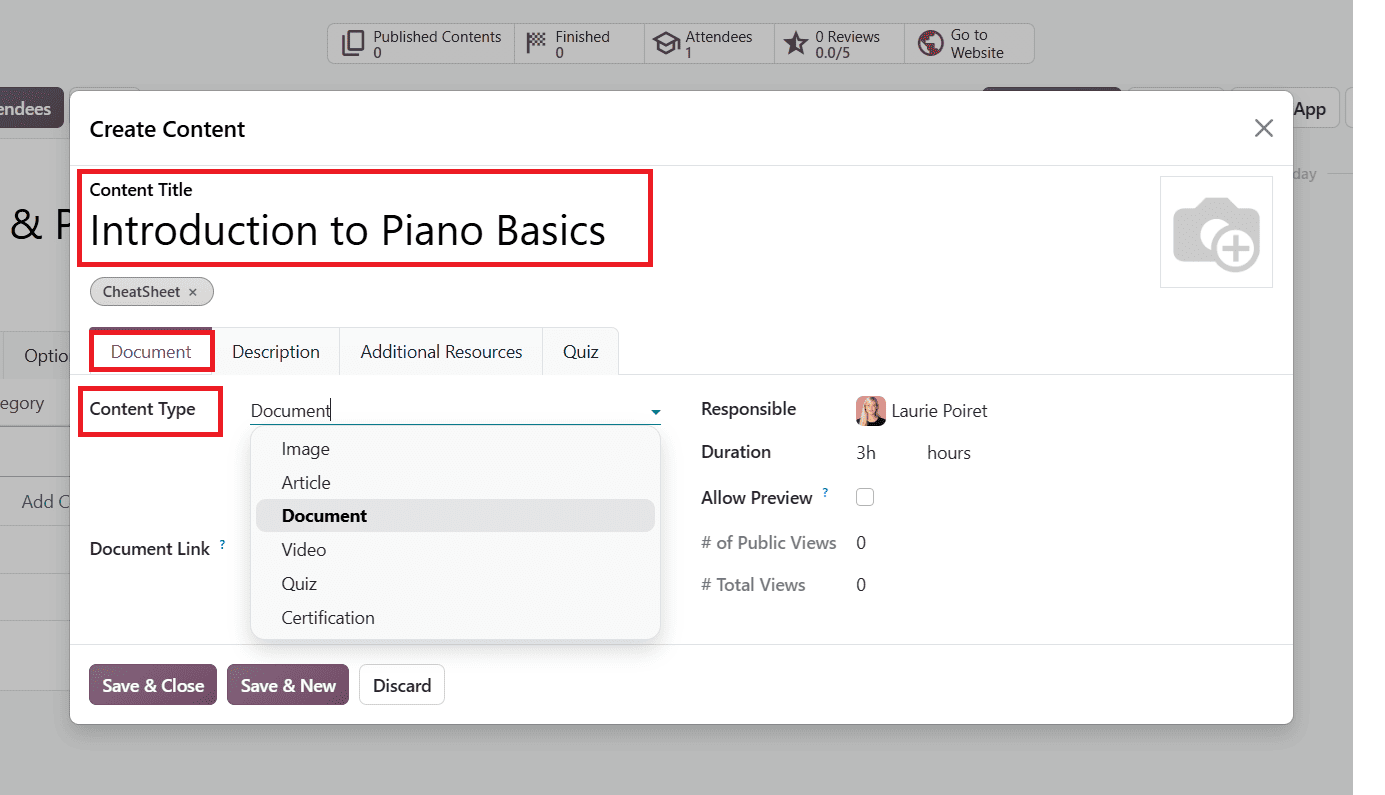
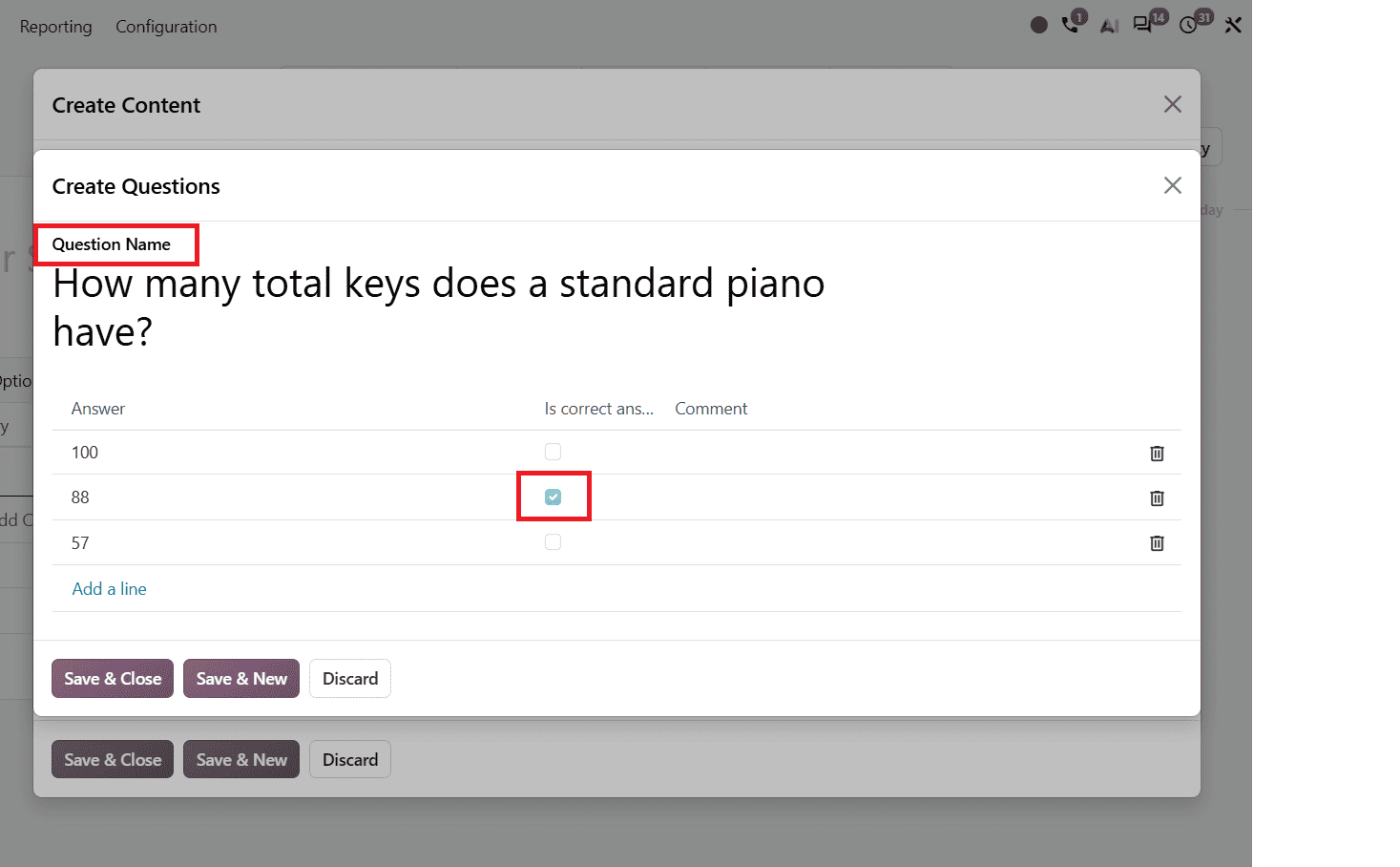
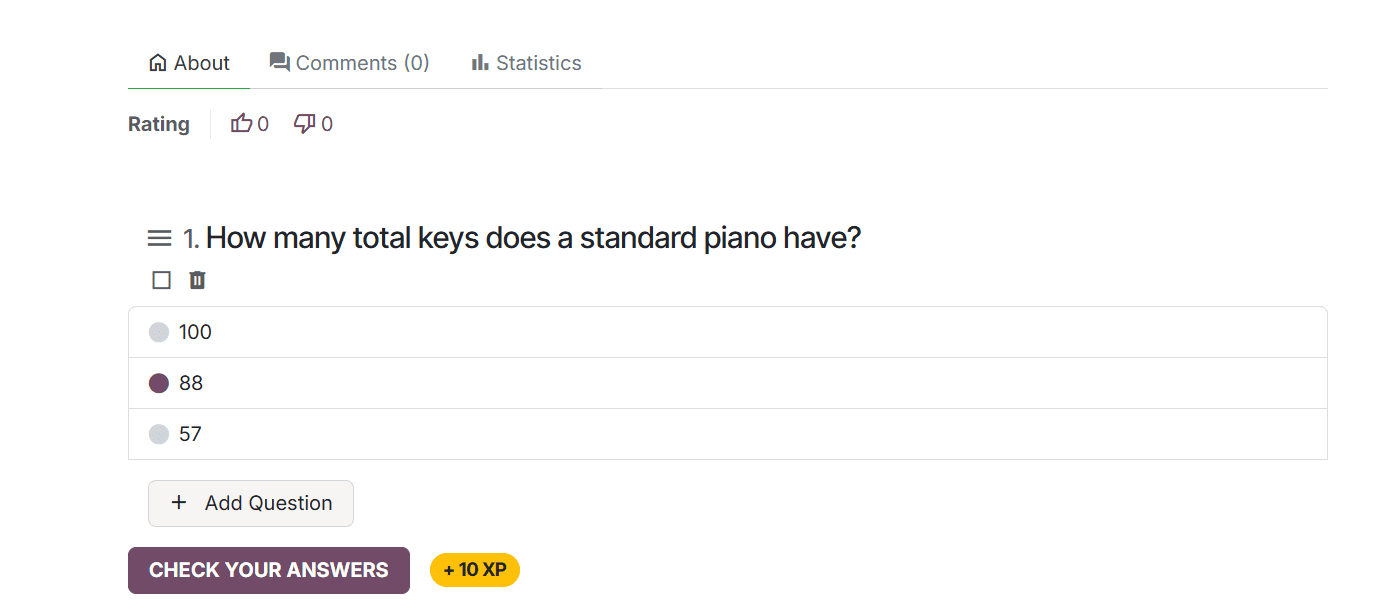
In the Quiz tab, you can add questions related to your course. Open the Quiz tab and click Add a line under the Questions section to create new questions. In the pop-up question window, you can add questions and answers shown below.
After publishing the course, learners can access the quiz from the course page on the website. The quiz displays the questions and their available answer options, allowing learners to select an answer and submit their responses.
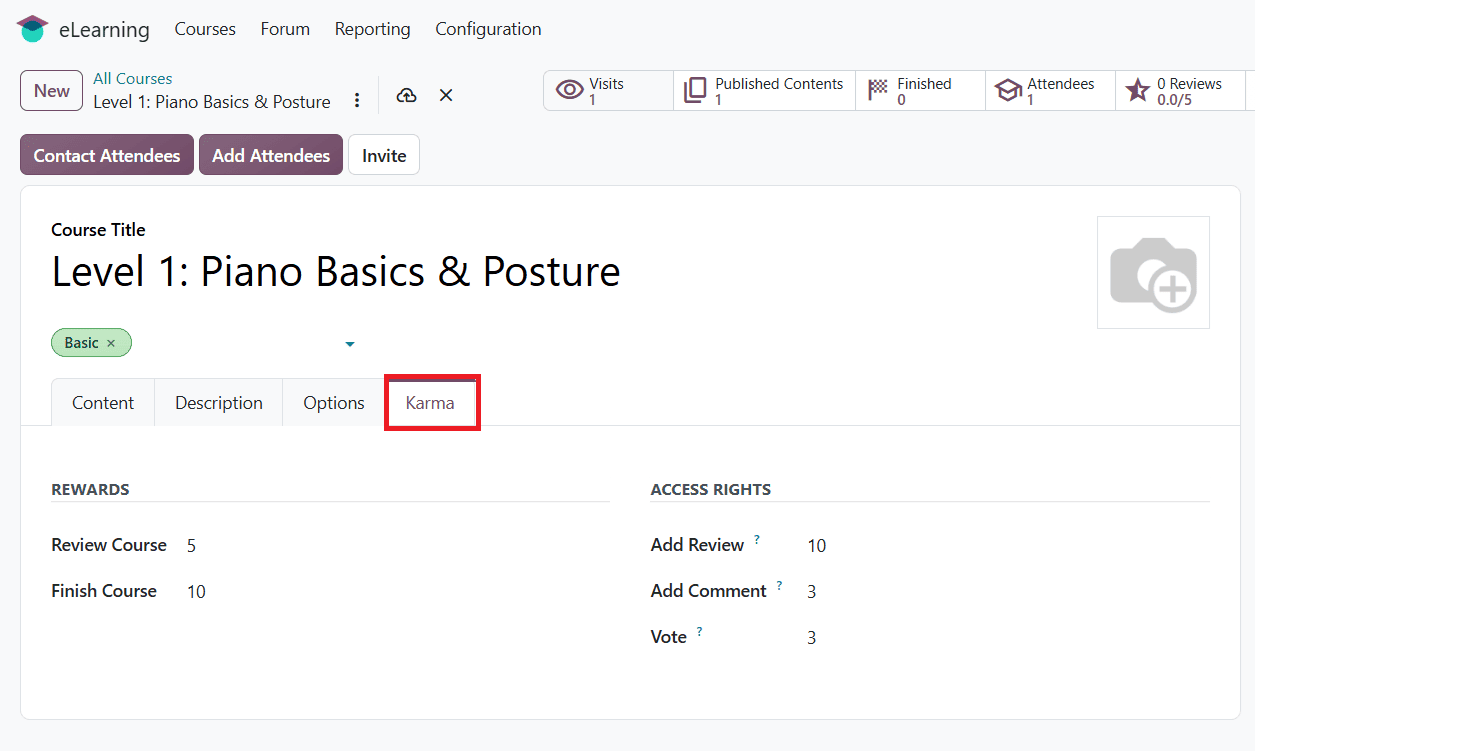
After adding the required learning content, you can configure the remaining course details using the Description, Options, and Karma tabs. These tabs provide additional settings related to the course description, access rights, prerequisites, and gamification options.
In the Options tab, under Access Rights, leave the prerequisites empty.
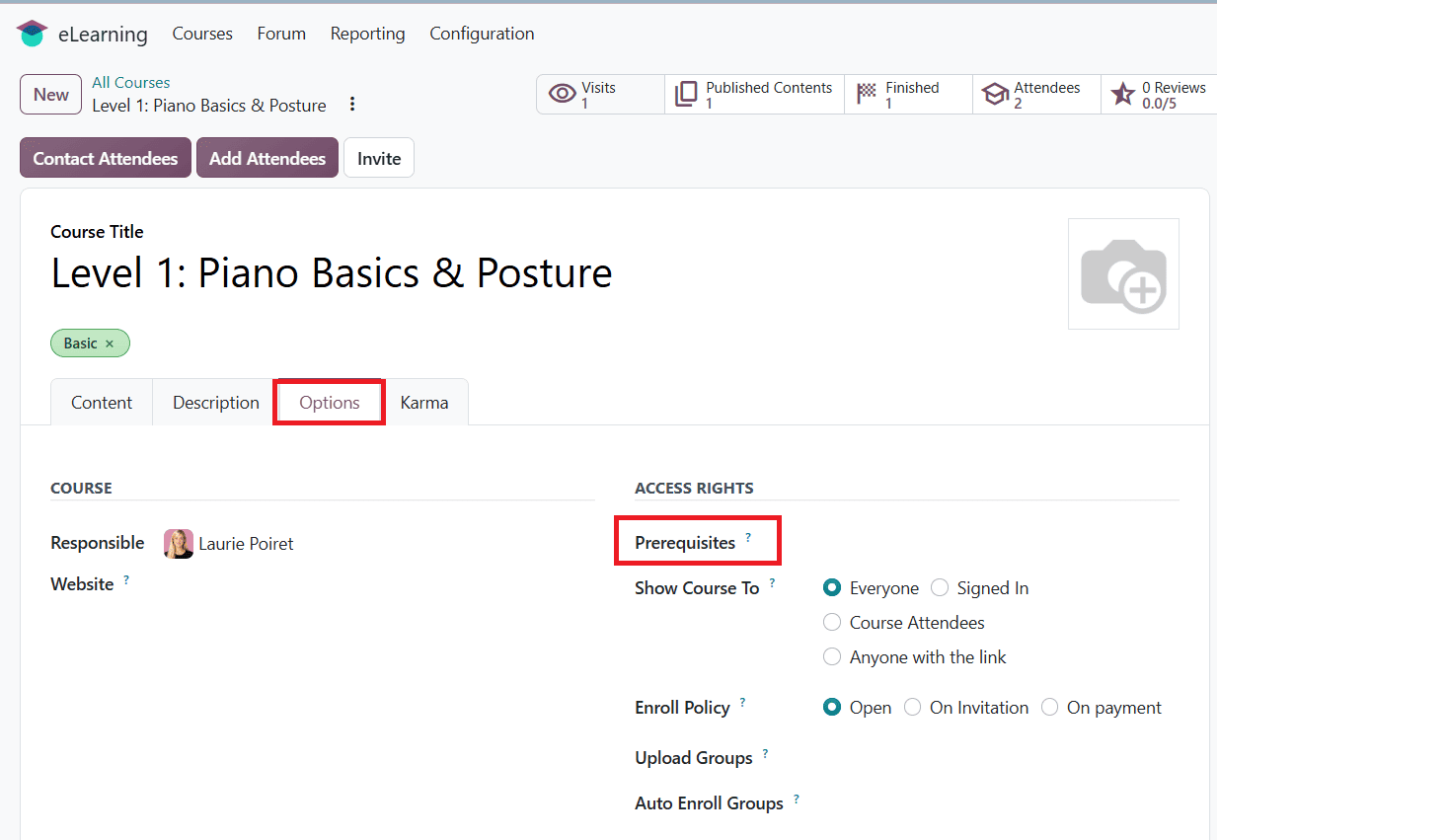
Since this is the starting course in the learning path, it does not require a prerequisite course. Create another course to establish the prerequisite relationship.
The Karma tab contains gamification settings that encourage learner participation. Under Rewards, course managers can configure the karma points awarded when learners review or complete a course. The Access Rights section allows them to set the minimum karma points required to Add Review, Add Comment, or vote on the course.
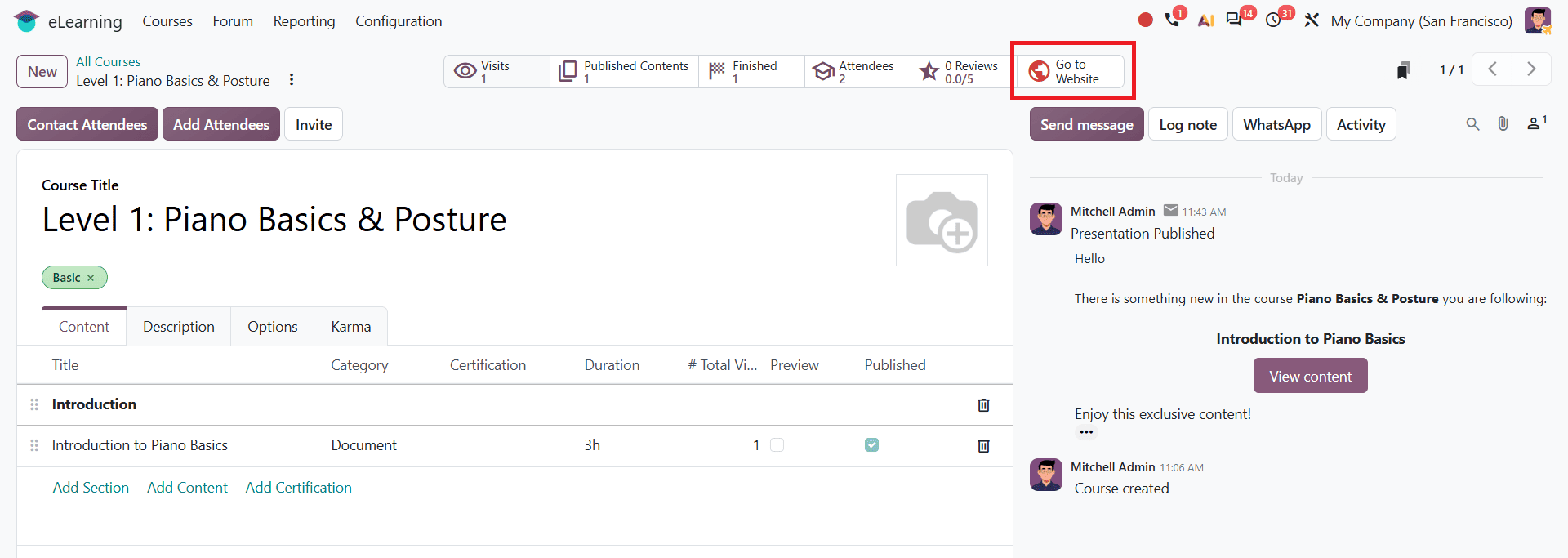
Before creating another course, publish the starting course. To publish the course, click the Go To Website option in the smart button as shown below.
Once you click it, the course website opens. Click the Unpublished toggle to publish the course.
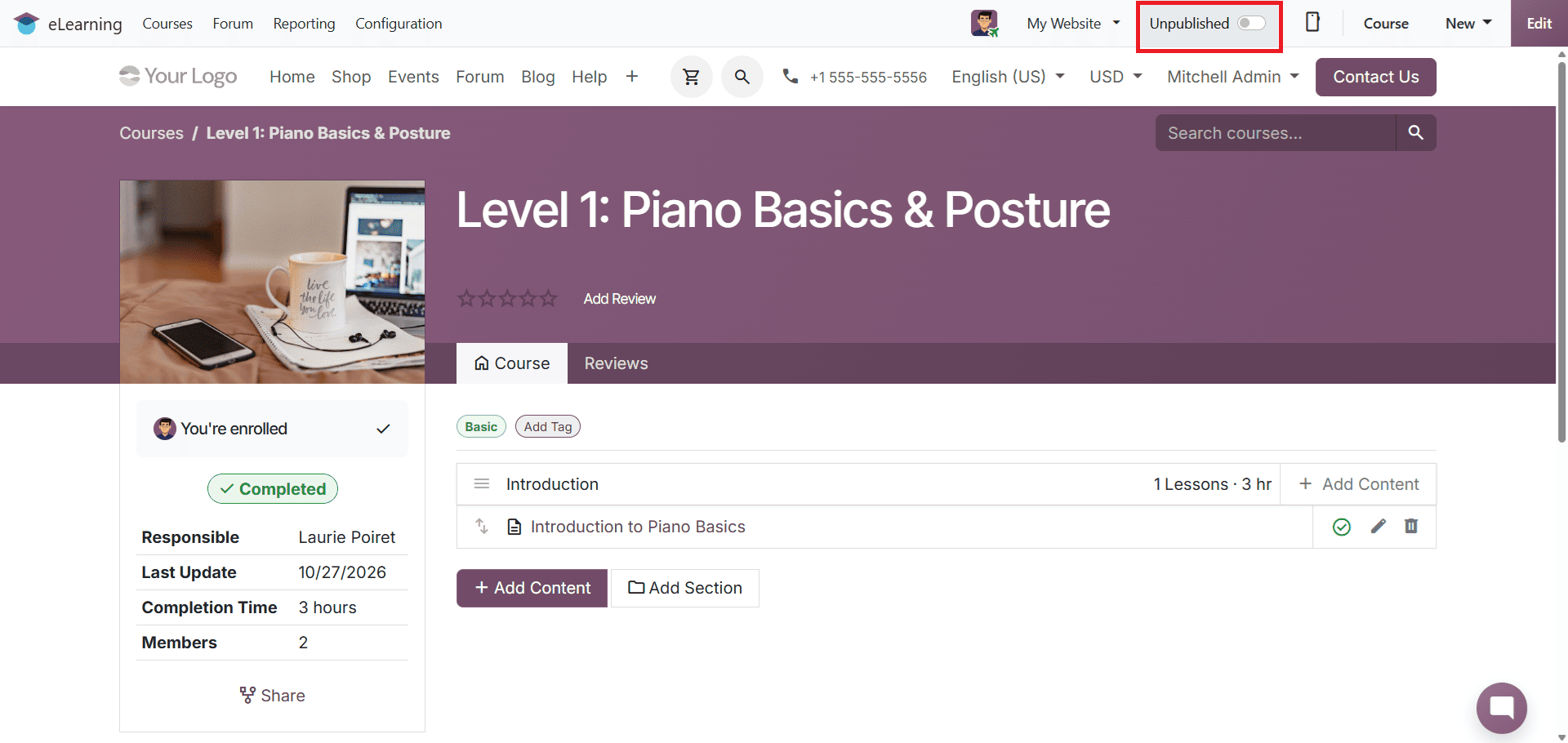
Once your course is published, you can also see it as published in the course dashboard.
Now let's create another course to add prerequisites.
Create a Course with Prerequisites
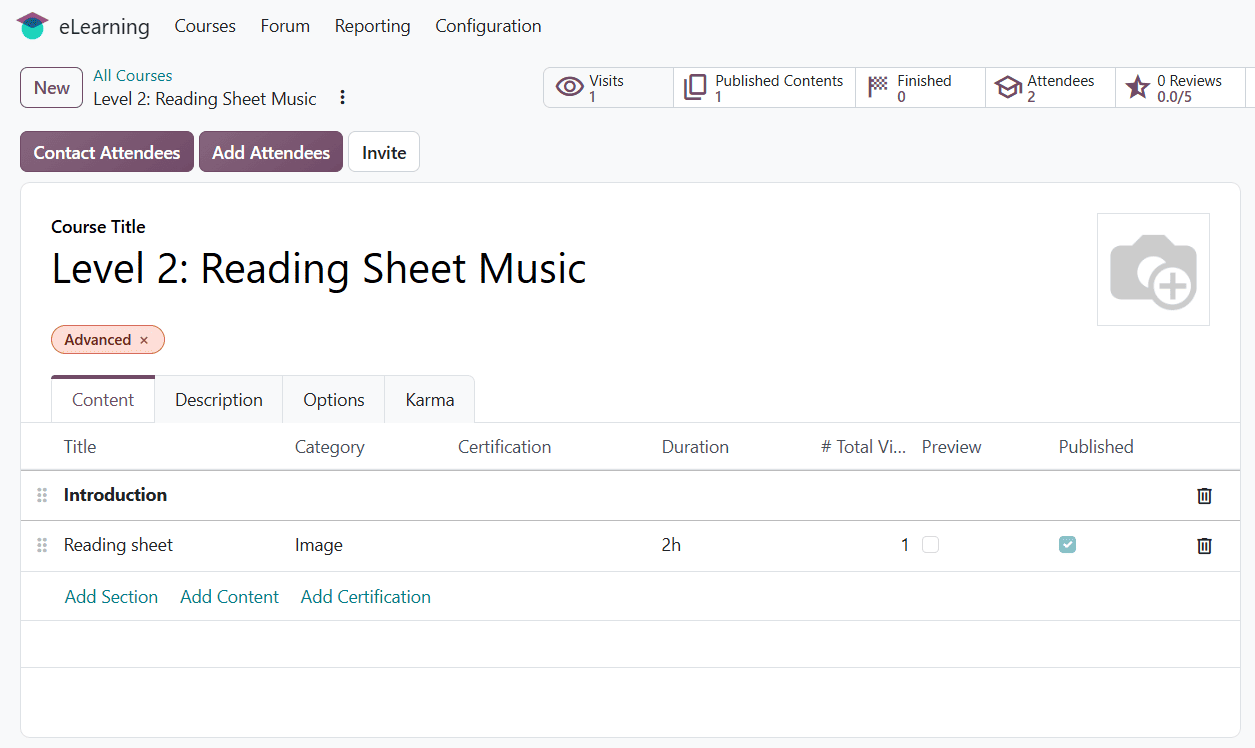
After publishing the first course, create another course that builds on knowledge gained from the previous course. Open the eLearning dashboard, click New, and enter the course title and other required information. Add the relevant learning content before configuring the prerequisites. An example is shown below.
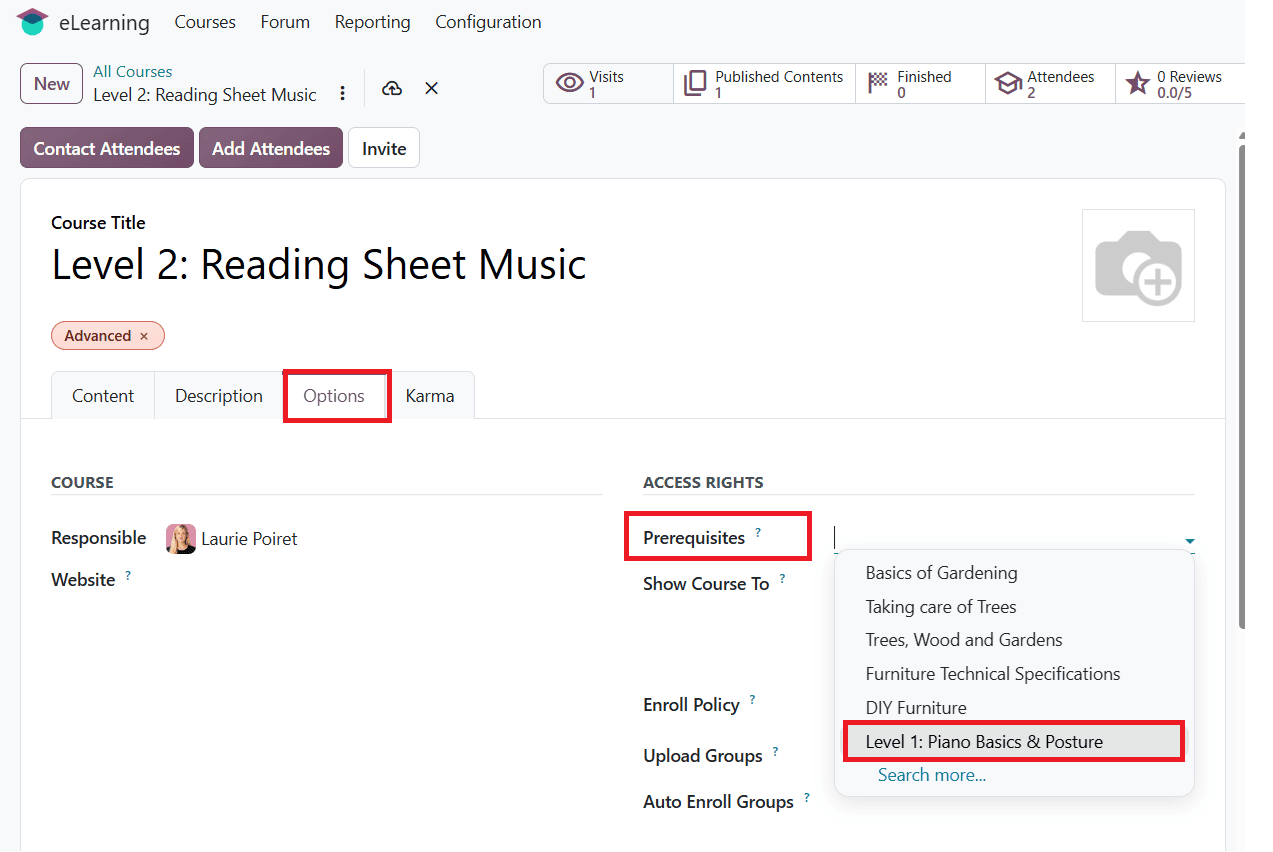
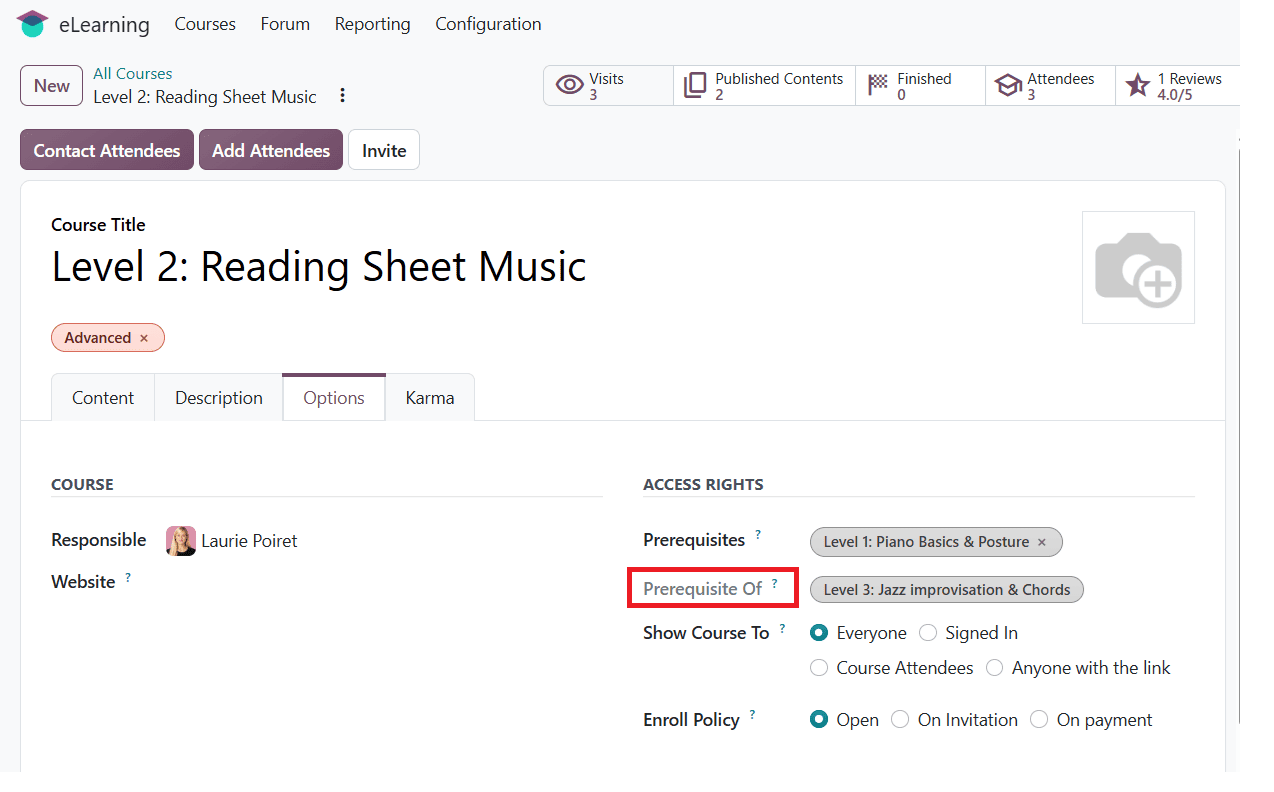
To configure prerequisites, click on the Options tab and locate Prerequisites under Access Rights. Select your published course as a prerequisite, as shown below.
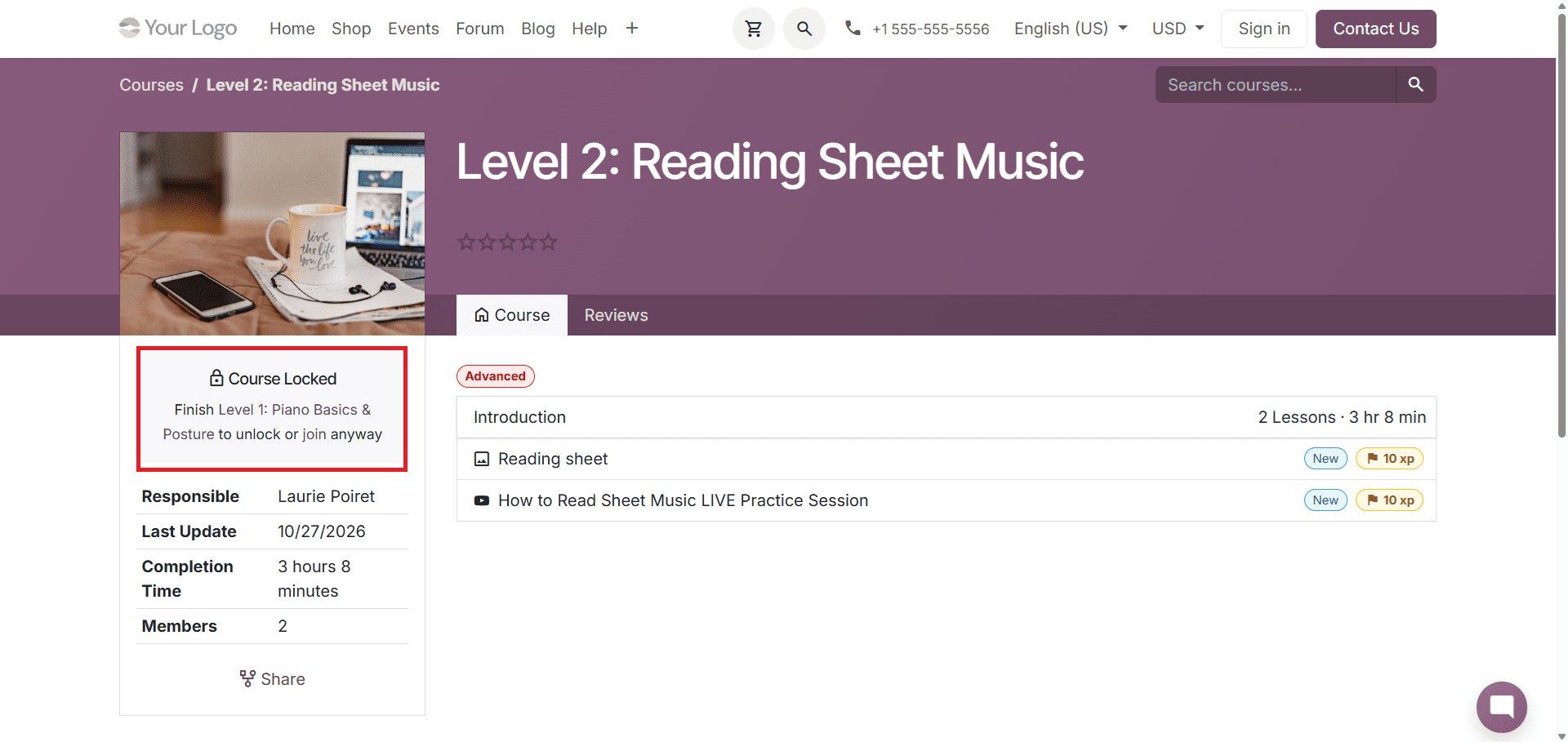
After publishing the course, learners must complete the prerequisite course before they can access the next one. This course page displays the prerequisite information, helping learners understand which course they need to complete first.
The example below shows how this is displayed on the website.
When one course is selected as a prerequisite for another, Odoo also shows the relationship through the Prerequisite Of field. The field can display the courses for which the current course serves as a prerequisite. It's a read-only field, so the relationship is configured from the course that requires the prerequisite.
Organizing Courses into a Learning Path
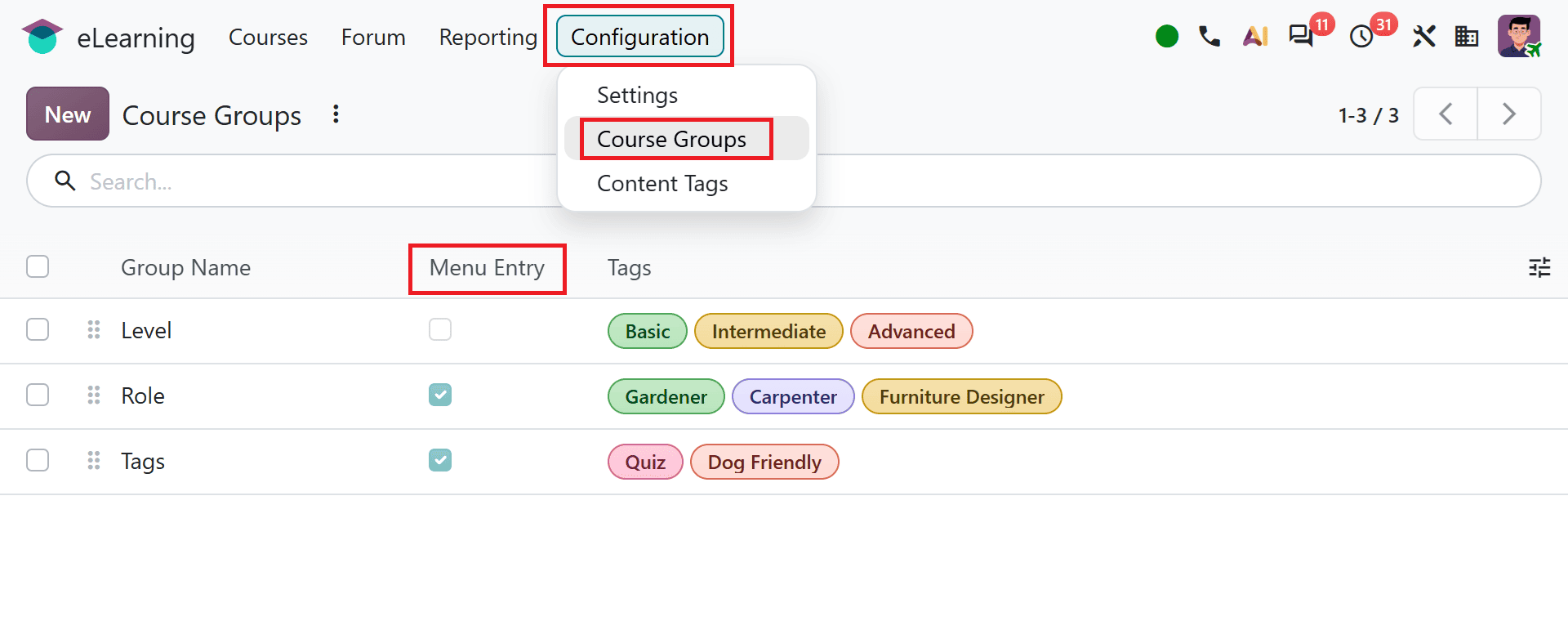
By setting prerequisites, course managers can organize related courses into a structured learning path. In addition, Odoo 20 eLearning provides course groups to organize courses into categories. You can configure course groups under Configuration > Course Groups. Enable the Menu Entry option to help users find courses more easily on the website.
Odoo 20 eLearning makes it easier to organize courses and guide learners through a structured learning path. By configuring course prerequisites, course managers can establish relationships between courses and help learners understand the recommended course learning sequence. These features support a more organized and effective learning experience.
To read more about How to Set Up Online Courses in Odoo 19 eLearning, refer to our blog, How to Set Up Online Courses in Odoo 19 eLearning.