In the modern digital learning landscape, organizations increasingly rely on integrated platforms like Odoo eLearning to create, manage, and deliver online courses efficiently. Odoo’s eLearning module provides a seamless way to design structured learning paths, upload course materials, and engage learners through interactive content, quizzes, and certifications. Setting up online courses in Odoo 19 begins with configuring the eLearning app, creating course categories, and defining course structure with modules and lessons. Administrators can easily add videos, PDFs, presentations, and external resources while controlling access permissions for different learner groups. The platform provides real-time learner tracking tools, allowing instructors to easily monitor student progress and performance. With its intuitive drag-and-drop interface and integration with other Odoo applications like Website and Sales, eLearning becomes a powerful tool for training employees or selling courses online. This blog explains the essential steps to successfully set up online courses in Odoo 19 eLearning.
From the Odoo 19 dashboard, open the eLearning module.
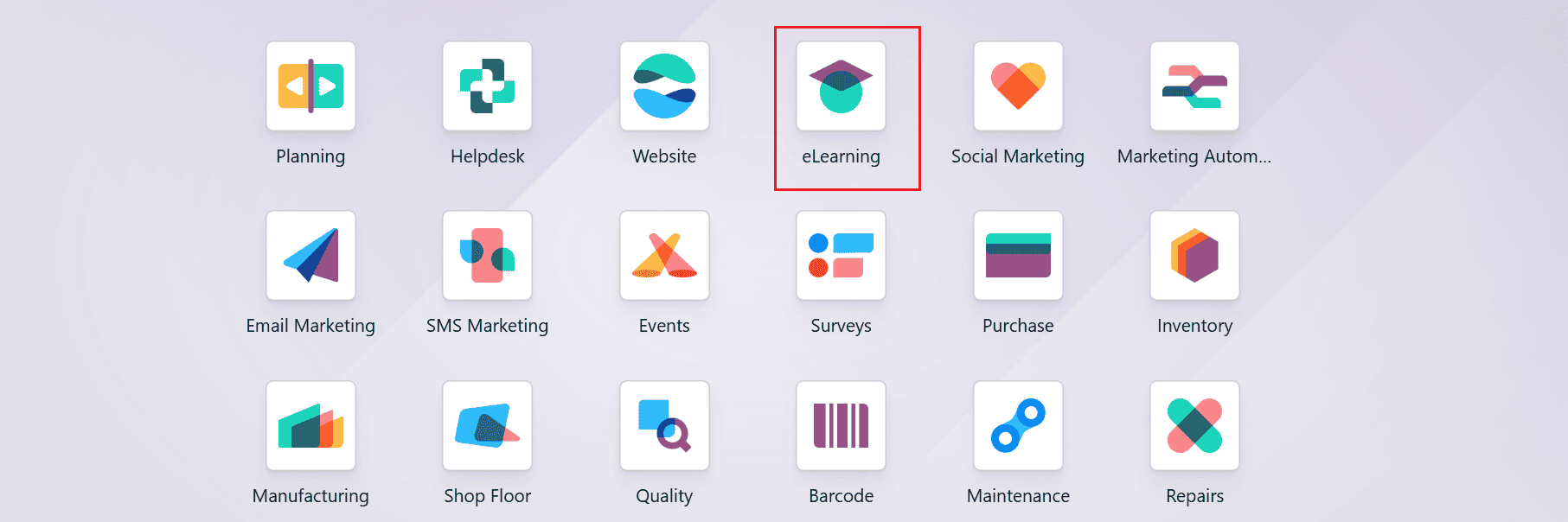
After that, go to Courses > Courses and select the New button to create a new course, as shown below:
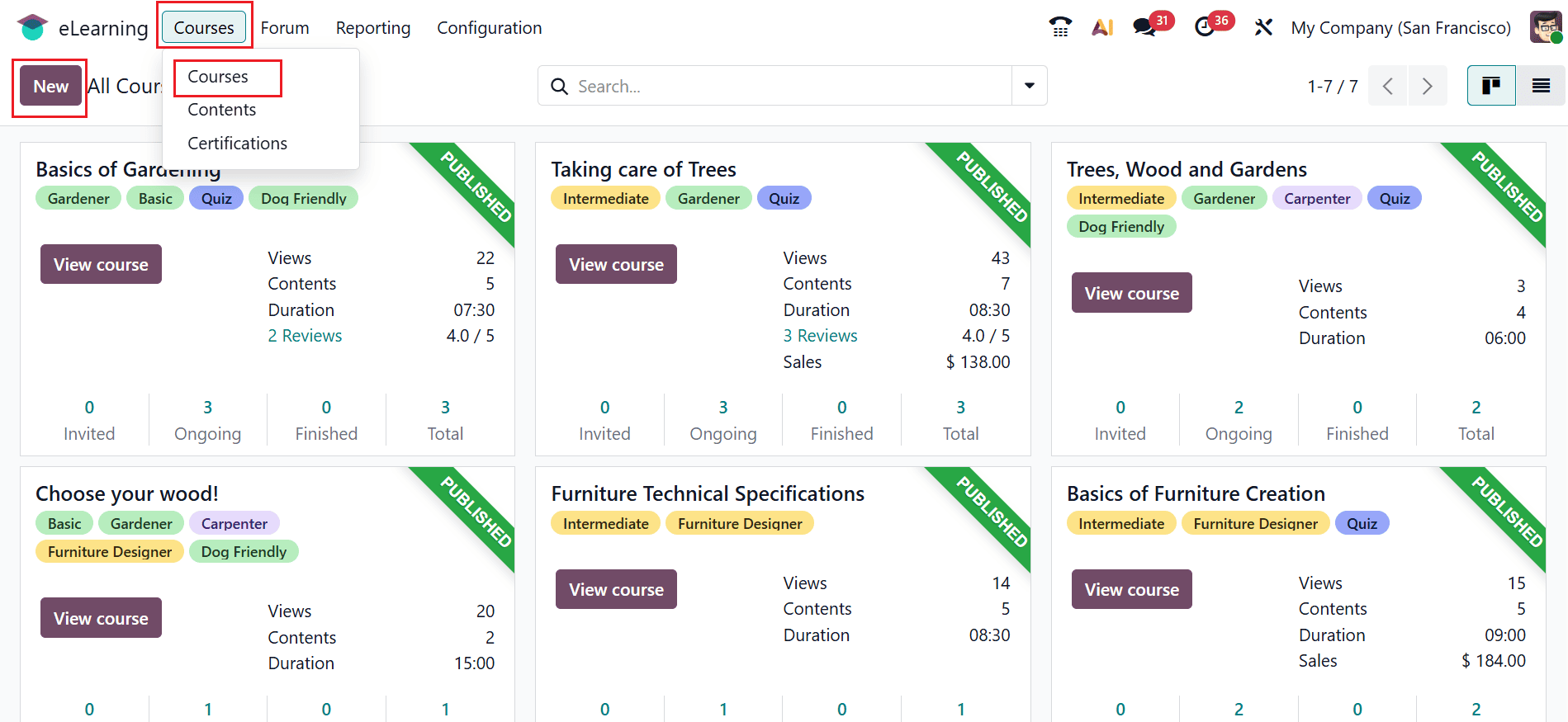
A new window will open, allowing you to enter the course name in the Course Title field and add relevant tags. In this window, you will find four tabs: Content, Description, Options, and Karma.
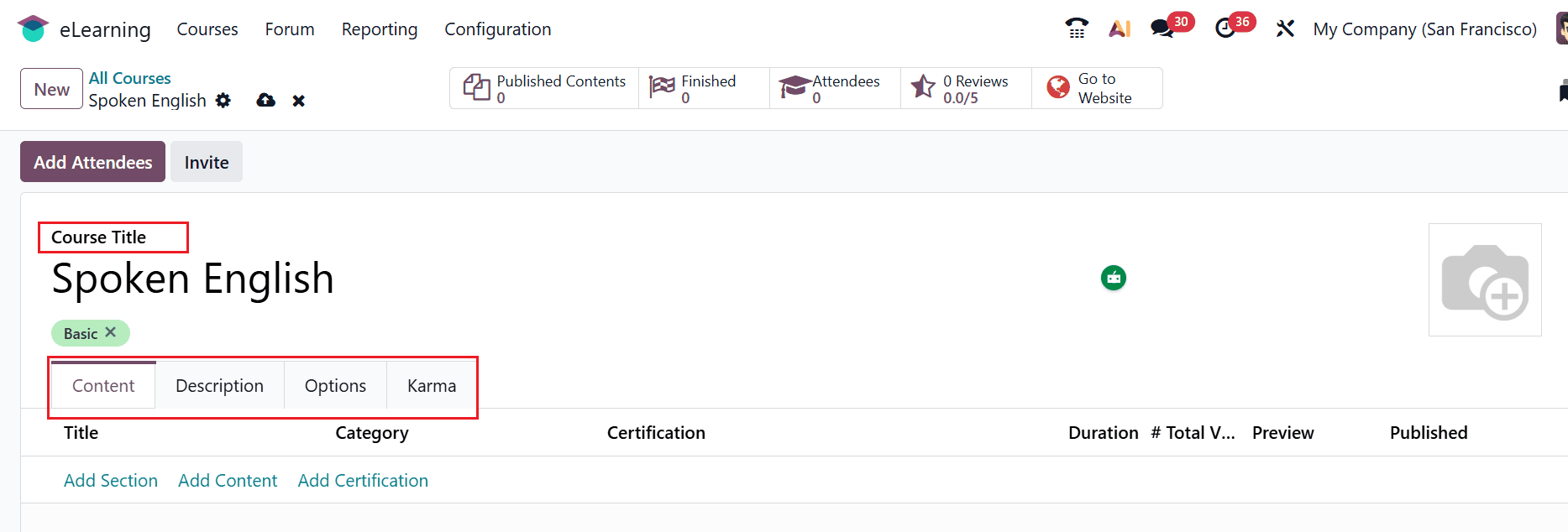
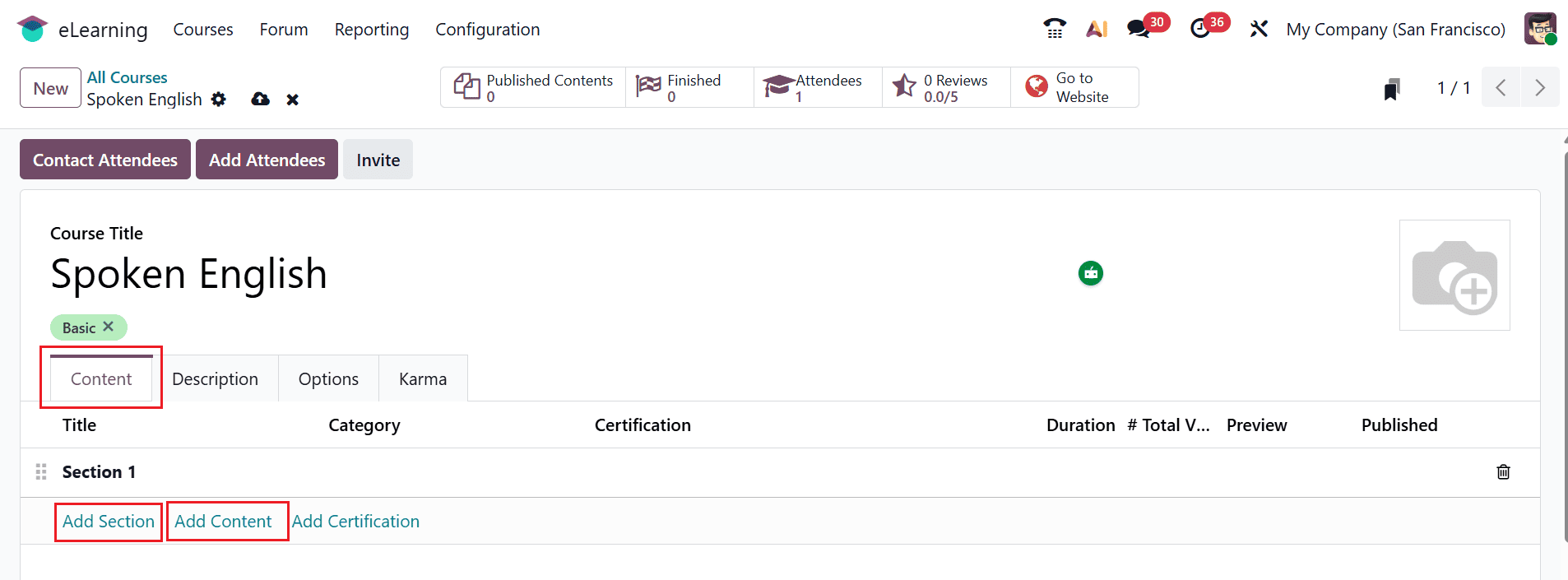
In the Content tab, you can add a new section to the course using the Add Section button. To upload or create course content, click the Add Content button, as illustrated below:
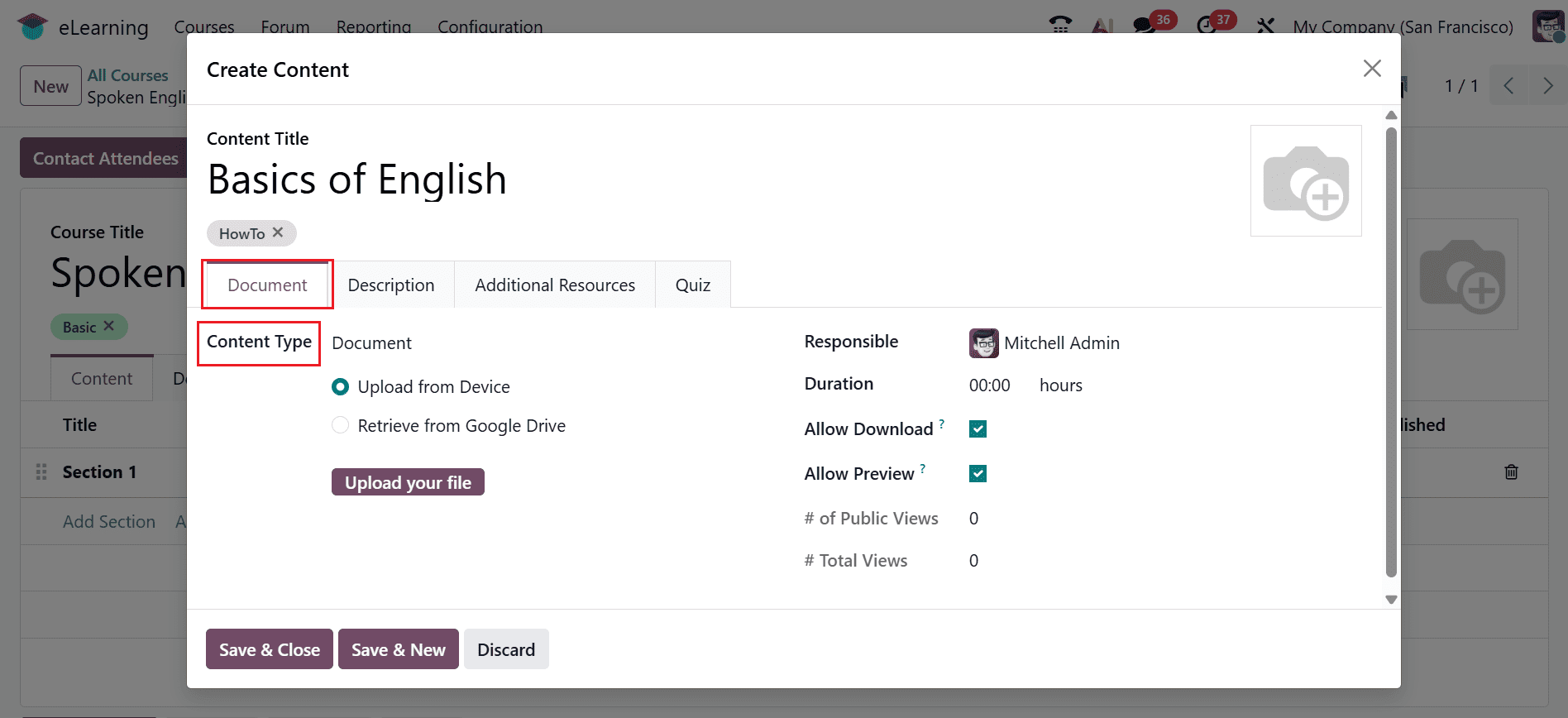
A new pop-up window will appear, allowing you to specify a Content Title and add appropriate tags for the content. In the Document tab, choose the appropriate Content Type: Document, Image, Article, Video, Quiz, or Certification. After selecting the type, click Upload your file to add the content. You may also assign a responsible user and set the duration for the content. Additionally, you may enable the following settings:
- Allow Download – Permits anyone to download the file.
- Allow Preview – It enables users to access the content without joining the channel.
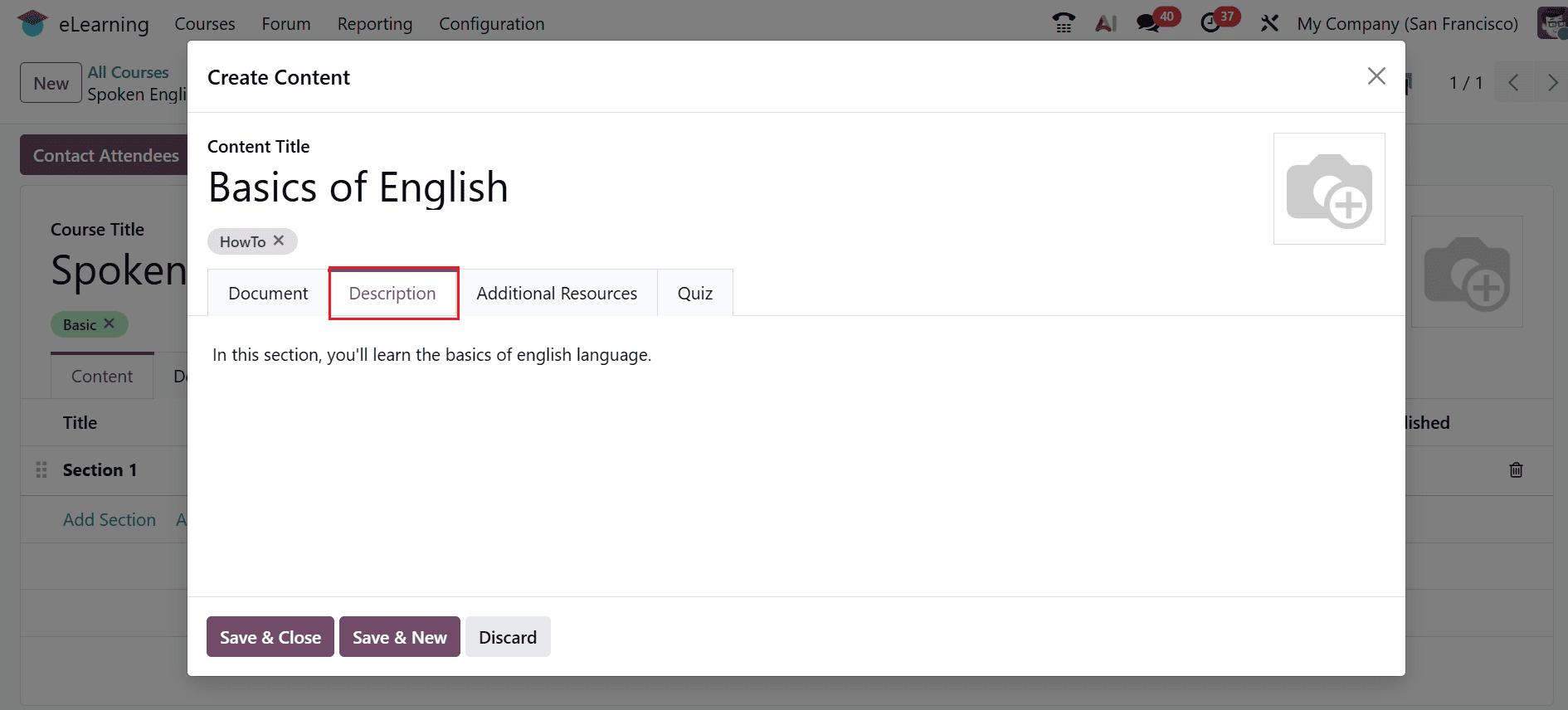
Under the Description tab, you can add a short note about the content.
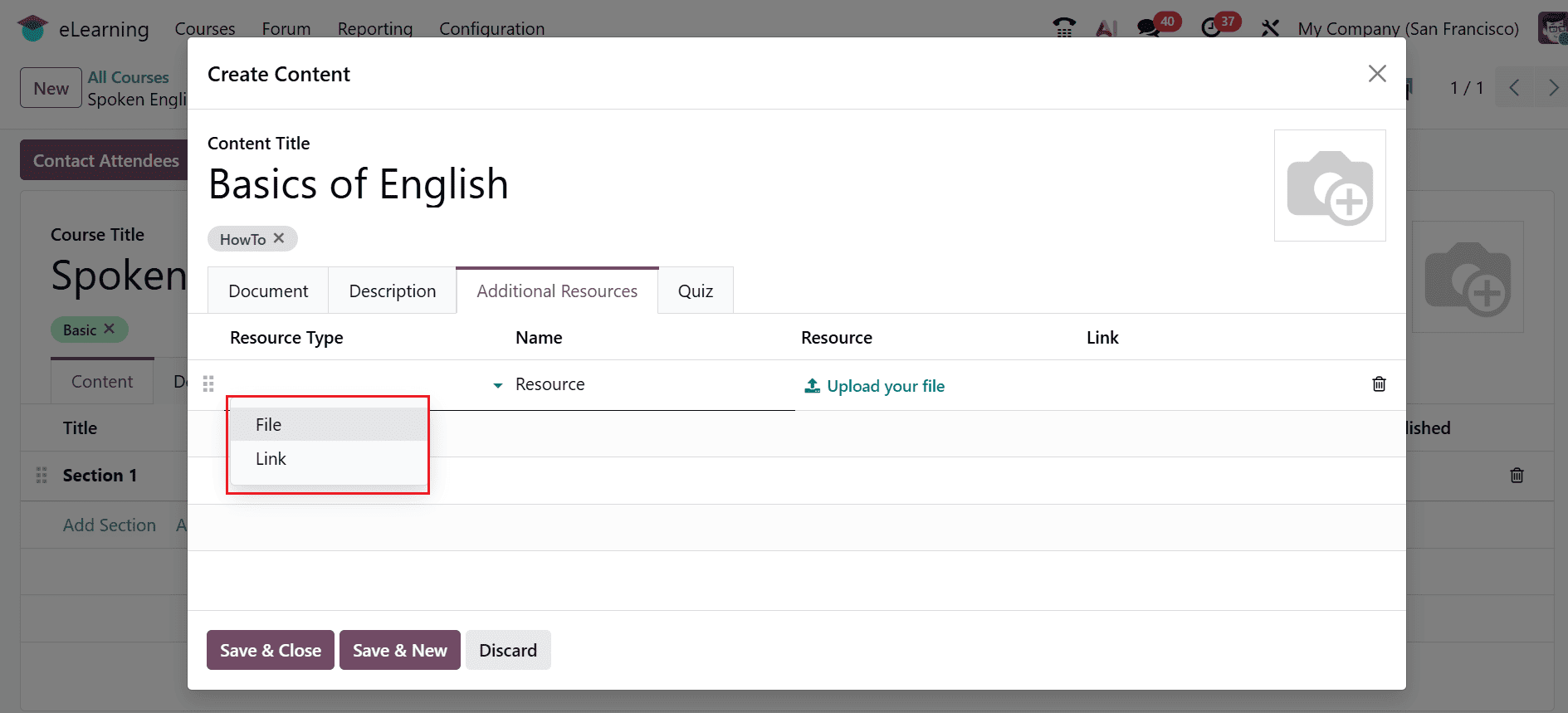
In the Additional Resources tab, you can attach supporting materials either as a file or a link. Simply select the desired option and upload the file or enter the URL.
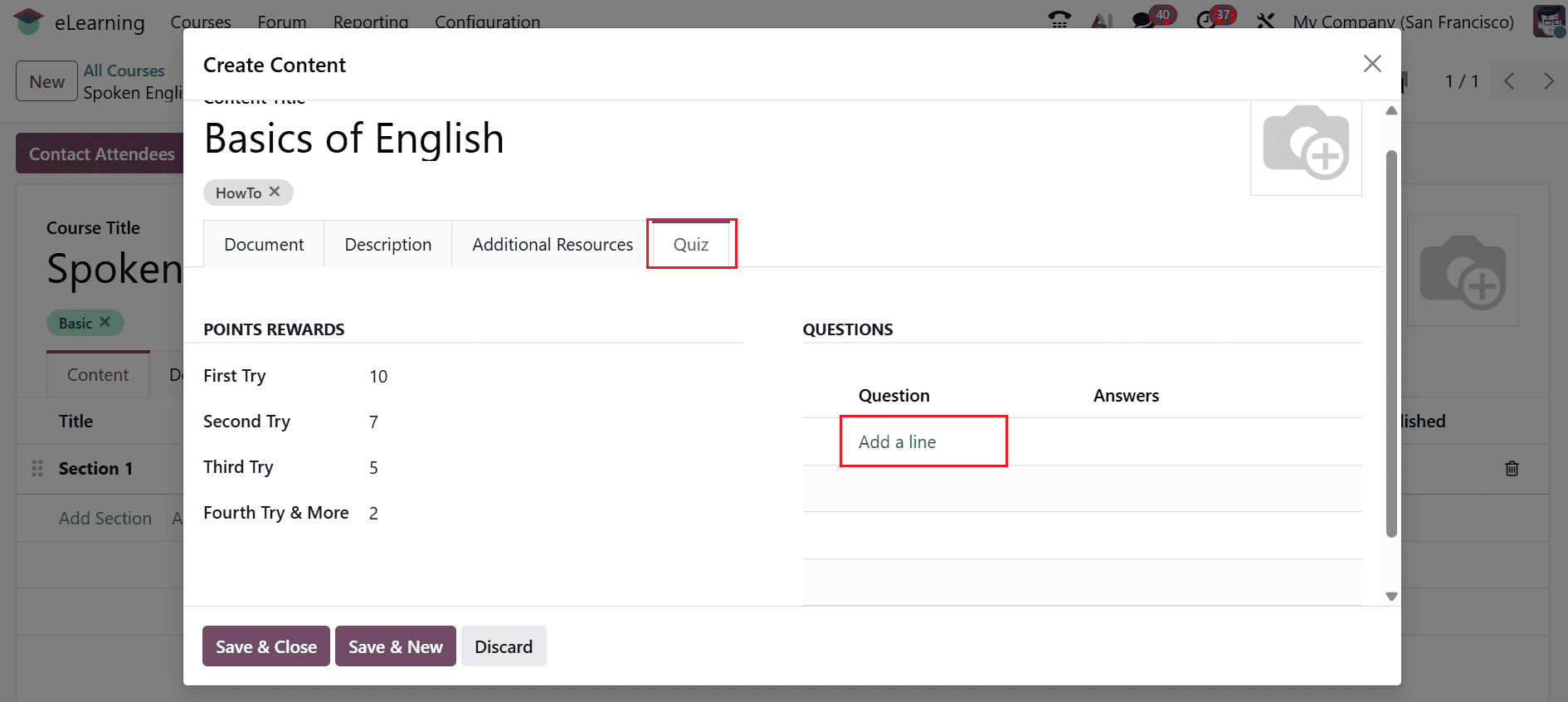
In the Quiz tab, you can view the points or rewards allocated for each attempt under the Points Rewards section. To create a new question, open the Question section and select Add a line.
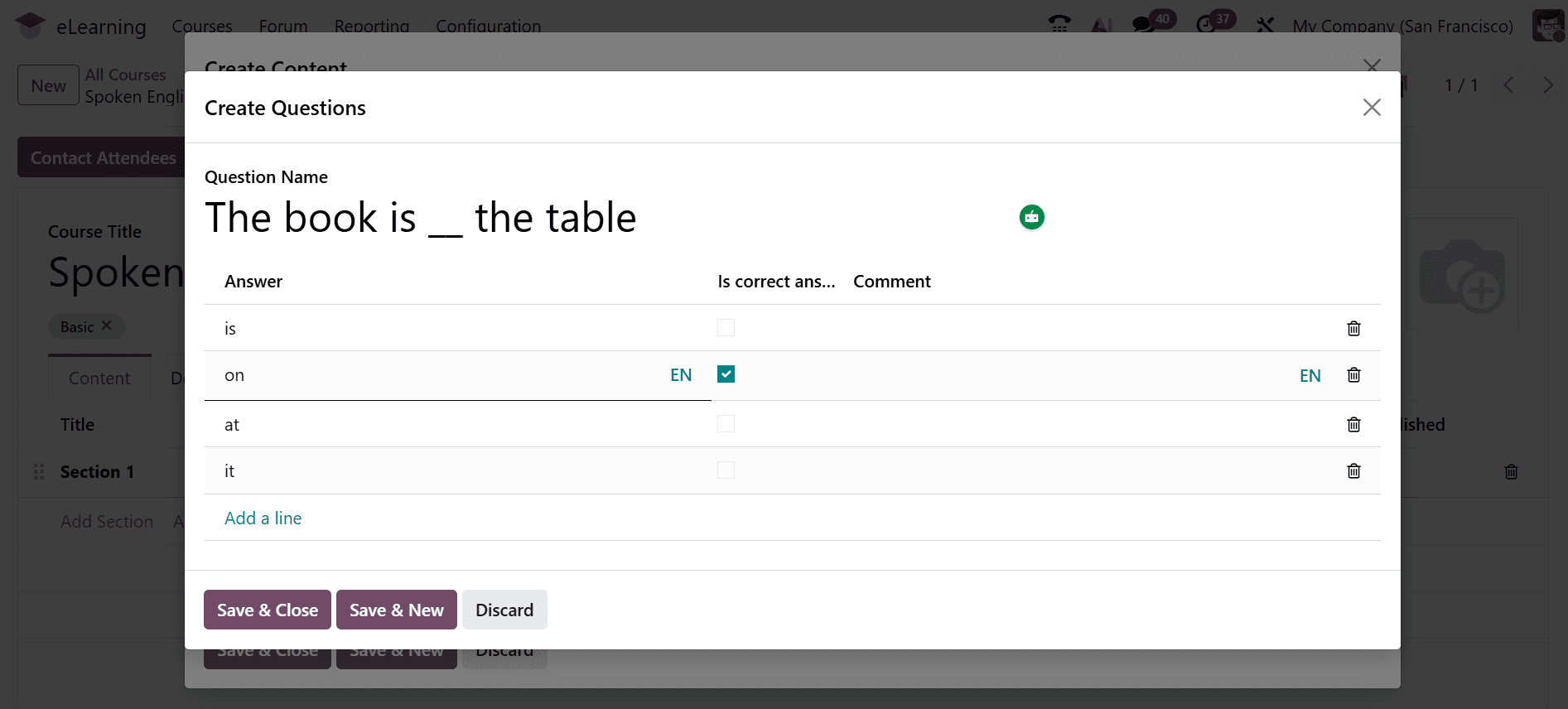
A pop-up window will open, allowing you to enter the question in the Question Name field. In the Answers section, you can add multiple options and mark the correct answer by selecting the Is Correct Answer checkbox. After completing the details, click Save & Close to save the question, or click Save & New to add another question.
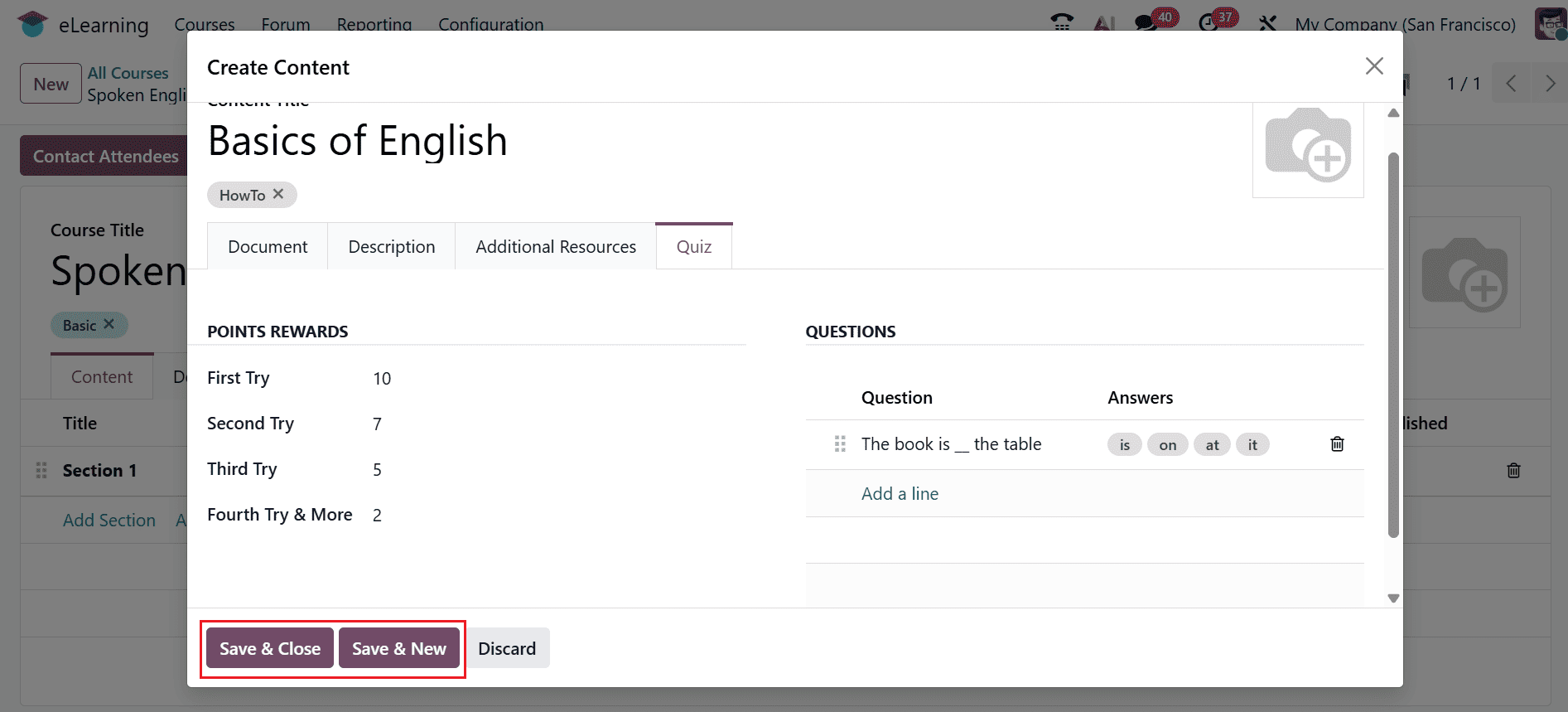
Here, the created question will appear under the Questions tab. To finalize it, click Save & Close to save the question, as shown below:
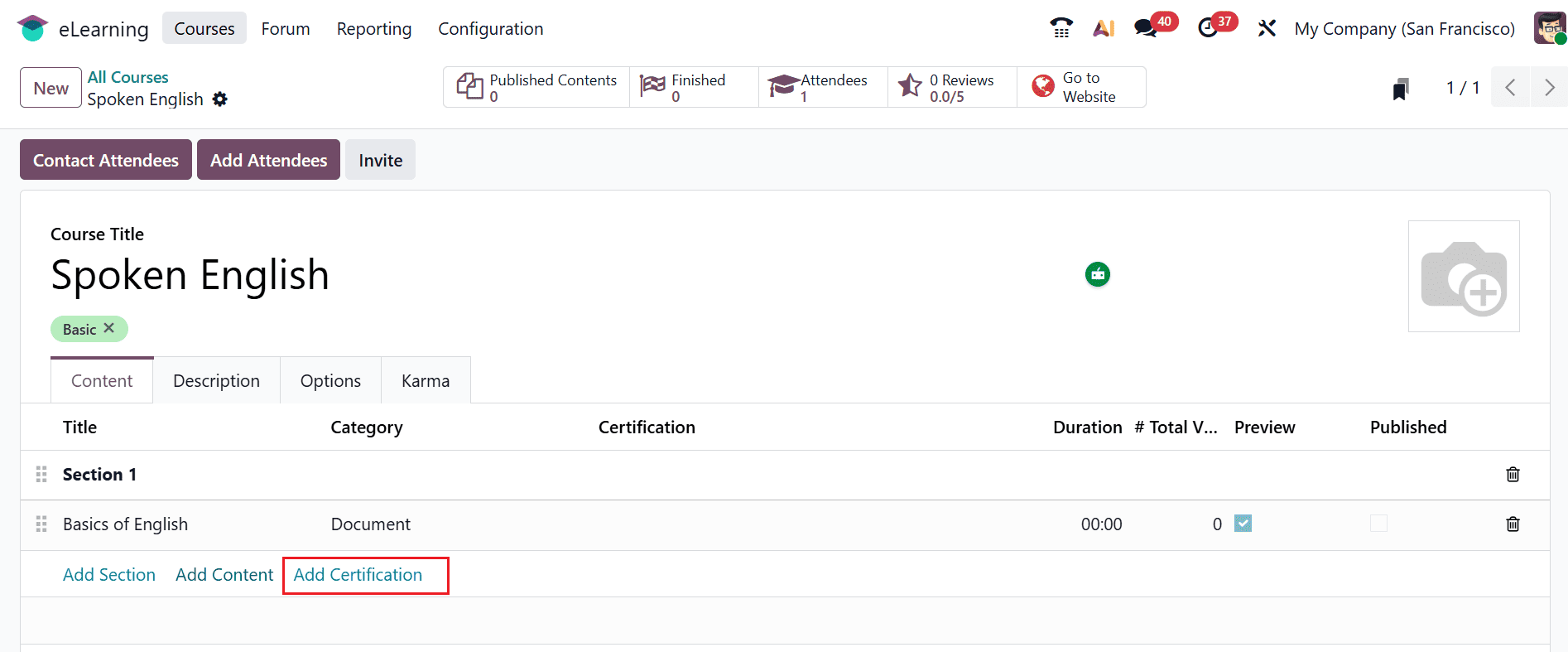
To add a certification to the course, click on the Add Certification as shown below:
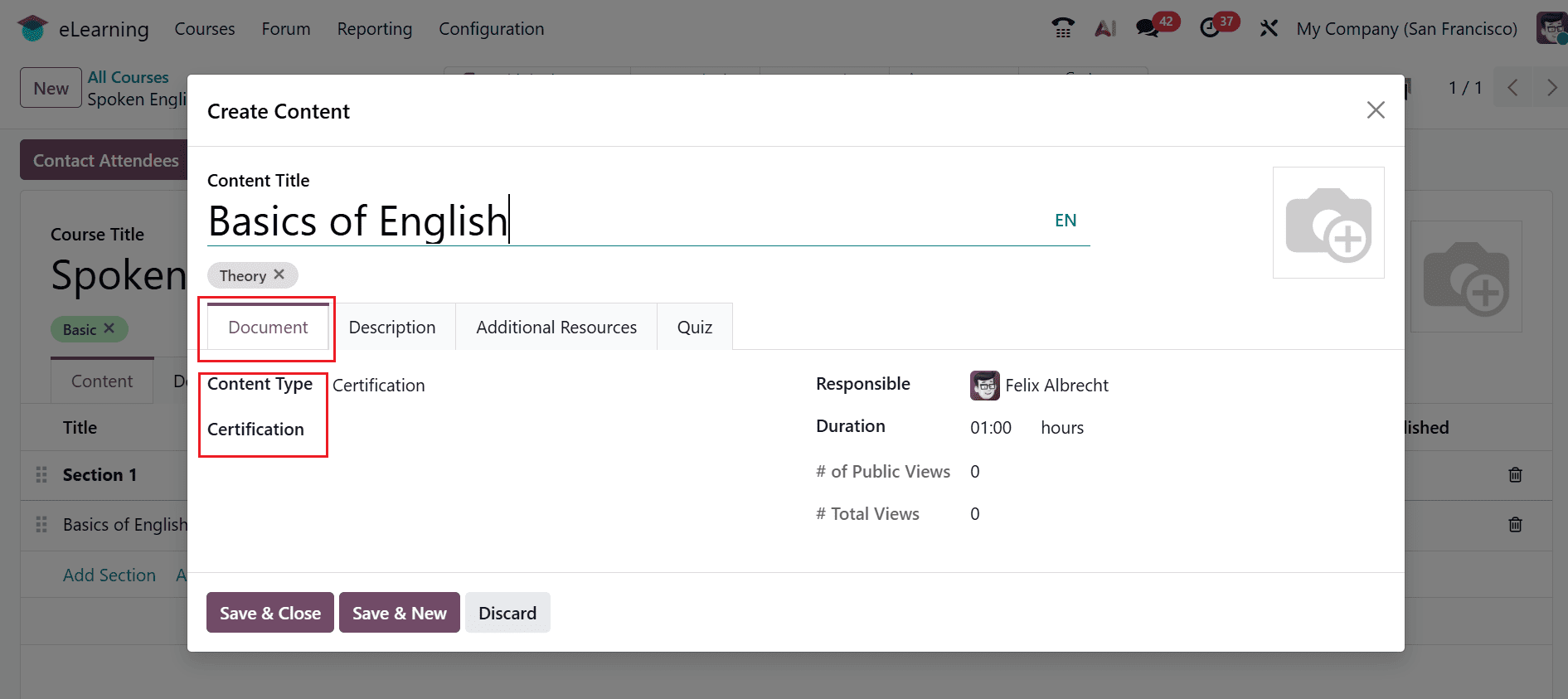
In the pop-up window, specify the certificate title in the Content Title field and set the Content Type to Certification. In the Certification section, you have the option to select a previously created certification or generate a new one by clicking the New button.
A new window will open where you can add the details of the certification, such as title, Responsible, Language, and Restricted, as shown below. Within the Question tab, use the Add a question button to create a new question, as shown below.
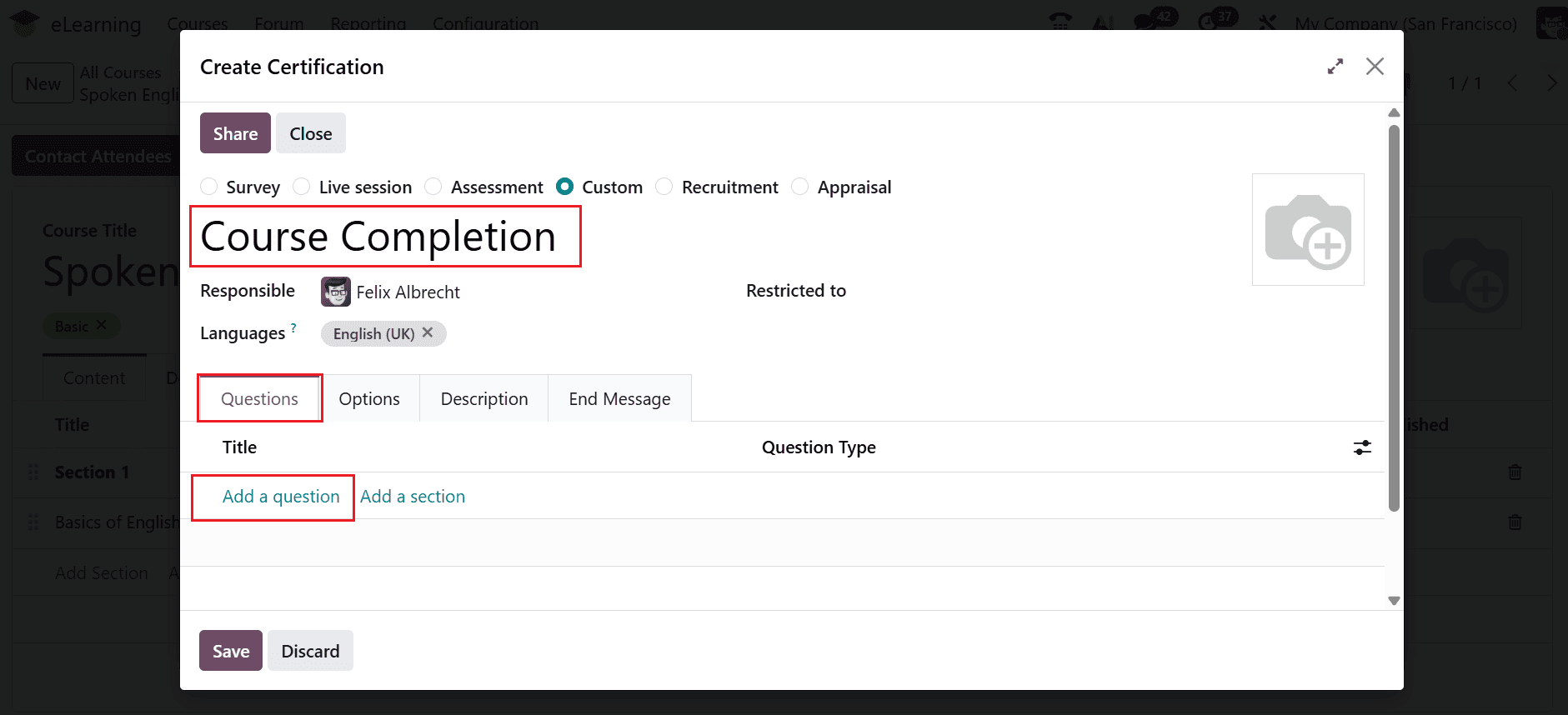
The Question option allows you to select different types of questions. For Multiple Choice, add answers under the Choices section in the Answers tab, assign a score, and mark the correct answer.
When the Single Line Text Box option is selected, extra checkbox settings become available in the Answers tab. When you enable Input must be an email, an extra option Save as user email becomes available. If enabled, the response is stored as the participant’s email address. You may also activate the Save as user nickname option to automatically store the participant’s response as their nickname in Odoo.
For the Matrix type, the Answers tab provides Rows and Choices, allowing participants to complete responses in a table format.
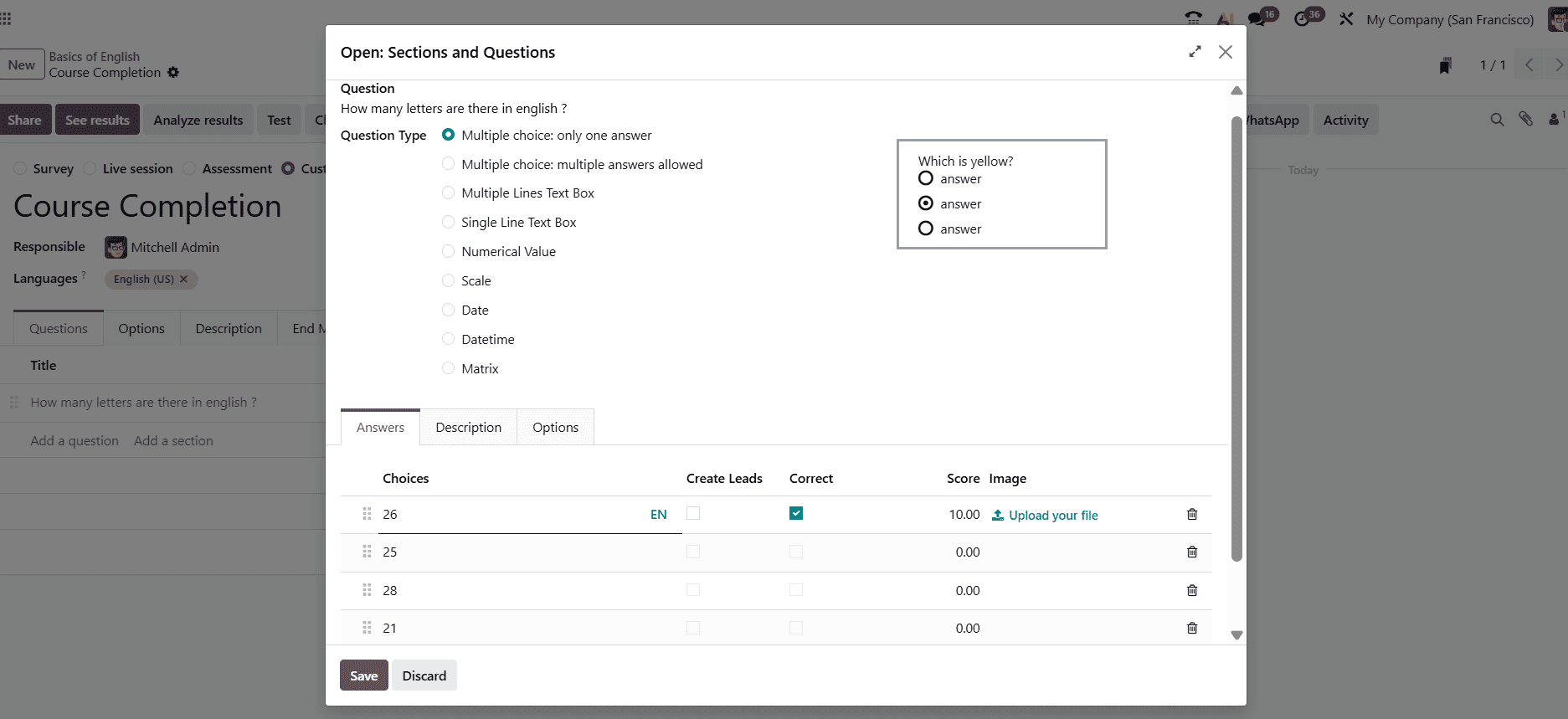
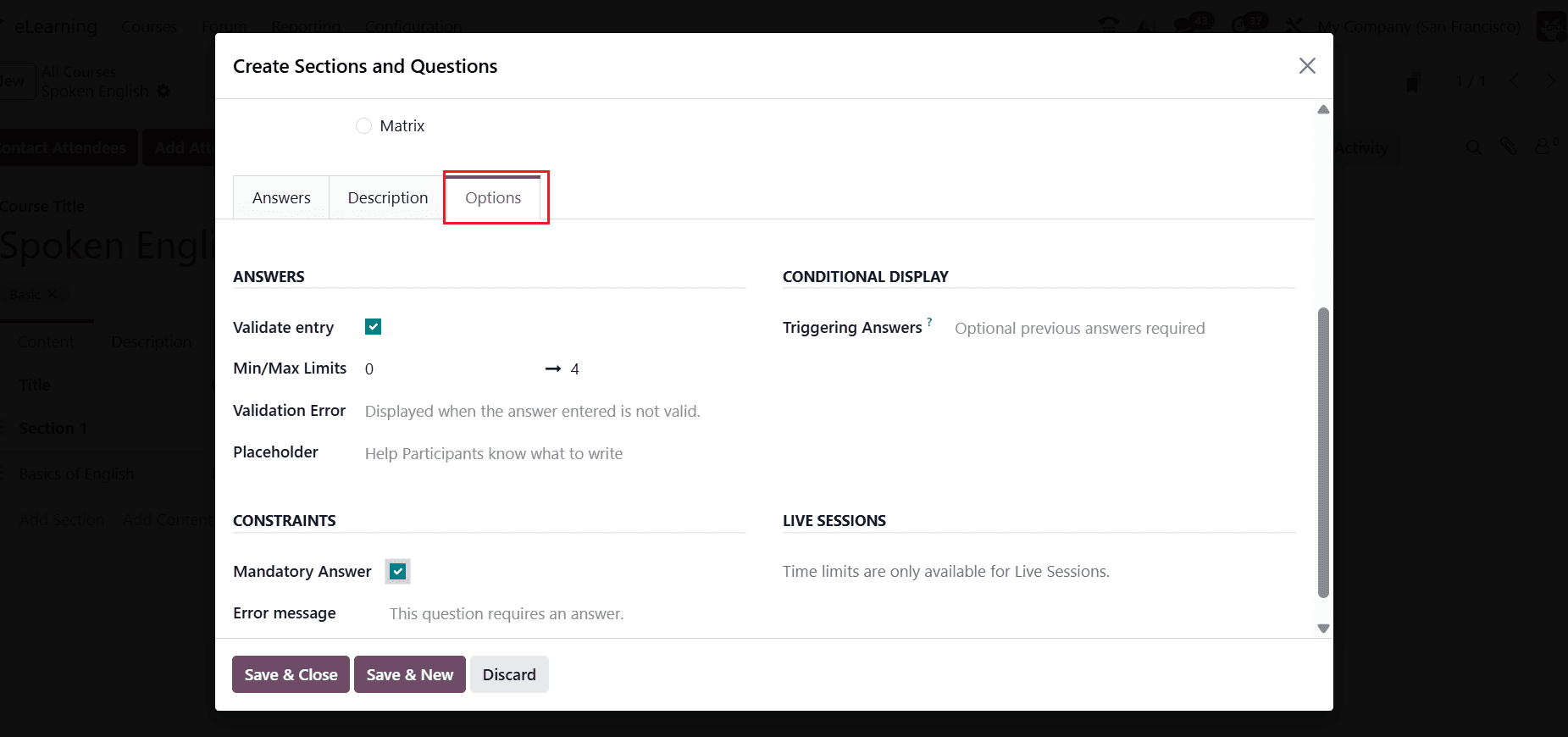
The Description tab lets you provide additional information or details related to the question. In the Options section, you can define how a question behaves, how it is answered, and under what conditions it appears during a quiz or survey.
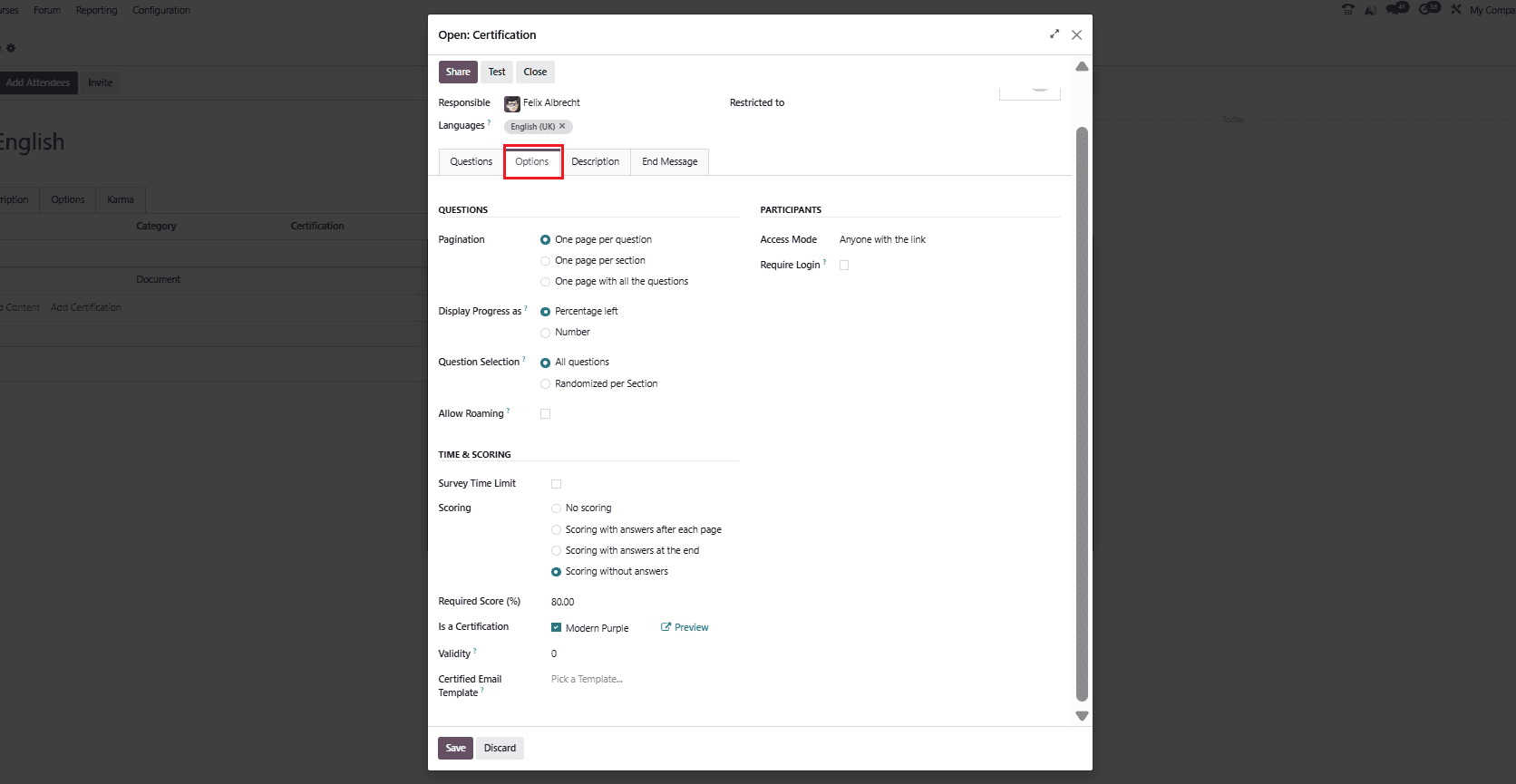
Under the Options tab, you can configure how a quiz or certification behaves, how it is presented to participants, and how it is evaluated.
Under the Description tab, you can provide instructions and explain the purpose of the quiz. Under the End Message tab, you can provide a closing note, such as completion confirmation or a thank-you message.
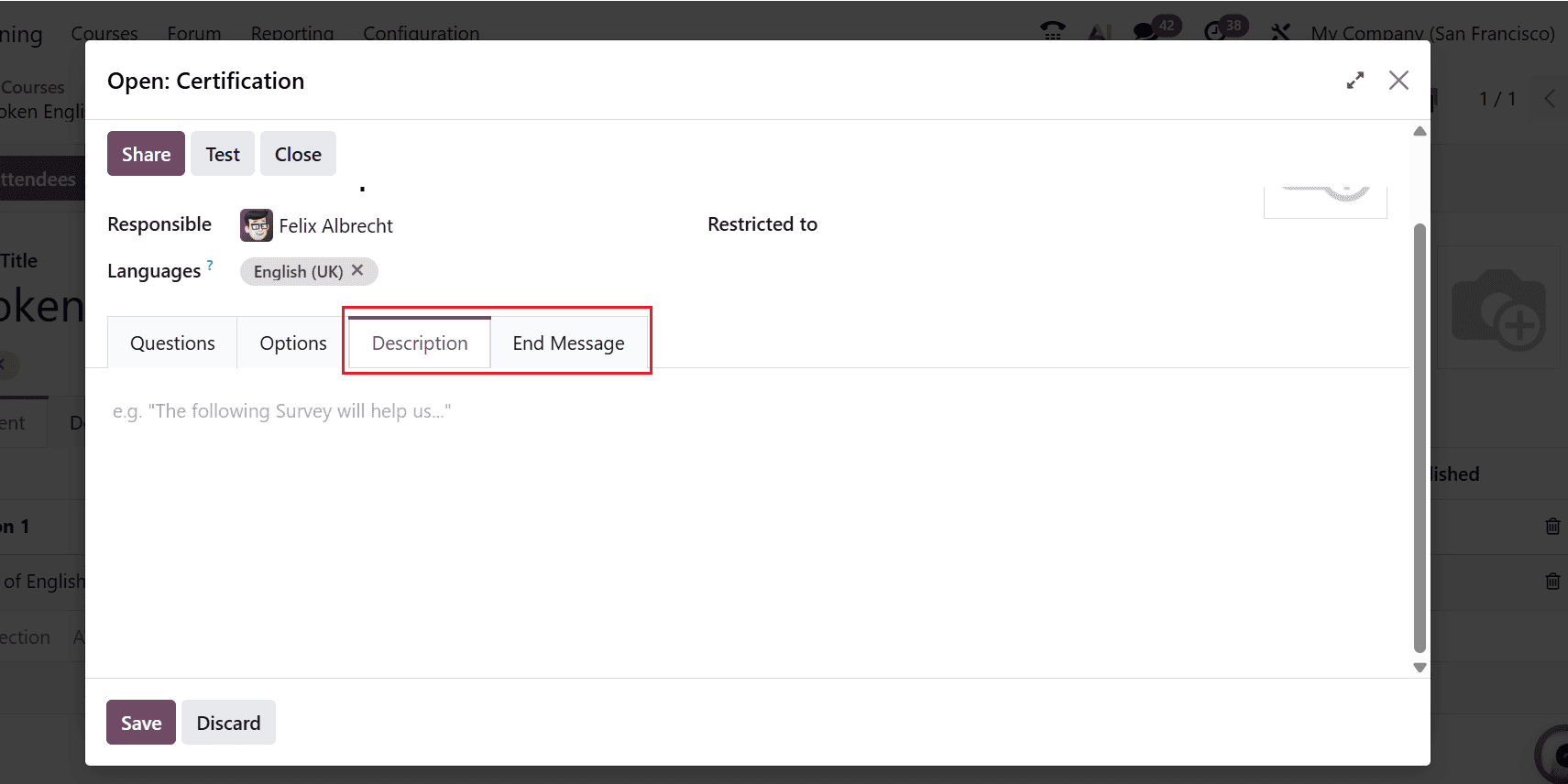
Here, the newly created certification appears under the Certification option. To complete the process, click Save & Close, as shown below.
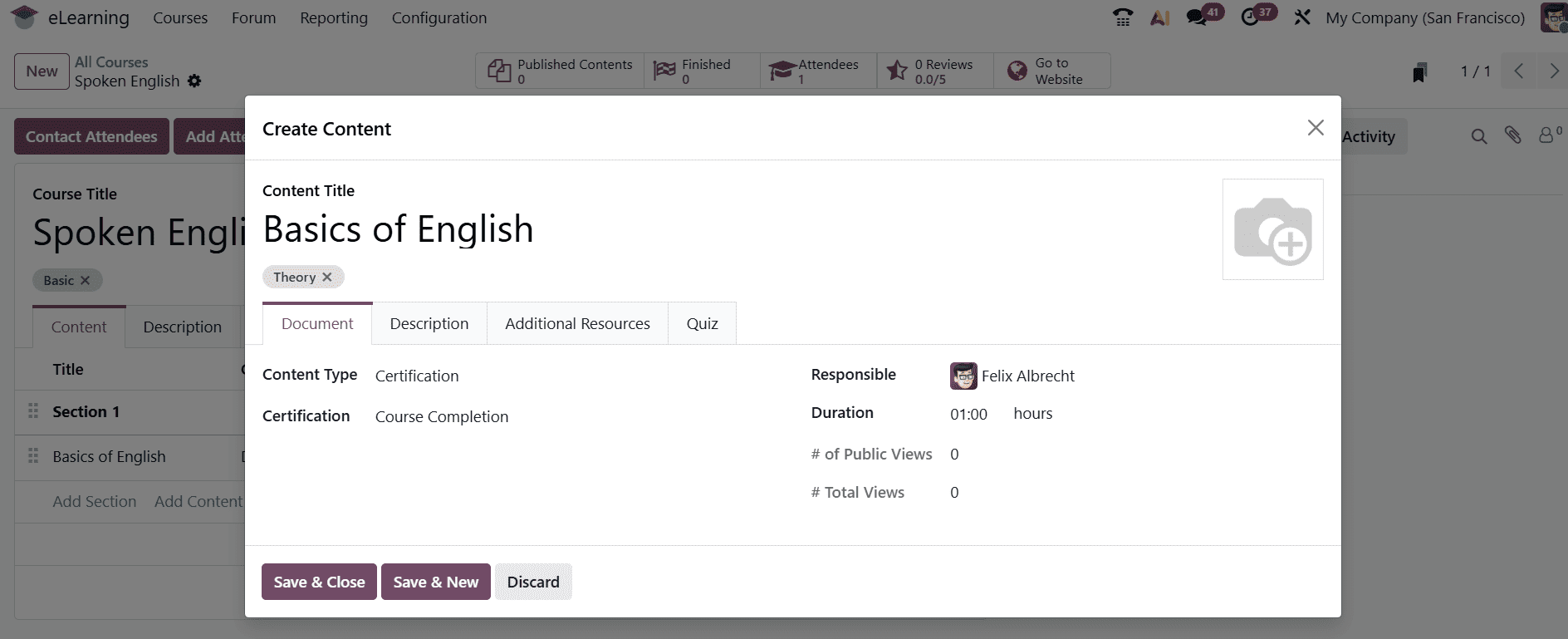
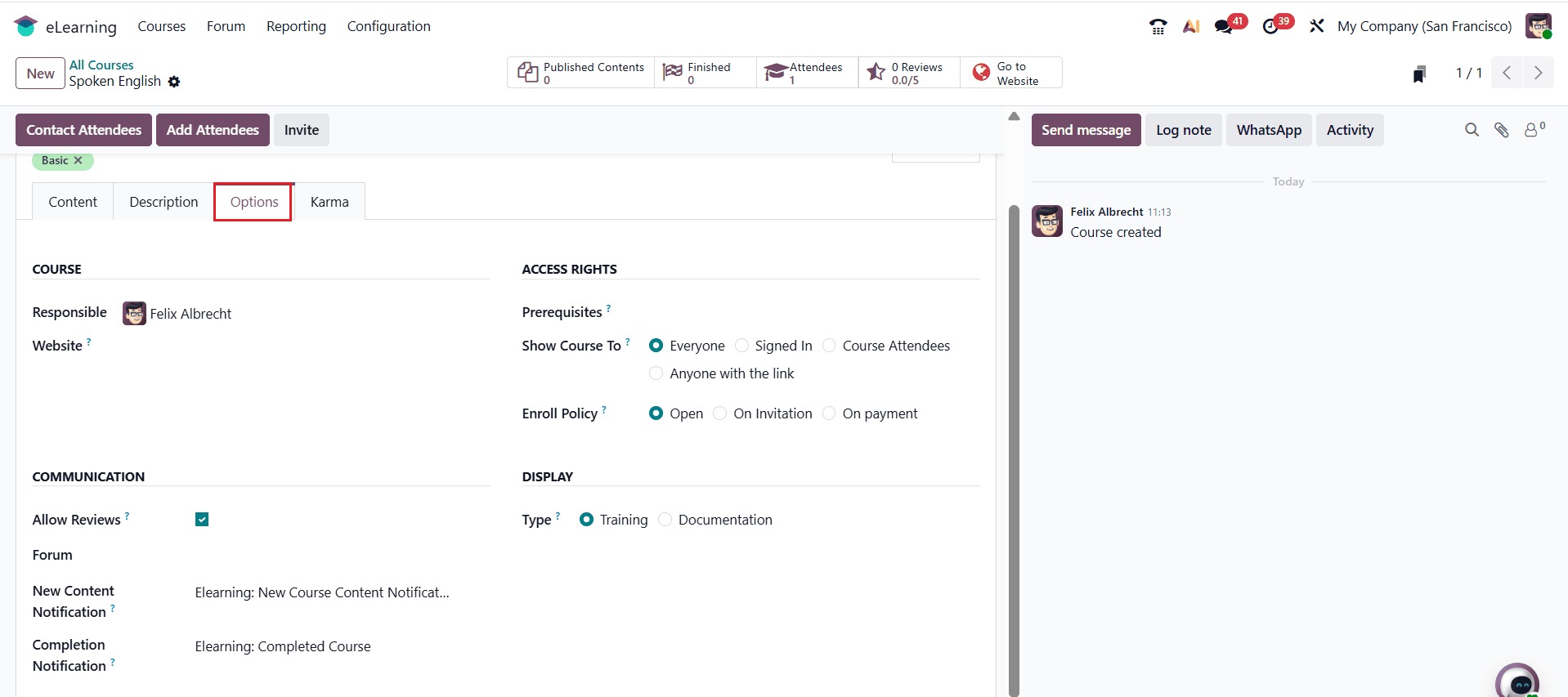
In the Description section, you can add detailed information about the course. Under the Options tab, assign a Responsible person and select the appropriate Website for the course.
In Access Rights, you can define prerequisites, specify who can access the course under Show Course To (Everyone, Signed In, or Course Attendees), and set the Enroll Policy to Open or On Invitation.
The Communication section lets you enable Allow Reviews and add options such as Forum, New Content Notification, and Completion Notification.
In the Display section, you can choose the course type as either Training or Documentation.
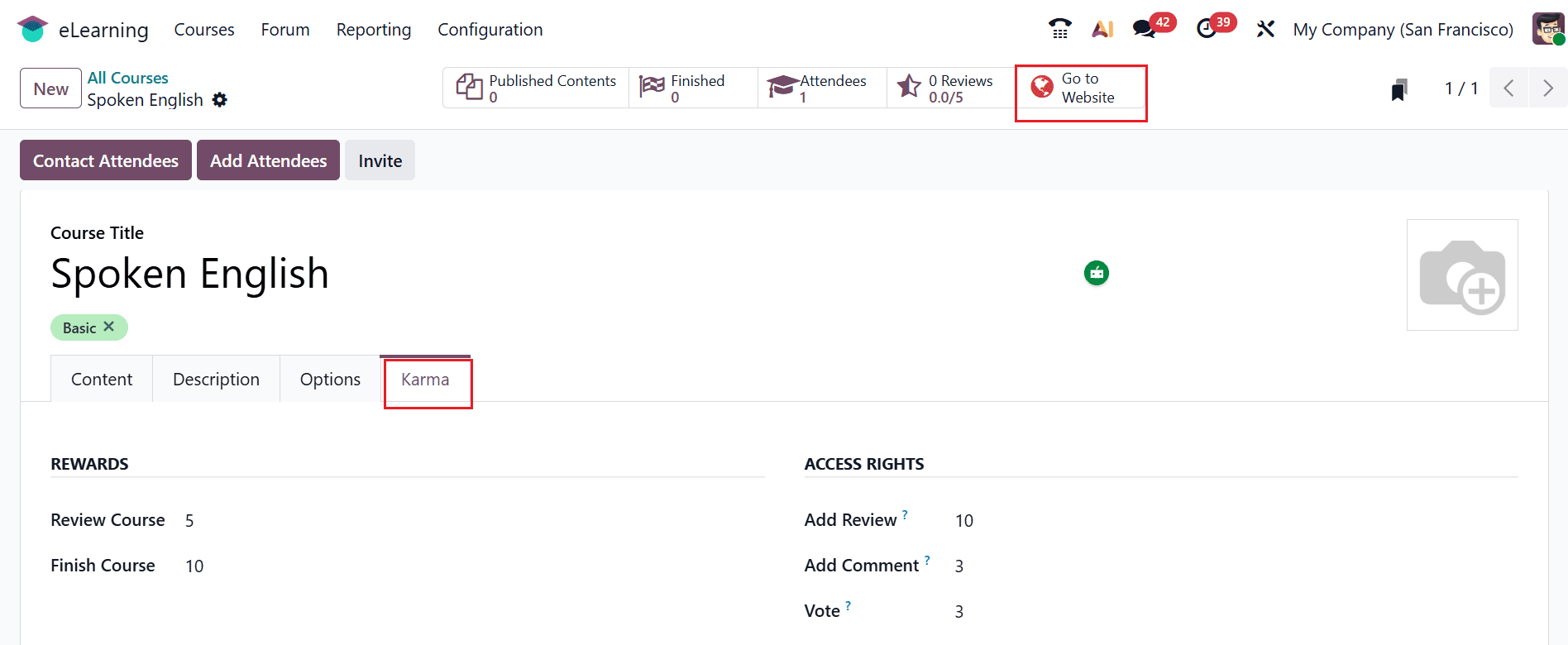
The Karma section displays the scores earned for reviewing and completing the course under Rewards. The Access Rights section also indicates the score values for actions like Add Review, Add Comment, and Vote. Once everything is set, you can publish the course by clicking the Go to Website button, as shown below:
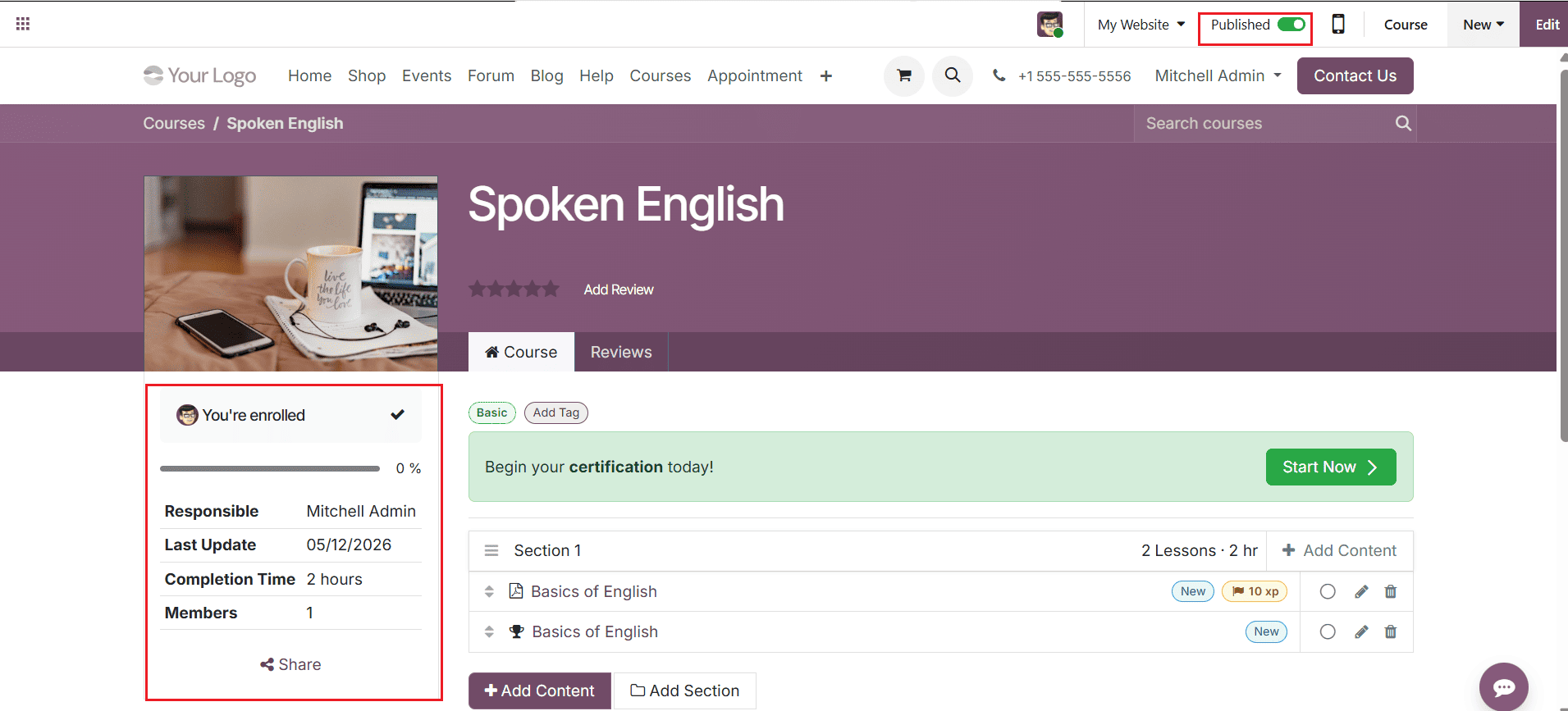
Next, activate the Published option to make the course visible on the website. You can also publish the course content individually. Next, select the Start Now button to begin the certification, while the left panel shows the course details.
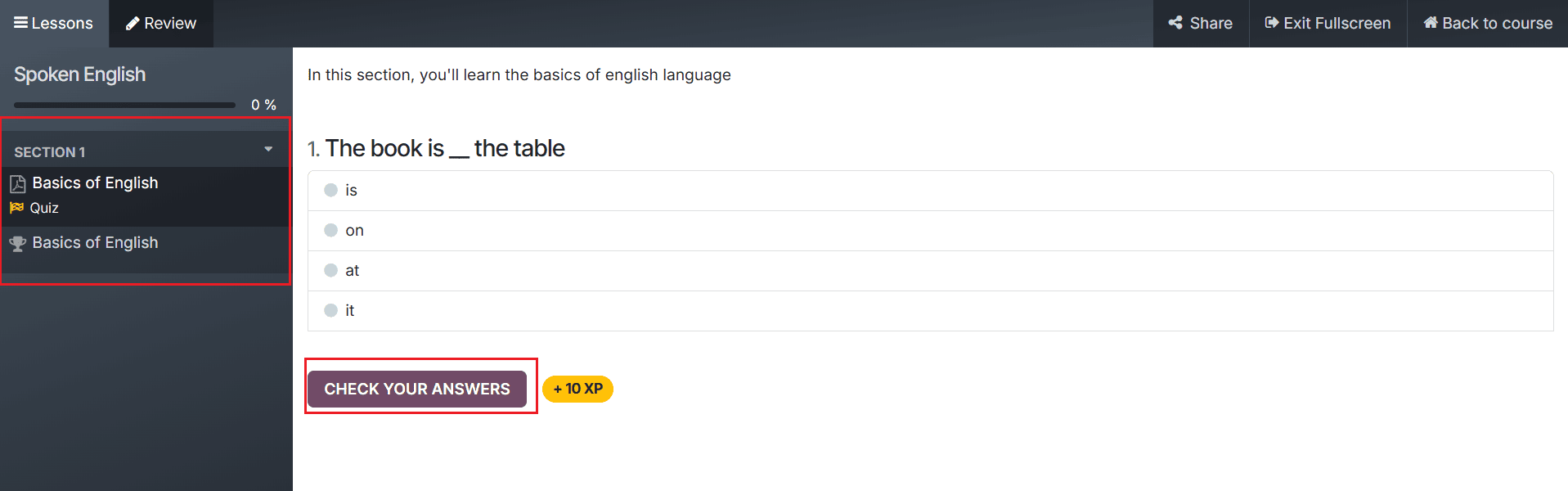
On the left side of the screen, you can view the created section details along with the added quiz. Choose the correct answer and click the Check Your Answer button, as shown below:
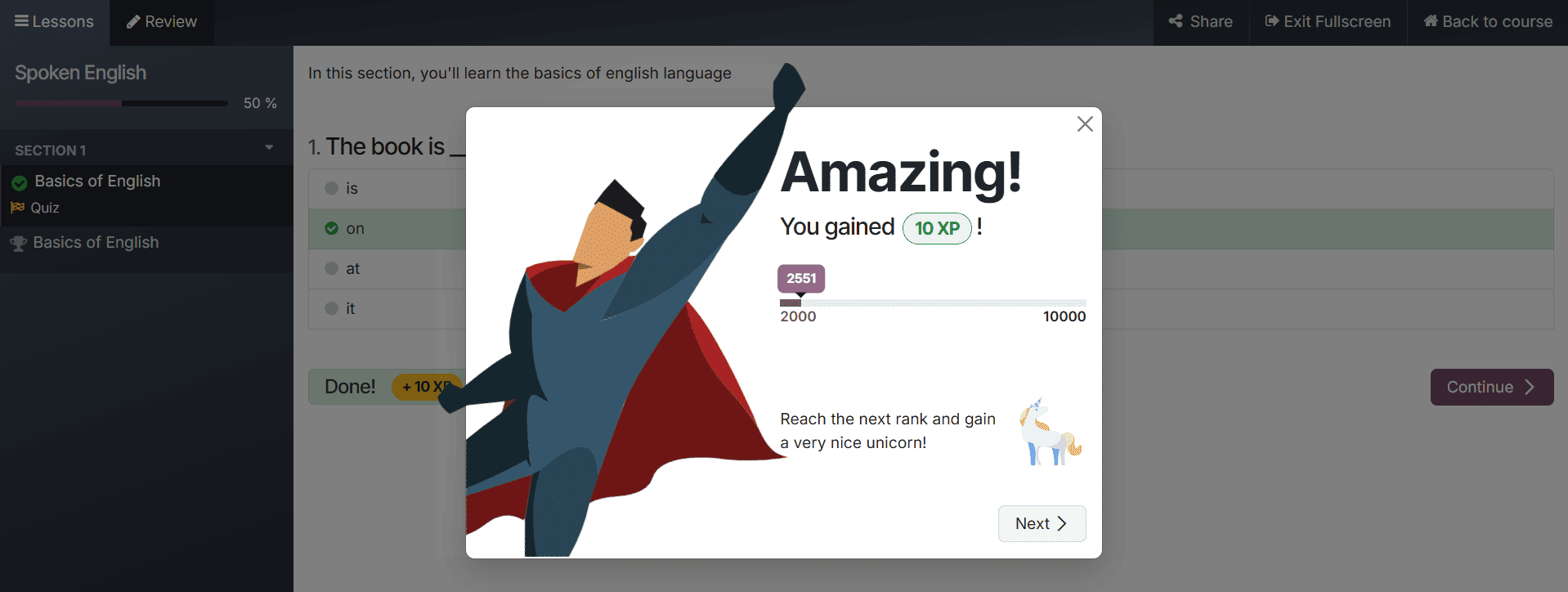
Upon selecting the correct answer, a pop-up window is shown indicating the karma points awarded.
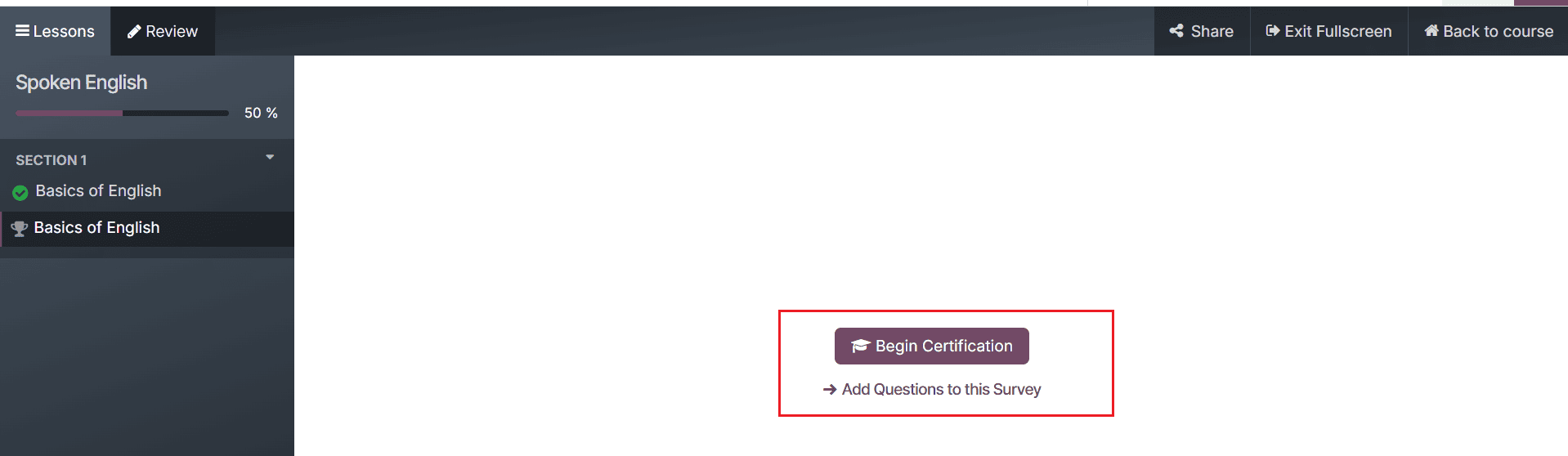
To test the certification, click the Begin Certification button.
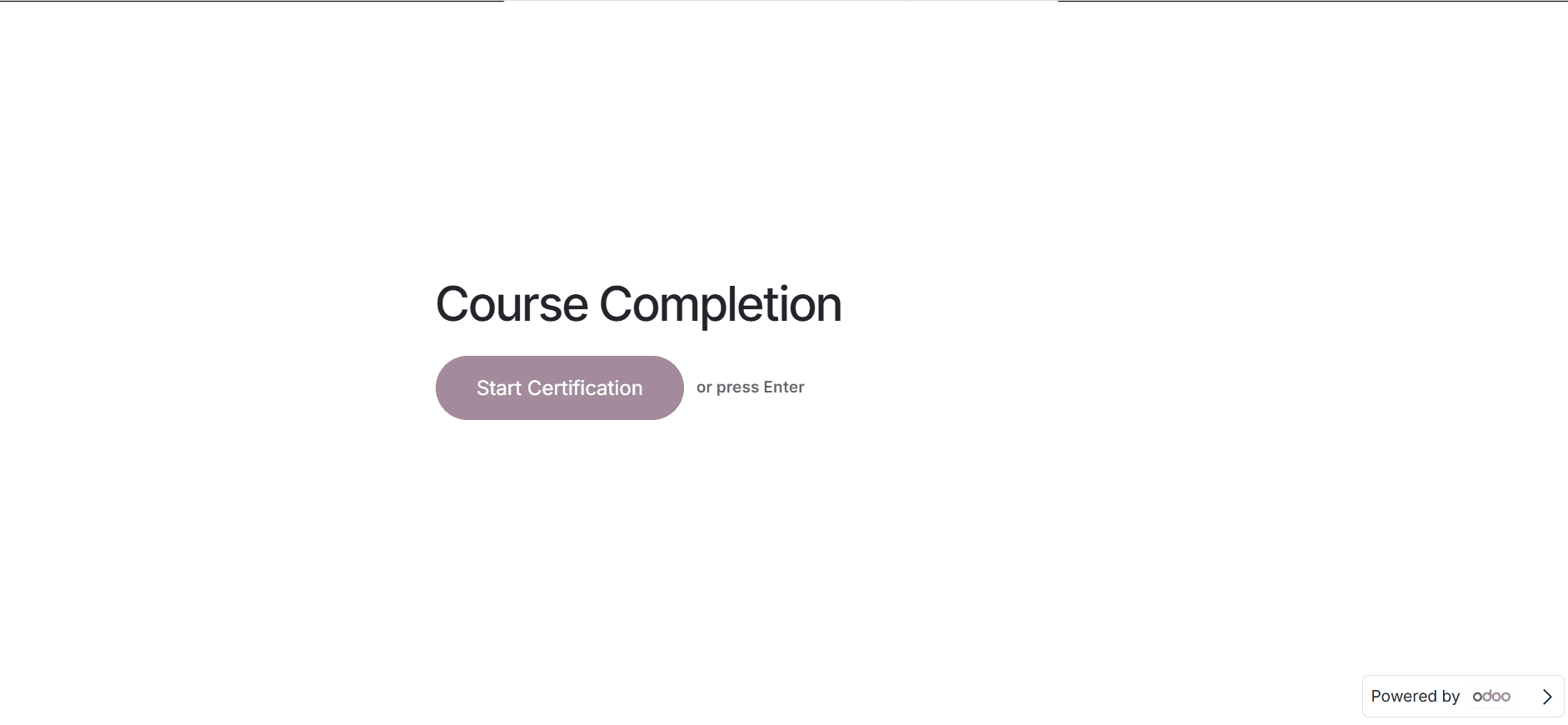
A new window will appear, allowing you to click the Start Certification button.
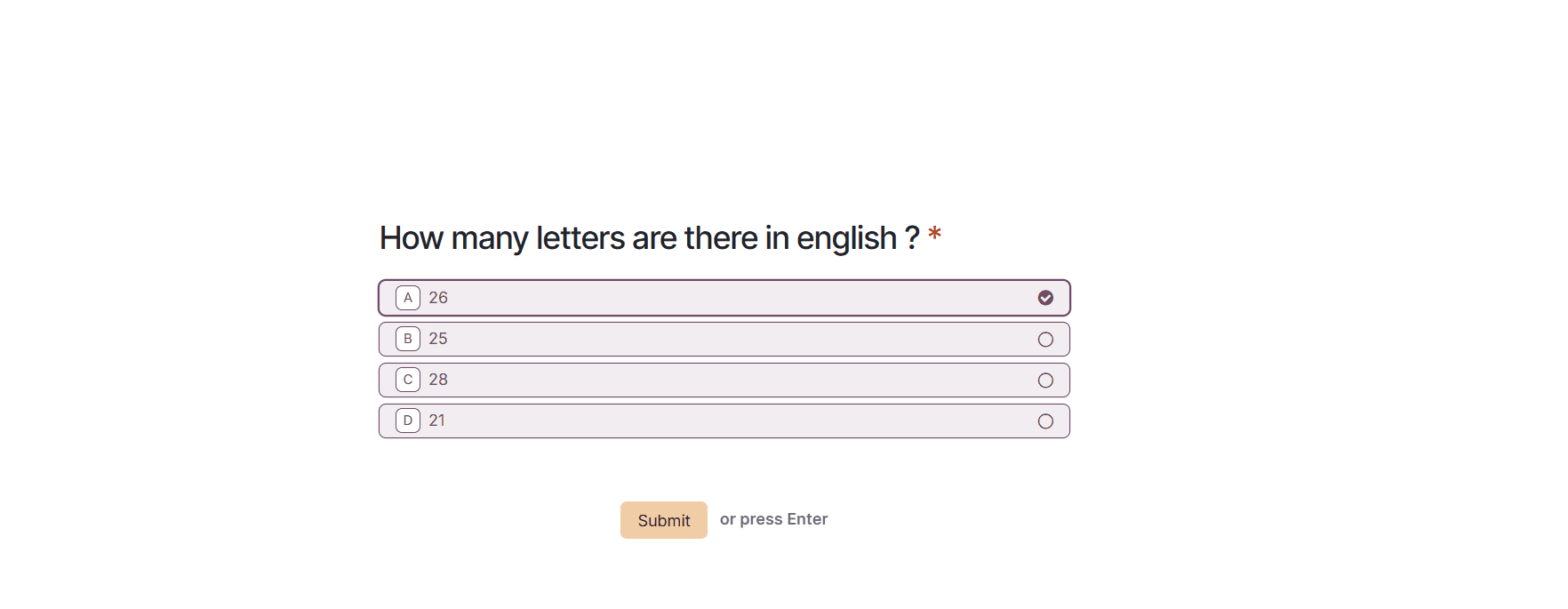
Here, the created questions are displayed. Select the correct answer and click the Submit button, as shown below:
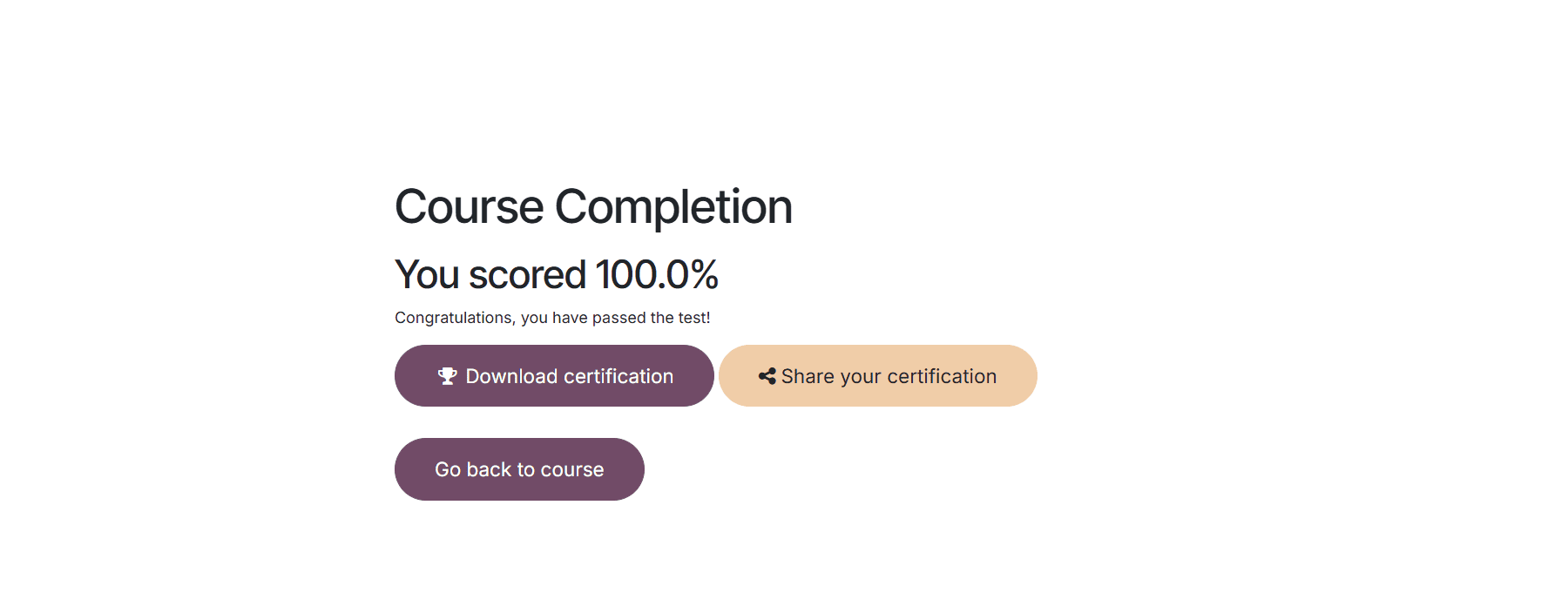
Once completed, your score percentage will appear. You can then choose from four options: Download Certification, Share Certification, Review Answers, or Go Back to Course.
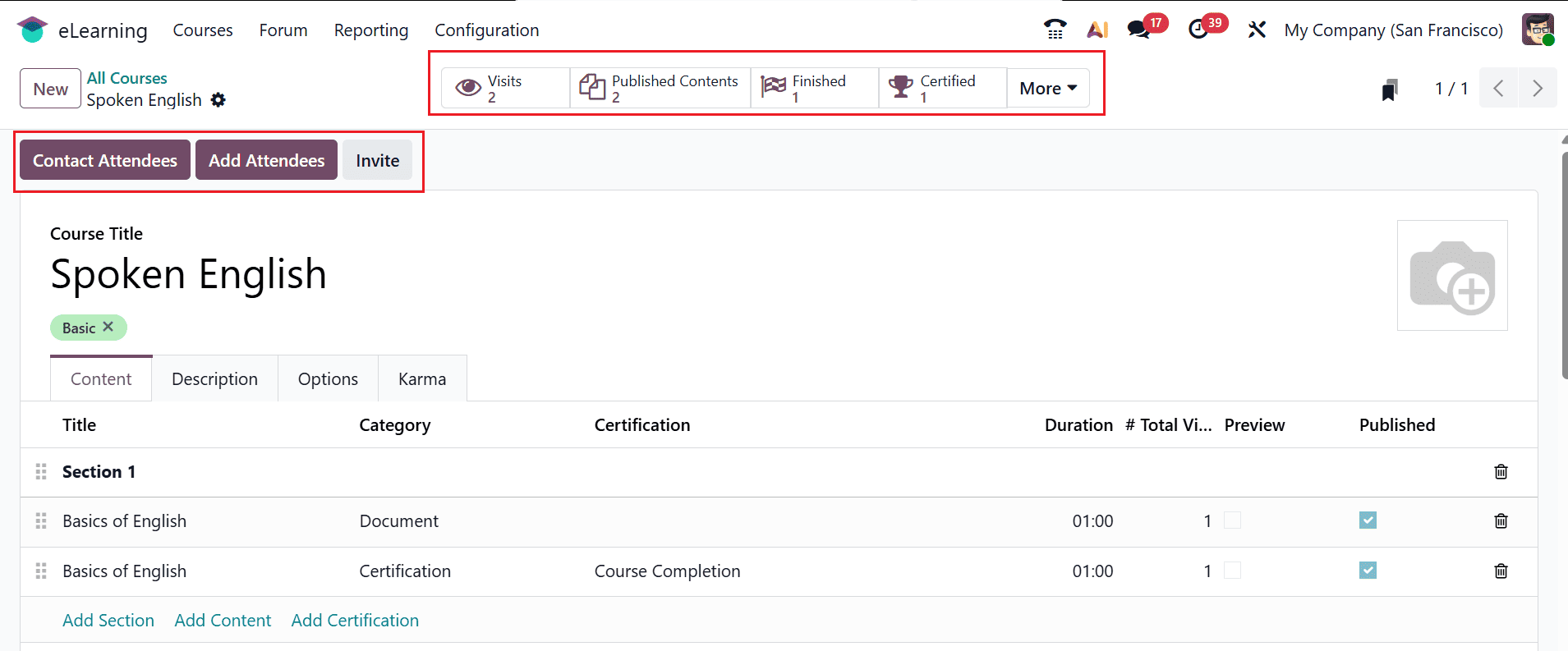
The newly created course is now visible on the eLearning dashboard, where users can enroll and access it.
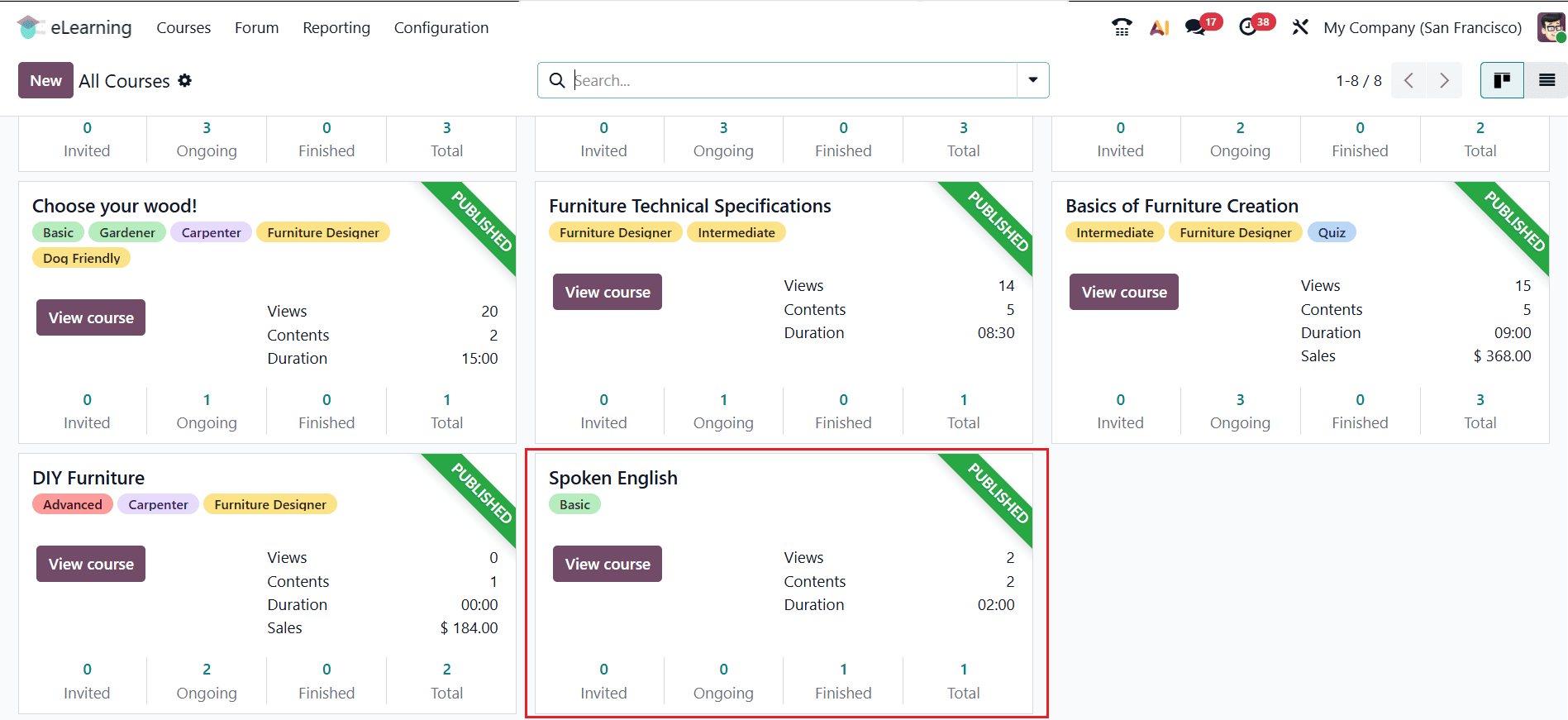
As two contents have been published, the dashboard reflects Visits: 2 and Published Contents: 2. You can also add attendees and reach out to them by using the Add Attendees and Contact Attendees options.
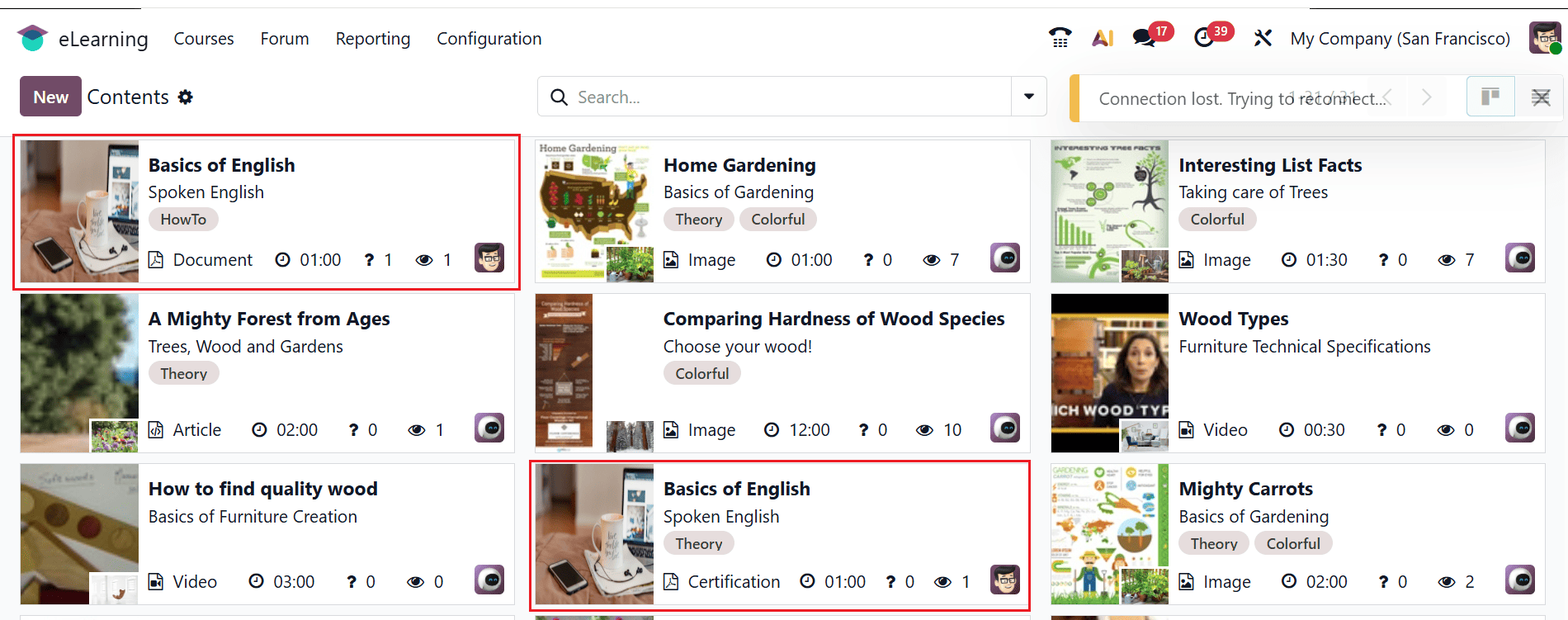
To configure course content directly, go to Courses > Contents. You can view the existing course content or create new content by clicking the New button, as shown below:
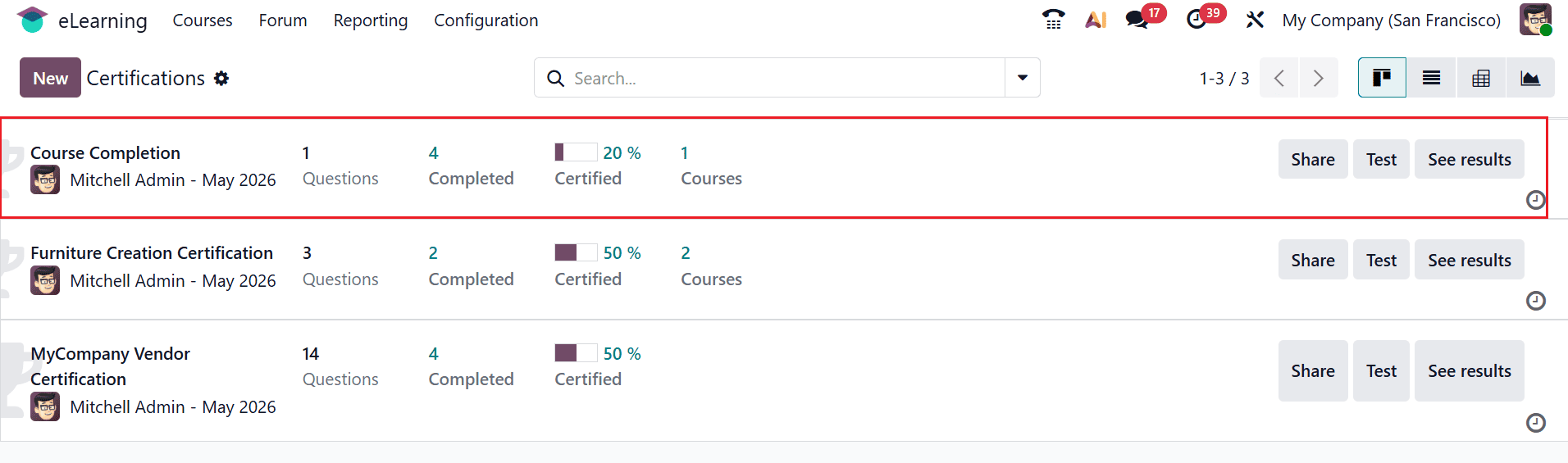
To configure certifications directly, go to Courses > Certifications. Here, you can see the existing certifications linked to the course or use the New button to create a new certification, as shown below.
In conclusion, setting up online courses in Odoo eLearning provides organizations and educators with a powerful and flexible way to deliver structured digital training. By leveraging Odoo 19’s intuitive interface, users can quickly create courses, organize modules, and enhance learning experiences with multimedia content, including videos, documents, and quizzes. The platform’s integration with other Odoo applications enhances functionality, enabling seamless management of learners, sales, and website publishing from a single system. Additionally, built-in tracking and reporting tools enable instructors to measure engagement and continually improve course quality over time. Whether for employee training, academic instruction, or commercial eLearning offerings, Odoo simplifies the entire process from setup to delivery. With proper configuration and thoughtful course design, organizations can maximize learner engagement and achieve better educational outcomes. Using Odoo 19 eLearning ensures scalability, efficiency, and a modern approach to digital education in an increasingly competitive online learning environment worldwide today.
To read more about How to Configure an e-Learning Course in Odoo 18, refer to our blog How to Configure an e-Learning Course in Odoo 18.