The Odoo 19 Kitchen Display System is a modern solution designed to simplify and optimize restaurant kitchen operations. Integrated seamlessly with the Odoo Point of Sale module, this feature replaces traditional paper tickets with a real-time digital display that helps chefs and kitchen staff manage orders more efficiently. Restaurants often face challenges such as delayed communication, misplaced orders, and preparation errors, which can negatively impact customer satisfaction. Odoo 19 Kitchen Display addresses these issues by offering instant order updates, organized task management, and better coordination between the front-of-house and kitchen teams. The system enables staff to monitor order status, prioritize dishes, and reduce preparation time while maintaining accuracy. Its user-friendly interface and automation capabilities make it ideal for restaurants, cafes, and food courts looking to improve productivity, minimize operational bottlenecks, and deliver a faster, more reliable dining experience for customers. This blog provides a complete overview of the Odoo 19 Kitchen Display.
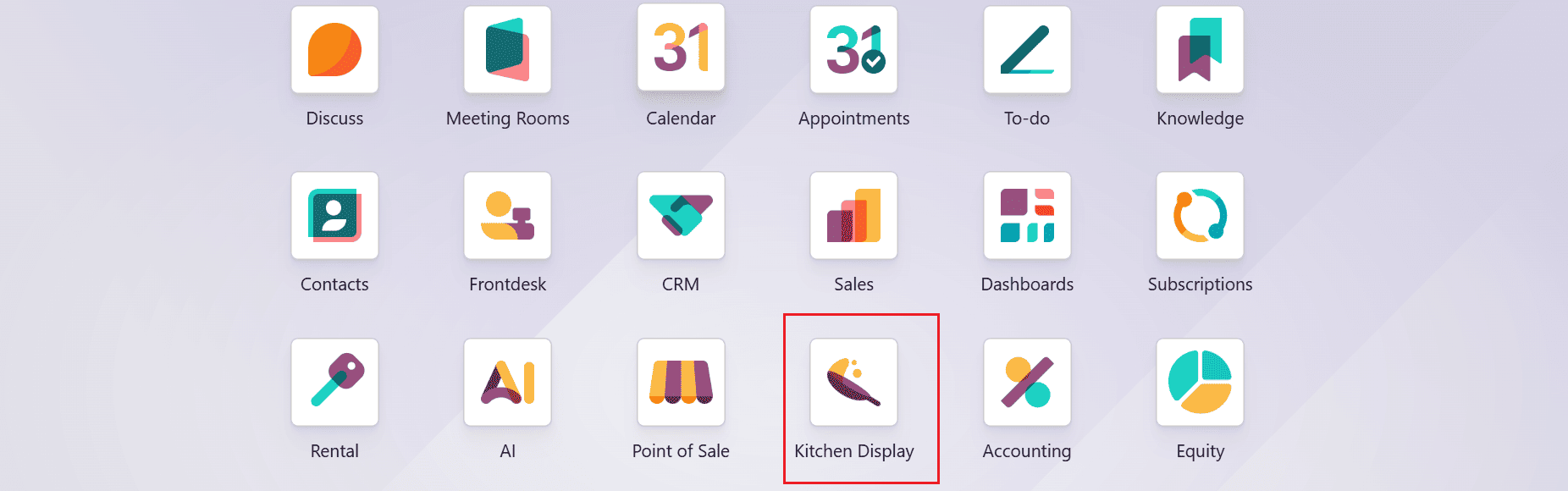
The Kitchen Display, also referred to as the Preparation Display in Odoo 19, is a feature within the Point of Sale (POS) module. The function of this module is to facilitate the order and delivery process management. This will facilitate better communication between the server staff and the kitchen staff while minimizing any mistakes made. Open the Kitchen Display module from the Odoo 19 dashboard.
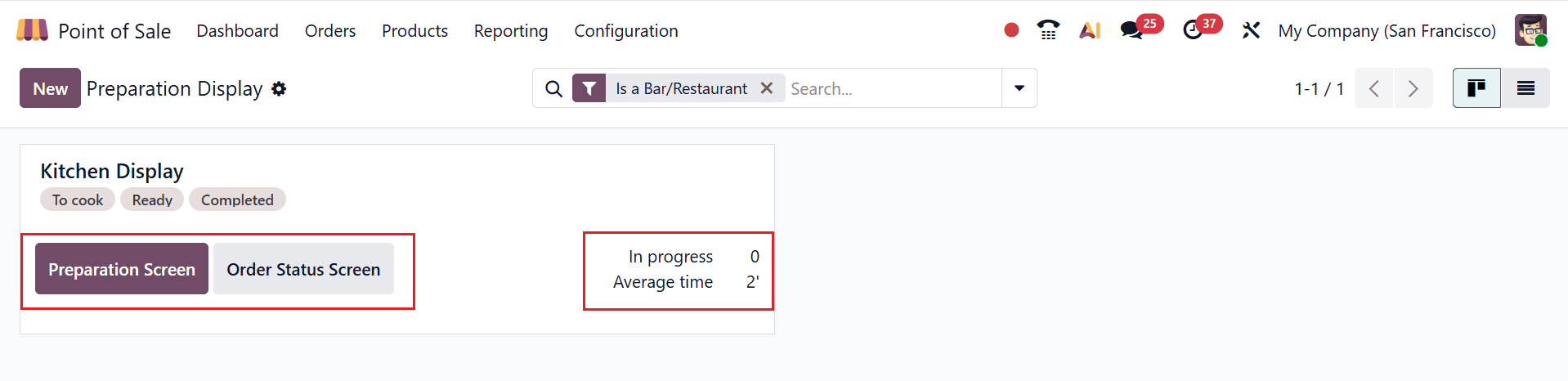
On the Preparation Display dashboard, the Kitchen Display shows preparation statuses such as “To Cook,” “Ready,” and “Completed.” The display card also includes two options: Preparation Display and Order Status Screen. There is also a list showing how many orders are still pending in the In Progress state. In the Average Time category, you will find the time taken by an employee to fulfil an order.
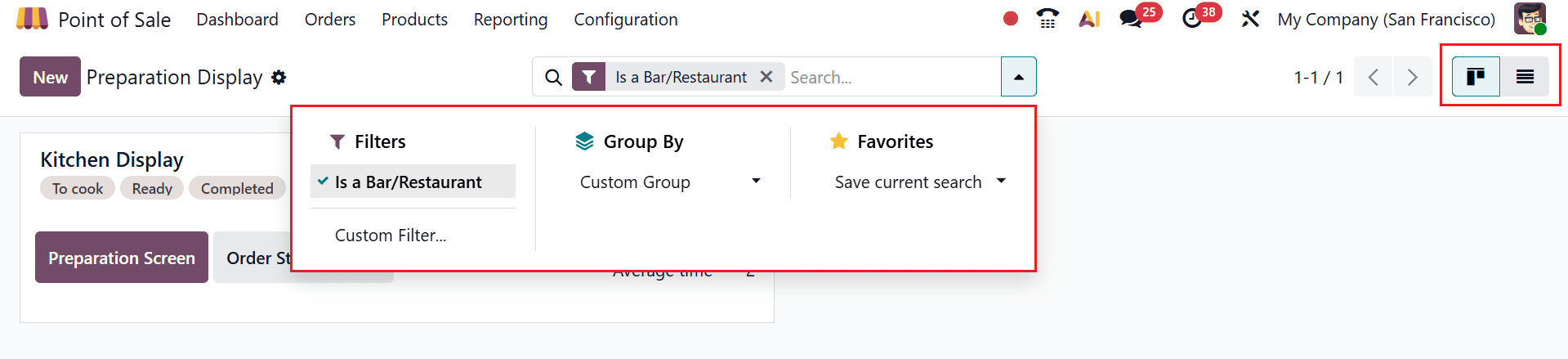
Users can make use of the search bar feature to filter and customize the way data is viewed. In the Filters option, you can utilize the default filters. Alternatively, there are the Custom Filter and Ask AI options to make custom filters. The Group By option helps in organizing the data by making groups out of it. This can be achieved using the Custom Group option, where users will be able to group their data according to the provided list of criteria. The Favorites option lets users save filter configurations as favorites. You can switch from Kanban view to List view.
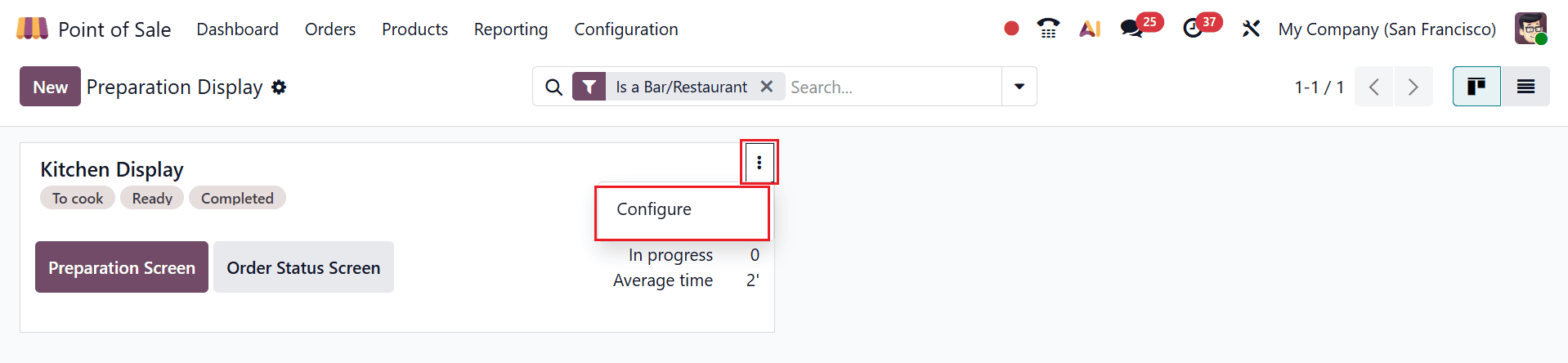
Clicking on the vertical ellipsis in the display card and selecting Configure will allow you to modify the existing preparation display. You can create a new preparation display by clicking the New button.
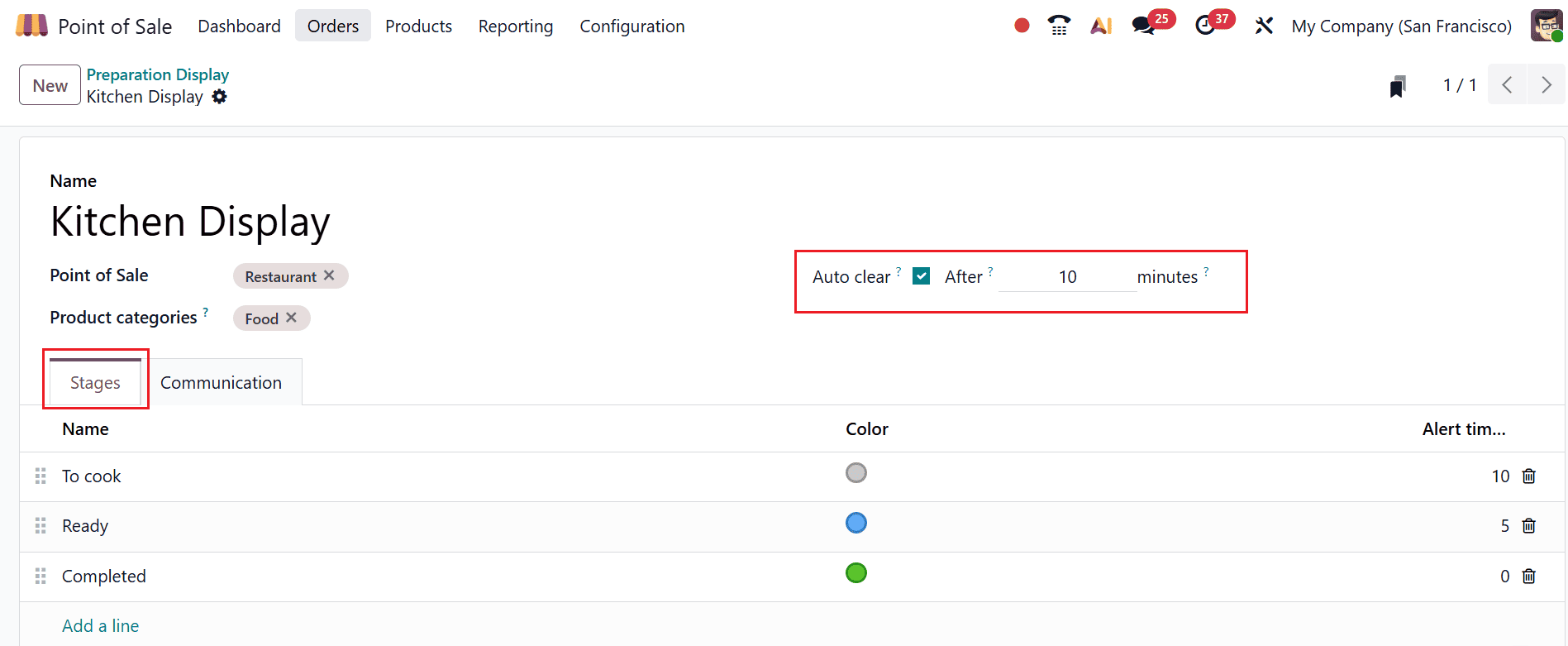
In the Name section, enter the appropriate name for your preparation display. Enter a Point of Sale that sends orders to your preparation screen and select Product Categories. The feature of Auto Clear, which is a newly added feature in Odoo 19, can be activated. Once the order is ready, this feature automatically clears it from the Order Status Screen. Users can define the duration in minutes. On the Stage tab, add a new stage by using the Add a line button. On the Name section, check out the pre-configured stages. In the Color section, add individual colors for each stage. Finally, enter the time taken in minutes for completing the order under the Alert timer section.
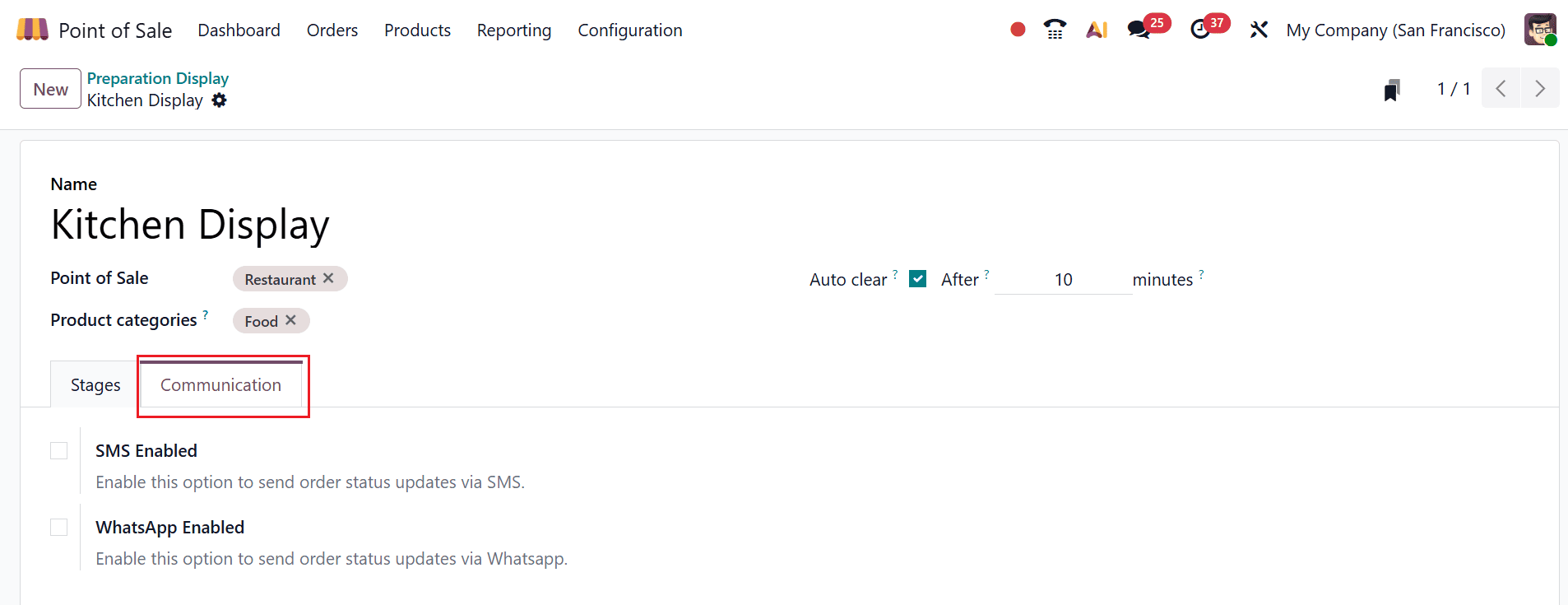
Under the Communication tab, enable the SMS Enabled option to send order status updates via SMS. When you enable the WhatsApp Enabled option, you can send order status updates via WhatsApp.
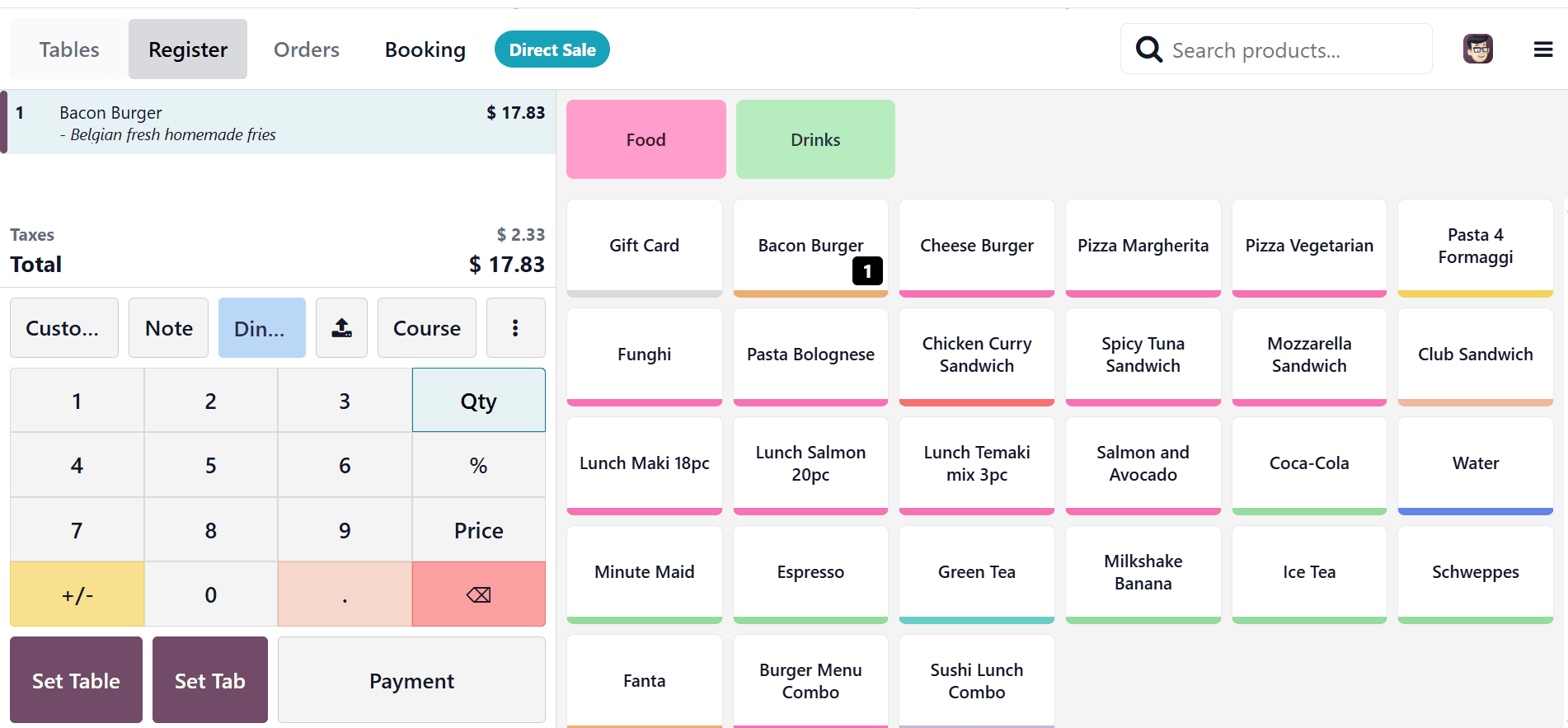
Here’s how the Kitchen Display System works: as soon as a customer places an order, it appears on the kitchen display, allowing staff to review it and confirm acceptance. The system is integrated with the Point of Sale (POS) module, which provides detailed instructions for preparing each product order.
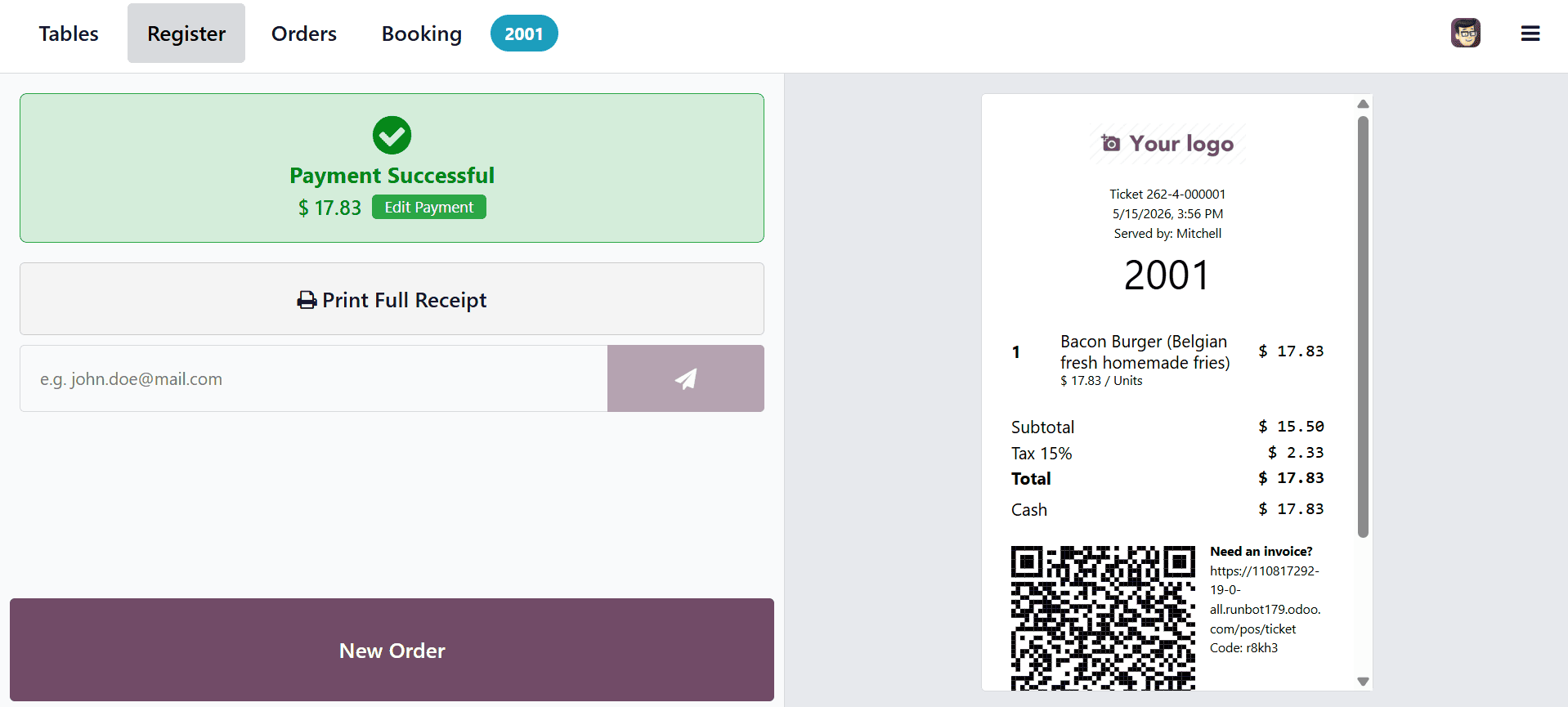
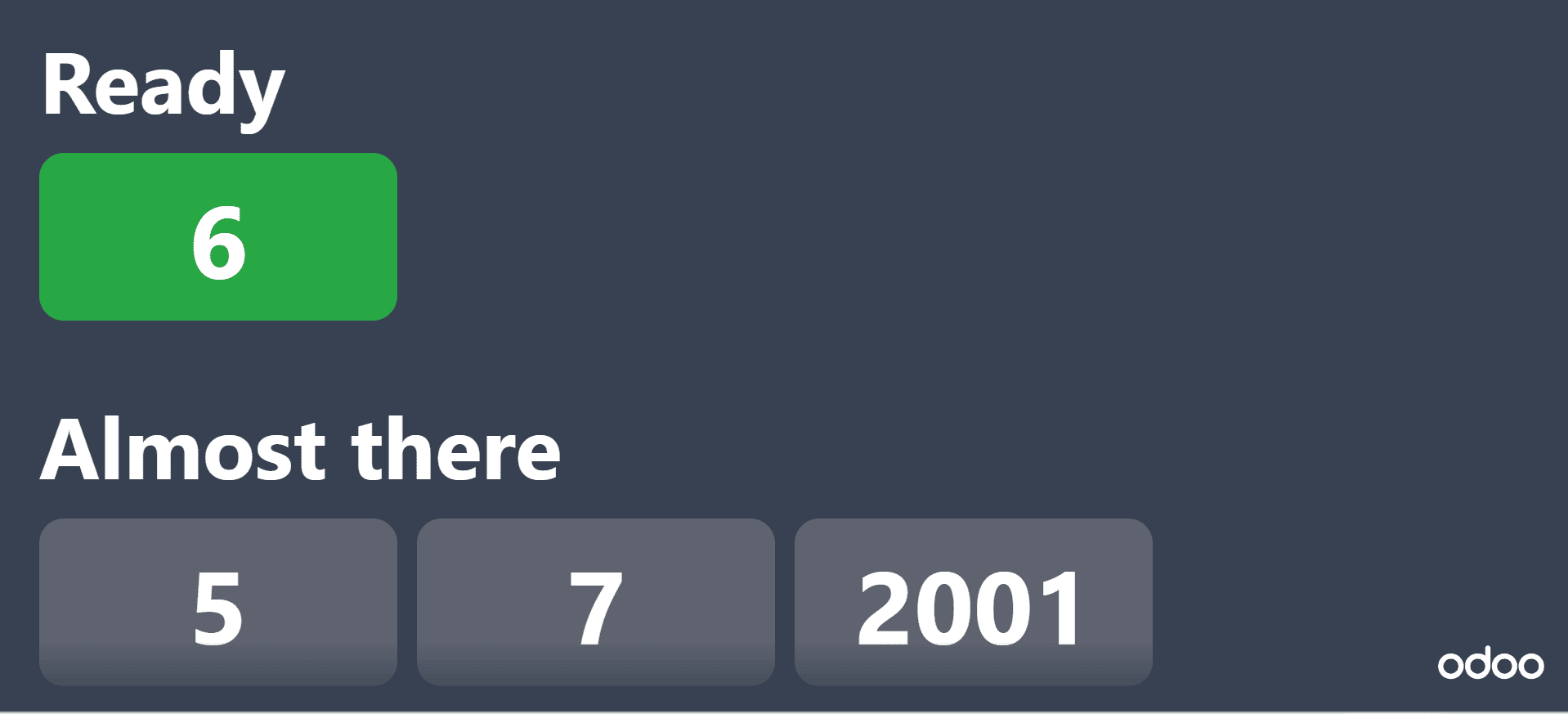
Here, the customer confirms the order after making the payment. Order numbers will be given to the customers based on their bills. Here, the order number is 2001.
After customers complete their payment, they can check the status of their order by selecting the Order Status Screen button. Orders in the Ready column mean that they are available for pick-up, while orders in the Almost There column are being prepared and will be ready shortly.
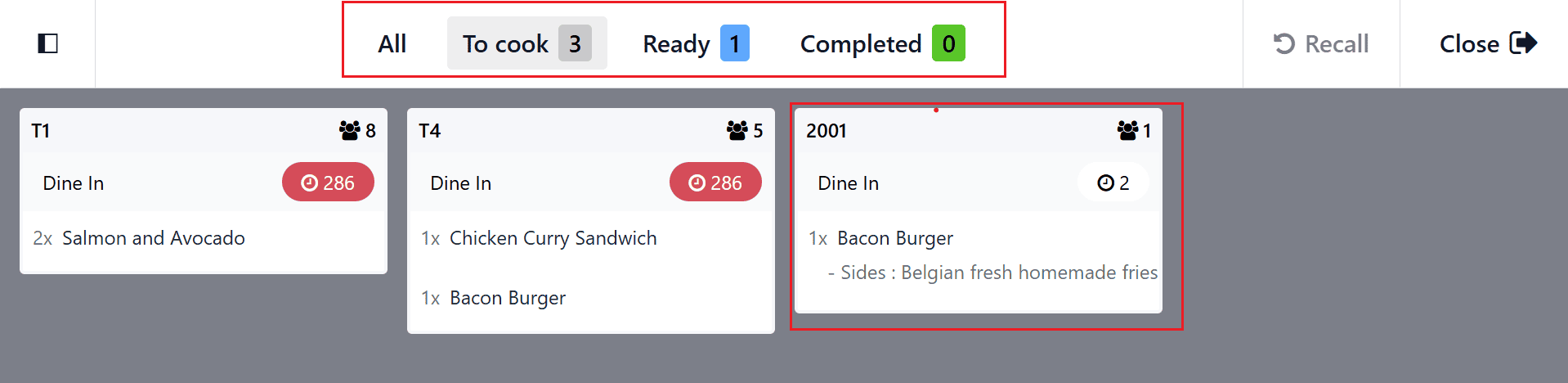
By using the Preparation Display option, the kitchen team can assess the number of orders that are to be cooked in the To Cook box. In the next step, it reaches the Ready status if the food is prepared for serving, and later on, it becomes a Completed status once cooking is done. The order card contains details regarding the products to be served, their status, the waiting period, the total number of customers, and whether the order will be for take-away or for dine-in. You can use the Recall button to revert to the previous order stage in case you have sent it by mistake. You can close the Preparation Display window by clicking the Close button.
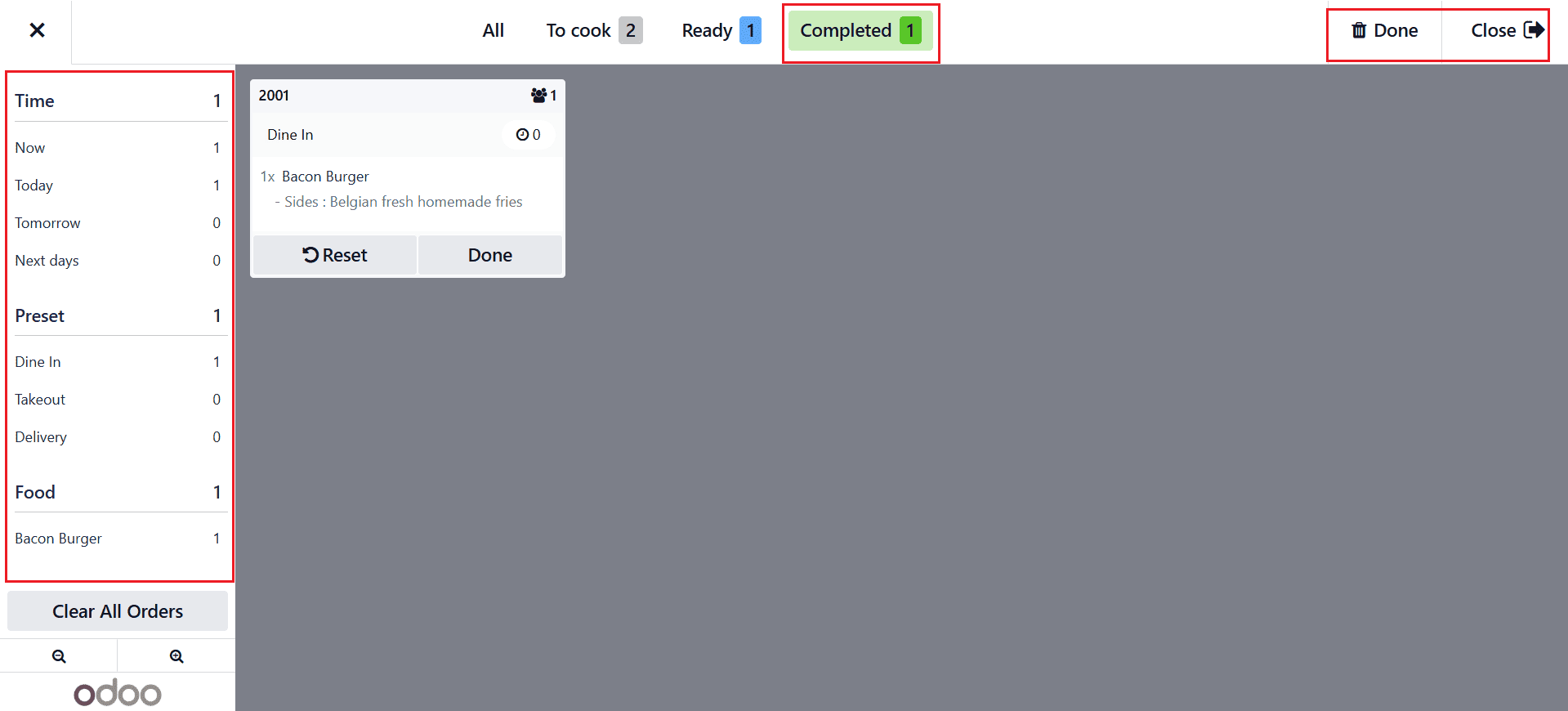
Once the order is "Ready," then it can be moved to "Completed" to show that it is done, as shown below. The Reset button lets users restart the ordering process from the beginning. On the left-hand side of the window, you will be able to view the number of orders based on when they are placed, such as Now, Today, Tomorrow, or Next days under the Time section. In the Preset section, you can see the number of orders categorized by type, such as Dine In, Takeout, or Delivery. The Food section displays a list of all ordered items.
In conclusion, the Odoo 19 Kitchen Display System provides restaurants with an efficient and technology-driven approach to kitchen management. Digitizing order processing and integrating directly with the Odoo POS system, it helps businesses reduce manual errors, improve communication, and accelerate food preparation workflows. The platform allows kitchen teams to track orders in real time, prioritize tasks effectively, and ensure smoother coordination between service and preparation areas. As customer expectations for speed and accuracy continue to grow, adopting a smart kitchen display solution becomes increasingly important for restaurant success. With its flexibility, scalability, and ease of use, Odoo 19 is well-suited for businesses of all sizes, from small cafés to large restaurant chains. With its automation features and operational insights, the Kitchen Display System not only enhances staff productivity but also contributes to improved customer satisfaction, streamlined operations, and long-term business growth in the competitive food service industry.
To read more about An Overview of Odoo 18 Kitchen Display in Point Of Sale, refer to our blog An Overview of Odoo 18 Kitchen Display in Point Of Sale.