For managing transactions in retail, hospitality, and other customer-facing industries, Odoo 19's Point of Sale (POS) module is an effective solution. One of its numerous characteristics is the capacity to handle gratuities from patrons, which is an essential component of business operations in industries such as restaurants, cafés, bars, hotels, and salons.
Gratuities, sometimes known as tips, are more than simply a minor addition to a bill; they constitute a significant portion of employee compensation and have a big impact on employee happiness and motivation. In order to sustain consumers' trust, maintain accurate records, and streamline daily operations, businesses must handle tips appropriately.
A straightforward but efficient method for incorporating tip management straight into the payment process is offered by Odoo 19 POS. This makes it possible to add, record, and display tips without the need for additional manual procedures, freeing up employees to concentrate more on providing exceptional customer care.
Configuring the Tip product
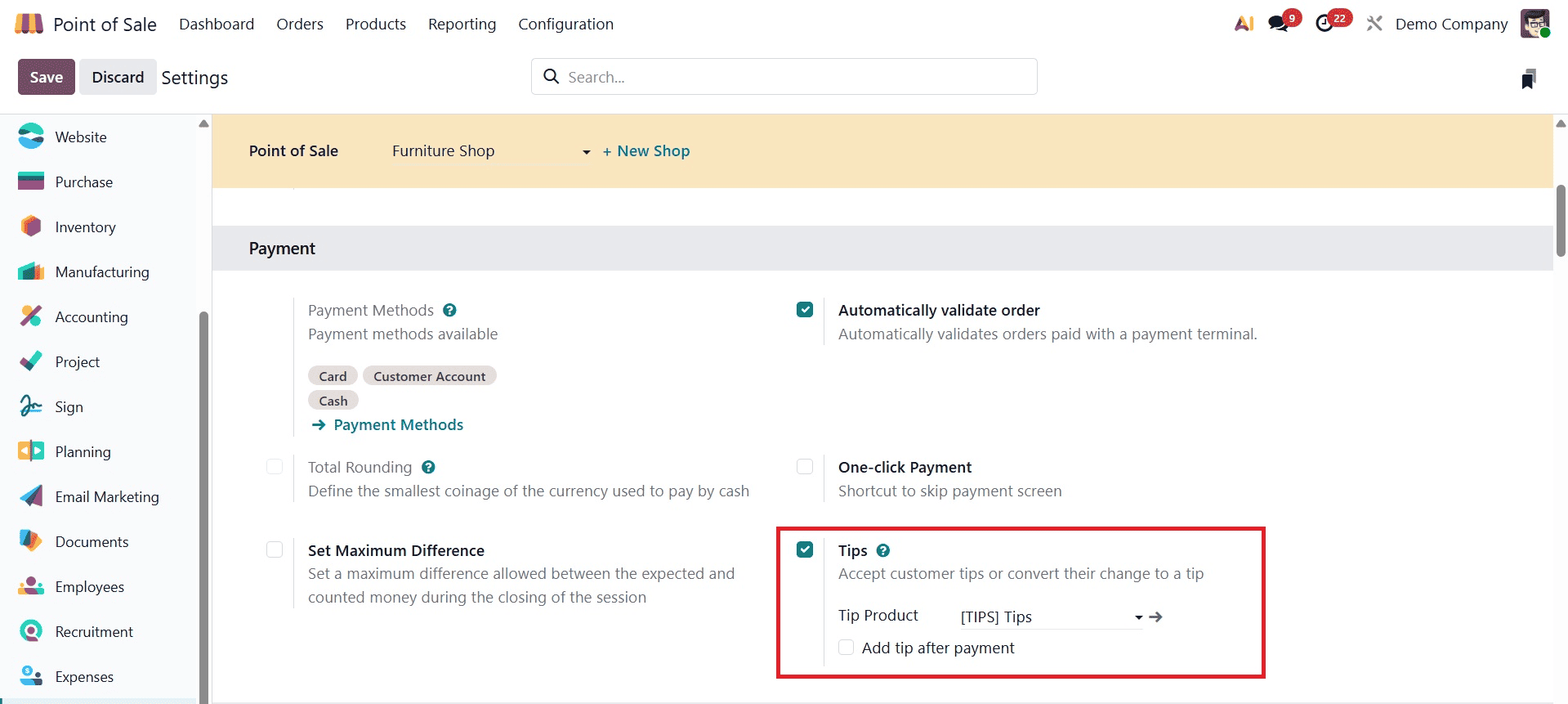
A Tip Product needs to be made in Odoo 19 before tips can be gathered. The system records the tip amounts for each transaction using this product. The Point of Sale application's Configuration menu, which opens the Settings page, is where the setup process starts.
Tips is an option located in the Payments section. Tip feature in POS is enabled by activating this option. When enabled, the Tip Product field shows up. You can enter the desired product name in this section. Odoo automatically generates the product and connects it to the POS for use throughout sessions once you validate the input.
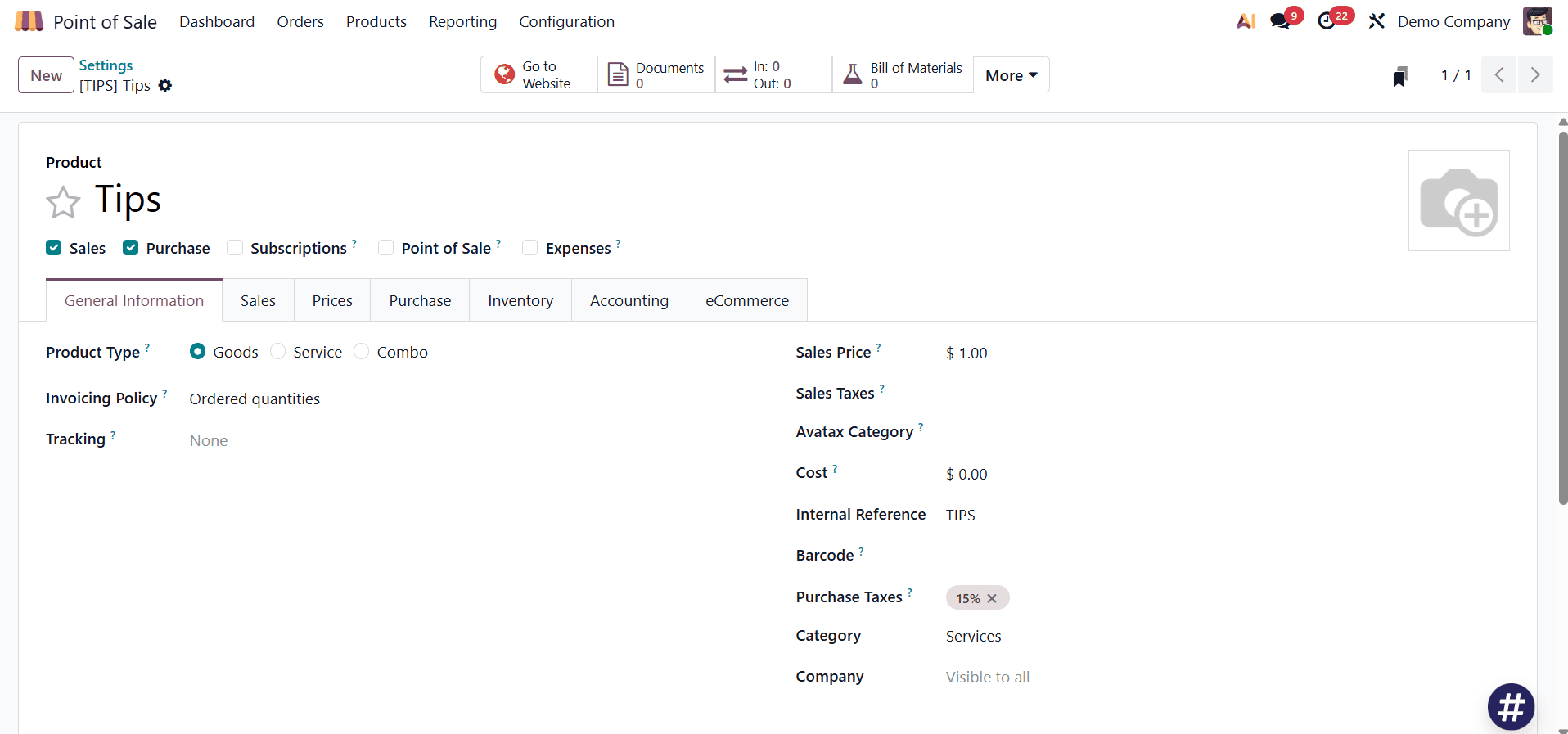
But the product must also be ready for use in point-of-sale transactions. The product form is opened by choosing Create and modify after it has been created. To make the product selectable during POS operations, you must enable the Point of Sale checkbox in this form. To guarantee compliance with the POS workflow, the Product Type should be set to Goods. The tip product is operational once these settings are saved, and it will be linked automatically each time a tip is added to an order.
Adding Tips while Making Payment
Adding tips during transactions becomes a simple and quick step in the sales process once the tip product is implemented.
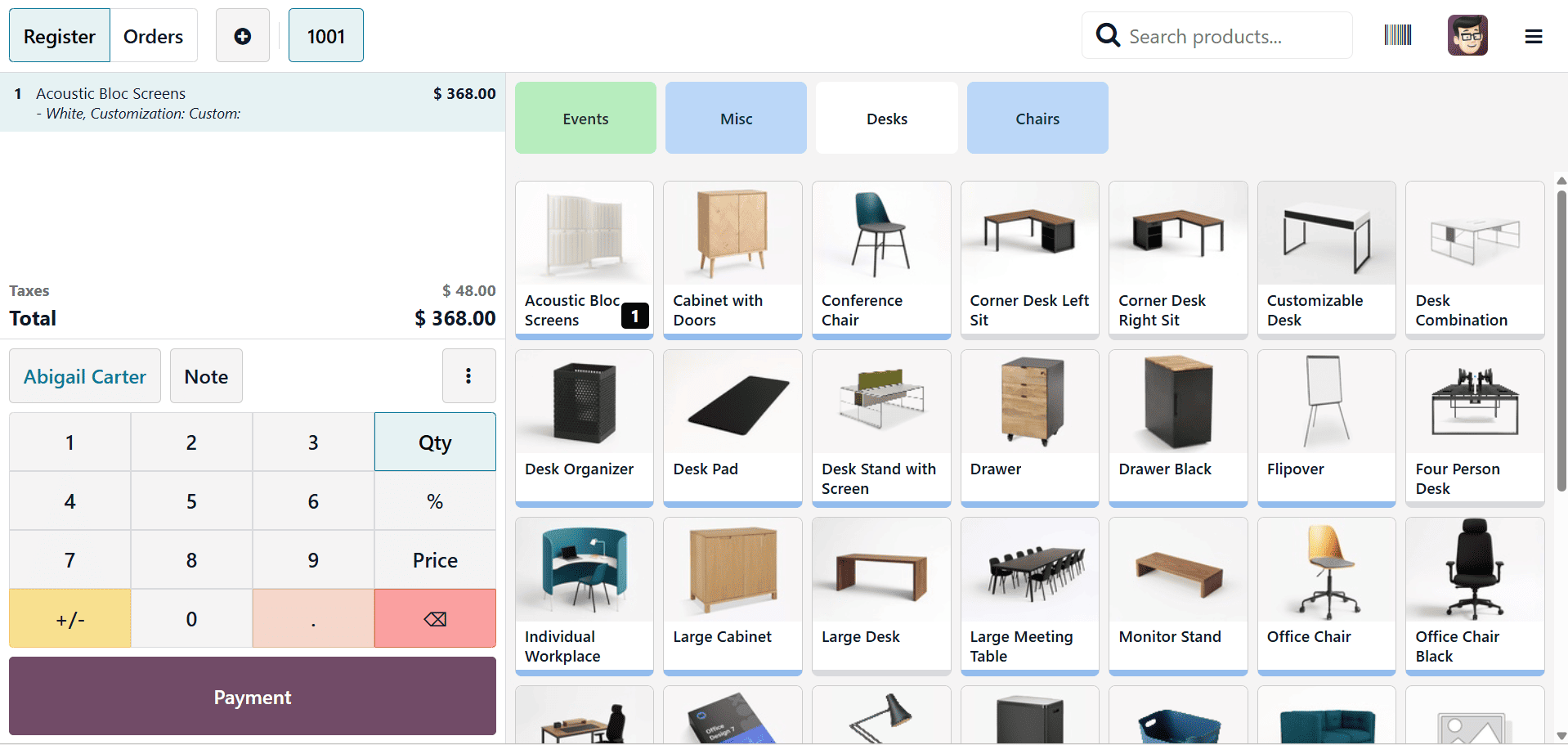
The cashier starts by adding every good or service to the order. After choosing the item, the cashier clicks the Payment button to go to the payment screen.
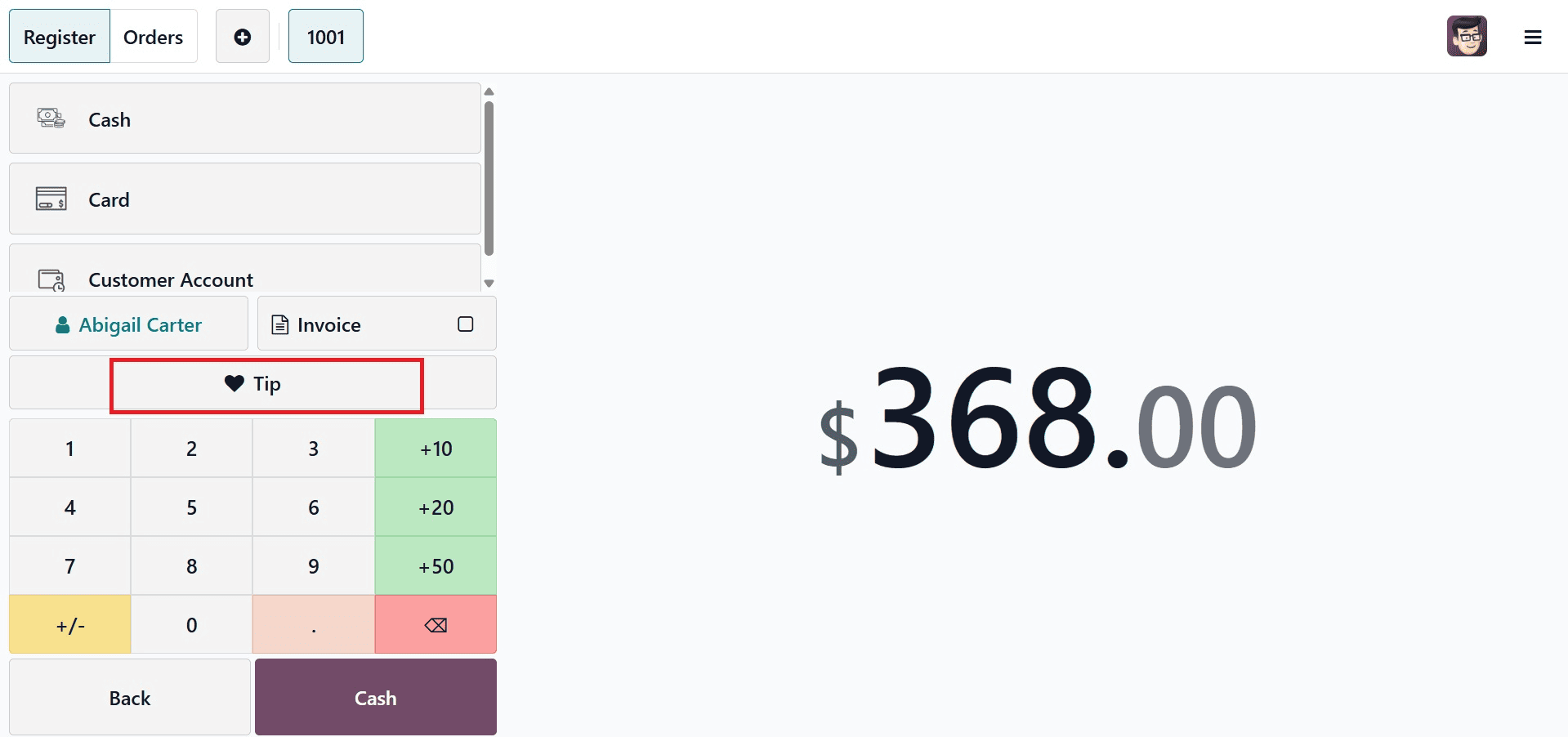
The previous arrangement results in the appearance of a new Tips button on this screen. The cashier can enter the precise tip amount the customer wants to leave by clicking this button, which opens a little input window. The amount is automatically added to the total owed when it has been entered and verified by clicking OK. To continue, a payment method must be chosen.
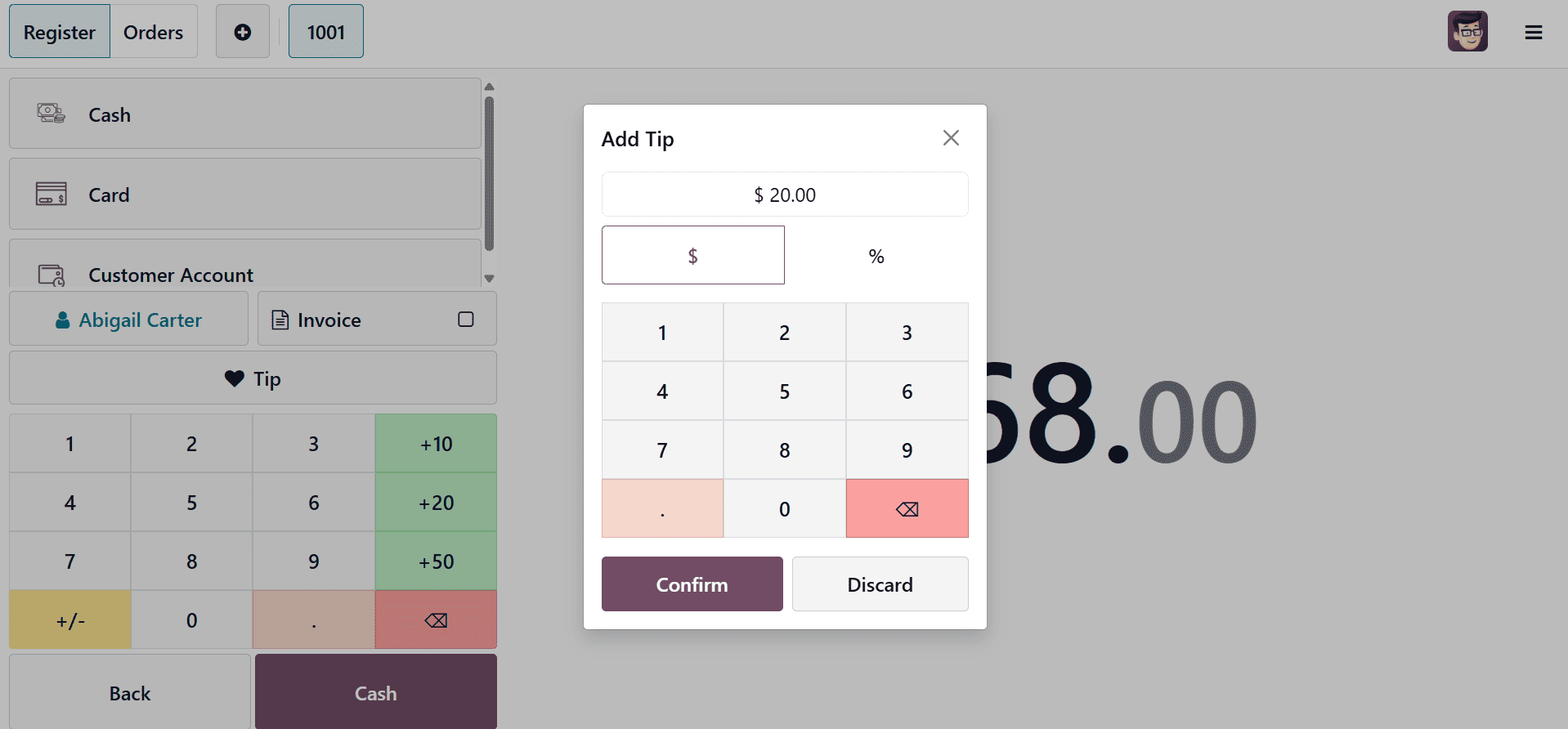
Before completing payment, the customer and cashier can confirm the final amount by viewing the updated total on the screen. This integration eliminates the need for additional stages or manual changes by ensuring that tips are integrated straight into the same workflow as regular payments.
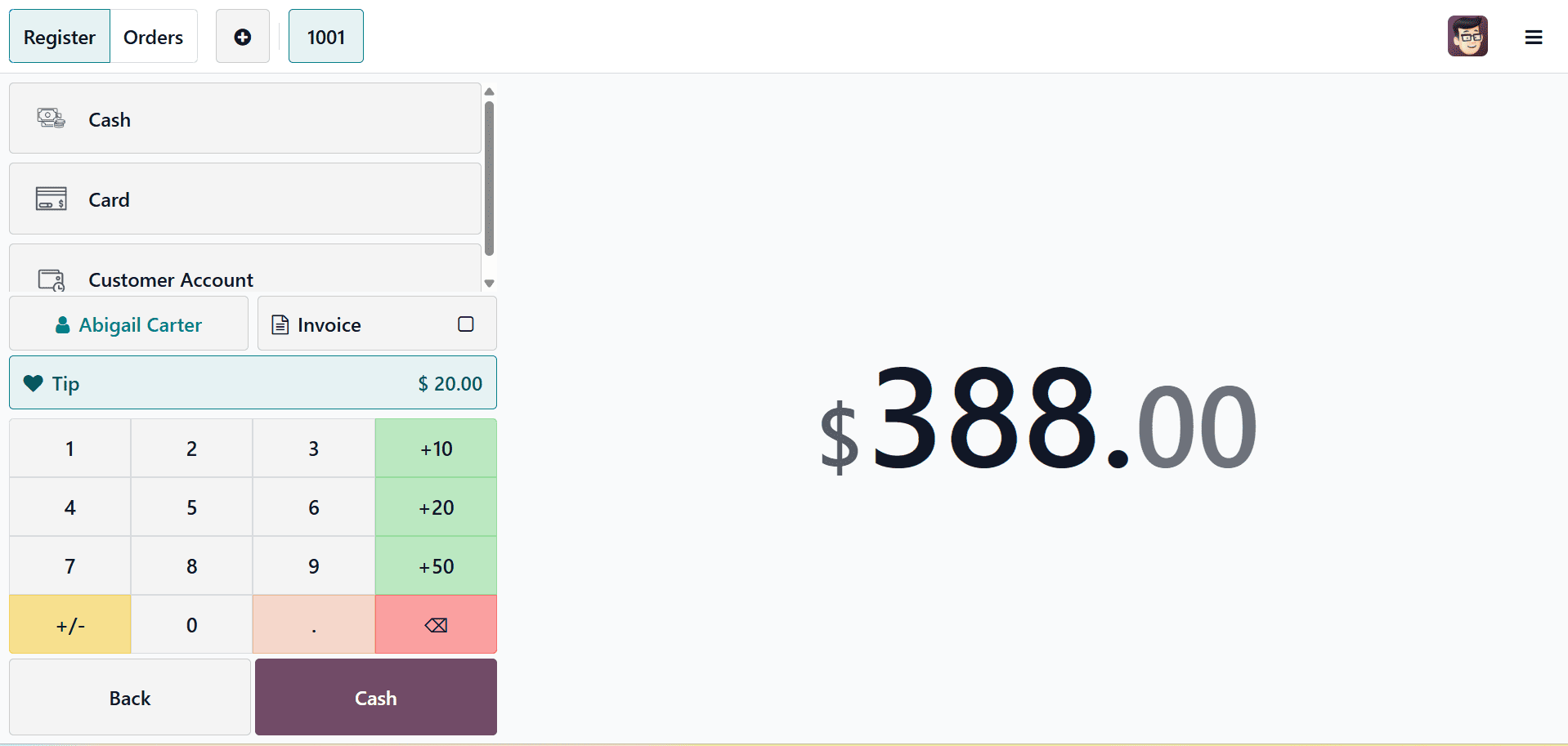
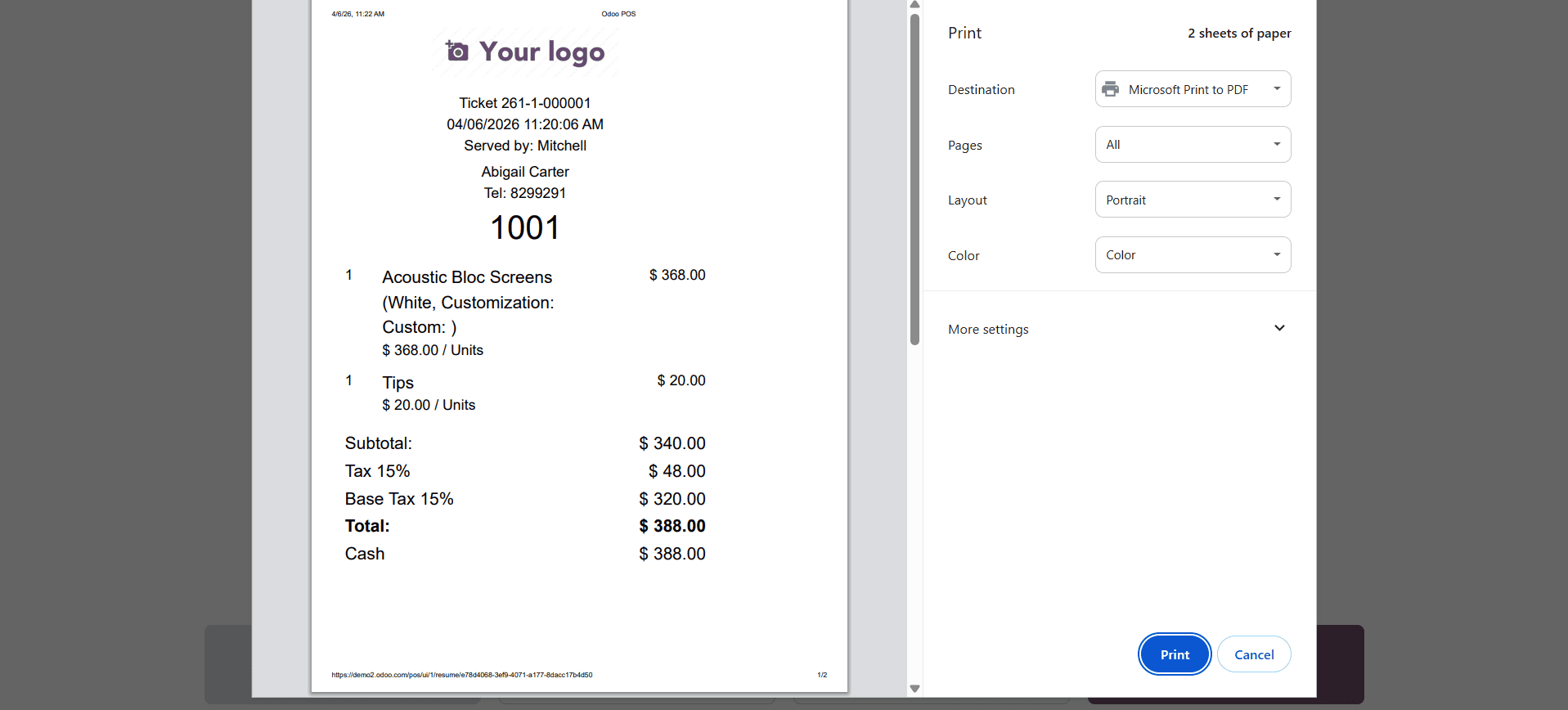
To complete the payment, click Validate now. You can see your receipt on the payment completion page after doing this.
Convert Change to Tip
Customers frequently provide more money than the bill amount and request that the cashier hold the change as a tip, particularly when paying with cash. This procedure is automated and error-free with Odoo 19.
You must first make an order by choosing the desired product and identifying the customer in order to move forward with the payment procedure. Click the Payment button after selecting the customer and the merchandise. You can choose a payment option and finish the transaction after this action takes you to the payment screen.
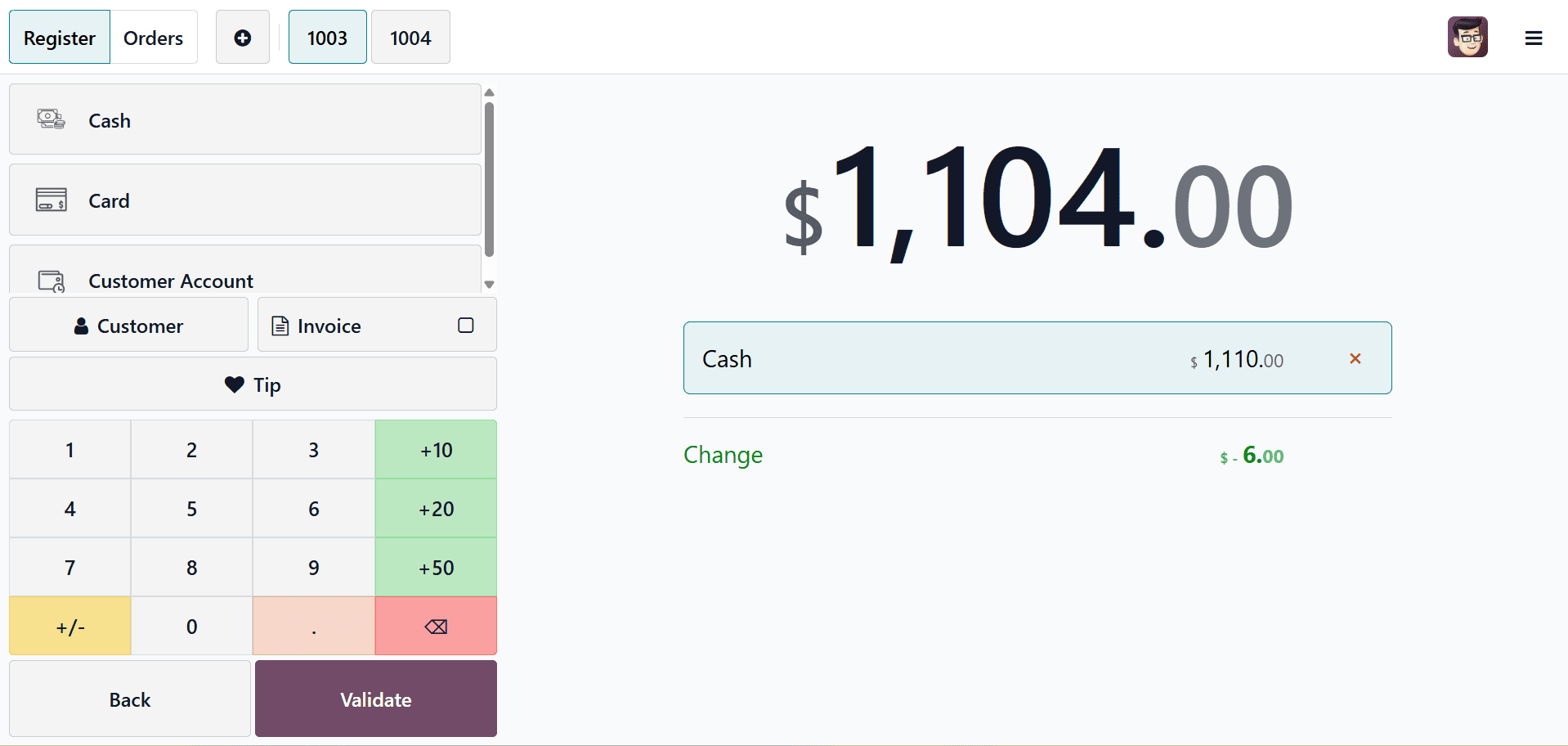
The customer's payment, which exceeds the whole bill, is entered by the cashier during the payment process. The system immediately recognises the overpayment when the Tips button is pressed and automatically enters the excess amount in the tip area.
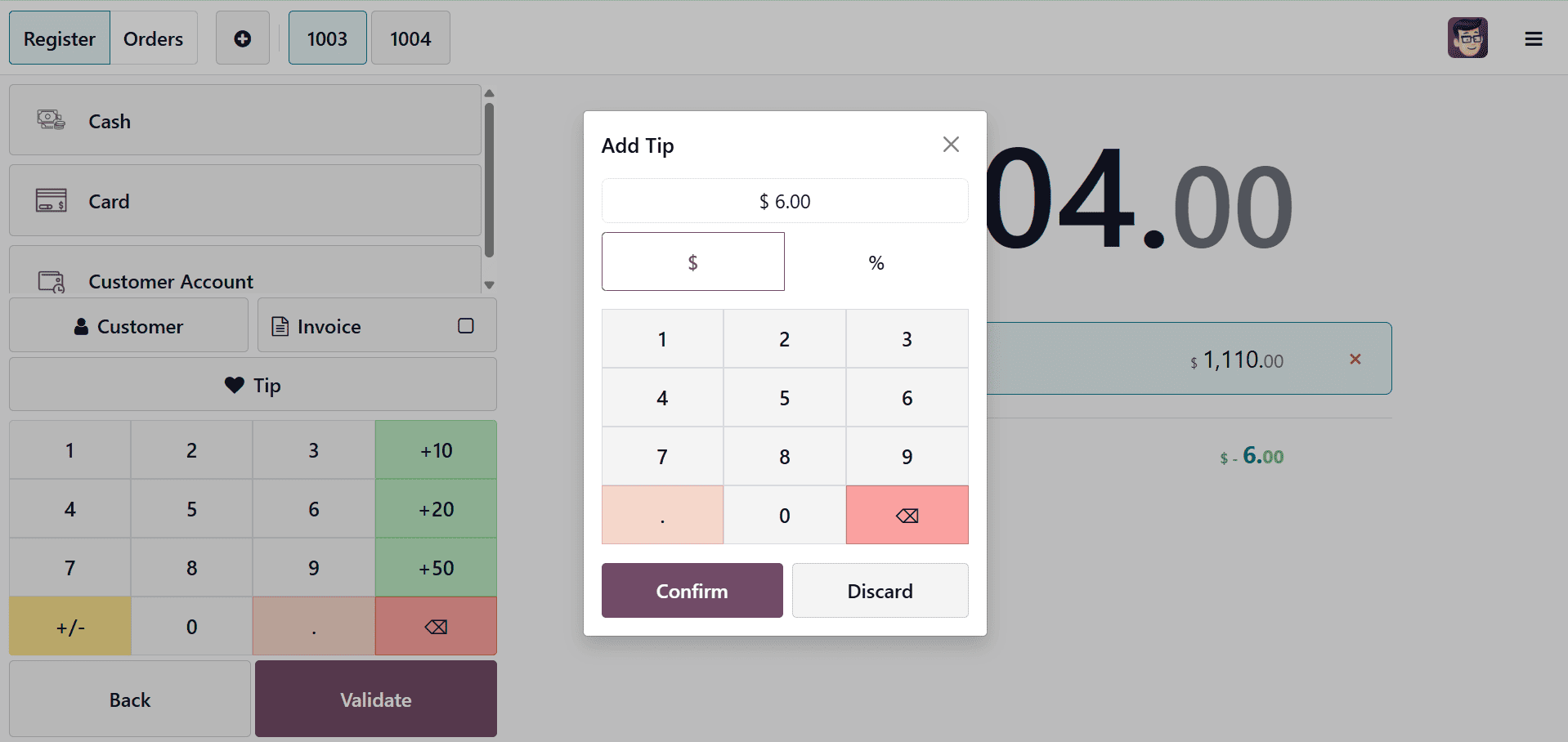
By doing this, the remaining balance is reduced to zero, indicating that no adjustment is necessary. Without the need for laborious computations, the tip is recorded as part of the transaction after confirmation. This capability is very helpful in hectic service settings where mistakes must be avoided and speed is crucial. It guarantees that all tips are consistently recorded, whether they are manually input or obtained from change.
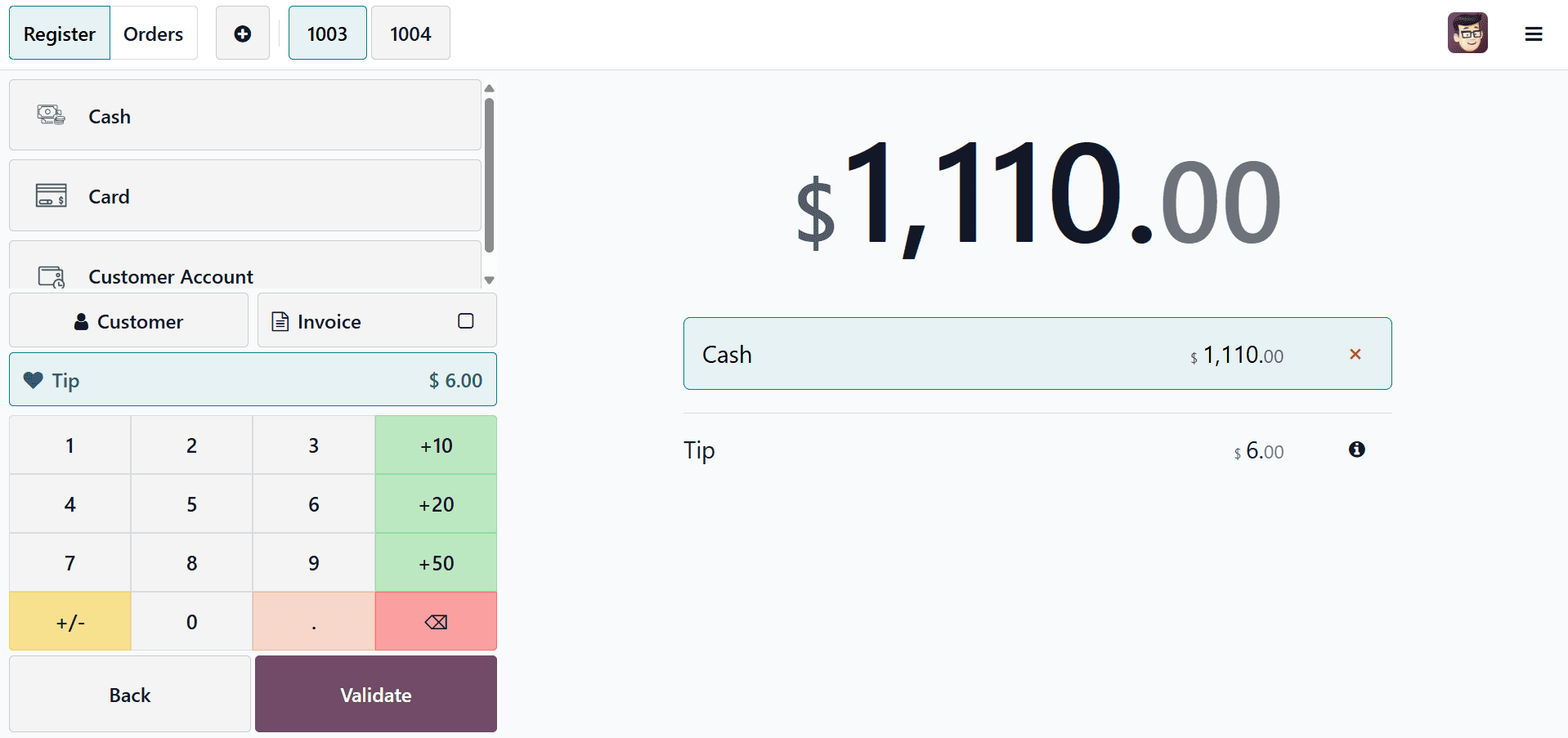
Tip Details on Order Receipt
When it comes to processing tips, Odoo 19 places a high priority on transparency. The tip amount is prominently shown alongside the main bill on the payment summary screen once the payment has been made. The tip shows up as a distinct line item beneath the name of the specified Tip Product when the receipt is printed. The final total, which includes both purchases and tips, is printed at the bottom, along with the precise tip amount.
Customers and businesses both gain from this clarity. Businesses have precise transaction records, and customers may see exactly how much they tipped. Because it offers an official record that may be utilized for tip distribution, this is equally significant for employees.
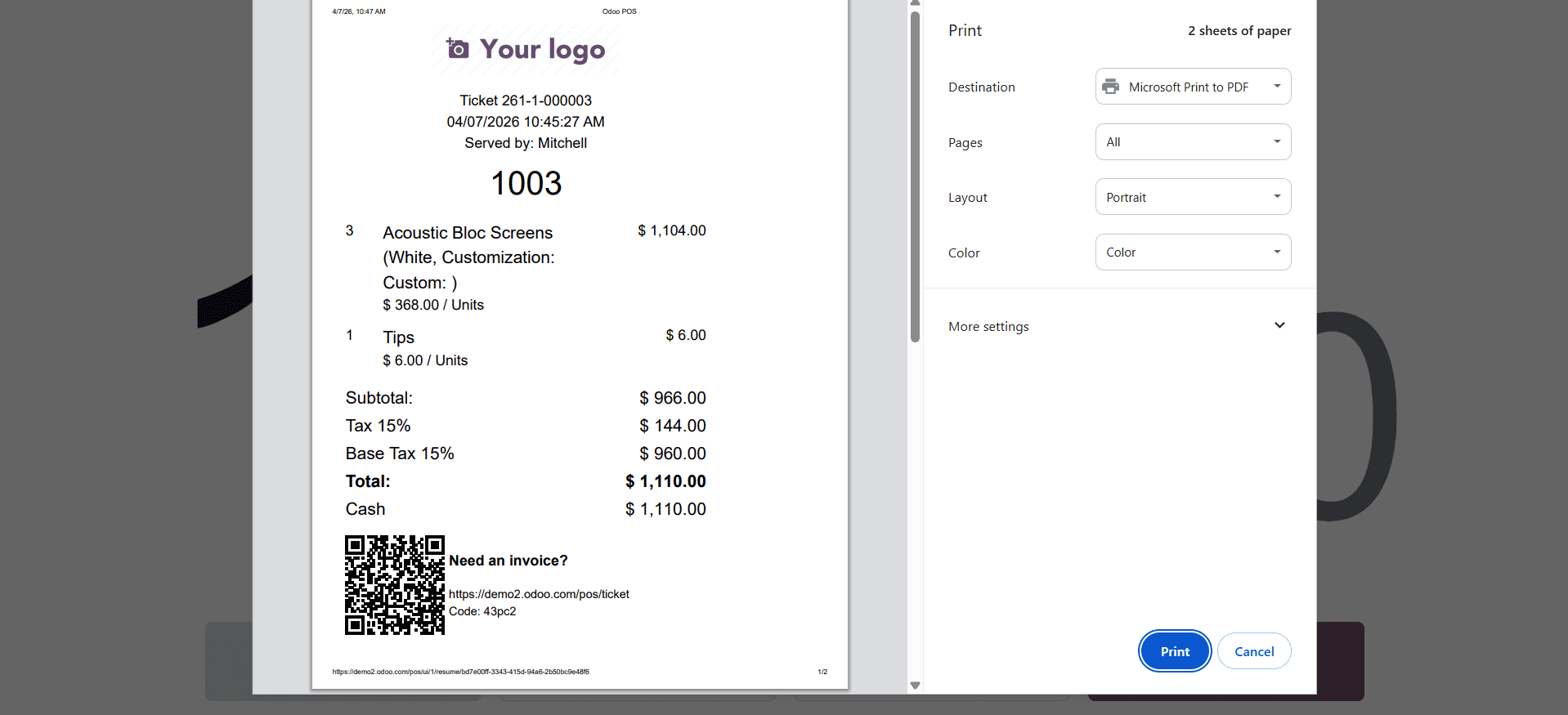
Odoo guarantees that there is no misunderstanding by incorporating tip details into both digital and printed records. This helps to avoid conflicts and facilitates easy communication between employees and management.
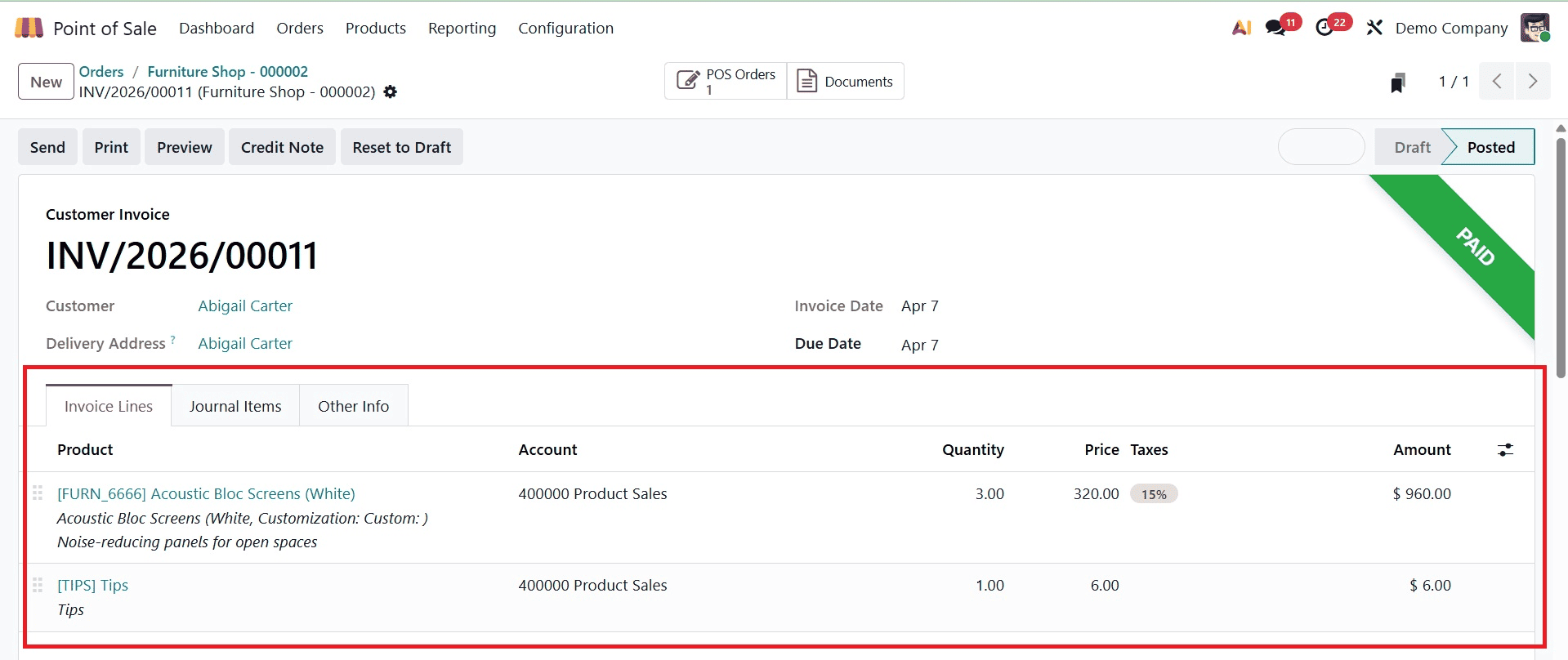
You may examine the specifics of your order by going to the Orders section of the POS. Along with the other products that are part of the order, you will notice the tip product and its amount.
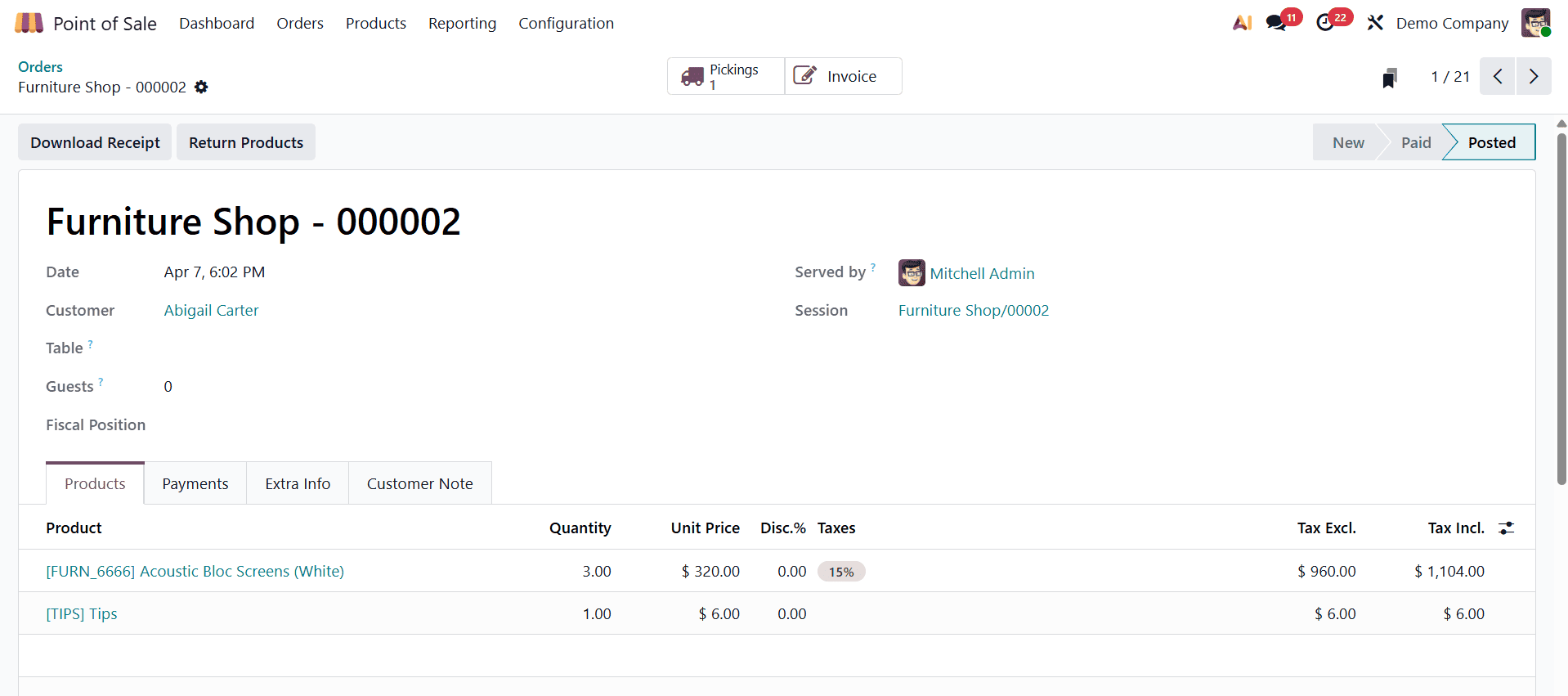
The matching invoice for your order has the same information.
The Odoo 19 POS tip management function is a fully integrated solution that streamlines and automates the gratuity recording process. The system makes sure that every process is quick, clear, and error-free, from developing a specific tip product to adding tips upon payment or instantly turning change into tips.
Odoo ensures reliable record-keeping and minimizes the need for manual entry by integrating tips into the standard payment workflow. While employees gain from knowing their earnings are monitored and managed appropriately, customers value the clarity of seeing tips reflected on their receipts.
Adopting Odoo 19's tip management feature results in improved customer satisfaction, more accuracy, and streamlined operations for companies in the hotel, retail, and service industries. It makes tipping a seamless component of every transaction instead of a manual, error-prone procedure.
To read more about How to Manage Customer Tips With Odoo 18 Point of Sale, refer to our blog How to Manage Customer Tips With Odoo 18 Point of Sale.