Managing and organizing appointments is key to keeping business operations running smoothly. As the number of bookings increases, tracking scheduled appointments and understanding booking patterns can become challenging. Odoo 20 Appointments provides reporting features that help users review booking data and identify scheduling patterns. By analyzing appointment records, businesses can monitor their bookings, understand how appointments are distributed, and make informed decisions about scheduling.
In this blog, we will explore how to access Appointment reports in Odoo 20 and use the available reporting options to analyze booking data.
Appointment reporting helps businesses evaluate their scheduling activities and understand how effectively they manage customer appointments. By reviewing booking trends, attendance records, and customer feedback, businesses can identify scheduling issues, monitor appointment demand, and recognize areas that require improvement. These insights help businesses make informed decisions, manage their time more efficiently, and improve the overall appointment experience for customers.
View Appointment Reporting
Open the Appointment module and go to Reporting from the dashboard. Reporting provides Booking, Answers, and Ratings.
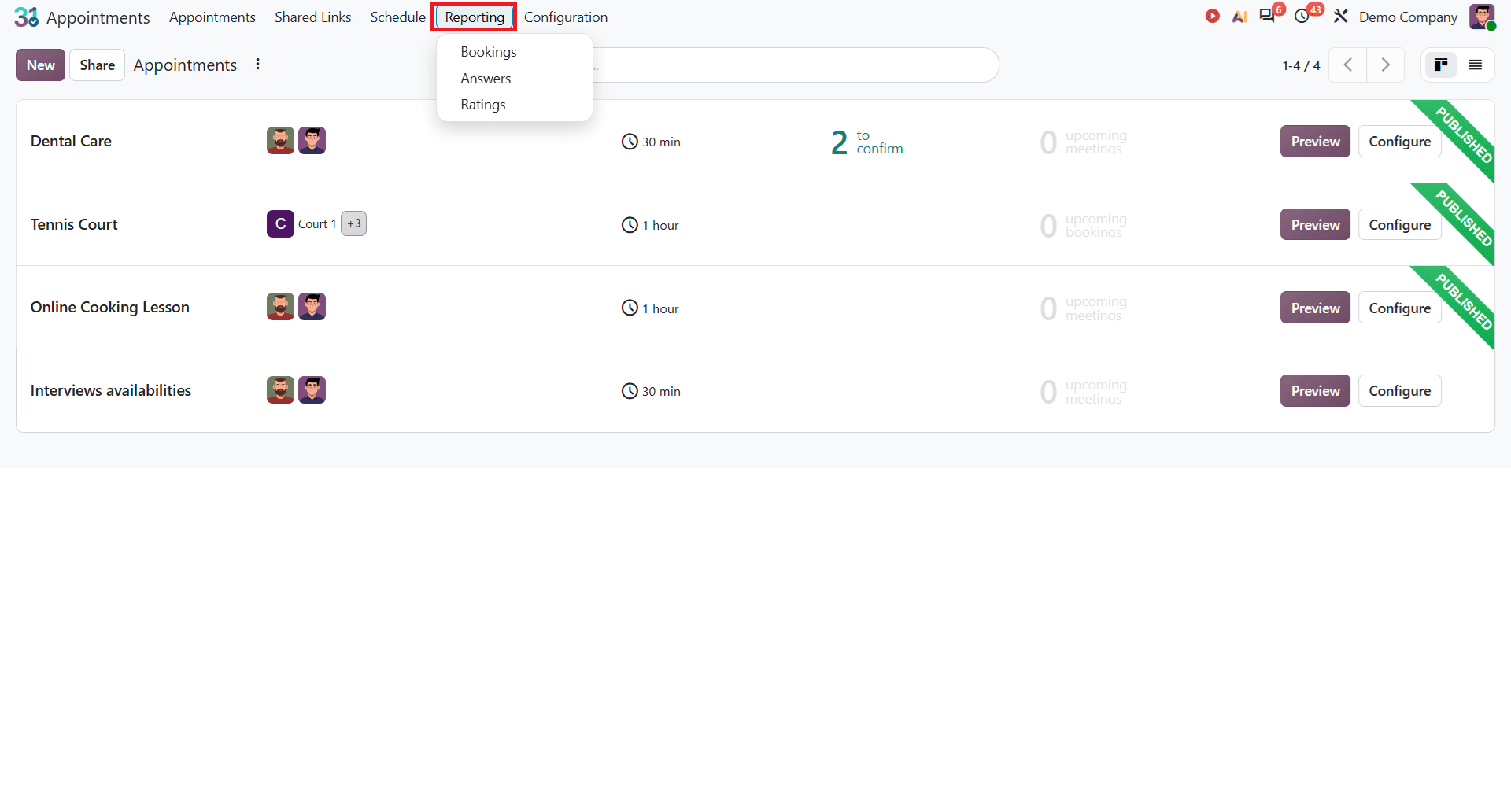
Booking
Once you select Booking, you will get a pivot view of the appointments created. In Odoo, analyzing appointment bookings allows you to optimize your resources based on time demand, evaluate scheduling volume, and understand when your customers need you most. On the right side, you can see different types of views of bookings, such as Pivot, Graph, Calendar, and List views.
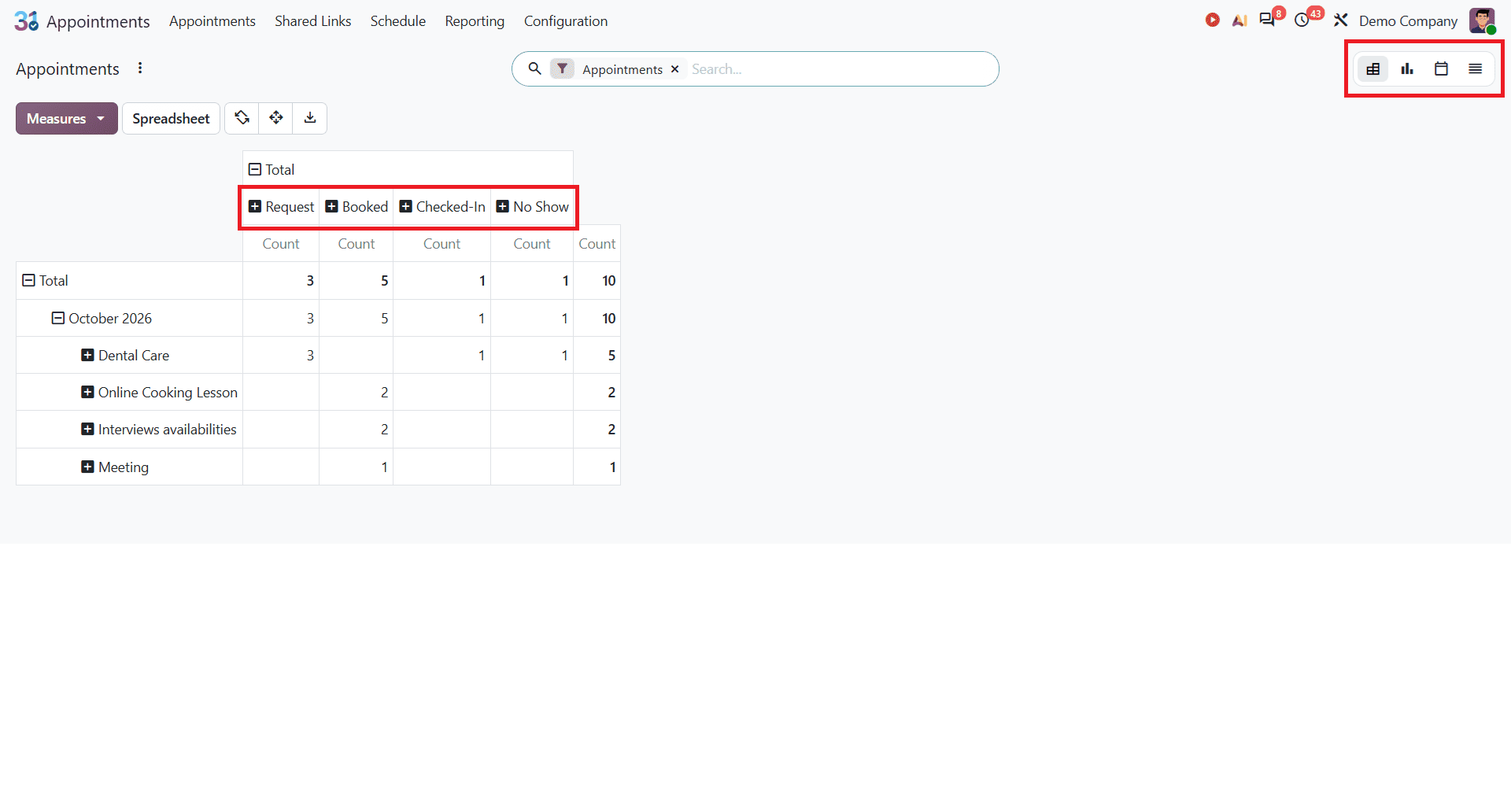
In the Pivot view, the Measures option includes Request, Booked, Check In, and No Show. These measures help users review different stages of appointment bookings. Request shows appointment requests, while Booked relates to booked appointments. Check In helps track appointments where visitors have checked in, and No Show helps identify appointments where visitors did not attend. By comparing these measures, users can get a clearer picture of their appointment activity.
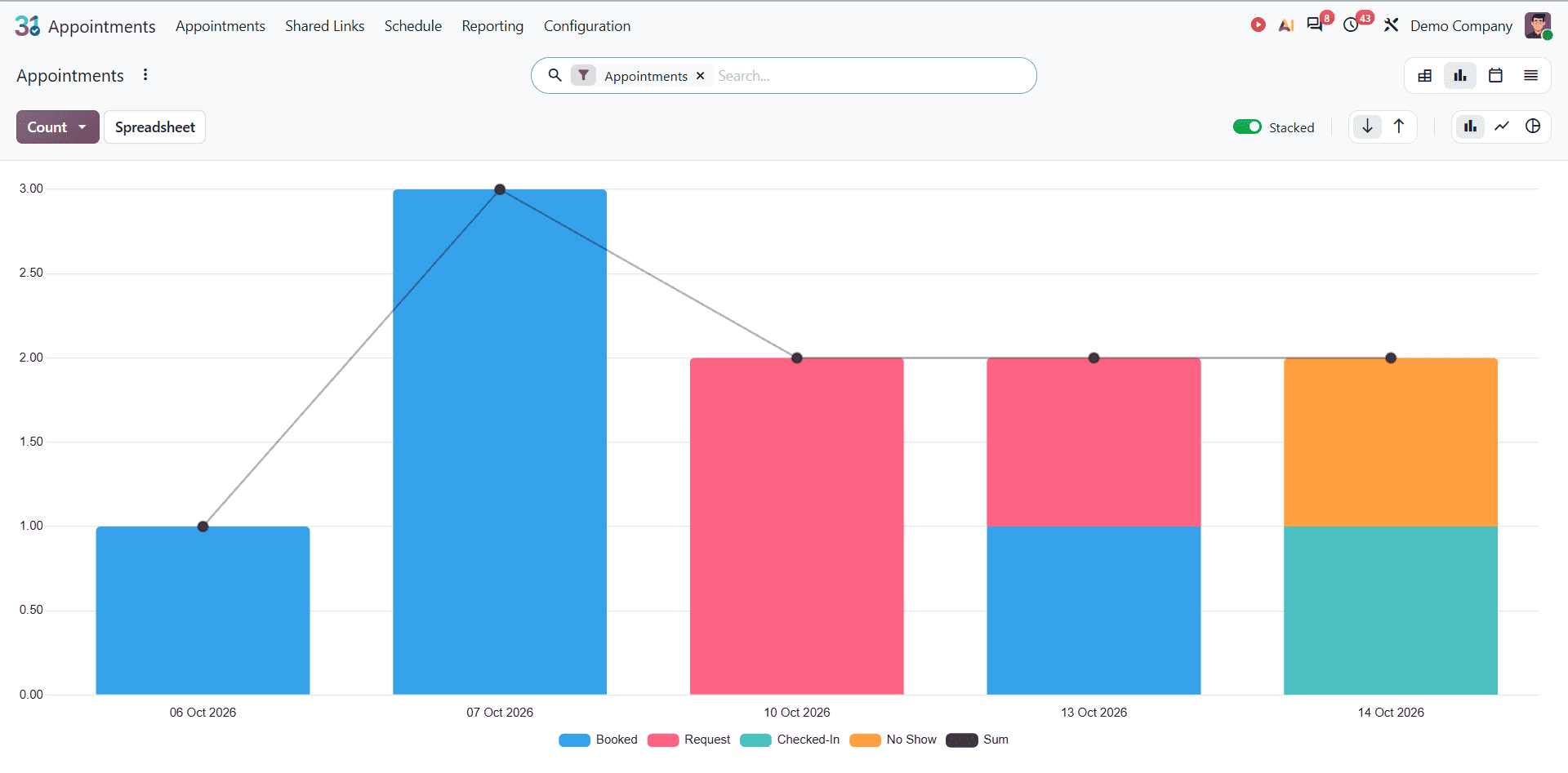
Here is the Graph view of bookings:
Answers
When customers book an appointment, they may be asked to provide additional information through booking questionnaires. Reviewing these answers helps businesses to understand customer responses and collect useful information about bookings. In Odoo 20, users can access the Answers report from the reporting menu to review the responses submitted by customers while booking appointments.
To open Answers, click on Reporting and select Answers as shown below:
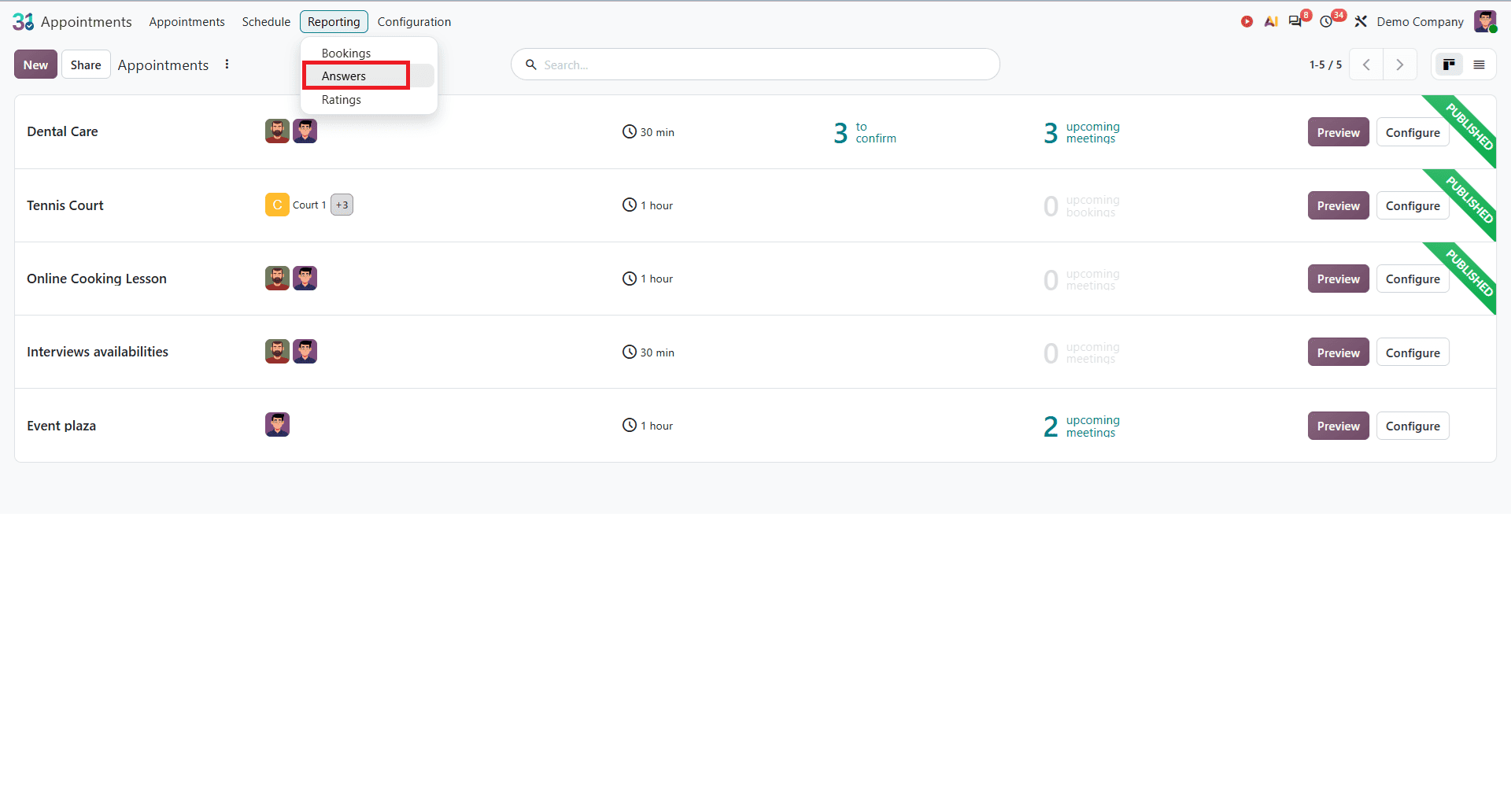
The Answers report displays the responses submitted by customers through the appointment booking form. When you click on the record, you can see the customer answers and analyze them.
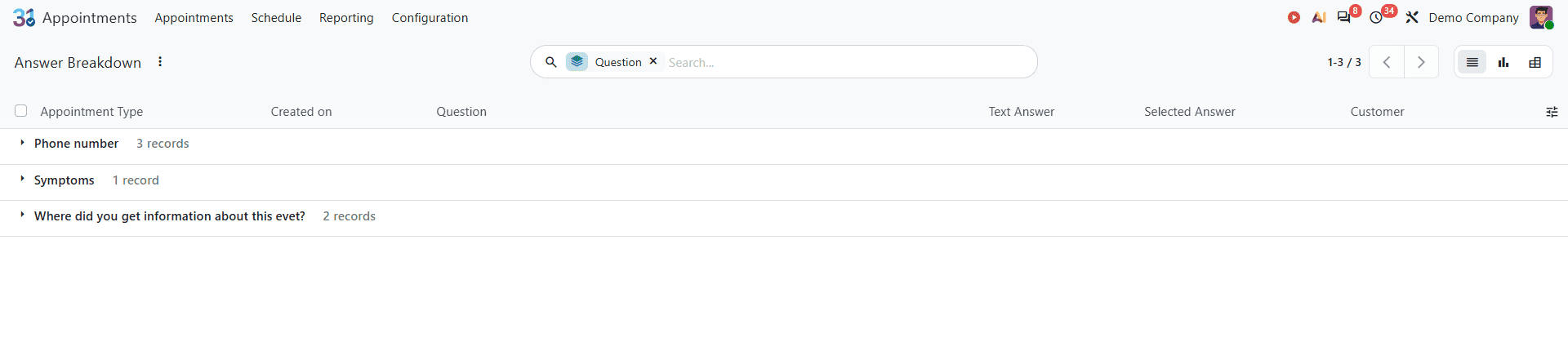
The report displays the questions asked during the booking process along with the answers provided by customers. For example, a clinic may ask patients to describe their symptoms when booking an appointment. The answers can help the clinic understand the reason for the visit before the appointment. This allows businesses to review the information collected through their booking forms.
Rating
Customer feedback helps businesses understand how satisfied customers are with their appointments. In Odoo 20, users can access the rating option under the Reporting menu to review appointment feedback when it is available. This information can help businesses understand customer experiences and identify areas that may need improvement. If no ratings have been submitted, the report may not display any records.
Managing appointments involves more than just scheduling meetings. It is also important to keep track of bookings and review the information collected from customers. Odoo 20 Appointments provides reporting options such as Bookings, Answers, and Ratings to help users review appointment activity and customer responses. By using these reports, businesses can monitor their bookings, understand customer feedback, and make better decisions when managing their schedules.
To read more about How to Simplify Appointment Scheduling with Odoo 19, refer to our blog, How to Simplify Appointment Scheduling with Odoo 19.