Automated process management has become an essential requirement for any organization today. As a comprehensive ERP package, Odoo has different capabilities that help organizations to automate processes in their organization. This is one of the capabilities called Server Action that can help us automate our business operations in Odoo itself.
The Server Action feature lets you automate operations on the records based on certain criteria. With this, you can reduce manual intervention and automate repetitive tasks without the need for any additional customization.
This blog provides a step-by-step guide to creating and configuring server actions in Odoo 20 to automate routine business operations.
How to Access Server Actions in Odoo 20
The Server Actions can be accessed from Odoo only if we enable the Developer Mode(Debug Mode). Once the Debug Mode is activated, go to the Settings menu of Odoo and click on the Technical sub-menu. Click on Server Actions to view the list of server actions available in Odoo 20.
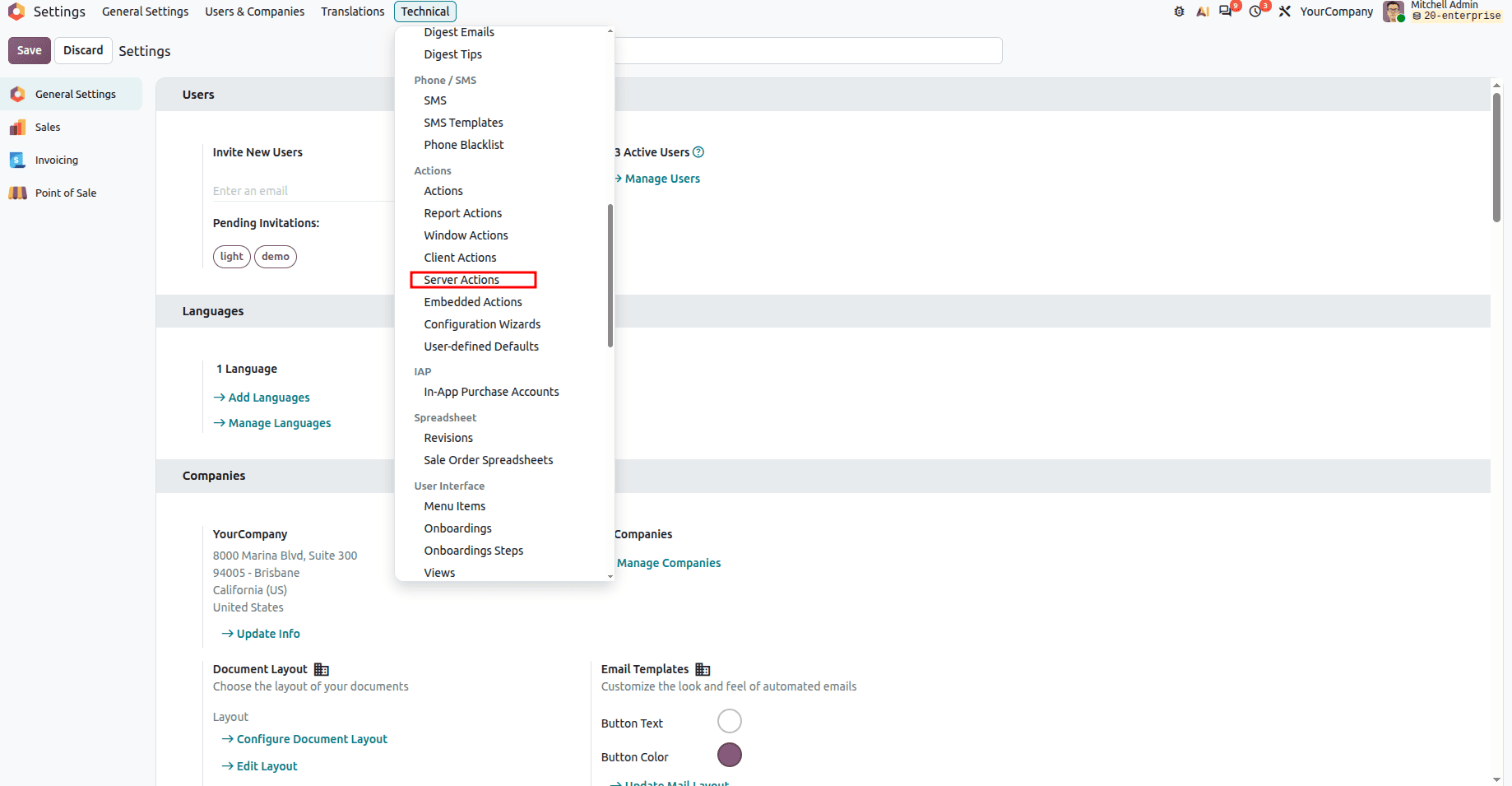
This section provides access to all server actions configured in your Odoo system.
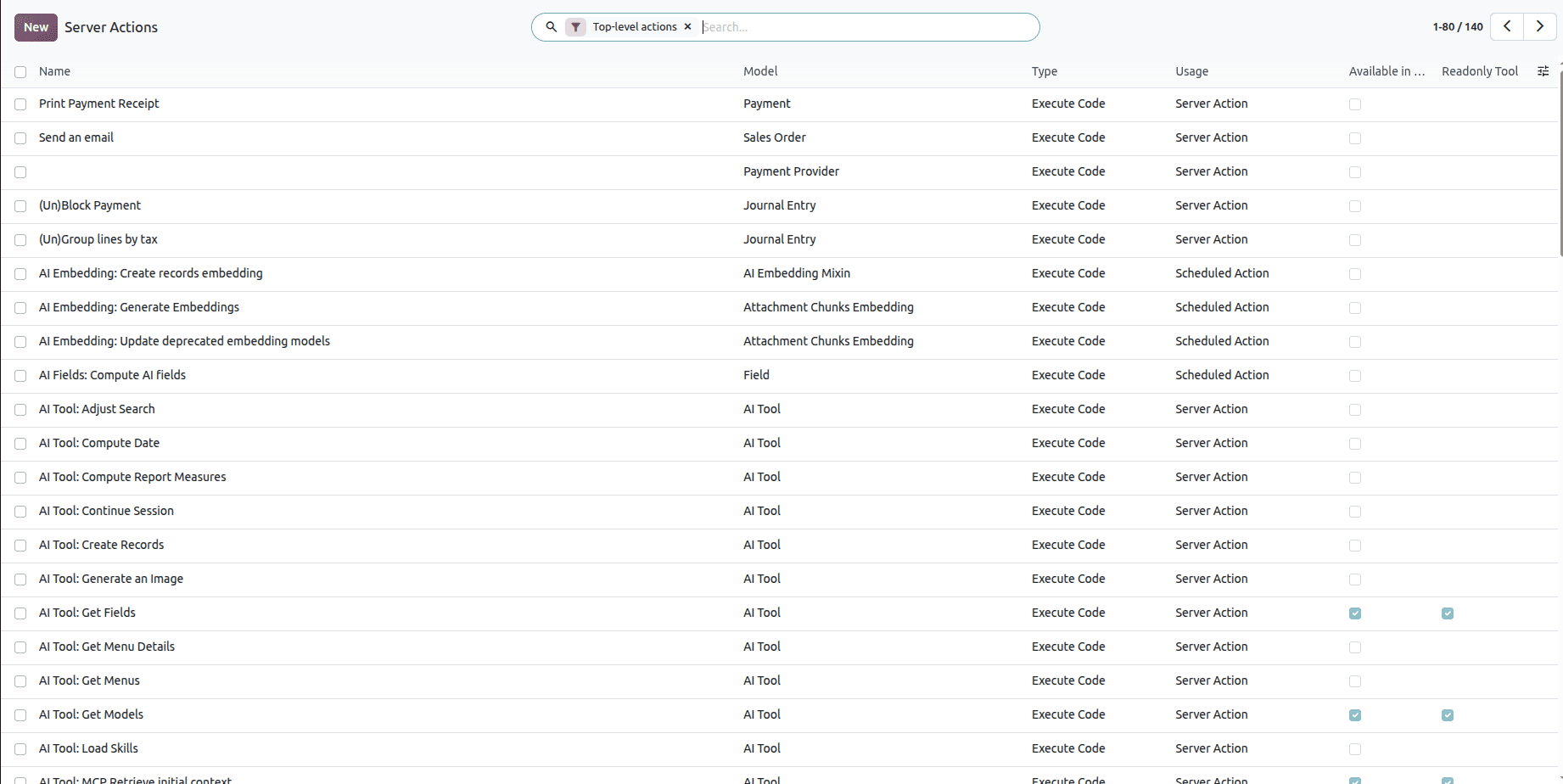
Create a New Server Action in Odoo 20
Step 1: Accessing the Server Actions Menu
To get started, open the Server Actions menu under the Technical section of Odoo 20. Click New to access the server action form and enter the necessary details to configure your action.
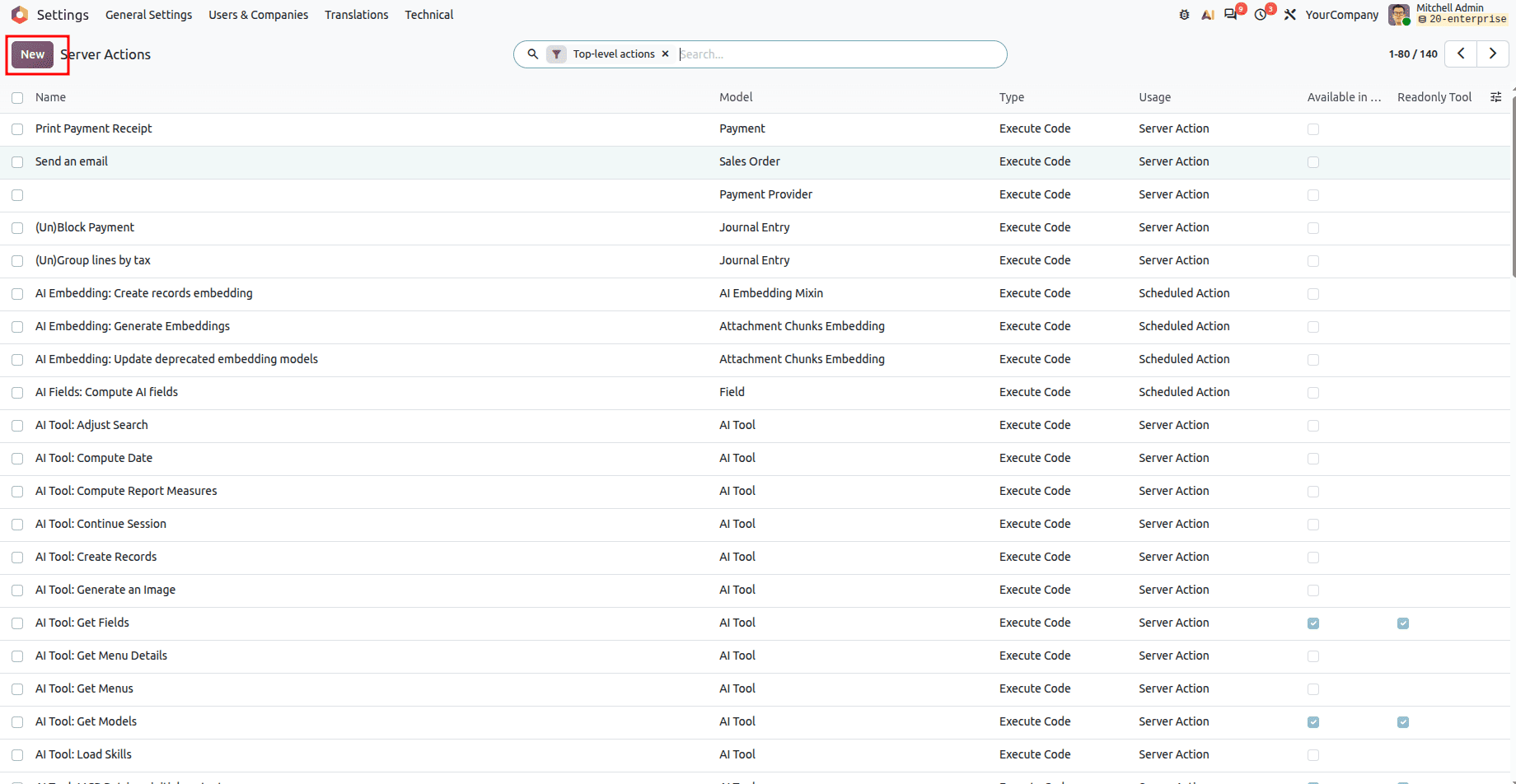
Step 2: Give the Basic Details
Action Name: Give an appropriate name to the server action to identify the objective of the server action.
Model: Choose the Odoo model for the server action, like Sales Order, Invoice, and Contact.
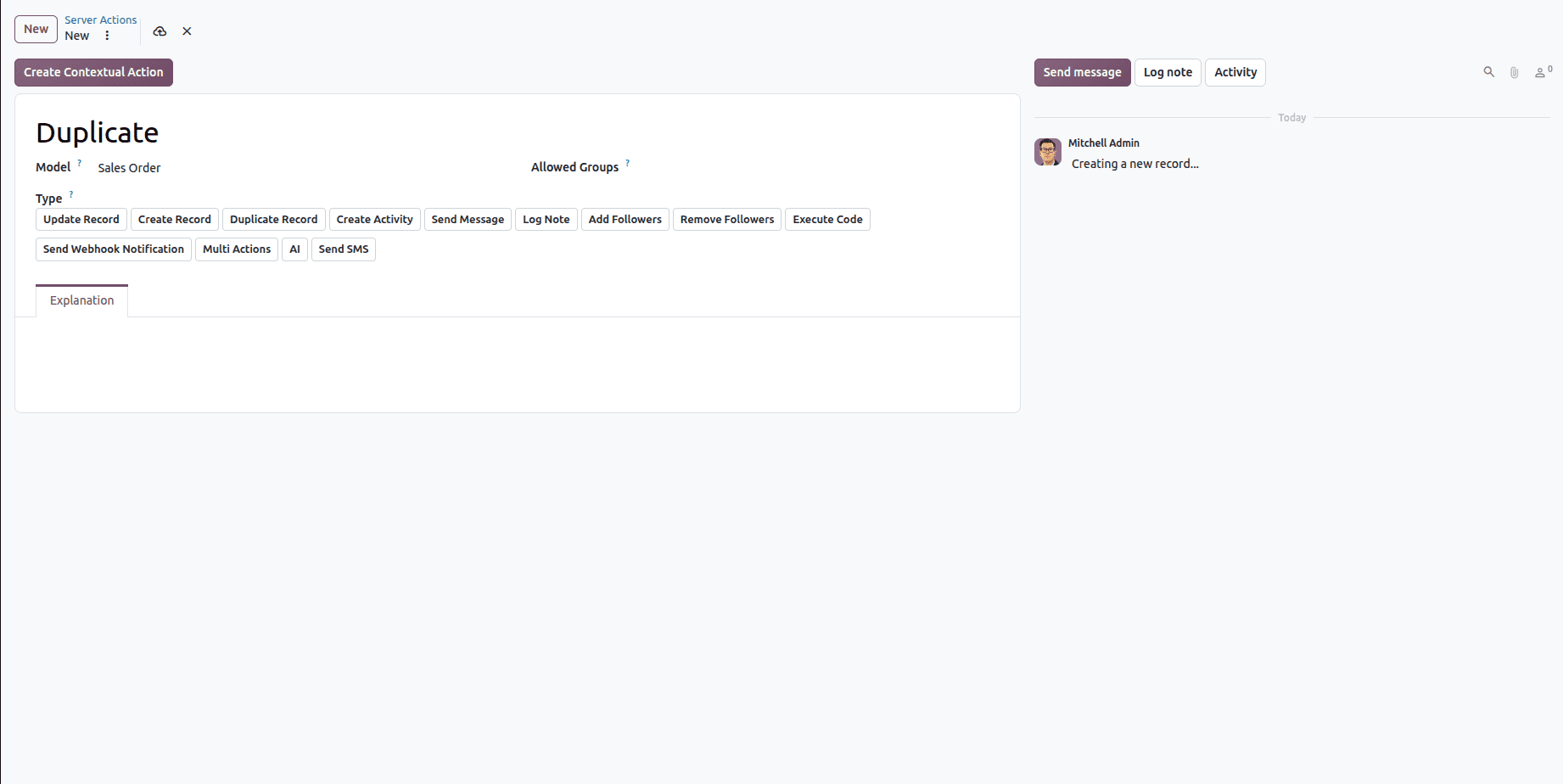
Step 3: Choose the Action to Perform
Choose the type of operation that needs to be performed by the server action. Odoo 20 offers a number of choices here, depending on the kind of business operations to be automated.
These include:
- Execute Python Code: This option lets you perform custom operations using Python programming language.
- Duplicate Record: Allows creating duplicate copies of the selected record.
- Update Record: Allows making certain changes in the selected fields or values of an existing record.
- Create Record: Allows creating new records in the chosen model.
- Send Email: Automatically sends an email according to the server action configured.
- Add Followers: Adds certain users/partners as the followers of the selected record.
- Remove Followers: Removes existing followers from the record.
- Create Activity: Schedules activities related to the selected record.
- Send SMS: Sends an SMS to the intended recipients.
- Send Webhook Notification: Sends data via webhook to some other application/system.
- Multi-Actions: Combines several server actions and performs them at one go.
Step 4: Configure the Action
Configure the required fields depending on the type of action:
- Update Record: Choose the fields and configure the values.
- Send Email: Choose an email template and how to create email templates.
- Run Python Code: Writing the required Python code.
Step 5: Contextualize Action
- To make the server action available in the Action menu of the List or Form view, click Create Contextual Action. This allows users to access and execute the action directly from the relevant view.
- It will contextualize your server action in the User Interface.
Step 6: Save and Test the Action
- Click Save to store the server action.
- Test it on the related model to verify that it works as expected.
Practical Example: Duplicating a Sales Order Using Server Actions
Suppose the sales team frequently needs to duplicate existing sales orders. A server action can be configured to make this process easier.
Step 1: Create the Server Action
- Go to Settings > Technical > Server Actions.
- Click New.
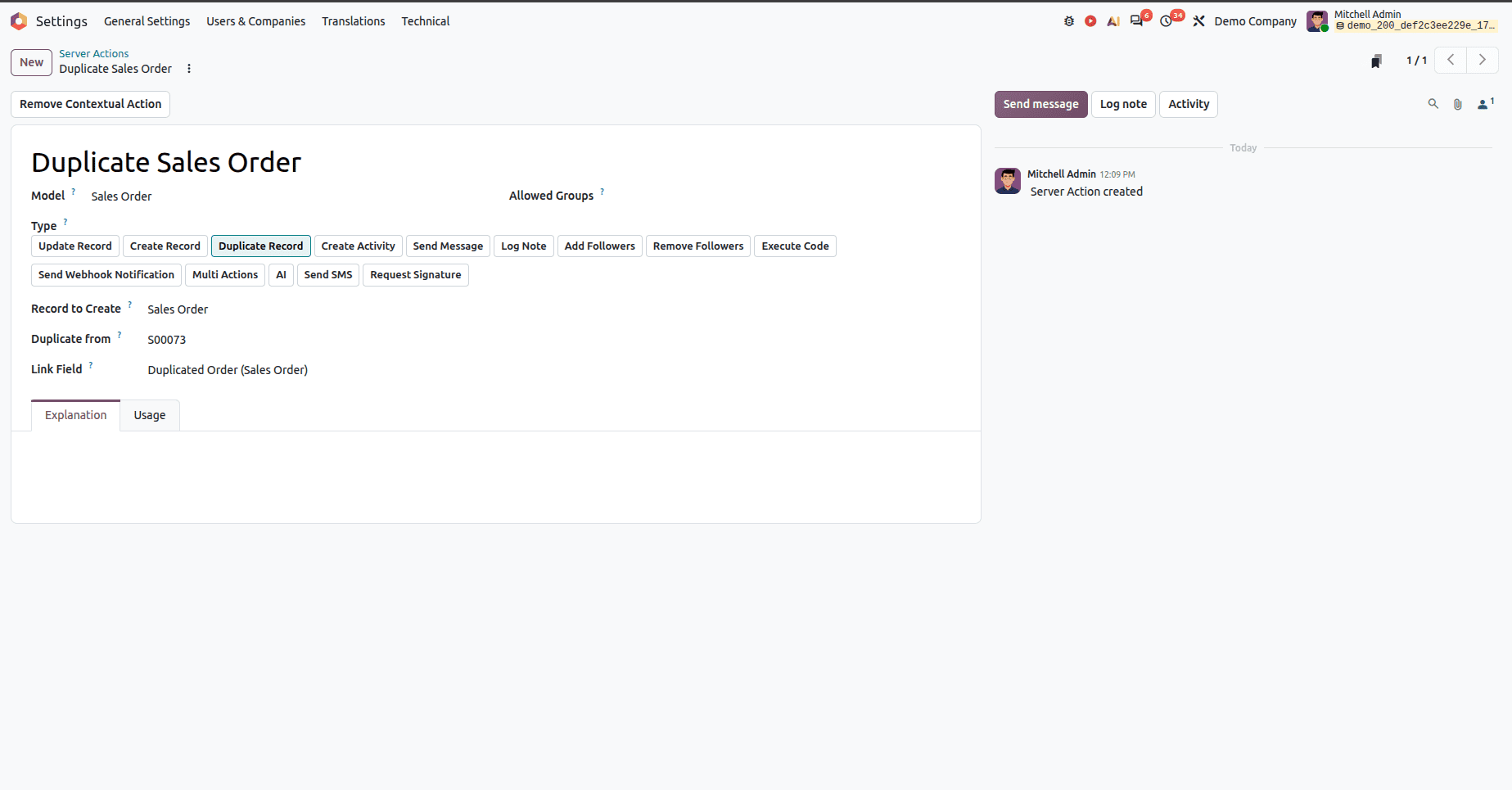
- Enter Duplicate Sale Order as the Action Name.
- Select Sales Order as the Model.
Step 2: Configure the Action
- In the Type field, select Duplicate Record.
- Set Record to Create to Sales Order.
- Select the appropriate reference in the Duplicate From field.
- Specify the Link Field, if required.
Step 3: Create a Contextual Action
- Click Create Contextual Action.
- The action will be available under the Action menu in the Sales Orders view.
- Save the action.
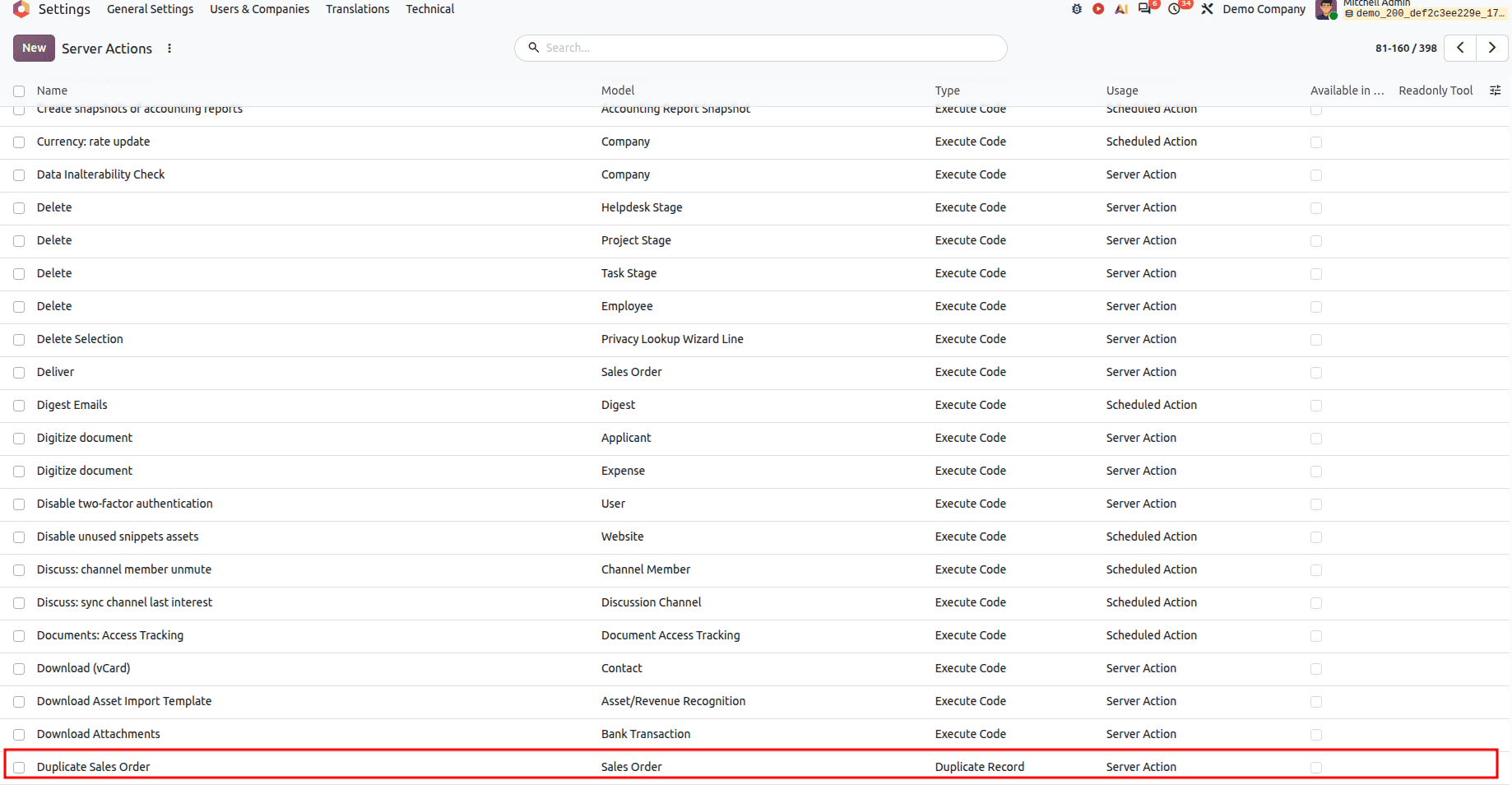
After you look at the server actions, you will realize that the new server action has been added.
Step 4: Perform or Test Server Action
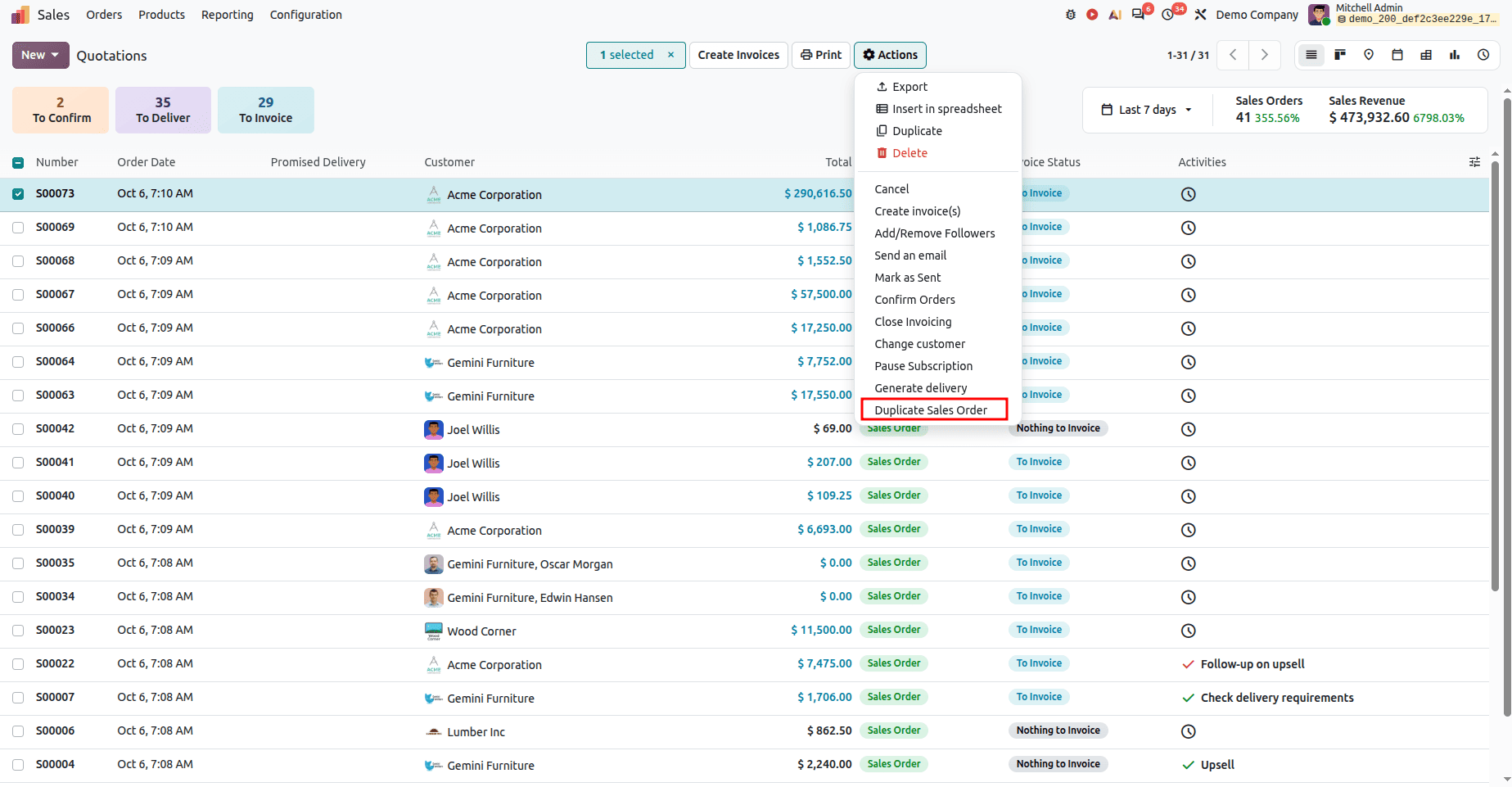
- Navigate to Sales Orders, pick a record
- Under Actions, click on Duplicate Sale Order
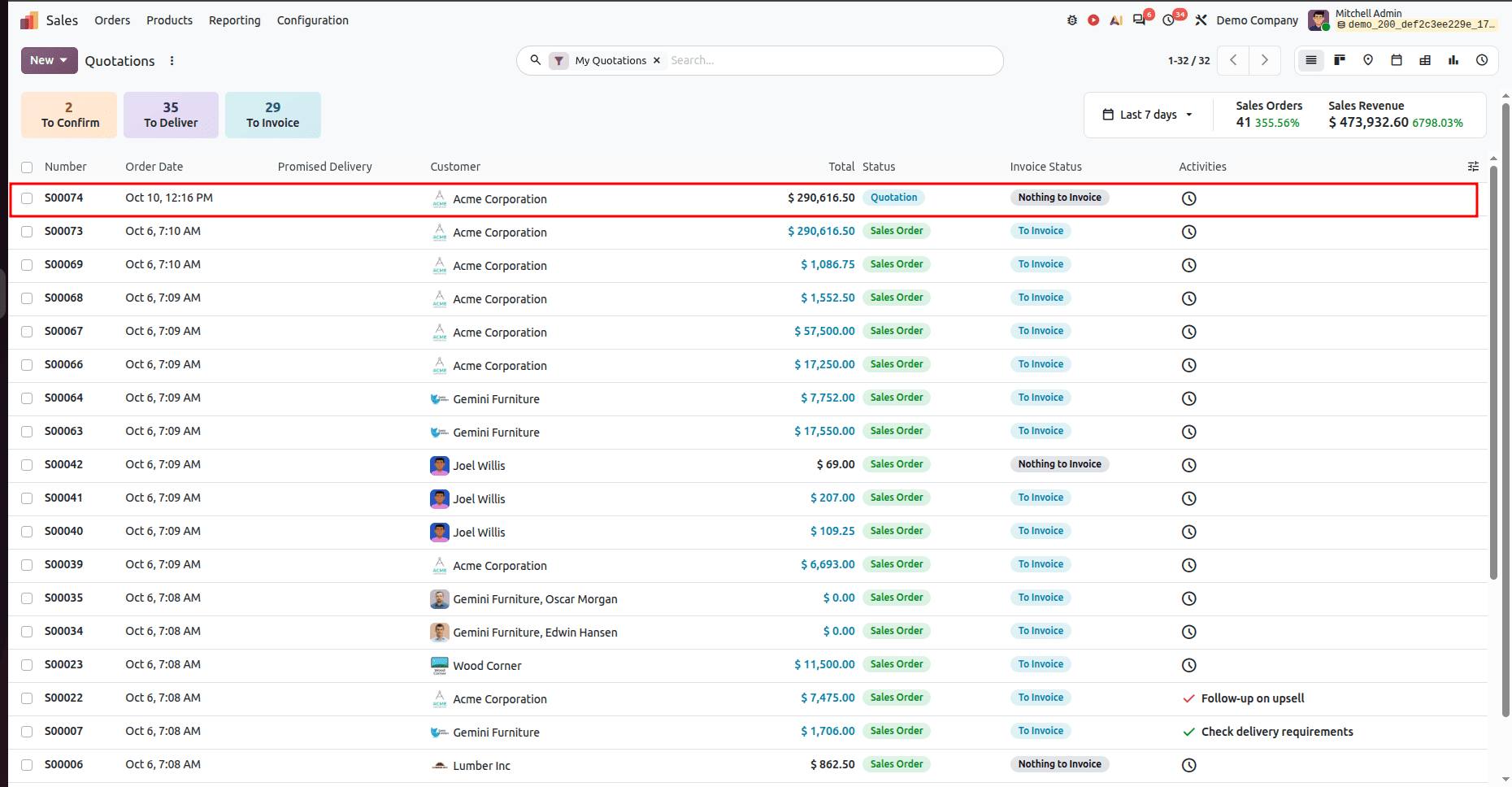
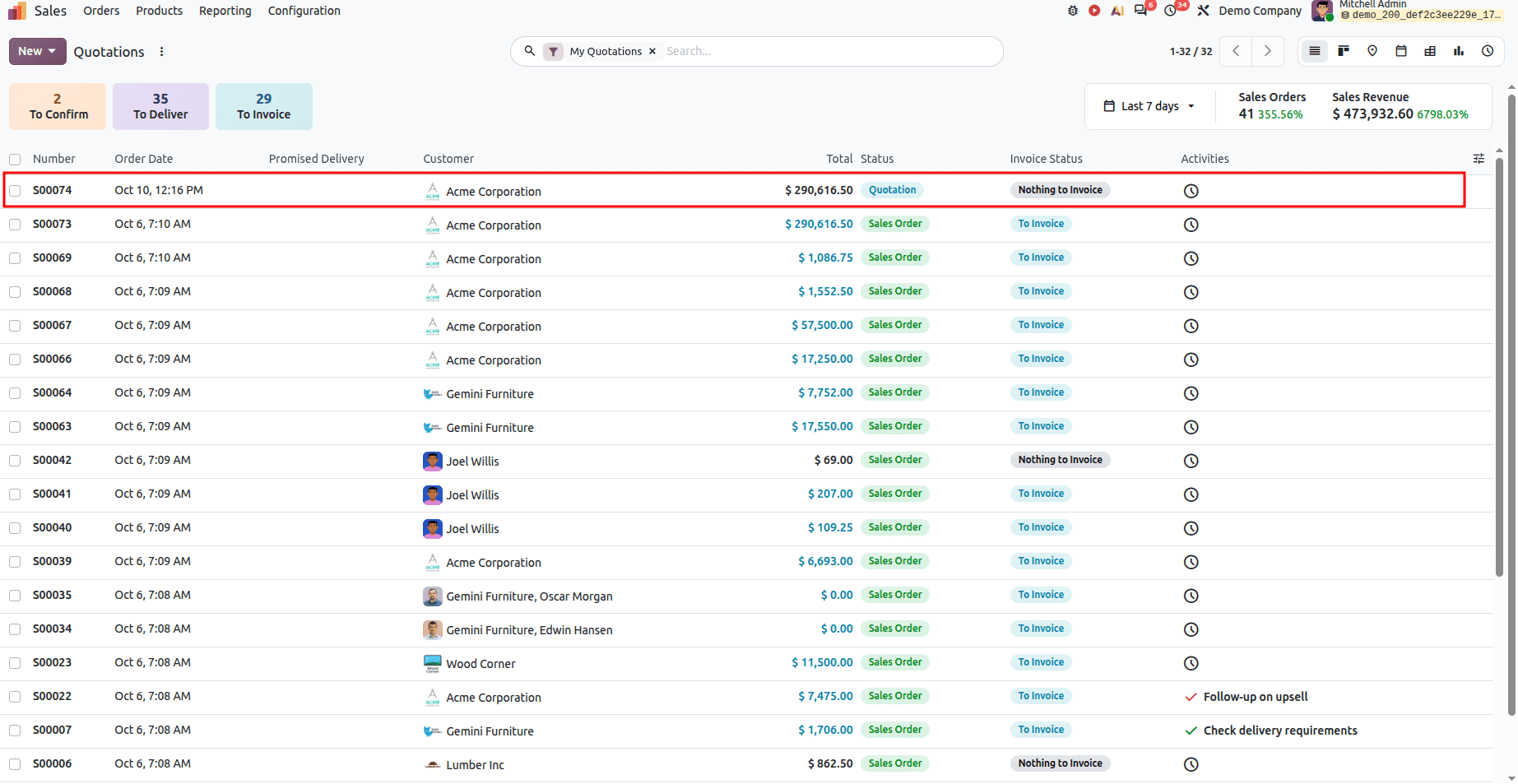
A new order draft is made.
Example of Practical Usage: Duplicating Sale Order via Python Script (XML + Python)
Create a server action for duplicating a sale order via a Python script in Odoo 19. This will be helpful when you want to expand the duplication logic (reset some fields, change state, or assign to another user).
1. Defining the Server Action in XML
Open the data folder of your custom module and open/create a file like ir_actions_data.xml, and add the following code to the file:
<?xml version="1.0" encoding="UTF-8" ?>
<odoo>
   <record id="duplicate_sale_order_python" model="ir.actions.server">
       <field name="name">Duplicate Sale Order</field>
       <field name="model_id" ref="sale.model_sale_order"/>
       <field name="binding_model_id" ref="sale.model_sale_order"/>
       <field name="binding_view_types">list</field>
       <field name="state">code</field>
       <field name="code">
           action = records.action_duplicate_sale_order()
       </field>
   </record>
</odoo>
Explanation:
- name: The name given in the Action menu.
- model_id: Binds the action to the sale.order model.
- binding_model_id: Confirms that the action will be available only for Sale Orders.
- binding_view_types: Limits the availability of the action only to the list view.
- state: code confirms that the action will perform some code written in Python.
- code: Runs the Python function action_duplicate_sale_order() that will be defined soon.
2. Code the Function in Python
In your own module, inherit from the sale.order model and create the function that will duplicate. For instance, in models/sale_order.py:
from odoo import models
class SaleOrder(models.Model):
   _inherit = 'sale.order'
   def action_duplicate_sale_order(self):
       for order in self:
           # Duplicate the sale order
           new_order = order.copy()
           # Ensure the new order is in draft state
           new_order.write({'state': 'draft'})
Explanation:
This algorithm will iterate through the selected recordset.
Every sale order will be duplicated using the built-in copy() function.
The duplicated sales order state will be set explicitly to Draft.
3. Run the Server Action
After you have added the XML code and Python code and updated your module:
- Go to the Sales app.
- Select one or more sales orders in the list view.
- On the Actions menu, you will see the newly created action: “Duplicate Sale Order”.
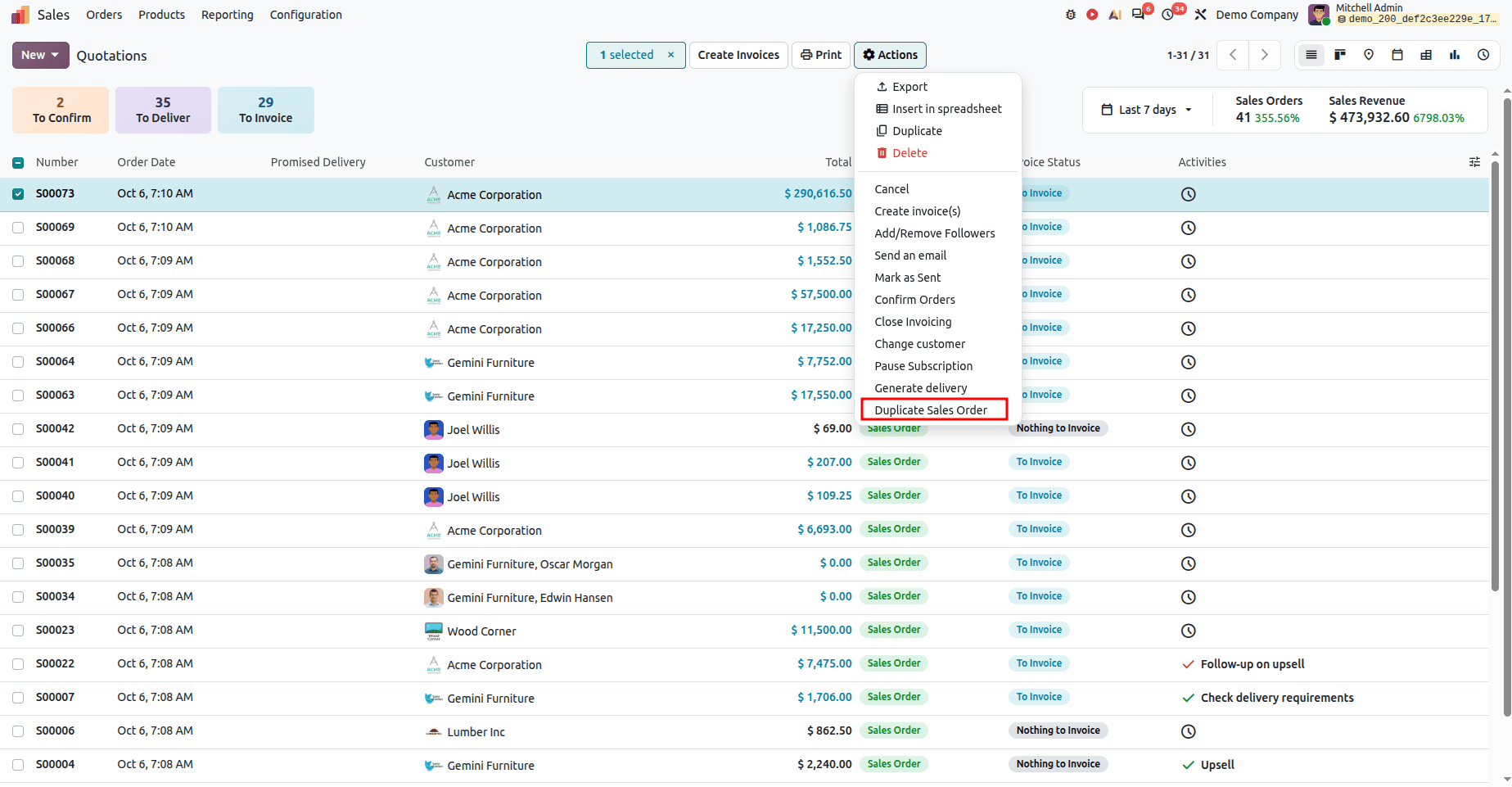
Click on it, and duplicate draft orders will automatically be created.
Through server actions, companies will have the opportunity to avoid repetitive activities, achieve better accuracy of data, and automate some processes such as sending additional emails, duplicating records, and updating critical fields. It will contribute to a more effective working process.
If configured properly, there is nothing to stop one from automating different processes in Odoo with the help of server actions. It includes testing them in a safe environment, choosing appropriate and relevant names, and limiting access to more sophisticated functions like Python code.
Odoo 20 offers many options in terms of server actions, thanks to which you can automate all your needs through the UI and avoid writing individual modules for every purpose. Through proper usage of action types, you will manage to simplify many processes.
To read more about How to Create & Configure Server Actions in Odoo 19, refer to our blog How to Create & Configure Server Actions in Odoo 19.