The PoS module in Odoo 19 helps to manage front-end sales activities for various organizations such as retail stores, superstores, and restaurants. The user can place orders from customers, process payments, manage sessions, and daily transactions efficiently through this module.
In Odoo 19, the backend PoS offers the menu to view and analyze the above-mentioned activities once they have been carried out. In this blog, let us learn about analyzing the PoS data by exploring the three main menus available in the Orders section, such as Orders, Sessions, and Payments.
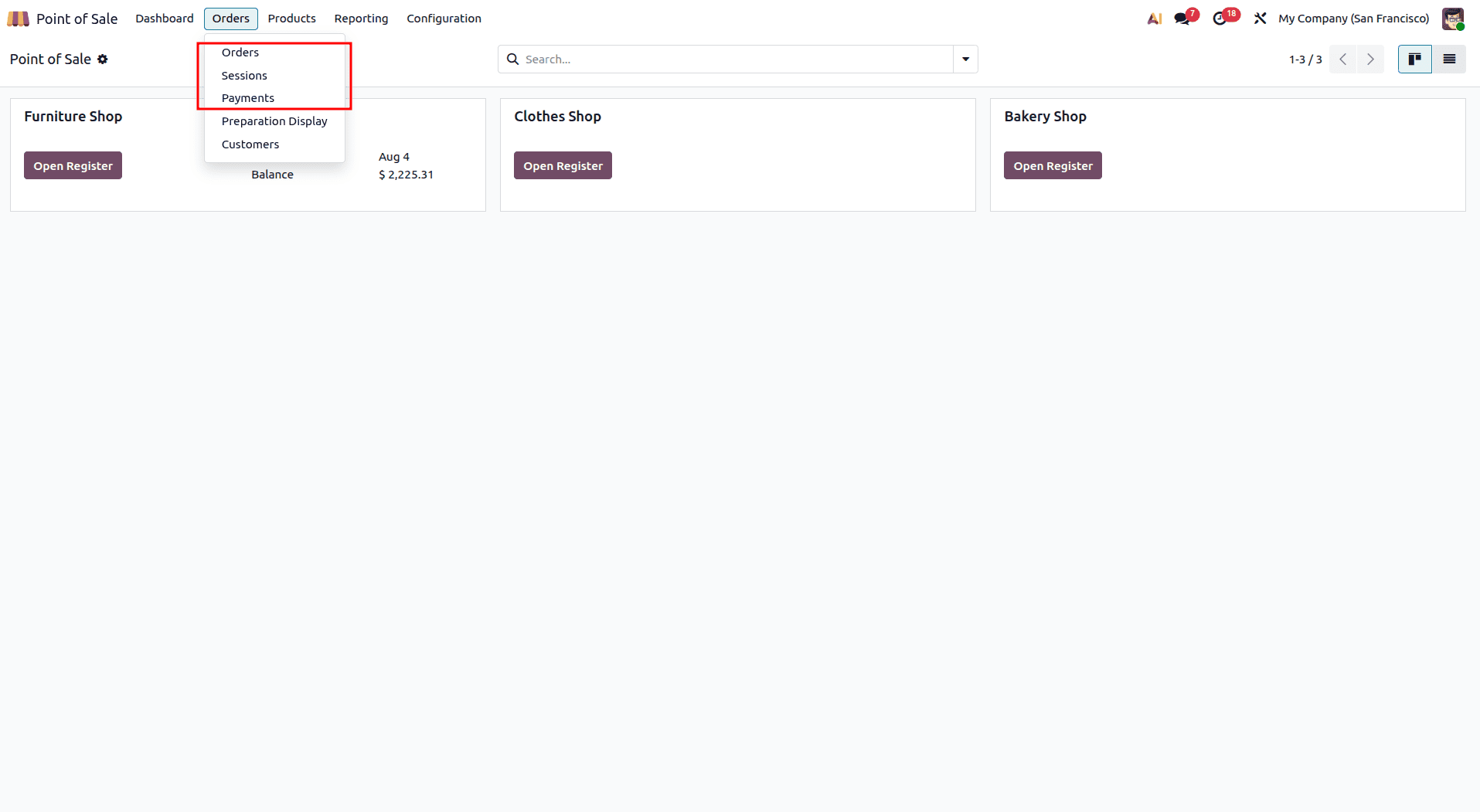
Orders
The Orders menu in the Point of Sale module in Odoo 19 will provide you with all the sales that have been done using PoS. It is helpful in analyzing past sales as well as knowing about the order details.
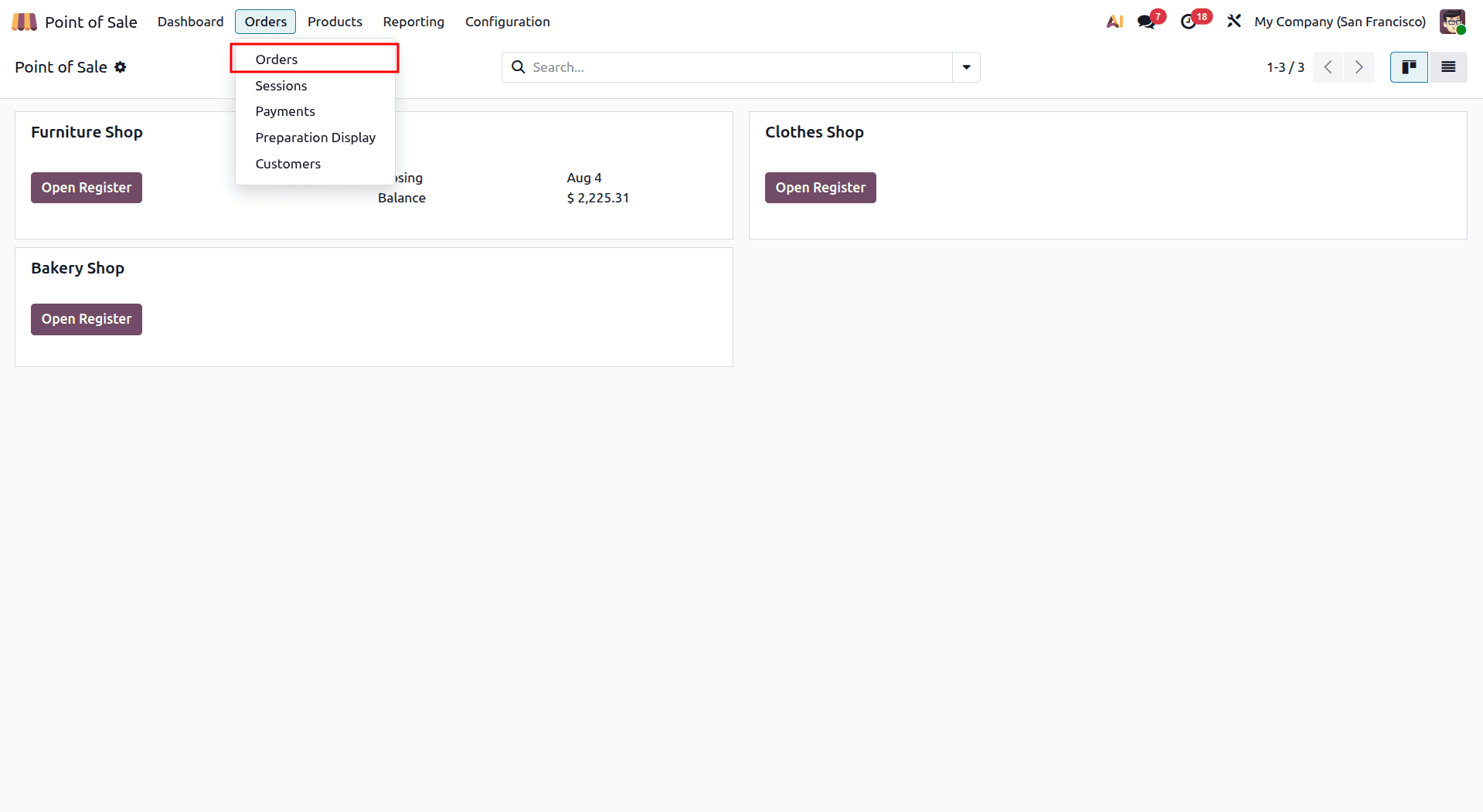
You can access this section by opening the Point of Sale module from the main dashboard and navigating to Orders > Orders.
The page displays all Point of Sale orders along with important details, including the order reference, associated session, customer, order date, total value, receipt number, order type, cashier, and current order status.
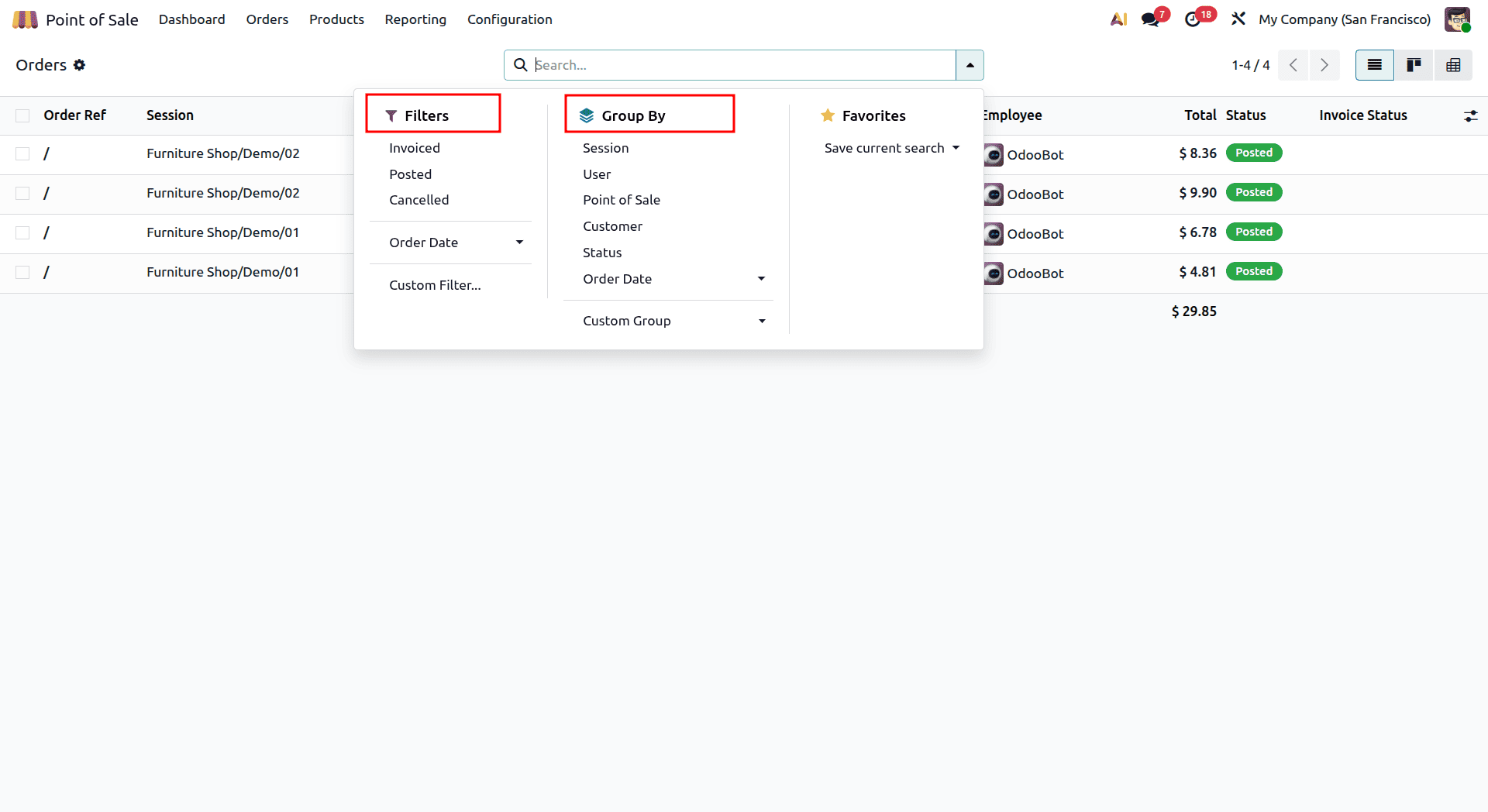
Order filtering can easily be achieved by filtering orders according to the following dates: the invoice date, posting date, and the cancelling date or order date. This can also be achieved by filtering based on a custom filter or grouping of orders by session, user, point of sale, customer, status, and order date.
When you click on an order, its detailed view is displayed, which shows the order reference, order date, session, employee, and customer.
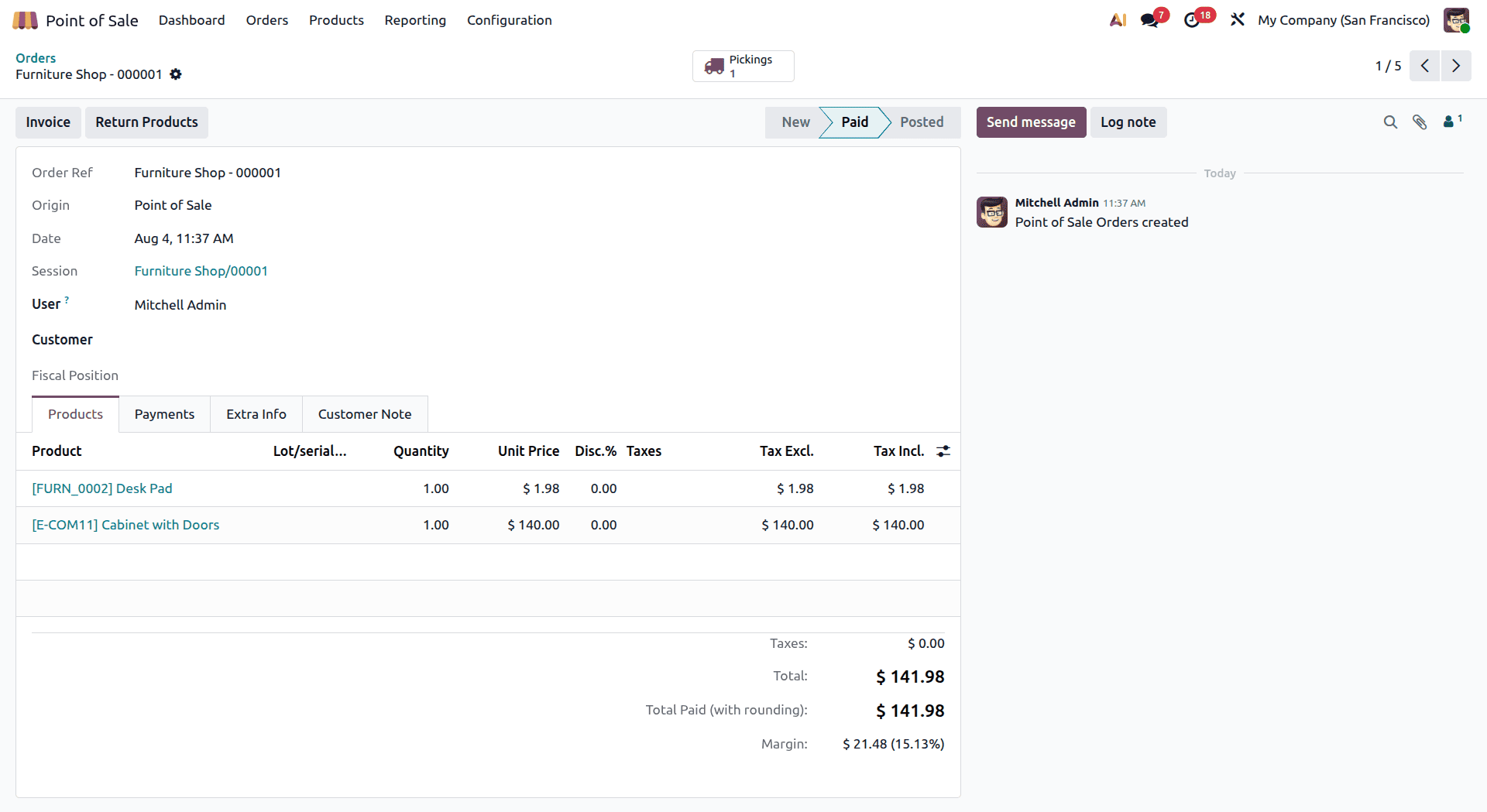
The field of Order Ref contains the ID code that is generated by default for the order. The Date field contains the date and time of placing the order. The Session field contains information about the PoS session, which can be helpful for reconciliation of the sales at the end of a workshift.
The Employee field contains the employee who took the order, while the Customer field contains information about the customer himself. If the fiscal position is used, the field of Fiscal Position shows the tax setup used for the order. If a restaurant uses the POS system, there will be a Table field. The Table field contains the table number and the floor of the restaurant, and the field of Guests shows the number of people who ate at the table.
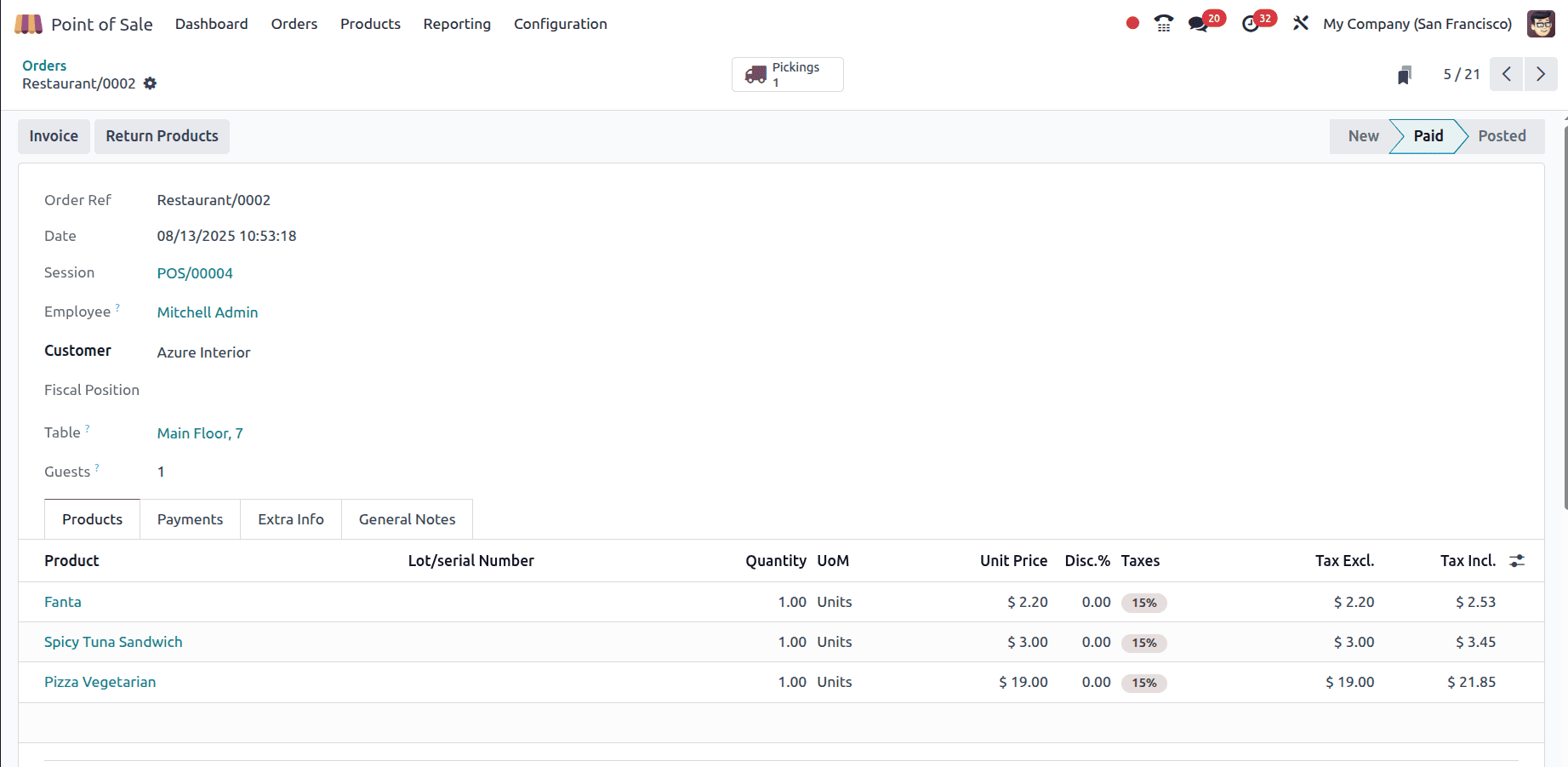
Products tab contains a list of all items sold on the order with the product name, the number of items sold, and the price per unit. The tab also shows any discounts that apply to the product, the tax, as well as the price that includes or excludes taxes. If the product is traceable, the lot/serial number is provided. In the bottom part, you can see the tax total, order total, and total paid amount after rounding and Margin.
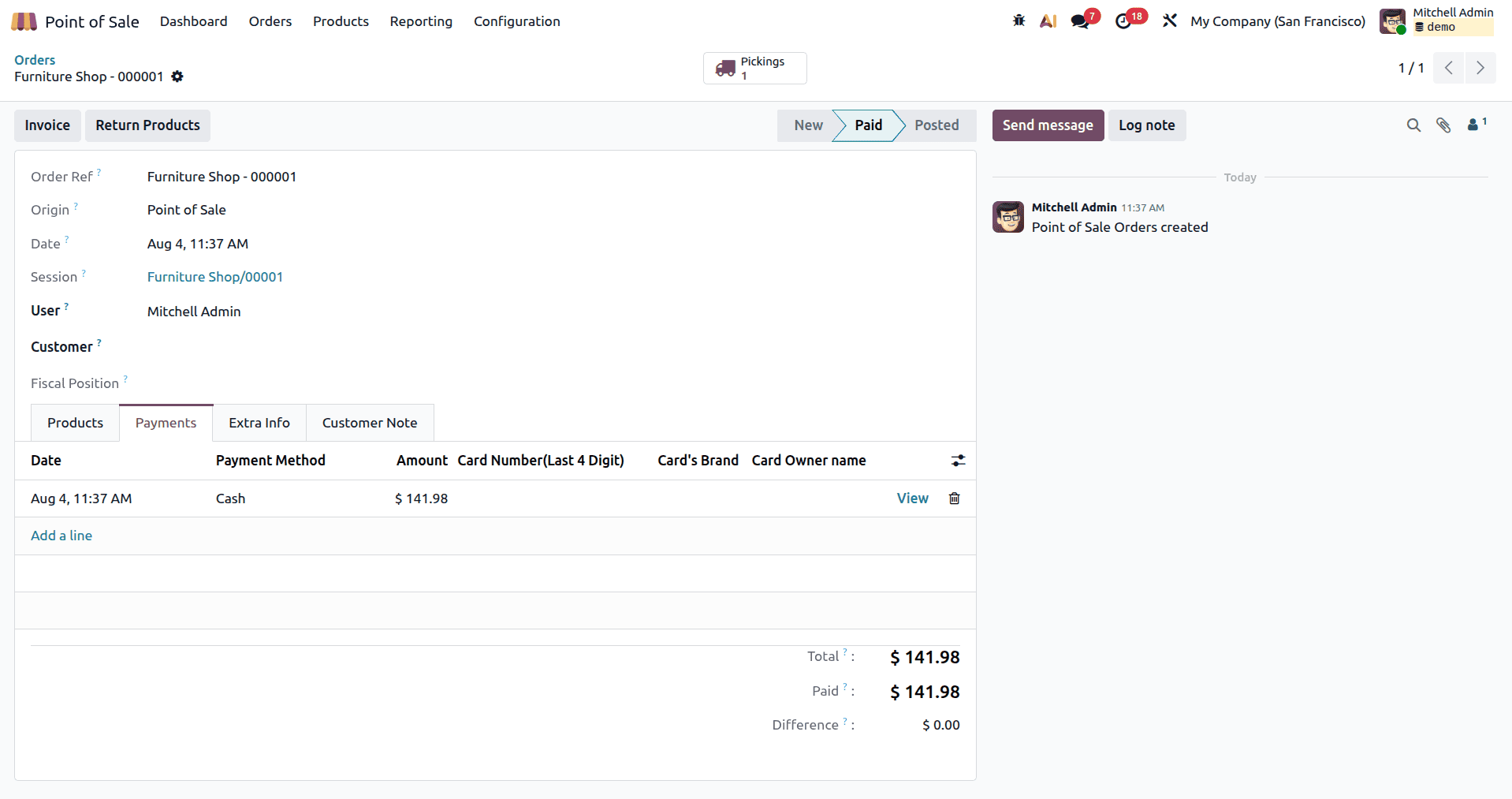
The Payments tab provides details about how each order was paid. It includes the payment date, amount collected, and the payment method used, such as cash, card, or customer account. It also displays the related order reference and the cashier responsible for processing the payment.
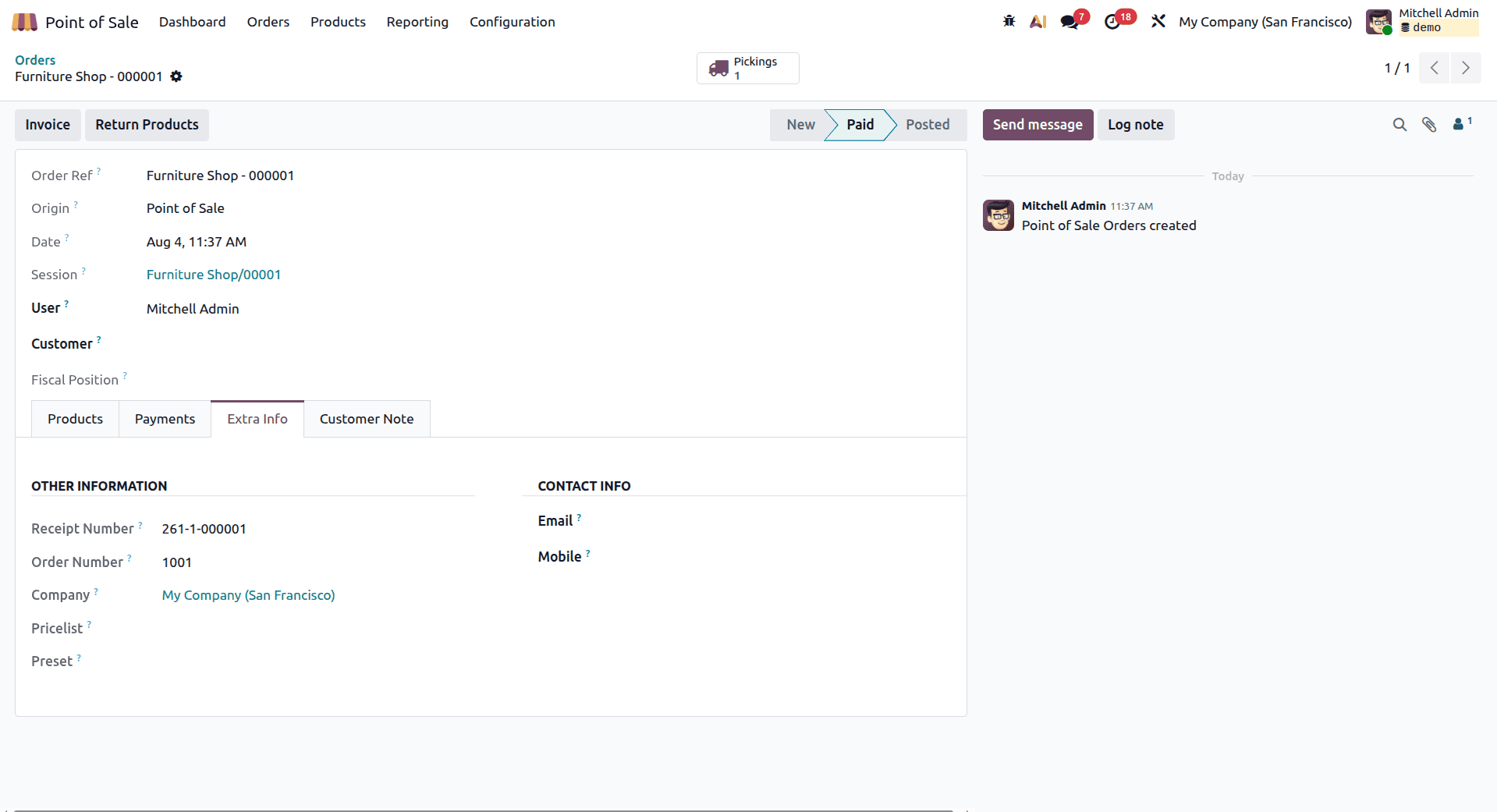
The Extra Info tab contains supplementary information that can be useful for internal tracking and order management. It displays details such as the Receipt Number, Order Number, Company, and the Pricelist used for the transaction.
The Contact Info section stores the customer's email address and mobile number, making it easier to contact them when needed. For orders received through integrations such as Urban Piper, the Online Order ID is also shown, allowing the PoS transaction to be traced back to its original online order.
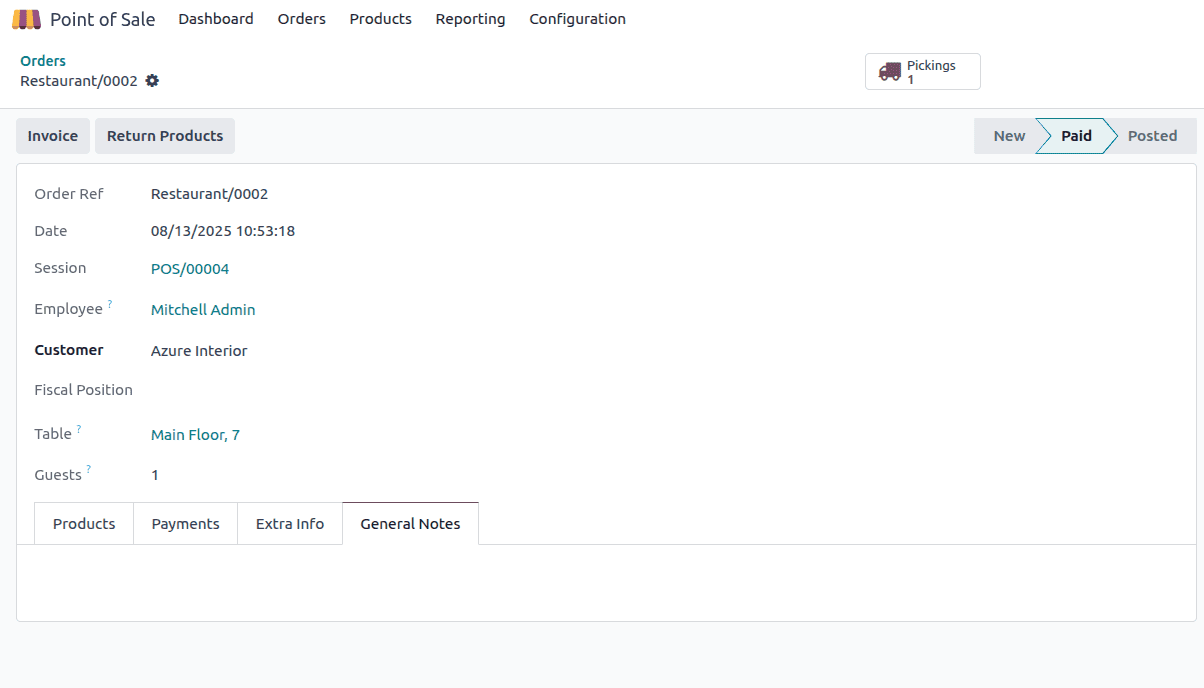
The Customer Notes tab allows users to add relevant comments or instructions associated with a PoS order. It can be used to record special customer requests, important observations, or internal notes for later reference.
The Pickings smart button in the PoS Order form provides quick access to the delivery order created for the transaction. This makes it easier to monitor stock movements and manage the fulfillment process.
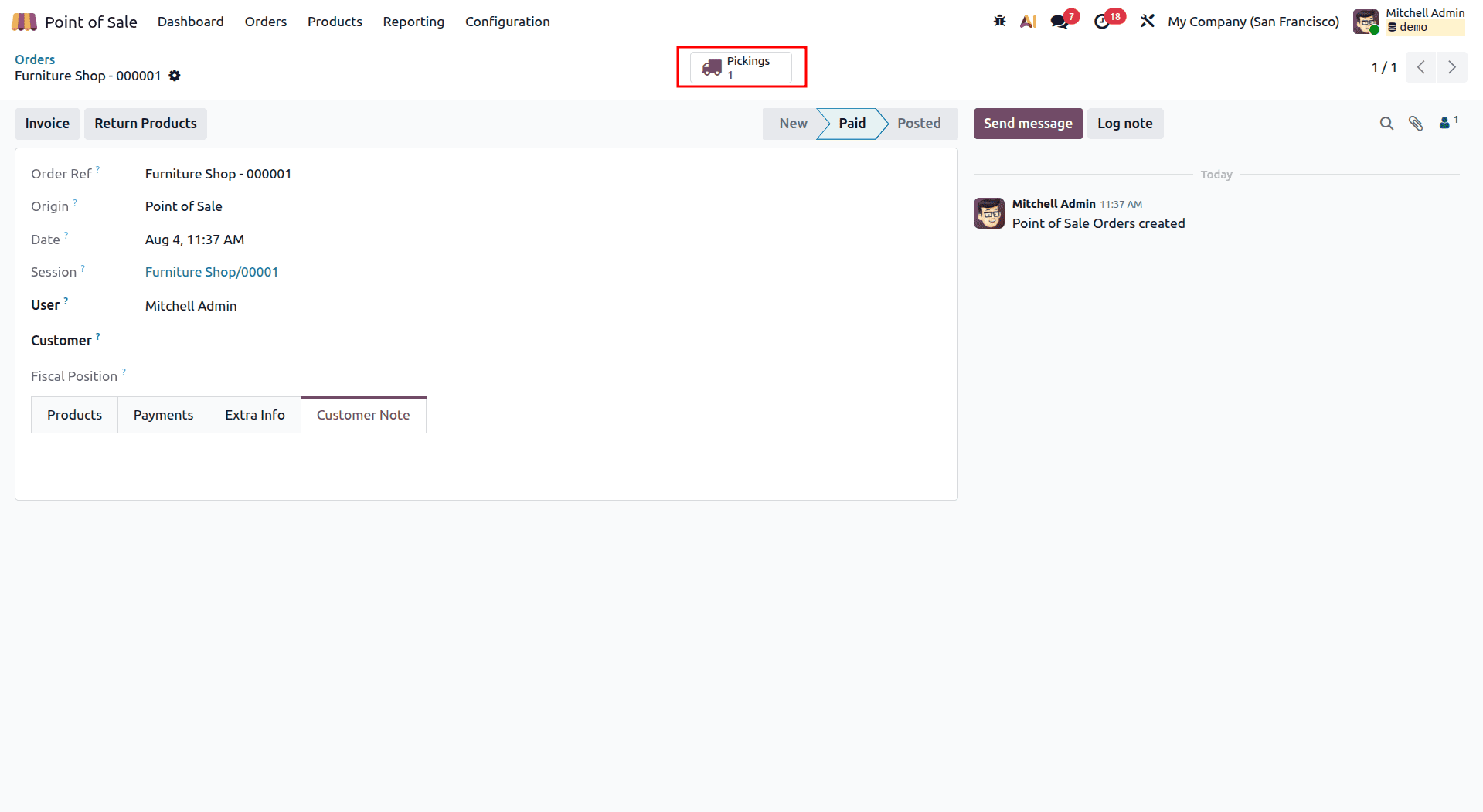
Upon clicking it, it opens the particular delivery order in the Inventory module, displaying the details of the products that have to be moved or delivered.
Sessions
As we have already analyzed the Orders menu, our next step in analysis will be to review Sessions. However, before proceeding to the menu itself, let’s first understand the meaning of a PoS session.
A session in Odoo is defined as a certain period in time when the Point of Sale system is operational, usually associated with the shift of a cashier or one day of work of the cashier. Every session opens up with the activation of PoS by the cashier and ends with its closing. In Odoo, all operations performed in that period of time are recorded: orders, payments, and balances.
To open all available sessions of the Point of Sale system, you should go to the Orders menu and choose the Sessions option. This opens a list of all open and closed PoS sessions, along with details such as the session ID, opening and closing dates, opening and closing balances, assigned user, current status, and theoretical closing balance.
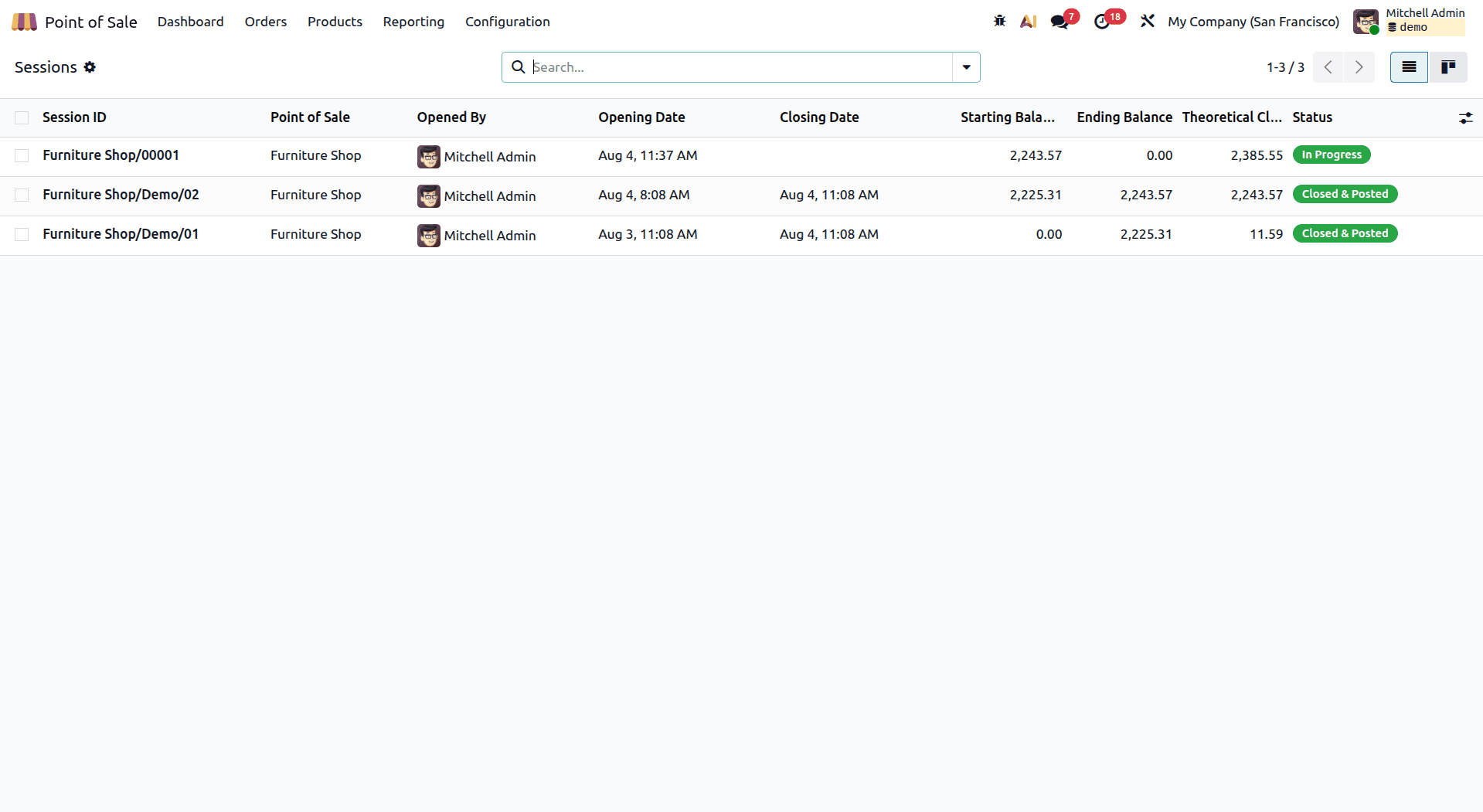
This list provides a brief overview of all the activities in PoS, thus helping us keep track of changes and manage the sessions properly.
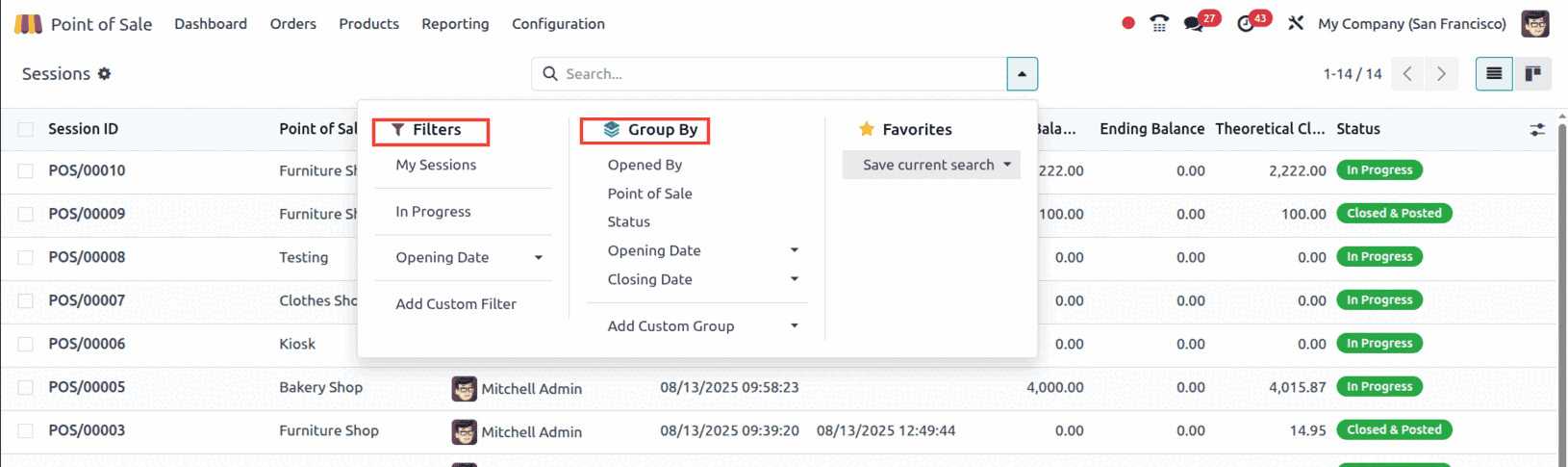
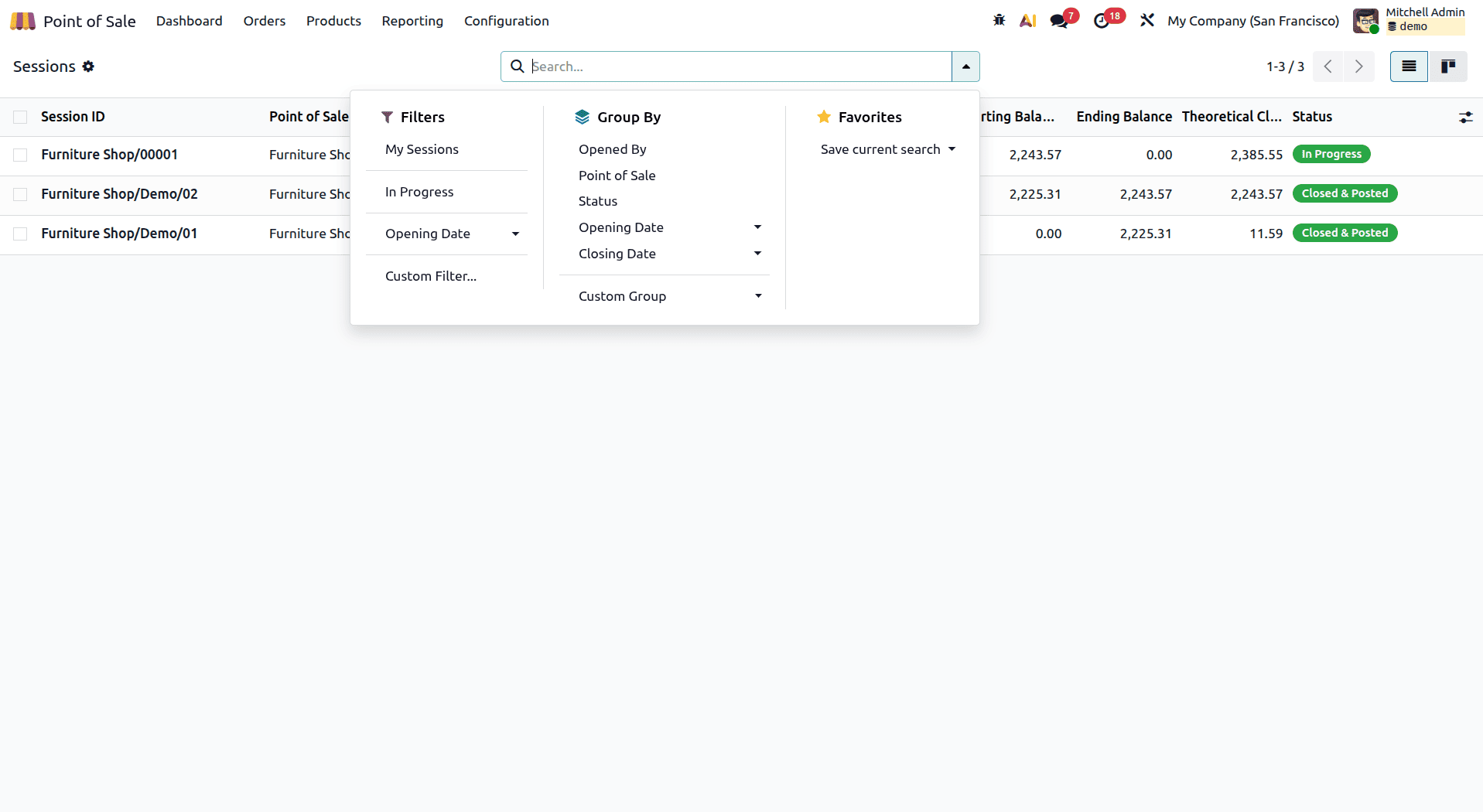
Similar to the Orders section, the Sessions page provides Filters and Group By options to organize and locate session records. You can use the search bar to filter sessions that are currently in progress, create custom filters based on specific requirements, or group sessions by Opened By, Status, Point of Sale, or other custom criteria.
In order to analyze a particular session in more detail, select the corresponding session.
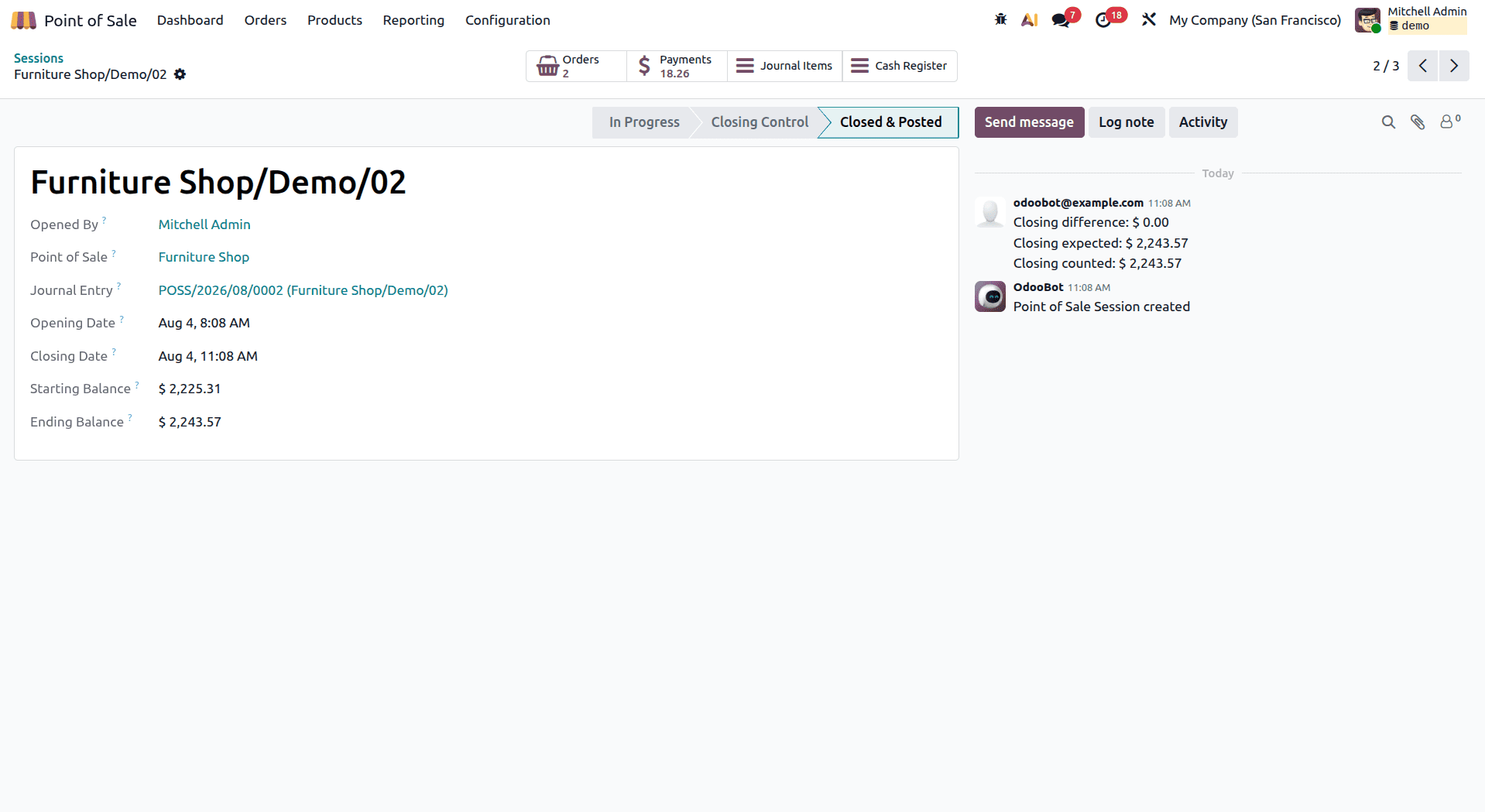
The template provides all necessary information about the session, such as who opened it, what Point of Sale settings have been utilized for the session, and the journal entry associated with the closure of the session. The dates of opening and closing of the session, the initial amount of cash, and the final amount after sales and payments are provided on the template. The status bar located in the upper right-hand corner indicates the stage of the session: whether the session is ongoing, under closing control, or fully closed and posted.
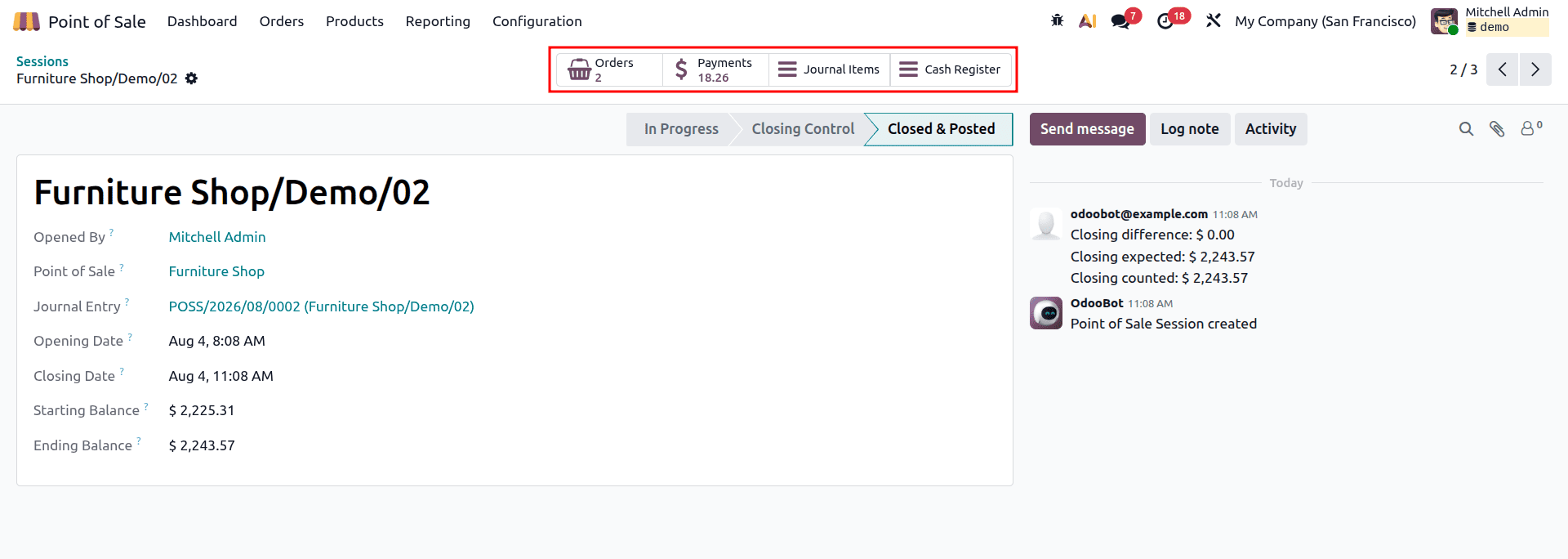
The first section contains Smart Buttons which allow accessing the related records easily, helping the users move around within the same page effortlessly. This way, the “Orders” button helps in accessing all POS orders placed within the session, whereas “Pickings” opens up the respective delivery orders created for stock transfers. Similarly, the “Payments” button allows viewing all the payment transactions done in the current session, whereas “Journal Items” helps in viewing the related accountancy records. “Cash Register” button helps in viewing all cash receipts and disbursements in the current session.
This kind of detail helps in session closing verification and cash reconciliation.
Payments
After discussing Orders and Sessions, the last part of our discussion will be the Payments menu. In the Payments menu, you will get a summary of the methods used to pay for each of the orders, either through cash, card, customer account, or any other payment method available in the system.
Access it by navigating to Orders and selecting Payments from there. You will then be presented with a list view containing all the payment transactions associated with a PoS order. The fields that are displayed in this list are the amount, payment mode, order reference, and the date.
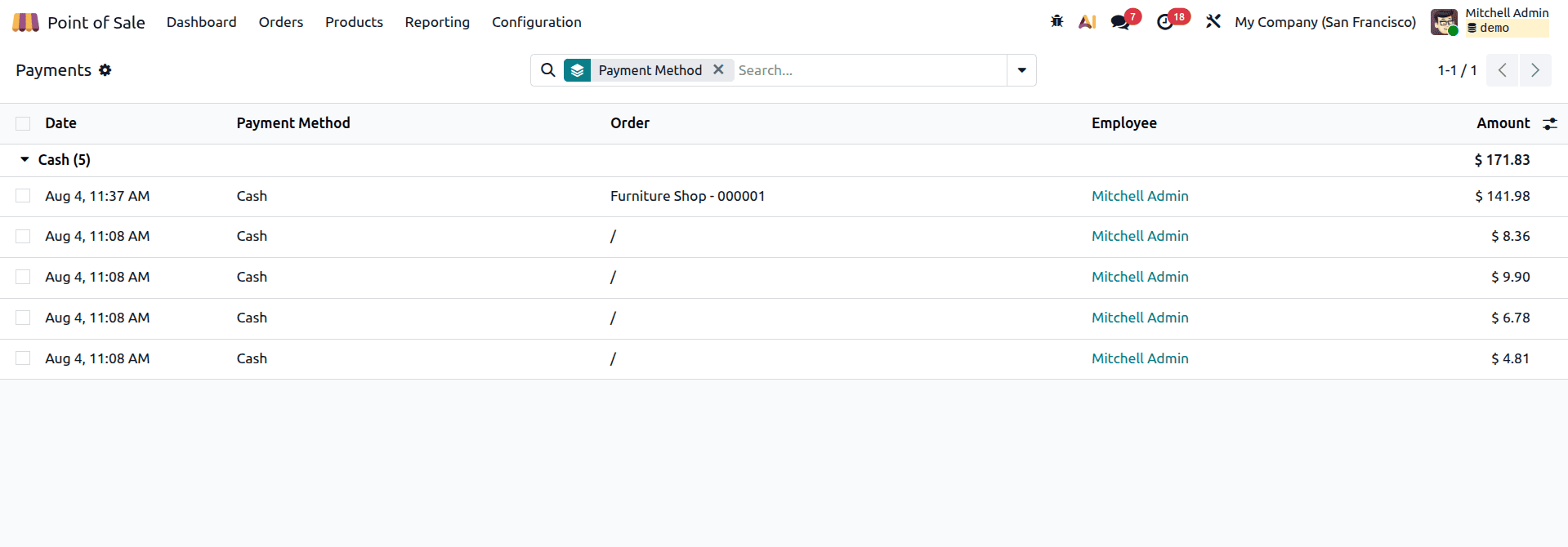
This screen shows information including date, payment method, order connected with the payment, cashier, and total amount.
It is evident that by default the payments are sorted according to the payment methods.
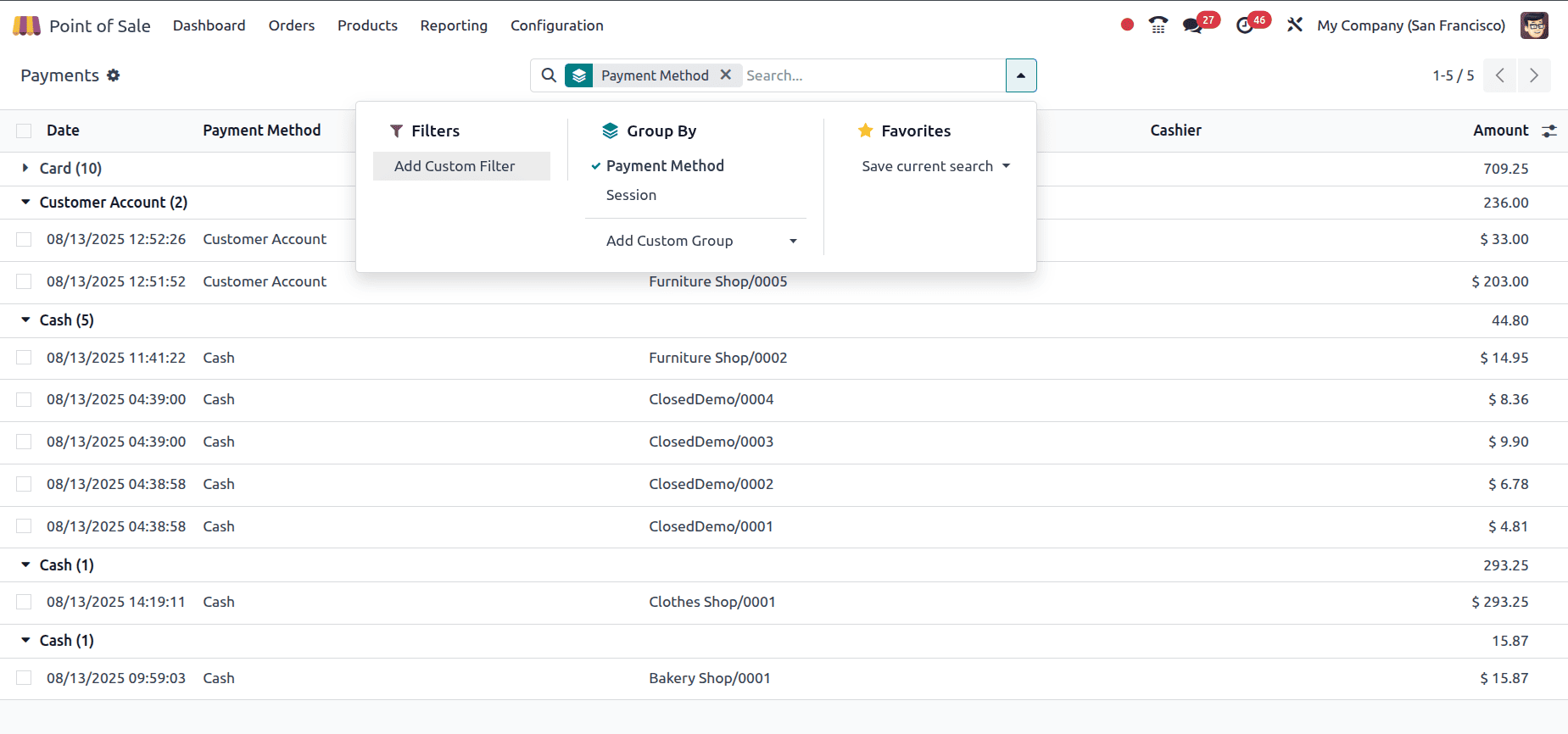
Payments may be classified to make them more organized, such as Payment Method or Session, thus enabling quick sales analysis. Filters give you the ability to set your own conditions to get more accurate results, while Favorites will enable you to save often used searches.
If you select one of the payments from the list, you’ll get to its detail page, which will provide information about the session, amount, payment method, and associated order.
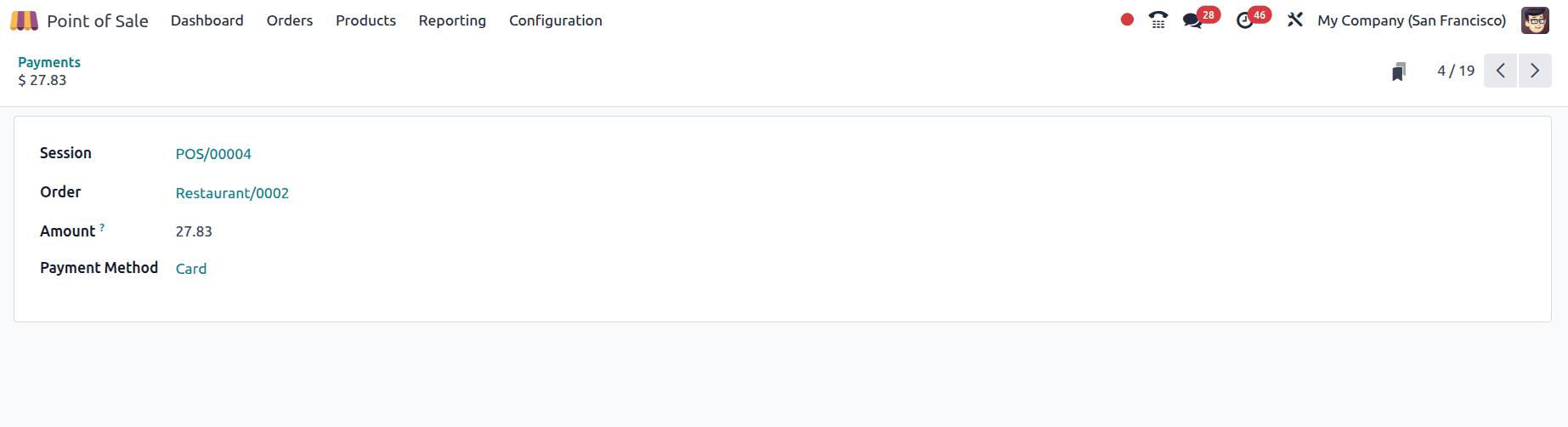
In the Payment form view in Odoo's Point of Sale, you will see comprehensive information about a particular payment in a well-organized structure. It gives you information about the particular Session where the payment was made, the corresponding Order number, the Amount of the payment, and the Payment Method used. This will enable users to trace a payment back to its source easily. The links provided by Odoo to both the session and the order make the process easy and accurate.
The Payments view completes the analysis loop by giving you complete visibility of how the particular payment is recorded.
Odoo 19's Point of Sale Module gives you a structured manner of analyzing sales activities through the backend system. With the help of the Orders, Sessions, and Payments menus available under the Orders menu, you can easily track transactions and analyze cashier performance, among others. If you are running a Retail Store, a Bar, or a Restaurant, you will find these features useful.
To read more about A Complete Guide to Odoo 19 Point of Sale Reports, refer to our blog A Complete Guide to Odoo 19 Point of Sale Reports.