Odoo 20 Appraisals lets managers request feedback from colleagues who have worked with an employee. This adds perspectives from people beyond the employee and manager, helping the appraisal reflect workplace relationships and collaboration. A manager can send requests from a confirmed appraisal, set a deadline, and review the responses as they arrive.
Configure the 360 Feedback survey
Before requesting peer feedback, choose a survey for the appraisal process. Open Appraisals > Configuration > 360 Feedback to view the available surveys.
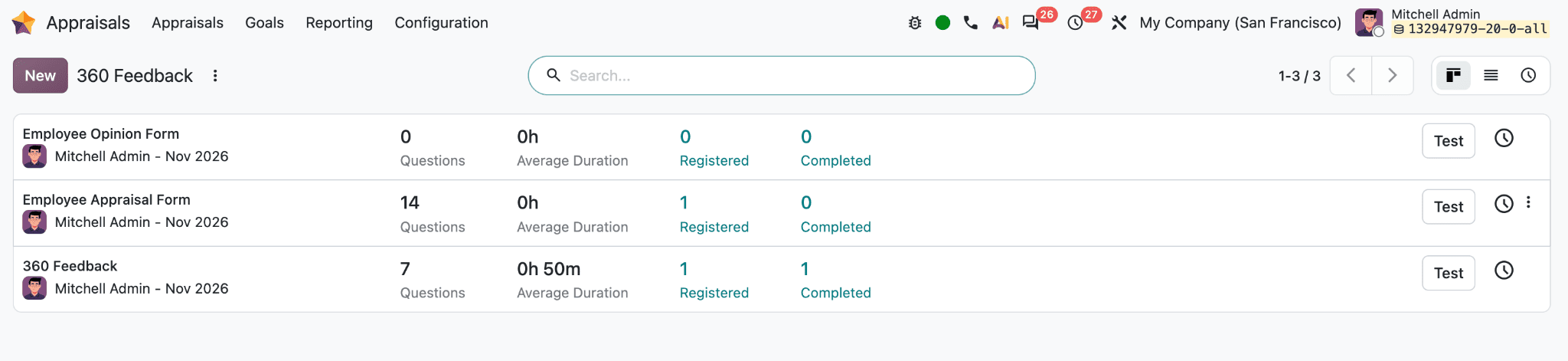
The dashboard shows each survey’s name and responsible person, along with the number of questions, average completion time, registered participants, and completed responses. Use Test to preview a survey.
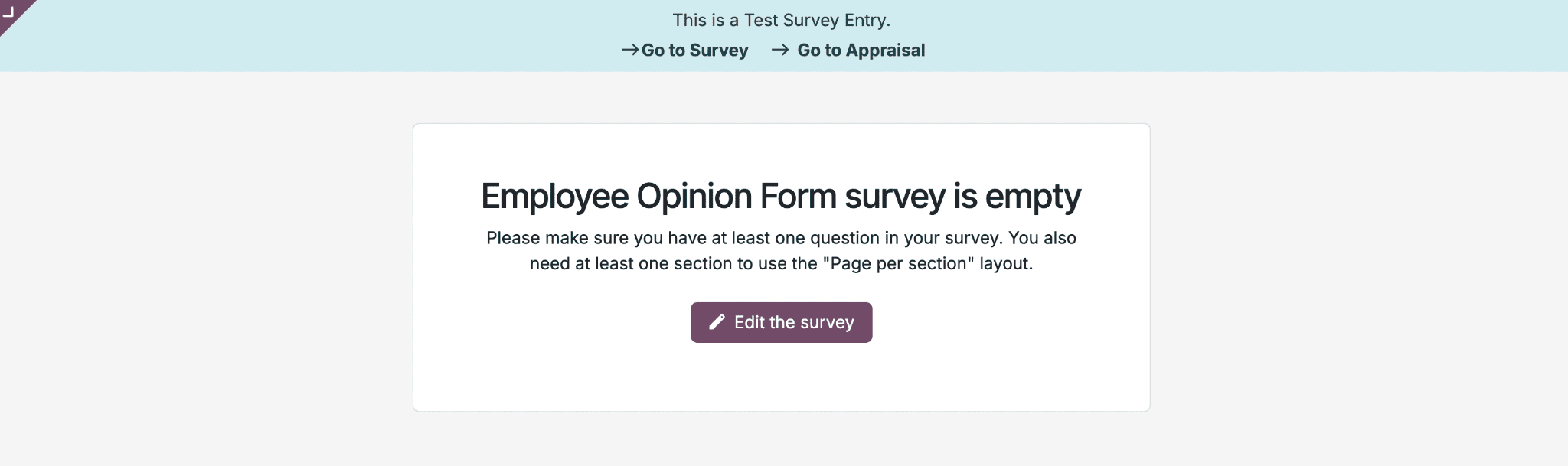
The preview opens in a new tab; close it to return to the dashboard. A survey with no questions cannot be completed, so add questions before using it for feedback.
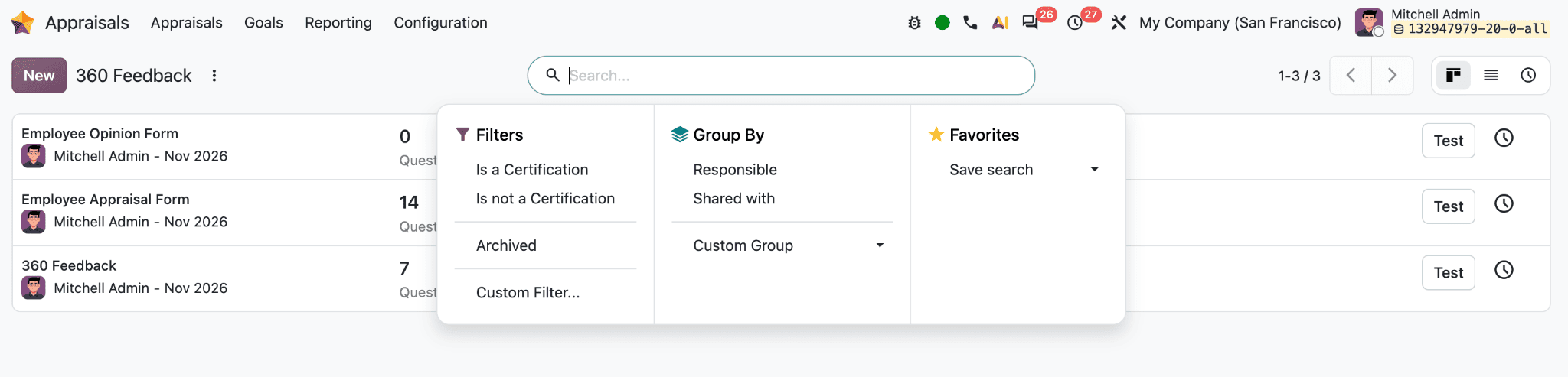
The search menu provides filters for surveys that are or are not certifications, archived surveys, and custom filters. Group By lets you organize the list by responsible person or by who the survey is shared with, and Custom Group offers another grouping choice. Under Favorites, Save search stores the current search setup for reuse.
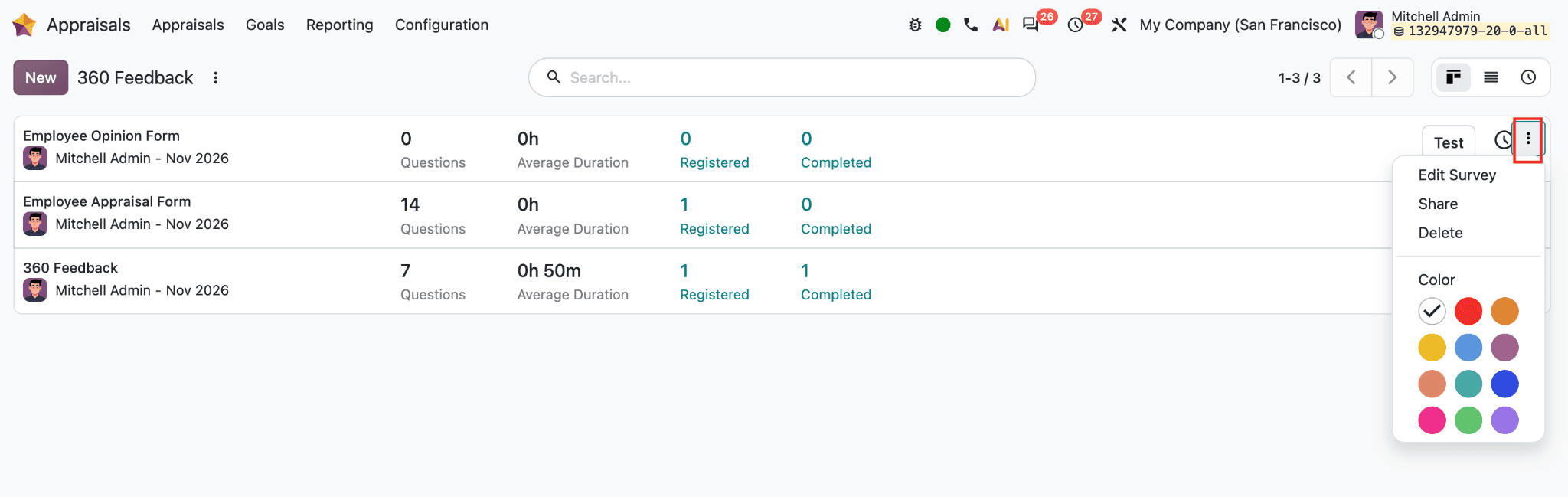
The three-dot menu at the end of a survey row opens actions for that survey. Edit Survey opens its form for changes, Share provides sharing options, and Delete removes the survey. The Color palette lets you assign a color to the survey card for visual organization.
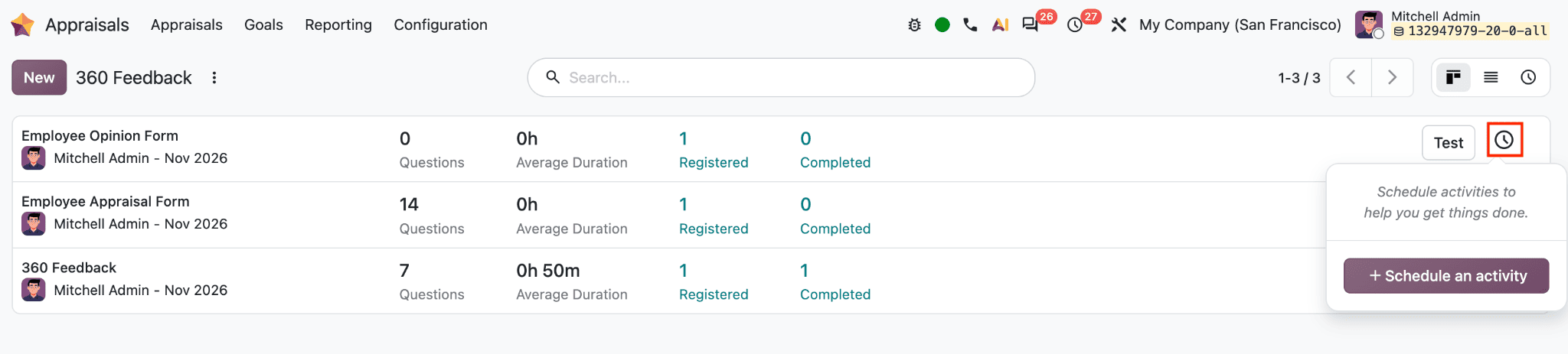
The clock icon on a survey row opens its activity panel. From there, Schedule an activity lets you plan a follow-up task related to that survey, such as reviewing responses or checking on completion.
Select a survey to open its form or click on the New button to create a new one.
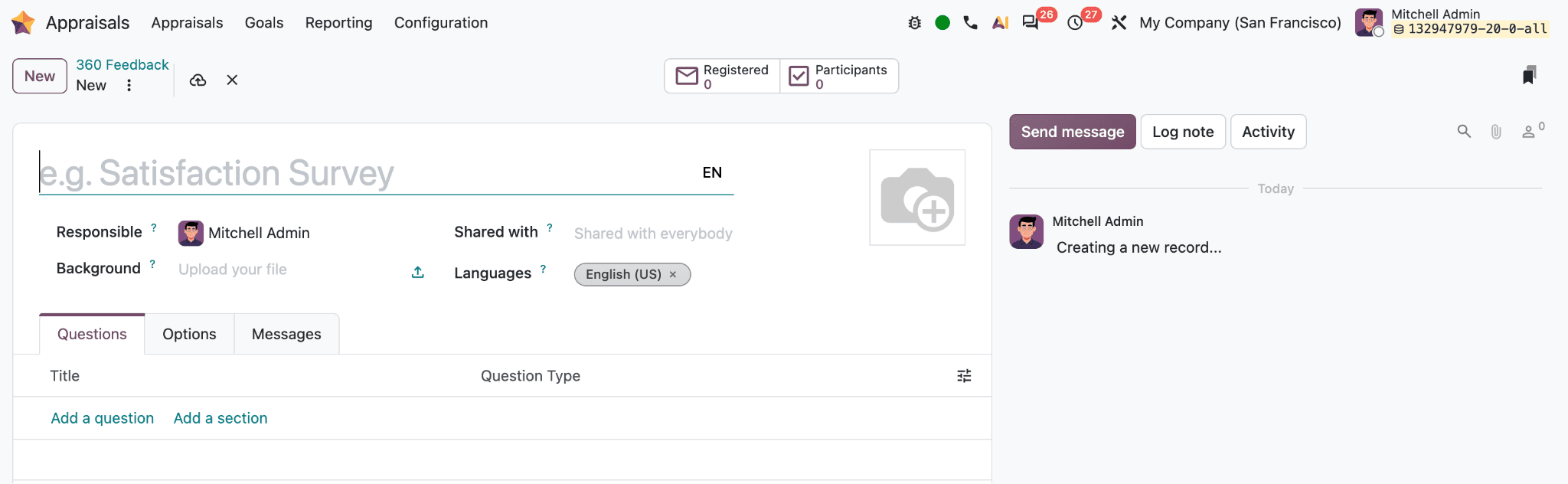
The form’s title identifies the survey, while Responsible shows who manages it. Shared with controls who can access it, and Background lets you upload an image for the survey. Languages indicates the languages in which it is available. The Questions tab is where you build the survey. Add sections to organize related questions, then add questions within those sections.
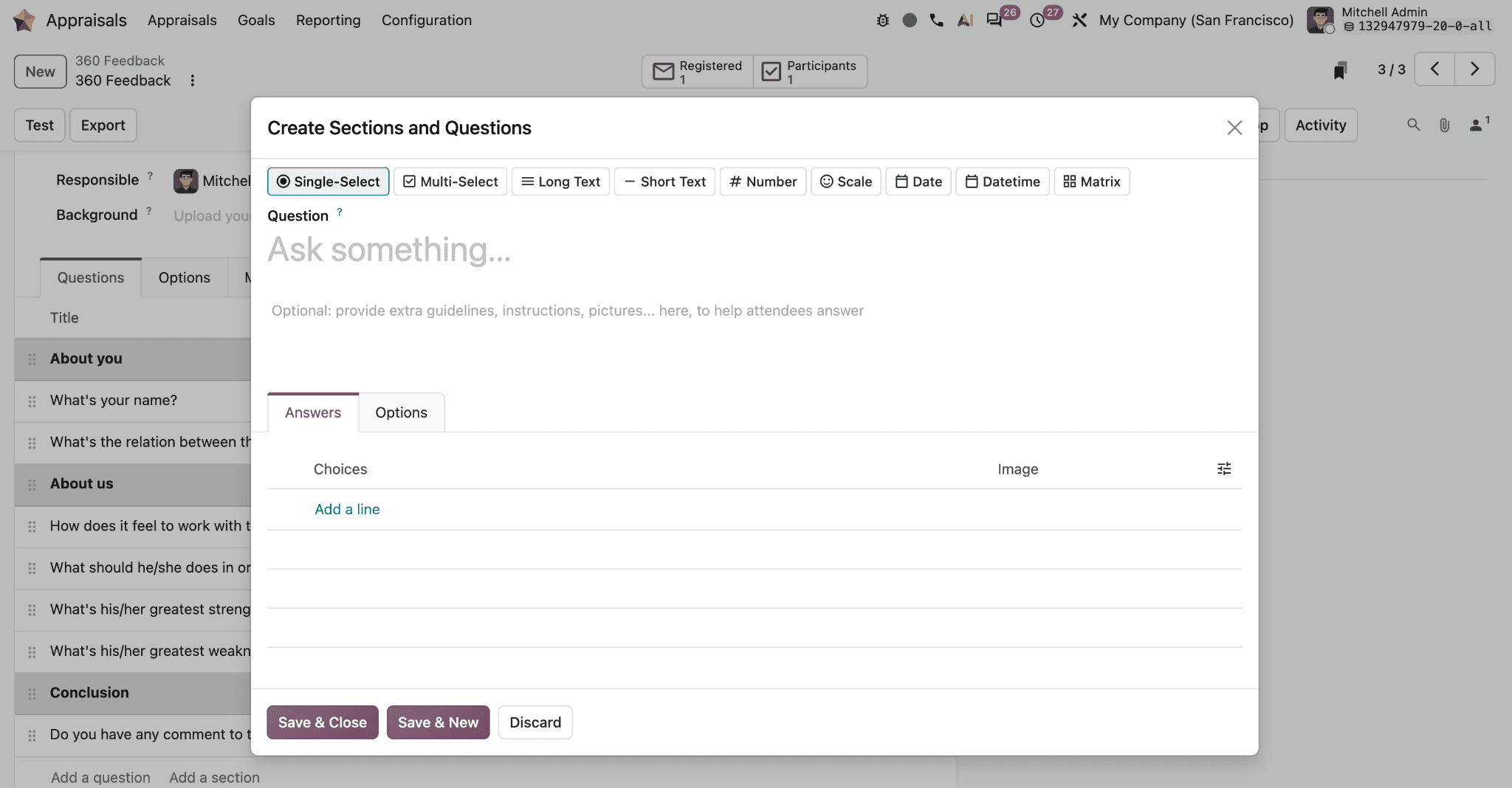
The question editor offers several response formats: Single-Select for one choice, Multi-Select for several choices, Long Text and Short Text for written answers, Number for numeric responses, Scale for ratings, Date and Datetime for date entries, and Matrix for answers arranged in a grid. In the question editor, enter the question and, if useful, add guidance or instructions. Depending on the question type, you can configure answer choices, allow a comments field, set a mandatory answer, or use triggering answers to control conditional display. Save & Close saves the question and returns to the survey, Save & New saves it and opens another question, and Discard closes the editor without saving the current changes.
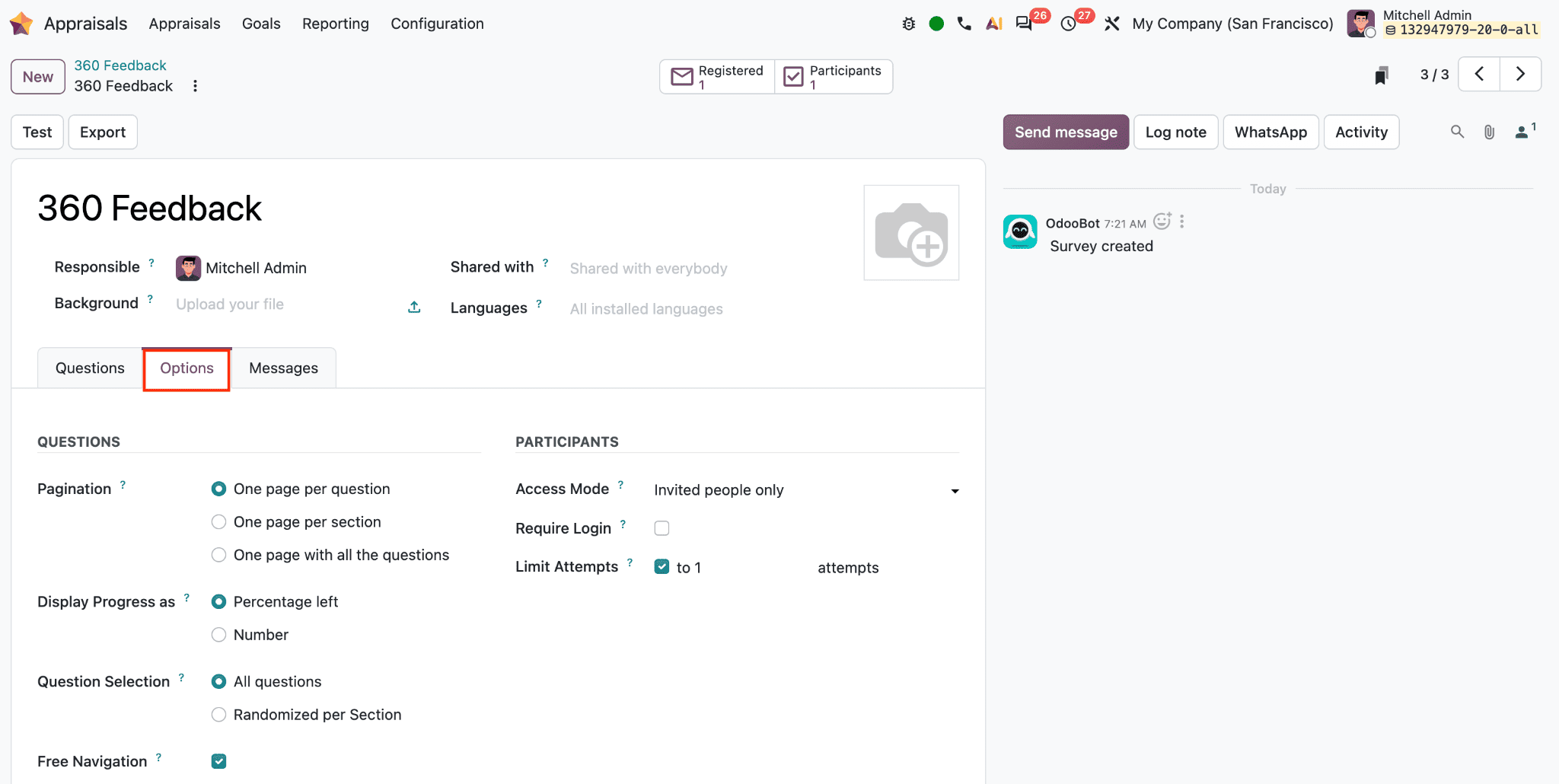
The Options tab controls how participants move through the survey and who can access it. Pagination sets whether questions appear one per page, one section per page, or together on a single page. Display Progress as shows progress as a percentage or a question count, while Question Selection determines whether participants see all questions or receive questions randomized by section. Free Navigation lets participants move through the survey freely. Under Participants, Access Mode determines who can open the survey; the screenshot shows Invited people only. Require Login can require participants to sign in, and Limit Attempts can restrict how many times they submit responses.
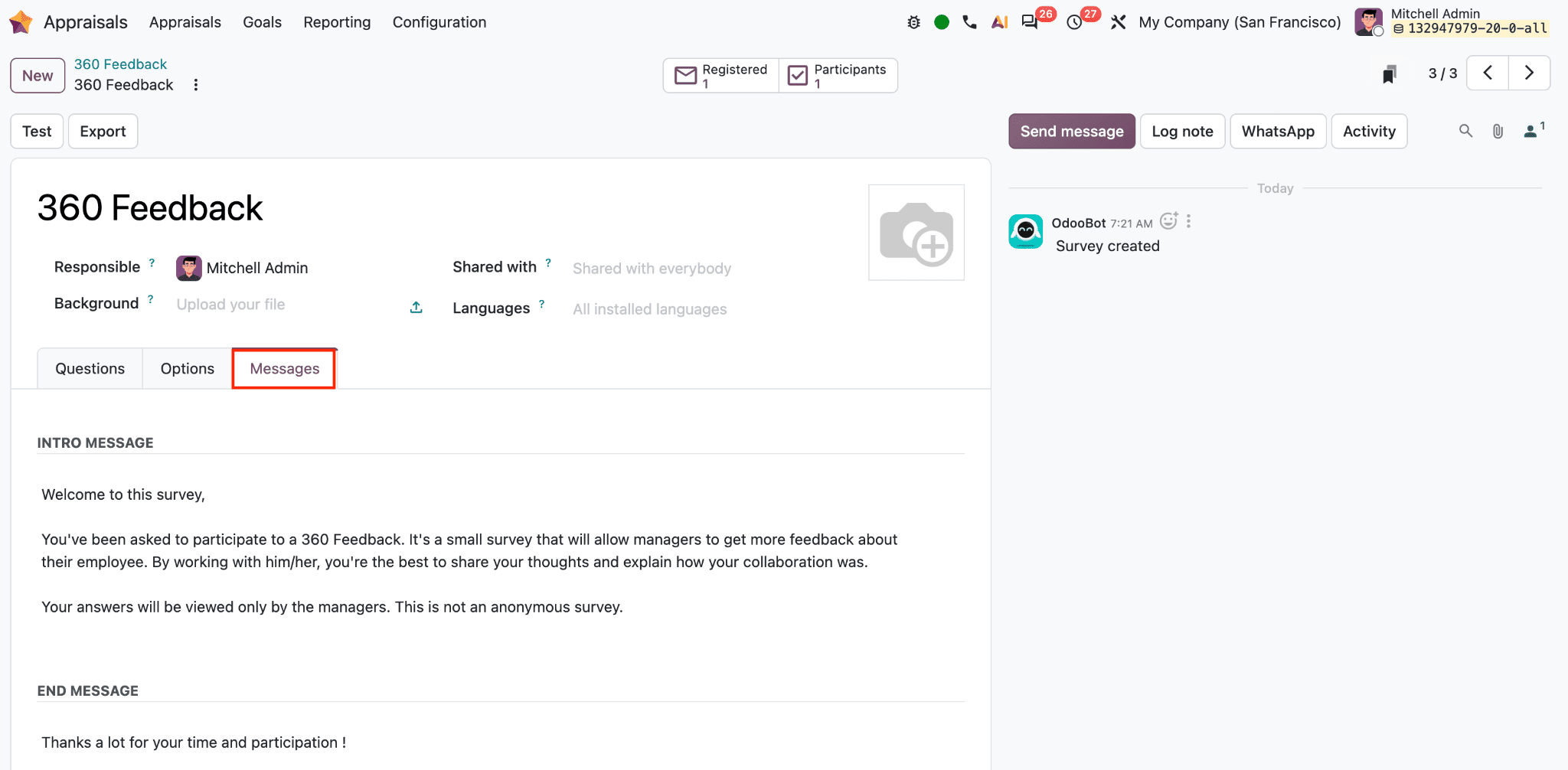
The Messages tab contains the introductory and closing text shown to participants. The introduction can explain why they were invited and how their answers will be used. The closing message appears after they finish. Review this wording alongside the access settings so participants understand who will see their responses. The survey form also includes Send message, Log note, WhatsApp, and Activity controls in the communication panel for coordinating work related to the survey.
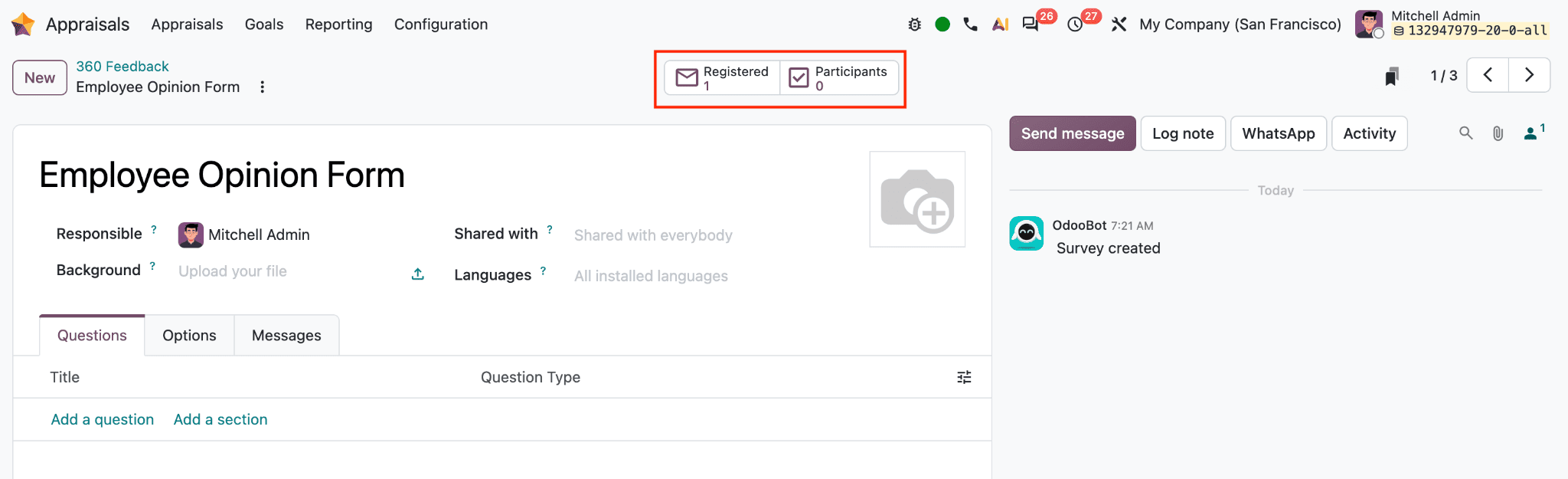
The Registered and Participants smart buttons show how many people have been invited and how many have taken part.
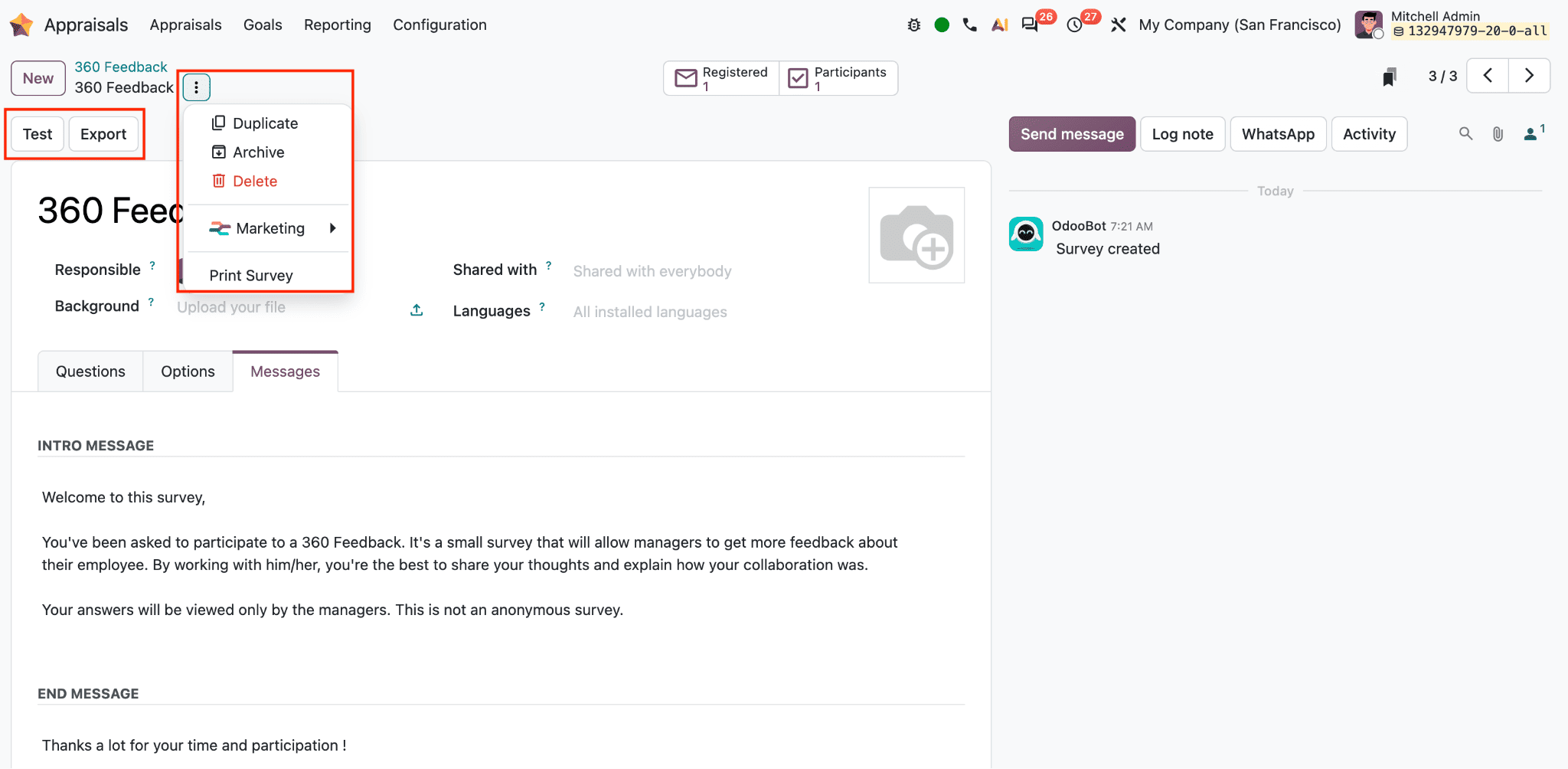
The Test button previews the survey, and Export provides an export option. The form’s action menu includes options to duplicate, archive, delete, share, set a color, or print the survey. The activity icon can be used to schedule an activity related to the survey.
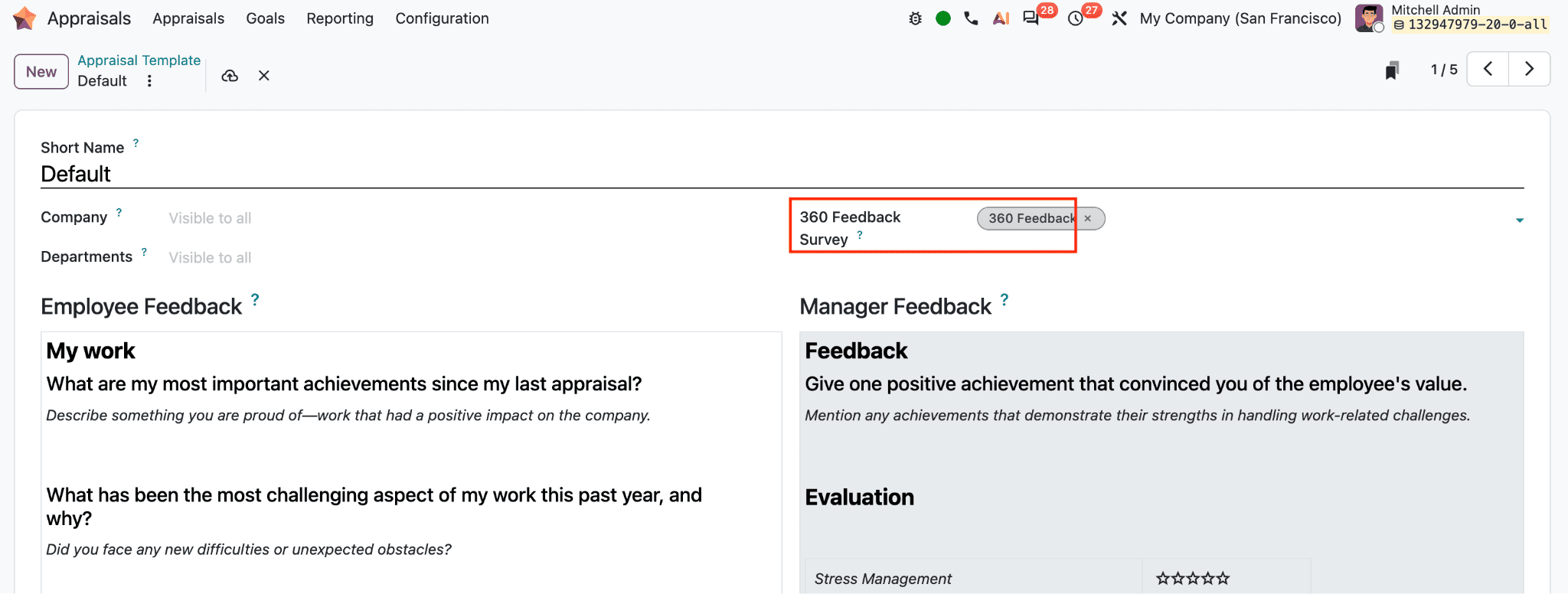
To make the survey available for appraisals, select it in the appraisal template’s 360 Feedback Survey field. This links the survey to appraisal records so the manager can select it when requesting feedback.
Request Feedback from Colleagues
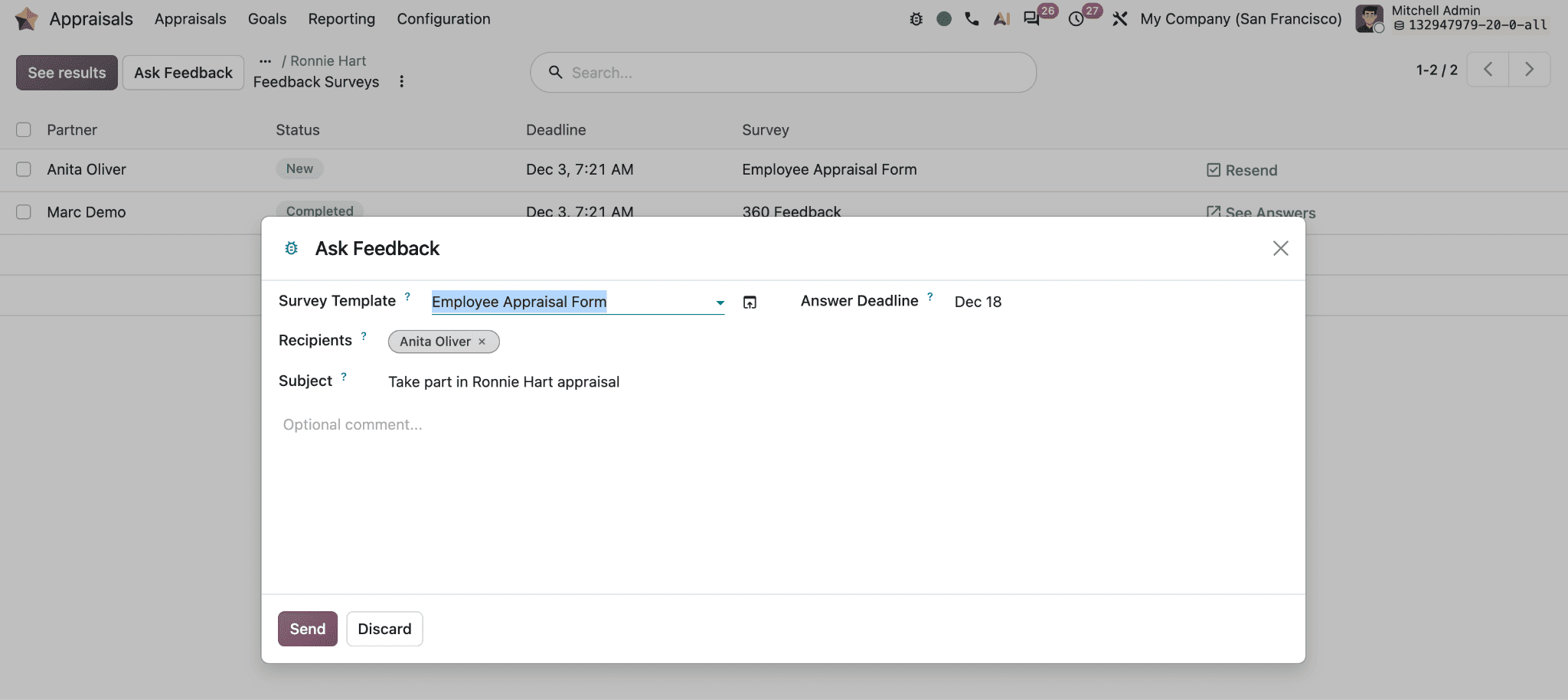
Open the employee’s appraisal and select Ask Feedback.
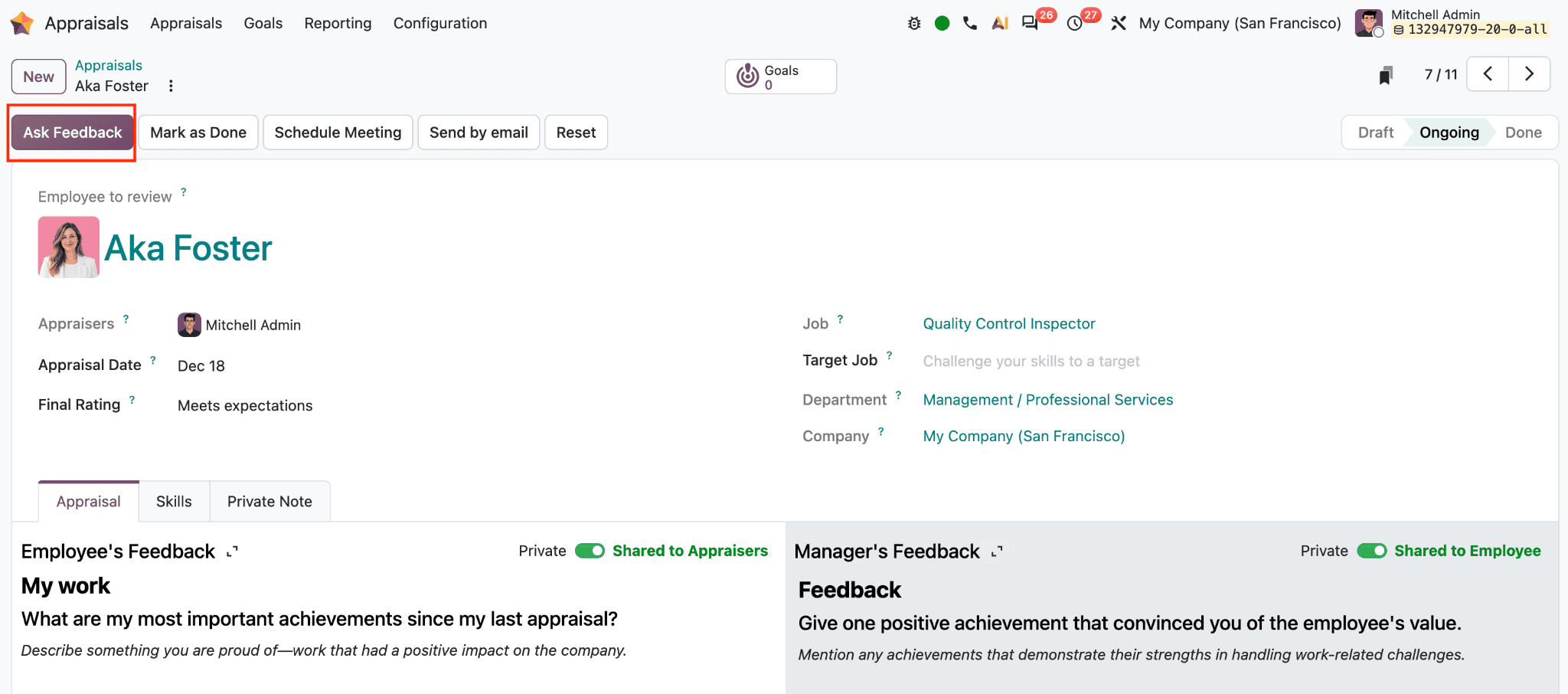
This option is available once the appraisal is confirmed.
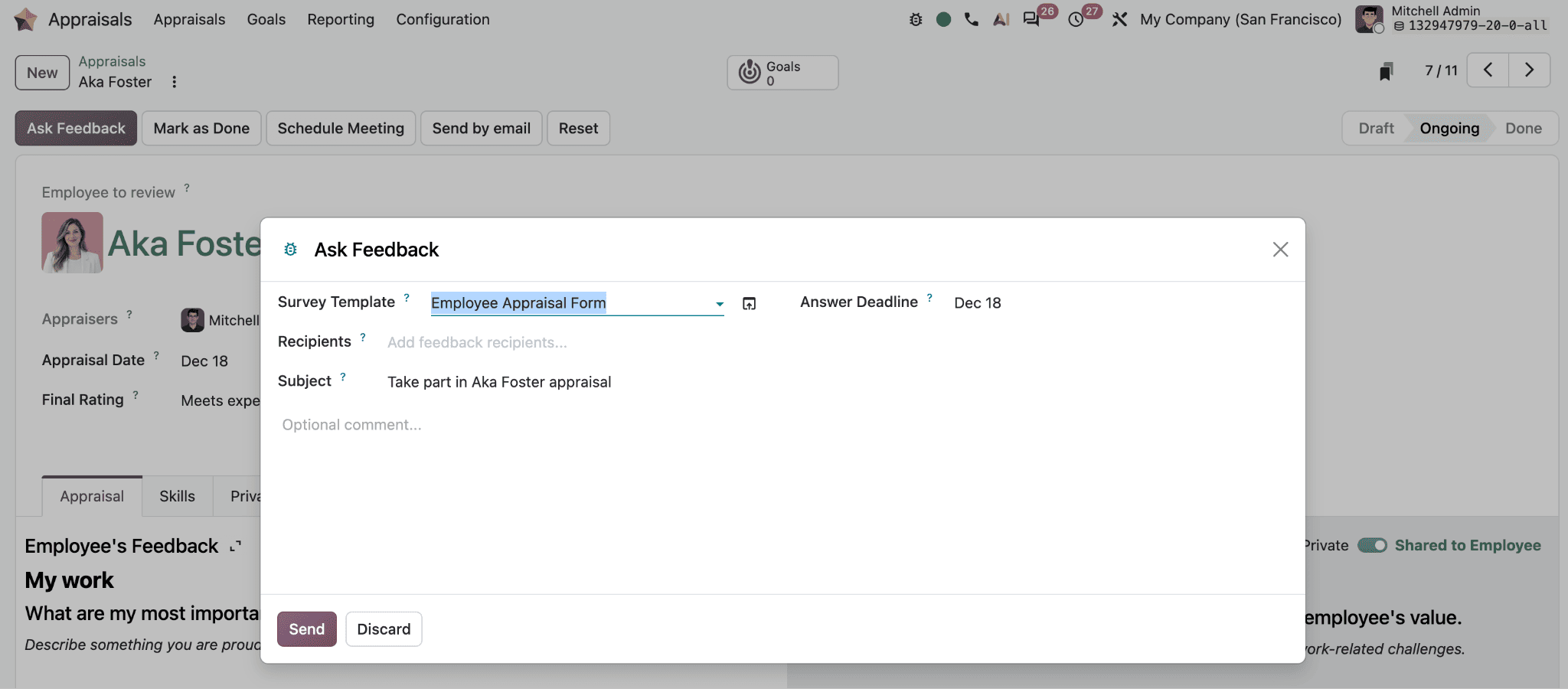
The Ask Feedback window contains a Survey Template field for choosing the questionnaire, a Recipients field for selecting one or more colleagues, and an Answer Deadline field. The deadline is initially set to the appraisal’s due date and can be changed. The Subject is prefilled with a request to take part in the employee’s appraisal, but can be edited. Add an optional comment if needed, then select Send to issue the requests. Discard closes the window without sending them.
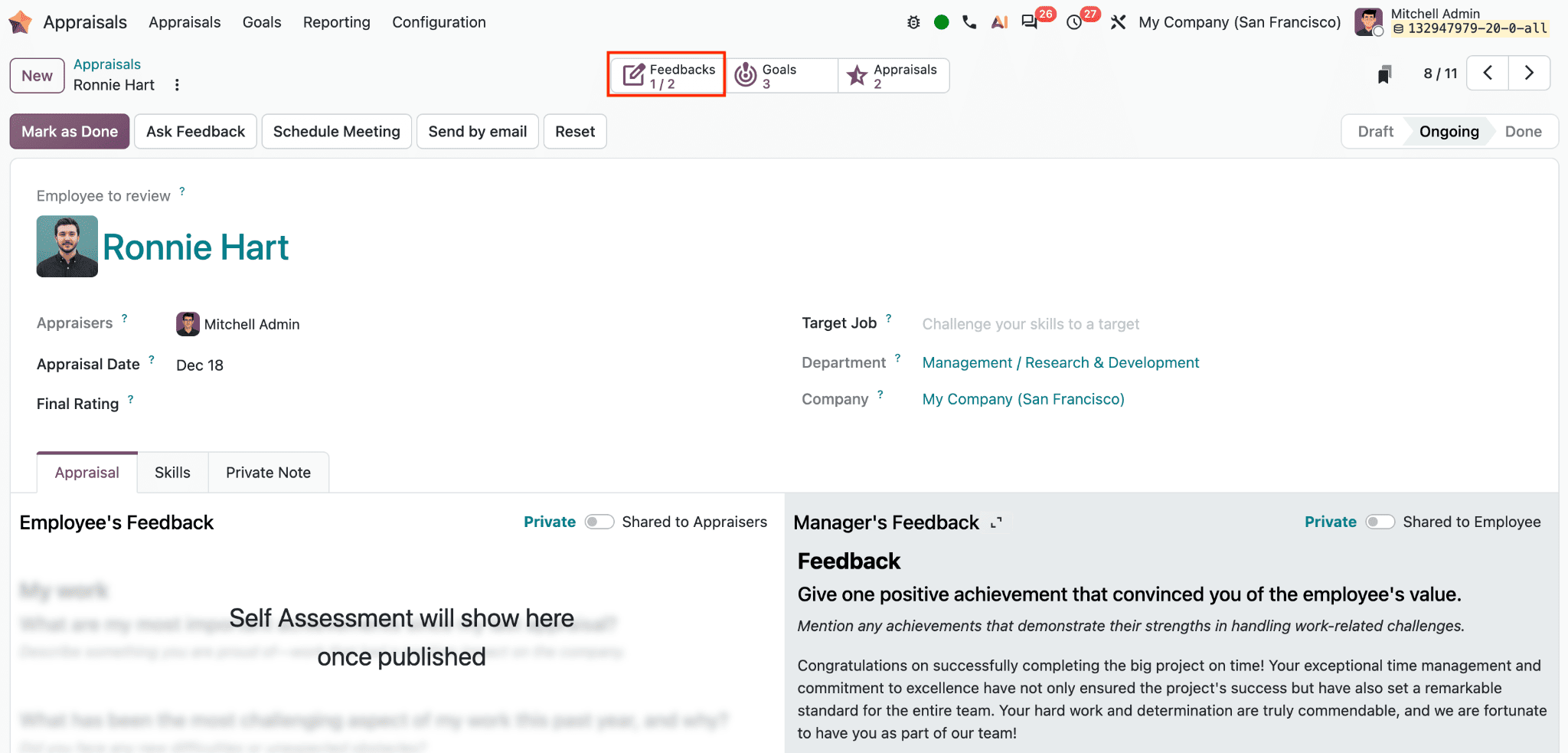
If a different survey is needed later, use the Survey Template selector in the wizard. From the appraisal’s Feedbacks smart button, the manager can open the Feedback Surveys list to track requests.
View Feedback and Survey Results
The Feedback Surveys list shows the people asked to respond, each request’s status, its deadline, and the survey assigned to it.
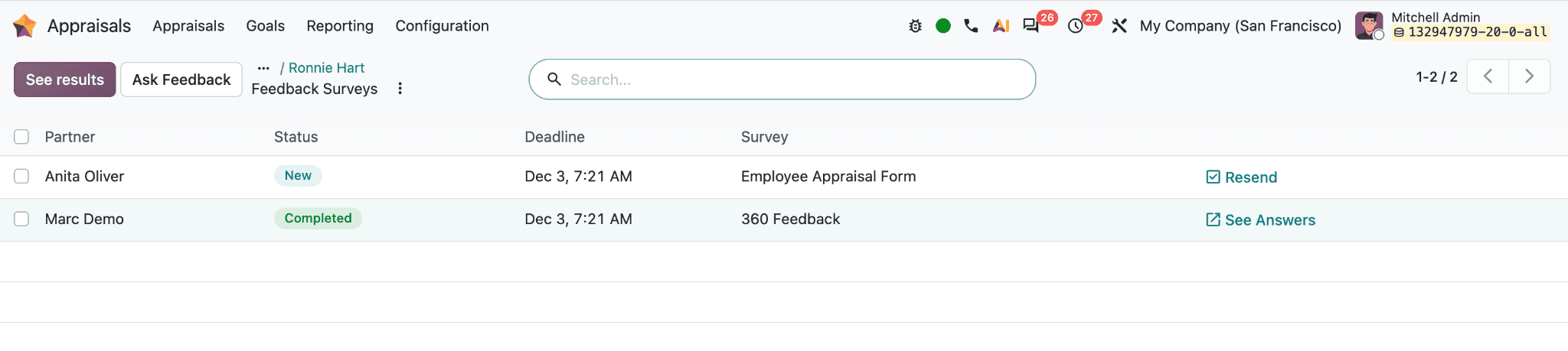
A New status means the request has been sent but the recipient has not completed it. A Completed status means a response has been submitted. For a new request, select Resend to reopen the feedback window and send the invitation again.
For a completed request, select See Answers to view that person’s responses.
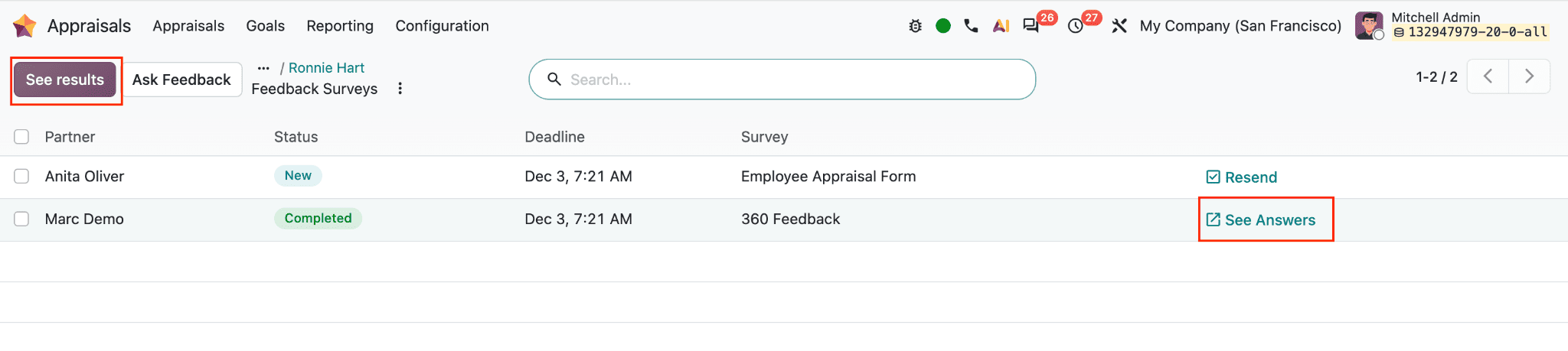
To view the combined results for a survey, select See results.
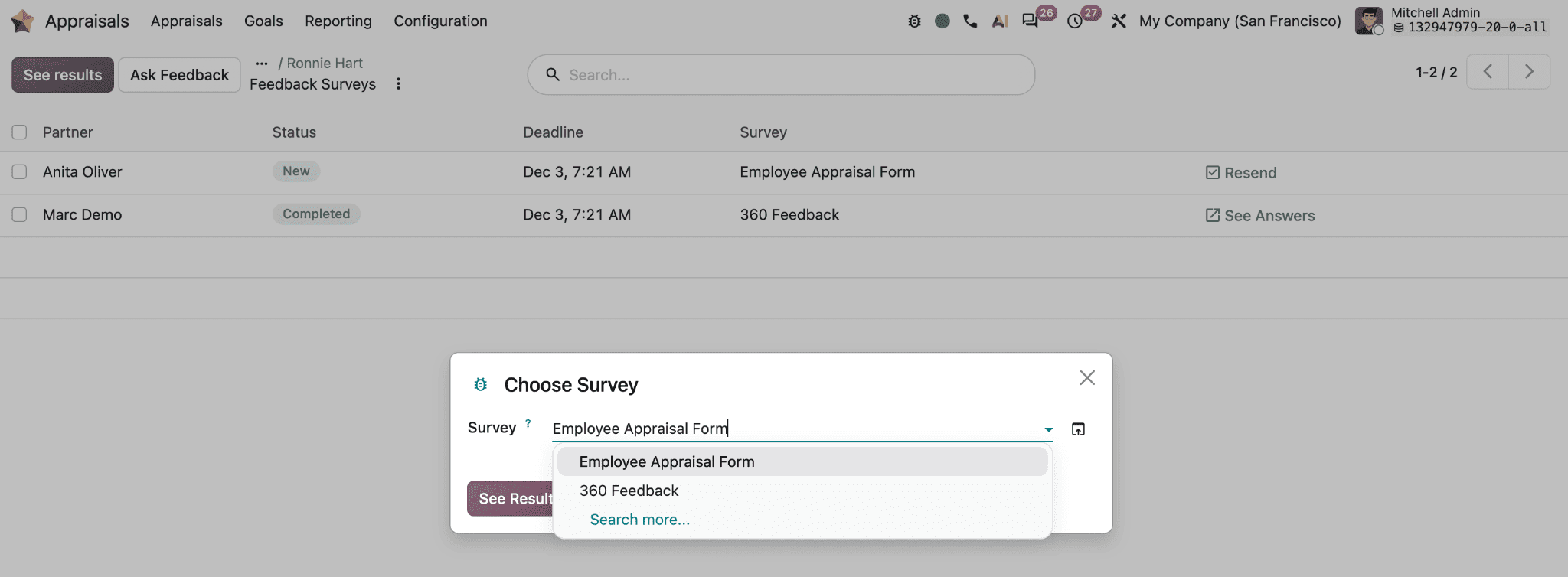
The Choose Survey window contains a Survey field; choose the 360 Feedback survey and select See Results.
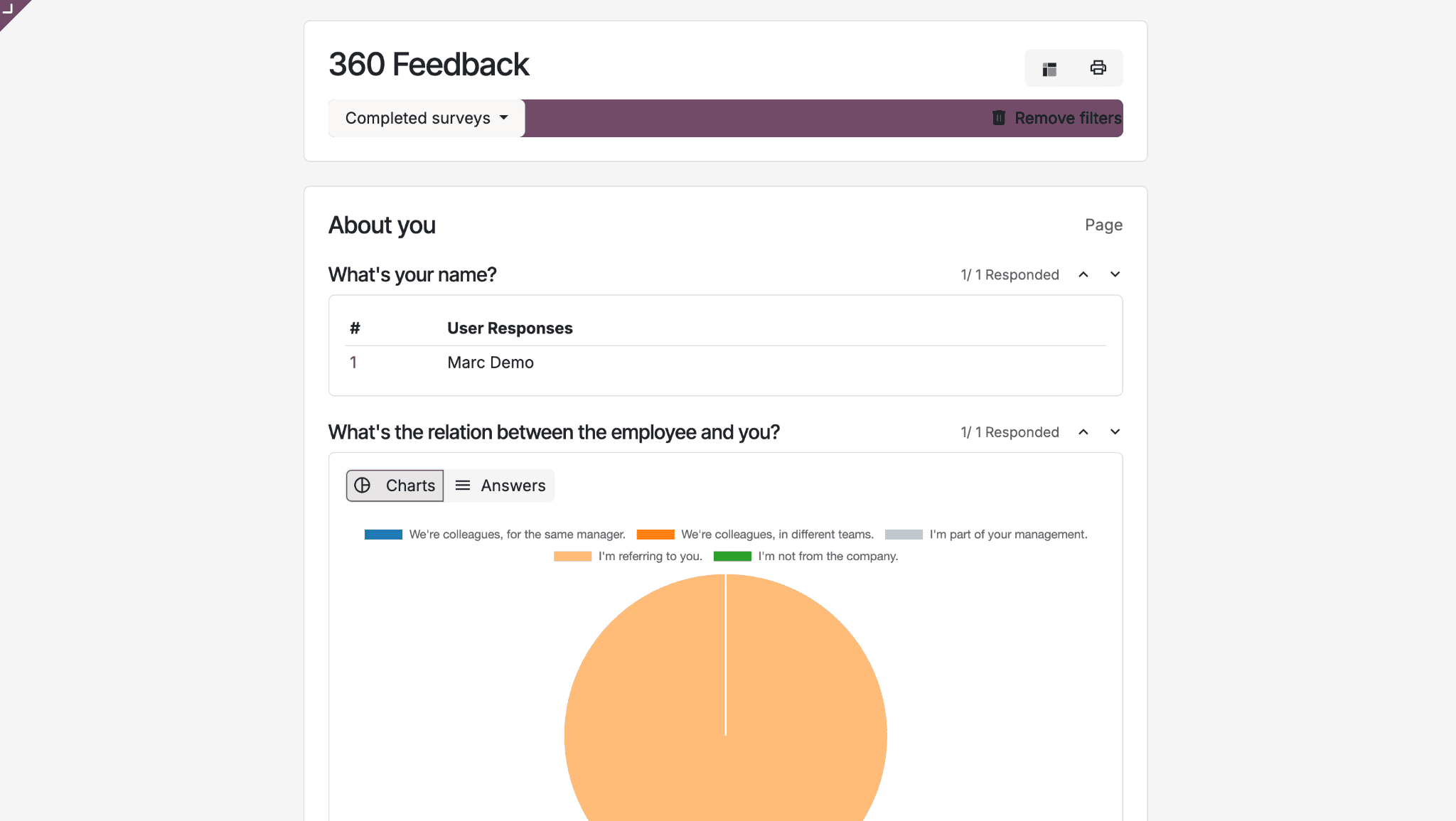
Odoo opens the results in a separate page, where responses are organized by question. Depending on the question type, results may appear as charts or as individual answers. The results page also provides a filter for completed surveys, a Remove filters control, and options to change the display or print the report. Open a question’s answer view to inspect the recorded responses and respondent information.
Together, the request list, individual answers, and survey results let managers follow completion and review feedback at both the individual and group level. The appraisal can then draw on the colleagues’ observations during the performance conversation.
To read more about Introduction to the Appraisals Module in Odoo 19, refer to our blog Introduction to the Appraisals Module in Odoo 19.