Selling an eBook, a pack of templates, or a PDF manual involves neither inventory nor shipping. All you must do is ensure the customer receives their file upon payment. Since the Odoo eCommerce application is capable of doing that, you won't have to implement any extra modules.
This blog relies on the default Website and eCommerce applications. The fields mentioned here are available in the Odoo 19.0 documentation. As there is no page about this particular feature in the Odoo 20.0 documentation yet, be sure to check everything before posting it.
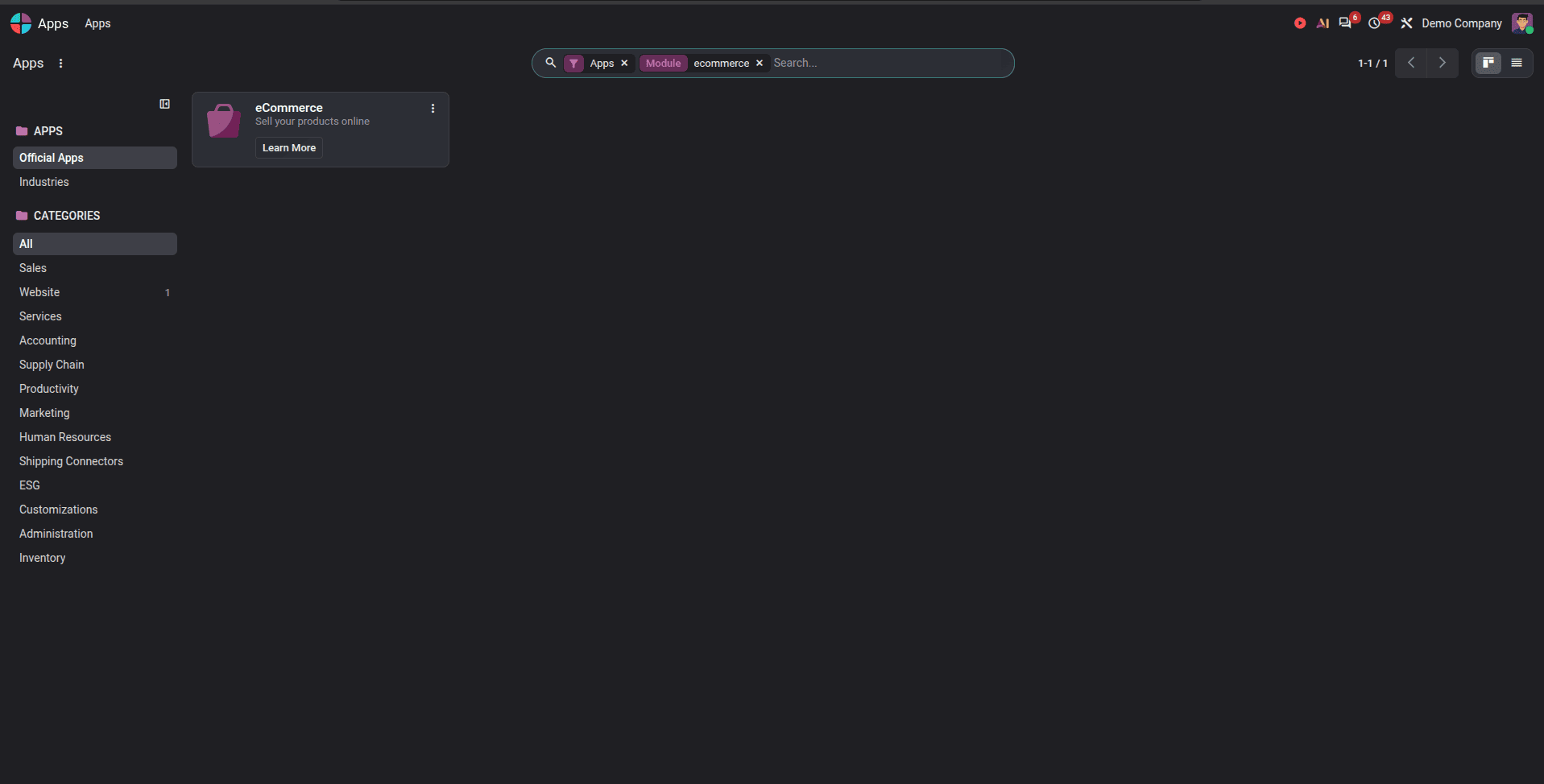
Step 1: Install eCommerce
Navigate to Apps and install eCommerce (website_sale). This module includes Website, Sales, and Invoicing. Configure at least one payment provider under Website > Configuration > Payment Providers; otherwise, there won’t be any means to pay during checkout.
Step 2: Create the product
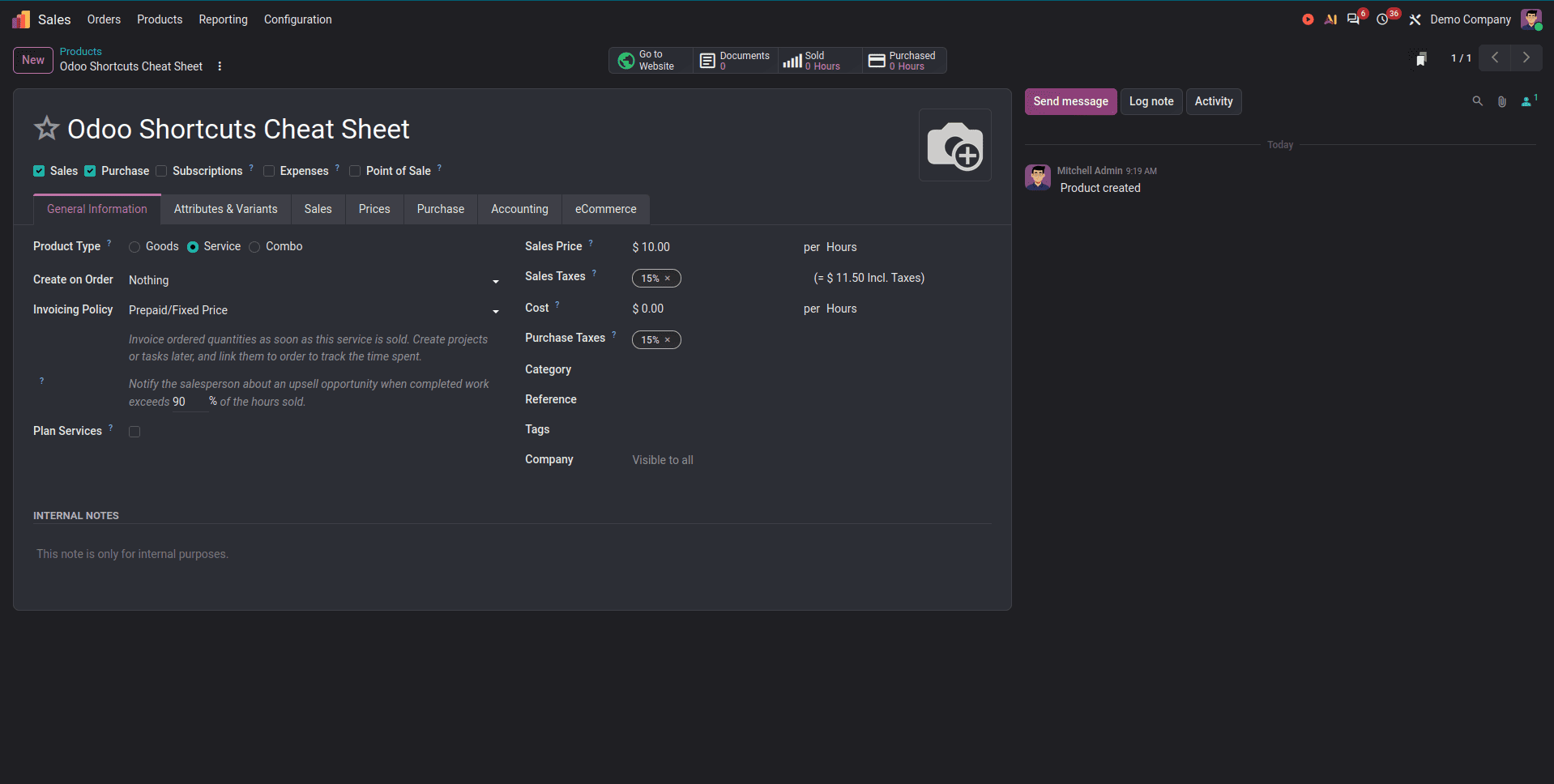
Go to Website > eCommerce > Products and click New. Assign a name, price, and picture to the product. Products created through the backend aren’t automatically published, so once the setup is done, click the Go to Website button on top and toggle the unpublished button on top.
Since the digital goods have no physical inventory, do not configure the product for inventory management because all we’ll get is “out of stock” for it.
Step 3: Add the file
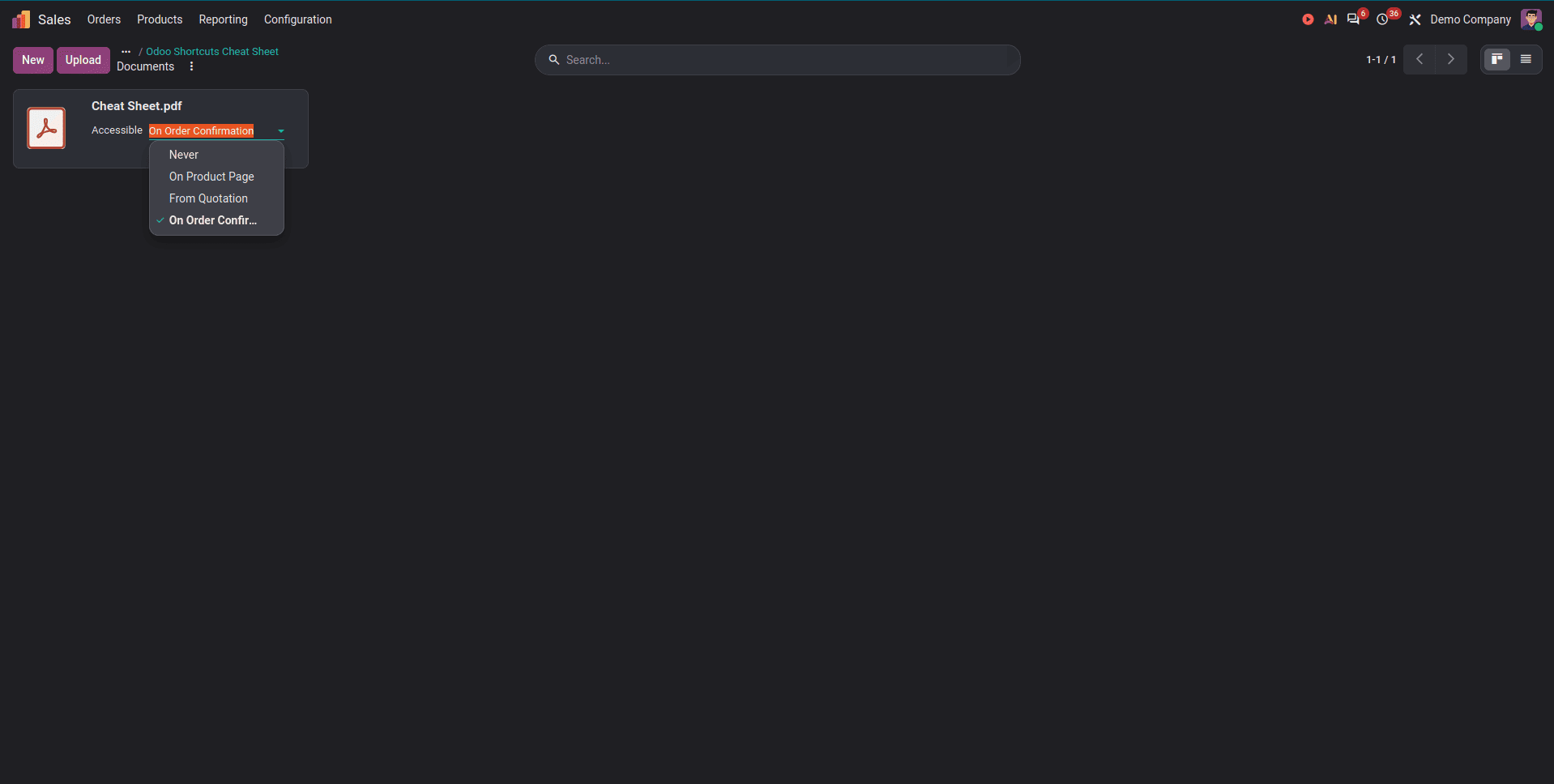
In the product form, click on the Documents smart button and choose Upload. A file can be uploaded directly. Alternatively, if the file is located elsewhere, like on a private video website or cloud storage, it can be added via URL by changing the type to URL.
Here’s when the customer is granted access to the product. There are two options offered by Odoo.
Only once payment occurs. Set the Visibility to "On confirmed order" and uncheck "Publish on website" (aka "Show on product page"). The file will be available only in the client portal and on the confirmed sales order. This is how to configure any type of paid content.
Before payment. Make Visibility "Hidden" and check "Publish on website". The file will be accessible on the product page for anyone to download. That works well for free samples, brochures, or a Table of Contents, but not the product itself.
The wrong setting of these two toggles is the most common mistake when configuring downloadable files. In case you've done this, your paid file will be sitting on a public page.
Step 4: Selling several files
It is possible to add several files to the same product, for instance, PDF, EPUB, and source ZIP. You will be able to control the visibility of each file separately.
Step 5: Release the product
Head over to the Sales tab on the product page and turn on 'Is Published' in the eCommerce shop section. Alternatively, you may use the Go to Website smart button to publish the product on your website.
Step 6: Make a sample purchase
Do not neglect this step. Open the shop in private browsing mode and make sure to put the product into the shopping cart and complete the checkout process using a payment provider.
Then, sign in as that customer and visit My Account > Orders. Open up the order page, and there should be a file available for downloading. Try the opposite scenario as well. Prior to the confirmation of the payment, the file should not be visible.
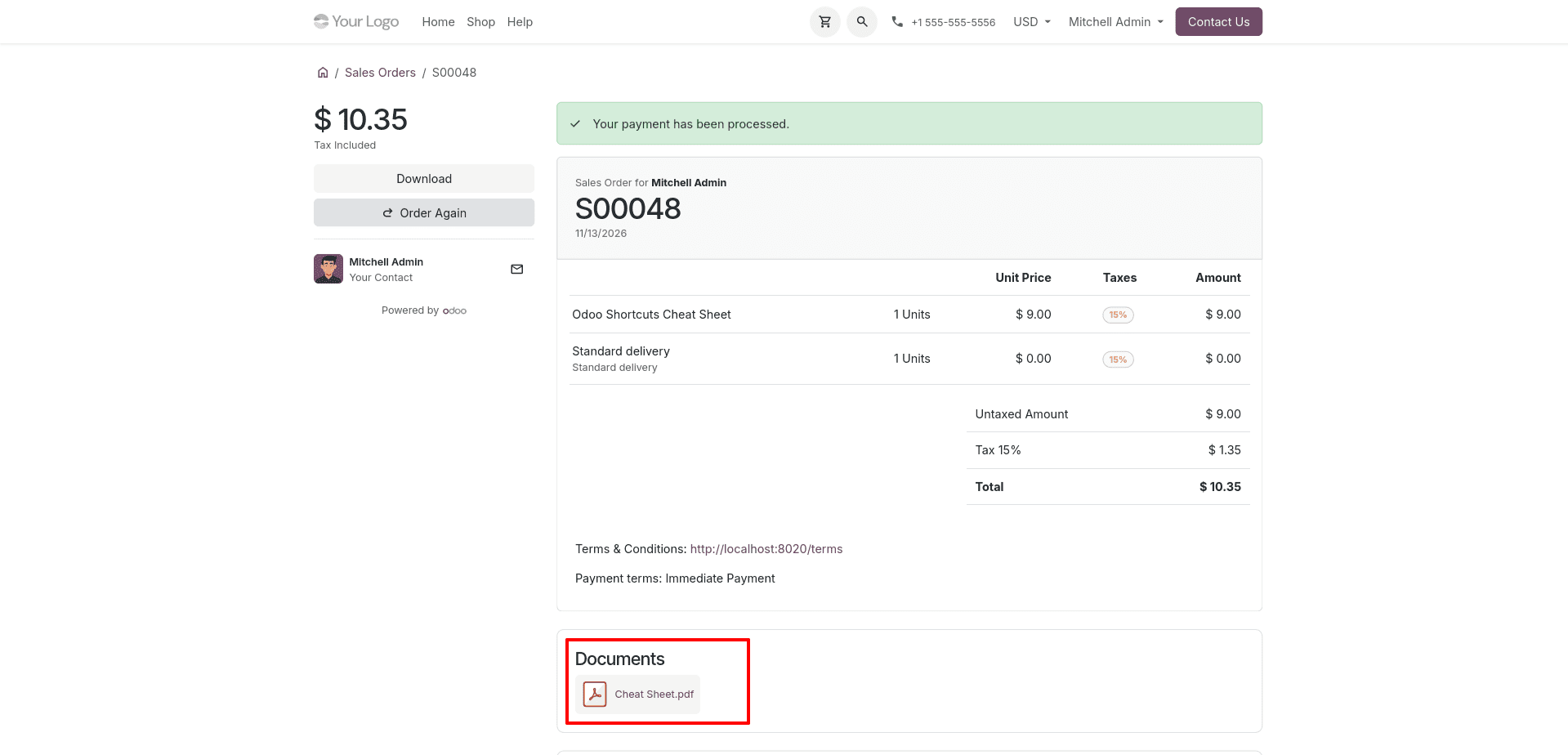
A side note: the file will become visible right after the confirmation of the order. In the case of an online provider, it is when the payment is made. However, in the case of a bank transfer, the order will remain unconfirmed until it is approved by you, and thus the customer will not see it.
When the built-in one is not sufficient
It will provide you with access to the documents in your portal. However, no download limits, expiring links, or license keys are available here. Some third-party add-ons may help you with downloading, for example, Digital Products (is_digital_product), which is available at Odoo Apps with version 19.0. If you require such functionality, be sure that the module is built for version 20.0.
To read more about Odoo 20 Roadmap Explained: Key Updates and Future Expectations, refer to our blog, Odoo 20 Roadmap Explained: Key Updates and Future Expectations.