Smart Buttons in Odoo are interactive elements placed within record views that provide users with quick, contextual access to related actions and information. Instead of navigating through multiple menus, users can interact with these buttons to view linked records or perform relevant operations directly from the current screen. By converting static data into actionable insights, smart buttons greatly enhance usability and efficiency.
Smart buttons play a key role in improving workflows by offering instant access to important, related data. Whether it’s viewing associated invoices, tasks, or deliveries, these buttons help users stay focused and productive. In this blog, we’ll walk through the process of adding smart buttons in Odoo 19, step by step.
What Are Smart Buttons?
Smart buttons are clickable UI elements displayed in the header of a form view. They often show numerical indicators, such as the count of related records—for example, the number of invoices for a customer or tasks linked to a project. Clicking a smart button opens the corresponding records, allowing users to manage related information quickly and seamlessly.
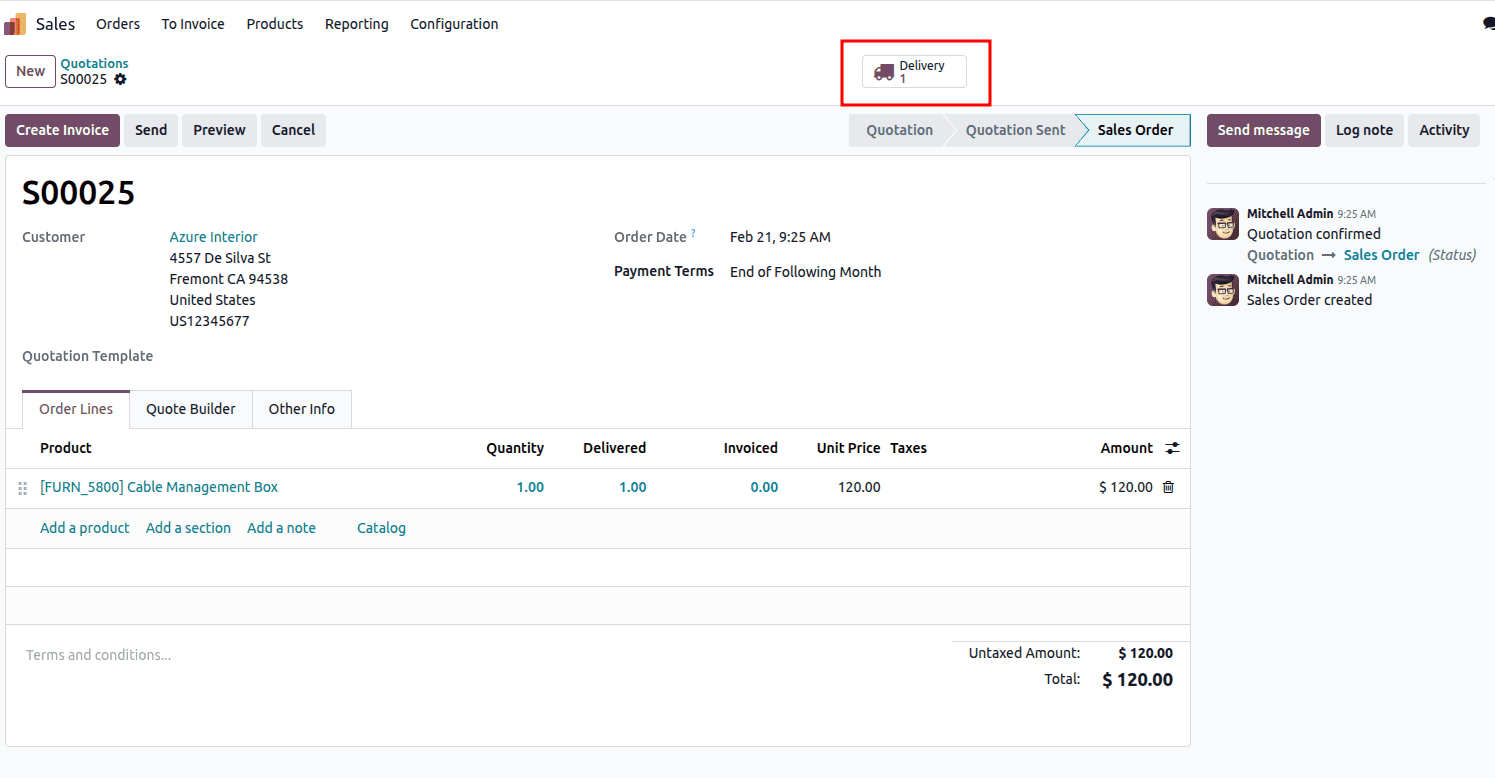
In this Sales Order screen of Odoo, the highlighted Delivery (1) smart button indicates that one delivery order is linked to this confirmed sales order. Smart buttons in Odoo appear at the top right of a form view and display the number of related records; in this case, “1” means a single delivery (stock picking) has been created from the order. Clicking this button will open the corresponding delivery order in the Inventory module, where you can view, validate, or track the shipment status.
Adding a smart button in the form view
This guide explains how to add a Vehicle Contract smart button in the Contact form view in Odoo, allowing you to see all vehicle contracts related to that partner.
To add a smart button in the Contact form view in Odoo, the first step is to extend (inherit) the existing res.partner model. In this inherited model, you define the Python method that will be executed when the smart button is clicked and prepare the required logic for opening the related records. You also define the button action method that returns an ir.actions.act_window.
from odoo import models,_

class ResPartner(models.Model):
   _inherit = 'res.partner'

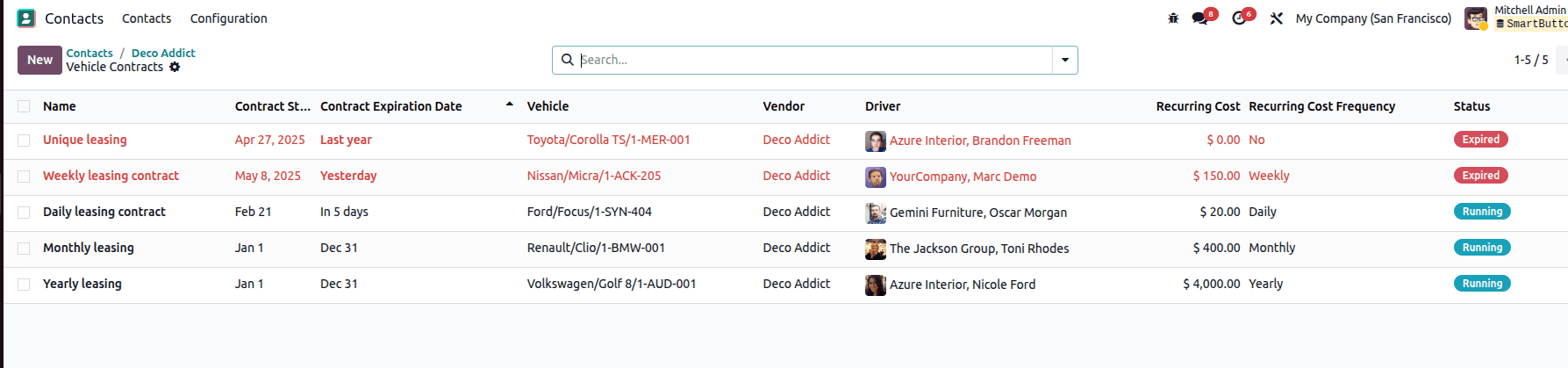
   def action_view_vehicle_contracts(self):
       """Open the vehicle contracts view for this partner"""
       self.ensure_one()
       return {
           "type": "ir.actions.act_window",
           "res_model": "fleet.vehicle.log.contract",
           "name": _("Vehicle Contracts"),
           "views": [[False, "list"], [False, "form"]],
           "domain": [('insurer_id', '=', self.id)],
       }
This code extends the Contact model (res.partner) in Odoo to add a smart button action. The method action_view_vehicle_contracts is triggered when the smart button is clicked. The line self.ensure_one() makes sure the action is executed for only one contact at a time. It then returns an action dictionary (ir.actions.act_window) that tells Odoo to open a new window showing records from the fleet.vehicle.log.contract model (Vehicle Contracts). The name sets the window title as “Vehicle Contracts,” and views allow both list and form views. The domain filters the records so that only contracts where insurer_id matches the current contact’s ID are displayed. In simple terms, clicking the smart button will open all vehicle contracts related to that specific contact.
After inheriting the model and adding the necessary logic, the next step is to inherit the Contact form view in XML using base.view_partner_form. Inside the <div class="oe_button_box">, which is the smart button container area at the top right of the form, you add a <button> with class="oe_stat_button" and type="object" so it calls the Python method when clicked.
<record id="view_partner_form" model="ir.ui.view">
 <field name="name">res.partner.form.inherit.partner.vehicle.contracts</field>
   <field name="model">res.partner</field>
   <field name="inherit_id" ref="base.view_partner_form"/>
   <field name="arch" type="xml">
       <xpath expr="//div[@name='button_box']" position="inside">
           <button name="action_view_vehicle_contracts"
                   type="object"
                   class="oe_stat_button"
                   icon="fa-truck">
           </button>
       </xpath>
   </field>
</record>
This XML code inherits the Contact form view (base.view_partner_form) in Odoo to add a new smart button. The <record> creates a modified version of the existing res.partner form view instead of replacing it. Using <xpath expr="//div[@name='button_box']" position="inside">, it targets the smart button area at the top right of the form. Inside that section, a <button> is added with type="object", which means it will call a Python method named action_view_vehicle_contracts when clicked. The class oe_stat_button styles it as a smart button, and icon="fa-truck" displays a truck icon. In simple terms, this code adds a clickable smart button to the Contact form that opens the related vehicle contracts.
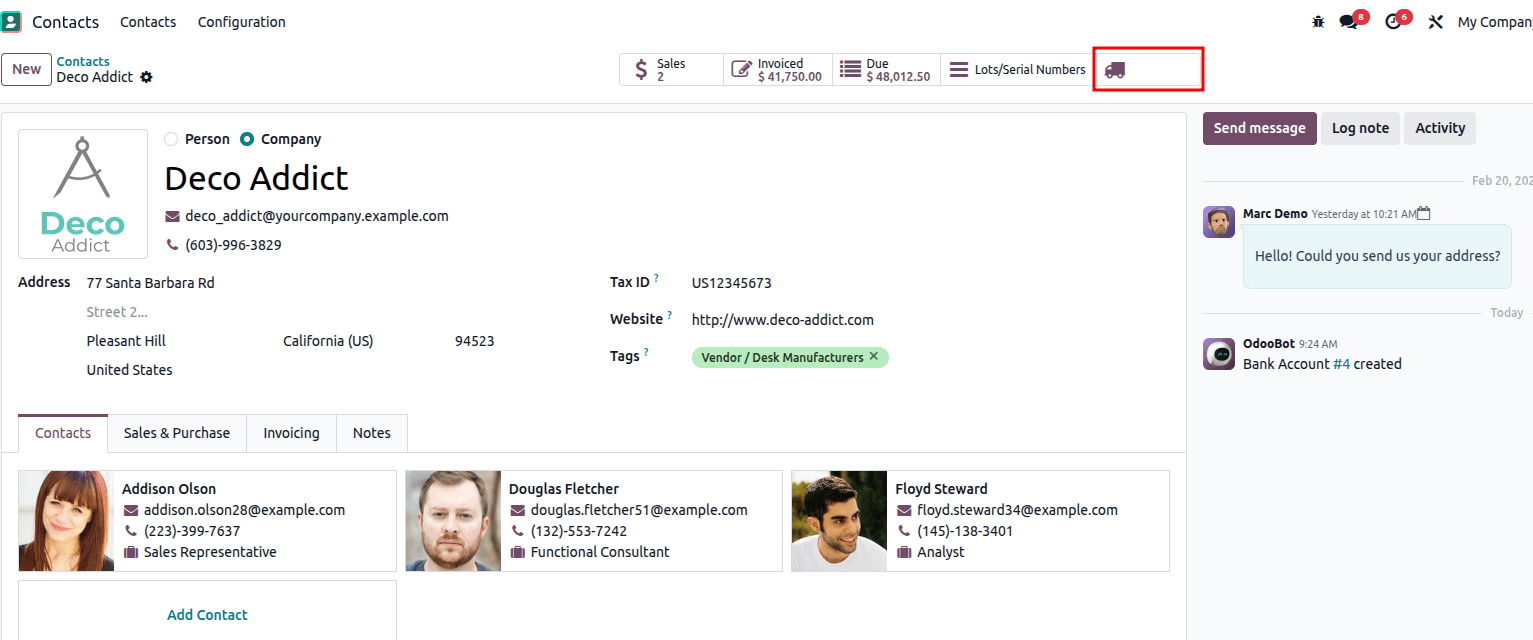
To add a name and count to a smart button in Odoo, you need to create a computed Integer field that calculates how many related records exist (using search_count). Then add a smart button inside the button_box in the form view and display that computed field using the statinfo widget, which automatically shows the label and the count. Finally, define an action method for the button so that when it is clicked, it opens the related records filtered for that particular record.
from odoo import api, fields, models,_

class ResPartner(models.Model):
   _inherit = 'res.partner'
   vehicle_contract_count = fields.Integer(
       string='Vehicle Contracts',
       compute='_compute_vehicle_contract_count',
       help='Number of vehicle contracts for this partner'
   )
   @api.depends('name')
   def _compute_vehicle_contract_count(self):
       """Compute the number of vehicle contracts for this partner"""
       for partner in self:
    Partner.vehicle_contract_count = self.env['fleet.vehicle.   log.contract'].search_count([('insurer_id', '=', partner.id)])
This code extends the Odoo res.partner model by adding a new computed Integer field called vehicle_contract_count, which shows how many vehicle contracts are linked to a partner. The field uses the method _compute_vehicle_contract_count to calculate its value. Inside that method, for each partner record, the system counts how many records exist in the fleet.vehicle.log.contract model where the insurer_id field matches the current partner’s ID, using search_count(). The result is then assigned to vehicle_contract_count, so it can be displayed in the form view, typically in a smart button to show the total number of related vehicle contracts.
<record id="view_partner_form" model="ir.ui.view">
 <field name="name">res.partner.form.inherit.partner.vehicle.contracts</field>
   <field name="model">res.partner</field>
   <field name="inherit_id" ref="base.view_partner_form"/>
   <field name="arch" type="xml">
       <xpath expr="//div[@name='button_box']" position="inside">
           <button name="action_view_vehicle_contracts"
                   type="object"
                   class="oe_stat_button"
                   icon="fa-truck">
      <field name="vehicle_contract_count" widget="statinfo" string="Vehicle Contracts"/>
           </button>
       </xpath>
   </field>
</record>
Inside the button, the field vehicle_contract_count is shown with the statinfo widget, which automatically displays both the label “Vehicle Contracts” and the computed count value, allowing users to see how many related vehicle contracts exist and open them by clicking the button.
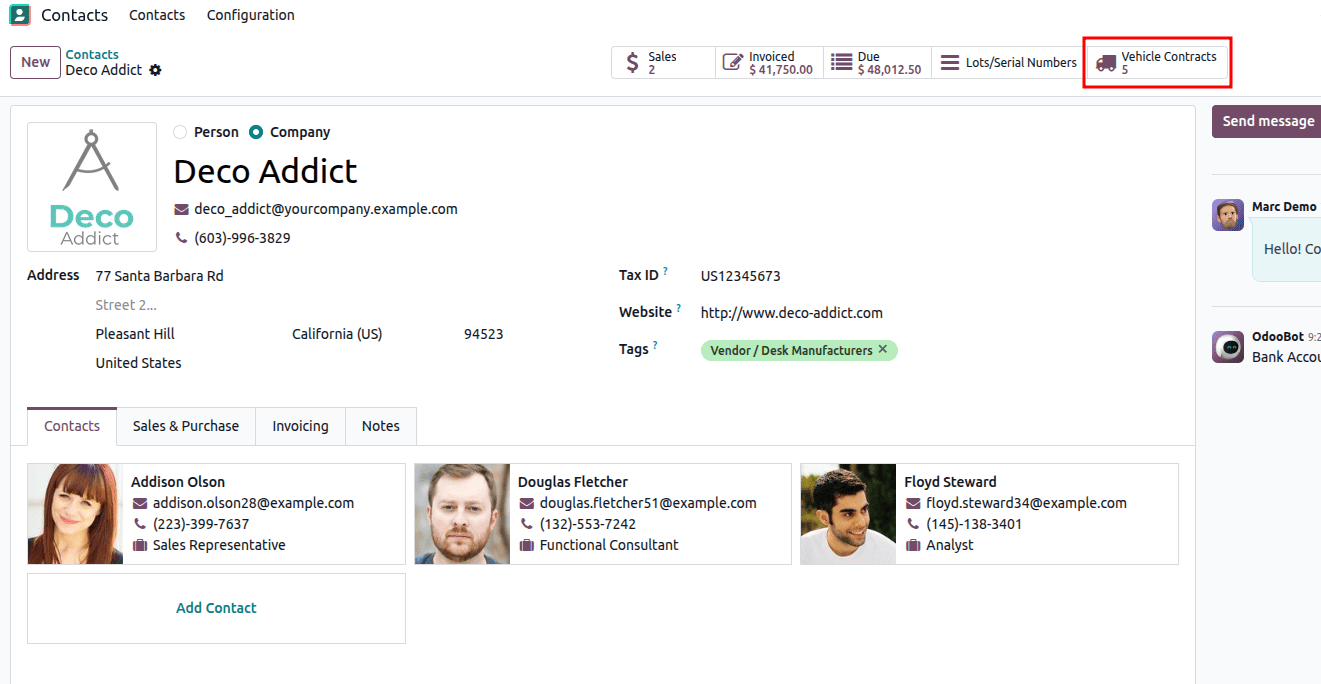
The Vehicle Contracts smart button shown in the image is a custom stat button added to the partner form in Odoo. It appears in the button box at the top of the form and displays the total number of vehicle contracts linked to that specific partner, which is 5 in this case. The truck icon visually represents vehicle-related records. The number displayed is calculated using a computed field, and when the button is clicked, it opens a filtered list view showing only the vehicle contracts associated with that partner.
Smart buttons in Odoo 19 provide a quick and user-friendly way to display related record counts directly on a form view. They improve navigation by allowing users to see important information at a glance and access related records with a single click. By using computed fields and action methods, smart buttons make the interface more interactive, organized, and efficient for managing linked data.
To read more about How to Add Smart Buttons in Odoo 18, refer to our blog How to Add Smart Buttons in Odoo 18.