In Odoo 19 Accounting, an Aged Receivables report is a financial report that displays all outstanding client invoices arranged according to the length of time they have been past due. To assess payment delays, it divides receivables into time buckets, such as current, 30 days, 60 days, 90 days, and older. The report shows the amounts owed to each customer as well as how long each invoice has been outstanding. Accountants might use it to prioritise collection efforts and find past-due accounts. All things considered, it offers a clear picture of the company's short-term liquidity and client payment patterns.
The business classifies payments that are not paid for by a client or partner as old receivable payments. The delayed sum will be regarded as an old receivable even after the prearranged payment time has elapsed.
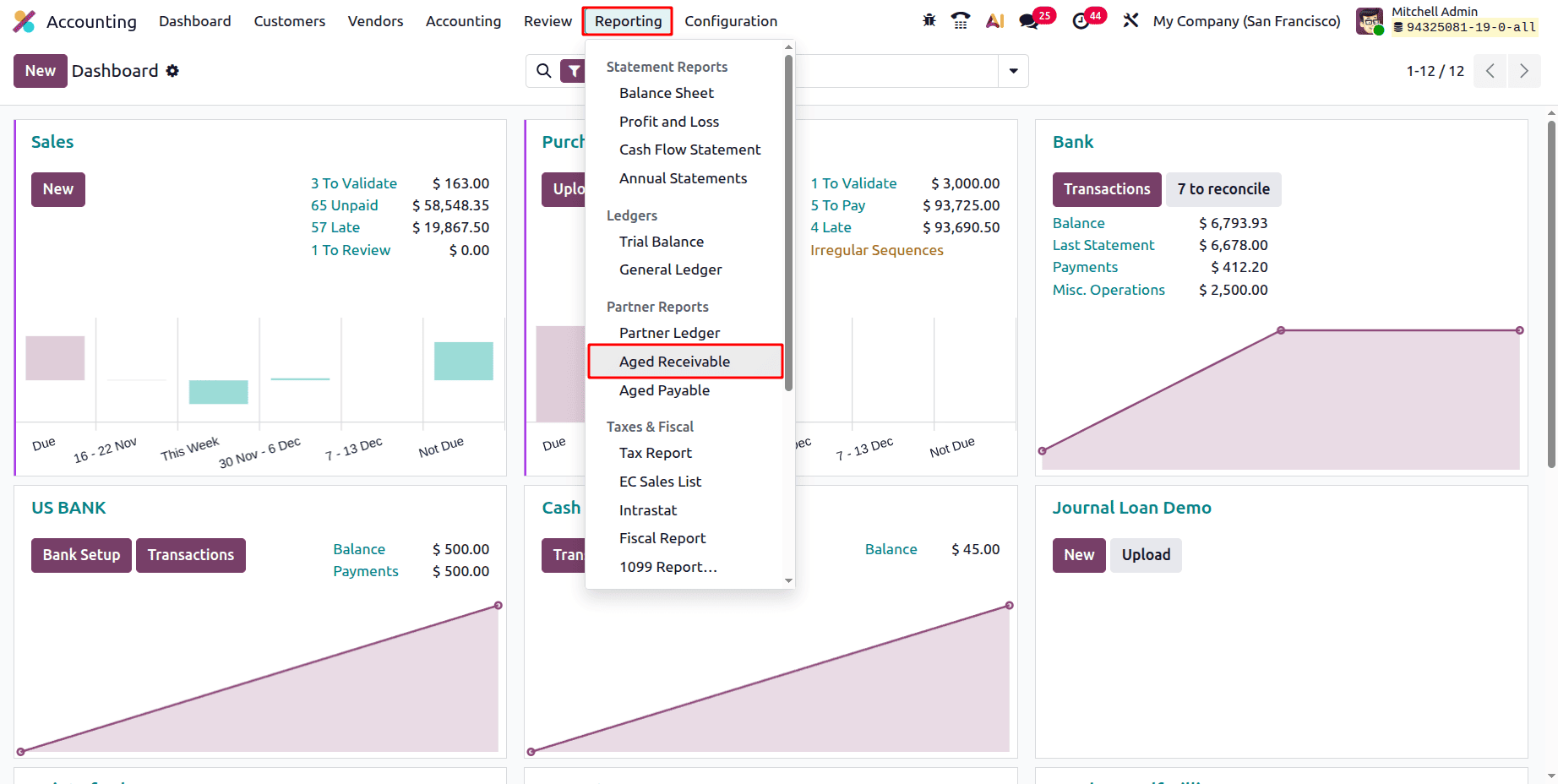
To access the Aged Receivables Report, click on the Reporting menu. And choose an Aged Receivable report. Which is included under the Partner Report.
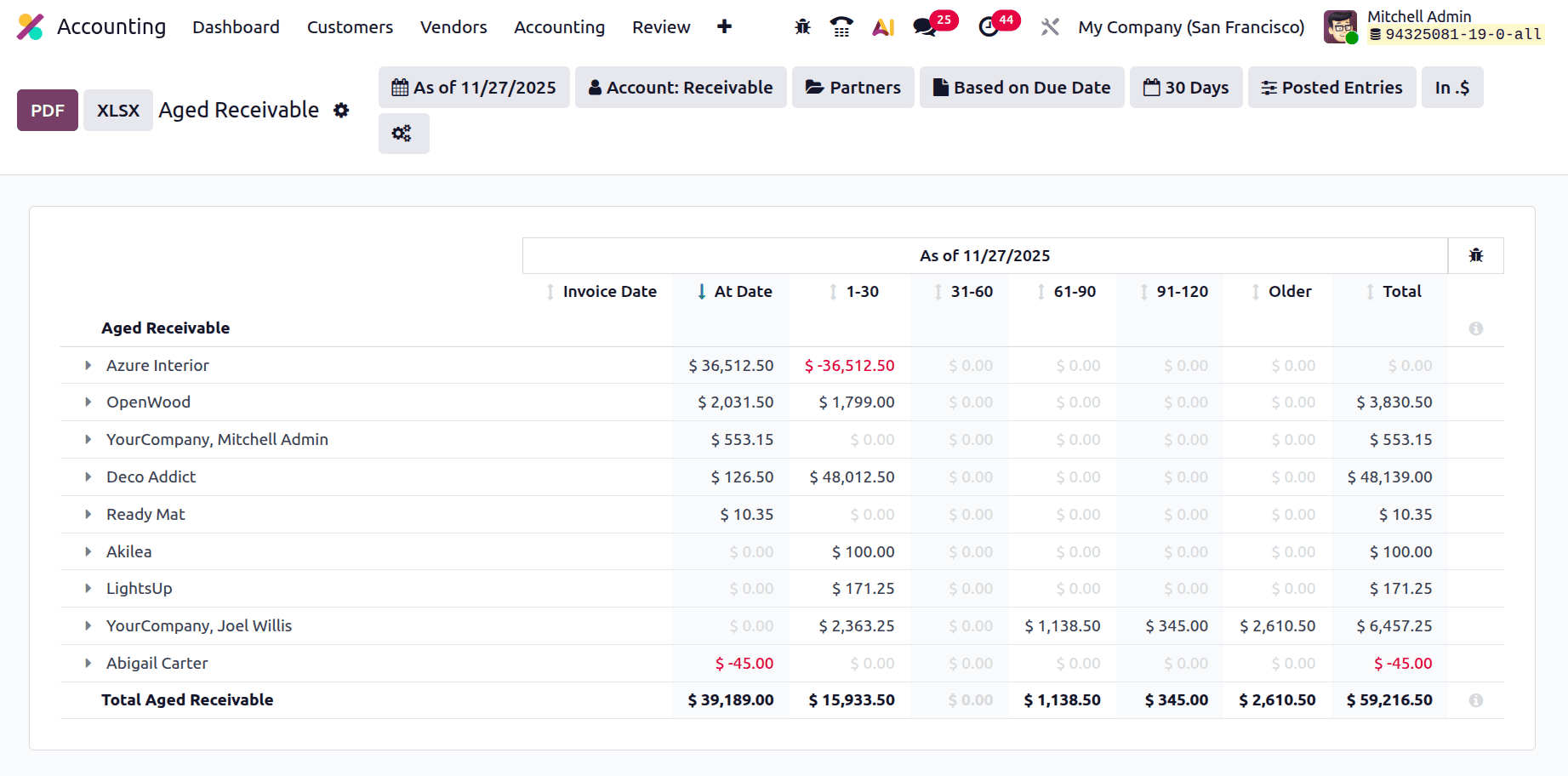
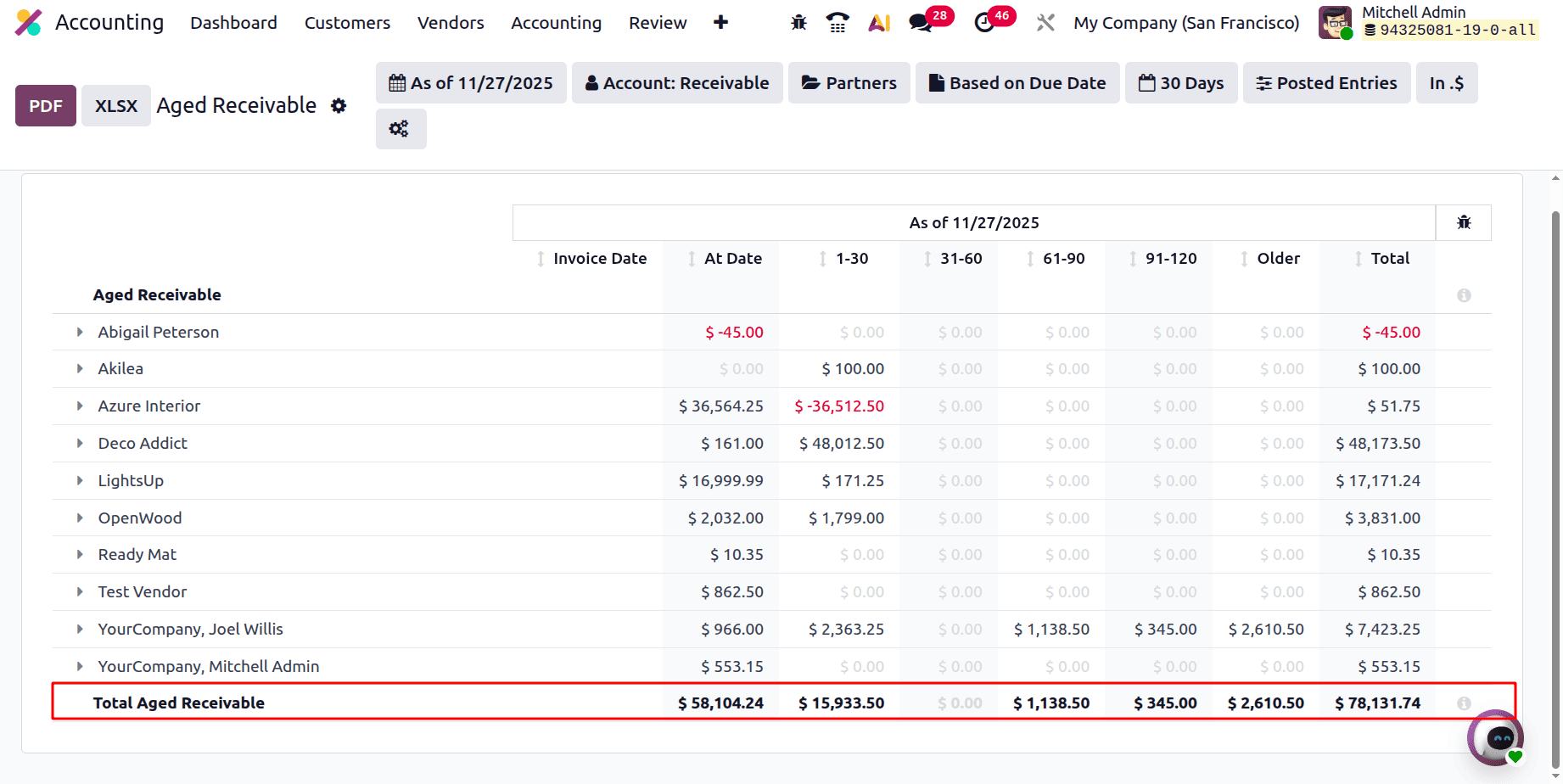
The Aged Receivables report shows all the unpaid invoice amounts, and partners are visible as shown below.
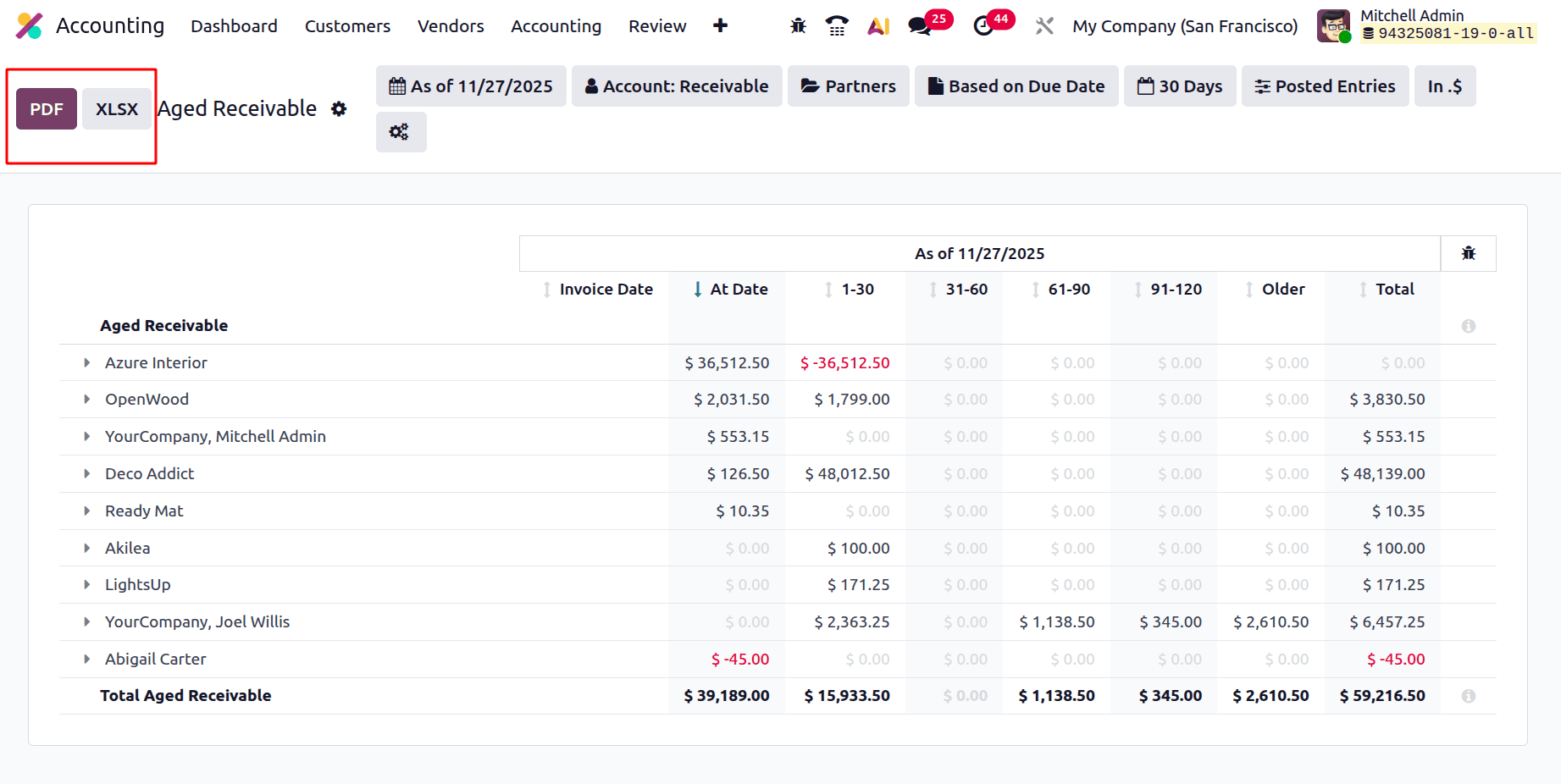
The Aged Receivable report can be imported easily by clicking on a button. There are two buttons named PDF and XLSX, placed at the top left corner of the report as shown below.
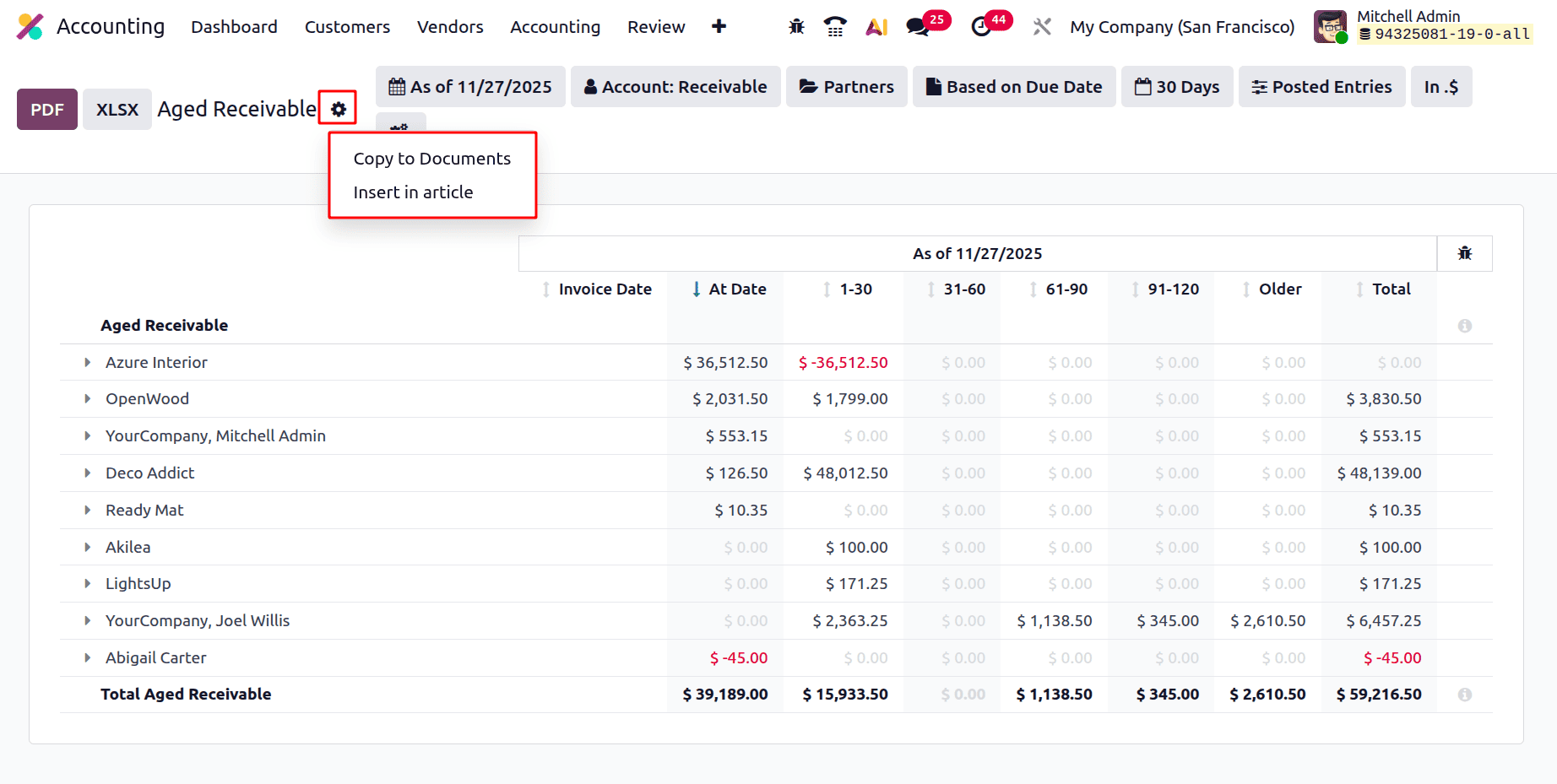
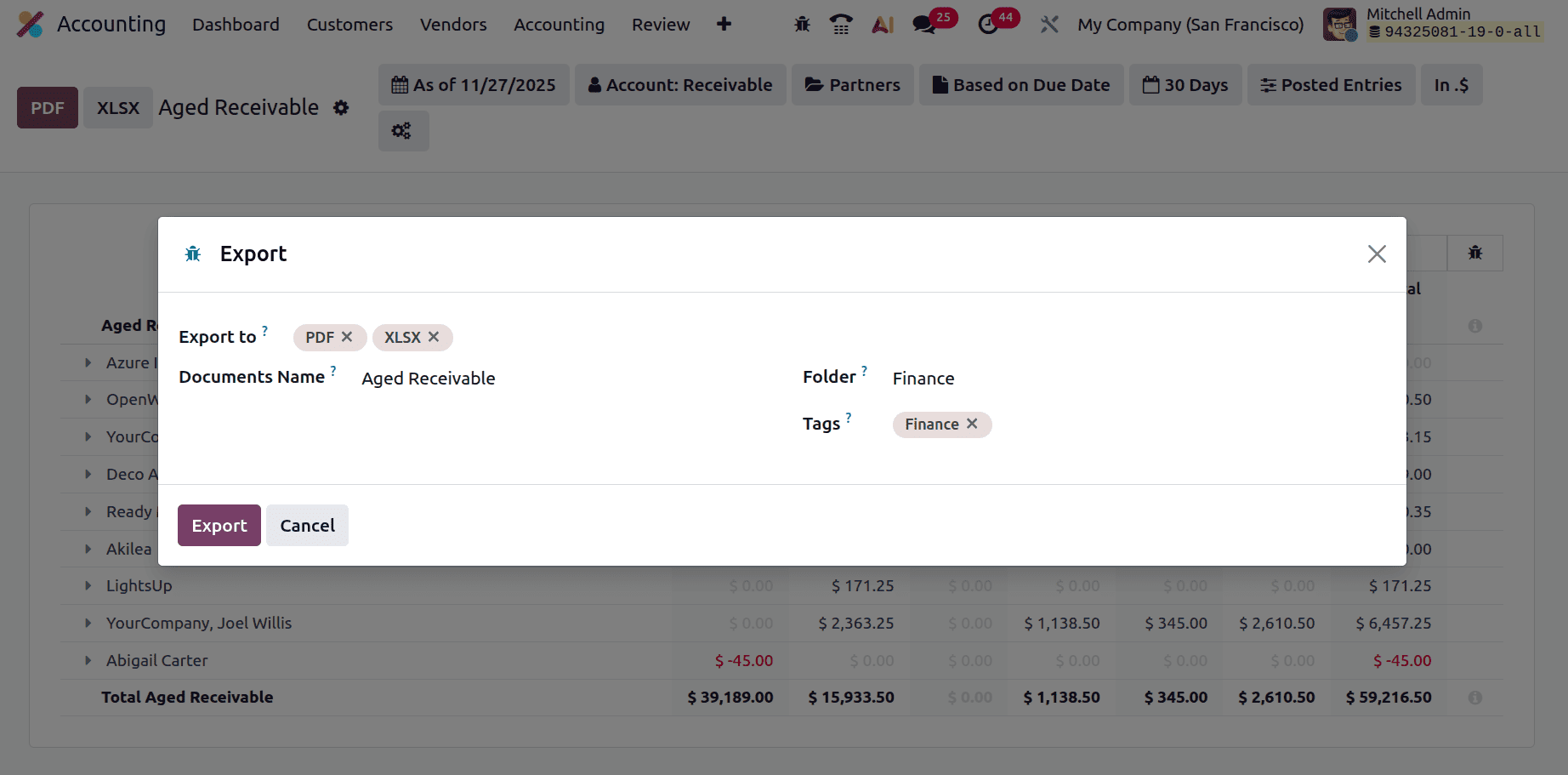
The Gear icon shows 2 options: one is Copy to Document, and the second one is Insert into the article.
While cycling on the Copy to Documents, another pop-up window will open. Inside the new window, the users can mention the report to which format, add the Document Name, Folder, and Tags. Then click on the Export button.
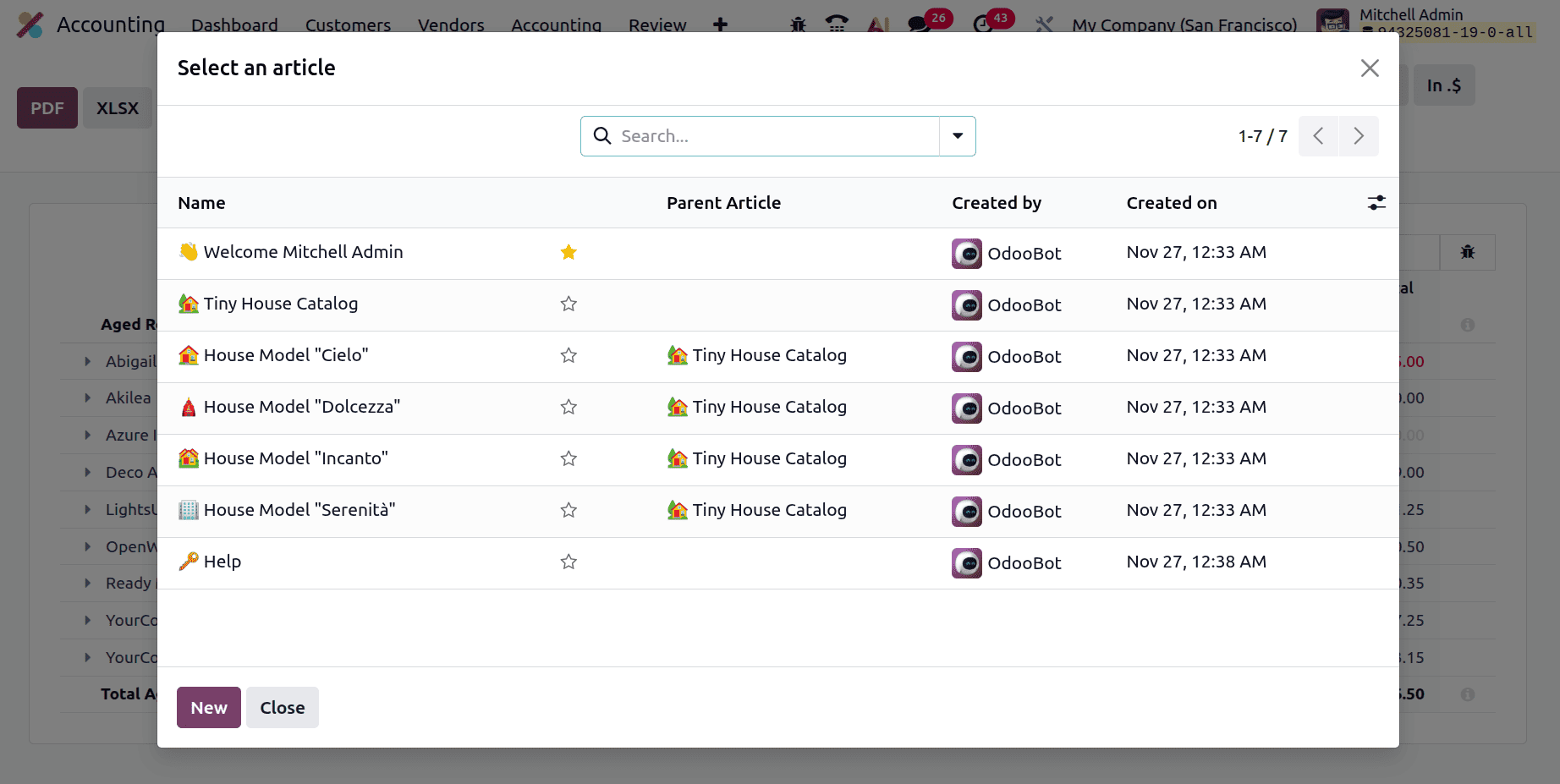
Then, while clicking on the Insert in Documents, another window appears that shows a list of Articles. Users can select an article from the list or can create a new one by clicking on the New button.
Filters
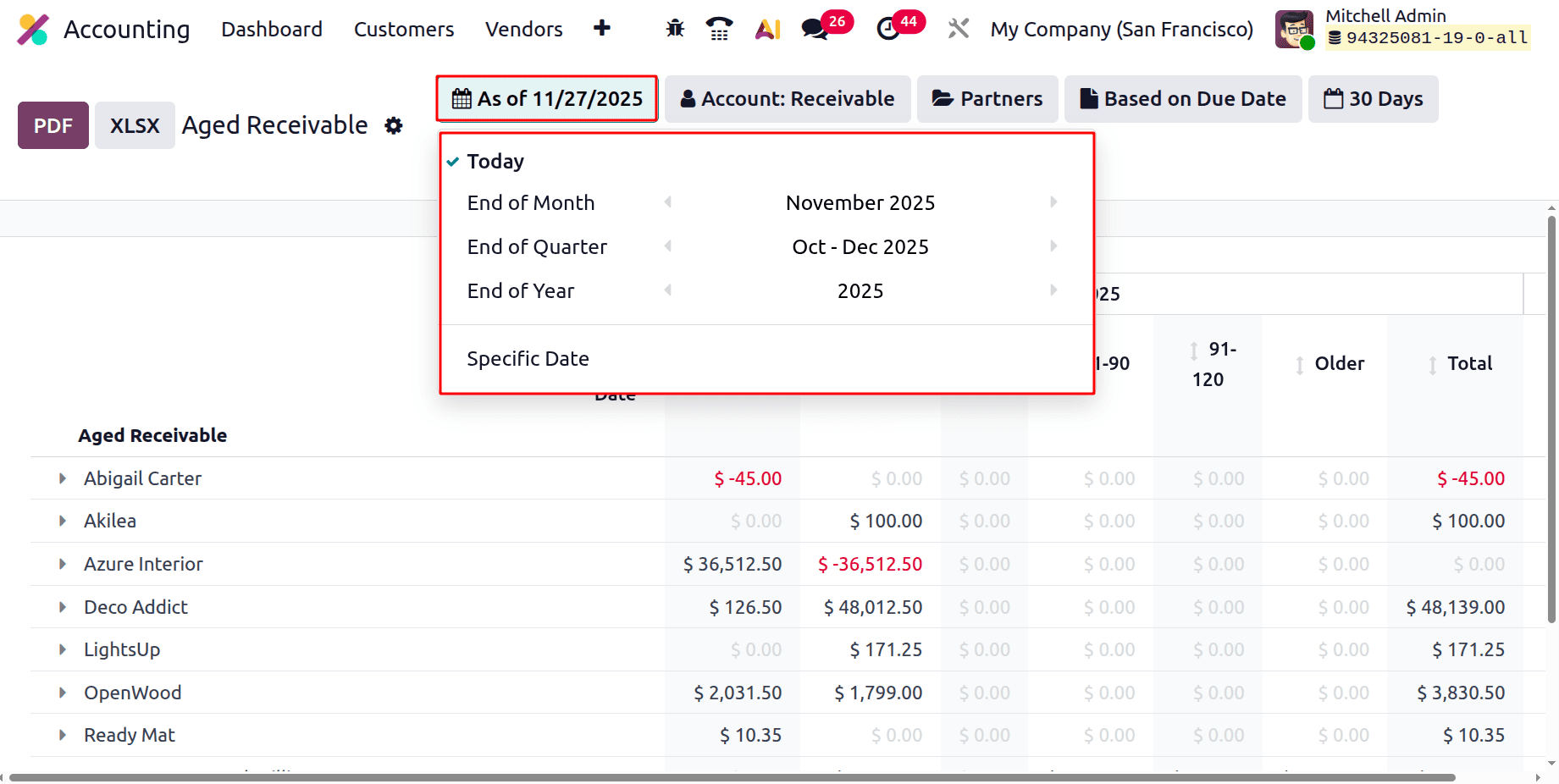
The first one is the Date filter. By clicking on it, users can choose Today, End of Month, End of Quarter, or End of Year. Then the users can filter the report based on a specific date.
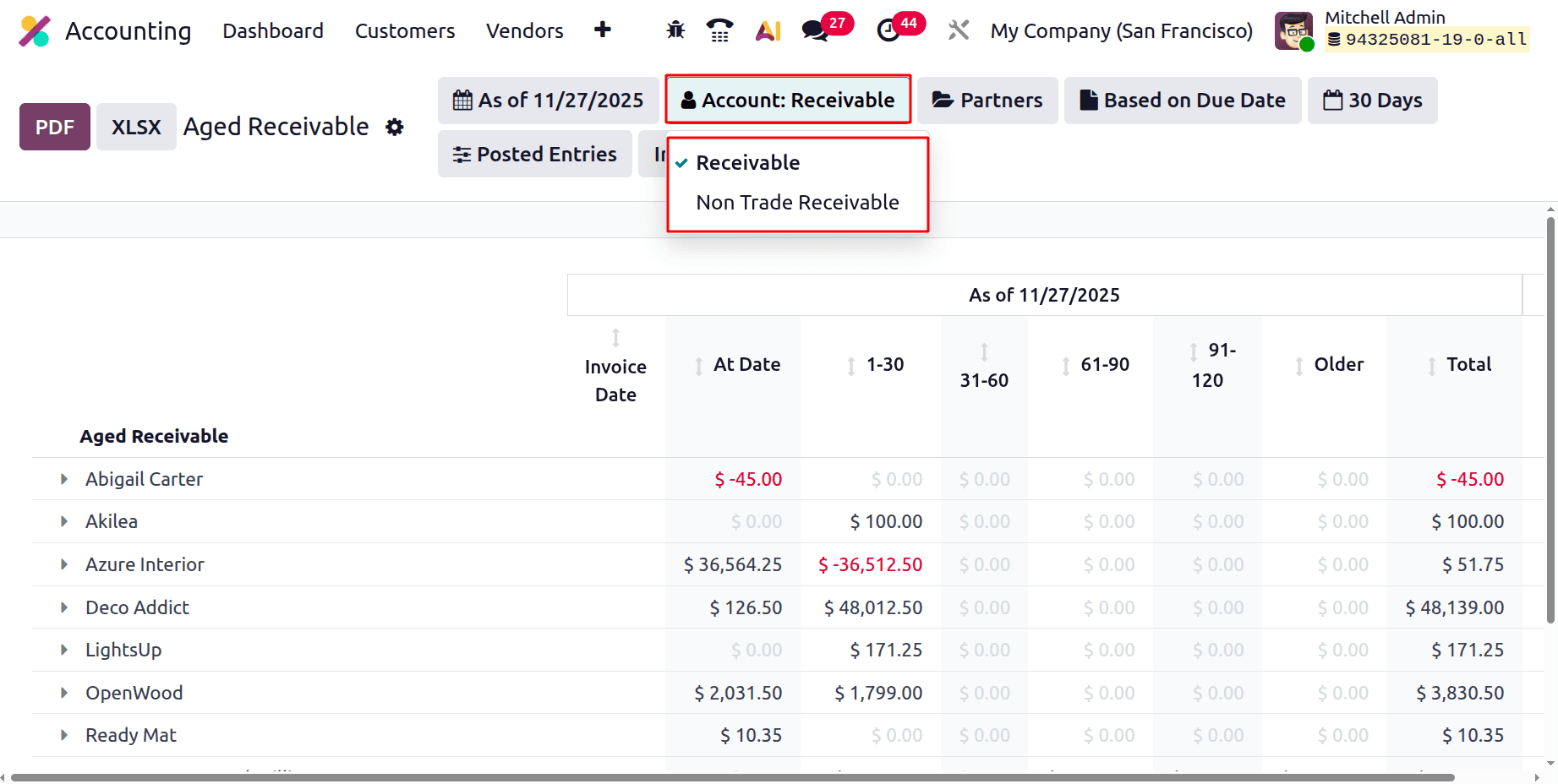
The second filter is based on Account. Which contains two options: Receivable and Non-Trade Receivable.
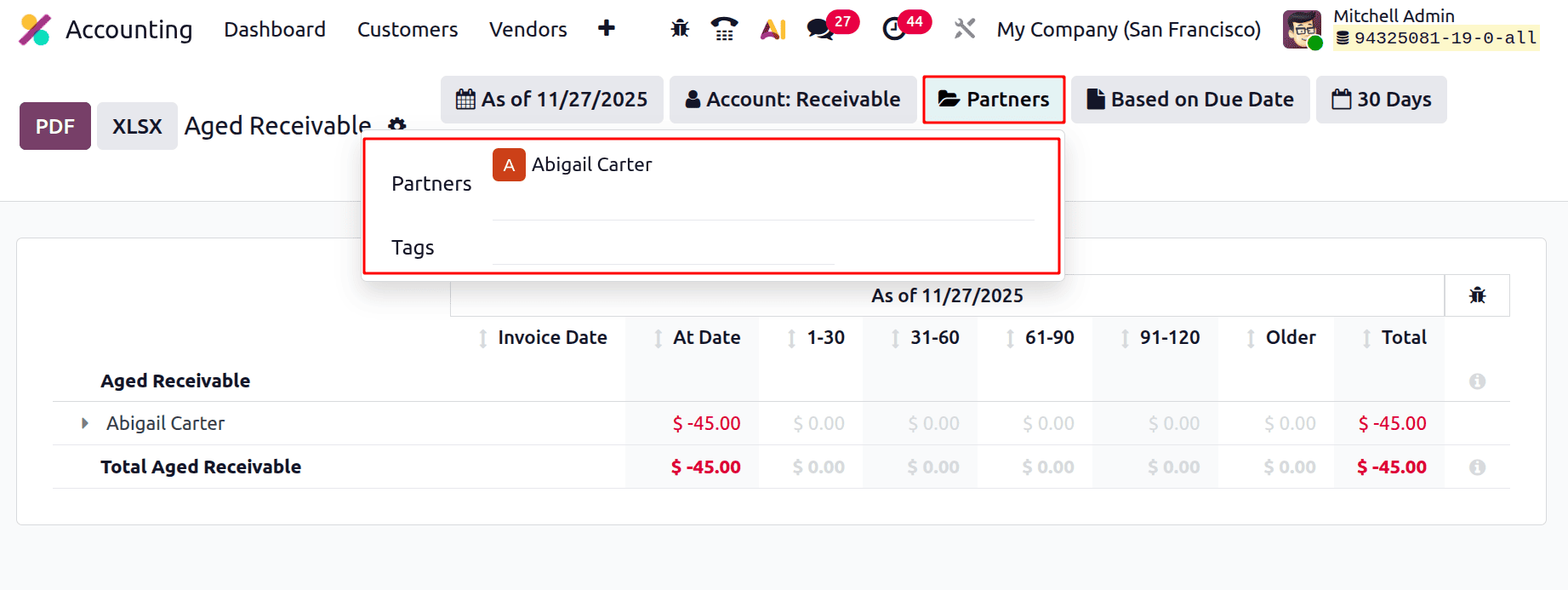
The third one is the Partners filter. Users can easily choose the partner and tags. According to the chosen partners, the report will change as shown below.
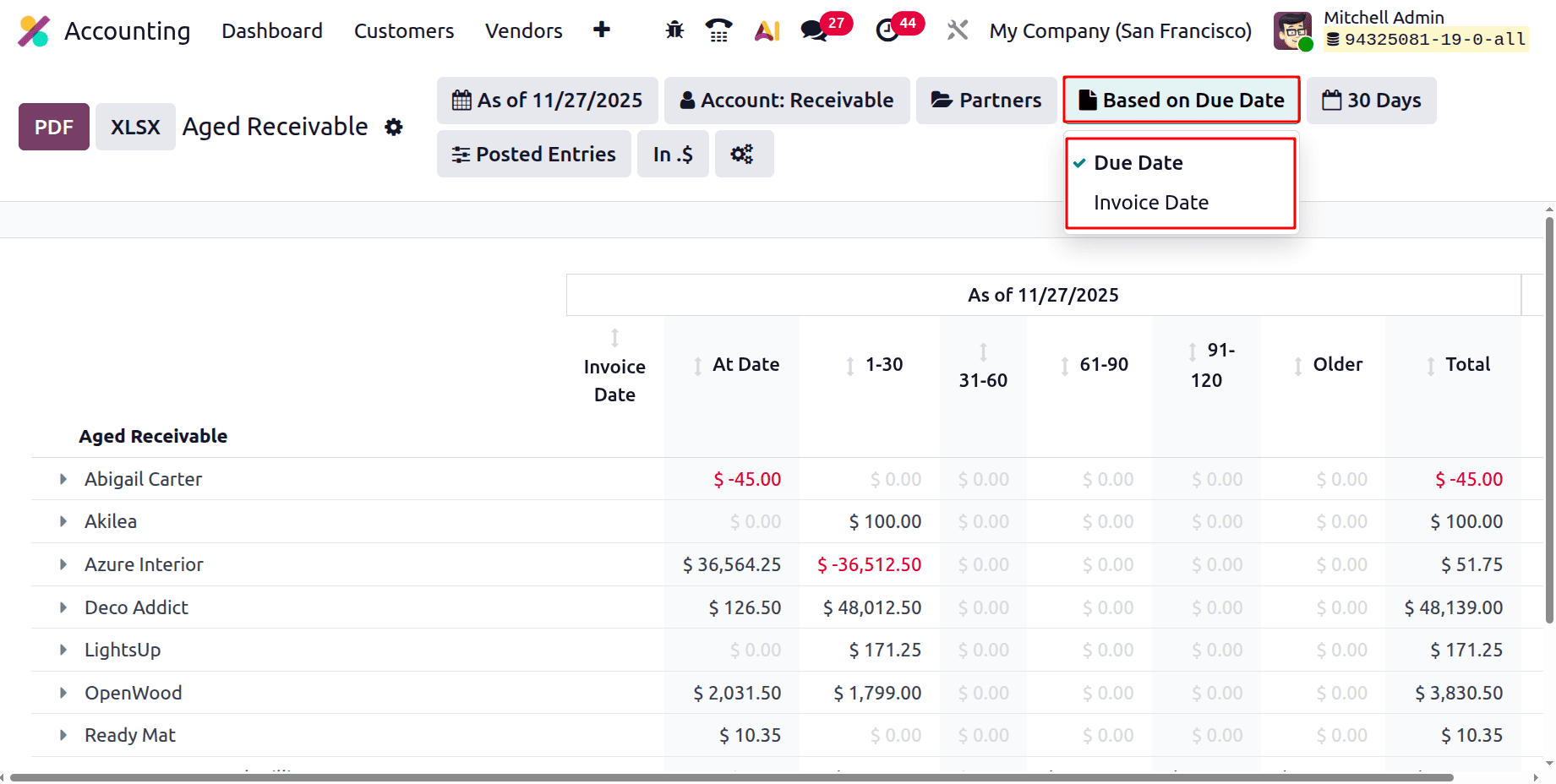
Next is Based on the due date. There are two options: one is the Due Date, and the second is the Invoice Date. The Aged Receivable report can be shown based on Due date or the invoice date.
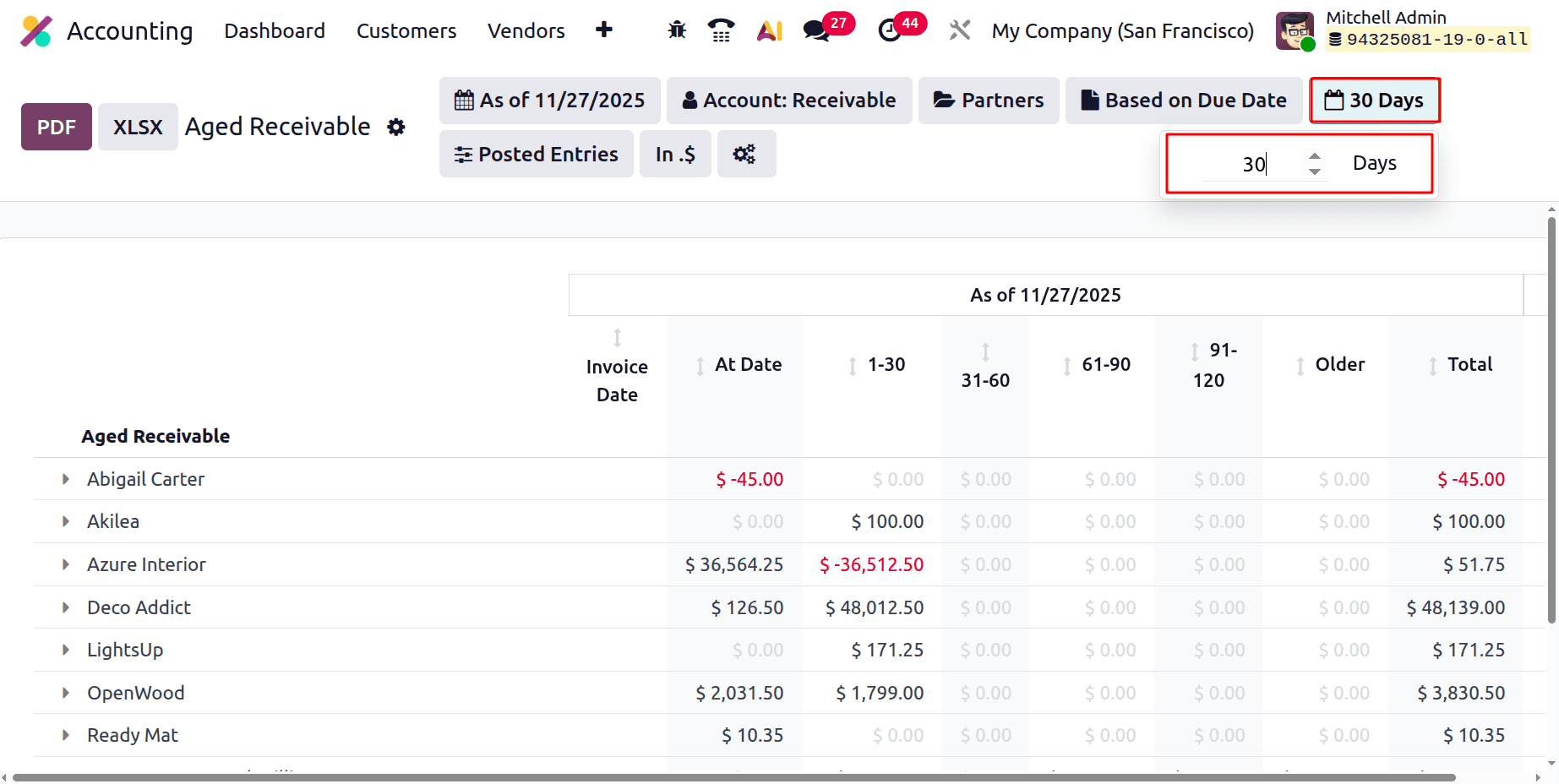
Next is based on Days. The users can manually add the days. The upper and lower arrows help to change the days. According to the chosen days, the report will change.
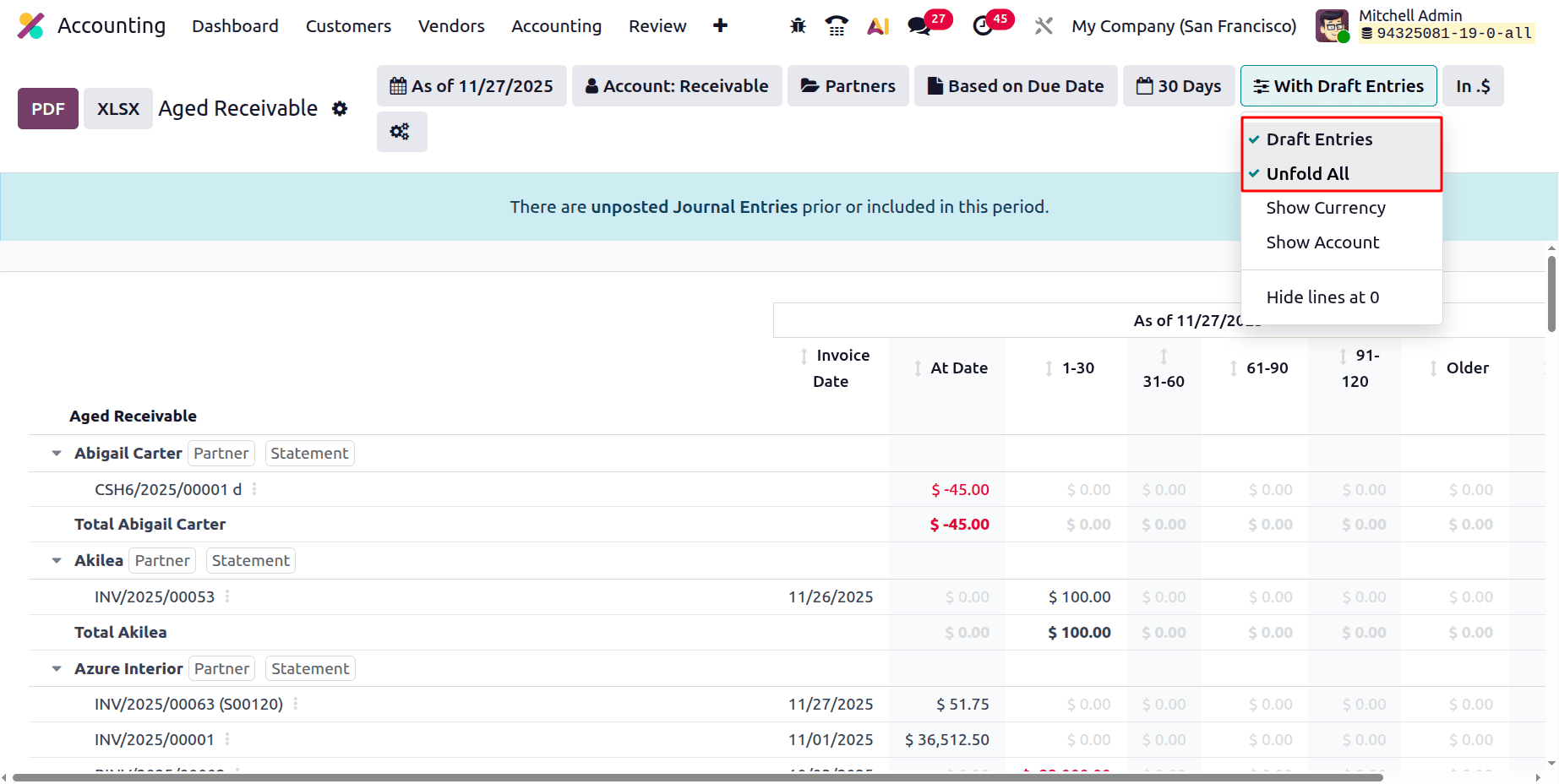
The filter named Posted Entries shows different options like Draft Entries, Unfold All, Show Currency, Show Account, and Hide lines at 0.
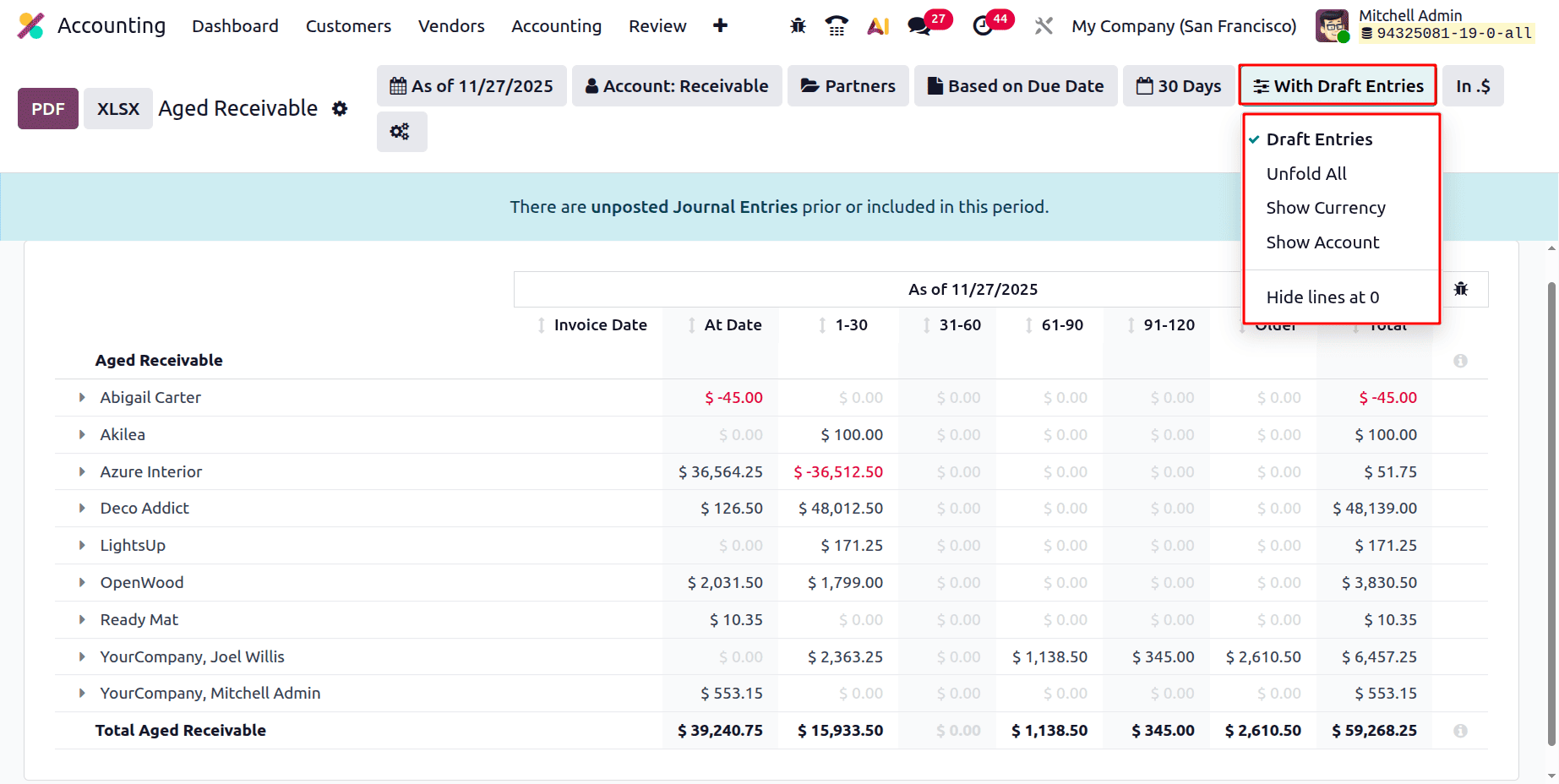
If the Draft Entries are chosen, then all the draft entries will be shown in the report. The Unfold All will unfold all the lines inside the report.
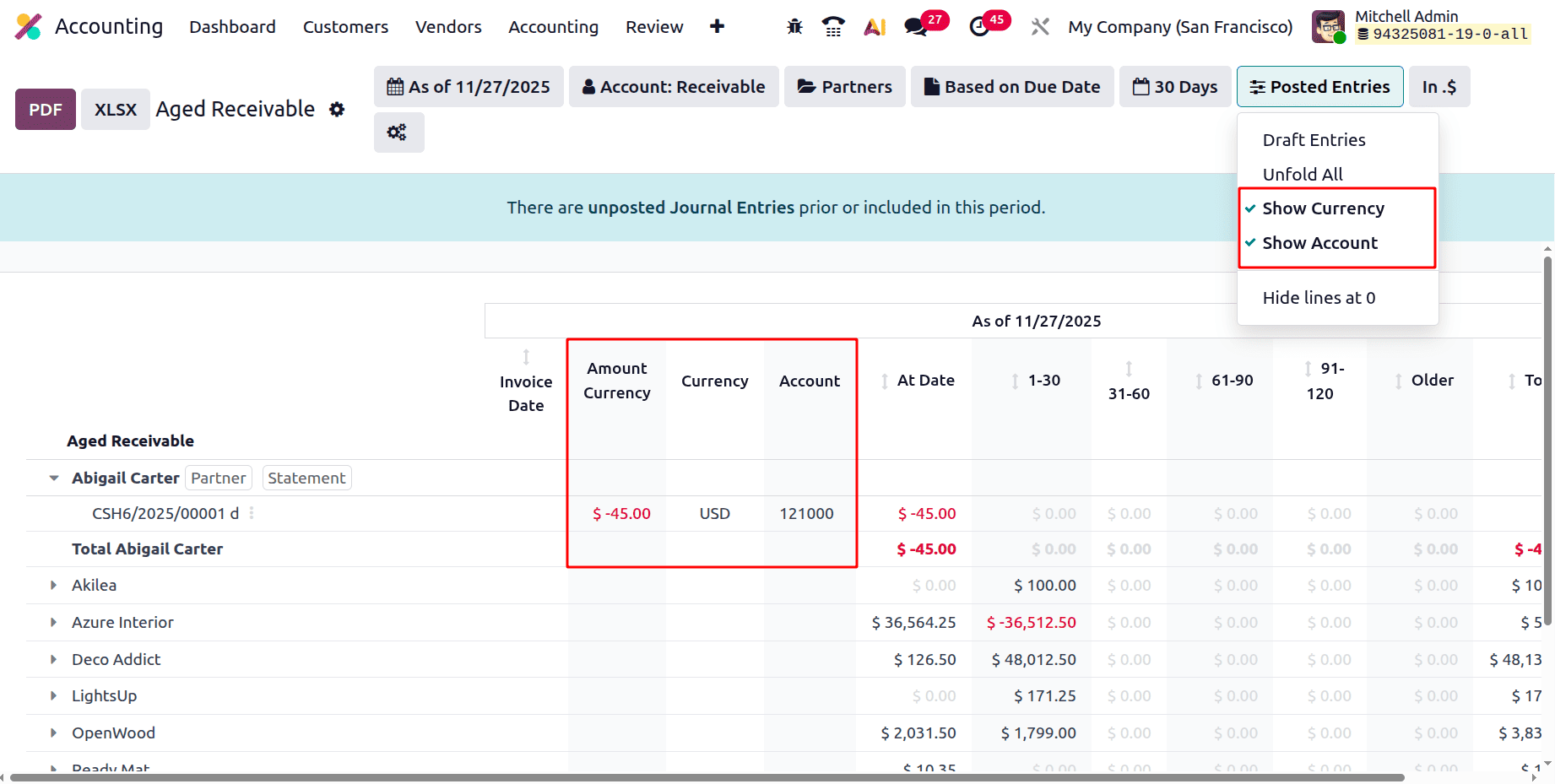
The Show Currency filter will show two additional fields in the report. The Currency and Amount Currency fields will be added inside the report if the Show Currency filter is enabled. If the Show Account filter is enabled, then Account fields are available in the report as shown below.
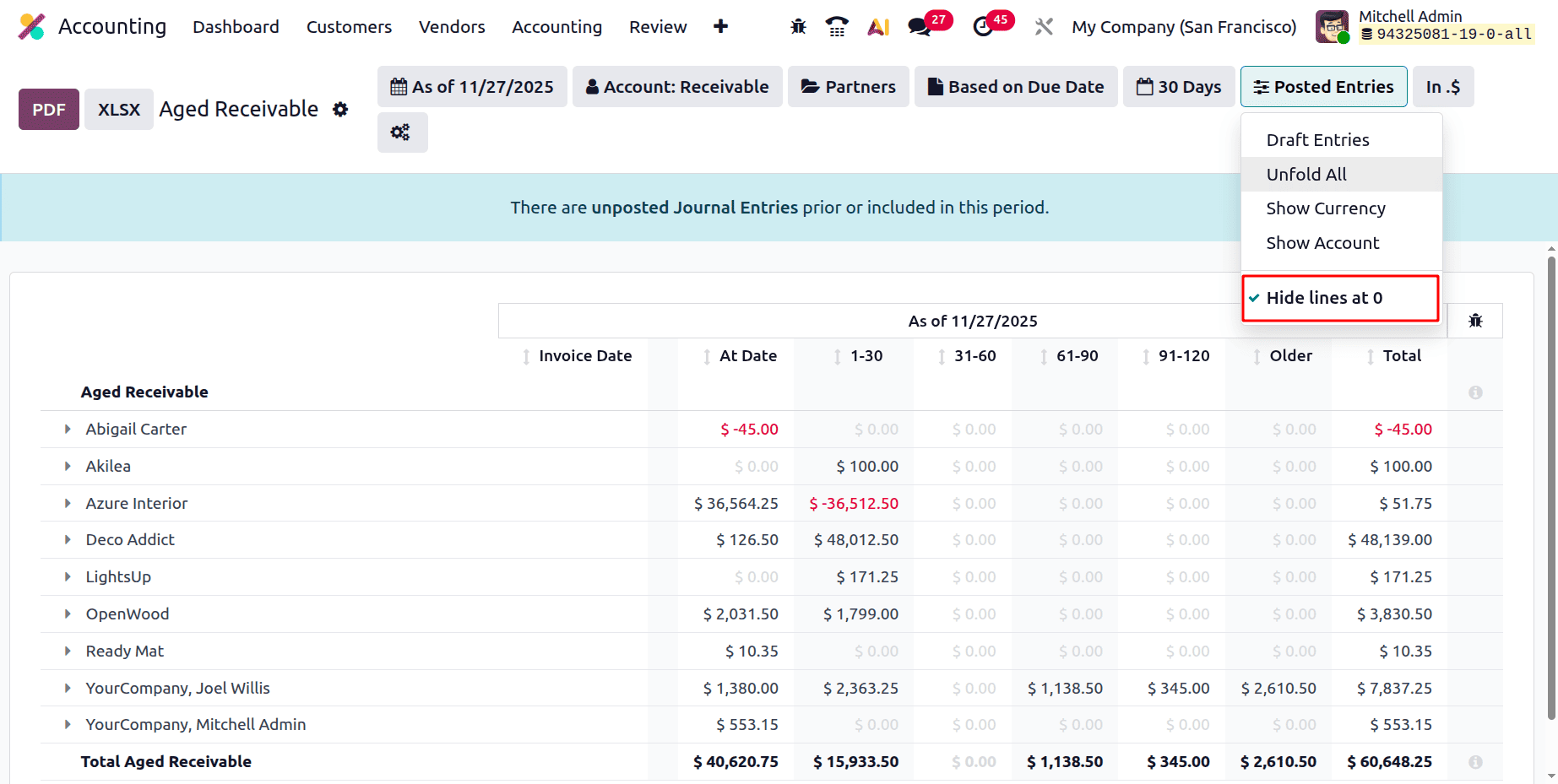
If the Hide lines at 0 is enabled, then the lines in the report with a zero amount will be hidden from the report, as shown below.
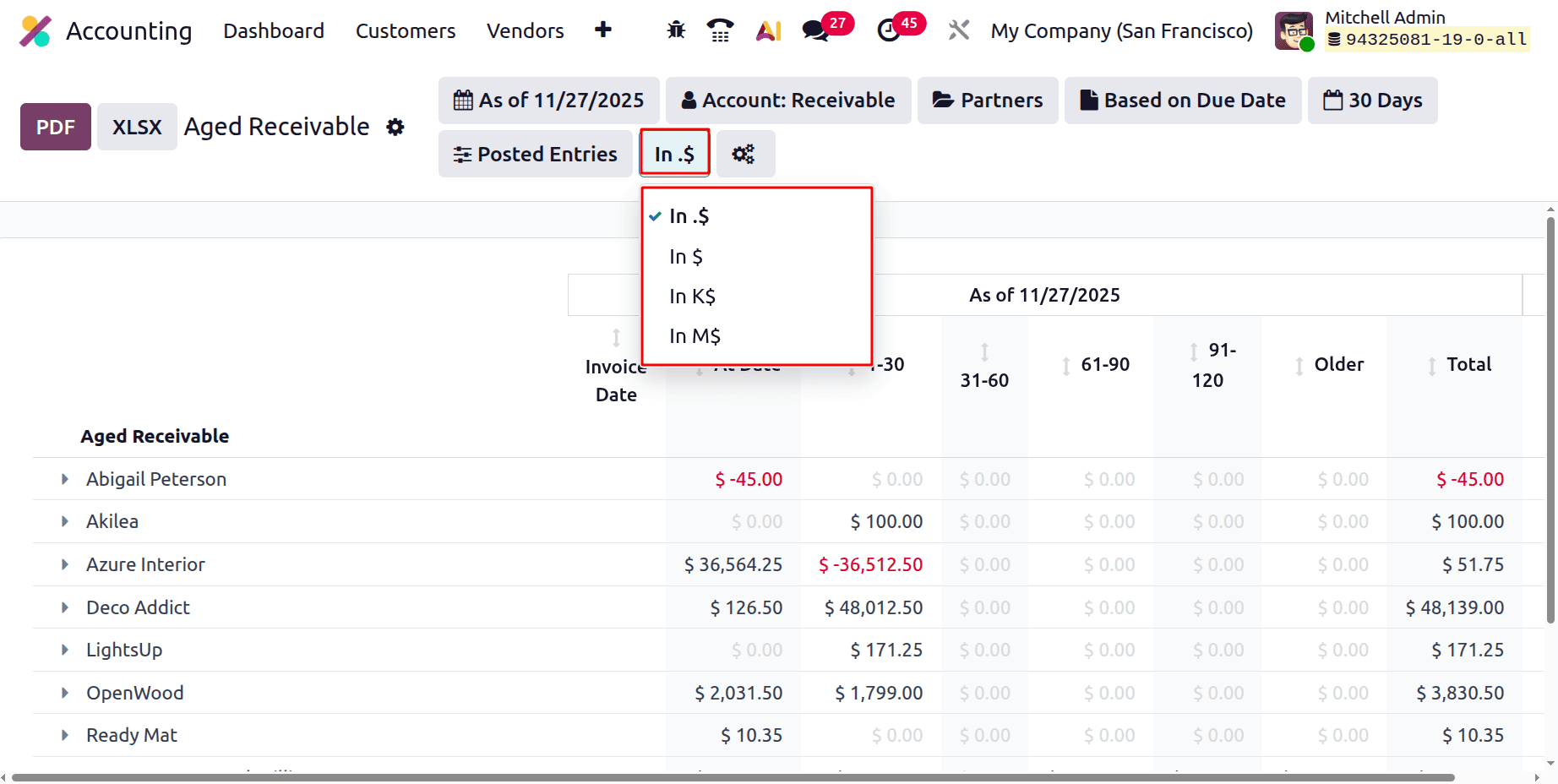
Next is the currency format-based filter. There are several ways to display the quantity.
The report shows the amount with two decimal places In $.
The sum is shown as an integer In $.
The total is shown In K$ thousands.
The sum is shown In M$, or millions of dollars.
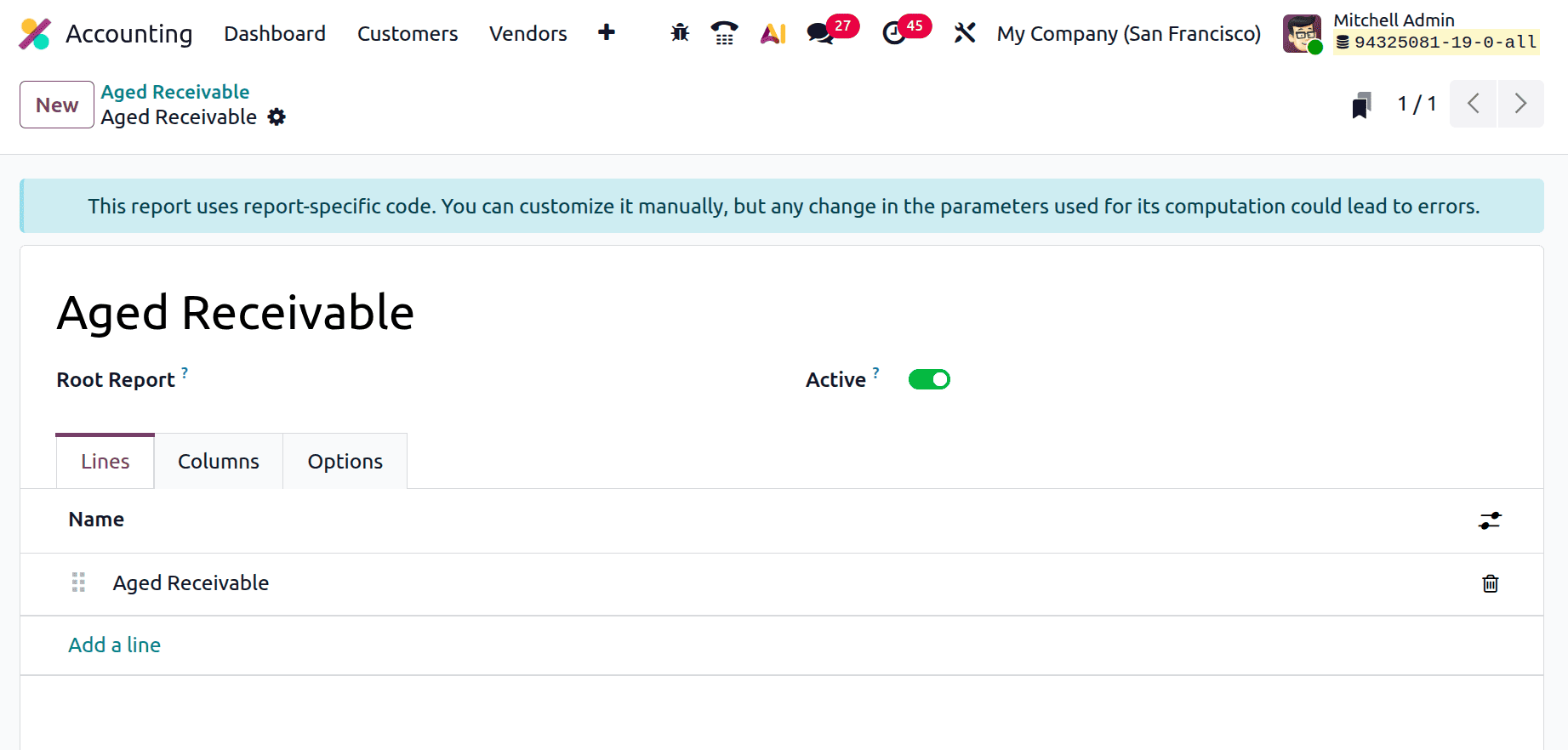
While clicking on the icon, which will open the Account Report. This will help the user to change the customisation on reports.
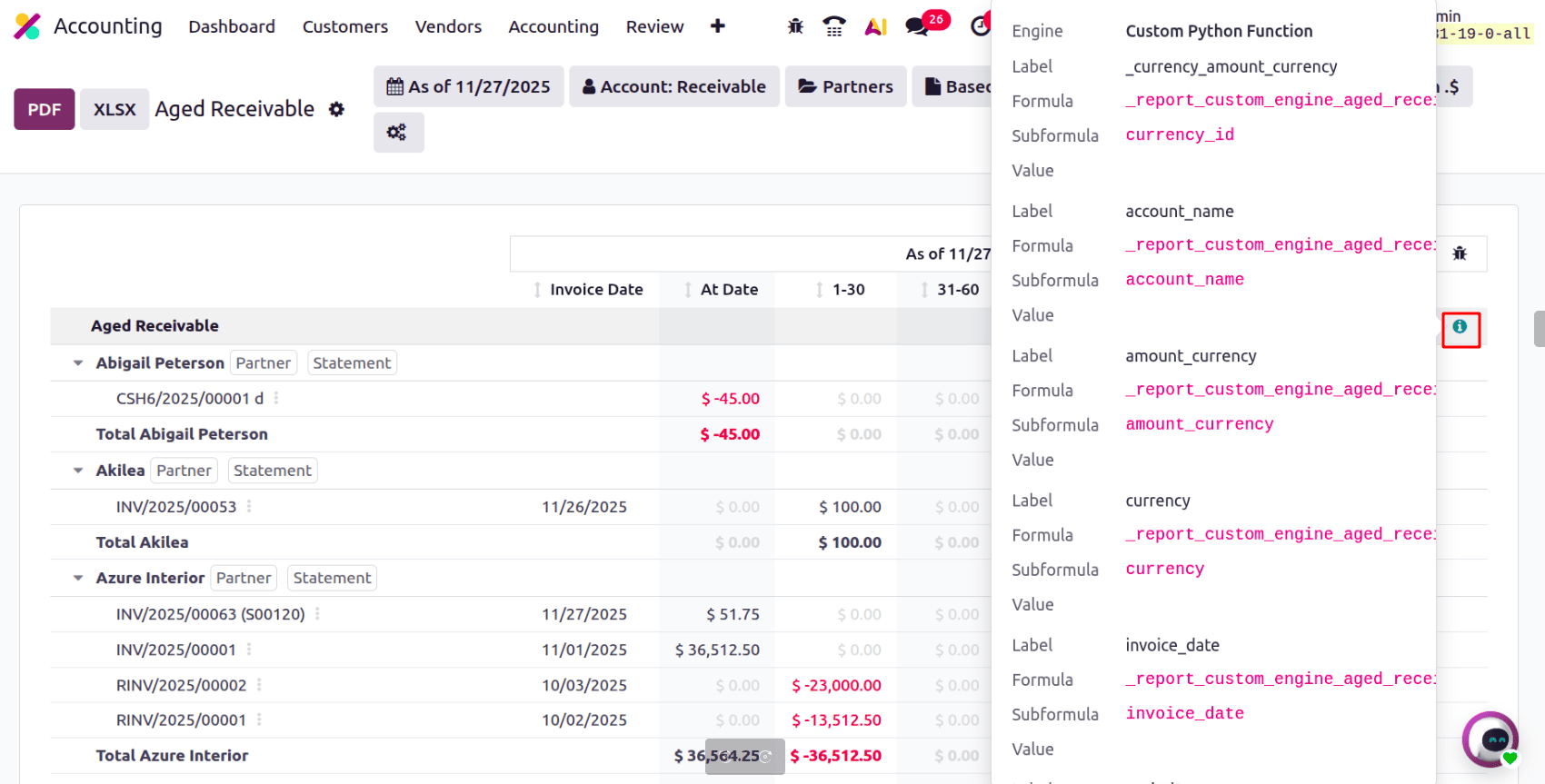
There is a Green icon near the statement line. This shows the details like Label, Formula, etc., to calculate the line.
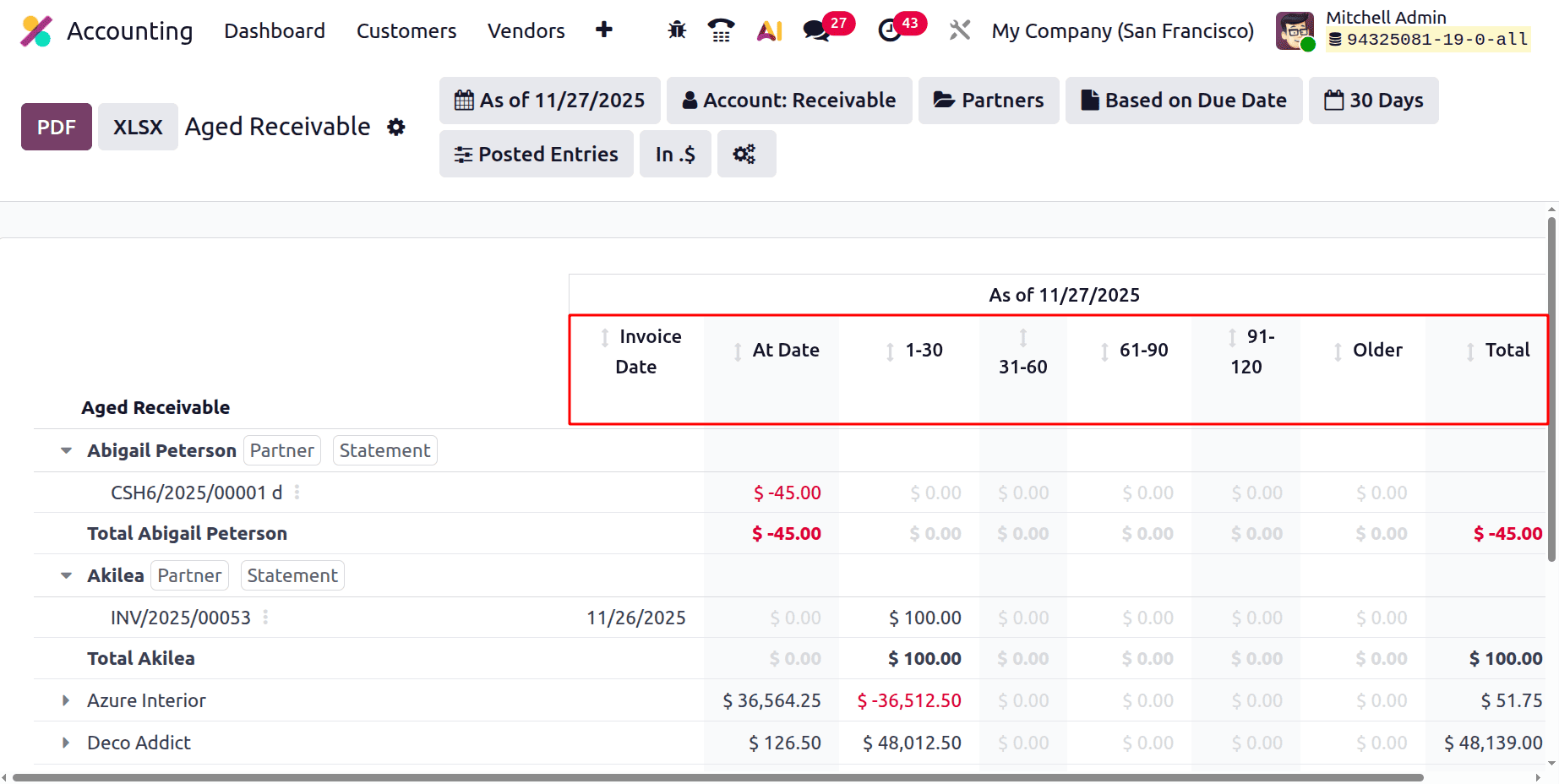
Let's check the Report
The report shows the Partners, Invoice date, and the amount, etc. The Invoice Date shows the Invoice creation date, and the other fields like At Date, 1-30, 31-60, etc are indicated the Payment due date.
Here under the At Date when, the Invoice Payment date is on this date. The value under the 1-30 shows the invoices that are 1 to 30 days past due. Then, under the 31-60, users can see invoices that are 31 to 60 days past due. And the others, like 61-90, 91-120, also show the corresponding values. The Older shows the invoices that are more than 120 days past due for payment. Then the Total shows the total amount.
Near the partner name, the user can see two buttons: one is Partner, and the other is Statement.
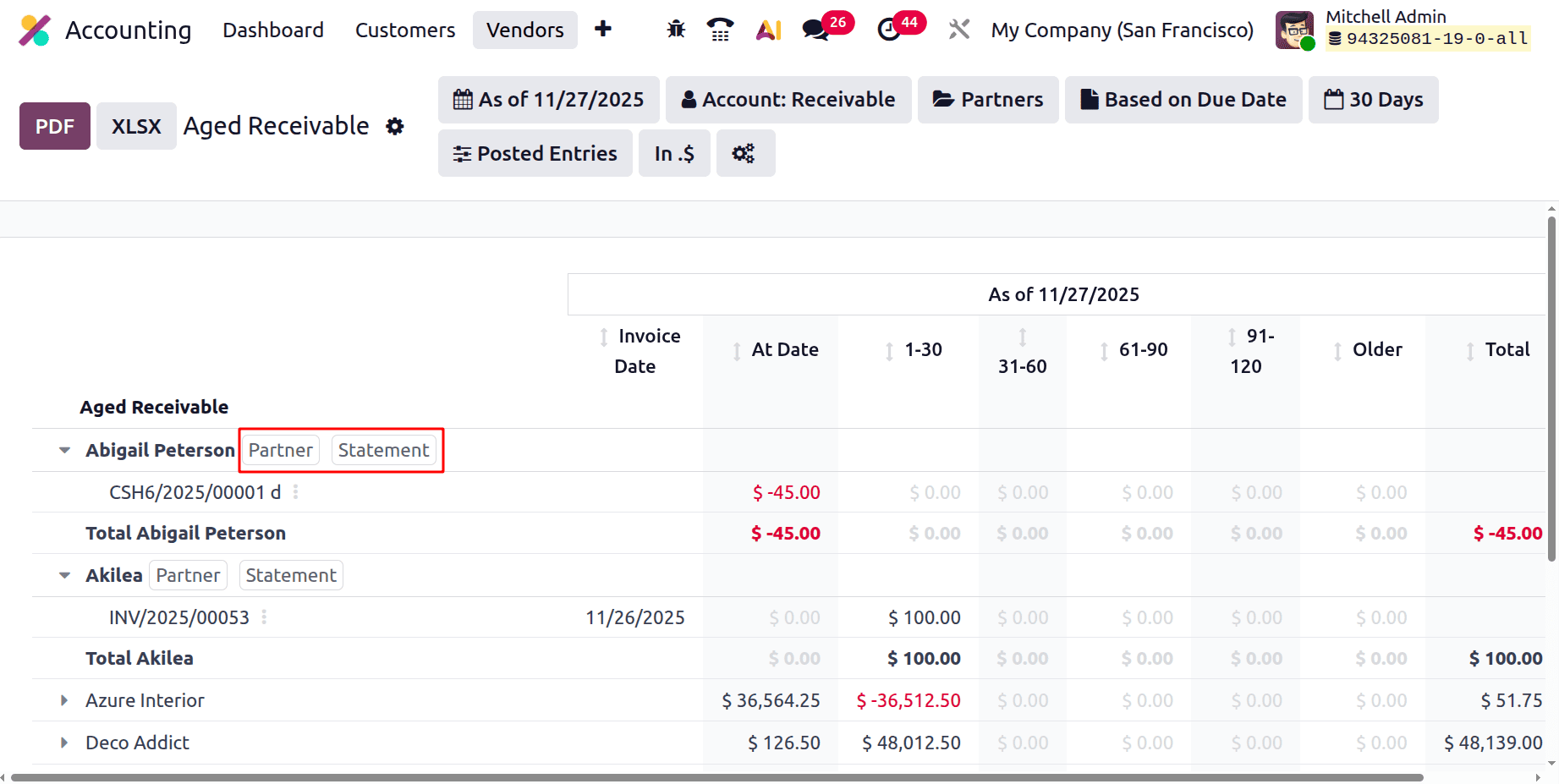
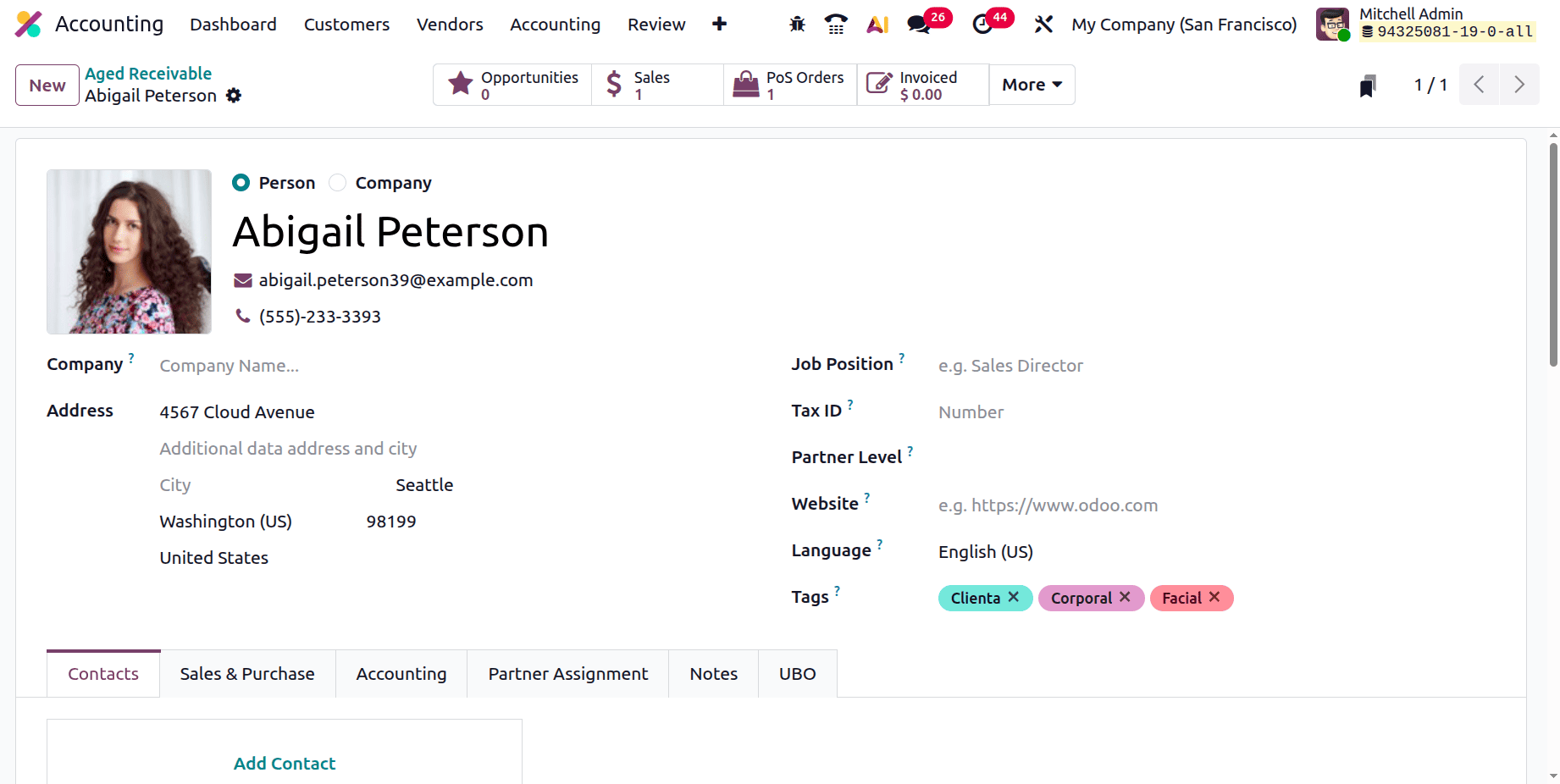
While clicking on the Partner button, the employee form will open. The users can easily view the configuration of the corresponding employee.
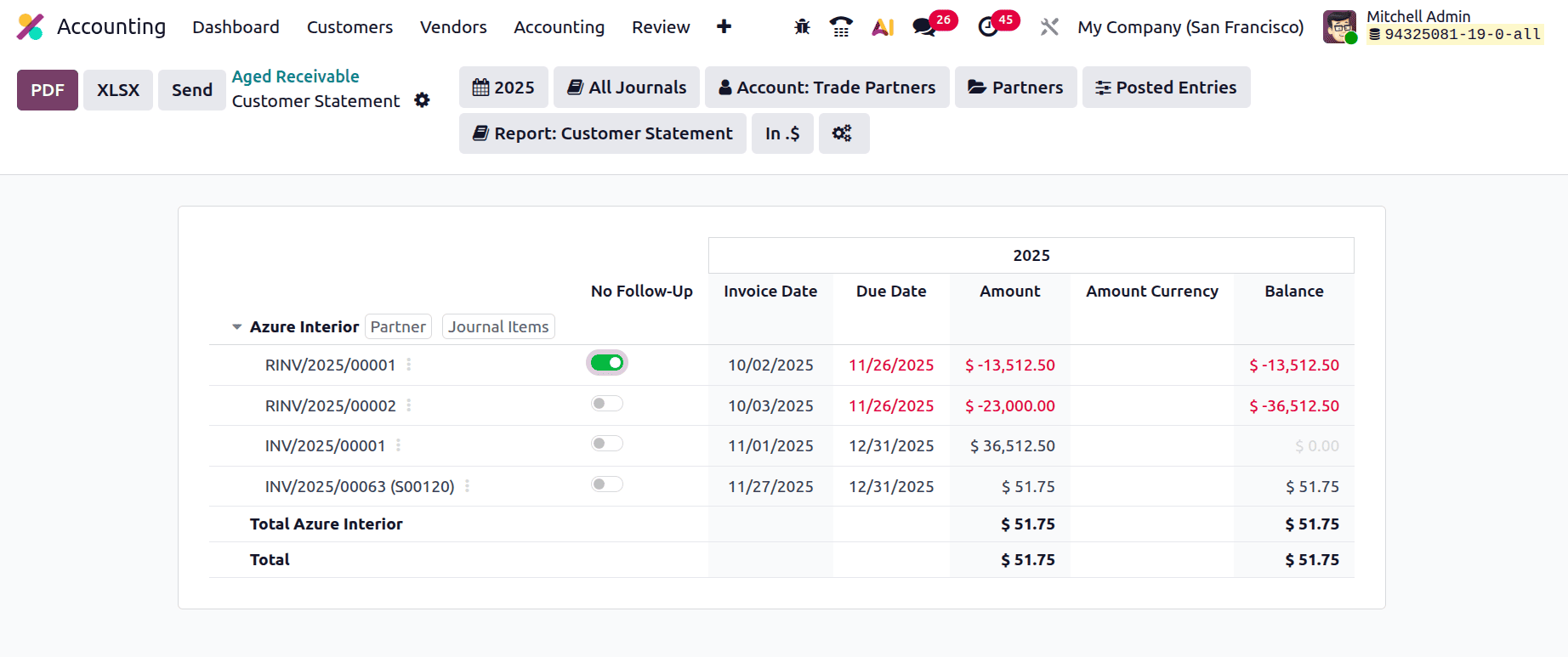
Next is the Customer Statement, which shows the Customer Statement of the partner. All the due invoices created for the partner can be viewed there. The Invoice Date, Due Date, Amount, Amount Currency, and Balance can be viewed inside the Customer Statement.
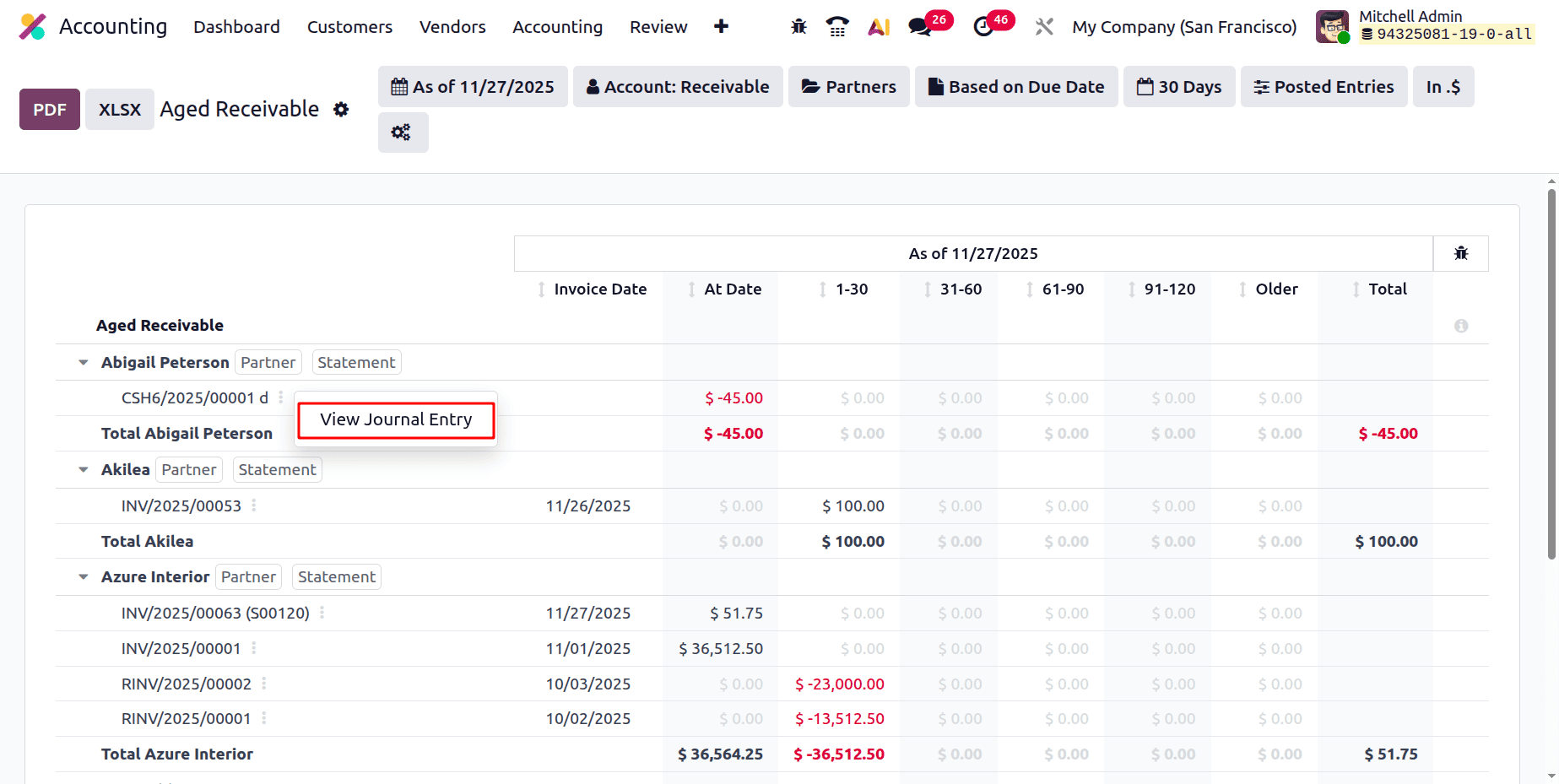
Unfold the report line, then click on the 3 dots. It shows a View Journal Entry.
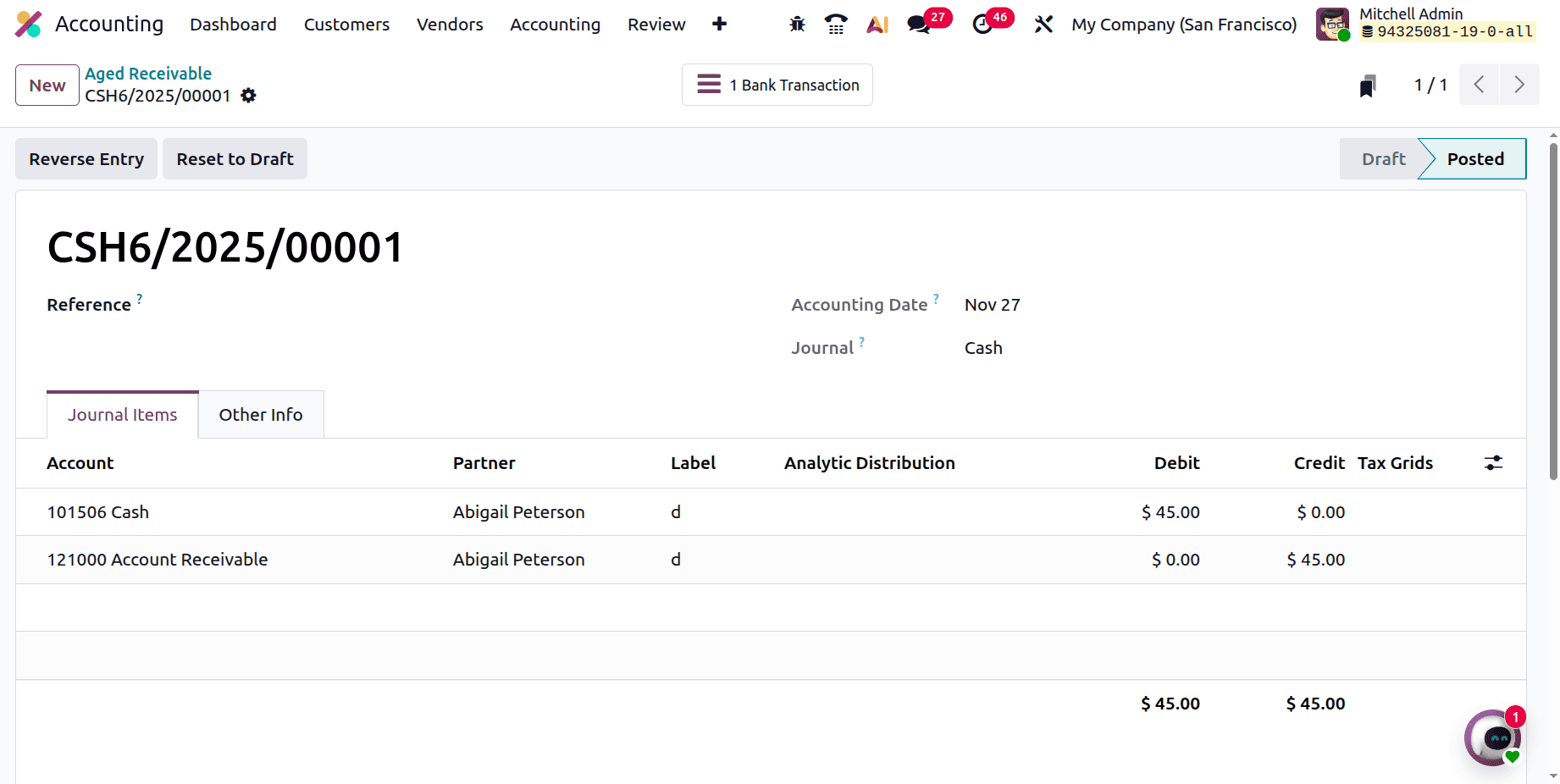
Click on it, and it will open the Journal entry corresponding to the line as shown below.
At the end of the report, the Total Receivable amount is shown below. Total of due invoices At Date, due in 1-30 Days, 31-60 Days, 61-90 Days, 91-120 Days, and Older separately. Then at last the total of all will show as below.
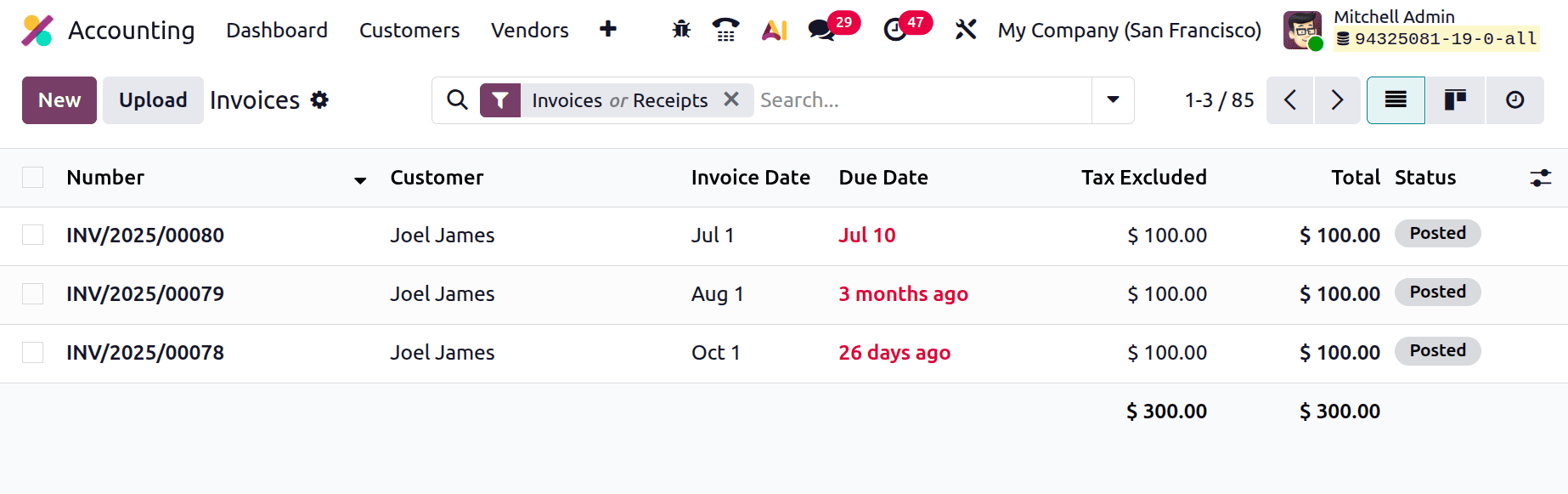
To demonstrate how the values are added to the Aged receivable report, let's check the Invoices. The image below shows the list view of the invoices created for a partner, Joel James.
The First Invoice is created on July 1st, and the Due date is July 10 the, which means the payment is due more than 120 days. The second invoice is created on Aug 1st, and the due date is August 29th. The payment was due 3 months ago. The third one is created on Oct 1st, and the payment date is November 1st. Which means due in between 1 and 30 days.
Then let's move back to the Aged Receivable report. Unfold the partner Joel James. The three invoices are shown there.
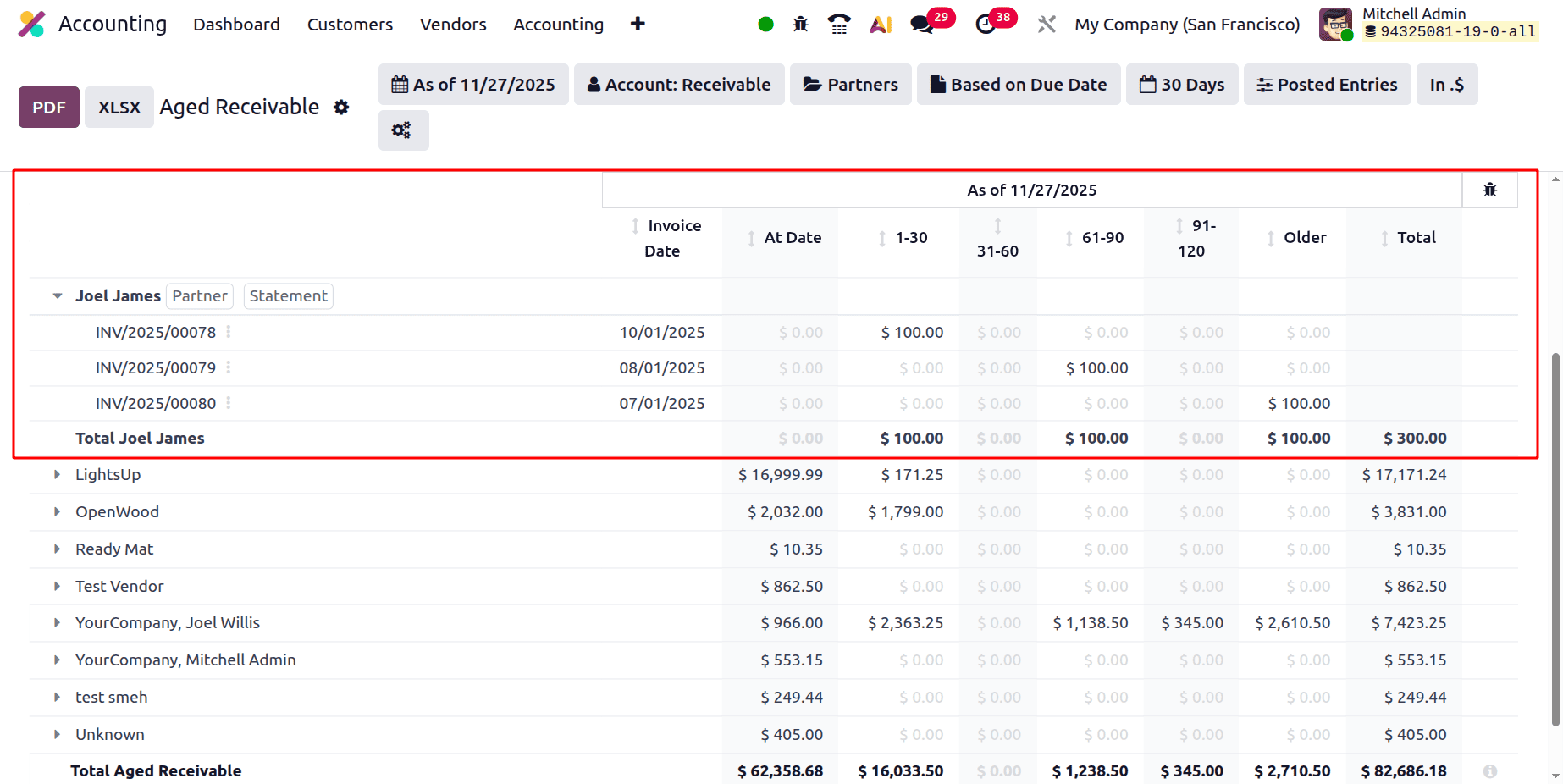
The Invoice INV/2025/00078 is due 26 days ago, which is placed between the 1-30 days. The invoice INV/2025/00079 is due 61-90 days. INV/2025/00080 invoice is due more than 120 days, so it is added under the section Older.
To sum up, Odoo 19 Accounting's Aged Receivable Report gives companies a transparent and useful picture of unpaid client obligations. It helps businesses improve cash flow and fortify credit management procedures by grouping past-due invoices into significant ageing periods. Odoo 19 enables businesses to handle receivables more effectively and proactively thanks to its comprehensive insights and intuitive interface.
To read more about How to Analyze Aged Receivables and Payables Reports in Odoo 19, refer to our blog How to Analyze Aged Receivables and Payables Reports in Odoo 19.