Odoo 20 eLearning helps businesses to create online courses and manage employee training through a centralized platform. It allows users to organize learning materials and control how participants access courses. Course enrollment can be managed through different policies, depending on whether a course is open to users or restricted to invited participants.
In this blog, we will explore how to manage course enrollment in Odoo 20, invite participants to a private course, and use automatic enrollment groups to simplify access for employees.
Create a course in Odoo 20
To configure the enrollment policy, open the eLearning module from the Odoo 20 dashboard.
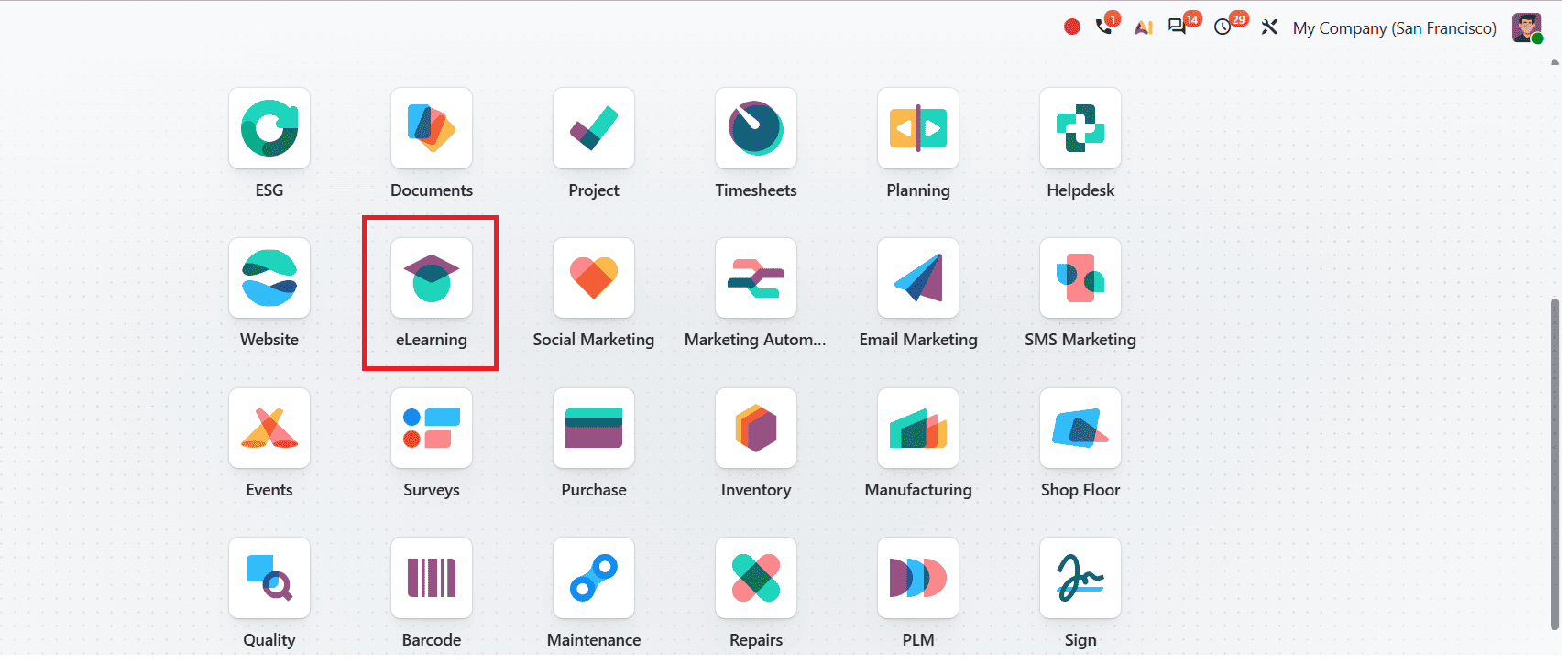
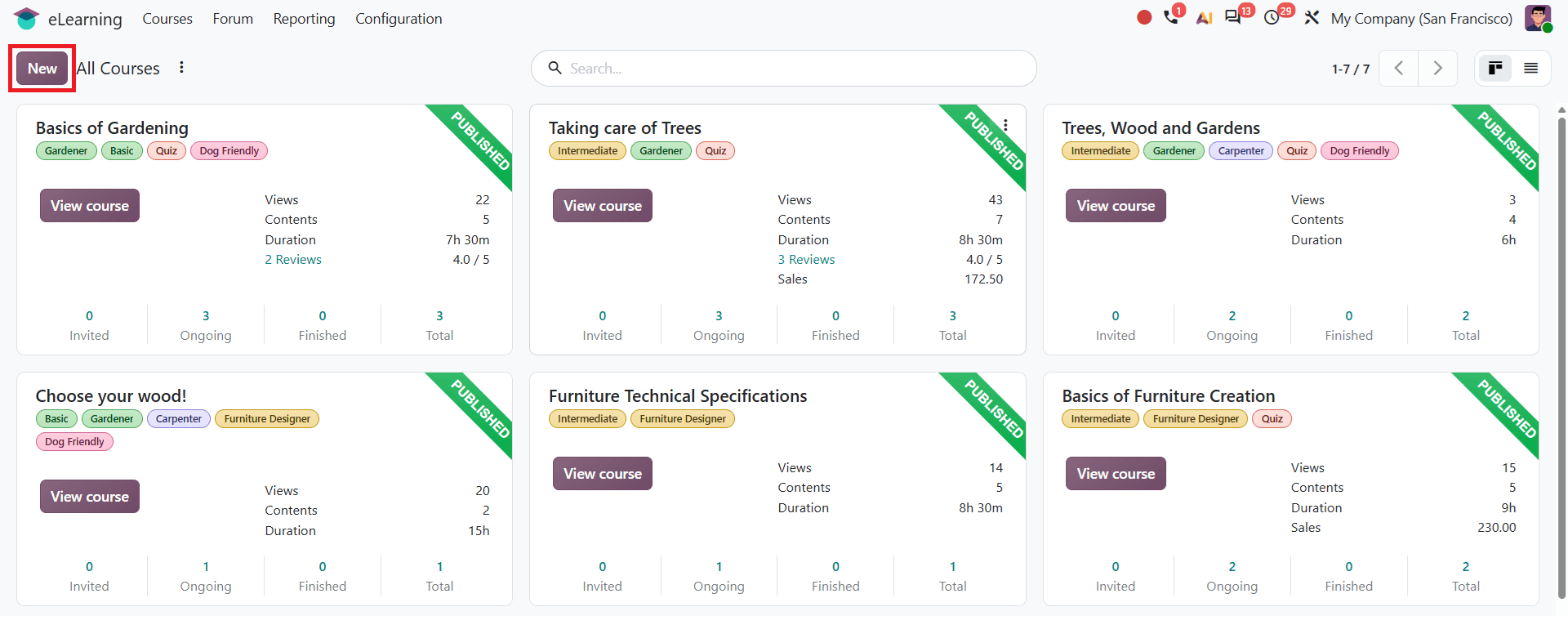
After opening, you can see existing courses in the eLearning course dashboard. To configure the enrollment policy, you can open an existing course or create one.
To create a new course, click New on the course dashboard.
In the form, enter the course title in the Course Title field and add relevant tags to your course as shown below.
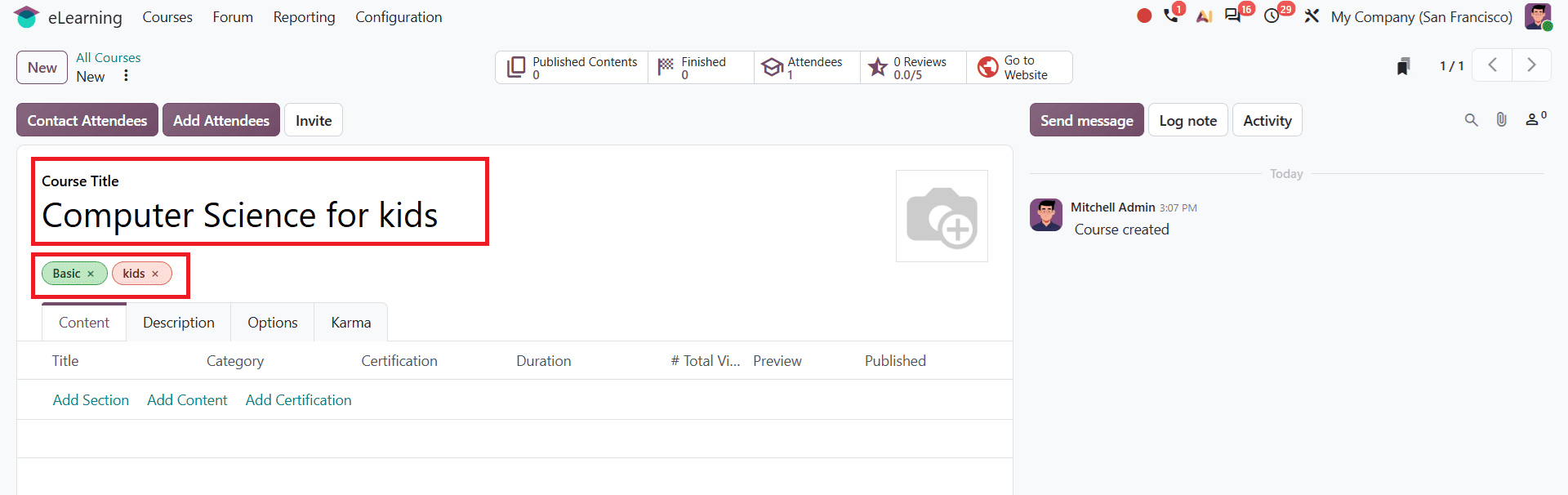
The form has different tabs to manage and organize the course, such as the Content, Description, Options, and Karma tabs. The Content tab is used to organize learning materials. You can add sections, learning content, and certification in the relevant field. In the Description tab, you can add descriptions about your course. The Options tab includes other additional configuration options, including enrollment policies. Karma tab supports gamification by making courses more engaging and rewarding for participants.
After configuring the course details, save your changes. You can then configure how participants enroll in the course and manage access through invitation or automatic enrollment groups.
Configuring Course Enrollment Policies in Odoo 20
Odoo 20 eLearning provides enrollment policies that help control how participants access a course. The available options determine whether a user can enroll directly or needs an invitation to join. Open the course you created and navigate to the Options tab to configure enrollment policies.
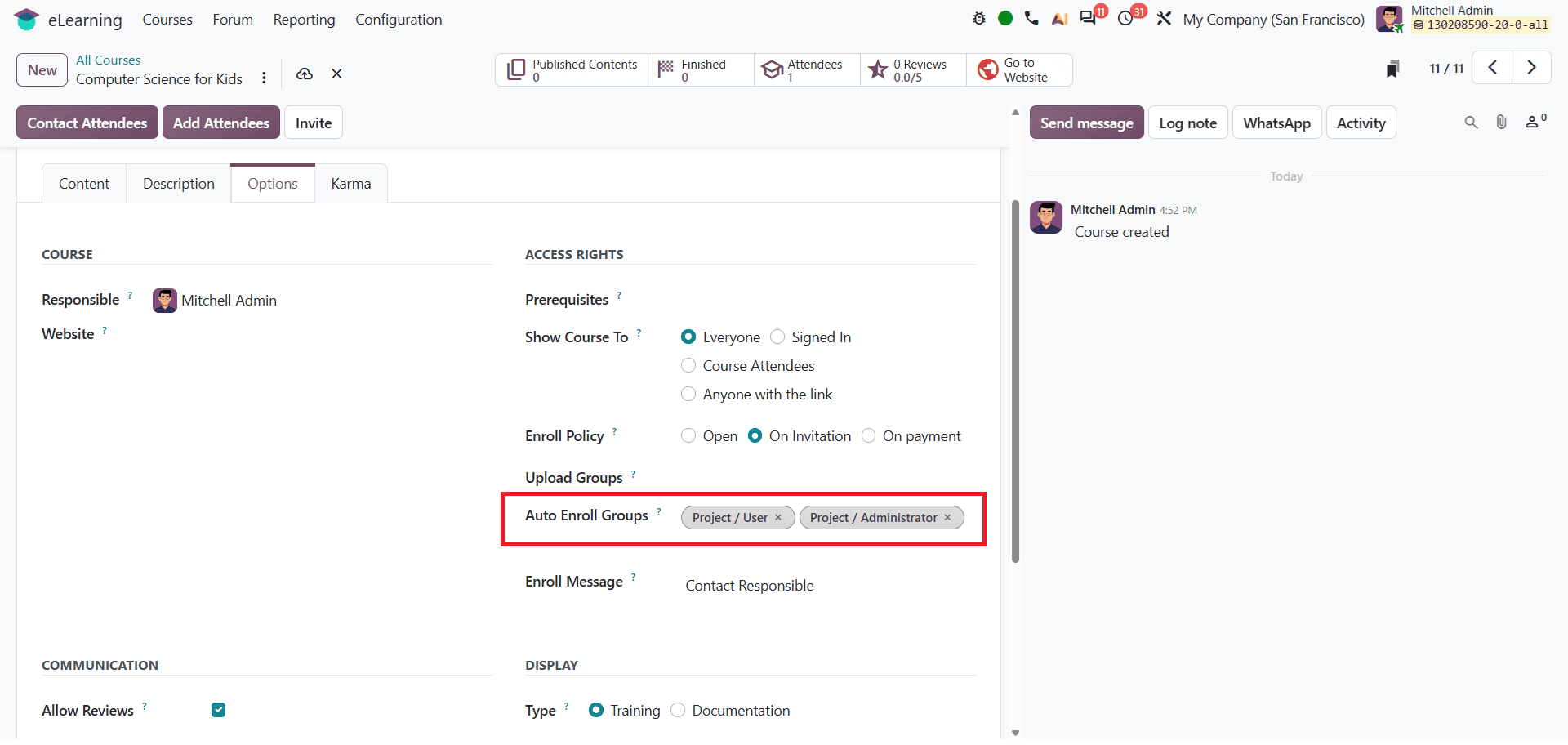
The Options tab provides sections such as COURSE, ACCESS RIGHTS, COMMUNICATION, and DISPLAY. The Access Rights section allows users to control the enrollment policy. It also includes the Show Course To field, which controls course visibility. You can select an option required for your course, such as Everyone, Signed In, Course Attendees, or Anyone with the link.
Enroll policy field includes three options: Open, On invitation, and On payment. These options set the rules for how people join a course.
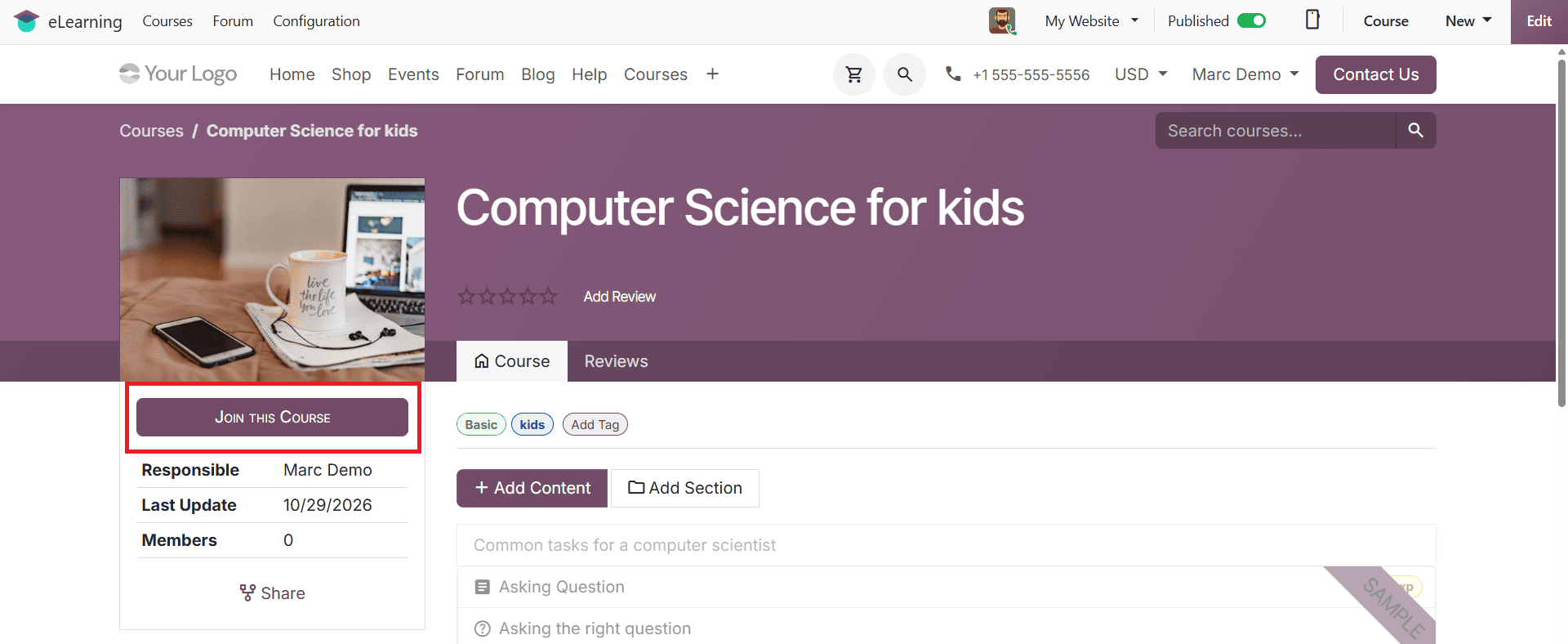
Open: This allows anyone who can view the course to enroll in it. The website view will be as shown below.
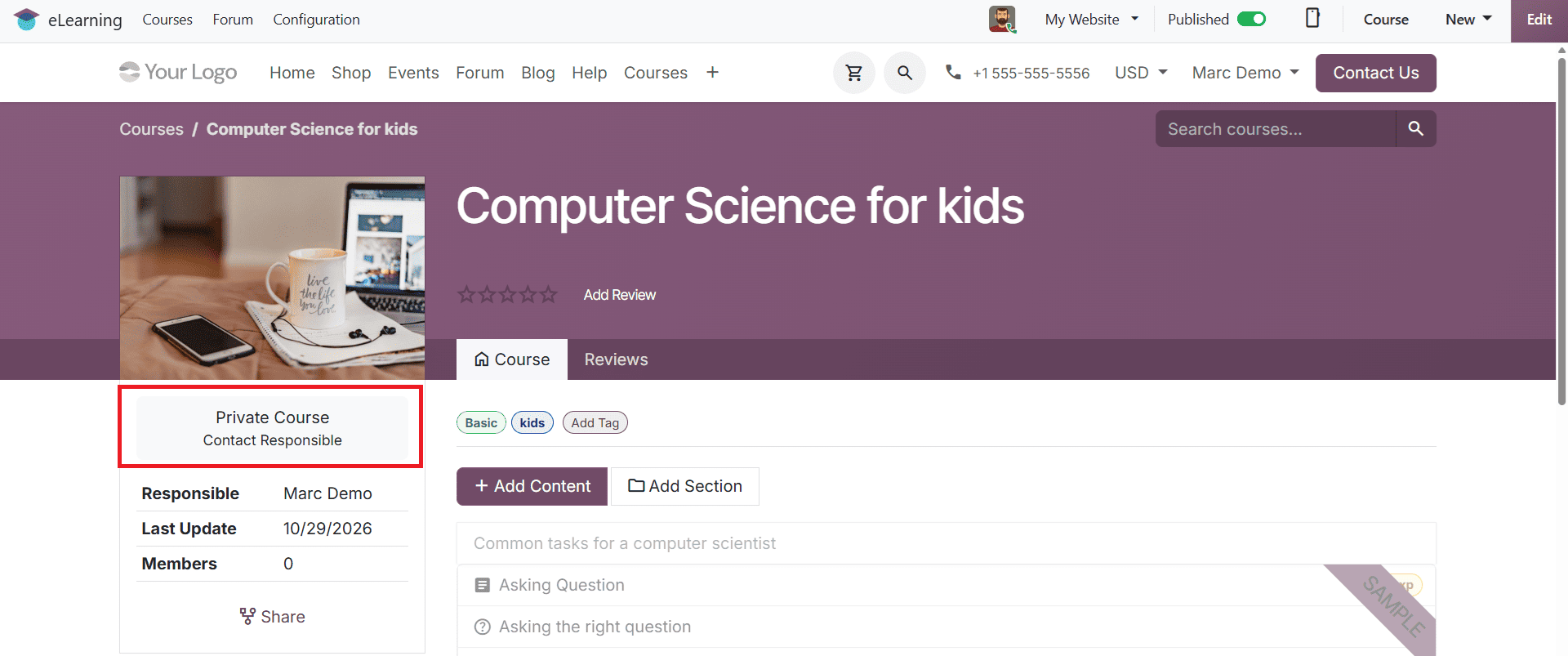
On invitation: This policy restricts enrollment to people who have received an invitation. If the course is visible to non-invited users, they may be able to request access through the course page. The Enroll Message field can provide instructions to obtain access. For example, if you set Contact Responsible as your Enroll Message, the course's responsible user can handle access requests. The website view will be as shown below.
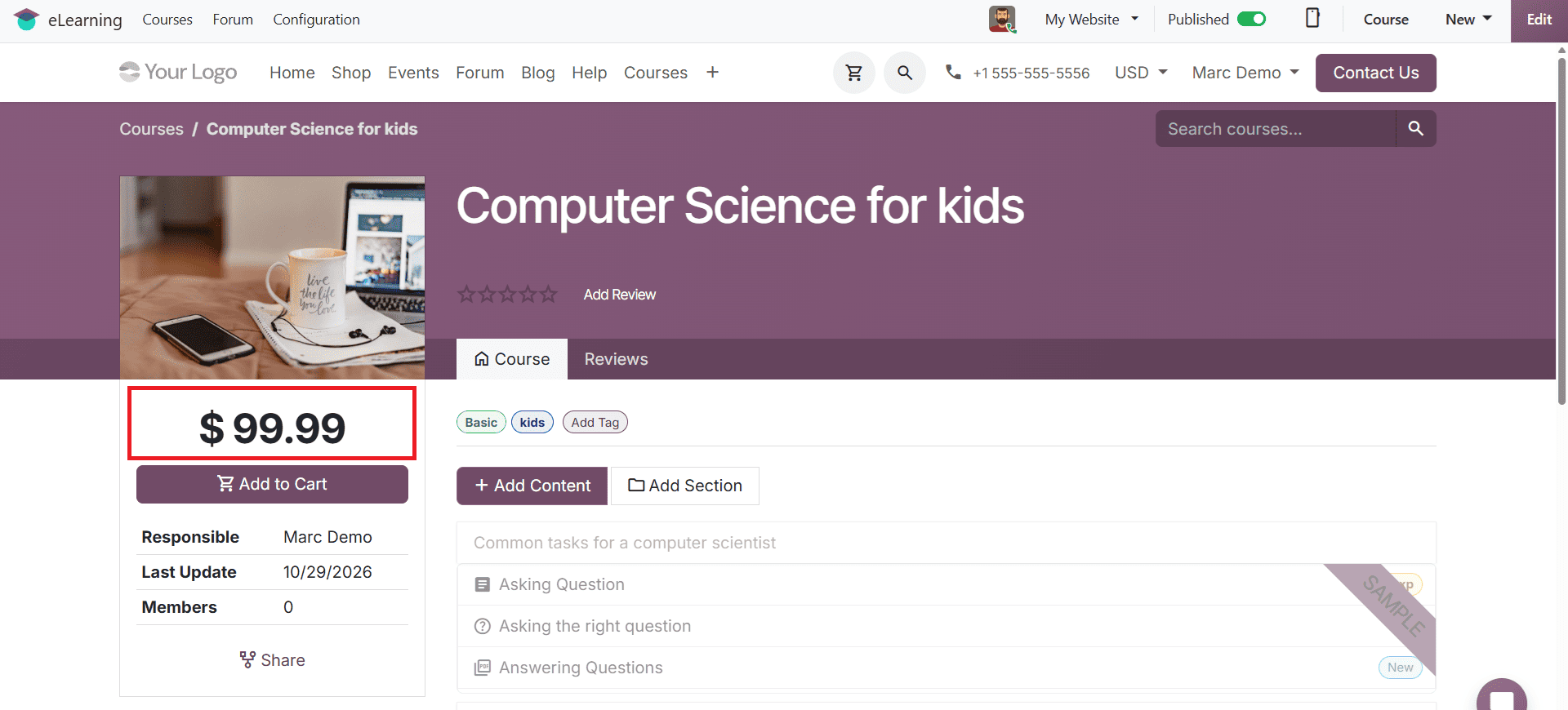
On payment: This option is available when the Paid Courses feature is enabled in the eLearning settings. It allows users to enroll after completing the required payment. A suitable product must also be configured for the course. The website view will be as shown below.
In this course configuration, the Responsible user is important because they can manage the course and handle enrollment requests when the course uses the On invitation policy.
Auto Enroll Groups
The Auto Enroll Group field in Odoo 20 eLearning allows you to automatically enroll members of specific user groups in a course.
To configure Auto Enroll groups, go to the Options tab of the course, and under Access Rights, you can see it as shown below. If it is not available, go to Settings and activate Developer mode.
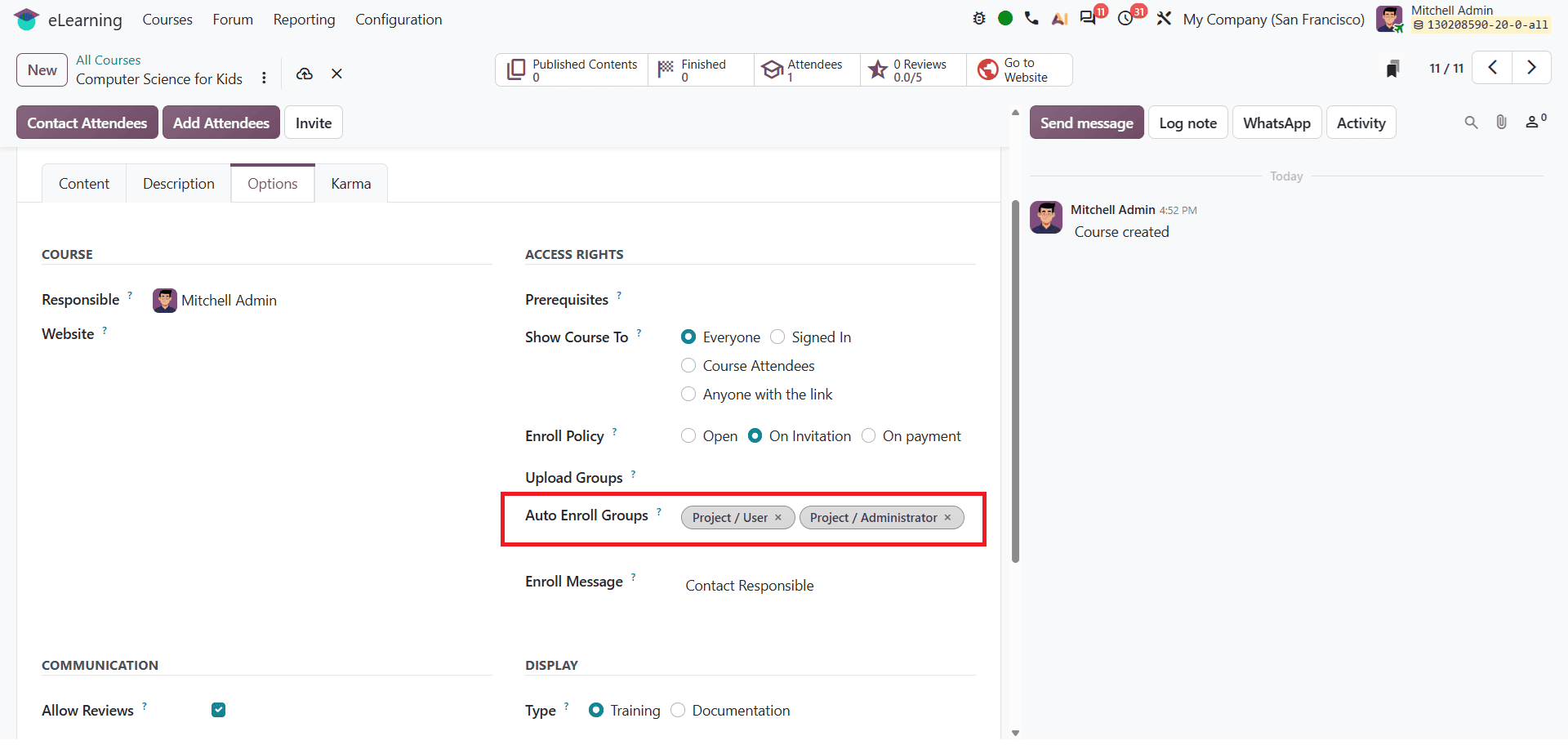
You can enter required groups for your course. Once you add groups, the members of those groups are automatically enrolled in that course. For example, an organization can use group-based enrollment to simplify access management for employees who belong to a designated user group.
Invite Attendees
Odoo 20 eLearning allows course managers to invite participants to their course. After you publish your course, you can invite participants. This helps manage course access and allows intended participants to join the course. Contact Attendees, Add Attendees, and Invite options allow you to control attendees. These options help to add attendees manually, send direct invitations, and contact enrolled participants.
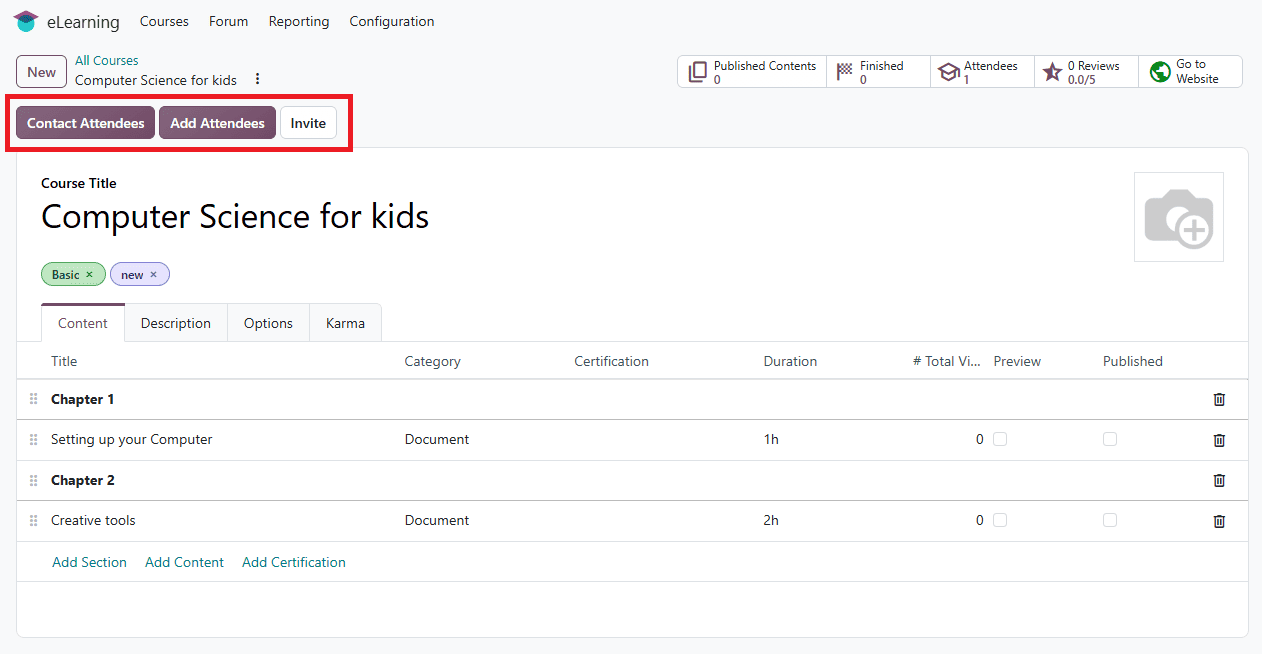
Contact Attendees: This option allows you to communicate with people who are already enrolled in the course by sending mass emails. For example, course managers can notify attendees when new modules, videos, or quizzes are added.
Click on Contact Attendees to send mass mail; a pop-up window will appear as shown below.
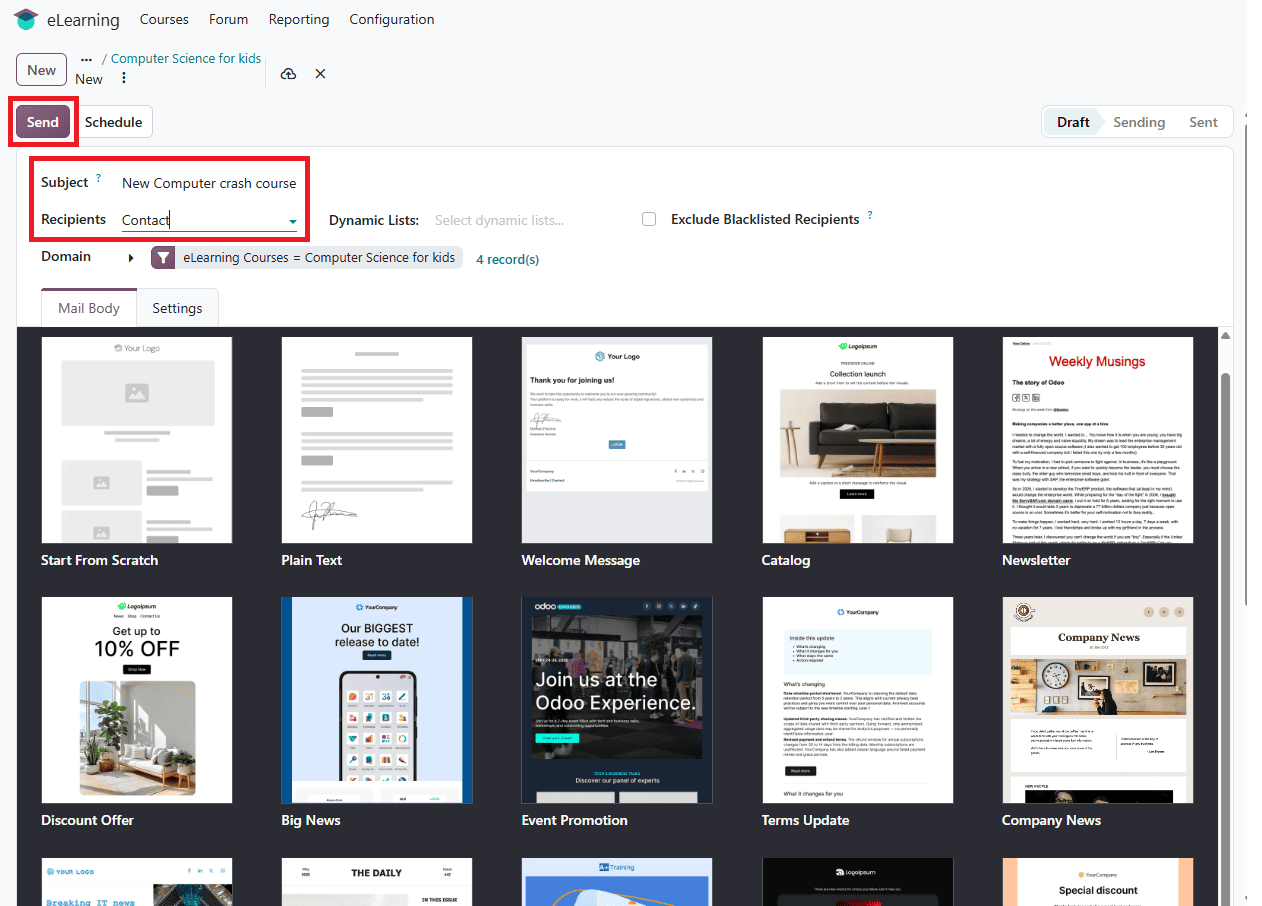
In this form, enter the Subject and select your Recipients. Then send it.
Add Attendees: This option allows course managers to manually enroll specific people in a course.
To add attendees, click on Add Attendees and enter the required recipient you want to add in the pop-up window.
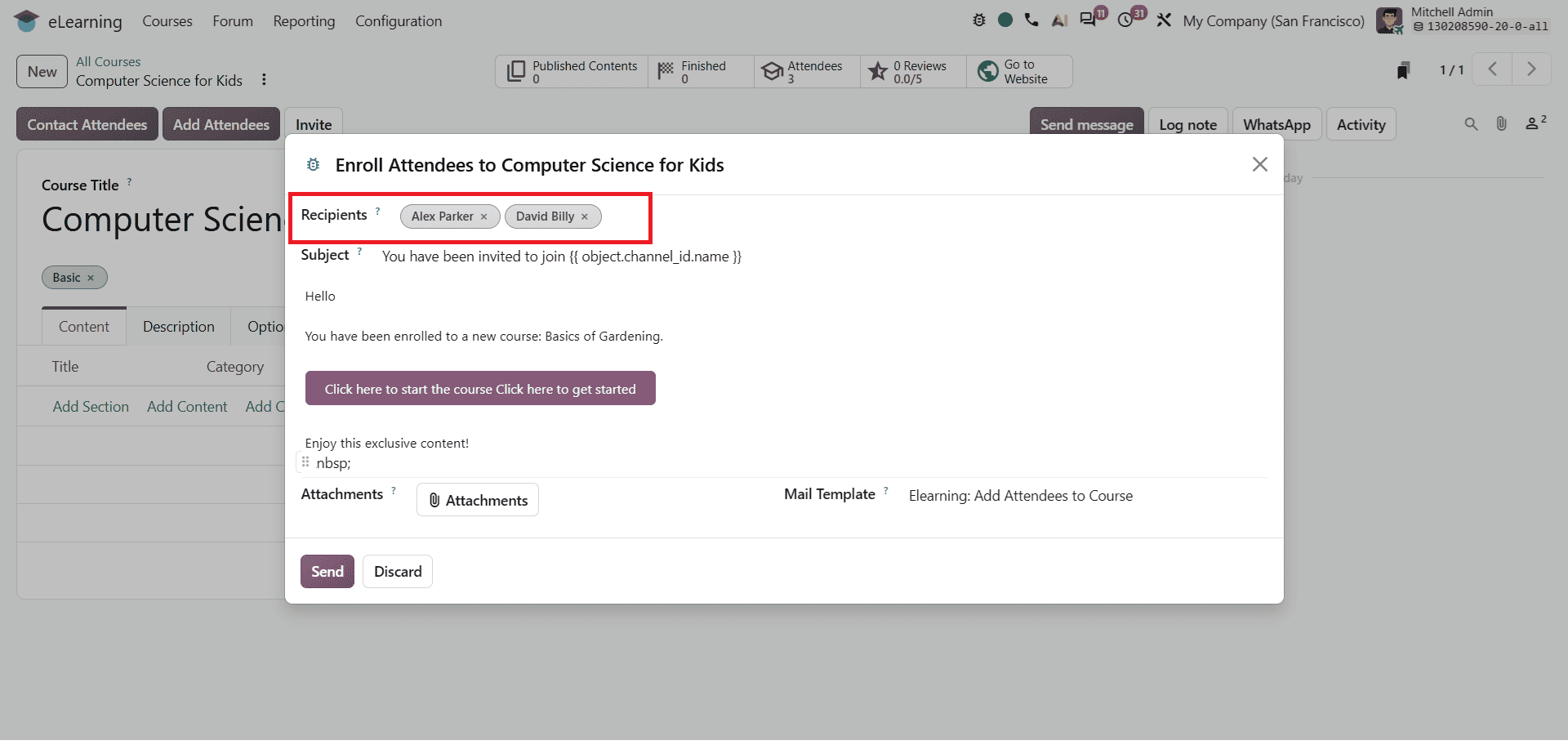
Then send the message to complete the process. The selected people are added to the course's attendees list.
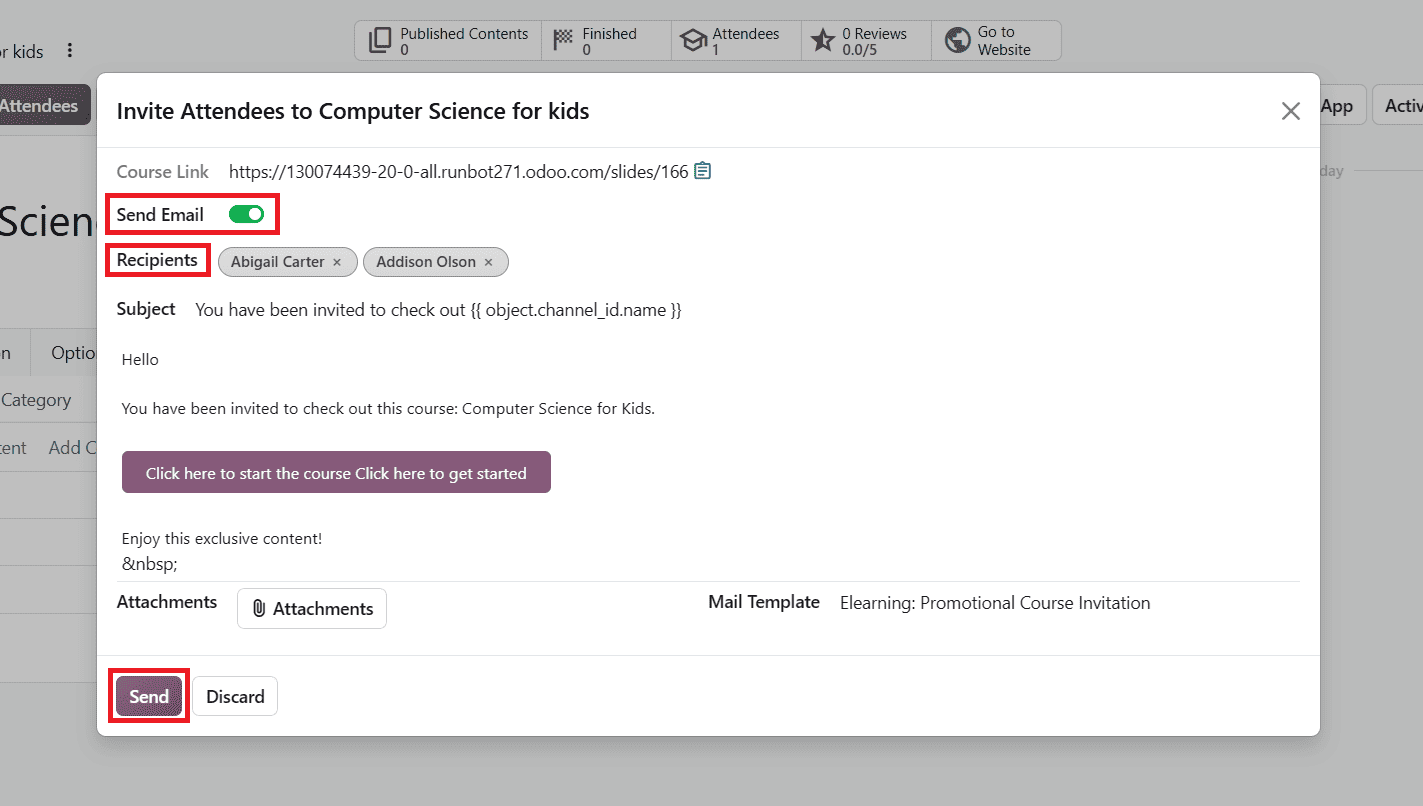
Invite: This option allows course managers to share a course link or invitation emails, enabling participants to access the course and enroll according to its access setting.
To invite participants, click on the Invite option. Enable the Send Email option to send an invitation by email and add the required recipients to the course. Then send it. Alternatively, use the available course link option to share the course directly. Recipients can use the invitation or link to access the course and enroll.
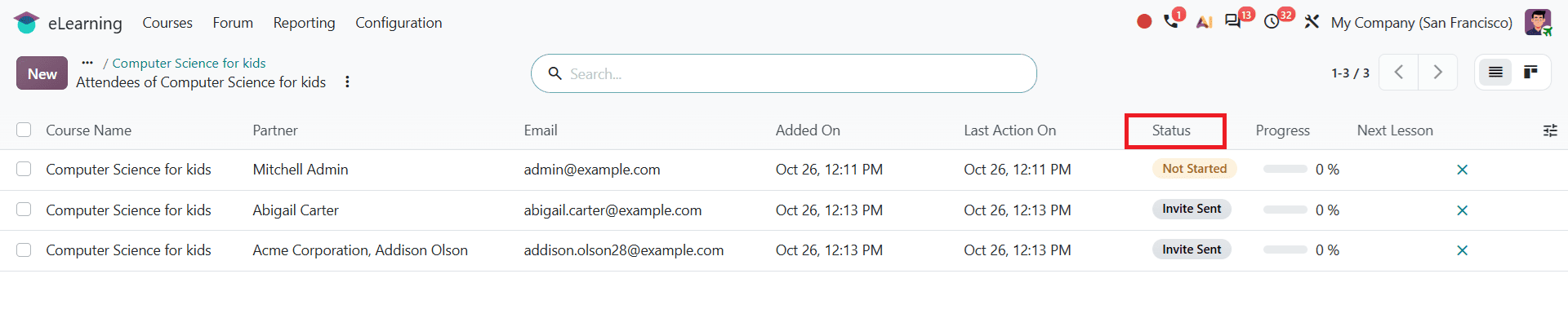
To view the attendees' status, click on Attendees from the smart button.
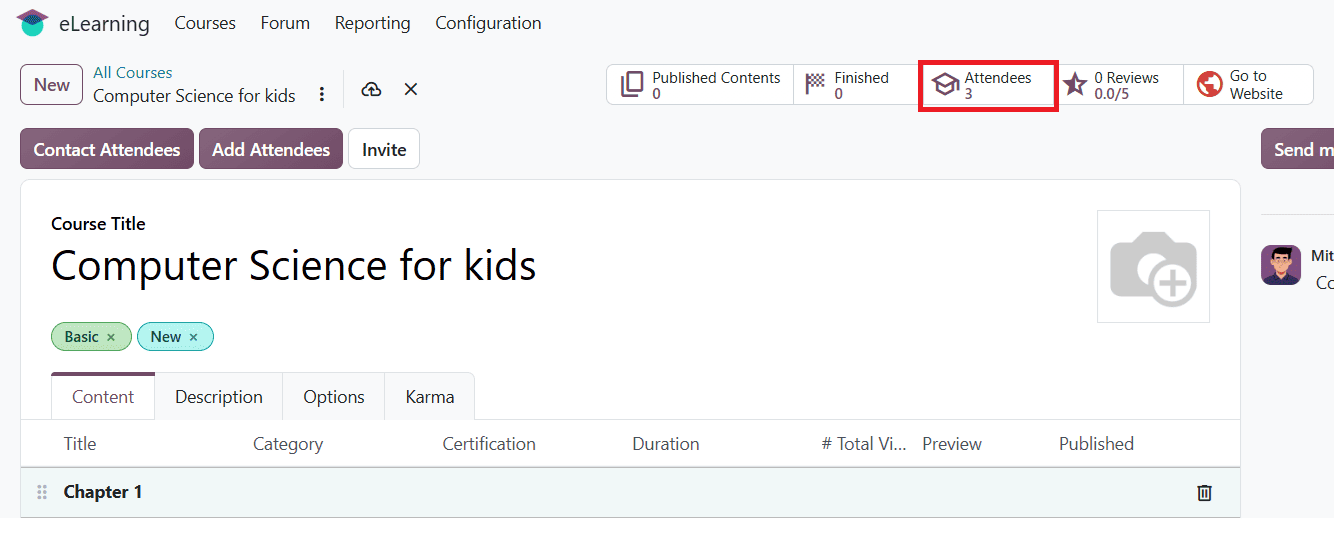
The Attendees window displays the attendees and their current status, allowing course managers to monitor enrollment and participation.
Odoo 20 eLearning provides flexible options for managing course enrollment and participant access. By configuring enrollment policies, using Auto Enroll Groups, and managing attendee invitations, businesses can simplify course administration and organize employee training more efficiently. This module lets you create, manage, publish, and track online courses directly from your database.
To read more about How to Set Up Online Courses in Odoo 19 eLearning, refer to our blog How to Set Up Online Courses in Odoo 19 eLearning.