Managing inventory efficiently becomes easier when businesses adopt consignment stock models, especially in fast-moving or competitive markets. Consignment stock refers to goods that are stored at a company’s warehouse but remain the property of the supplier until they are sold to the end customer. This arrangement allows businesses to offer a wider range of products without making upfront payments, while suppliers benefit from faster market entry and broader product visibility.
In a consignment setup, the consignee (the business holding the stock) sells the goods on behalf of the supplier and may charge a handling or service fee for storage, display, and sales efforts. Unsold or slow-moving items can be returned easily, reducing long-term storage costs and inventory risks. This model is particularly useful for retailers introducing new products or testing demand without tying up capital.
Odoo 19 Inventory simplifies consignment stock management through built-in ownership and stock control features. By enabling the Consignment option in the Inventory settings, businesses can track products stored in their warehouse while clearly identifying the supplier as the owner until the point of sale. Odoo automatically updates ownership when a sale is completed, ensuring accurate stock valuation, transparent supplier relationships, and efficient inventory control, all from a single, integrated platform.
To begin managing consignment products in Odoo 19 Inventory, first open the Inventory module and navigate to the Configuration menu. From there, select Settings and locate the Traceability section.
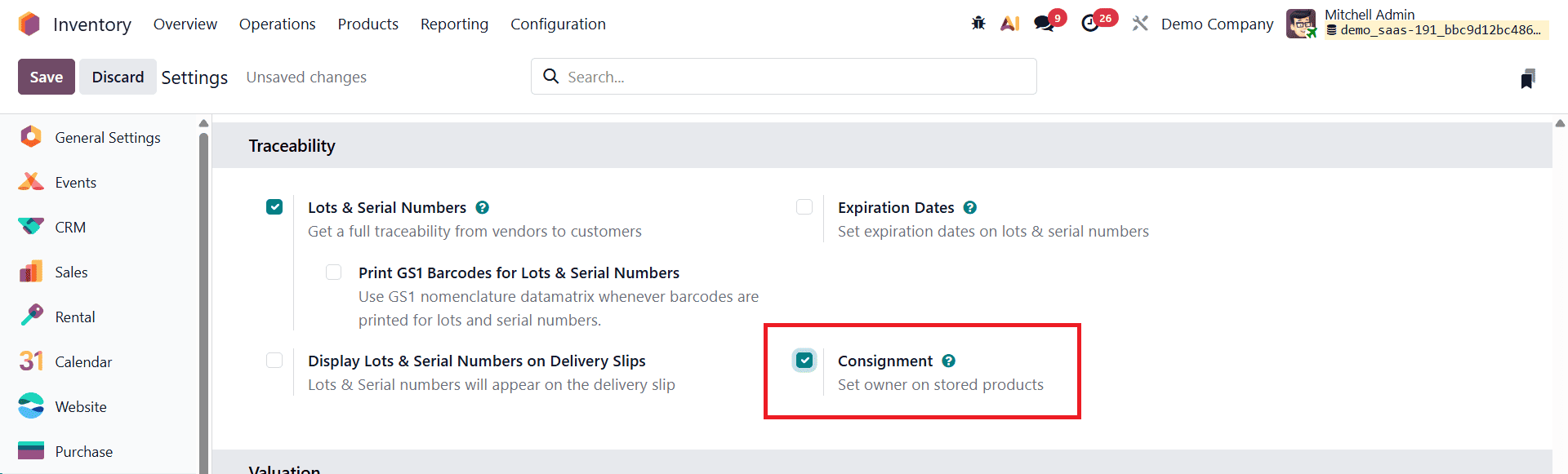
Enable the Consignment option and save the changes. This step activates ownership tracking within inventory, allowing products stored in your warehouse to remain under the supplier’s ownership until they are sold.
Once the consignment feature is enabled, users must create a receipt to understand how consignment stock works in practice. Go to the Operations menu and select Receipts, or access it directly from the Inventory Overview dashboard under the Receipts section.
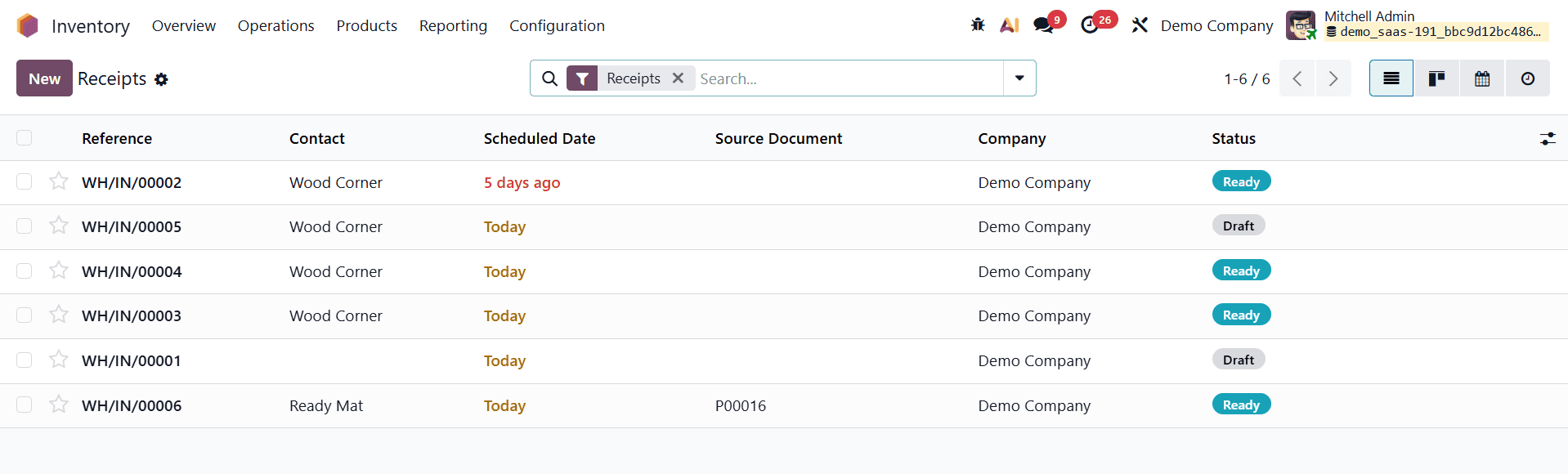
The dashboard offers a consolidated view of all receipt operations created in the Odoo 19 inventory database. Click the New button to generate a new receipt. The receipt form displays key details such as Reference, Contact, Scheduled Date, Source Document, Company, and Status, all of which help track the incoming consignment stock efficiently.
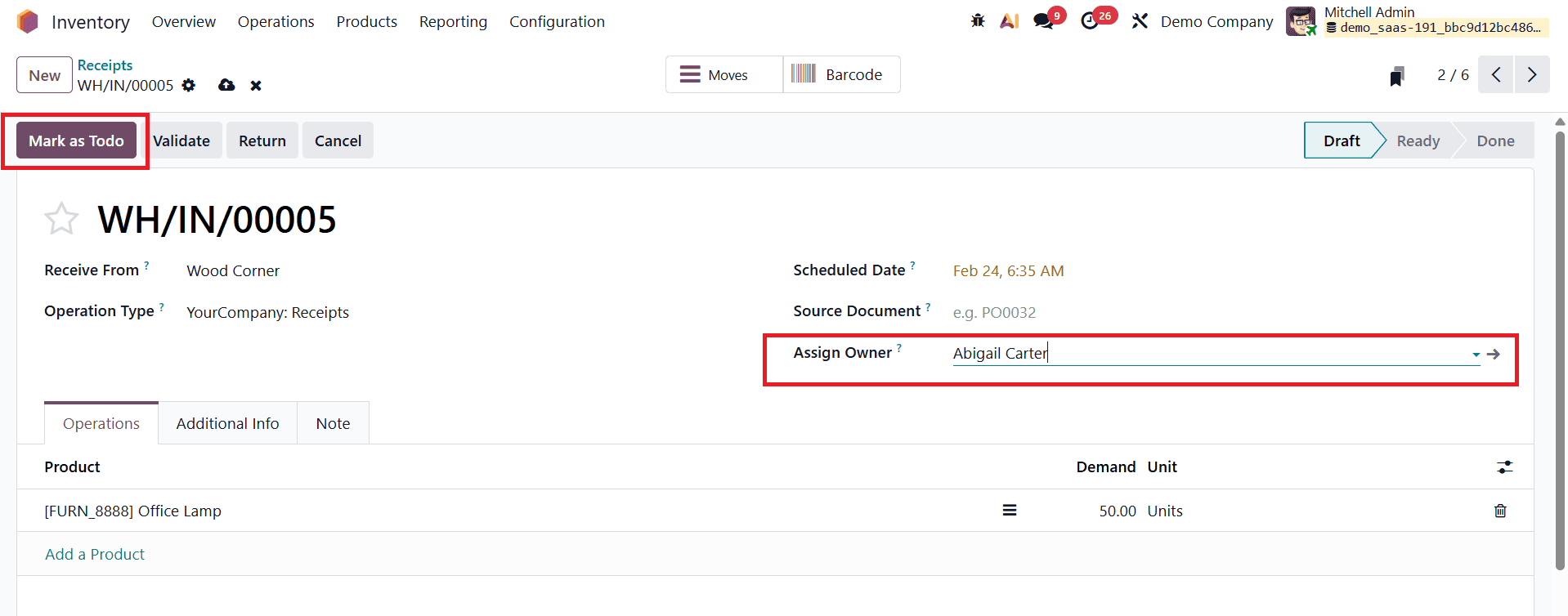
In the receipt form, the user must first select or create the vendor contact supplying the consignment goods. By default, the operation type is set to Receipt. The Scheduled Date defines the timeframe for processing the incoming shipment. A crucial step in consignment management is assigning product ownership, this can be done using the Assign Owner field, where the supplier or specific owner of the product is defined. Next, click Add a Line in the Operations tab to include the consignment product, and enter the Done Quantity next to the selected product to specify the received amount. After confirming the product details and quantities, click the Mark as To Do button to proceed with the receipt workflow. This step ensures the receipt is ready for validation and stock movement within the system.
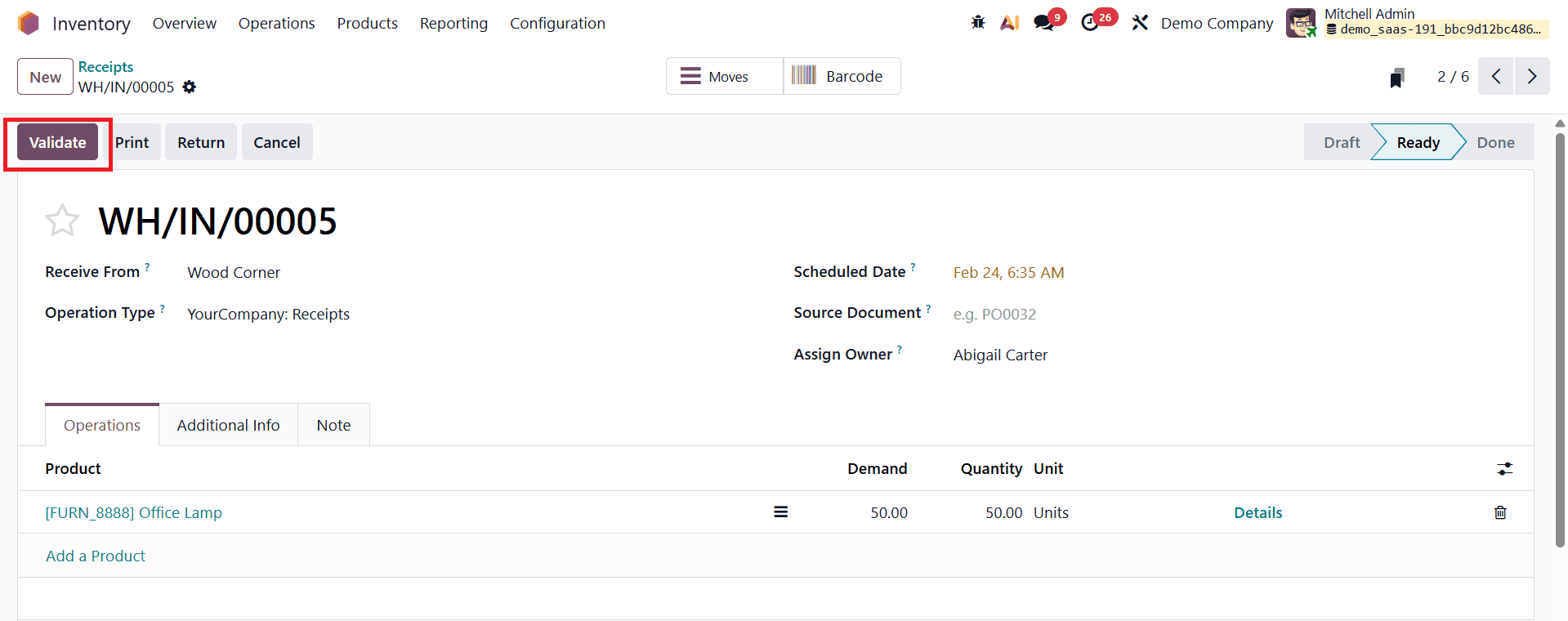
To finalize the process, click the Validate button to confirm the receipt. Once validated, the specified quantity of consignment products is successfully transferred to the consignee’s warehouse while still retaining supplier ownership.
After validation, users can review the updated inventory data by navigating to the Stock Locations section under the Reporting menu.
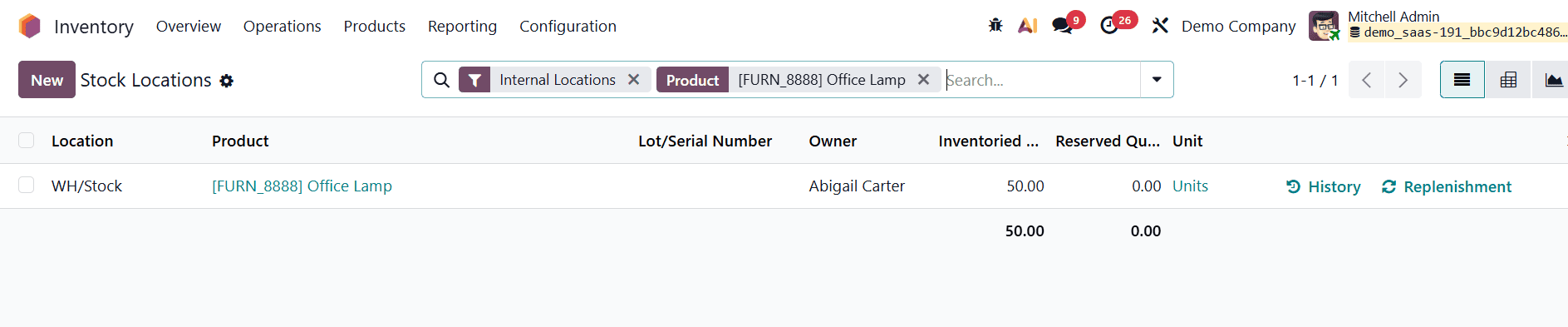
This report provides a detailed view of stock information, including Location, Consignment Product, Lot or Serial Number, Owner, On-Hand Quantity, Reserved Quantity, and Available Quantity, offering complete transparency into consignment stock status.
Additionally, users can track the movement of consignment products through the Moves History option in the Reporting menu.

This section displays all stock transfers between locations, helping verify and audit consignment operations. The report includes comprehensive details such as Date, Reference, Product, Lot or Serial Number, Source Location, Destination Location, Quantity, Units of Measure, and Transfer Status. Reviewing the Moves History ensures accurate tracking of consignment stock flows and supports efficient inventory control in Odoo 19.
Selling a Consignment Product in Odoo 19
In Odoo 19, selling a consignment product is handled in the same way as selling a regular in-stock item, provided the Can be Sold option is enabled on the product form. To sell the consigned goods, users must create a sales order in the Sales module, ensuring that the customer is clearly different from the product’s supplier or owner.
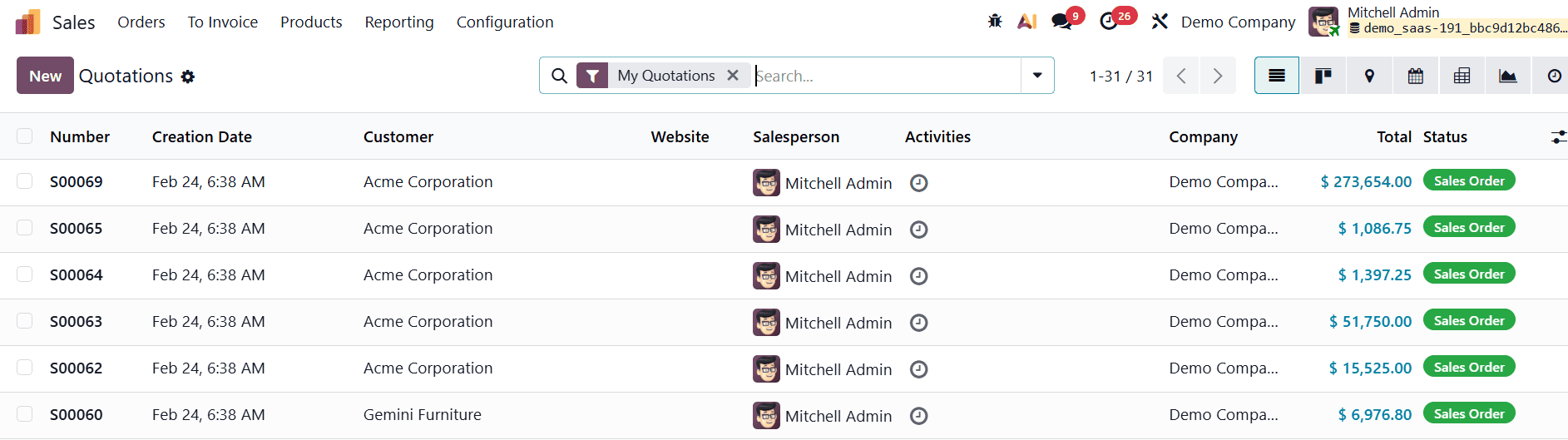
Start by creating a new sales quotation from the Orders menu and clicking New.
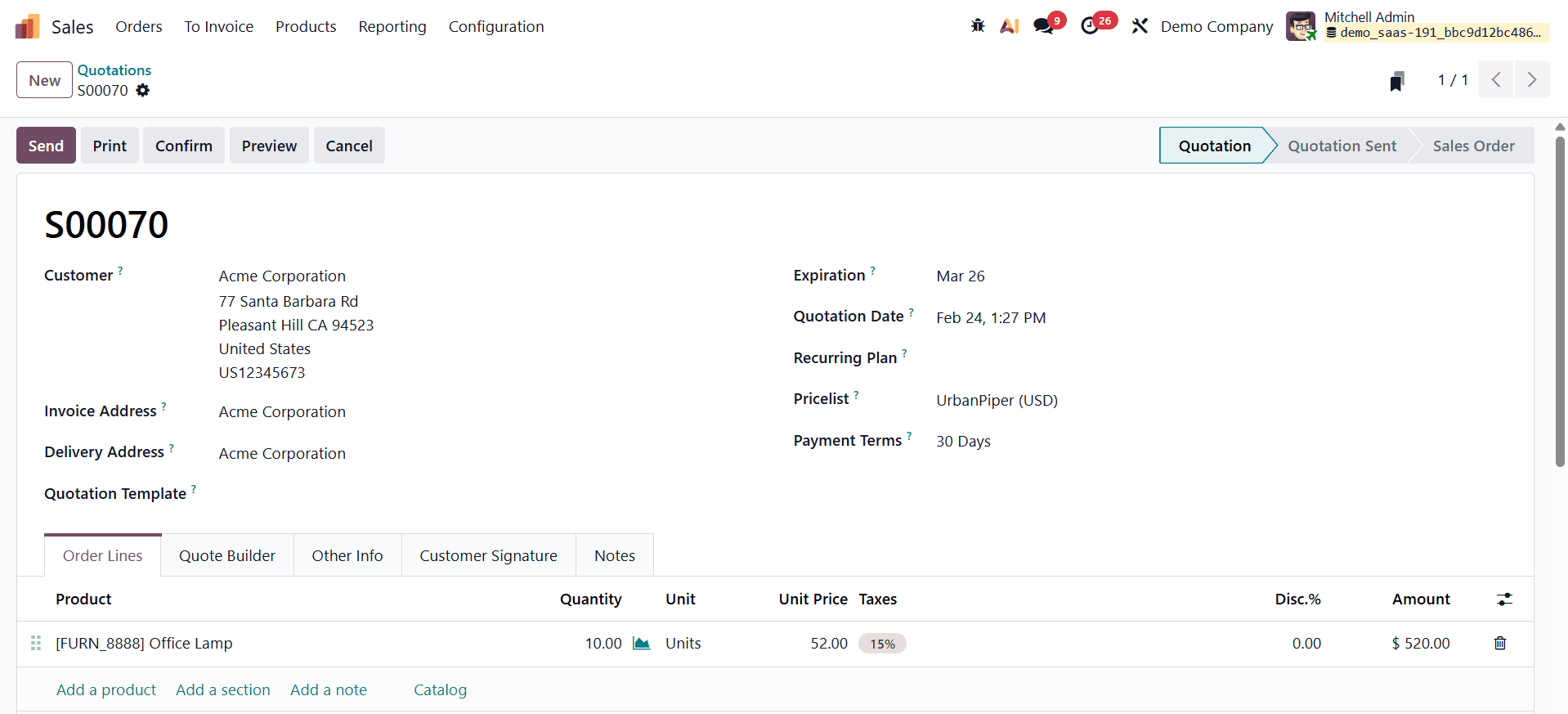
In the quotation form, add the customer details and define essential order information such as the Quotation Date, Expiration Date (order validity), and Payment Terms. Next, add the consignment product to the order lines, select the required quantity, and complete the product-related fields. Once all details are reviewed and confirmed, submit the quotation to proceed with the sales workflow.
After completing the quotation, confirm it to generate the delivery order. Click the Delivery smart button and use the Validate option to process the delivery.
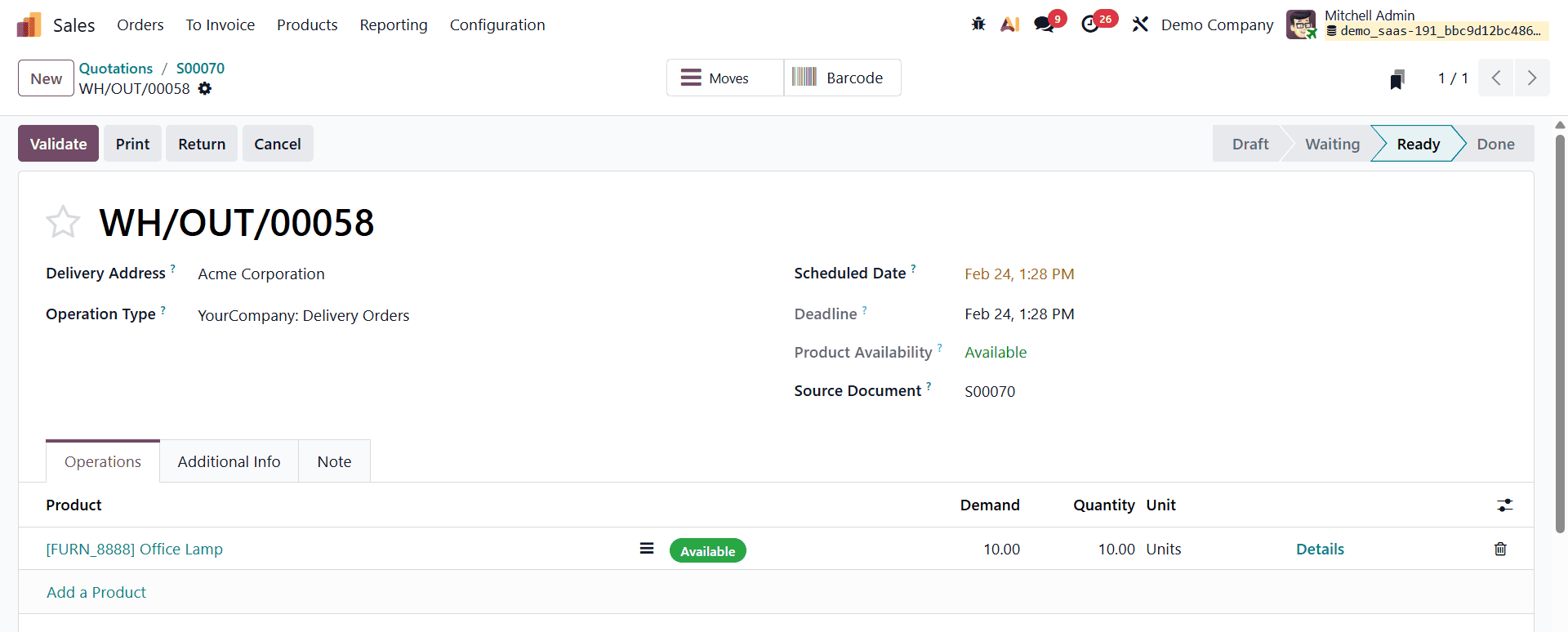
Within the delivery order, the Moves smart tab provides detailed information about the consignment transaction, including the product name, Pick-From Location, Lot or Serial Number (if applicable), From Owner, and Quantity.

This ensures full traceability of consignment products as they move from storage to the customer.
To further verify the stock movement, navigate to the Reporting menu in the Inventory module and select Moves History.
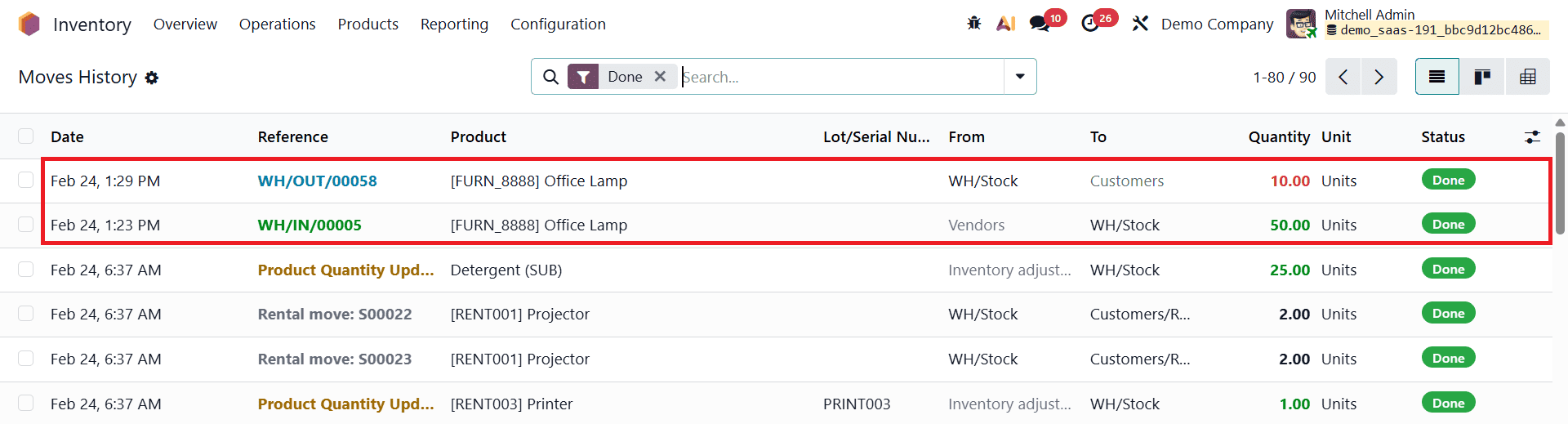
This report displays a complete log of stock movements, including Date, Reference, Product, Lot or Serial Number, and Source and Destination Locations. For consignment items, the report clearly shows that the products are moved from Partner Locations/Vendors, confirming that the goods were sold on behalf of the consignor.
Importantly, consignment products do not impact the company’s inventory valuation in Odoo 19. When reviewing the Stock Valuation report available under the Stock section of the Reporting menu, consigned items are excluded from the consignee’s inventory value because ownership remains with the supplier until the sale is completed.
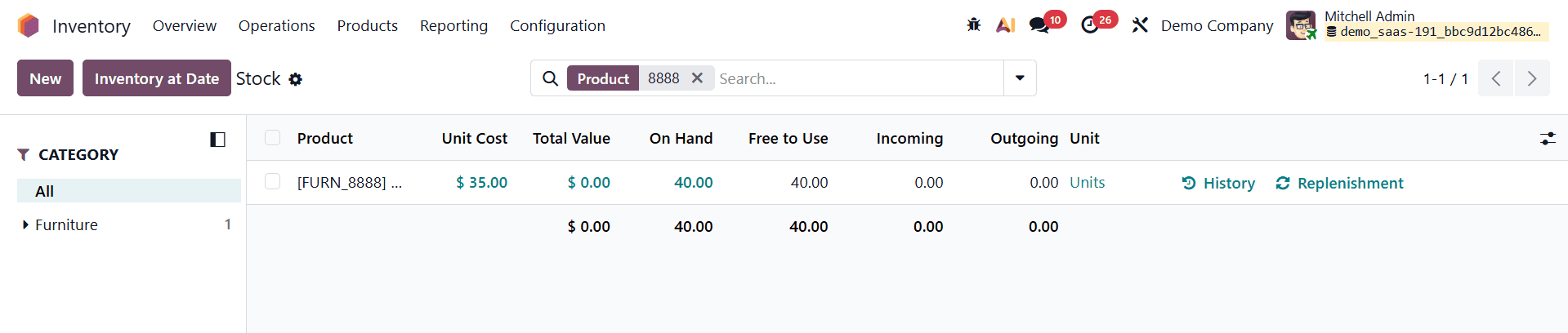
As a result, stock accounting entries for consignment products do not affect the company’s balance sheet, ensuring accurate financial reporting.
Consignment management in Odoo 19 allows businesses to store and sell products that legally belong to a consignor while maintaining clear ownership and valuation boundaries. The system provides powerful tools for tracking inventory ownership, recording sales transactions, and monitoring stock movements in real time. With detailed reporting on stock levels, sales performance, and financial settlements, Odoo 19 enables both suppliers and consignees to collaborate efficiently, reduce inventory risk, and maximize revenue opportunities without carrying unnecessary stock on their books.
To read more about An Overview of Consignment Product Management in Odoo 18, refer to our blog An Overview of Consignment Product Management in Odoo 18.