Success in the fast-paced commercial environment depends on effective inventory control. Odoo 19, a robust enterprise resource planning (ERP) platform, offers powerful functionality to optimize warehouse operations, particularly transfers within and across warehouses. You will learn how to utilize Odoo 19 to optimize inventory movements between and within warehouses in this blog post.
Organizations can effortlessly manage many warehouses, each with a unique address and product inventory, thanks to the Odoo 19 Inventory application. Whether you're transferring items between locations or simply reallocating stock inside a single warehouse, Odoo's user-friendly features allow you to keep correct stock levels and increase overall operational efficiency.
This comprehensive guide will walk you through every important step, from allowing numerous warehouses to setting up inter-warehouse transfer routes. Learn how to create transfer orders, oversee intra-warehouse moves, and ensure that your inventory constantly meets the demands of your business. Take control of your warehouse operations and make the most of Odoo 19. Follow our comprehensive instructions to make use of Odoo's advanced facilities for managing transfers within and across warehouses.
Inter-warehouse transfer is the process of moving commodities or products between two different warehouses inside the same Odoo instance. This feature may be particularly useful for companies who manage many warehouses and need to transfer inventory. The process involves creating transfer orders in order to precisely monitor and regulate the flow of inventory.
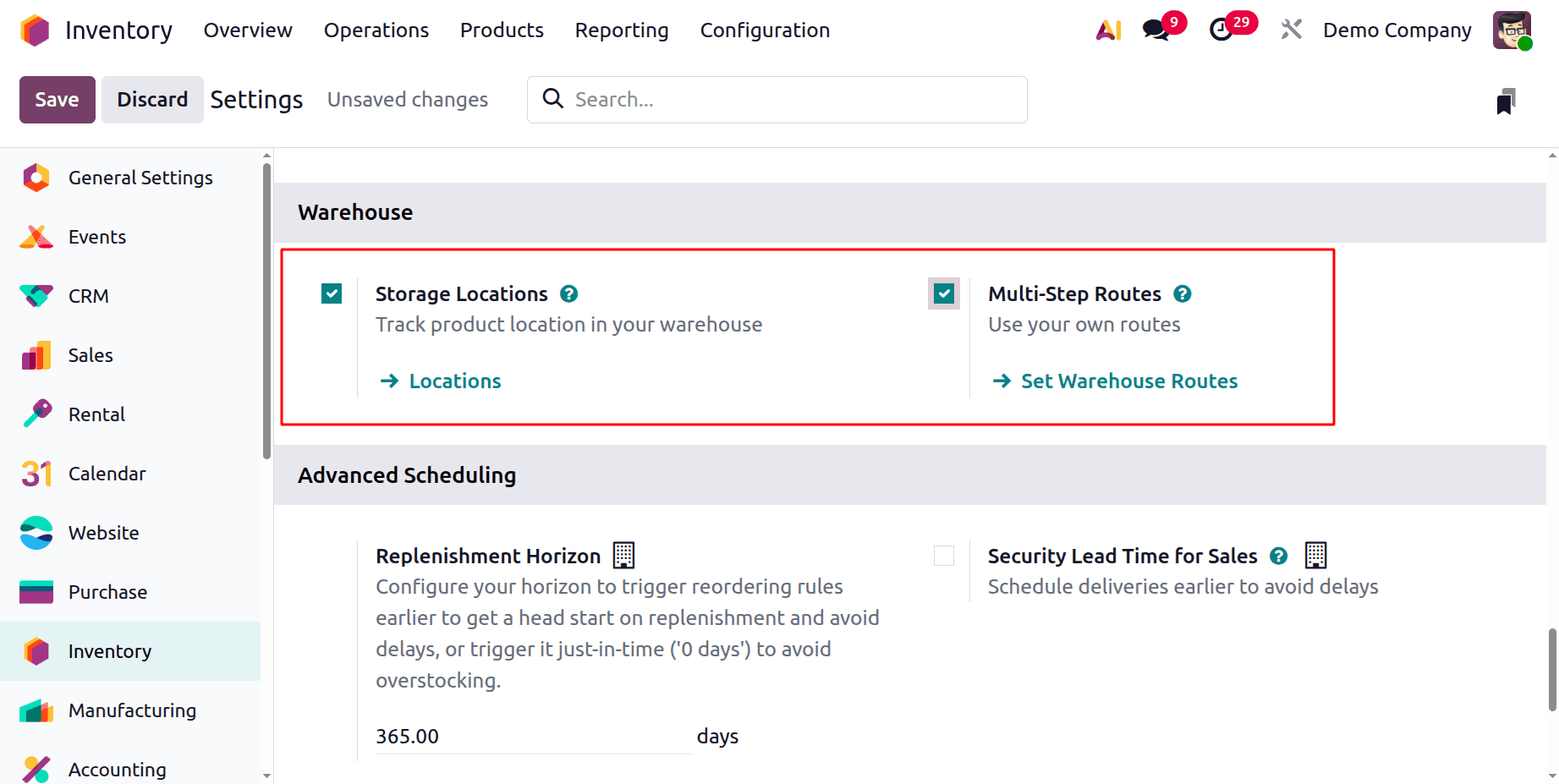
Odoo 19 uses the Inventory application to handle transfers between and among warehouses. The user must first enable the Multistep Routes and Storage Locations.
Inter Company Transactions
Odoo 19's intercompany transactions make it simple for businesses with many enterprises to handle activities across entities. Every time a business sells or purchases something from another business in the same group, Odoo automatically creates the required documentation (such as a purchase order or sales order) for the other company. This feature speeds up processes by ensuring uniform financial records across organizations and synchronizing data.
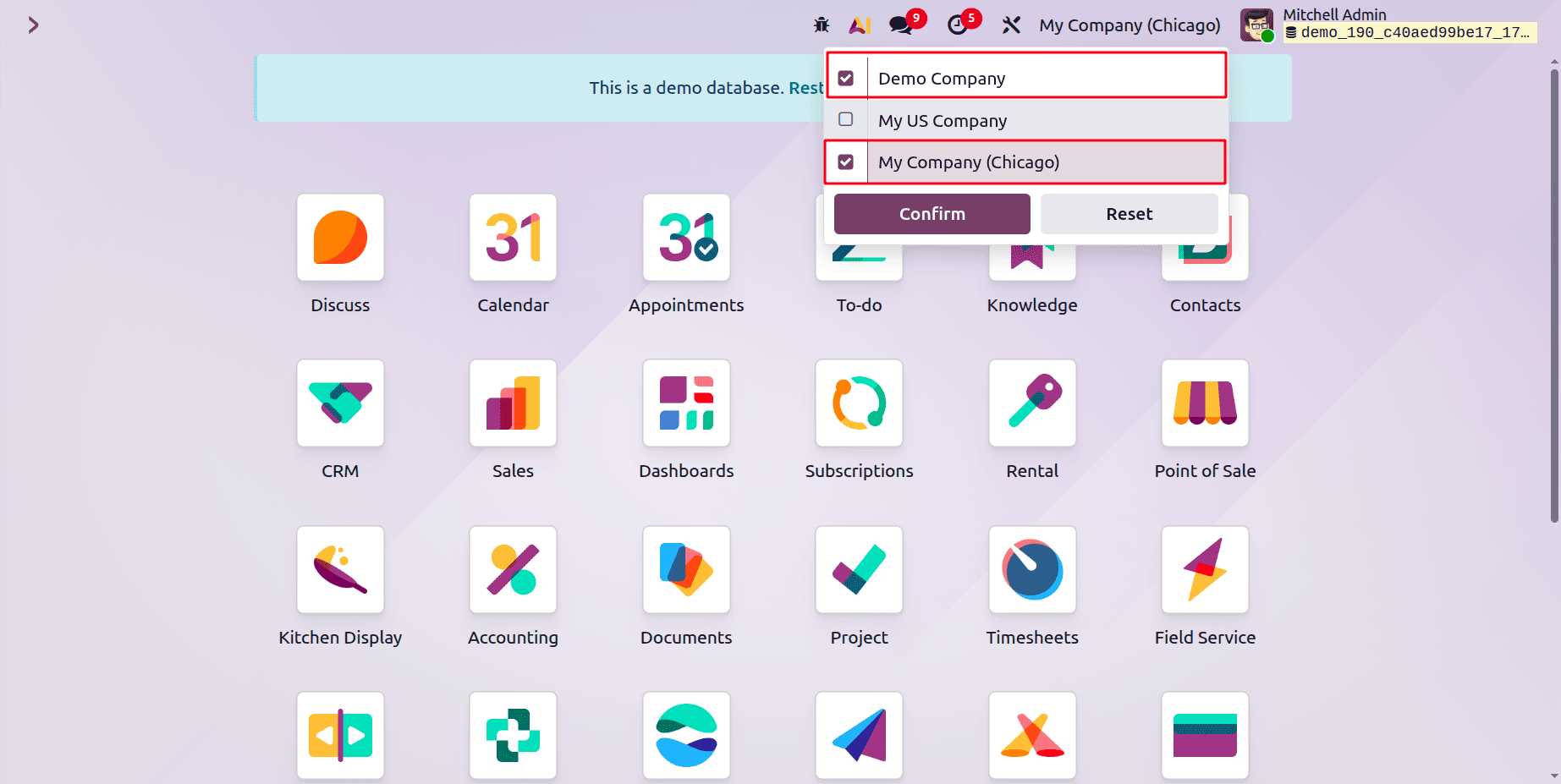
These are two different companies. The first two are Demo Company and My US Company. Let's make arrangements for the transfer of these two companies. Assume for the moment that these two close a deal. This suggests that some products are bought by My US Company from Demo Company. As a result, a selling order issued from Demo Company bought to show up as a buy order in My US Company.
Enable the Inter-company Transactions from the General Settings in order to conduct inter-company transactions. which will cause receiving companies to automatically produce counterpart documents. Both companies should be able to conduct these inter-company transactions. After that, save it.
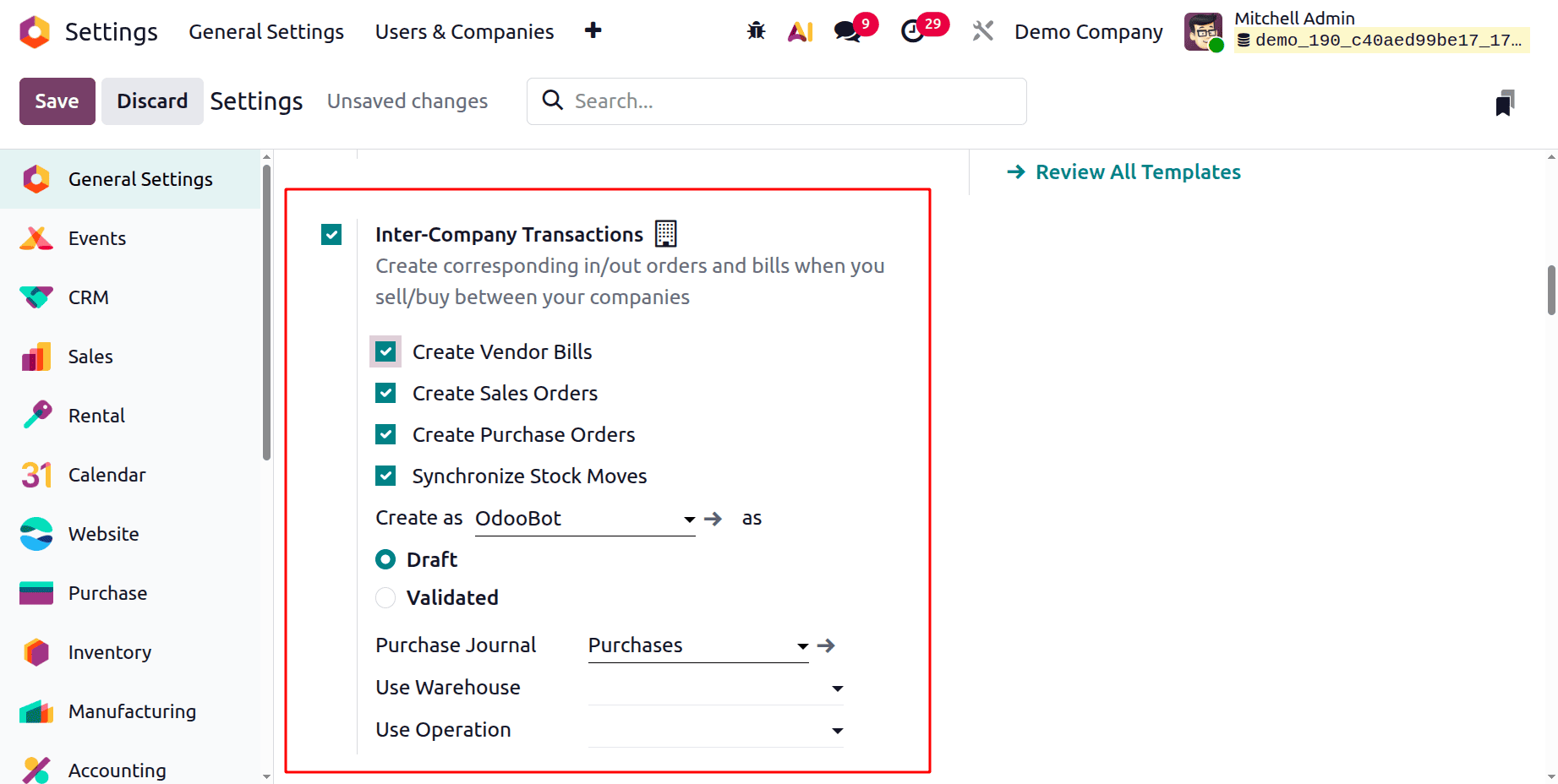
Users can generate purchase orders, sale orders, and bills and Stock Moves while facilitating inter-company transactions.
These fields define the destination company's counter-part document in inter-company transactions. This implies that a purchase order should be automatically created from the second company to the first company as the counterpart document if you are making a sales order from the first company to the second firm. The same applies to invoices and bills. The specified OdooBot creates the Sale/Purchase order. This indicates that OdooBot has been upgraded as the salesman for such publications. The appropriate responsible person can be added there. After that, the Automation can be either generated as a draft or created and verified. This relates to whether a draft or confirmed version of the producing counterpart document should be produced. There, the sorts of operations and warehouses can be added. By turning on Synchronize Deliveries to your Receipts, users can synchronize deliveries and receipts. Save the configuration.
Let's draft a fresh sales order from Demo Company. The selected client in this case is My Company (Chicago). Select the Wooden Acoustic Bloc screen in 1 quantity. Verify the order.
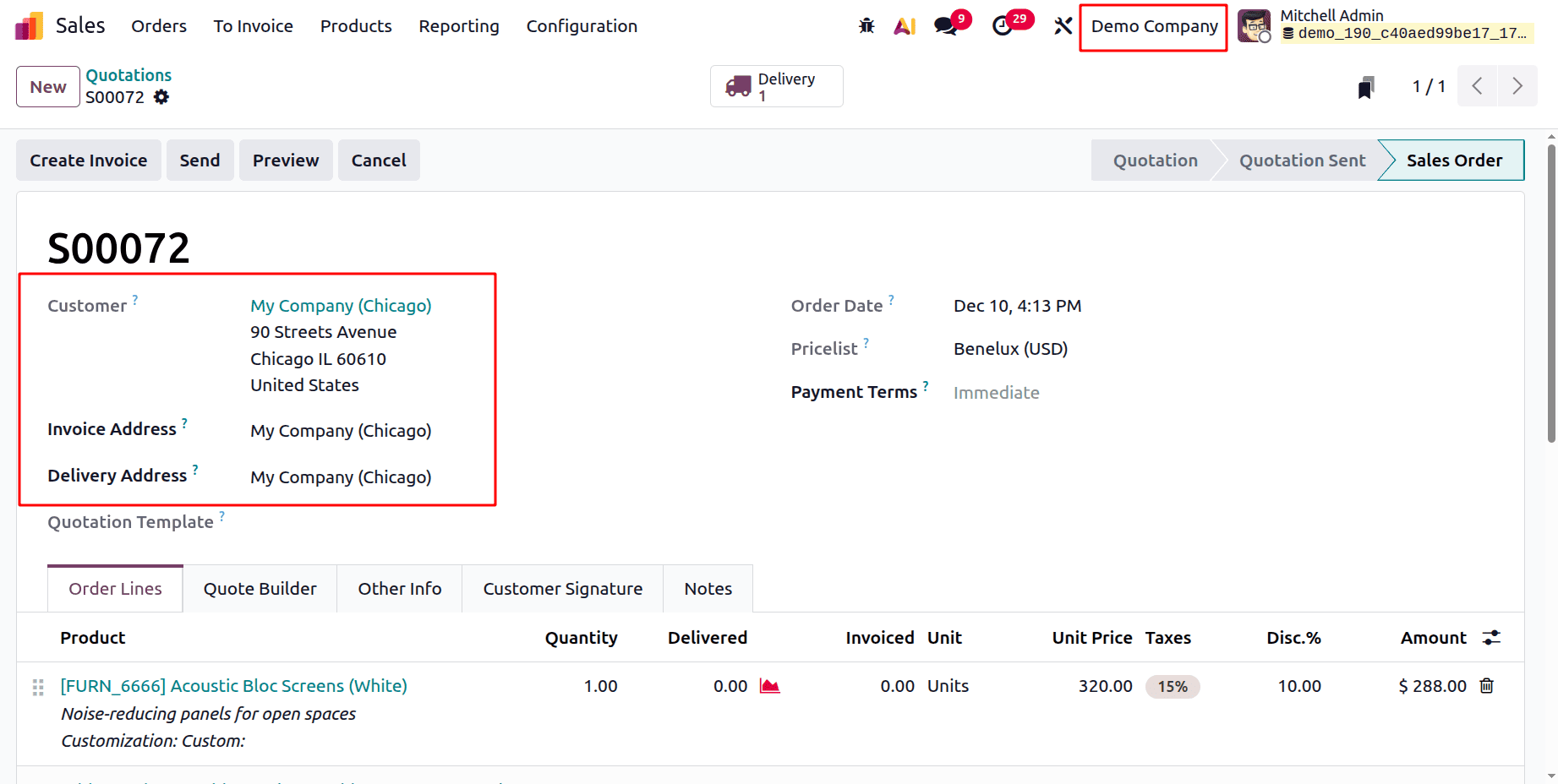
Next, change the company's name from Demo Company to My Company (Chicago).
Launch the module for purchases. Reference, Vendor, Company, Buyer, Order Deadline, Source Document, Total, and Status are among the details displayed in an RFQ. Open the RFQ by clicking.
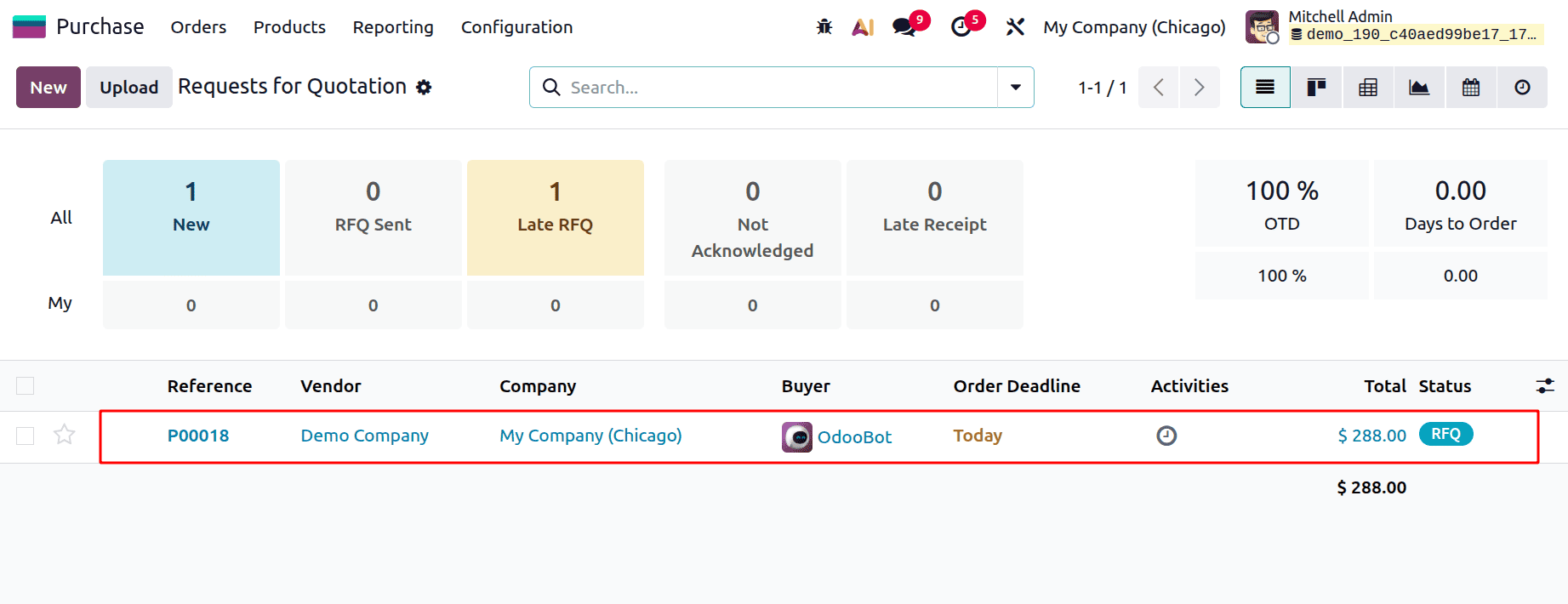
The vendor, My Company (Chicago), is the target of the RFQ. One quantity of the same product, Acoustic Bloc Screen, is displayed in the products tab. Verify the RFQ.
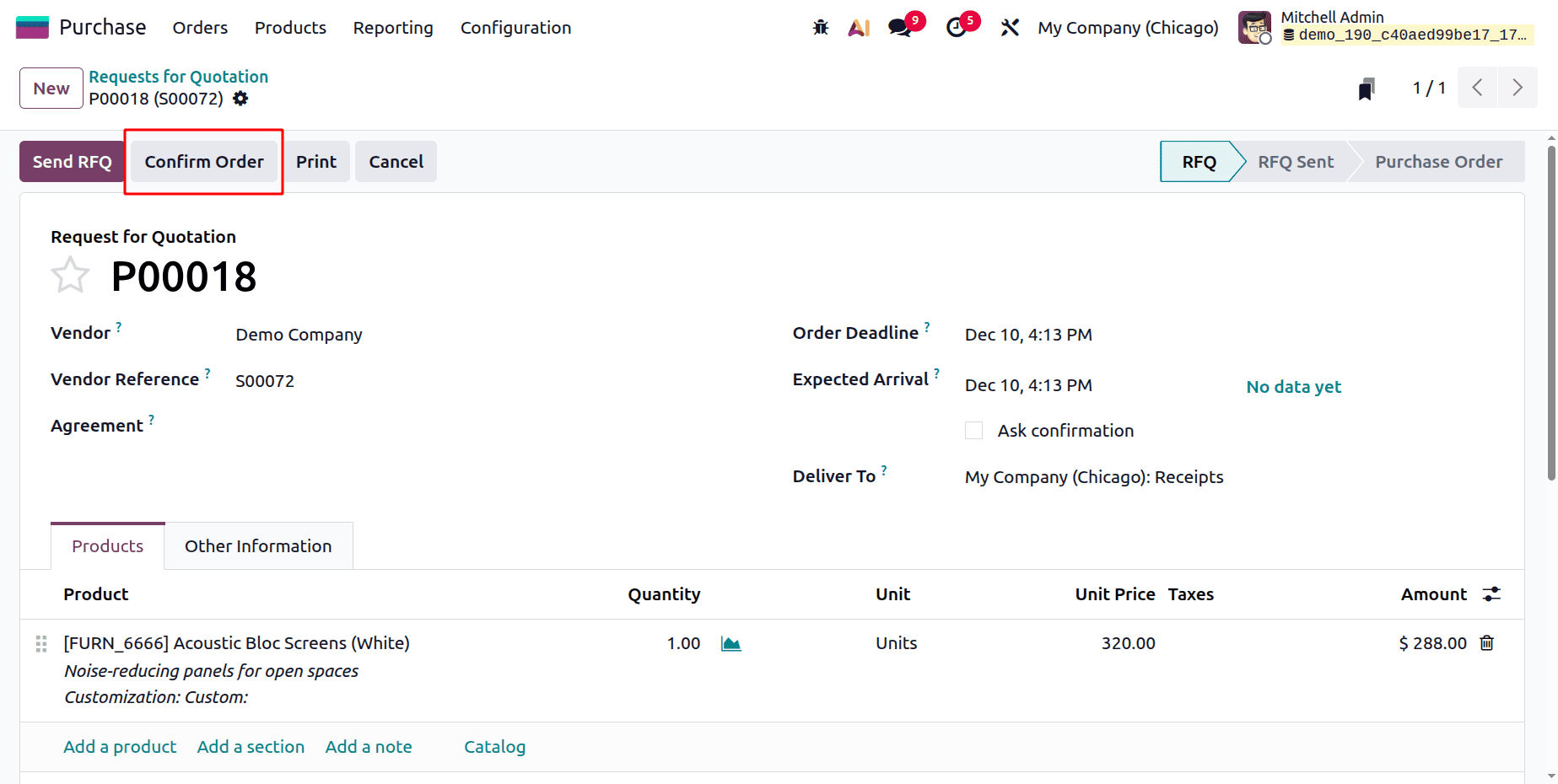
Therefore, the delivery must be finished by the Demo Company user first. Select the previously generated sale order after opening the sales module. Next, validate the delivery and open it.

The Demo Company's delivery has now finished. The things must be delivered to the Chicago company's user. Thus, transfer to the Chicago Company and verify the receipt there.
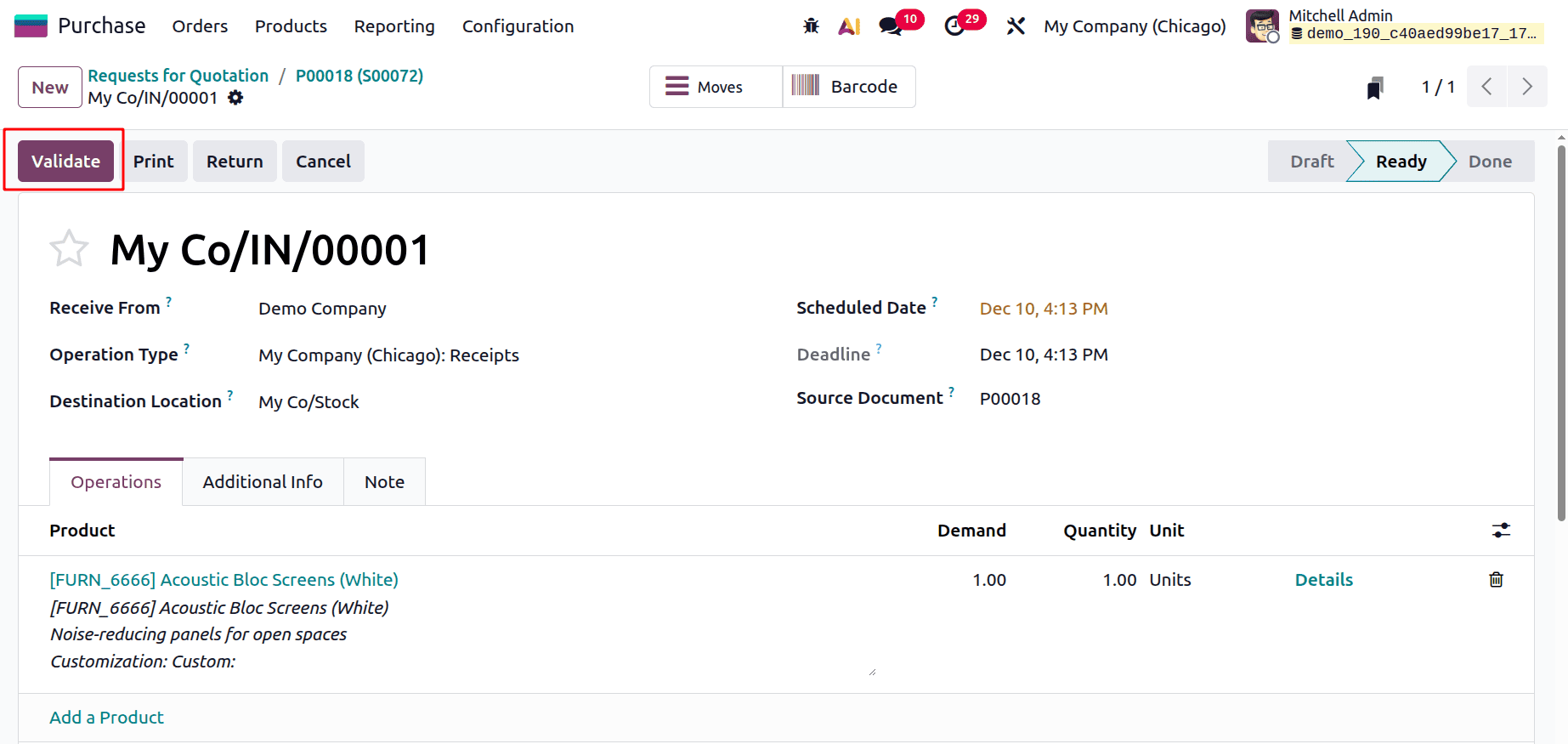
Thus, this is how Odoo 19's inter-company transactions operate. For this transaction, it is also feasible to create the associated bills and invoices.
Use of Transit Location in Inter-Company Transaction
Before the items are accepted by the destination company, they are first transported to the transit location when one company transfers inventory to another. This approach ensures precise record of stock movements among organizations, facilitates reconciliation, and helps preserve transparency in inventory management. A Transit Location in Odoo 19 ensures precise tracking of products transiting between businesses by serving as an intermediary storage area during inter-company transactions.
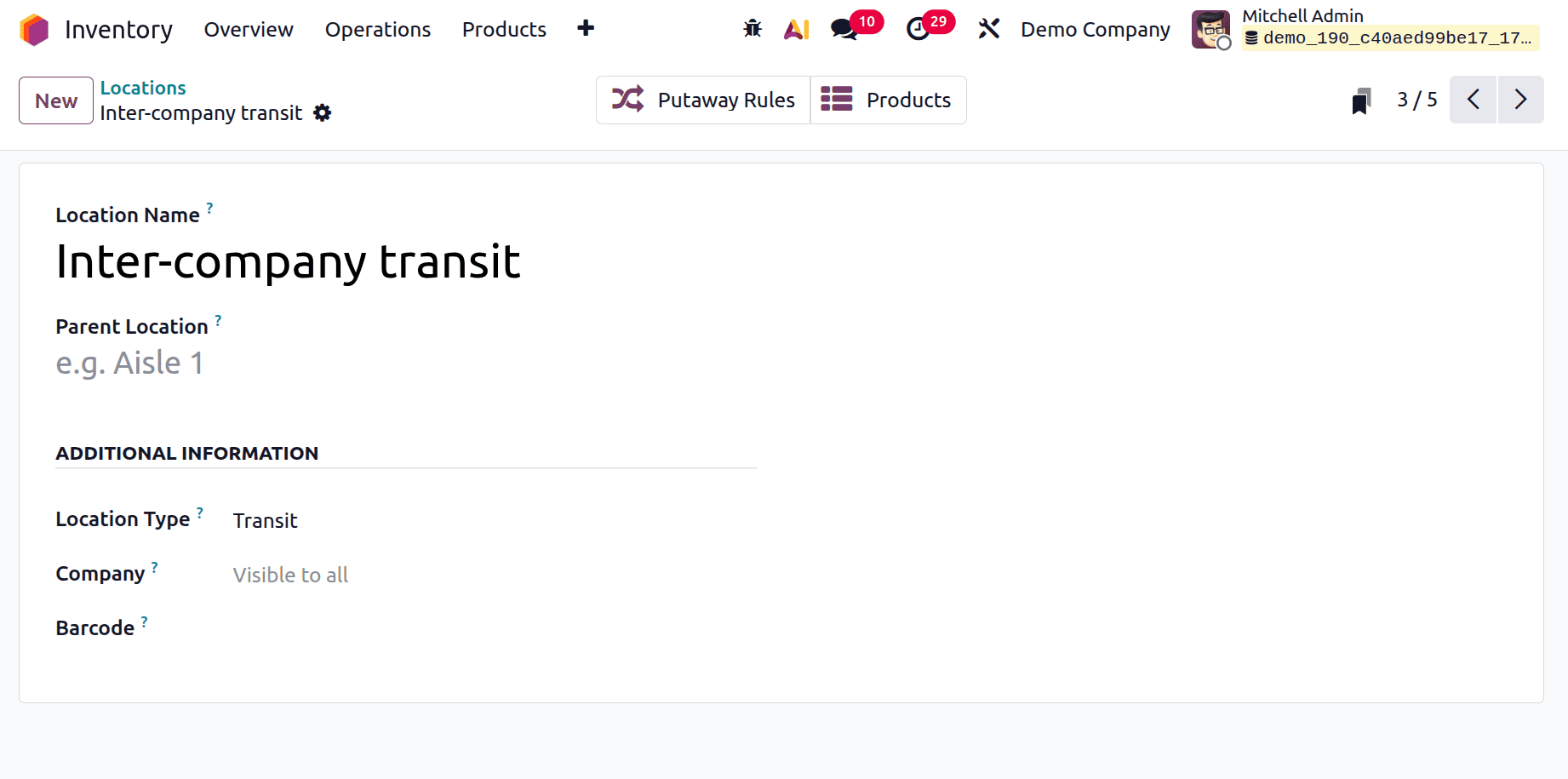
To see the locations made within the organization, select Locations from the Configuration menu. Details such as location name, location types, and more will appear in a list of places. All places are displayed once the internal filter is removed. Go to the Inter-company transit location.
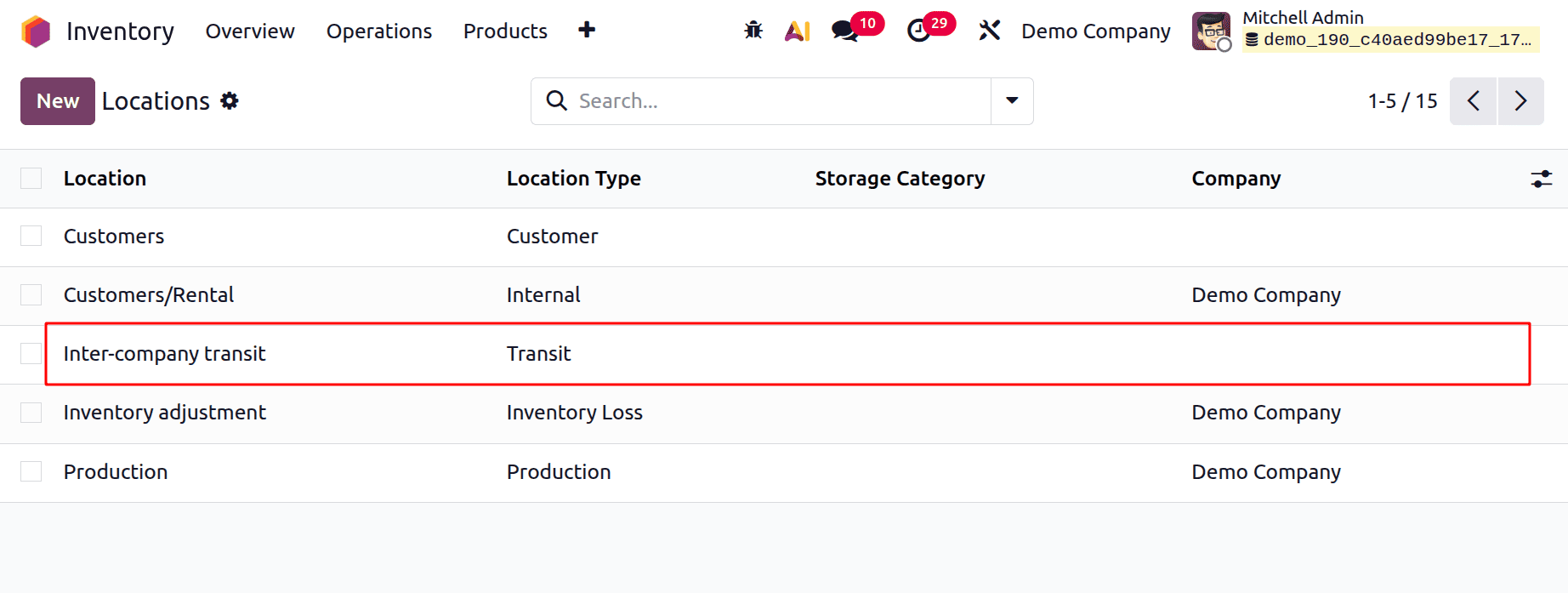
As shown in the picture of a transit location below. The location is called Inter-company Transit. Since no company has been added to the Company field, this field is unrestricted. Both Demo Company and Chicago Company frequently use this location.
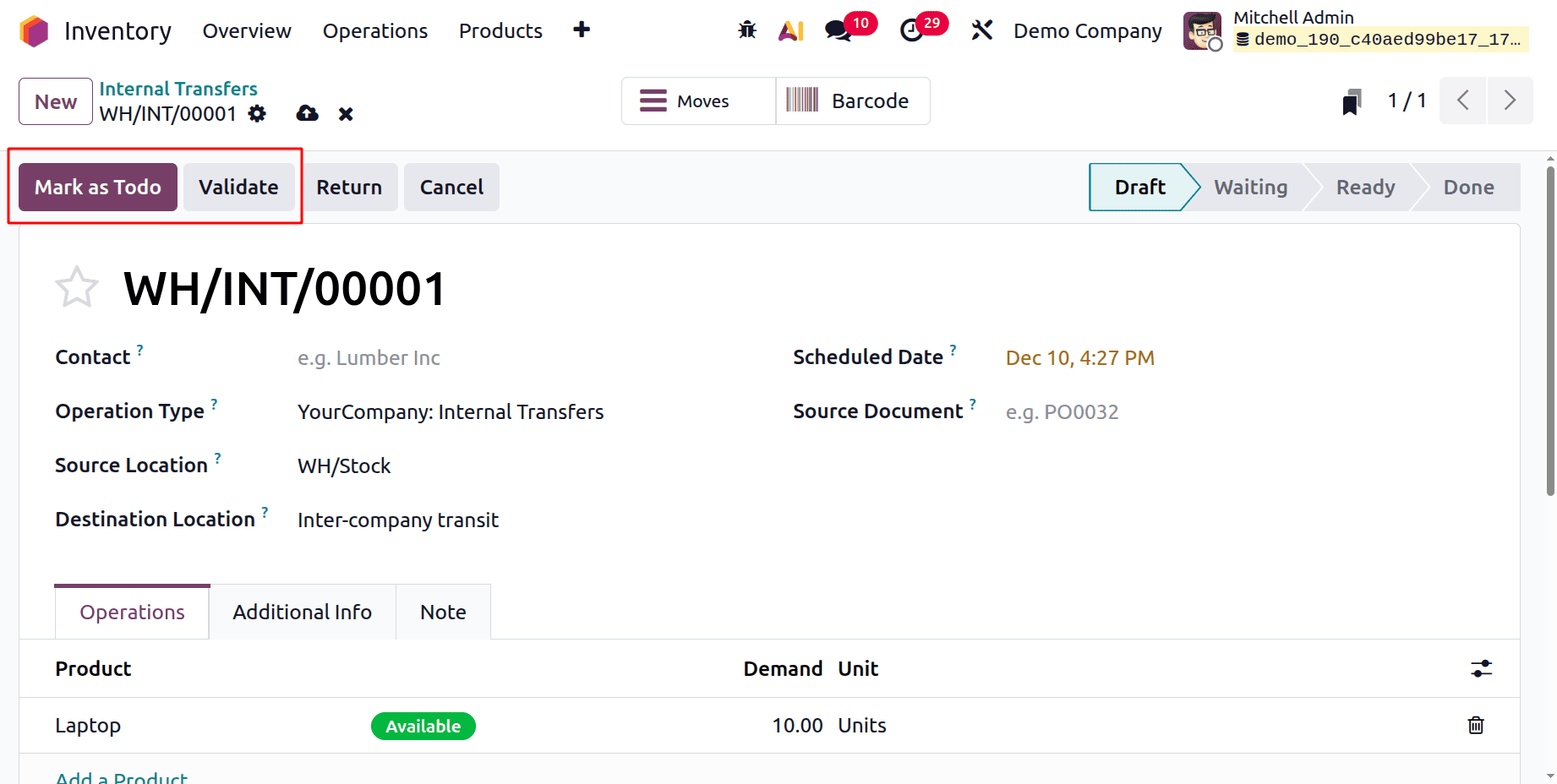
From the Demo Company, create a new internal transfer. Your Company: Internal Transfers is the type of operation. Virtual Locations/Inter-company transportation is the destination location, while WH/Stock is the source location. Validate the transfer after adding the product with quantities to the product tab.
Check the product Moves from the smart tab Moves after the transfer is finished.
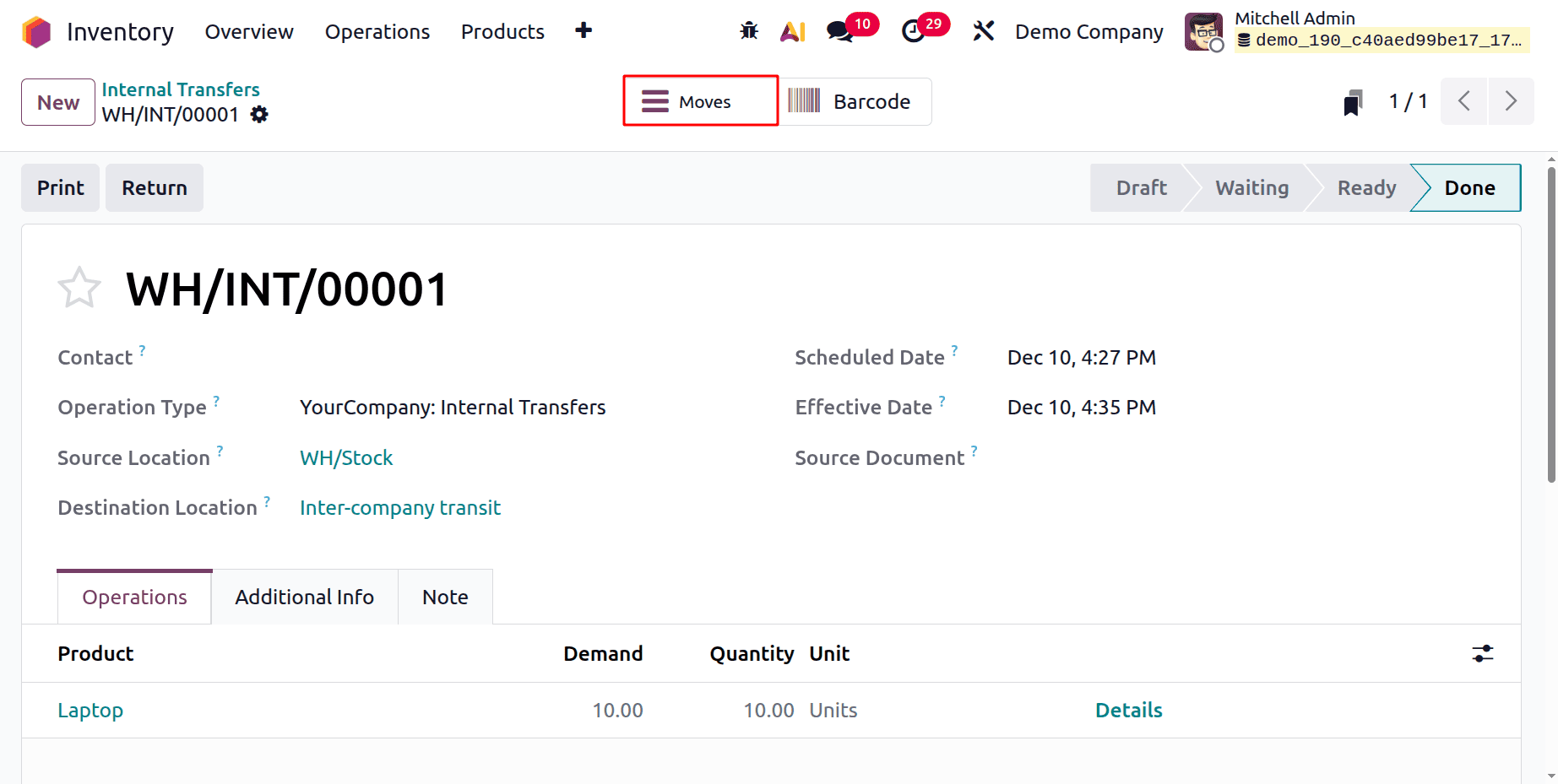
Thus, the Whiteboard Pen product is selected from WH/Stock and transported to Virtual Locations/Inter-company transit.

Next, move the business to Chicago. Create a new internal transfer from there as well. Internal Transfers: Operation Tye is My Company (Chicago). This time, My Co/Stock is the destination location and Virtual Locations/Inter-company travel is the source location.
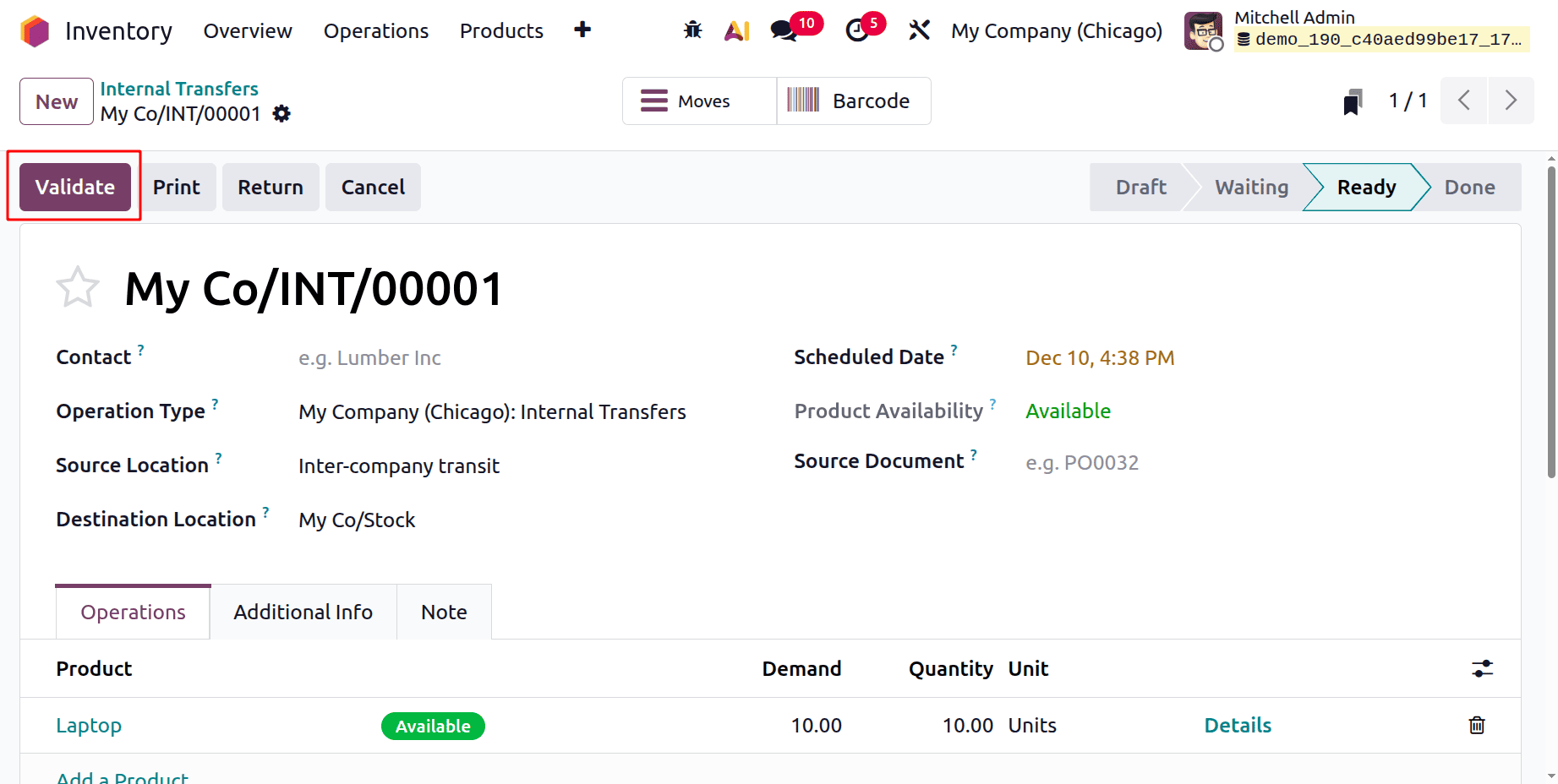
Check the Moves after adding the product with quantities and validating the transfer. Ten product laptop quantities are moved to the company stock site via inter-company transportation or virtual locations.

Intra-Company Transaction
Odoo 19's intra-company transactions oversee operations across different divisions or warehouses within the same firm. These procedures facilitate internal stock transfers, ensuring accurate inventory records and seamless product movement. By automating and recording these processes, Odoo improves operational efficiency and provides insight into internal inventory movements.
Let's set up two distinct warehouses within the business. Select the Warehouse option from the Configuration menu for that. Warehouse #1 and Warehouse #2 are the two warehouses. The first warehouse's stock location is WH1/Stock, whereas the second warehouse's stock location is WH2/Stock.

Internal transfers are an easy way to complete an intercompany transaction. The initial warehouse's stock location, WH1/Stock, should be added as the Source location in the internal transfer. The second warehouse's stock location, WH2/Stock, is the destination site. After adding the product in the required amounts, confirm the transfer.
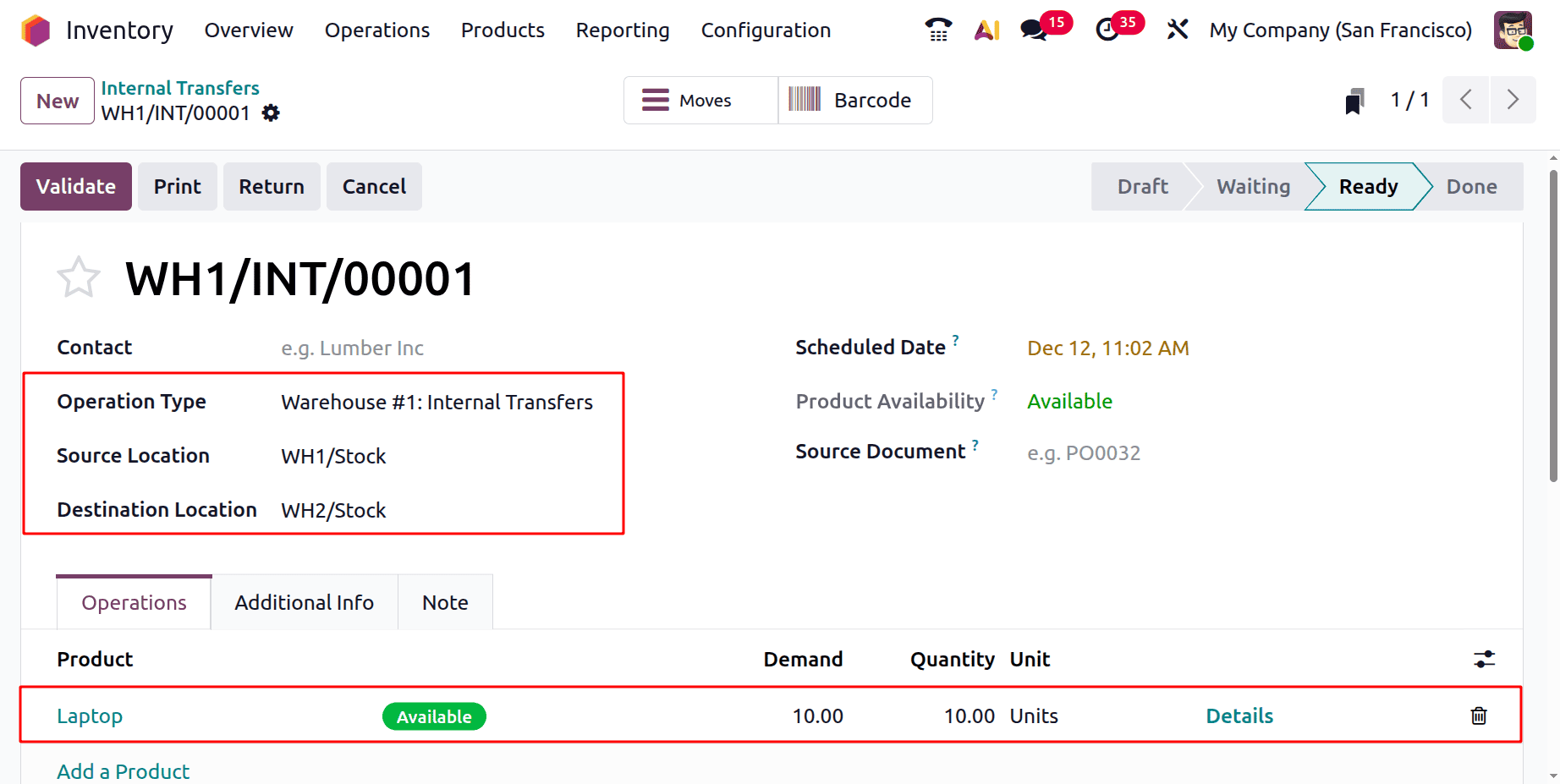
Verify the Moves after validation. In this case, ten laptop quantities were transferred from one warehouse stock to another.

Use of Routes in Intra-Company Transaction
Odoo 19's intra-company transactions specify the routes and policies for the internal movement of commodities between warehouses or locations. They ensure precise and efficient inventory management by automating processes through the definition of transfer mechanisms such as push or pull rules.
So let's design a new route. Select the Routes from Configuration for that. There, a list of routes will show up. Click the New button to add a new route.
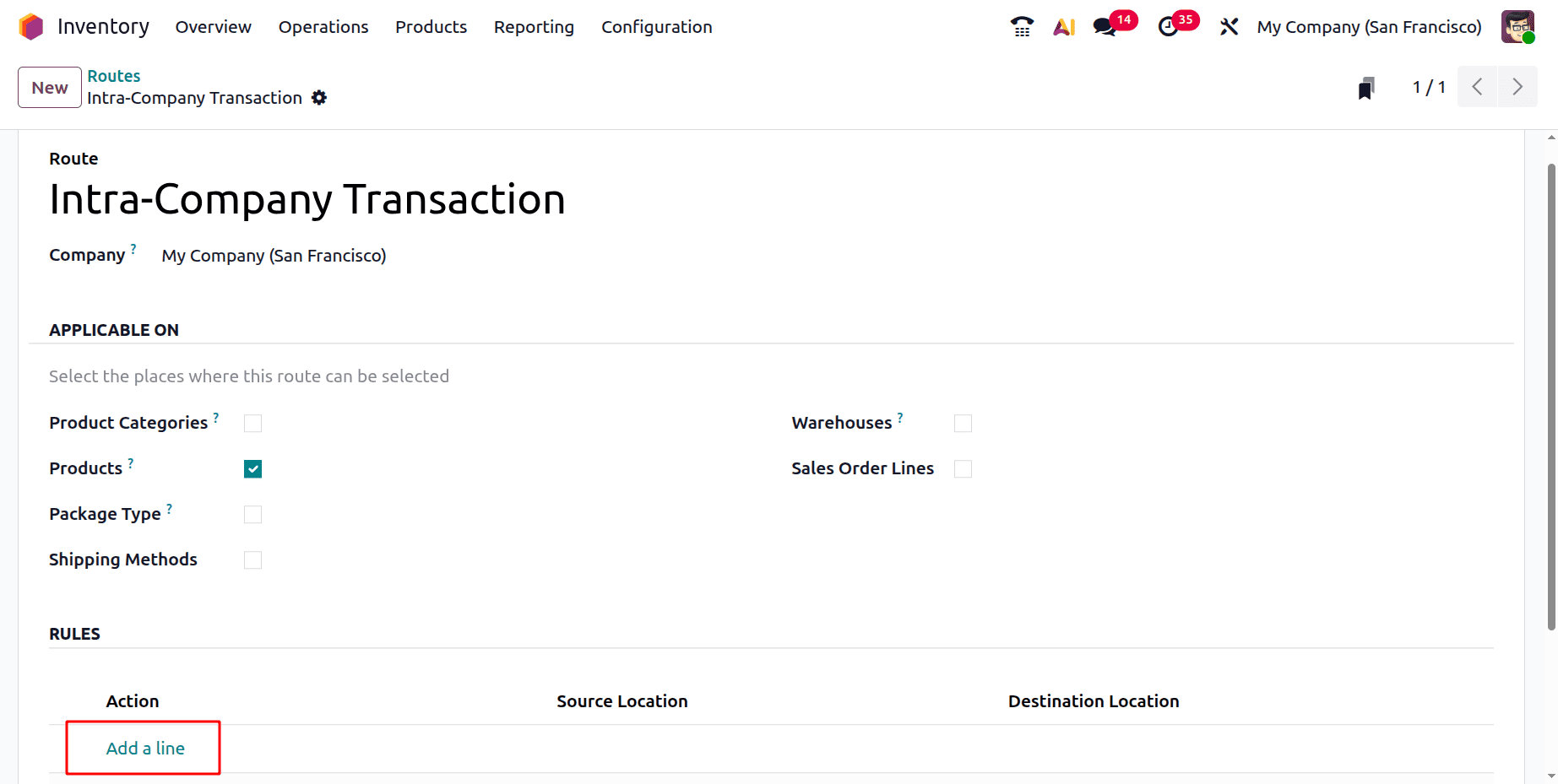
Intra-Company Transaction is the name of the route. Under the Rules, click the Add a line button.
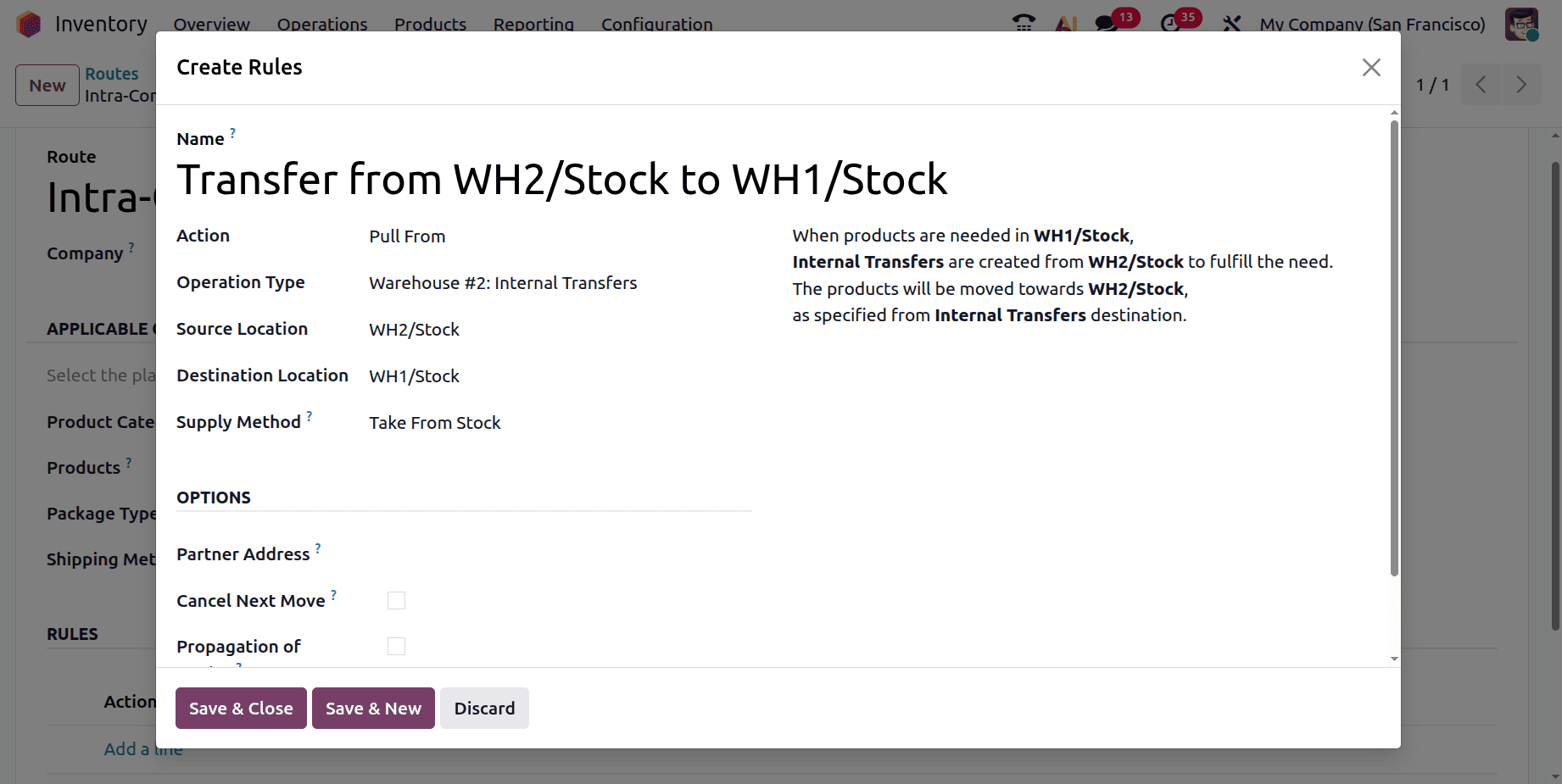
"Transfer from WH2/Stock to WH1/Stock" is the name of this rule. Warehouse #2: Internal Transfers is the type of operation. Pull From is the selected action. WH2/Stock is the source location, and WH1/Stock is the destination.
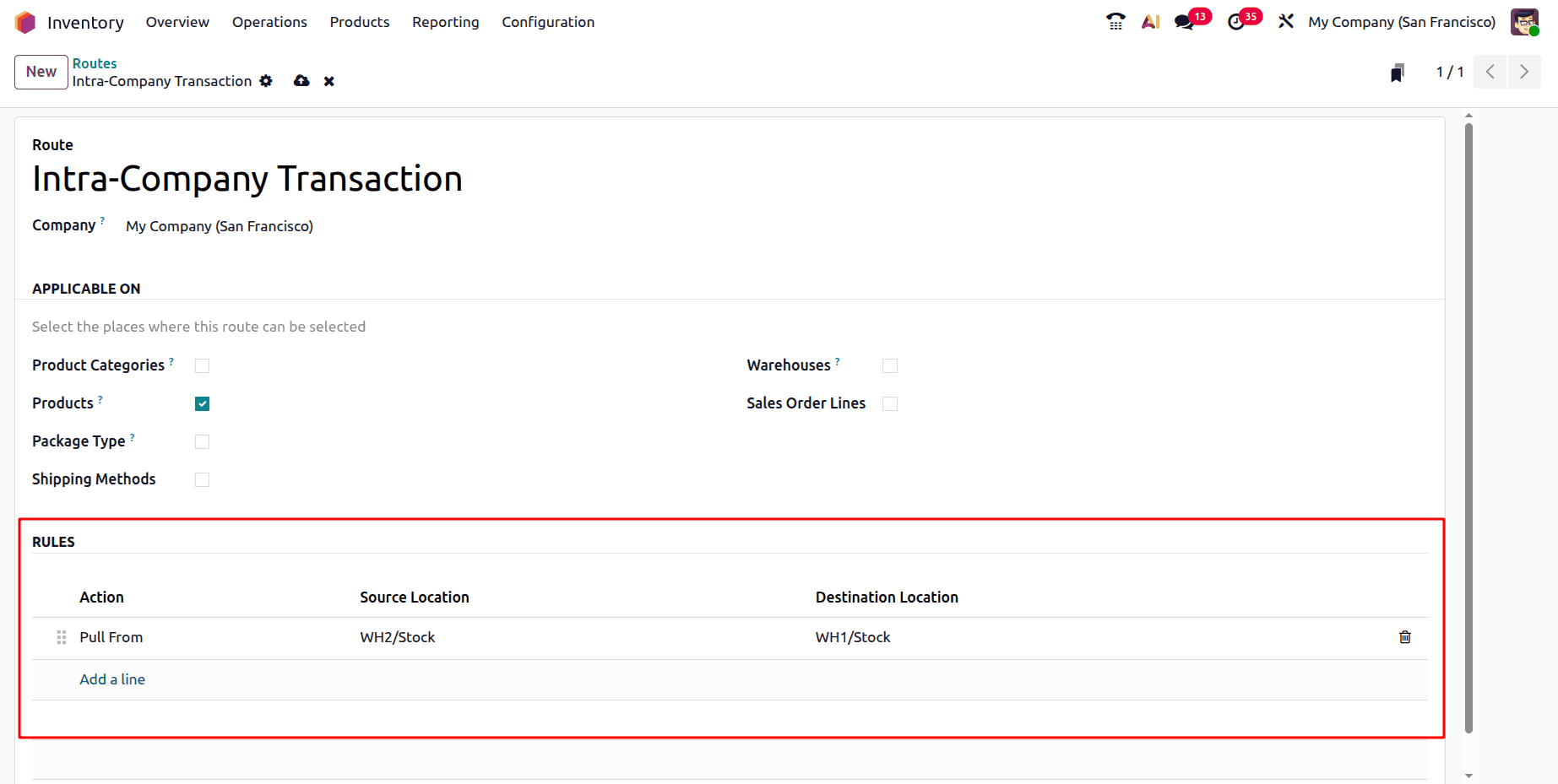
Therefore, while applying the rule, an Internal Transfer is made from the WH2/Stock to satisfy the need for products in WH1/Stock. Keep the rule and route intact.
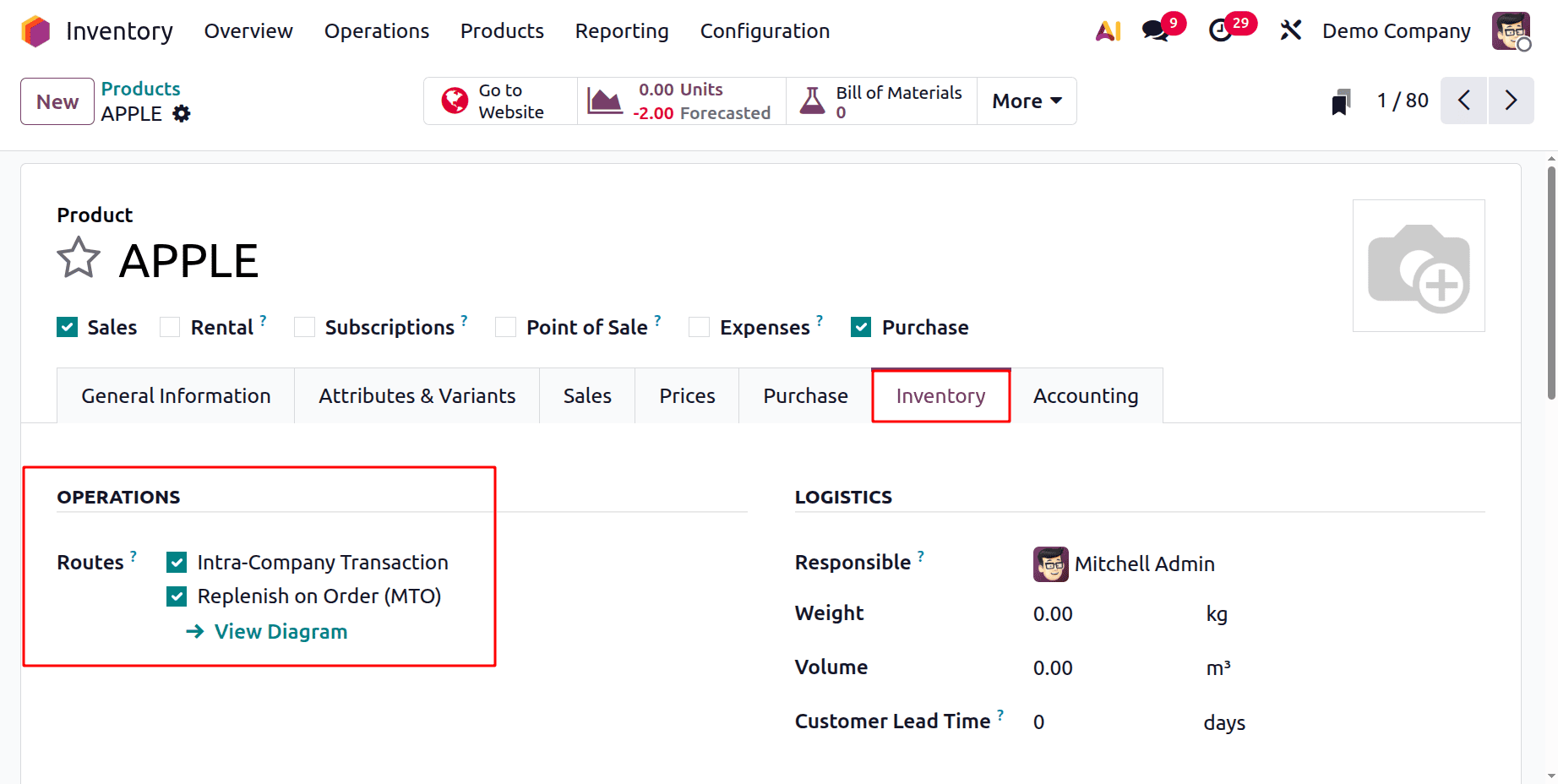
Make a brand-new product called APPLE. As indicated below, activate the generated route within the product. The product's Inventory tab contains the routes.
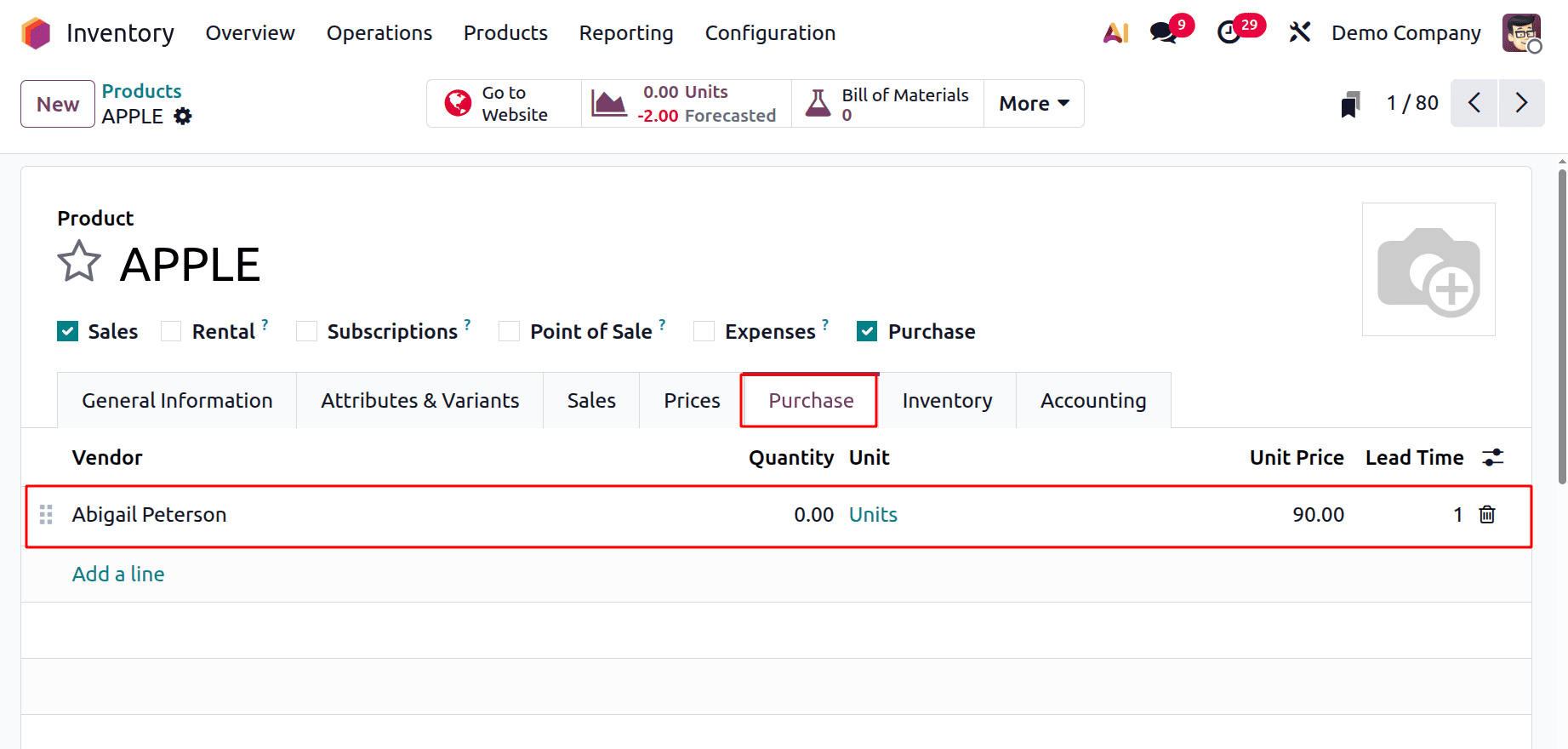
Then add a vendor inside the Purchase tab.
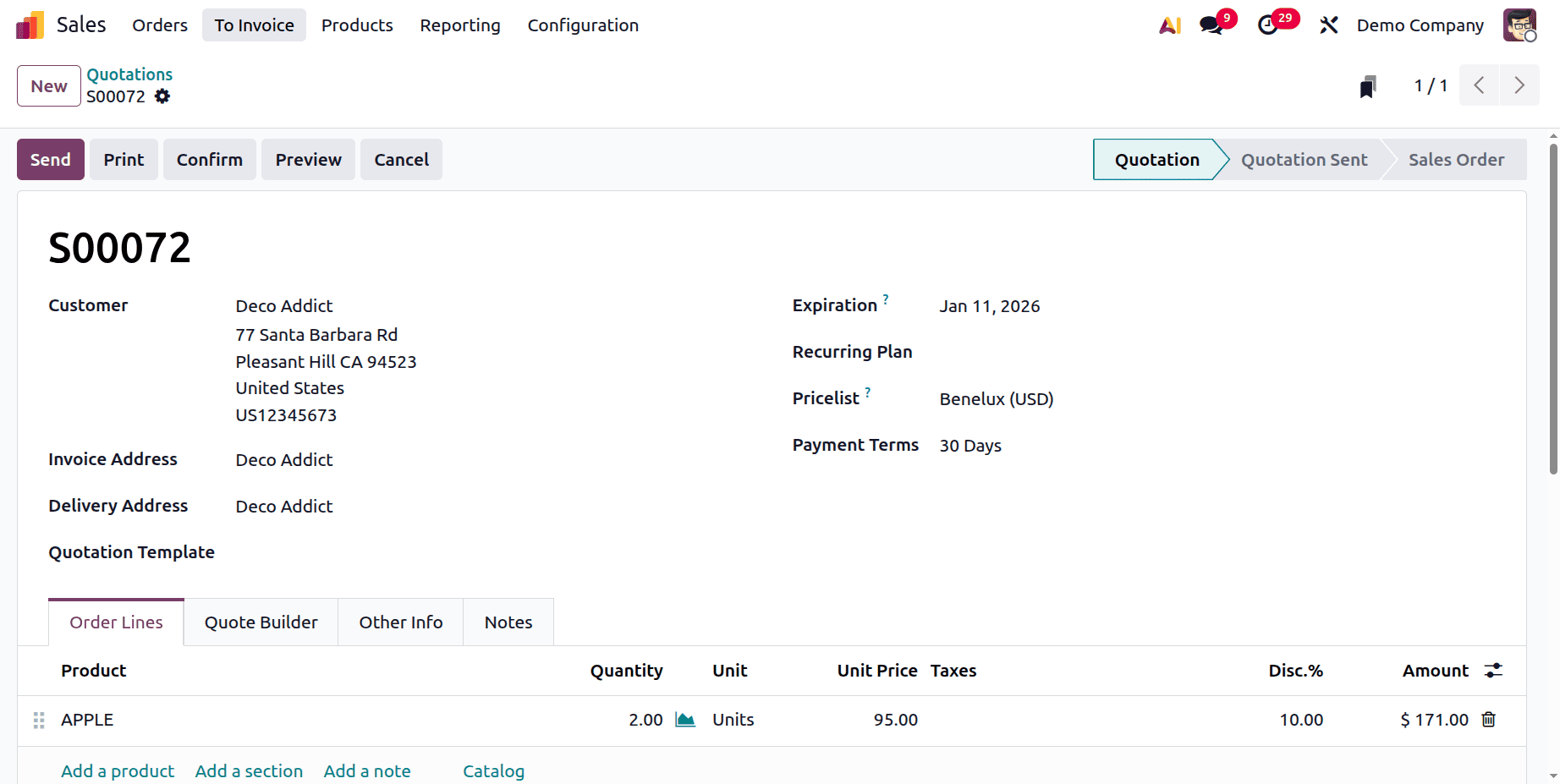
Make a fresh sale order. Deco Addicts is the selected client. Add the Apple product inside the border. The client asked for two volumes. A red graph indicator next to the quantities indicates that the product is not in stock at the warehouse.
Thus, the business has two warehouses. Open the Other Info page to see which warehouse was selected for the sales order. The Delivery section has a warehouse field. Warehouse #1 is the selected warehouse.

As seen in the picture below, two deliveries are made after the sale order is confirmed. And one Purchase Order is created.

Click on the Purchase smart tab. Here the warehouse is the second one. Confirm the purchase order and Receive the goods to the Warehouse #2.

Click the Delivery smart tab to see the deliveries that have been created.
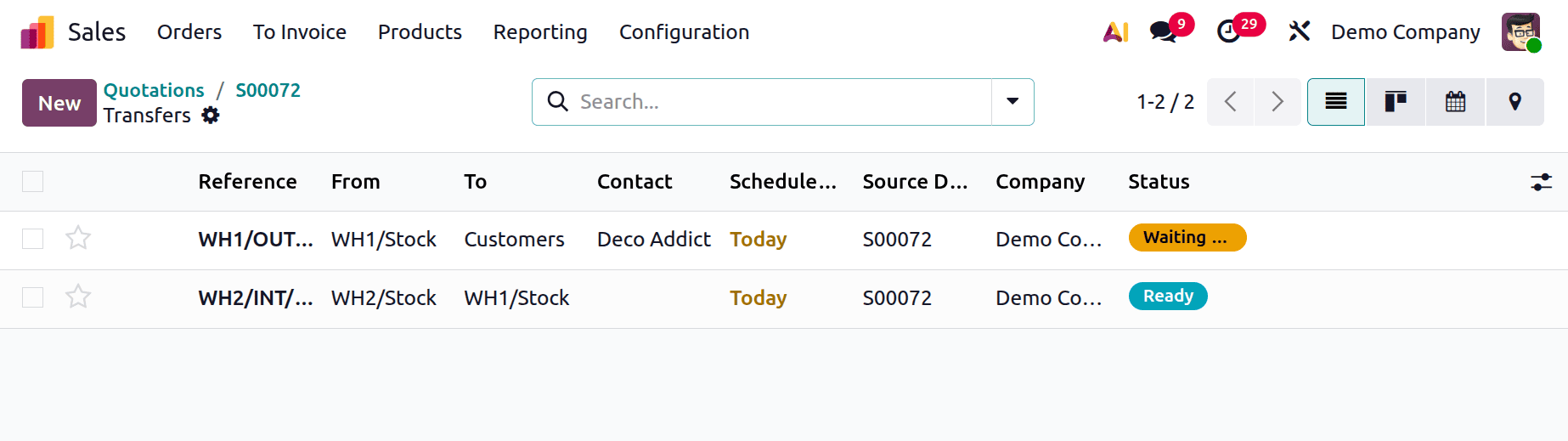
The first transfer is in the Waiting stage, and the second delivery is in the Ready stage, as can be seen below. To initiate the transfer, click on it.
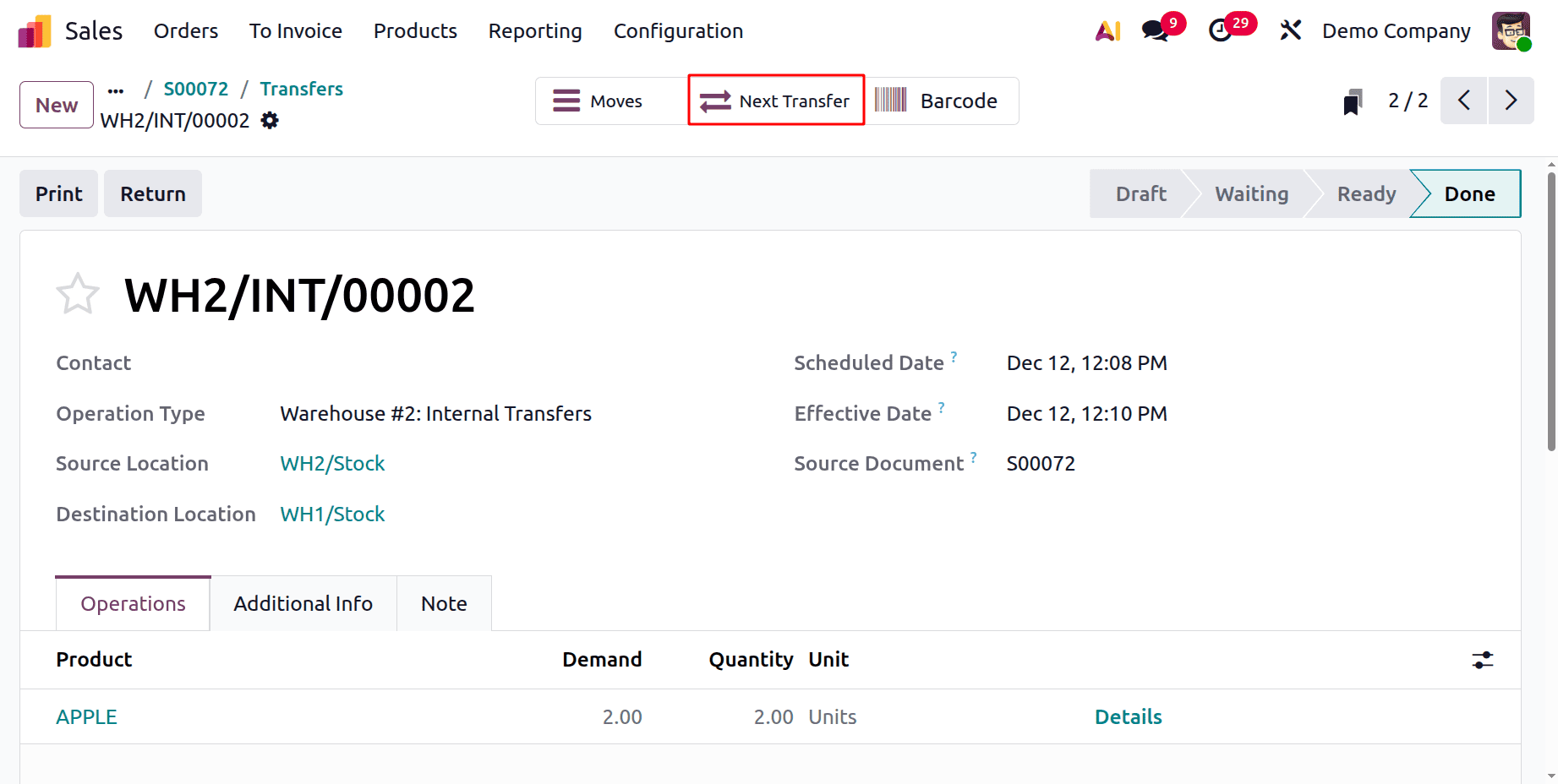
According to the routes, the first transfer is an internal transfer. In this case, the merchandise is transferred from WH2/Stock to WH1/Stock. Verify the transfer.
After that, the second transfer will automatically transition to the Ready stage. The products will travel from the WH1/Stock location to the client location during the second transfer. To finish the delivery, verify the transfer.

In conclusion, Odoo 19 offers robust features for accelerating transfers between and within warehouses, enhancing the efficiency and transparency of inventory management. Features like automated workflows, transportation locations, and itineraries facilitate stock transfers while ensuring accurate tracking and documentation. By using these features, companies can enhance operations, reduce errors, and gain greater control over their supply chain processes.
To read more about How to Process Inter Warehouse & Intra Warehouse Transfers in Odoo 18 refer to our blog How to Process Inter Warehouse & Intra Warehouse Transfers in Odoo 18.