Any successful firm must have effective inventory management, and sustaining accuracy depends heavily on how unsellable or damaged products are handled. Scrap Locations in Odoo 19 offer a smooth method of handling stuff that isn't usable or marketable. Businesses may track and account for such products without interfering with their primary inventory procedures thanks to this capability.
Scrap locations are destinations where useless goods can be sent for recycling, reworking, or destruction in the future. In Odoo 19, virtual locations do not correspond to real-world warehouse areas. Rather, there are specific places in the database of the system where objects not included in the physical inventory count are tracked. They assist in keeping stock levels neat and orderly, guaranteeing that operational data is accurate and only includes things that may be used. Businesses can reduce errors, increase reporting accuracy, and streamline inventory procedures by making efficient use of scrap locations.
We'll look at how scrap locations work in Odoo 19, their significance for warehouse operations, and how to set them up and use them to improve your inventory management system.
Creating a new Scrap Location
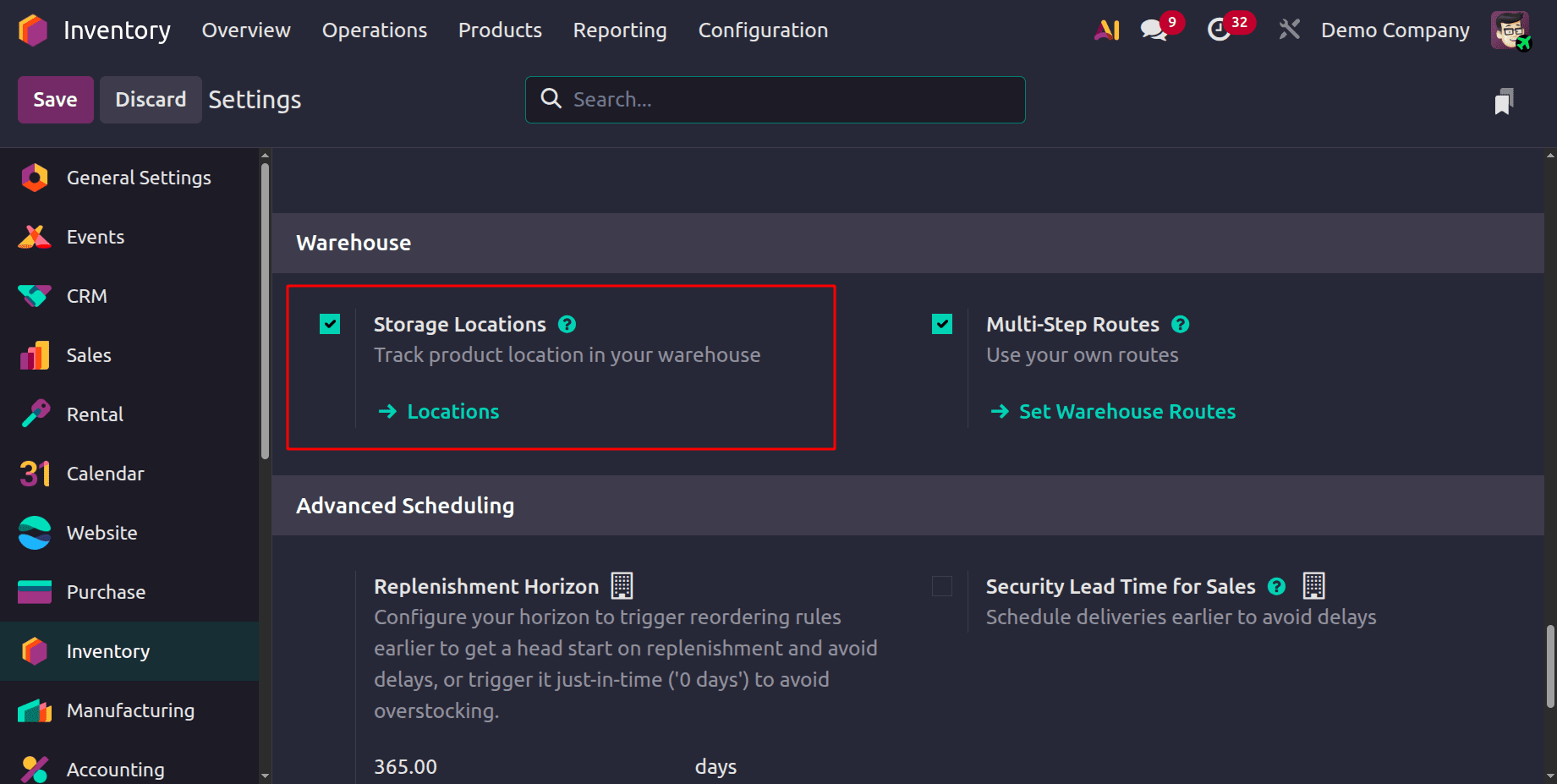
The storage location must first be enabled in the inventory module's settings.
Next, create a new place called the scrap location by going to Configuration > Locations. Click on the New button. Add the location name, then choose the Parent location as Virtual Location. Then the Location Type as Inventory Loss.
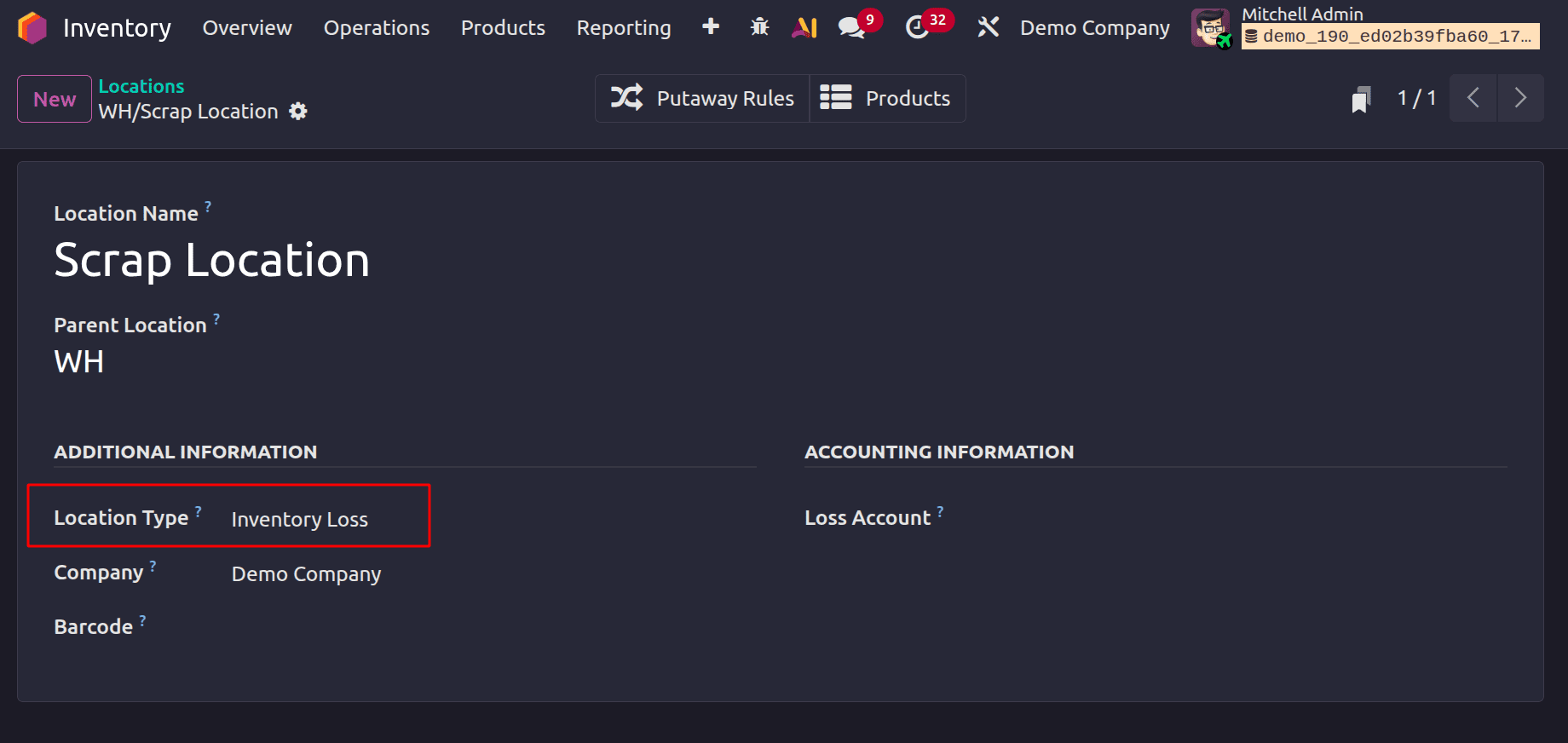
You can now use this location in Odoo 19 Inventory to scrap a product.
Let's first buy an out-of-stock item to closely monitor the product movement in order to demonstrate this method. We can buy ten units of the product for this.
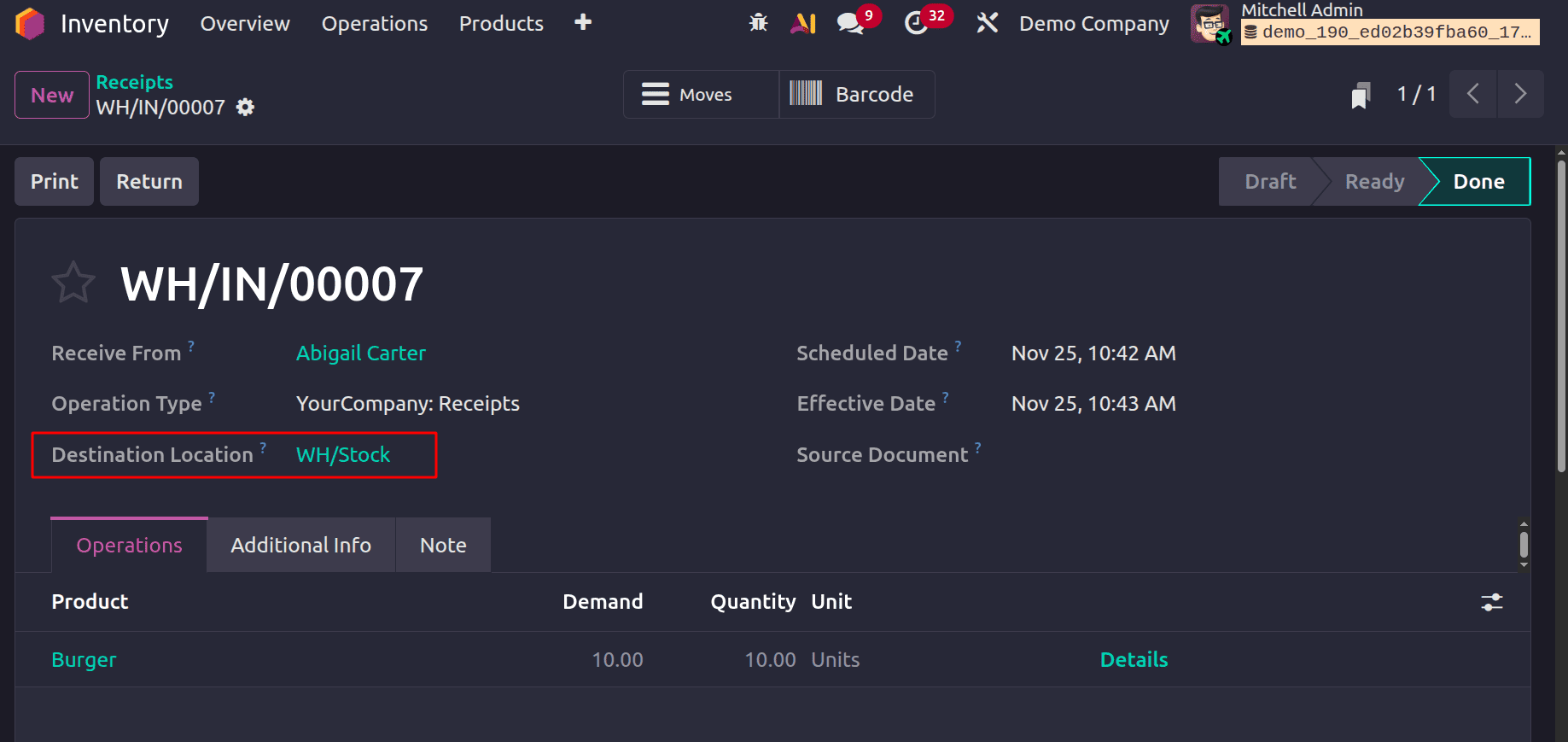
Stock scraps
Imagine a scenario in which we receive some of the purchased things and find them to be damaged. In this instance, determining which products are intended for scrapping becomes the main focus.
Go to the Inventory app, choose Operations, then Scrap, then choose New to move some of these recently purchased products for scrapping. A new Scrap Order form will open as a result.
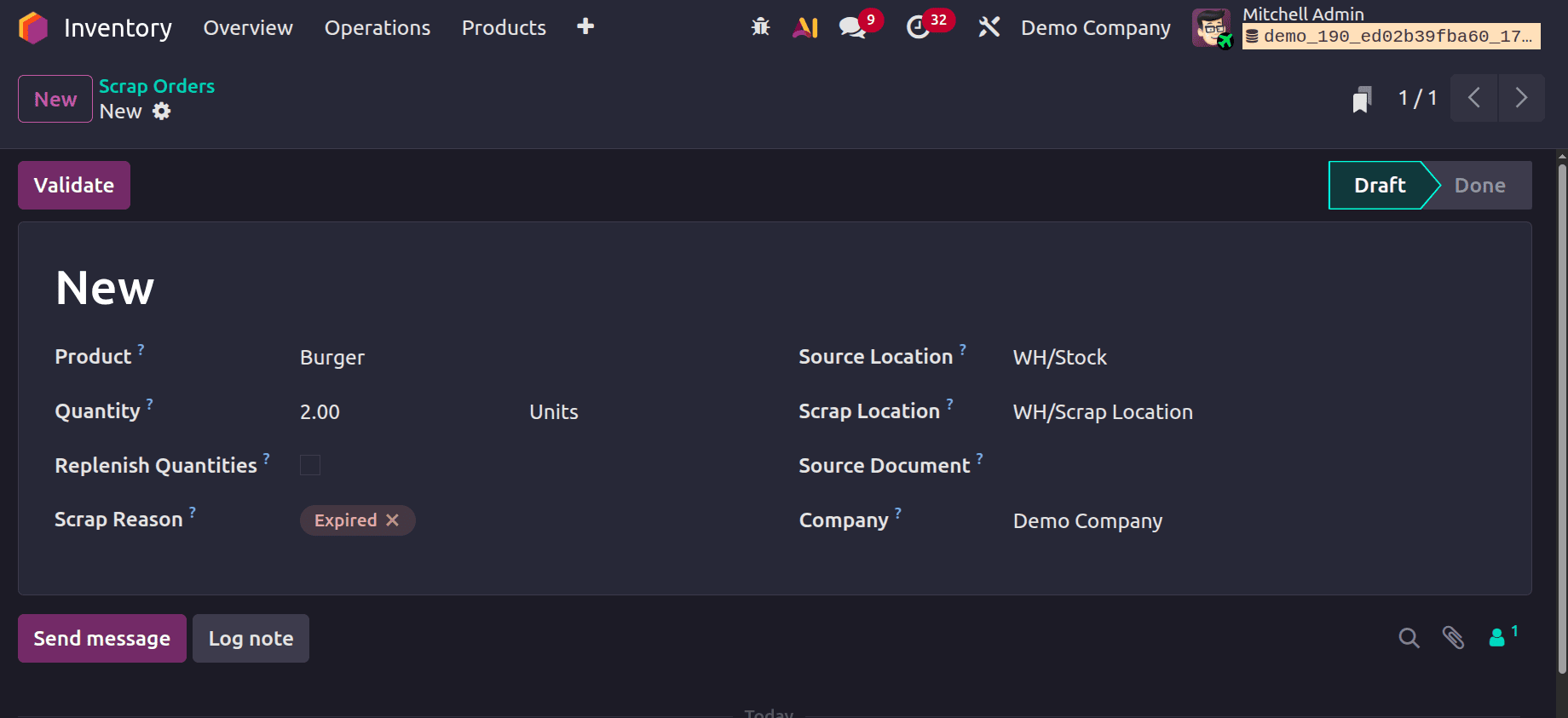
Choose the operation in the Source Document area if the scrap is connected to a particular activity. Additionally, click the "Replenish Quantities" checkbox if the product has to be restocked. We are placing a scrap order for two items in this instance. Mention the Scrap Reason.
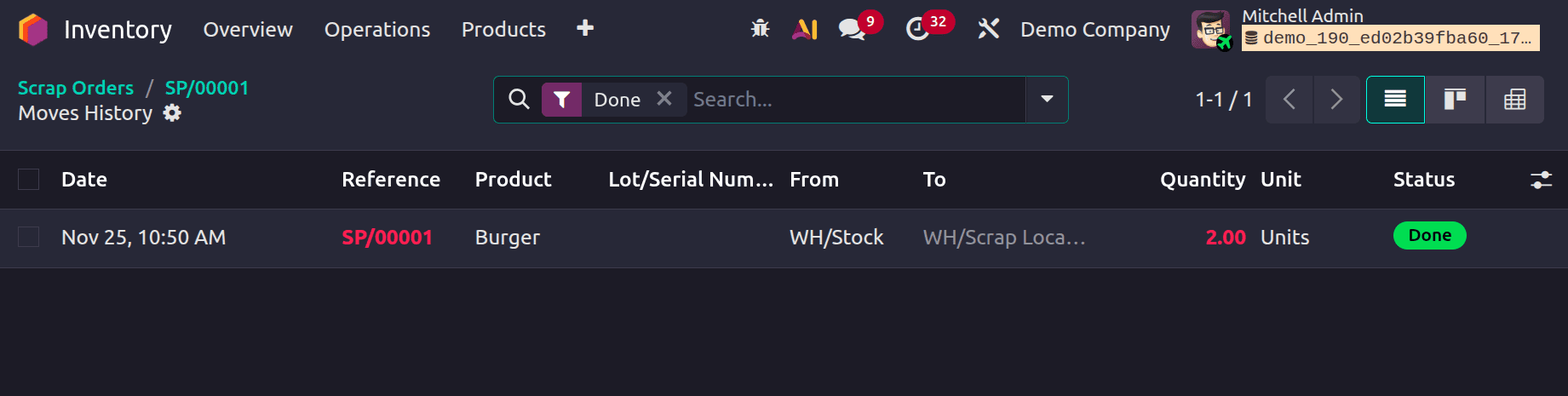
A new smart button called "Product Moves" will show up once you click the Validate button.
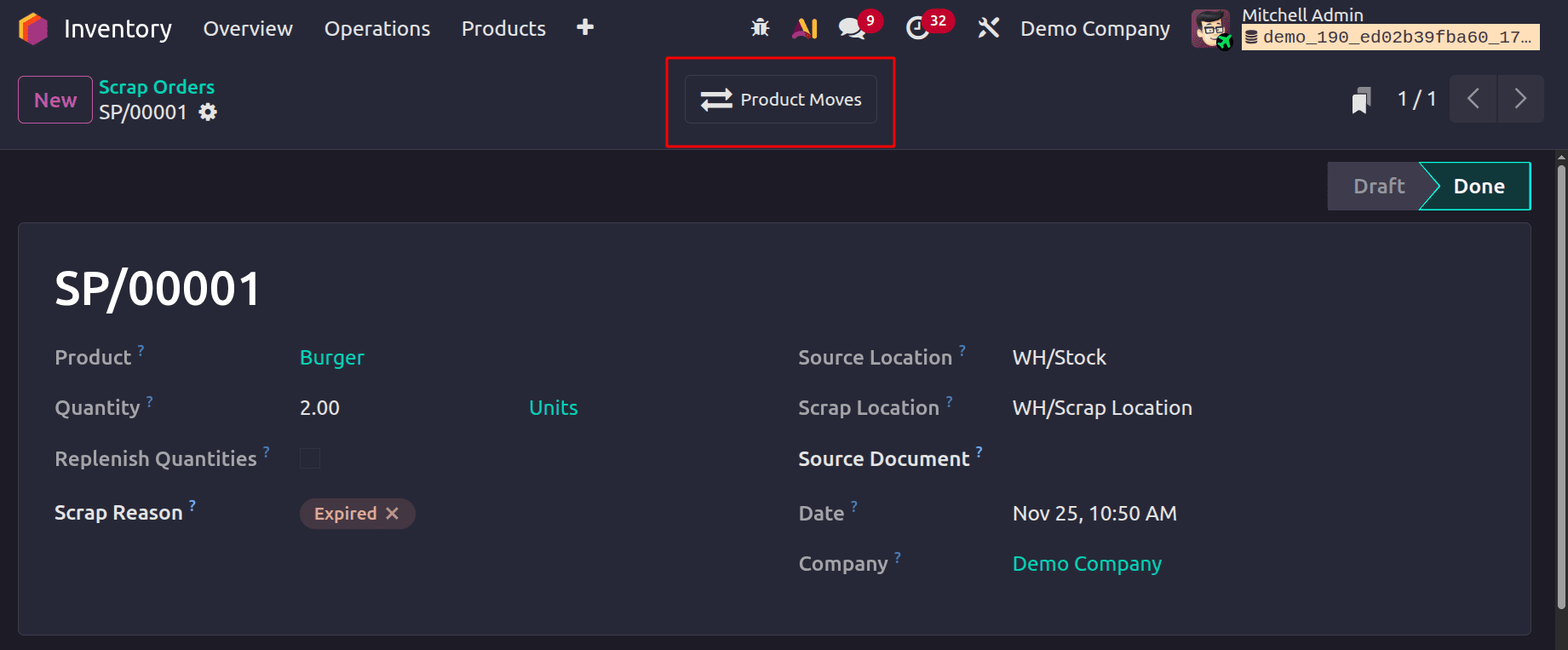
From here, you can now verify that the product is moving correctly. In this case, the product is transferred from the stock location to the scrap location.
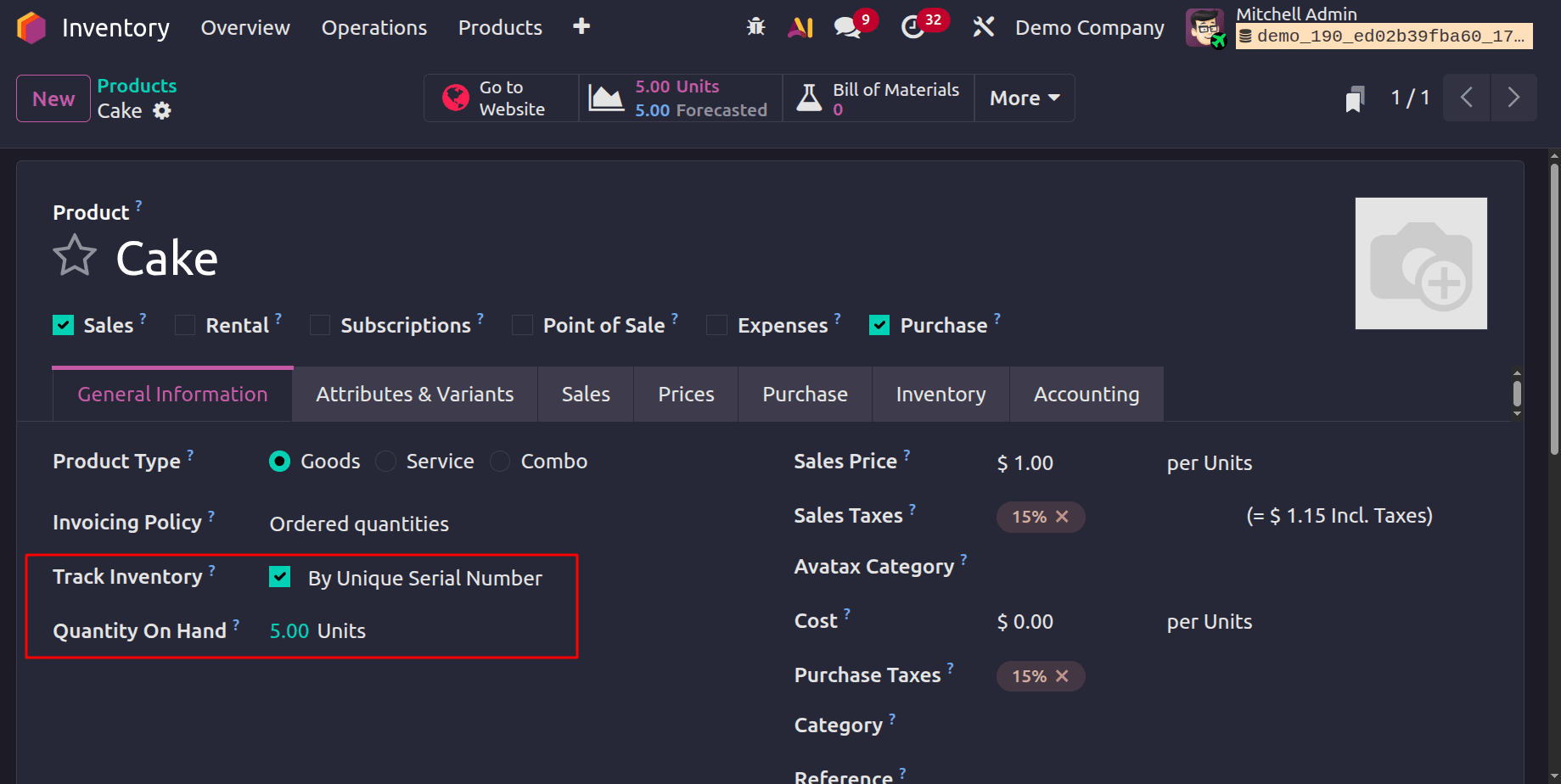
There is another product, Cake, which is tracked by Serial Number. The product is available in stock.
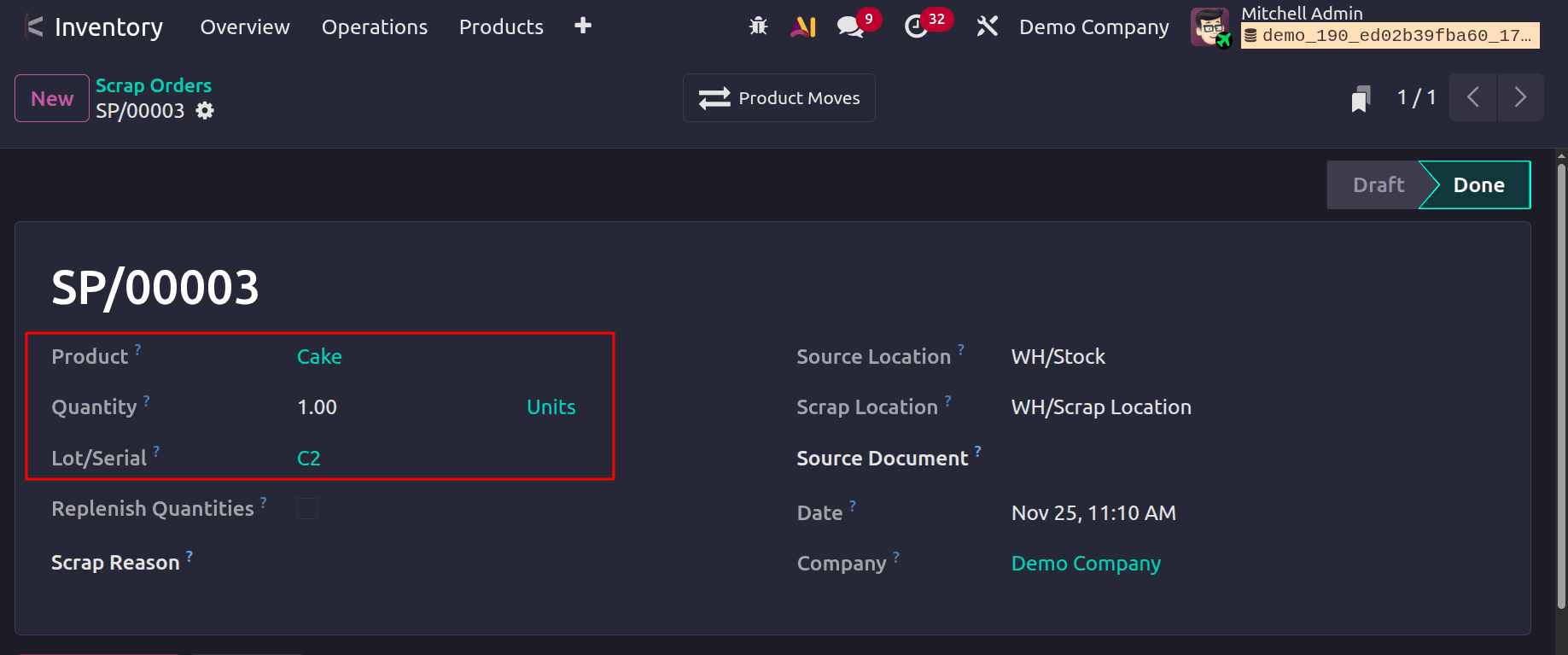
Then move back to the Scrap Orders. Click on the New button. Add the product. Here only a single unit of the product can be moved to scrap. Choose the serial number inside the Lot/Serial field. To view the product move, check the smart tab.
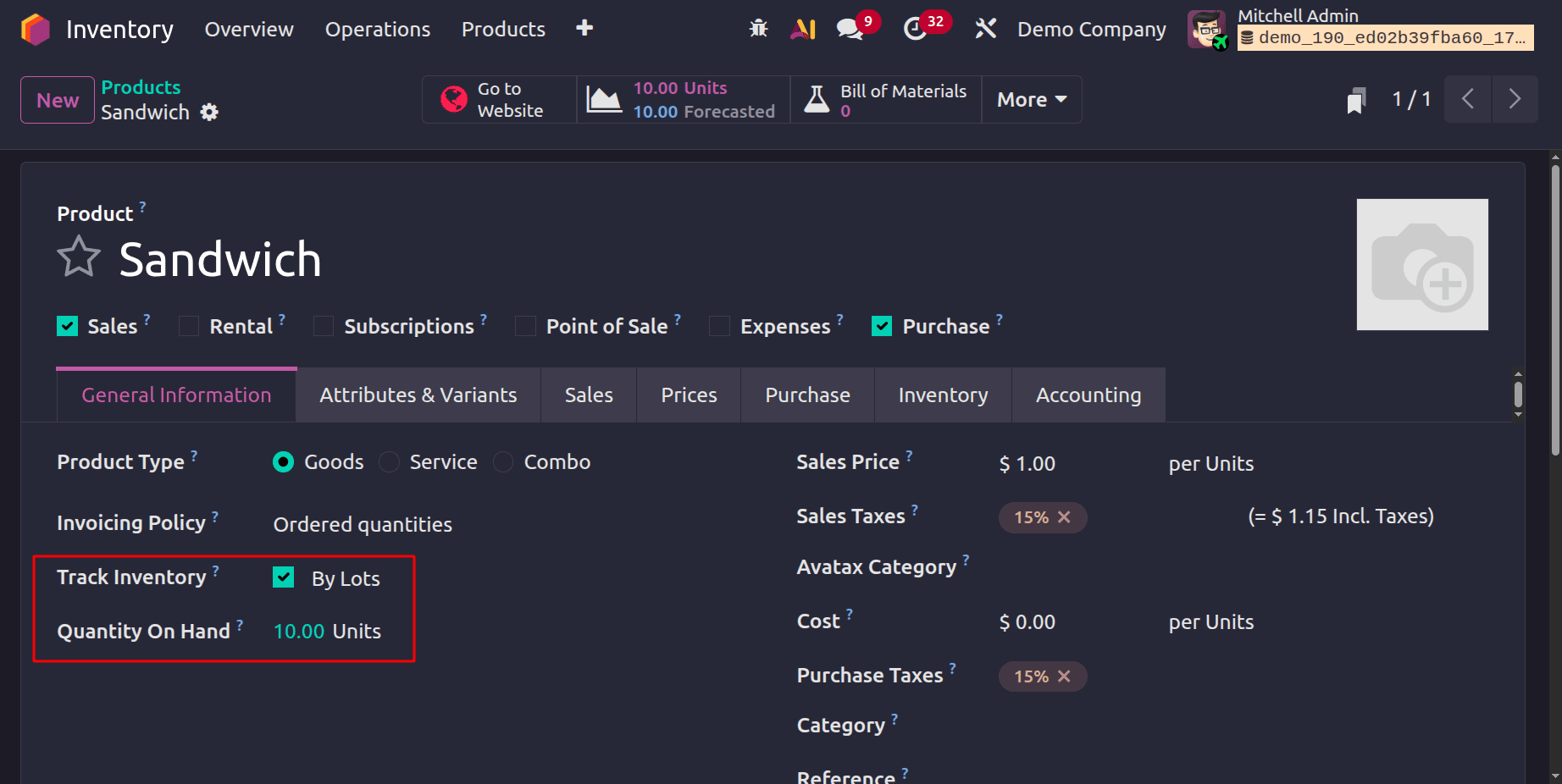
The third product is a sandwich. Which is Tracked By Lots numbers. The onhand quantity is updated as 10 quantities.
Then again, create a new scrap order. Click on the New button. The product is tracked by Lots number. Choose the product. But this time the users can mention the quantity. Click on the Validate button.
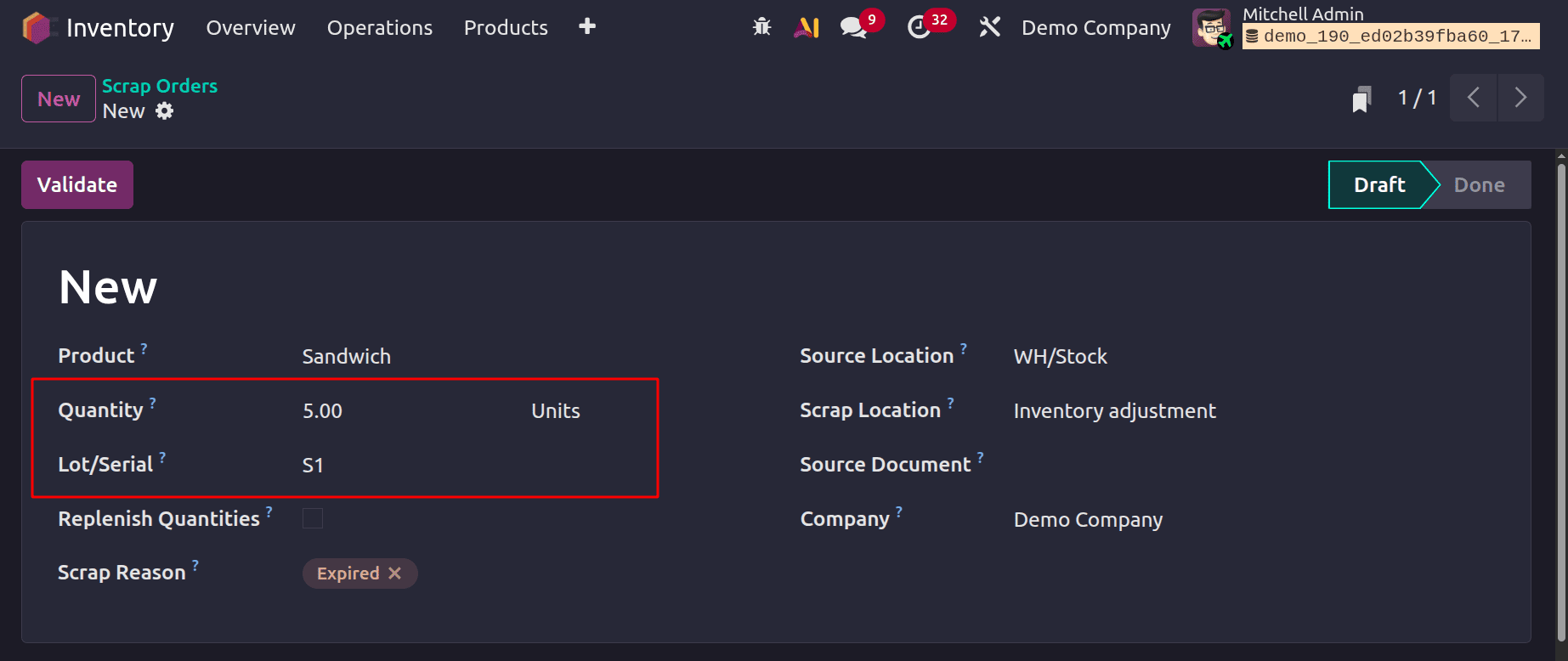
To check the product movement, click on the smart tab, Product Moves smart tab.
Verify Stock Levels and Update Inventory
Odoo 19 immediately updates the inventory to reflect the trashed quantity when a scrap operation is verified. Accurate stock levels are guaranteed by this real-time modification, which also helps to avoid inconsistencies in inventory records.
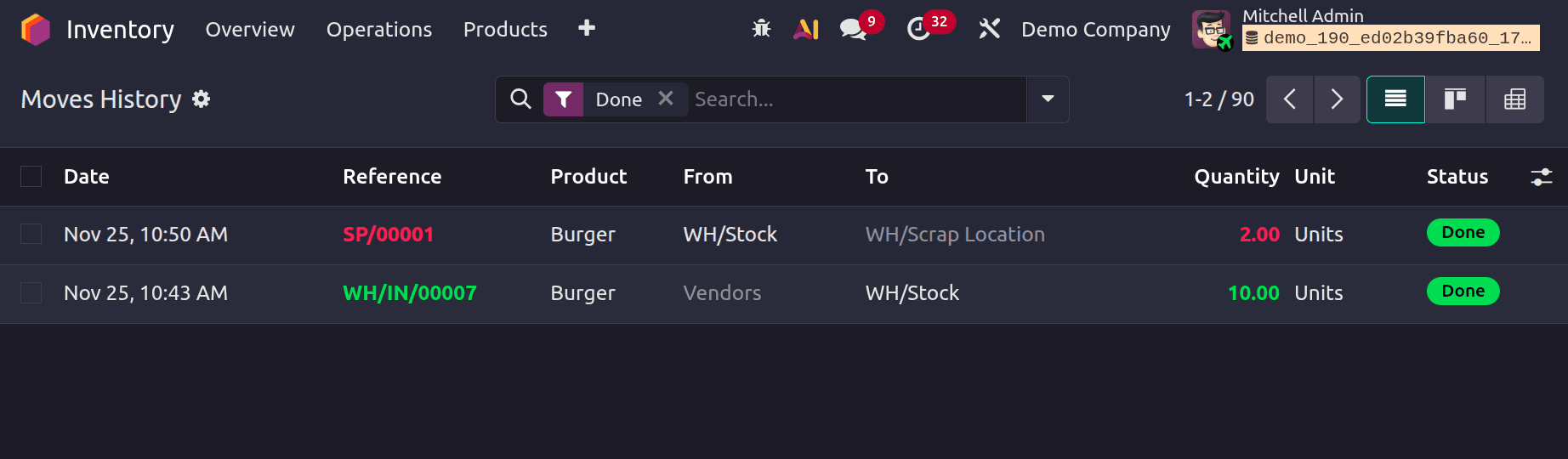
You can now see how much of this product is available.
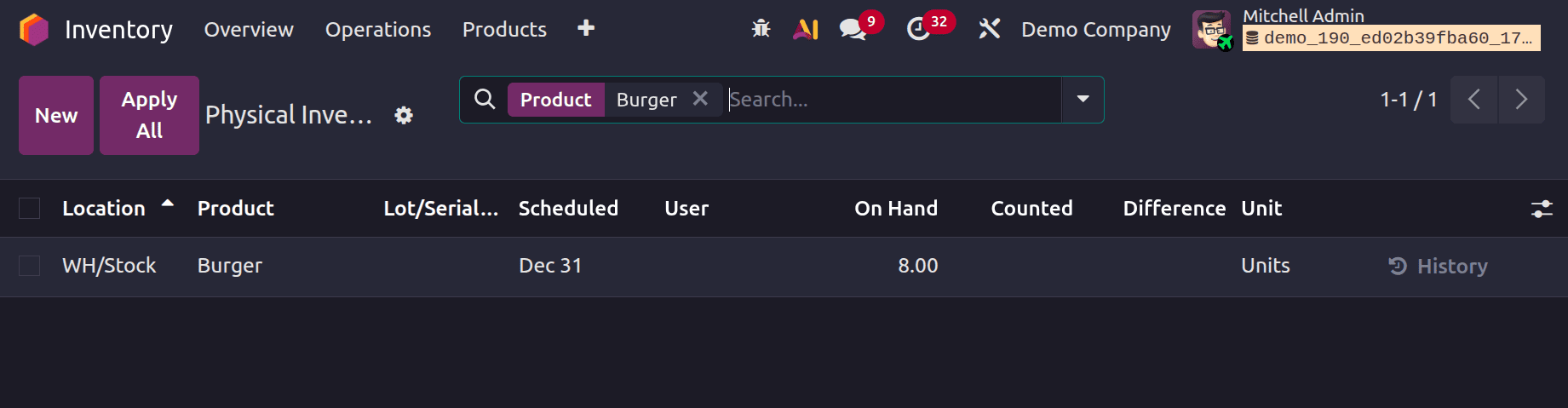
8 units of the product Burger are listed as On Hand Quantity in the inventory, indicating that two units have been withdrawn for scrapping.
Scrap damaged items as soon as they are received.
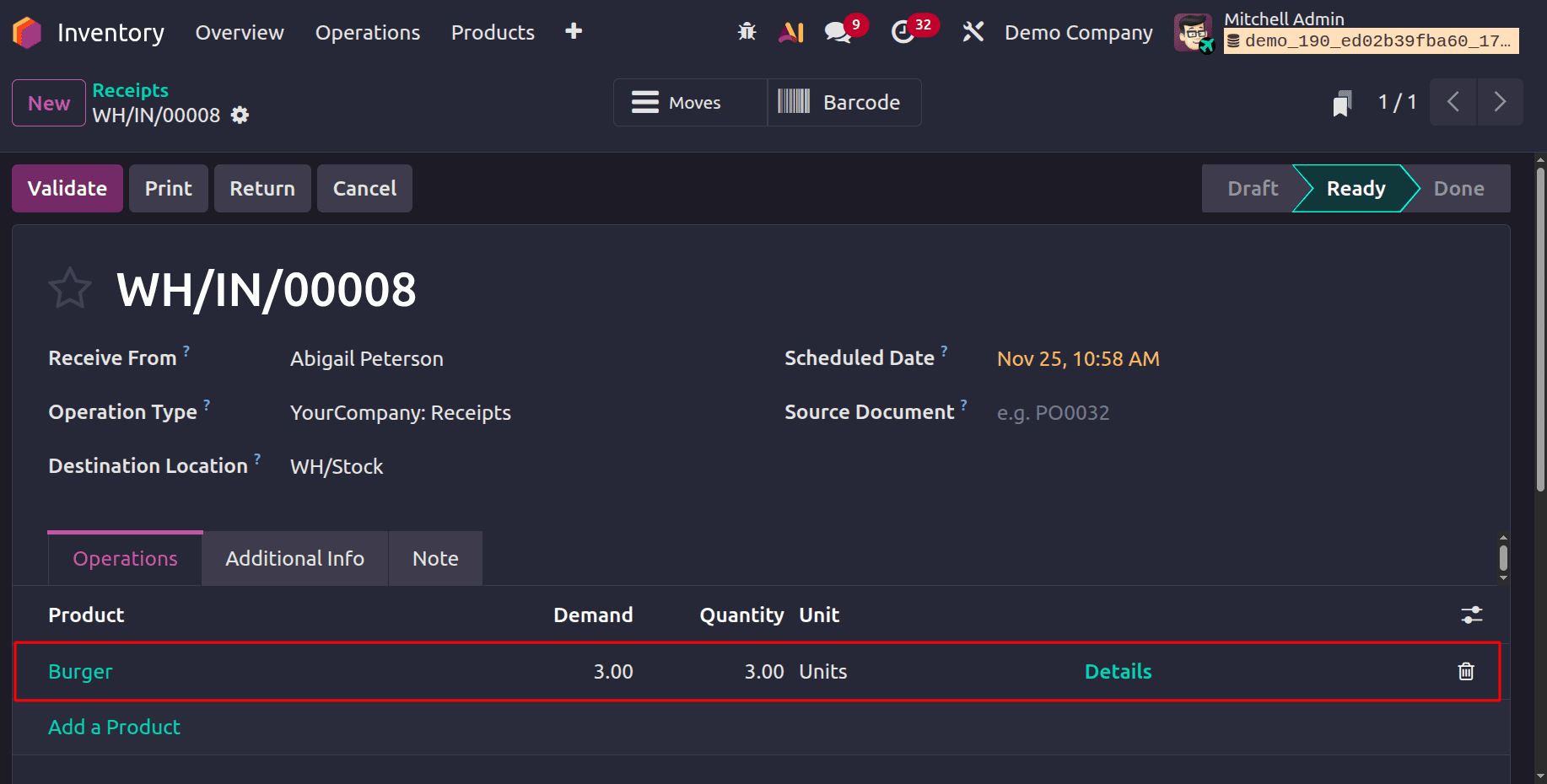
Odoo 19 makes it simple to handle the situation where part of the purchased goods are discovered to be broken after delivery. The screenshot below depicts a Receipt Transfer in which you receive three identical pieces; however, following closer examination, it is discovered that two of them are damaged.
As shown below, you can verify that the products have been received.
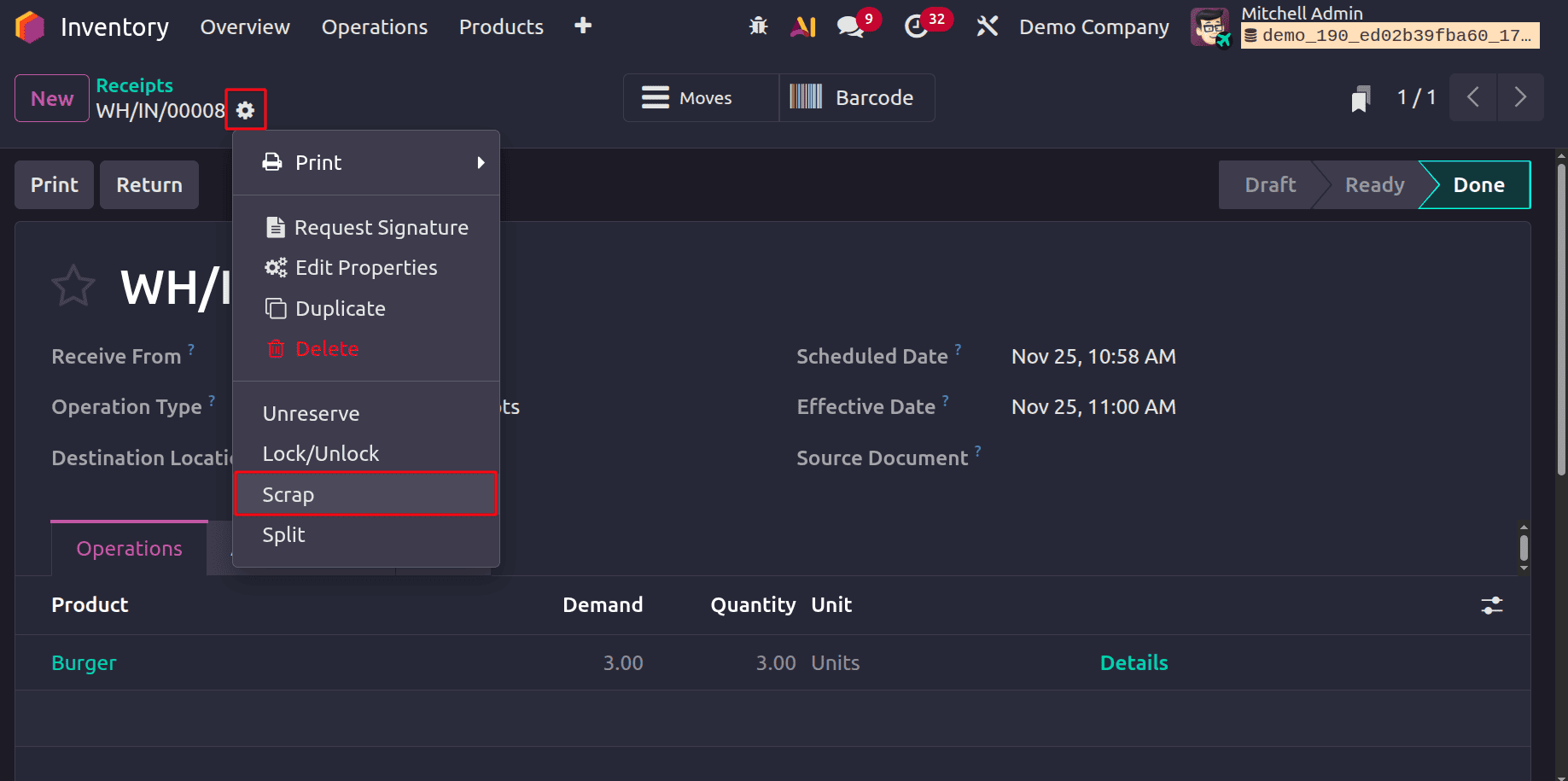
You may now locate the option to make a scrap by hitting the gear button, as seen below.
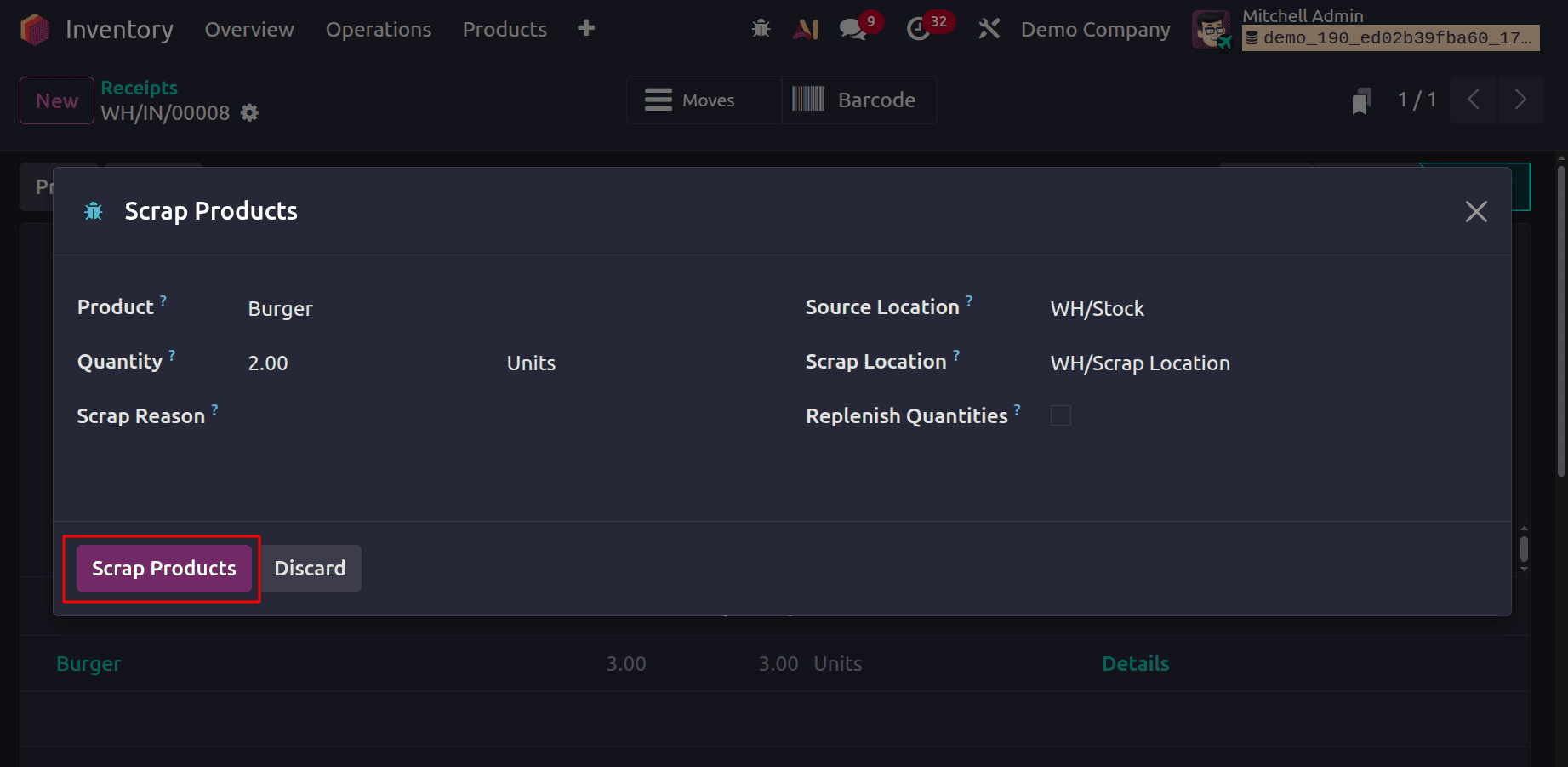
You can now designate the product and the amount to be discarded.
Check the transfer again. There is a new smart tab. Click on the smart tab Scraps.
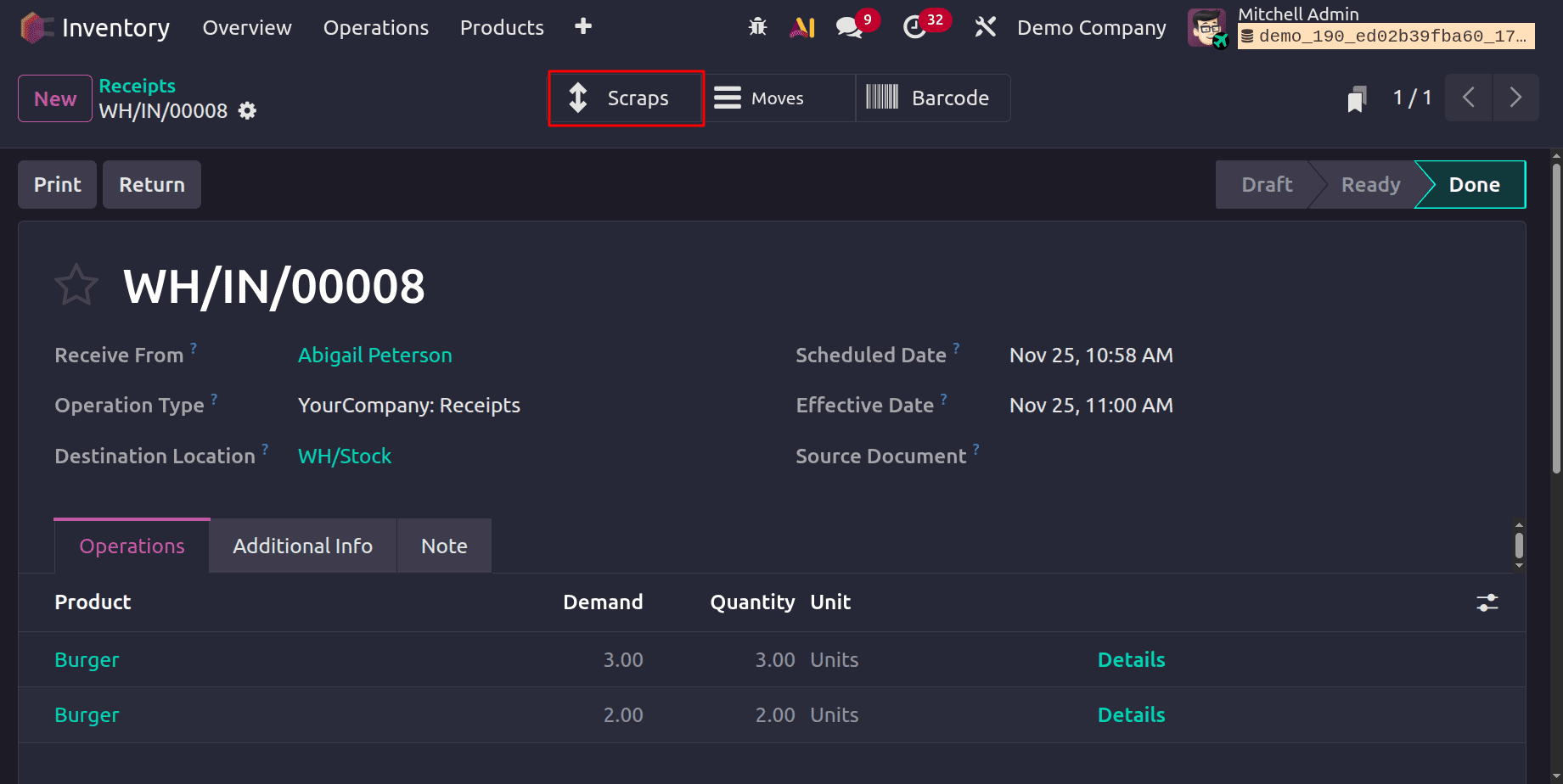
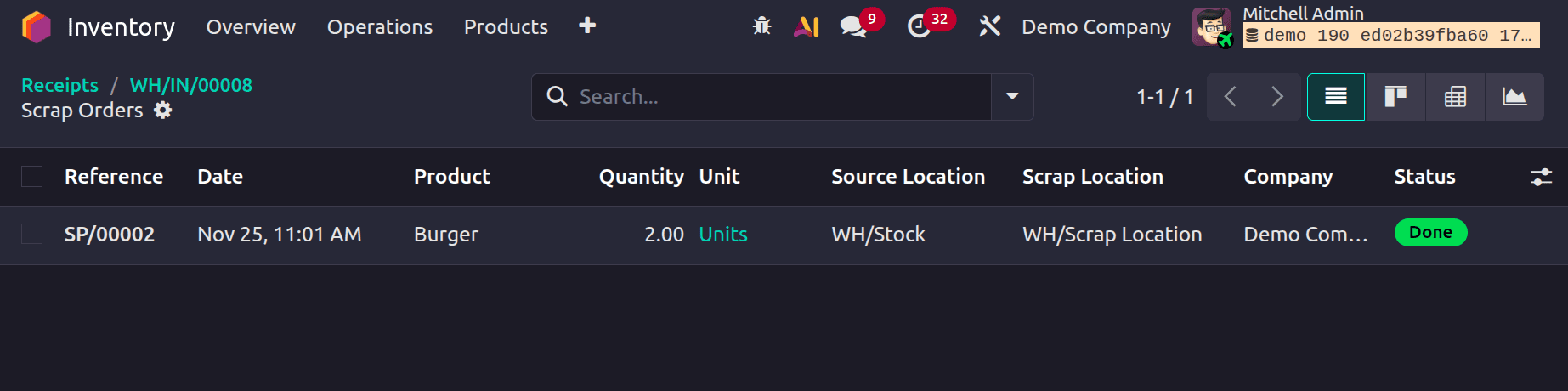
Which show the Scrap Order created. The source location and destination location are shown in the list as shown below.
In conclusion, efficient scrap management in Odoo 19 ensures accurate inventory control and financial reporting by streamlining the tracking and management of damaged or obsolete products. Odoo 19 assists companies in keeping accurate records when products are transferred to scrap sites by utilising capabilities like automatic accounting entries and stock movement log generation. When these capabilities are configured correctly, they guarantee a smooth interaction with your accounting system, reducing errors and offering real-time stock status visibility. Businesses may increase operational efficiency and make better decisions about inventory and resource allocation using Odoo's powerful scrap management solutions.
To read more about How to Manage Scrap Location & Product Movement in Odoo 18, refer to our blog, How to Manage Scrap Location & Product Movement in Odoo 18.