Odoo 18 introduces powerful improvements to its eCommerce and payment ecosystem, making it easier than ever for businesses to accept and manage payments online. Whether you’re running a full-fledged online store or offering subscriptions and digital services, the ability to securely accept multiple payment methods, track transactions, and streamline checkout is essential.
Odoo 18 includes built-in support for a wide range of payment providers, including Stripe, PayPal, Razorpay, Adyen, Mollie, and more.
Payment Providers
To enable a provider, navigate to
Website?>?Configuration?>?Settings ?> Activate Payments
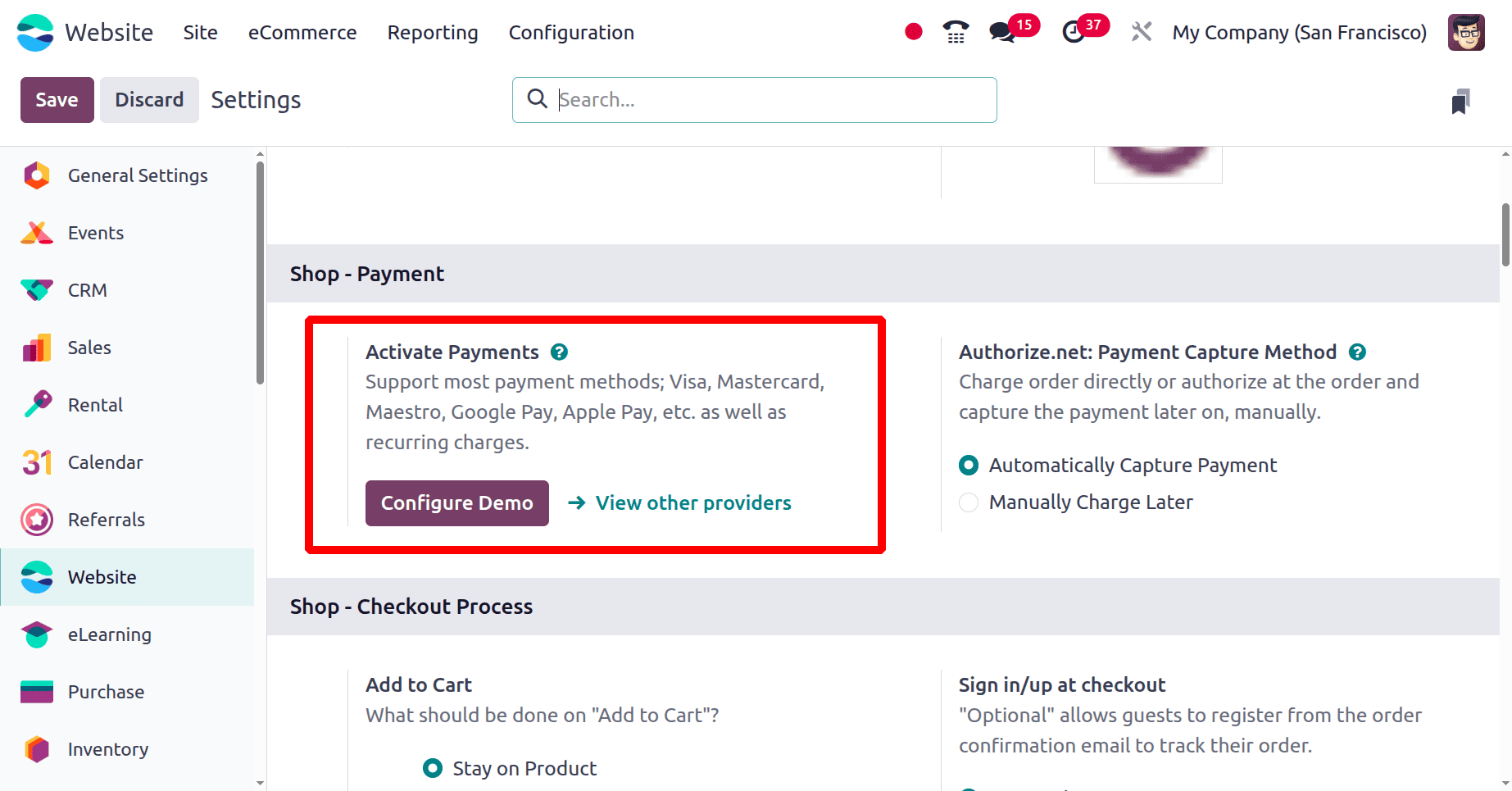
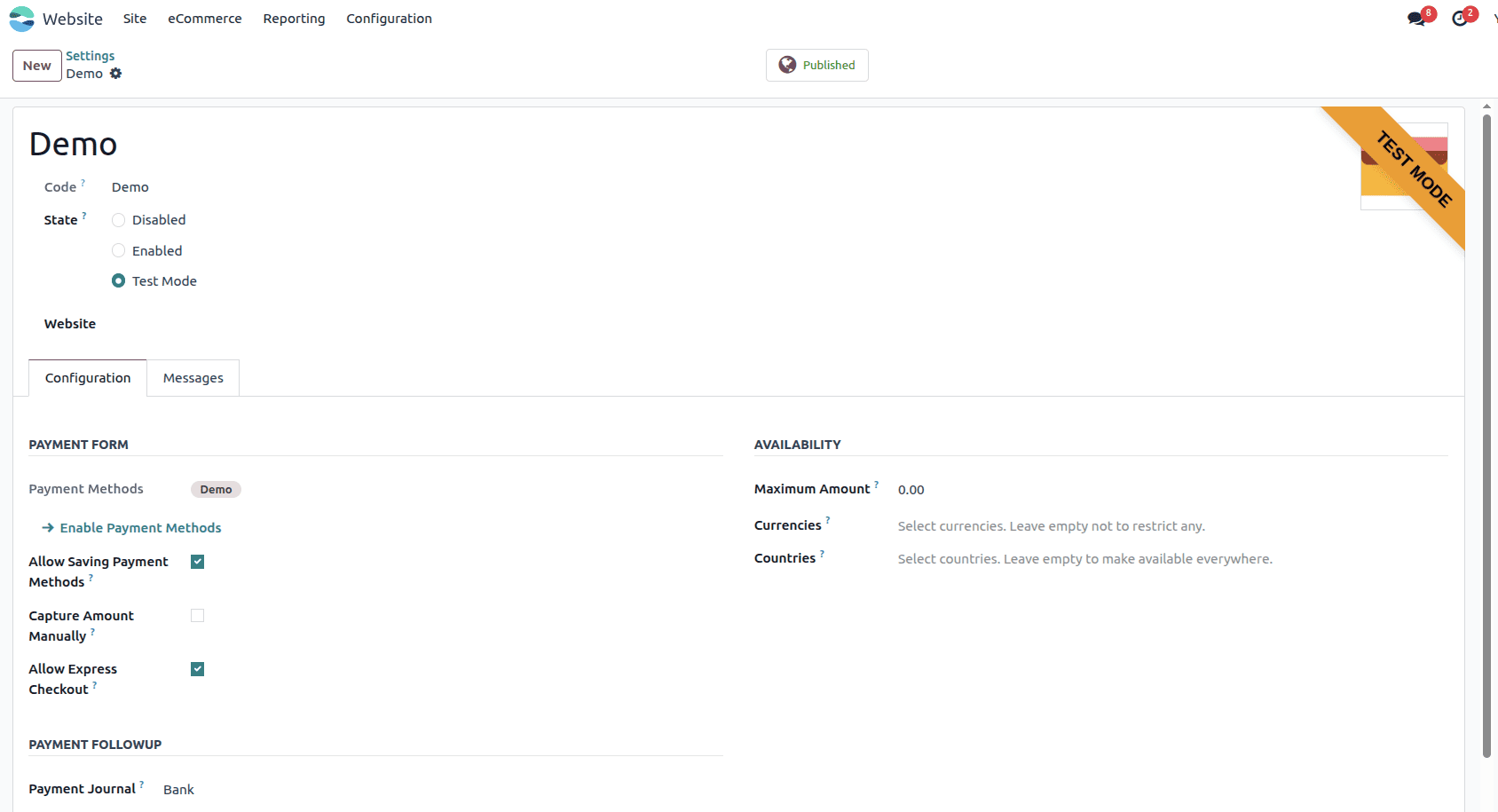
The Configure Demo button activates Odoo’s built-in test payment gateway called the Demo Payment Acquirer, which is used only for testing purposes. It allows you to simulate payment transactions during checkout without any real money transfer, helping you verify the complete order flow, payment success or failure scenarios, and automatic invoice generation before connecting a live gateway.
The View Other Providers button opens a list of all available real payment gateways supported by Odoo, such as PayPal, Stripe, Razorpay, Adyen, and others. From this list, you can install and configure a provider by entering its credentials, enabling test or live mode, and setting supported currencies and journals.
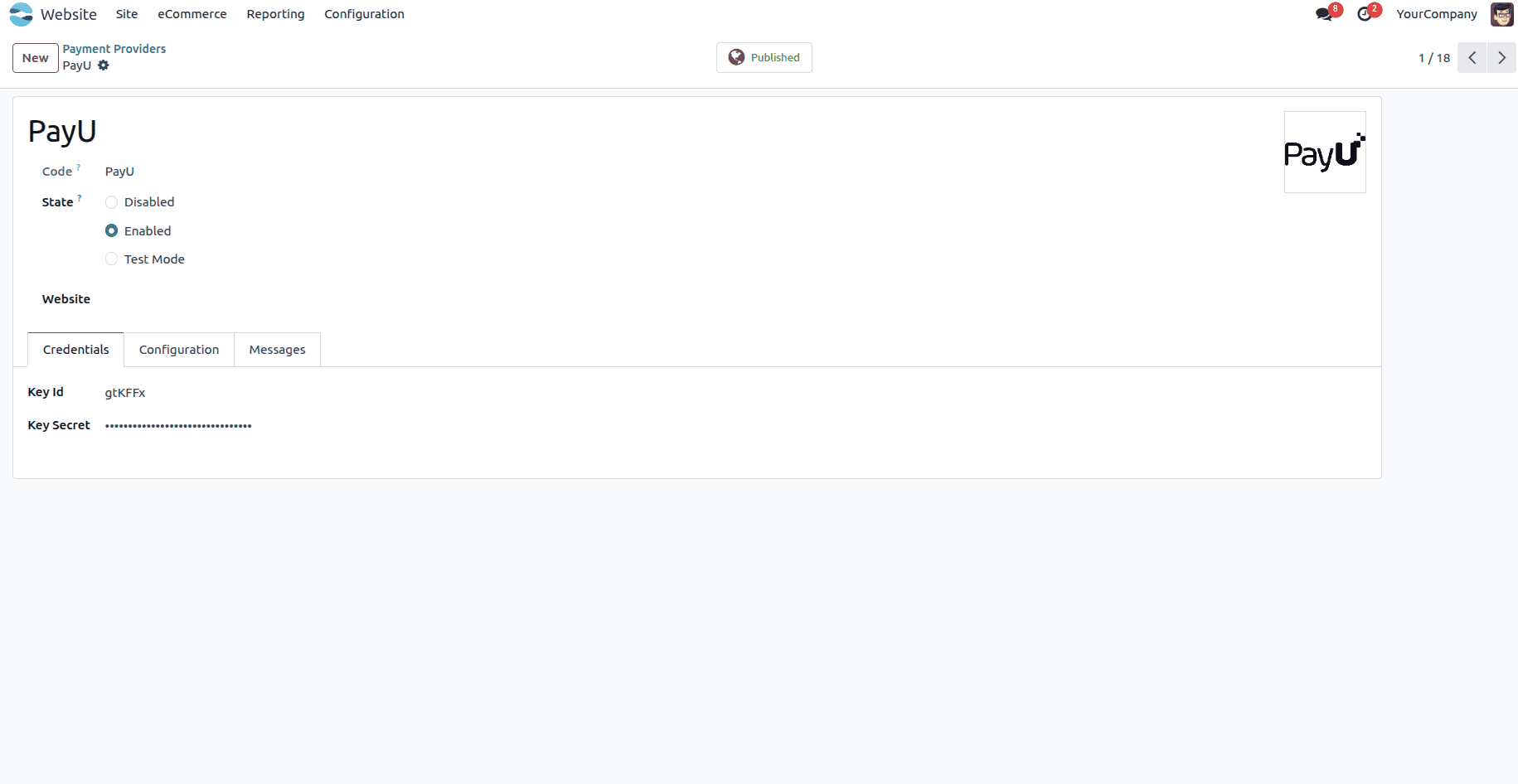
Select the desired payment provider, enter the necessary API credentials, and change its status to Enabled. If you want the payment option to appear on your website, ensure it is marked as Published.
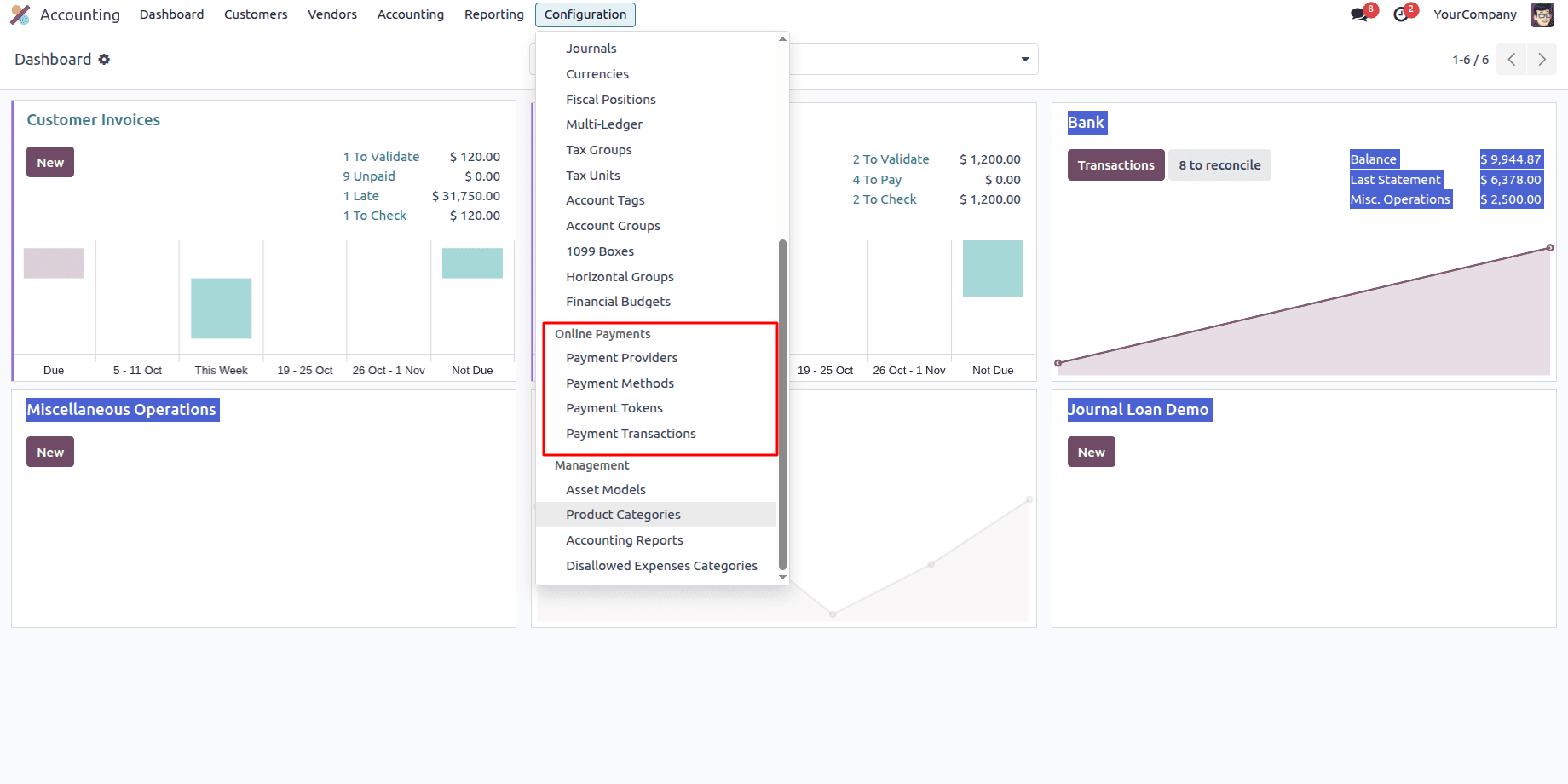
Online Payments section plays a crucial role in streamlining digital transactions. It includes options such as Payment Providers, Payment Methods, Payment Tokens, and Payment Transactions. These settings allow businesses to integrate online payment gateways, define various payment methods like credit cards or digital wallets, securely store payment credentials, and track all payment activities directly from Odoo. With this setup, companies can automate their payment processes, reduce manual errors, and offer customers a faster and more secure way to complete transactions — all within a unified accounting environment.
Choosing the right payment provider in Odoo 18 is key to offering a smooth, secure, and flexible checkout experience for your customers. With built-in support for leading providers and advanced features like tokenization, refunds, and express checkout options, Odoo gives you the tools to handle online payments efficiently. Whether you're just getting started or scaling up, properly configuring your providers ensures that your e-commerce setup is both professional and user-friendly.
Payment Methods
Odoo 18 supports a wide range of payment methods that can be enabled through integrated providers like Stripe, Adyen, PayPal, and PayU. Among the most commonly used are Visa, Mastercard, and Maestro—all of which can be activated through supported providers.
Once enabled, these options appear during the checkout process on your website, giving customers a reliable and familiar way to pay by card. You can choose which card brands to display, customize their logos, and manage their order of appearance to match your branding or business preferences.
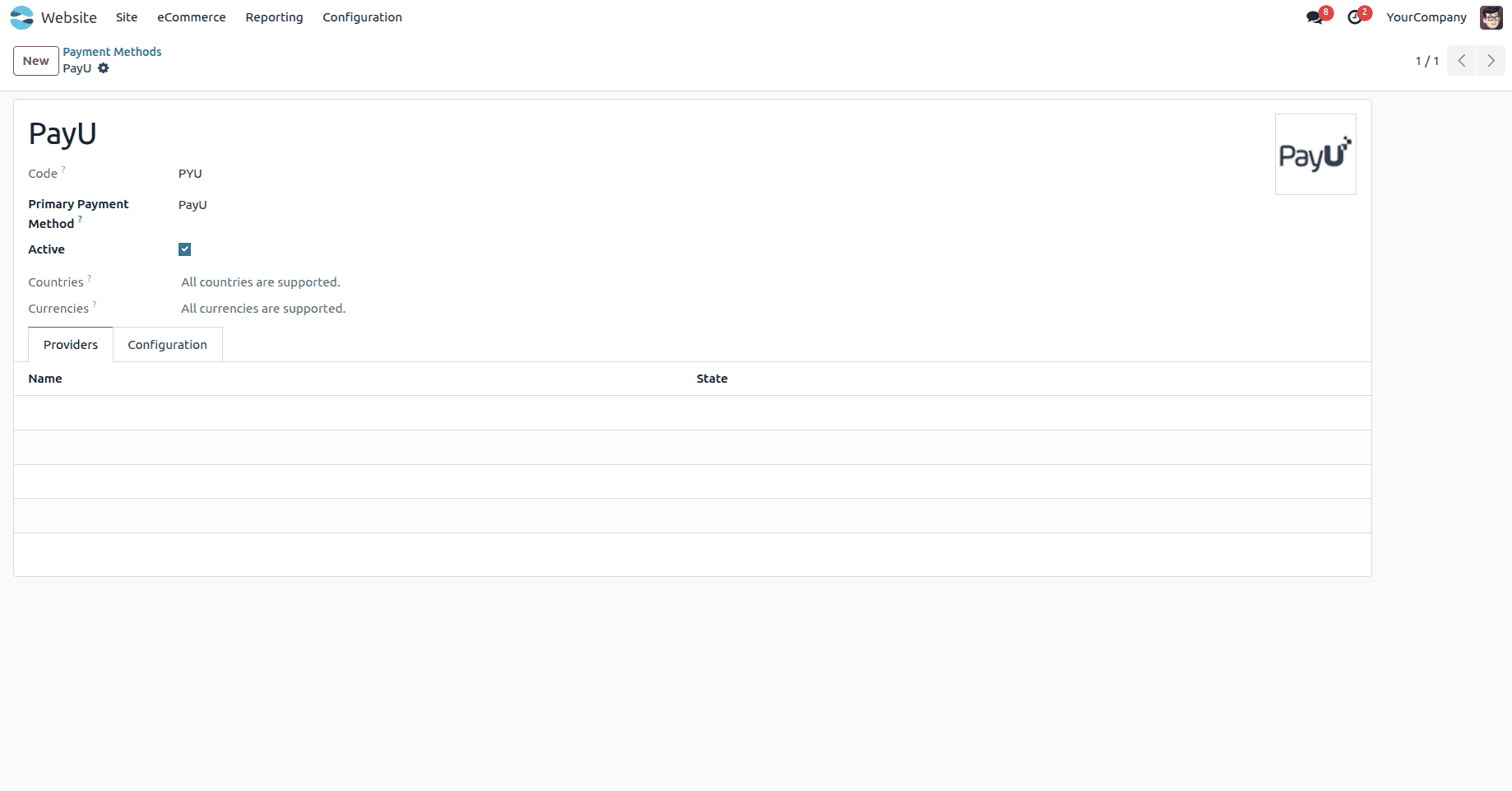
Name (PayU) – This is the name of the payment method. It helps identify the specific payment channel, such as “Demo,” “Credit Card,” or “PayPal.”
Code (payu) – This is a unique internal identifier for the payment method. It’s used in the backend for technical references and automation purposes.
Active – A checkbox that determines whether the payment method is currently enabled. If checked, it means this payment method is active and available for use in transactions.
Countries – This field specifies the list of countries where this payment method can be used. In this example, it shows “All countries are supported,” meaning there are no restrictions.
Currencies – Indicates which currencies are supported by the payment method. Here, it says “All currencies are supported,” allowing transactions in any currency.
Providers – Lists the payment providers (such as PayU, PayPal, Stripe, etc.) linked to this payment method.
Configuration – options like Tokenization and Express Checkout can be enabled for faster or saved payments, while Refund shows if refunds are supported.
Beyond traditional card payments, Odoo also supports digital wallets such as Google Pay and Apple Pay, depending on the provider used. These payment methods offer a seamless checkout experience, especially on mobile devices, by allowing customers to authorize purchases quickly using face recognition, fingerprint, or a saved device credential. Providers like Stripe and Adyen make it possible to enable express checkout buttons that appear directly on the cart or product pages, significantly speeding up the payment process.
All payments made through these methods are automatically logged in Odoo’s backend. Each successful or failed attempt is stored as a Payment Transaction, which includes details such as the payment method used, transaction status, amount, and response from the provider. This makes it easy to track payments in real time and handle any necessary follow-up actions, such as refunds or manual validation.
By enabling multiple payment methods and ensuring they are properly configured, businesses can improve customer satisfaction while maintaining full visibility and control over their e-commerce payment flows. Whether a transaction is made via Visa or Apple Pay, Odoo provides the tools needed to track, report, and reconcile all payments efficiently within the system.

The first step in setting up an online payment flow in Odoo is to enable the Demo payment method in Test Mode. This allows you to simulate transactions safely before using a live payment gateway.
In the Accounting module, navigate to Configuration > Payment Methods, then open the Demo payment method. Ensure the Active box is checked so that it can be used during checkout. Under the Providers tab, confirm that the payment provider state is set to Test Mode—this ensures that no real money is involved during testing. Once enabled, the Demo method will appear as an available payment option in your eCommerce checkout process.
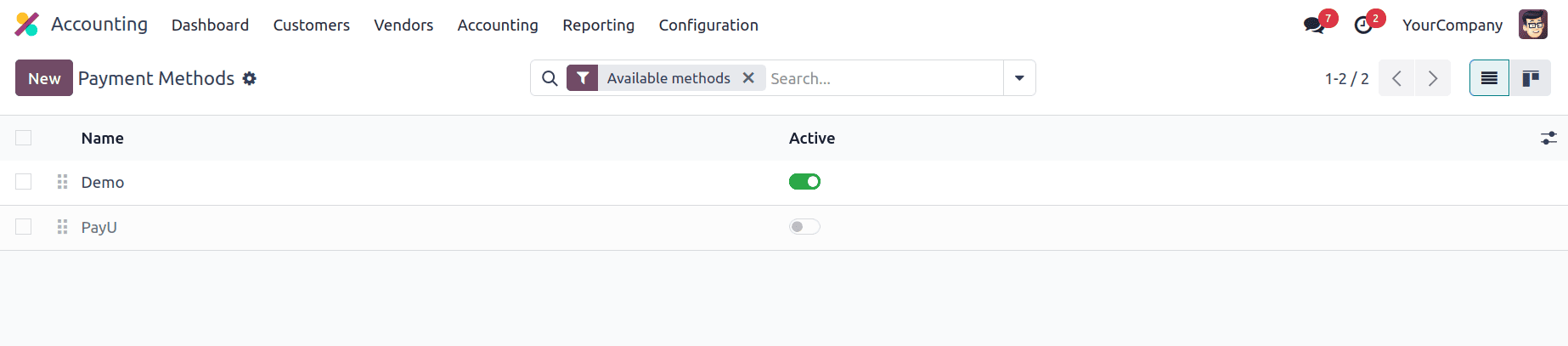
Once the Demo payment method is enabled in Test mode, customers can start browsing products on your eCommerce site. Customers can visit the website storefront and explore the available products. When they find a product they want, they can click on it to view the details and then select “Add to Cart” to include the item in their shopping cart.
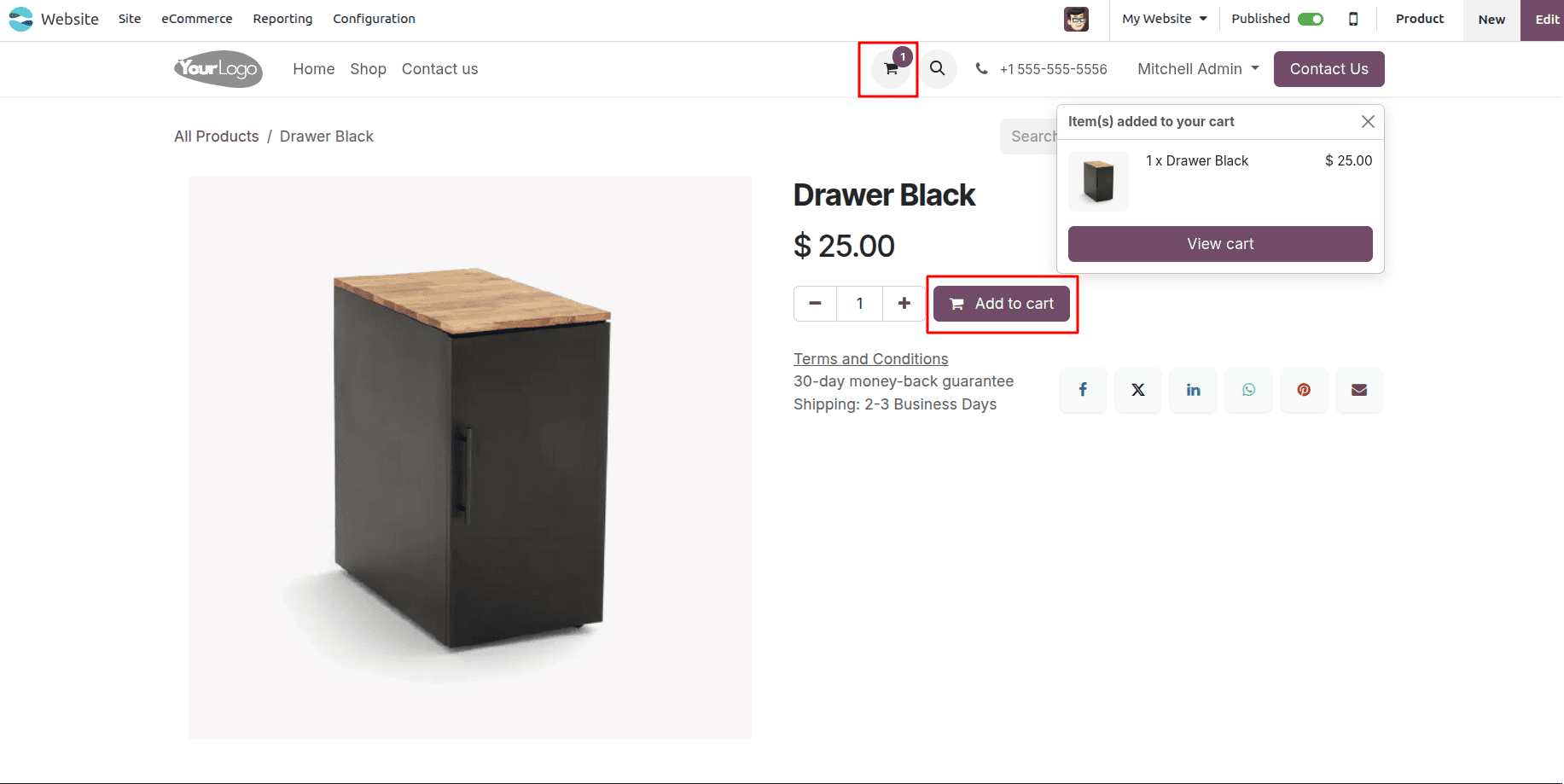
After adding the desired products, the customer proceeds to the checkout process by clicking the Shopping Cart icon, where they can review all the items they have selected. Once they confirm the items in their cart, they click “Proceed to Checkout” to move to the next step of the purchase journey.
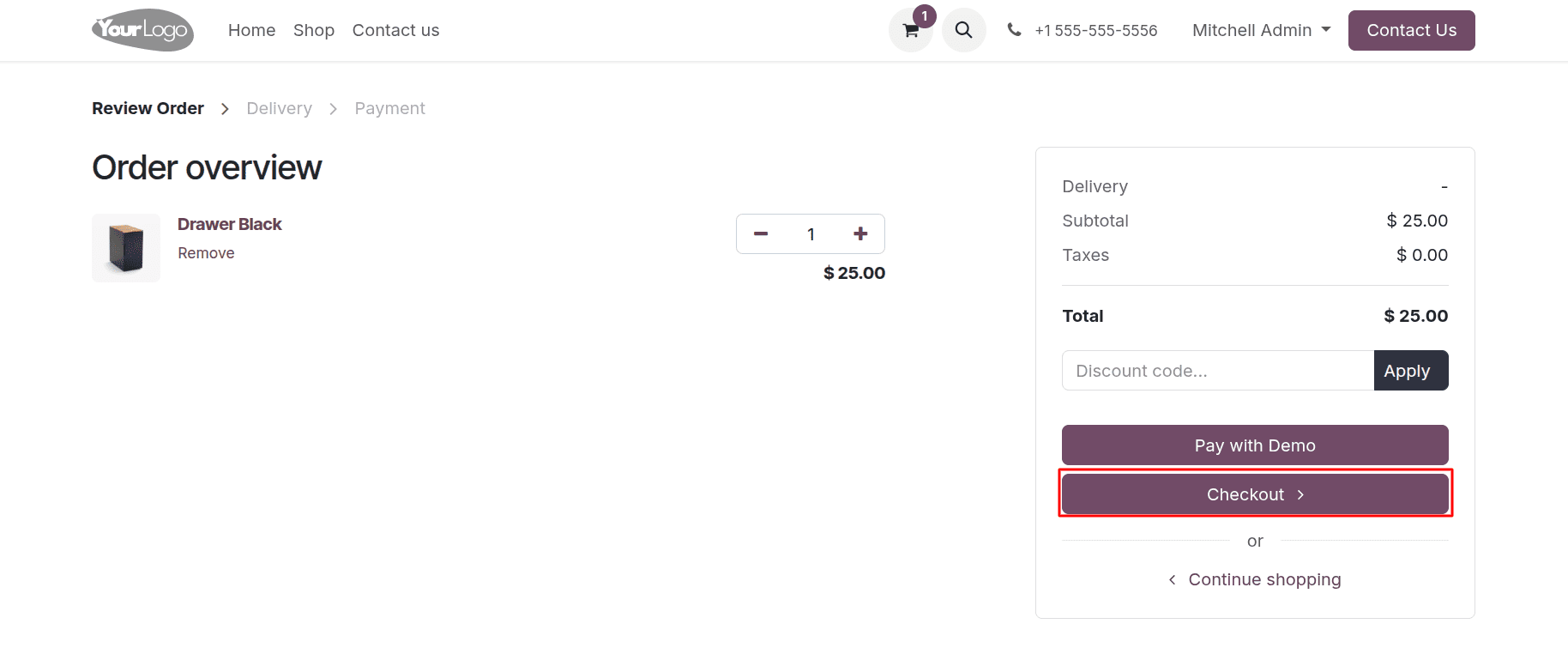
On the checkout page, the customer can also enter their personal and shipping details and click Confirm to continue with the payment.
On the payment page, the customer selects the Demo Payment method, which is running in Test mode. This allows the payment process to be simulated without using real money. After selecting the payment method, they click “Pay Now” to complete the test transaction, and the system processes the payment accordingly.

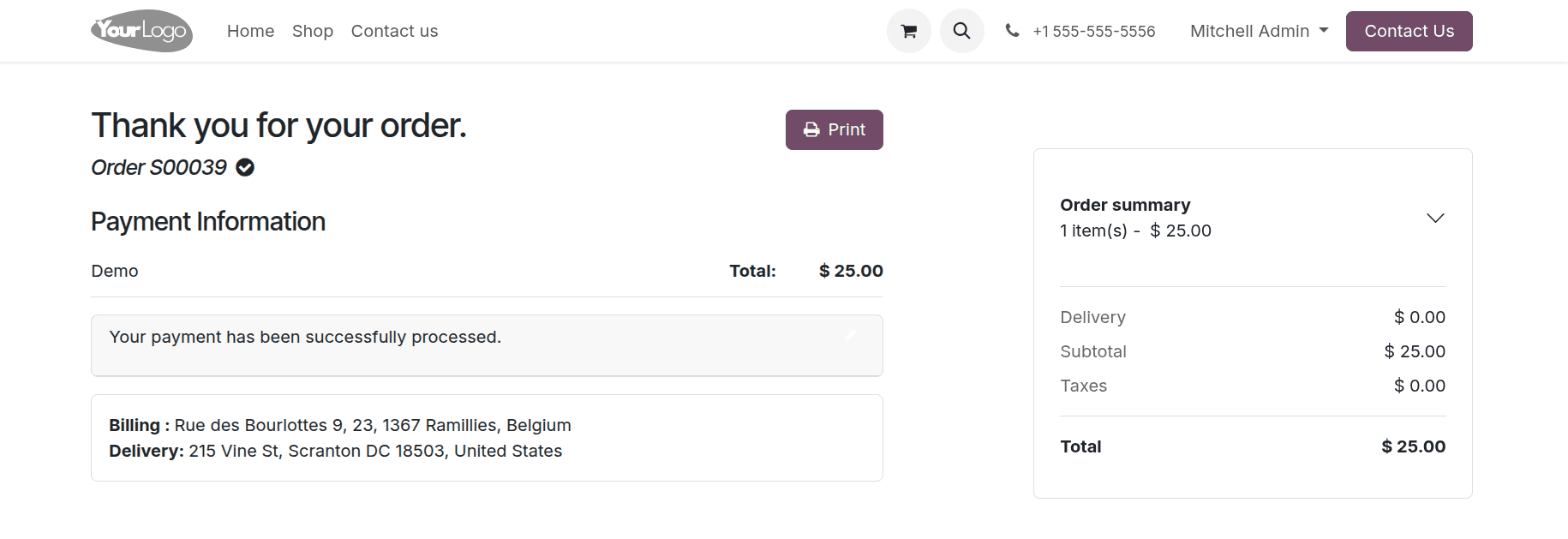
Once the payment is completed using the Demo payment method, the customer is redirected to the Order Confirmation page, which displays Payment Information, along with the order number, amount paid, and payment status.
Payment Transaction
Odoo 18 automatically logs every payment attempt as a Payment Transaction, storing key information such as the transaction amount, current status (e.g., pending, completed, failed), and the response from the payment provider. These records provide a complete audit trail of all payment activities linked to sales orders, invoices, or subscriptions. You can view and manage these transactions by navigating to the Website module and selecting Payment Transactions under the Configuration menu. From there, you can review the full history of payments, initiate refunds or voids (if the payment provider supports them), and monitor the real-time status of each transaction. This centralized view helps ensure accurate payment tracking and makes it easier to resolve any issues that may arise during or after checkout.
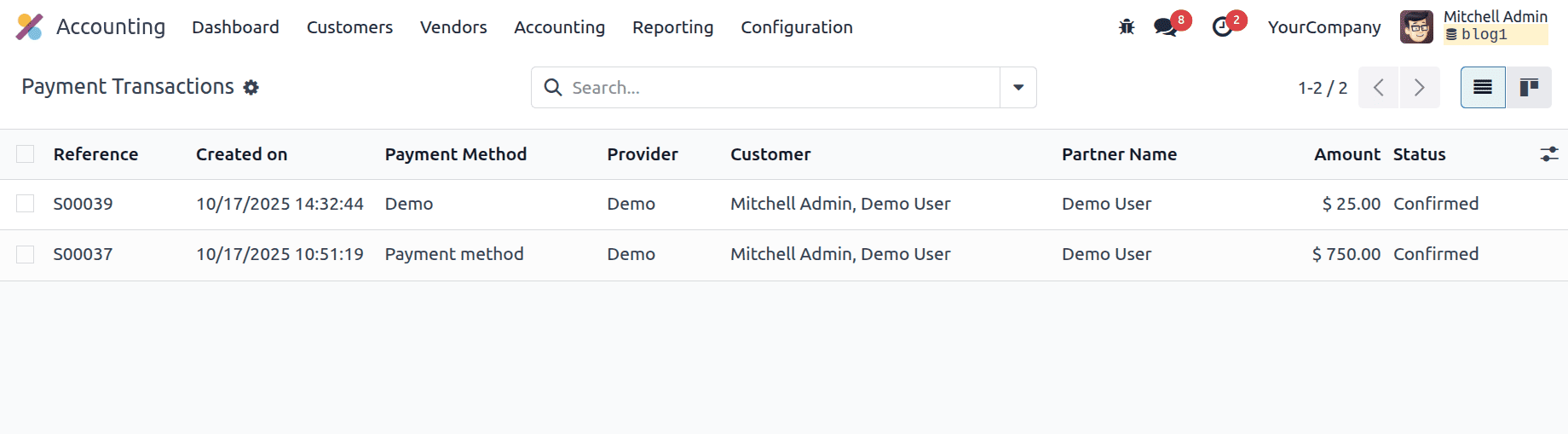

Reference – This is the unique identifier for each payment transaction in Odoo. It helps track and distinguish each transaction easily in reports, dashboards, or automated workflows.
Payment – This links the transaction to the payment record in the Accounting module. It shows which payment journal entry or bank transaction this record belongs to.
Amount – The total amount paid or charged for the transaction. Odoo automatically records this in the appropriate currency and synchronizes it with the related sales order or invoice.
Payment Method – Specifies how the customer made the payment.
Provider – Indicates the payment provider that processed the transaction.
Provider Reference – A reference number generated by the provider to uniquely identify the transaction on their side. It’s especially useful for reconciliation when matching payments between Odoo and the provider’s dashboard.
Payment Token – Used for saved or recurring payment methods. Odoo stores tokens securely (not full card details) to enable one-click or automatic renewals for subscriptions.
Is Post-Processed – If checked, it means the transaction has already been handled by Odoo’s automatic post-processing system — such as updating the invoice, marking sales orders as paid, or generating accounting entries.
Payment Tokens
In Odoo 18, payment tokens offer a secure way to handle customer payment information without storing any sensitive card details in the system. Instead of saving actual credit or debit card data, Odoo stores a reference ID—also known as a token—that is linked to the payment provider.
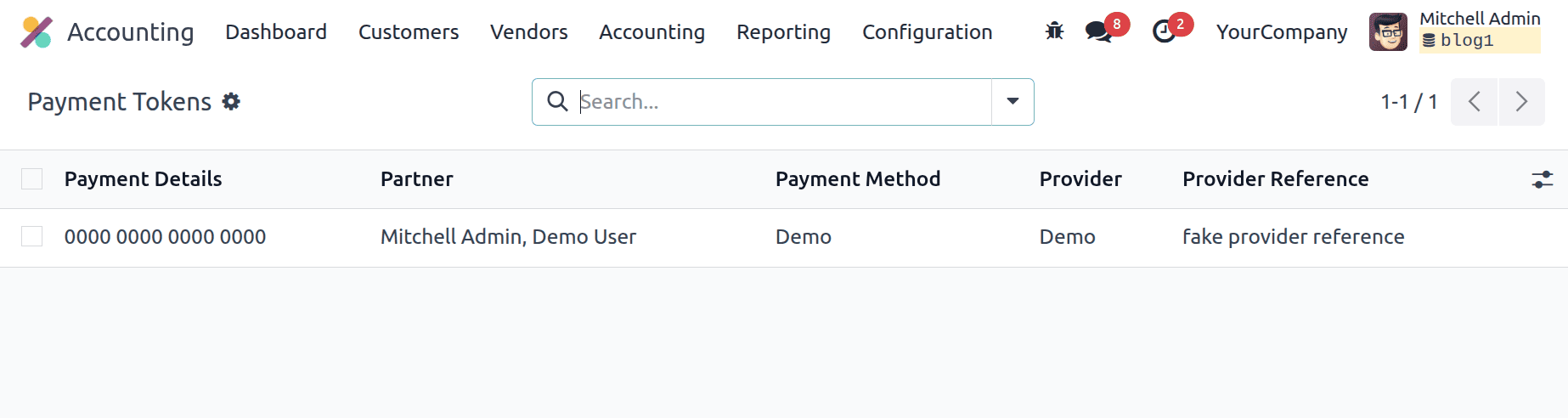
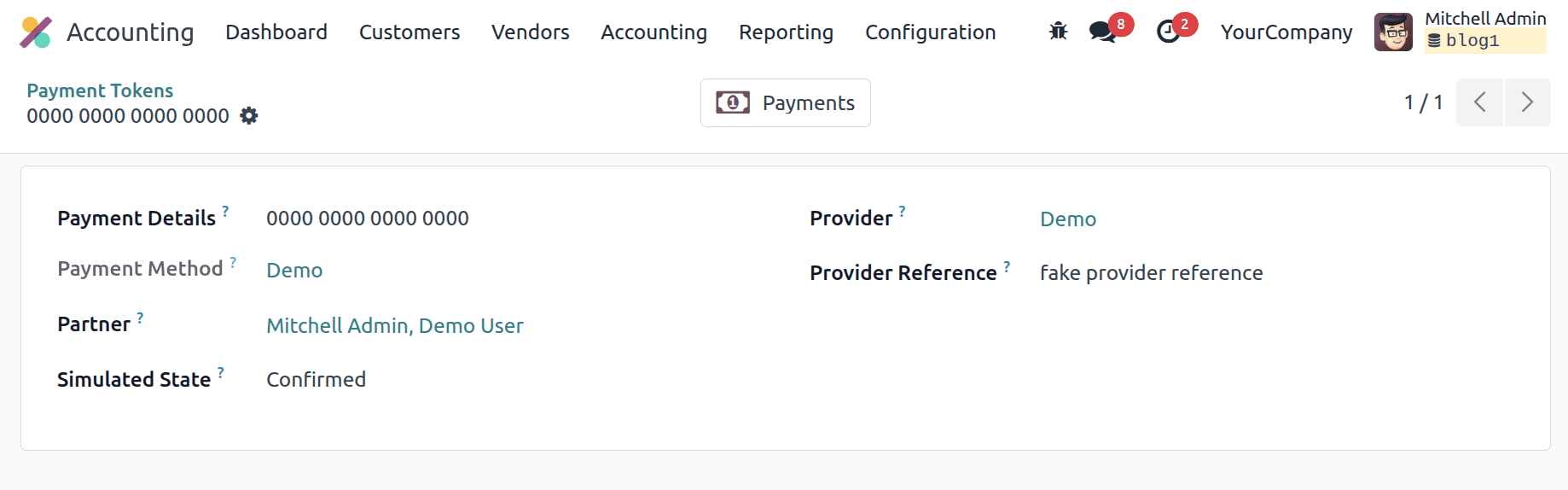
To use tokenization in Odoo 18, you need to enable it within the configuration settings of the payment provider. This is done by checking the option labeled “Tokenization” or “Allow Saving Payment Methods”, depending on the provider. Once activated, Odoo will automatically create a secure token after each successful transaction.
Saved tokens allow for one-click checkout, meaning customers can make repeat purchases without re-entering their card details. This feature is especially useful for recurring payments, such as subscriptions, or when customers pay invoices through the portal or backend. It improves the user experience by speeding up the checkout process and reducing friction during payment.

A well-configured payment system is crucial to building trust with customers and ensuring smooth order processing in any online store. With support for a wide range of payment providers and methods—including credit cards, digital wallets, and localized options—businesses can offer flexibility at checkout while maintaining control behind the scenes.
Odoo 18 brings together these capabilities in a single platform, offering tools like tokenization for secure card storage, express checkout with Apple Pay and Google Pay, and detailed transaction tracking for full visibility. By enabling only the payment methods that suit your business model and customer base, you can reduce friction, speed up payments, and improve the overall shopping experience.
To read more about How to Enable E-store Picking and Payment for Odoo 18 Ecommerce Store, refer to our blog How to Enable E-store Picking and Payment for Odoo 18 Ecommerce Store.