You can quickly pack your products and keep track of them by using the Odoo Inventory management system. It will be beneficial to ensure that inventory items are moved and transported in a safe and comfortable manner. By being packaged, goods will be somewhat shielded from harm. As everyone knows, transporting goods without causing damage is a basic responsibility of all enterprises. Delivery packages, multiple packs for a single product, and single packs for several products may all be created with Odoo 19. Examine these choices for packing in the Inventory module.
Smooth warehouse operations depend on effective product handling and packing. The package management function in Odoo 19 Inventory aids companies in better product tracking, organization, and warehouse movement. Packages allow businesses to combine several products into one unit, which facilitates storage, transfers, and deliveries. Businesses who deal with pallets, boxed shipments, or large commodities will find this functionality especially helpful.
Odoo's package management solution allows users to define many package types, assign products to packages, and monitor them throughout the inventory workflow. It boosts warehouse efficiency by simplifying stock movements, enhancing traceability, and reducing handling errors. By properly organizing and handling packages, businesses may maximize their inventory processes and ensure accurate product tracking from storage to final delivery.
Verify that the Packages option is turned on in the Inventory module's settings, as indicated below.
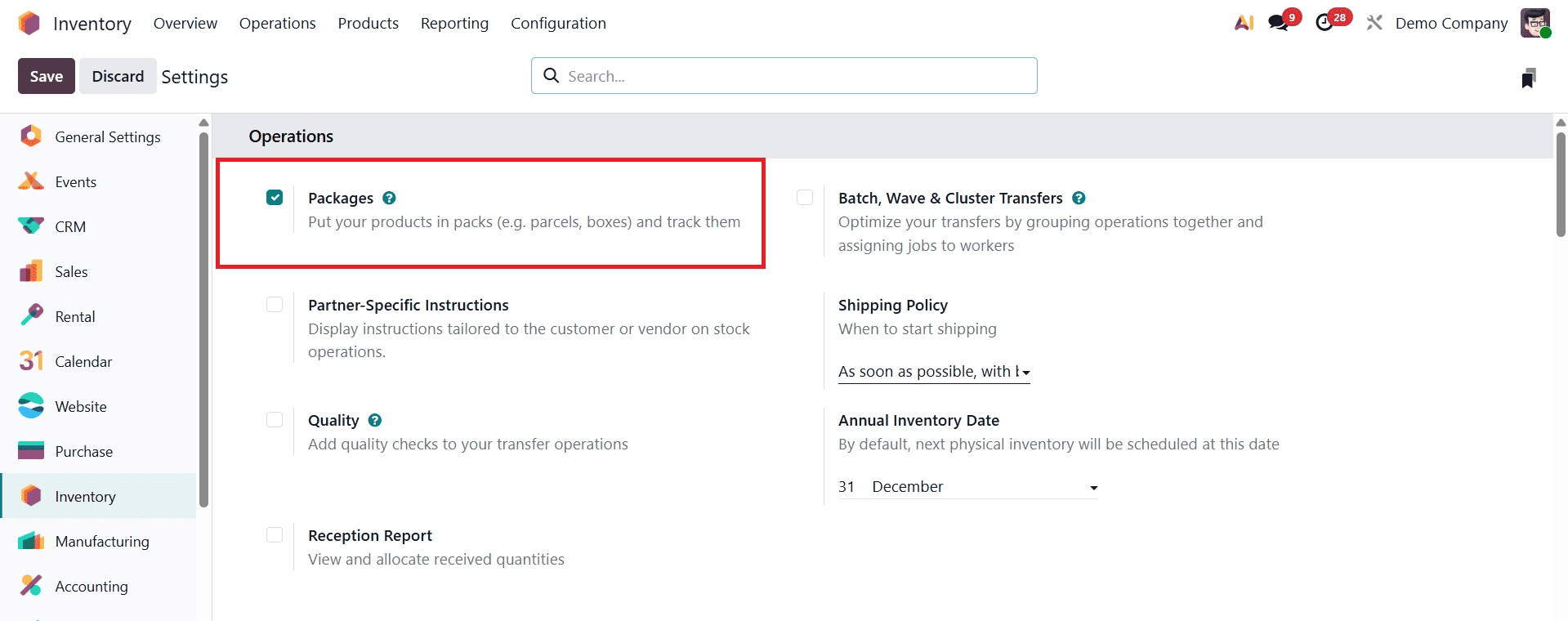
Therefore, we can see a feature enabled under the product menu when we enable this package under the inventory module's settings, as illustrated below.
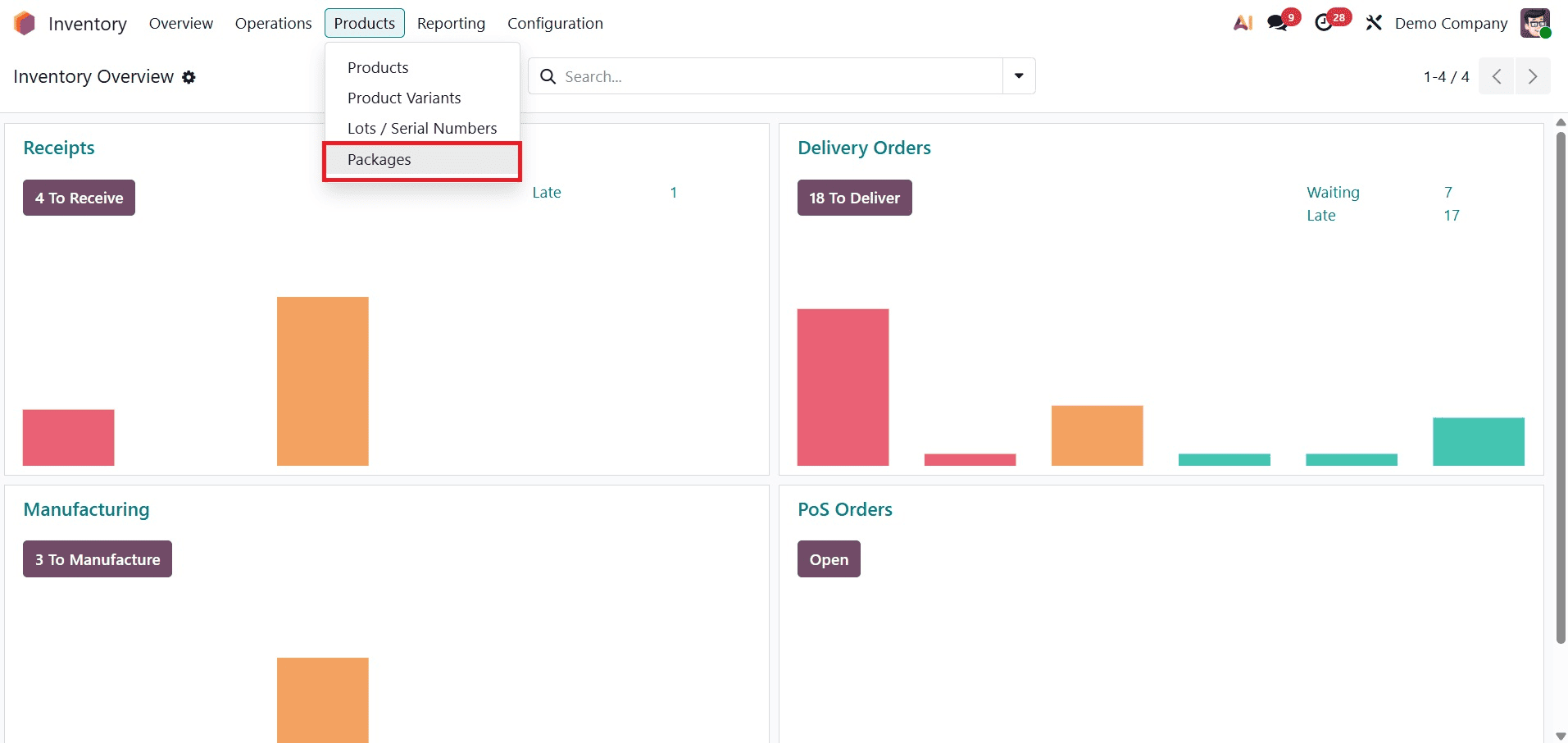
Additionally, as can be seen below, the option enhances the feature found in the inventory module's setup menu.
Users can create new packages with details and the package reference, such as the product type, shipment weight, company, and location, using the Packages options under the product menu. The package type can be shown here. As indicated below, add the newly created package type to the field package type.
Put in Pack
Let's create a new delivery transfer. For that click on the Operations menu, and choose the Delivery. Now create a delivery for the products. Here two products are added, then click on the Mark as To Do button.
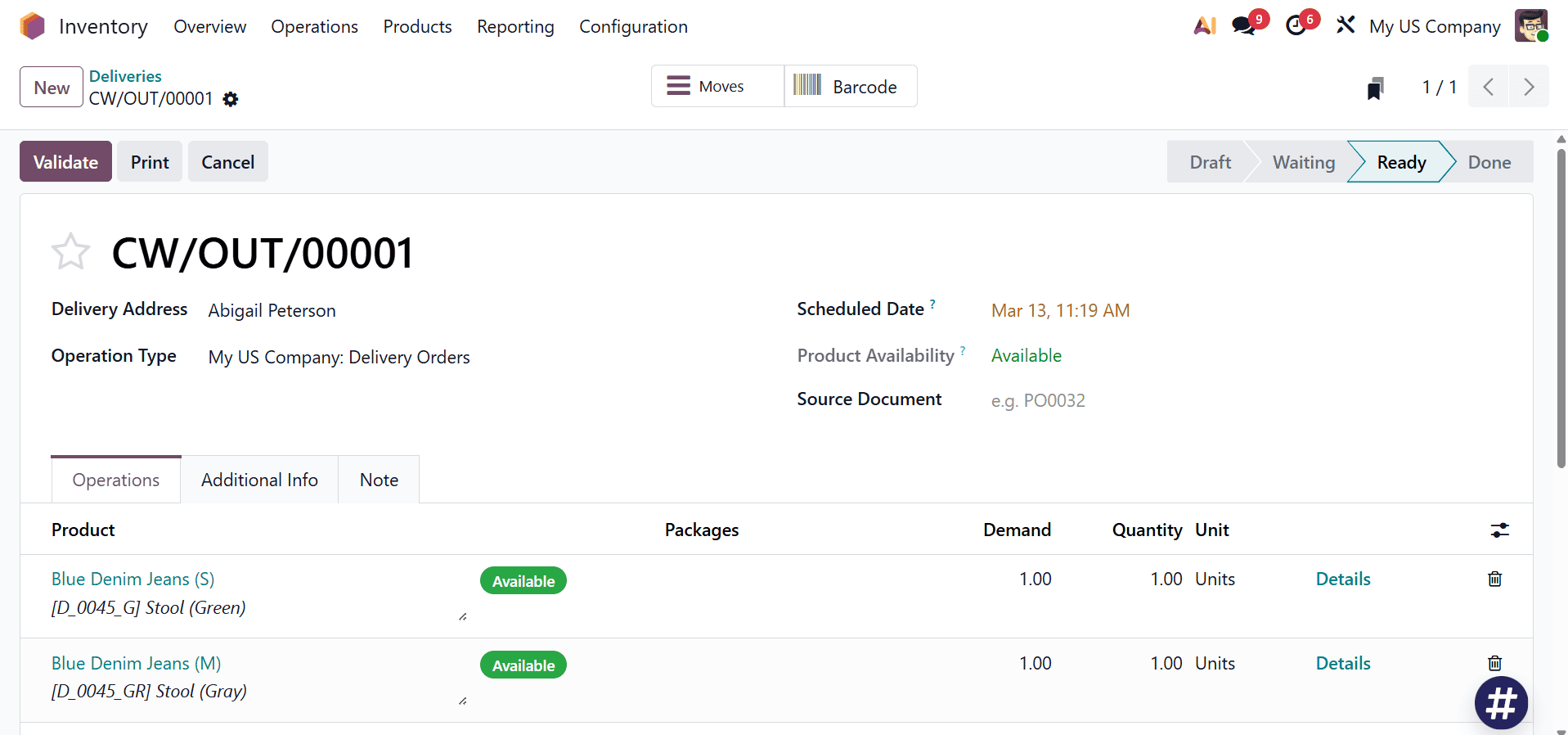
When verifying delivery orders, you can examine how these packages work; multiple things can be combined into one package.
Once the Delivery Transfer has been verified, you can confirm the delivery order using the smart button on the related transfer window. This is how the authorized delivery order will show up. Use the put in pack icon provided on the bottom of the page.
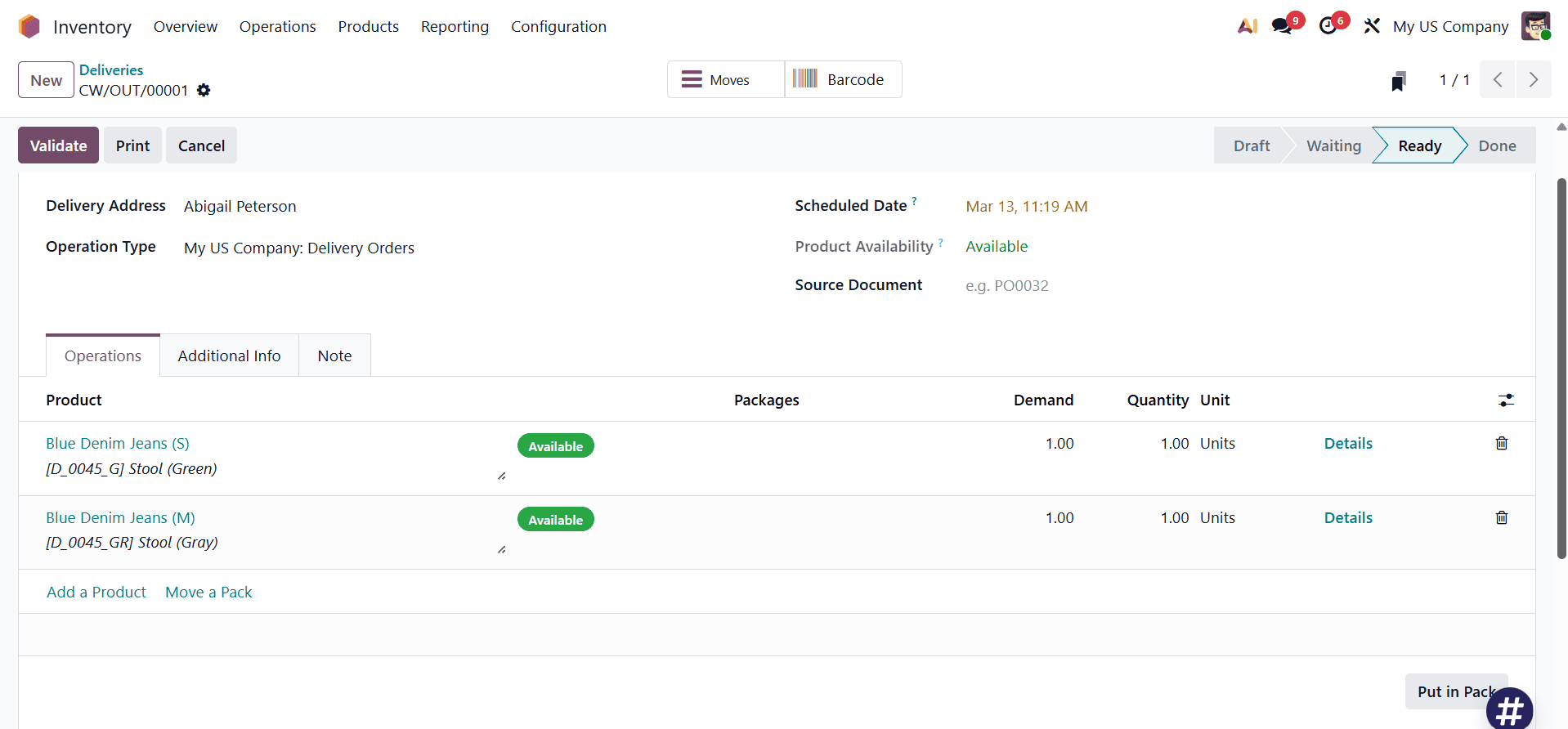
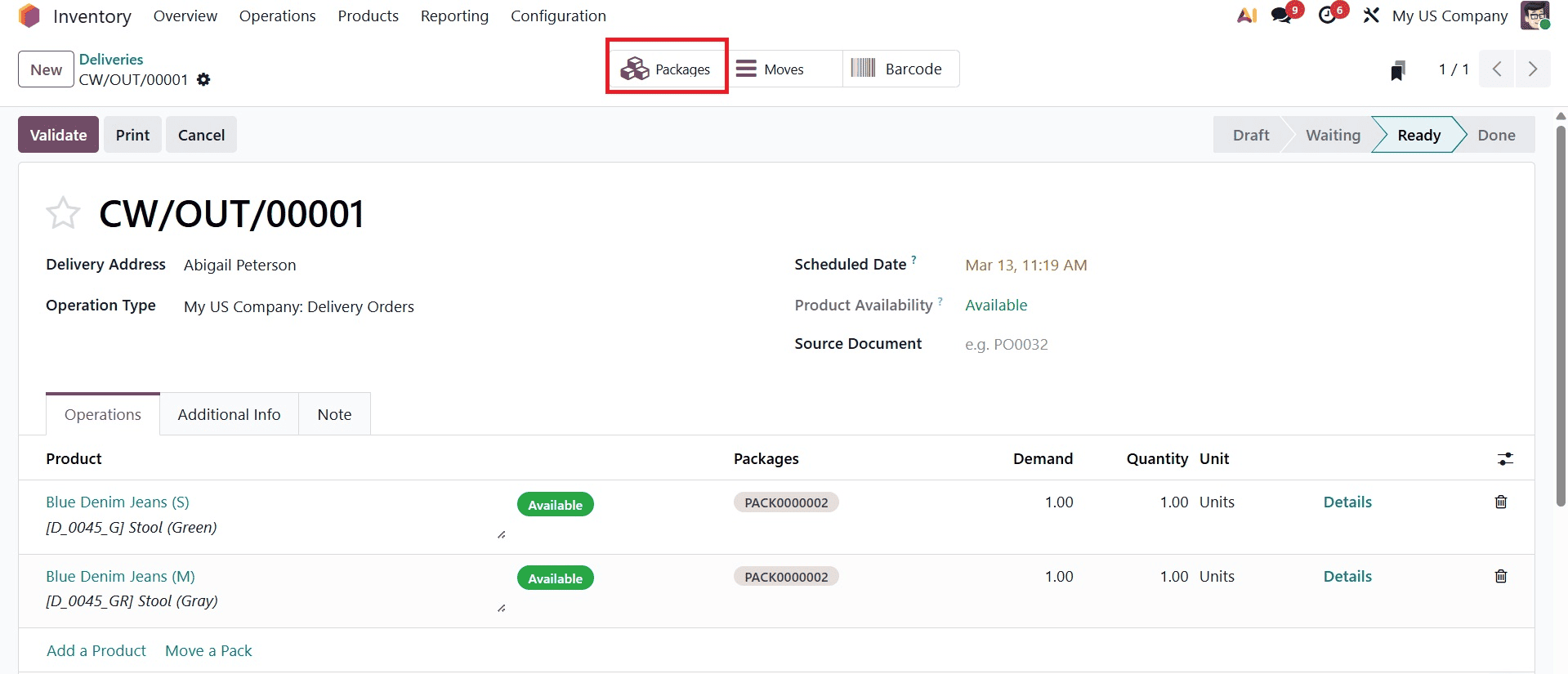
You can pack the things that the customer has requested by clicking this button. A new 'Packages' smart button displays on the screen as soon as this option is selected, as shown below.
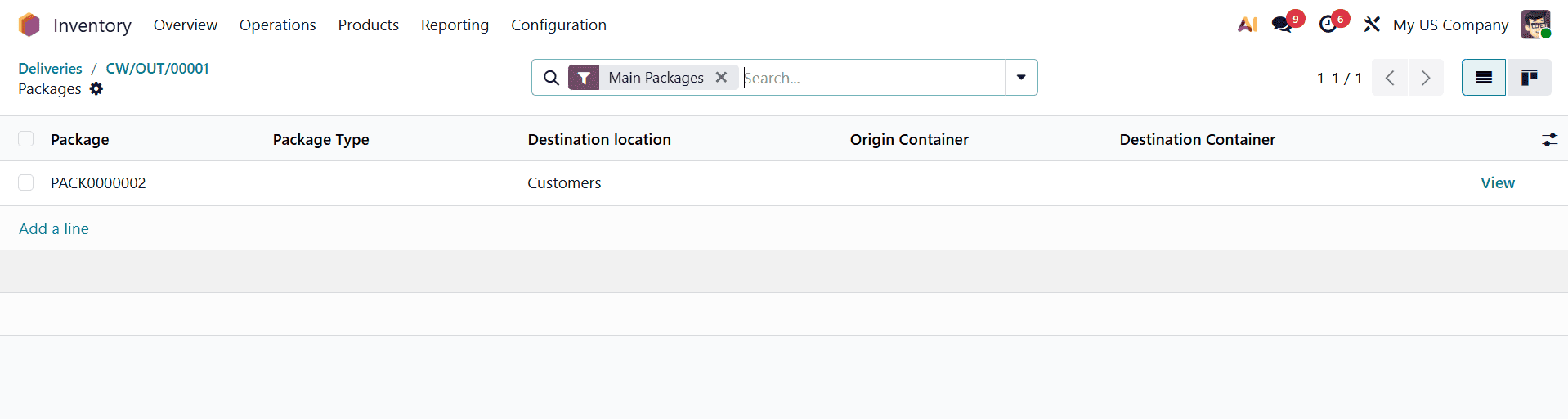
You can examine the specific details of the package linked to that specific delivery order by clicking the Packages button, as seen below.
Now, using the Validate icon, complete the delivery process and you can see the stage changes to Done. And the product gets added as well.
Creation of Package Type
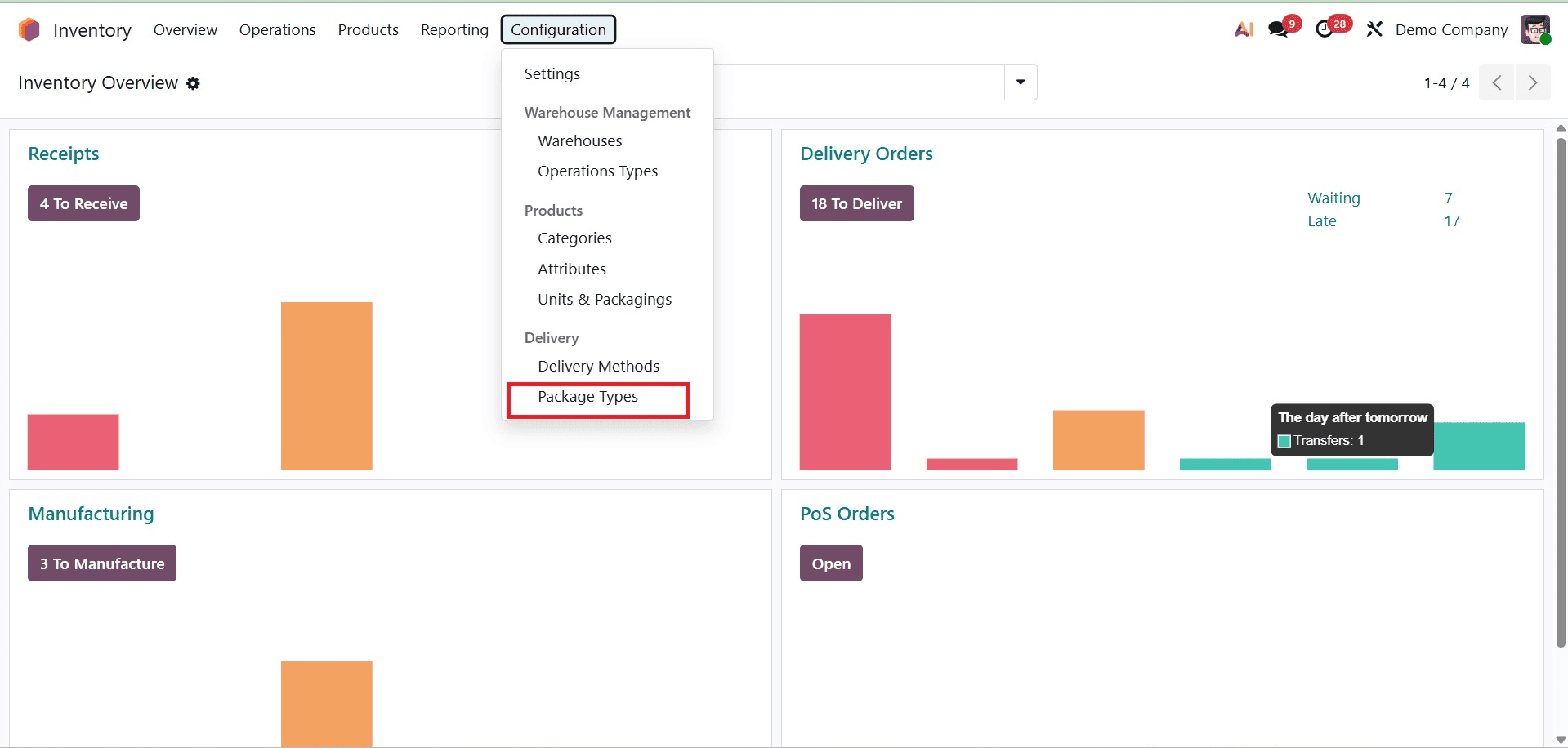
To accommodate various packaging needs and delivery procedures, "Package Types" can be generated and controlled in the Odoo Inventory module. The Configuration menu is where these are configured.
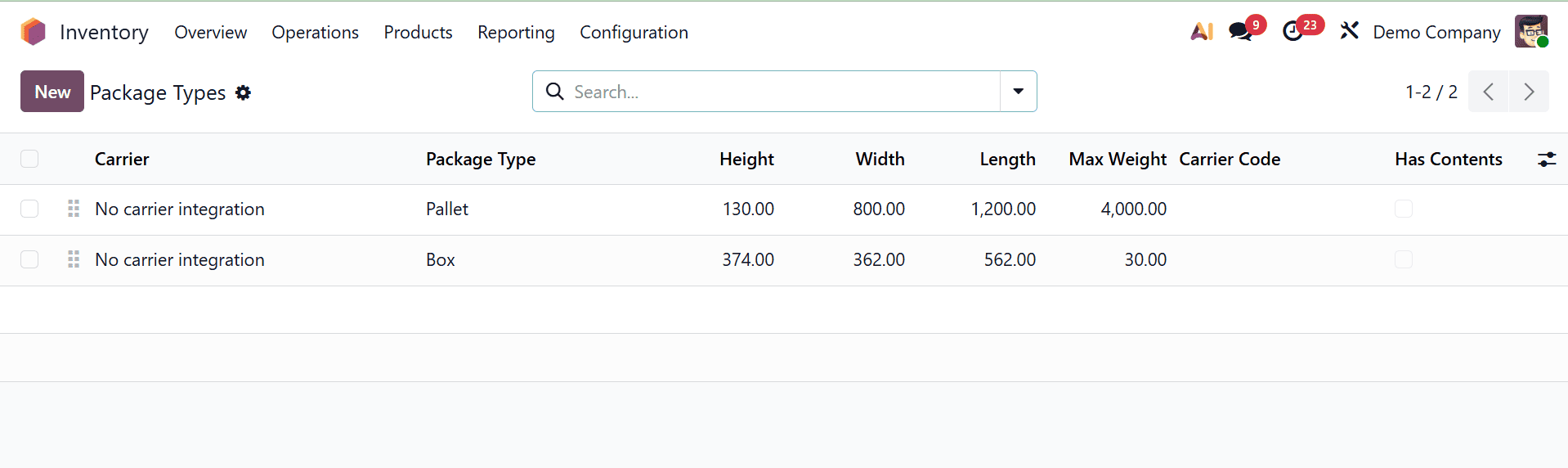
As seen in the screenshot below, this will display the dashboard of all the possible package kinds along with their Carrier name, Package Type, Height, Width, Length, Maximum Weight, Carrier Code, and Contents.
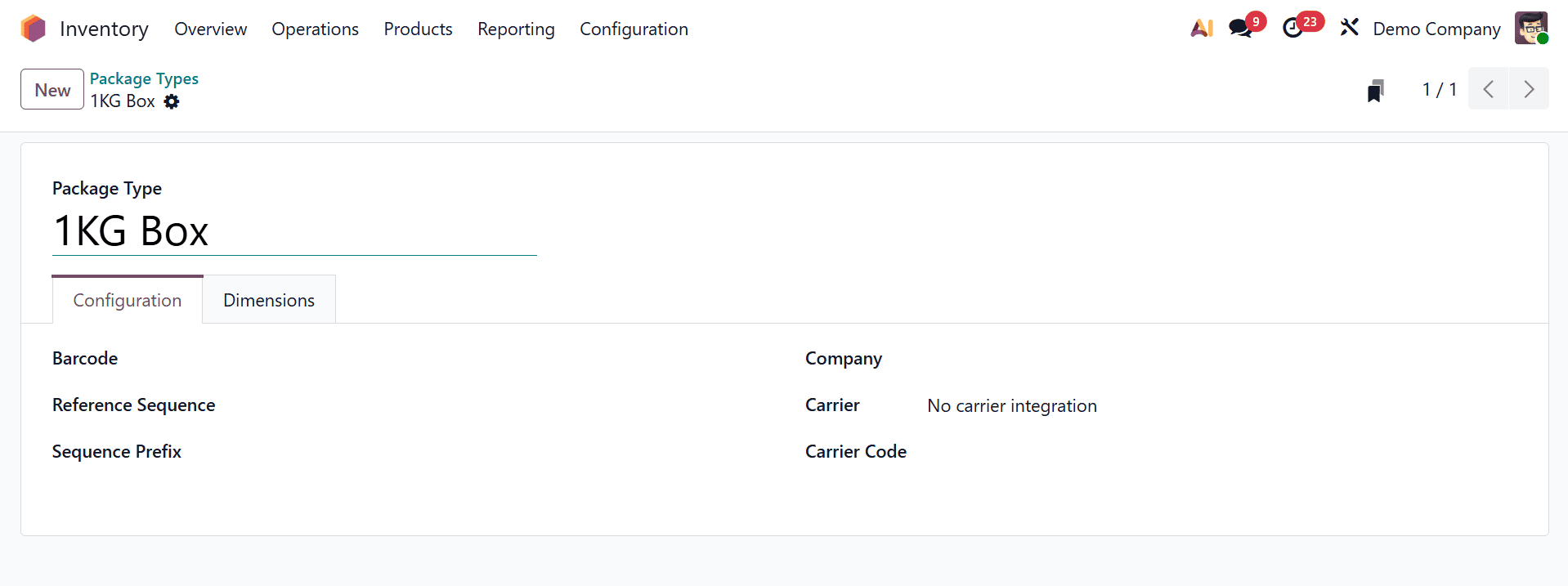
Next, you can use the "New" button to create new Package Types and enter information like Barcode, Sequence Prefix, Rotes, Company, Carrier Name, and the Carrier Code in the form view that appears. You can select Reusable Box (totes) or Disposable Box in the "Package Use" section.
Reusable and disposable boxes are the two options available in the Package Use setting.
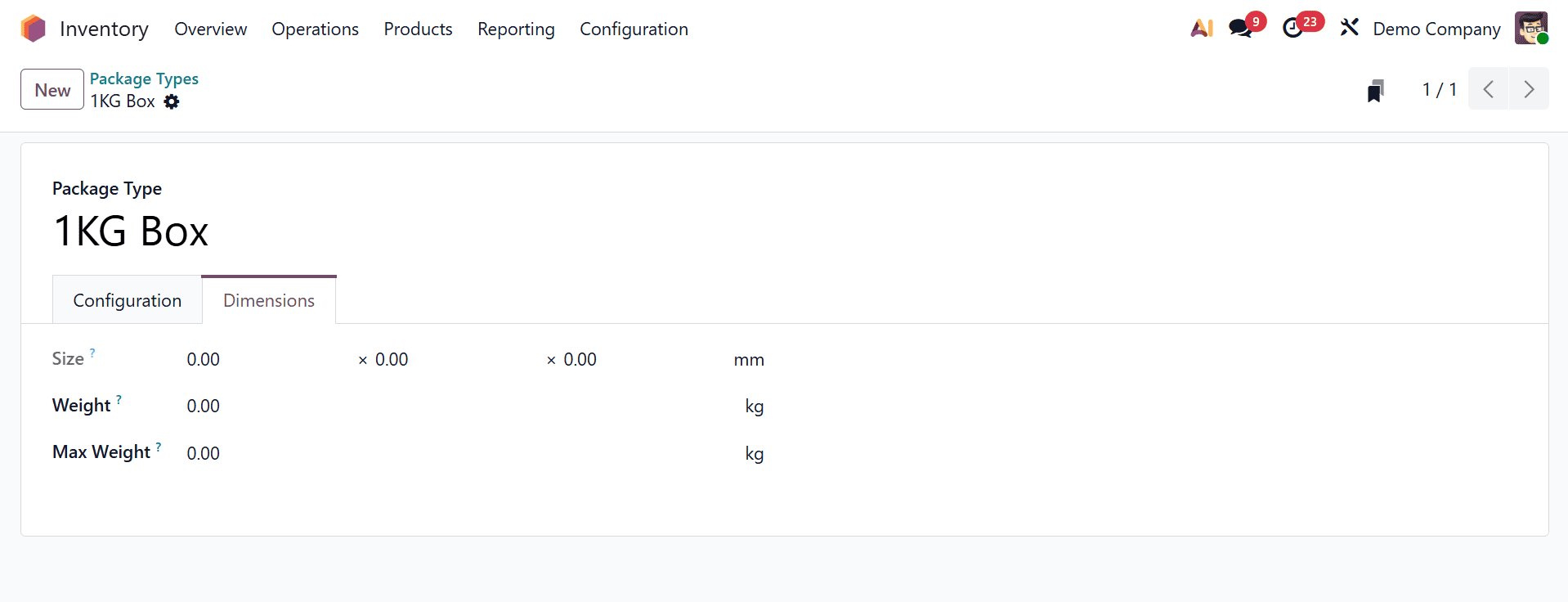
As seen in the example below, you may optimize inventory and logistics processes by setting the package dimensions on the Dimensions tab of the form, which includes the size, weight of the package type, and maximum weight shippable in this package type.
Once all the information has been saved, you can use it for upcoming needs.
Creation of Packages
Products are physically grouped into "Packages" in Odoo 19 Inventory so they can be tracked, transferred, and stored as a single unit. A package is a representation of an actual container, such as a pallet, box, or carton, that may contain several items with various lot/serial numbers or quantities. Warehouses can transport big things, track commodities more effectively, streamline shipping and logistics, and track the position of complete packages rather than individual products by using packages.
As mentioned above, you must activate this "Packages" function from the "Operations" tab of the "Settings" window.
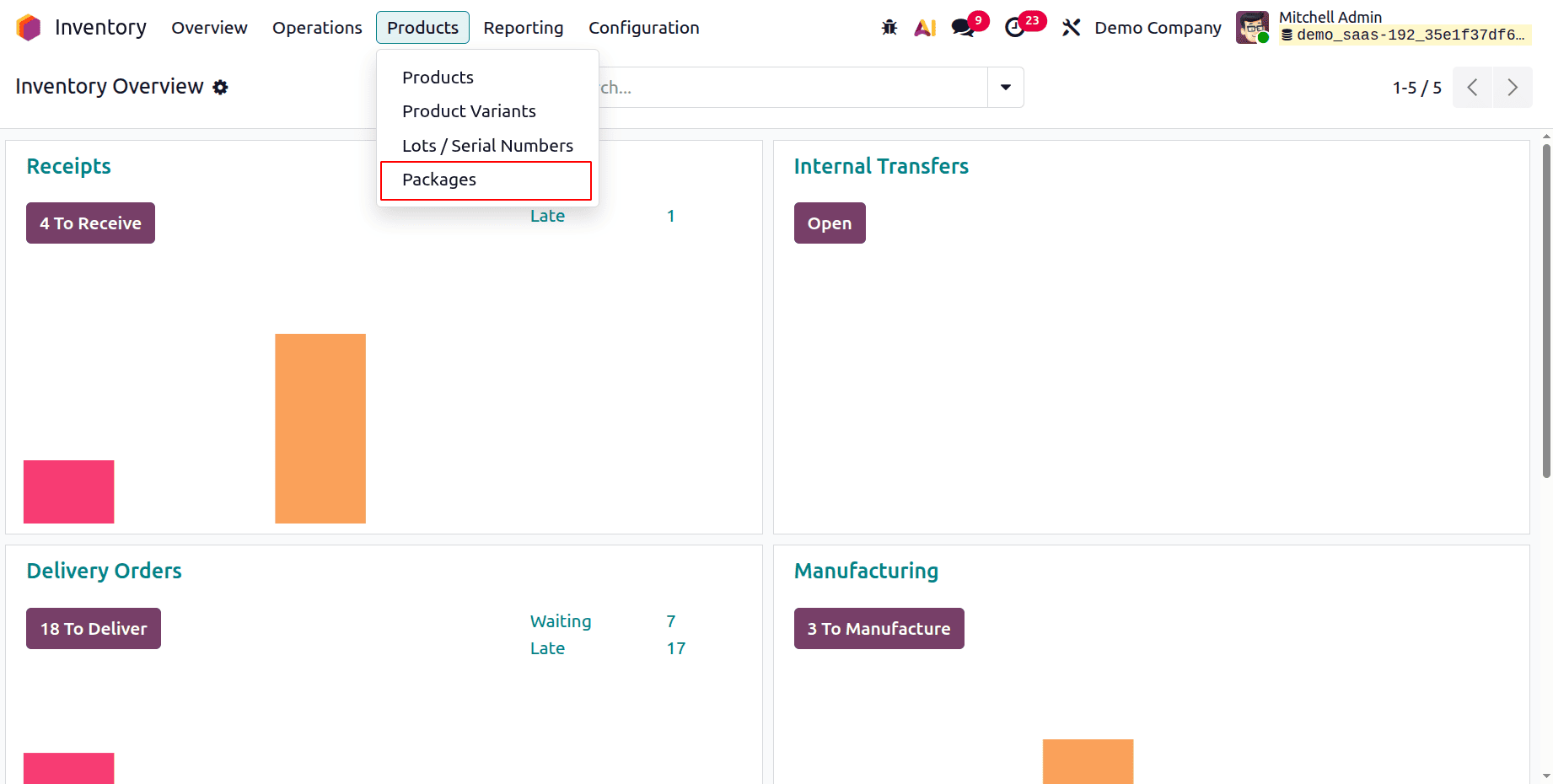
The matching option will appear in the Products menu of the Inventory module after the Packages feature is enabled from the Settings module.
A list view of the workspace is shown in this section. For previously setup packages, you can access the Package Name, Container, Package Type, and Company details from the list view, as shown below.
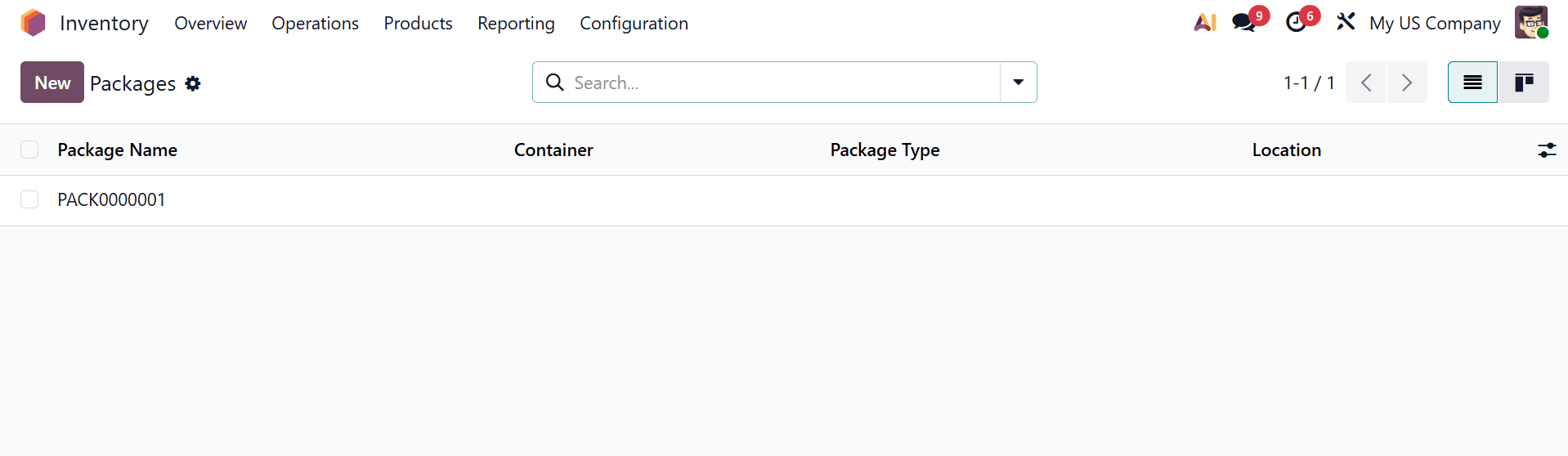
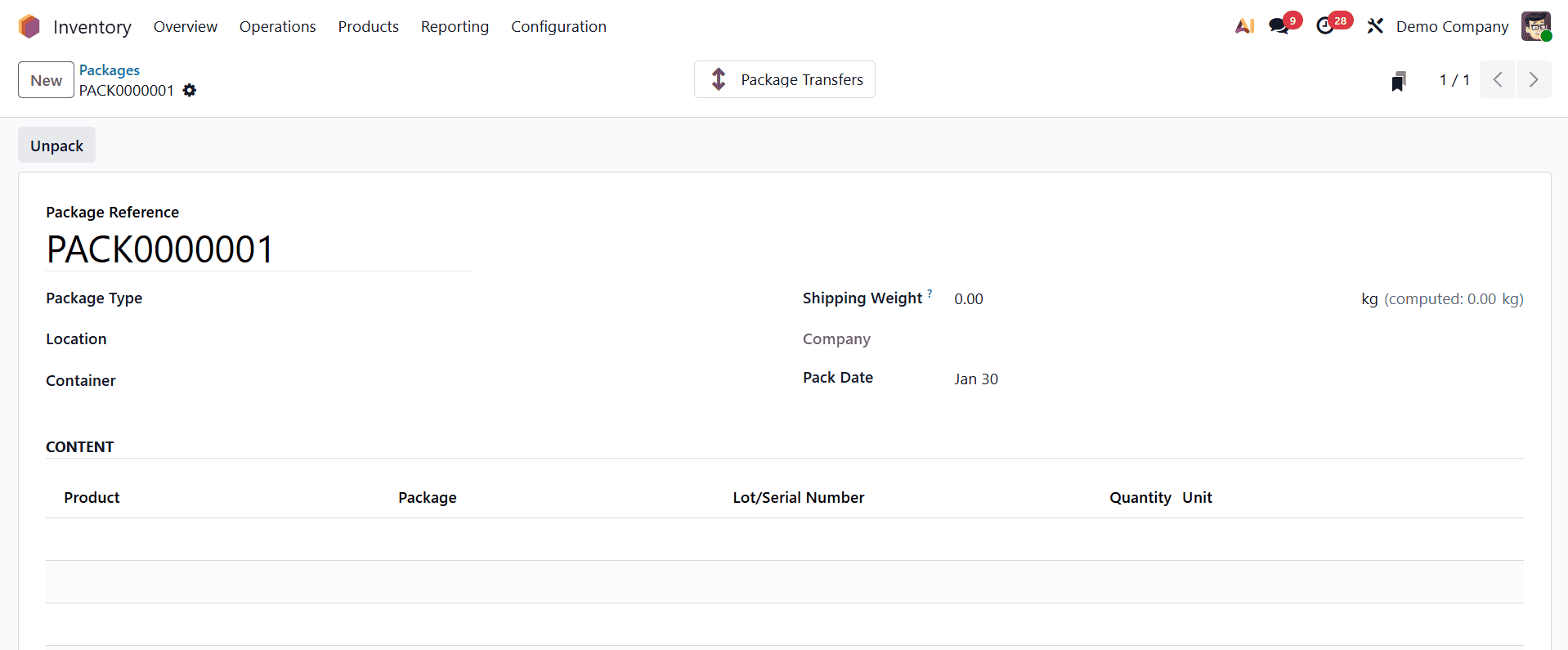
Then, by selecting the New button, a new package can be made for several products. Enter the Package Reference to make it appear as a unique identifier in the window that is presented. You can select a suitable category for your packages in the Package Type section, such as Box, Pallet, Cluster Packs, bPost Custom Parcel, DHL Flyer/Smalls, DHL Parcels/Conveyables, etc.
We'll go over how package types are configured later. You can enter the product's location and the company name in the corresponding fields, as well as the weight of the package in the Shipping Weight box. The applicable packing date is immediately displayed in the Pack Date column. As shown in the screenshot below, the container to which this package belongs can be mentioned using the "Container" field.
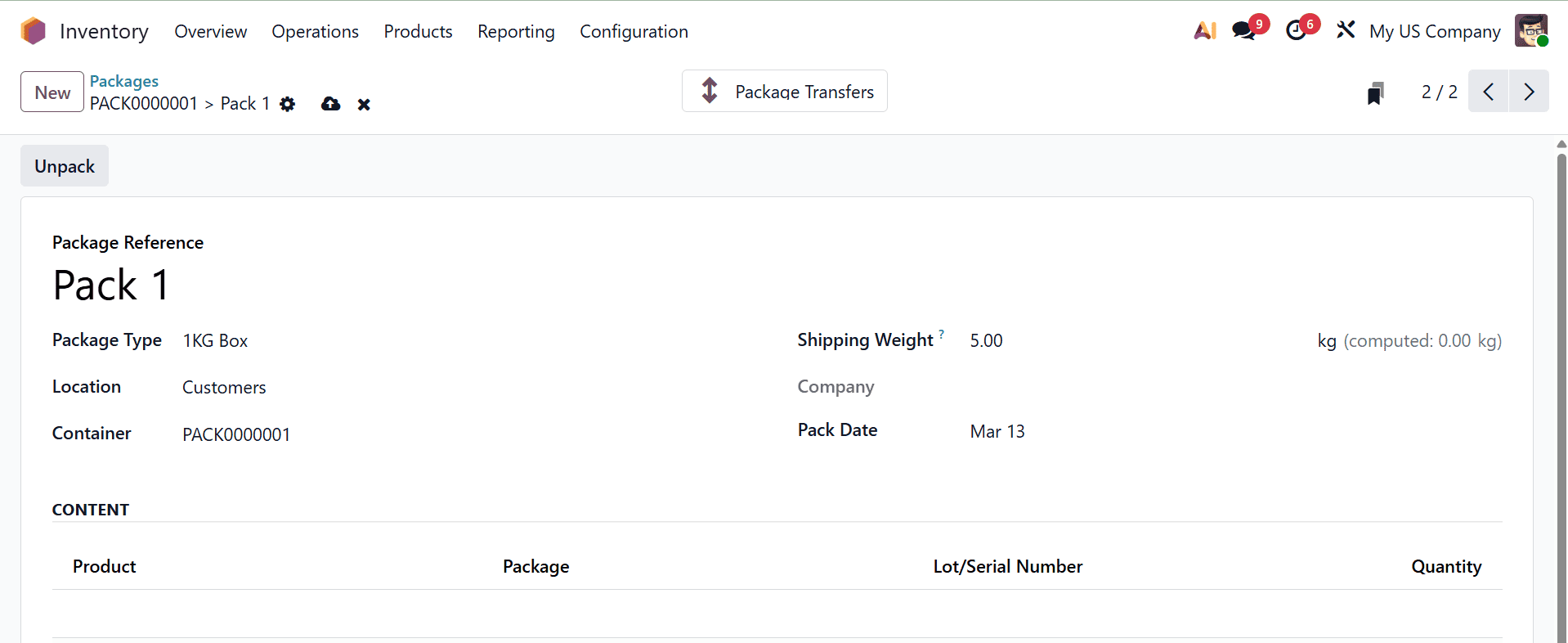
You may view the goods that are part of this package by going to the CONTENT page. The list, which includes information like Product Name, Package, Lot/Serial Number, Quantity, and Unit, only shows up after the package has been involved in stock movements. Save the Package details for later use after filling out all the necessary fields.
Let's check how the previously created Package is used. For that lets create a Receipt. For that choose the Receipt transfer from the Operation menu. Then, create a receipt for the order, as shown below. Click on the Mark as To Do button first.
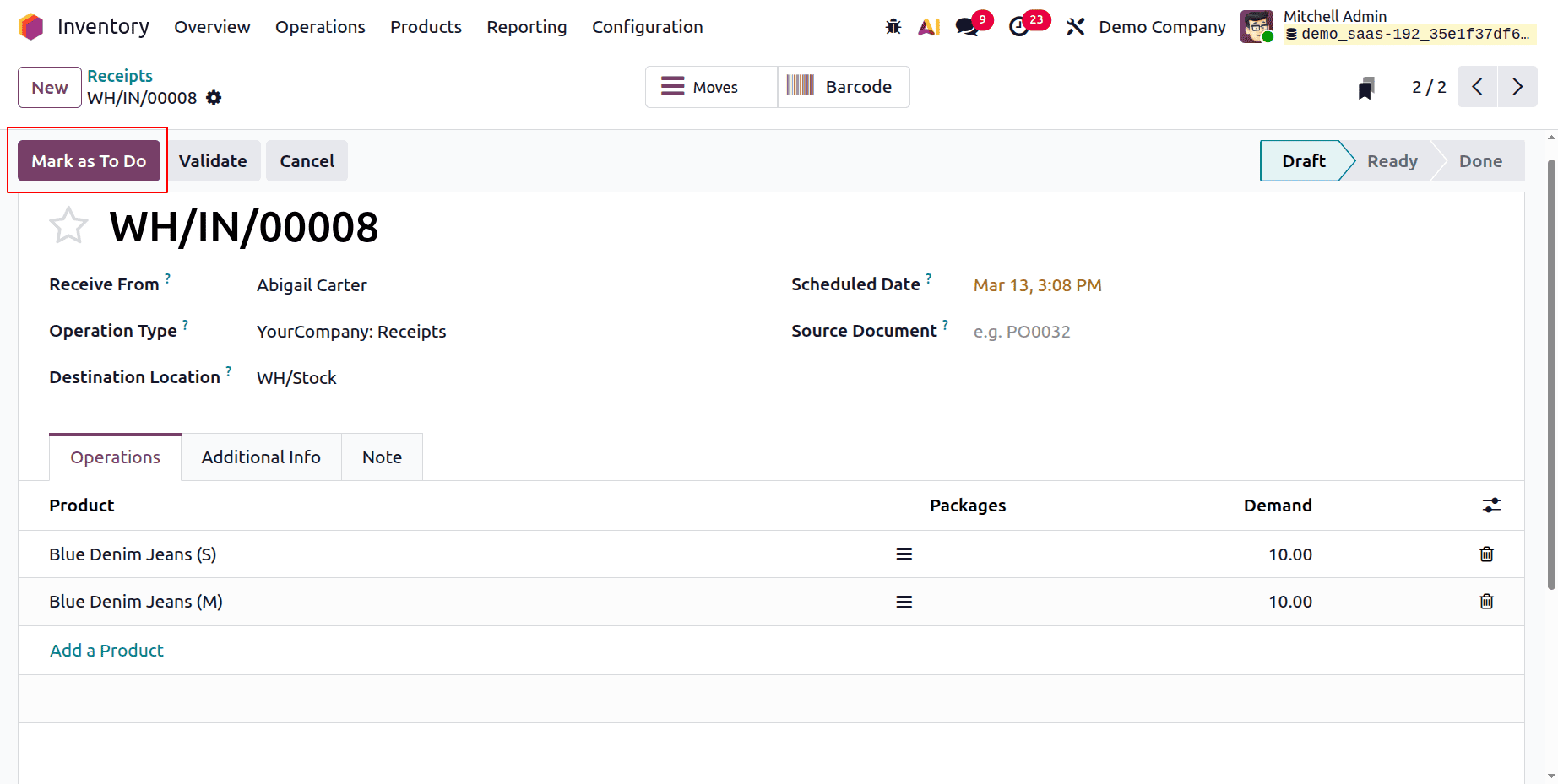
There is a Details, inside the Operation tab. Click on the Details, to add the created Package.
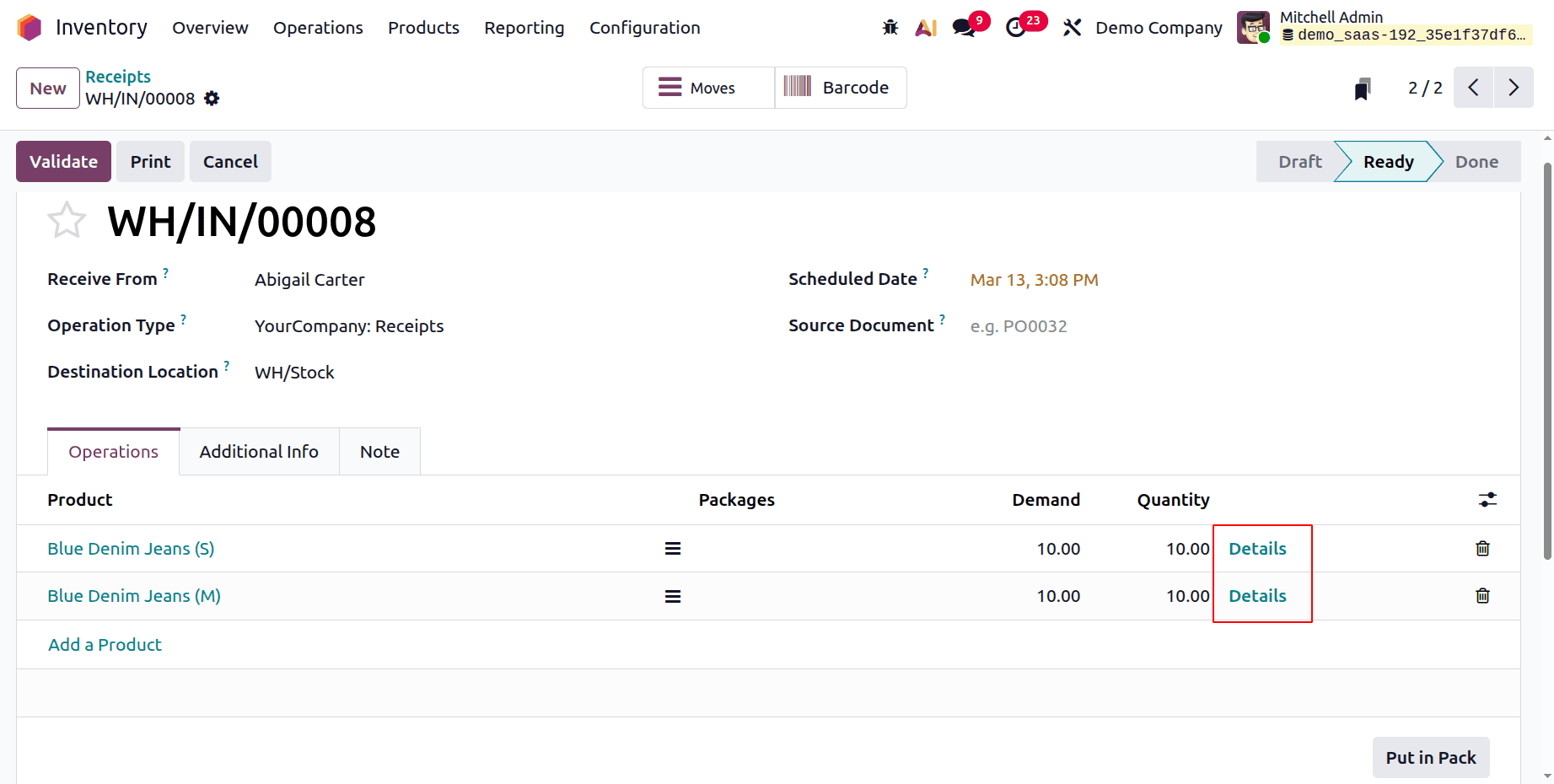
While clicking on the Details, a new window will appear as shown below. Choose the Package from there.
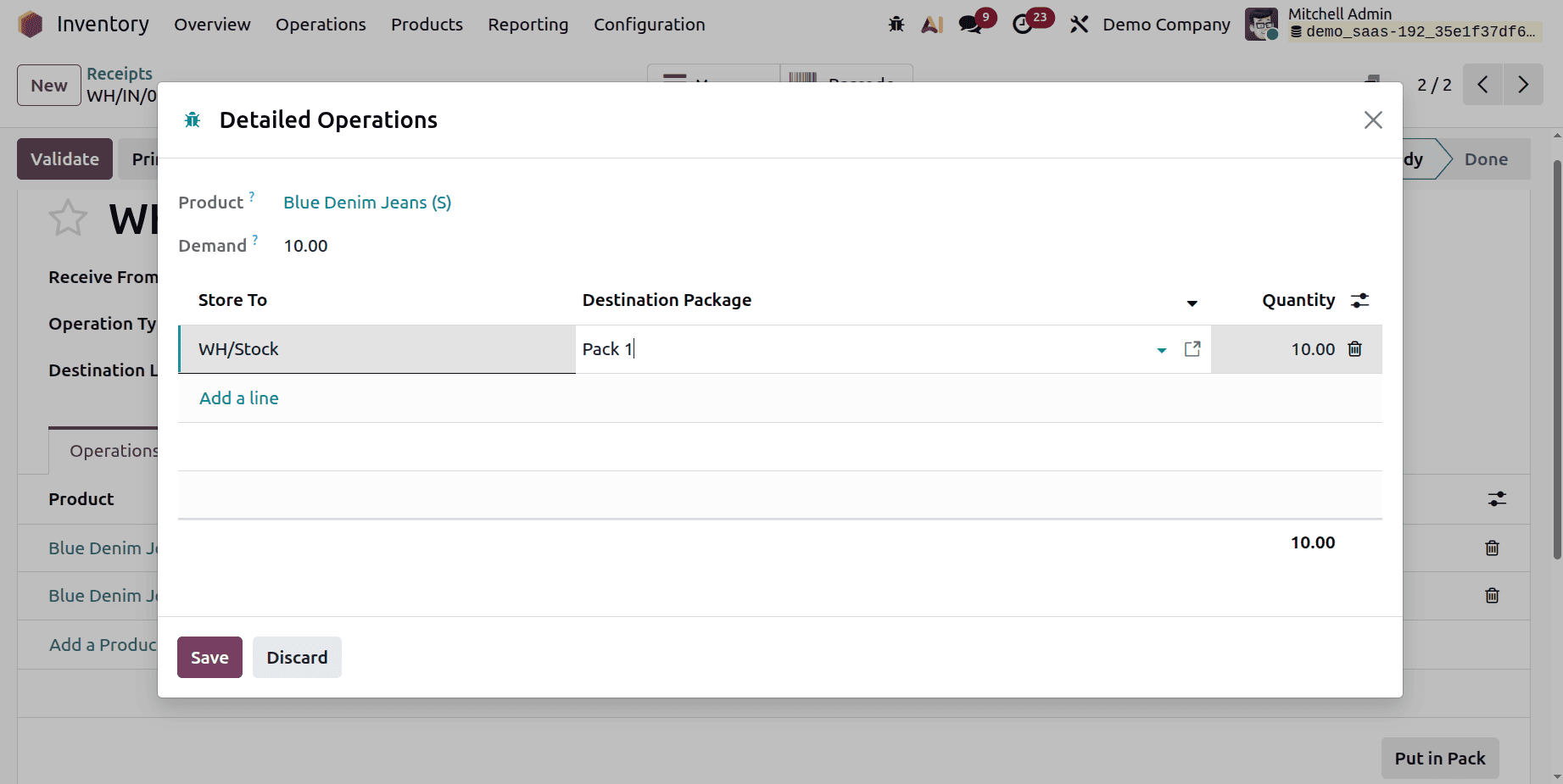
The Operation tab shows the Packages as shown below. Then Validate the transfer.
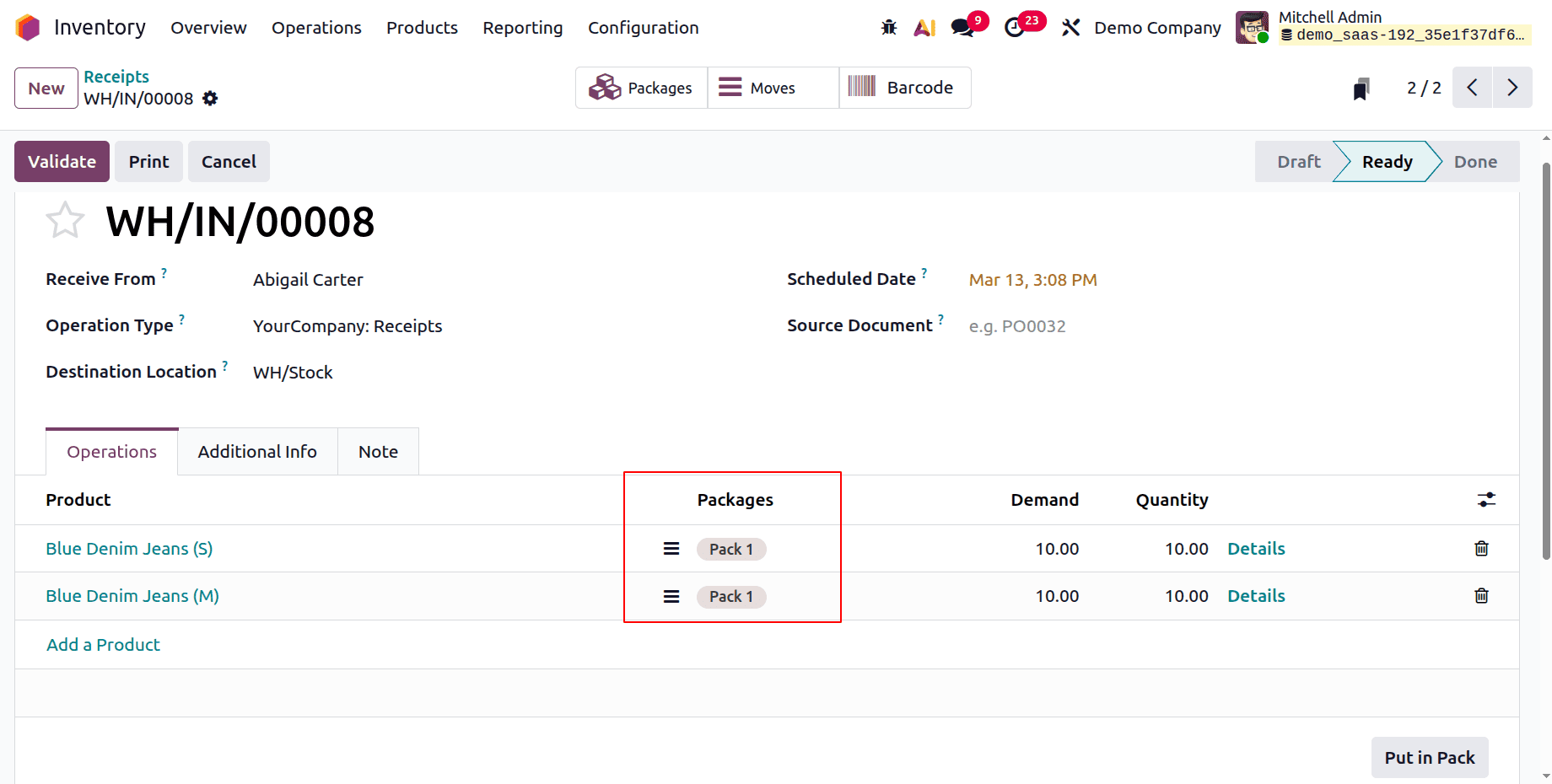
The smart tab named Packages shows the Package details including products. This is how you manually add the packages.
Unpack
Odoo 19 Enterprise Inventory's "Unpack" feature, which is frequently used in conjunction with the "Packages" feature to remove items from a container and update stock levels, enables users to dissect pre-packaged items. It is typically activated during receipt or internal transfers when items are moved from a packed state into inventory. For that, select the packages option and go for the created package, as shown below.
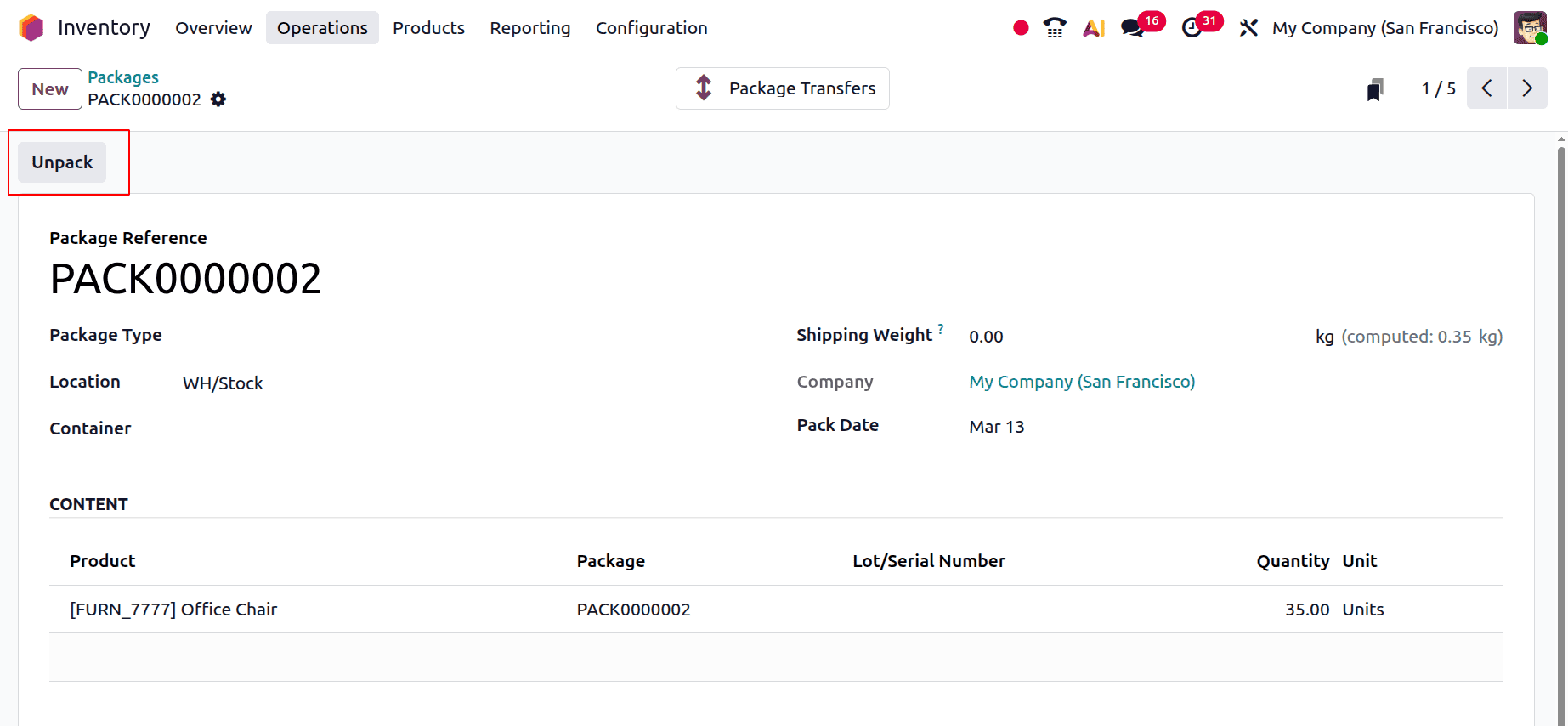
Then after clicking on the Unpack button, the Content section becomes empty as shown below. Because the package is unpacked.
In conclusion, companies may better organize and track products throughout the warehouse and delivery process by setting up and managing packages in Odoo 19 Inventory. Businesses can organize goods into packages, track their movement, and streamline shipping processes by utilizing packaging capabilities. This promotes overall logistics management, lowers handling errors, and increases inventory accuracy. Within the Odoo environment, proper package configuration guarantees more effective order fulfillment, improved product traceability, and seamless warehouse workflows. Thus, this is how Odoo 19's product bundles and packaging operate.
To read more about How to Organize & Manage Product Packaging in Odoo 18, refer to our blog How to Organize & Manage Product Packaging in Odoo 18.