Odoo 19's Maintenance module assists businesses in effectively managing equipment and work center preventive and corrective maintenance tasks. It allows users to schedule maintenance tasks, keep track of equipment status, and document repair history for better planning and dependability. By streamlining maintenance processes, the module prolongs equipment life, decreases downtime, and improves overall production efficiency.
Work centers and equipment need to be adequately maintained in order to ensure consistent production quality and minimise unscheduled downtime. Equipment that is properly maintained runs more smoothly, uses less energy, and lasts longer. Additionally, it improves worker safety by preventing mishaps caused by outdated or malfunctioning equipment. Frequent maintenance reduces repair costs and prevents significant disruptions by assisting in the early detection of possible problems. When everything is taken into account, it allows for maximum productivity, successfully fulfilling production goals and client delivery dates.
The following fundamental concepts highlight how important it is to maintain workspaces and equipment in good working order:
- Minimises Downtime: Regular maintenance helps to sustain production by averting unforeseen faults.
- Increases Efficiency: Well-maintained machinery operates at peak efficiency and generates less waste.
- Extends Equipment Life: Regular maintenance prolongs the life of equipment and lessens the need for frequent replacements.
- Enhances Safety: By lowering the possibility of accidents brought on by broken equipment, routine maintenance guarantees a safer workplace.
- Reduces costs: Preventive maintenance lowers long-term repair costs by averting costly emergency repairs.
- Ensures Product Quality: Consistent equipment performance leads to stable and improved manufacturing output.
- Encourages Compliance: Regular inspections help ensure that industry and legal requirements are met.
- Improves Scheduling: Reliable equipment enables precise production process planning and scheduling.
Maintenance Stages
The Maintenance Stages of the Odoo 19 Maintenance module are essential for organising and tracking the progress of repair requests. They provide a clear process that ensures tasks are completed efficiently and systematically, from request submission to completion. Each stage helps with assigning responsibilities, monitoring delays, and setting priorities for critical issues. The timeliness, accountability, and visibility of maintenance operations are all enhanced by this systematic process.
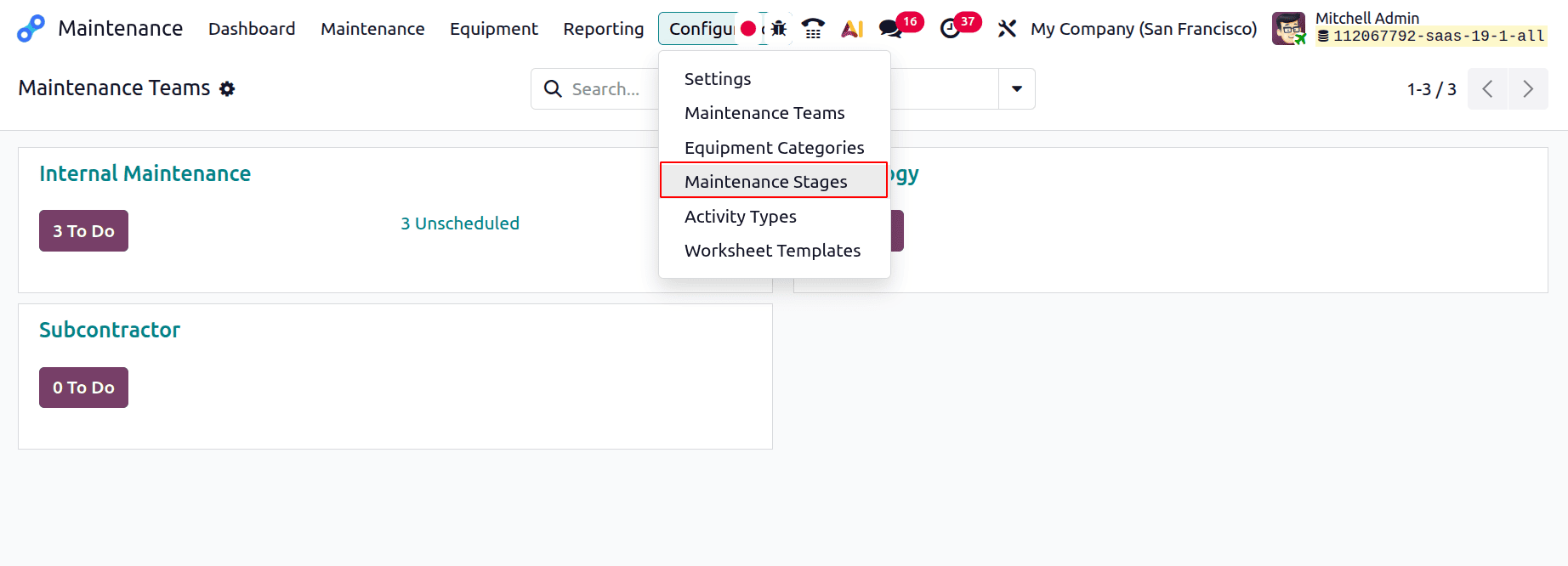
To see the maintenance stage configurations, select the Maintenance Stages from the Configuration.
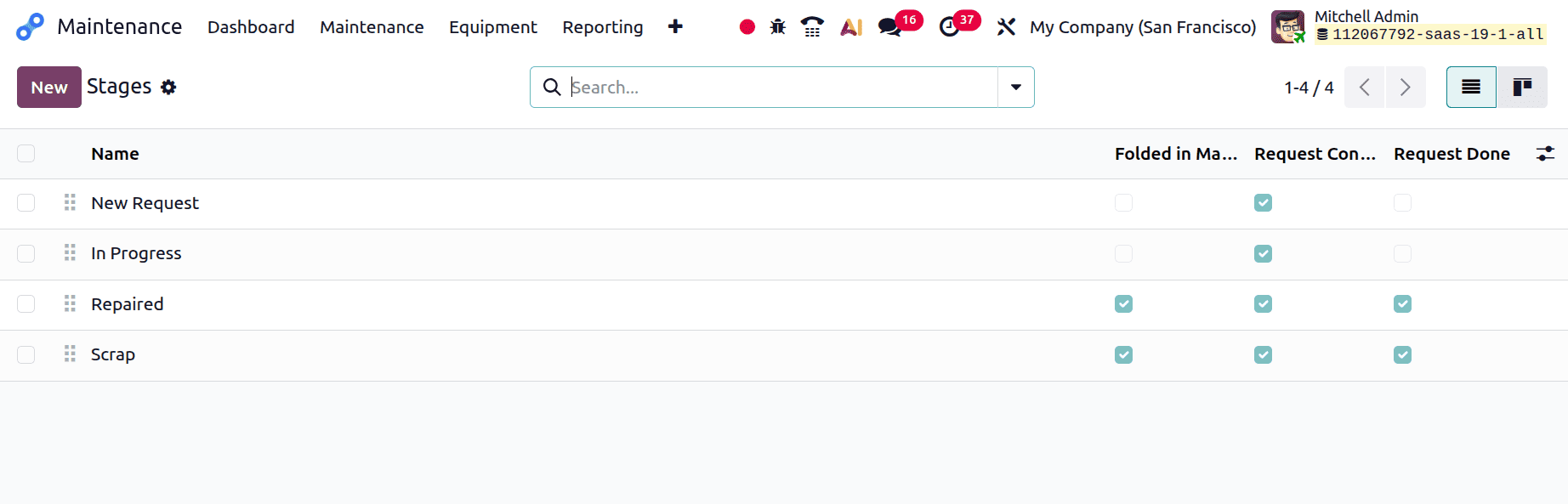
The list includes details like Stage Name, Folded in Maintenance Pipe, Request Confirmed, Request Done, and View. Click the View button to display each stage's settings.
To add a new one, click the New button. Add the stage's name first. The three checks are Request Confirmed, Request Done, and Folded in the Maintenance Pipe. The sequence number dictates the stages' order.
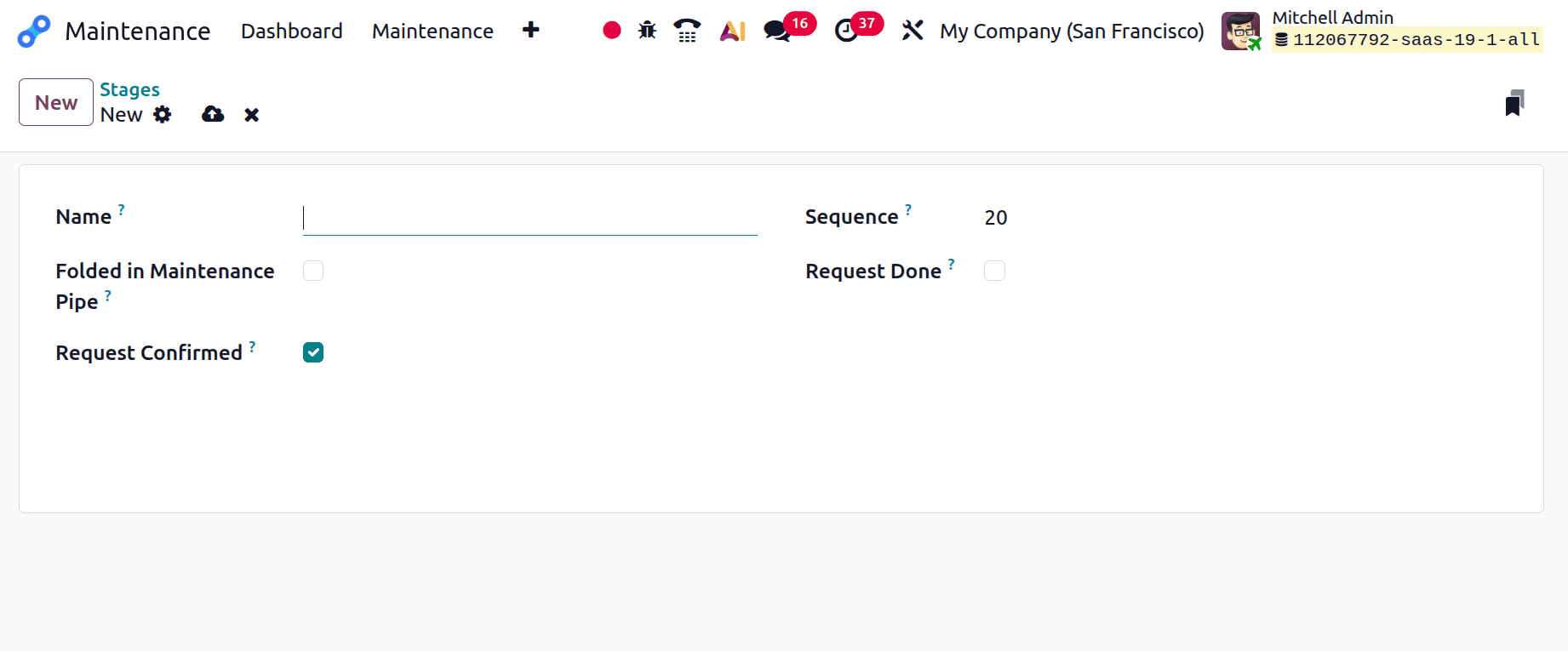
Folded in Maintenance Pipe: If the box is checked, the stage will be folded inside the kanban view of the stages.
Request Confirmed: If this box is left unchecked and the maintenance is of the type "work center," no leave is created on the related work center at the time the maintenance request is created.
If the box is checked, the work center is automatically blocked for the specified amount of time, either on the designated day or as soon as practicable in the event that it is unavailable.
Request Done: The stage is deemed successfully finished if the box is checked.
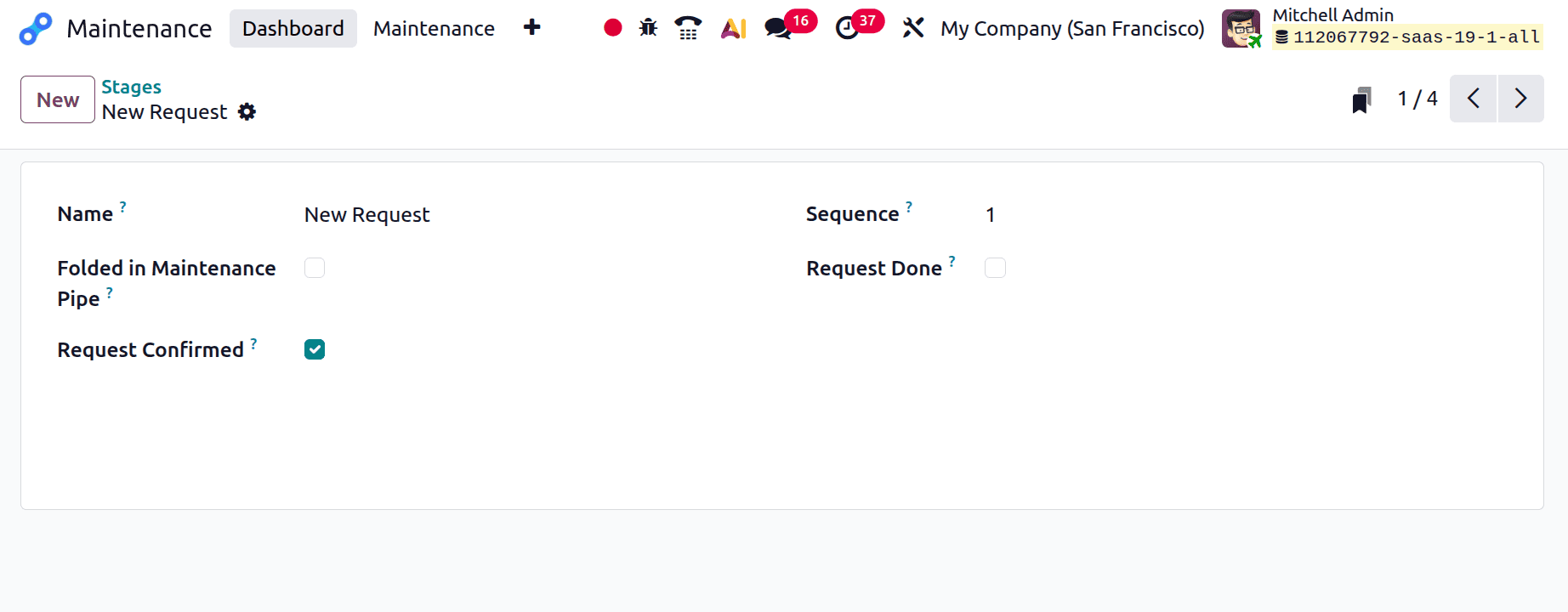
New Request is the initial step. The tick box is now enabled since the request has been confirmed. However, none of the other tick boxes are activated. The sequence is set to 1.
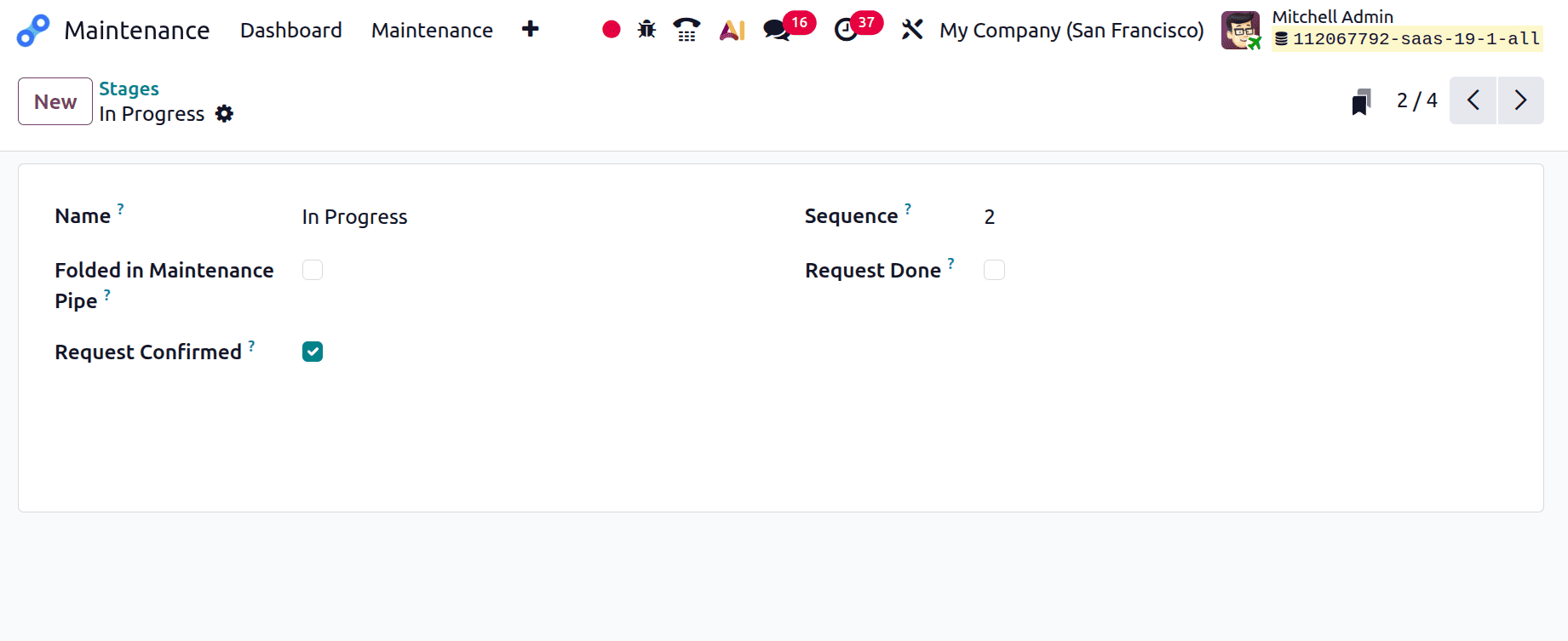
Because the second stage is In Progress, the sequence is set to 2. The tick box is now enabled since the request has been confirmed. However, none of the other tick boxes are activated.
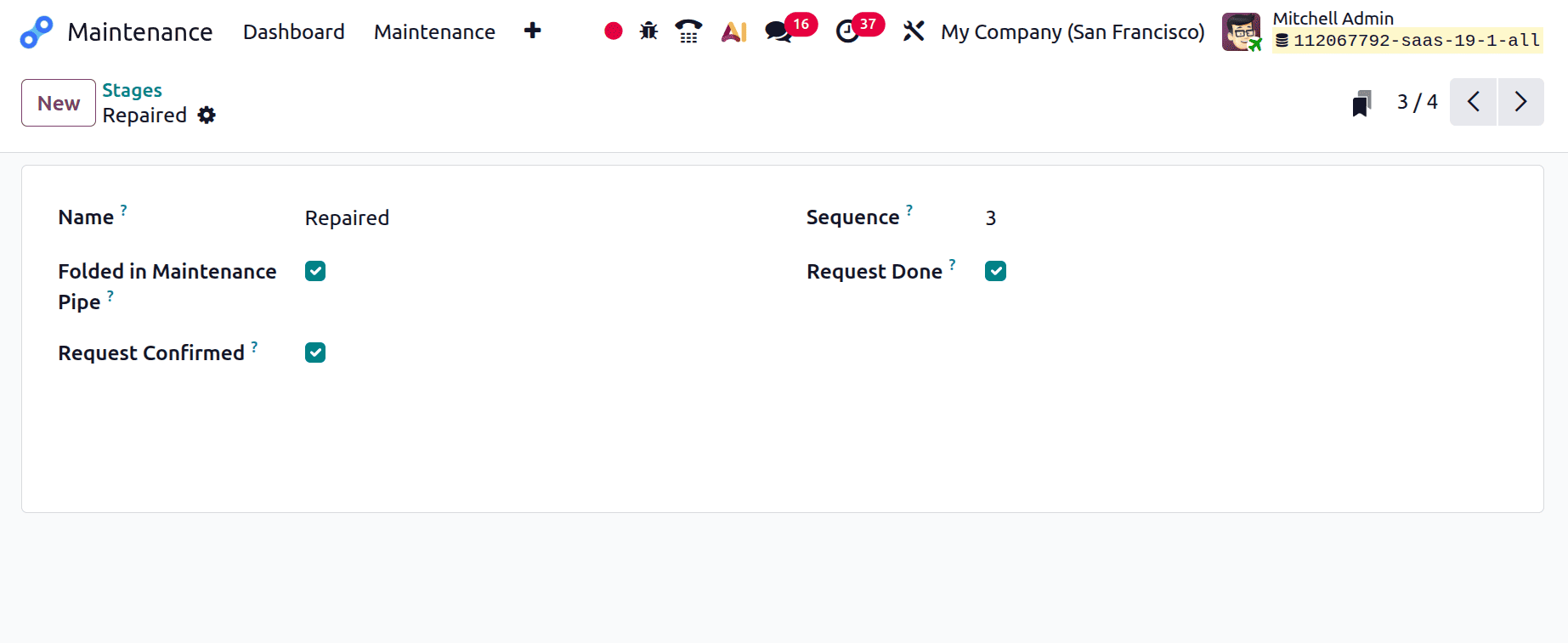
For the third stage, the sequence is set to 3 and is called Repaired. The tick box is now enabled since the request has been confirmed.If the maintenance is completed and the request moves on to the repaired stage, the Request Done tick box becomes active. Folded in "maintenance pipe" is also enabled in order to fold the stage in the repair pipeline.
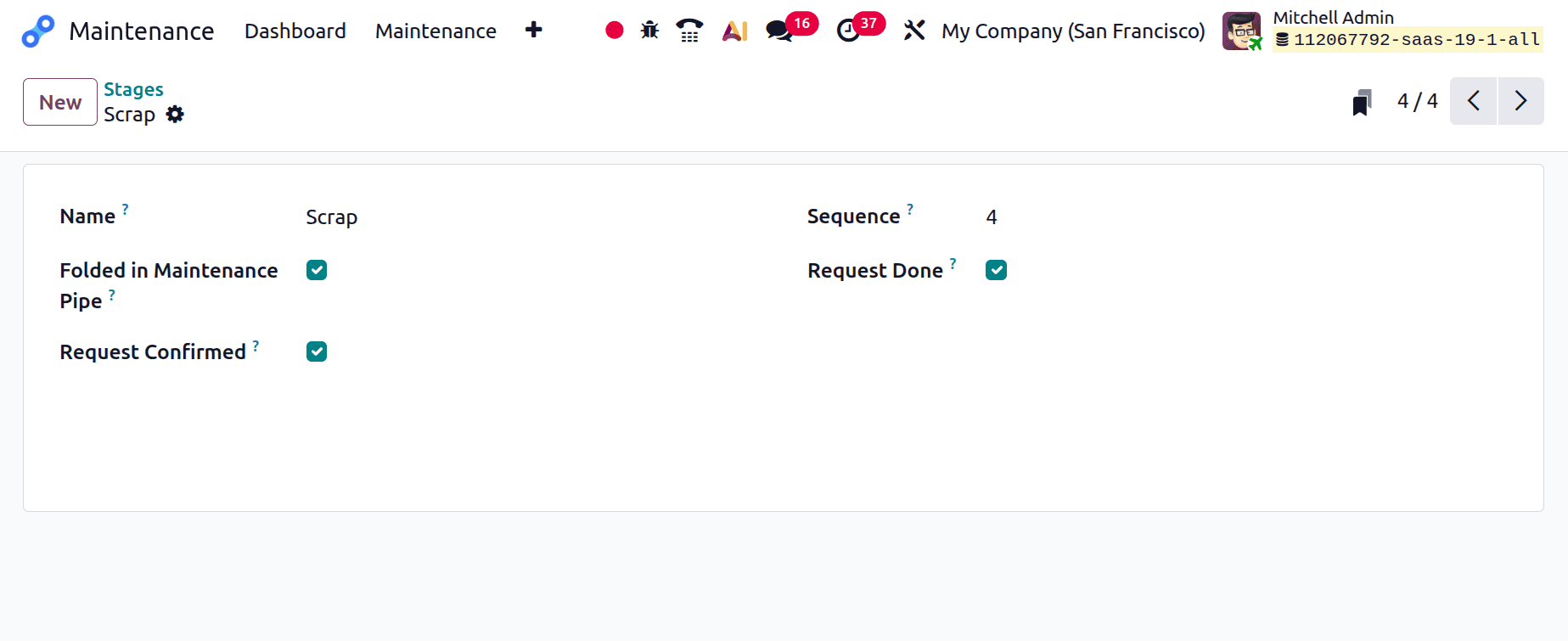
The request will be forwarded to the Scrap stage, which is also the final stage, if it is scrapped or if the complaint cannot be adequately resolved.
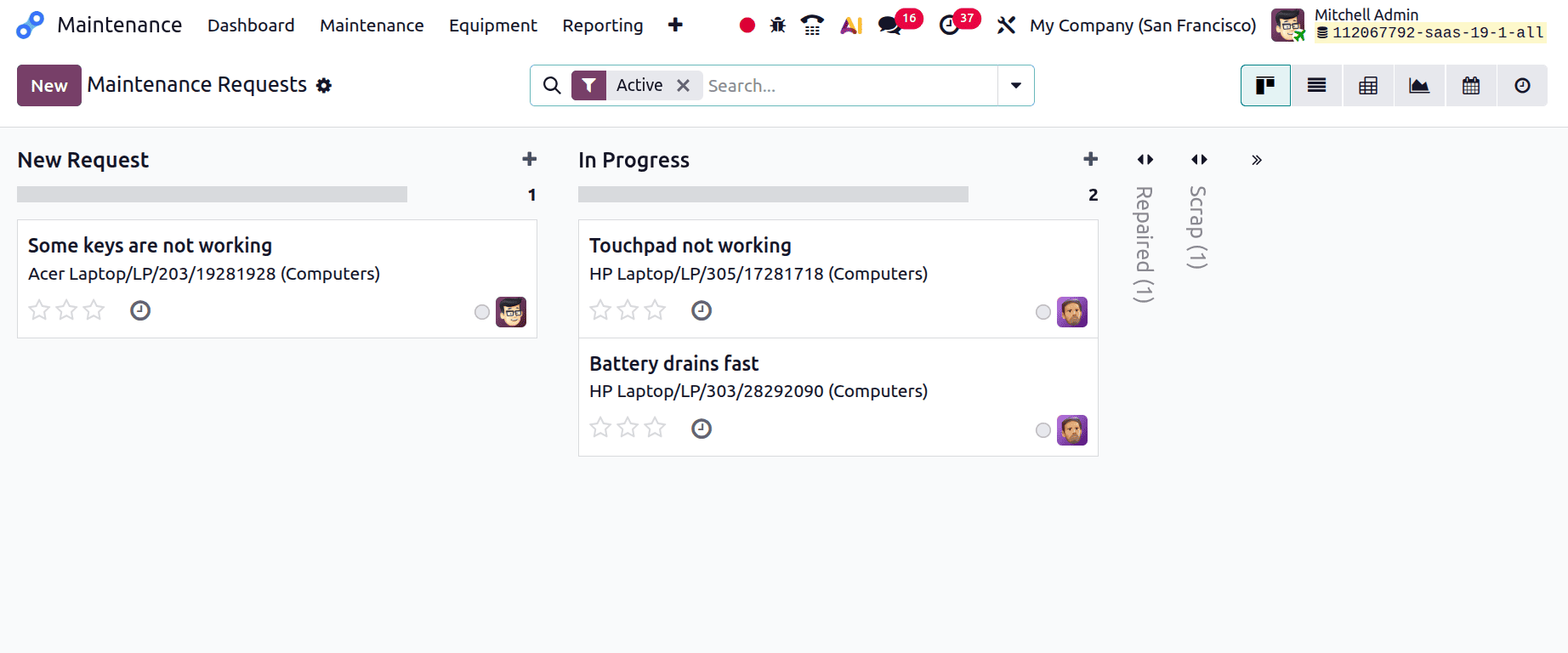
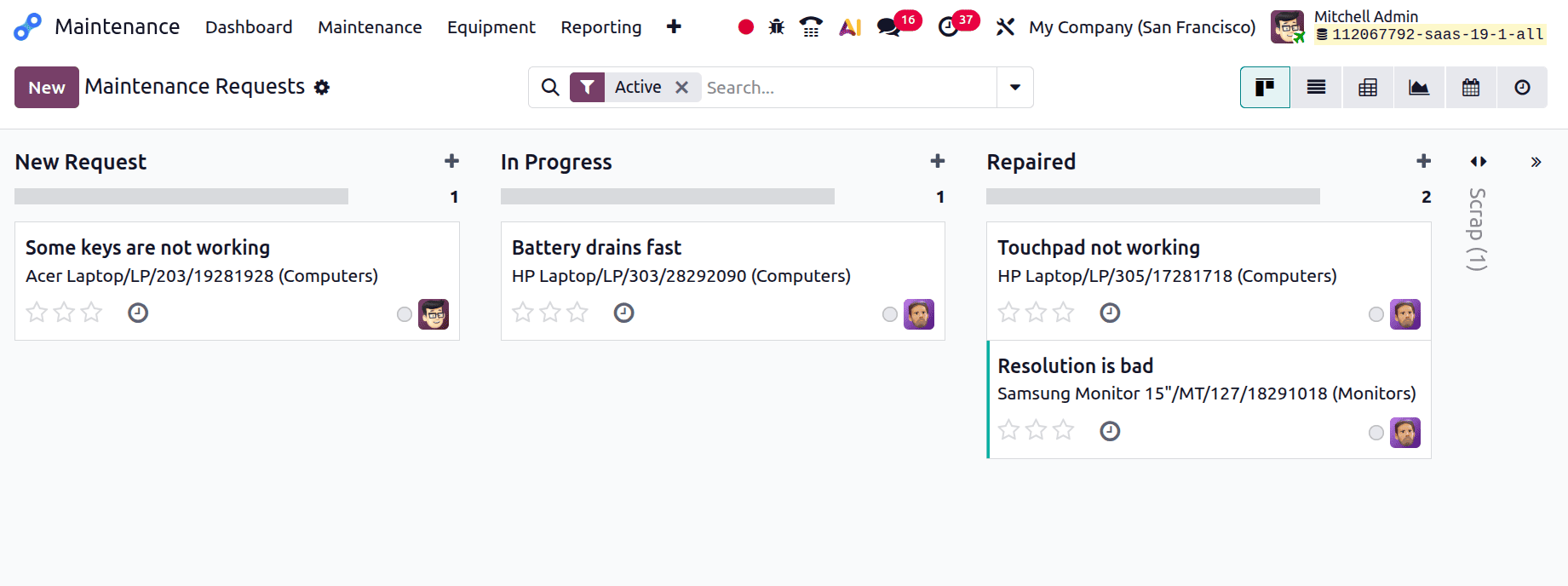
Let's use the Maintenance menu to make a new maintenance request. Select the request for maintenance. The maintenance request's kanban view. There, you may see every stage that has been constructed. The scrap and repaired stages are folded in the view below.
To add a new request at the New Request stage, click the new button. Include information such as the name of the request, the person who created it, the type of maintenance, the maintenance team, etc. Once the information has been included, save the request.
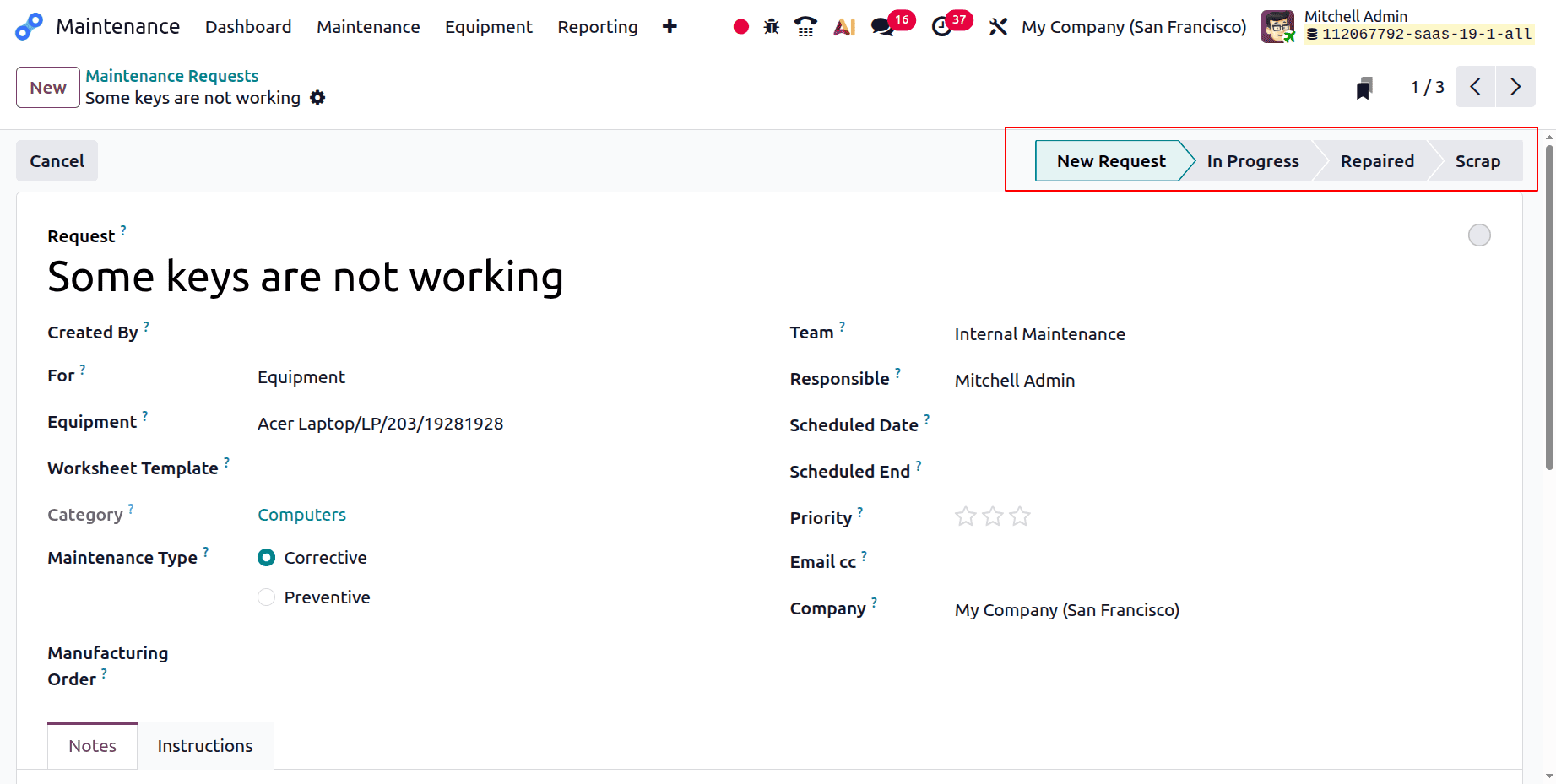
The kanban view or the request as the progress are the two ways that users can modify the phases. Drag and drop the request to switch the stage from the Kanban view.
Maintenance Team
The smooth operation of machinery and manufacturing processes depends on the maintenance team in Odoo 19's Maintenance module. They are responsible for promptly responding to requests for corrective maintenance and doing planned preventative maintenance. By efficiently monitoring and resolving system issues, they help to minimise downtime and maintain production. Their analysis also supports improved planning, resource allocation, and continuous maintenance performance improvement.
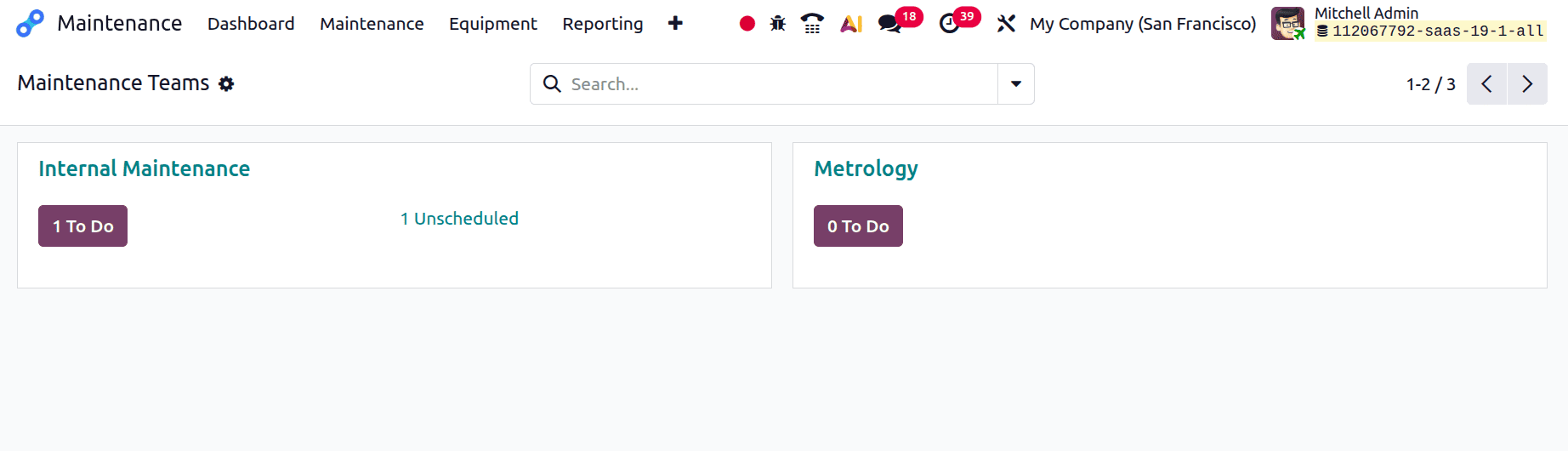
The created maintenance team is located on the Maintenance module dashboard. Internal Maintenance and Metrology are the names of the maintenance teams in this instance.
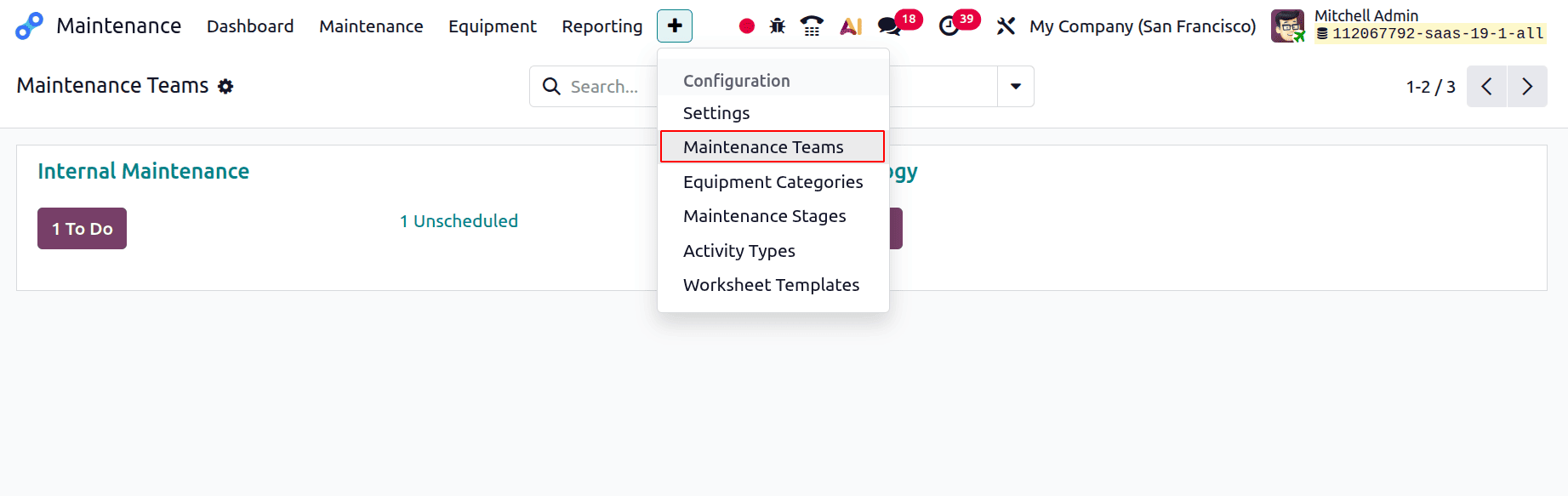
To add a new maintenance team, select the Configuration option. The list then includes options like Equipment Categories, Maintenance Team, and Settings. Select the Maintenance Team option.
The teams will then be accessible in a list view that opens. The team name, team members, and firm name are shown in the list.
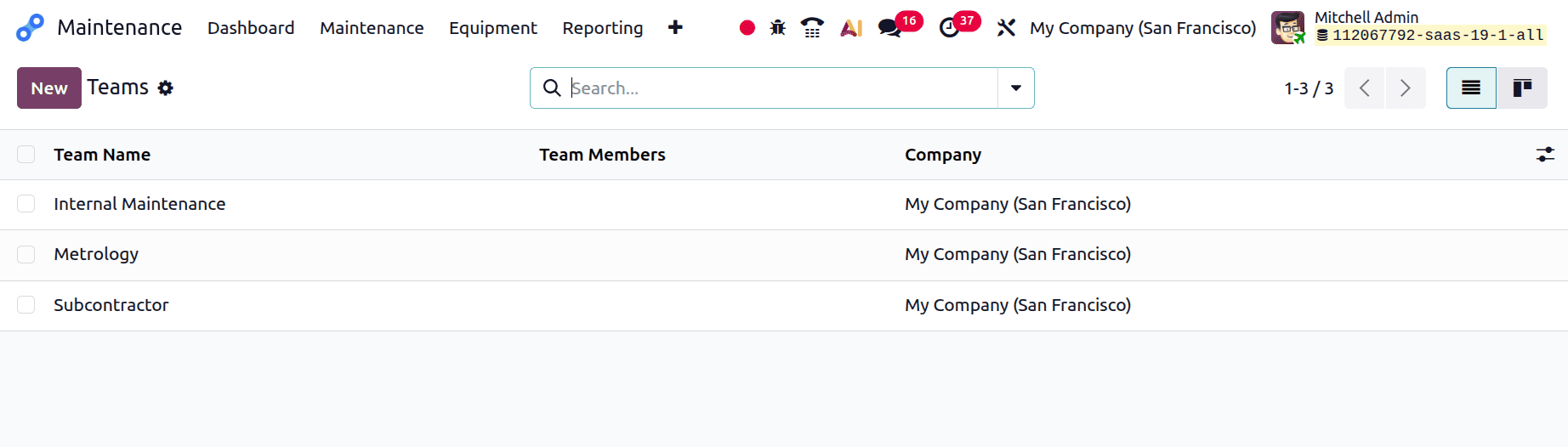
Click the New button to add a new team. Clicking the New button will cause an additional line to appear beneath the list, as shown below. Before adding the team members and firm, mention the team name.
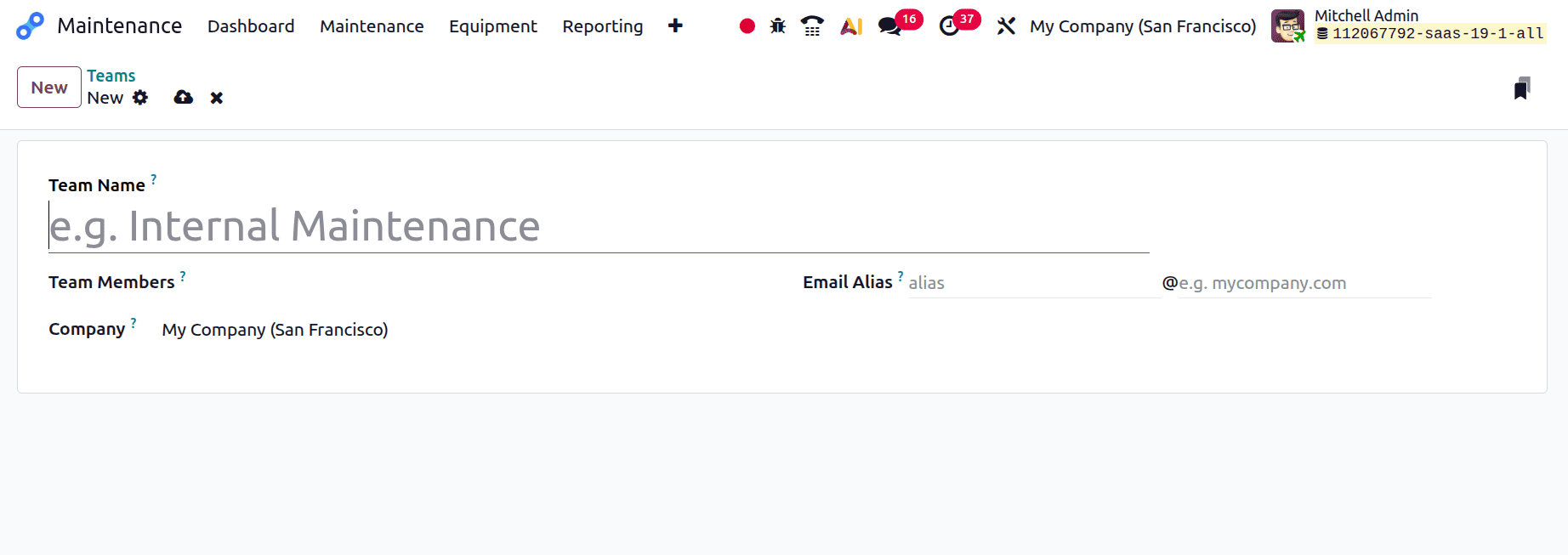
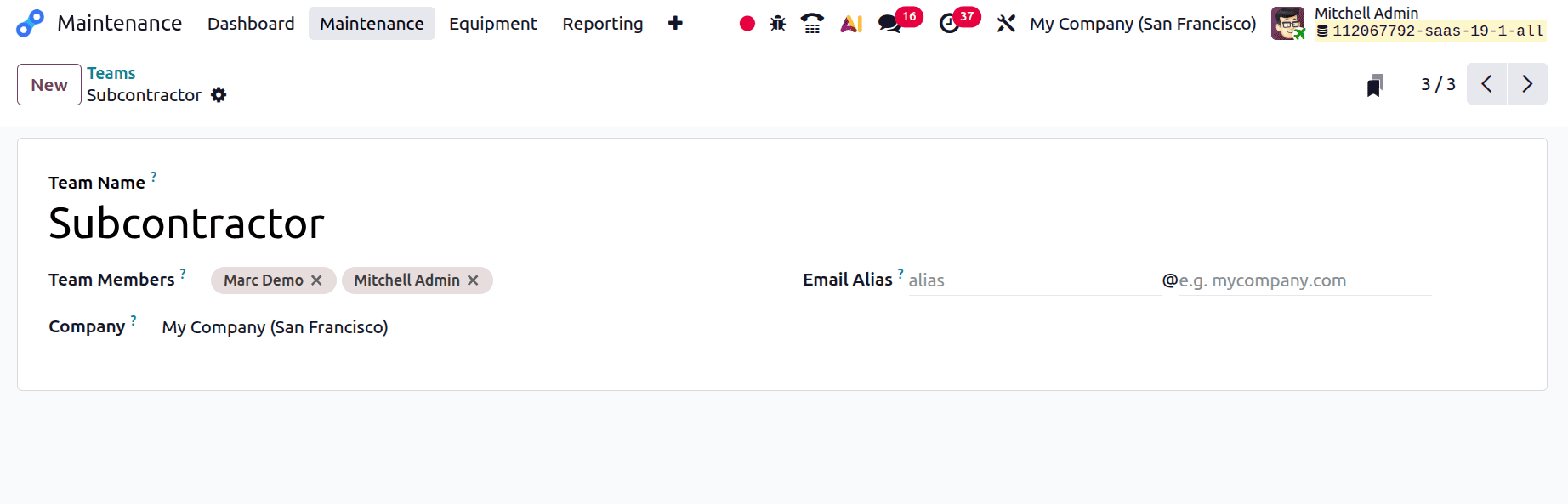
The team is called Subcontractor, and its members are Marc Demo and Mitchell Admin, as seen in the screenshot below. Preserve the new group.
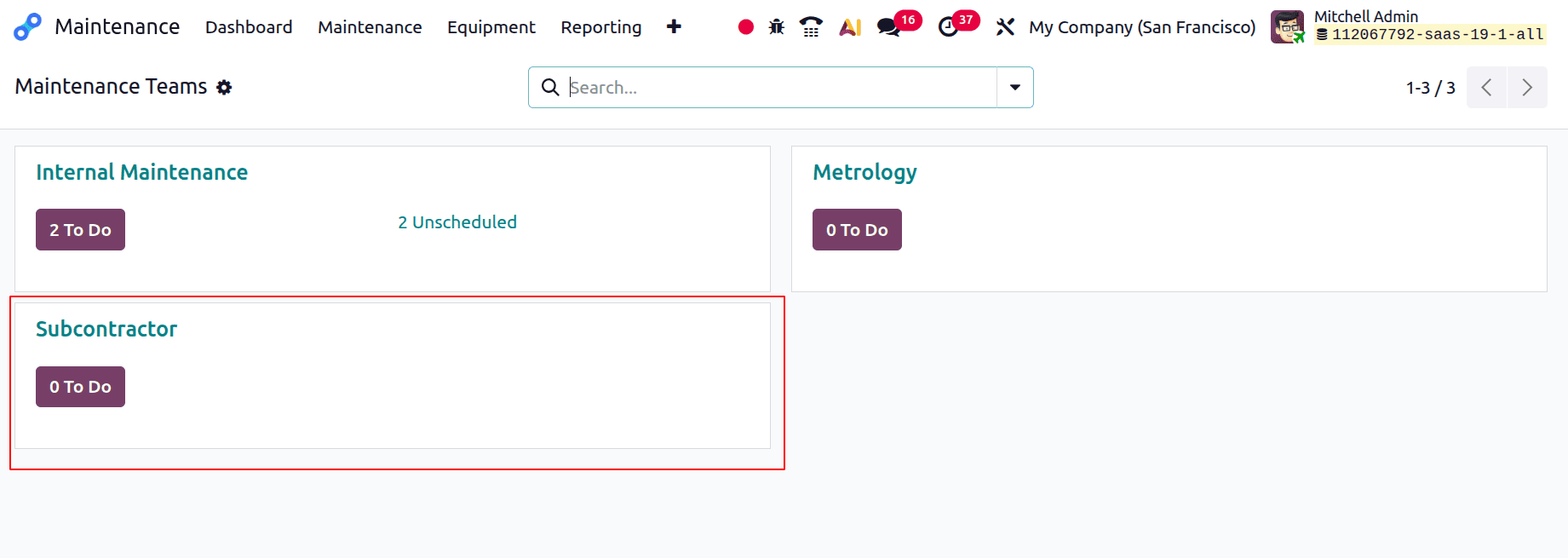
The dashboard will display the newly added team as indicated below. The dashboard will display any maintenance requests that are allocated to this team.
Let's submit a fresh maintenance request. To do it, select the Maintenance Request from the Maintenance menu. Next, click the New button to add a new request.
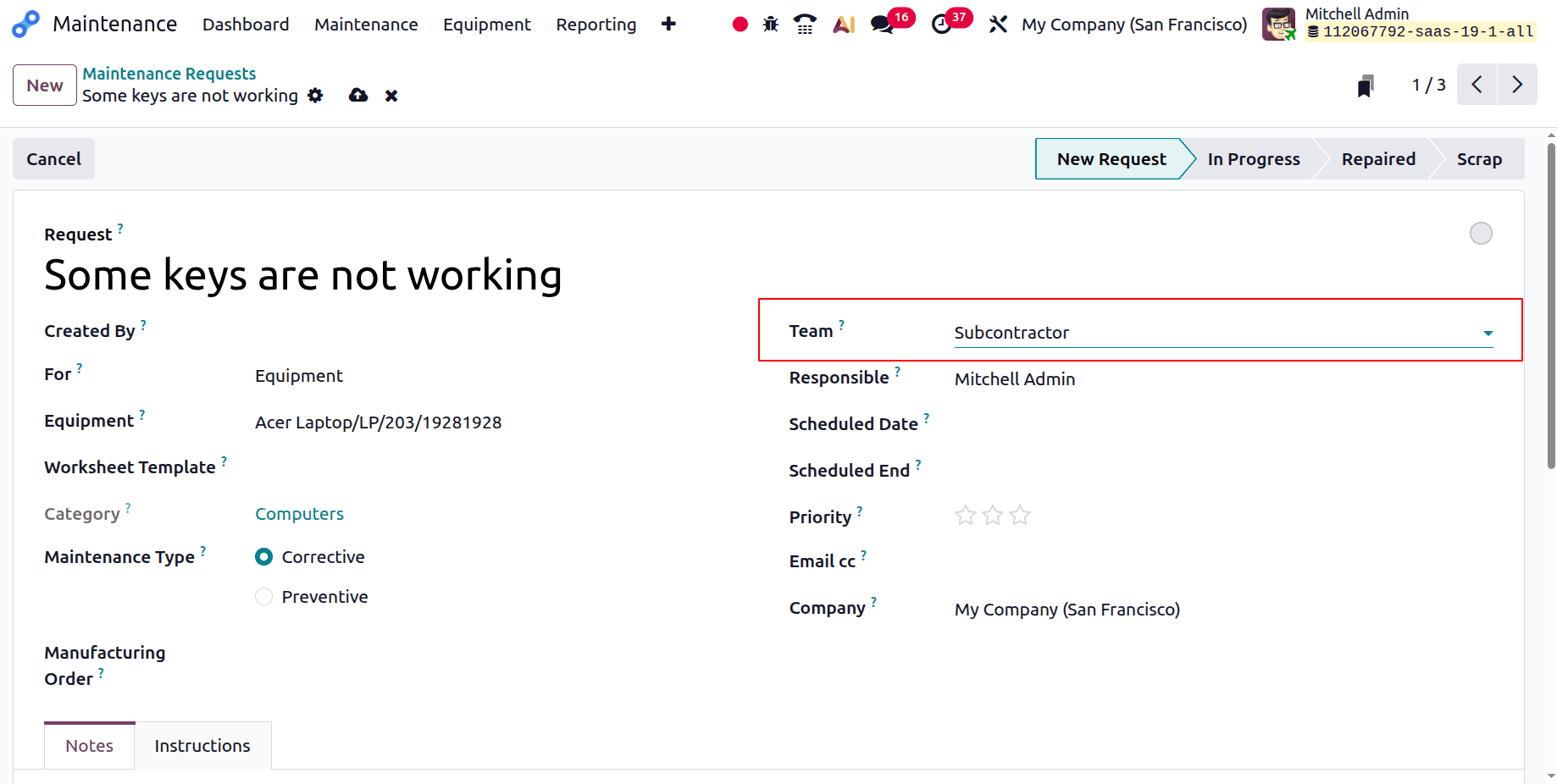
After adding the request title, select the equipment. Add the newly formed team called Subcontractor to the team. Return to the dashboard after saving the request.
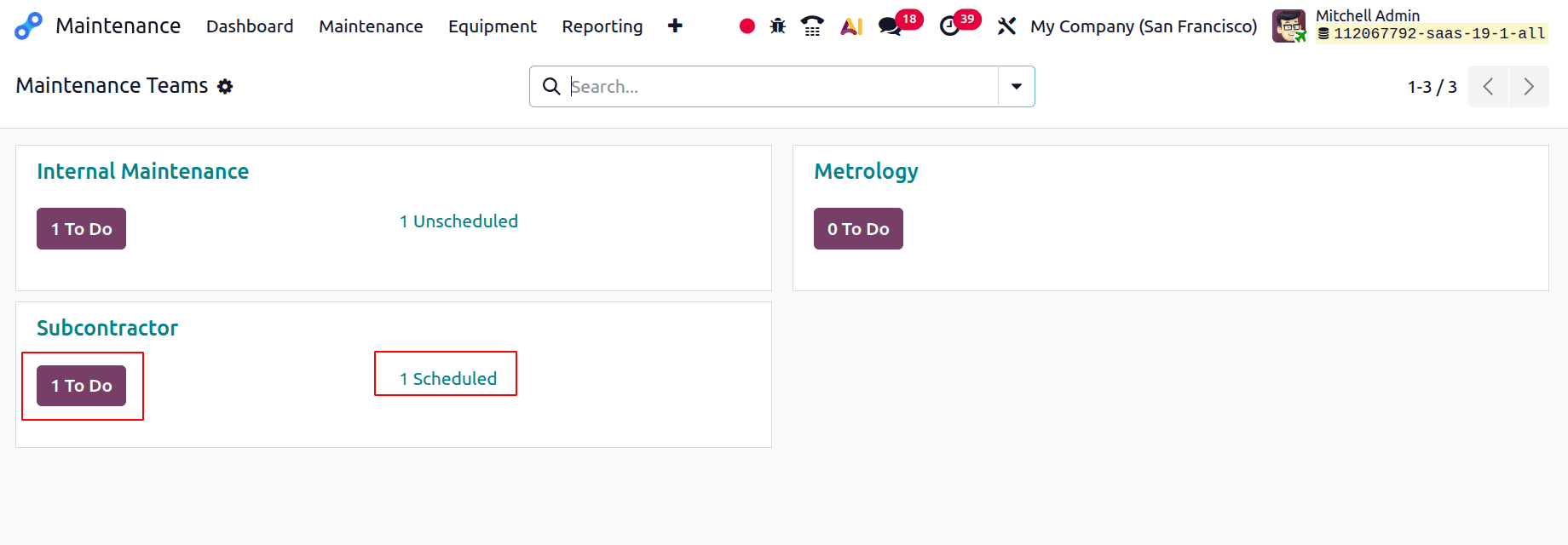
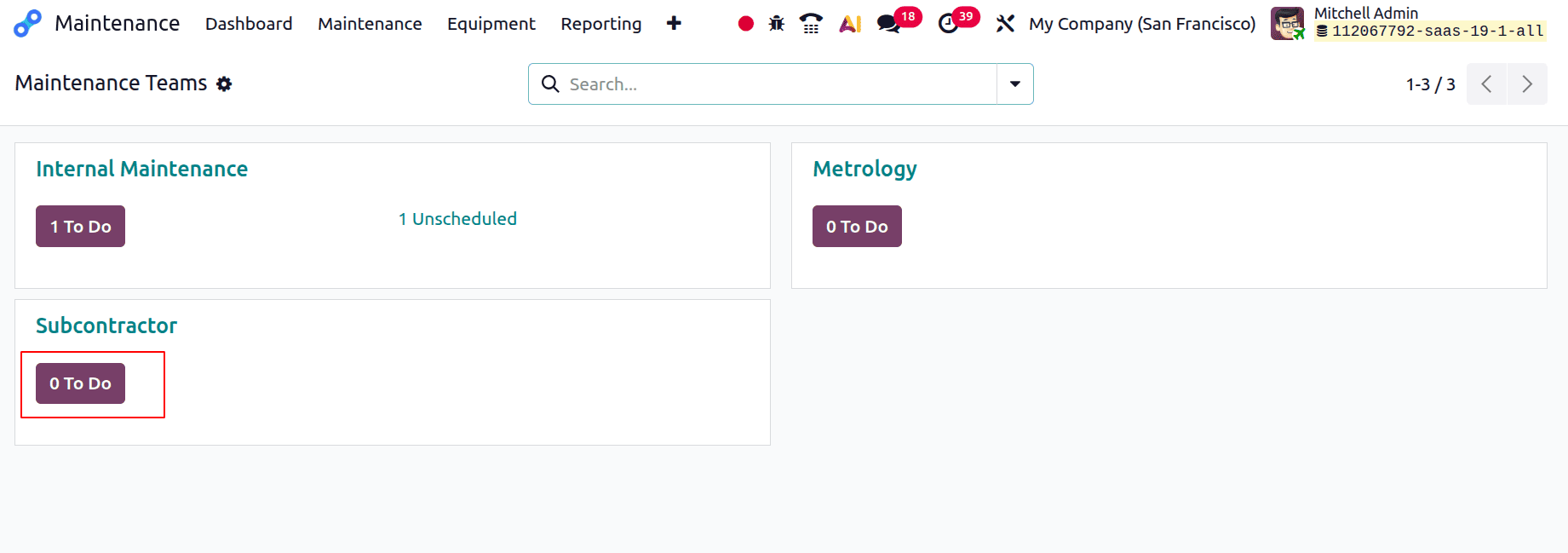
"1 To Do" indicates that the team has been assigned one request, as seen in the screenshot below. The planned maintenance is indicated by the "1 Scheduled."
The Maintenance Calendar is displayed below when you click on "1 Scheduled."
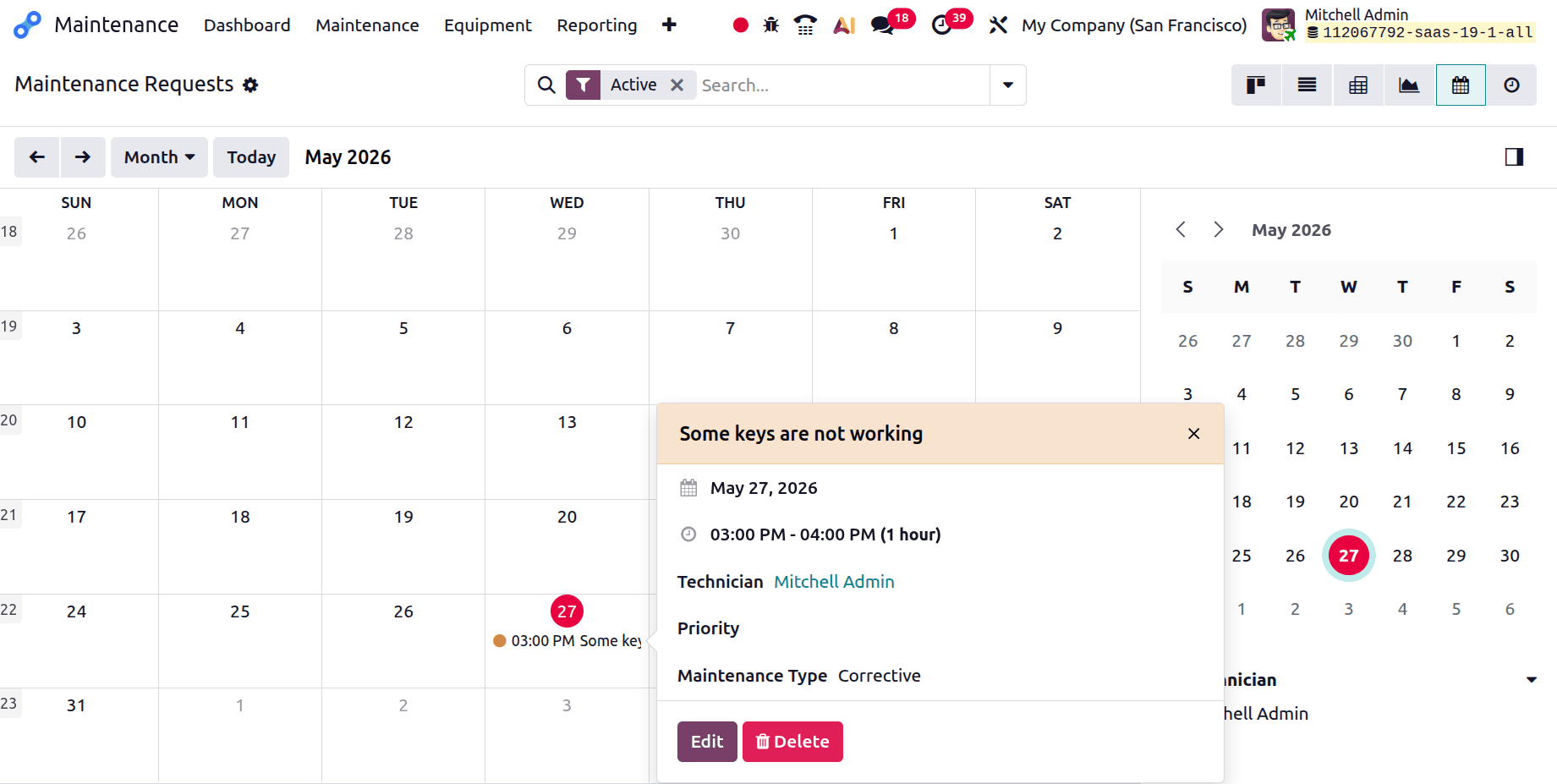
Thus, the maintenance is indicated on the planned date in the calendar view. Additionally, you can check the maintenance details while clicking on the date.
When you select "1 To Do," the Maintenance Stage kanban view and the generated Maintenance Request are displayed. Change the stage from New Request to Repaired once the request has been completed.
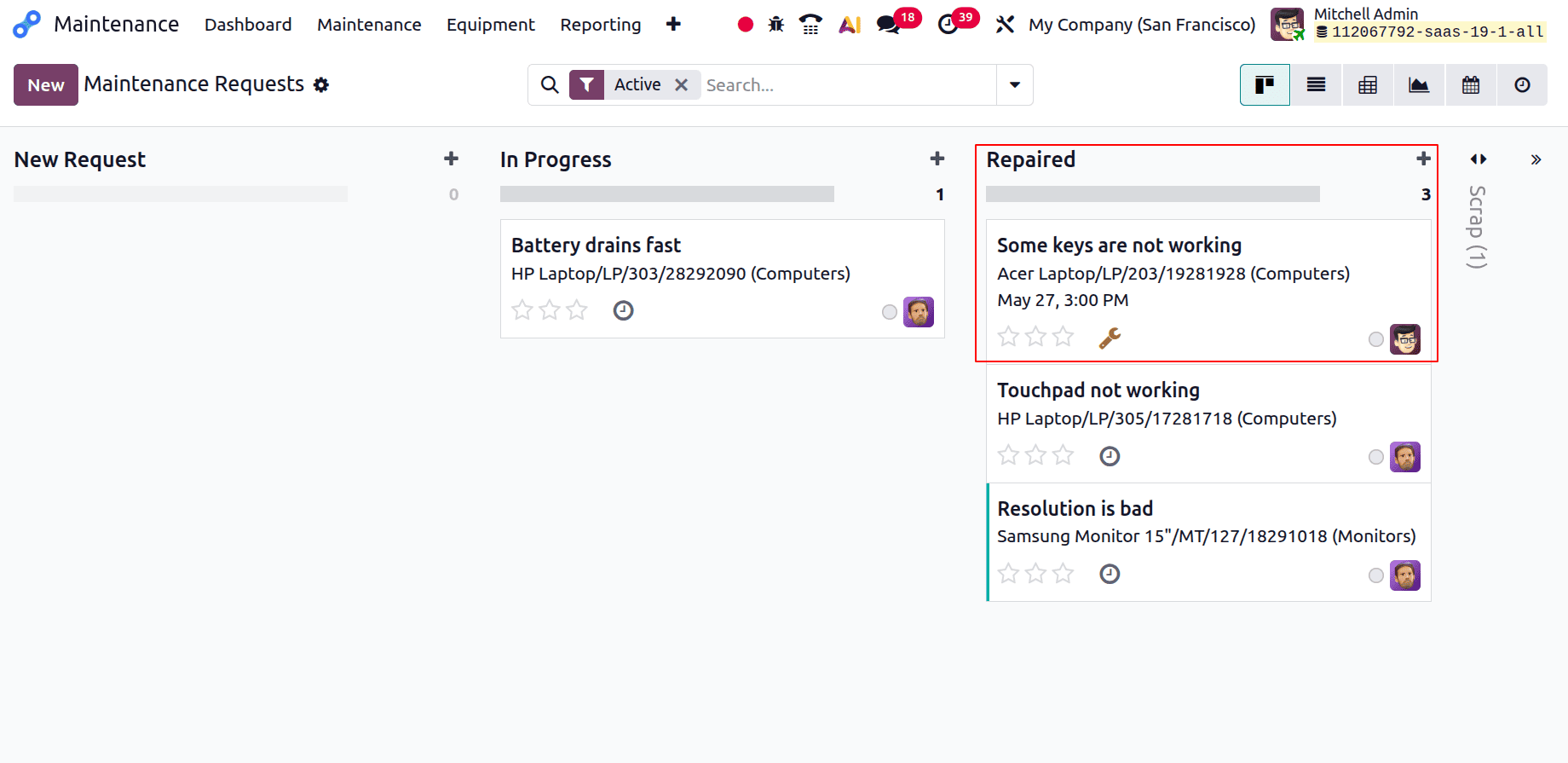
There is currently no maintenance request attached to the team, hence nothing appears in the team while looking at the dashboard.
In conclusion, properly setting up the Odoo 19 maintenance team and stages ensures a simplified and efficient maintenance process. By enabling clear job delegation, better tracking, and speedier problem solving, it lowers equipment downtime. By using these configurations, businesses can extend the life of their equipment and improve operational reliability.
To read more about How to Configure a Maintenance Stages & Maintenance Team in Odoo 18, refer to our blog How to Configure a Maintenance Stages & Maintenance Team in Odoo 18.