A methodical approach to project profitability management is necessary in every sector. By developing a comprehensive plan for each stage of a project before its execution begins, an organization can reduce planning-related stress, minimize costs, and improve overall project efficiency. Organizing and overseeing a range of operations within a project will enhance your company's operational clarity.
A project will function more efficiently if you can see its expenses, revenue, profitability, tasks, time, and personnel all in one place. Making better business decisions is facilitated by knowing where you stand and having the flexibility to change course when necessary.
Determining a project's profitability is made easier with Odoo 19. Profitability is crucial regardless of the size or complexity of a project. It helps businesses evaluate whether a project is financially viable and determine whether they should continue with its execution. After generating project invoices, users can utilize Odoo to review the project’s profitability and financial performance. Invoices can be created based on the ordered quantities, completed milestones, or the working hours recorded by assigned employees through timesheets. The overall profitability of the project is calculated by comparing the total invoiced amount against the total project cost, providing clear insights into financial performance.
Now, let's look at how project updates and profitability can be achieved with the Odoo 19 Project module.
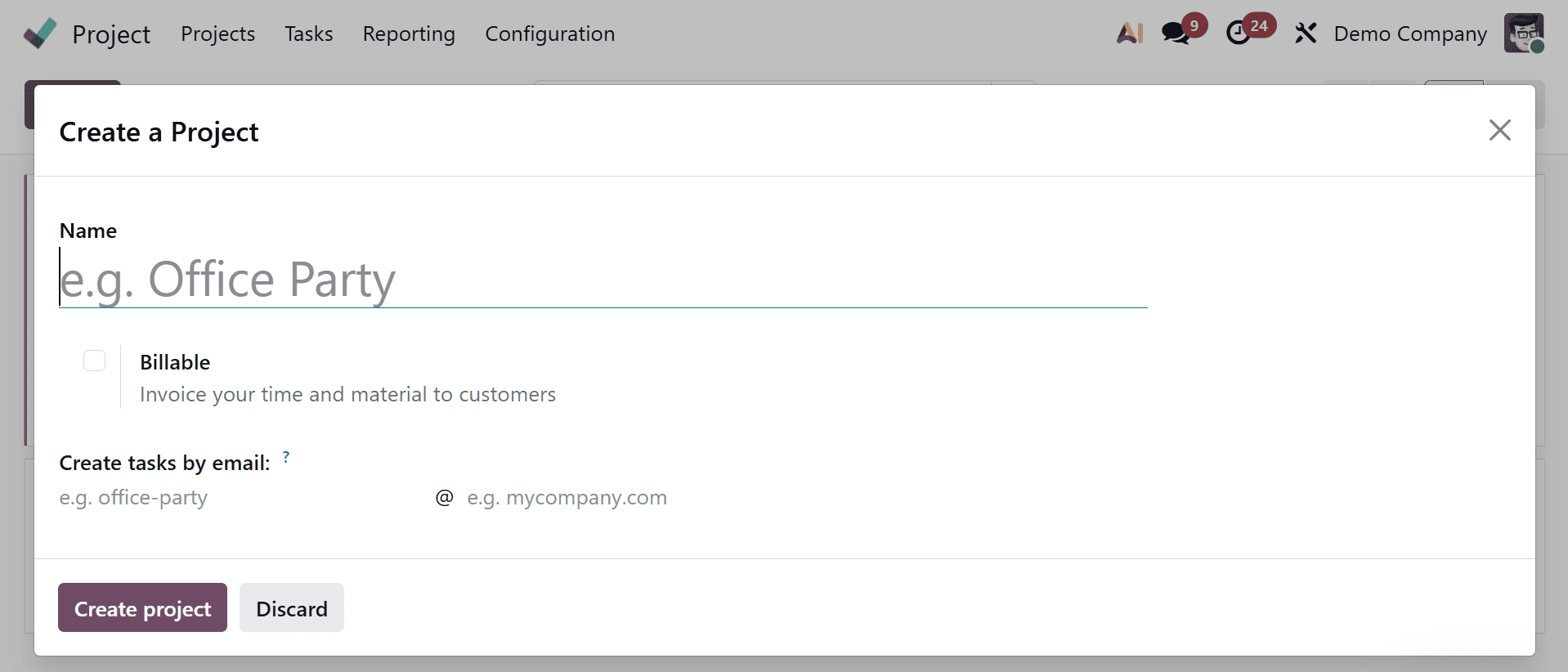
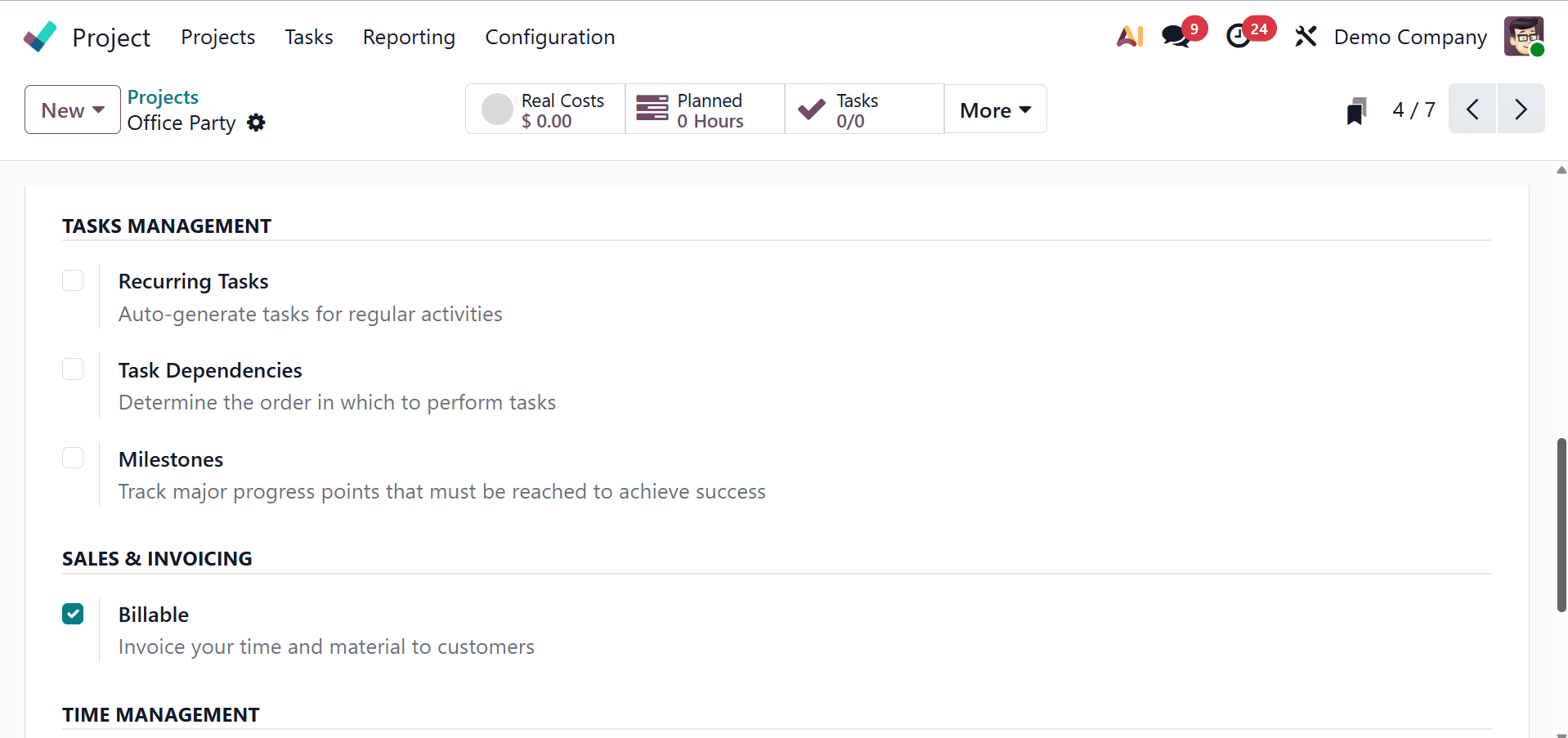
Let's start with a fresh project. You will be prompted to enter the project name by a new wizard. There are several checkboxes visible. Check the Billable box if an invoice is required for the labor and time. If you permit timesheets, you can incorporate an employee's timesheet into a project. Resource planning enables planning in a project.
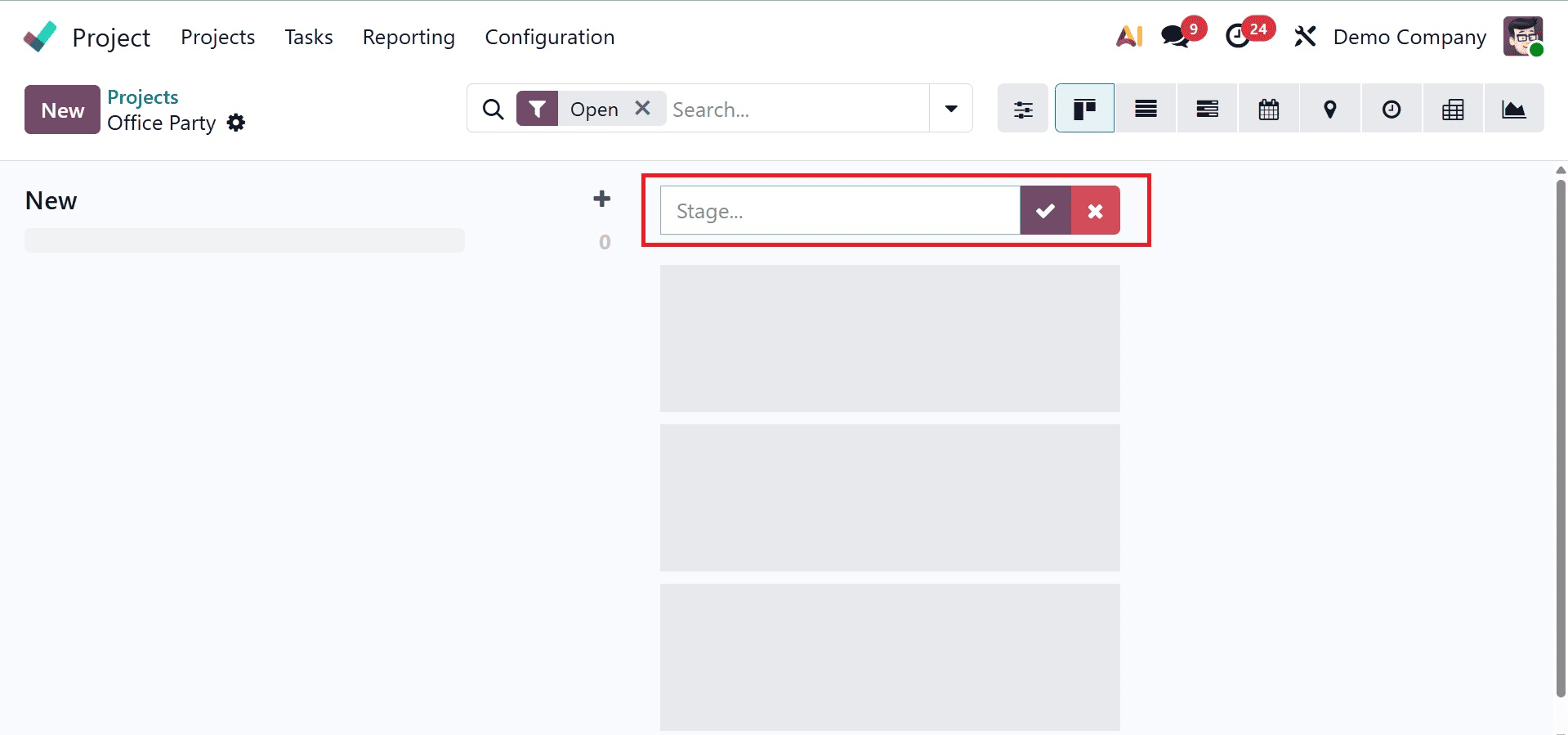
This brings up a new page where you can design the project's task phases. There should be a range of stage names. The tick icon can be used to add more stages to the specified name.
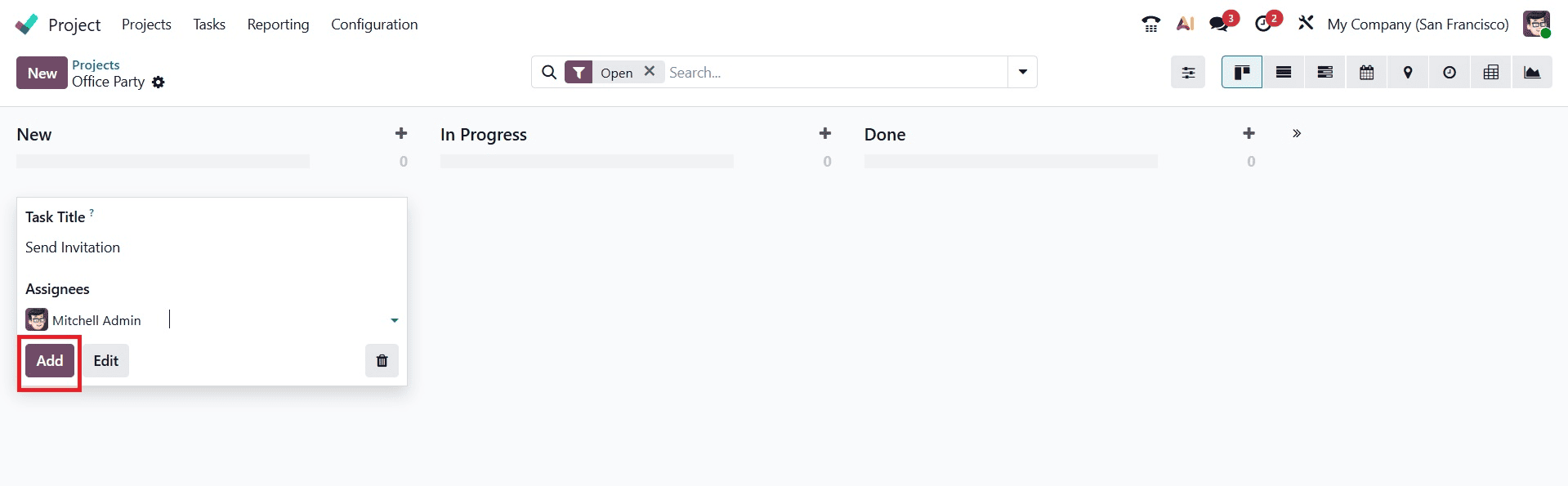
Each level necessitates the construction of a task. You can make several tasks for every stage in Odoo 19. A resource can also be given specific tasks to do. Once a task has been created and resources have been assigned, click "Add."
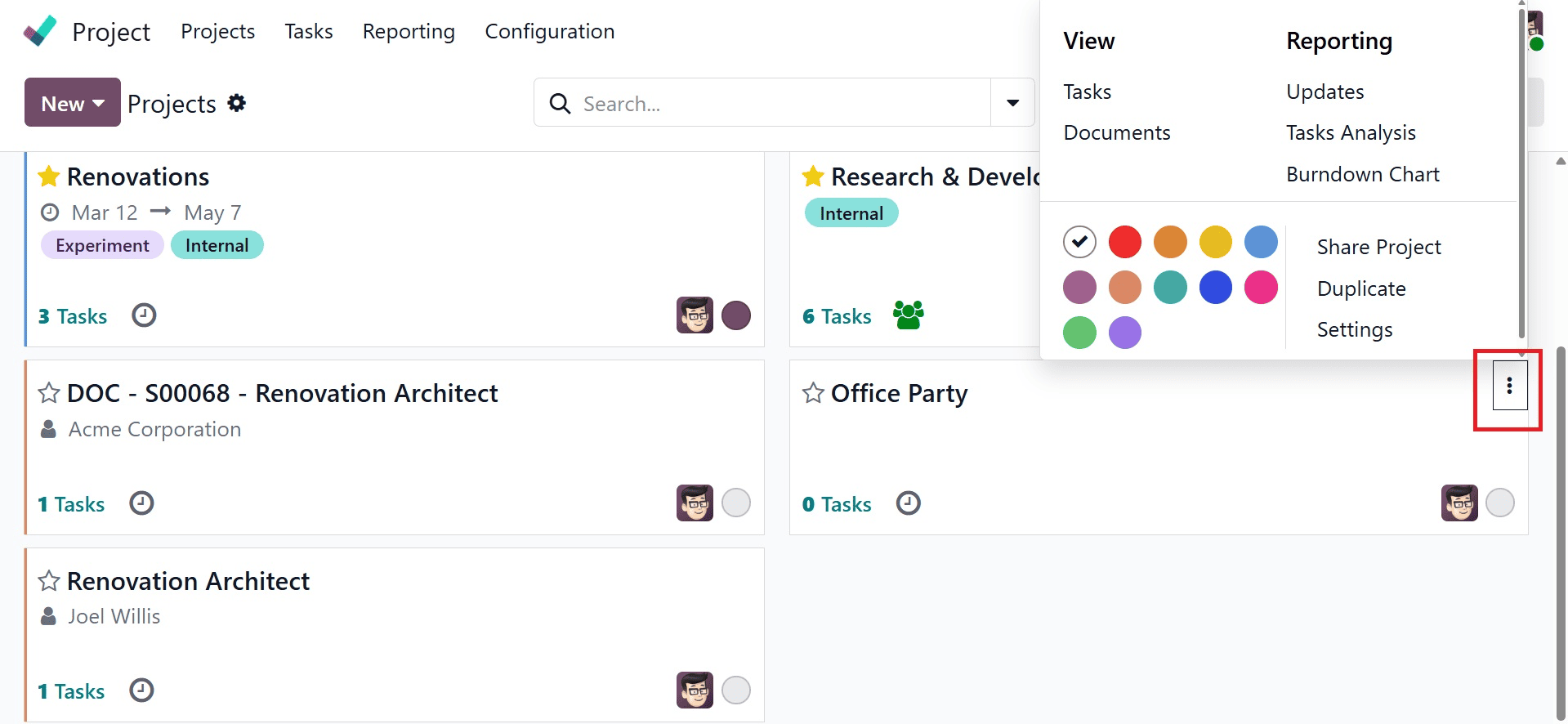
To configure a new project in Odoo 19, click the three-dot menu located in the upper-right corner of the project dashboard and select the Settings option.
In the project creation window, provide the required details, including the project name, tasks, customer, tags, project manager, planned schedule, and company information. Upon creating the project, Odoo 19 automatically creates a corresponding analytic account with the same name as the project. This analytic account helps businesses track project-related costs, revenues, and profitability more efficiently.
This analytical evaluation will take into account the project's expenses and earnings.
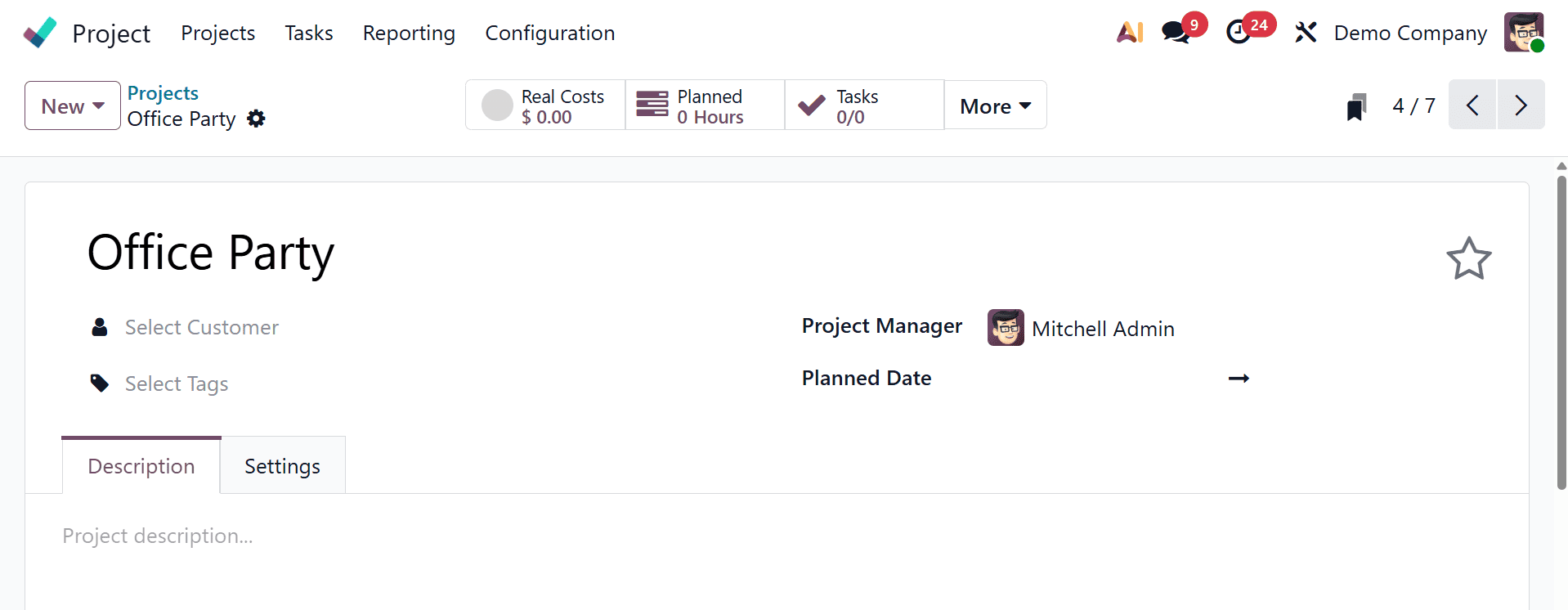
By enabling the Billable option in the project settings of Odoo 19, businesses can invoice customers for the time, materials, and services used during project execution.
Odoo helps users evaluate project profitability by analyzing recorded revenues and expenses, making it easier to determine whether a project is financially successful.
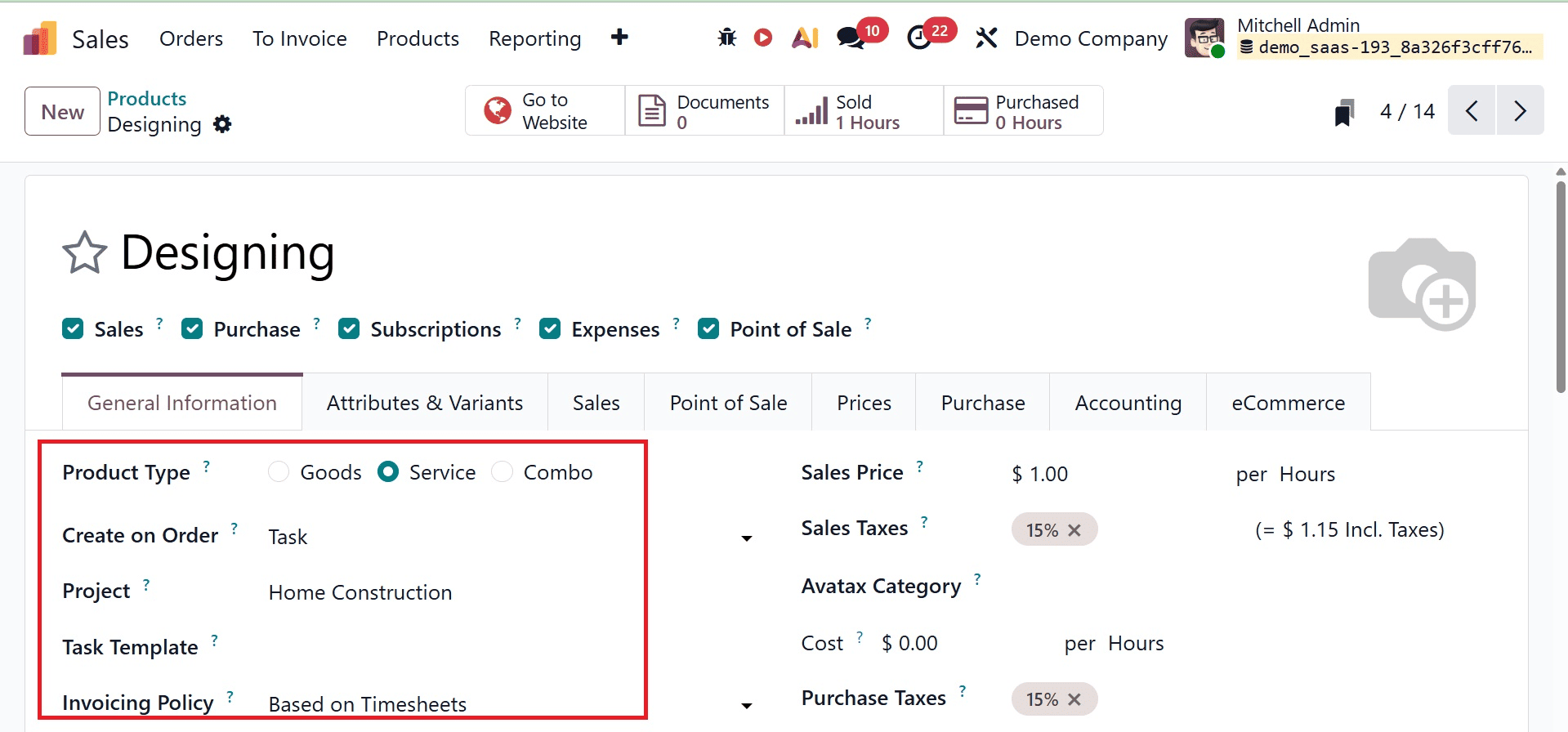
For a newly created project, users can generate a sales order directly from the project dashboard to create invoices and connect employee timesheets with the corresponding order. Before creating the sales order, configure the service product invoicing policy based on the project requirements. Odoo 19 supports multiple invoicing methods, including fixed price/prepaid billing, milestone-based invoicing, timesheet-based billing, and billing based on delivered quantities. These flexible options help businesses manage project billing accurately and improve financial control.
The service product in this case is called "Designing." The product type is set to Services, and the invoicing policy is configured to be based on timesheets. By including this item in the selling order, a new task called "Construction" will be added to the project.
When a new sales order is created in the Sales module, the system automatically captures all relevant project details, including the customer, invoicing address, delivery address, quotation template, referrer, order date, price list, and payment terms. Additionally, the service product should be available for selection in the Order Lines section. Click the Confirm button to make your selections after the Sales Order has been created.
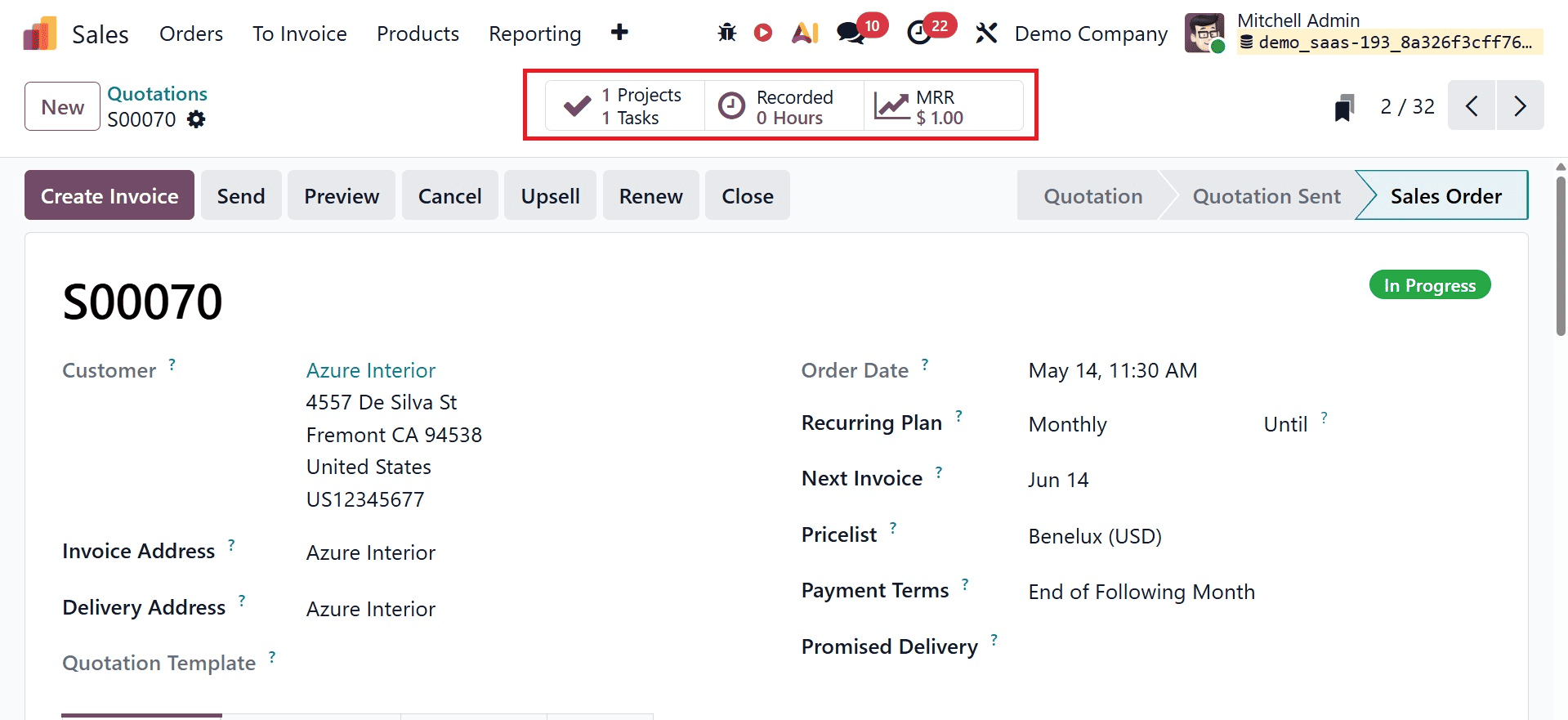
The advanced Odoo feature enables integration between the Sales module and construction quotations by linking the Project to the product configuration. After confirming a sales order, the system uses this reference to automatically create the associated task. The generated task contains essential project details, including the project name, customer information, and the corresponding sales order item, as illustrated below.
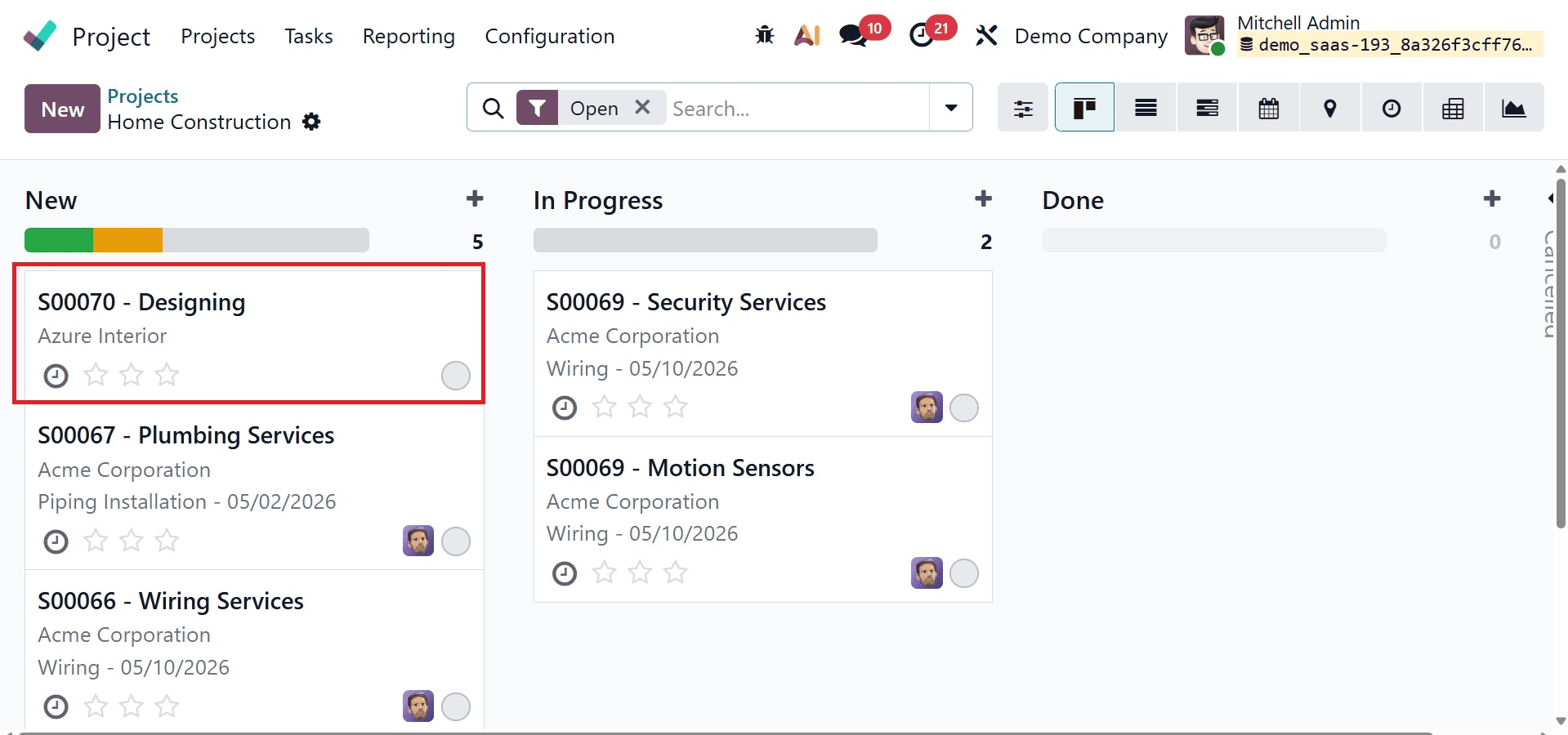
The created task includes key project details, such as the project name, customer information, and the related sales order item, as shown below. The Allocated Time section displays the time spent by the employee on the task, the initially estimated hours required to complete the work, and the task completion progress represented as a percentage.
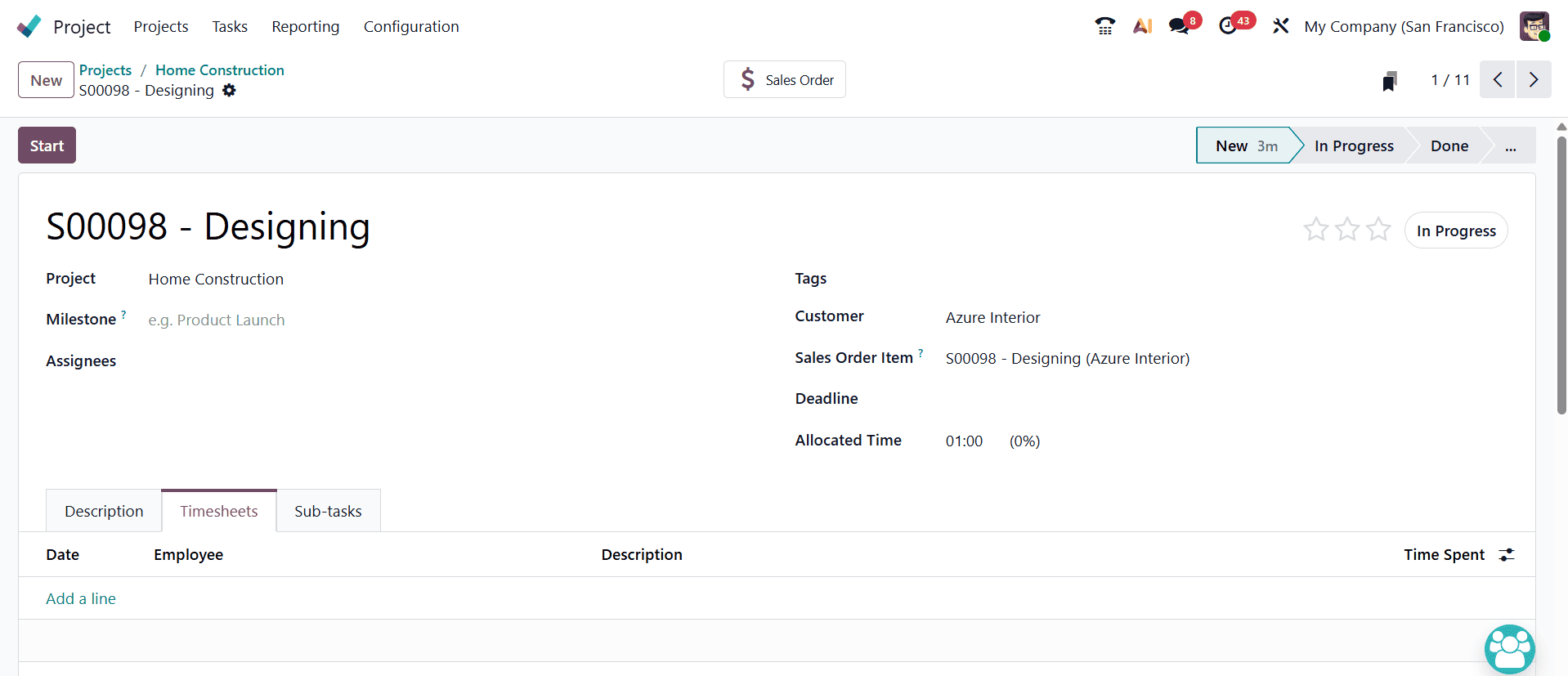
You can describe the completed job using the Description tab.
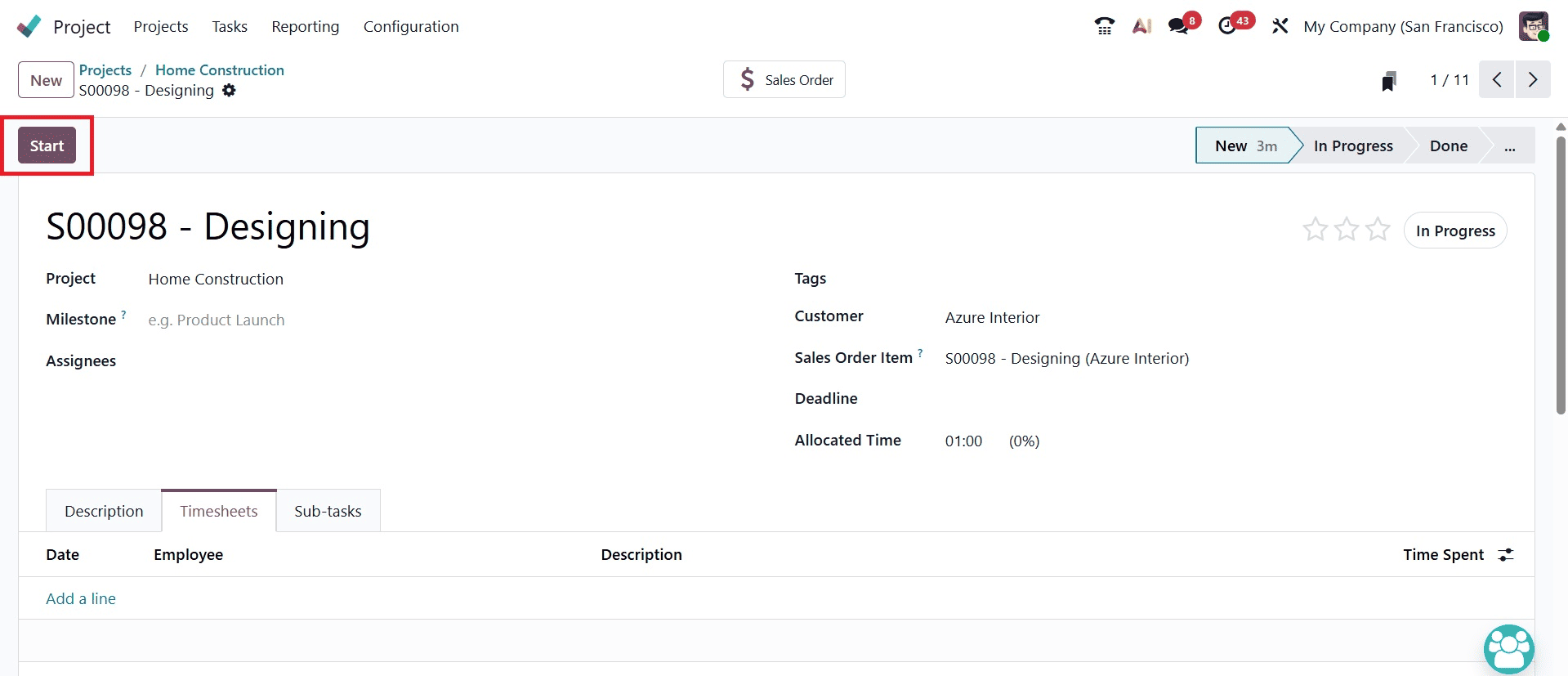
Once the job has started, the START button can be selected to begin tracking the task duration. This enables the system to calculate the time spent on the task. By using the PAUSE button, users can suspend timer tracking and resume it later as needed. The end button can also be used to halt the timer. Once the assignment is completed, you can add a description of the work performed and review the total time spent on the task through the pop-up window.
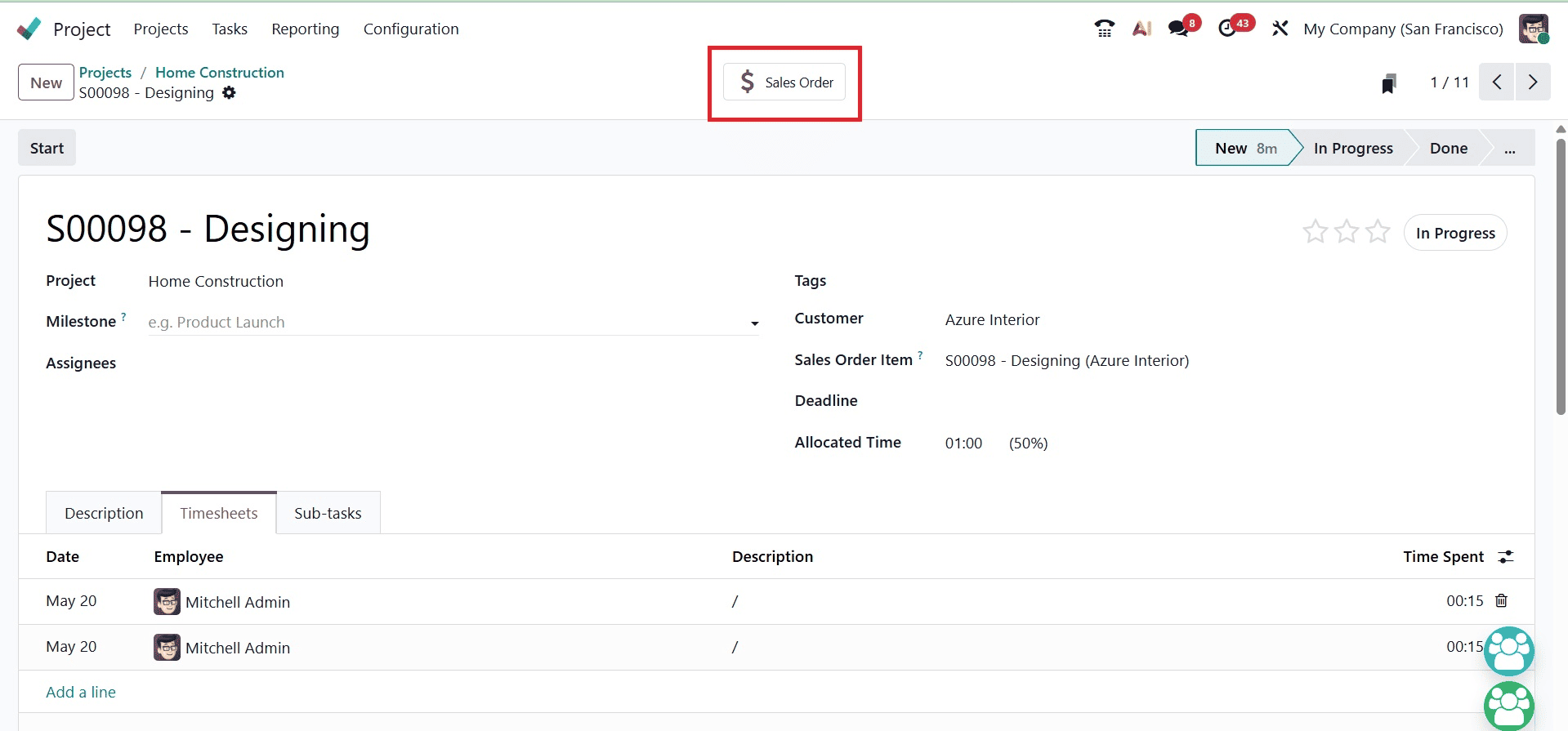
Making an invoice for the project comes next, following time tracking. As shown above, the user can accomplish this by clicking the project's sales smart button to confirm the order.
The sales order is currently available. The total allocated time and delivery time are shown on the order line. The delivery time in this instance is only four hours. Since the invoicing policy is configured as "Based on Timesheets," the invoice will be generated only for the recorded time duration specified in the timesheet. Click "Create Invoice" to add an invoice.
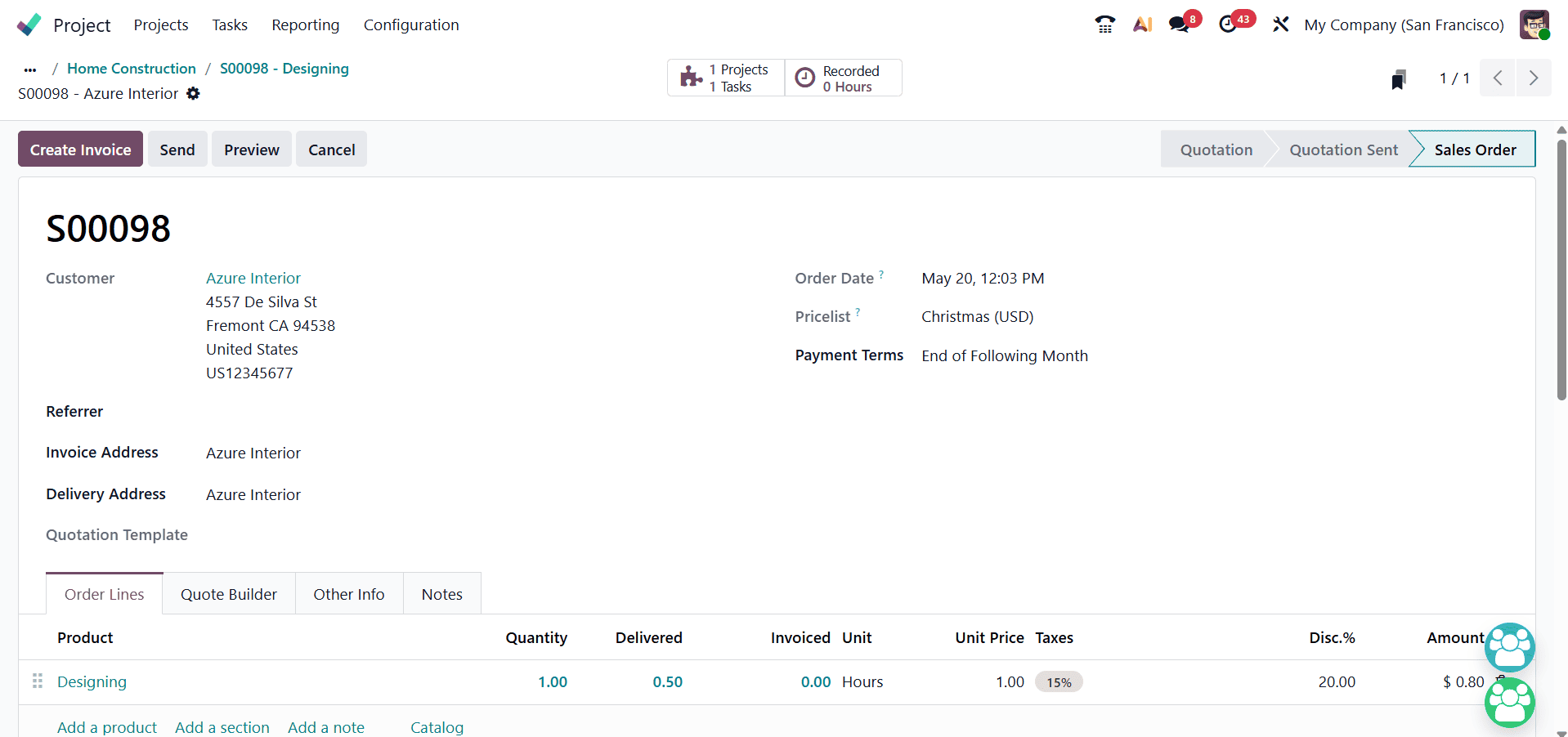
The following product's invoice is shown below. Select the Create Payment option to record the payment when the invoice has been validated.
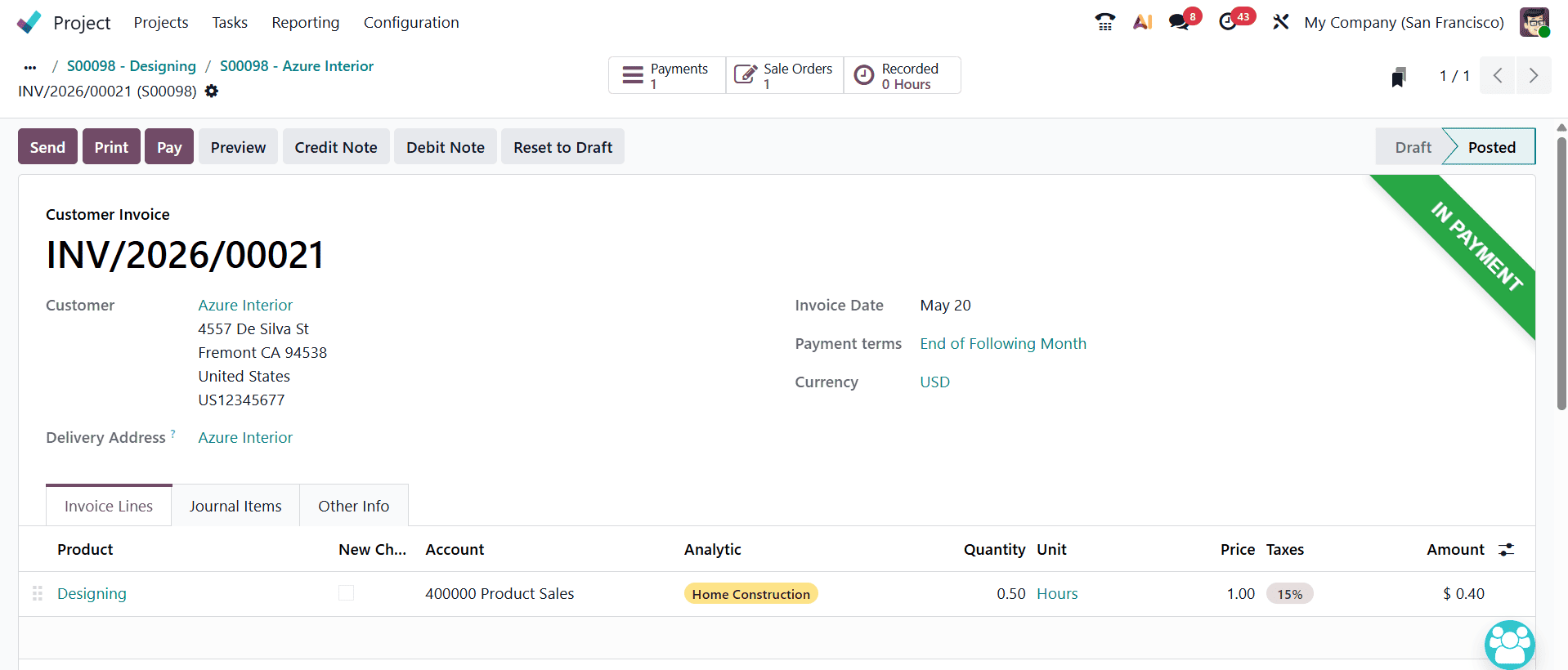
Once the project is completed, users can access the Project Dashboard within the Project module to assess the project's profitability.
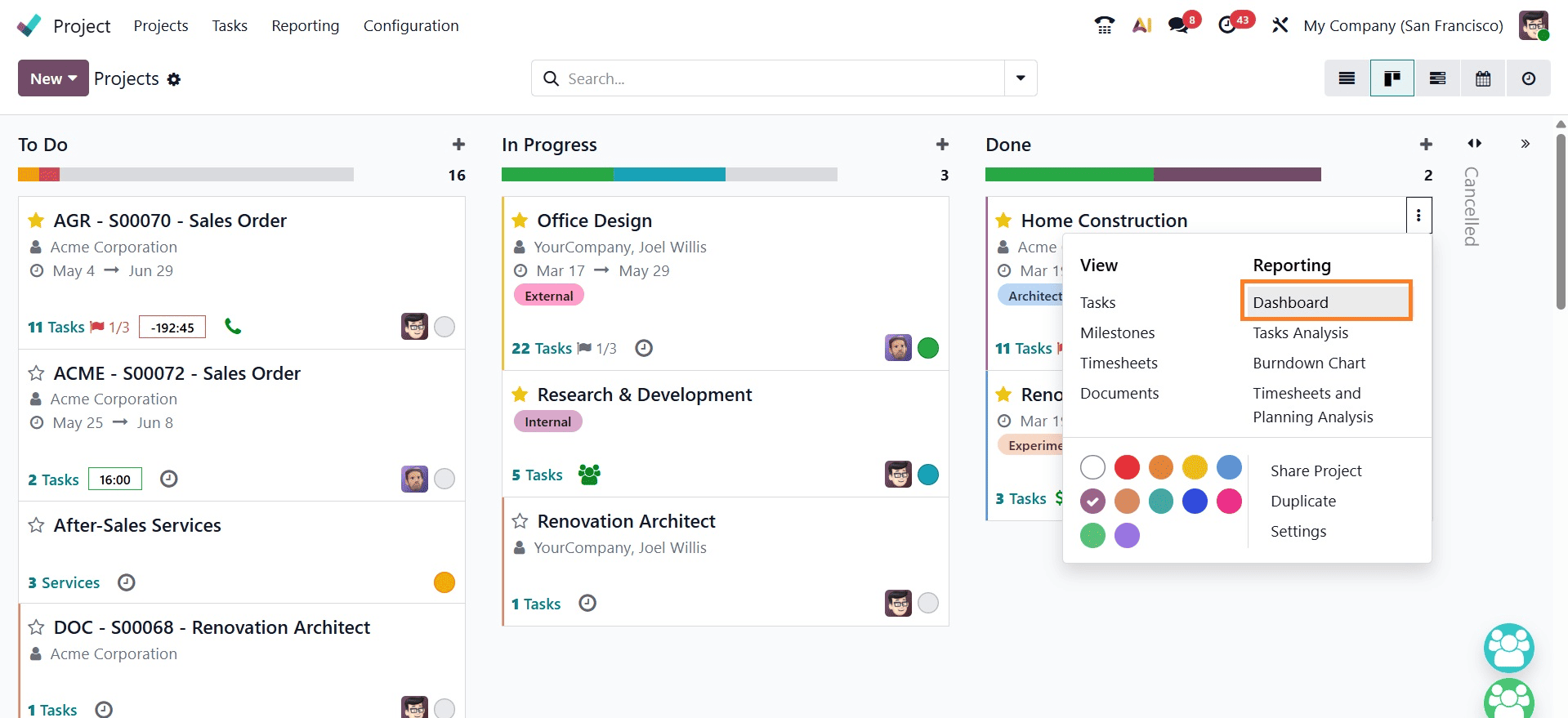
The Kanban view of the dashboard displays all projects created within the module. The three-dot menu in the upper-right corner of each project card provides users with access to various project operation reports and analysis options. The project's profitability can be reviewed through the Project Updates option.
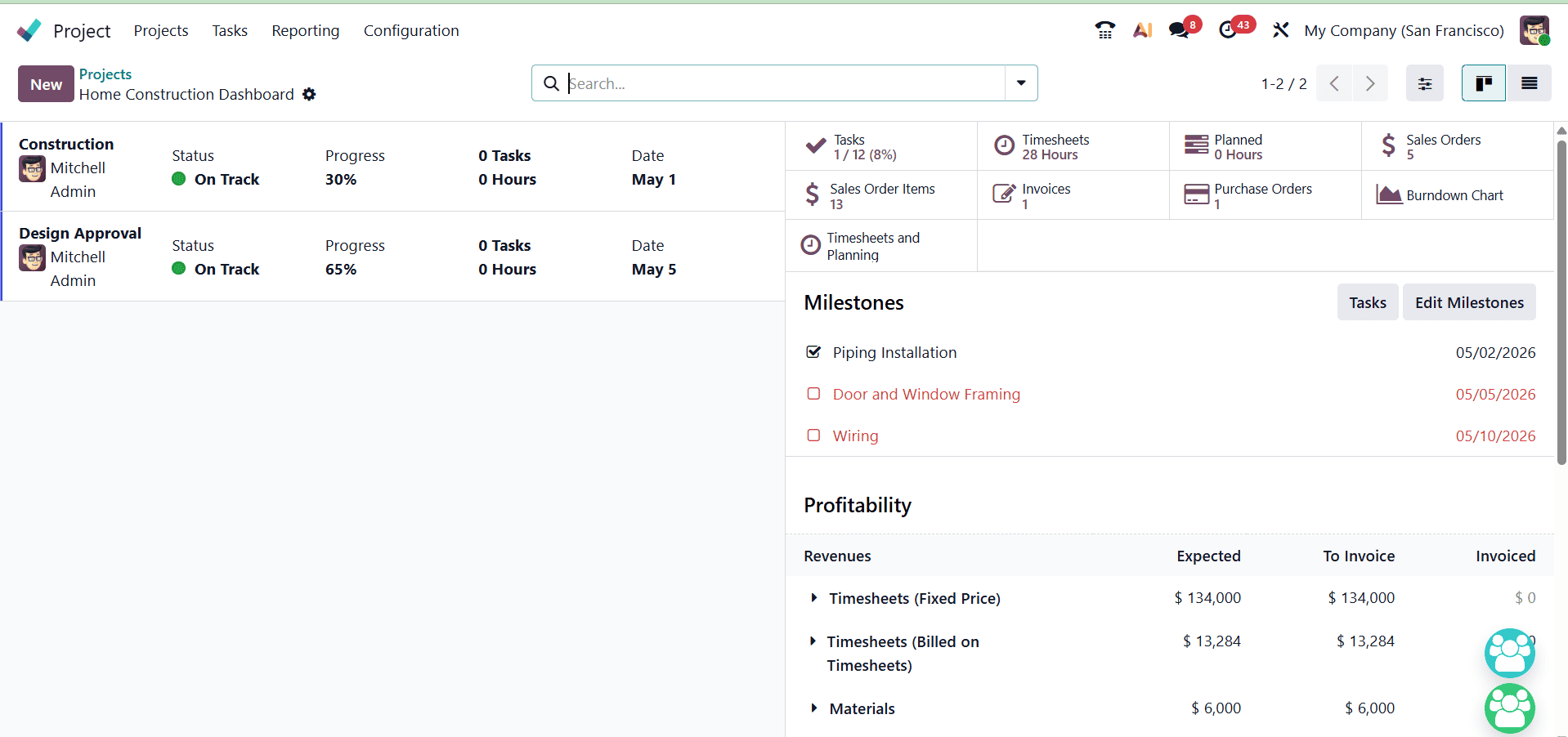
The smart buttons located on the right side of the screen enable users to efficiently track and manage key project components, such as Tasks, Planning, Documents, Invoices, Burndown Charts, Timesheets, and Planned Hours.
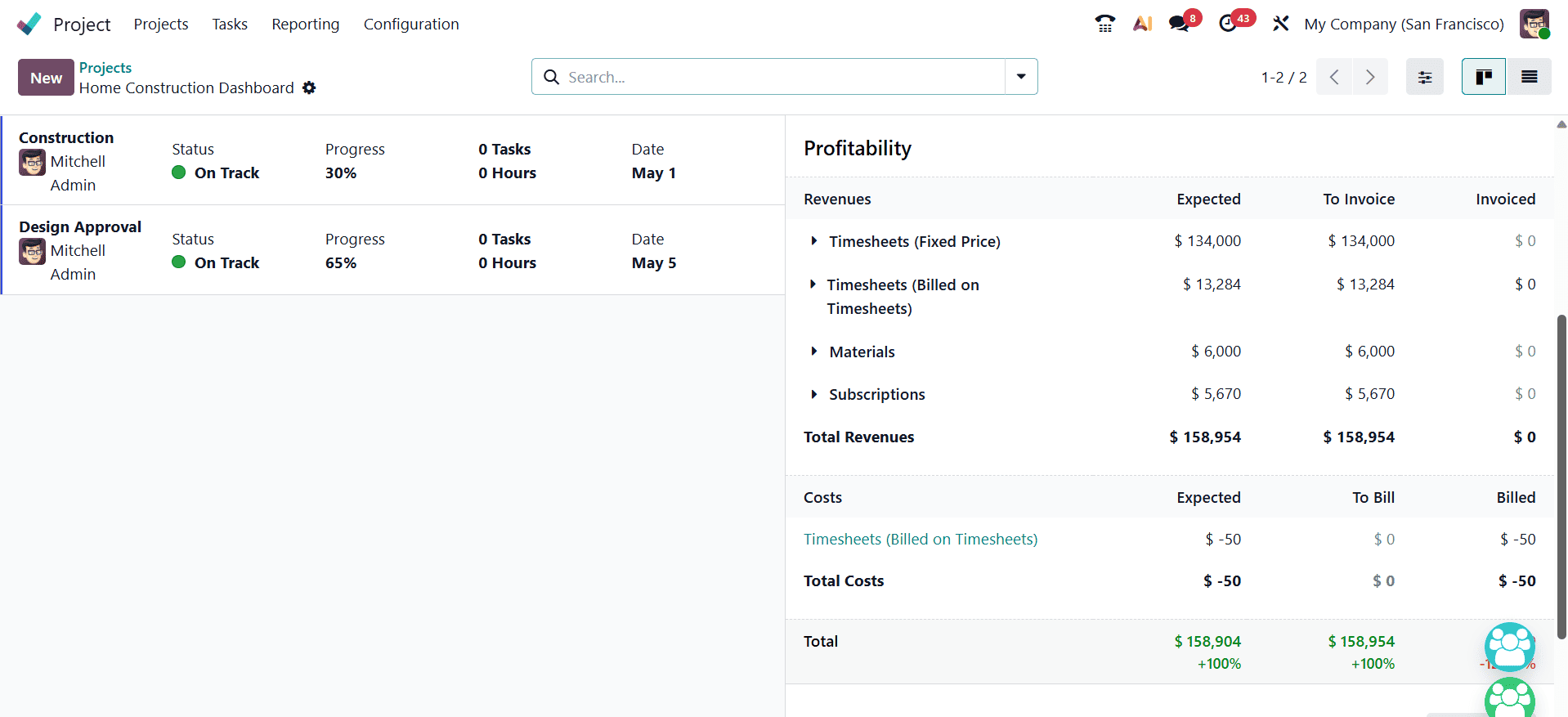
The Profitability option provides an overview of the expected project profitability based on the allocated budget and incurred expenses.
It is stated how much money was spent on the project. The project's current cost, margin, expenses, and revenue are all determined using this data.
The whole amount invoiced to the customer is displayed here under Revenue. previously verified and paid a $158,954 invoice that appears as the Revenue.
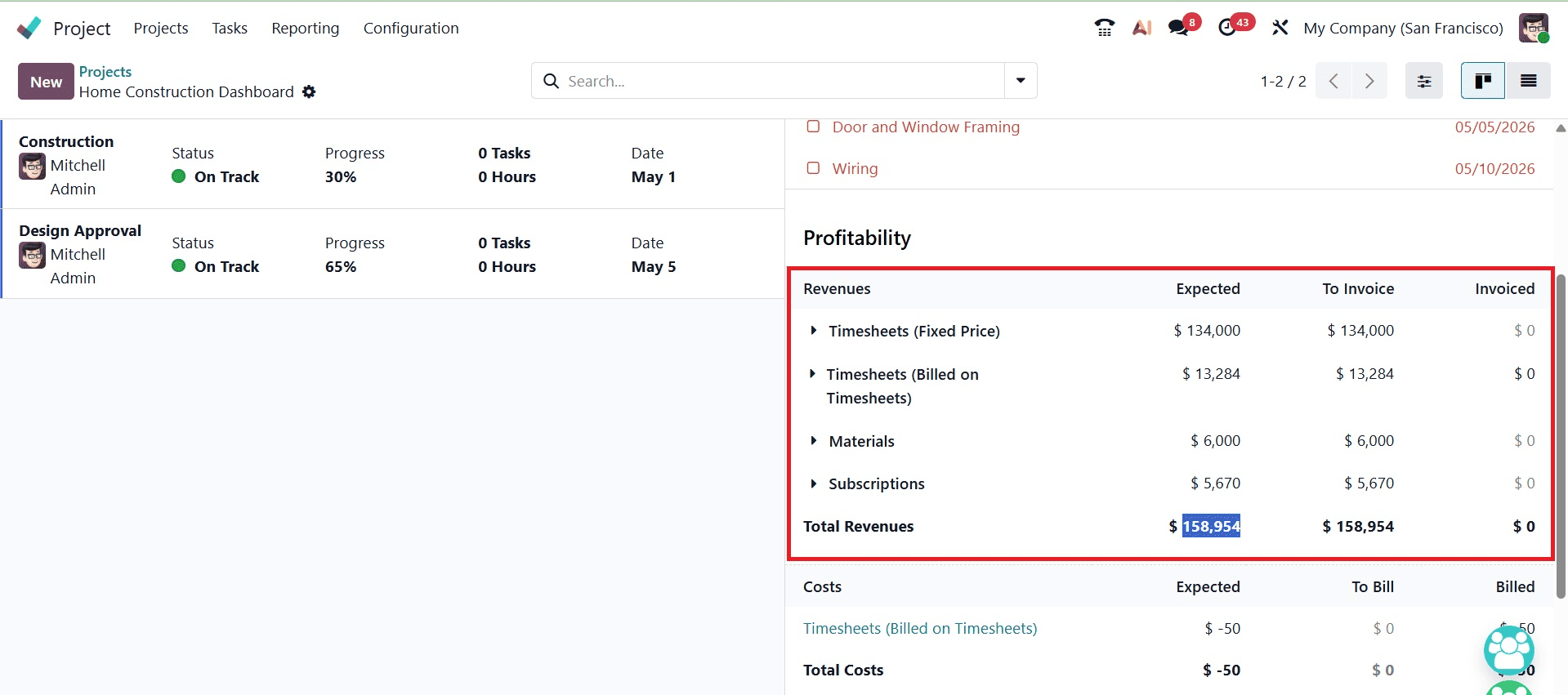
The second one is Cost, which refers to the business's expenses. Here, a timesheet for the task was added by two employees. Here, the cost is calculated using the employee's timesheet. The amount is shown as a negative value because it reflects an expense incurred by the business.
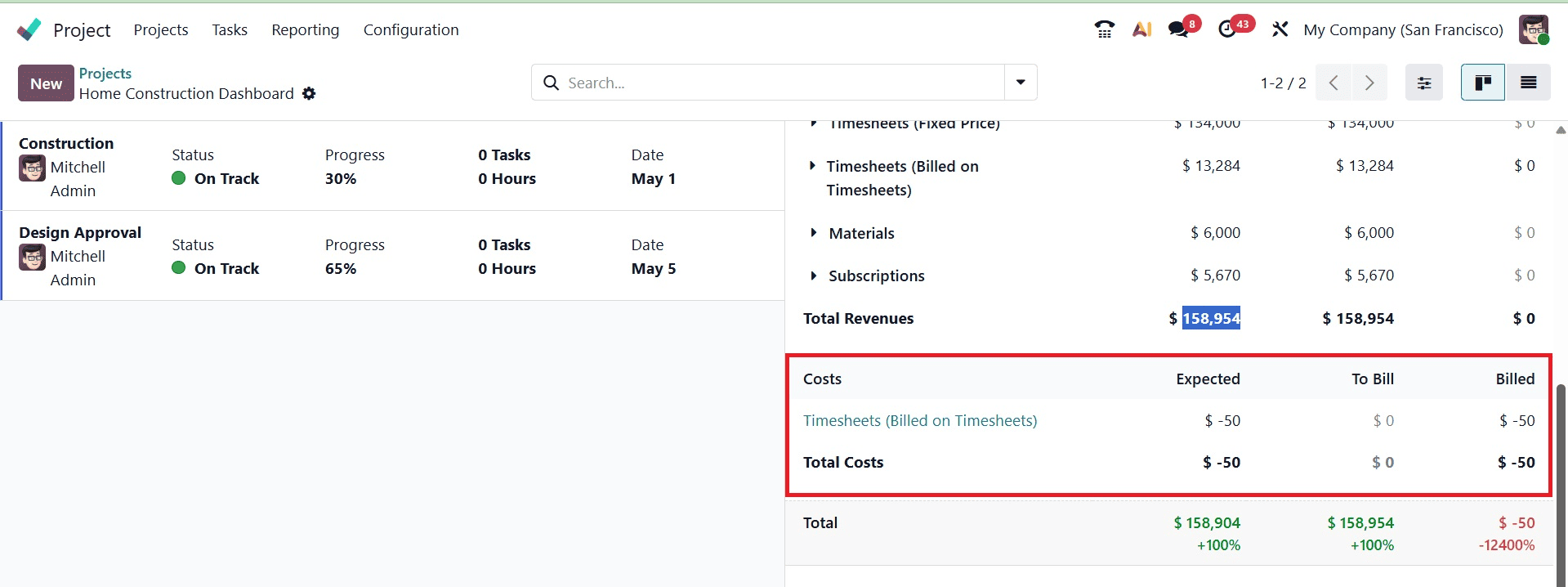
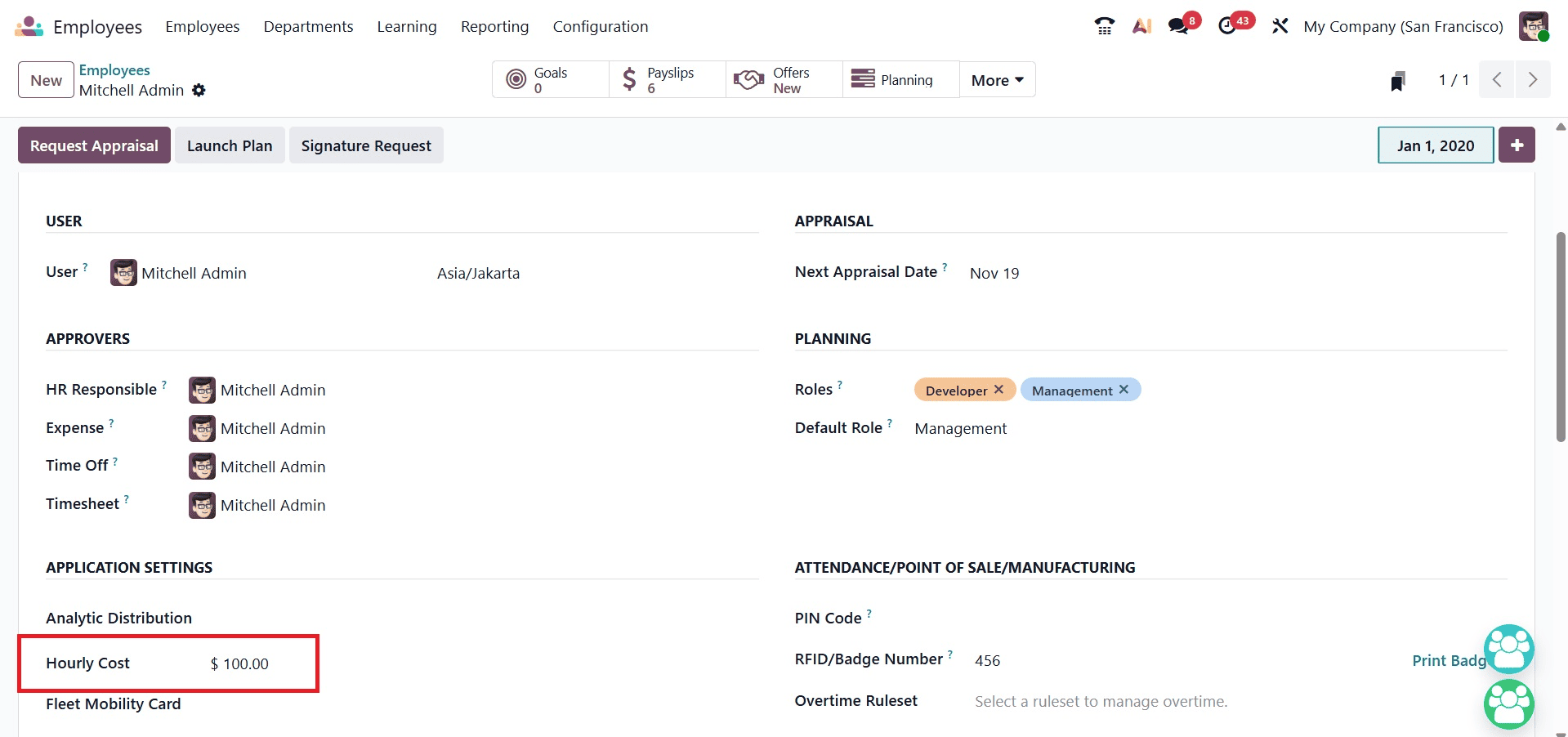
The employee form is updated with the employee cost. To check it, navigate to the Employee module. The hourly rate is visible on the employee's Setting tab. In this case, Marc Demo's hourly wage is $75.
Mitchell Admin's hourly wage is fixed at $100. Thus, a two-hour timesheet was added by both workers. Thus, 2*75 + 2*100 equals 350.
Therefore, a project's profitability is determined by deducting its total cost from its total revenue. In this case, the cost is $50, and the revenue is $158,954.
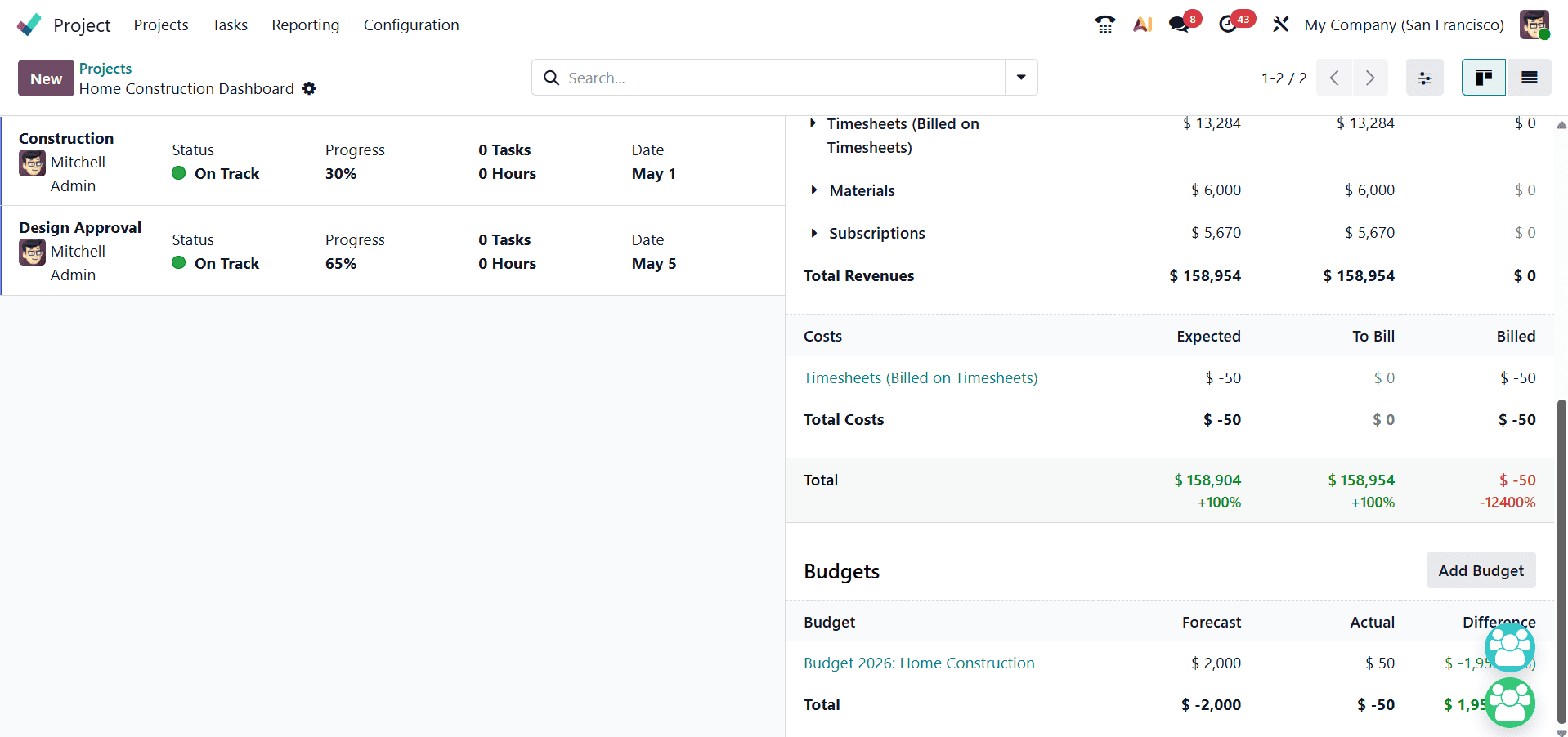
Under the Profitability section, the project analysis is divided into two categories: Revenue and Costs. These are the earnings and expenses for the analytical account. The project margin is calculated by subtracting the total project costs and expenses from the project revenue. Positive margins imply project success, whereas negative margins indicate project failure.
By accurately recording and managing project data, the Odoo Project module enables users to calculate the project's profit or loss effectively. This is how the Odoo 19 Project module manages project modifications and profitability.
To read more about How to Determine Profitability using Odoo 18 Project, refer to our blog How to Determine Profitability using Odoo 18 Project.