In the rental business, capturing leads is the first step—converting them into rental requests is what drives revenue. Odoo 19 offers a streamlined approach to managing this transition efficiently through its enhanced CRM and Rental modules. By organizing leads, automating follow-ups, and linking customer enquiries directly to rental operations, businesses can eliminate delays and missed opportunities. Odoo 19 enables teams to understand customer requirements faster and respond with accurate rental options. This structured flow from lead to rental request improves customer satisfaction, boosts conversion rates, and helps rental companies operate with greater control and confidence.
Configure Rental Products in Odoo 19
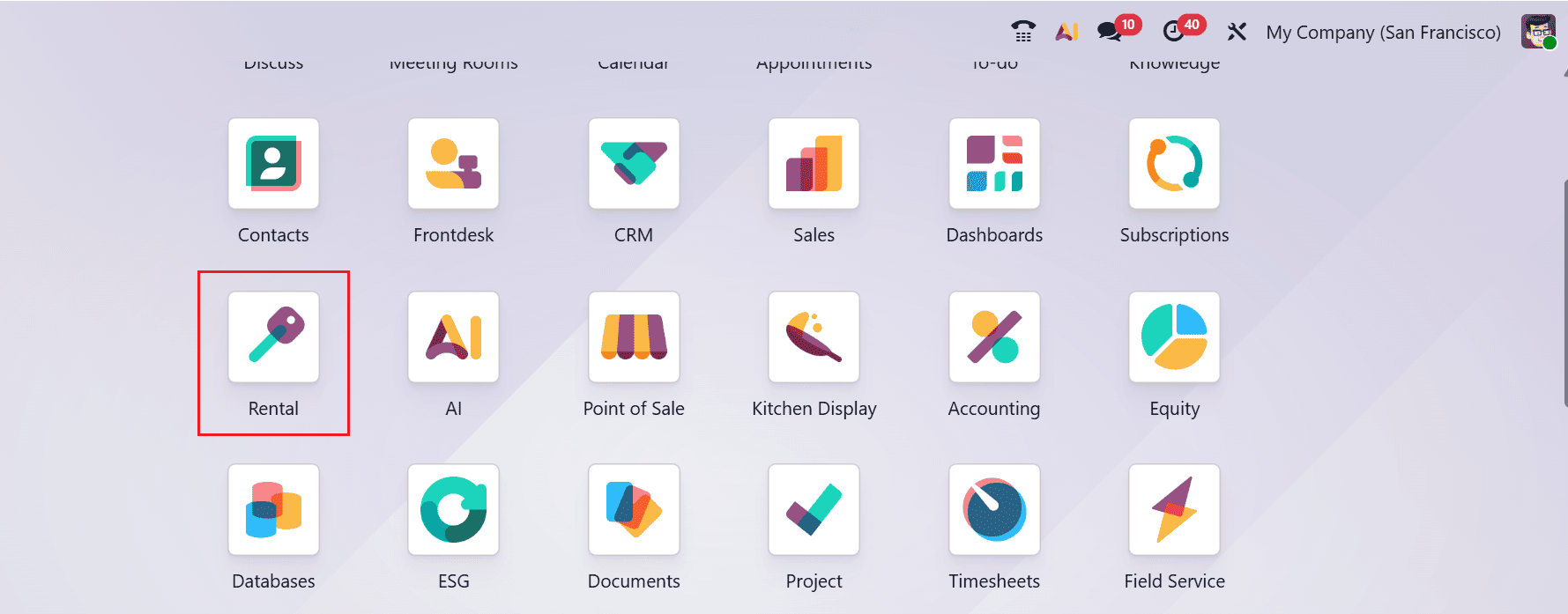
To turn leads into rental products, configure a rental product from the Odoo 19 Rental module. Firstly, select the Rental app from the Odoo 19 dashboard as shown below:
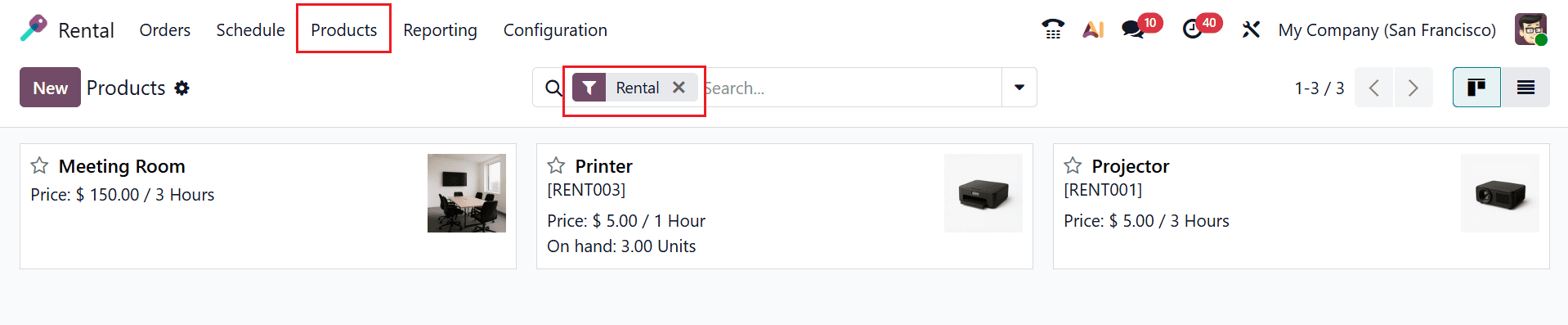
Select the Products menu from the Rental module. You can see the available products arranged in Kanban view. To create a new rental product, click on the New button or select the existing one.
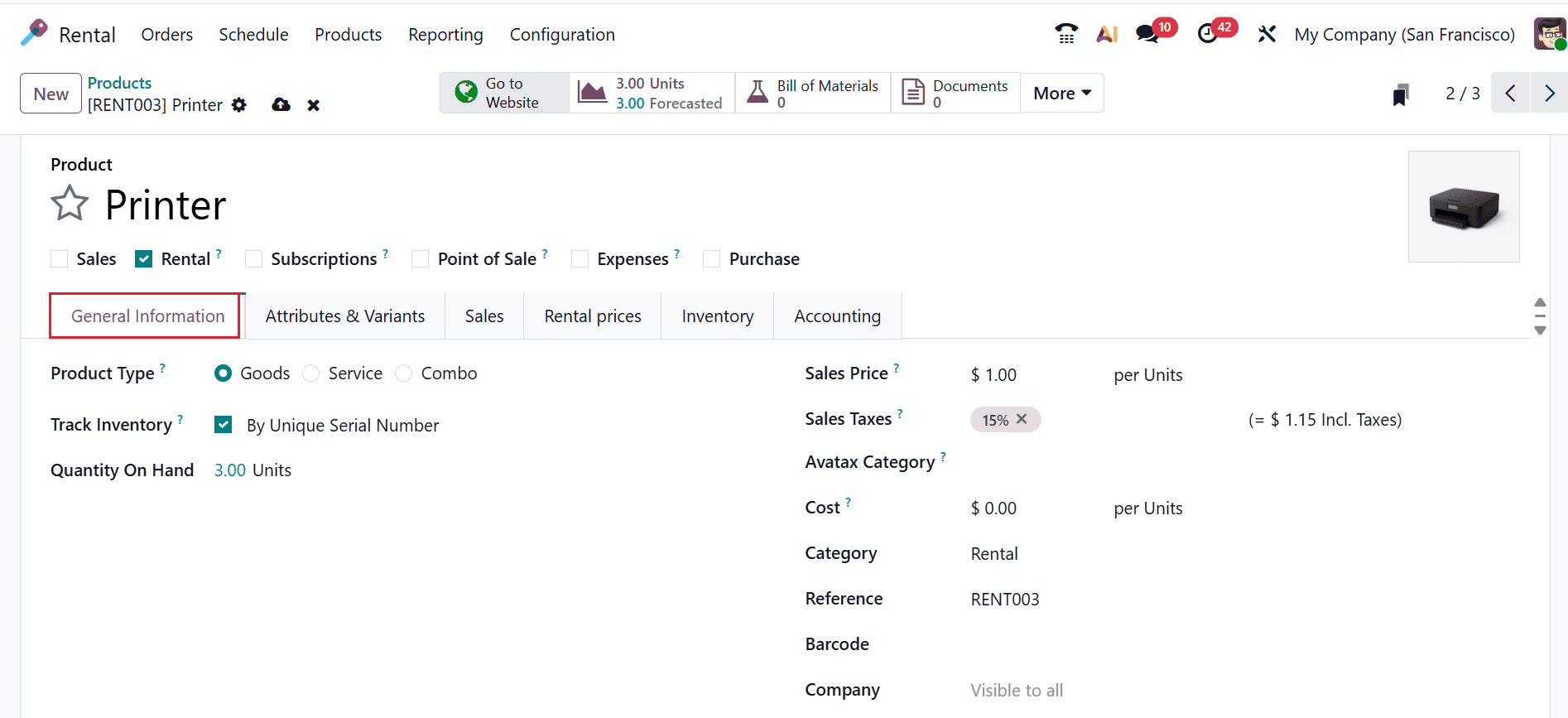
Here, add a name for the rental item under the Product field and select the category as Rental. Under the General Information tab, choose the Product Type as either Goods, Service, or Combo. Enable the Track Inventory and choose either Serial, Lot, or Quantity. In the Quantity On Hand field, add the available units of the product. Then, set the details such as Sales Price, Sales Tax, Avatax Category, Cost, Barcode, and Company. Select the Category as Rental and add the Reference ID.
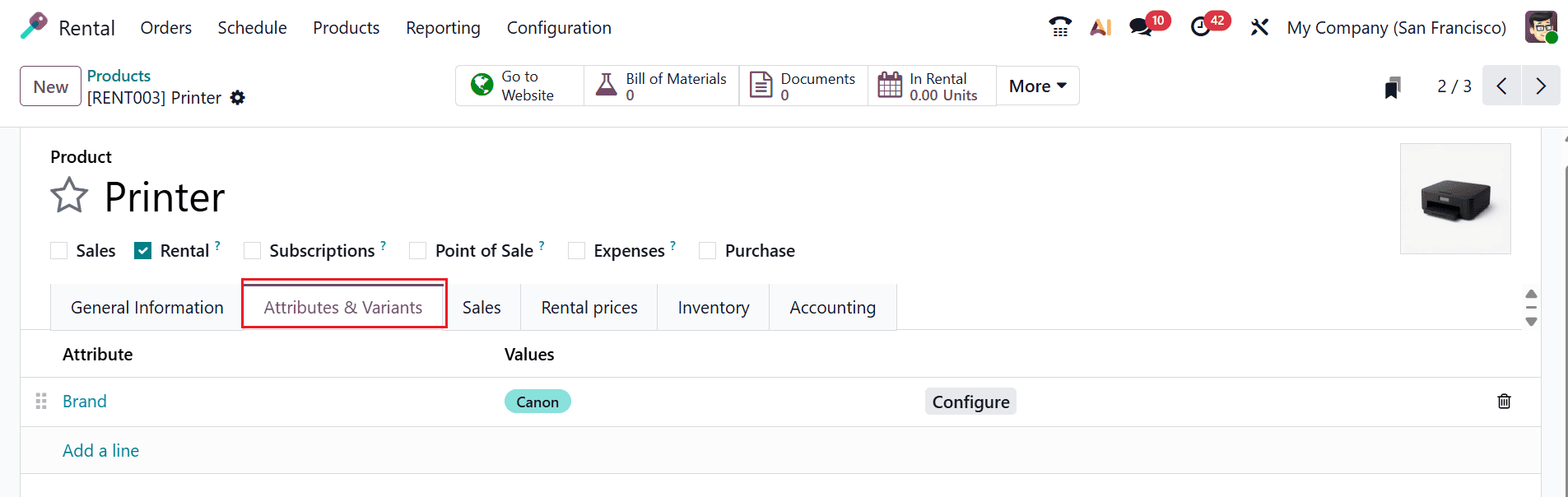
Under the Attributes & Variants tab, click on the Add a line button to add attributes or variants to differentiate versions of the same product.
The Sales tab contains multiple sections for adding product details, such as Upsell & Cross-Sell, Ecommerce Shop, Ecommerce Media, Ecommerce Description, Quotation Description, Gelato, and Warning on Sales Orders. Within Upsell & Cross-Sell, you can configure packagings, optional items, accessory products, and alternative products. The Ecommerce Shop section controls how the product appears and behaves on the website.
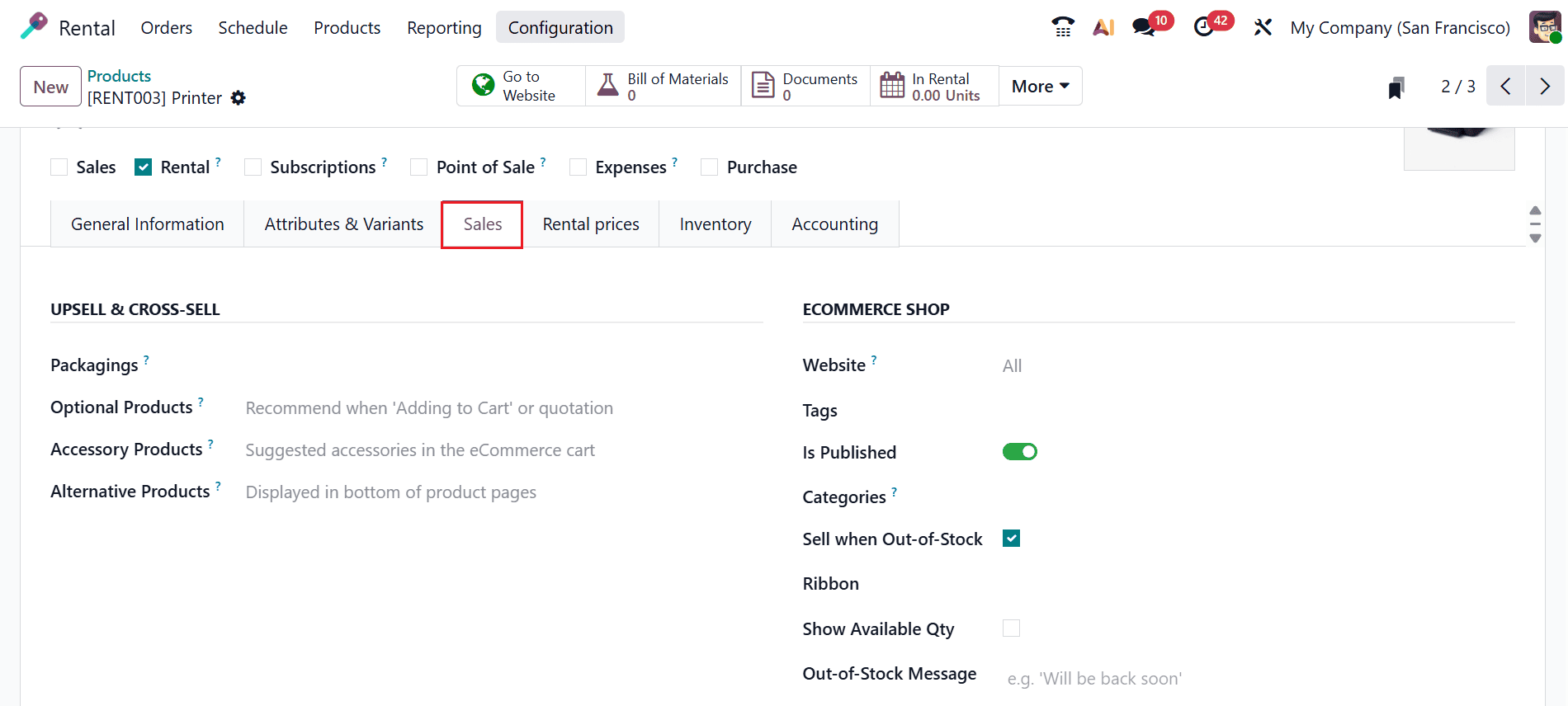
The Ecommerce Media is used to add product or media files that are displayed on the ecommerce product page. You can add a detailed product description under the Ecommerce Description. You can add a short product description that appears on sales quotations or rental orders under the Quotation Description. The Gelato section links the product to a Gelato template when using Gelato integration. You can define whether the product’s costs can be re-invoiced to customers under the Expense section.
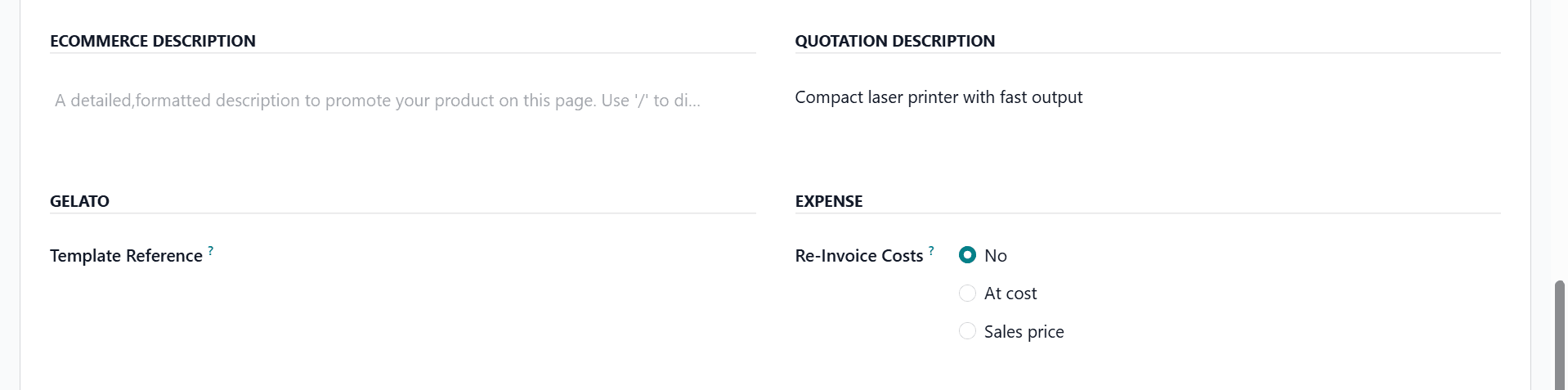
Under the Rental Pricing tab, click on the Add a price button to add Period Name, Pricelist, and Price. Under the Reservations section, add the details such as Hourly Fine, Daily Fine, or Reserve Product.
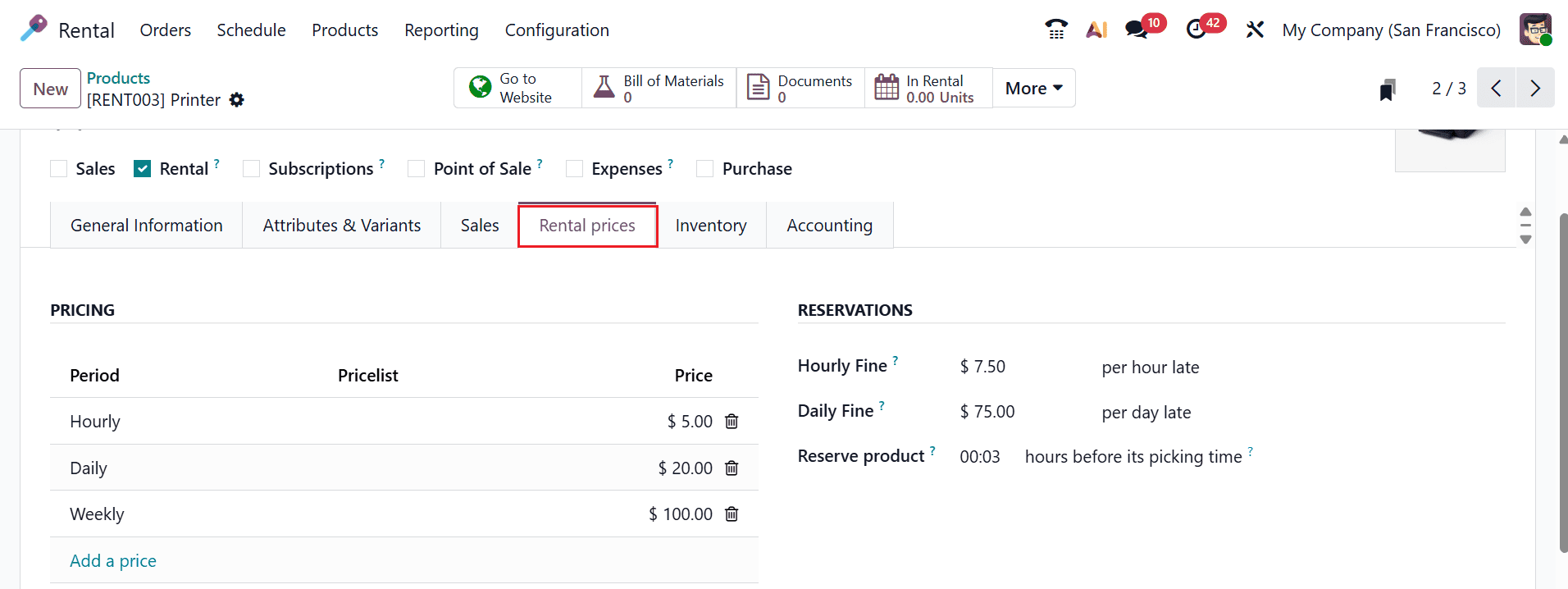
Under the Inventory tab, you can add details such as Routes, Responsible, Weight, Volume, Valuation by Lot/Serial, HS Code, Origin of Goods, and Custom Lot/Serial.
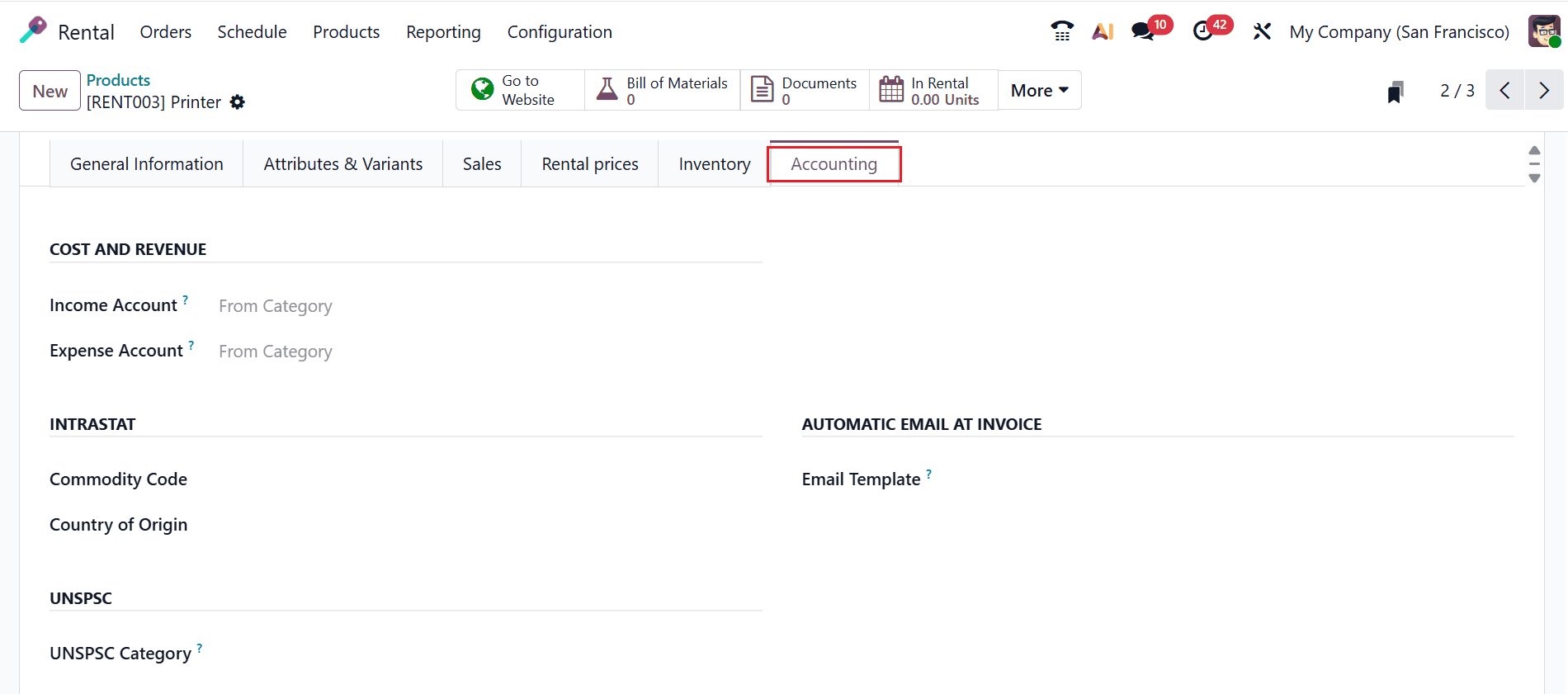
Under the Accounting tab, you can add the details such as Income Account, Expense Account, Commodity Code, Country of Origin, Email Template, and UNSPSC Category.
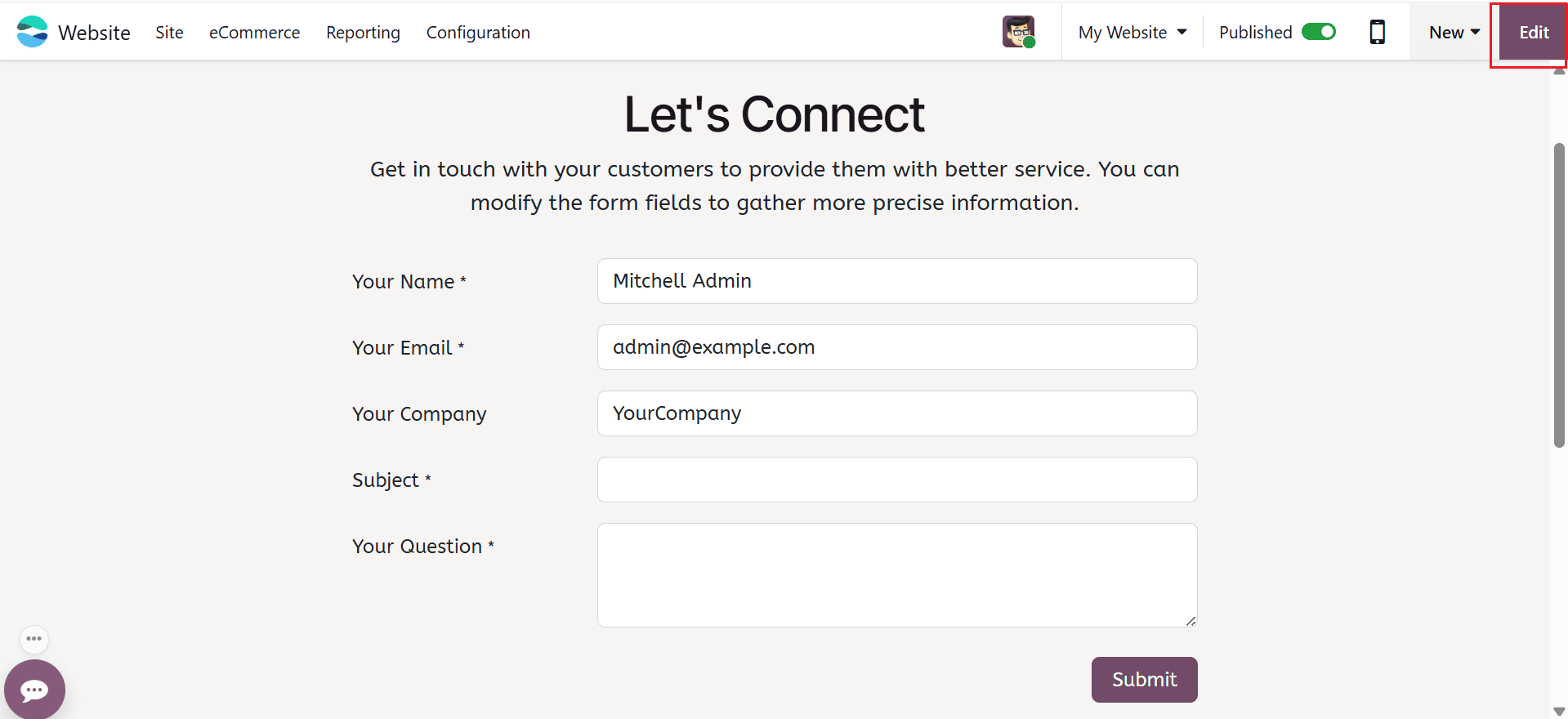
Odoo will automatically generate a new lead in the CRM module when a customer submits a rental request. To enable, navigate to the Odoo 19 Website module. This section allows you to create or edit the form through which customers can submit rental requests. The form shows the details such as Name, Phone Number, Email, Company, Subject, and Question. In the top- right corner of the screen, click on the Edit button to add drop-downs, text fields, and checkboxes as needed.
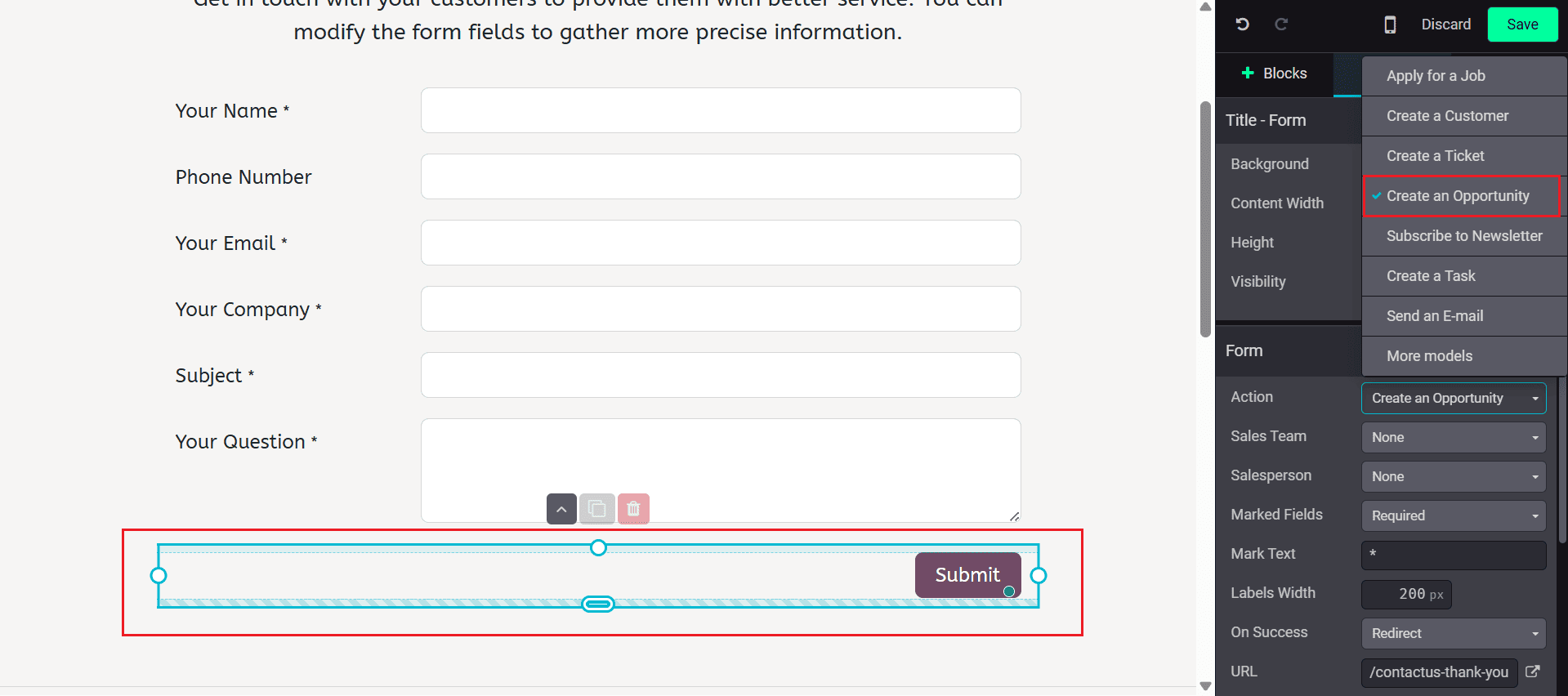
In the form, click on the Submit button to display the related edit options on the right side of the screen. From the Actions section, use the drop-down menu to select Create Opportunity, which creates a new opportunity in the CRM module. Then, click on the Save button.
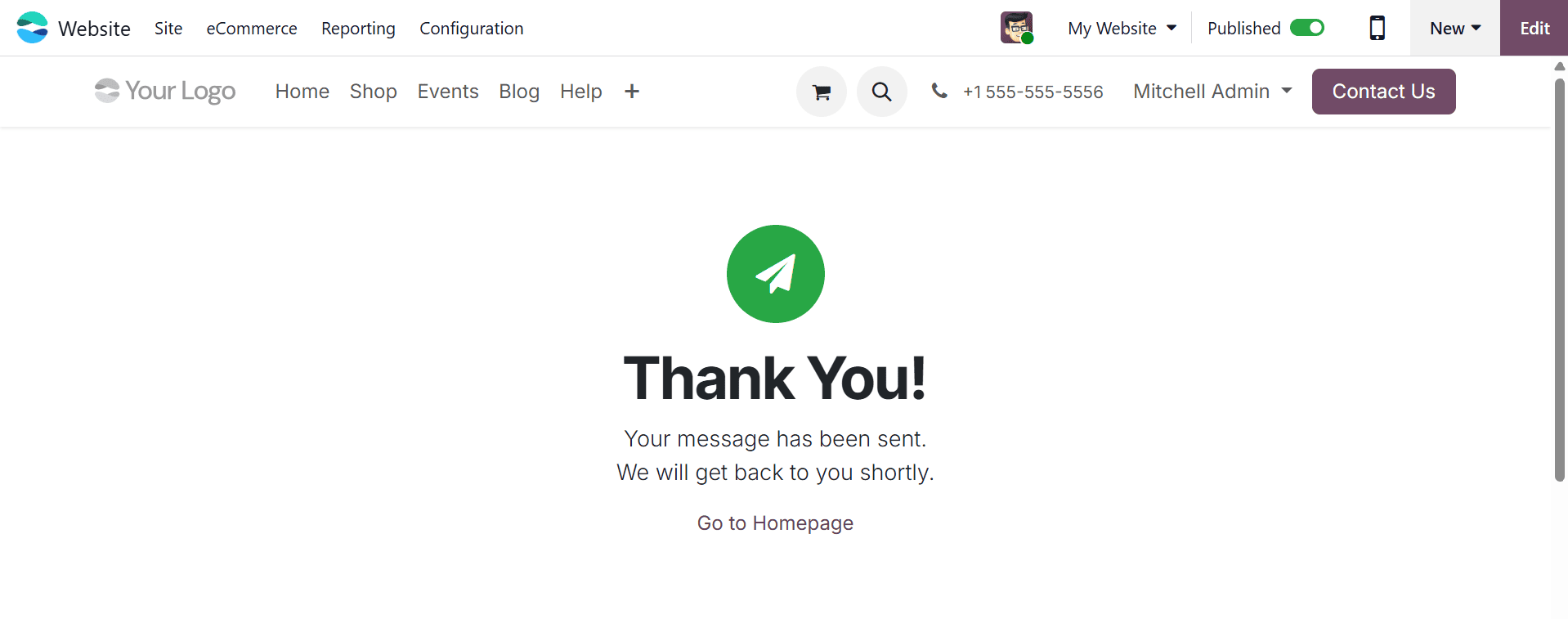
The customers can visit the website and add the details and requirements of the rental request under the Subject and Question fields. Next, click the Submit button as shown below. Odoo automatically creates a new lead in the backend, with the form subject set as the lead name.
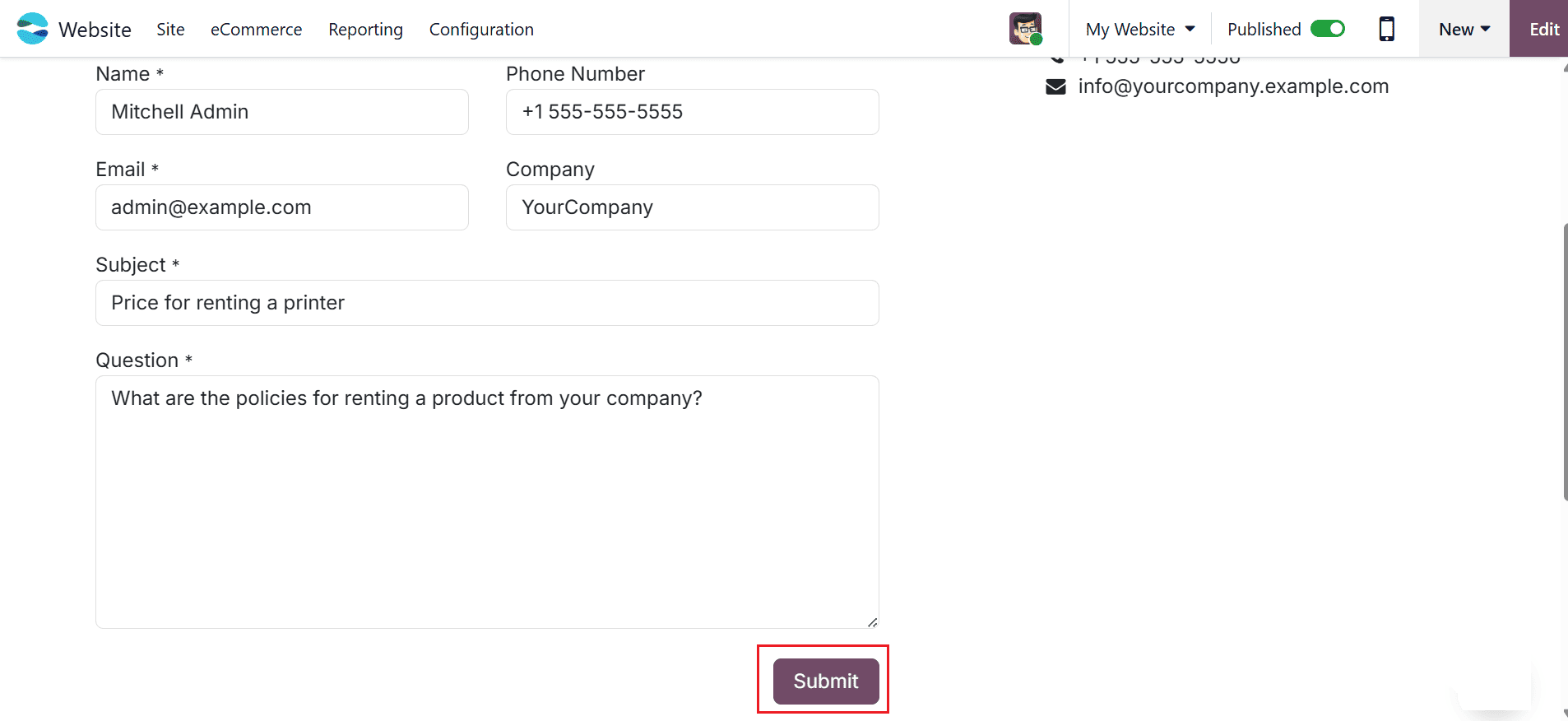
After submitting the rental request form, the team can access and review the request in Odoo’s backend.
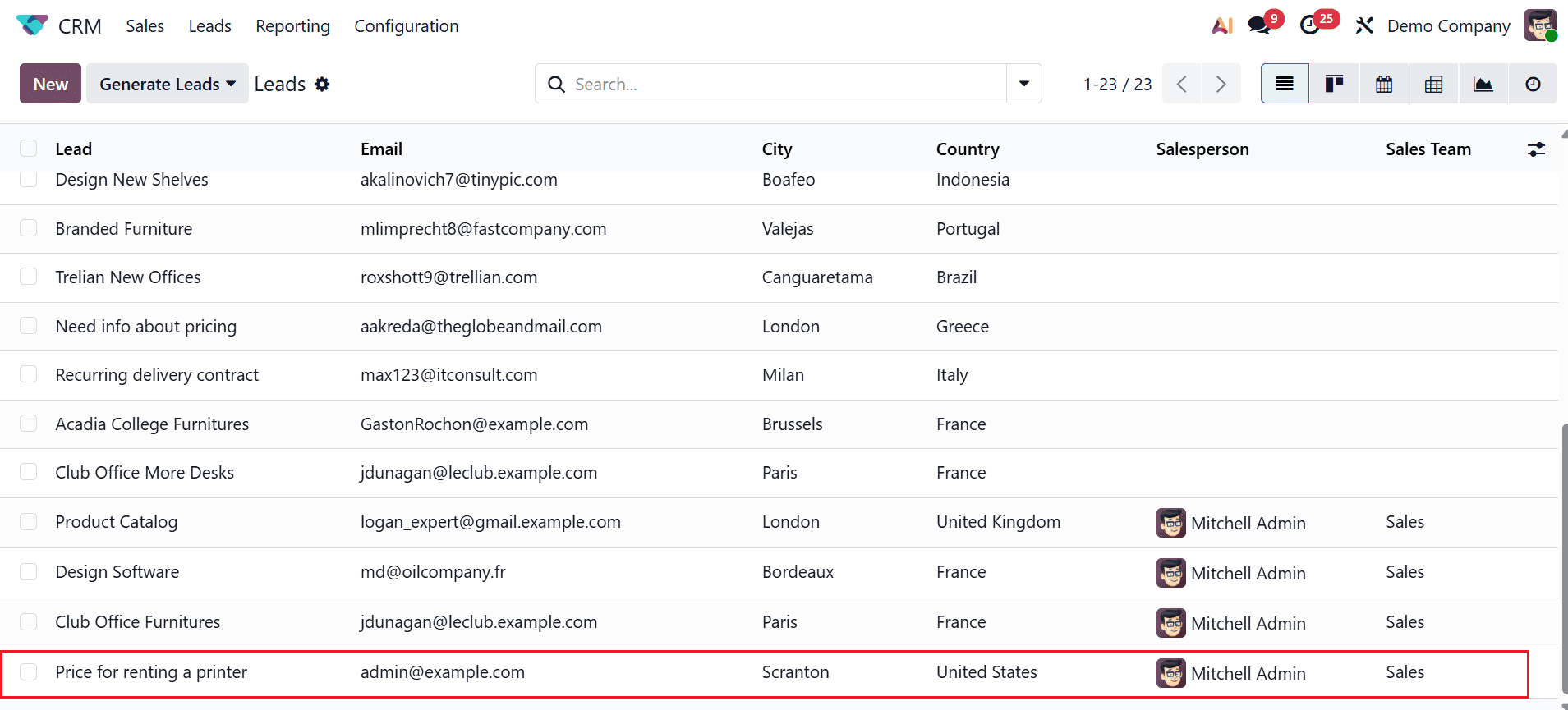
To manage the newly created lead, navigate to the CRM module. Under the Leads menu, you can view the newly created lead as shown below:
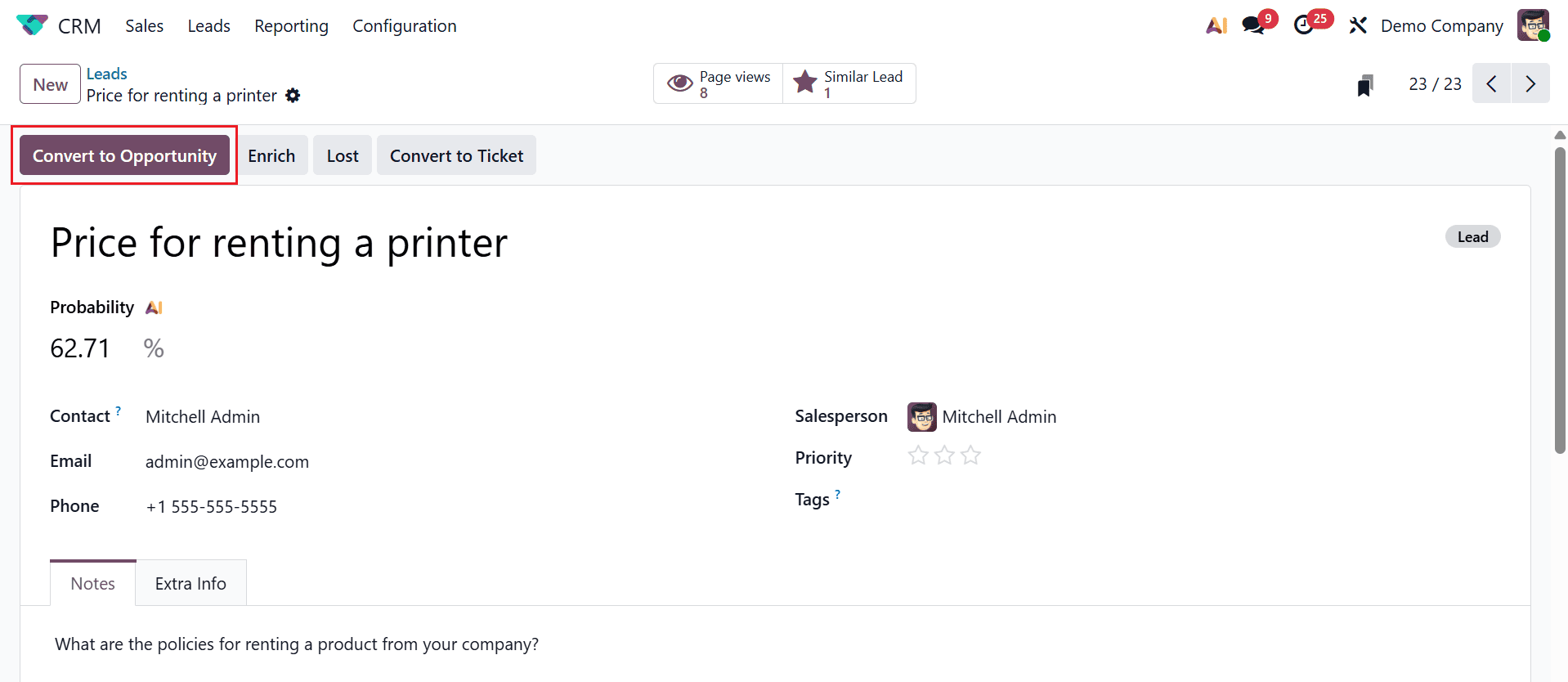
To view more details, click on the relevant lead, and a new window will appear as shown below. Click the Convert to Opportunity button to convert the lead into an opportunity.
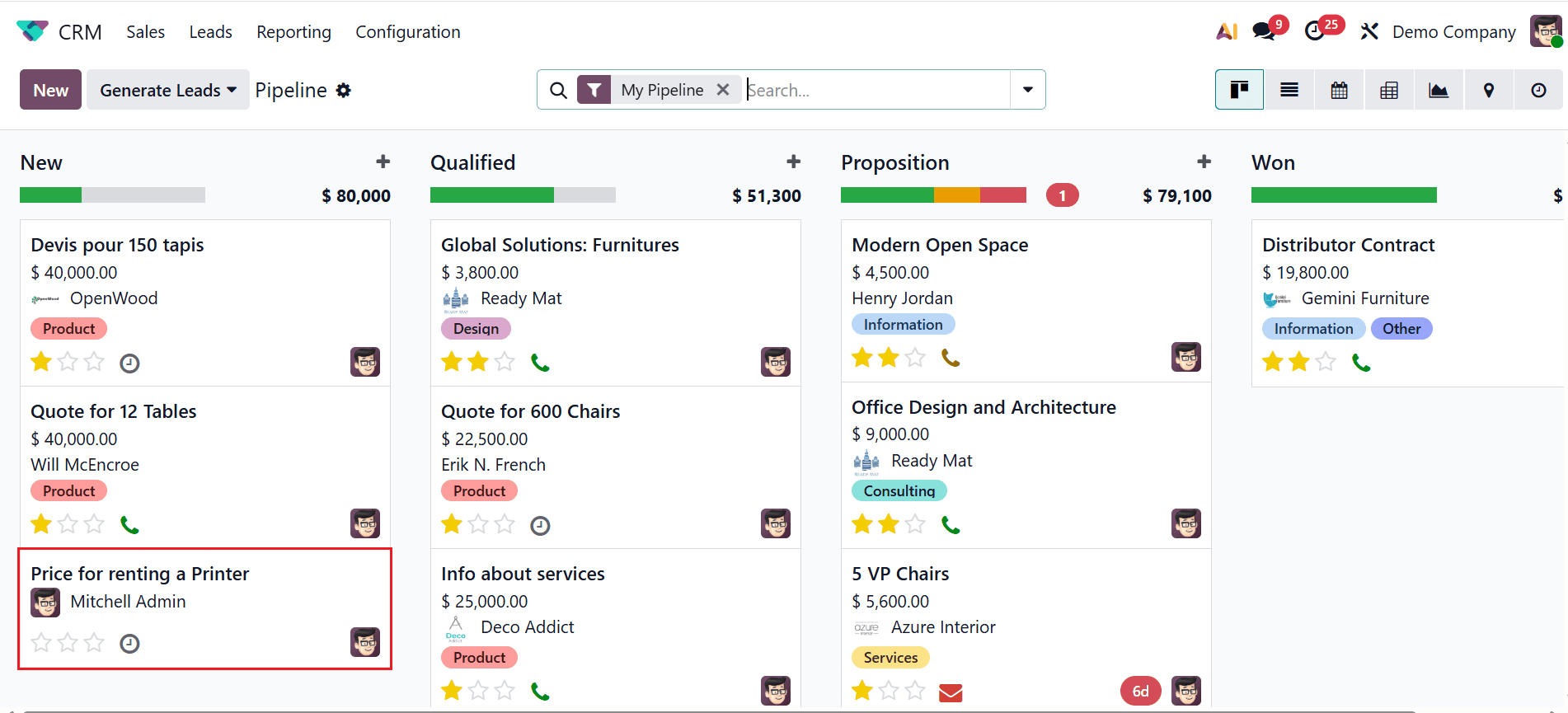
In the CRM Pipeline, you can see the opportunity as shown below. You can open it from here.
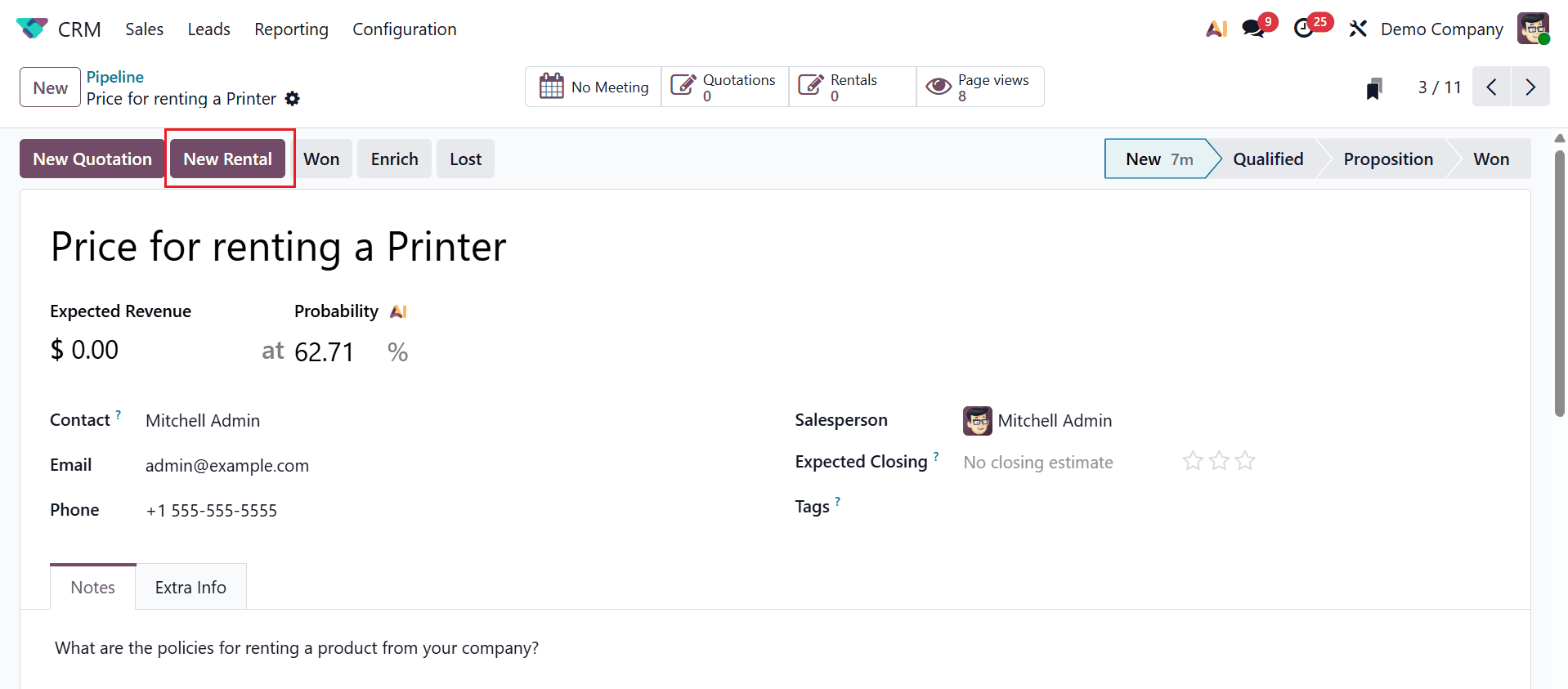
Then, a new window will appear to manage the rental request. You can view all the details of the lead such as Expected Revenue, Probability AI, and so on. To create a new rental order directly from the lead, click on the New Rental button as shown below:
Then, you will move to a new window as shown below, where you can view the details such as Customer, Invoice Address, Delivery Address, Expiration, Recurring Plan, Pricelist, Payment Terms, and Rental Period.
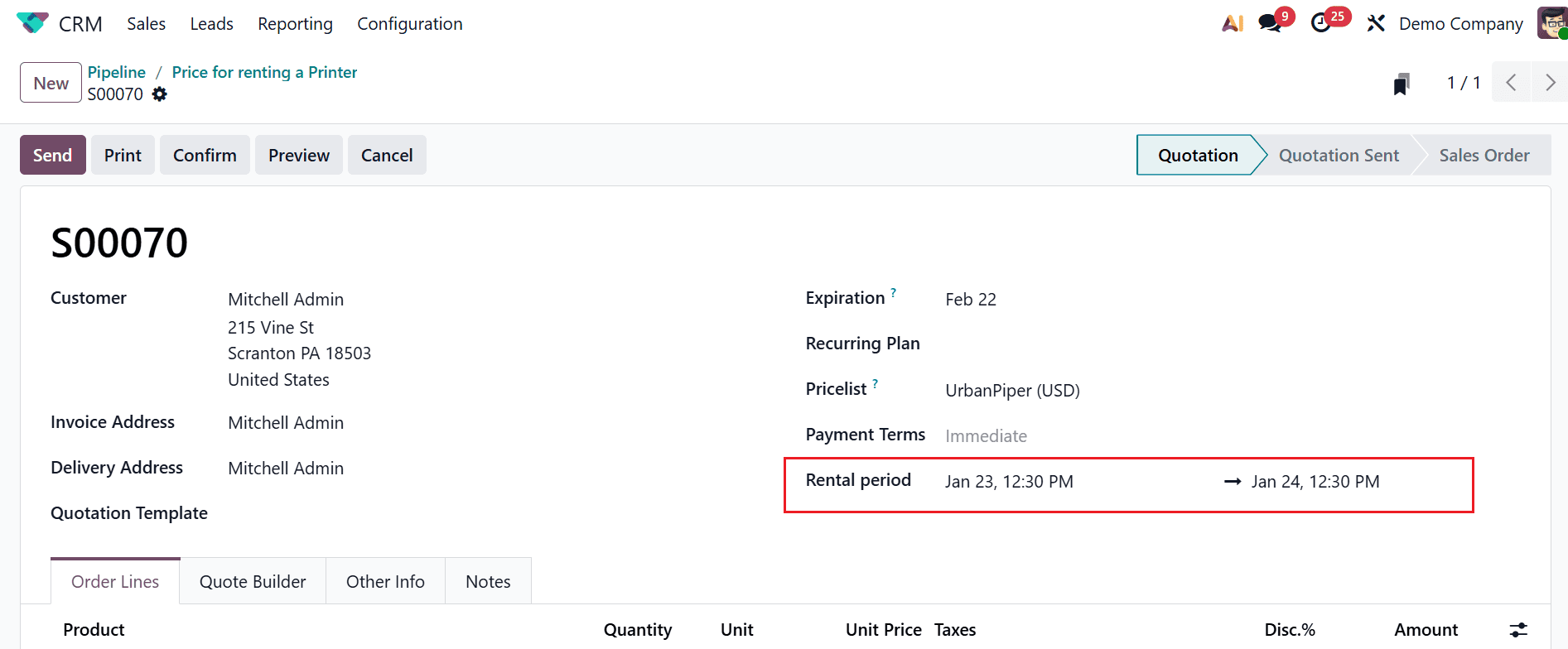
Under the Order Lines tab, click on the Add a product button to add a rental product. In the Rental Period field, specify the rental period of the product. Based on the selected rental period, Odoo automatically computes and displays the Unit Price. Then, click on the Confirm button.
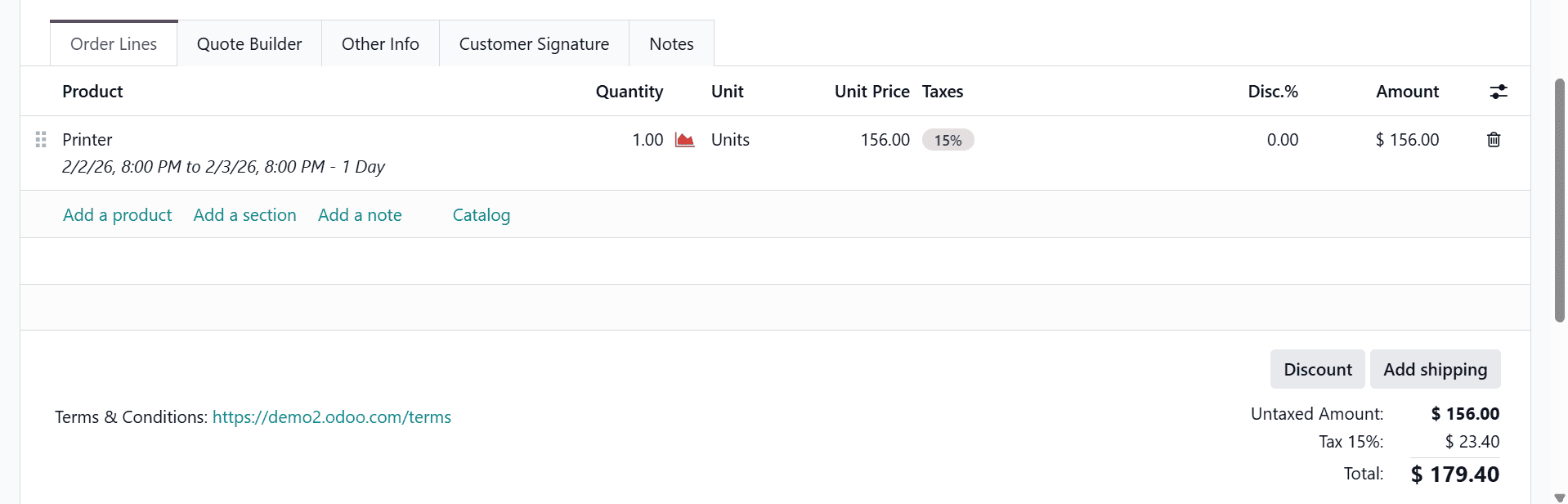
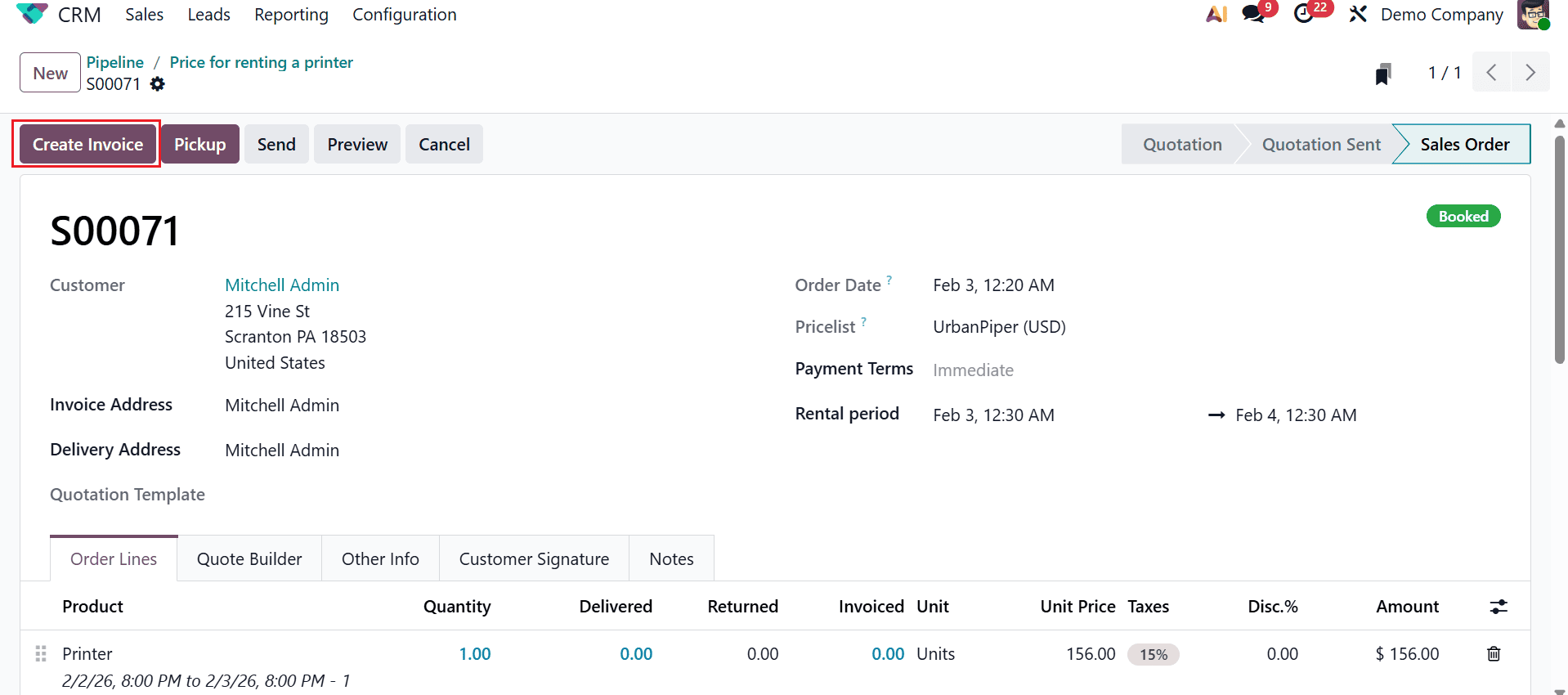
Thus, a new rental order is created from a lead. Once the rental charges are confirmed, you can create an invoice and collect payment from the customer.
Converting leads into rental requests in Odoo 19 offers not only technical efficiency but also strategic value. By using smart automation, clear pipelines, and integrated rental workflows, businesses can respond faster and sell smarter. Odoo 19 empowers teams to nurture prospects, reduce drop-offs, and create accurate rental orders with minimal effort. When data flows seamlessly from CRM to Rentals, decision-making improves, and customer trust grows. Ultimately, this approach increases bookings, strengthens relationships, and positions rental companies for sustainable growth in an increasingly competitive market driven by technology adoption and customer experience excellence worldwide today for modern businesses.
To read more about How to Create & Manage Rental Requests from a Lead in Odoo 18, refer to our blog How to Create & Manage Rental Requests from a Lead in Odoo 18.