The Odoo 18 Knowledge module is a centralized information hub designed to streamline internal documentation and knowledge sharing. It enables teams to create, organize, and access business content efficiently, improving collaboration, consistency, and decision-making across the organization.
BROWSE TEMPLATES IN ODOO 18
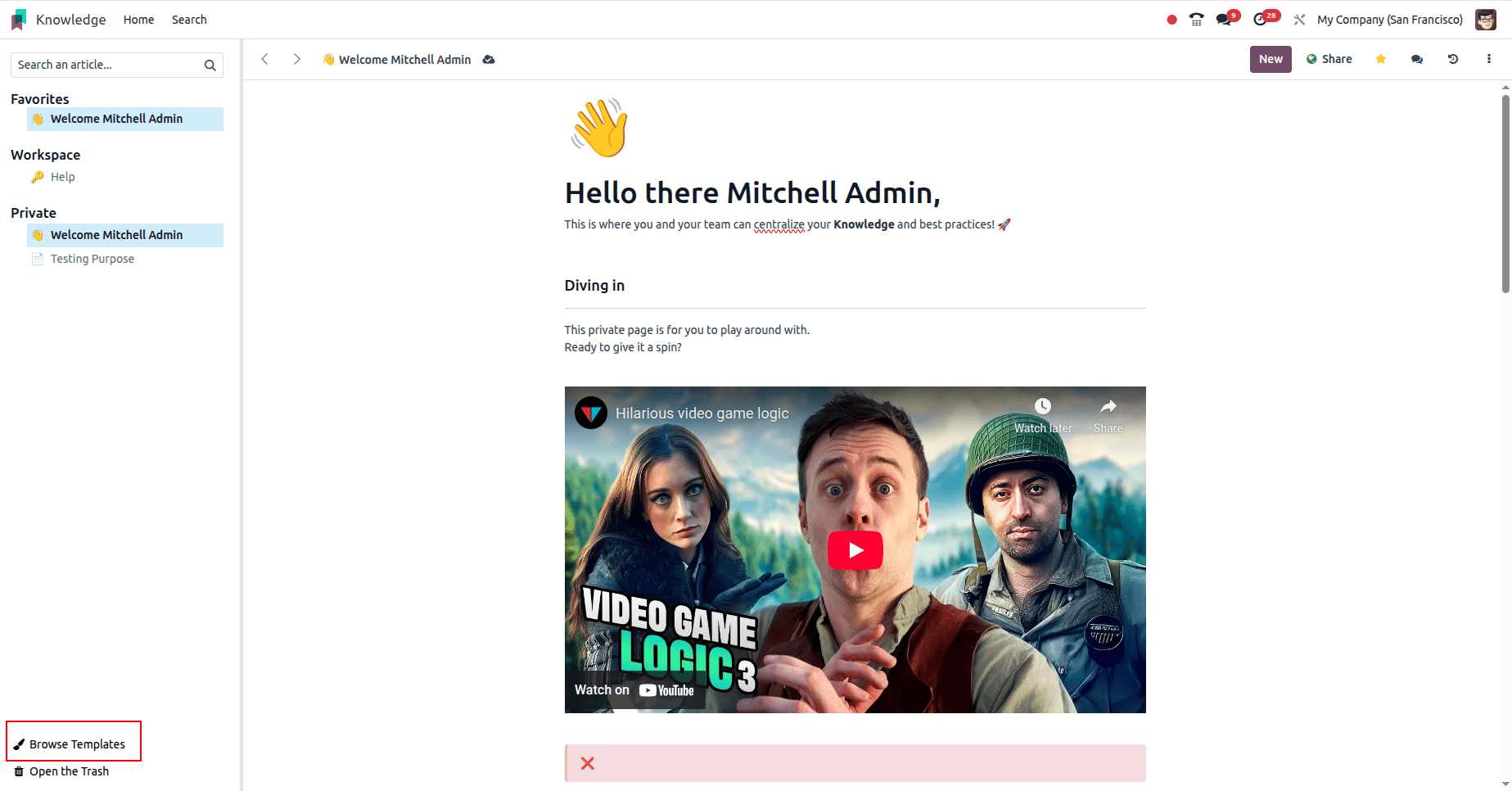
The Browse Templates feature in the Odoo 18 Knowledge module is designed to streamline content creation while ensuring consistency across documentation. This option is available in the bottom-left corner of the Knowledge module, making it easily accessible to users.
Using Browse Templates, users can explore a wide range of predesigned templates categorized by different use cases, such as documentation, guides, or internal processes. Once a template is selected and loaded, it can be fully customized to match specific business requirements. This flexibility allows teams to save time, maintain a structured format, and create professional knowledge articles without starting from scratch.
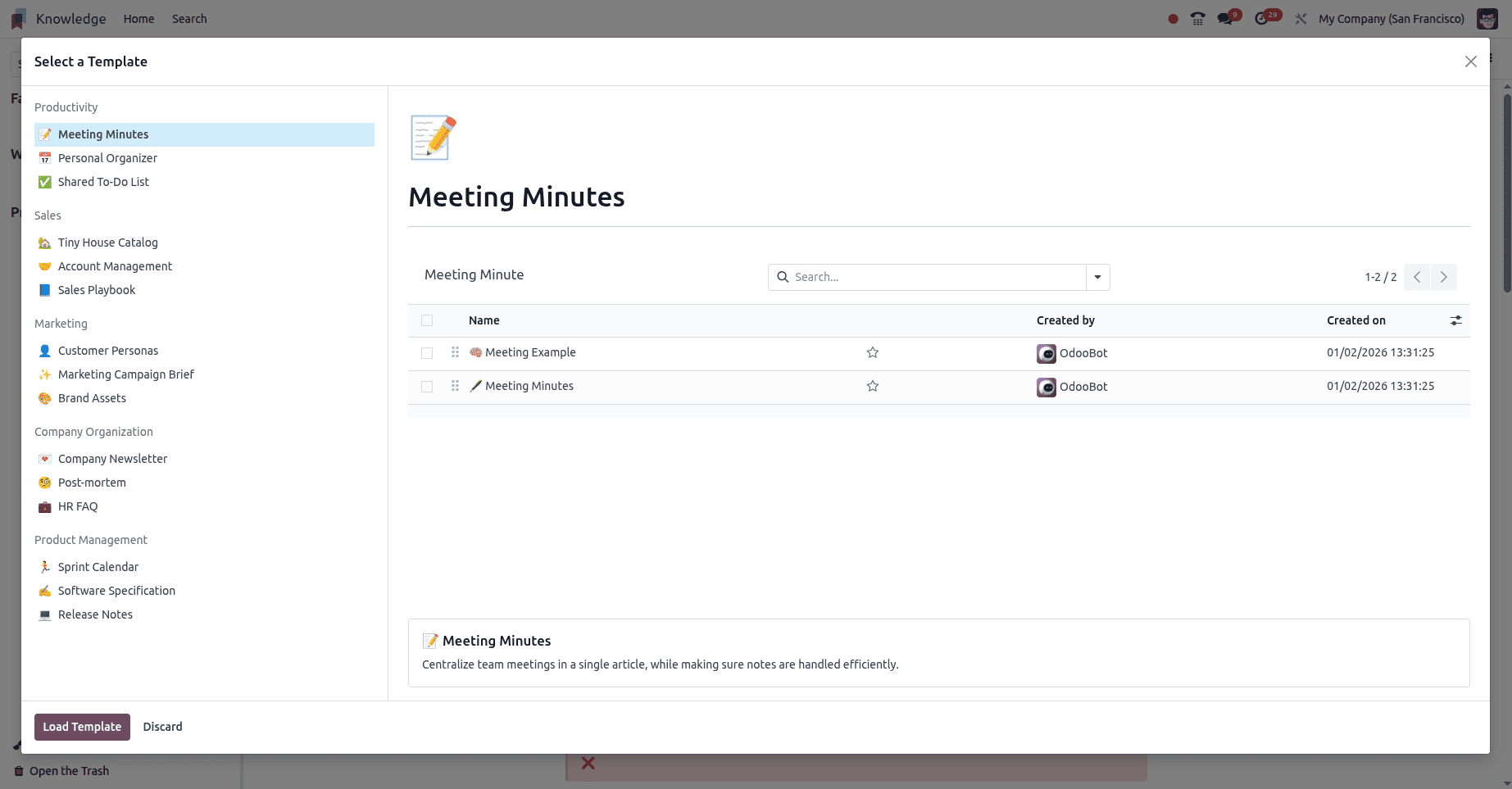
The templates are strategically organized into key business-focused categories, including Productivity, Sales, Marketing, Company Organization, and Product Management. Users can easily browse these categories to identify the template that best fits their needs. Once a template is selected, clicking the Load Template button seamlessly deploys it, enabling teams to accelerate execution with minimal setup and maximum efficiency.
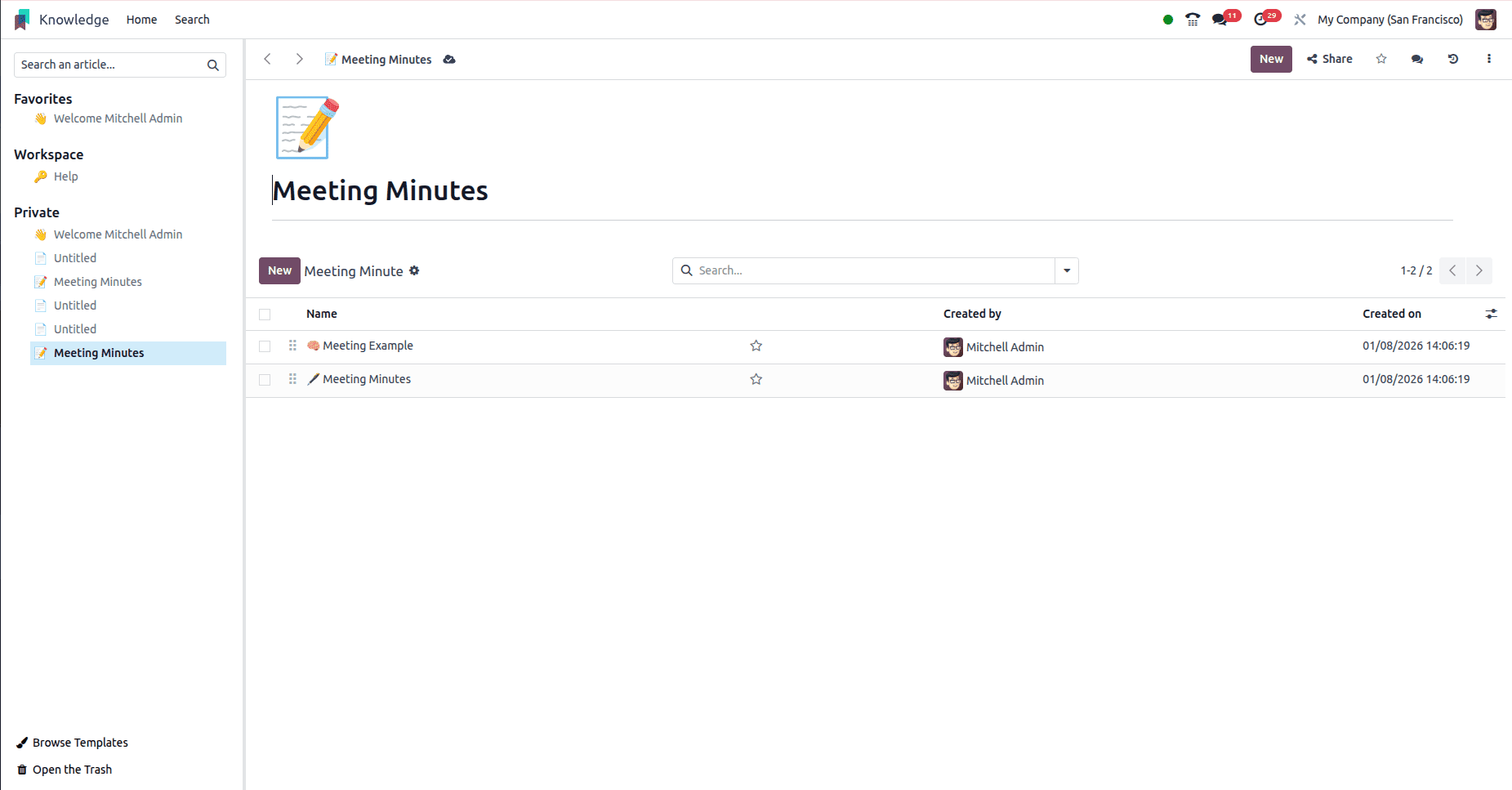
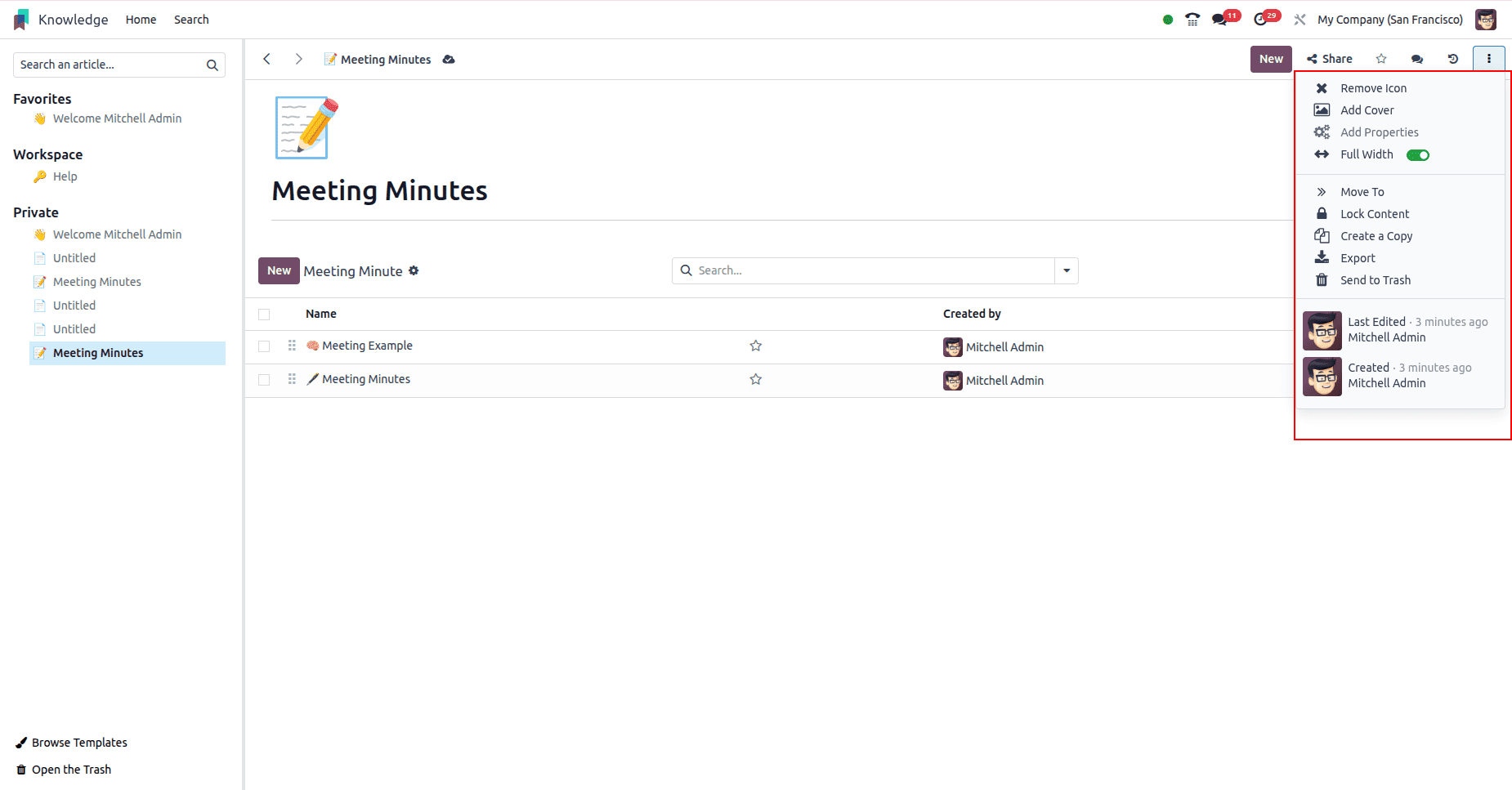
Once a template is selected, it remains fully configurable within the Knowledge module. Users can make direct edits to the articles to tailor the content to their specific requirements. In addition, visual elements such as background images, cover images, and other layout enhancements can be easily added through the menu available in the top-right corner, allowing teams to refine both content and presentation with minimal effort.
The Odoo 18 Knowledge module empowers organizations to standardize and scale their internal documentation with speed and precision. By leveraging the Browse Templates feature, teams can quickly deploy structured, business-ready content while retaining full control over customization and visual presentation. This balance of efficiency and flexibility ensures that knowledge management becomes a strategic enabler—driving consistency, improving collaboration, and supporting informed decision-making across the organization.
To read more about Overview of Knowledge Module in Odoo 18, refer to our blog Overview of Knowledge Module in Odoo 18.