For a smooth checkout process in today's hectic retail setting, speed, precision, and efficiency are essential. Customer happiness and employee productivity can be rapidly impacted by lengthy lineups, human error, or delayed transactions. By incorporating barcode scanning for products and customer loyalty cards, Odoo 19 Point of Sale (POS) allows businesses to optimize their sales processes. Both employees and clients can more easily navigate the sales process thanks to this feature, which not only shortens processing times but also improves transaction accuracy.
Why Does Odoo POS Use Barcodes?
There are numerous useful advantages to using barcodes in Odoo POS, including:
- Instant product and client scanning for quicker checkout procedures
- Decreased human error in product selection, price, and customer information
- Personalized service and loyalty integration improve the customer experience
- Better real-time tracking and increased inventory accuracy
- Streamlined processes that allow employees to work on other worthwhile projects.
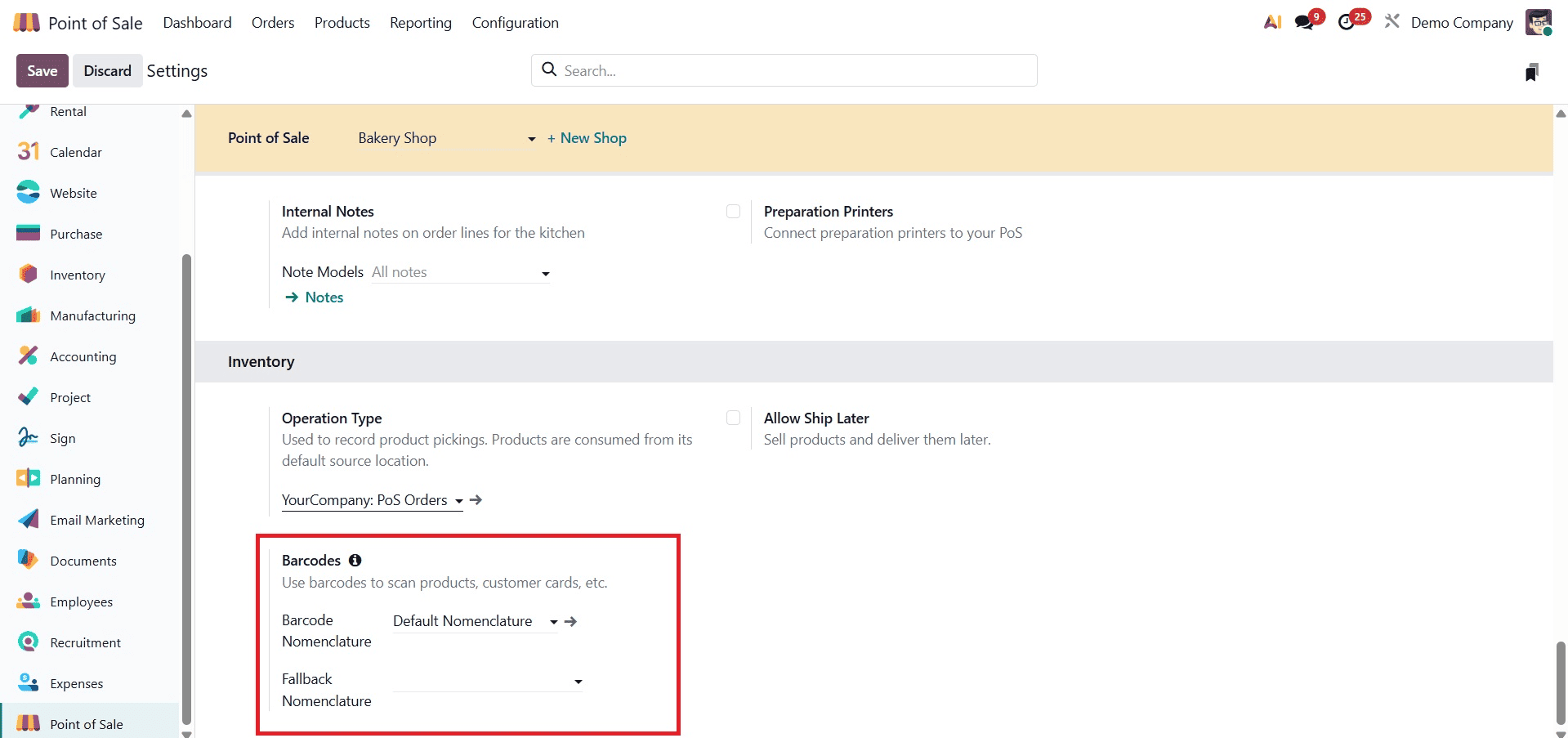
Barcode scanning is easy to implement in Odoo 19. Start by going to the Point of Sale Module and selecting the Configuration option to enter the Settings window. In the POS interface settings, you can activate the barcode capability.
You must first provide each product a unique barcode value before you can start using barcodes in Odoo 19 PoS. The first step in this setup is to use the Sales or Inventory app to retrieve your product list. Find the "Barcode" field after choosing a product, then input the barcode value. This could be a code created with barcode software or one that can be found on the goods package. Save the product once the barcode has been entered. As seen in the screenshot below, repeat this process for each item you wish to enable barcode scanning.
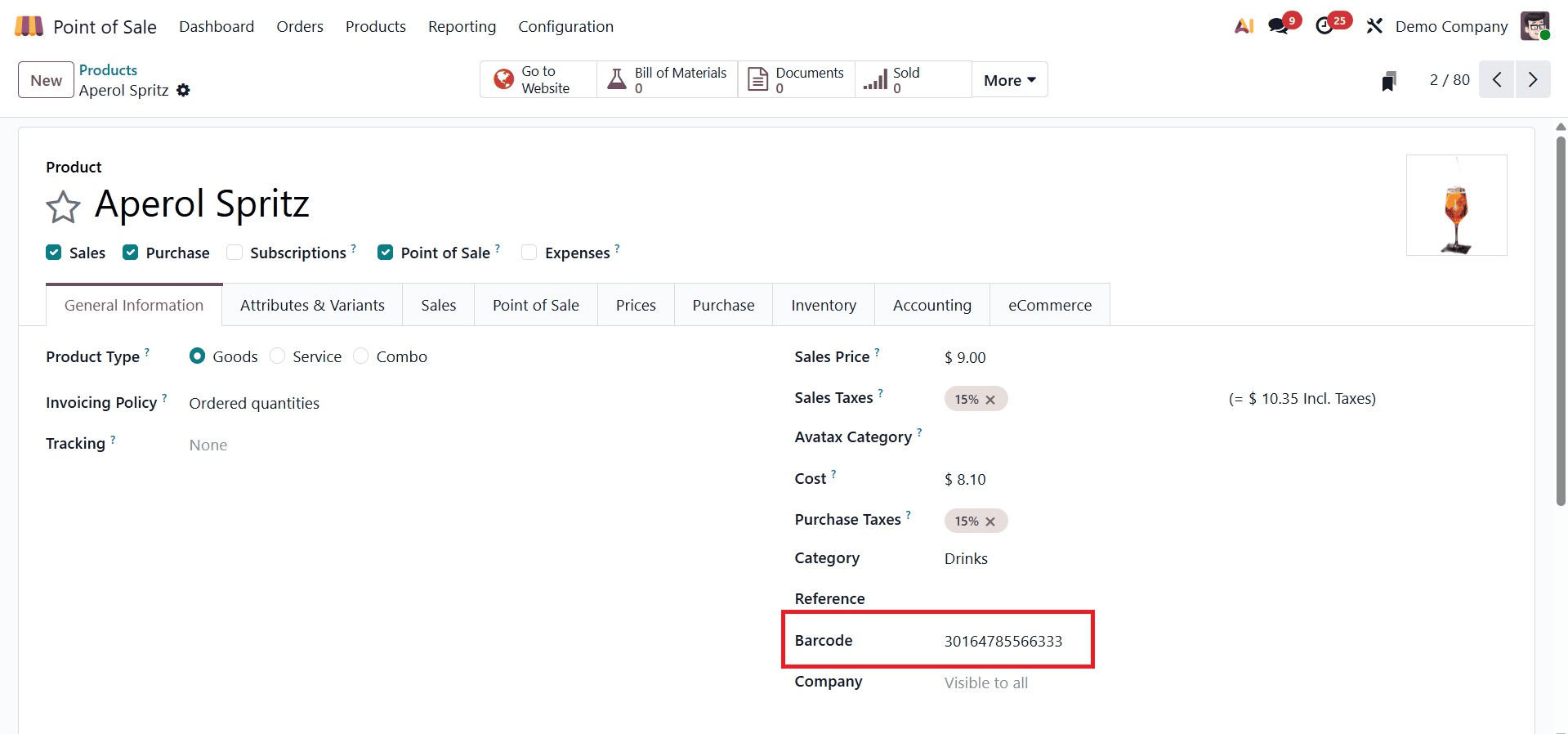
You can create different barcodes for as many products as you'd like.
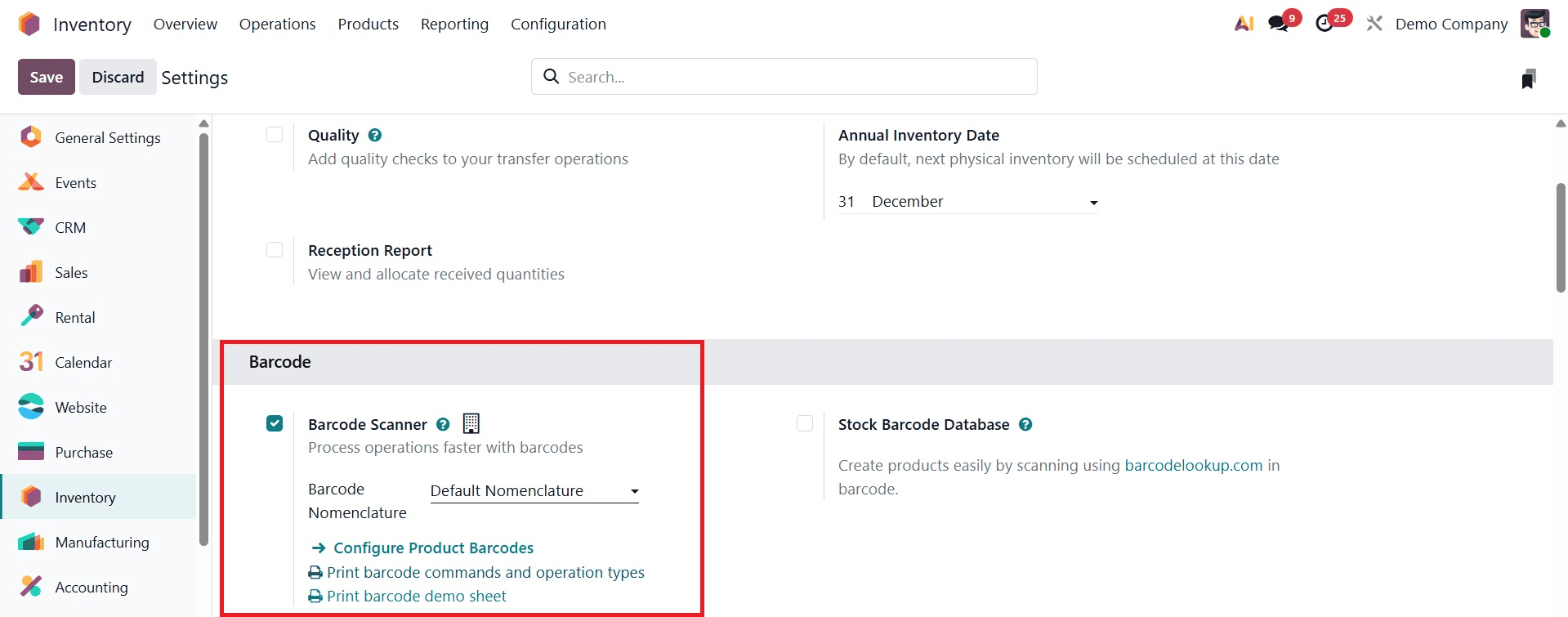
Odoo 19 Inventory's default barcode nomenclature is intended to handle popular barcode standards, including EAN-13, EAN-8, UPC-A, and GS1-128, making it appropriate for companies that depend on standard barcode forms while preserving internal consistency. Users can enable barcode scanning by going to the Inventory module > Configuration > Settings, turning on the Barcode Scanner option, and choosing Default Nomenclature in the Barcode Nomenclature field before saving the settings.
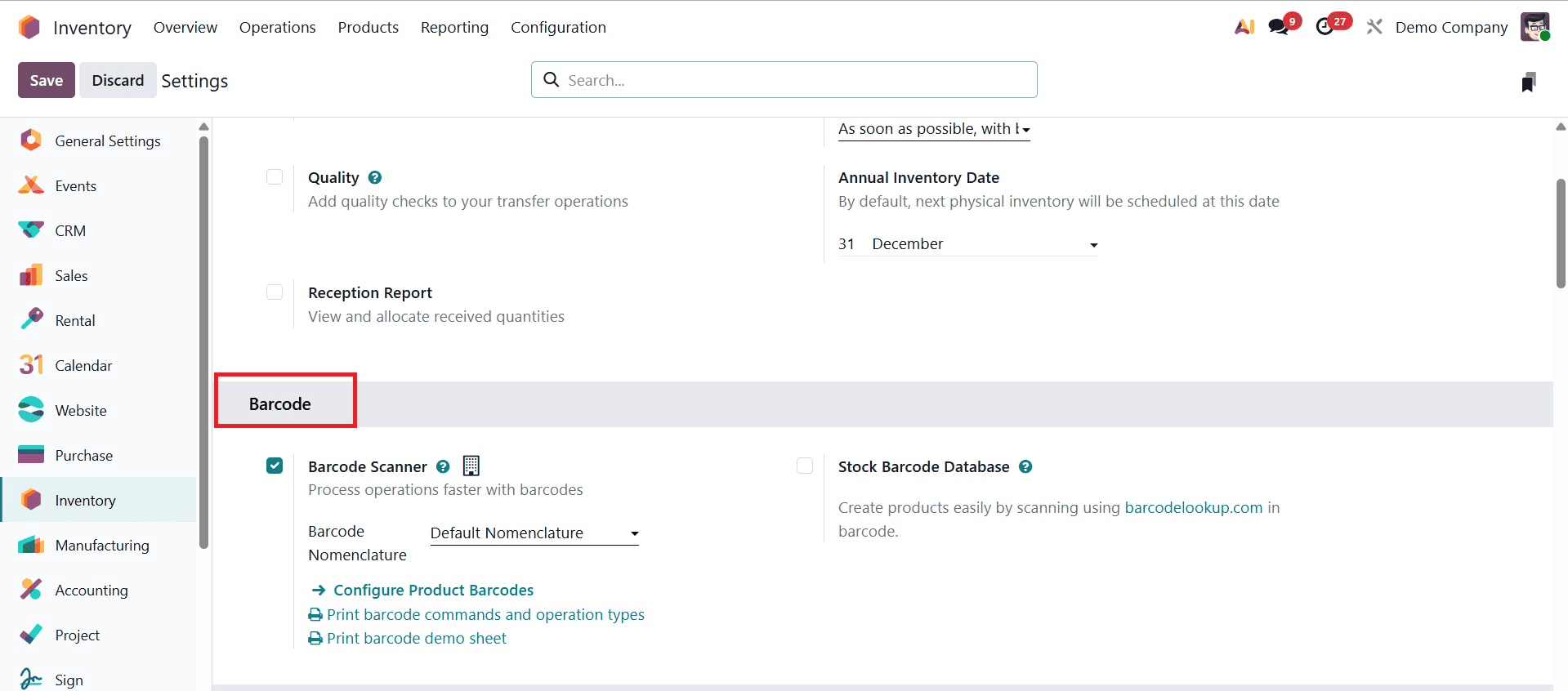
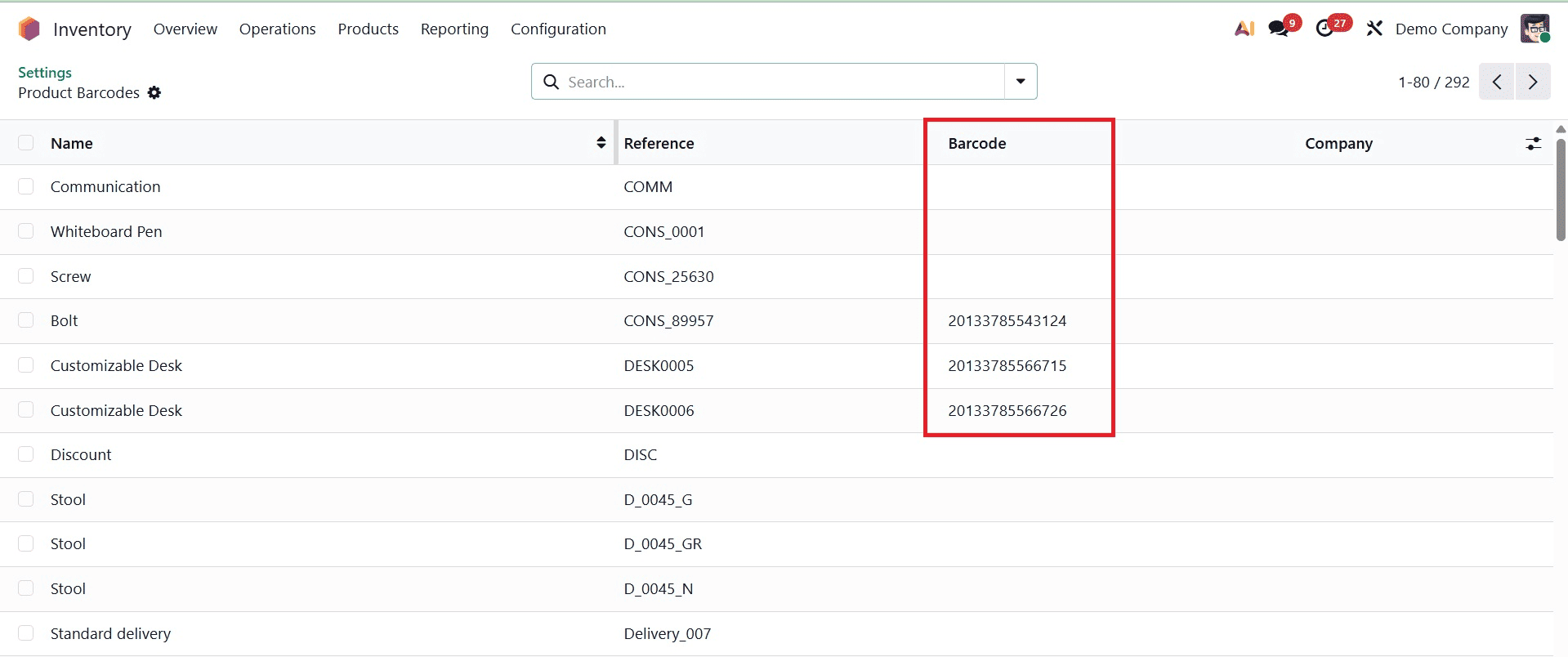
Odoo offers a Configure Product Barcodes option that launches a dashboard with a list of every product in the inventory database once a barcode nomenclature has been chosen.
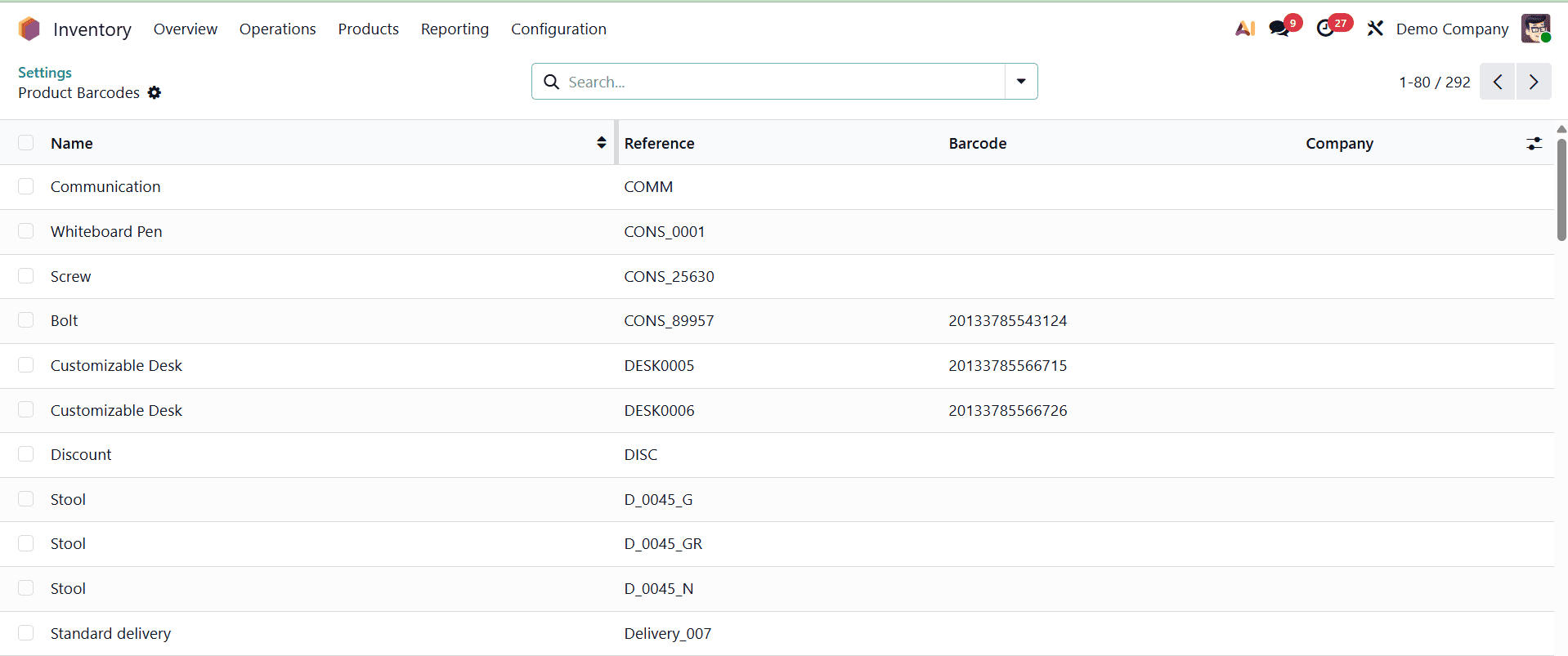
Important product information, like the product name, internal reference, barcode, and company, are shown in this view. It is simple to create and manage unique identifiers for inventory goods since users may choose any product from this list to modify or assign a barcode.
Odoo 19 supports warehouse operations with a number of printing choices in addition to product barcodes.
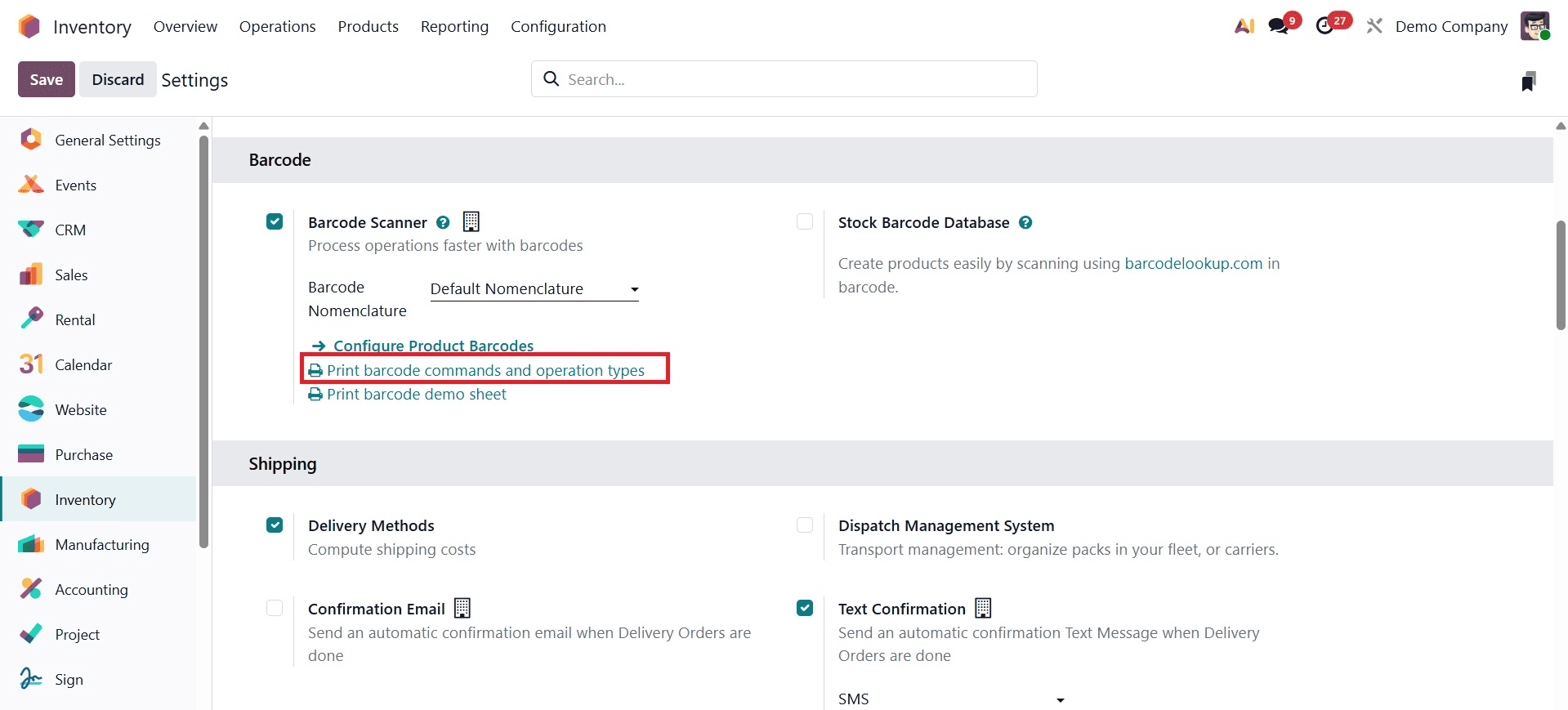
In addition to printing a barcode demosheet with sample product barcodes and operational triggers, users can download printable barcodes for warehouse instructions and operation kinds.
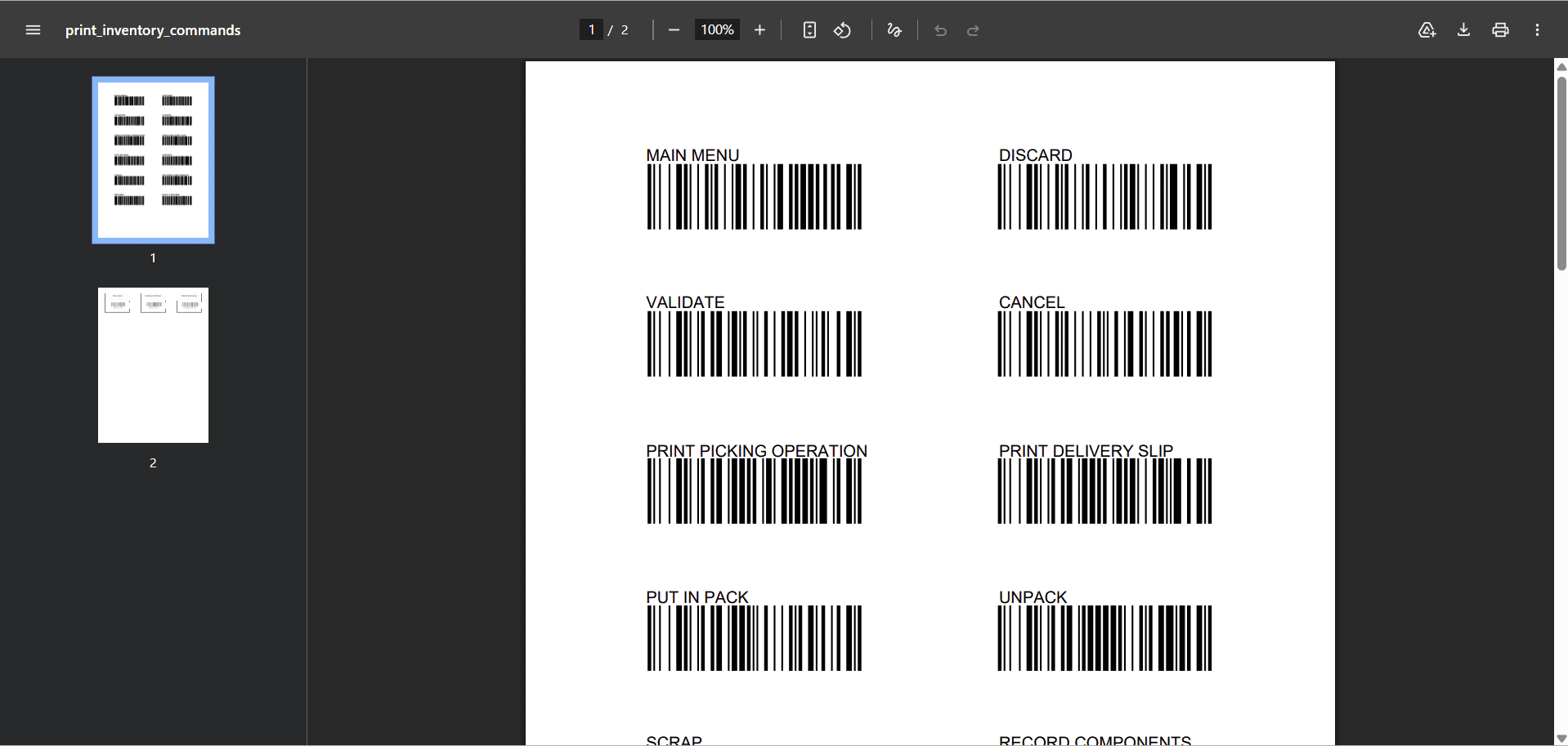
Prior to complete deployment, the demosheet is particularly helpful for training, testing barcode procedures, and replicating actual warehouse conditions.
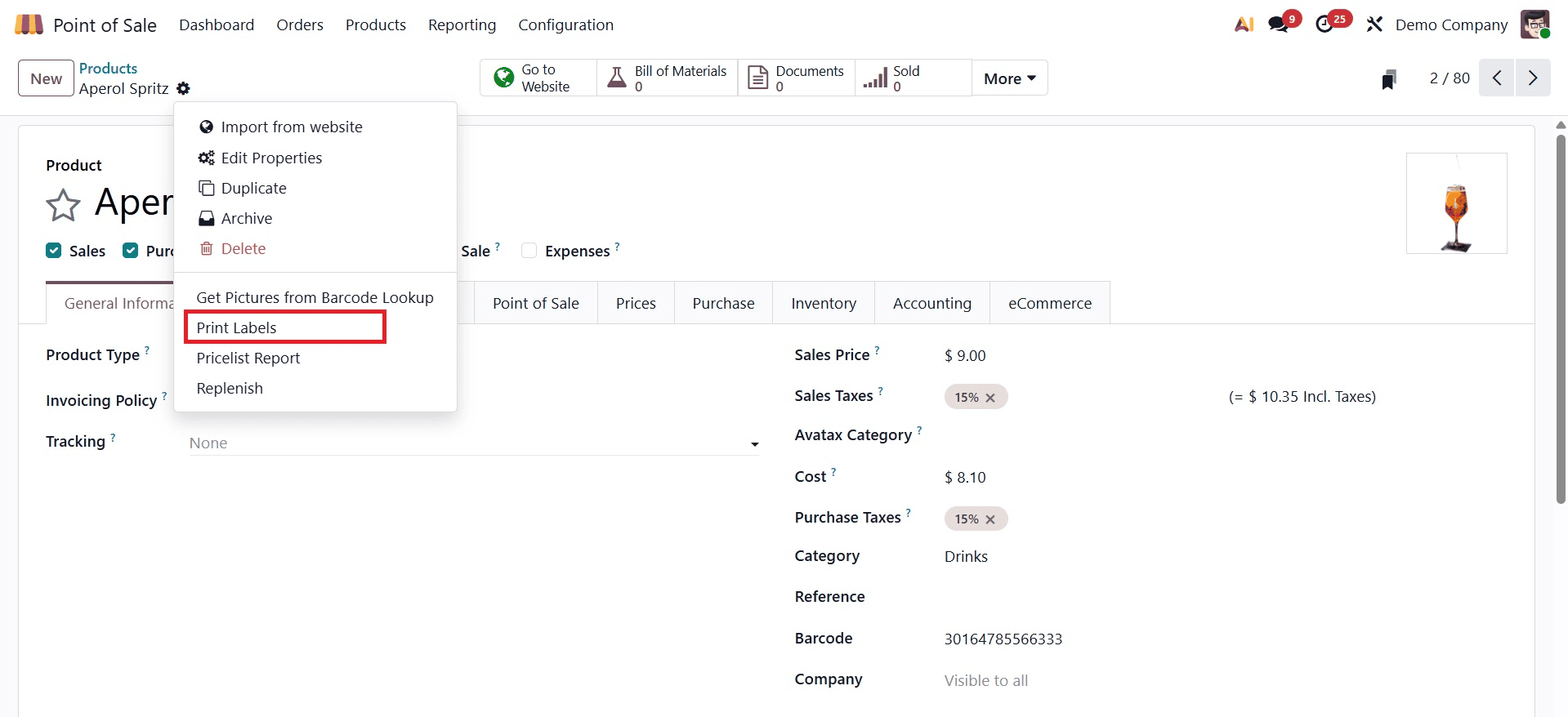
Next, confirm that every product is properly set up to be sold in the PoS system. As shown in the screenshot below, you can view and print the barcode linked to the product by clicking the "Print Labels" button located under the Action button.
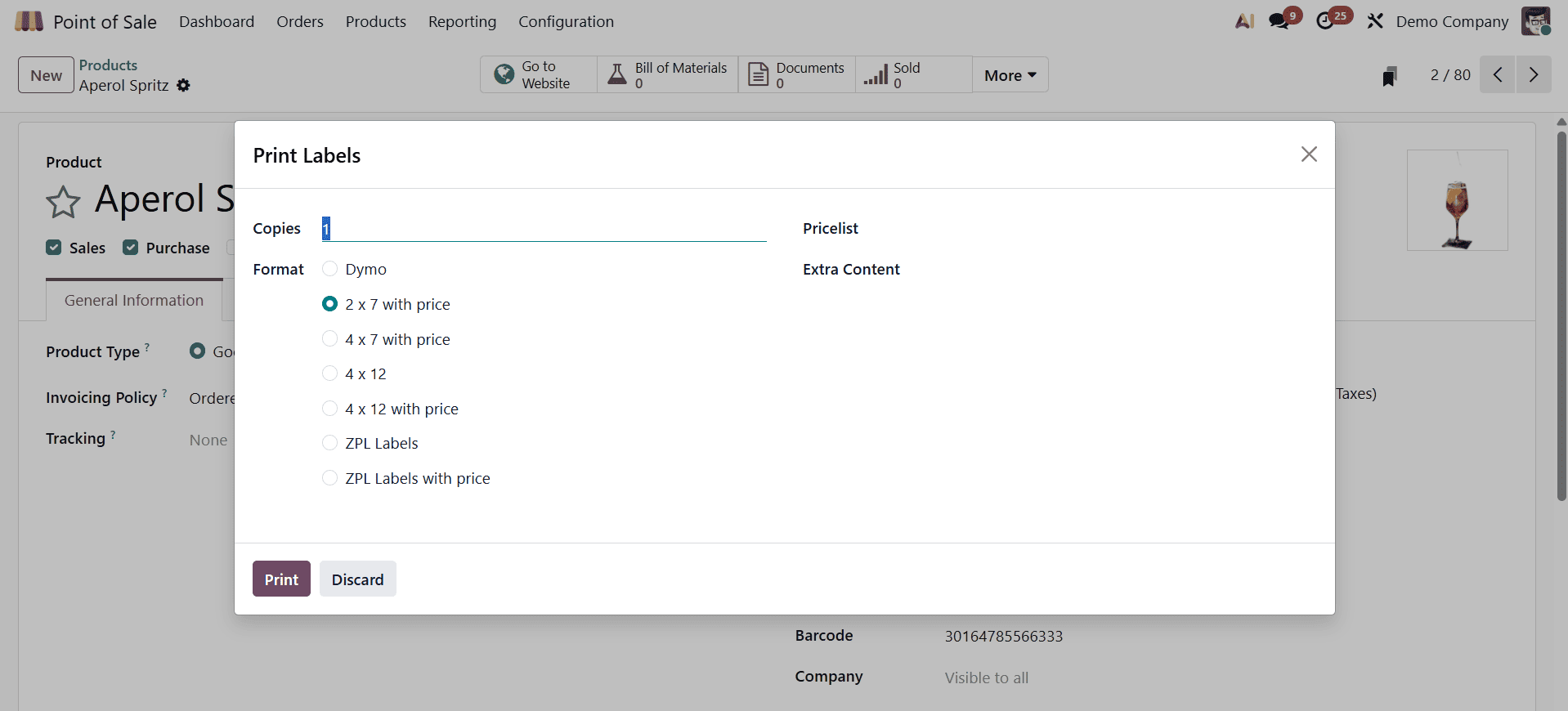
You must enter the label Quantity, Format, Pricelist, or any Extra Content in the "Choose Labels Layout" pop-up window in order to print the labels. Lastly, as seen in the screenshot below, use the "Confirm" option to confirm the label printing process.
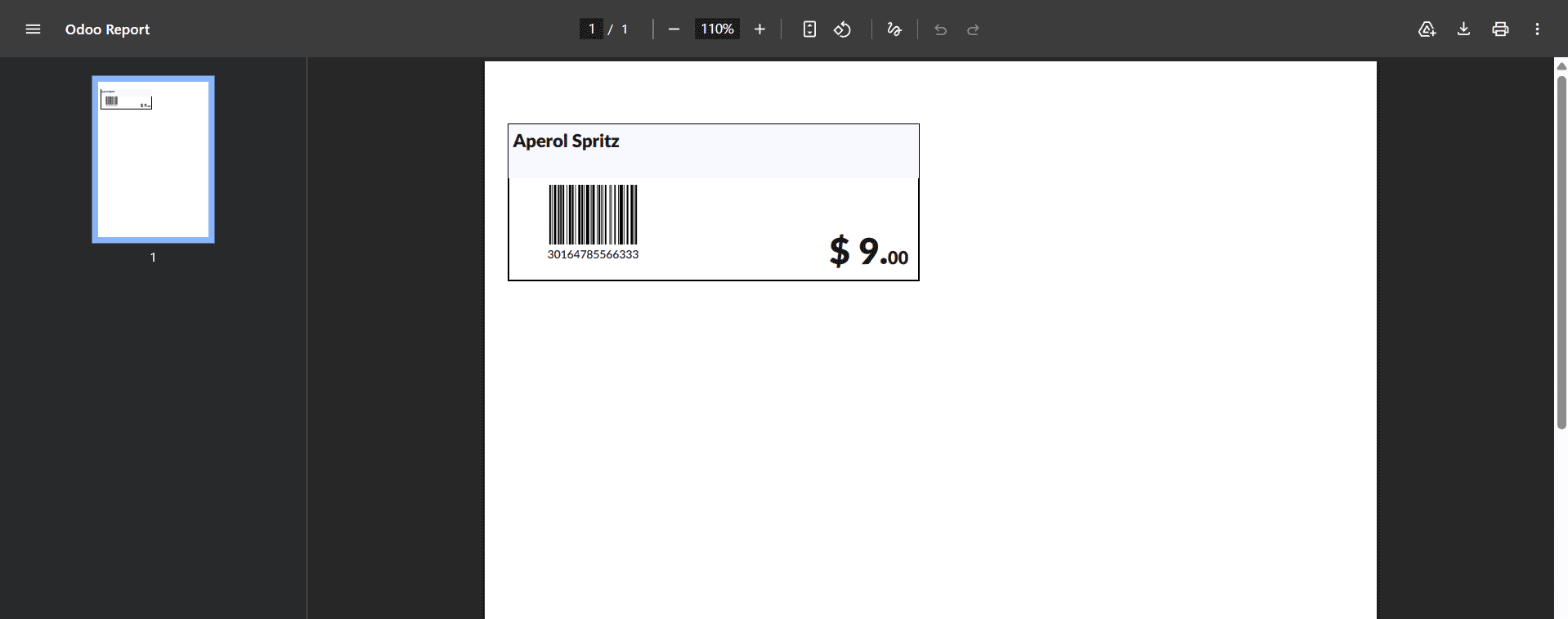
The updated label will be supplied in a printable format once the label layout has been verified. As seen in the screenshot below, you can use the PoS interface to test the barcode's functionality by scanning it.
The interface seems familiar when you start a new PoS session, but it has been improved with barcode functionality. Simply scanning a product with a barcode scanner will add it to the shopping basket and display its name, price, and quantity. As seen in the screenshot below, manually inputting the barcode number will also show the intended product.
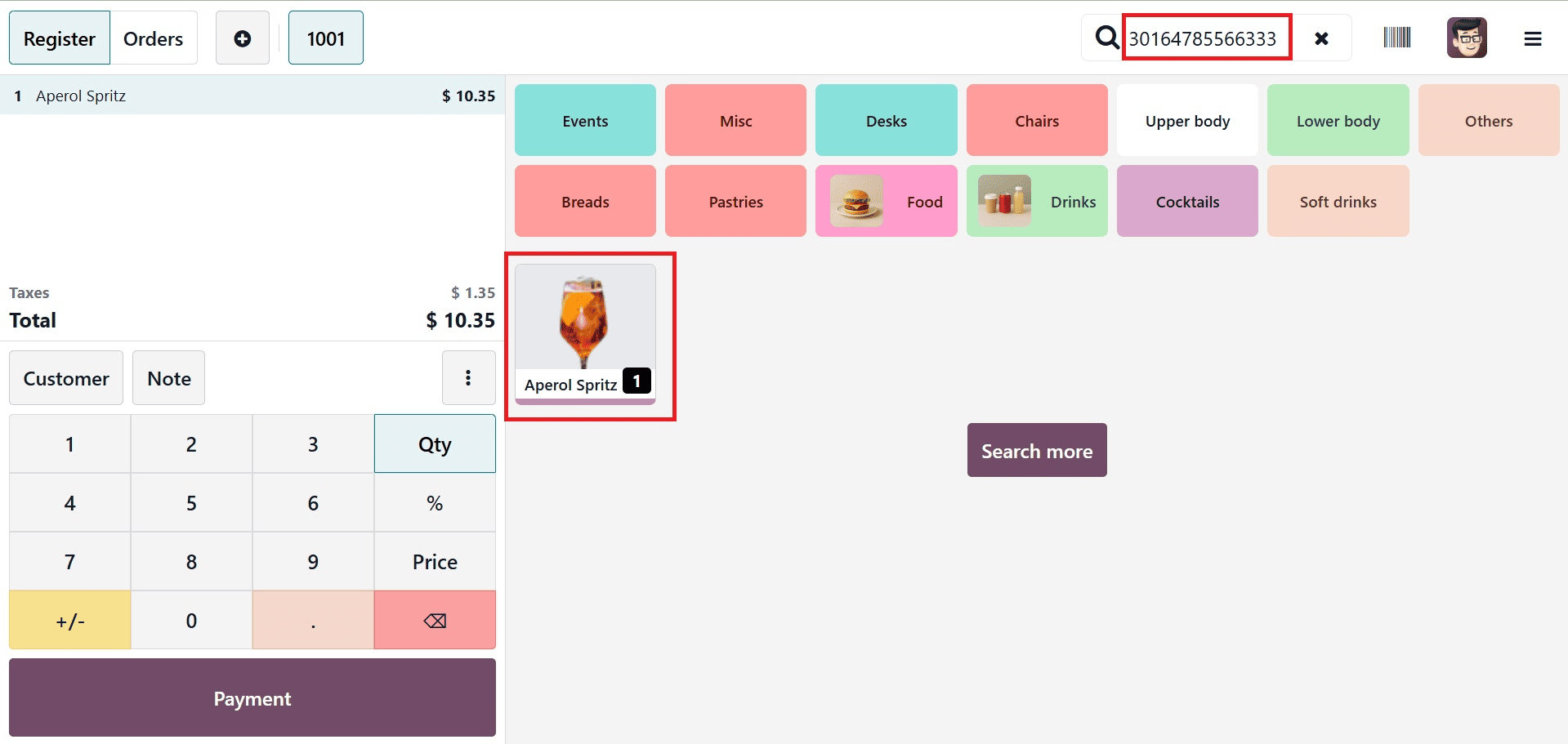
The barcode feature speeds up transactions and lowers the possibility of errors by doing away with the need to manually type names or search through product categories. The cashier can proceed to payment and finish the transaction as usual after scanning every item.
Barcode for Customers
Open the Customers dashboard from the Contacts menu to expand the barcode scanning feature to customer identification. Next, give each client profile a barcode. These barcodes can be digitally saved on mobile devices or printed on tangible loyalty cards.
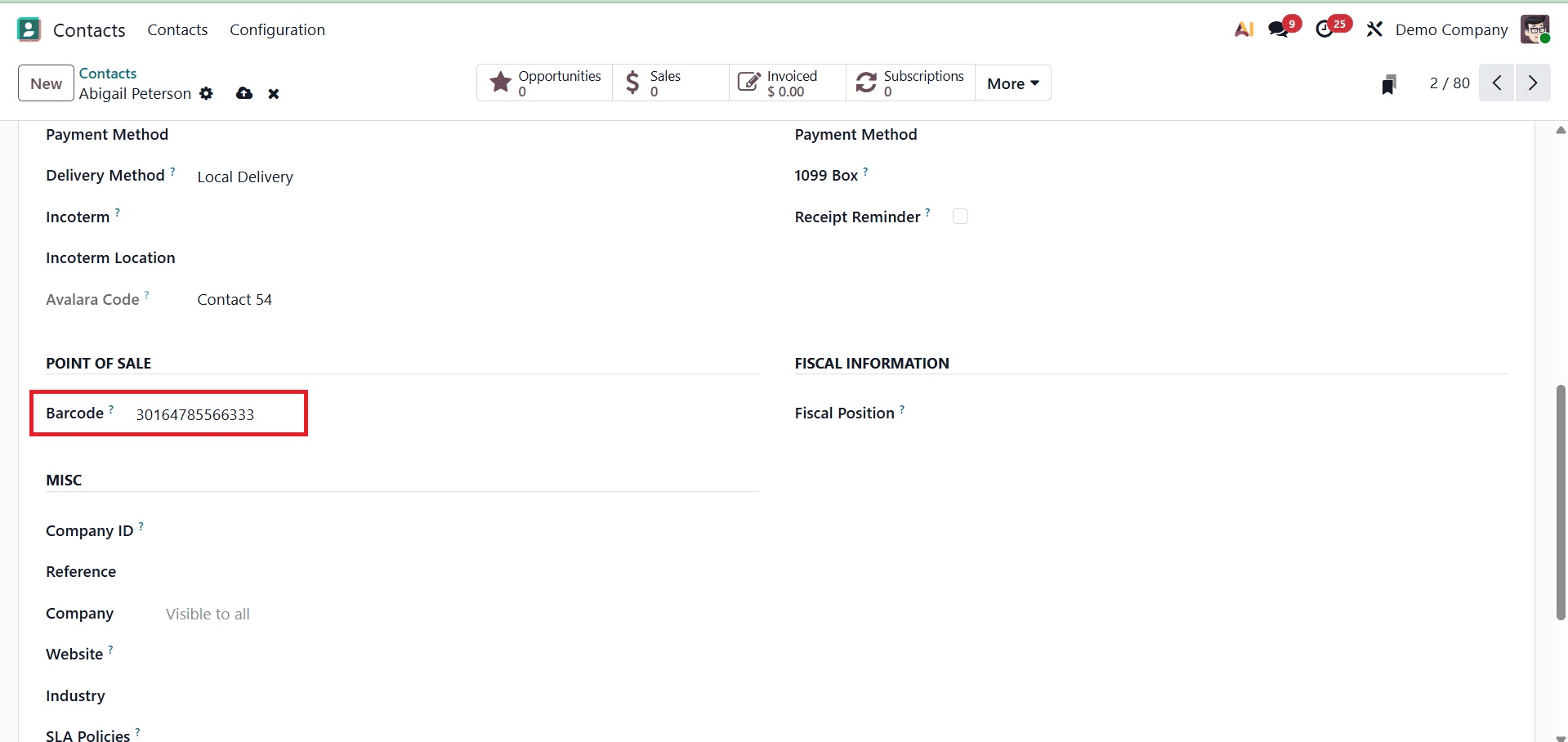
The system will automatically identify the customer and load their profile, together with any relevant loyalty points or discounts, when they are scanned at the POS.
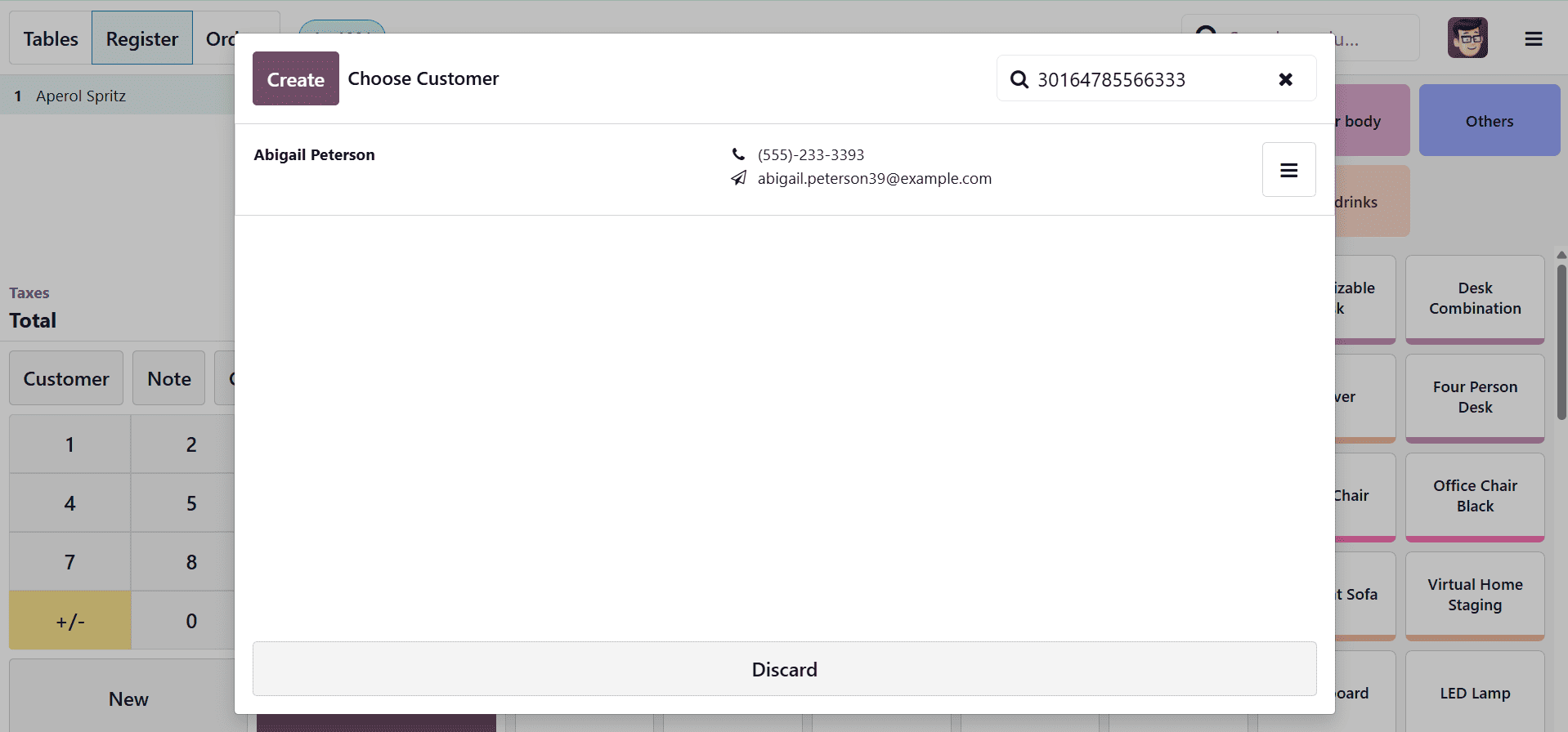
Numerous USB and Bluetooth barcode scanners that work as regular keyboard input devices are supported by Odoo. All you need to do is connect your scanner to your POS terminal, and it should start functioning right away without requiring complicated setup.
Barcode Nomenclatures for Advanced Users
Odoo 19 adds support for barcode nomenclatures for companies seeking more automation and control. These are programmable rules that specify the behavior of various barcodes (such as product codes, customer IDs, discount coupons, etc.). You may maximize flexibility and automation in a variety of retail scenarios by fine-tuning the interpretation of scanned data with this system.
The Odoo 19 Inventory Module is where you may configure these barcode settings. As seen in the screenshot below, you can use the Barcode tab of the "Settings" box to set various Barcode Nomenclatures, Product Barcodes, and other labels.
Enhancing retail efficiency, accuracy, and customer interaction can be achieved by integrating barcode scanning with Odoo 19's Point of Sale system. This feature can greatly improve how your company manages sales transactions, whether you own a café, supermarket store, or apparel boutique. Barcode scanning frees up your staff to concentrate more on customer service and less on administrative expenses by streamlining both product and customer handling.
To read more about How to Use the Barcodes to Scan Products, Customer Cards With Odoo 18 POS, refer to our blog How to Use the Barcodes to Scan Products, Customer Cards With Odoo 18 POS.