Pricelists in Odoo 19 Point of Sale assist retailers in managing adaptable pricing schemes according to clients, merchandise, quantities, or special offers. To apply discounts, special rates, seasonal pricing, or customer-specific pricing right at the POS interface, businesses can use different price lists. Retail establishments, eateries, and multi-branch stores that need dynamic and automated price control would find this function very helpful. Through customised pricing and marketing initiatives, the POS system's price lists guarantee correct invoicing while raising customer happiness. Shop owners can improve control over their pricing strategies and streamline sales processes using Odoo 19's sophisticated pricing features.
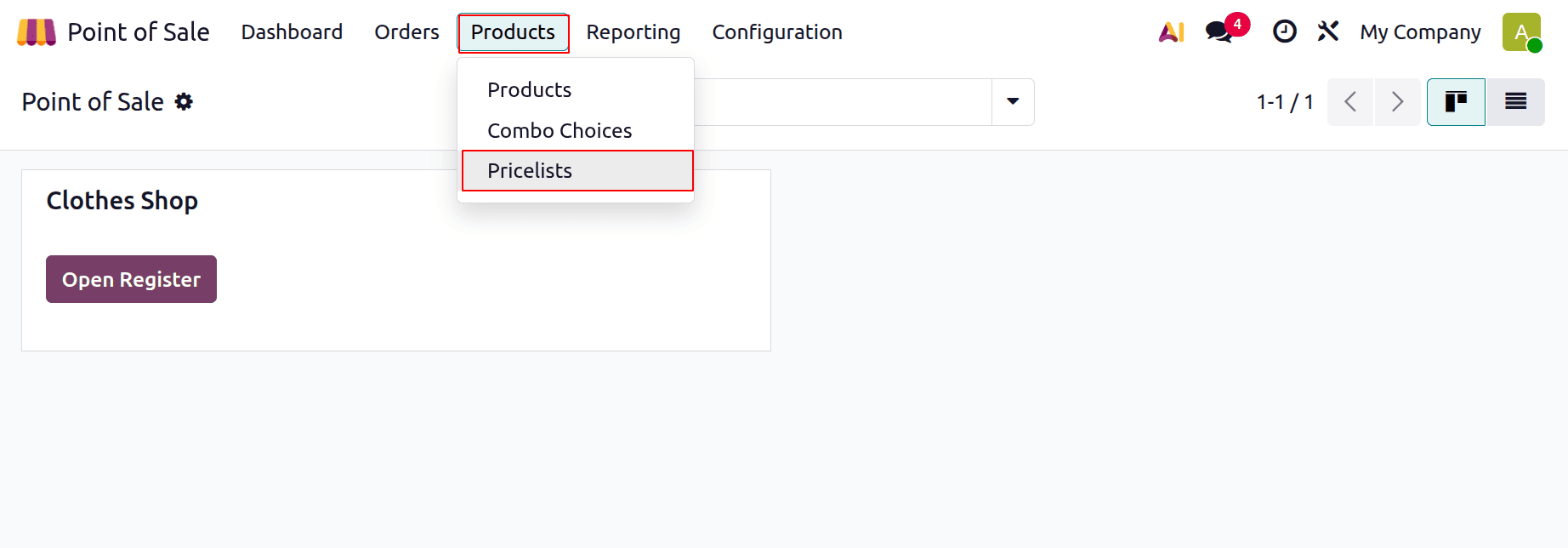
Let's check the use of the Pricelist in the Odoo 19 Point of Sale module. The Price list is added inside the Products menu as shown below.
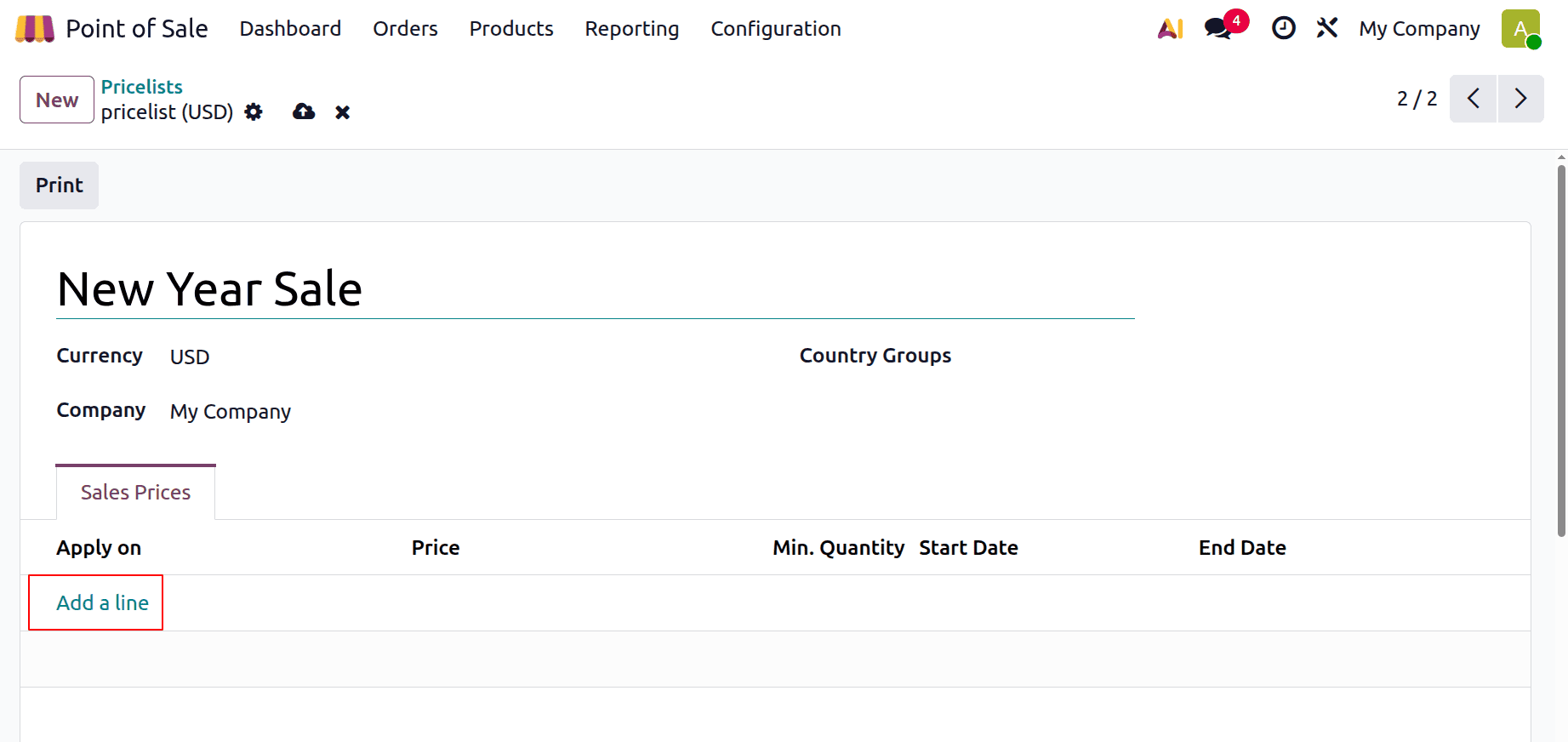
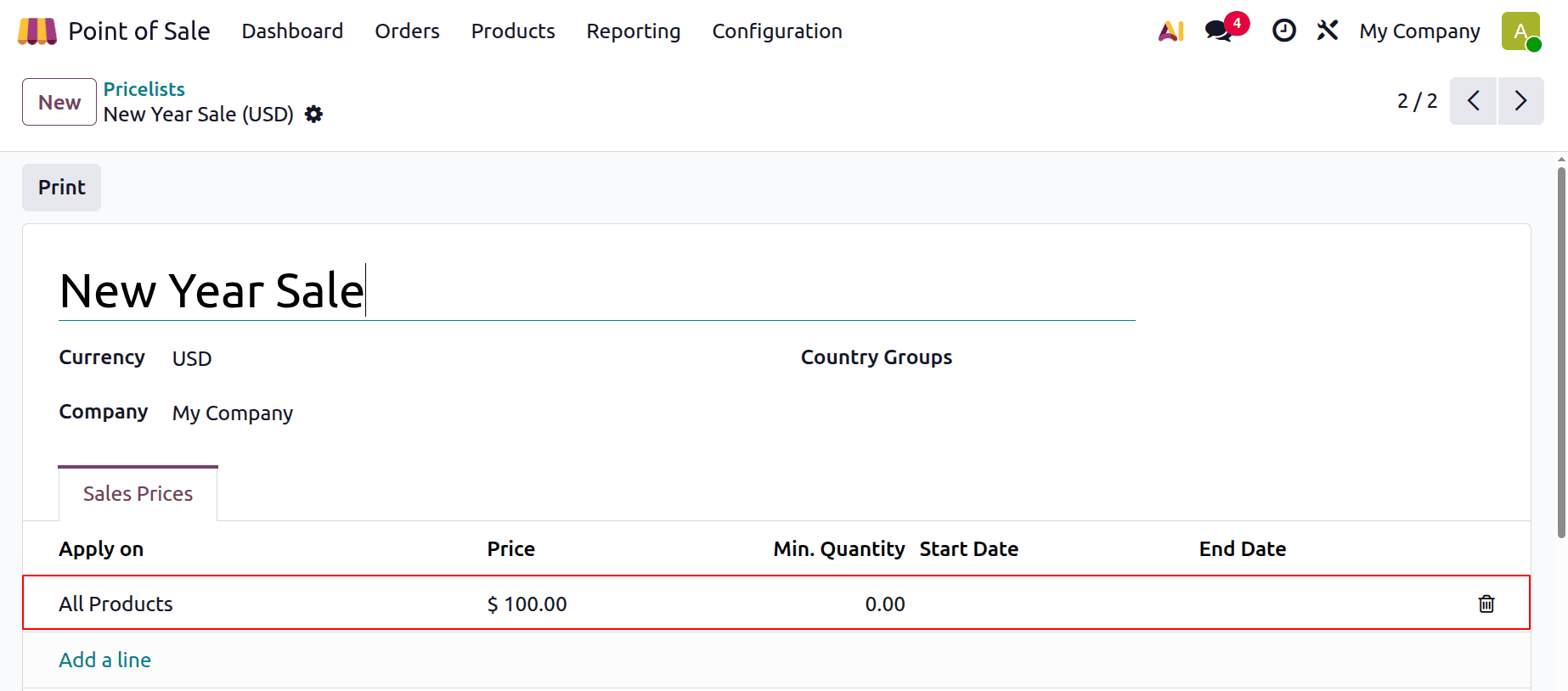
Let's create a new pricelist. Click on the New button. The price list is named “New Year Sale”. To add price rules, click on Add a line.
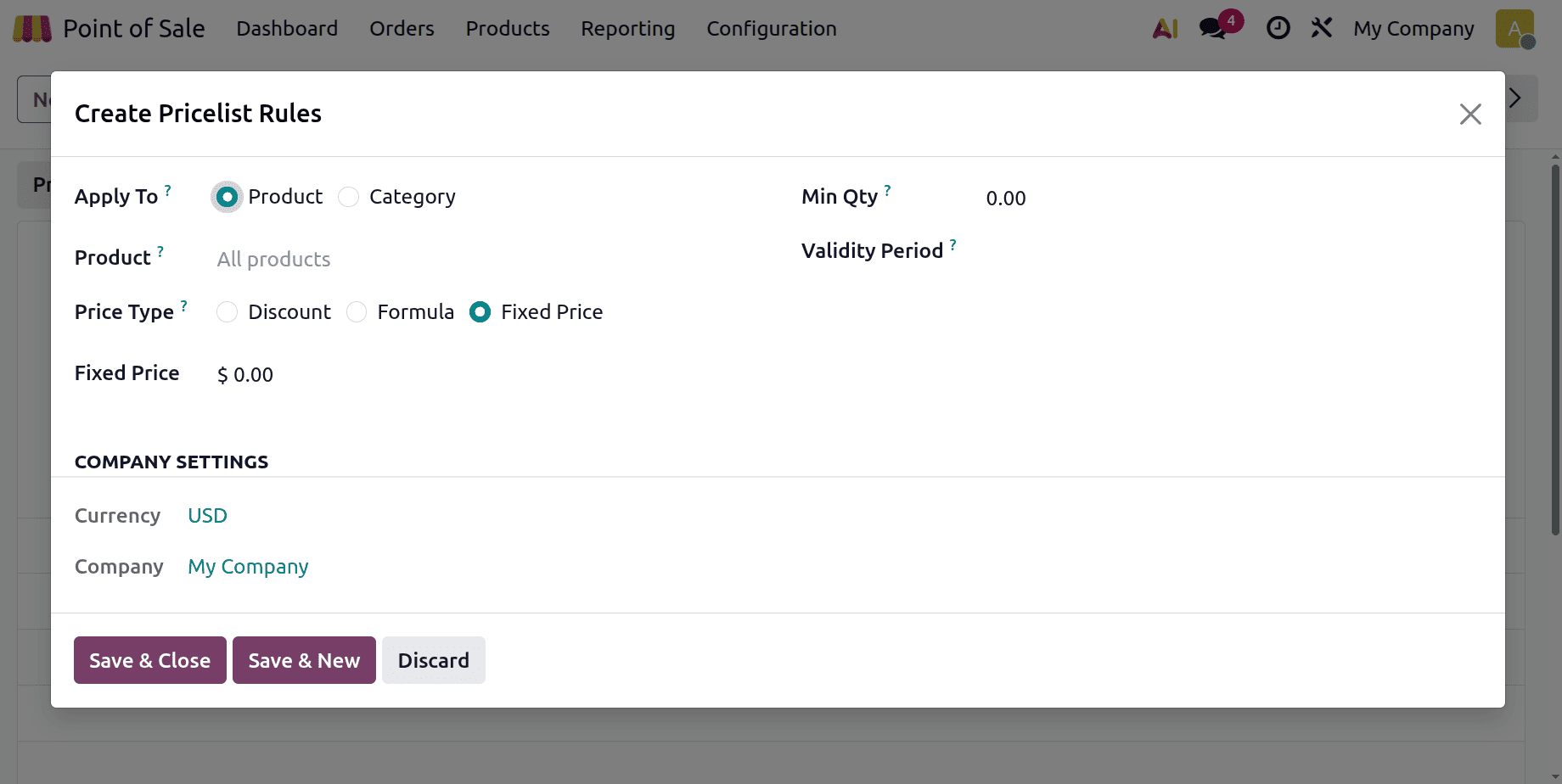
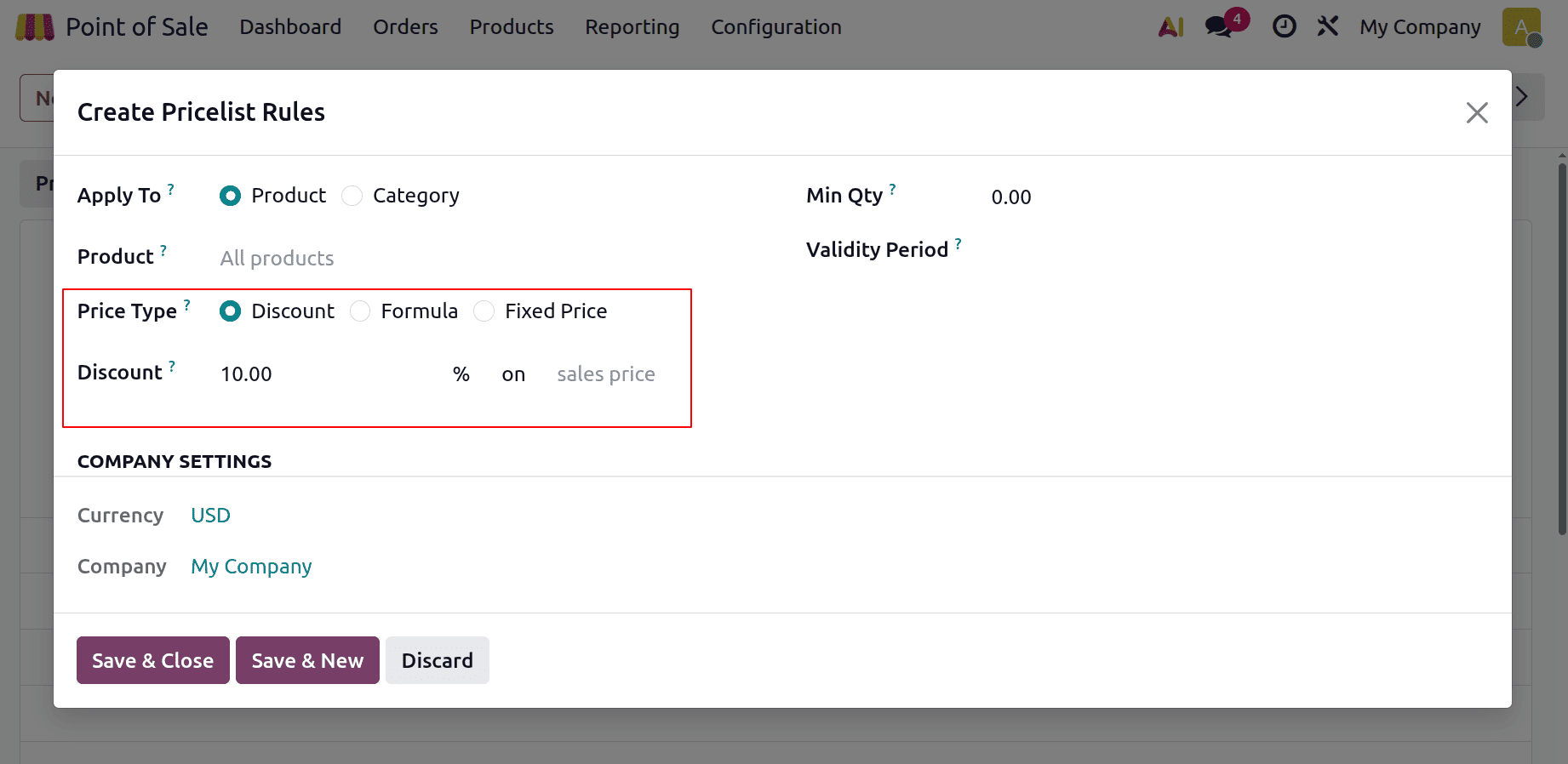
The window, as shown below, allows the users to add new price list rules. Apply to fields allows you to choose either the pricelist applied to the product or product category. There are 3 different Price Types: Discount, Fixed Price and Formula. Then can mention the Minimum quantity and Validity period also.
1. Fixed Price
Let's create a new Fixed price rule. Here, the price rule is added as Fixed Price. For all products,s the rice is set at $1000.
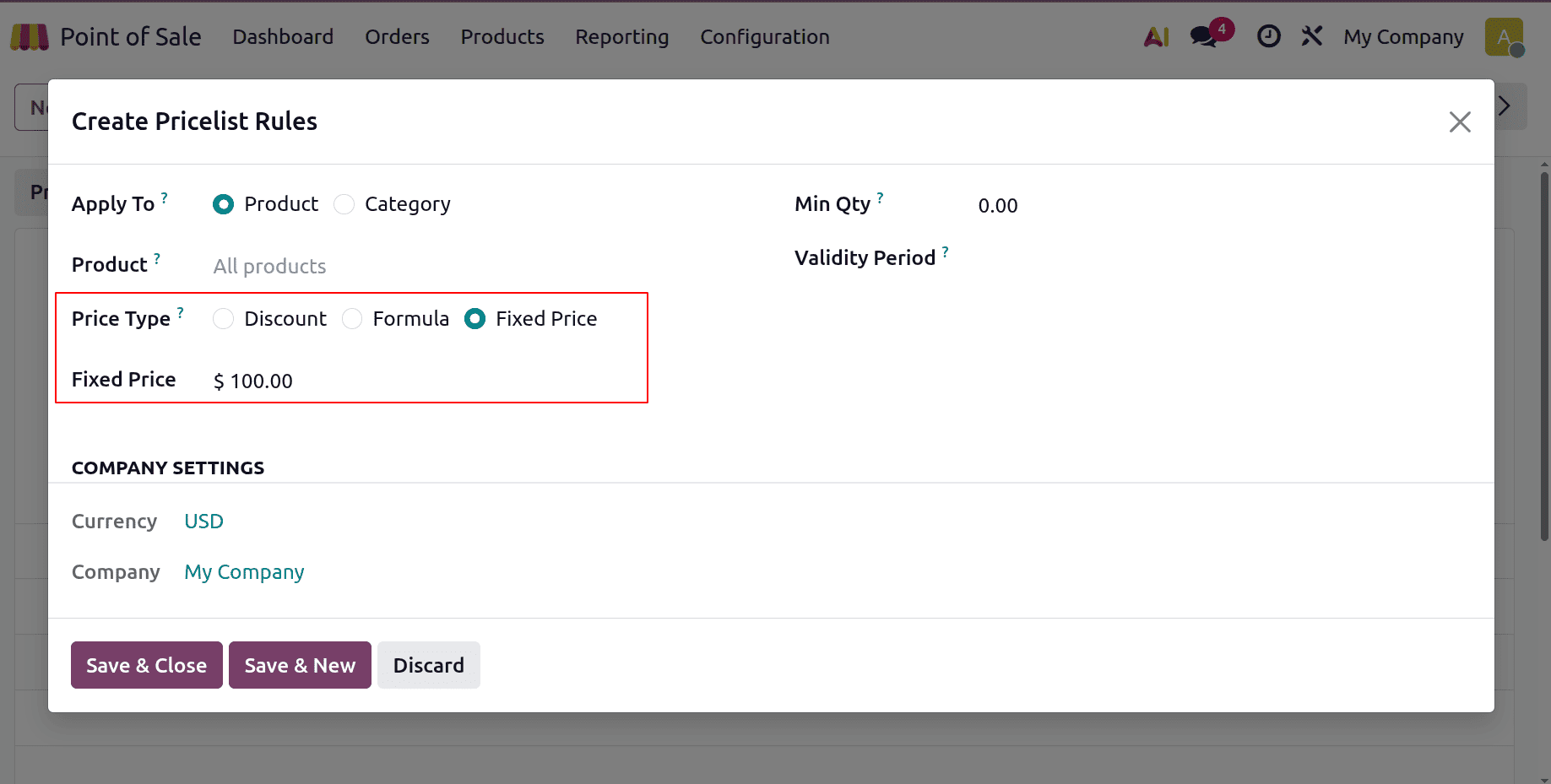
Here, the New Year Sale price list is created. If the user used this price list, all products' prices will be shown as $100.
2. Discount
Next is another price list created using the Price Type as Discount. Here, the price rule is set as 10% discount on the product’s sale price.
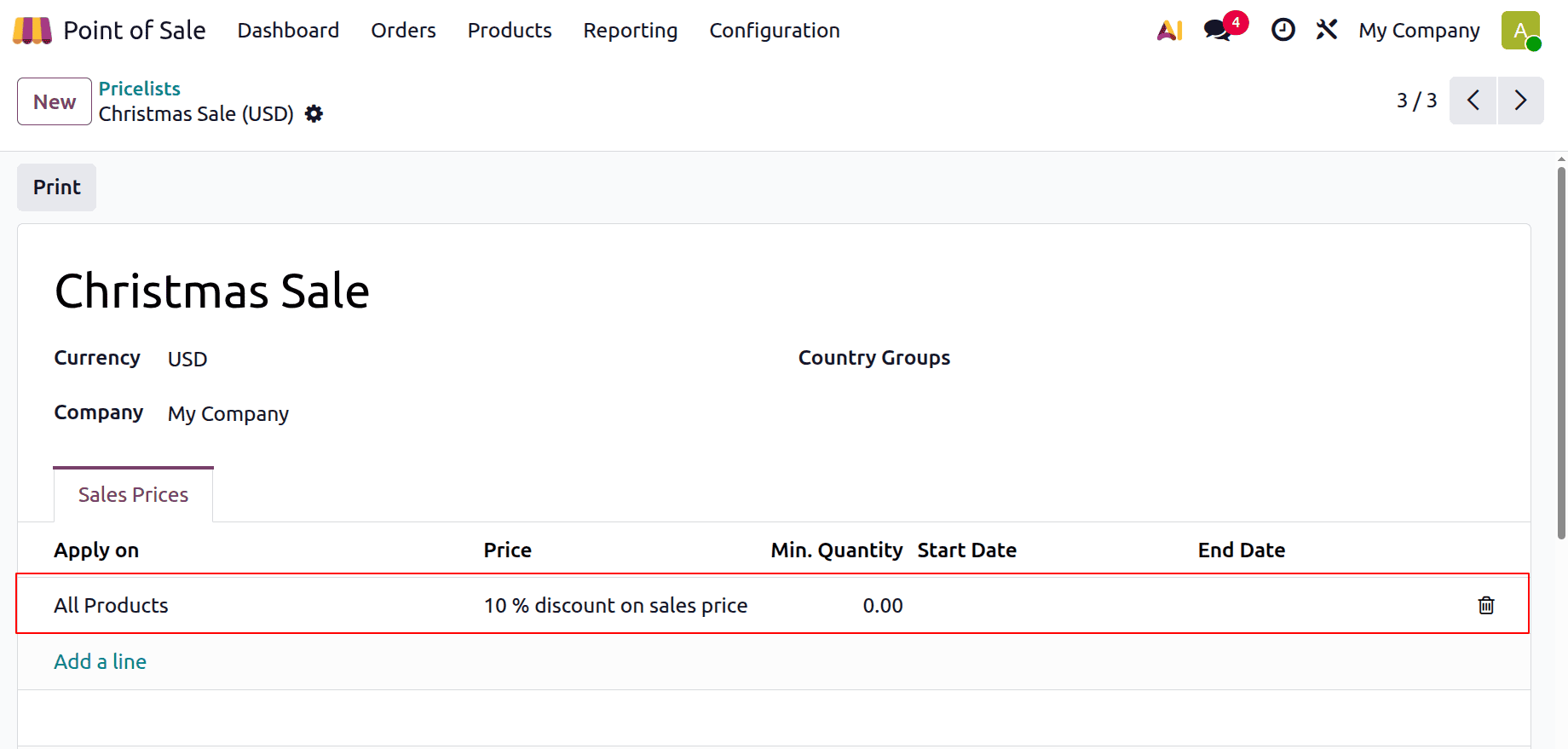
Here is the next Pricelist named “Christmas Sale”. If the user uses this price list for all products will get a 10% discount.
3. Formula
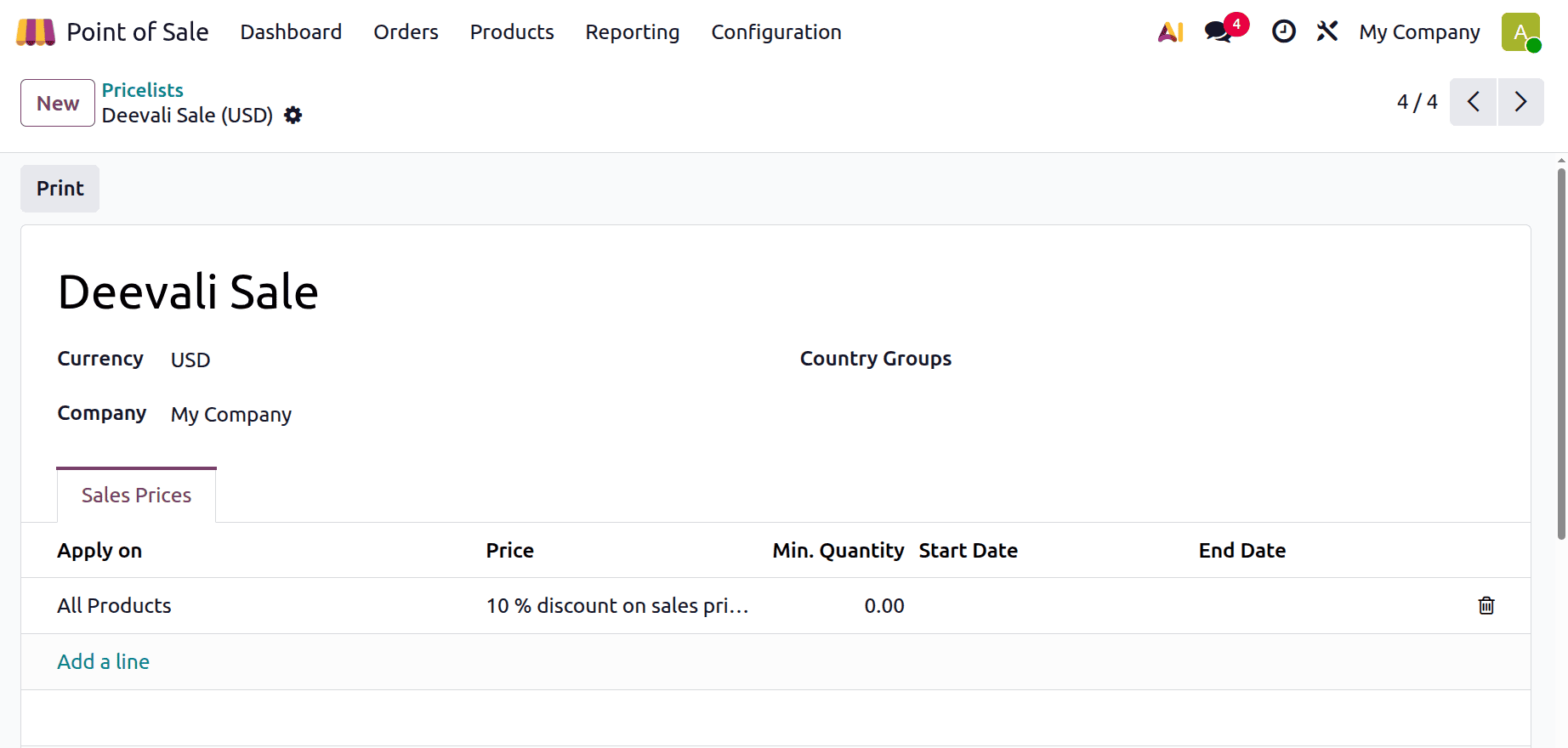
The next price list is created on the basis of the Price Type Formula. Here, the formula applied based on the sales price, a 10% discount will apply on the sales price,e and an extra $5 will be added. But the margin should be between $100 to $200. Save the rule.
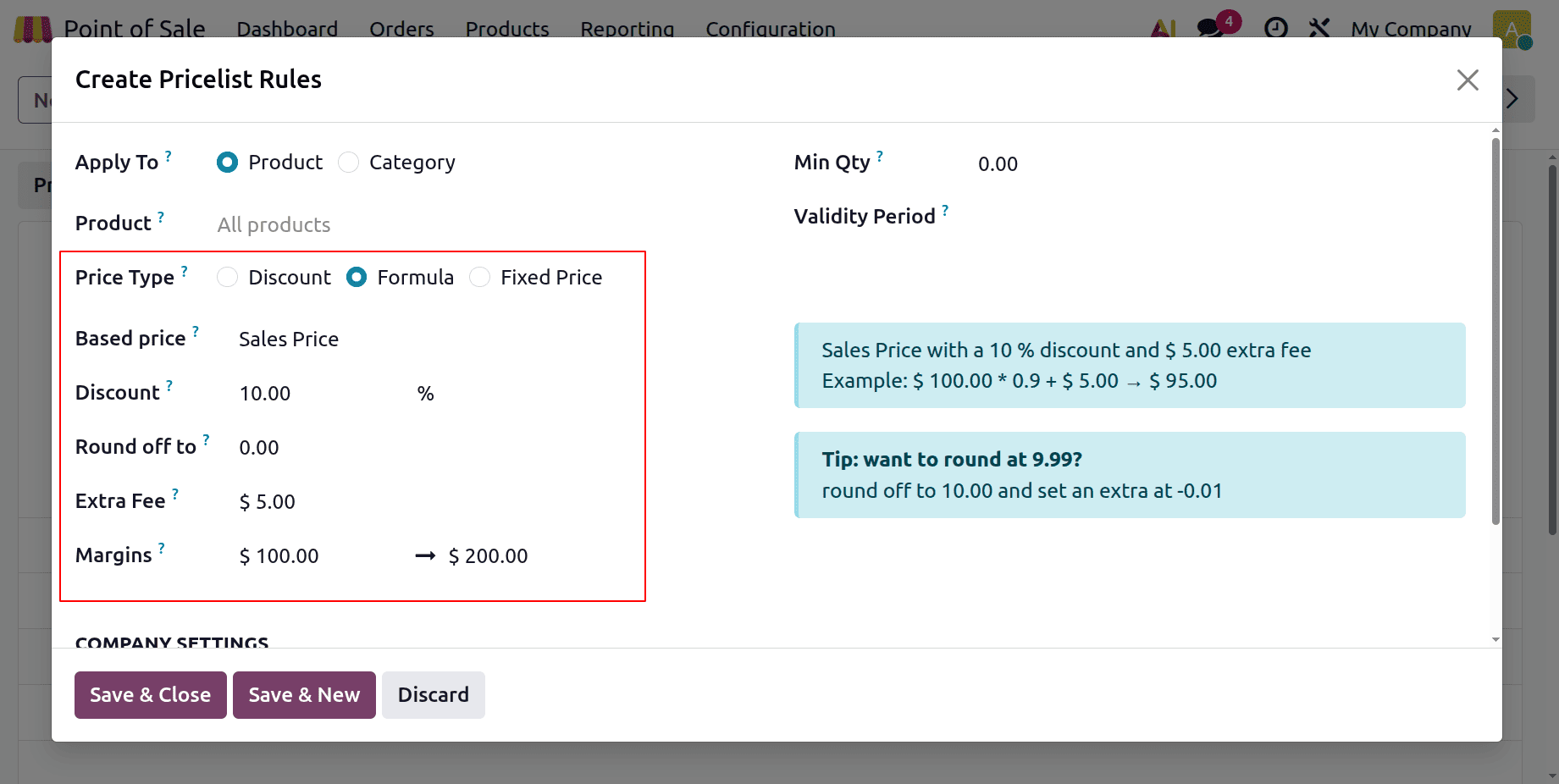
Here, the pricelist named “Deevali Sale” is created based on the Formula.
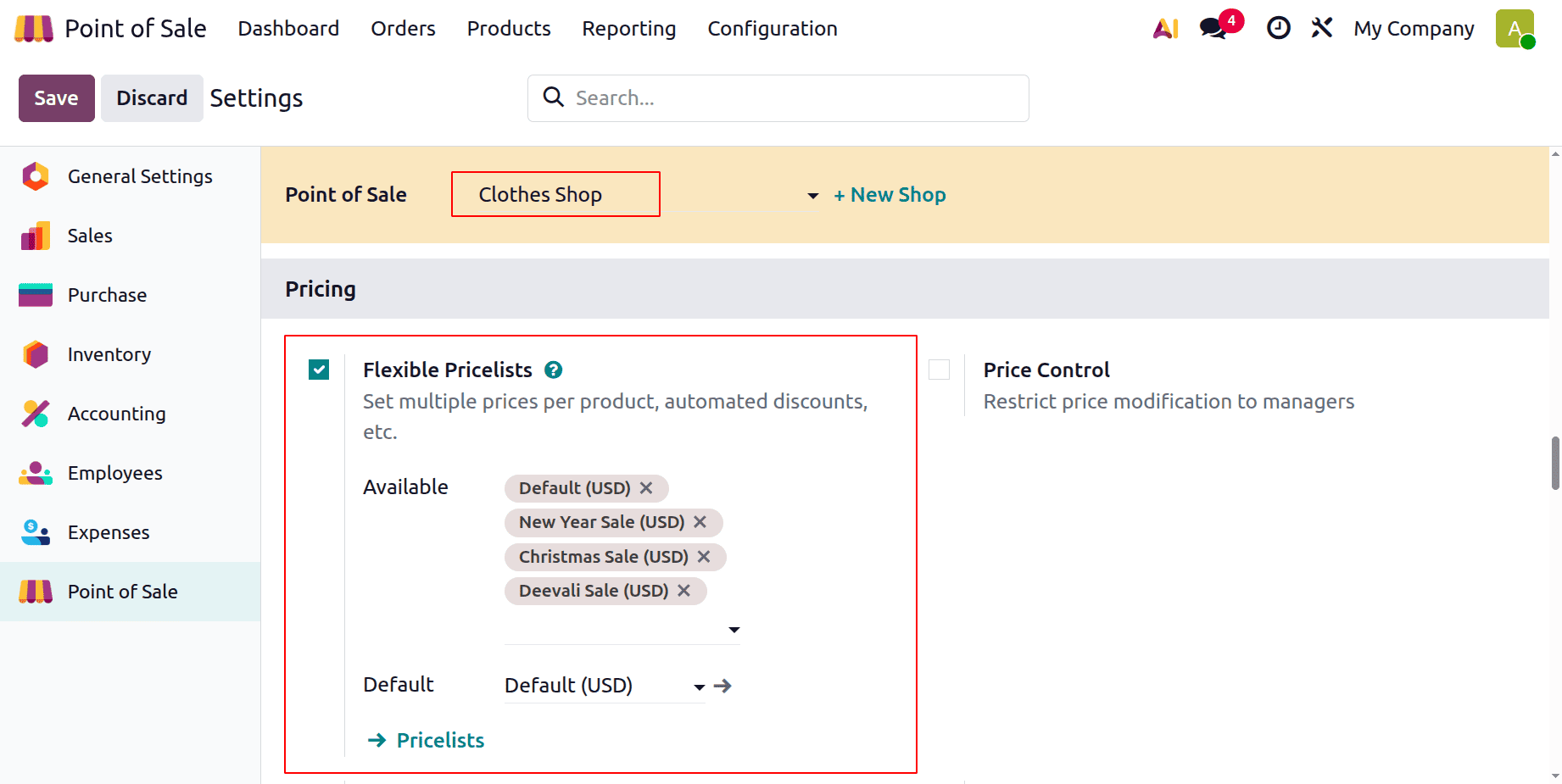
So, here created 3 different Pricelist. Let's check where the price list is added in the point of sale. Go to the Settings. As shown below, the price list is going to be set for the point of Sale named “Clothes Shop”.
Under the Pricing section,n enable the Flexible pricelist. He, re the Default pricelist is set as Default (USD).
The Available price lists are
- Default pricelist (USD)
- New Year Sale (USD)
- Christmas Sale (USD)
- Deevali Sale (USD)
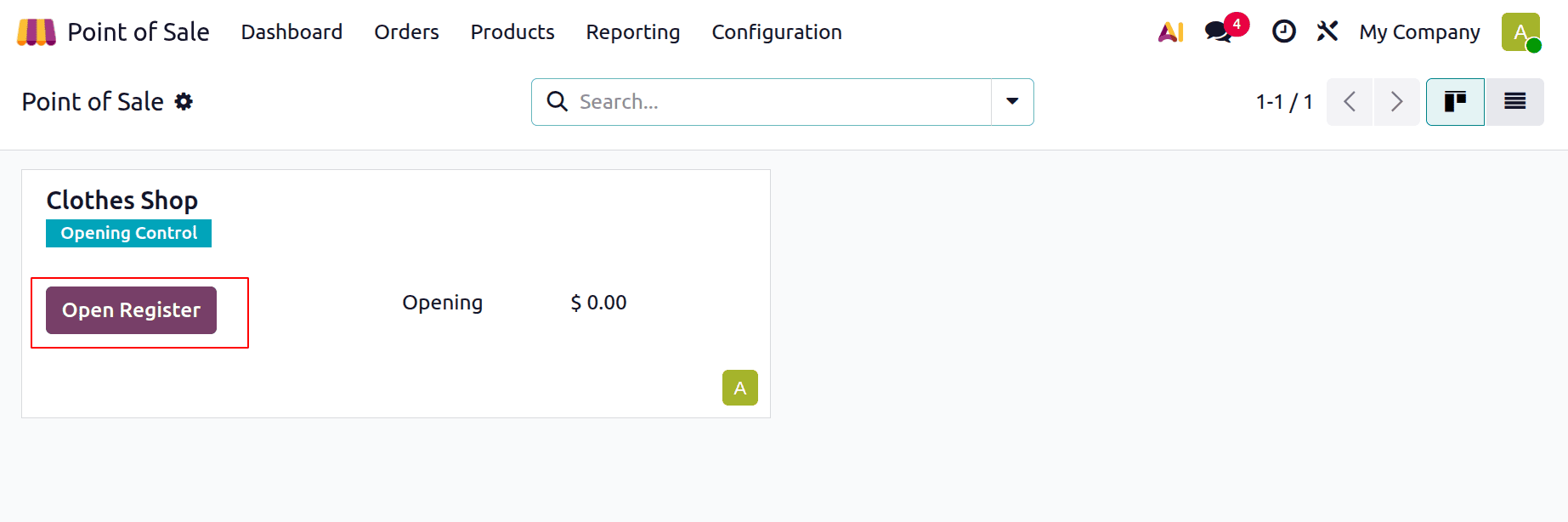
Go to the Dashboard and click on the Open Register.
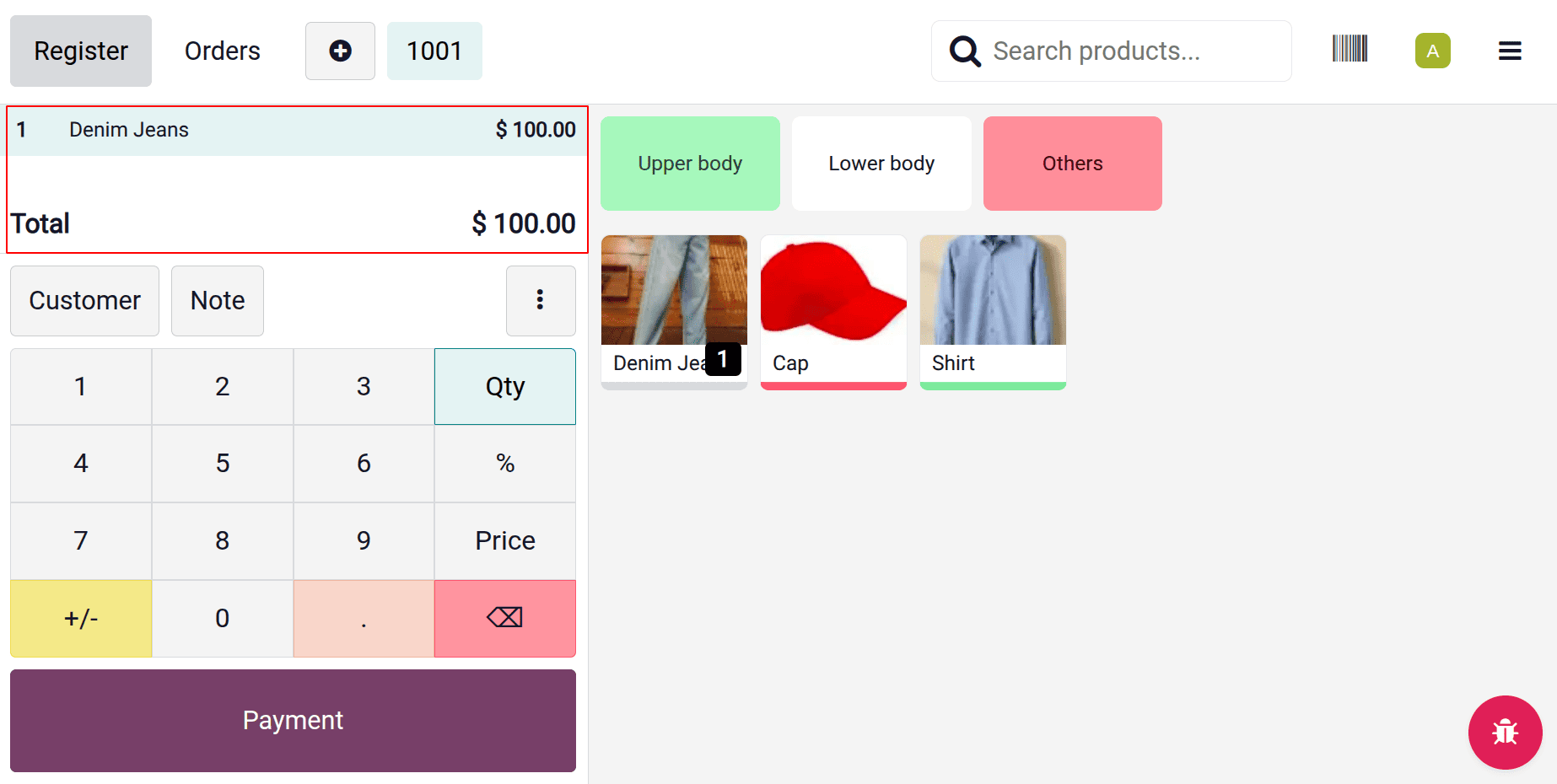
Here, the customer chooses one quantity of Denim Jeans. The default price list is currently used, so the product’s actual sales price is shown there.
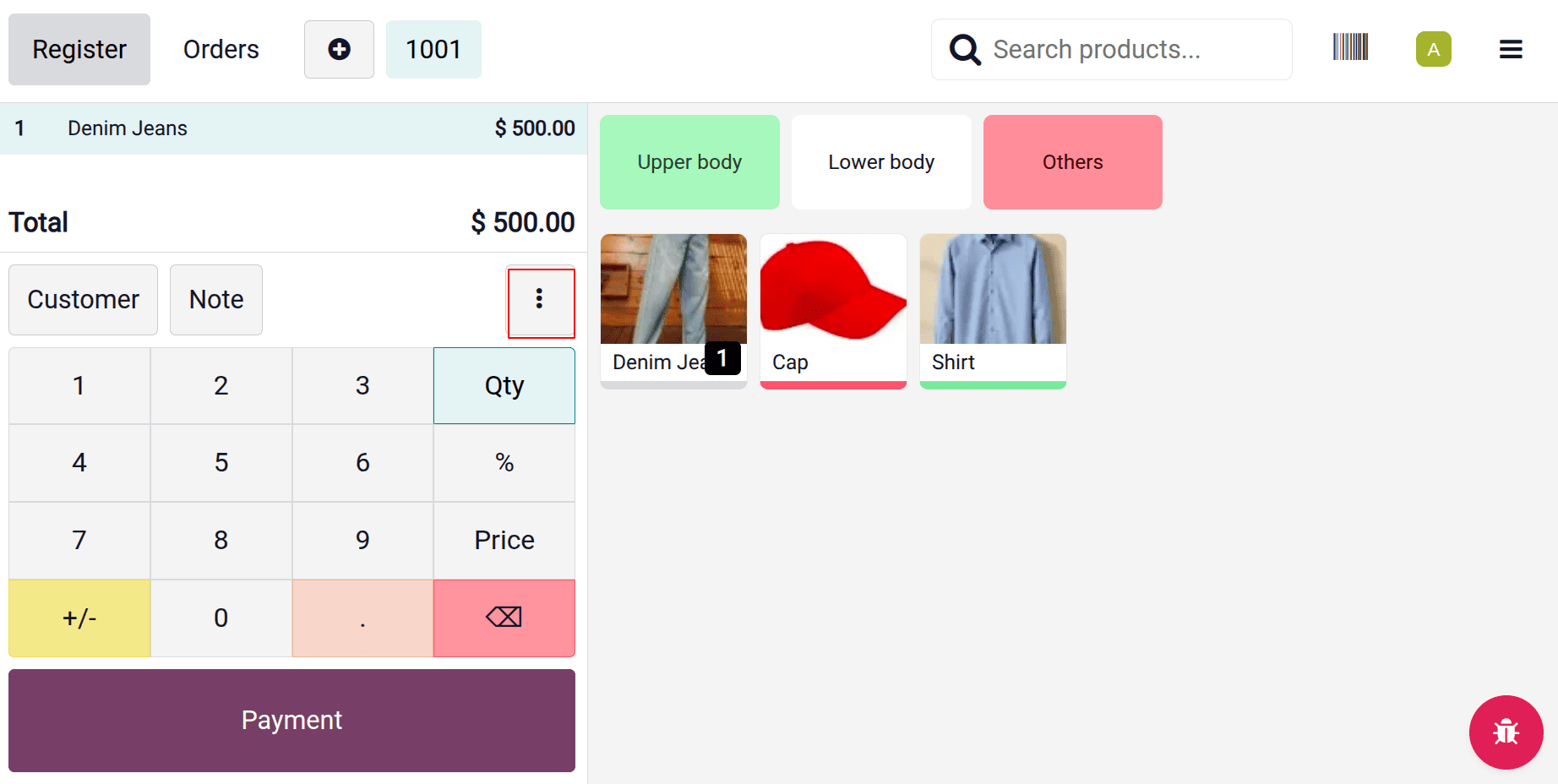
To change the price list, click on the 3 dots button marked in the above screenshot. Then click on the Default (USD).
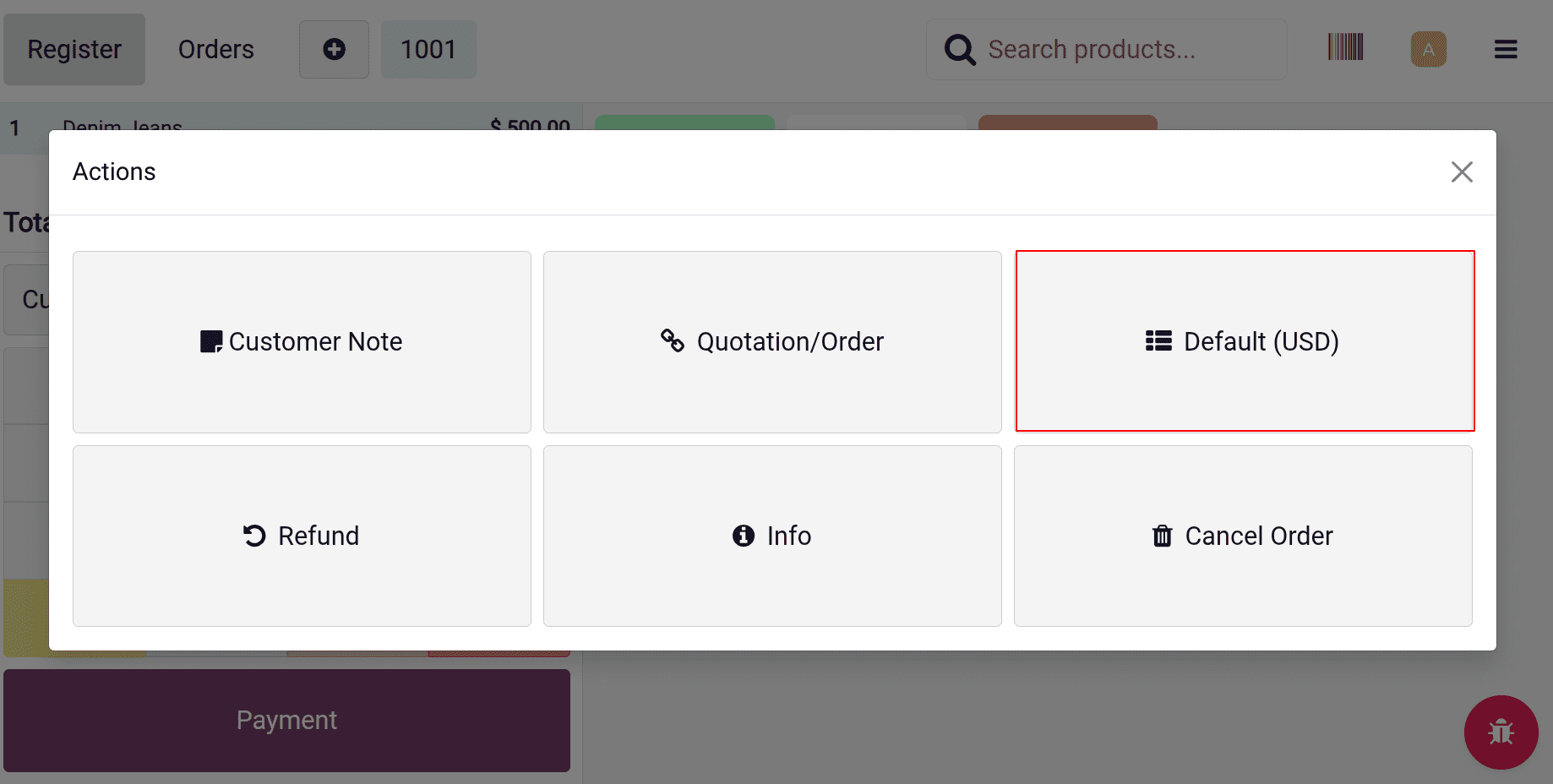
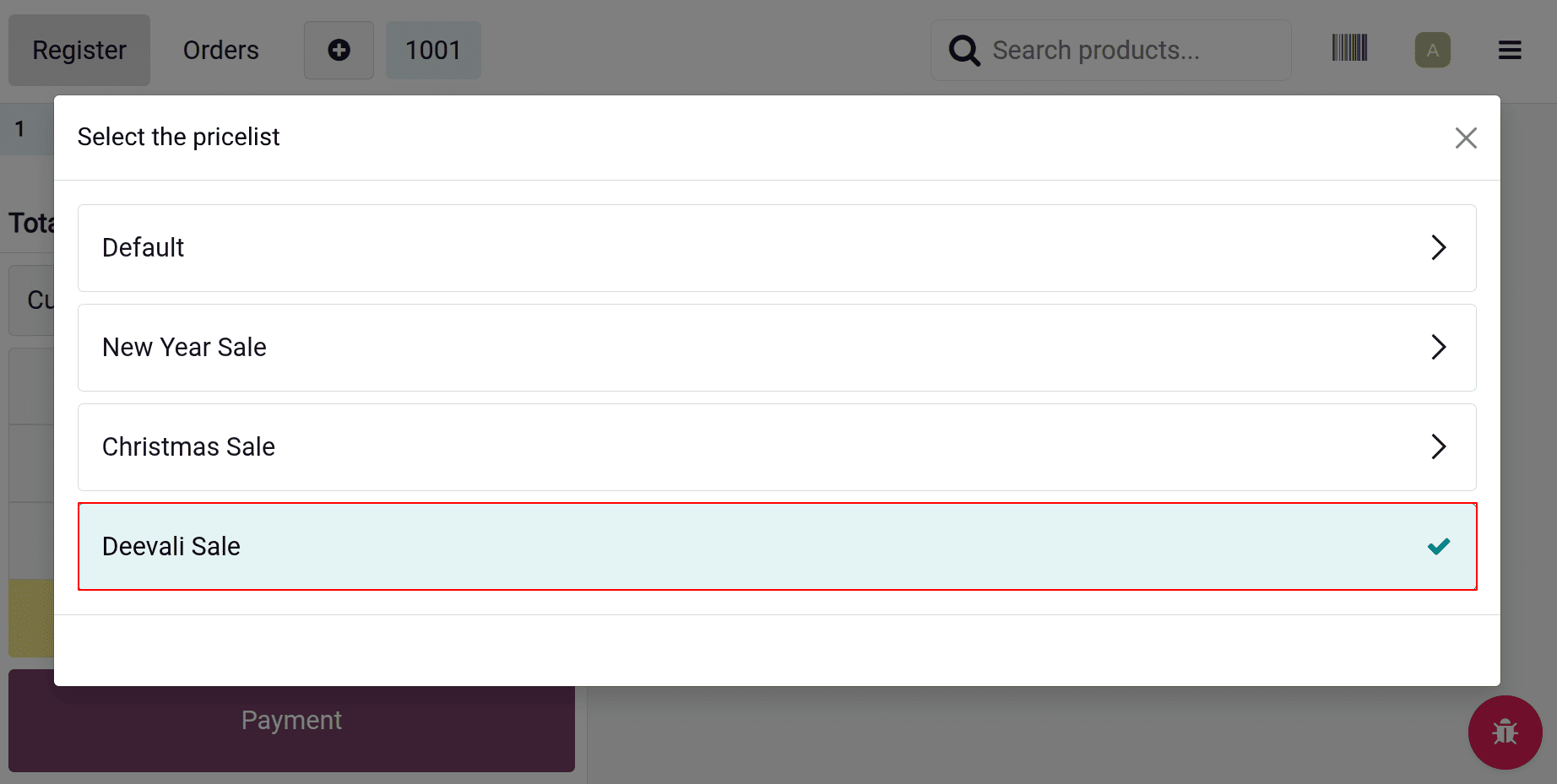
This will show a list of all the available price lists, as shown below. Let's choose the first pricelist named “New Year Sale”.
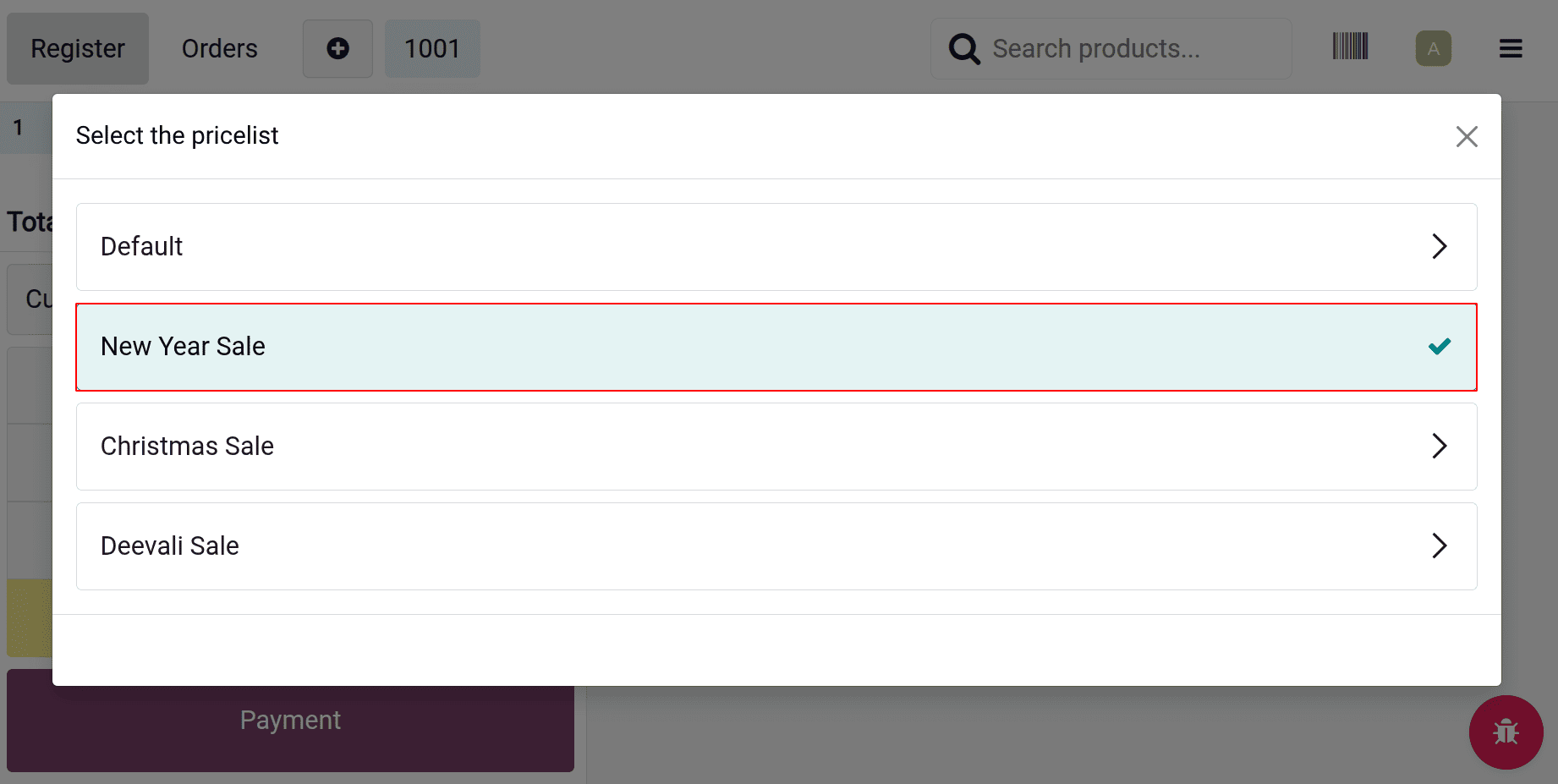
In this price list, the rule is created based on the type Fixed price. The fixed rise set as $100, the price of the previously chosen product is changed to $100, as shown below.
Let's choose the next price list, named “Christmas Sale”. The rule is created based on the type Discount.
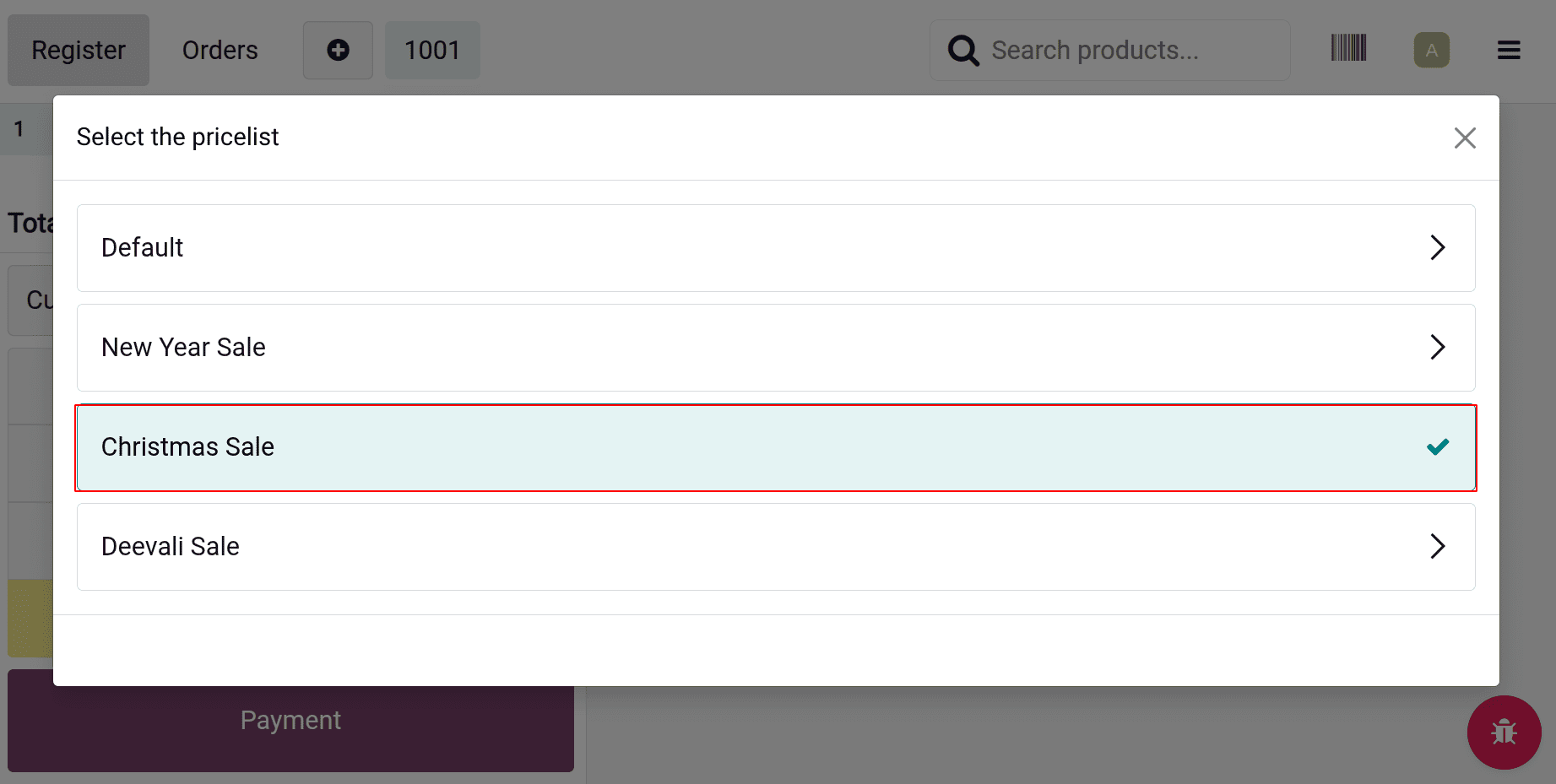
So a 10% discount is allowed on the actual sales price. The actual sales price is $500, and when applying a 10% discount, it will change to $450 as shown below.
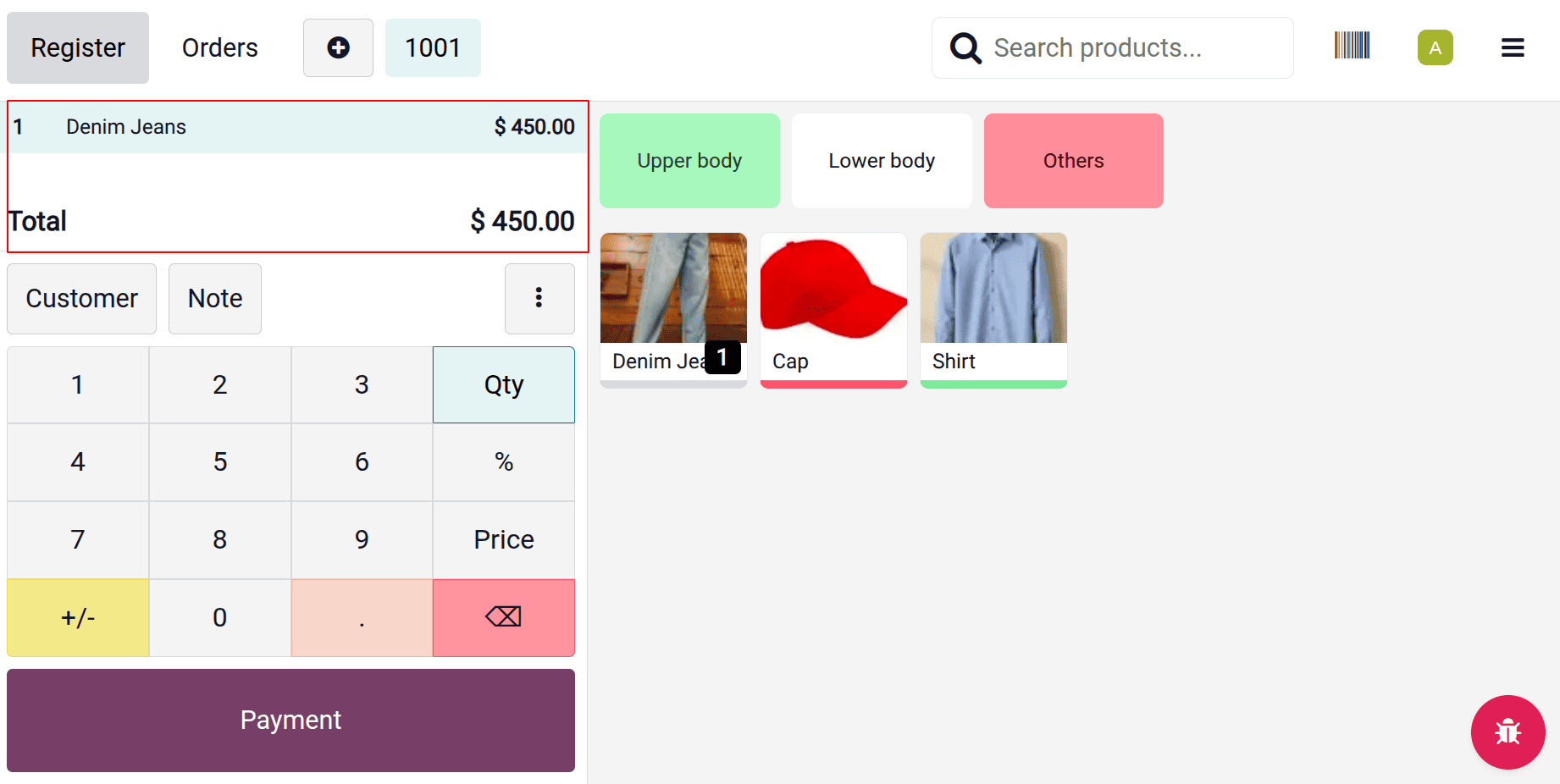
Then choose the last pricelist named “Deevali Sale”. Here, the pricelist was created using the Formula.
The product price automatically changed to $600 as shown below.
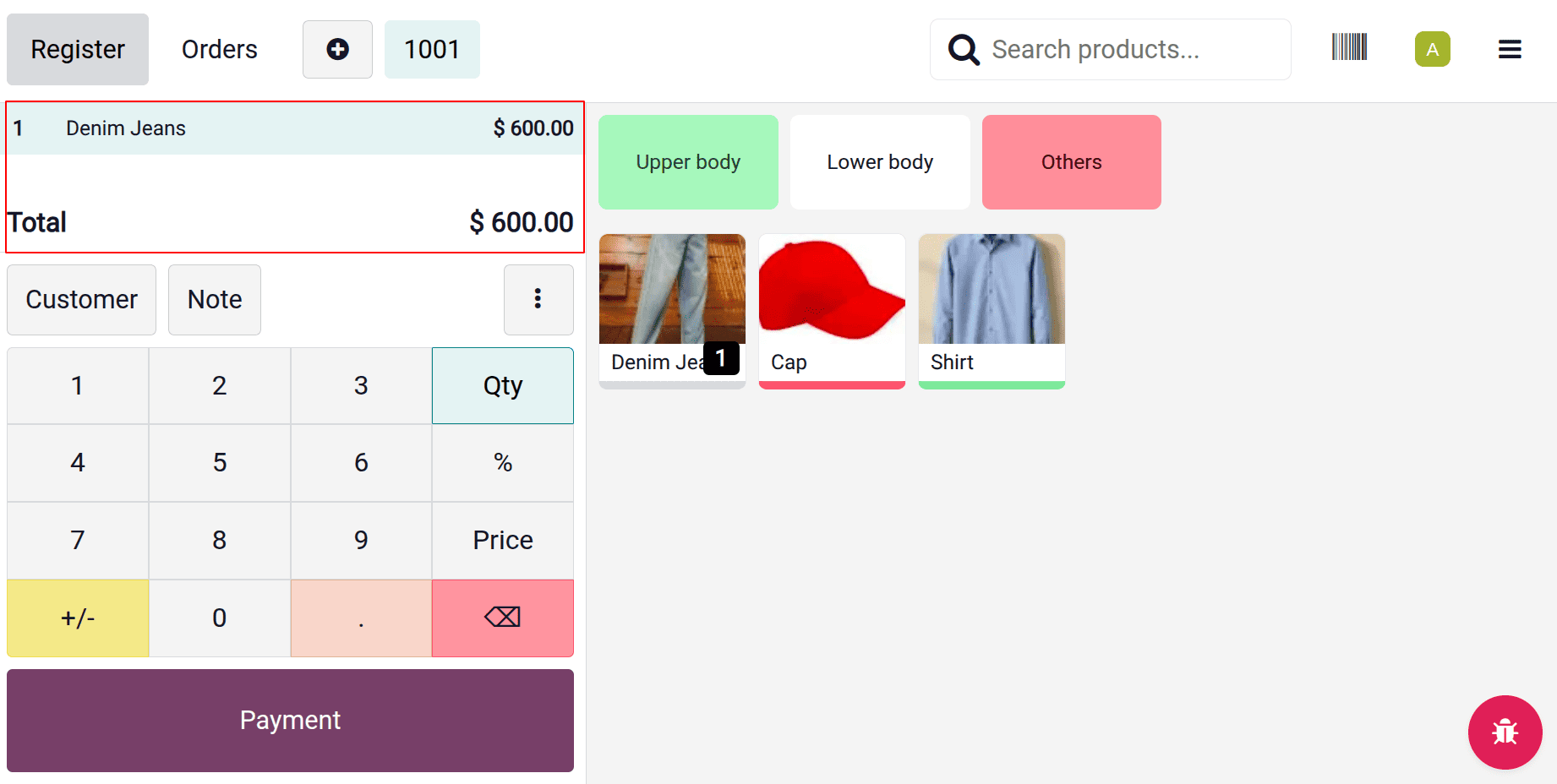
Here, the actual sales price is $500, but we set the minimum margin as $100 and the maximum margin as $200. And also a discount of 10% and an extra fee of $5.
If a 10% discount is applied, the sales price will change to $450. And pass the extra fee of $5, then it will change to $455.
Users need to get a minimum margin of $100 on the sale. So the products should sell at least $600. Here, the calculated sale price is $455. So the sales price is shown as $600.
This is how the pricelist works in Odoo 19 Point of Sale.
To sum up, Odoo 19 POS price lists give companies a versatile approach to control product pricing according to clients, locations, seasons, or marketing tactics. Businesses can increase customer happiness while keeping better control over profit margins and sales operations by setting up numerous pricing rules. Pricelists and the POS system work together seamlessly to guarantee proper pricing during transactions and minimise manual labour for store employees. In general, companies may build a more dynamic, effective, and customer-focused retail experience by utilising price lists in Odoo 19 POS.
To read more about How to Manage the Pricelist Odoo 18 Point of Sales (POS), refer to our blog How to Manage the Pricelist Odoo 18 Point of Sales (POS).