Effective team communication and task allocation are essential for smooth business operations. In Odoo 20, roles help organize users according to their responsibilities, making it easier to coordinate work across different departments. Instead of mentioning individual employees separately, team members can use roles to direct communication to the relevant people.
In this blog, we will explore how to configure roles in Odoo 20, use them to mention teams in Discuss, and understand how roles can support activity assignment.
Create and Configure Roles in Odoo 20
Open the Discuss module from the Odoo 20 dashboard, navigate to Configuration, and select Roles.
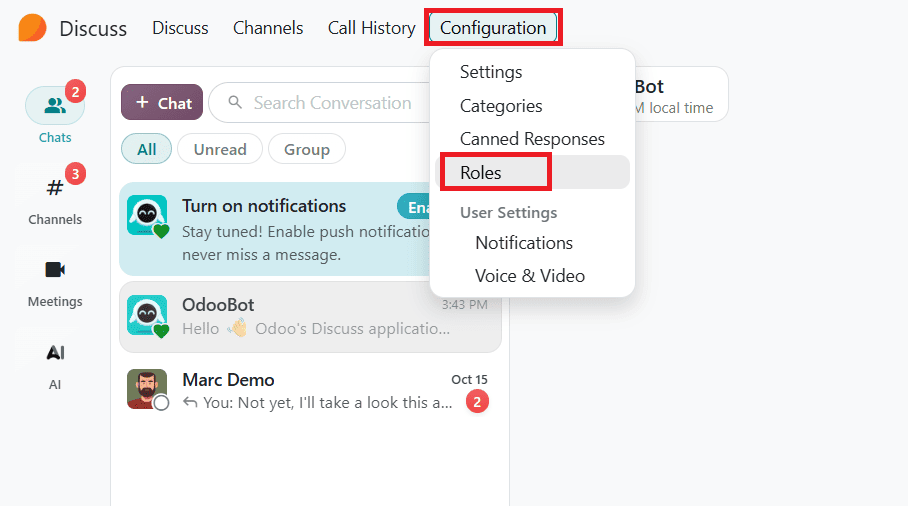
Once you open Roles, you can see a window as shown below.

To create a custom role, click New, enter a role name, and add the relevant users. Then save it. An example is shown below.

Now we have created a role. The next step is to use the role to mention a team in Discuss.
Mention a Role in Chat and Channel
Odoo 20 allows users to mention a group of people through role-based mention. To mention a team, open the chat or channel where you want to send the message. Instead of spending time typing out every single name individually, you can simply type the @ symbol followed by the specific name of a role or group name in the message box.
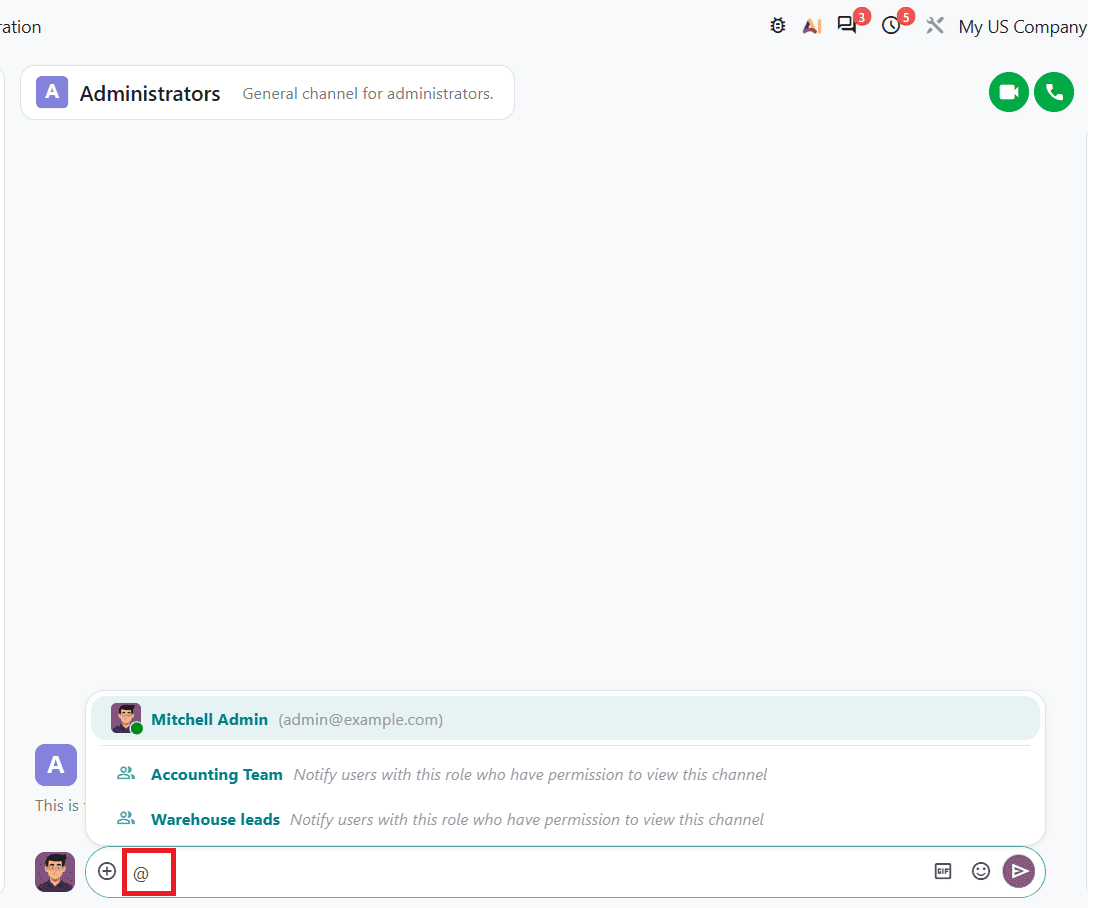
As soon as you send the message, the users who have permission to view it will be notified. This helps the team save time and improve internal communication.
Role-based mention supports targeted communication by directing the message to the relevant group of employees. For example, mentioning the Accountant role can help bring accounting-related updates to the attention of the appropriate team members without requiring the sender to mention each one individually.
Configure Activities
Odoo 20 Discuss module also allows you to configure Activities. To configure Activities, go to Configuration > Settings. Once you open Settings, you can see the window as shown below.
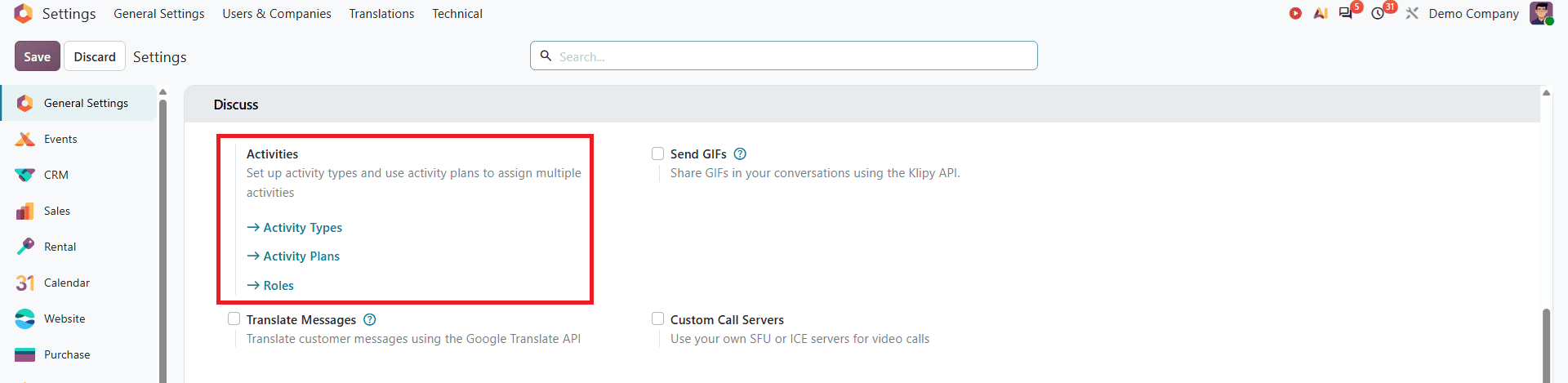
Here you can configure the Activities field, including Activity Types, Activity plans, and Roles.
Activity Types
In Odoo 20, Activity Types help users define activities such as to-do, email, call, and meeting. To access them, navigate to Discuss > Configuration > Settings and click on Activity Types under the activity section.
The Activity Types window displays the existing activity types and their details.
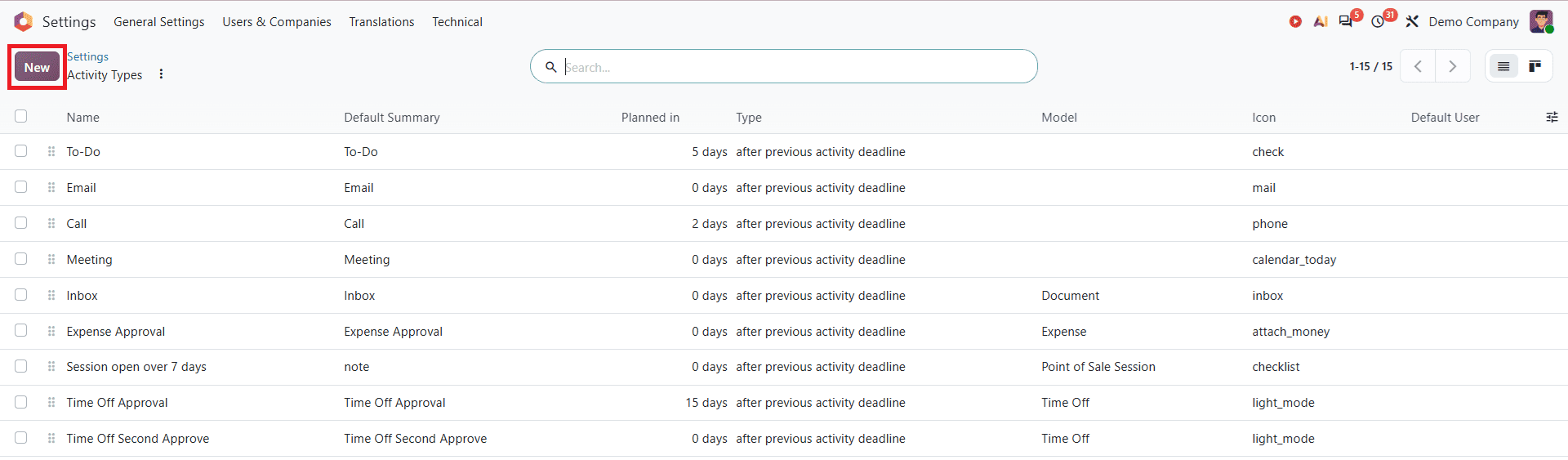
To create a new activity type, click the New button at the top. This opens a window where you can create a new activity.
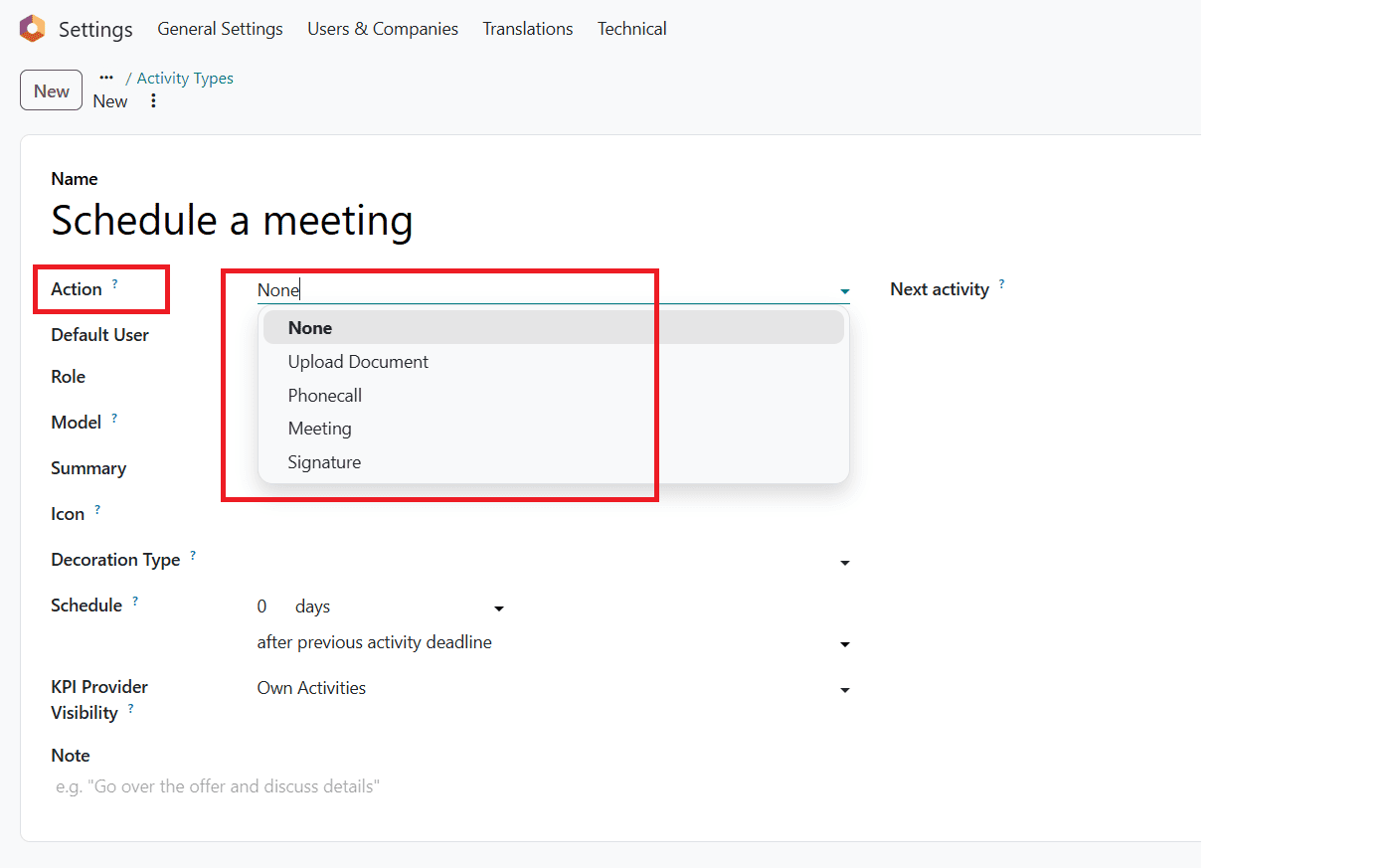
Enter a name for the activity type, such as Schedule a meeting. In the Action field, you can select an appropriate action or leave it as None, depending on your requirements.
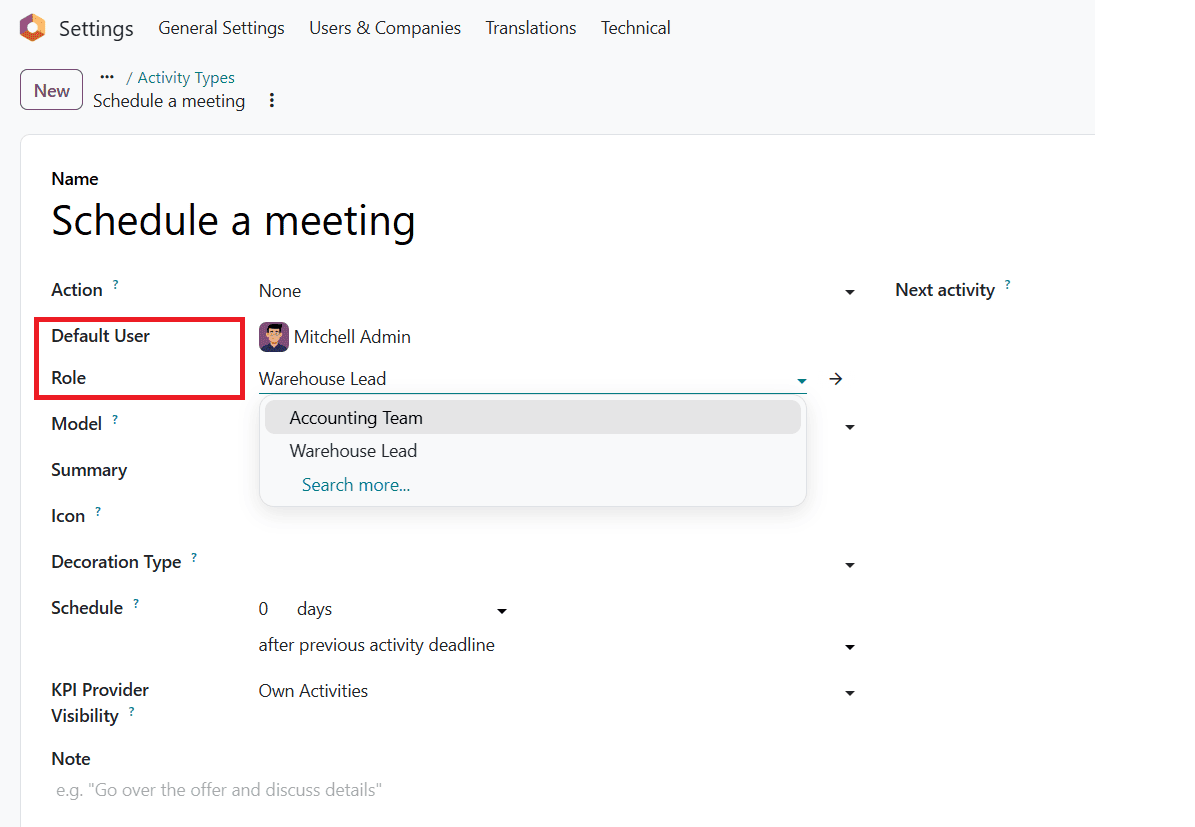
Depending on the configuration, you can specify a responsible user or select a Role, such as Warehouse Leads or Accountants, depending on your requirements. Configure the other available fields such as Model, Summary, Icon, Decoration Type, Schedule, etc.
After entering the required details, save the activity type to make it available for use.
Activity Plan
Activity Plans in Odoo 20 allow users to organize a sequence of activities for employees. To access Activity Plans, navigate to Discuss> Configuration> Settings and select Activity Plans under the Activity section.
The Activity Plan window displays the existing Activity Plans. To create a new Activity Plan, click on New.

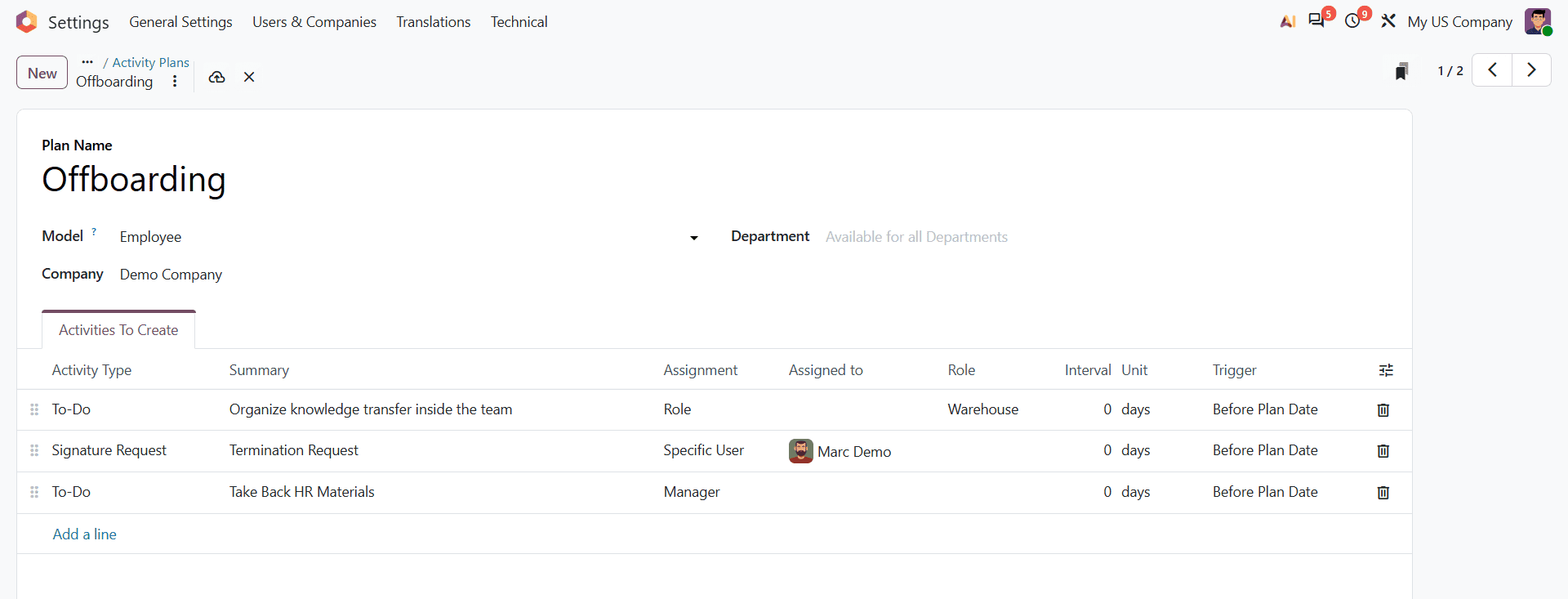
Once you open a new Activity Plan, a form will appear as shown below. Enter the plan name, select the model, and choose the company as required.
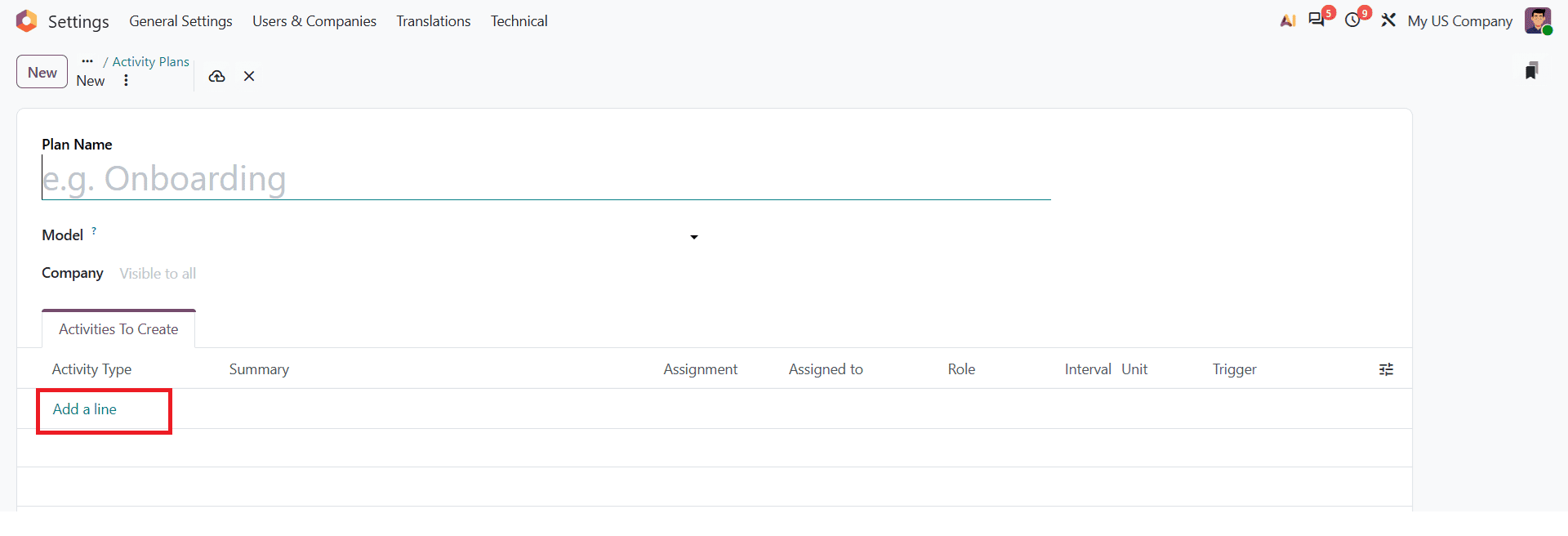
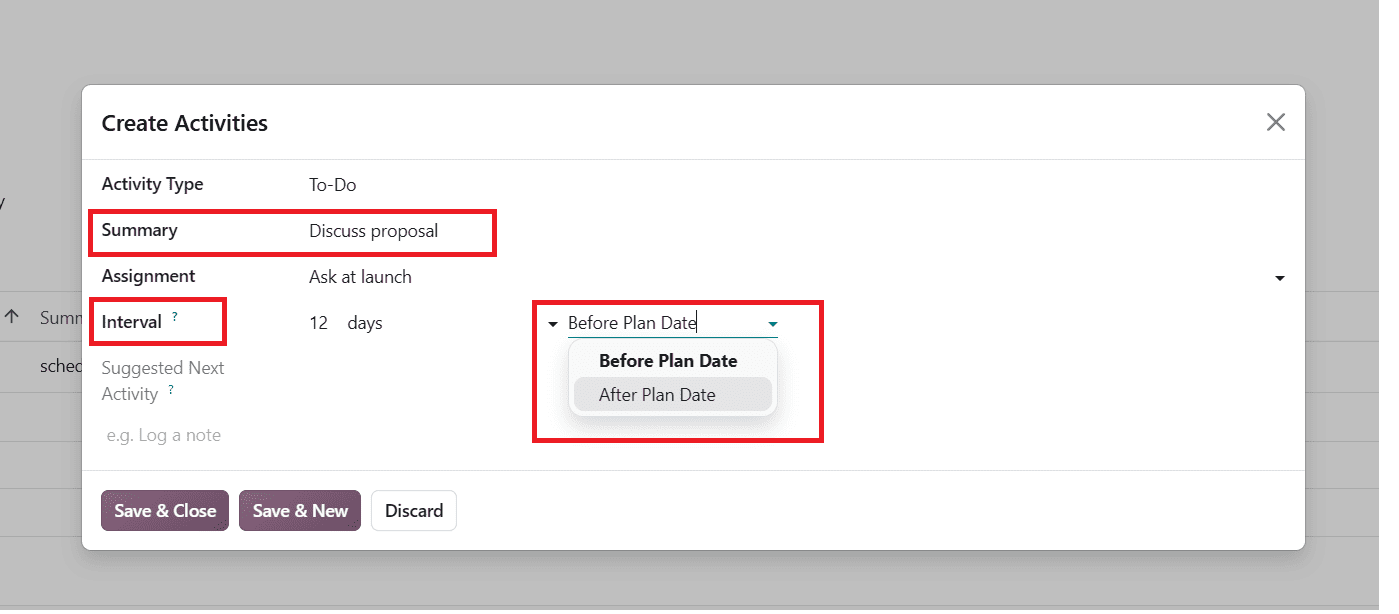
Under the Activities To Create tab, click on Add a line to add an activity type. In the pop-up window form, you can select an Activity type, such as To-Do, Email, Call, Meeting, etc.
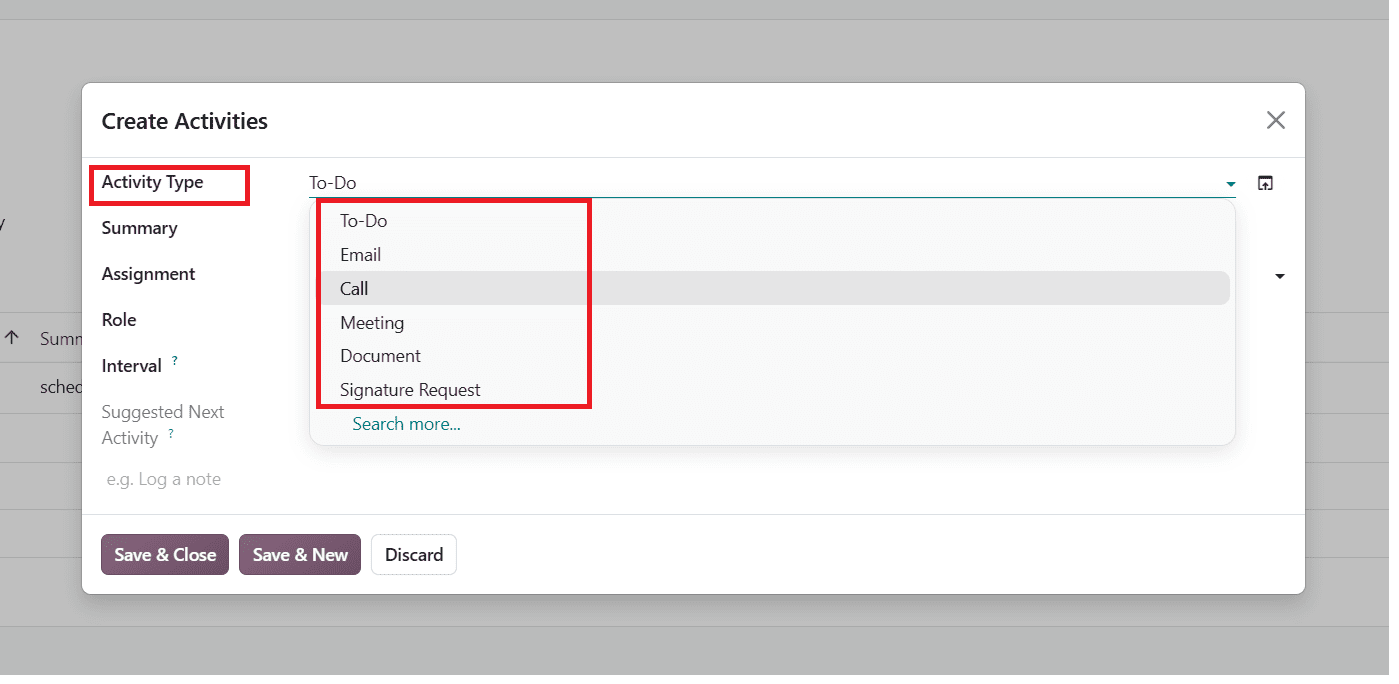
You can also enter a Summary of your activity and configure the Interval (in days, weeks, or months) to execute the action before or after the scheduled plan date.
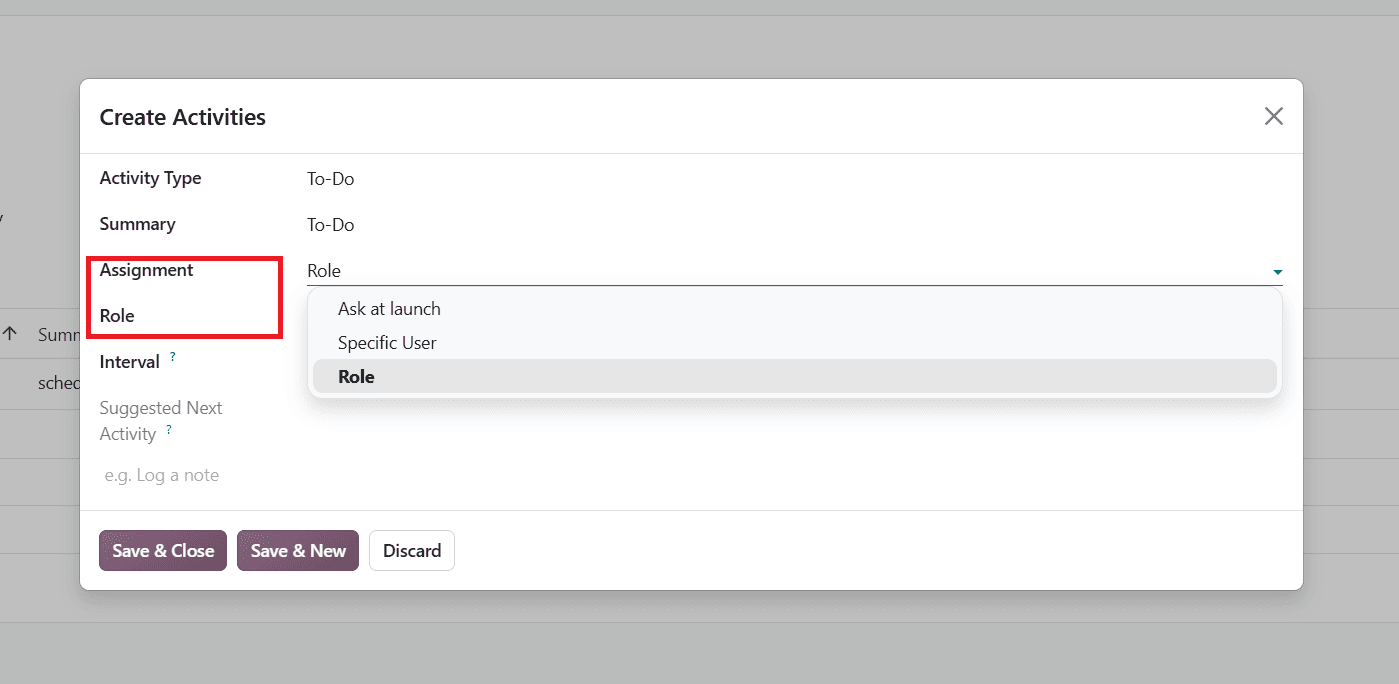
The Assignment field gives you control over who will be responsible for executing each specific activity. The available options include Ask at launch, Specific User, and Role. When you select Role or Specific User, an additional field appears where you can choose the required role or assigned user.
After configuring the activities and their assignment options, save that plan.
Assigning activities through roles can help organize responsibilities within a team. For example, when an activity is related to accounting, the Accountants role can be selected in the activity configuration. Similarly, a role such as Warehouse Lead can be used for activities related to warehouse operations.
Once it is saved, the Activity plan will then be available for use according to its configuration. An example is shown below:
Roles in Odoo 20 provide a way to organize users according to their responsibilities. By creating roles, mentioning them in Discuss conversations, and selecting them in activity configuration, teams can manage communication and organize activities around their working responsibilities. Role-based communication supports targeted communication, while activity assignment helps teams distribute responsibility according to their requirement. Understanding these options helps users to configure roles according to their team's requirements and make better use of available communication activities management features.
To read more about How to Create Polls in Odoo 20 Discuss Channels and Chats, refer to our blog How to Create Polls in Odoo 20 Discuss Channels and Chats.