Those who worked with Odoo before have experience with wkhtmltopdf as well: an invoice looks perfect on a laptop but lacks the logo on the production server, a footer that can never be on the right page, or Wkhtmltopdf failed (error code: -10) on the last day of the month when invoices had to be sent.
Wkhtmltopdf served as a PDF engine for Odoo for around ten years already, while Odoo 20 introduced a new alternative, Paper Muncher, that was created by Odoo developers themselves. There is no need to upgrade immediately, as this feature does not affect the process of document printing because wkhtmltopdf will be used until you use another engine. The question of whether you should use it or not will arise sooner or later.
The purpose of this article is to introduce Paper Muncher and explain the reasons for which Odoo created it.
Why Odoo built Paper Muncher
Every Odoo report is built in HTML. The PDF engine turns that HTML into the PDF your customer receives.
wkhtmltopdf runs on a very old, unmaintained version of the WebKit browser engine, so its problems are permanent. Modern CSS like flexbox and grid is unreliable, long documents print slowly, and errors are cryptic, often network issues caused by a wrong web.base.url or report.url. Every server also needs one specific patched build (0.12.6.1 "with patched qt"), and other versions can quietly produce odd results.
Rather than adopt an existing engine, Odoo built one for this single job and presented its design at Odoo Experience 2025. Because Paper Muncher reads ordinary HTML and CSS, your existing templates don't need rewriting.
The two engine modules
| Module | What it does |
| base_report_wkhtmltox | Connects Odoo to wkhtmltopdf for PDFs and wkhtmltoimage for images. Installed automatically. |
| base_report_paper_muncher | Connects Odoo to Paper Muncher, for PDFs only. You install it yourself. |
If your custom modules call Odoo's old wkhtmltopdf rendering methods directly, check them before upgrading: those methods changed in Odoo 20, and old calls will fail.
Architecture: wkhtmltopdf vs Odoo's in-house renderer
Both engines are separate programs on the server. The difference is how they get your report's styles, fonts, and images.
wkhtmltopdf and wkhtmltoimage are outside tools. Odoo hands them temporary HTML files, and they connect back to your Odoo server over the web, like a browser, to download everything else. If that server address is wrong or unreachable, the PDF fails. For the same reason, Odoo refuses to print with wkhtmltopdf when it runs with exactly one worker process, since the tool would wait on a server that's busy waiting for it. Zero workers (the default threaded mode) is fine.
Paper Muncher, Odoo's in-house renderer, doesn't connect back over the network. Odoo talks to it through a pipe, a direct private channel. When Paper Muncher needs a file, Odoo serves it itself, using a temporary copy of the user's session so normal access rights apply, and the PDF comes back the same way. Odoo still reads report.url or web.base.url for some request details, but the address no longer has to be reachable, which removes wkhtmltopdf's most common failure.
Paper Muncher can't produce images yet. Point of Sale receipt images, Marketing Card images, and ePOS thermal printing (the printer module) still use wkhtmltoimage, so if you use any of them, keep wkhtmltopdf installed.
What about Odoo 19?
Not on your own server. The base_report_paper_muncher module first appeared in Odoo's 19.4 branch (used on Odoo Online), and Odoo 20 is the first self-hosted version that includes it.
Setting it up
You need two things: the Paper Muncher program and the Odoo module. The module in Apps only connects Odoo to the engine; the program must be installed on the server separately, and Odoo doesn't ship its official packages or Docker image.
Download the program from the Paper Muncher releases page (expand asset), choosing the package for your Linux version, for example, paper-muncher_v0.9.0_noble_amd64.deb for Ubuntu 24.04. Odoo needs version 0.6 or later. Packages are currently published for amd64 only, so ARM servers aren't covered yet.
Then, run this in the terminal –
cd /tmp
wget https://github.com/odoo/paper-muncher/releases/download/v0.10.0/paper-muncher_v0.10.0_jammy_amd64.deb
sudo apt install ./paper-muncher_v0.10.0_jammy_amd64.deb
The package installs into /opt/paper-muncher/bin/, which isn't on the system PATH, so plain paper-muncher returns "not found". Odoo checks the PATH first and then that folder, so it isn't affected.
Next, in Apps, clear the default "Apps" filter, search for "Paper Muncher" and install it.
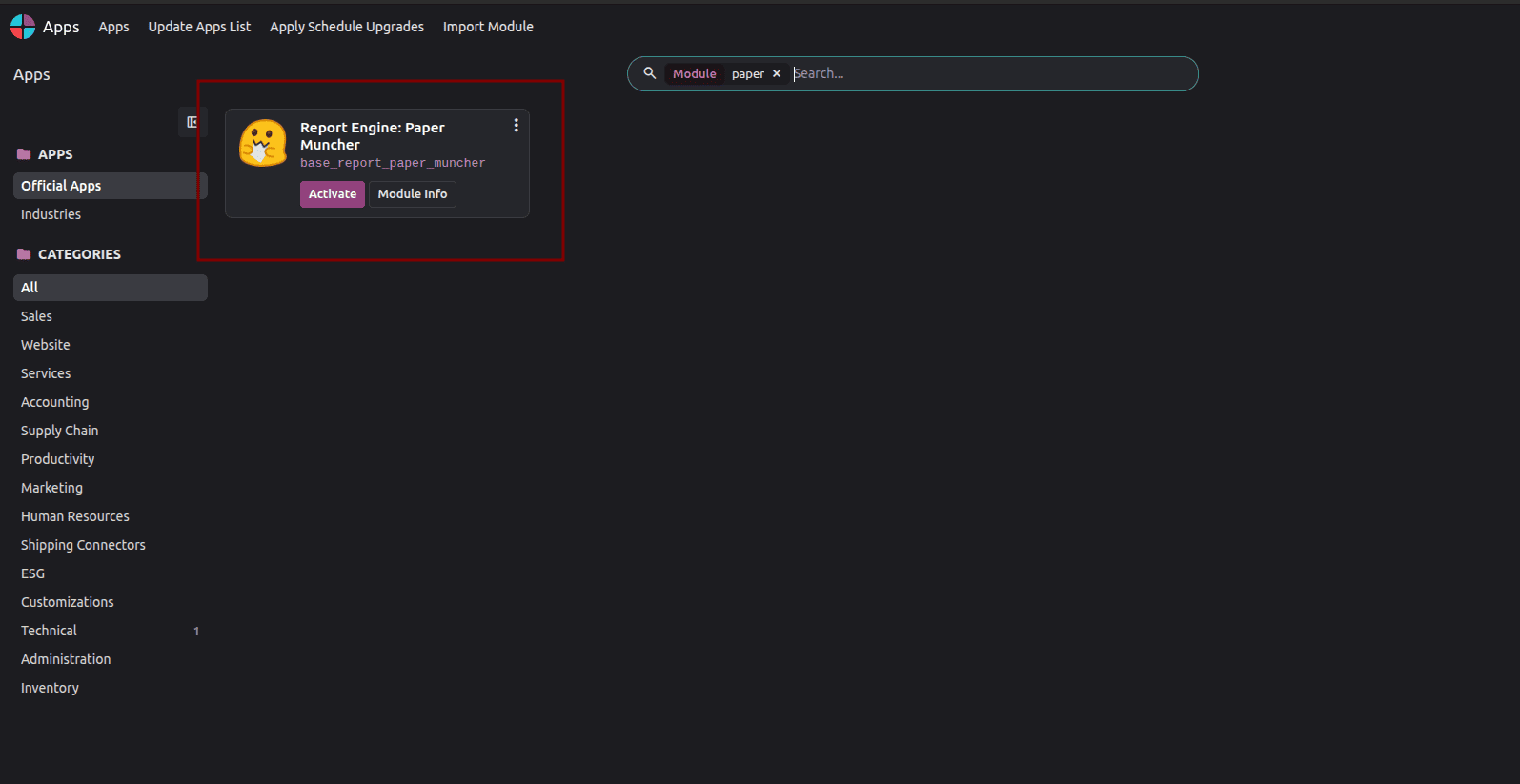
Or from the command line (adjust the config path to your setup):
./odoo-bin -c /etc/odoo/odoo.conf -d mydb -i base_report_paper_muncher --stop-after-init
Then restart Odoo, and again whenever you upgrade Paper Muncher. Each Odoo process checks for the program once and remembers the result in the browser, so users should reload the page too.
Installed the module but still can't print? The module adds the "PDF (Paper Muncher)" option even when the program is missing. Print a report with that option: a PDF means the program is installed; a web page saying "Unable to find the PDF engine on this system. The report will be shown in html." means it isn't.
The [Paper Muncher setup guide (TC-0133)] covers the full step-by-step configuration with screenshots.
Per-report engine selection
You choose the engine for each report separately. In developer mode, go to Settings > Technical > Actions > Reports, open a report, and look at the Format field:
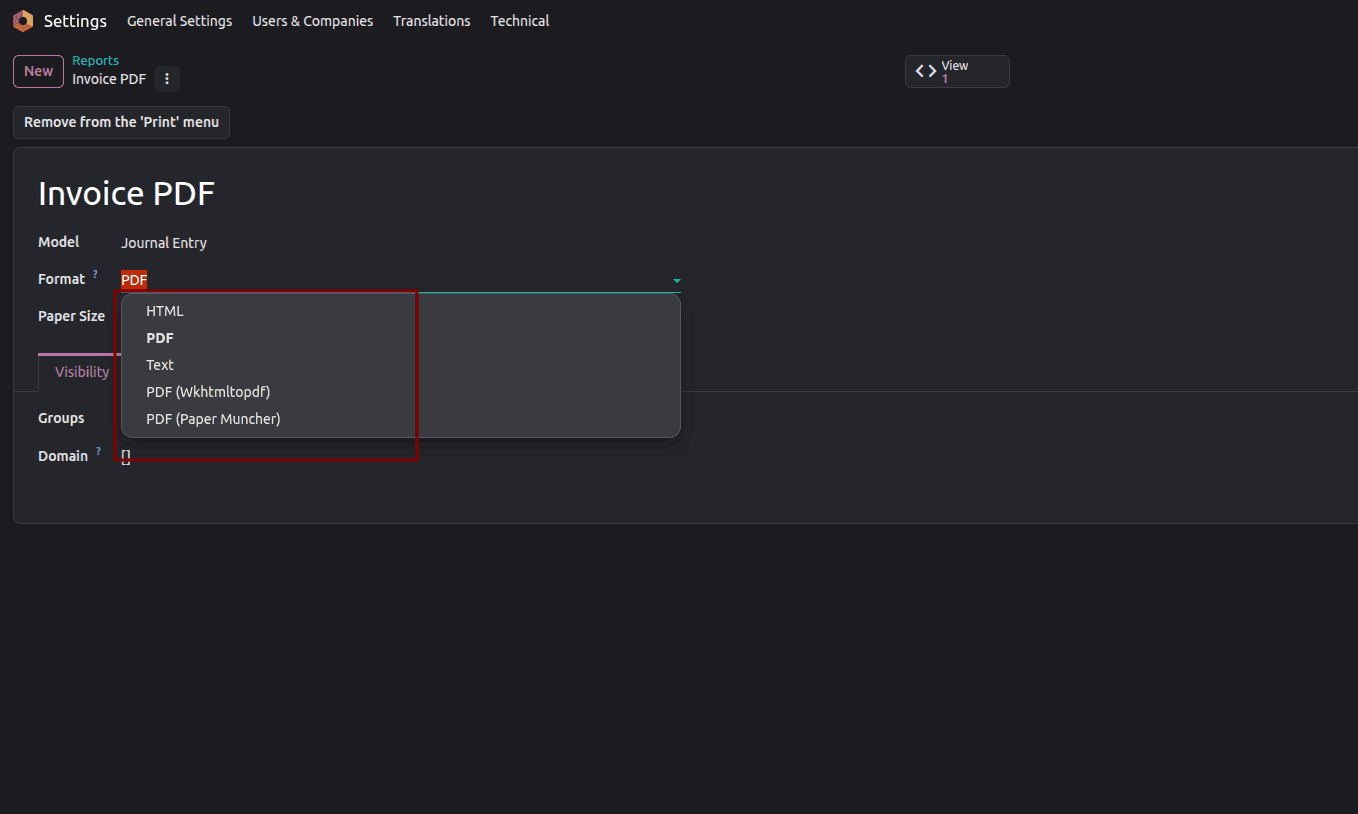
| Format | Engine used |
| PDF | Your database's default engine (wkhtmltopdf unless you change it) |
| PDF (Wkhtmltopdf) | Always wkhtmltopdf |
| PDF (Paper Muncher) | Always Paper Muncher |
Changes take effect as soon as they are saved – there is no need to restart. Thus, as a plain long report is processed by the Paper Muncher, customer invoices remain processed by the wkhtmltopdf engine.
If you need to switch all reports to the Paper Muncher after testing it, you should change the value of the system parameter report.pdf_engine_default (Settings > Technical > System Parameters) from wkhtmltopdf to paper-muncher. Reports with the “PDF” format will use it automatically. You can easily switch back to wkhtmltopdf and undo your actions.
If you also want to compare the results obtained with the two engines, you can print the record first, change the format, and print again. Note that it is not a good idea to create copies of reports, for they will receive the same technical name as the parent report, and Odoo will print the two records using the same name as well.
Accounting reports (Enterprise)
The General Ledger, Profit and Loss, and Balance Sheet in Odoo Enterprise aren't regular reports, so the Format field doesn't apply. Their accounting report form has its own Force PDF Engine field; if it's empty, they follow report.pdf_engine_default.
Rendering fidelity and CSS support
wkhtmltopdf is predictable because your reports have been tuned to its quirks for years. Paper Muncher is built for modern CSS and aims to handle everything older templates rely on, but it's young: the current release is v0.9.0, not yet 1.0, and new versions come out regularly.
Here's Odoo's standard quotation printed with both engines:
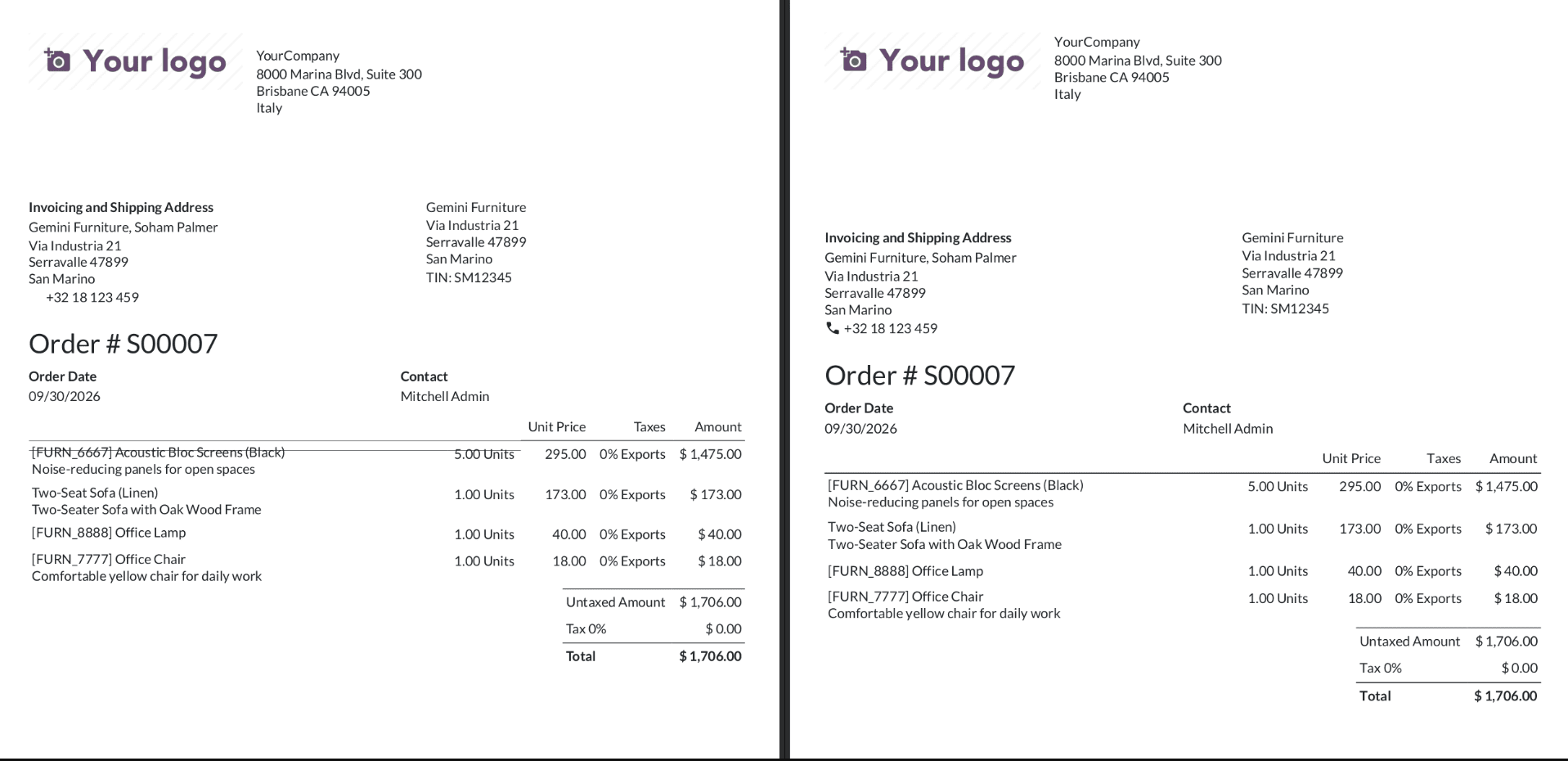
Odoo's standard quotation printed with Paper Muncher (left) and wkhtmltopdf (right)
The text, prices, totals, and table layout all matched. With Paper Muncher, everything below the header sat about 8 to 12 mm higher, and the customer address and the date, expiration, and contact columns moved a few millimetres to the right. In the copied text, the footer ("Page 1 / 1") came before the content, and the title appeared twice. That's the typical pattern: correct content, with surprises in spacing and positioning.
Speed
Test setup: Odoo 20.0 Community, Paper Muncher v0.9.0, wkhtmltopdf 0.12.6.1 (patched Qt), Ubuntu 24.04 container with 1 vCPU and 3 GB RAM, Odoo in default threaded mode. Each figure is the average of three warm runs, printing the standard quotation through Odoo's normal print URL:
| Document | wkhtmltopdf | Paper Muncher |
| One 6-line quotation | 2.25 s | 1.0 s |
| One 300-line quotation (18–19 pages) | 3.9 s | 2.0 s |
| 20 one-page quotations printed together | 4.0 s, 172 KB | 34 s, 56 MB |
In terms of print speed with regards to individual documents, Paper Muncher proved to be about twice as efficient. However, the case was different when it came to performing batch printing. What we observe here is a rapid increase in file size as compared to record count; e.g., in single runs, an output of 1 MB is produced for 5 records, and it changes to 7 MB for 10 records. Since the logo is being added over and over again, there are 800 of them present in the 20 records output. Do check this with your team, especially as it comes to batch printing.
What changes for invoices and quotations after an upgrade
If the engine remains unchanged, invoices and quotations will still use wkhtmltopdf as before. The changes that will be seen are due to Odoo's own version 20.0 template updates.
If you have transferred a report to Paper Muncher, check the header, logo, and customer address first, as they may be misaligned. After that, check the lines and totals. The custom layouts have the highest level of customization and will require the highest level of attention.
One hazard: when the invoice is submitted, Odoo saves its PDF and reuses it each time the invoice is sent again or downloaded from the portal.
What to test: headers, footers, page breaks, and custom QWeb reports
Print a few representative real documents with both engines and compare them side by side:
- Headers and footers. Logo, company details, page numbers ("Page 1 / 3"), and the gap above the content. Use a document long enough for the header to repeat.
- Page breaks. Tables running across pages, rows cut in half, headings stranded at the bottom of a page, and any page-break-before or page-break-inside: avoid rules.
- Custom QWeb reports. Reports from your modules or Studio, especially with custom fonts, background images, flexbox, grid, or absolute positioning.
- Batch printing. Print 10 to 20 records together; check the time, file size, and whether page numbers restart per document.
- Multi-company batch printing. Print documents from several companies together and confirm each gets its own header. Odoo's standard layout sets page numbers and per-company headers with a small script written for wkhtmltopdf.
- Barcodes, QR codes and languages. Scan the codes, and check right-to-left text such as Arabic and Asian characters if you use them.
- Copied text. If customers copy text or software reads your PDFs, check the text order.
To compare the first page of two PDFs from a terminal:
pdftoppm -r 100 -png -f 1 -singlefile wk.pdf wk           # creates wk.png
pdftoppm -r 100 -png -f 1 -singlefile pm.pdf pm           # creates pm.png
compare -metric AE wk.png pm.png diff.png                 # counts differing pixels, marks them in diff.png
pdftotext pm.pdf - | head -20                             # shows the text order
The tools come from poppler-utils and ImageMagick. On ImageMagick 7, use magick compare; it exits with code 1 when images differ, which matters in scripts.
Hosting and deployment effort
Either engine installs in minutes. With Paper Muncher, the real effort is the testing above.
| wkhtmltopdf | Paper Muncher |
| What to install | The patched 0.12.6.1 build | paper-muncher 0.6 or later (amd64 only for now) |
| Official odoo:20 Docker image | Already included | You need to add it |
| How it gets styles and images | Downloads them from your Odoo server | Receives them directly from Odoo through a pipe |
| Most common problem | Unreachable or wrong server address, error code -10 | The program is missing or outdated, or Odoo has not been restarted. |
| Odoo workers | Doesn't work with exactly one worker | No special requirement |
The official odoo:20 image is based on Ubuntu 24.04, so add the noble package:
FROM odoo:20
USER root
COPY paper-muncher_v0.9.0_noble_amd64.deb /tmp/
RUN apt-get update && apt-get install -y /tmp/paper-muncher_v0.9.0_noble_amd64.deb \
    && rm -rf /tmp/paper-muncher_v0.9.0_noble_amd64.deb /var/lib/apt/lists/*
USER odoo
On Odoo Online and Odoo.sh, you don't control the server. We couldn't confirm which engines each platform offers at the time of writing, so check with Odoo before planning a switch.
Recommendation matrix
| Your situation | Recommended engine |
| Upgrading to Odoo 20 with no time to test | wkhtmltopdf, which needs no changes |
| Customer-facing invoices, quotations and delivery slips | wkhtmltopdf for now, while you test Paper Muncher on the side |
| Heavily customised QWeb or Studio reports | wkhtmltopdf until each report has been checked |
| Reports you regularly print in batches | wkhtmltopdf until batch printing has been tested |
| Long single reports where speed matters | Paper Muncher, once tested |
| Enterprise accounting reports (General Ledger, P&L) | Test with the Force PDF Engine field on the accounting report |
| New reports built with modern CSS | Paper Muncher |
| Frequent wkhtmltopdf network or URL errors | Paper Muncher is well worth trying |
| You use POS receipt images, Marketing Cards or ePOS printers | Keep wkhtmltopdf installed, as it's still needed for images |
| Odoo Online or Odoo.sh | Check with Odoo which engines the platform offers |
In the Odoo 20 version, you can choose any of the PDF engines without making any modifications. wkhtmltopdf remains as reliable as ever and does its job effectively. Paper Muncher represents the future of Odoo; it makes it faster than ever with one-document PDF generation while avoiding some of the old problems related to networking. It still needs some time to mature, particularly in terms of batch printing.
If you want to try it, install Paper Muncher, select one of the low-risk reports, and test it against wkhtmltopdf, and once you're satisfied with the results, you can increase the number of reports being generated with Paper Muncher.
To read more about Odoo 20 System Requirements: Python 3.12+, PostgreSQL 16+, and pgvector, refer to our blog, Odoo 20 System Requirements: Python 3.12+, PostgreSQL 16+, and pgvector.