Odoo is well-known for its flexibility and modularity, allowing enterprises to modify and extend functionalities as per their needs. However, when the built-in functionalities do not suffice, it becomes necessary to install a customized module. This document will provide information on how to install a custom module in Odoo 20.
Step 1: Get the Module
The module required should be downloaded from the Odoo App Store. Before doing anything else, confirm the version which is built specifically for Odoo 20.
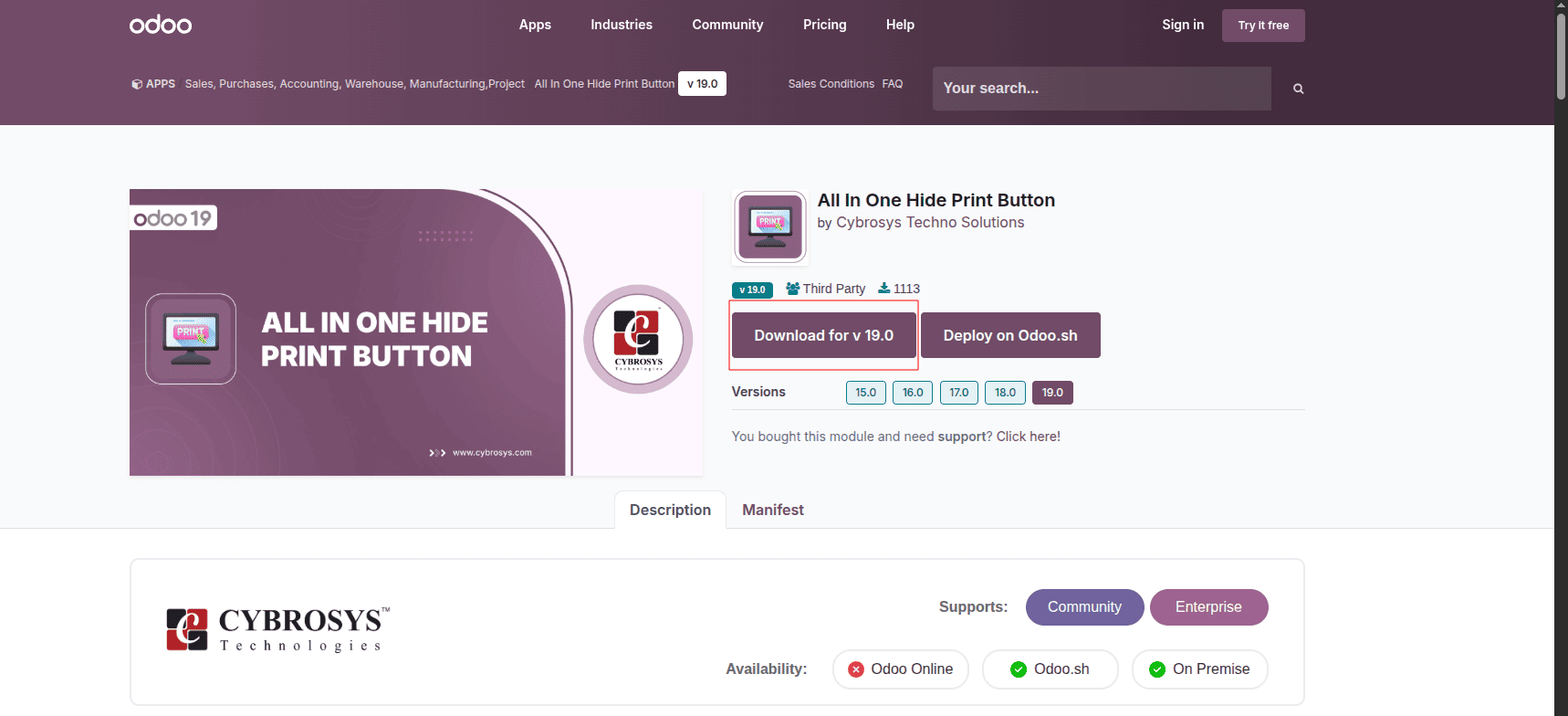
Modules are generally delivered in .zip format. Unzip the file so that the module folder is now available for the next step.
Step 2: Copy the Module to Your Addons Path
On-Premises Configuration
1. Create a directory for your own addons:
/opt/odoo/custom_addons/
2. Create the directory and assign the necessary permission to Odoo:
sudo mkdir -p /opt/odoo/custom_addons
sudo chown -R odoo:odoo /opt/odoo/custom_addons
3. Configure your Odoo configuration file to point to the newly created directory:
sudo nano /etc/odoo.conf
Find the addons_path entry and append your custom directory to it:
addons_path = /opt/odoo/odoo/addons,/opt/odoo/custom_addons
4. Copy the unzipped module to the custom_addons directory:
sudo scp -r <custom_module_folder> root@<ip_address>:/opt/odoo/custom_addons/
5. Restart Odoo to apply your changes to the configuration file:
sudo service odoo-server restart
On Odoo.sh
Method 1: Install straight from the Odoo App Store
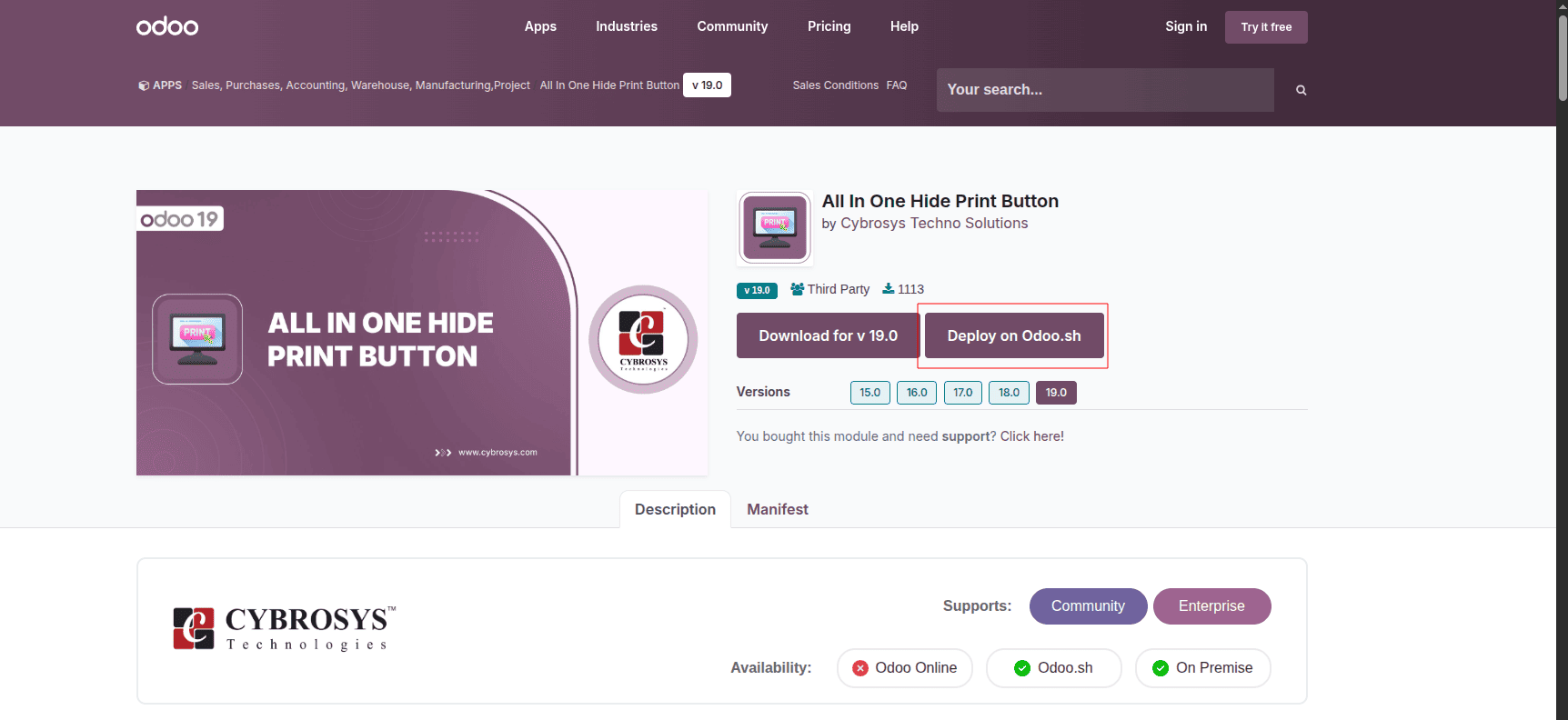
Apply when the module is present in the official Odoo App Store and your Odoo.sh subscription allows this.
- Access the Odoo.sh project dashboard.
- Choose either the Staging or Production branch where you’re developing your project.
- Navigate to Apps in Odoo.
- Find the module in question and click Install-Odoo.sh will do the job.
Method 2: Push a downloaded module through Git
Applicable to third-party modules or customized ones which are not available via the App Store.
1. Initialize your local folder and pull your Odoo.sh repository:
git init
git pull <your-odoo-sh-repository-url> <your-branch-name>
2. Unzip the module and copy it into the Odoo.sh repository folder.
3. Commit and push
git checkout -b <your-branch-name>
git add .
git commit -m "Add custom module: your_module_name"
git push <your-odoo-sh-repository-url> <your-branch-name>
Odoo.sh detects the new module, initiates the build process, and deploys it to your branch.
Local Development (Odoo 20 Community or Enterprise)
In case your module is not located in default folders, you need to set its path in the odoo.conf file manually:
admin_passwd = admin
db_host = localhost
db_port = 5432
db_user = odoo20
db_password = yourpassword
addons_path = /home/cybrosys/odoo 20/addons,
              /home/cybrosys/odoo 20/20.0,
              /home/cybrosys/odoo 20/custom_addons
http_port = 8069
limit_time_cpu = 600
limit_time_real = 1200
Tip: Add each path separated by commas; keep in mind possible wrong paths, non-existing paths and extra spaces; Odoo 20 ignores such paths but does not inform about it.
Afterwards, restart the instance:
./odoo-bin -c odoo.conf
Alternatively, if it runs as a service:
sudo systemctl restart odoo
Step 3: Enable Developer Mode and Reload the Apps List
Odoo will not be able to recognize the new module added until you activate Developer Mode:
- Go to Settings.
- Scroll down to Developer Tools.
- Activate the Developer Mode button.

Or skip the menu and add ‘ ?debug=1 ’ to the URL:
http://localhost:8069/web?debug=1
After enabling Developer Mode:
- Access the Apps menu.
- Click on the ‘Update Apps List’ button and update it.
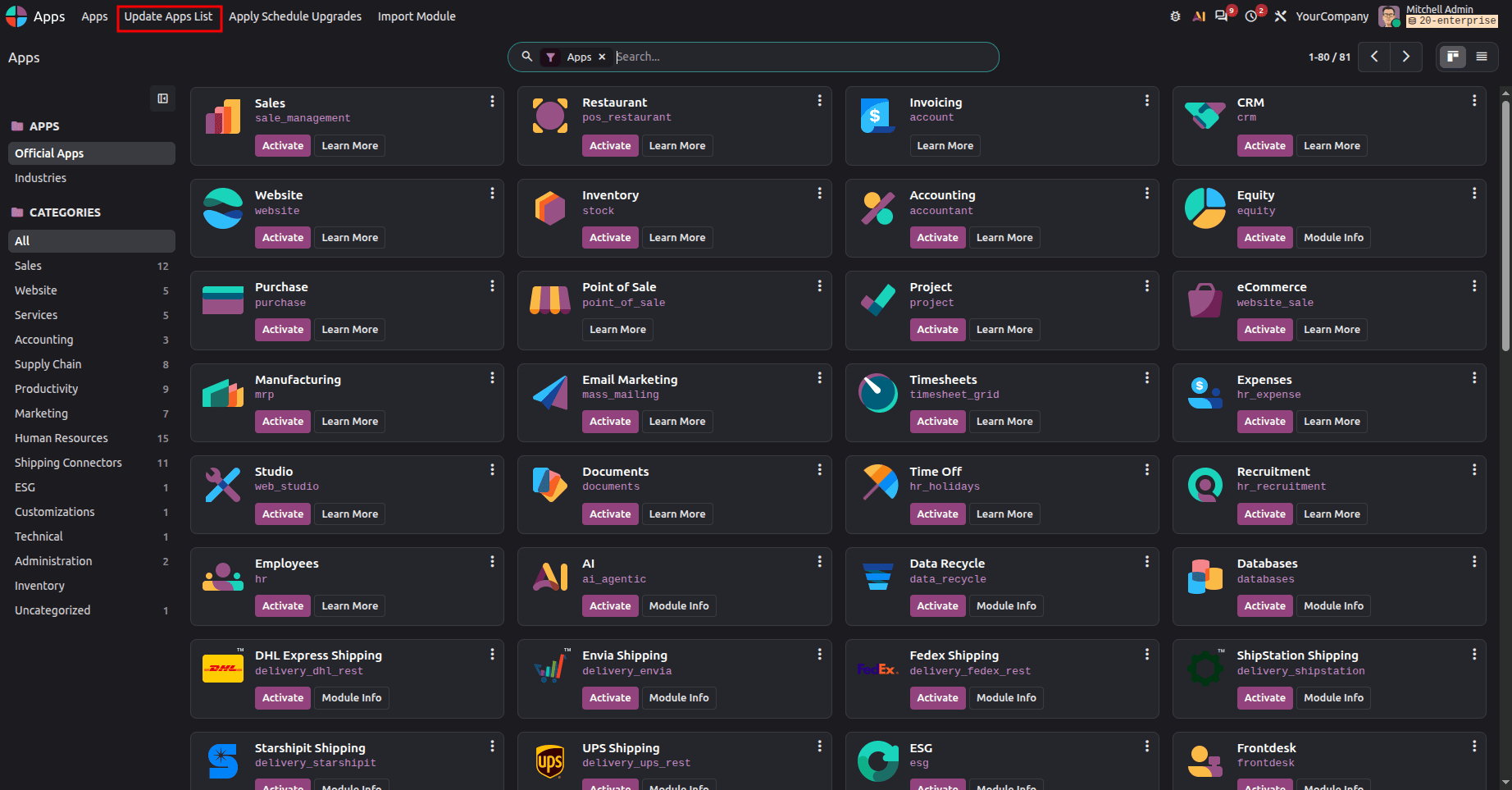
Odoo 20 will be prompted to rescan each of the addons paths defined and register all the modules found.
Step 4: Installing the Module
- Click Apps.
- Type the name of your module.
- Clear out the default filters (Apps, Installed, and Extra), as these will hide the module.
- Activate your module once it comes up

Your module should now appear in the list of installed apps with its menus available in the interface.
Note on "Import Module"
The "Import Module" feature available in the Apps list is intended for use with data-only modules – those contained in the .zip files with the XML files and static files such as images or translations only.
Important: Do not use it to import modules that have Python files. These should be installed using the addons path approach described above. Otherwise, you will get an error message or silent failure.
Updating an Installed Module
In case you have updated your module
./odoo-bin -c odoo.conf -u your_module_name -d your_database_name
Or from the UI:
- Apps > Open
- Locate the module.
- Select the: menu option and choose “Upgrade.”
The installation of custom modules in Odoo 20 is fairly simple, and the process remains the same regardless of where it is being hosted. All you have to do is copy the module into the correct addons path and then install it.
Check the compatibility, test in a safe environment before using in a live environment, and ensure that the addons path is clear – that is all it will take.
To read more about How to Install a Custom Module in Odoo 19, refer to our blog, How to Install a Custom Module in Odoo 19.