Odoo ERP comes packed with different solutions that simplify business processes, and the Discuss application is just one good example. The latter allows employees to communicate within the platform without having to depend on other services to do this.
Nevertheless, having to be part of different channels, such as #general, #sales, and #troubleshooting, may mean getting numerous notifications. Luckily, Odoo 19 addresses this problem by adding new features related to channel muting and notifications.
What Are Odoo’s Discuss Channels?
Odoo’s Discuss application offers channels, which provide a space that can be used by teams to discuss issues related to certain topics. These include:
- Public channels – Open to everyone in the company, making them useful for general announcements and team-wide discussions.
- Private channels – Limited to invited members, making them suitable for confidential or team-specific conversations.
- Direct messages – Used for one-to-one conversations or small group chats.
The use of such channels allows one to keep track of the communications being made. The drawback of using channels is the fact that if a person is involved in many different channels at the same time, there may be too much communication going on.
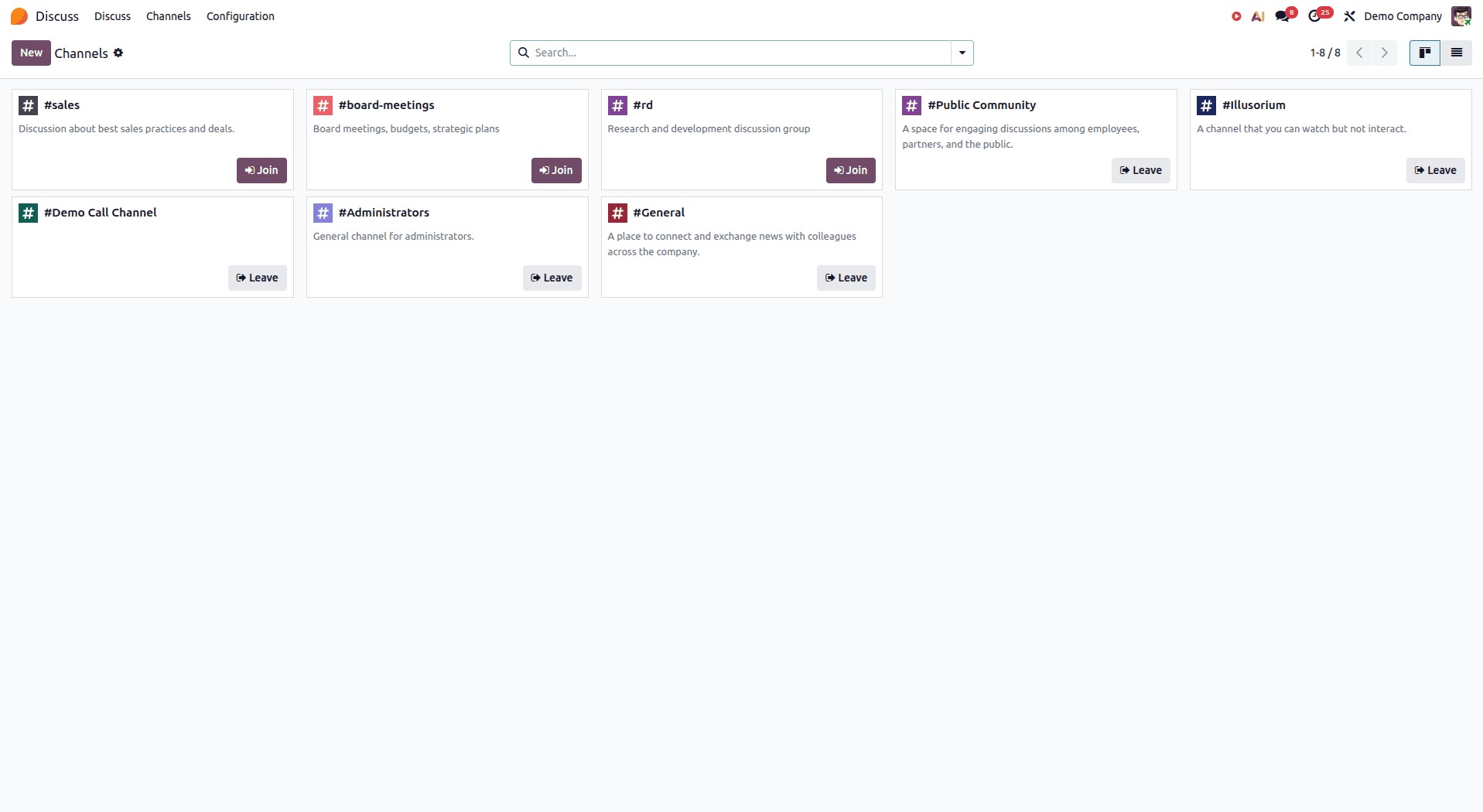
Accessing the Notification Settings
In Odoo 19, it is easy to configure your channel notification settings. You will find this option in the Channel Notifications tab, which can be accessed via the Channels tab in the Discuss application. Here, you can specify your preferences for notifications and set them for channels using default notification settings.
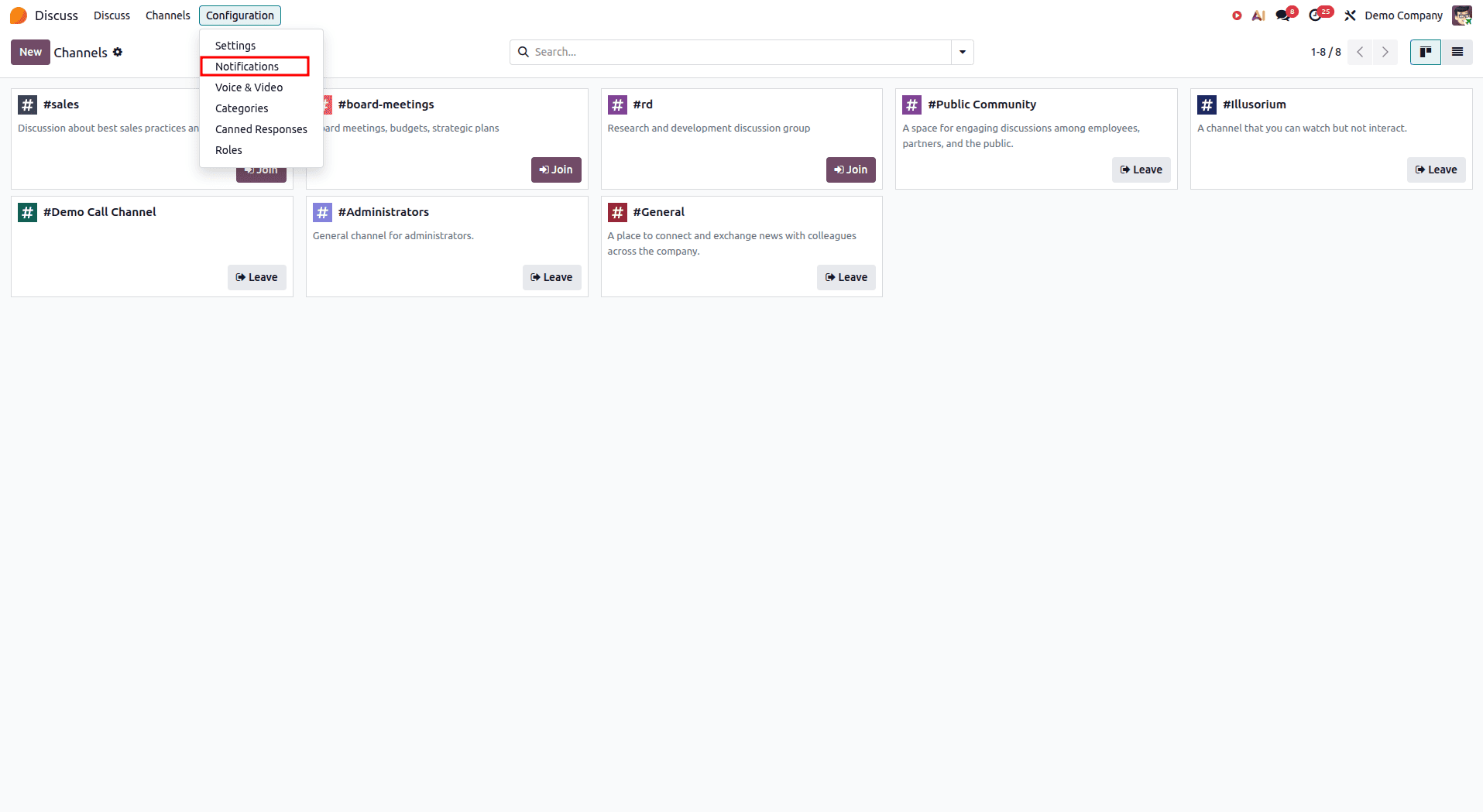
Notification Options Explained
There are basically three choices that can be made in the settings menu of Odoo, which would allow you to control notifications coming through your Discuss channels:
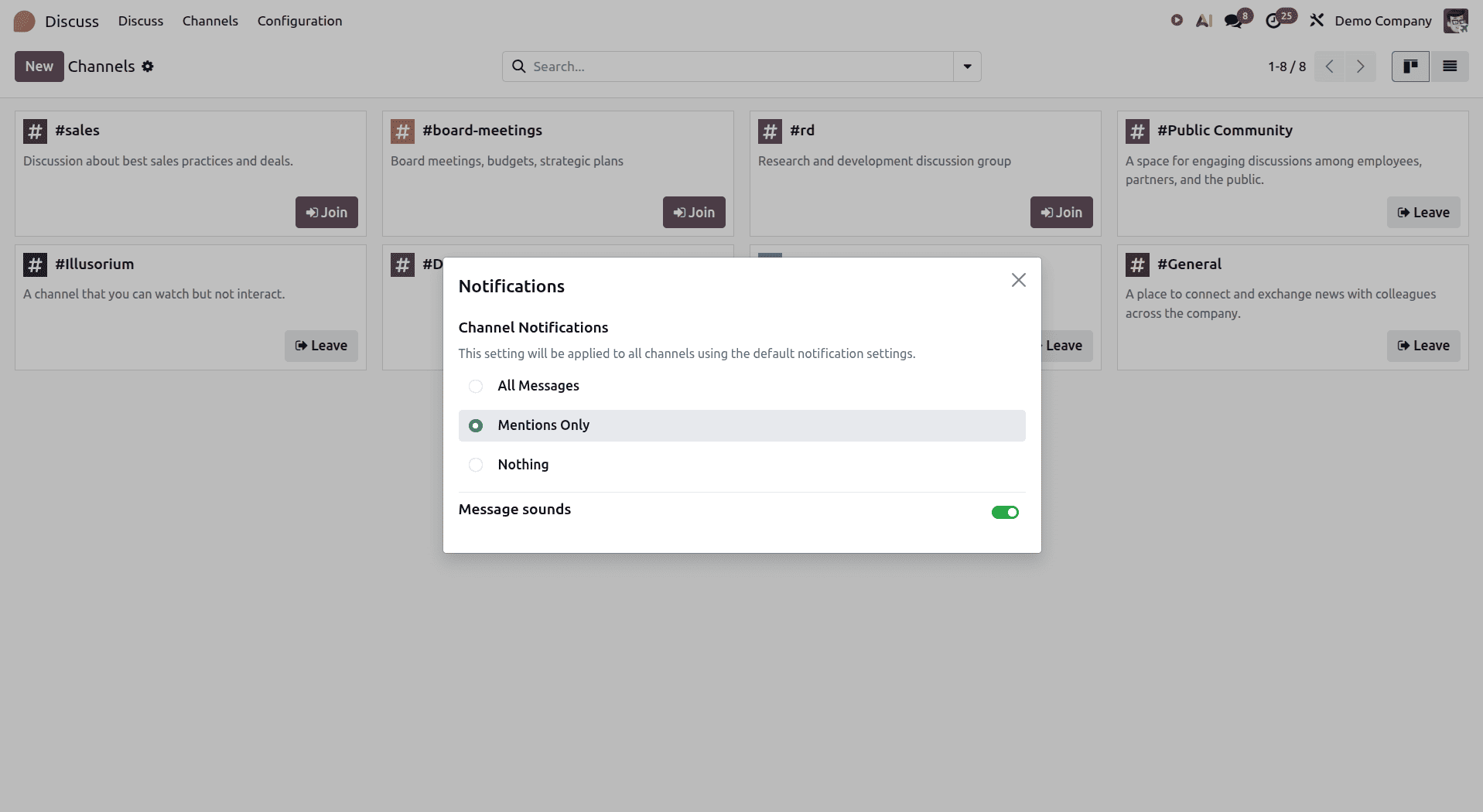
- All Messages
- Sends a notification for every new message posted in the channel.
- Best suited for important channels where you need to stay updated on every conversation, such as urgent task coordination or customer issue resolution.
- Mentions Only (Recommended for a balanced experience)
- Notifies you when someone mentions you using @yourname or tags a group you belong to.
- A good choice if you want to reduce unnecessary notifications while still staying informed about conversations that require your attention.
- Nothing (Complete Mute)
- Stop notifications from the channel completely.
- Useful for reference or less-important channels where you don't need to receive real-time updates.
Message Sound Toggle
Additionally, Odoo provides an option to choose whether you want sound for your notifications. This feature will be helpful in case you do not want to keep checking your Discuss app.
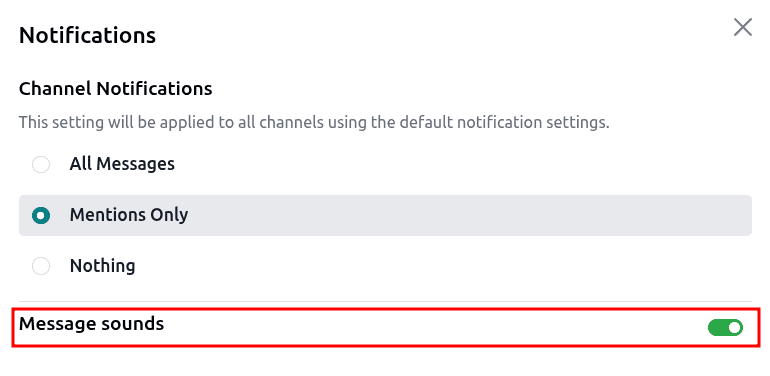
- Enabled (Green): A sound plays whenever you receive a notification, helping you notice new messages immediately.
- Disabled: Notifications appear without any sound, allowing you to stay updated without interruptions.
This option is especially useful during meetings, focused work sessions, or quiet environments, where you may want to receive visual alerts without being disturbed by notification sounds.
In Odoo 19’s Discuss module, notifications are now more flexible and customizable, allowing users to be notified without the nuisance of getting multiple notifications constantly. Notifications are available in the following ways: receiving notifications for all messages, notifications when mentioned, or disabling notifications altogether.
This makes it easier for users to concentrate without being distracted by things that aren’t urgent. Users can set their preferences at a global level or individually for specific channels.
To read more about How to Mute Channels and Customize Notifications in Odoo 18 Discuss, refer to our blog, How to Mute Channels and Customize Notifications in Odoo 18 Discuss.