Offering multiple payment methods is essential for creating a smooth and efficient checkout experience, and Odoo 19 Point of Sale makes it easy to configure and manage options such as cash, cards, digital wallets, customer accounts, and online payments. This blog explains how to add and manage payment options in Odoo 19 POS, including configuring payment methods, journals, and payment terminals to ensure accurate and seamless transaction processing while improving operational efficiency and customer convenience.
Odoo provides a simple way to configure payment methods through the Payment Methods section available under the Configuration menu. When you open the Payment Methods option, you can view a list of all previously created payment methods.
The dashboard list displays important information such as the payment method name, journal, company, and related PoS sessions, as shown on the screenshot below.
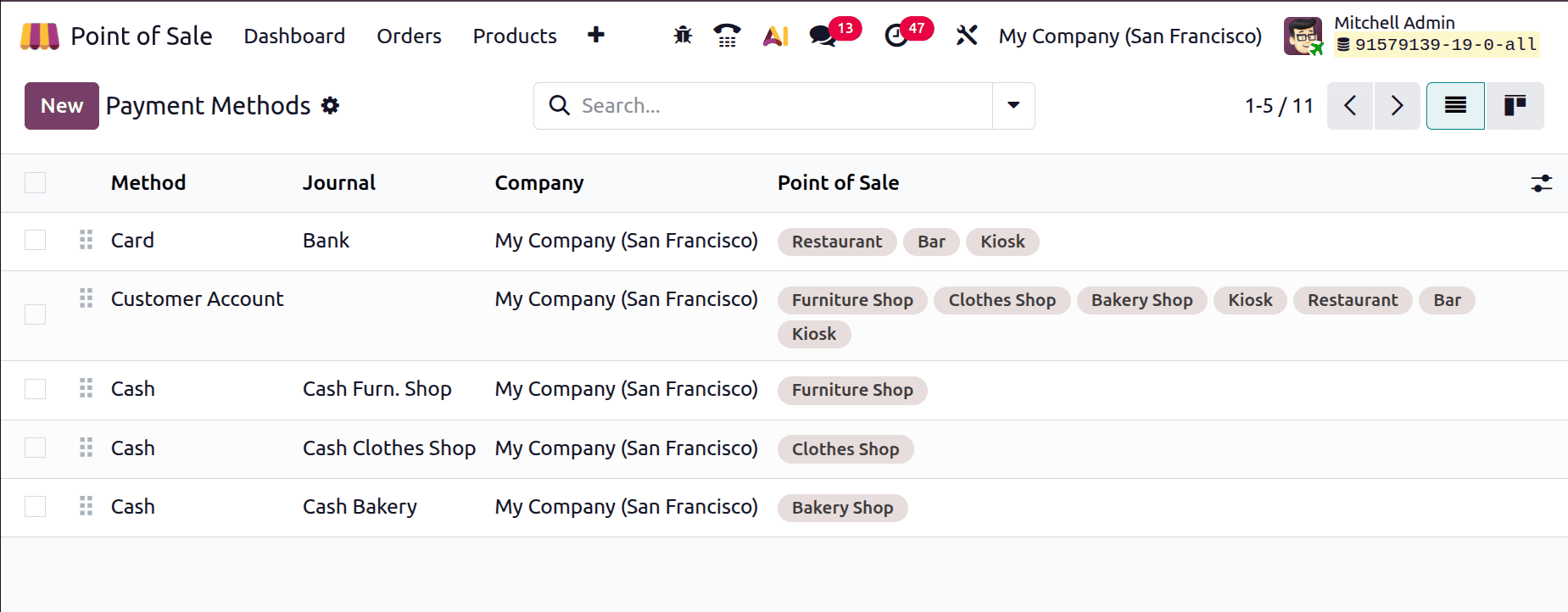
You can also switch to the Kanban view for a more visual layout and open any payment method to see detailed information. In addition, advanced search tools make it easier to filter and group records based on criteria such as payment type, journal, or company.
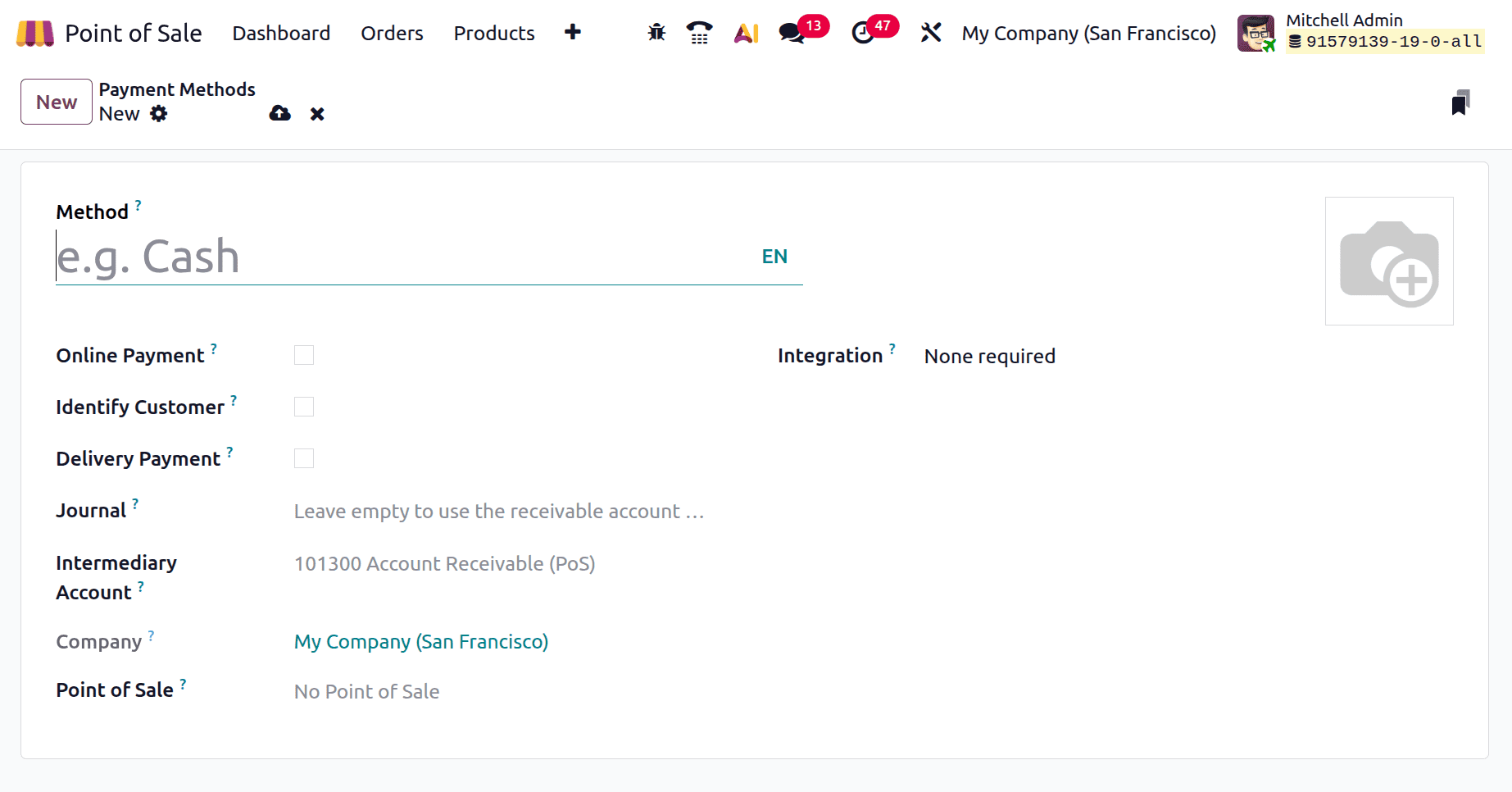
To create a new payment method, click the New button from the customer identification window. Then enter the name of the payment method and specify whether it is an Online Payment. Enabling this option allows the method to be used for eCommerce or portal transactions, commonly with payment gateways such as Stripe or PayPal.
The Identify Customer option ensures that a customer is selected before the payment is processed, which is particularly useful for invoiced or credit-based transactions. The Delivery Payment option is used for payments collected at the time of delivery.
Next, choose the appropriate Journal, which connects the payment method to a specific accounting journal for accurate financial tracking. The Intermediary Account serves as a temporary account for payments that require reconciliation before being transferred to the final account. In multi-company environments, the Company field determines which company can use the payment method. The Point of Sale field restricts the method to selected PoS terminals, while the Integration option links the payment method with external systems or payment hardware, as shown in the screenshot below.
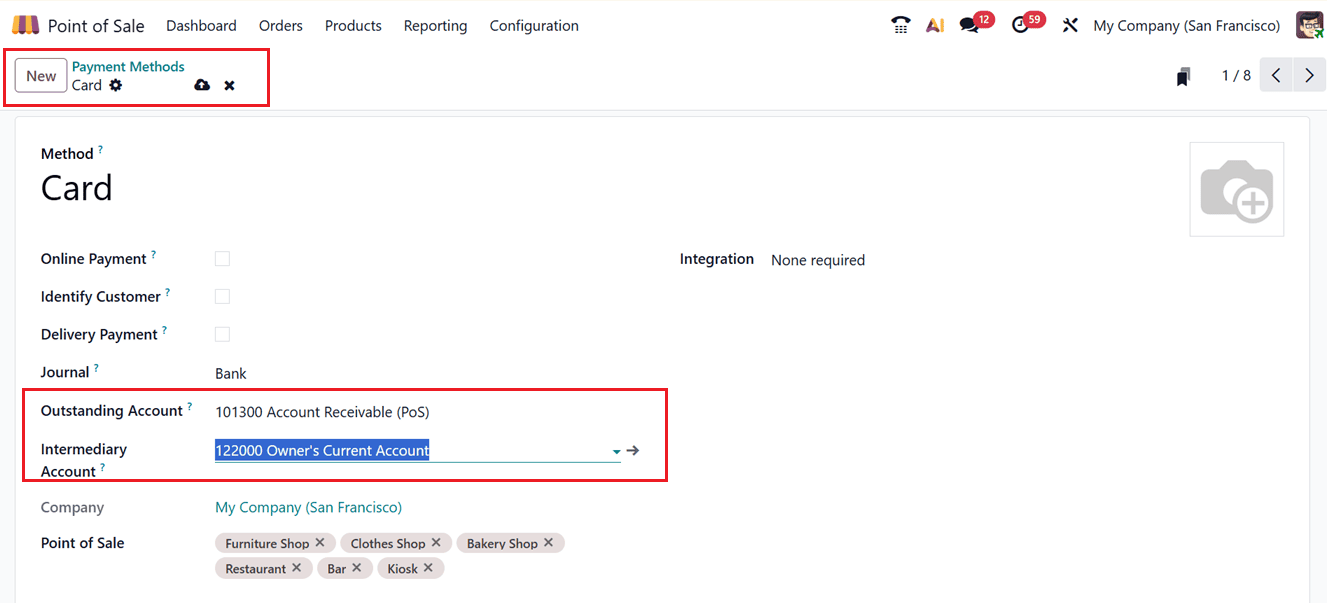
You can also configure additional details such as the Outstanding Account and Intermediary Account. These fields may vary depending on the selected payment method, as illustrated in the corresponding screenshot below.
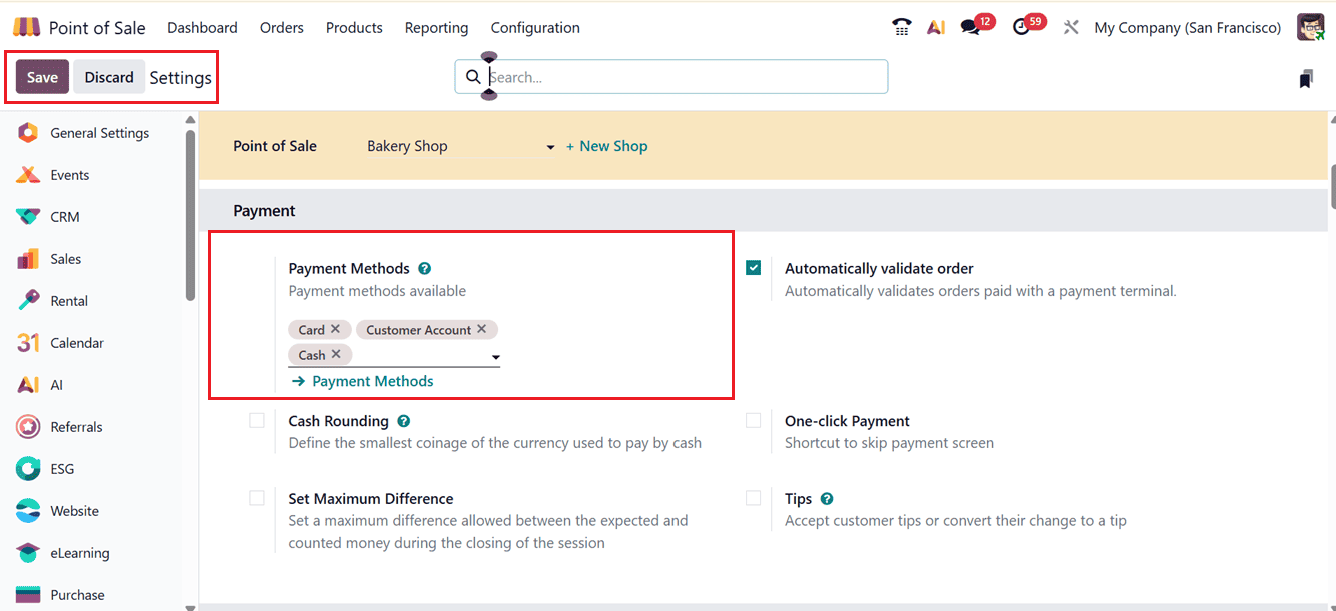
After completing the configuration, save the form to make the payment method available in the Point of Sale system. Once the payment methods are configured, the required method can be selected for a PoS session using the Payment Methods field available in the Settings window, as depicted in the screenshot below.
To use the configured payment method, start a PoS session, add the required products, and select Payment to open the payment screen. On this page, users can choose from available options such as Cash, Card, or Customer Account displayed on the left side of the interface.
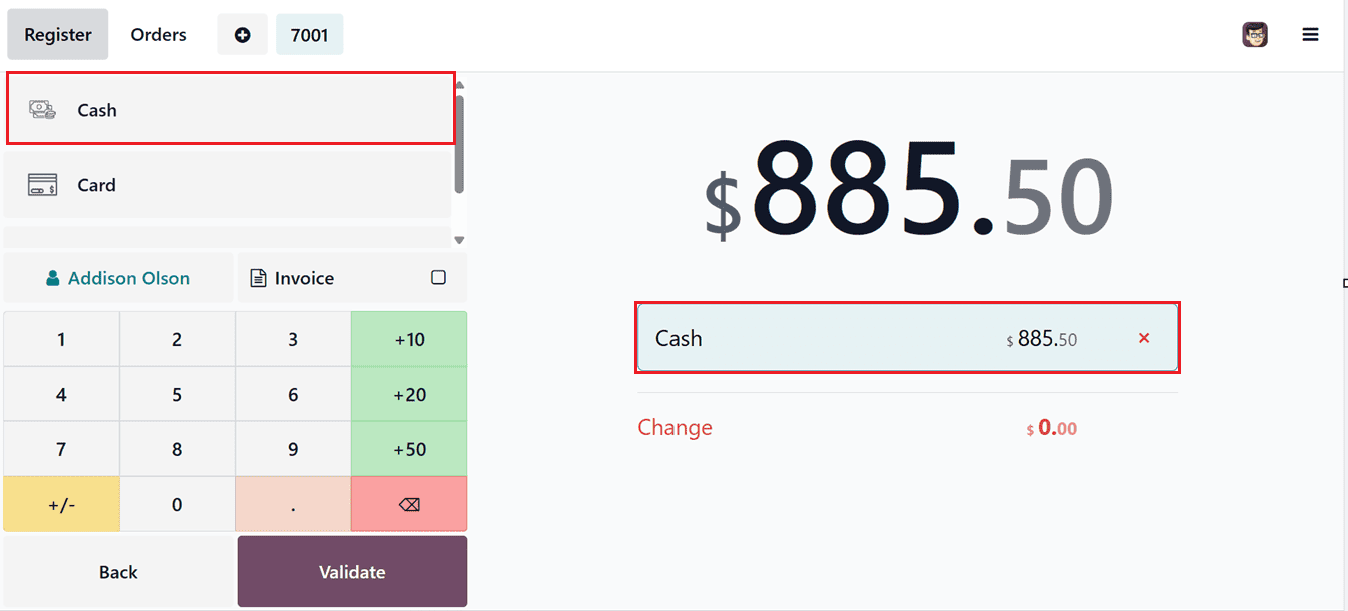
After choosing the preferred payment method, validate the payment, and the selected method will appear on the customer’s bill.
The Customer Account payment method is particularly useful for handling credit transactions and tracking customer balances within the system. This feature allows customers to either purchase products on credit or make advance payments for future orders.
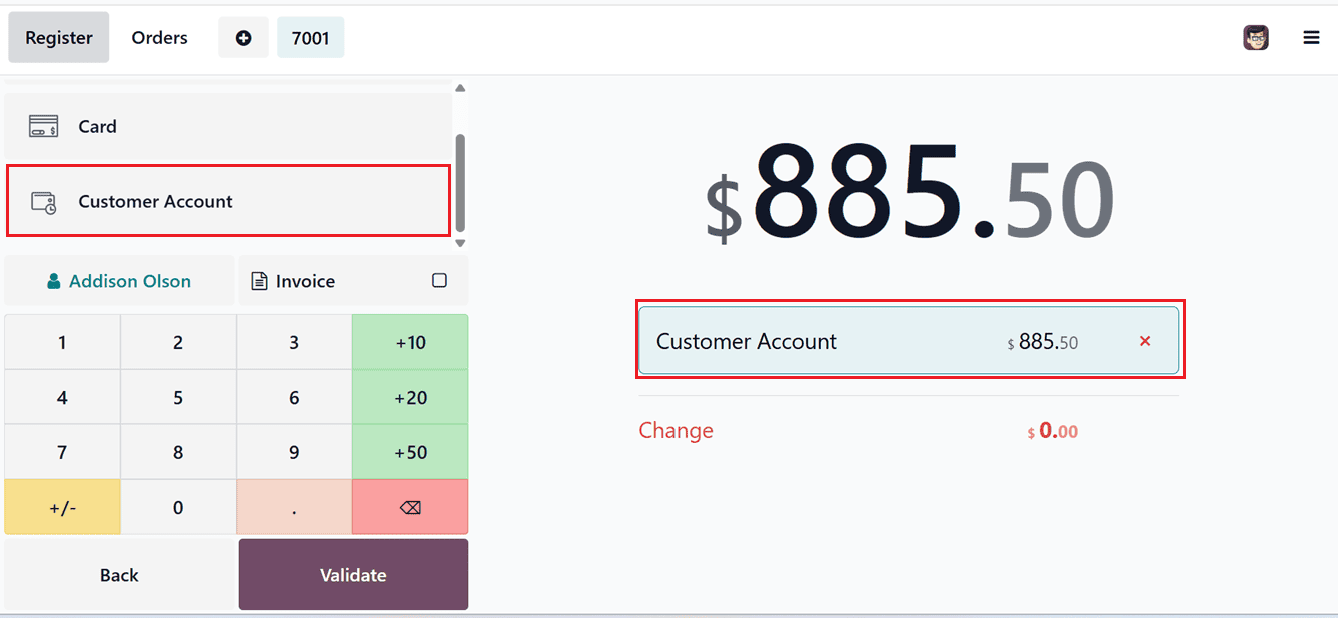
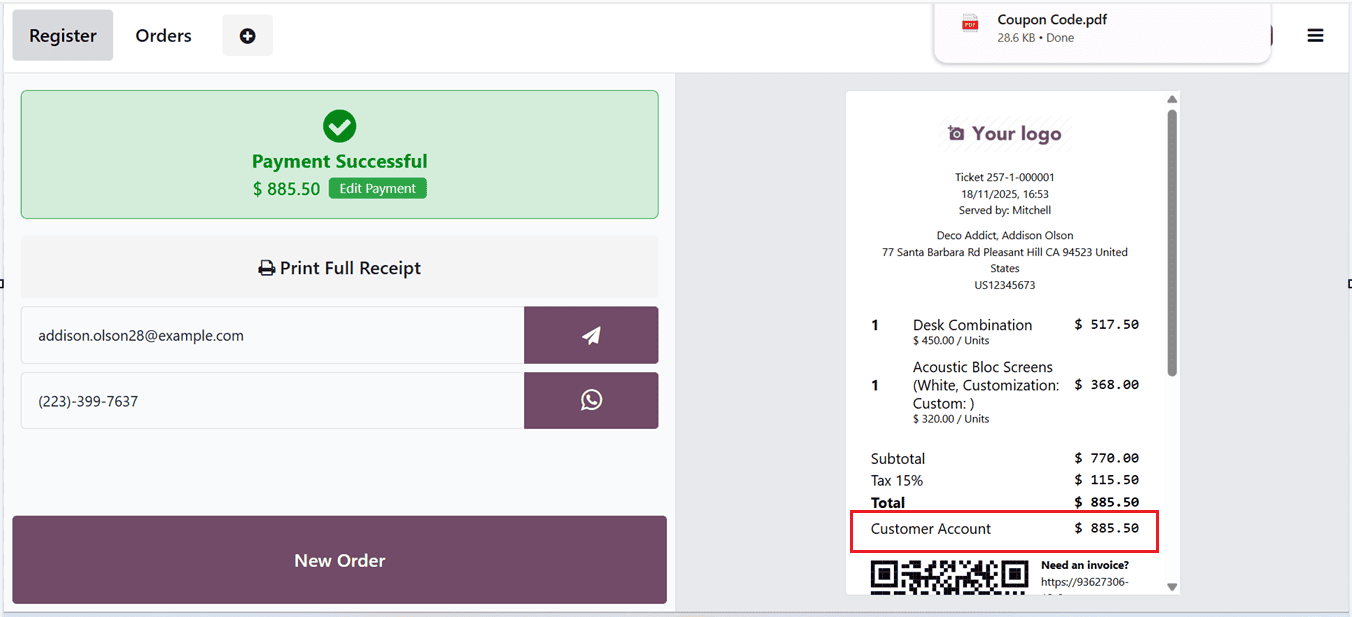
Once the products are selected, clicking Order followed by Validate finalizes the transaction, generates the invoice, and charges the amount to the customer’s account, as shown in the screenshot.
To review the customer’s account status, open the New Orders section and access the Customers menu, where the total outstanding amount is displayed. Then click Settle Orders to proceed with payment settlement.
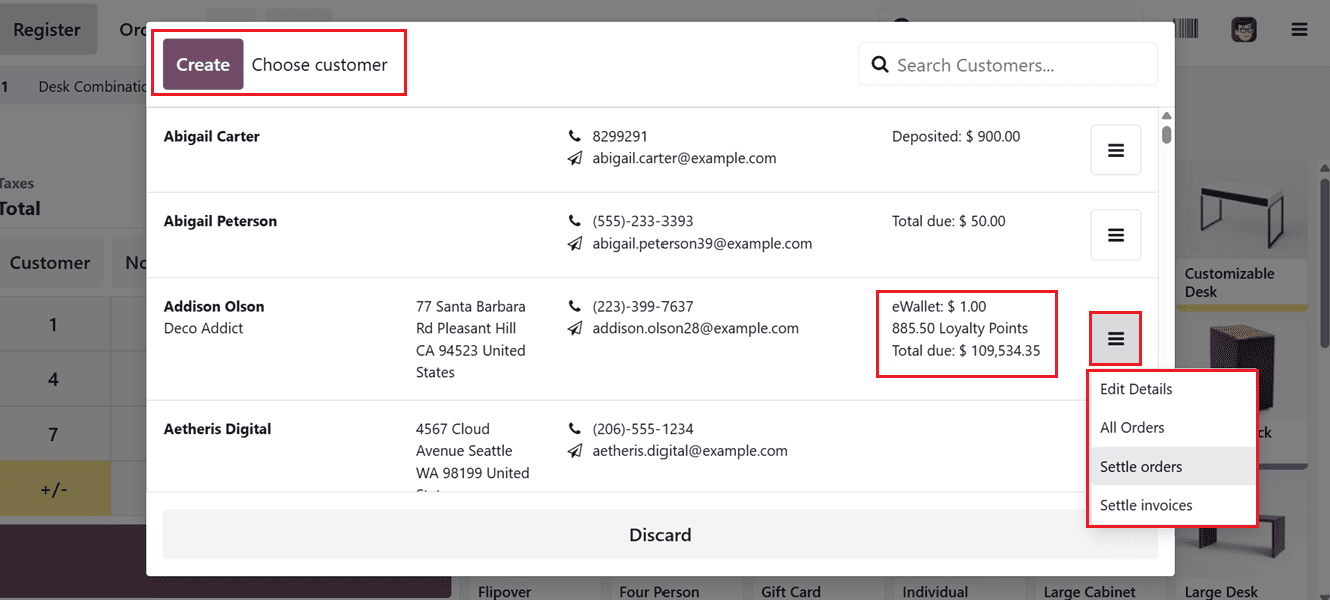
On the next screen, select the relevant orders and click the Select button. After that, move to the payment page and complete the payment process, as usual.
By properly configuring payment options, journals, and payment terminals, businesses can streamline checkout operations, improve payment accuracy, and support multiple customer payment preferences. Whether handling cash, cards, digital wallets, or online payments, Odoo 19 provides a reliable and user-friendly system for efficient payment management, helping businesses enhance both operational performance and customer satisfaction.
To read more about How to set up the Payment Providers in Odoo 19, refer to our blog How to set up the Payment Providers in Odoo 19.