In Odoo 19, Point of Sale (POS) sessions are built to operate smoothly throughout business hours, but interruptions such as system crashes, network failures, or accidental closures can disrupt ongoing transactions. These interruptions may result in unsynced orders, incomplete payments, or sessions that cannot be closed properly. To address this, Odoo introduces mechanisms like session recovery and the rescue session feature. A rescue session is automatically created when Odoo detects inconsistencies in a previously interrupted session, allowing users to safely recover and validate pending orders without altering the original session’s integrity. This ensures that no transactional data is lost while maintaining proper accounting records. Understanding how interrupted sessions and rescue sessions function together is essential for maintaining continuity, preventing data discrepancies, and ensuring that sales operations can resume quickly and efficiently after unexpected disruptions. This blog explores how to handle interrupted POS sessions in Odoo 19.
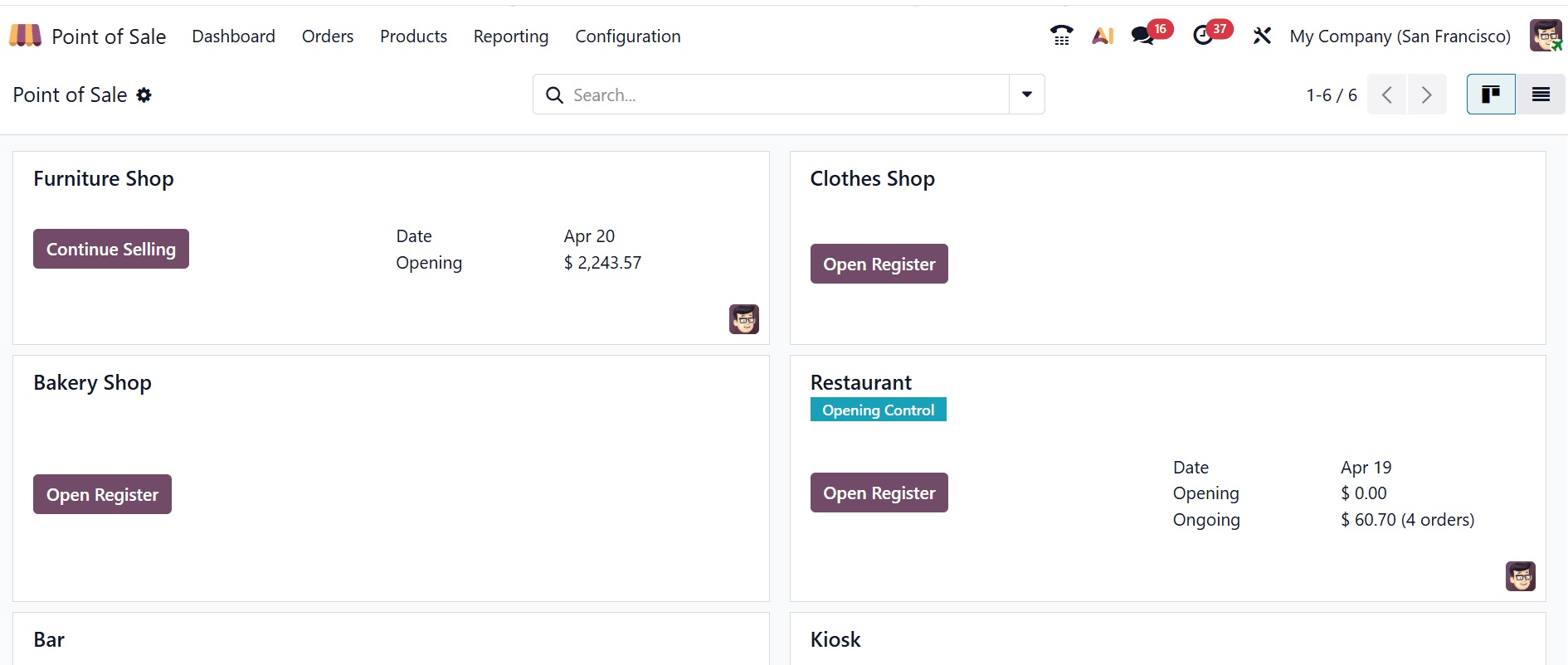
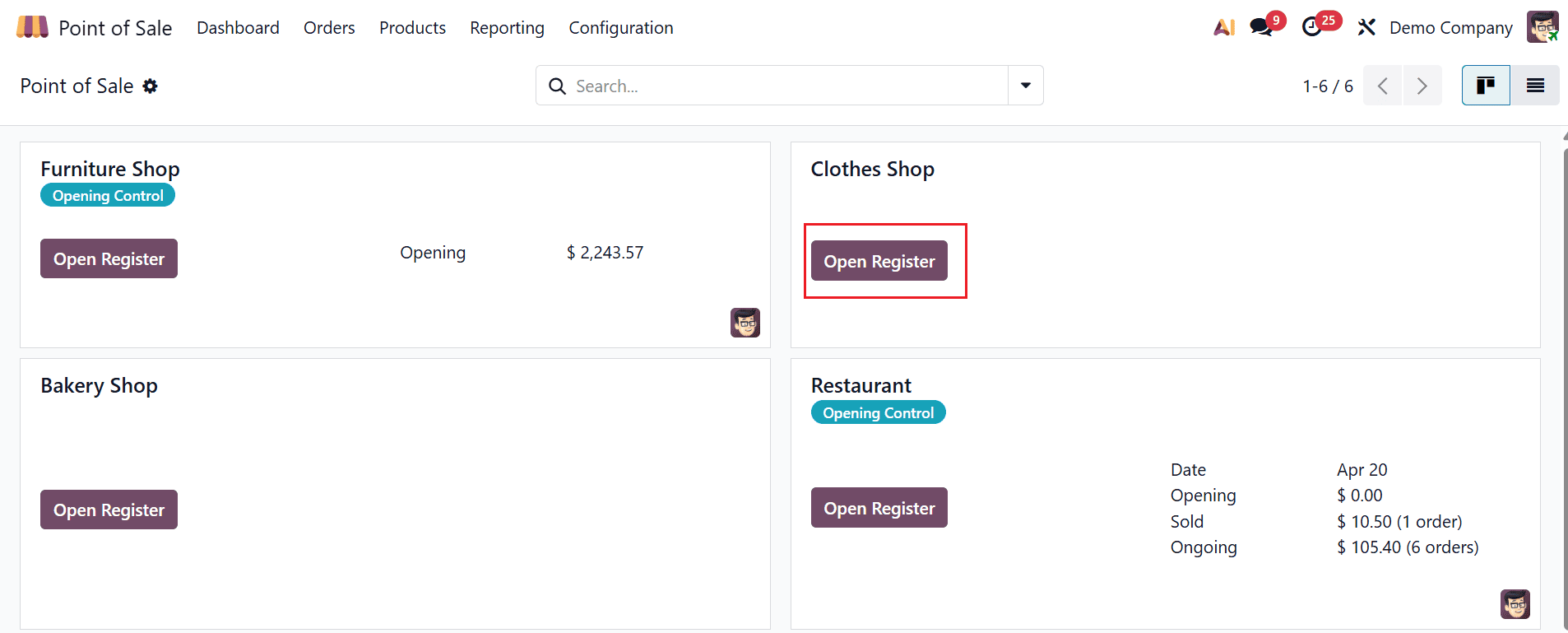
From the Odoo 19 dashboard, open the Point of Sale module. Here, you can see all the sessions arranged in a kanban view. Let’s move through the Clothes Shop session.
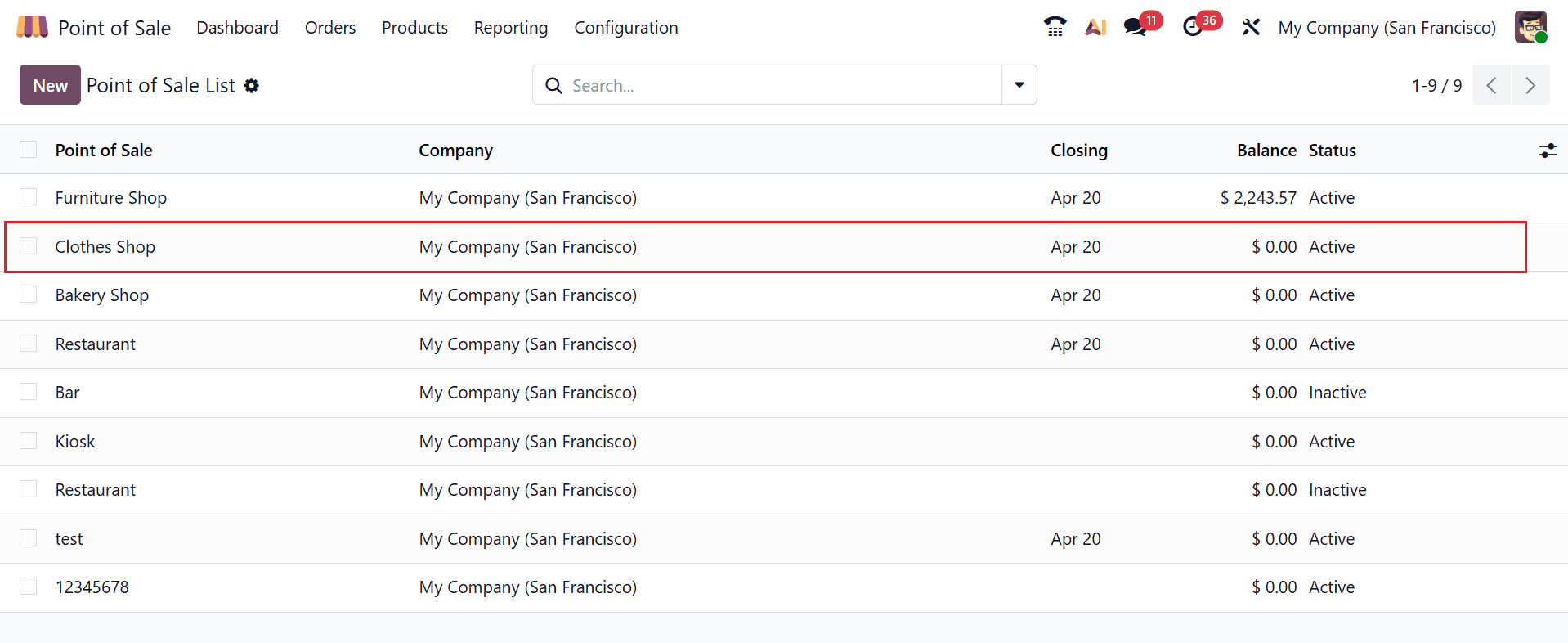
Then, navigate to the Configuration > Point of Sale and open the Clothes Shop from the point of sale list as shown below:
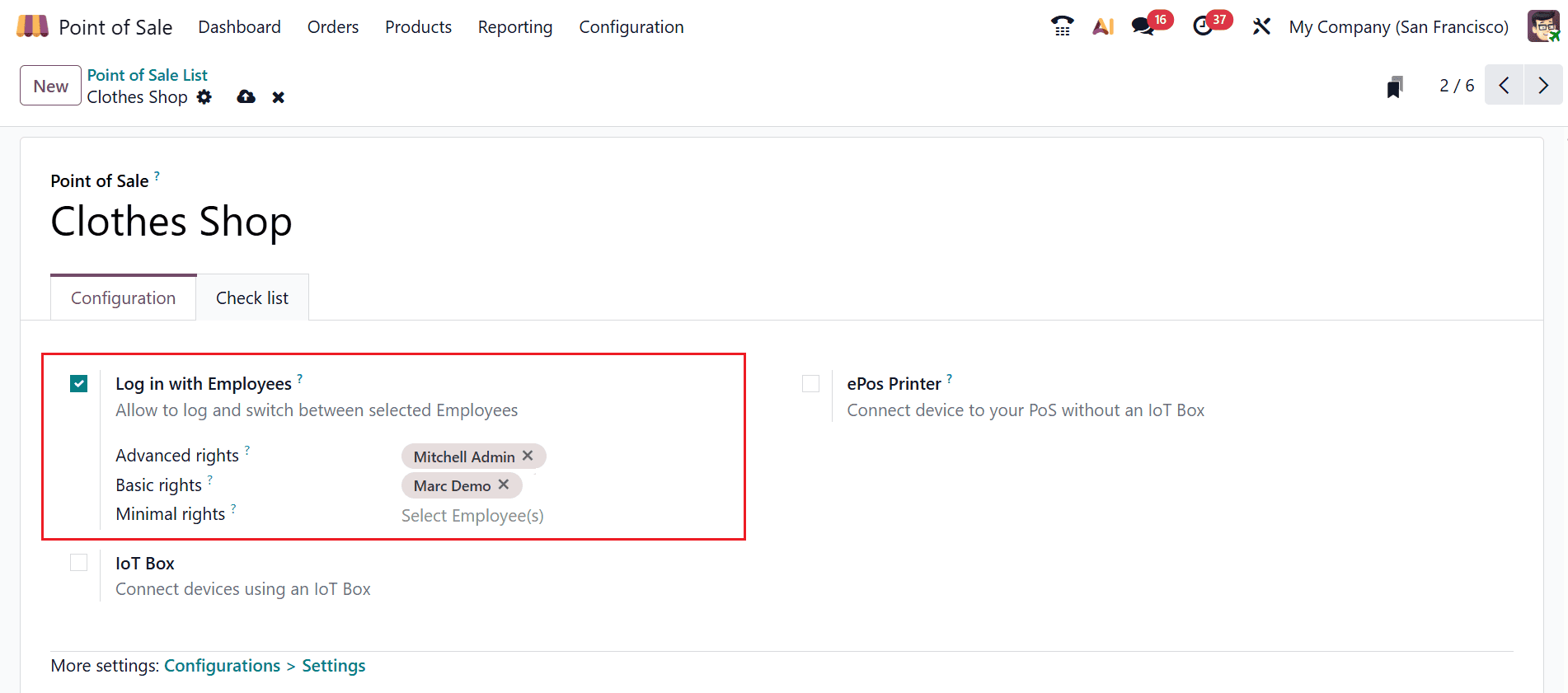
A new window will open where you can see the configuration of the Clothes Shop. Under the Configuration tab, enable the Log in with Employees option and select employees who have Advanced rights and Basic rights. In this example, Mitchell Admin and Marc Demo are the selected employees.
Next, set up login credentials for employees to ensure secure access to the system. By providing authorized access only, businesses can protect sensitive sales and inventory data while also improving accountability and tracking employee activities more effectively.
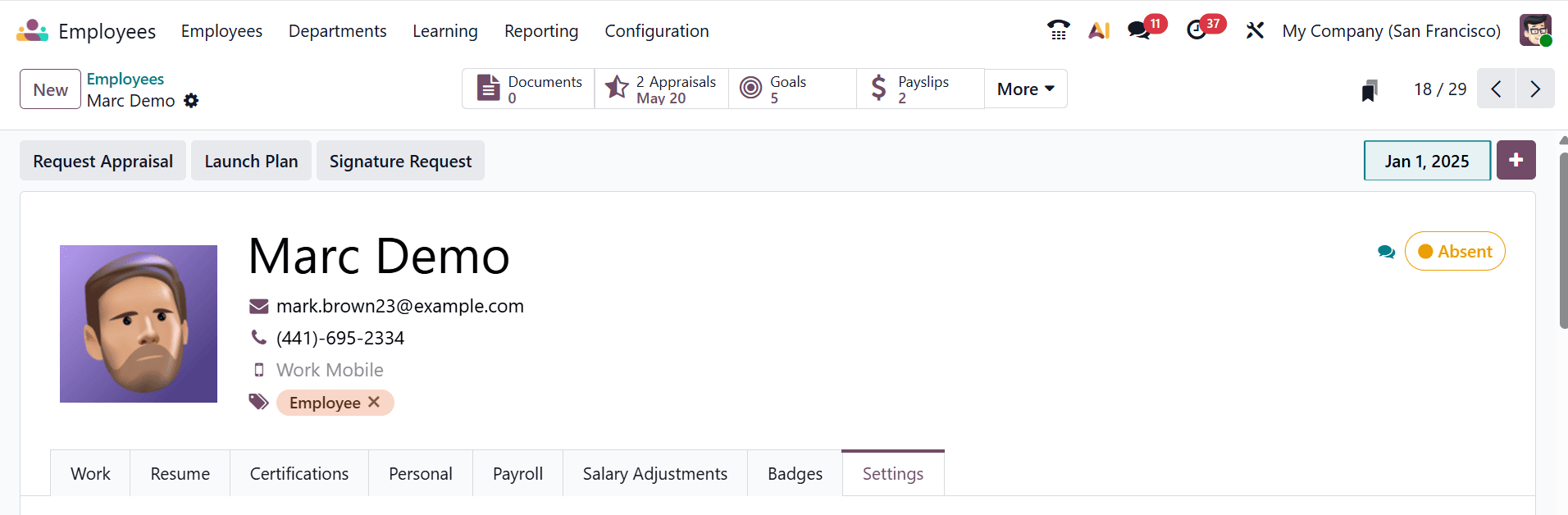
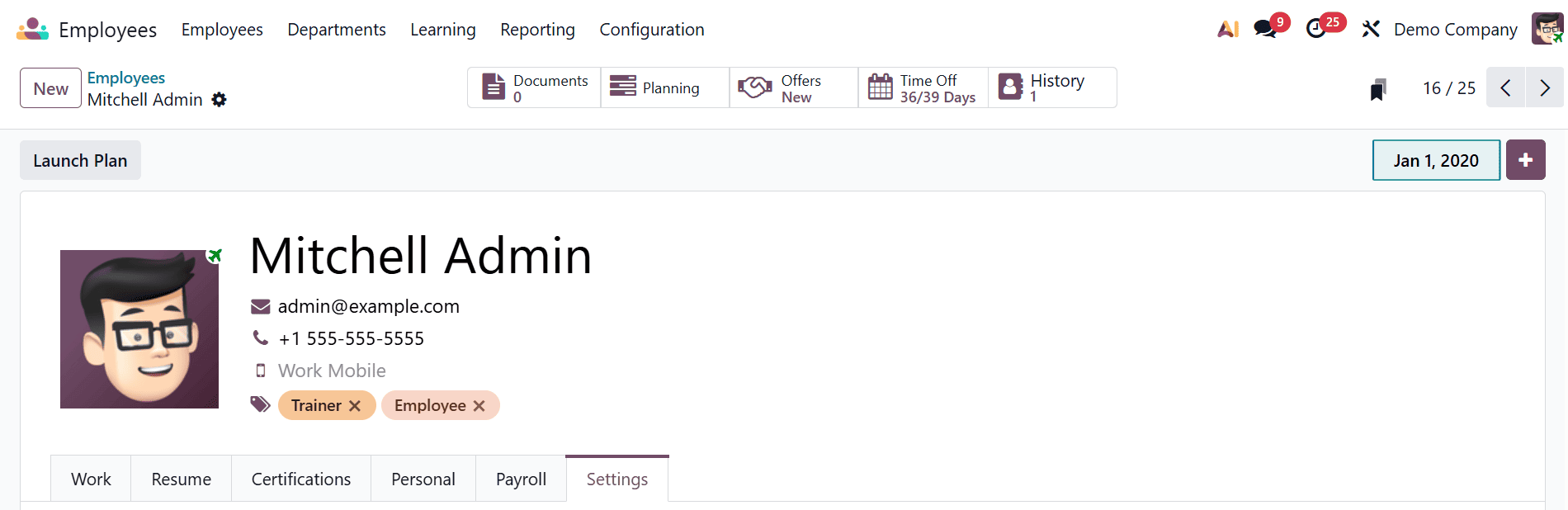
To set up a password for employees, open the Employees module and select the employees as we mentioned above. Then, open the Marc Demo from the employees list and set the password as 0000 in the PIN Code field under the Settings tab.

Then, open the Mitchell Admin from the employees list and set the password as 1212 in the PIN Code field under the Settings tab.

Navigate back to the Point of Sale module to access the dashboard. There, you will find the shop named Clothes Shop with an Open Register button available. Start a new session by clicking the Open Register button.
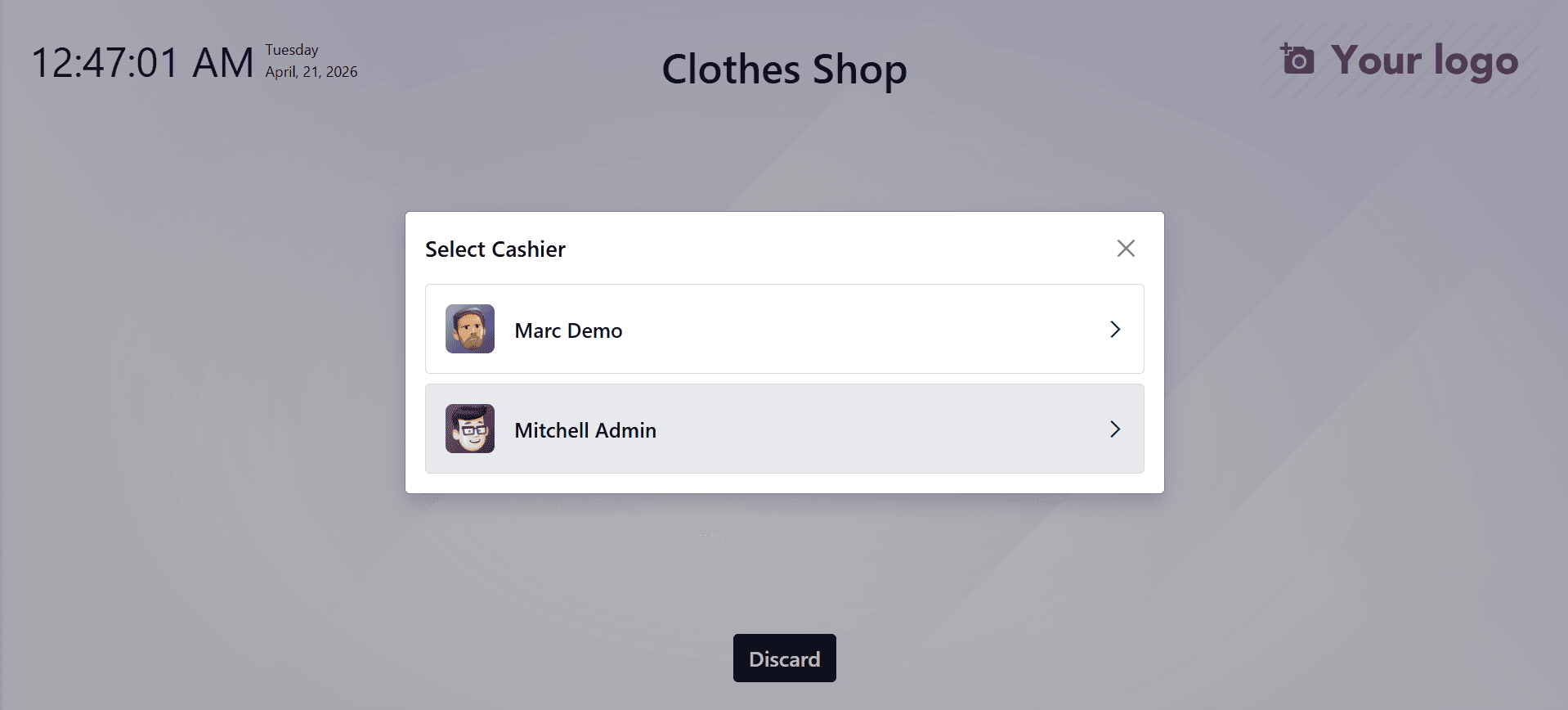
A pop-up window will appear, allowing you to select the cashier. From the list of employees, select Mitchell Admin to log in to the session.
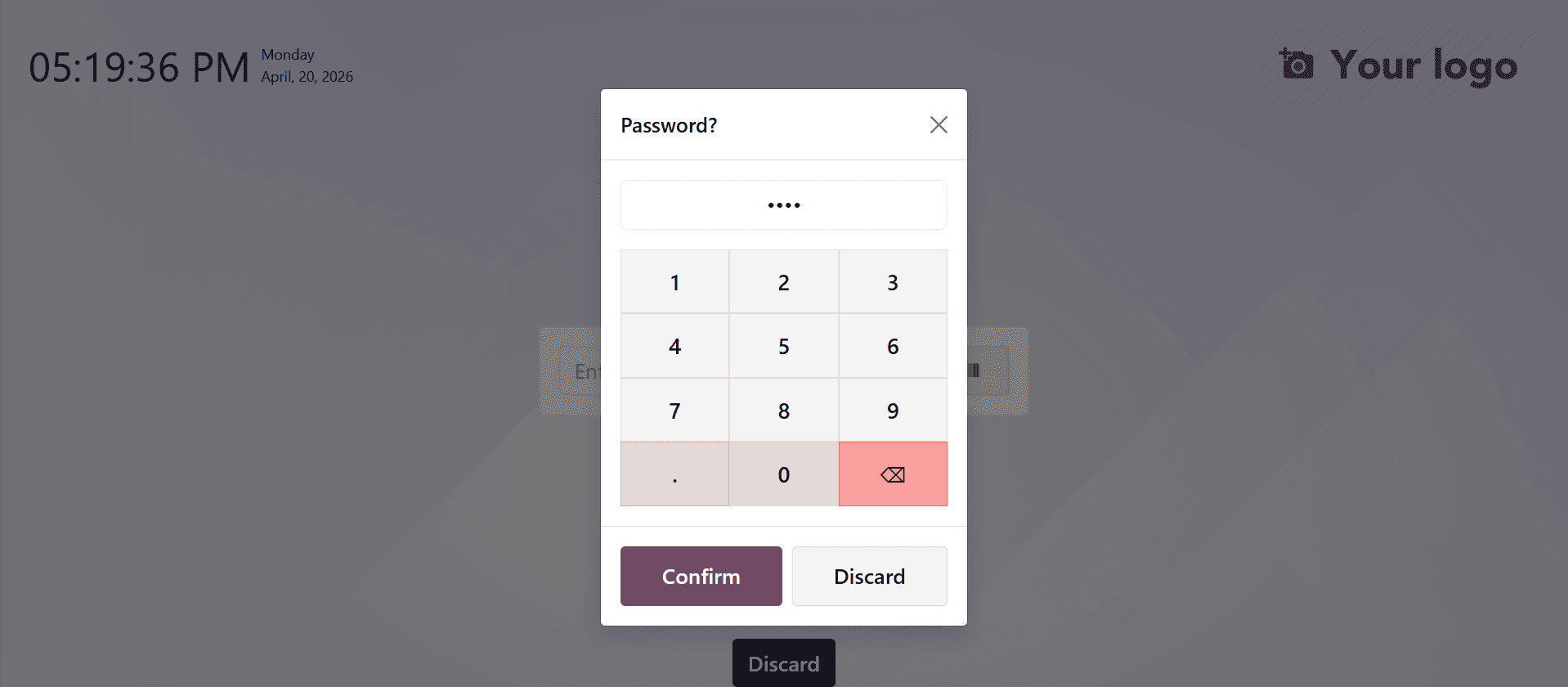
Once the employee is selected, they will be asked to enter their password. Enter 1212 in the provided field to log in.
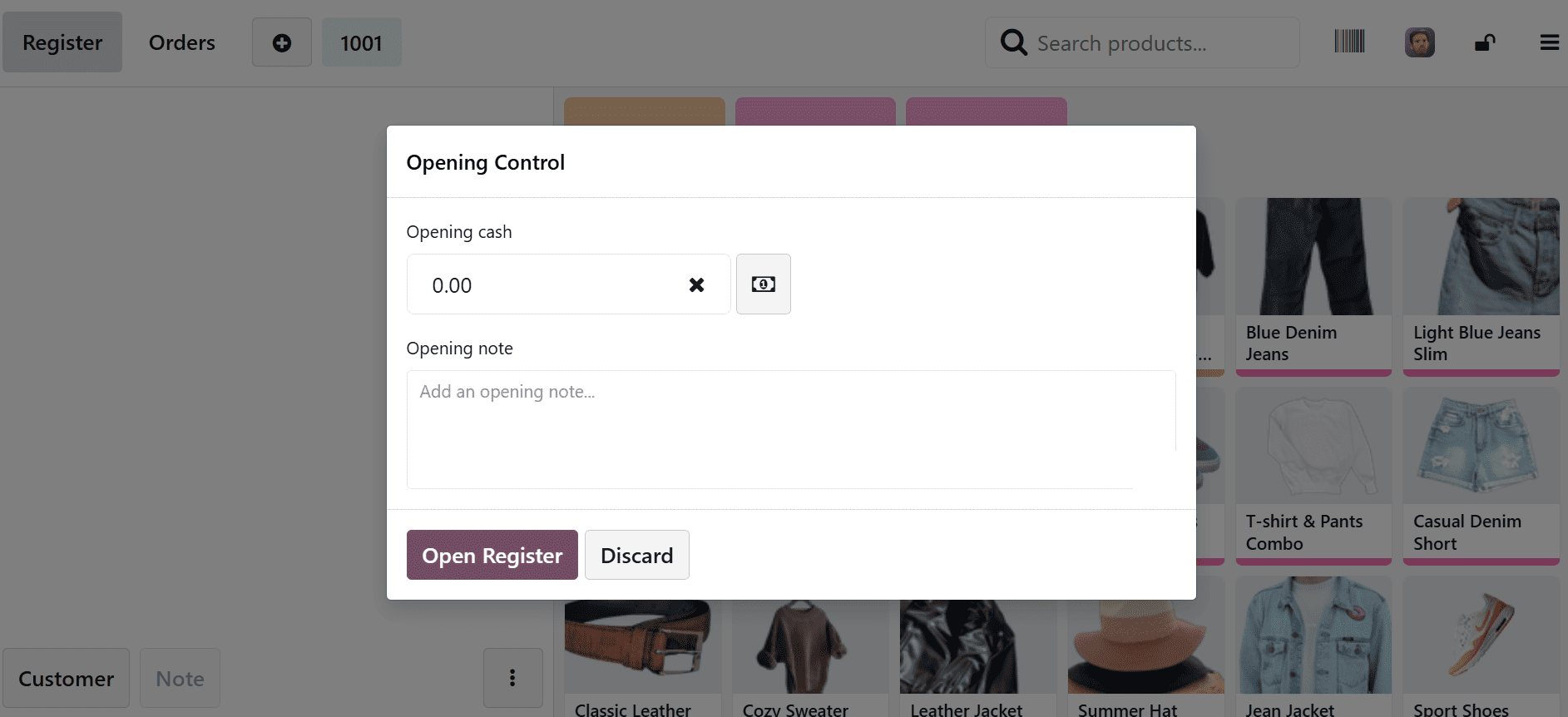
A new pop-up window will appear, allowing you to enter the opening cash amount. Here, this amount does not need to be recorded in a session before the start of sales.
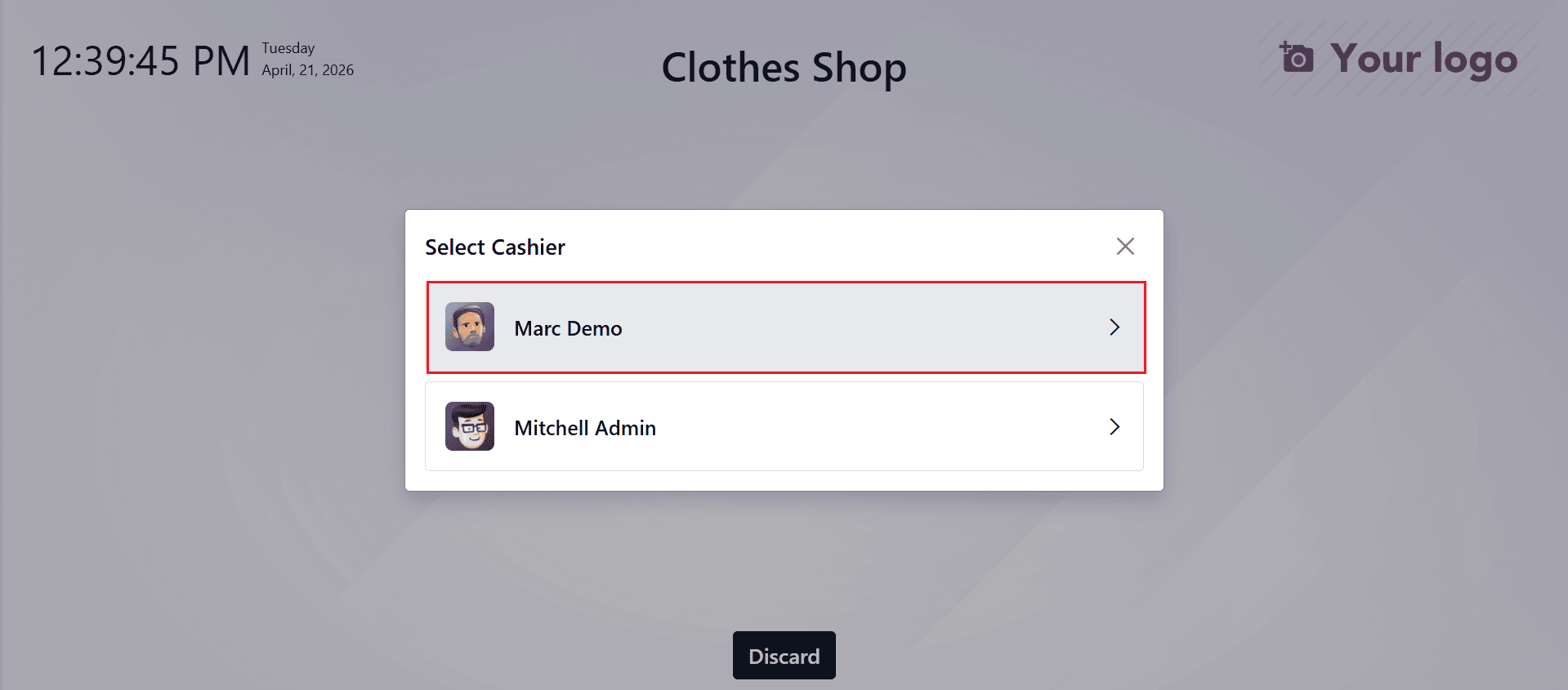
Then, choose the second salesperson to log in to the same session. Here, select the second salesperson as Marc Demo.
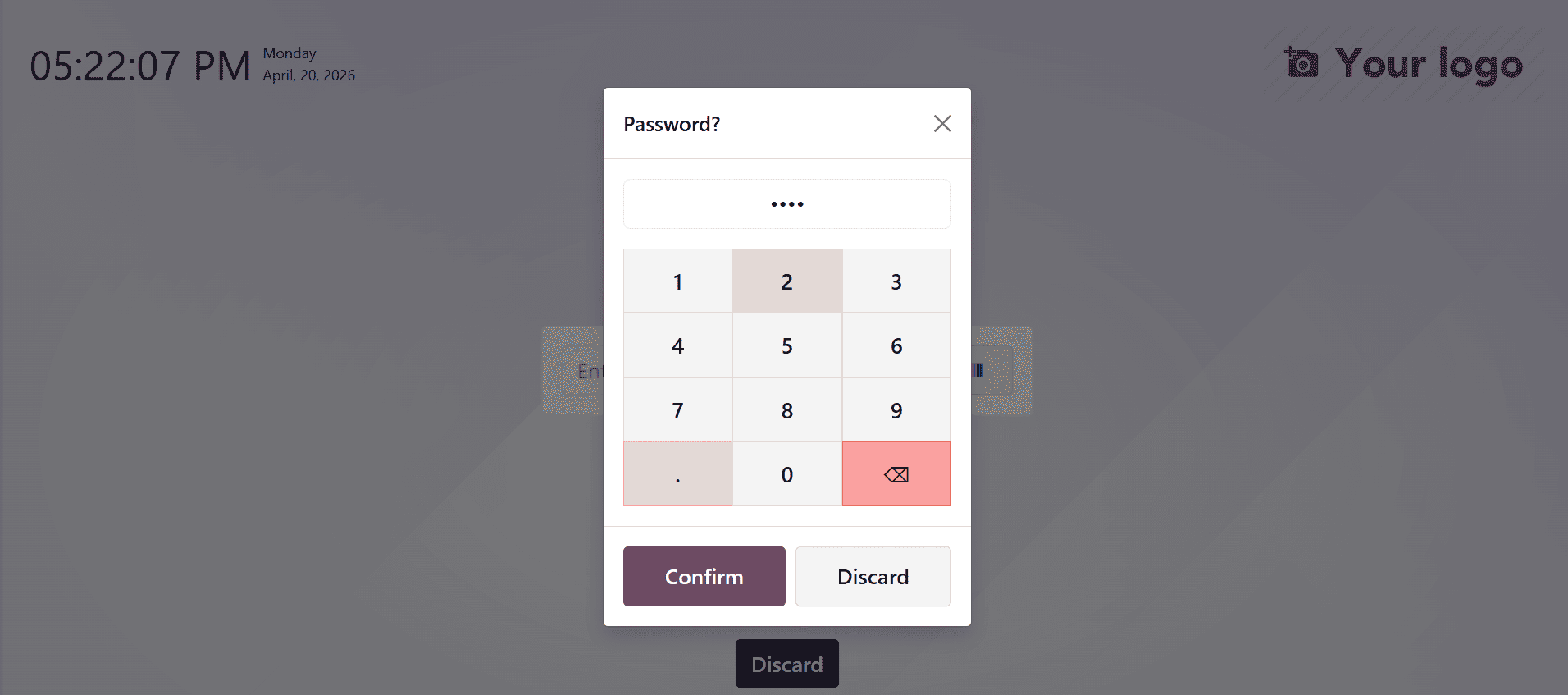
Once the employee is selected, they will be asked to enter their password. Enter 0000 in the provided field to log in.
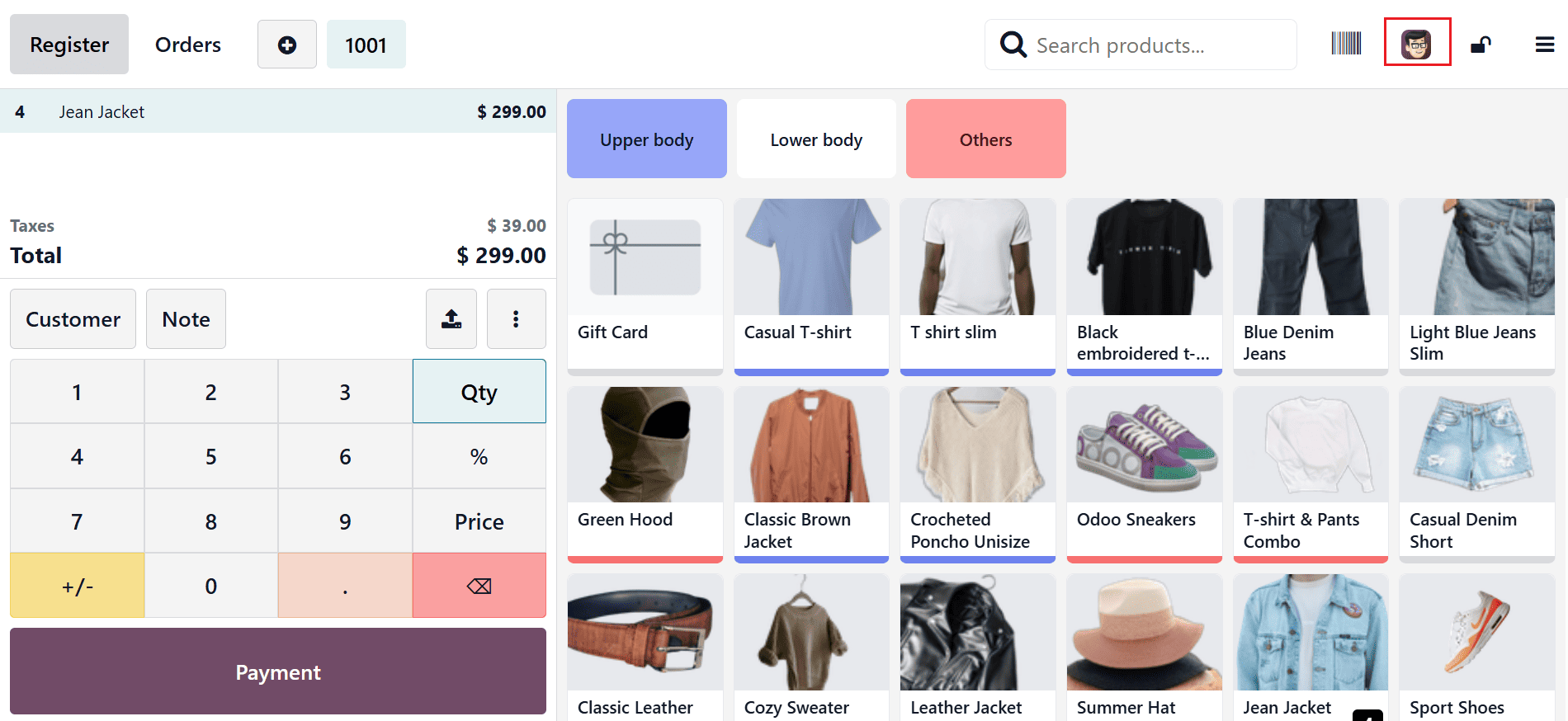
This section displays all the products sold by the first salesperson, Mitchell Admin. The customer requests four units of the Jean Jacket. Choose the desired quantity and then click the Payment button to finalize the order.
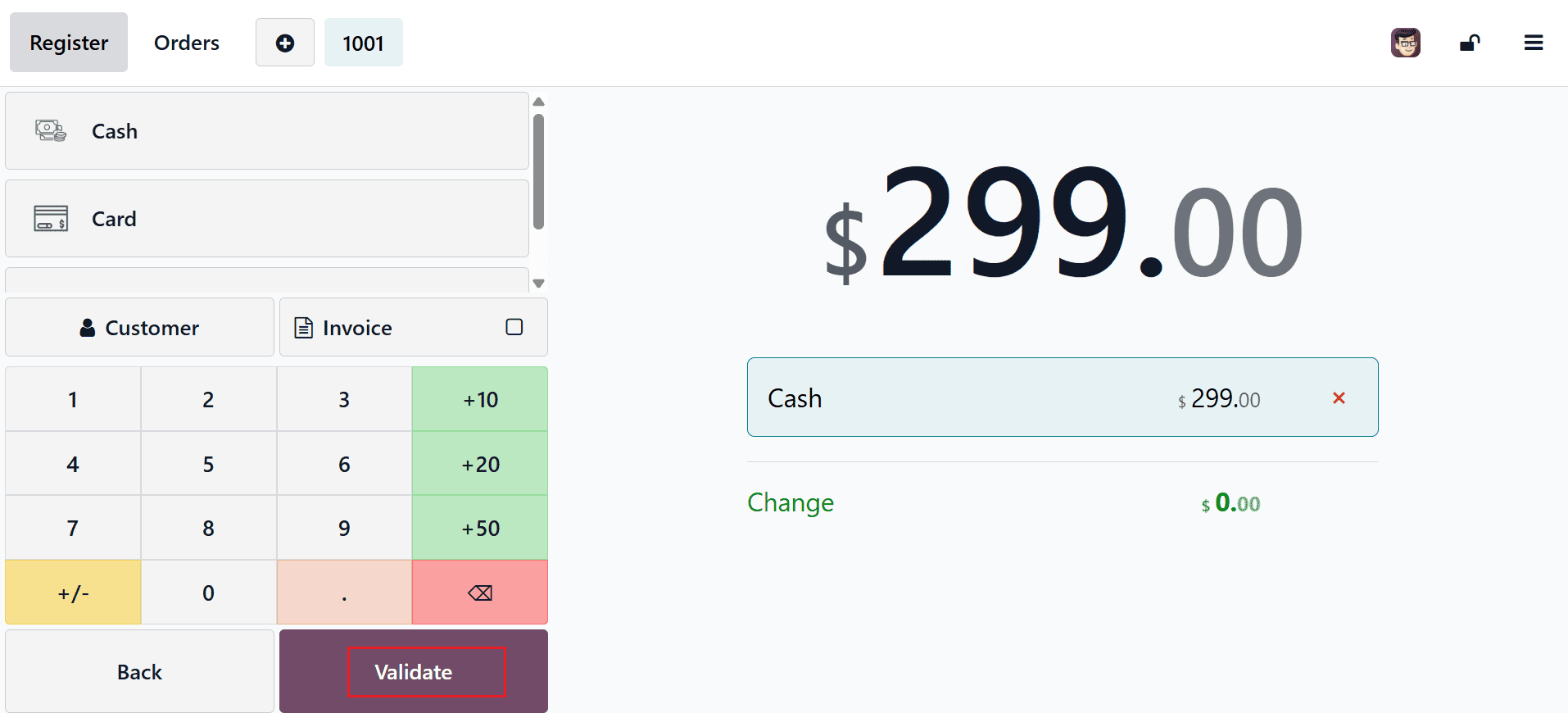
Here, you can see the available payment methods supported by the shop. Select an appropriate one and click on the Validate button.
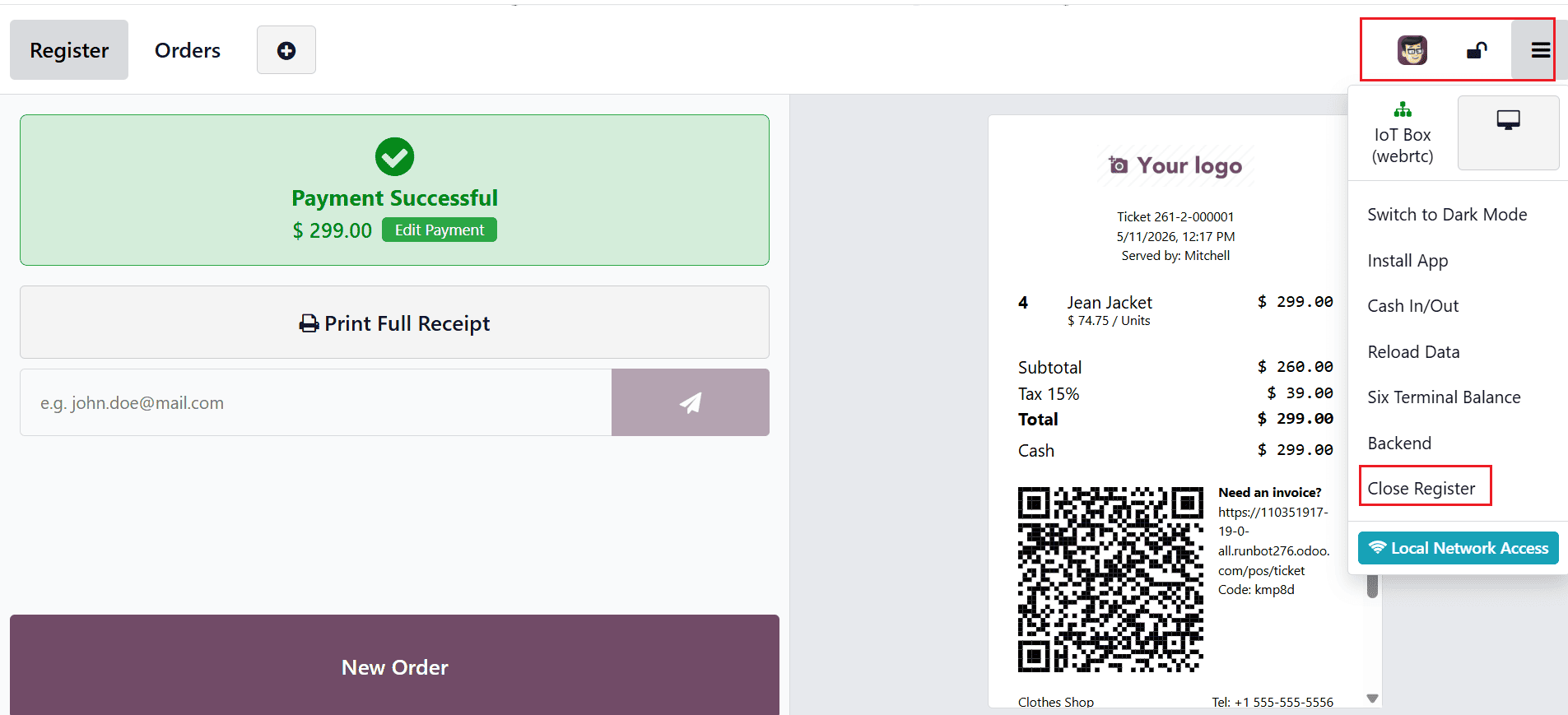
At this stage, Mitchell Admin has completed the sales. To end the session, open the three-line menu and click on the Close Register button.
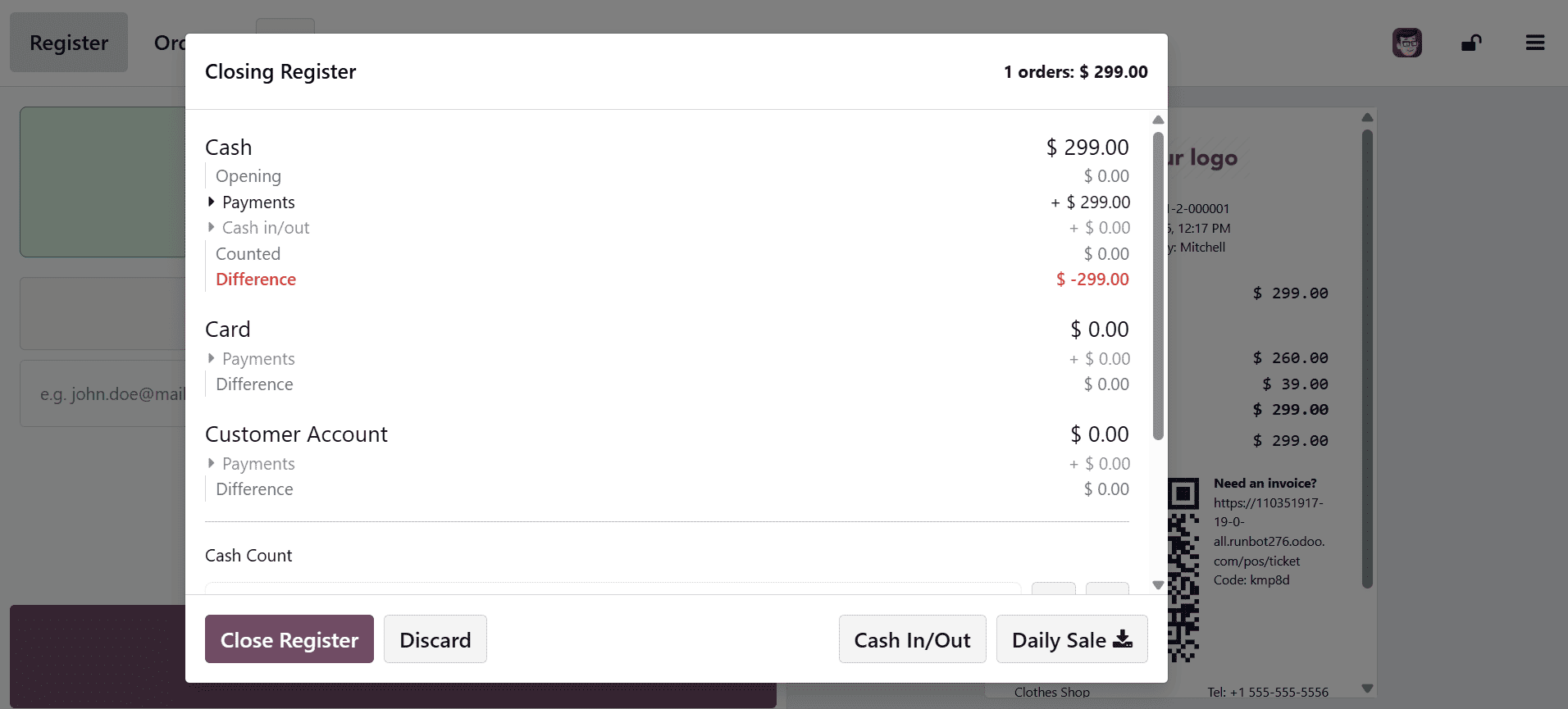
A pop-up window will appear showing the closing register details. Review the information and then click the Close Register button to complete and close the session.
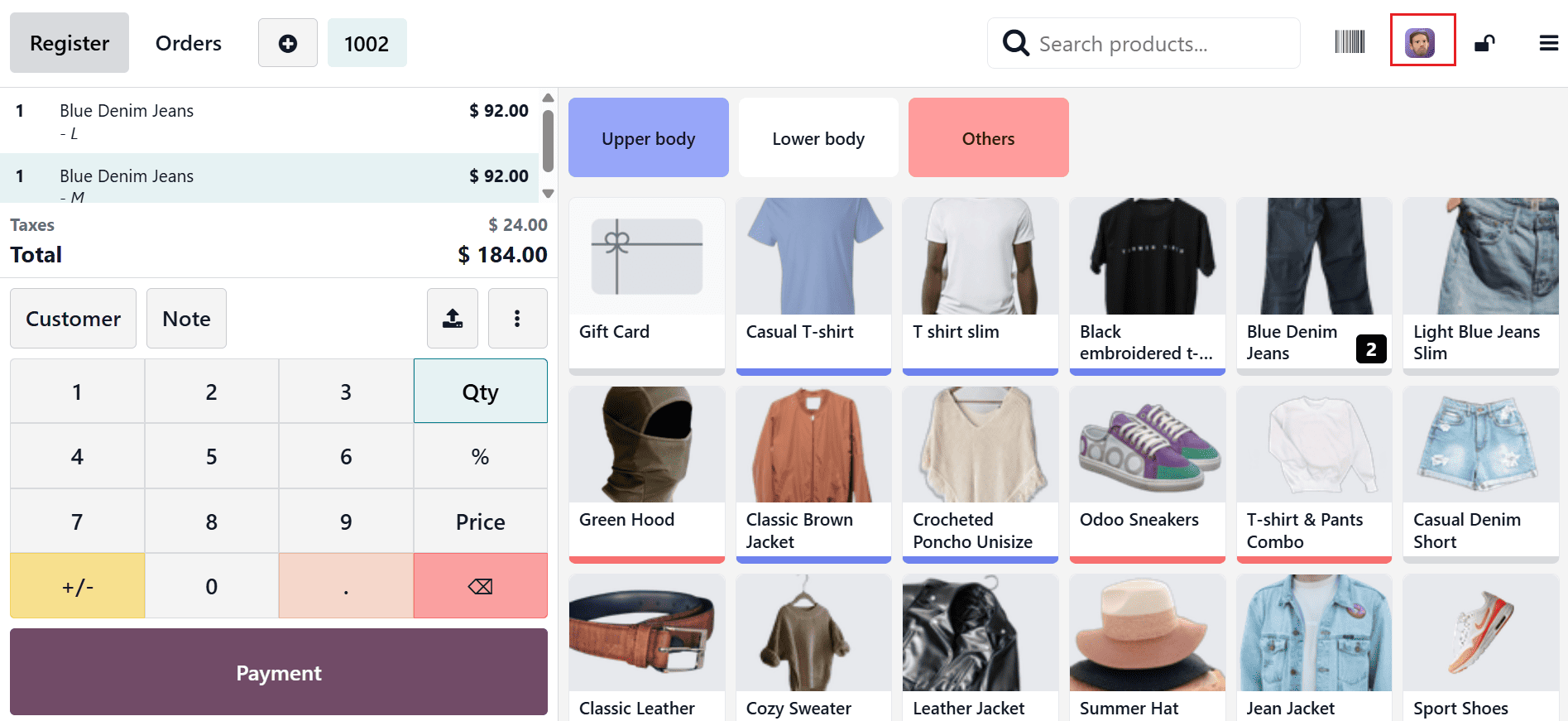
This section displays all the products sold by the second salesperson, Marc Demo. The customer requests two units of the Blue Denim Jeans. Select the required quantity, then click the Payment button to finish the order.
Here, you can see the available payment methods supported by the shop. Select an appropriate one and click on the Validate button.
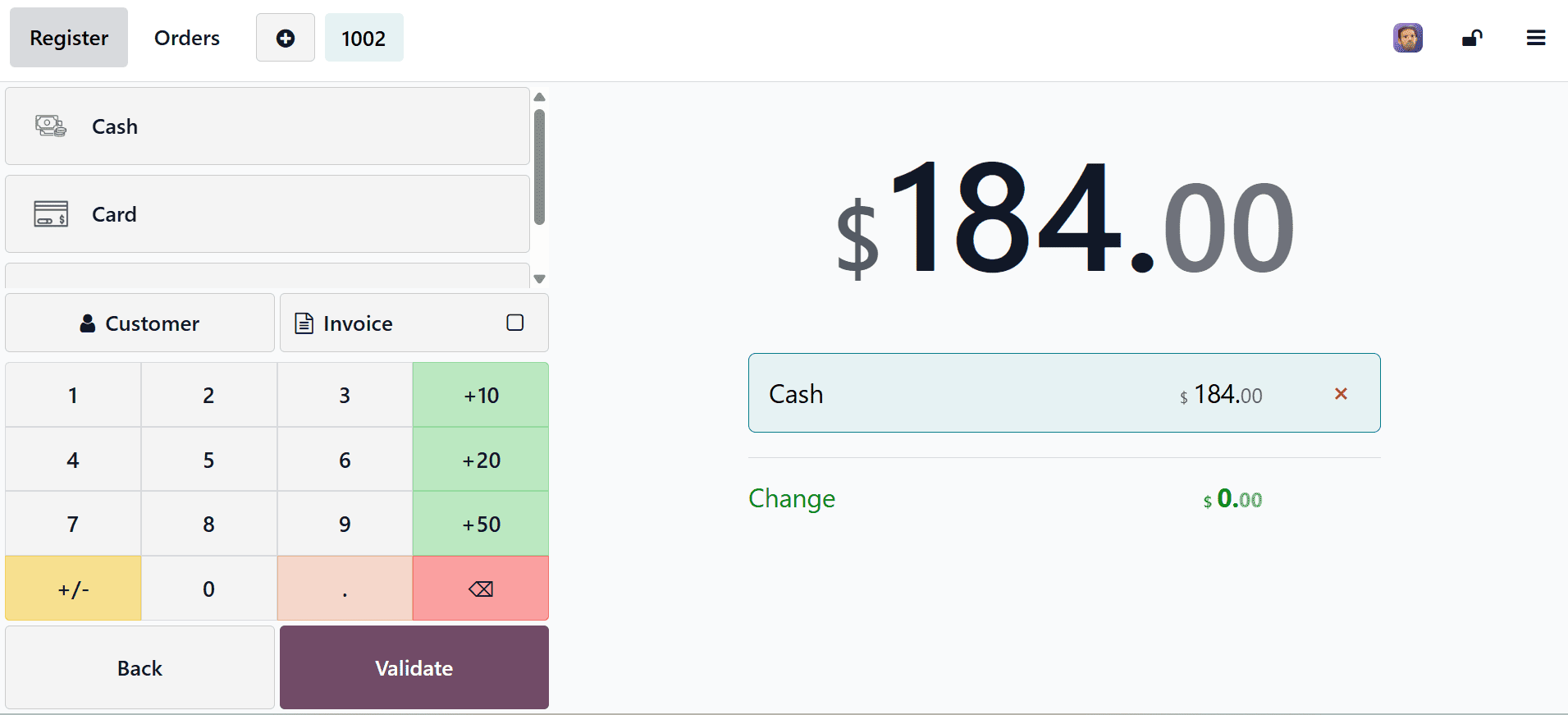
However, the session has already been closed by the salesperson, Mitchell Admin. Let’s move to the point of sale dashboard to review what happened. Here, you can see that one order has been sold by the second salesperson, Marc Demo. Then, click on the three-dotted line and select the Sessions to view the order.
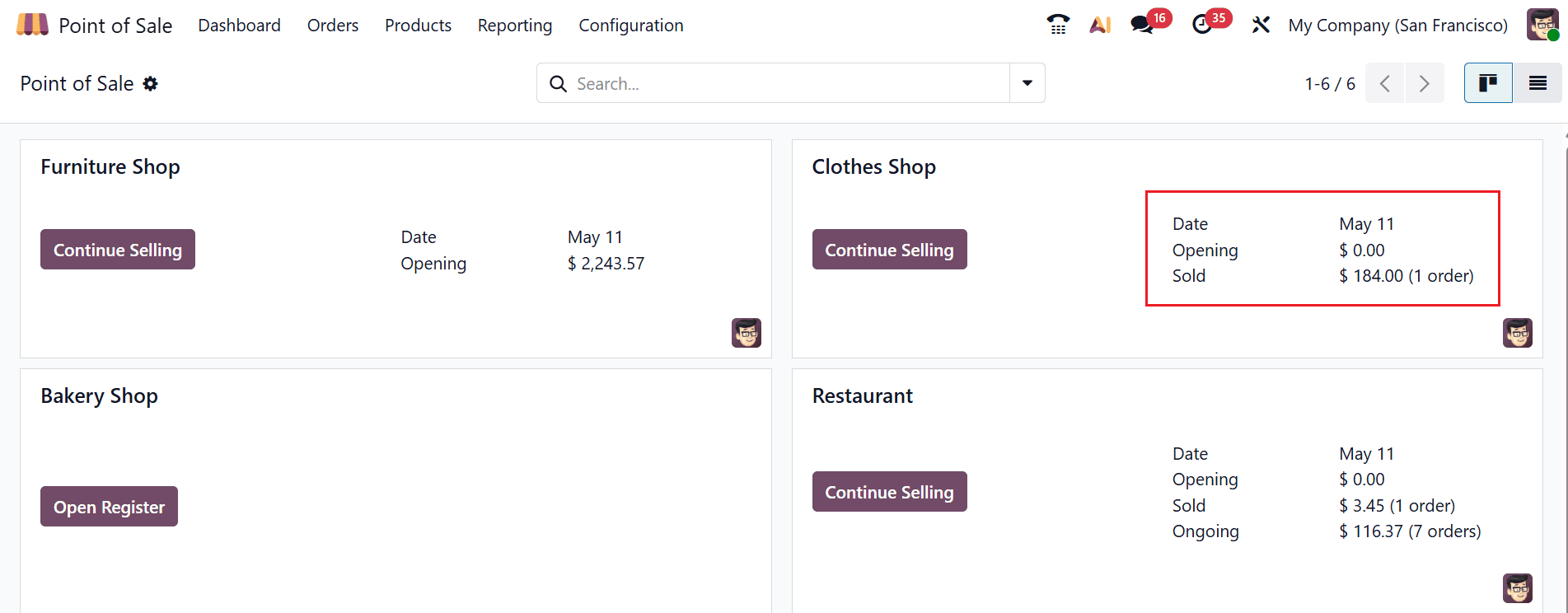
Here, you can see that one order is closed & posted, and another one is in the In Progress stage.

Here, you can see the details of the sessions displayed for review. Click on the Orders smart tab to view the order details.
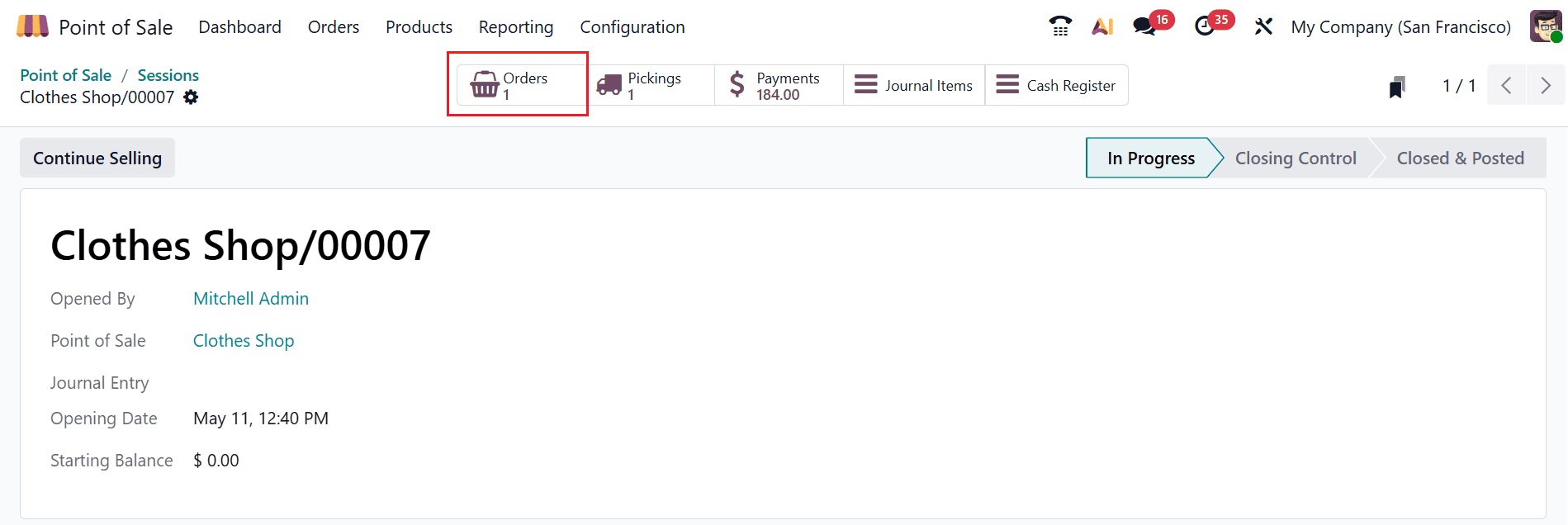
It is confirmed here that the order was generated by Marc Demo.
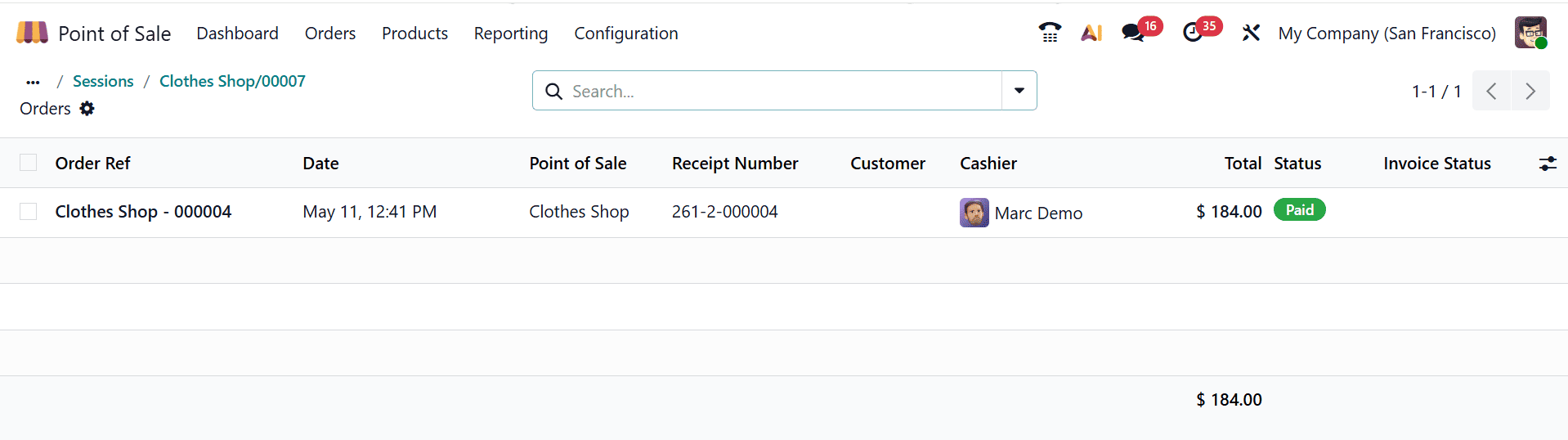
The order shown here was placed by Marc Demo following the closure of the session by Mitchell Admin.
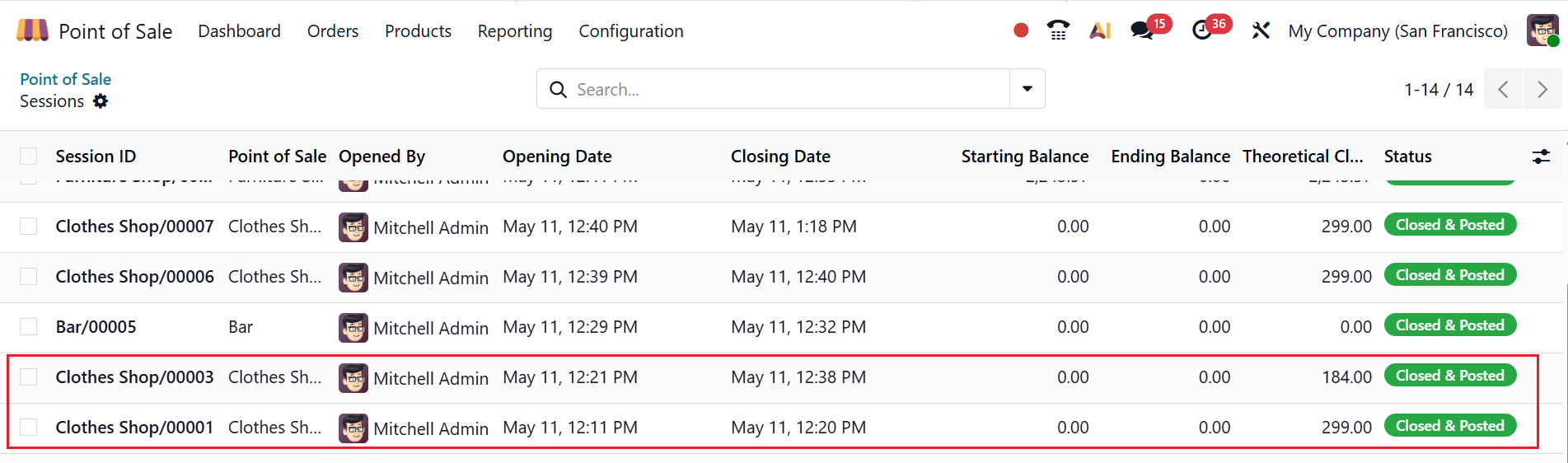
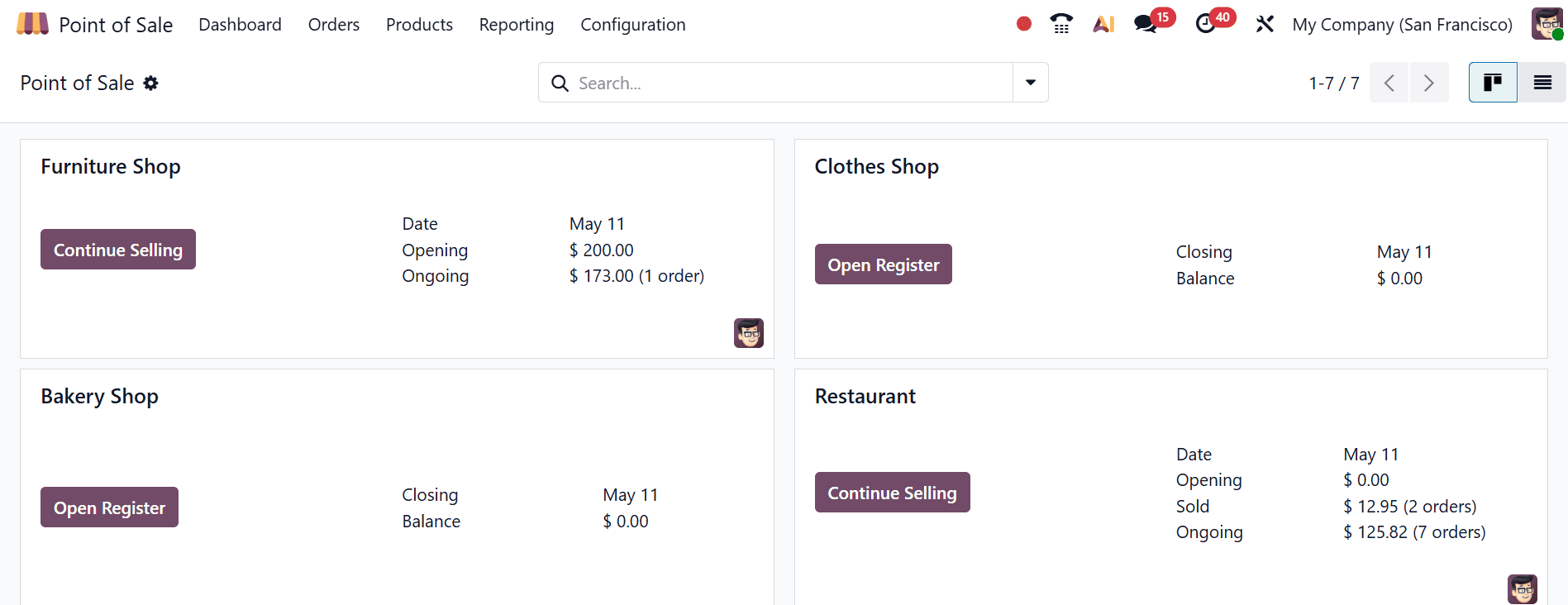
Then go back to the dashboard of the point of sale again. Here, you can see all the orders has been closed and posted.
Handling interrupted POS sessions in Odoo 19 becomes more efficient with the inclusion of the rescue session feature. Rescue sessions act as a safeguard, enabling users to recover unsaved or unsynchronized orders from a disrupted session and process them correctly. Instead of forcing closure or risking data inconsistency, Odoo preserves the original session while transferring pending transactions into a new, manageable environment. This approach improves data accuracy, simplifies reconciliation, and reduces operational stress during system failures. Alongside rescue sessions, best practices such as stable connectivity, proper session closure, and regular monitoring further strengthen POS reliability. Training users to identify when a rescue session is created and how to handle it ensures faster recovery and fewer accounting errors. Overall, combining recovery tools with preventive strategies allows businesses to maintain seamless operations and protect critical sales data even in challenging situations.
To read more about How Rescue Session Can Save You From Data Loss in Odoo 18, refer to our blog How Rescue Session Can Save You From Data Loss in Odoo 18.