A well-organized contact database makes it easier to find the right customers, vendors, and business partners. In Odoo 20, you can segment contacts using contact tags, industries, and country groups. Each serves a different purpose: tags describe a relationship or business attribute, industries classify what an organization does, and country groups collect countries for regional rules such as pricing and tax treatment. Once contacts are classified, you can filter them for follow-up, sales work, or targeted communications.
Find the Contact Configuration Options
Open the Contacts module and select Configuration.
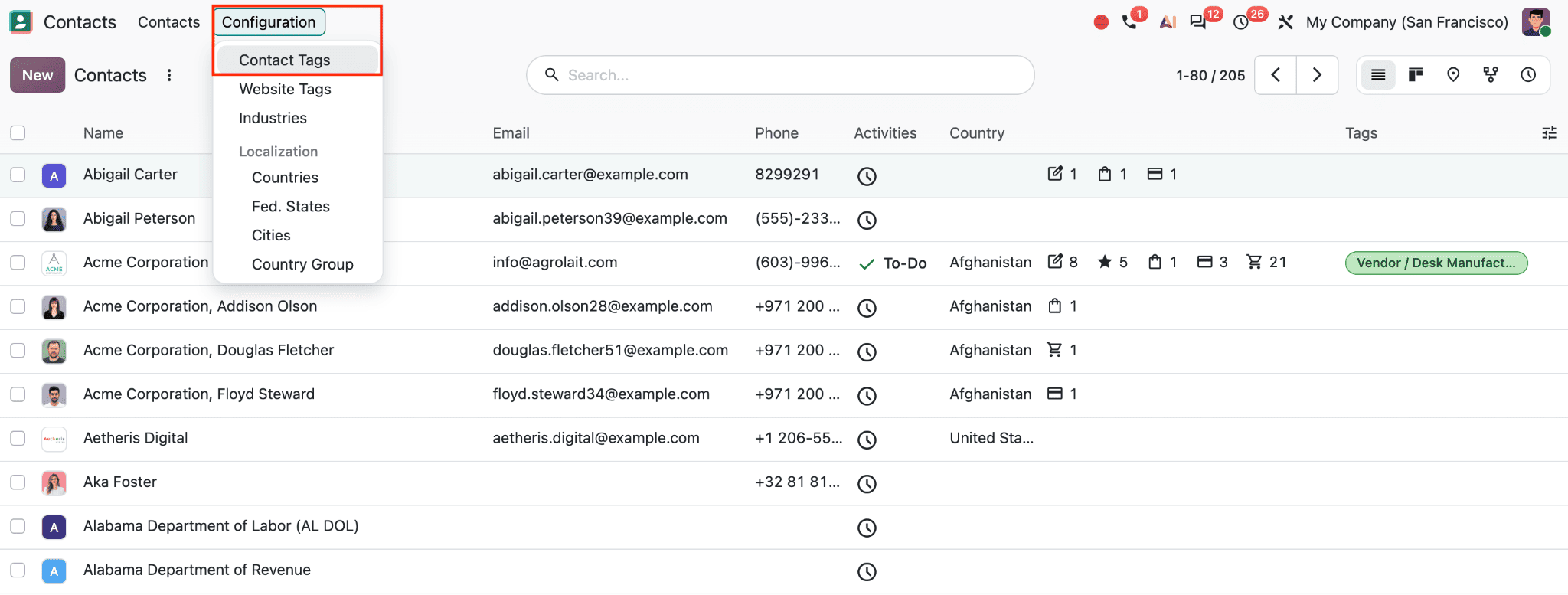
The menu in the screenshot includes Contact Tags, Website Tags, Industries, and several Localization records: Countries, Fed. States, Cities, and Country Group.
Contact Tags are labels you create for contacts, such as Vendor, Prospect, Office Supplies, or Consulting Services. Website Tags are used to organize or filter contacts displayed on a website, so they are separate from general contact segmentation. Industries classify organizations by their line of business. Under Localization, Countries, states, and cities maintain address-related data; Country Group combines countries into a region that can be used in other Odoo settings.
Create and Organize Contact Tags
Choose Configuration > Contact Tags to open the tag list. The screenshot shows the existing tags in a list with Name, Category, and Color columns.
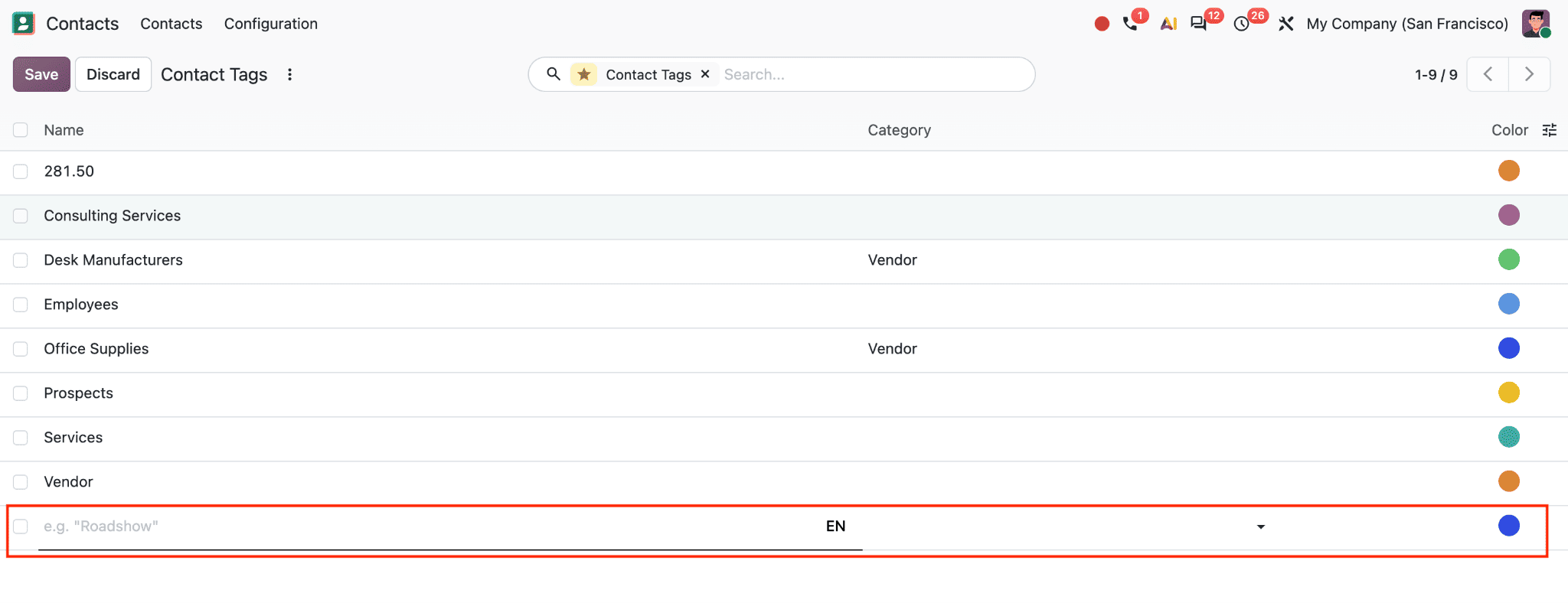
Names such as Employees, Prospects, Services, and Vendor describe the contact’s relationship with your organization. The Category column can group tags under a parent tag. For instance, a parent tag named “Vendor” could have child tags such as “Desk Manufacturers” and “Office Supplies.” This hierarchy makes related tags easier to manage while preserving useful detail.
The colored dots help distinguish tags visually in contact records and list views. To add a tag, enter its name in the new row, select a parent category if needed, and choose a color. Then click Save. Use names that reflect clear, repeatable business criteria so different users classify contacts consistently.
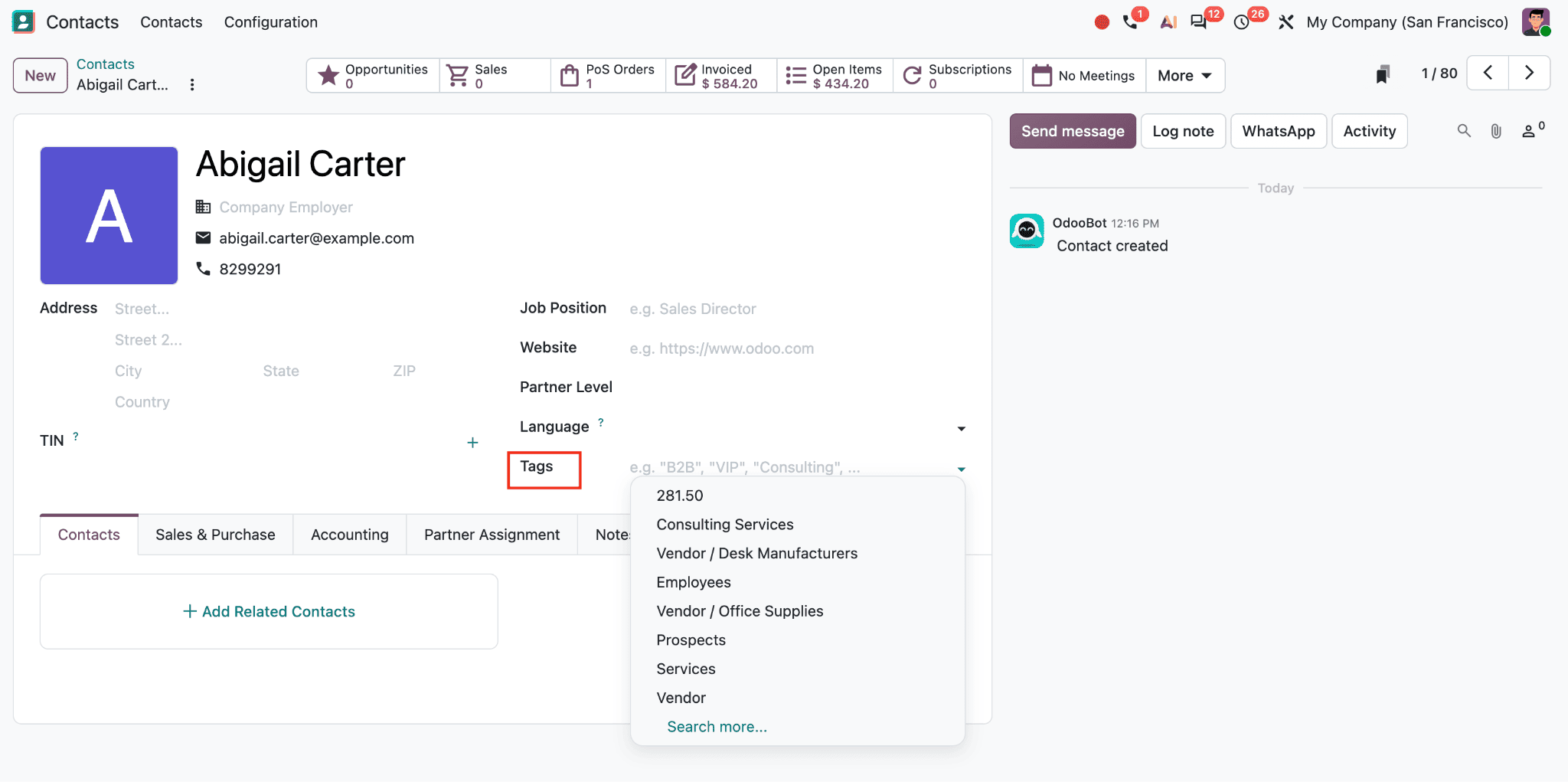
To assign a tag, open a contact and use the Tags field, as shown in the screenshot. Select an existing tag from the dropdown or type a new tag name and create it. You can add more than one tag to a contact. The example dropdown includes tags such as Consulting Services, Vendor / Desk Manufacturers, Employees, Prospects, and Services. Tags can identify several aspects of a contact at once, such as “Vendor” and “Office Supplies.”
Contact tags belong to the Contacts database. They help classify organizations and people across Odoo. CRM tags, by contrast, label leads and opportunities in the CRM pipeline. Use contact tags for durable information about the partner, such as vendor type or customer segment; use CRM tags for the sales opportunity, campaign, product interest, or deal status. They serve related but distinct records.
Classify Contacts by Industry
To maintain industry values, go to Configuration > Industries.
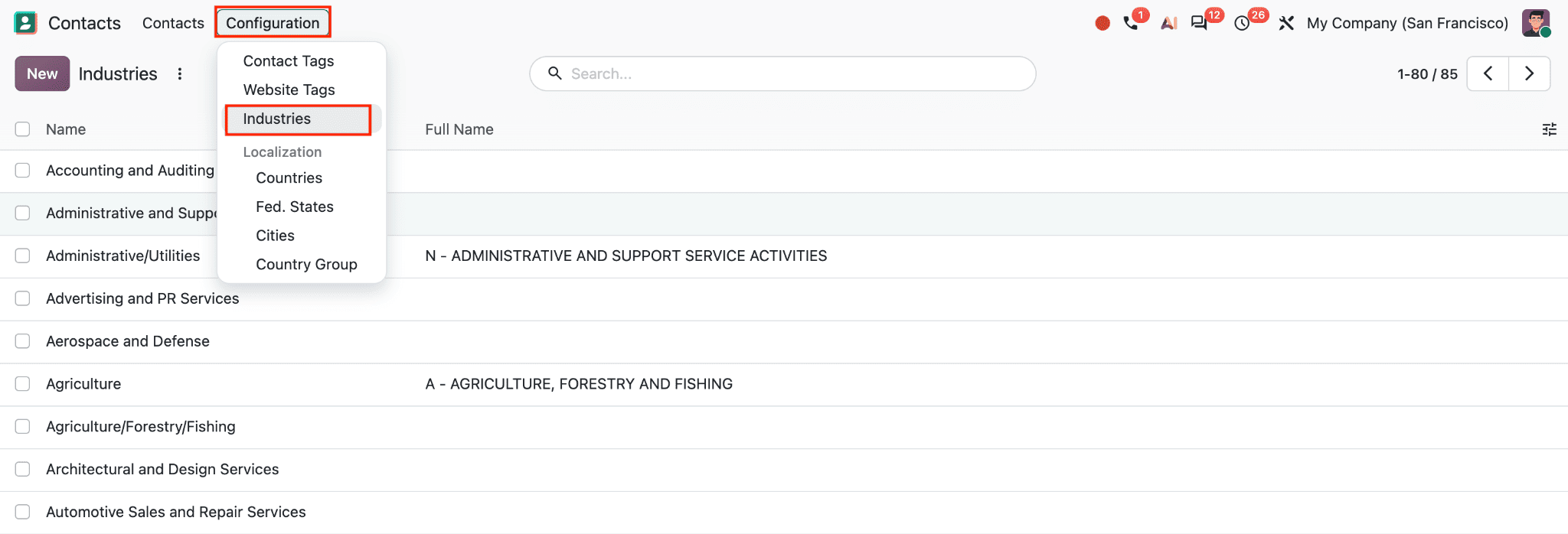
The screenshot shows the Industries list, with Name and Full Name columns. The Name is the selectable industry label, such as Agriculture, Real Estate, Retail, or Public Administration. Full Name provides a broader classification path, where available. For example, “Agriculture” can be associated with “Agriculture, Forestry and Fishing,” while “Transportation/Logistics” maps to “Transportation and Storage.”
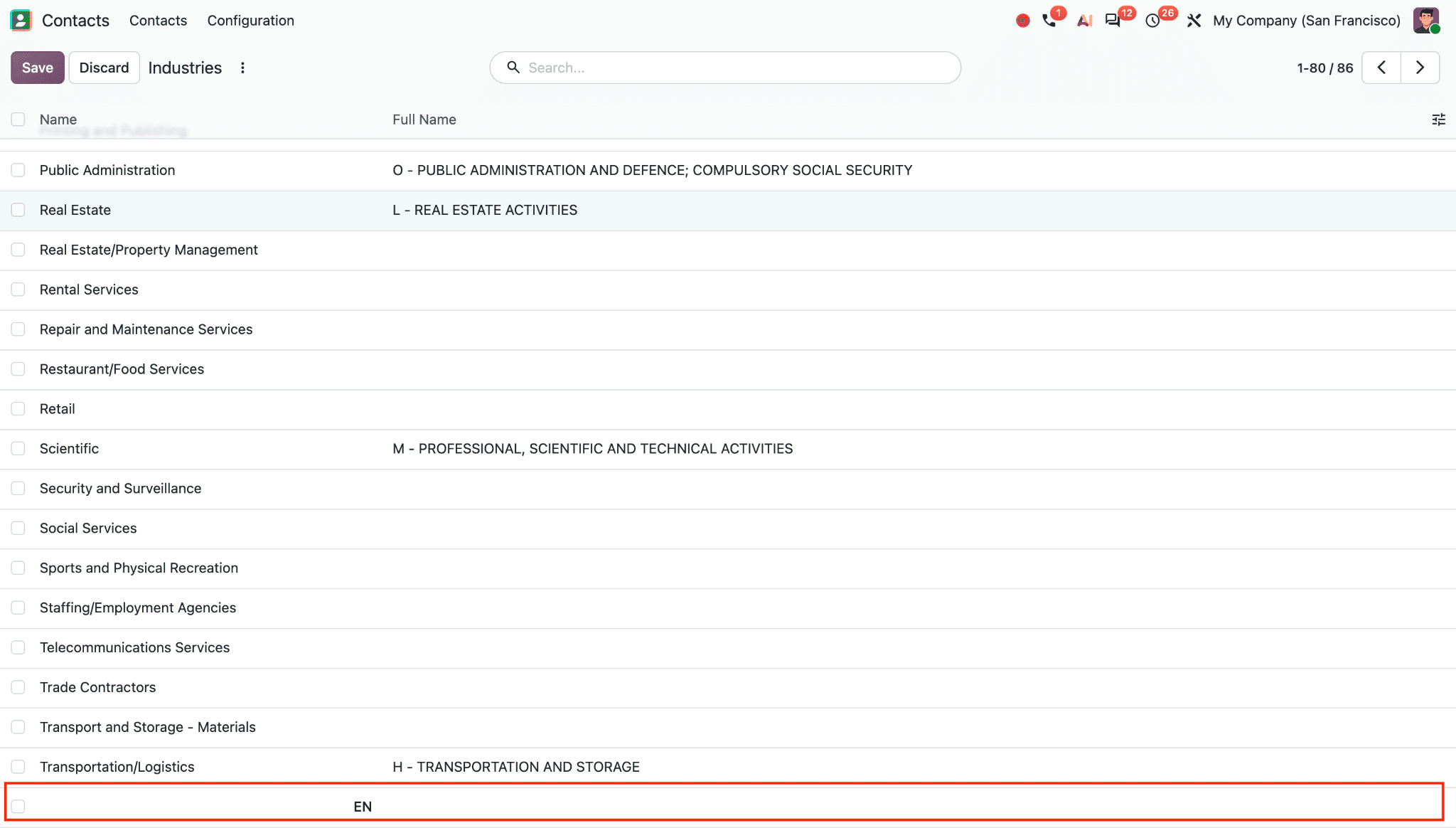
Use New to add an industry, enter its name and, if applicable, its full classification name, then save it. A consistent industry list helps teams compare similar organizations and build useful contact filters. Avoid adding near-duplicate labels for the same sector, as that can split reporting and make searches less reliable.
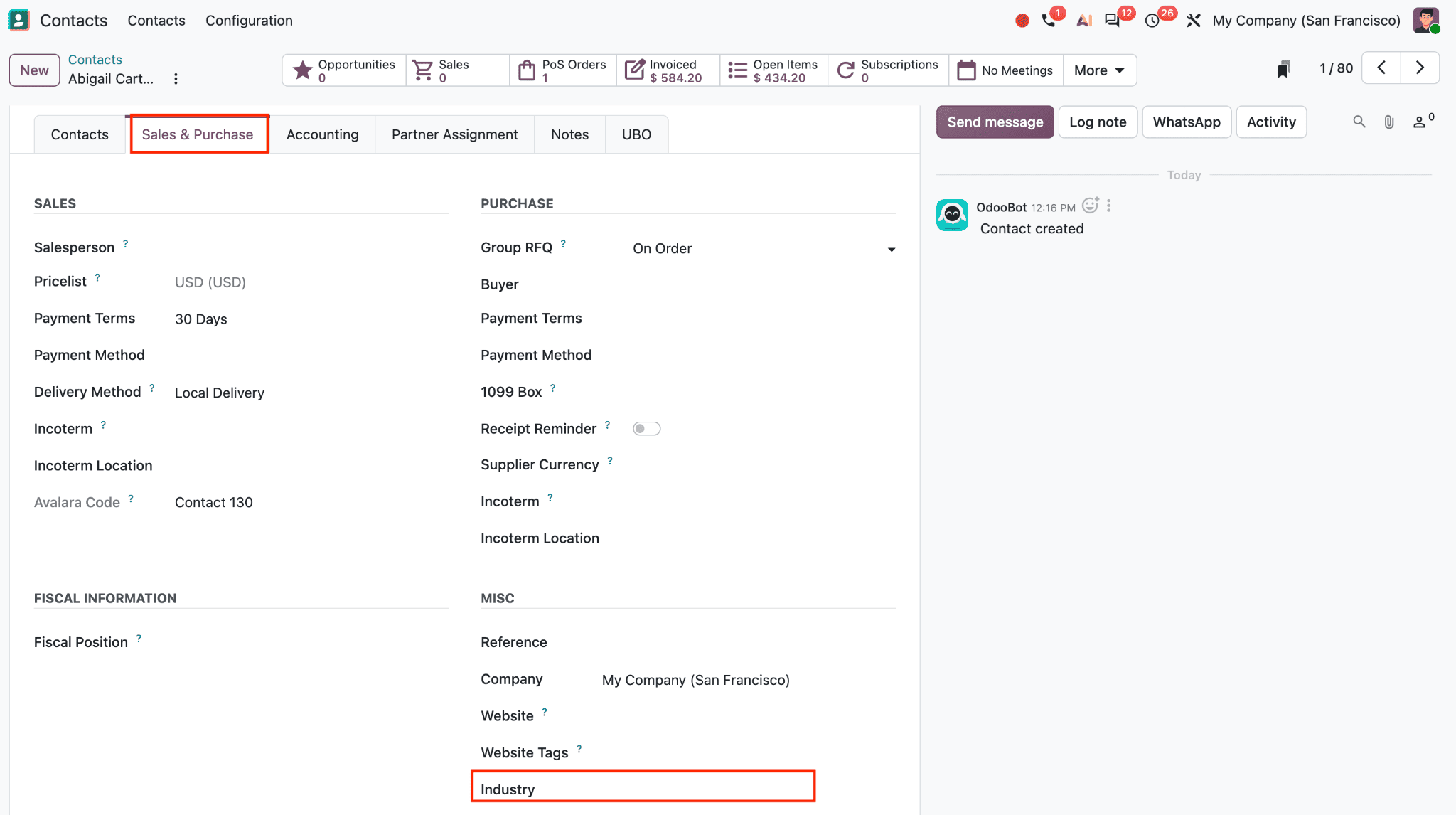
On a contact record, the Industry field appears in the miscellaneous information area of the Sales & Purchase tab of the contact form, as highlighted in the screenshot. Select the industry that best describes the organization. This field is most useful for company contacts; individual contacts can be connected to a company through the Company Employer field on the main contact form. The same tab also contains sales and purchase details, including Salesperson, Pricelist, Payment Terms, Delivery Method, Group RFQ, and Buyer. These fields serve transaction workflows rather than contact segmentation.
Use Country Groups for Regional Rules
Choose Configuration > Country Group to view existing groups.
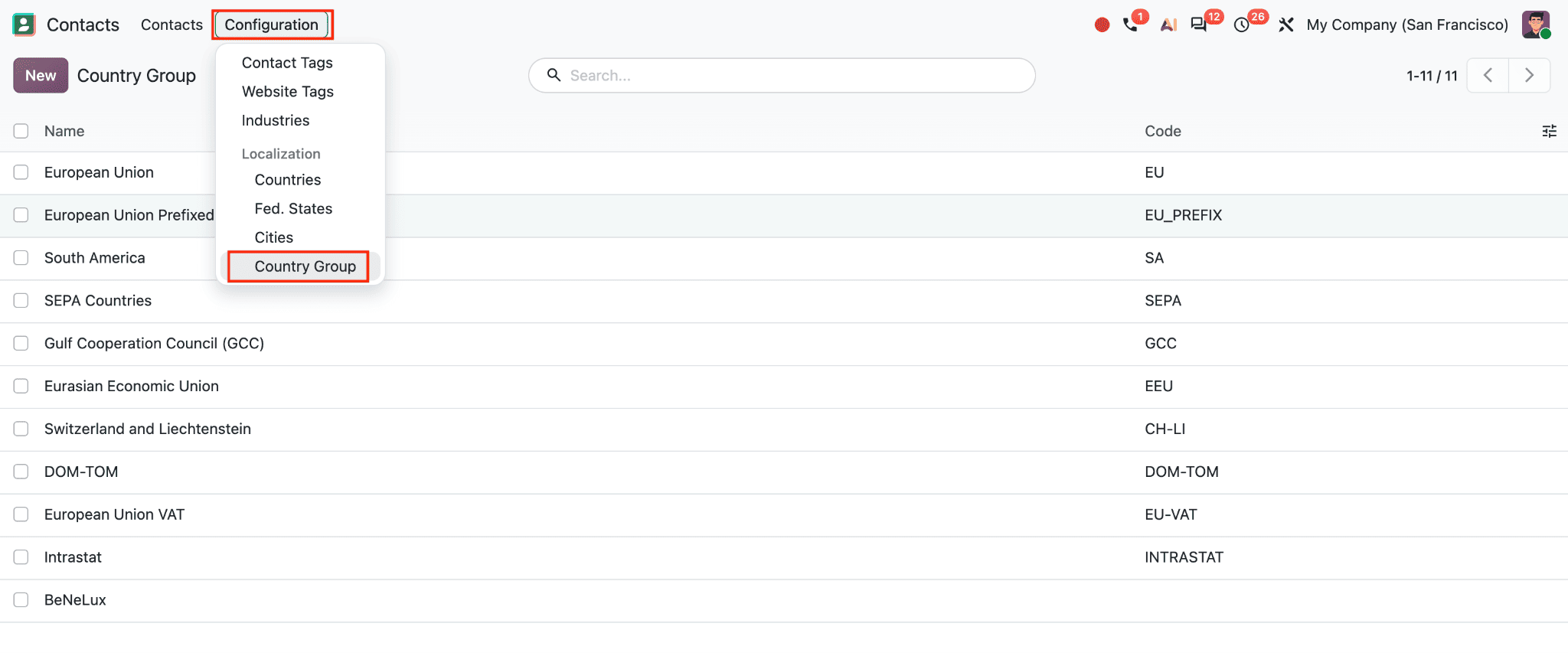
The screenshot lists groups such as European Union, South America, SEPA Countries, Gulf Cooperation Council (GCC), Eurasian Economic Union, Switzerland and Liechtenstein, and BeNeLux. Each group has a Code, which provides a short identifier for that region or localization group.
Click New to create a country group.
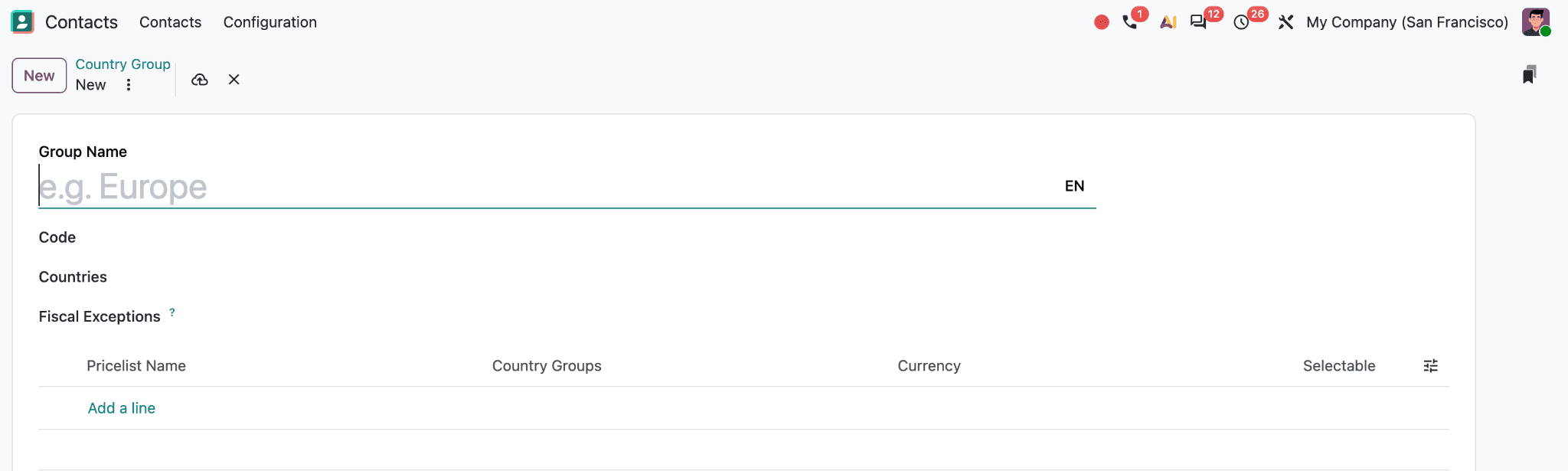
The screenshot shows the country-group form. Group Name identifies the region, and Code provides its short code. Under Countries, add the countries that belong in the group. Fiscal Exceptions allows exceptions to be recorded for fiscal behavior related to the group. The lower table has columns for Pricelist Name, Country Groups, Currency, and Selectable. It lets you associate pricelists with country groups and currencies, and indicate whether a pricelist is available for selection. The exact options available can depend on installed apps and localization settings.
Country groups are useful when business rules apply to a region rather than a single country. In Sales, pricelists can be assigned to country groups so customers in that region receive the appropriate pricing, including on an eCommerce site when location-based pricing is configured.
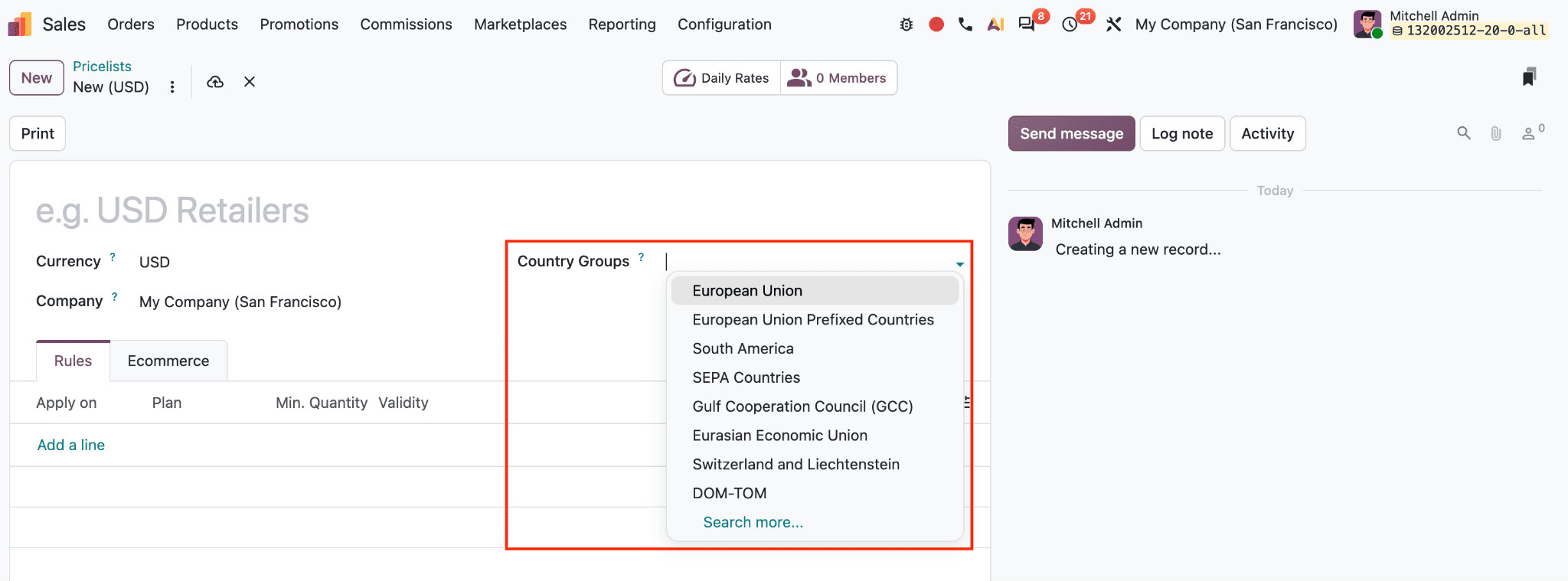
In Accounting, a fiscal position can be configured to apply automatically based on a country or country group, helping map taxes and accounts for transactions.
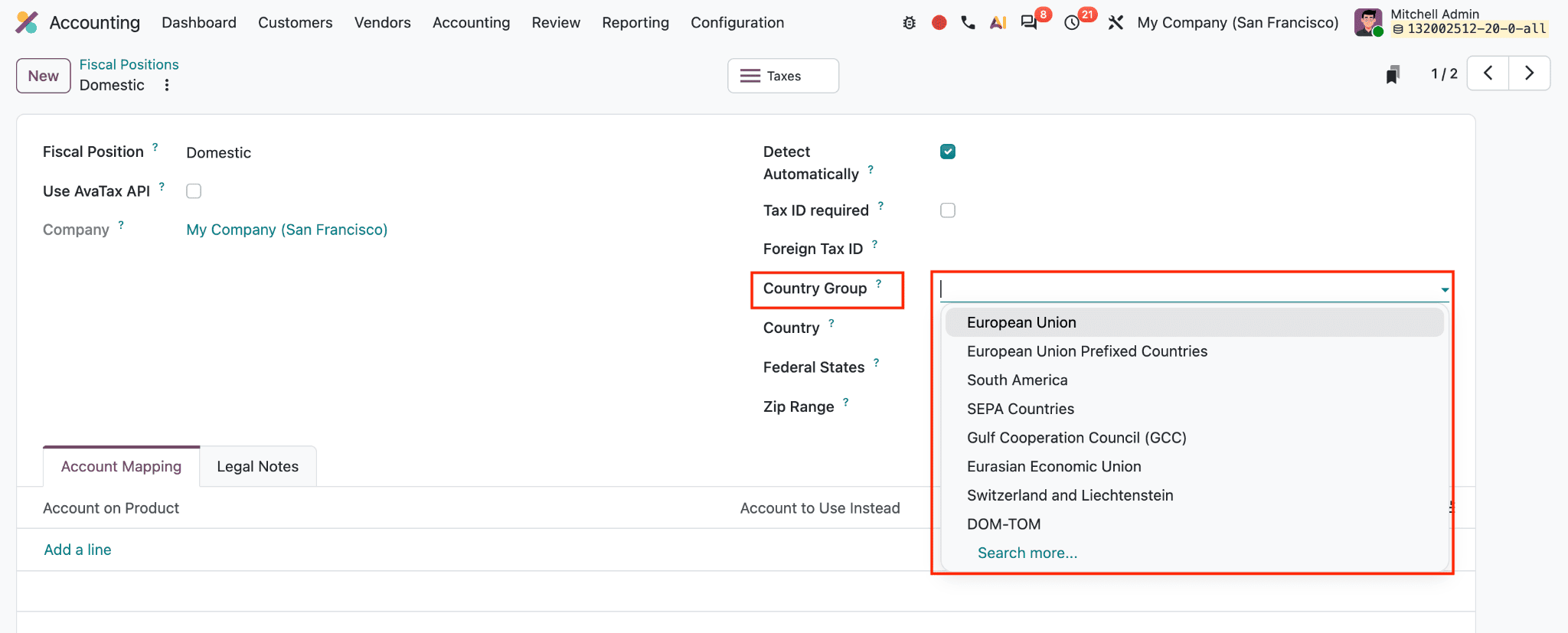
A country group itself does not assign a pricelist or tax rule to every contact; those rules must be configured in the relevant Sales or Accounting settings.
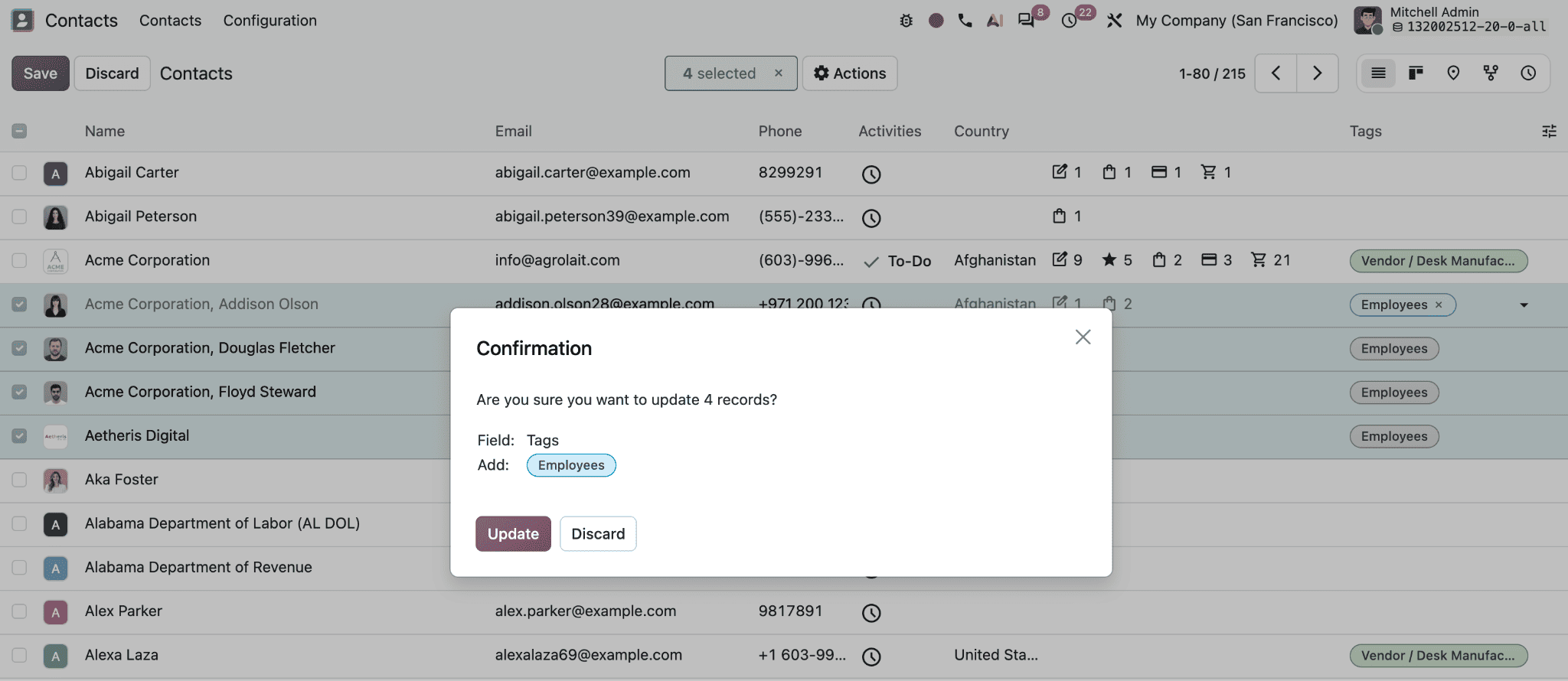
Contact selections can also support bulk updates, such as assigning a tag to multiple records, when the user has the required access.
These segments can guide follow-up and marketing work. For example, a saved filter for customers in a specific region can help a sales team review accounts, while an appropriate contact segment can be used to build a mailing list in the Email Marketing app. Check that the contacts have valid email addresses and the relevant communication permissions before sending a campaign.
Contact tags, industries, and country groups each add a different layer of structure to Odoo. Tags give teams flexible labels, industries make company types easier to compare, and country groups support regional configuration for pricing and fiscal rules. When they are applied consistently and combined with saved filters, users can find the right contacts more quickly and reuse meaningful segments across sales and communication workflows.
To read more about How to Manage Customers, Vendors, and Companies in Odoo 20 Contacts, refer to our blog How to Manage Customers, Vendors, and Companies in Odoo 20 Contacts.