Membership management, subscription management, and partner tiers are some of the necessities required by a majority of organizations. Whether operating a gym, a software application, or a professional organization.
In Odoo 19, we have seen an improvement in how membership management is done. The older 'membership' app that was separate and standalone has now been replaced with an integrated Membership / Partnership module. This new process will now enable you to easily sell and manage membership tiers without having to use any accounting modules.
If you need to establish a membership plan in your Odoo 19 database, then you have come to the right place. Here, we will look at the exact process of setting up a product as a membership product.
Step 1: Activate the Membership Module
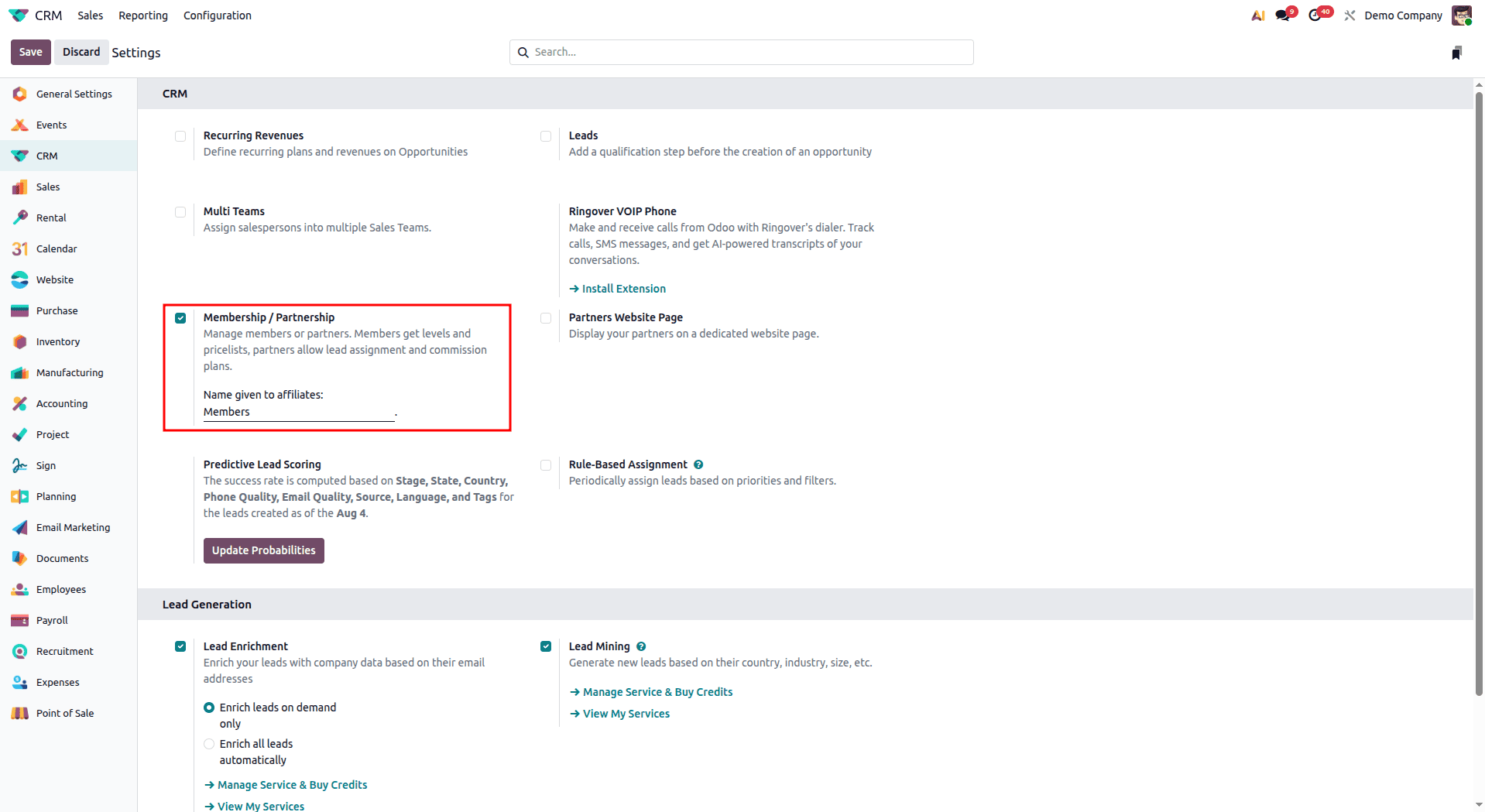
Before we begin the creation of our membership products, we must first make sure that the Membership/Partnership feature is switched on. Since this feature is fully interwoven with customer relations management, we activate it through the CRM settings.
- Go to CRM > Configuration > Settings.
- Locate the checkbox for Membership / Partnership, enable it, and save it.
Step 2: Create or Configure Your Product
With the feature turned on, Odoo understands how to apply the membership logic. Next comes the step to inform Odoo about the products that will apply this logic when they are purchased.
Create a product record, or open an existing product that will be converted to a membership type.
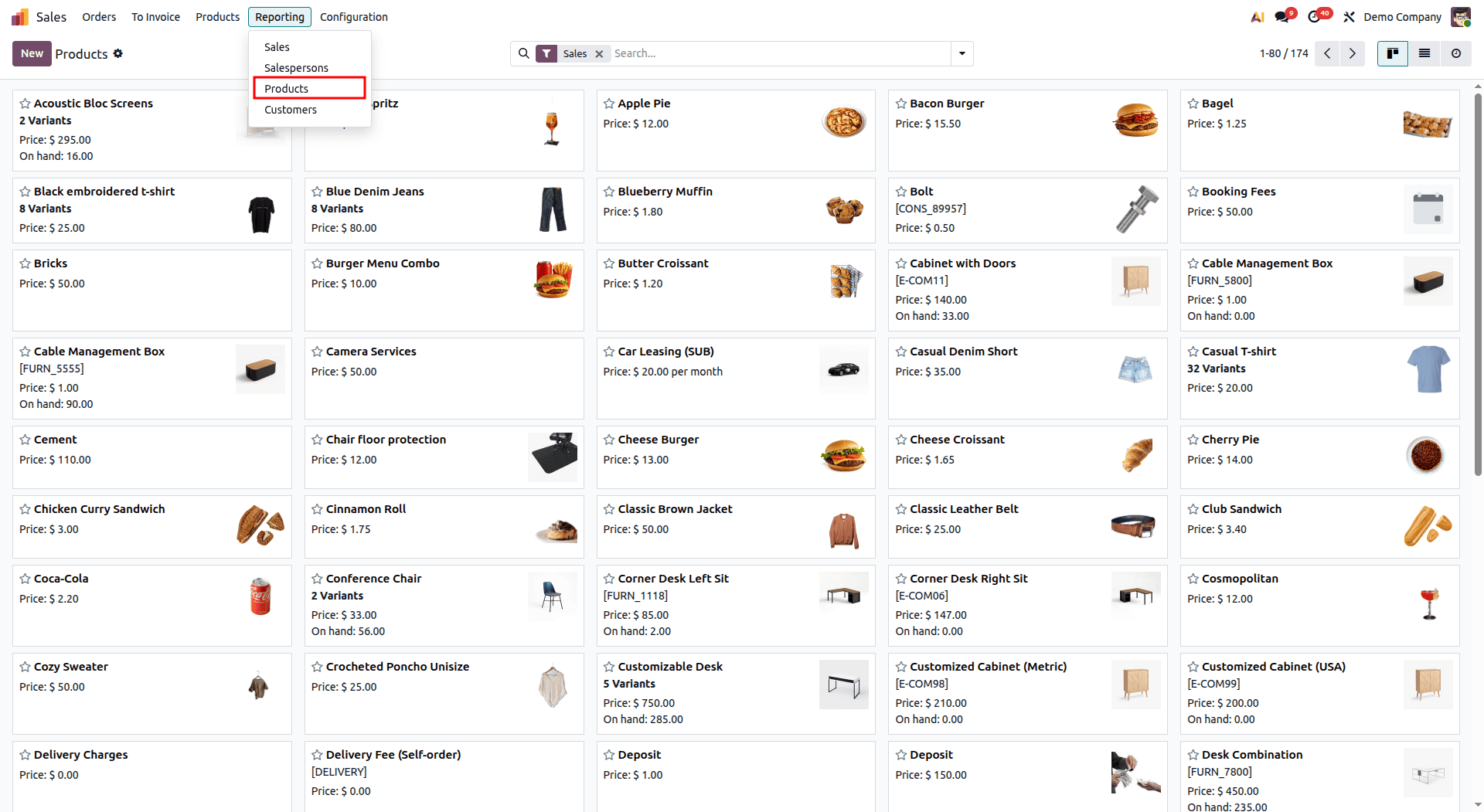
To ensure Odoo processes the purchase of this product as a membership enrollment, we need to configure a few specific fields on the product form.
Under the General Information tab, configure the following:
- Product Type: Set this to Service. Memberships are intangible, so they shouldn't be tracked as storable inventory.
- Invoicing Policy: This is typically set to Prepaid/Fixed Price, meaning the customer is billed for the membership upfront.
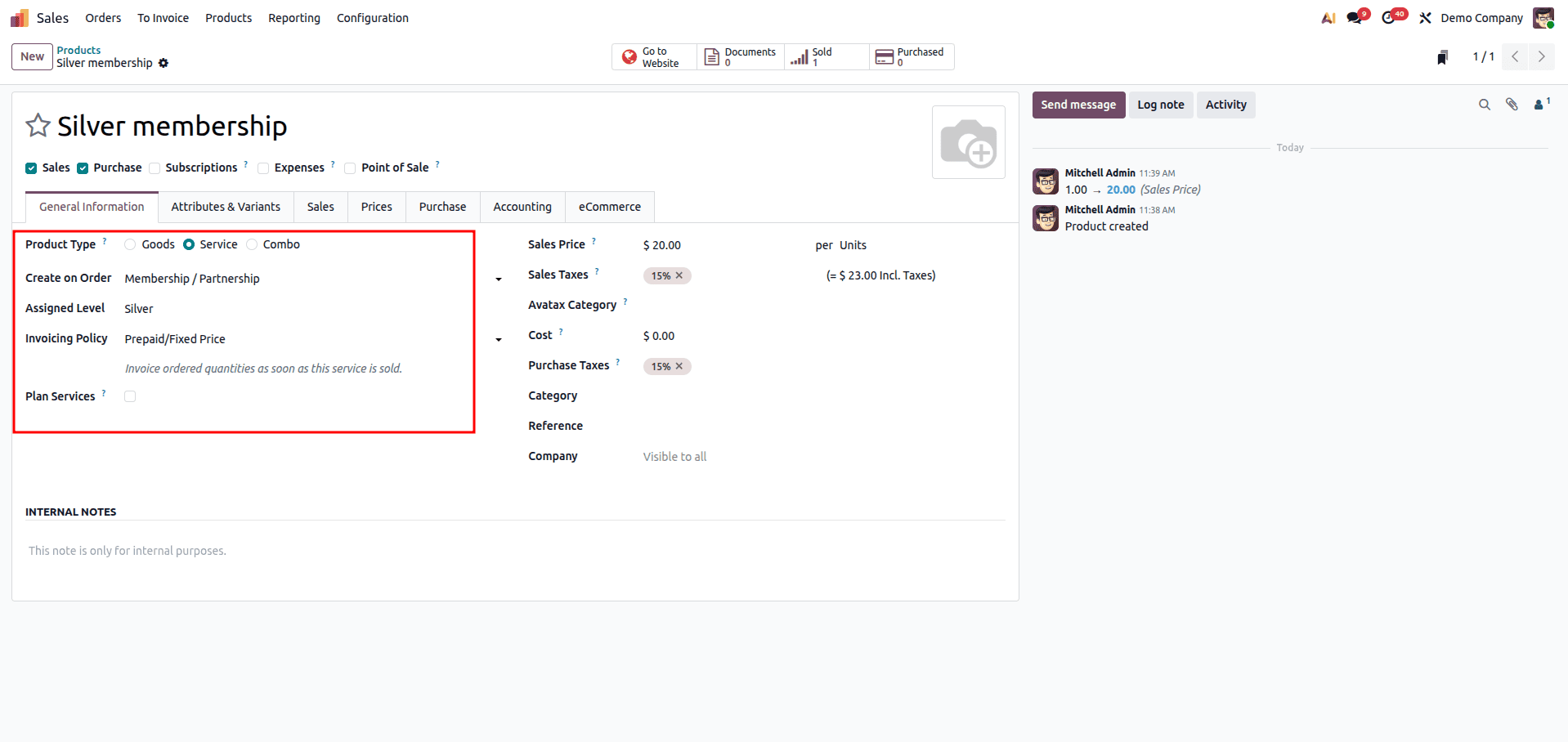
Next, look for the service tracking and creation fields (these are often located under the General Information or Sales tabs depending on your exact view settings):
- Create on Order: This is the most critical step! Click the dropdown and select Membership / Partnership. This tells Odoo to generate a membership record as soon as this product is sold.
- Assigned Level: Once "Membership / Partnership" is selected, a new field will appear allowing you to assign a level. Select or create the tier this product represents (e.g., Bronze, Silver, Gold, VIP Partner).
Save your product. You are all set!
How It Works in Practice: The Purchase & Activation Flow
Now, your product is configured. What actually happens when someone buys it? Because Odoo 19 seamlessly connects sales and CRM, the entire process of activating a membership is fully automated.
Let’s look at the two most common ways a membership is purchased and then dive into the backend to see exactly how the customer's profile is transformed.
Scenario A: The Customer Journey (eCommerce Purchase)
If you sell memberships through your Odoo website, the process is completely self-serve:
Navigate to your web shop and click on the Membership product (e.g., "Silver Membership").
Checkout: Add the product to your cart and proceed through the standard eCommerce checkout flow.
Payment: Pay via your configured payment gateway (Stripe, PayPal, etc.)
Instant Activation: Once the customer purchases the membership through the eCommerce website, Odoo processes the order using the configured membership product and updates the customer's membership information accordingly.
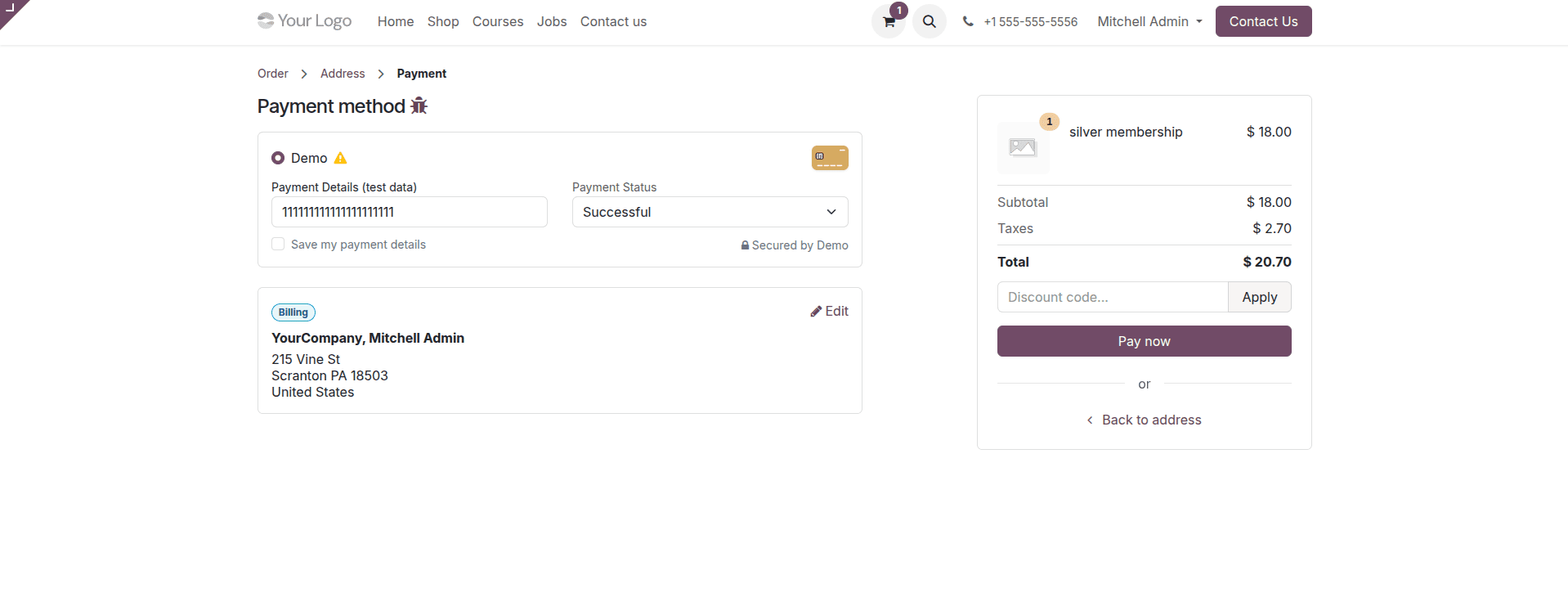
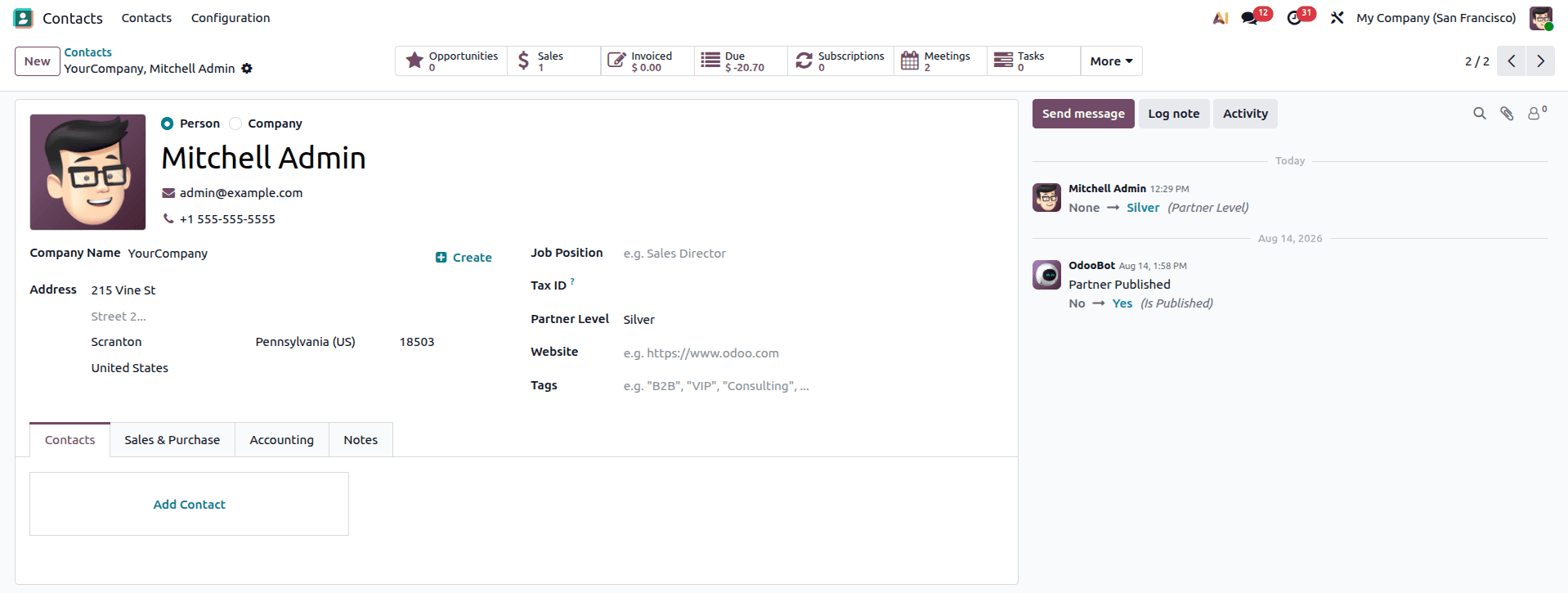
You can see the customer’s Membership Level has changed.
Scenario B: Sales Rep Process (Sales Order Backend)
If you are managing your members via manual sales teams (such as B2B partnerships or expensive corporate memberships):
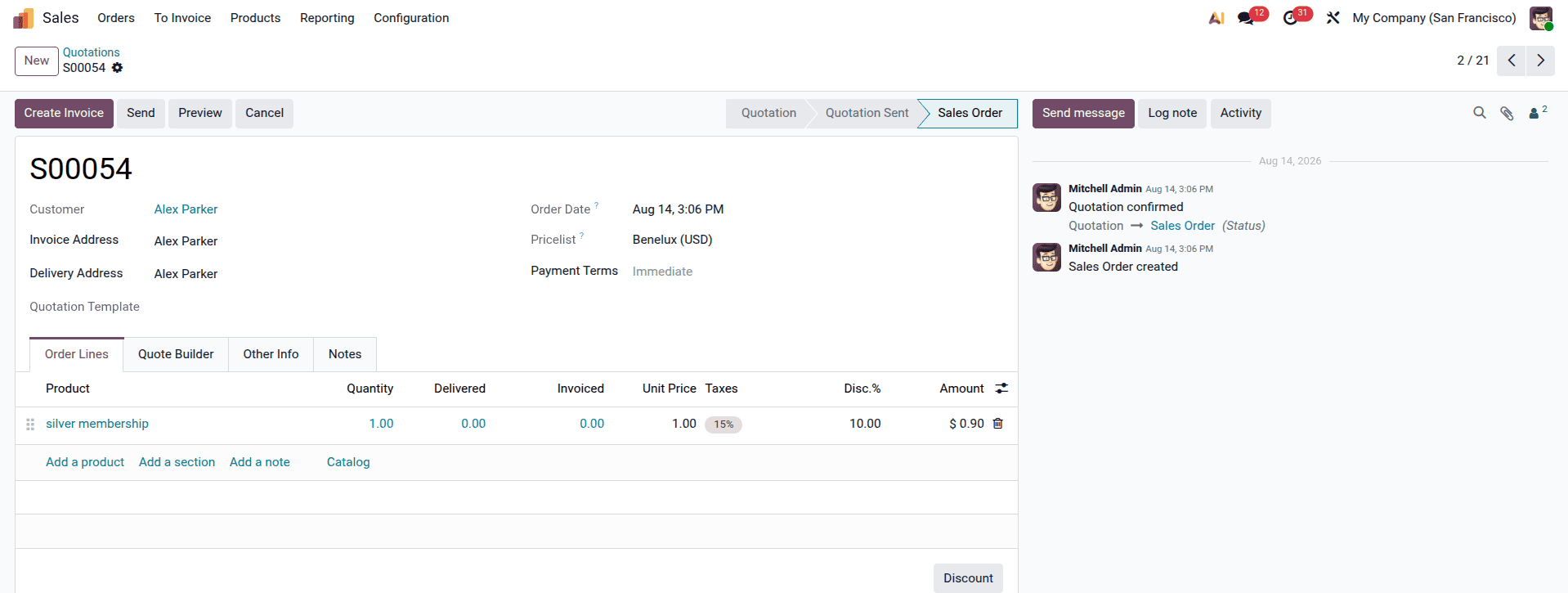
Quotation: A salesperson launches the Sales app and generates a Quotation for the customer.
Adding the Product: The product that is added is the Membership.
Confirmation: The salesperson hits the Confirm button to make a Quotation become a Sales Order.
Invoicing: Once the invoice is created and paid for, the membership takes effect.
What Changes on the Customer Record?
If the customer bought the membership either via the website or with the help of the sales representative, then the real potential of the Membership / Partnership functionality lies right in the Contact Form view of Odoo 19.
Head over to your Contacts or CRM application and select the contact record of the customer who made this purchase. This is how exactly things change:
Assigned Partner Level: If you configured your product to award your customer a certain partner level (say Silver Partner), then it would be automatically assigned to his/her record. You can easily spot it.
Odoo 19 makes it easier to manage memberships by combining the membership and partnership functions directly within the CRM and Sales processes. By setting up the membership products in relation to the correct membership/partnership level, companies are able to automatically grant membership benefits when the customer purchases a product. Whether it is membership sold on the Odoo eCommerce site or the membership sales done by the sales representatives, this process can be easily managed.
To read more about How a Membership can be Purchased with Odoo 18, refer to our blog, How a Membership can be Purchased with Odoo 18.