When most people use PostgreSQL, they focus only on SQL commands like SELECT, INSERT, UPDATE, and DELETE. But advanced users know that productivity inside psql comes from learning meta-commands. One of the most useful sections inside \? help is the Query Buffer commands.
These commands help you build, edit, review, save, clear, and reuse SQL before sending it to the PostgreSQL server. If you want to work faster in PostgreSQL, debug long queries, or understand how psql behaves internally, mastering the query buffer is essential.
What Is the Query Buffer in PostgreSQL?
The query buffer is a temporary memory area inside the psql client where your SQL command is stored until you execute it.
When you type a query line by line, PostgreSQL does not run it immediately. It waits until you finish the command using a semicolon ; or the \g command.
Example:
postgres=# SELECT
postgres-# *
postgres-# FROM res_partner
postgres-#
At this point, the query is only stored in the query buffer. It has not been executed yet. When you type:
\g
Or
;
Then the full query is sent to the server.
Why Query Buffer Commands Matter
These commands are useful when:
- Writing long SQL queries
- Fixing mistakes before execution
- Saving queries to files
- Reusing previous work
- Editing SQL in Nano or Vim
- Managing stored functions and views
- Improving daily PostgreSQL productivity
How to View Query Buffer Commands
Inside psql, type:
\?
Then locate the section called:
Query Buffer
You will see like this:
Query Buffer
  \e [FILE] [LINE]       edit the query buffer (or file) with external editor
  \ef [FUNCNAME [LINE]]  edit function definition with external editor
  \ev [VIEWNAME [LINE]]  edit view definition with external editor
  \p                     show the contents of the query buffer
  \r                     reset (clear) the query buffer
  \s [FILE]              display history or save it to file
  \w FILE                write query buffer to file
Now let’s understand each command with complete examples.
How to Use \p to Show the Current Query Buffer
The \p command prints the SQL currently stored in the buffer.
Example:
postgres=# select
postgres-# *
postgres-# from
postgres-# res_partner
postgres-# \p
Output:
postgres-# \p
select
*
from
res_partner
Nothing is executed. It only displays the draft query. This is useful when you typed a long query and want to review it before execution.
How to Use \g to Execute the Query Buffer
After building a query in the buffer, use \g to run it.
Example:
postgres=# select
postgres-# *
postgres-# from
postgres-# res_partner
postgres-# \g
Output:
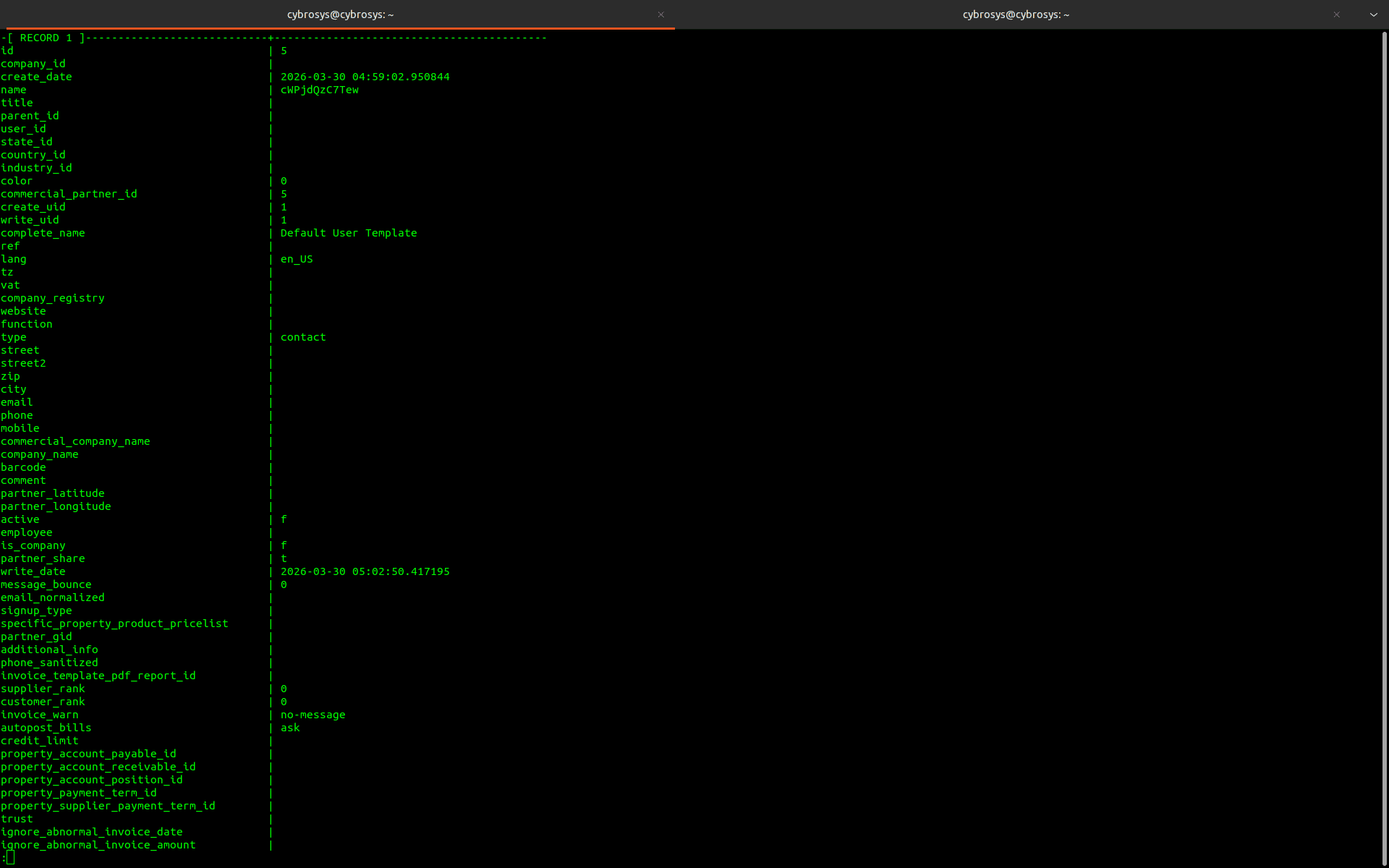
This sends the buffered query to PostgreSQL.
How to Use \r to Clear the Query Buffer
The \r command resets the buffer and removes unfinished SQL.
Example:
postgres=# select
postgres-# *
postgres-# from
postgres-# res_partner
postgres-# \r
Output:
Query buffer reset (cleared).
Now the query is gone. This is helpful when your query becomes messy or incomplete.
Important Behavior of \r Followed by \g
Let’s test the \g command after \r like this
postgres=# select
postgres-# *
postgres-# from
postgres-# res_partner
postgres-# \r
postgres=# \g
Why did it still execute a query?
Because \g can re-execute the most recent successful query depending on session state and buffer behavior. This is useful but can confuse beginners. To avoid mistakes, always verify with \p before using \g.
How to Use \e to Edit the Query Buffer in an External Editor
The \e command opens your current buffer inside a text editor such as Nano, Vim, VS Code, or another configured editor.
Example:
postgres=# SELECT * FROM pg_class
postgres-# \e
Your editor opens. You can modify the SQL. For example, change:
SELECT * FROM pg_class;
To:
SELECT relname, relkind FROM pg_class;
Save and close the editor. It automatically runs the query and you get query result like this.
Result
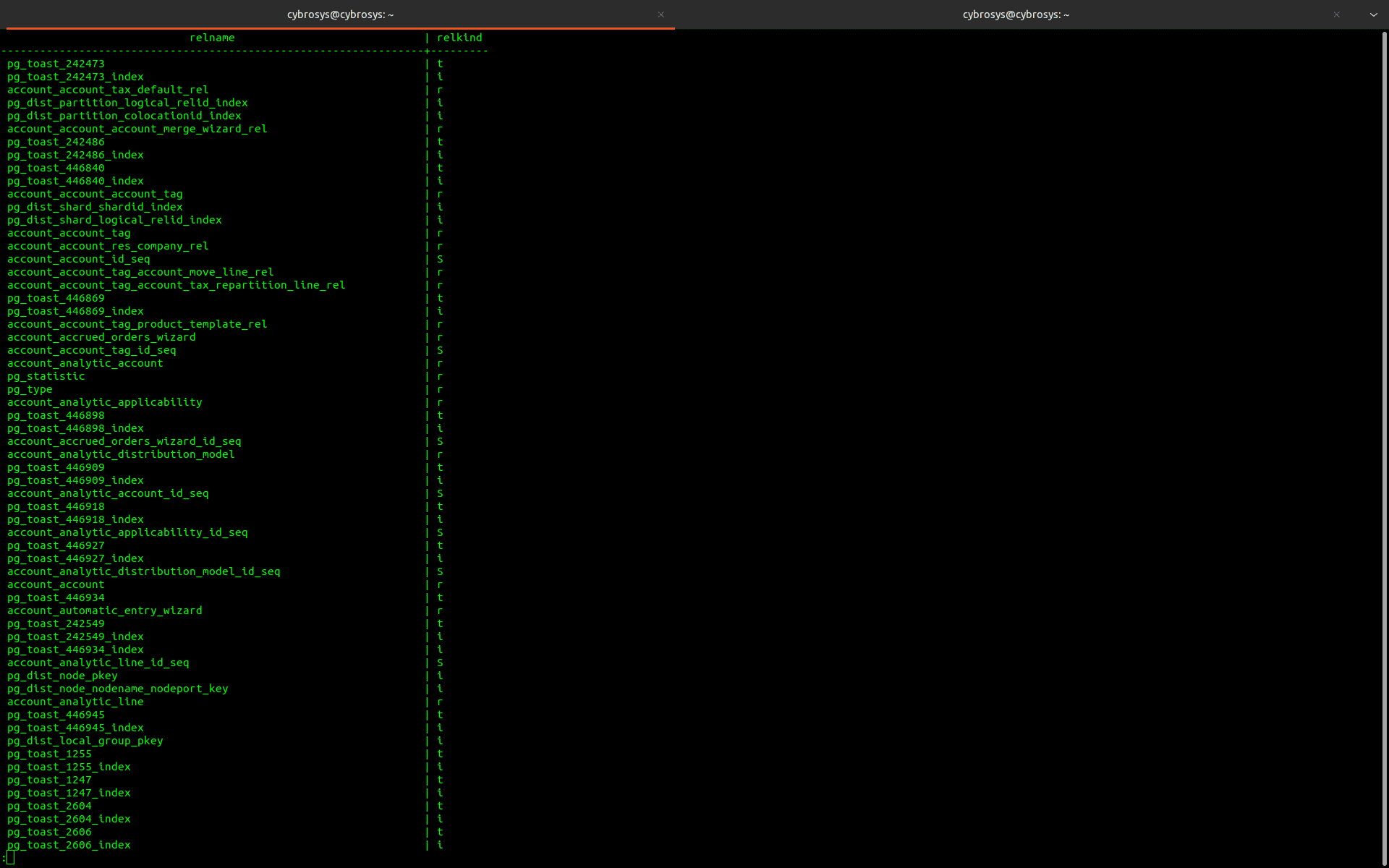
This is very useful for long and complex SQL statements.
How to Use \e FILE
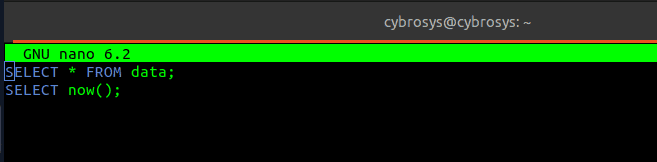
Create a file named queries.sql and just add two sql queries like this
sudo nano queries.sql
Add these two queries
SELECT * FROM data;
SELECT now();
Now we can open this .sql file inside psql like this
\e queries.sql
This opens a file named queries.sql in your editor. If the file does not exist, it can be created.
You can write SQL inside it, save it, and later run it.
How to Use \e FILE LINE
You can open a file directly at a specific line.
\e queries.sql 10
Now you get a warning like this
postgres=# \e queries.sql 10
environment variable PSQL_EDITOR_LINENUMBER_ARG must be set to specify a line number
Now use these commands to set value for the env variable named PSQL_EDITOR_LINENUMBER_ARG like this
cybrosys@cybrosys:~$ sudo su postgres
postgres@cybrosys:/home/cybrosys$ export EDITOR=nano
postgres@cybrosys:/home/cybrosys$ export PSQL_EDITOR_LINENUMBER_ARG='+%l'
Now re-execute the command and you can see that specified line. This is helpful for large SQL files.
How to Use \ef to Edit a PostgreSQL Function
The \ef command opens a stored function definition in your editor. First create a function:
CREATE OR REPLACE FUNCTION get_total()
RETURNS integer
LANGUAGE plpgsql
AS $$
BEGIN
    RETURN 100;
END;
$$;
Now edit it:
\ef get_total
The function source opens in the editor. Change it to:
CREATE OR REPLACE FUNCTION get_total()
RETURNS integer
LANGUAGE plpgsql
AS $$
BEGIN
    RETURN 500;
END;
$$;
Save and exit. Now run:
SELECT get_total();
Output:
500
This is excellent for PostgreSQL developers using PL/pgSQL.
How to Use \ev to Edit a View
Create a view:
CREATE VIEW customers_data AS
SELECT * FROM res_partner;
Now open it:
\ev customers_data
Edit the SQL:
CREATE OR REPLACE VIEW customers_data AS
SELECT id, name FROM res_partner;
Save and exit. Now:
SELECT * FROM customers_data;
How to Use \s to Show History
The \s command displays previously typed commands.
Example:
\s
You will see command history from the session. Useful for finding old queries.
How to Save History to a File
Example:
\s history.sql
This writes your command history to a file. Useful for documentation or learning logs.
How to Use \w FILE to Save Query Buffer to a File
This command writes the current query buffer to a file.
Example:
postgres=# select *
postgres-# from res_partner
postgres-# where id > 21
postgres-# \w query.sql
Now query.sql contains:
select *
from res_partner
where id > 21
This is useful when:
- Sharing queries with teammates
- Saving reusable scripts
- Building SQL libraries
- Keeping a backup of complex queries
Use one command at a time. These commands are handled by the psql client, not the PostgreSQL server.
That means:
- They do not modify database data directly
- They help manage SQL before execution
- They improve client-side productivity
- They are perfect for developers and DBAs
These make psql even more powerful. Most users only know SQL, but professionals know how to control the environment where SQL is written. Query buffer commands turn psql from a simple terminal into a powerful SQL workspace.
If you regularly work in PostgreSQL, learning \p, \r, \e, \ef, \ev, \s, and \w will save time every day.
The query buffer is more than temporary memory. It is your workspace for writing better SQL.