Regular database backups are essential for maintaining data safety, ensuring business continuity, and protecting production systems from unexpected failures. PostgreSQL provides a powerful job scheduling tool called pgAgent, which integrates directly with pgAdmin and allows administrators to automate maintenance tasks such as backups.
pgAgent is a job scheduling extension designed for PostgreSQL environments. It allows you to create automated jobs that execute SQL commands or batch scripts at scheduled intervals. When used with pgAdmin, pgAgent provides a graphical interface to configure recurring tasks such as database backups, regular data import like tasks.
Installation of pgAgent
Start by installing pgAgent using the package manager.
sudo apt install pgagent
After installation, switch to the PostgreSQL system user:
sudo su postgres
Open the PostgreSQL interactive terminal:
psql -p 5432
Before creating jobs, confirm that the pgAgent extension is available.
SELECT * FROM pg_available_extensions WHERE name = 'pgagent';
If the extension is listed, create it inside your PostgreSQL database:
CREATE EXTENSION pgagent;
The users can also use pgAdmin to create this extension.
Alternatively, you can open pgAdmin, connect to your server, and use the Query Tool to run the same SQL commands.
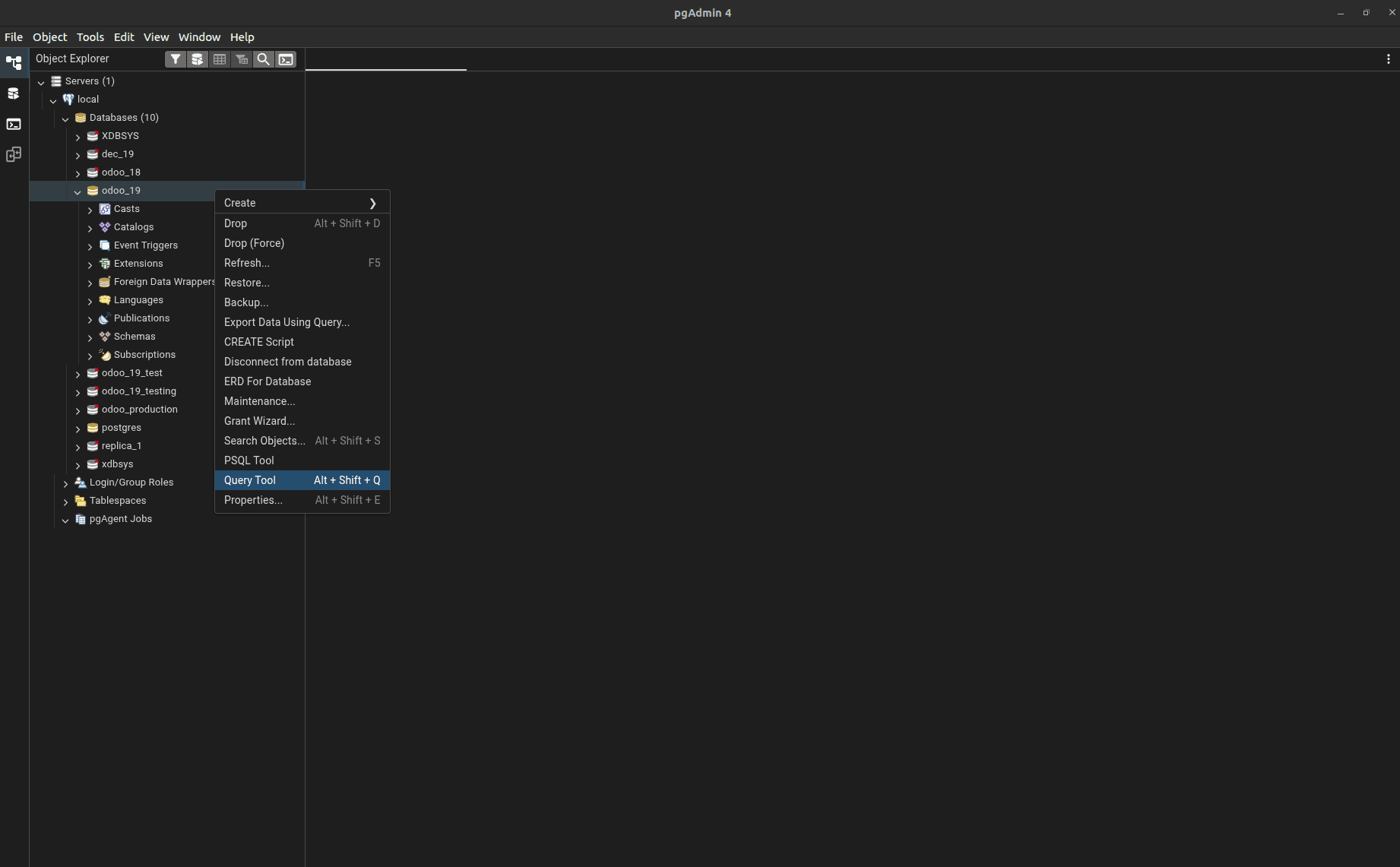
Now, create the extension like this
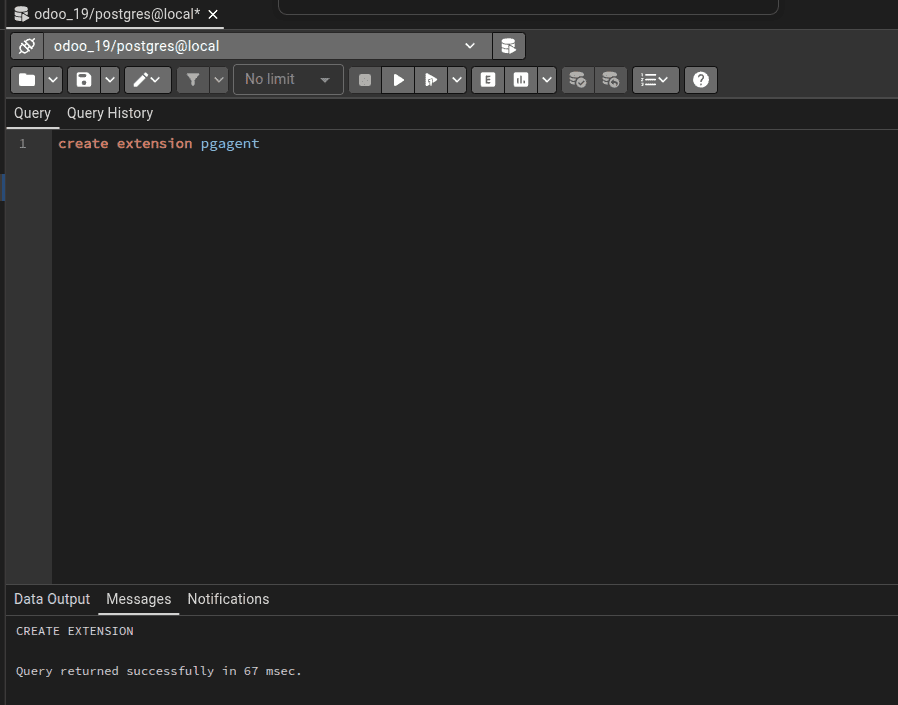
Once enabled, pgAdmin will show a new section called pgAgent Jobs under your server.
Creating a Backup Job in pgAdmin
Step 1: Open pgAgent Jobs
- Launch pgAdmin.
- Expand your server in the Object Explorer.
- Locate pgAgent Jobs.
- Right-click and choose Create - pgAgent Job.
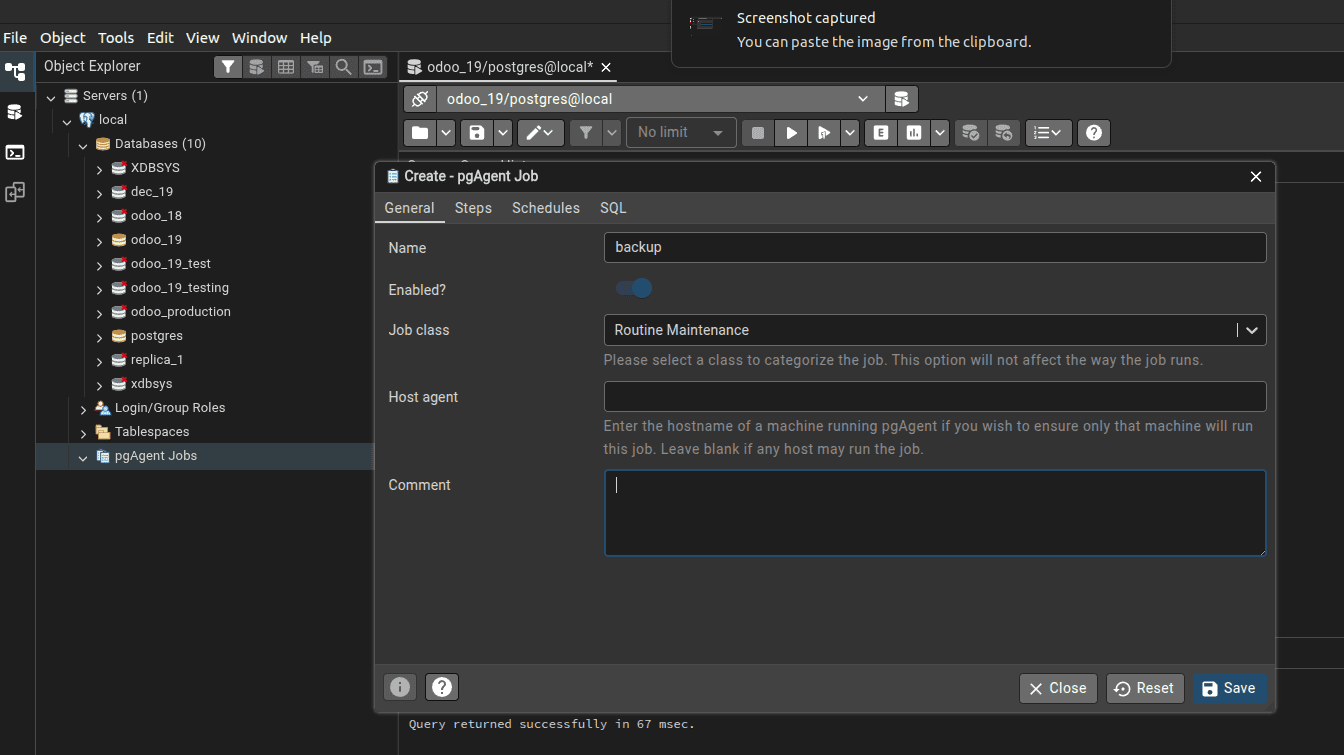
Step 2: Configure General Settings
Inside the job configuration window:
- Name: backup
- Enabled: On
- Job Class: Routine Maintenance
- Host Agent: Leave empty unless targeting a specific machine
The job class feature has 5 options
Routine Maintenance - Used for regular system upkeep tasks such as backups, vacuum, or cleanup jobs.
Data Maintenance - Intended for operations that modify or reorganize existing data, like updates or restructuring tasks.
Data Export - Used when jobs are created to extract or dump data from the database to external files.
Data Import - Designed for scheduled tasks that load or restore data into the database from external sources.
Miscellaneous - Suitable for custom or general-purpose jobs that do not fit into the other predefined categories.
Save these details before moving to the next tab.
Step 3: Create a Job Step
Navigate to the Steps tab and add a new step.
Configure the following:
- Name: first
- Enabled: On
- Kind: Batch
- Connection Type: Local
There are two values for the kind feature
SQL - Executes SQL statements directly inside the PostgreSQL database using the selected connection, which is useful for queries, maintenance commands, or stored procedure calls.
Batch - Executes operating system shell commands outside the database, such as pg_dump, scripts, or system utilities, which is useful for tasks like backups or file operations.
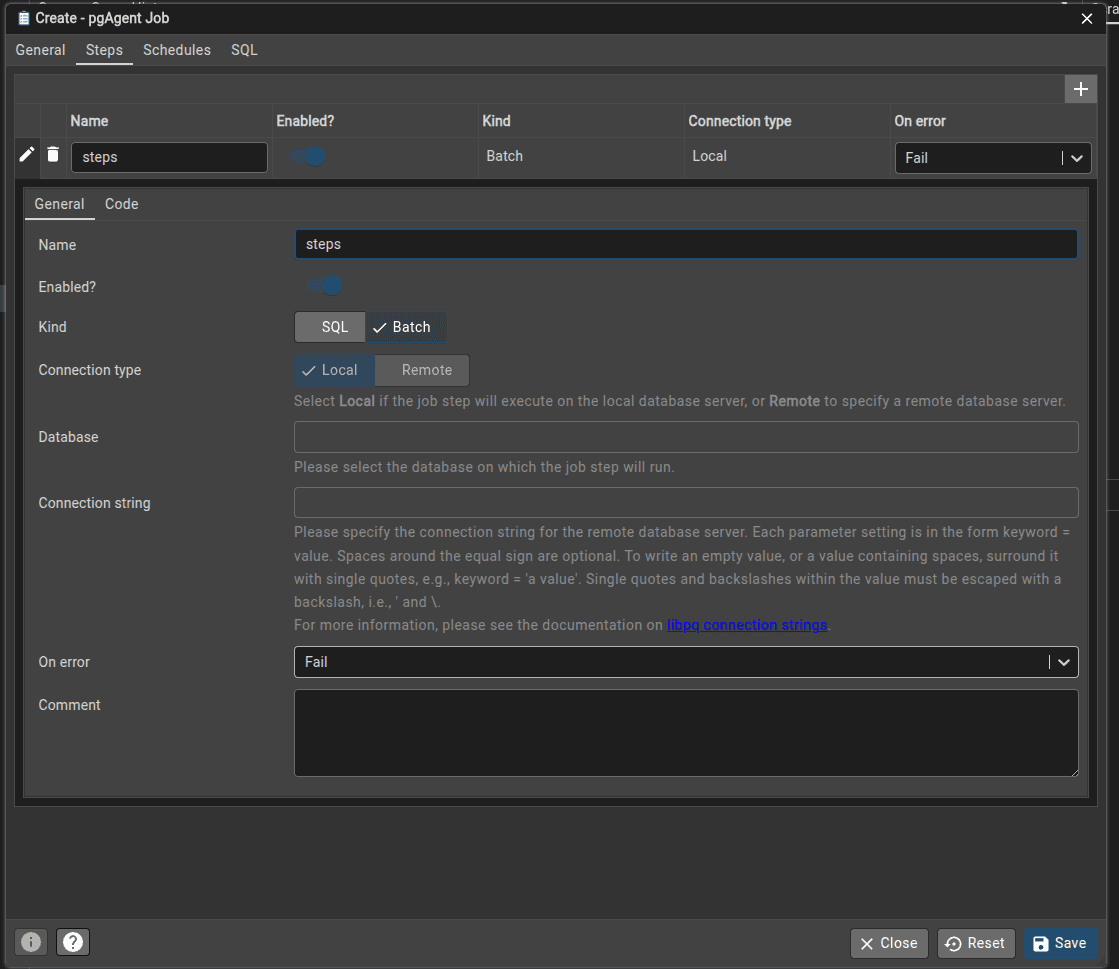
In the Code section, enter the backup command. Example:
/usr/bin/pg_dump -U postgres -h localhost -p 5432 -Fc odoo_19 -f /tmp/odoo_19.dump
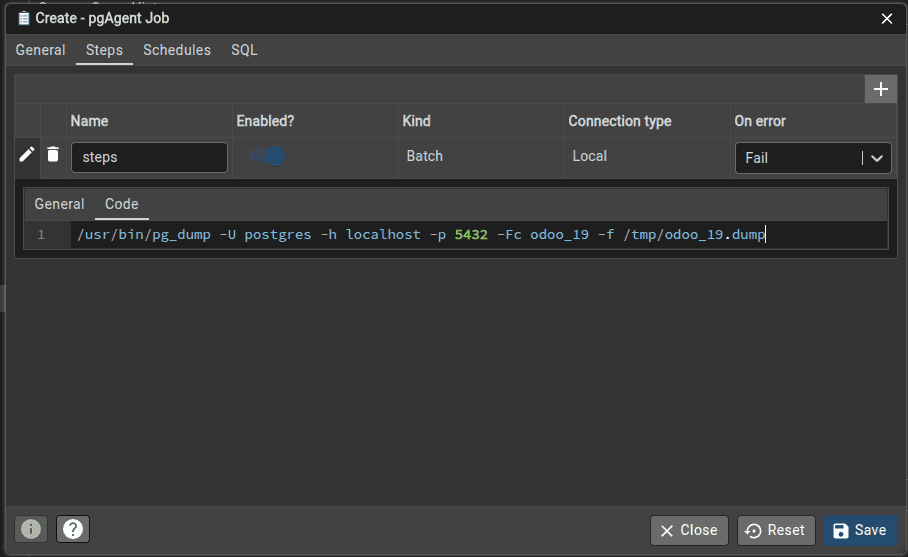
Explanation:
- pg_dump creates a backup of the database.
- -Fc generates a compressed custom-format dump.
- /tmp/odoo_19.dump is the output file location.
Using the full path to pg_dump ensures pgAgent can execute the command correctly.
Step 4: Configure the Schedule
Open the Schedules tab and create a new schedule.
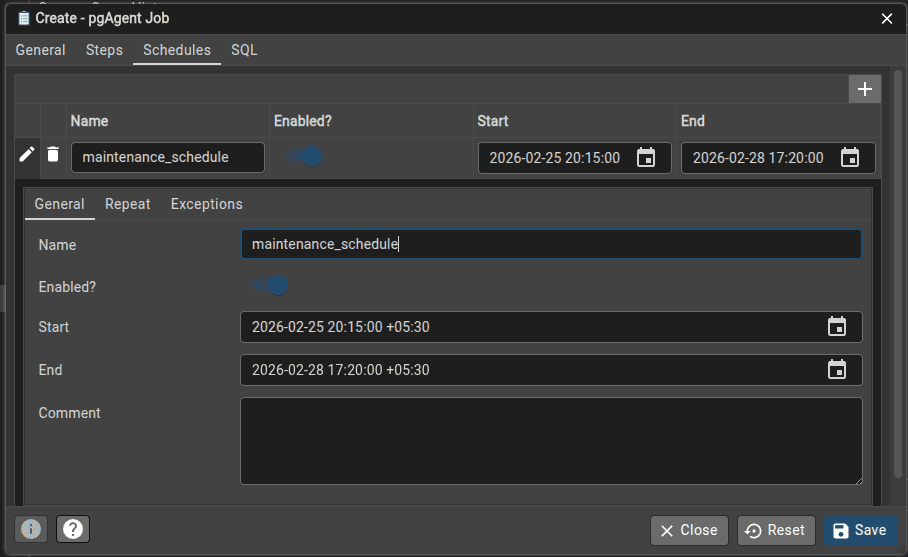
Set the following:
- Enabled: On
- Start Time: Choose a future time
- End Time: Optional
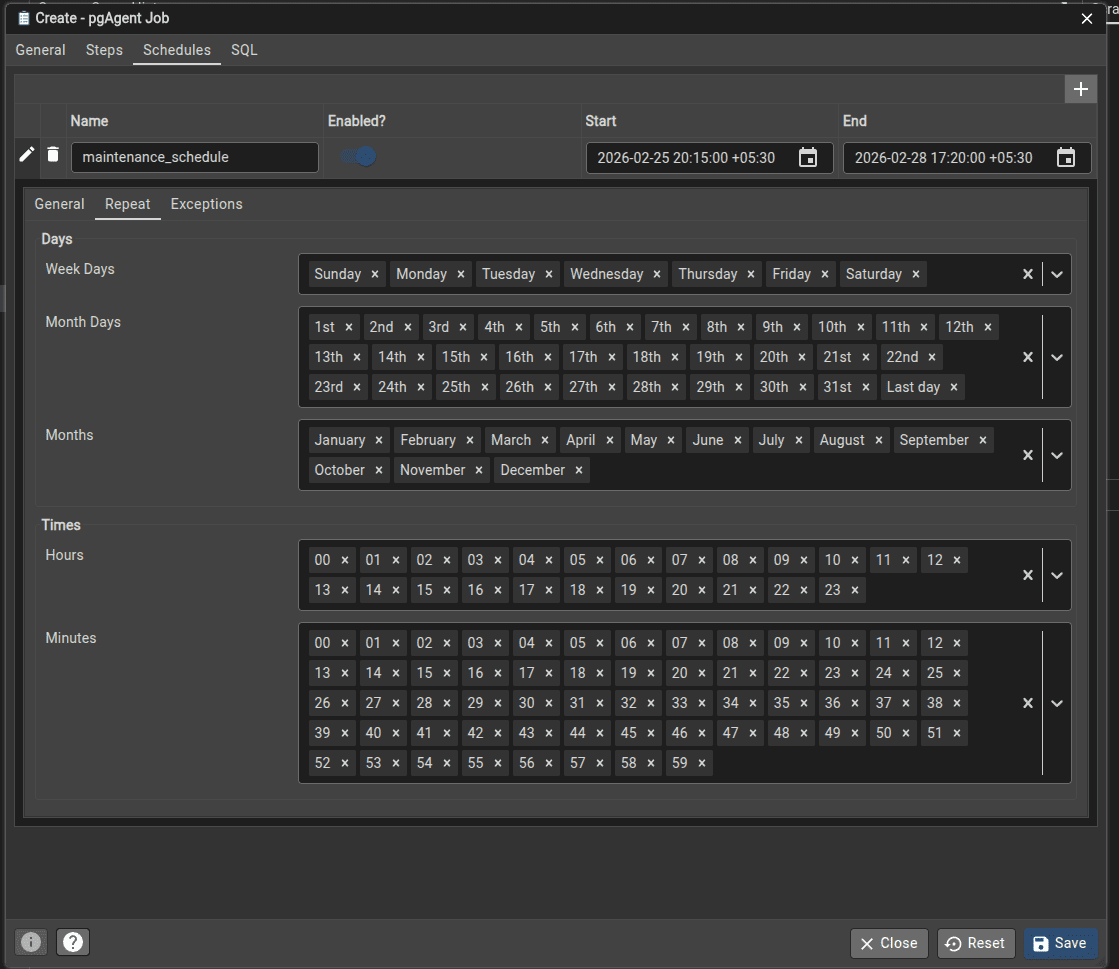
- Repeat Settings:
- Select the days you want backups to run.
- Choose specific hours and minutes.
For example, to run backups daily at 20:00:
Avoid selecting every minute unless continuous backups are required.
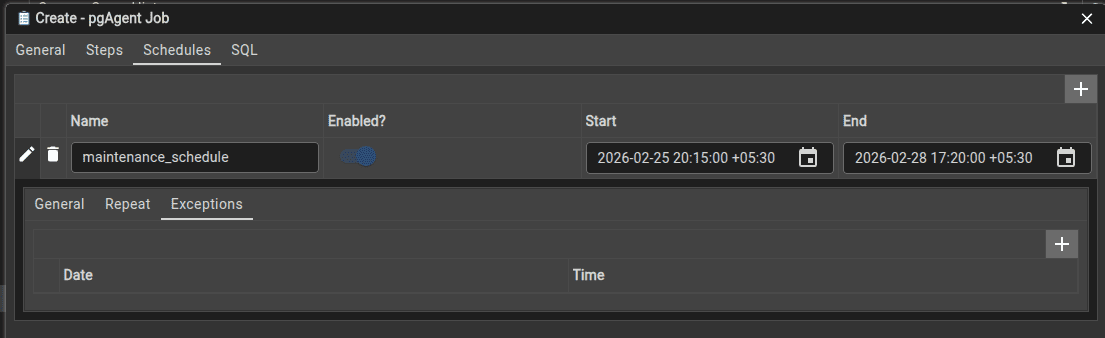
The Exception feature in pgAgent schedules is used to exclude specific dates or times from an otherwise active schedule. Its purpose includes:
- Skip Specific Days - Prevents a job from running on selected dates, such as holidays or maintenance windows.
- Override Regular Schedules - Allows temporary changes without modifying the main schedule settings.
- Control Execution Timing - Ensures jobs do not run during restricted periods or known downtime.
- Maintain Consistent Scheduling - Let administrators keep a recurring schedule while defining exceptions when needed.
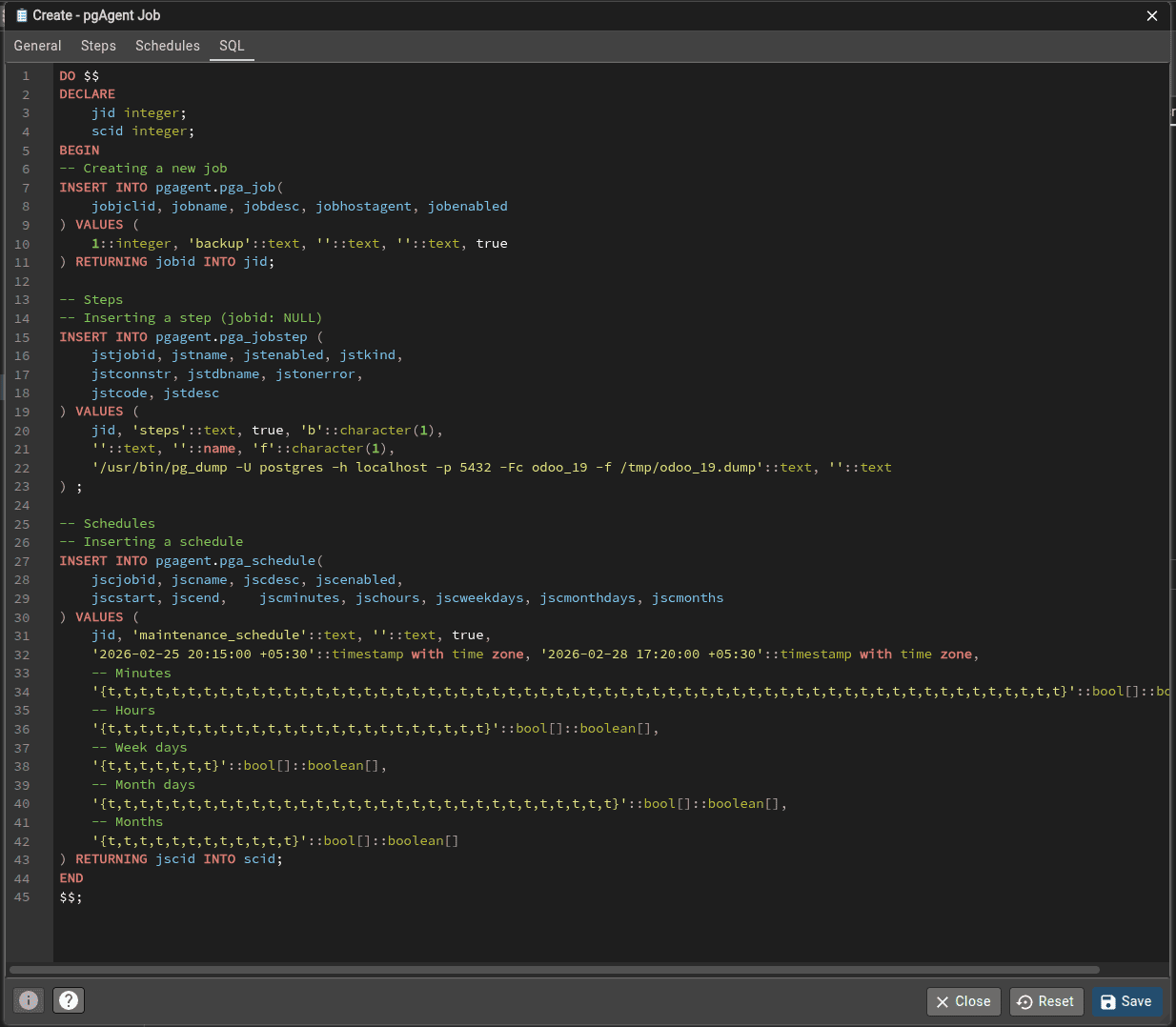
The SQL tab in the pgAgent extension is used to display the generated SQL statements that define the job configuration. Its purpose includes:
- View Generated Queries - Shows the SQL commands that pgAdmin creates for jobs, steps, and schedules.
- Understand Backend Structure - Helps users see how pgAgent stores configuration inside database tables.
- Manual Deployment - Allows copying the SQL to recreate the same job on another server.
- Verification Before Save - Provides a way to review the configuration logic before applying changes.
Verifying Backup Execution
After the scheduled time:
- Open pgAdmin.
- Expand pgAgent Jobs.
- Check Statistics or Job History.
If the job executed successfully, a dump file should appear in the configured directory:
ls -lh /tmp
You should see a backup file of .dump format with a non-zero size.
Common Issues and Solutions
Permission Errors
pgAgent usually runs under the PostgreSQL user. Ensure the output directory allows write access. Locations like /home/username may cause permission issues, while /tmp works safely.
Command Not Found
Always use the full path to pg_dump:
which pg_dump
Update the job step command accordingly.
Best Practices for Regular Backups
- Store backups with timestamps to avoid overwriting old files.
- Keep backups outside the database server when possible.
- Monitor pgAgent job history regularly.
- Test restoration using pg_restore to verify backup integrity.
Example timestamped backup command:
/usr/bin/pg_dump -U postgres -h localhost -p 5432 -Fc odoo_19 -f /tmp/odoo_19_$(date +\%Y\%m\%d_\%H\%M).dump
pgAgent provides a reliable and structured way to automate database maintenance tasks directly from pgAdmin. By installing the pgAgent extension, configuring job steps, and defining schedules, administrators can ensure regular backups without manual intervention.
Automated backups are a critical part of PostgreSQL administration, especially in production environments where data safety and recovery readiness are essential. With proper configuration and monitoring, pgAgent becomes a powerful tool for maintaining database health and operational stability.