The ability to track the availability of items plays a very important role in ensuring the provision of a seamless experience for customers within the eCommerce industry. The customer needs to know whether the product is in stock and how many items are available or if it has gone out of stock. This will make sure that there is no over-delivery of the order.
This problem is addressed by Odoo 19 through the seamless integration of the Inventory module and the Website module. Among the various features that help achieve such an integration, one notable feature is called Inventory Defaults. This alternative provides organizations with total freedom over how the availability of their goods will be displayed on the site. It helps prevent purchasing out-of-stock products, display the number of units available, or show inventory only if the quantity drops below a certain level.
This blog is going to show you how you can set up Inventory Defaults in Odoo 19 and how these defaults affect the availability of products on your website.
Configuring Inventory Defaults in Odoo 19
To facilitate easy availability of products on your website, Odoo 19 has introduced a feature known as “Inventory Defaults” in the Website module. This feature controls the way products whose quantity is low or zero are displayed on the online store.
To make these changes, go to Website > Configuration > Settings and then look for the Shop – Products section. Here, in the Inventory Defaults section, you can see the settings that determine how your product inventory information appears to your customers.
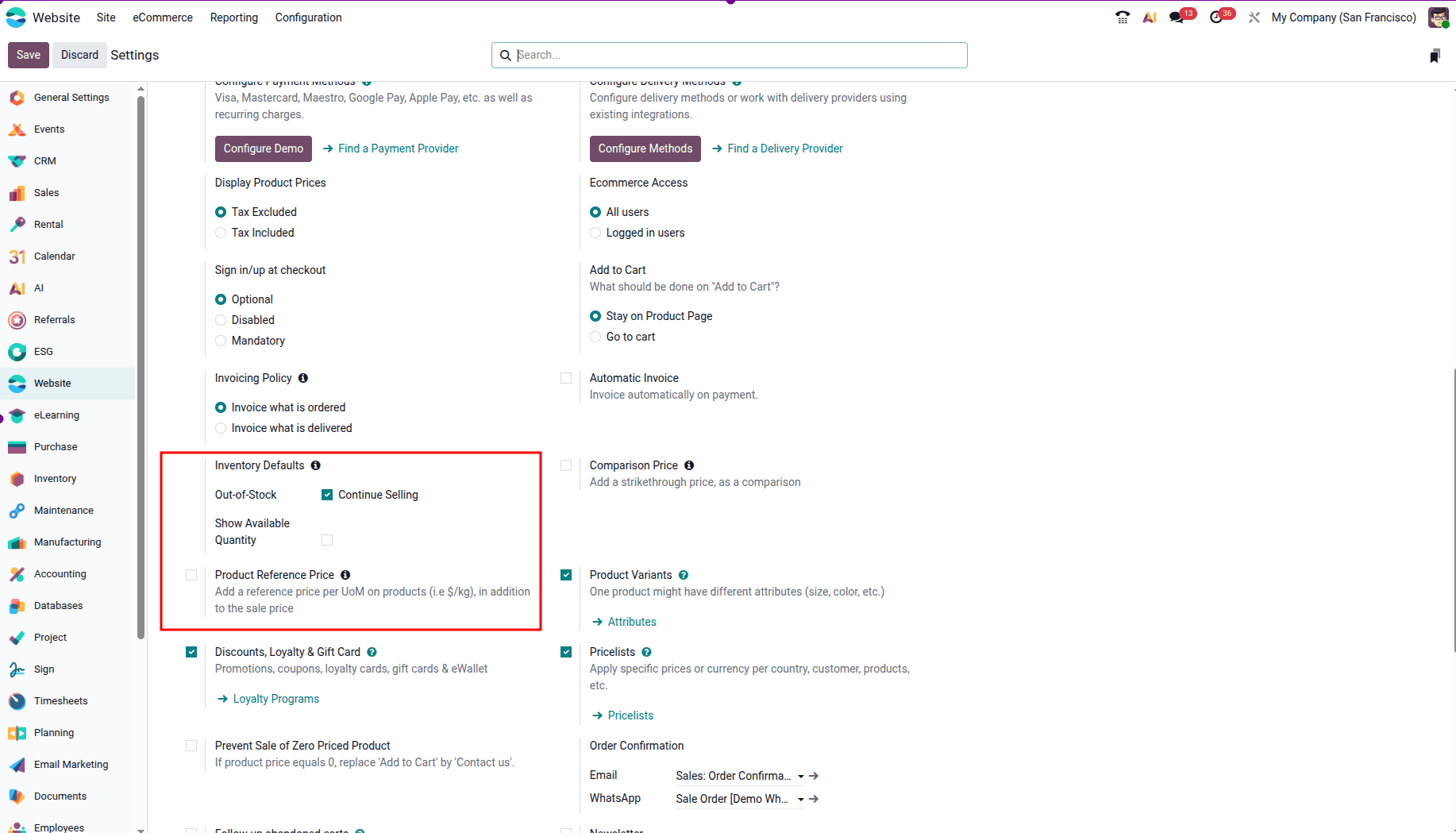
In the "Inventory Defaults" tab, there are three important configuration settings. The first setting, Out-of-Stock, indicates if customers can keep on buying an item when the number of items available in stock is reduced to zero. The setting "Continue Selling" allows customers to order the item if they want to, even if it is out of stock. This is particularly relevant to companies that accept pre-ordering and back-ordering. Otherwise, the Add to Cart button will be automatically disabled for out-of-stock items.
The second method, Show Available Quantity, shows the quantity available for the product right on the product page. Also, a limit can be set to show the quantity only when the stock quantity is less than the set limit. For instance, when there are limited products, a message may appear like, "Only 2 units left".
How Inventory Defaults Reflect on the Website
Following the setup of the inventory defaults, either in Website settings in general or individually for each item, these defaults become immediately visible on your eCommerce website. Such defaults affect how the inventory availability will be displayed to the customers.
Continue Selling is an inventory feature available in Odoo 19 that allows businesses to accept orders even when a product is out of stock. This option can be configured under Inventory Defaults. To test the feature, navigate to Website > Configuration > Settings > Shop – Products and enable Continue Selling.
First, click on a product under the Products menu, and then set its availability to zero using the Inventory tab.
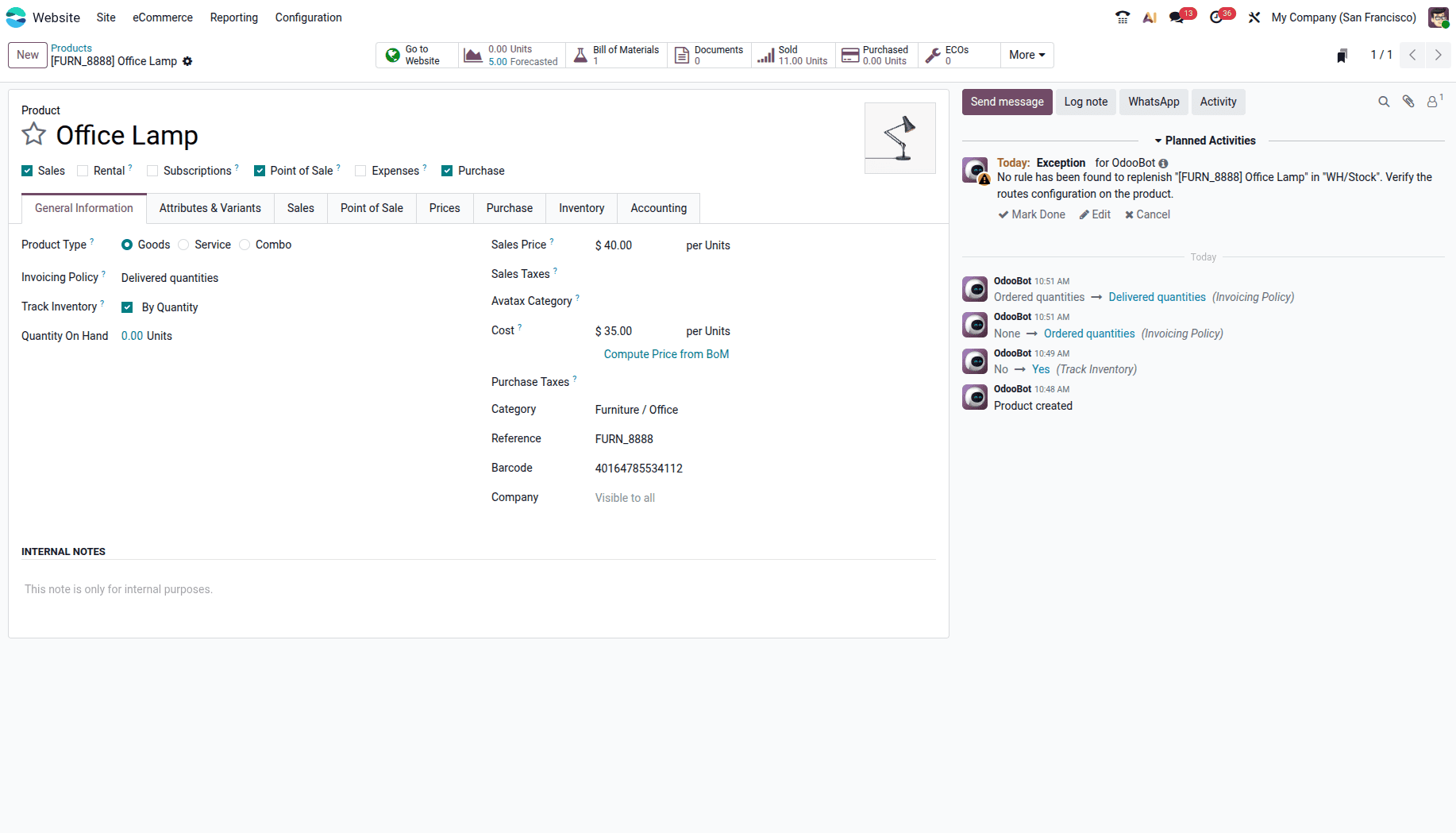
Ordinarily, when a product is not in stock, it is not possible to purchase the item. But with the “Continue Selling” button, the item can still be purchased from the website. The Add to Cart button appears when the customer visits the product page to enable placing an order for the product.
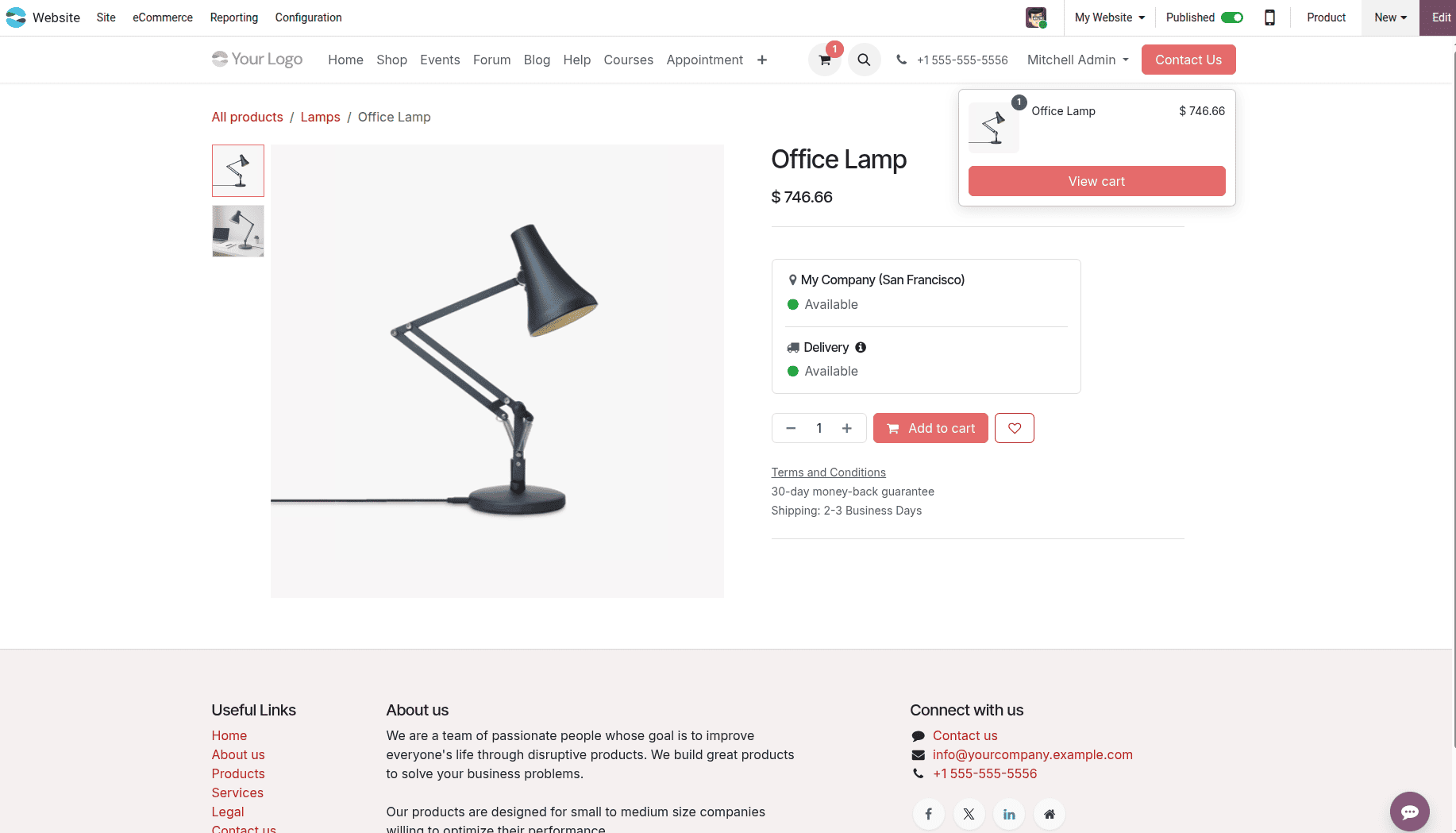
With this workflow, companies can still continue receiving orders from customers regarding popular items that may not be currently in stock. This process becomes handy in handling preorder and backorder scenarios where the customer makes an order before restocking occurs. In the background, Odoo will receive the orders, which it will process automatically once there is enough stock.
One more Inventory Defaults option in Odoo 19 that can be used for improving customer experience is Show Available Quantity; this function shows the exact stock quantity available for a certain product right on the page of this product in the eCommerce store.
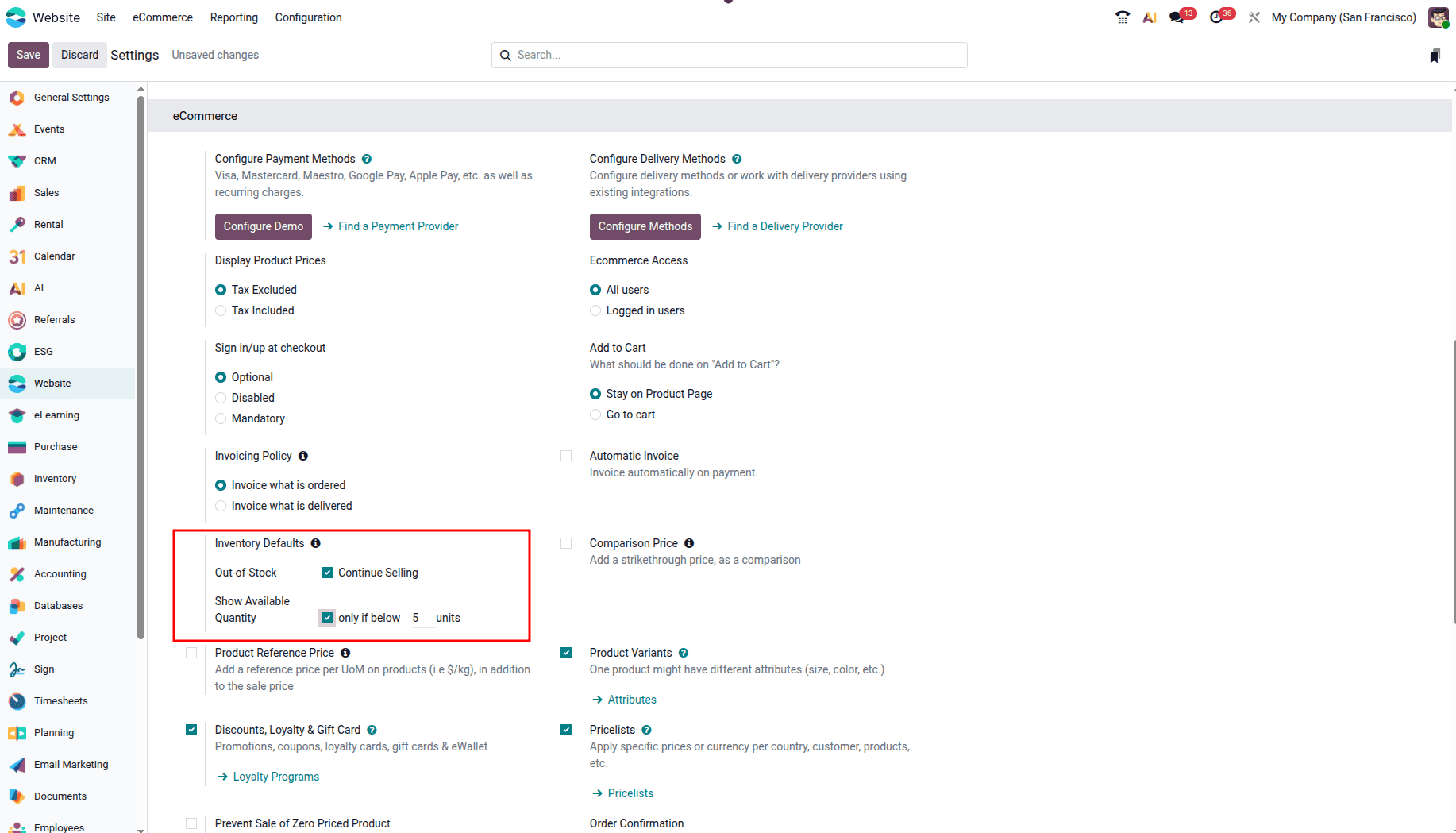
After activation in either global mode from the Website settings or for the individual product form, the quantity of available stock is directly visible on the product page, enabling customers to check availability in real time.
For instance, if the quantity of a particular item, the Corner Desk Left Sit, is 2, the page of that particular item will have "2 units available" mentioned below the "Add to Cart" button. Availability of stock in real time will assist the buyer in making an educated decision about the product.
Though the global inventory setting will apply to all items, in Odoo 19, you can customize the inventory display options by setting up each product. This is done through the following procedure: Sales > Products > select your product.
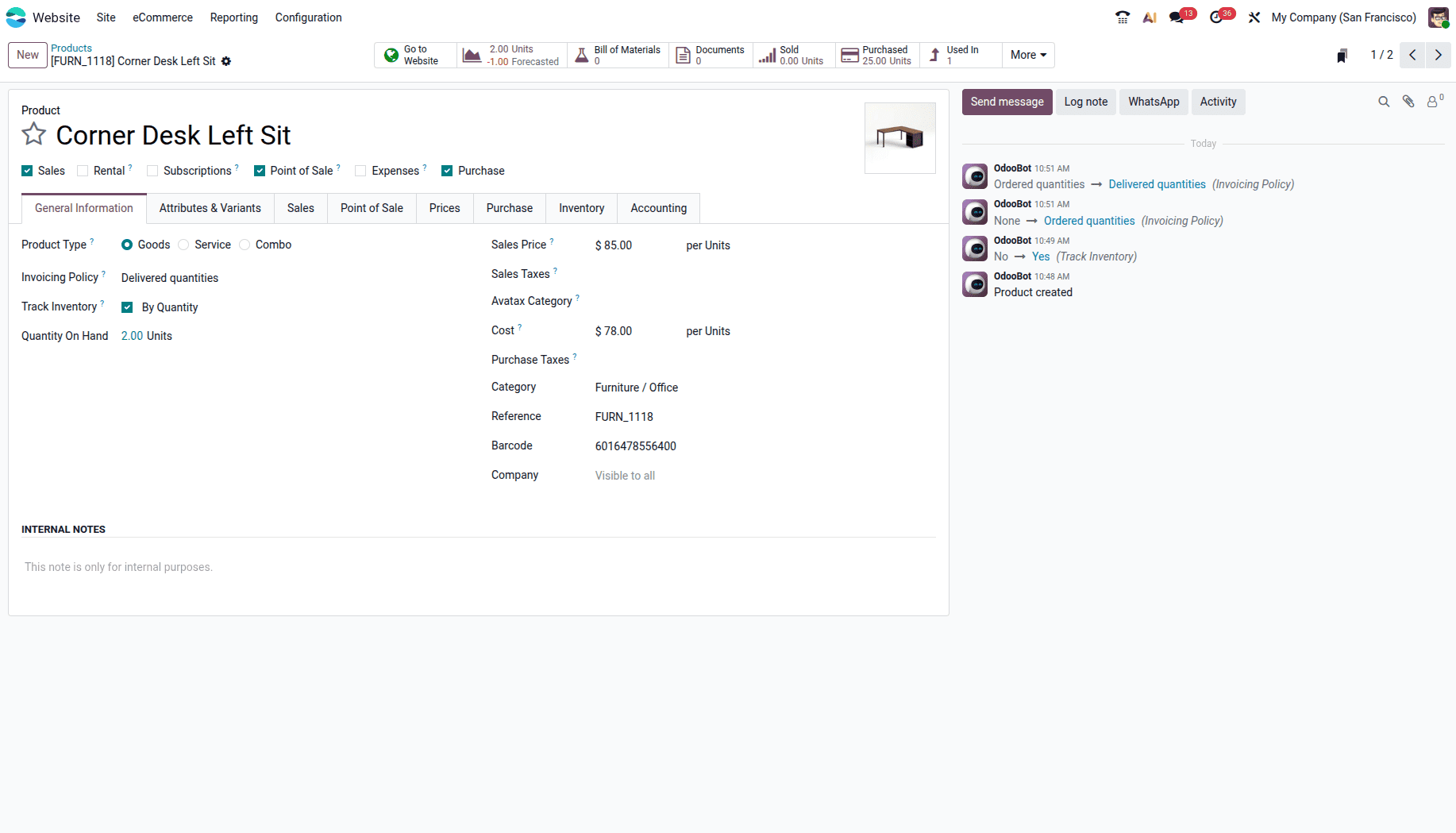
In the General Information tab of the product, there are different options to track the product, such as By quantity, By lots, and By unique serial number, to track a product's inventory correctly. We must enable the Track Inventory option and choose one of the tracking options. In order for the stock quantity to be shown on the site, the Product Type should be Goods or Combo. Next, from the Sales tab, the following option is available: Show Available Quantity on Website.
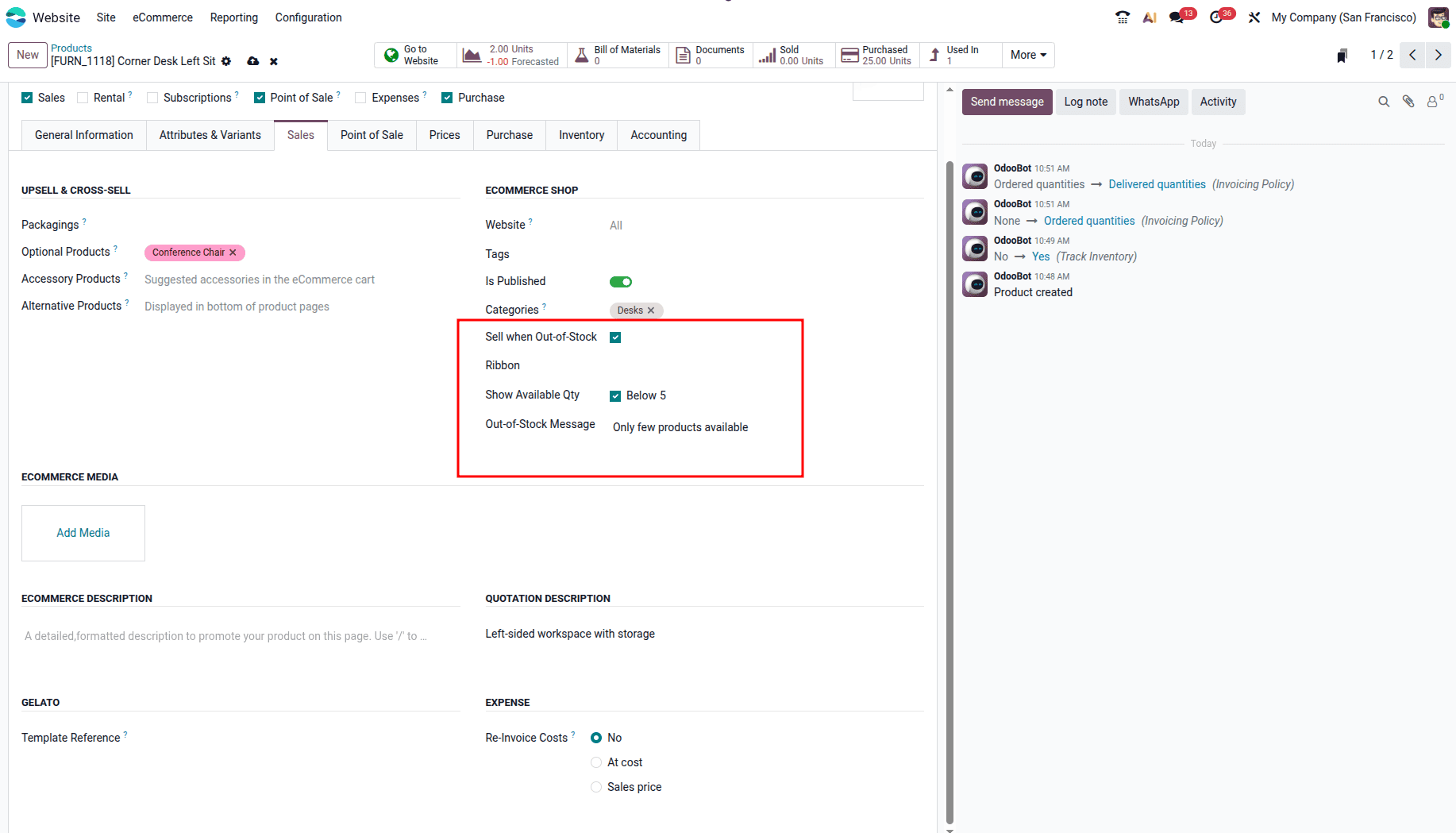
With this feature, customers will be able to view the stock on that particular product page. It is also possible to set a threshold, after which the stock level will only show when the number falls below a certain level.
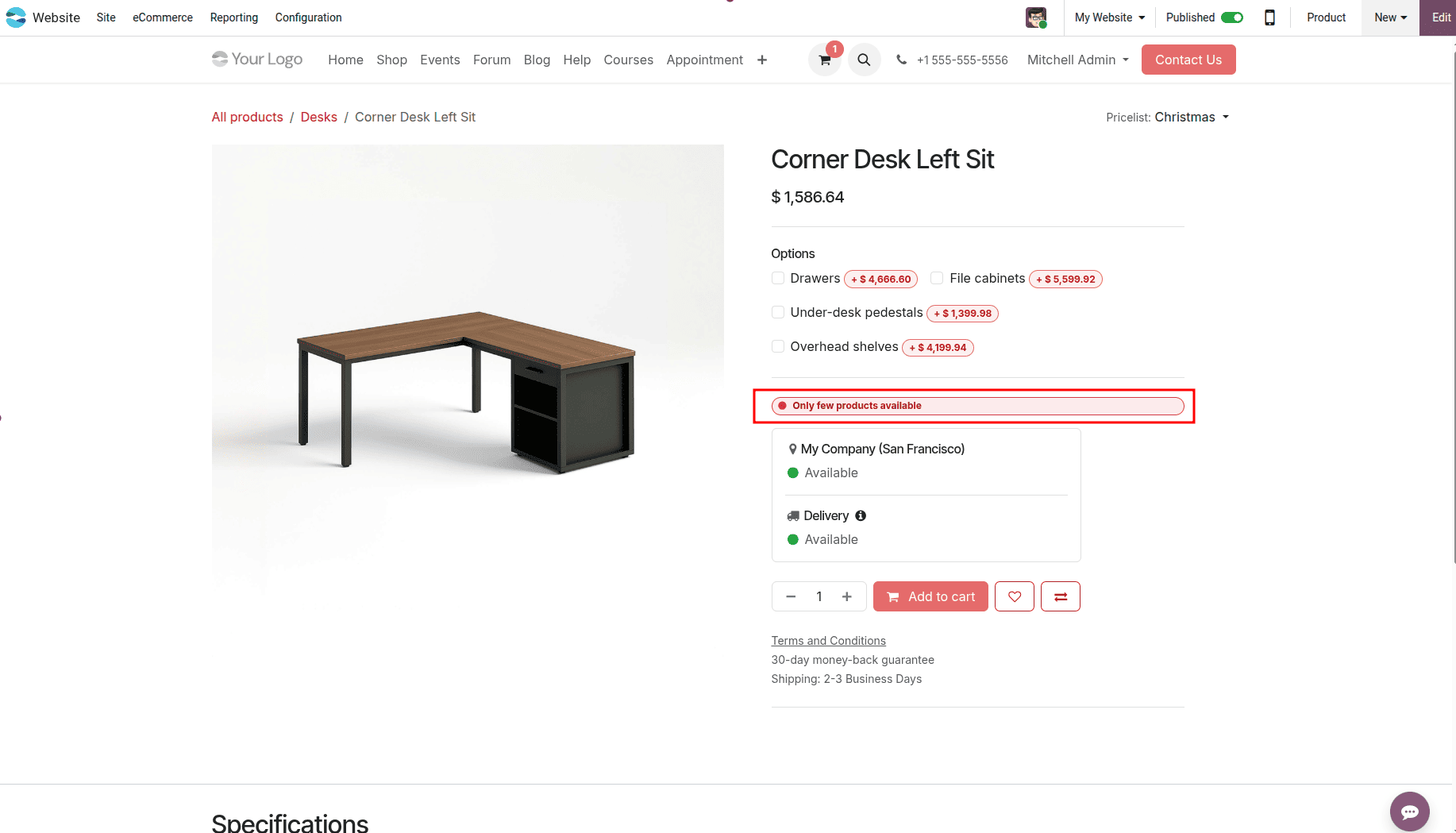
Businesses often use this feature to minimize order cancellations and improve customer satisfaction by ensuring accurate stock availability is communicated before a purchase is made.
Configuration at this product level is ideal in situations where some products require rules from the default settings above for how stock is shown. This means that, say, the stock is shown in real time for special edition products but not for other items.
Key Benefits of Inventory Defaults on the Website
It is vital that one has an effective method of inventory visibility to provide a smooth e-commerce experience. Thanks to the Inventory Defaults feature in Odoo 19, one has control over how their stock availability is presented to the customer, providing accurate and clear product information. By setting up features like Continue Selling and Showing Available Quantity, one has fewer cases of over-selling, thus improving customer experience.
Benefits:
- Prevents Overselling:
- When Continue Selling is disabled, customers cannot purchase out-of-stock products, helping businesses avoid order cancellations, refunds, and fulfillment delays.
- When enabled, Continue Selling allows customers to place backorders or preorders, helping businesses continue generating sales even when products are temporarily out of stock.
- Builds Transparency & Trust:
- Customers can view real-time product availability directly on the product page, providing clear and accurate stock information before making a purchase.
- This makes the process clearer to the consumer and avoids confusion before purchase.
- Creates Urgency for Faster Purchases:
- The Show Available Quantity option, combined with stock thresholds, allows businesses to display low-stock messages such as “Only 2 left,” creating urgency and encouraging customers to purchase
- It makes consumers take swift action, minimizing the chances of shopping cart abandonment.
- Flexibility for Different Products
- Global defaults provide consistent inventory display settings across the entire online store.
- Product-level settings provide greater flexibility for managing inventory visibility on limited-edition or high-demand products
- Enhances Customer Satisfaction & Loyalty
- Accurate stock information can contribute to reducing customer confusion and frustration.
- Customer trust can be built through a smooth and effortless buying process.
However, the advantages of using the Inventory Defaults feature in Odoo 19 are not limited to simple inventory management. With the help of additional controls over the visibility of your inventory, you will be able to increase transparency, avoid any problems related to orders, and make your customers believe in your company more.
Inventory Defaults from Odoo 19 will make sure that companies can handle the display of product availability on their e-commerce websites in an efficient way. There are several choices, such as continuing to sell, displaying available stock, and setting up the threshold of inventory. These choices will keep you from overselling. They can also increase transparency and motivate users to make a purchase. Odoo 19 will make sure that website stock is updated as well as inventory.
To read more about How to Structure Inventory Using Product Categories in Odoo 19, refer to our blog, How to Structure Inventory Using Product Categories in Odoo 19.