Proper follow-ups play a key role in the efficient management of relationship with clients and internal processes. Yet, manual handling may often cause delays, forgetting tasks, and inconsistency in their implementation.
With Odoo 19, it is possible to handle activities automatically based on preconfigured criteria and business events.
By using types of activity and automations, you will be able to create, assign, and schedule activities upon reaching certain criteria.
How to Manage Activities in Odoo 19 CRM?
Activity Types drives successful workflows and denote the individual activities that need to be done in order to close a sale in Odoo 19. Activities are managed by the CRM application and give you the ability to schedule and track all of your customers' engagements throughout the entire sales process. You can customize Activity Types from the Configuration option.
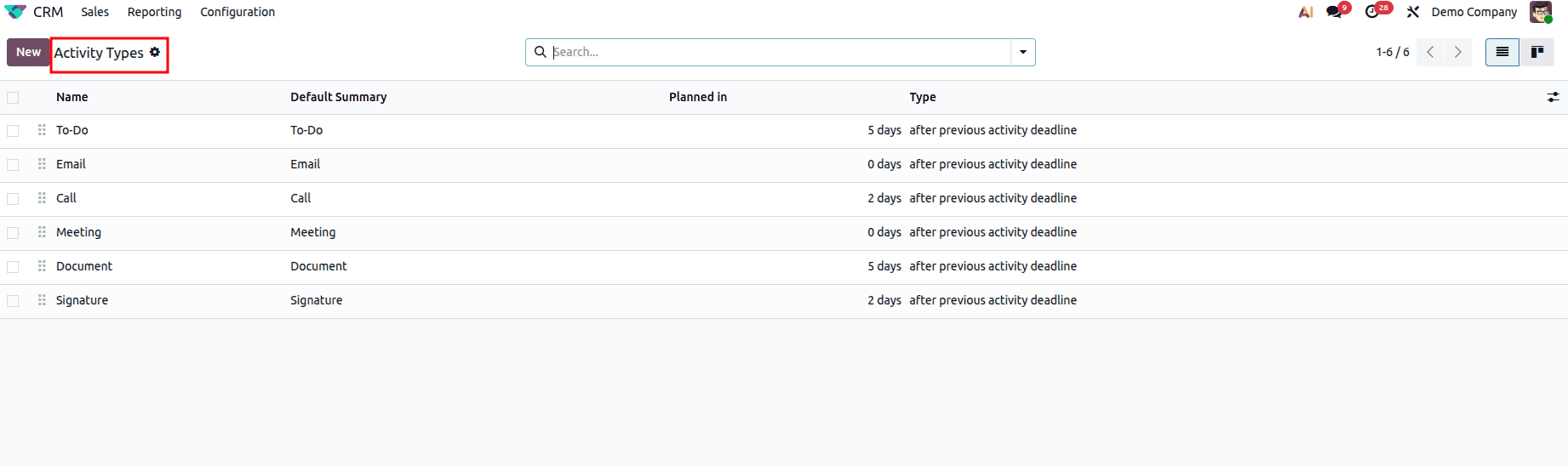
In the list view, you’ll find essential details for each activity, including its Name, Default Summary, Planned Date, and Type. To add a custom action to your workflow, simply click the “New” button to begin creating and managing a new activity.
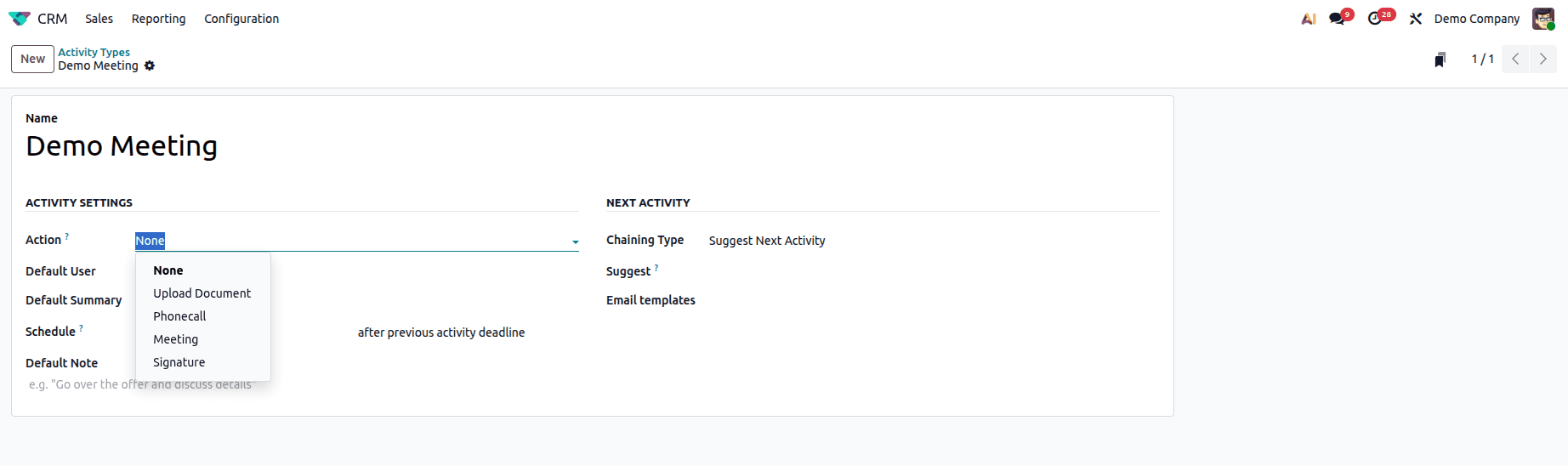
Once you open the form view, start by giving your activity a clear title in the “Name” field. Next, use the “Action” dropdown to define the specific nature of the task. Odoo provides a versatile range of built-in actions tailored for business needs, including Upload Document, Meetings, Phone Calls, and more.
Let’s explore how to create an Automating Activity:
When you choose Action as "Meeting," then Odoo behaves according to some predefined behavior for this activity. Moreover, you may even use automation in your process by setting a default user and a default summary for your action. The Schedule Days field enables you to enter the lead time for calculating the deadline for executing this action.
Are you planning on keeping your salespeople informed about what to do next? Use the "Next Activity" tab, in which you may set the option of suggesting or triggering your next activity.
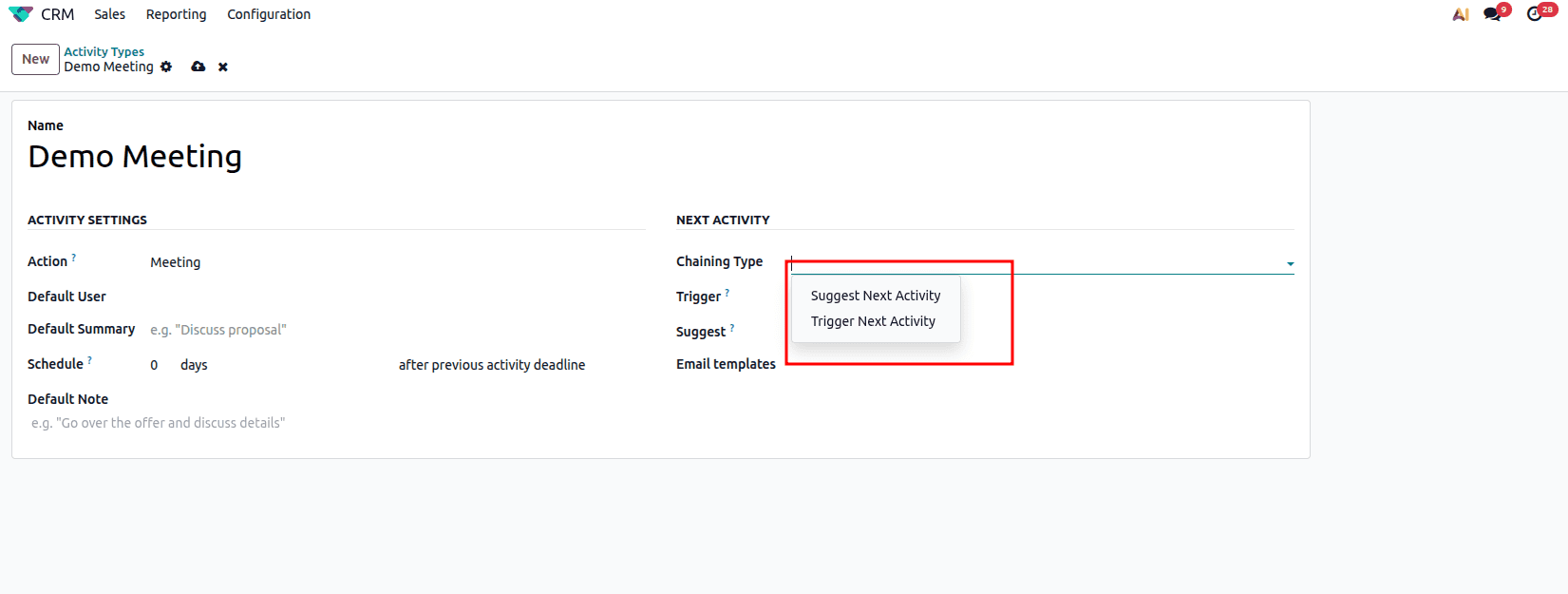
To see the Chaining Type in action, let’s look at the Trigger Next Activity option. With this setting, Odoo automates your workflow entirely: the moment you mark your current task as finished, the next scheduled activity is instantly created. It’s the perfect way to ensure a seamless transition from one stage of your sales process to the next without any manual entry.
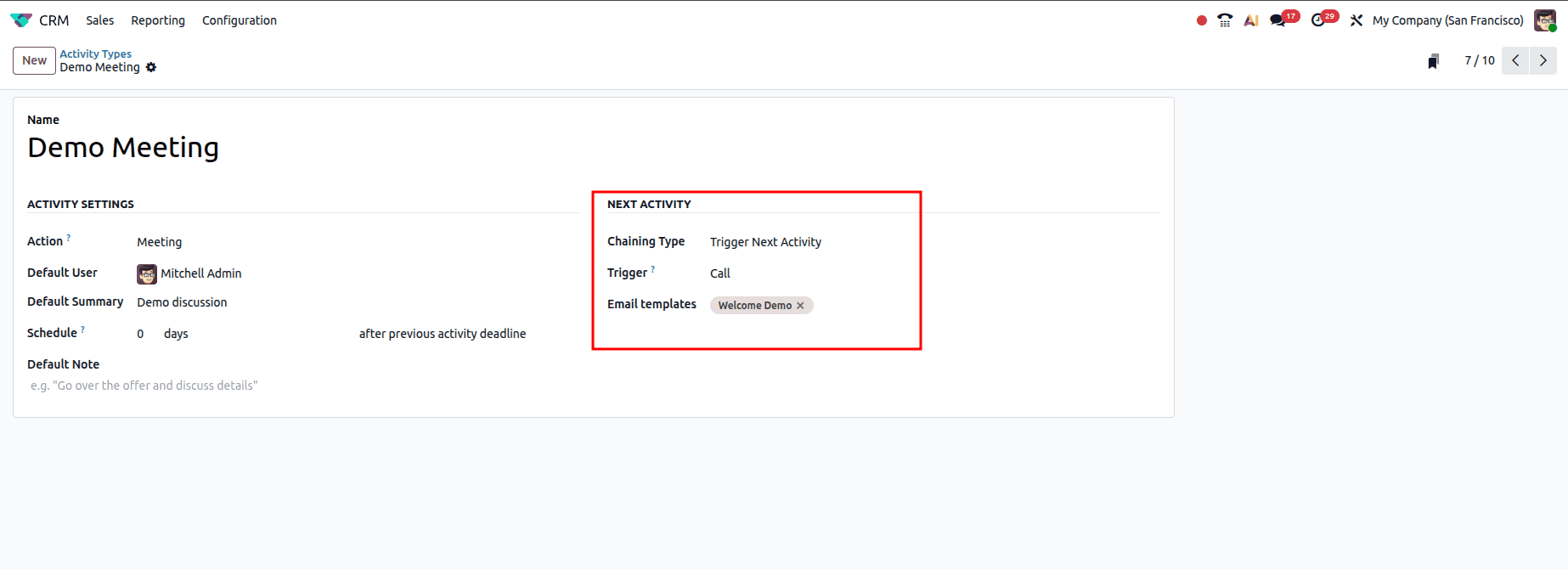
In the example below, the newly created activity is added to an opportunity. When the activity is marked as Done, Odoo schedules the next activity and recommends a new one call, in this case, based on the configured settings
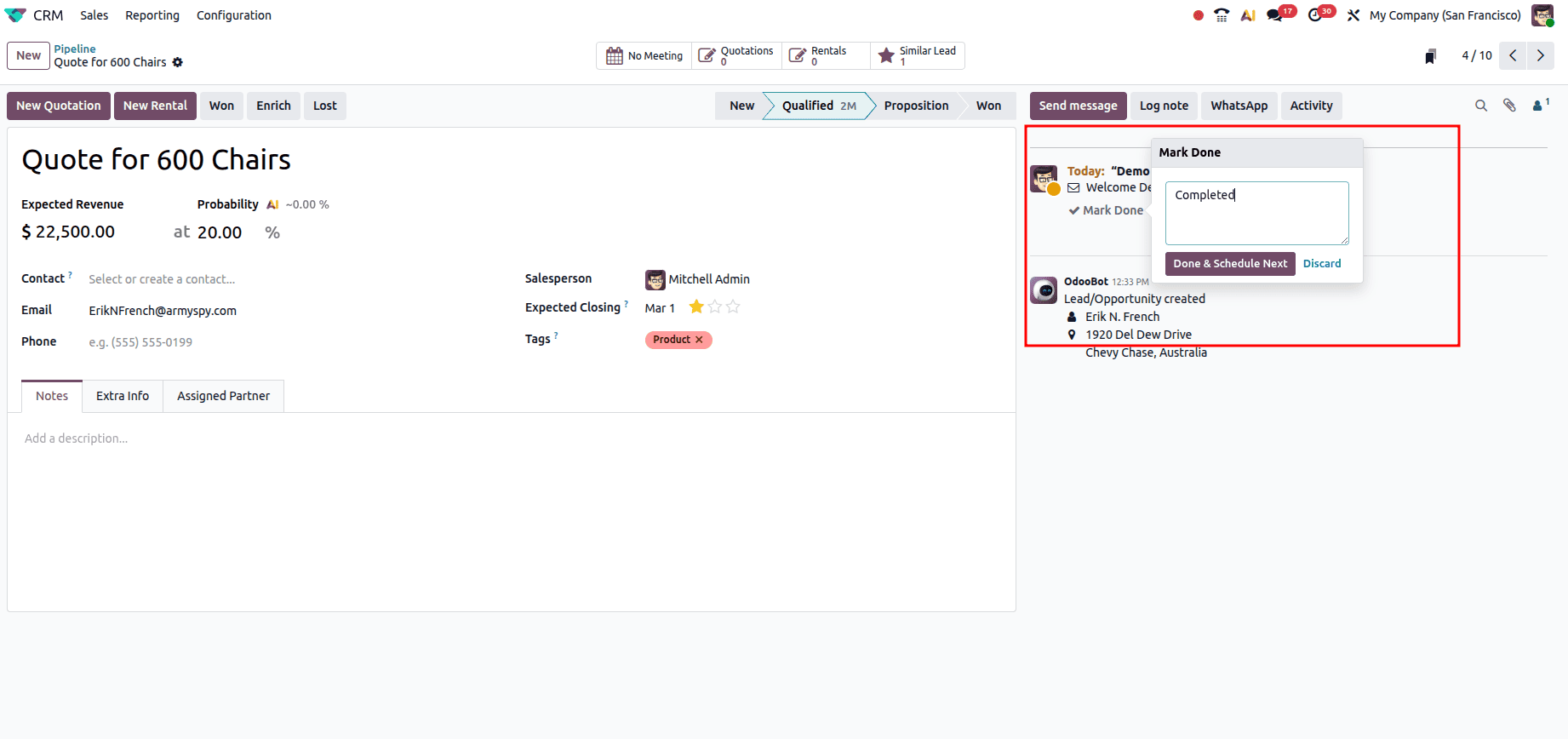
Once you click Done and Schedule Next, Odoo will trigger the new Call activity as configured.
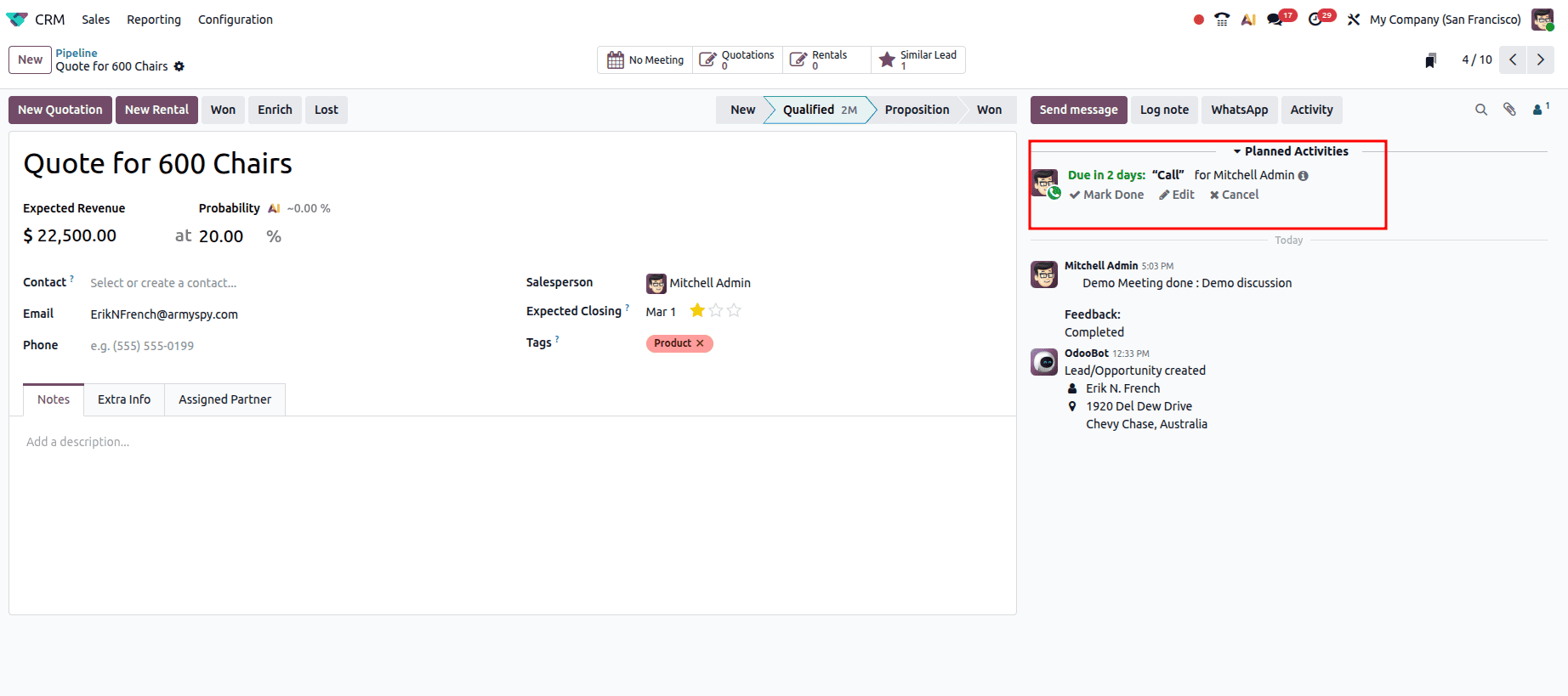
Odoo 19 CRM maximizes efficiency by automating key activities, turning complex workflows into smooth, actionable processes. By leveraging Activities and Chaining Types, the system can automatically suggest or trigger the next steps in your sales and follow-up operations, reducing manual effort and ensuring nothing falls through the cracks. With automated activities, your team stays organized, proactive, and focused on driving revenue, while maintaining a consistent, high-quality experience for every user.
To read more about How to Manage Activities in Odoo 19, refer to our blog How to Manage Activities in Odoo 19.