Odoo is regarded as a fully-fledged ERP system that offers a variety of modules, including sales, CRM, product inventory, and finance. Each module provides users with report templates available in PDF format that include quotes, invoices, purchase orders, delivery slips, etc., forming the list of documents sent to clients. The 20th version of Odoo provides several types of templates, like external_layout_standard, external_layout_striped, external_layout_bold, external_layout_bubble, and external_layout_wave, powered by the QWeb reporting engine. While several units of the company may find it useful to apply the templates, there are many customers who need the titles and headers to be designed and adjusted to their specific needs; as a result, the design process requires them to provide their logos, company details, and numbers. Odoo allows using the existing templates, so there is no need to create the report layout starting from scratch.
The blog post explains the different ways in which the header and footer of reports in Odoo 20 can be modified by using the inherited standard external layout. For any business report generation, the web.external_layout template is used, which calls any required layout for any company. By changing the layout, all the reports can be changed simultaneously.
Inheriting the Report Layout
The web module indicates that the standard layout is web.external_layout_standard. To modify this layout, we create a template that extends it with the help of inherit_id and utilize XPath expressions to replace only the header and footer while keeping the body section of the report intact.
Xml:
<?xml version="1.0" encoding="UTF-8"?>
<odoo>
    <!-- Custom Header & Footer: Inherited from the standard external layout -->
    <template id="custom_standard_layout" inherit_id="web.external_layout_standard">
        <!-- Customize the Header -->
        <xpath expr="//div[contains(@t-attf-class, '_layout header')]" position="replace">
            <div t-attf-class="o_company_#{company.id}_layout header" style="padding: 15px 10px;">
                <table class="table-borderless w-100 mb-2">
                    <tr>
                        <!-- Company Logo -->
                        <td t-if="company.logo" class="align-middle pe-3" style="width: 1%;">
                            <img class="o_company_logo_small" t-att-src="image_data_uri(company.logo)"
                                 alt="Company Logo" style="max-height: 70px;"/>
                        </td>
                        <!-- Company Details -->
                        <td class="align-middle text-start">
                            <h2 t-if="company.name" style="font-weight: bold; margin: 0 0 5px 0;"
                                t-out="company.name"/>
                            <p t-if="company.street or company.city or company.zip" style="margin: 0; font-size: 12px;">
                                <strong>Address:</strong>
                                <t t-out="company.street or ''"/>
                                <t t-if="company.city">, <t t-out="company.city"/></t>
                                <t t-if="company.zip">, <t t-out="company.zip"/></t>
                            </p>
                            <p t-if="company.phone or company.email or company.website" style="margin: 0; font-size: 12px;">
                                <t t-if="company.phone">Phone: <t t-out="company.phone"/> </t>
                                <t t-if="company.email">Email: <t t-out="company.email"/> </t>
                                <t t-if="company.website">Website: <t t-out="company.website"/></t>
                            </p>
                        </td>
                    </tr>
                </table>
                <!-- Divider -->
                <div style="border-bottom: 1px solid #bbb;"/>
            </div>
        </xpath>
        <!-- Customize the Footer -->
        <xpath expr="//div[contains(@t-attf-class, 'footer o_company_')]" position="replace">
            <div t-attf-class="footer o_company_#{company.id}_layout {{report_type != 'pdf' and 'mt-auto'}}">
                <div class="custom_footer" style="border-top: 1px solid #333; padding: 10px 0; font-size: 11px;">
                    <table class="table-borderless w-100">
                        <!-- Company Name and Page Number -->
                        <tr>
                            <td class="text-start">
                                <strong t-out="company.name"/>
                            </td>
                            <td class="text-end">
                                <span t-if="report_type == 'pdf'">Page: <span class="page"/> / <span class="topage"/></span>
                                <span t-elif="is_preview">Page: 1 / 1</span>
                            </td>
                        </tr>
                        <!-- Company Address -->
                        <tr>
                            <td colspan="2" class="text-center">
                                <t t-out="company.street or ''"/>
                                <t t-if="company.city">, <t t-out="company.city"/></t>
                                <t t-if="company.country_id">, <t t-out="company.country_id.name"/></t>
                            </td>
                        </tr>
                    </table>
                </div>
            </div>
        </xpath>
    </template>
</odoo>
The template comes from web.external_layout_standard, so any report that utilizes the standard layout will also take the changes. The first XPath looks for the header div. Beginning from Odoo 20, the header div also has a class called order_o_company__layout_header. Therefore, to find it, the expression contains(@t-attf-class, ‘layout header’) is used. The default header is replaced with one that has the company logo on the left, the company name on the left, and the address and contact information (i.e., phone number, email, and website) below the logo, and a line beneath the header. The second XPath is used to find the footer div and replace it with the footer that has the company name on the left, the page number on the right, and the address of the company in the center. The page and topage spans are generated by wkhtmltopdf, while the is_preview condition displays a static page number in the HTML preview. The report's functionality remains unaffected, as the handling of the same in Odoo 20 takes place via web.external_layout_body. The company variable provides access to the current company's details, while the information present in the printed document can still be utilized for the report body via o or docs.
After you have completed the installation of the module, it is important to make sure that the company has set the Default Layout. Access Settings > General Settings > Document Layout > Configure Document Layout and select Layout Light. Next, open any sales order report and press Print.
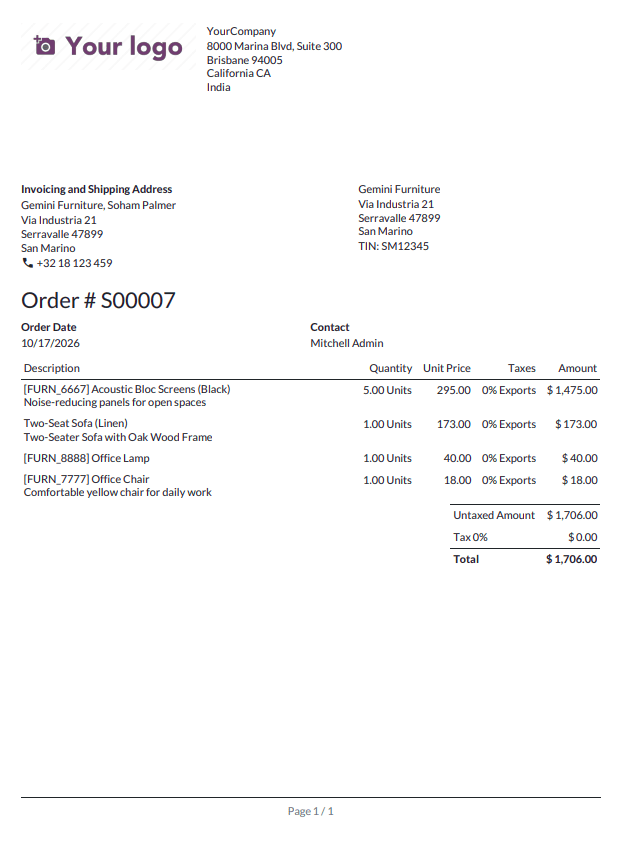
Following the default settings of Odoo 20, here is the preview of a Sales Order report's header and footer:
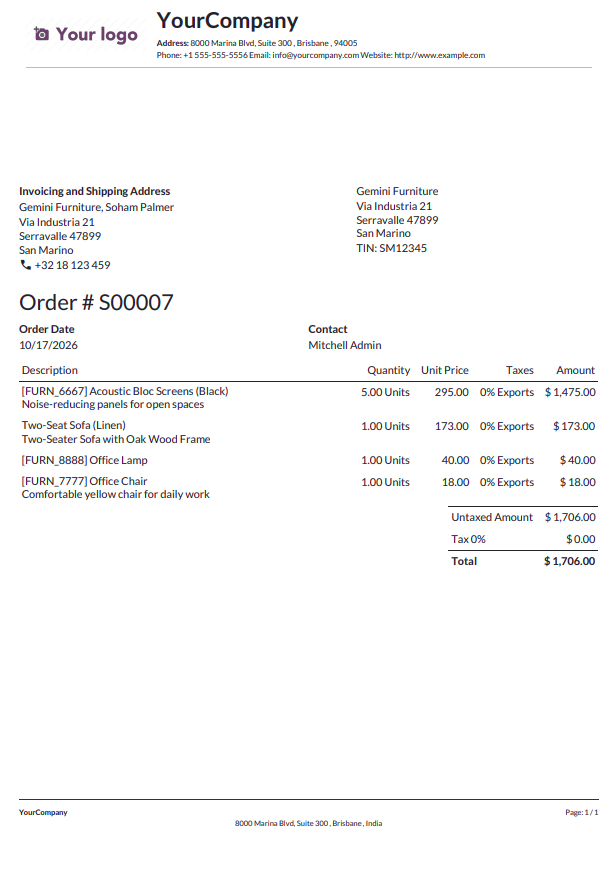
Following the update, the report displays the new header that contains the company's logo, name, address, and contact details, and the new footer that contains the company's name, page numbers, and address.
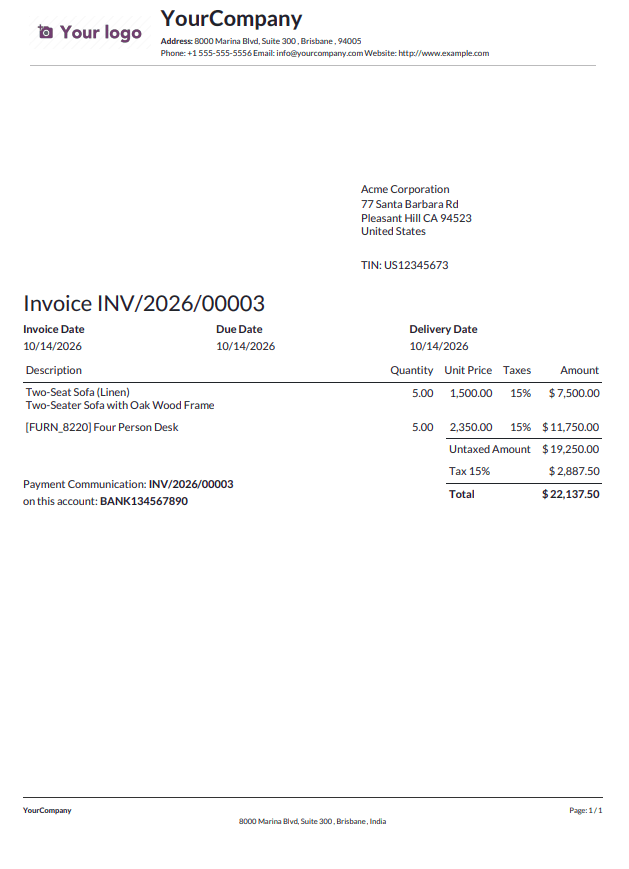
With the same header and footer applied to other external documents such as an invoice, a purchase order, and a delivery slip, there is no need to make modifications to each document template. The customised invoice report is shown below:
In conclusion, there exists an efficient method for the employment of an external layout, which involves the usage of the capabilities given by Odoo 20. This method provides opportunities for companies to maintain a uniform branding of their documents and reports. XPath expressions help keep the basic templates in their original form.
To read more about How to Customize Headers and Footers for All Reports in Odoo 19, refer to our blog, How to Customize Headers and Footers for All Reports in Odoo 19.