The Forecasted Report is one of the standout features of Odoo Inventory. To get the report, a person will have to click the Forecasted button for any of the stockable products. The report gives an insight not only into inbound and outbound products but also into future stock movements. However, the warehouse staff might find that info sufficient to answer the queries, while the sales reps will be left with a need for more information. When a customer calls to inquire about his/her order, he/she rarely knows the internal number in Odoo (S00052) but gives his/her purchase order number instead, which Odoo saves as the Customer Reference. Unfortunately, the Forecasted Report does not have such information, which means that to find the correct number corresponding to the forecasted data, the sales rep will have to go through each delivery and enter data from Odoo.
Although it may occur to you to utilize Edit View in developer mode in order to resolve the issues, the reality is that it won’t work on this occasion. Namely, the Forecasted report is neither a QWeb report nor a list or form view; it is actually an OWL client action; hence the rows of that report are generated using Python in the back-end and are forwarded as a payload to a web page where they are displayed through the JavaScript components. That is to say, Edit view has no chance because there is no ir.ui.view record at the back of the table, and Edit view has nothing to be related to. Thus, instead of Edit view, the solution should be implemented on two levels of work - an abstract Python model responsible for layout creation and an OWL template used to display the report.
The article will touch on both points mentioned above and describe how to read the Customer Reference from the sales order, which corresponds to every outgoing move, and insert it in the new Customer Ref column.
Extending the Report Data from Python
All the components of Python are found in one file located at models/stock_forecasted.py. The stock.forecasted_product_product class is inherited only to change one method, _prepare_report_line.
Python Code:
# -*- coding: utf-8 -*-
from odoo import models

class StockForecastedProductProduct(models.AbstractModel):
    """Extend the Forecasted report data with the sale order customer reference."""
    _inherit = 'stock.forecasted_product_product'
    def _prepare_report_line(self, quantity, move_out=None, move_in=None,
                             **kwargs):
        """
        Override of stock.forecasted_product_product._prepare_report_line
        Adds the Customer Reference of the originating sale order to every
        outgoing line of the Forecasted report. Lines with no sale order
        behind them keep the key with a False value so the template can
        print it on every row without a guard.
        """
        line_data = super()._prepare_report_line(
            quantity, move_out=move_out, move_in=move_in, **kwargs
        )
        sale_order = move_out.sale_line_id.order_id if move_out else False
        line_data['customer_ref'] = (
            sale_order.client_order_ref if sale_order else False
        )
        return line_data
The _get_report_data method will prepare the report. It will go through the incoming and outgoing movements and match them with each other, calling _prepare_report_line for every row. If we were to override _get_report_data, this would involve copying the logic for matching which can be changed in future versions. By overriding _prepare_report_line, we are giving an opportunity for the core to make decisions about what rows are present and in which order.
This method accepts some keyword parameters: replenishment_filled, product, reserved_move, in_transit, and read; however, their list changes between significant versions. In our case, move_out and move_in are the only needed parameters, which we specify in the function, while passing all the rest through **kwargs. If some future version ever introduces a new parameter or renames one, it will still be processed by the override, and the report will work in any case.
Finally, the check on move_out is essential because the call to _prepare_report_line is not limited to sales order delivery, since it is used to create rows for all incoming products, as well as for free stock and replenishment, which means that move_out will be None in any such case. Outgoing moves can also be generated via manufactured forms or manual transfers with an empty sale_line_id. If move_out is absent, False is returned. In case of an empty sale_line, order_id will return an empty recordset, and the attempt to read client_order_ref from it will result in False being returned without raising an error.
The field client_order_ref is a core field present on sale.order and is visible on the screen by the name Customer Reference, implying no customization is required. The same principle holds true for other fields of sale.order i.e. sale_order.user_id.name gives the name of the salesperson; sale_order.team_id.name gives the name of the sales team, and sale_order.partner_shipping_id.display_name gives the name of the delivery address.
Rendering the New Column in the OWL Template
The payload already contains the new key; however, the display won't change unless the template employs the key. The table is generated by the stock.ForecastedDetails OWL template. OWL templates use the same inheritance mechanism as QWeb views with t-inherit and t-inherit-mode="extension" attributes, allowing us to add a new column without duplicating the original template code.
xml code
<?xml version="1.0" encoding="utf-8"?>
<templates xml:space="preserve">
    <!--
        Template Extension: stock.ForecastedDetails
        Purpose:
        Add a "Customer Ref" column to the Forecasted Inventory report.
        Changes:
        1. Adds a "Customer Ref" column header after "Delivery Date".
        2. Prints line.customer_ref on every row.
        3. Widens the product header colspan to keep the table aligned.
    -->
    <t t-inherit="stock.ForecastedDetails" t-inherit-mode="extension">
        <!-- Column header -->
        <xpath expr="//th[contains(., 'Delivery Date')]" position="after">
            <th>Customer Ref</th>
        </xpath>
        <!-- Cell value -->
        <xpath expr="//td[contains(@t-out, 'delivery_date')]" position="after">
            <td t-out="line.customer_ref or ''"/>
        </xpath>
        <!-- Keep the product header row full width -->
        <xpath expr="//tr[contains(@class, 'o_forecasted_product_header')]//td"
               position="attributes">
            <attribute name="colspan">6</attribute>
        </xpath>
    </t>
</templates>
There is no t-name for this extension. If one sets the t-inherit-mode parameter of the extension to “extension”, this means that the original template is not registered but patched directly in its place. Because of this, all the components are rendering stock. Forecasted Details will get the changed template at once. This is because XPaths look for the values rather than positions, so the header is extracted by using its label while the body column is found with its t-out expression. If core changes the column order in the next release, the column will still be beside Delivery Date at any time.
The or’’ fallback in the cell allows for the handling of rows which do not have any sales orders and thus contain False. This means that the cells remain empty with the help of printing an empty string instead of displaying "false". It might be difficult to notice the colspan change. The product header row is one wide cell of the table, and it is missing one column only because the column has been added without changing its colspan.
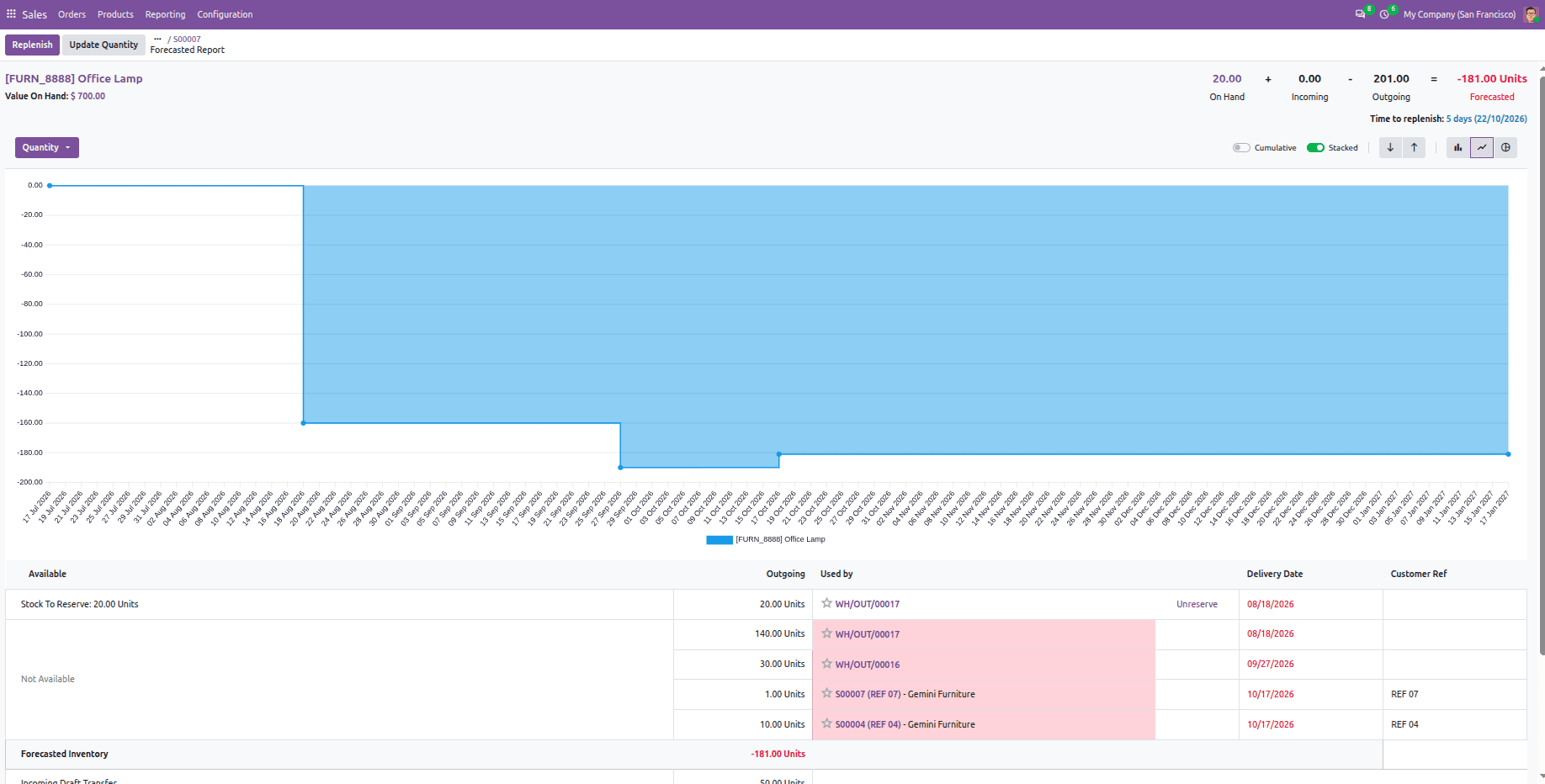
In order to test the functioning of the module, it must be installed, and the browser must be refreshed in order to load the new asset bundle. A sales order should be created for a product that can be stored, the customer PO number should be entered in the Customer Reference field, and the order should be confirmed. Upon opening the Forecasted report for the product that has been sold, one can see that the outgoing line in the delivery will display the customer reference in the new column; however, the receipts, free stock lines, and deliveries that were created without a sales order will appear as empty.
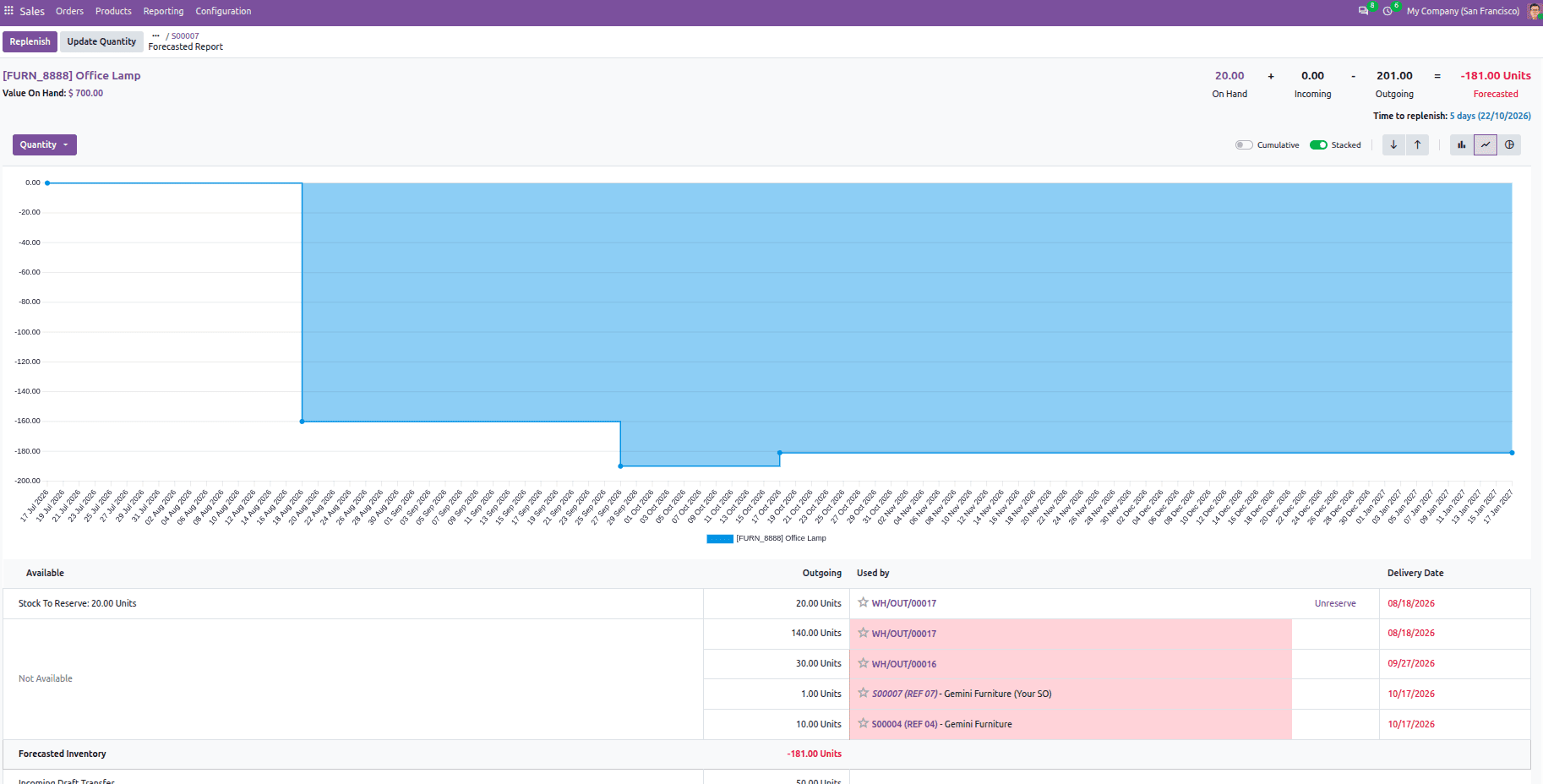
Forecasted report before customization, showing the core columns only:
Forecasted report after customization, with the Customer Ref column filled from the sale order:
This blog discussed how to enhance the Forecasted report in Odoo 20. We began by exploring the limitation of Edit View for this report. We then demonstrated how to override the _prepare_report_line method on stock.forecasted_product_product to include the Customer Reference of the sales order for each row and how to modify the stock. ForecastedDetails OWL template to incorporate it as an additional column. This method is useful in integrating other sales order details such as salesperson, sales team, and delivery address. The row gets populated by Python, while the display is managed by OWL, and the core system decides on the rows and format of the report.
To read more about How to Customize the Forecasted Report in Odoo 19, refer to our blog How to Customize the Forecasted Report in Odoo 19.