In Odoo 19, managing products efficiently is at the core of smooth business operations, whether you are handling sales, purchases, manufacturing, or inventory. To make this process faster and more intuitive, Odoo introduces a powerful and visually driven Product Catalog. This feature is integrated across multiple Odoo applications and helps users quickly add, organize, and manage products or components without navigating through multiple screens.
The Product Catalog is available in several key Odoo apps such as Inventory, Sales, Purchase, Manufacturing, and Repairs. Instead of manually searching for products or entering item details line by line, users can rely on the catalog to browse and select products effortlessly. This integration ensures consistency across different business workflows while saving time and reducing manual effort.
Users can access the Product Catalog directly from the first tab of a quotation, request for quotation (RfQ), sales order, purchase order, bill of materials (BoM), or manufacturing-related forms. When selected, the catalog opens in a new page, presenting products and components in a clean, POS-style layout. This visual format makes it easy to identify items, review available options, and add them to documents with just a few clicks.
One of the major advantages of the Product Catalog in Odoo 19 is how it simplifies document creation. Whether you are creating sales orders (SOs), purchase orders (POs), manufacturing orders (MOs), or bills of materials, the catalog provides a streamlined interface for selecting the required products and components. This approach not only speeds up order creation but also improves accuracy by minimizing manual data entry.
To use the Product Catalog in Odoo 19, start by creating a new document or opening an existing one where products or components need to be added. This can be a sales quotation, request for quotation (RfQ), sales order, purchase order, or bill of materials (BoM). For instance, if you want to create a new sales quotation, navigate to the Sales application from the Odoo dashboard and click the New button. This opens a fresh quotation form where product lines can be added.
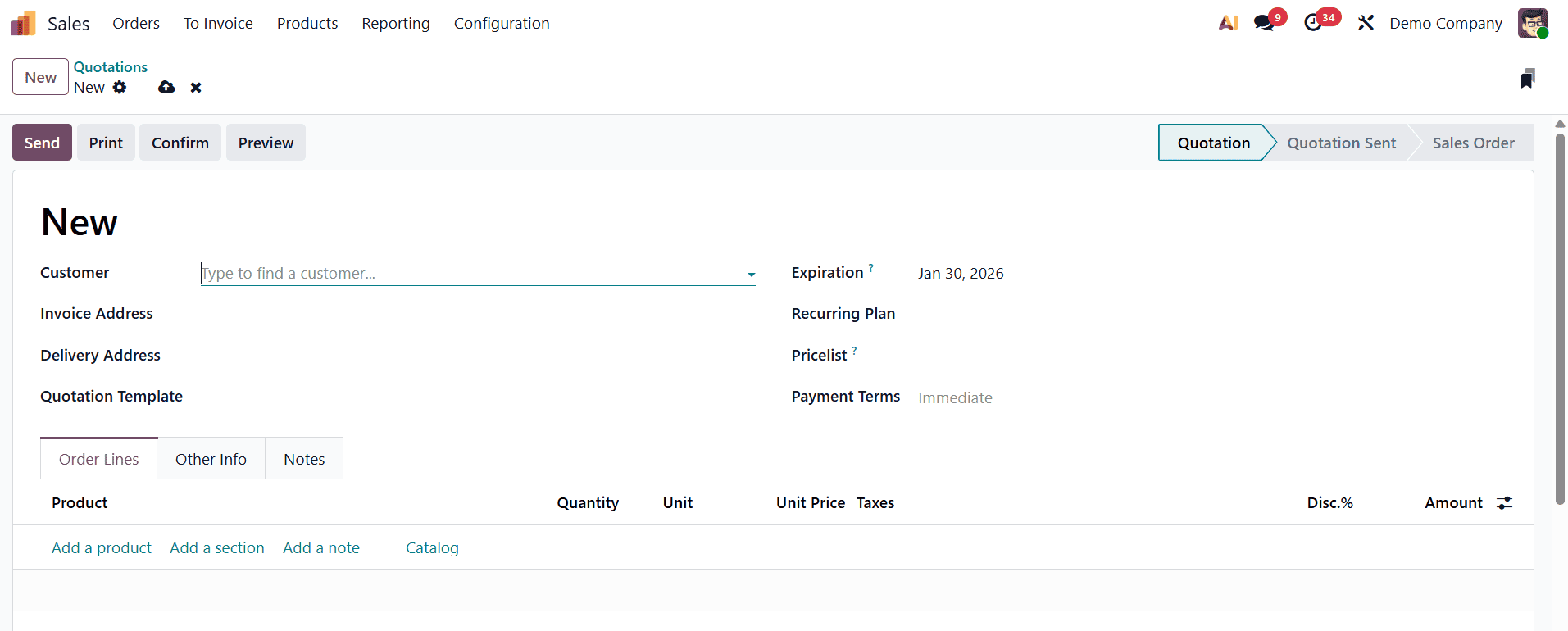
Once the form is open, move to the first tab located at the bottom of the document. This tab is where products or components are listed, and its name may vary depending on the type of document you are working on. In a sales quotation or order, it is usually labeled Order Lines, while in manufacturing or repair-related forms, it may appear as Components, Products, or Parts. Despite the different labels, the function of this tab remains the same; it is the section where items are added to the document.
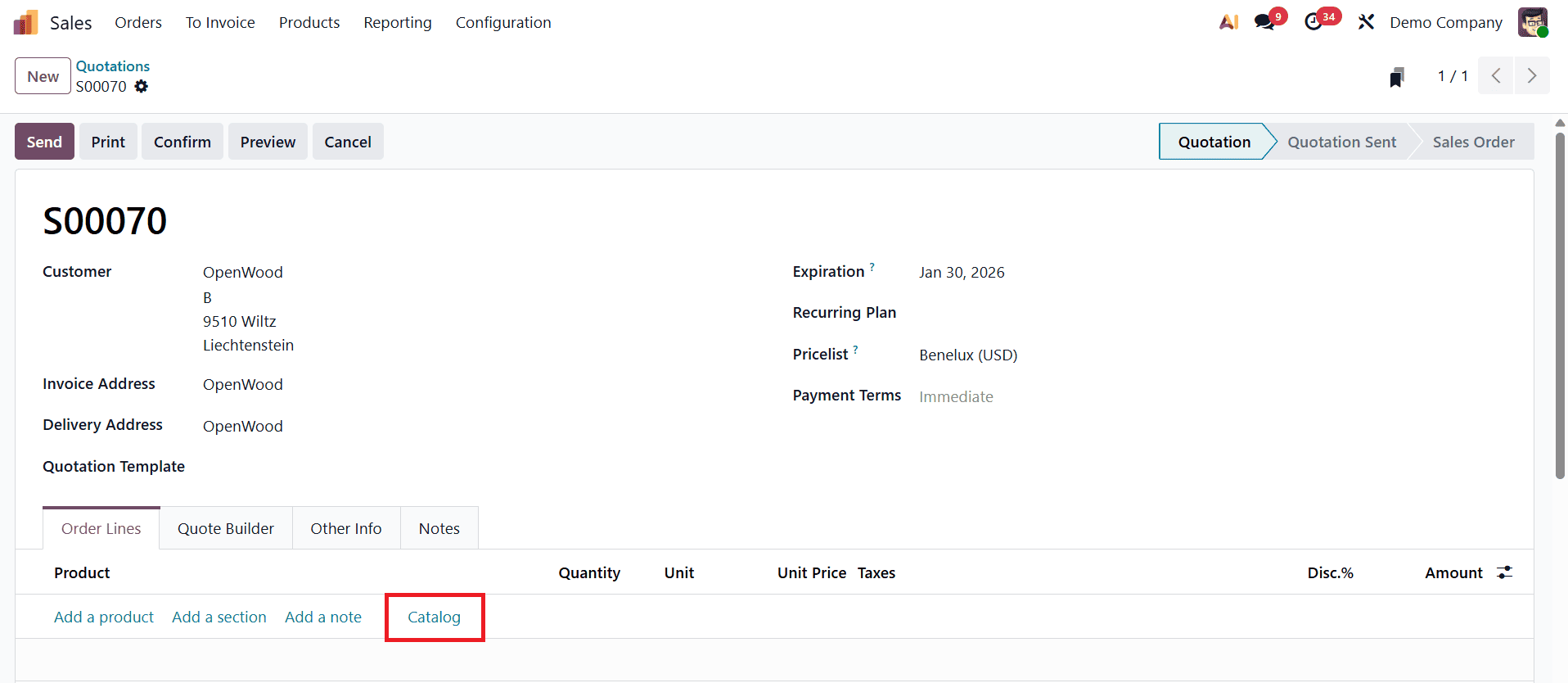
Inside this tab, you will find a blank line ready for product entry. On this first empty line, click the Catalog link. Selecting this option opens the Product Catalog in a new page, displaying all available products and components in a clear, visual layout. From this catalog view, you can easily browse, select, and add the required items to your document, making the product selection process faster, more accurate, and user-friendly.
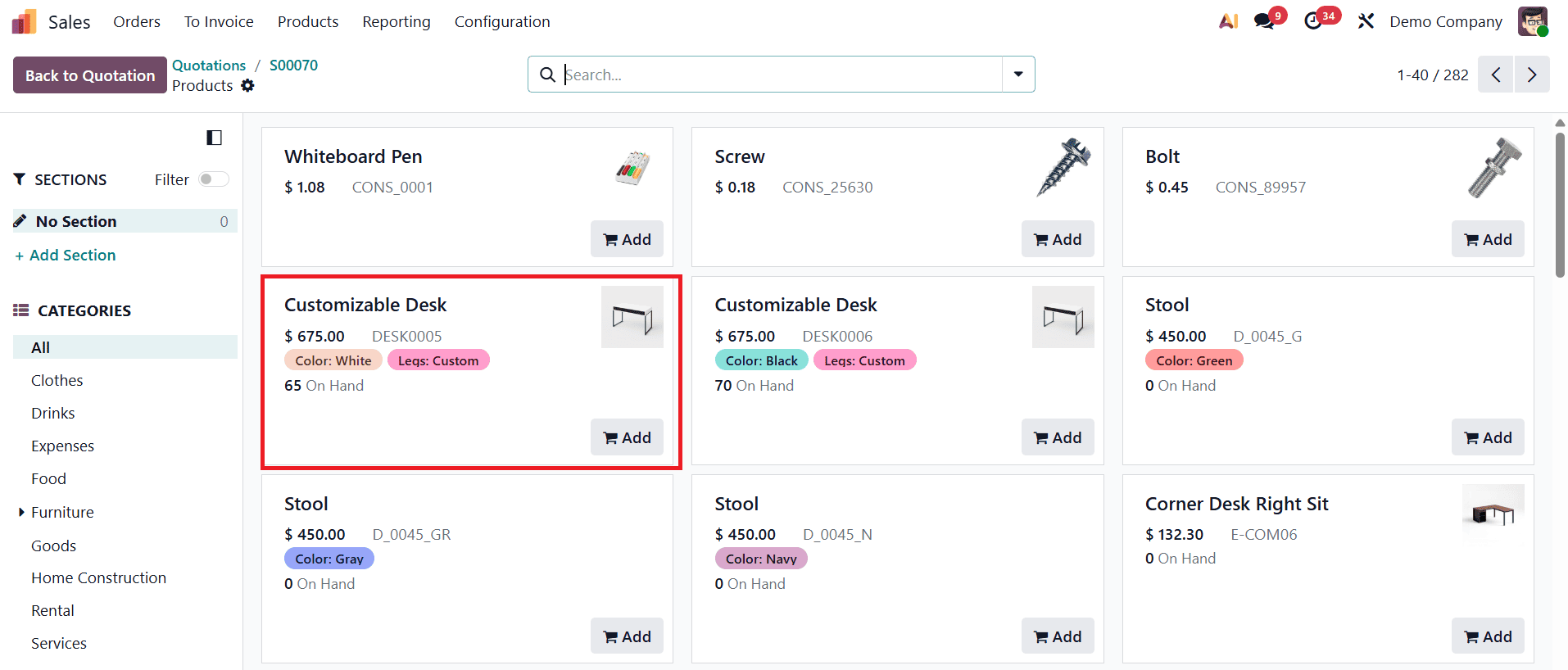
The Product Catalog presents each product in Odoo as an individual card, making it easy for users to quickly understand key product information at a glance. Each product card displays a product photo, which helps users visually recognize the item, especially when managing a large number of products or similar-looking components. Along with the image, the product title is clearly shown, ensuring that the correct item is selected during order creation or manufacturing planning. The card also displays the price or cost of the product, depending on how the product is being used. For example, when adding items to a sales quotation, the selling price is shown, while in purchase orders or manufacturing components, the cost price is displayed. This contextual pricing helps users make informed decisions without switching between different views.
In addition, each card includes the internal reference code (such as DESK0005), which is especially useful for businesses that rely on SKU-based product identification. The on-hand quantity is also visible, giving instant insight into current stock availability and helping avoid stock shortages or over-ordering. For products with multiple options, the card shows variant attributes, such as Color: White or Size: Medium. This allows users to distinguish between different variants easily and select the exact product required.
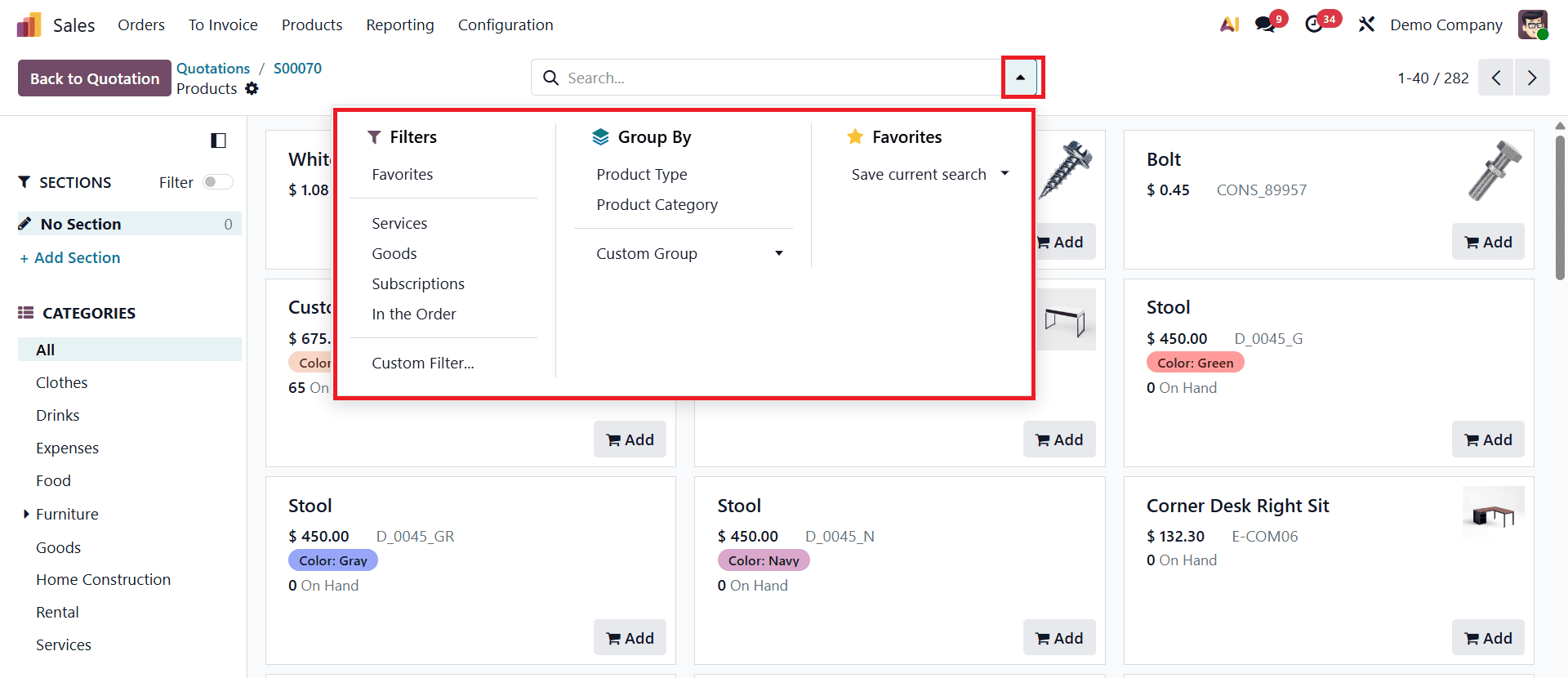
Products in the Product Catalog can be easily located and refined using the search and filtering options available at the top and left side of the catalog page. At the top of the page, a search bar allows users to quickly find products by entering keywords such as the product name, reference code, or other identifying details. This is especially helpful when working with a large product list and needing to locate specific items quickly.
For more precise filtering, users can click the down-arrow icon on the right side of the search bar to open the search menu. Within the Filters section, it is possible to filter products based on their type. Selecting the Services filter displays only service-type products, while choosing the Products filter limits the view to physical, stockable items. When creating or configuring a quotation or sales order, an additional filter named In the Order becomes available in the Filters section. Enabling this option shows only those products that have already been added to the current form.
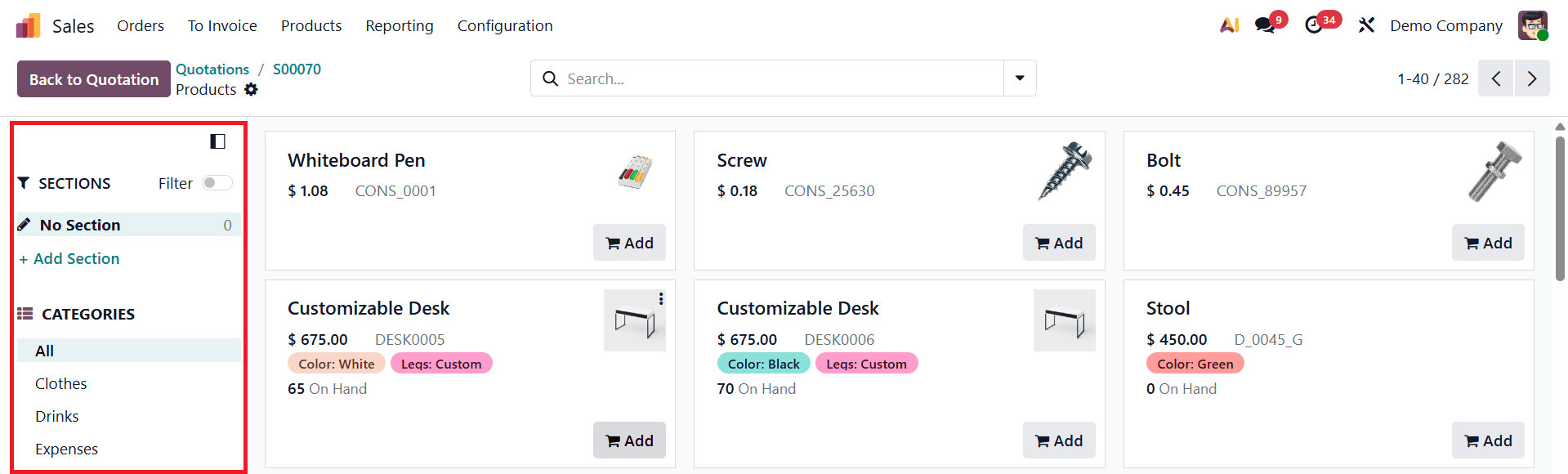
On the left-hand sidebar, users can further narrow down products using structured filters. Under the Product Category section, selecting a category displays only the products that belong to that specific category. Similarly, the Attributes section allows filtering based on variant attributes such as color, size, or other configured options, making it easier to find the exact product variant needed.
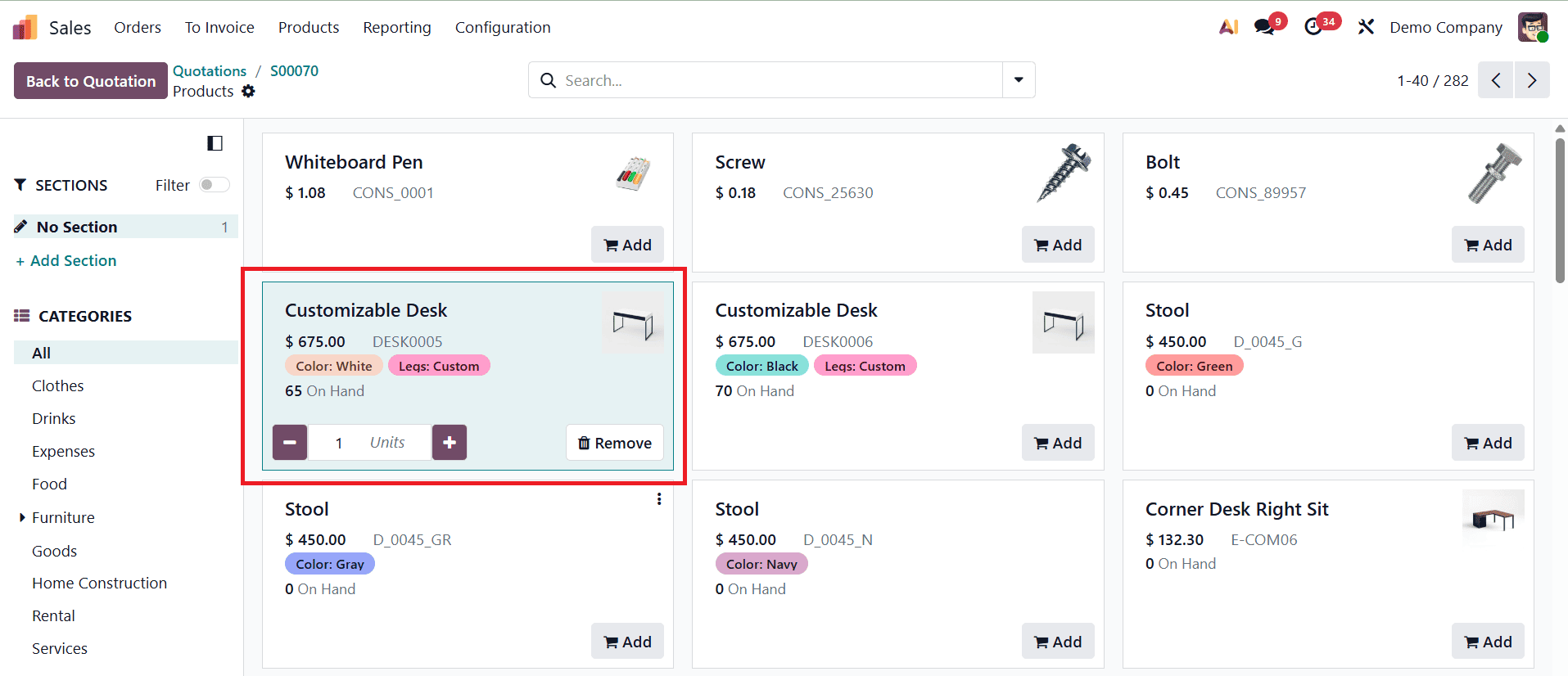
Adding products from the catalog is straightforward. To add an item, users can simply click on the product card or select the Add button located at the bottom-right corner of the card. This action adds one unit of the product, and the selected quantity is displayed in a small field at the bottom-left corner of the product card. Each additional click on the product card continues to add more units, increasing the quantity one by one.
To adjust the quantity, users can use the minus (–) button to decrease the quantity or the plus (+) button to increase it. For more precise control, a specific quantity can be entered manually by clicking on the number field between the plus and minus buttons and typing the required value. If a product needs to be removed completely from the order or bill of materials, this can be done by clicking the Remove button on the product card or by repeatedly clicking the minus (–) button until the quantity reaches zero.
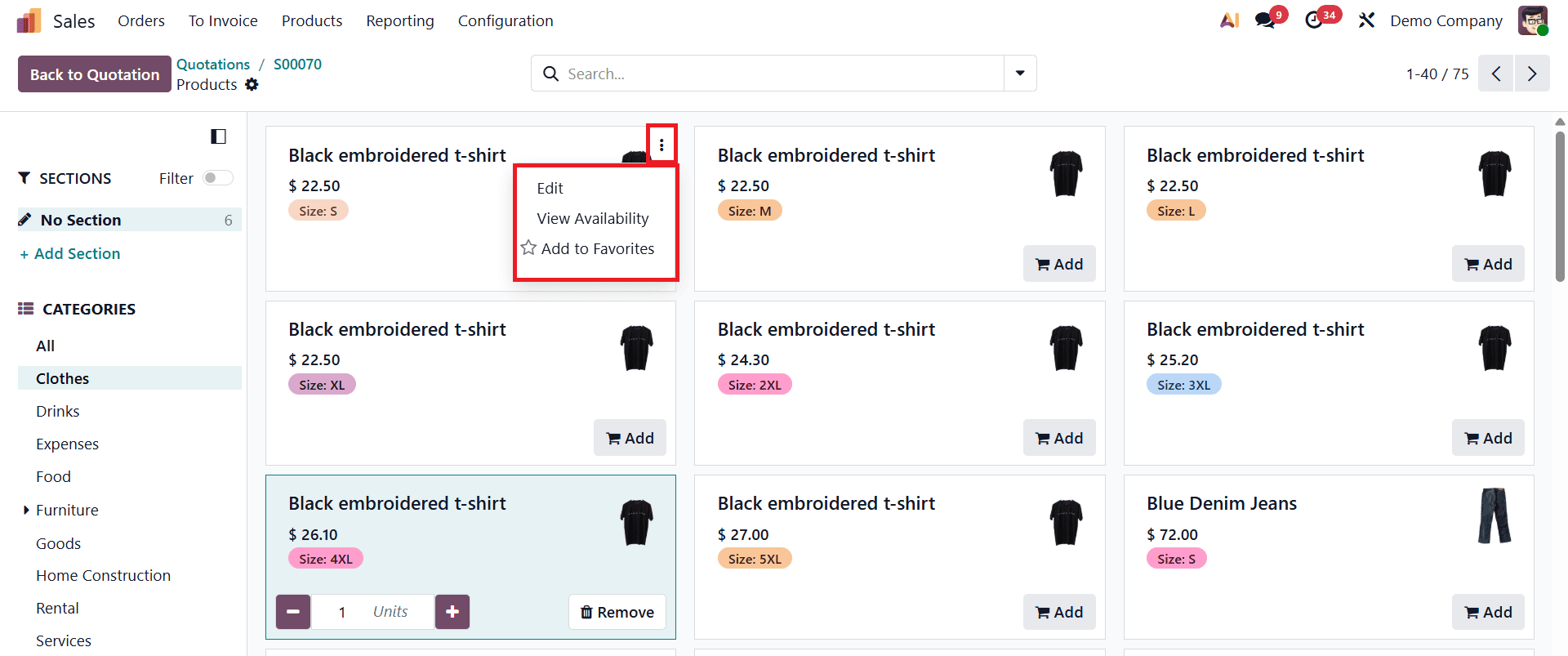
Clicking the three vertical dots located at the top-right corner of each product card opens an additional options menu. From this menu, users can choose the option to view the product’s availability. Selecting this option opens a new window that displays detailed stock information, allowing users to check current availability and take immediate action if needed.
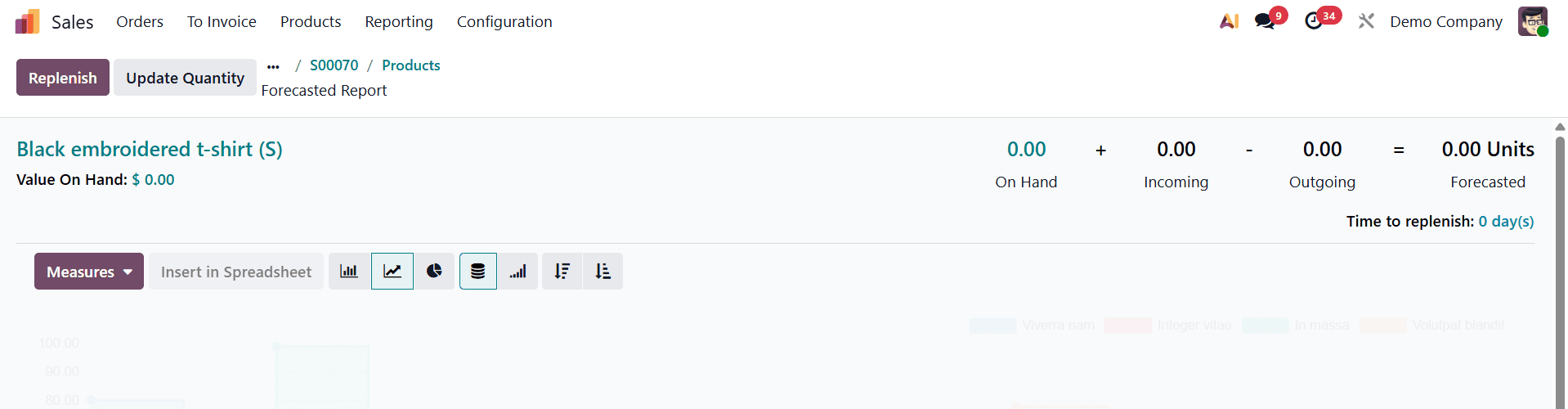
From the availability window, users can directly manage the replenishment of the product. This makes it easy to initiate restocking actions without leaving the product catalog, ensuring that required quantities are available before confirming an order or manufacturing process. This quick access to inventory controls helps prevent delays and improves overall stock management.
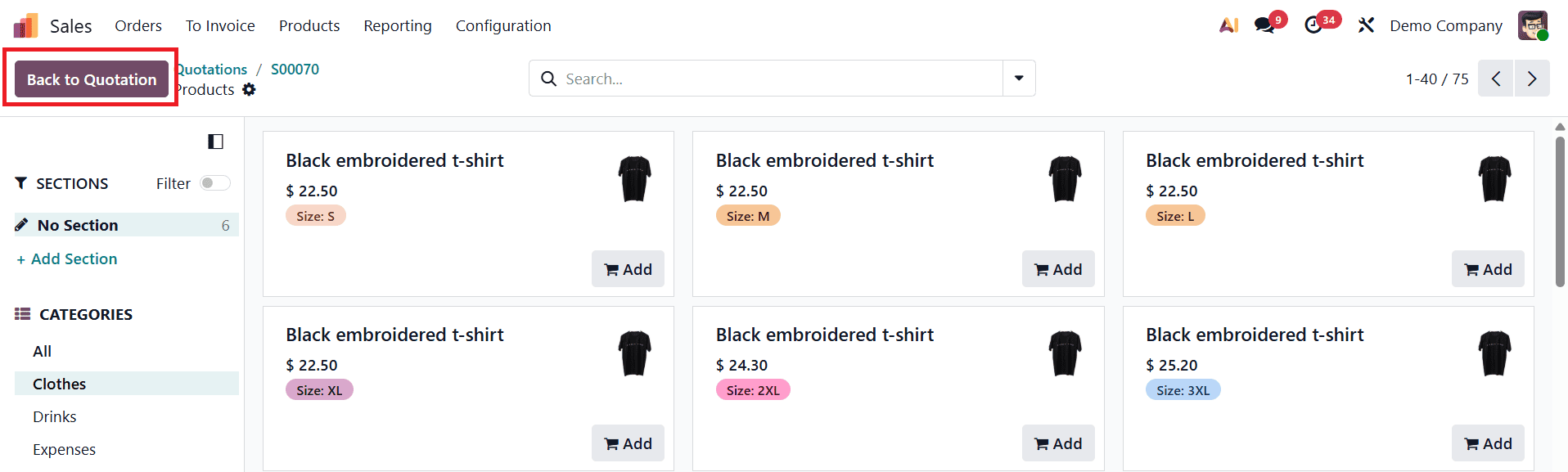
After selecting products and adjusting quantities as required, users can return to the original document by clicking the Back to Quotation button at the top of the screen. This action brings you back to the quotation where all selected products are automatically added to the relevant lines.
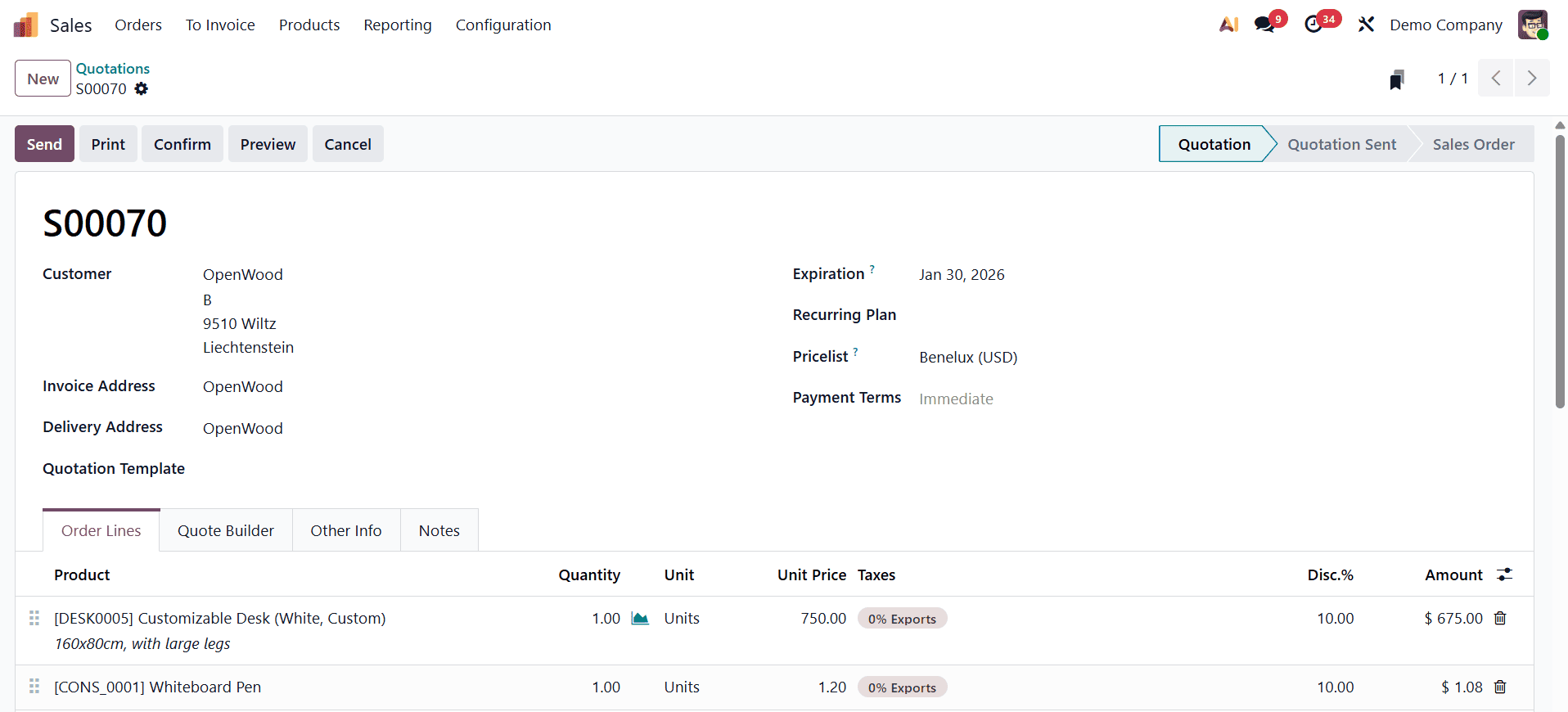
It is important to note that products can appear in the Product Catalog and be added to orders even when there are zero units available in stock. While this provides flexibility, it also means users must carefully verify product availability before finalizing an order. Failing to do so may lead to inventory inconsistencies, delayed deliveries, or fulfillment issues. Therefore, checking availability and replenishing stock when necessary is a critical step when using the Product Catalog in Odoo 19.
The Product Catalog in Odoo 19 significantly enhances the way businesses add, organize, and manage products across different operational workflows. By offering a centralized, visual, and POS-style interface, it simplifies product selection and reduces the time spent navigating between forms and product records. Whether you are creating sales quotations, purchase orders, manufacturing orders, or bills of materials, the catalog ensures a smoother and more efficient document creation process.
To read more about How to Add the Catalog Feature in Odoo 19, refer to our blog How to Add the Catalog Feature in Odoo 19.