In Odoo 19, customer emails play an important role in how professional and transparent your business communication seems, particularly for accounting documents such as invoices. Odoo defaults to adding a "View Invoice" button to invoice-related communications. Although this functionality works well, it may not be consistent with your company's branding, vocabulary, or consumer expectations. Many firms prefer language that is more context-aware or industry-specific, such as matching internal accounting terminology or distinguishing between different document types. Odoo's sophisticated QWeb email templating capability is quite useful in this case. Thanks to a clear and succinct XML inheritance, you may safely update the button label in customer emails without affecting the core code, guaranteeing that your modifications are upgrade-friendly.
This blog will demonstrate how to expand the normal mail notification style in Odoo 19 to customize the invoice button label. Odoo 19 automatically adds a call-to-action button to client communications, including invoice alerts (for example, View Invoice). This button was created with Odoo's default mail notification layout and includes a dynamic title based on the document being delivered. However, in real-world projects, you may wish to edit this button label to better reflect your company's vocabulary, customer communication requirements, or branding. For example, you may want to designate client bills more clearly or correctly while maintaining the same structure throughout all other correspondence.
Rather than modifying the core code, Odoo extends the current QWeb email template to allow for this type of customization. You can inherit the mail.mail_notification_layout template to conditionally change the button title for specific models, such as customer invoices, while keeping the default behavior for all other models.
This simple example demonstrates how to change the button label only for customer invoices (account.move without out_invoice), while leaving other document types such as bills, sales orders, and delivery notes intact.
<?xml version="1.0" encoding="UTF-8"?>
<odoo>
<template id="change_invoice_email_button_title"
inherit_id="mail.mail_notification_layout">
<xpath expr="//a/t[@t-out="button_access['title']"]" position="replace">
<t t-if="record and record._name == 'account.move' and record.move_type == 'out_invoice'">
Test Invoice
</t>
<t t-else="">
<t t-out="button_access['title']"/>
</t>
</xpath>
</template>
</odoo>
How This Works:
- The template is derived from mail.mail_notification_layout, which Odoo uses for the majority of system emails.
- The dynamic button label (button_access['title'])) is the target of the xpath.
- The label is only altered for client bills thanks to the t-if condition.
- For all other emails, the t-else block maintains Odoo's default label.
Below is an example of a standard invoice email that is issued without any modifications.
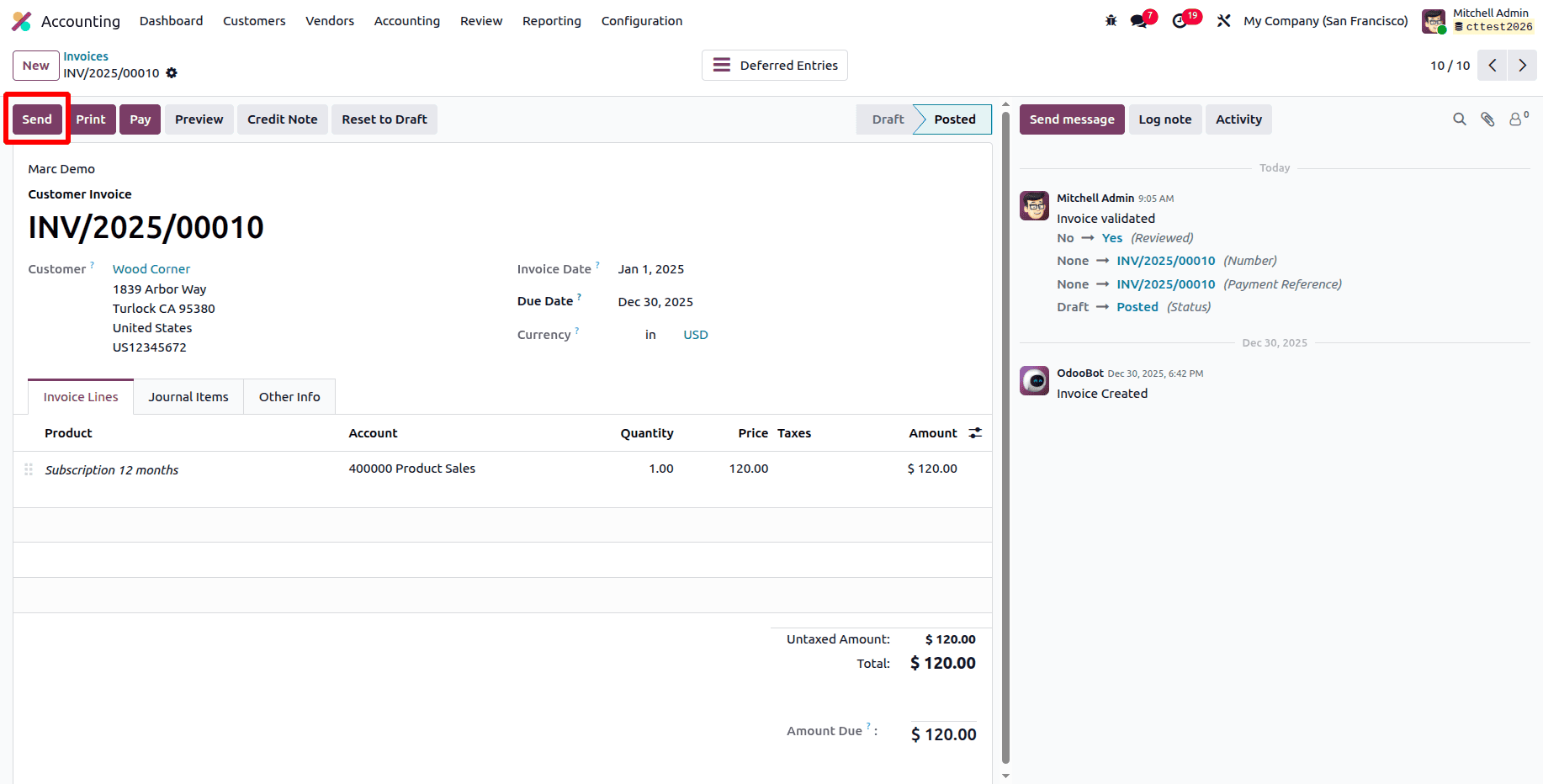
Click the Send button in the email sending wizard, as indicated below, to send the invoice email.
Below is an example of an uncustomized Odoo invoice email.
After installing the custom module containing the previously exhibited XML code, the button label in the customer email will instantly change to the value you set. For example, it will replace the standard label with "Test Invoice" or any other text you supply in the template.
Other types of documents can also benefit from this customization. For example, we can apply the same logic to sales orders by looking at the sale.order model and making the necessary changes to the button label.
Sale Order Example Code
<?xml version="1.0" encoding="UTF-8"?>
<odoo>
<template id="change_sale_email_button_title"
inherit_id="mail.mail_notification_layout">
<xpath expr="//a/t[@t-out="button_access['title']"]" position="replace">
<t t-if="record and record._name == 'sale.order'">
Test Sale
</t>
<t t-else="">
<t t-out="button_access['title']"/>
</t>
</xpath>
</template>
</odoo>
This modification inherits the standard mail notification layout while dynamically changing the default button label. The model name (sale.order) is confirmed when a Sale Order email is generated, and the default content is changed to the custom label "Test Sale Order." All other publications use the original button label.
The typical sale order email view that the customer sees when the email button label is not customized is depicted in the following image.
The sale order email view as viewed by the customer after the email button label has been customized is depicted in the following image.
You may simply modify email button labels in Odoo 19 without changing the core code by extending the mail.mail_notification_layout template. You can apply different button labels for invoices, sale orders, or any other sort of document using this simple, upgrade-safe, and adaptable method. You may greatly enhance email clarity and client experience with very little XML modification.
To read more about How to Send Emails with Multiple Attachments in Odoo 19, refer to our blog How to Send Emails with Multiple Attachments in Odoo 19.