The most recent iteration of the flexible, open-source platform, Odoo 19, unifies Website, CRM, sales, accounting, inventory, and numerous other business apps into a single, integrated system. It provides robust communication functions, such as sending emails with attached documents like quotes, bills, or reports, in addition to its essential business tools. However, Odoo's email system only allows one primary attachment per template by default, which might be problematic when multiple relevant documents need to be sent at once. For instance, you may wish to provide a quote containing technical information, terms & conditions, or product brochures. Odoo 19 frequently requires a modest customisation to make this happen, such as improving the mail composer or automating the process of creating and uploading several files.
When using Odoo, you might occasionally need to give your customer multiple documents in a single email. For instance, you may wish to send them the quotation and the associated invoice at the same time after verifying a sale order. In this case, the Sale Order form will have a button that will generate an email with the two documents already attached.
Python Code - Model
import odoo
from odoo import models
from odoo.exceptions import ValidationError
import base64

class SaleOrder(models.Model):
    _inherit = 'sale.order'
    def action_send_so_invoice_email(self):
        """
        Prepare the email composer with:
         - Quotation PDF
         - First related invoice PDF
        If the Sale Order has no invoice, raise an error.
        """
        for order in self:
            # Check invoice availability
            invoices = order.invoice_ids.filtered(lambda inv: inv.state in ['draft', 'posted'])
            if not invoices:
                raise ValidationError(
                    "No invoice is linked to this Sale Order. Please create or validate an invoice first."
                )
            # Load the email template
            template = self.env.ref(
                'custom_module_name.email_template_so_invoice',
                raise_if_not_found=False
            )
            if not template:
                raise ValidationError("Email template could not be found.")
            attachment_ids = []
            # Generate Sale Order PDF
            so_pdf, _ = self.env['ir.actions.report']._render_qweb_pdf(
                'sale.action_report_saleorder',
                order.id
            )
            so_attach = self.env['ir.attachment'].create({
                'name': f"Quotation_{order.name}.pdf",
                'type': 'binary',
                'datas': base64.b64encode(so_pdf).decode('utf-8'),
                'res_model': 'sale.order',
                'res_id': order.id,
                'mimetype': 'application/pdf',
            })
            attachment_ids.append(so_attach.id)
            # Generate the first invoice PDF
            invoice = order.invoice_ids[:1]
            inv_pdf, _ = self.env['ir.actions.report']._render_qweb_pdf(
                'account.report_invoice_with_payments',
                invoice.id
            )
            inv_attach = self.env['ir.attachment'].create({
                'name': f"Invoice_{invoice.name}.pdf",
                'type': 'binary',
                'datas': base64.b64encode(inv_pdf).decode('utf-8'),
                'res_model': 'sale.order',
                'res_id': order.id,
                'mimetype': 'application/pdf',
            })
            attachment_ids.append(inv_attach.id)
            # Open the email composer
            return {
                'type': 'ir.actions.act_window',
                'res_model': 'mail.compose.message',
                'view_mode': 'form',
                'target': 'new',
                'context': {
                    'default_model': 'sale.order',
                    'default_res_model': 'sale.order',
                    'default_res_ids': [order.id],
                    'default_use_template': True,
                    'default_template_id': template.id,
                    'default_attachment_ids': [odoo.fields.Command.set([so_attach.id, inv_attach.id])],
                },
            }
By adding a new function that automates the process of creating an email with numerous attachments, this code expands the Sale Order model. Odoo creates the Sale Order (quotation) PDF first when the button is pressed. Next, regardless of the invoice's status, it searches for the first invoice associated with that sale order and creates a PDF for it. The IDs of these two PDFs are gathered and saved as attachments in Odoo. Lastly, the procedure launches Odoo's default email composer and pre-fills it with the appropriate recipient, the email template, and both attachments. If necessary, the user can modify the template's content before sending the email straight away.
XML Code - View and Email Template
<?xml version="1.0" encoding="UTF-8"?>
<odoo>
<!-- Add button on Sale Order form -->
<record id="view_order_form" model="ir.ui.view">
<field name="name">sale.order.form.send.quotation.invoice.button</field>
<field name="model">sale.order</field>
<field name="inherit_id" ref="sale.view_order_form"/>
<field name="arch" type="xml">
<header position="inside">
<button name="action_send_so_invoice_email"
type="object"
string="Send SO & Invoice"
class="btn-primary"
invisible="state != 'sale'"/>
</header>
</field>
</record>
<!-- Email template -->
<record id="email_template_so_invoice" model="mail.template">
<field name="name">Sale Order & Invoice Email</field>
<field name="model_id" ref="sale.model_sale_order"/>
<field name="subject">Documents for {{ object.name }}</field>
<field name="email_from">{{ object.user_id.email or '' }}</field>
<field name="email_to">{{ object.partner_id.email }}</field>
<field name="body_html">
<![CDATA[
<p>Hello <t t-out="object.partner_id.name"/>,</p>
<p>Attached are the quotation and the related invoice for your reference.</p>
<p>Regards,<br/><t t-out="object.company_id.name"/></p>
]]>
</field>
</record>
</odoo>
The Sale Order form now has a new button thanks to the first section of the XML. It invokes our Python procedure when clicked. An email template containing placeholders for the client's name, business name, and other information is created in the second section. Odoo will utilize this template and automatically attach the PDFs for the quotation and invoice when the button is clicked.
Result
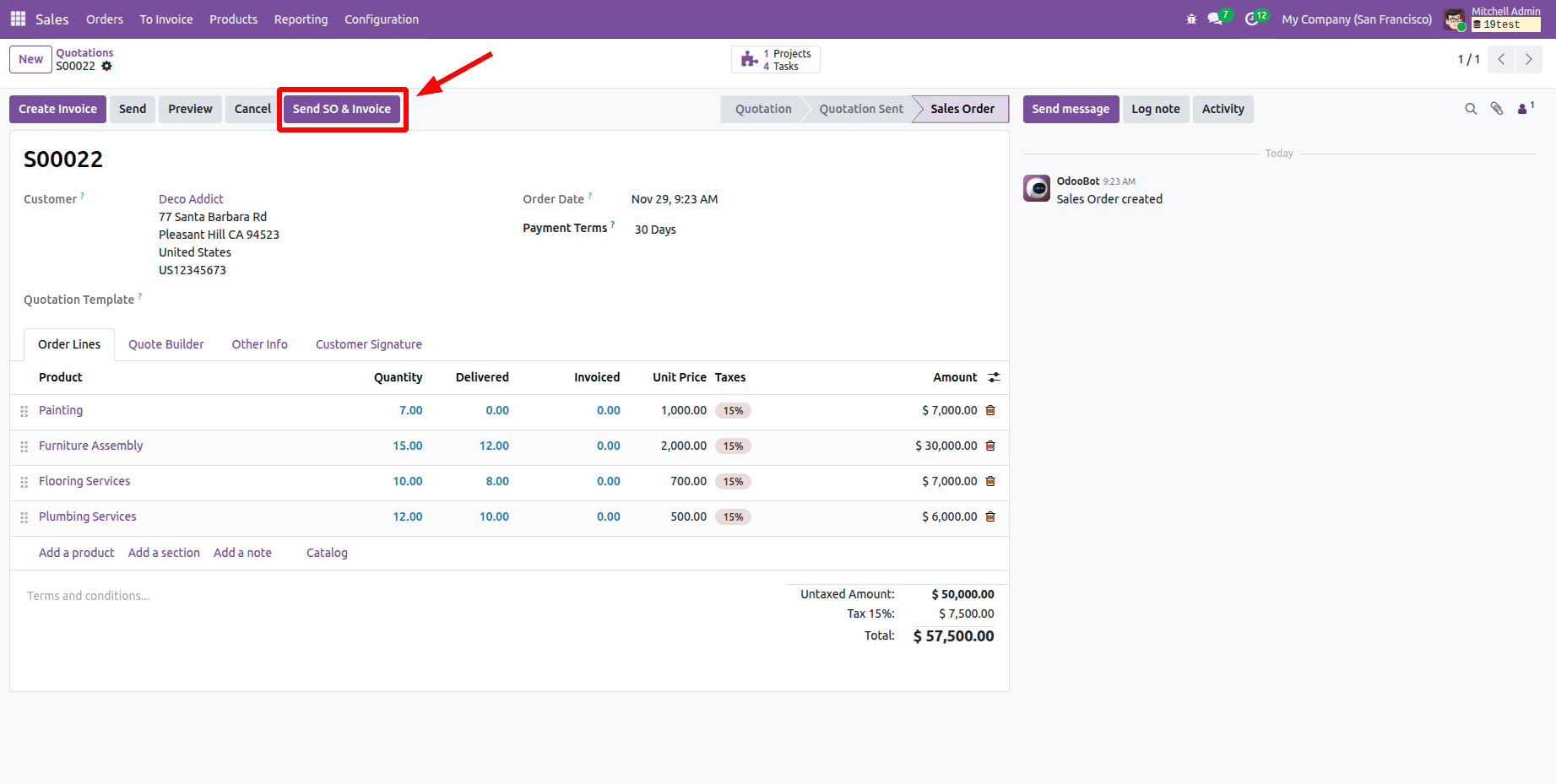
The "Send SO & Invoice" button will appear on the Sale Order form once these files have been added to and installed in a custom module. As seen in the graphic below, this button only shows up when the sale order is in the sale order state.
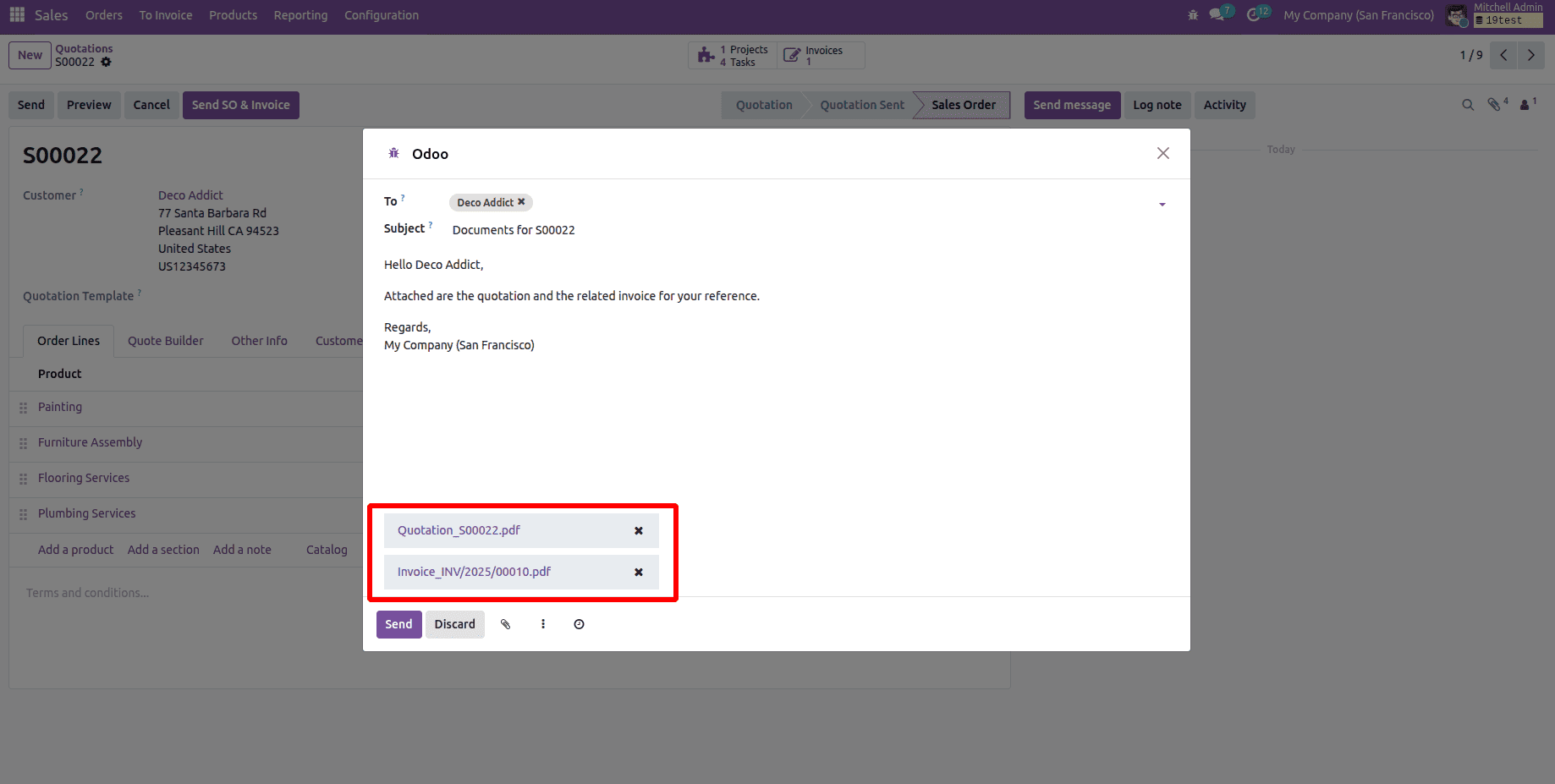
When you click it, the previously stated Python code opens Odoo's email composer, creates the quotation PDF and the first related invoice PDF, and attaches them to an email. The email template content can then be reviewed or edited by the user before being sent, as demonstrated below.
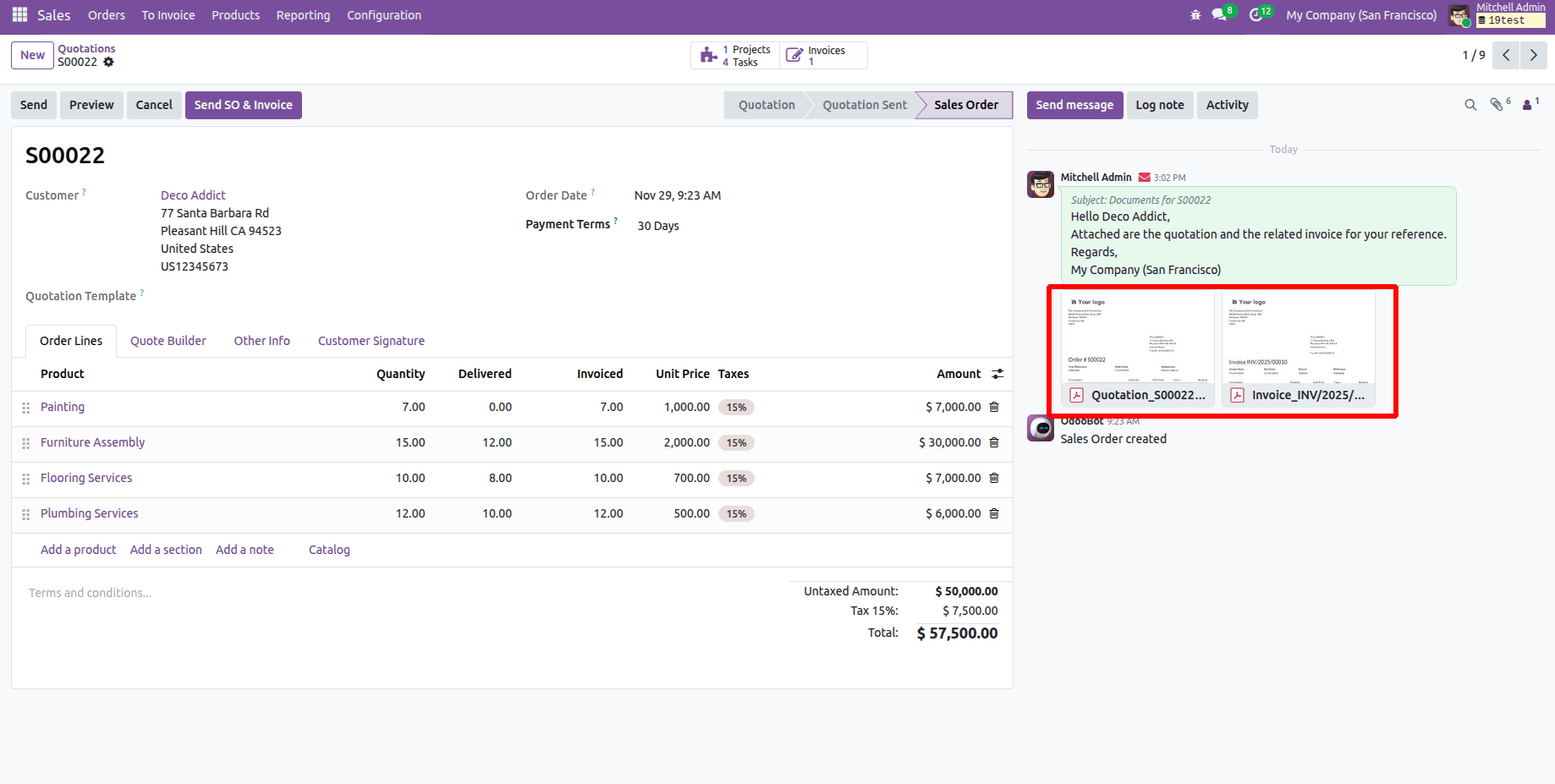
The associated partner email will then get it after pressing the Send button, and it will also show up in the Sale Order form view's log note, as seen below.
In conclusion, using Odoo 19 to send emails with many attachments is an easy yet effective technique to expedite your workflow. You eliminate the need for tedious manual processes and lower the possibility of missing crucial files by allowing the system to automatically collect and attach the required documents. This method allows you to make changes to the email content before it is sent out while maintaining clear and comprehensive information. This approach enables you to produce quotations, invoices, reports, and other business papers in a timely, accurate, and professional manner.
To read more about How to Send Emails with Multiple Attachments in Odoo 18, refer to our blog How to Send Emails with Multiple Attachments in Odoo 18.