Handling customer relationships sometimes may require the use of different applications. Pipedrive is one of the best CRM that is capable of handling leads, contacts, and products. Odoo is an enterprise ERP application that can be used to handle all business operations. Synchronization of information in these two systems through manual means may lead to duplication and extra work.
Odoo Pipedrive Connector solves these problems by automatically synchronizing products, contacts, and leads from Pipedrive to Odoo. Once you install this connector and configure it with your Pipedrive API Token, you will be able to transfer your records from Pipedrive to Odoo with just one click.
In this blog, we will show you how to configure the Odoo Pipedrive Connector and how to synchronize products, contacts, and leads between Pipedrive and Odoo 19.
Configure the Pipedrive Connector
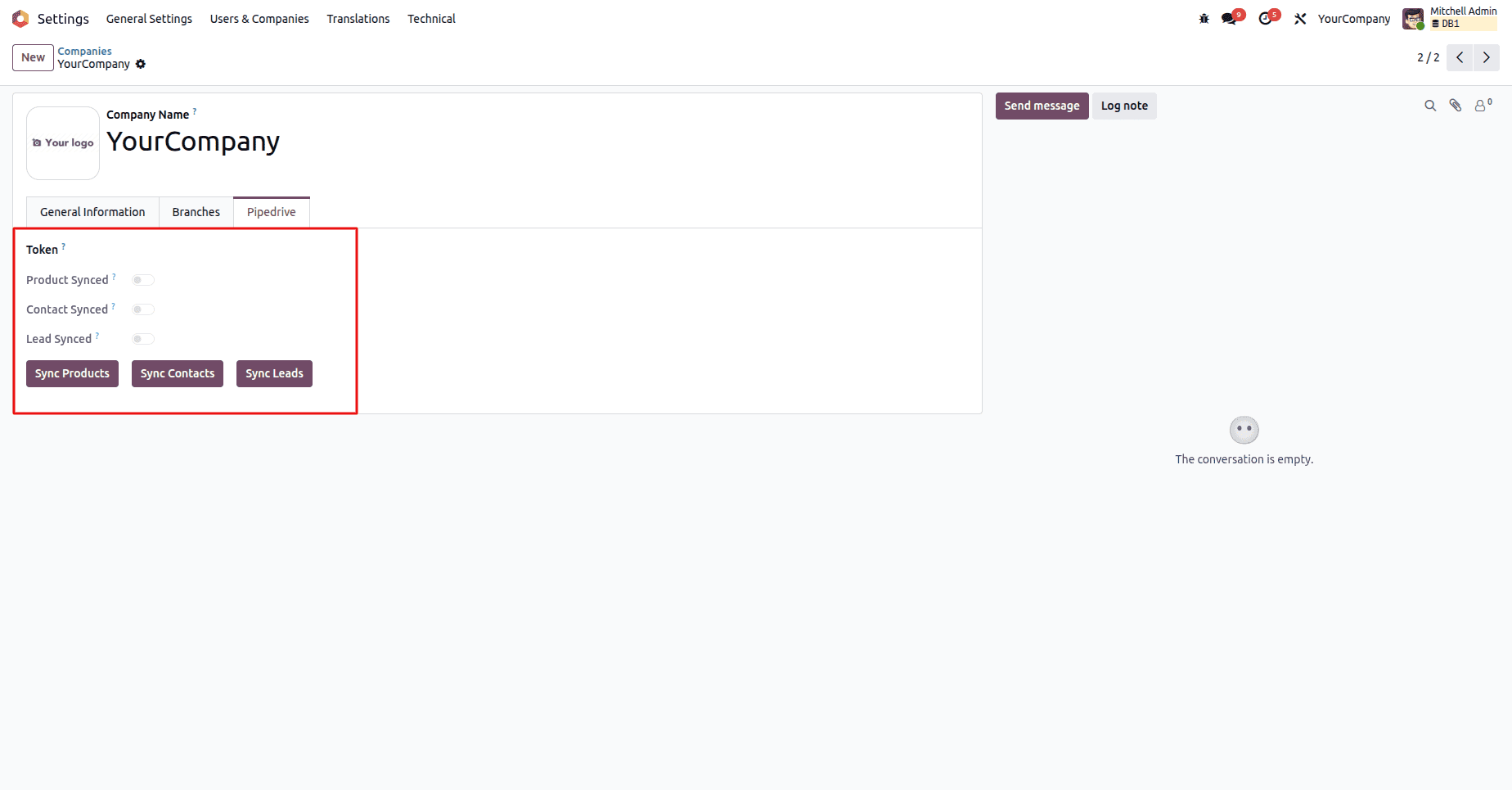
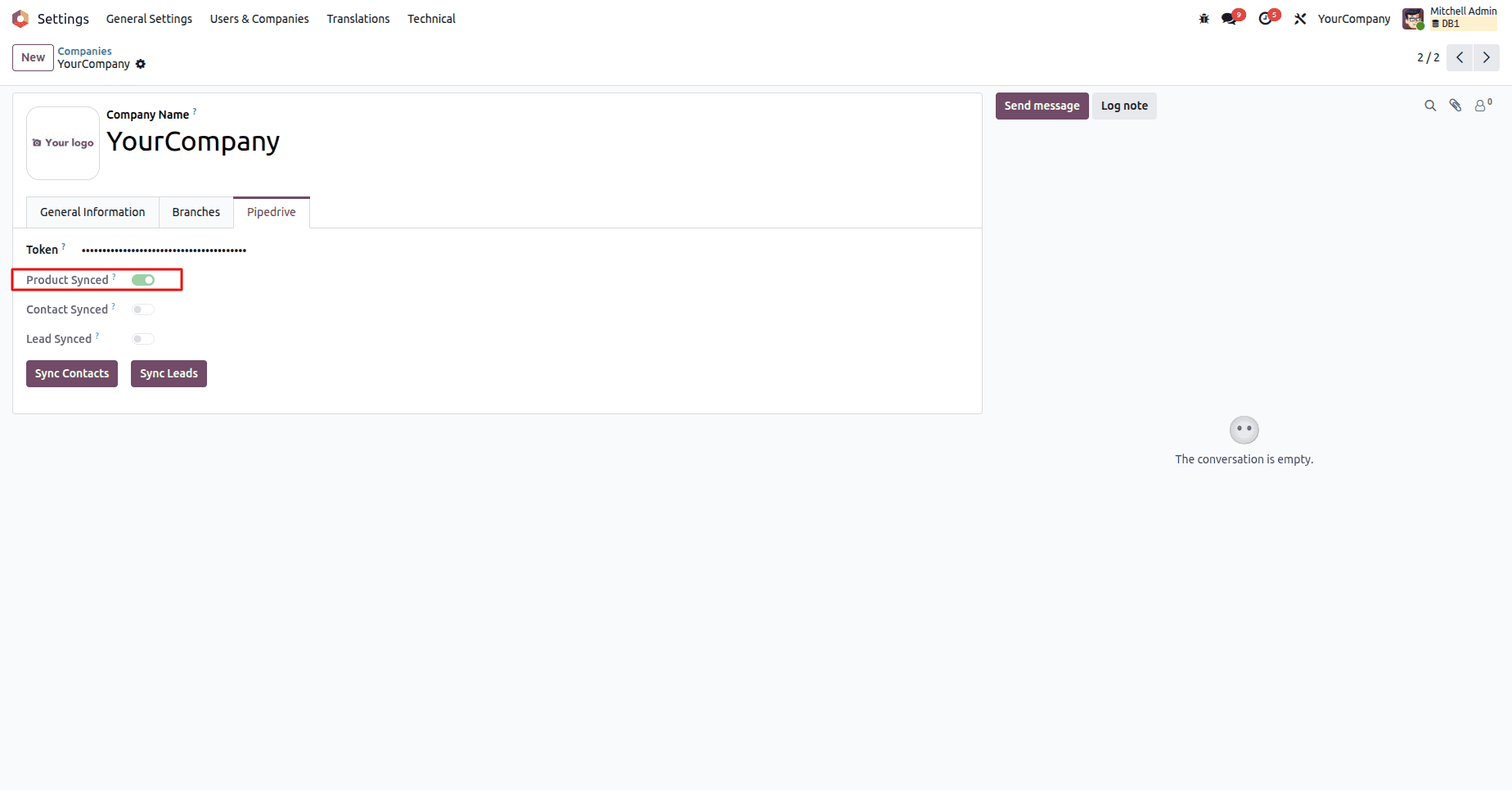
Go to Settings > Companies > Your Company > Pipedrive
Configure your Pipedrive API Token and select required synchronization options.
Also, the Odoo Pipedrive connector provides separate buttons for manual synchronization of products, contacts, and leads.
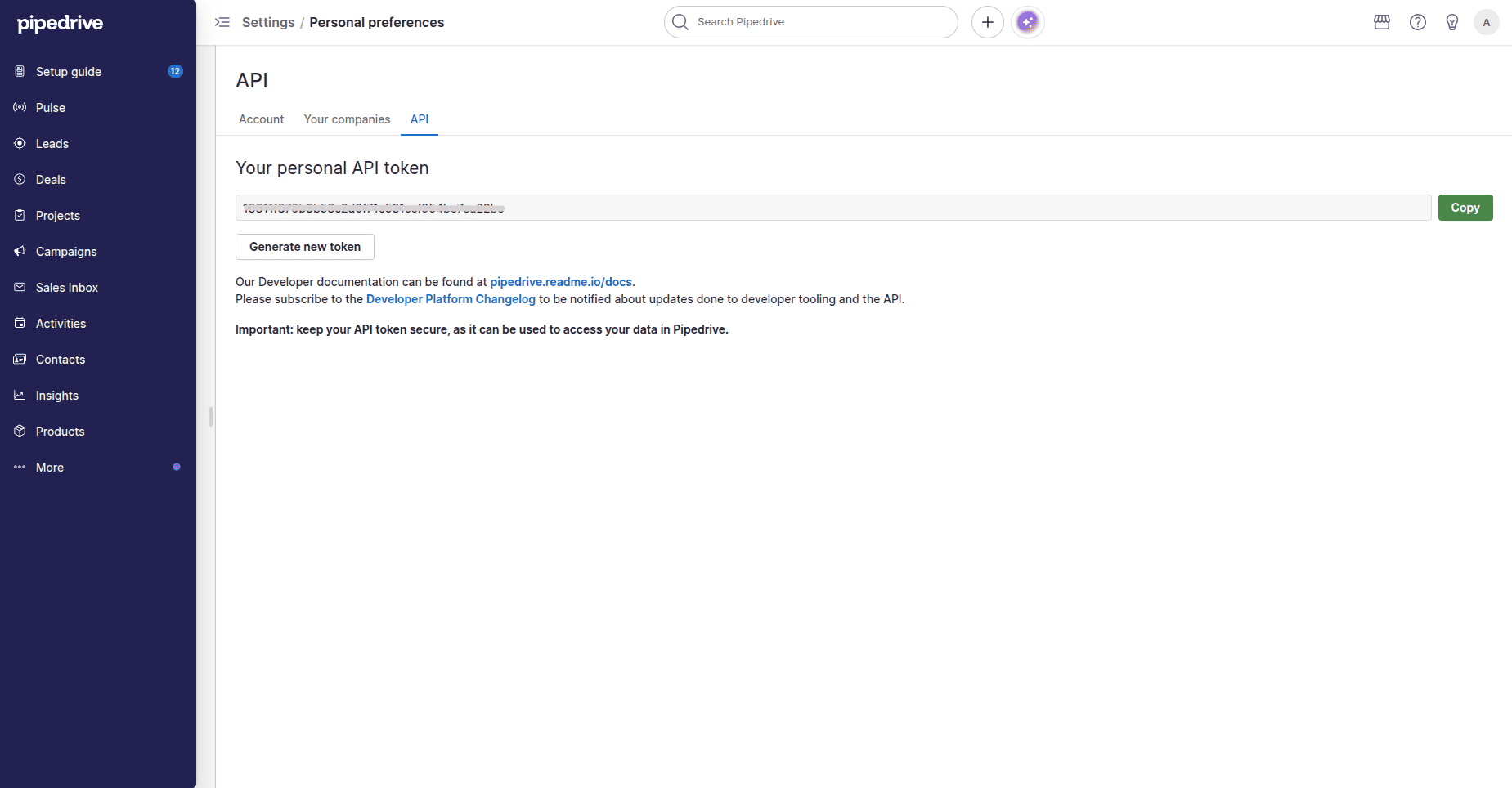
Generate the Pipedrive API Token
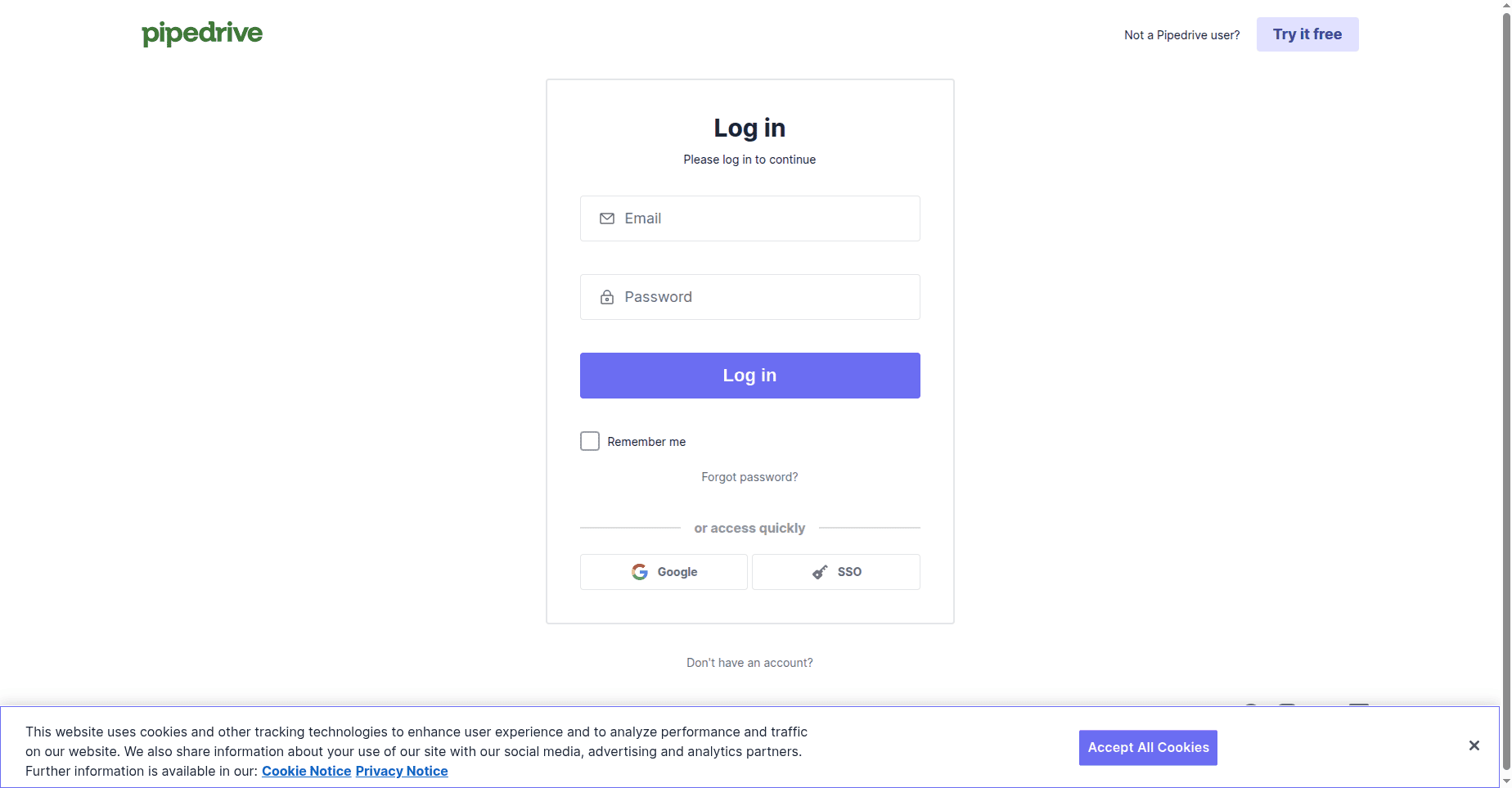
Log in to Pipedrive
Sign in to your Pipedrive using your login details.
Open Personal Preferences
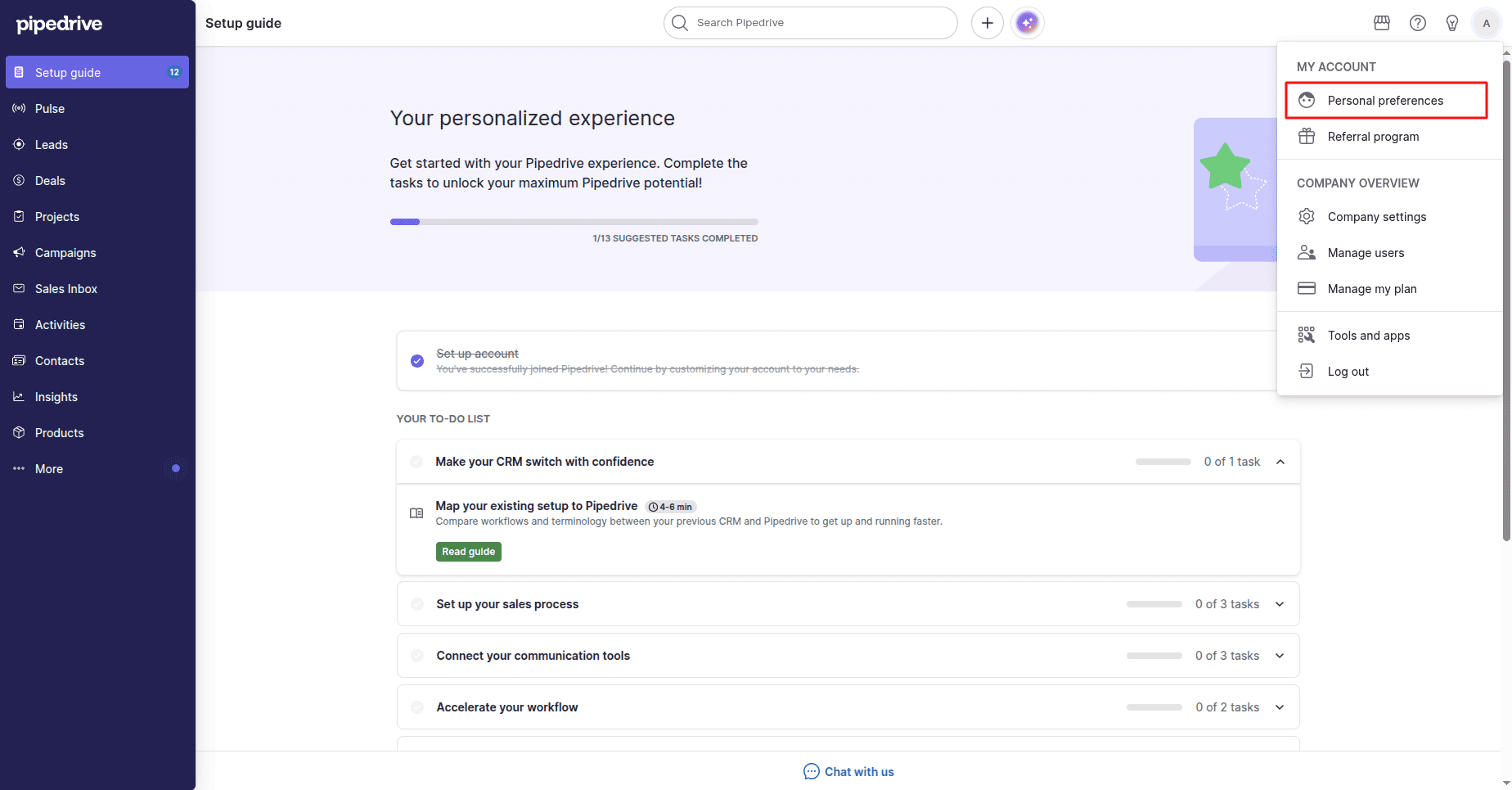
Hover over your user icon in the top-right corner and select Personal Preferences.
Open the Section
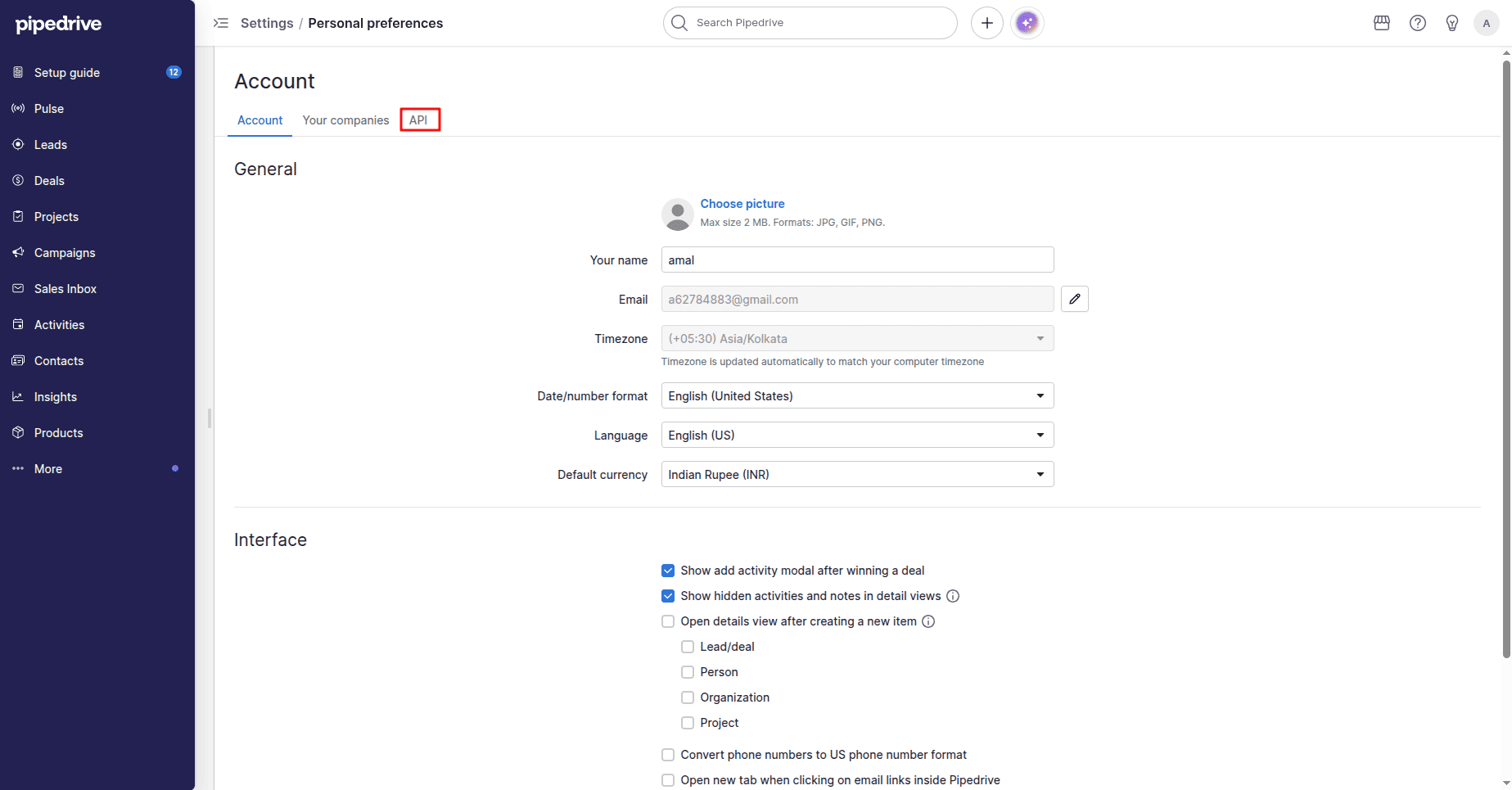
Navigate to the API tab.
Copy the API Token
Copy your personal API Token.
Ensure that your API Token remains secure, as anyone who obtains it may be able to access your Pipedrive data through the API.
Synchronize Products
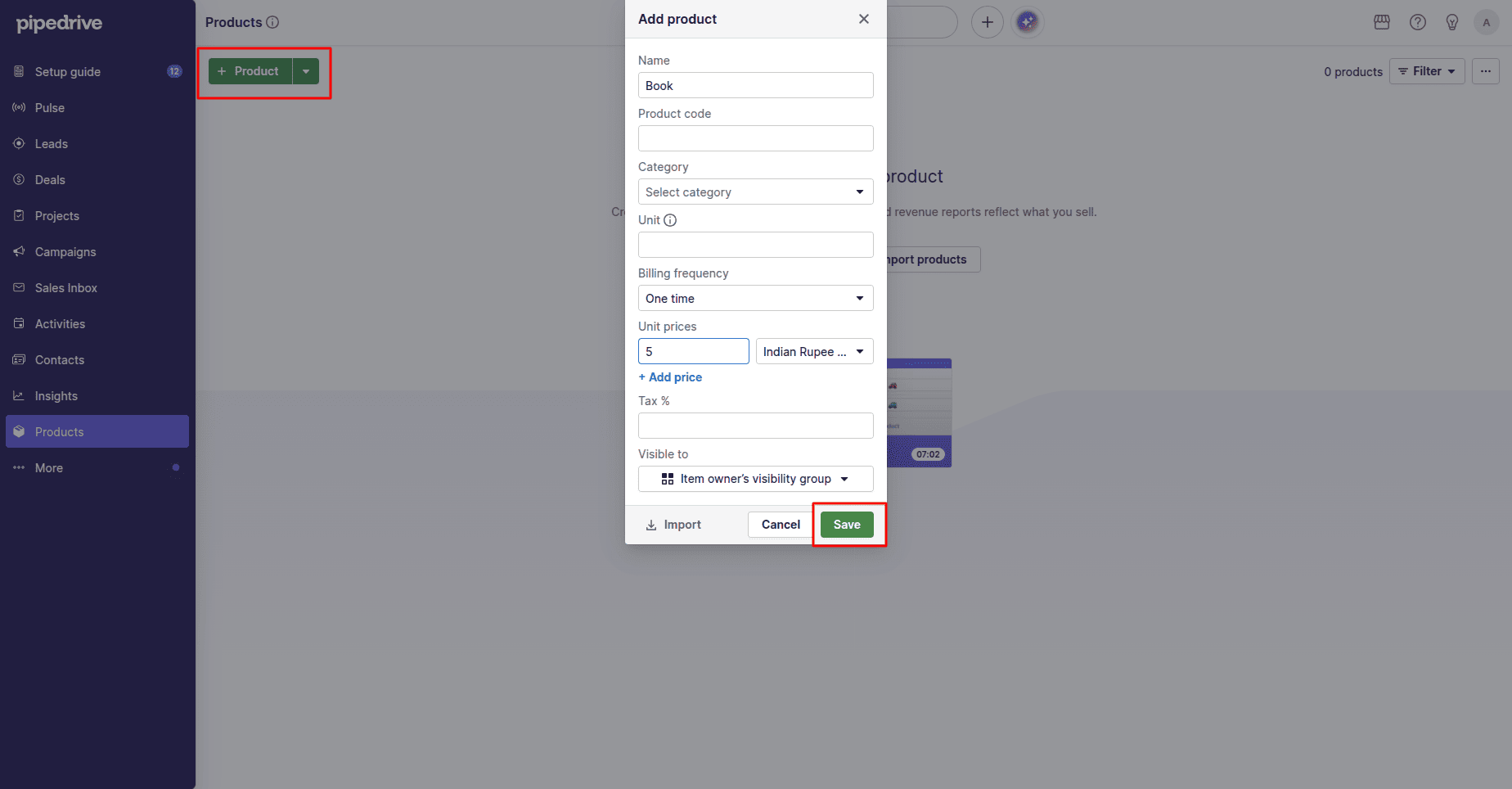
Create a Product in Pipedrive
Go to the Products module.
Select + Product, provide the necessary product details, and click Save to add the new product.
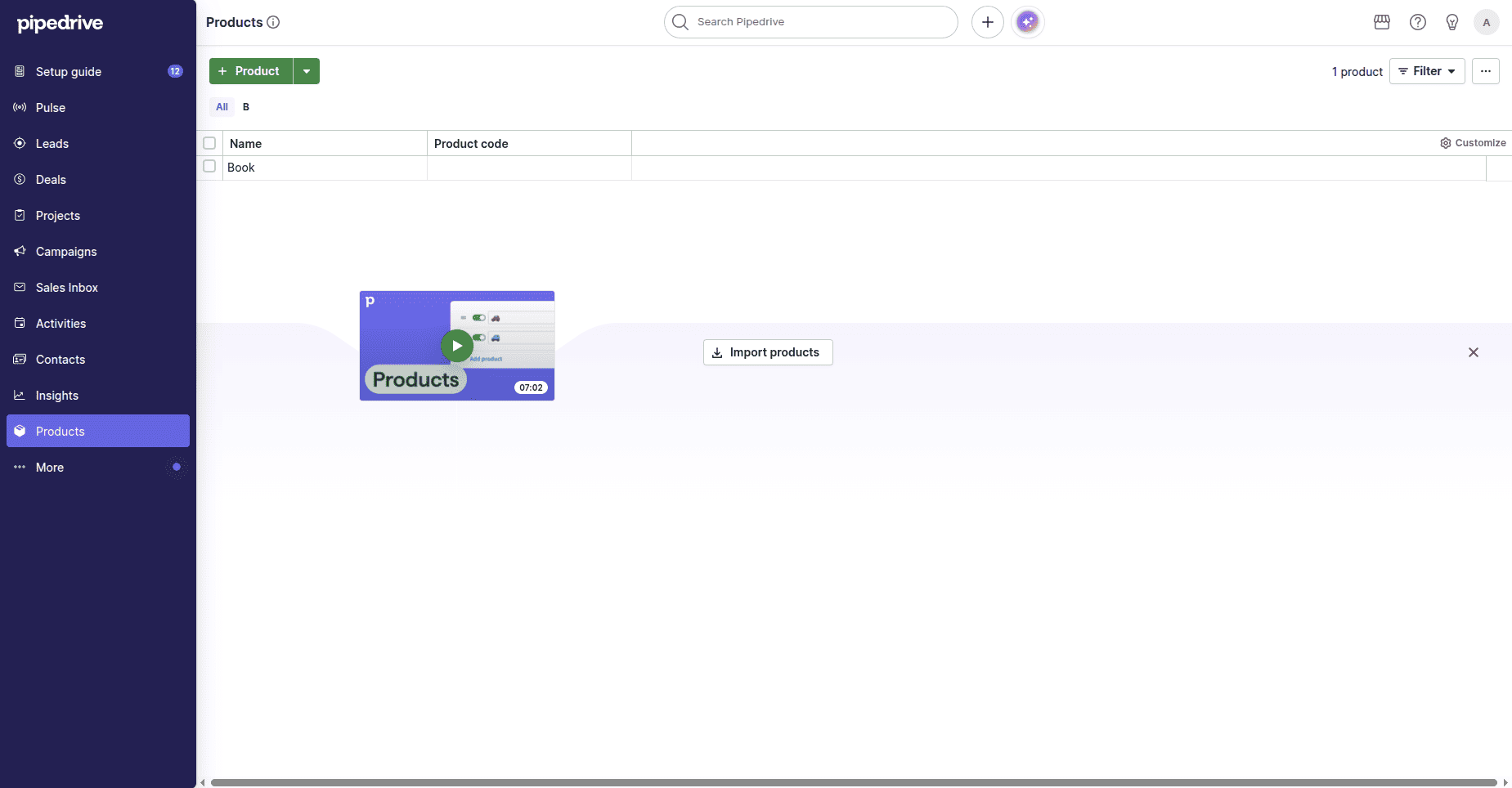
After creating, the newly created product appears in the Products list.
Configure Odoo & Synchronize Products
Return to Odoo.
Add the copied API token in the Token section in the Pipedrive configuration tab.
Click on Sync Products.
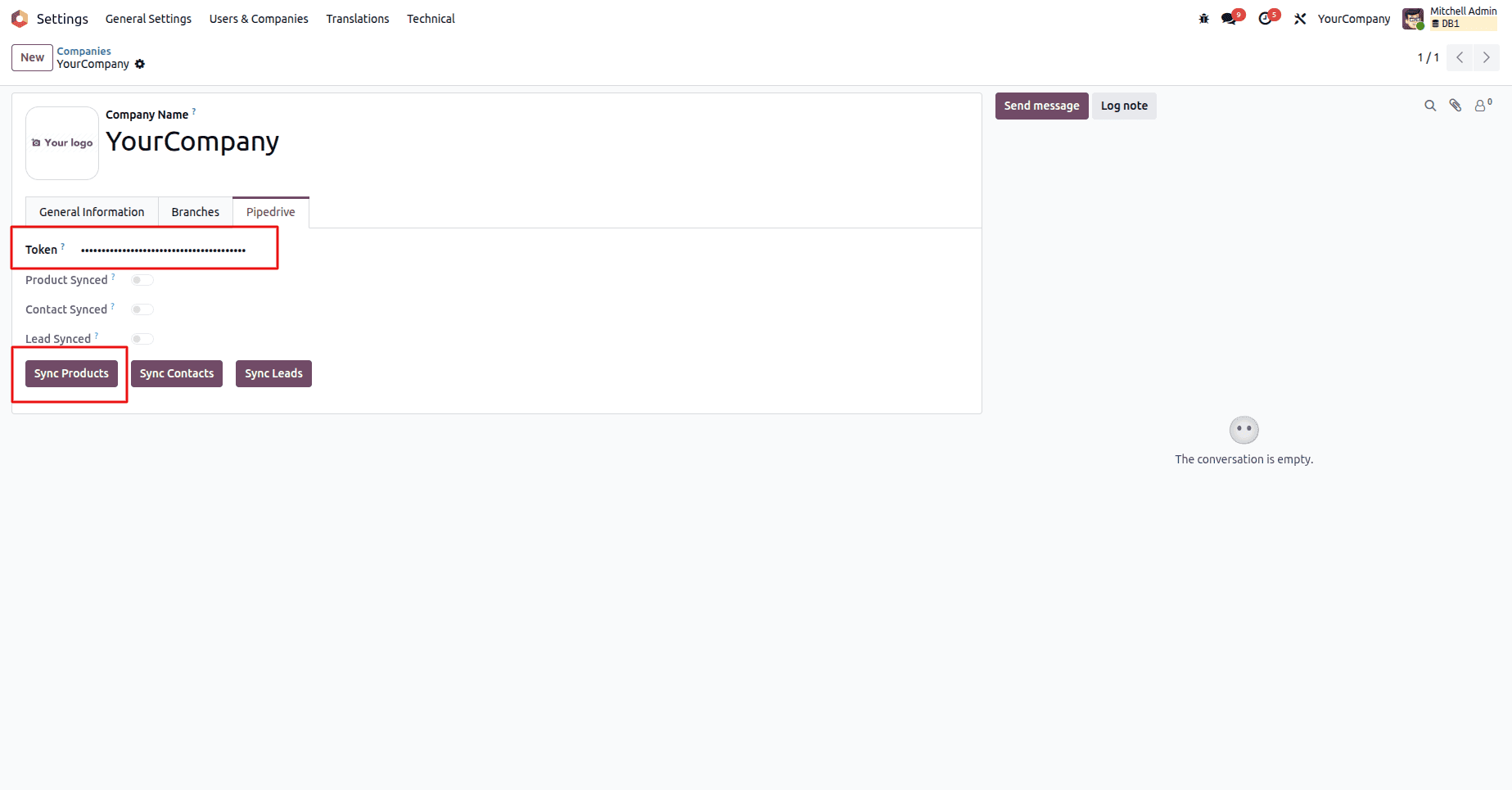
All the products from Pipedrive will be imported to Odoo instantly, which can be used by Odoo.
Verify Imported Product
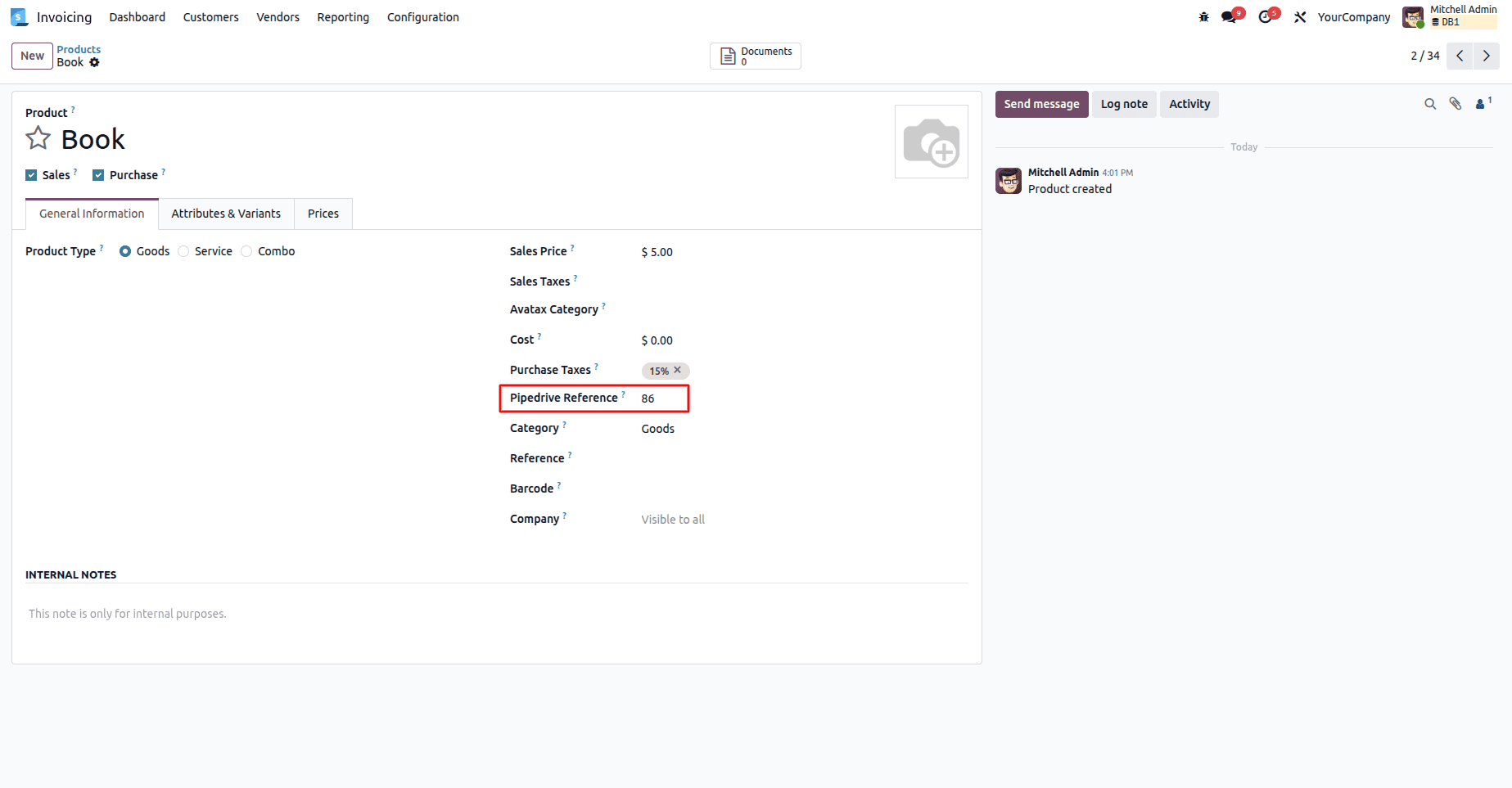
Go to: Invoicing > Products
Open the imported product.
The product record consists of the Pipedrive Reference field, which shows the record came from Pipedrive.
Verify Product Updates
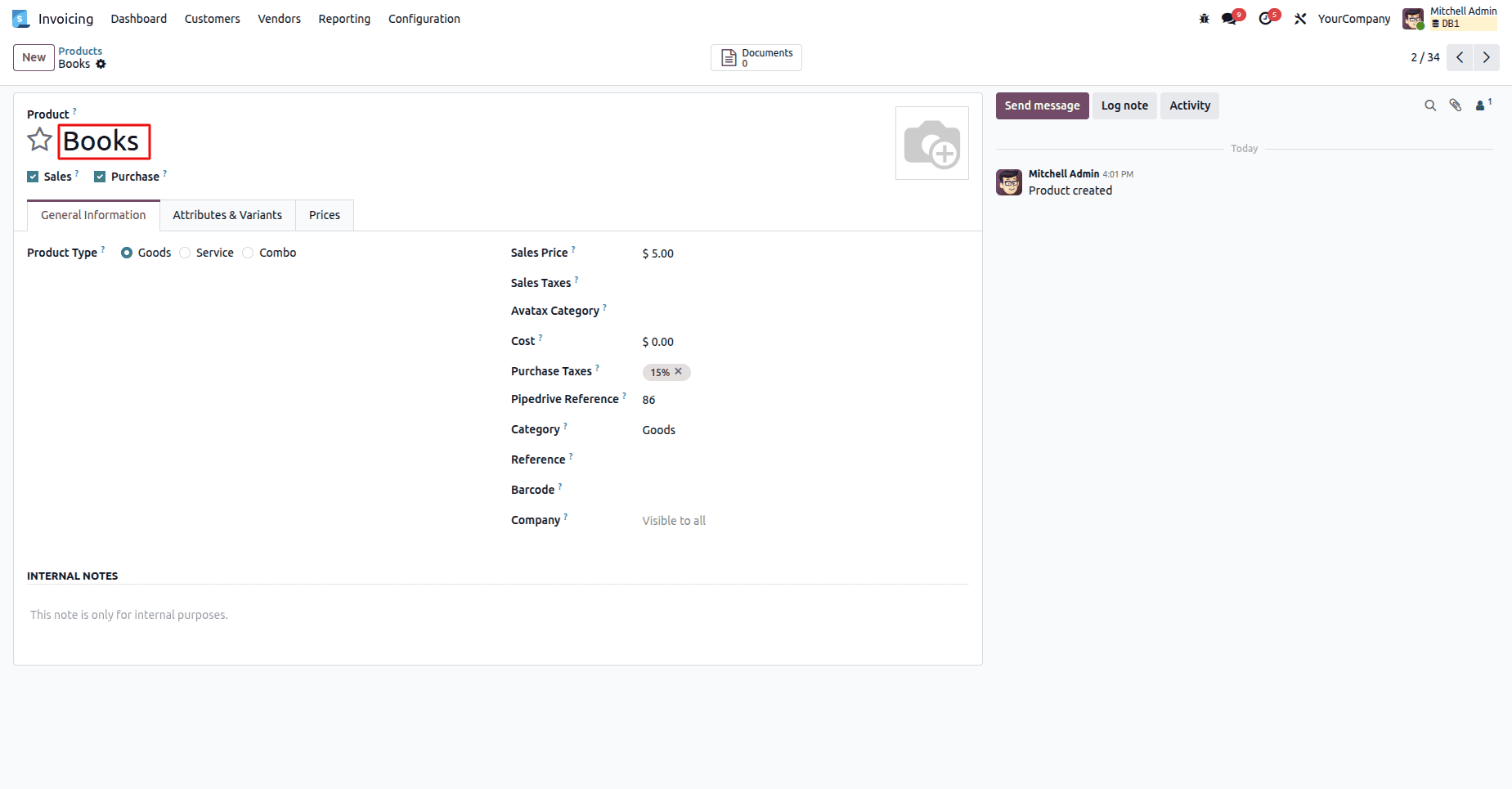
After synchronization of the product, make changes to the product record in Odoo. For example, change the Product Name and save.
Update the Product in Odoo
Go to: Invoicing > Products
Edit the product record that has been synchronized, change the Product Name, and click Save.
Verify the Updated Product in Pipedrive
Go to: Pipedrive > Products
Find the same product record in Products. The updated product name will be reflected in the corresponding Pipedrive record.
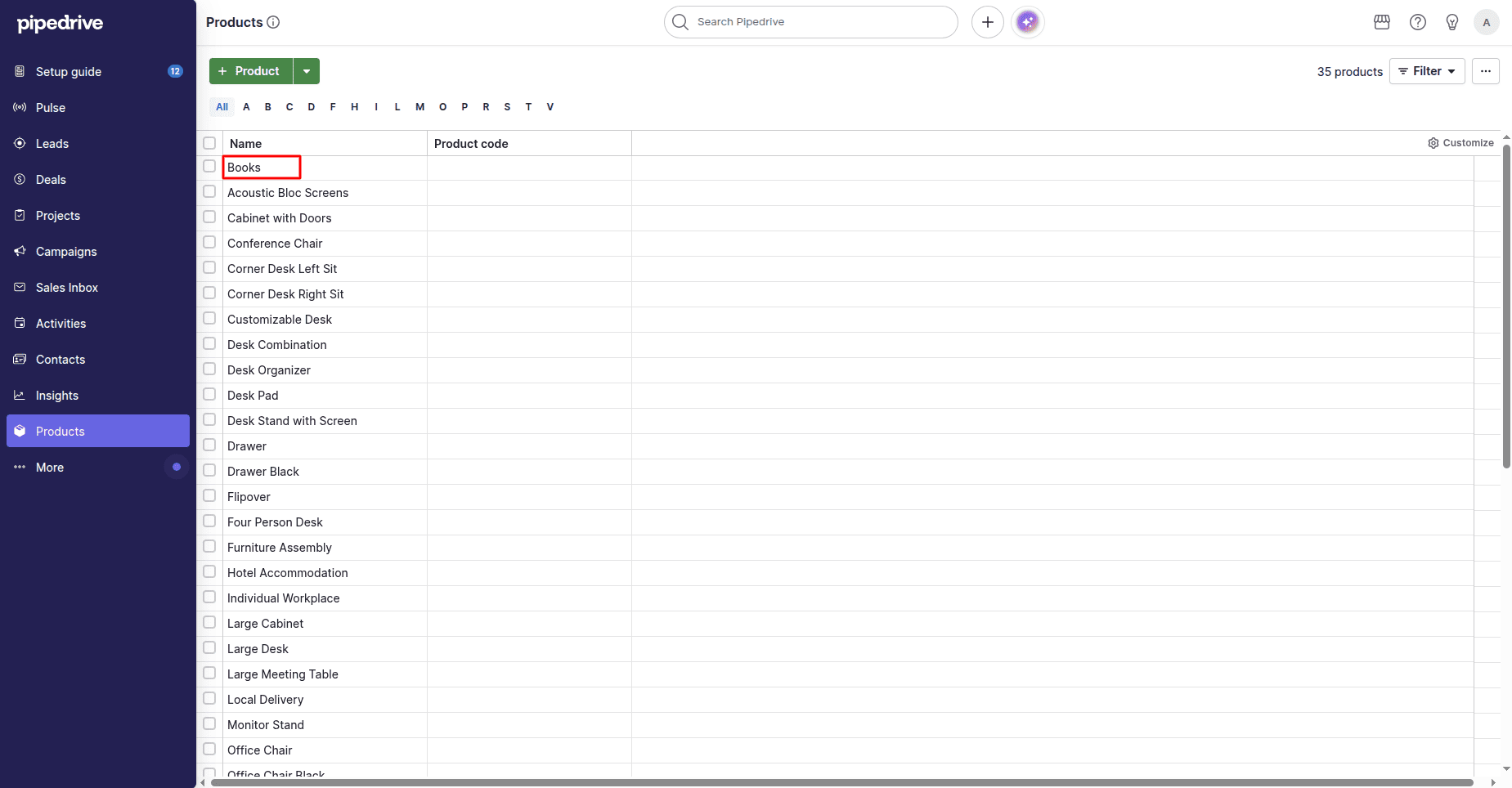
Thus, it has been verified that product updates get synchronized successfully from Odoo to Pipedrive.
Synchronize Contacts
With the Odoo Pipedrive Connector, one can import contacts from Pipedrive into Odoo to keep their customer data consistent in both applications. After configuring the connector with the Pipedrive API Token, contacts can be synchronized with just a single click.
Create a Contact in Pipedrive
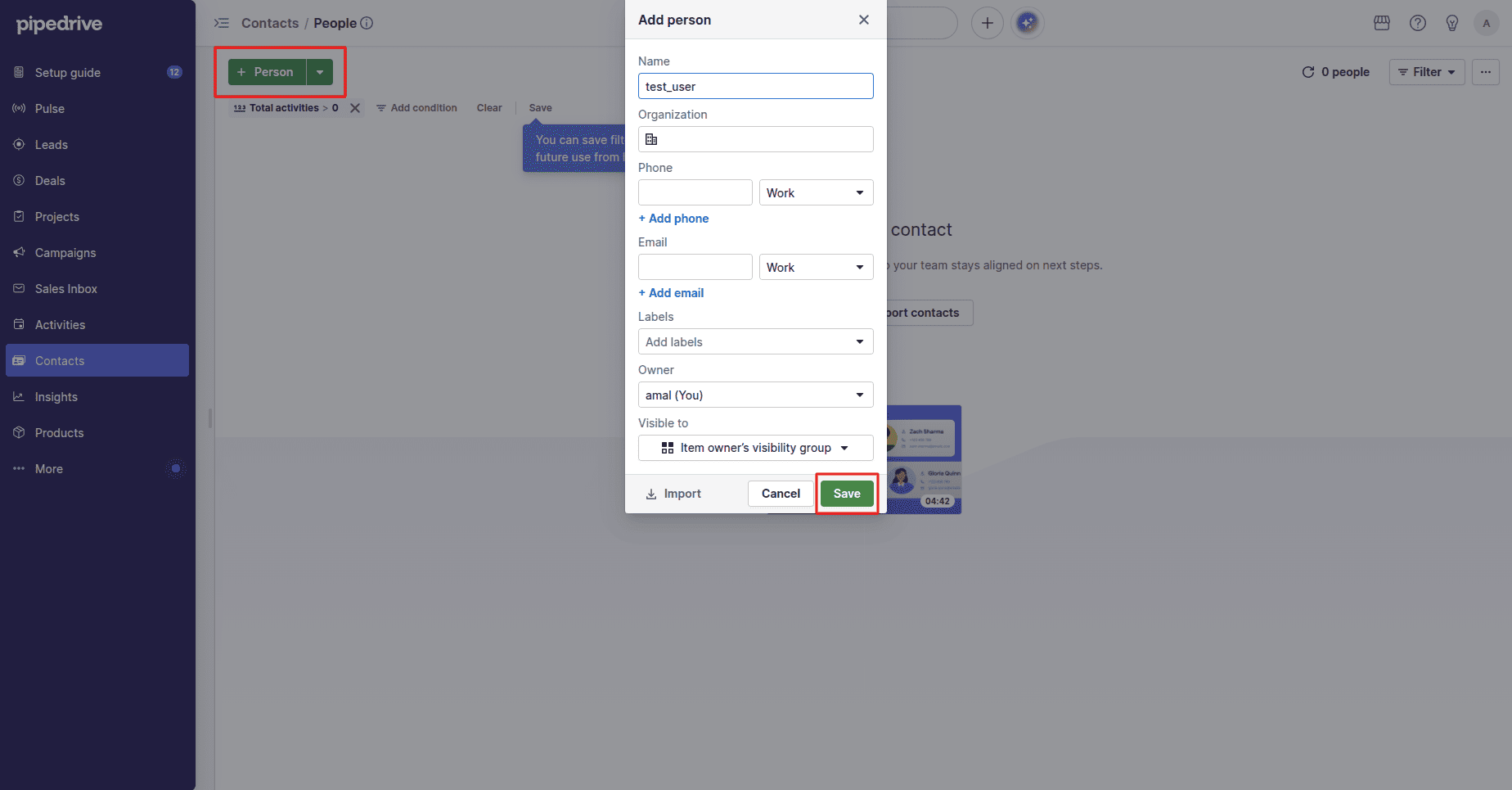
Navigate to: Contacts > People
Click + Person and enter the required contact information, and click Save to create the contact.
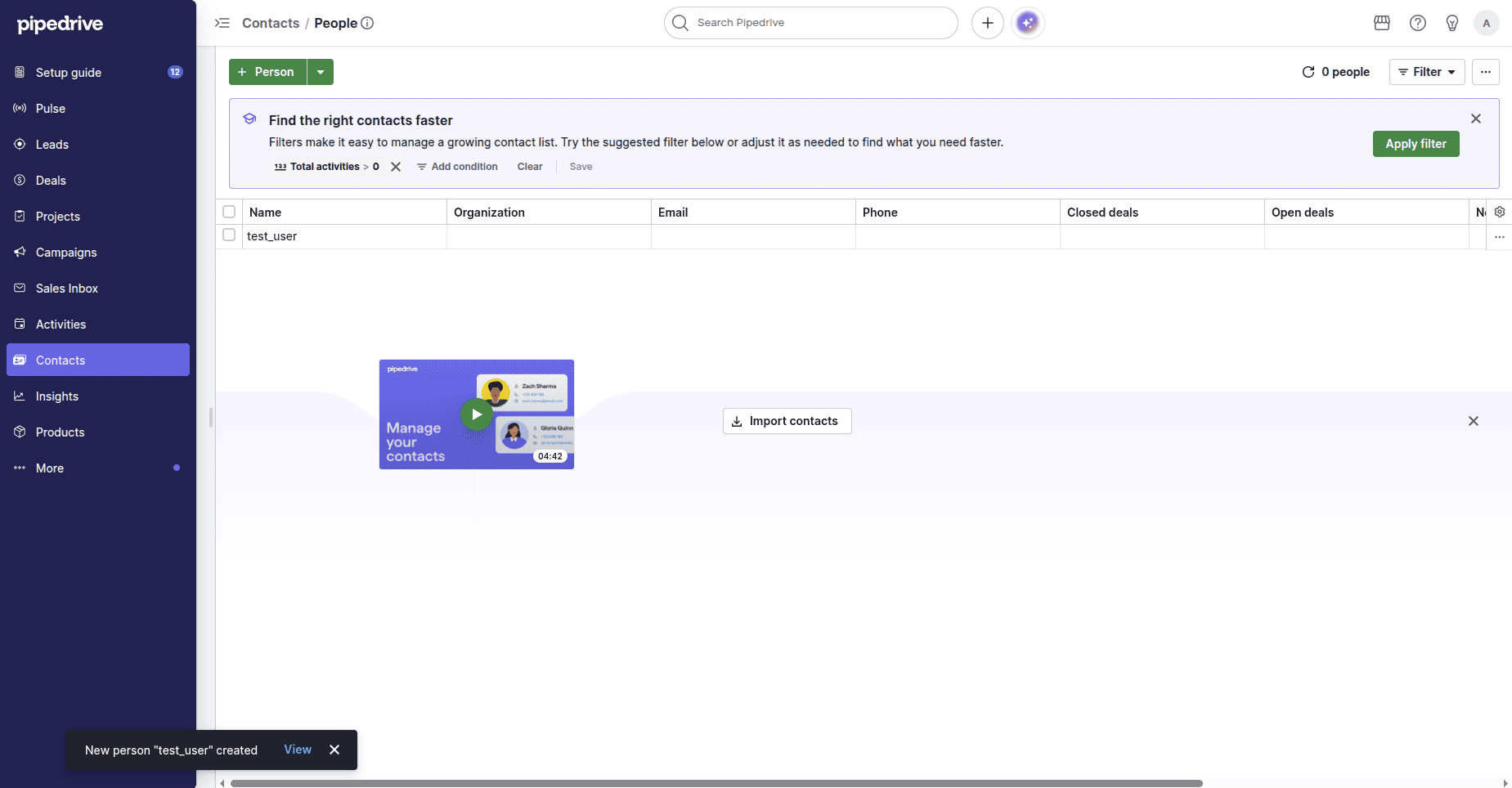
Verify the Created Contact
Once saved, the contact appears in the People list in Pipedrive.
Thus, it proves that the contact has been created and can be synchronized.
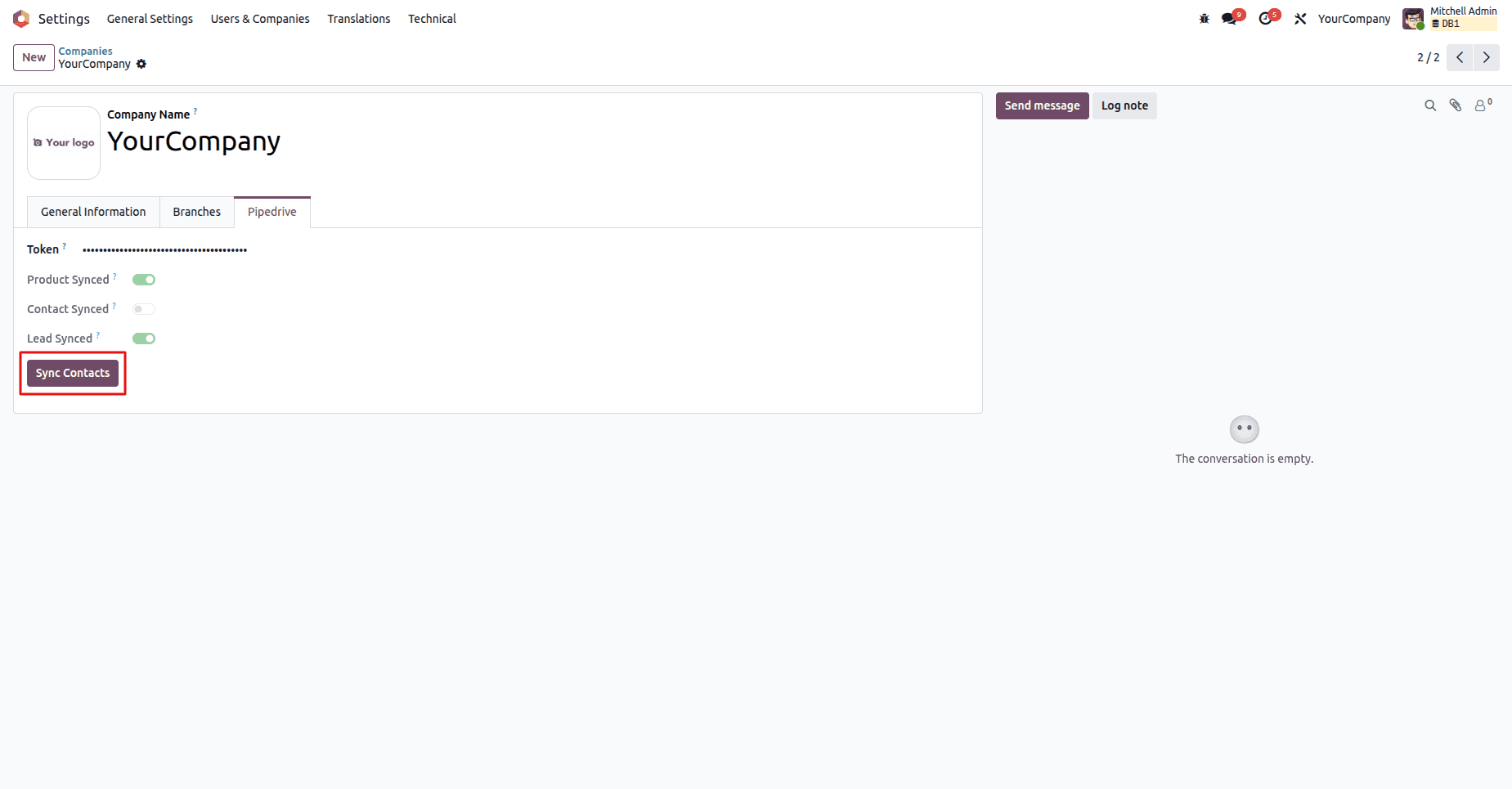
Synchronize Contacts in Odoo
Back to Odoo and go to: Settings > Companies > Your Company > Pipedrive
Click on Sync Contacts.
The connector will synchronize contacts in Pipedrive and Odoo.
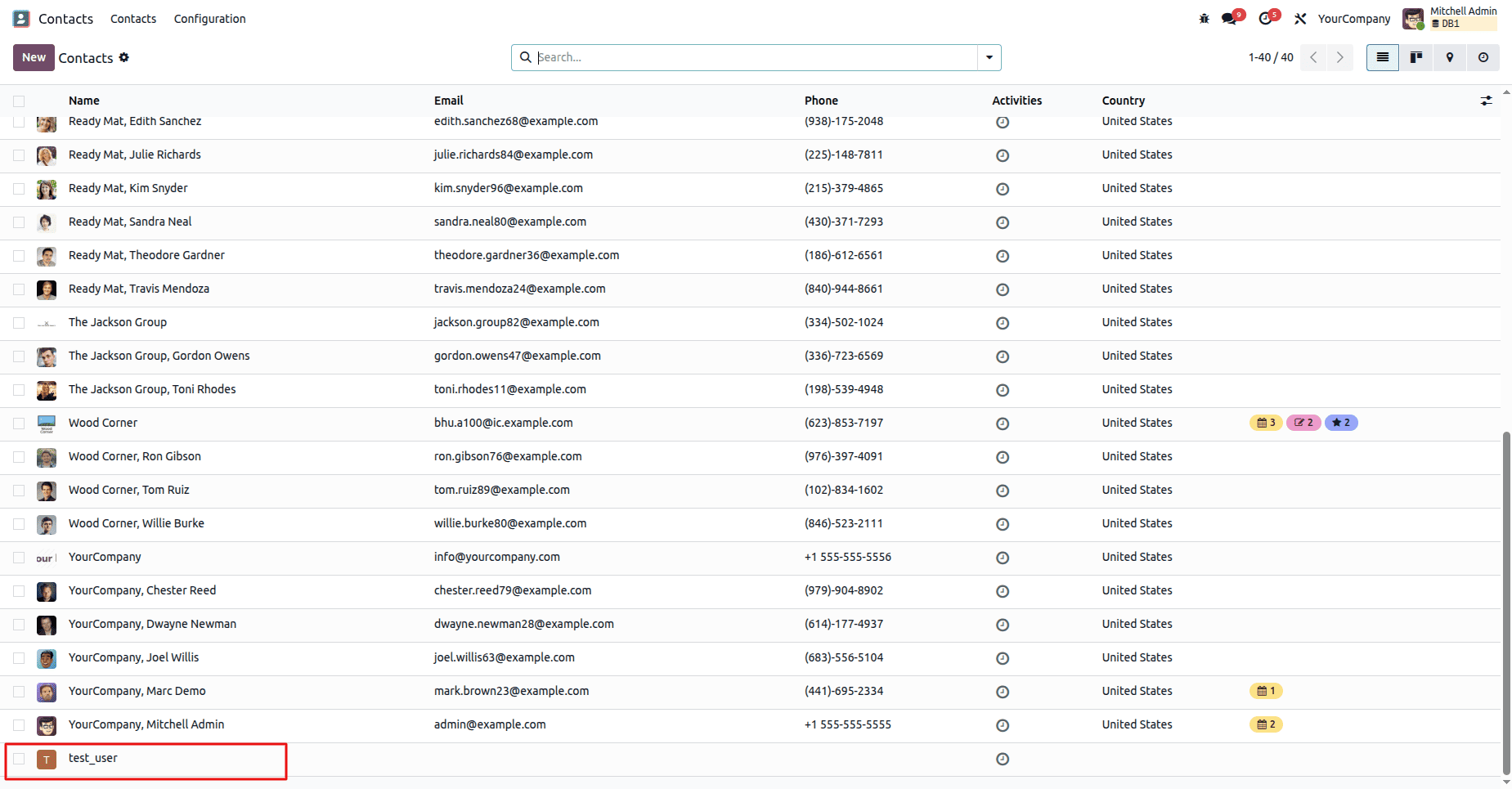
Verify Imported Contacts
Go to: Contacts
The synchronized contact now appears in the Contacts list.
Verify Contact Synchronization
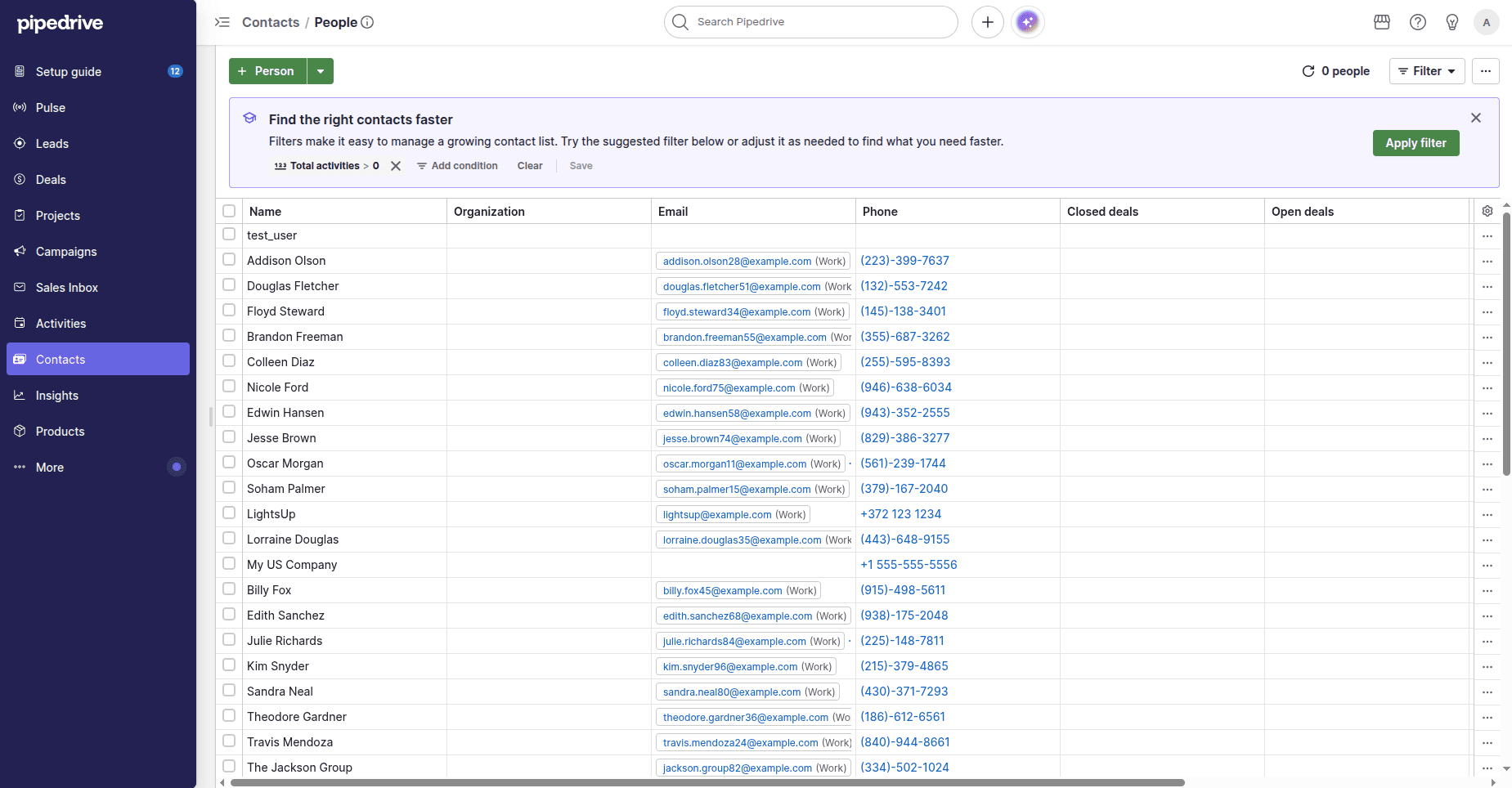
Return to Pipedrive > Contacts > People.
The synchronized Contacts are still available in the People, which shows that the connection has been established to import the contact information in Odoo with consistency in both systems.
Update the Contact in Odoo
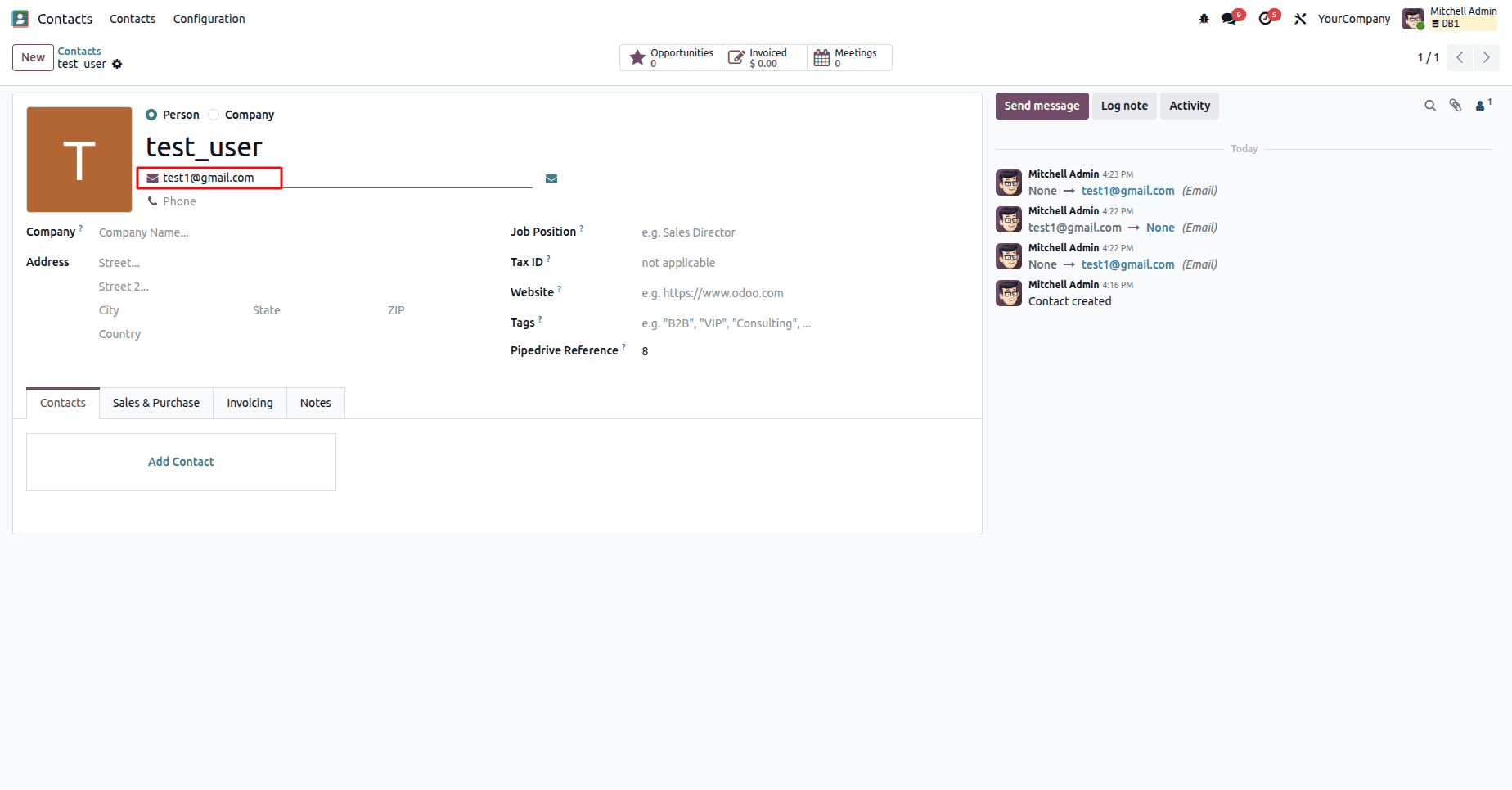
Change the contact information in Odoo; for instance, change the email and click on the save button.
The change is then reflected in Pipedrive, where you will find both systems having the most updated contact information.
Verify the Updated Contact in Pipedrive
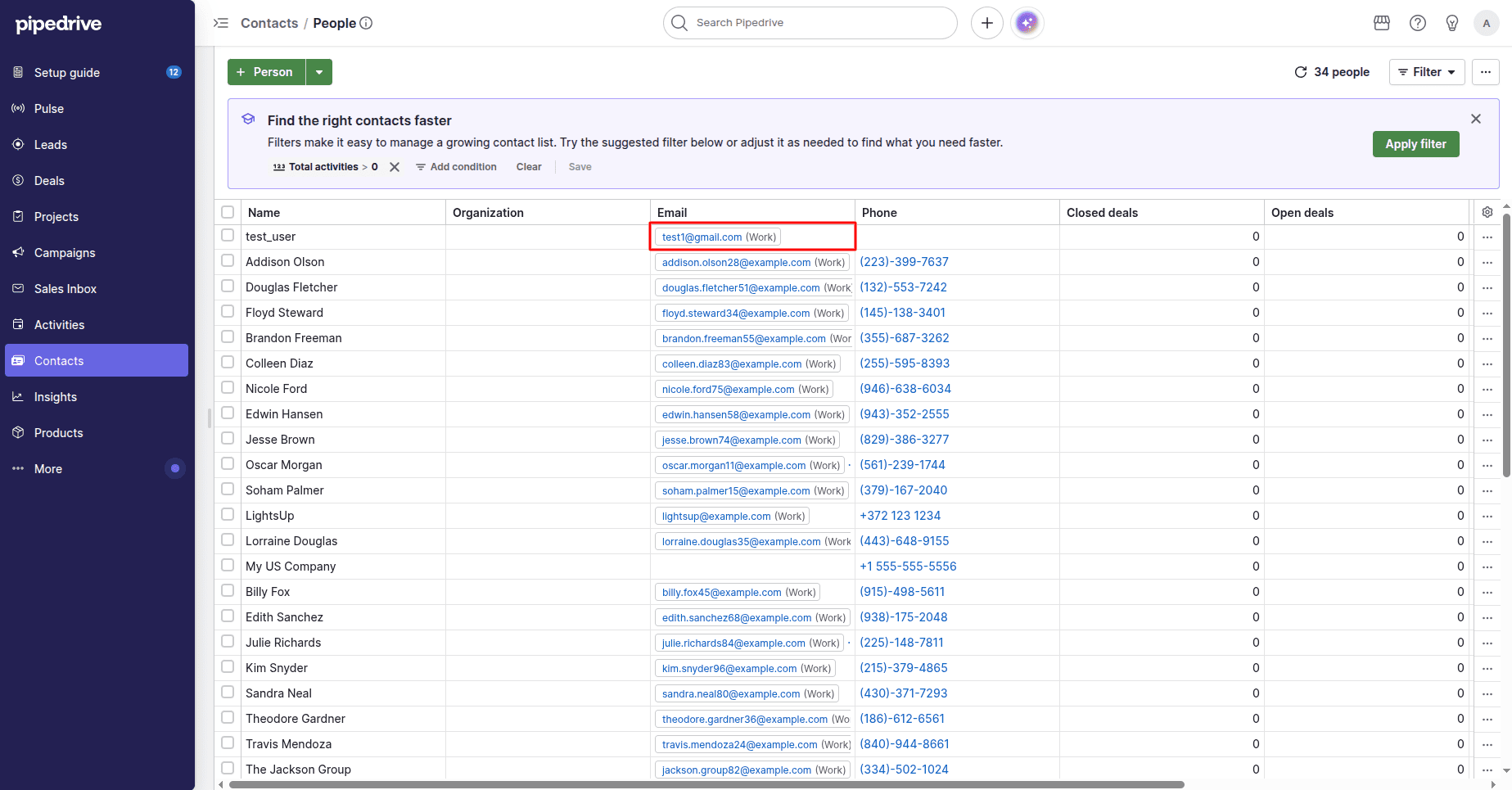
Go back to Pipedrive > Contacts > People
Find the updated contact in the contact list with the changed email address.
This step proves that the synchronization between Odoo and Pipedrive is functioning well and both systems are up-to-date.
Synchronize Leads
The Odoo Pipedrive Connector is the solution for synchronizing leads from Pipedrive to Odoo CRM. After configuring the connector with your Pipedrive API Token, you can import the leads just with one click, thus making sure that your sales pipeline is consistent in both applications.
Create a Lead in Pipedrive
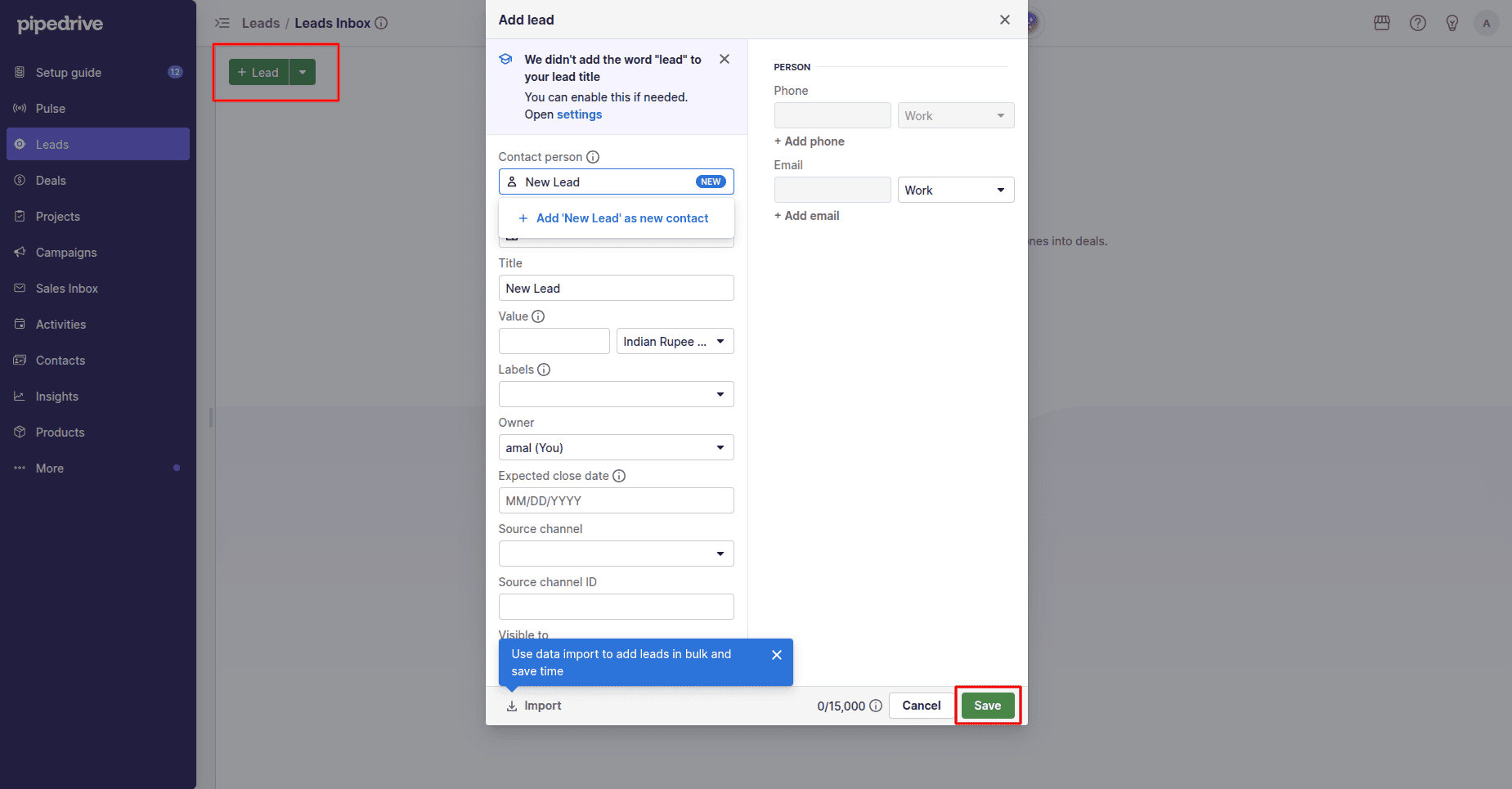
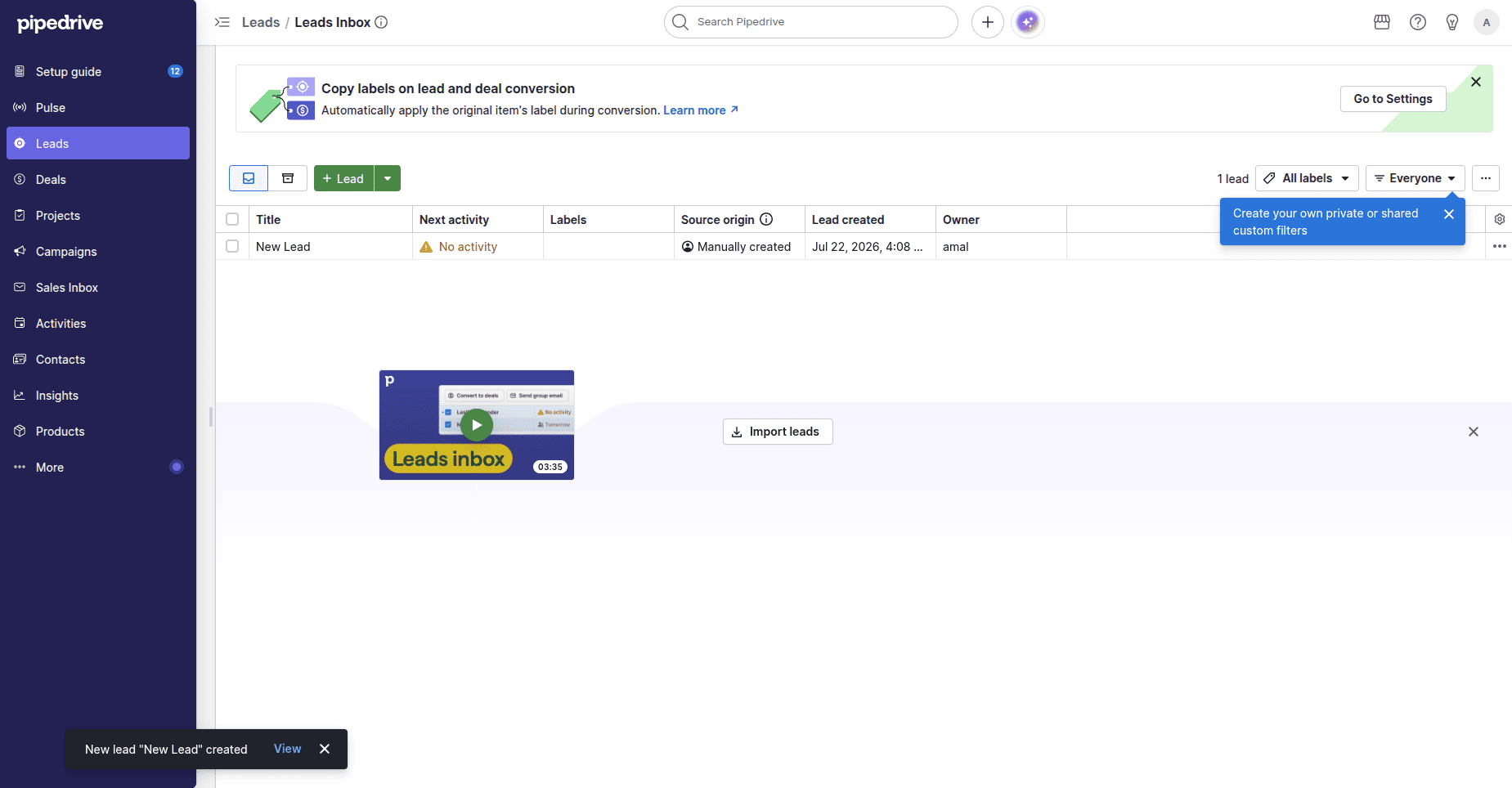
Navigate to: Leads > Leads Inbox
Click on + Lead.
Give all the necessary information and click Save to create the lead.
Verify the Created Lead
After completing the save process, the created lead can be seen under the Leads inbox in Pipedrive.
This means the process of creating a lead has been completed and now it is ready for synchronization.
Synchronize Leads in Odoo
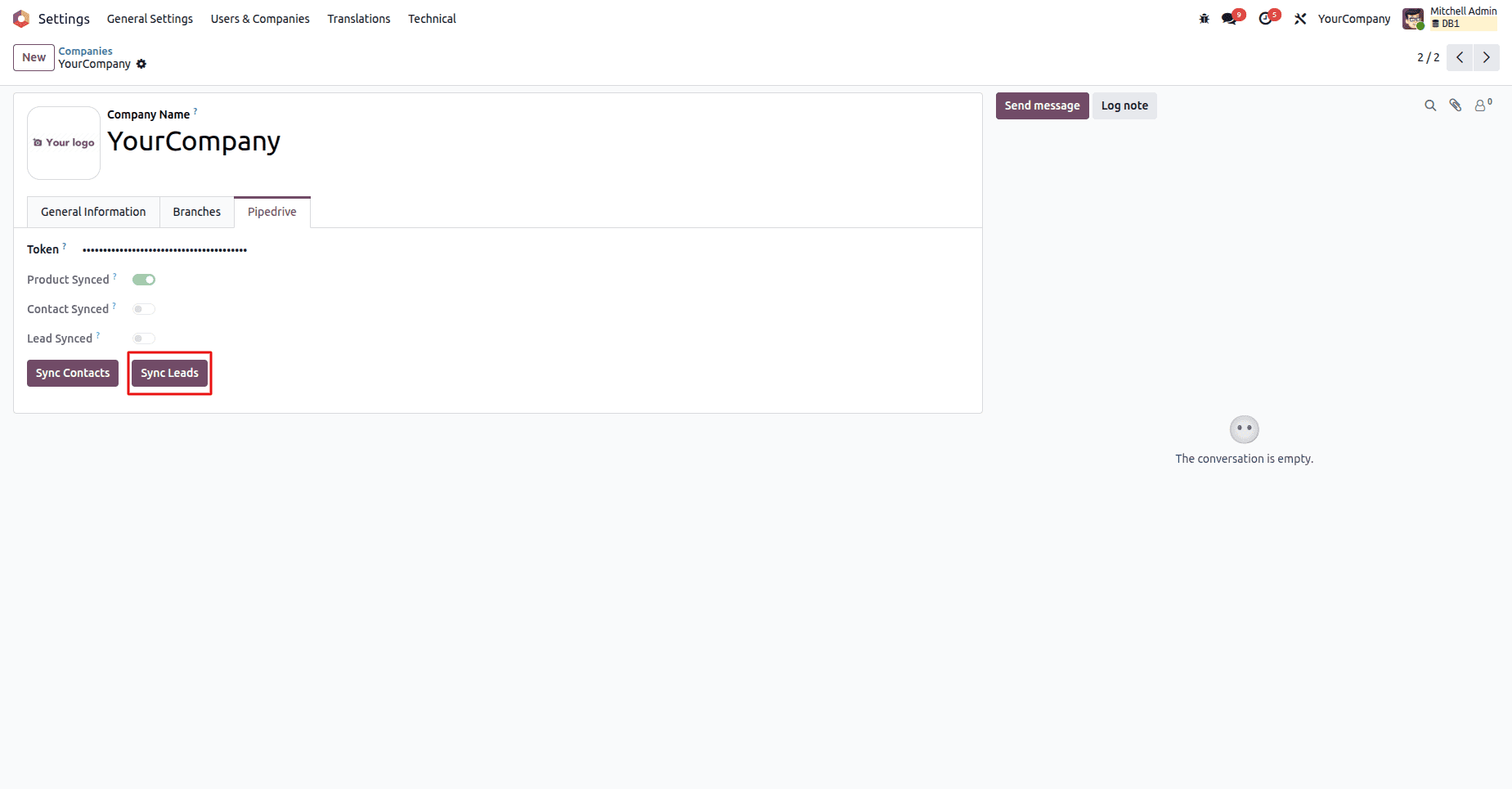
Return to Odoo and Go to: Settings > Companies > Your Company > Pipedrive
Click Sync Leads.
The connector synchronizes the leads from Pipedrive to Odoo CRM and vice versa.
Verify Imported Leads
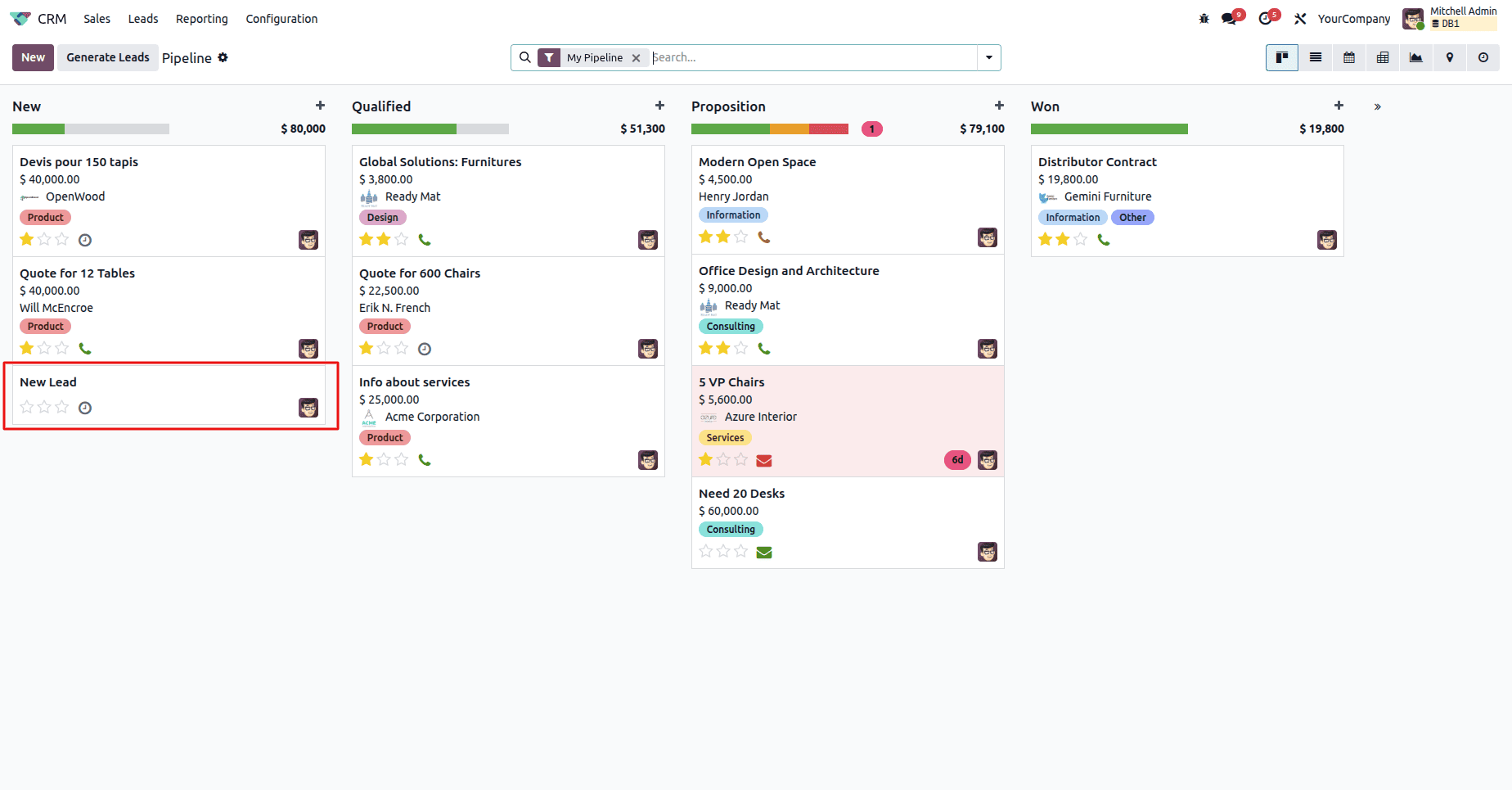
Navigate to: CRM > Pipeline
The imported lead will appear in the CRM pipeline.
This proves the successful synchronization of the lead in Odoo from Pipedrive.
Verify Lead Synchronization
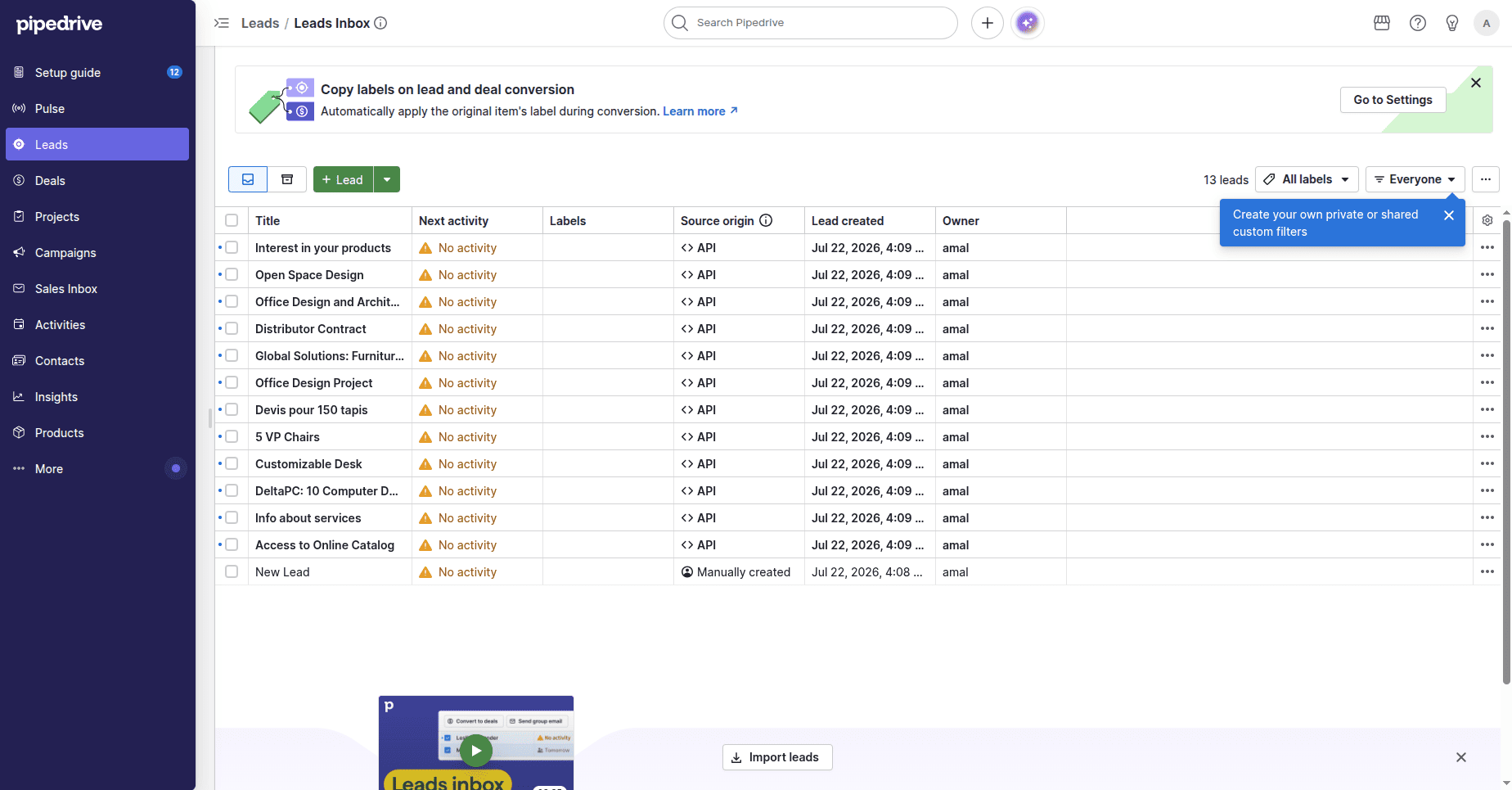
Return to Pipedrive > Leads > Leads Inbox.
The synced leads can be seen in the Leads Inbox, thus showing that the connector has managed to import the lead data to Odoo while at the same time keeping the consistency of both systems.
Odoo Pipedrive Connector allows businesses to efficiently synchronize products, contacts, and leads between Pipedrive and Odoo 19 through the use of a Pipedrive API Token. This will allow companies to minimize the process of manually entering data, duplicate records, and maintain consistency within the CRM and ERP system.
Whatever the type of data that you wish to synchronize, this tool will help to eliminate the need for manually entering data, keep information consistent in both systems, and streamline your sales and business processes.
To read more about How to Connect Hardware Devices to Odoo 19 Using IoT, refer to our blog How to Connect Hardware Devices to Odoo 19 Using IoT.